Zonda 3 - Tablet Primux - Free user manual and instructions
Find the device manual for free Zonda 3 Primux in PDF.


| Product Type | Tablet |
| Brand | Primux |
| Model | Zonda 3 |
| Dimensions | Approx. 240 x 160 x 9 mm |
| Weight | Approx. 500 g |
| Display | 10.1-inch IPS LCD |
| Display Resolution | 1280 x 800 pixels |
| Operating System | Android 10 |
| Processor | Quad-core 1.3 GHz |
| RAM | 2 GB |
| Internal Storage | 16 GB |
| Expandable Storage | microSD up to 128 GB |
| Rear Camera | 5 MP |
| Front Camera | 2 MP |
| Battery Capacity | 4000 mAh |
| Charging | 5V / 2A via microUSB |
| Connectivity | Wi-Fi 802.11 b/g/n, Bluetooth 4.0 |
| Audio | 3.5 mm headphone jack, built-in speaker |
| Sensors | G-sensor |
| Box Contents | Tablet, USB cable, charger, user manual |
Frequently Asked Questions - Zonda 3 Primux
User questions about Zonda 3 Primux
0 question about this device. Answer the ones you know or ask your own.
Ask a new question about this device
Download the instructions for your Tablet in PDF format for free! Find your manual Zonda 3 - Primux and take your electronic device back in hand. On this page are published all the documents necessary for the use of your device. Zonda 3 by Primux.
USER MANUAL Zonda 3 Primux
3. Tarjeta SD
8. Música
10. Video
12. Buscador
Visite páginas Web
13. Gmail
17. Google Play
USER MANUAL
ENGLISH
Parts:List:

1 Power button 6 Volume down
2 Headphone Socket 7 ● micro SD CARD
3 ● micro USB Slot 8 Reset
4 DC input scoket 9 Front Camer
5 Volume up
General: Safety: Instructions:
Read this manual thoroughly before first use and keep it in a safe place for future reference, along with the completed warranty card, purchase receipt and carton. The safety precautions enclosed herein reduce the risk of fire, electric shock and injury when correctly adhered to.
- Environment: Do not use this product where it is excessively hot, cold, dusty or humid, or where it is exposed to strong magnetic fields or long periods of sunshine.
- Water: Do not expose this device to water; do not use it where it can fall into water (such as near a pool, pond, bath etc.).
- Handling: Do not drop this product or shake it vigorously to avoid damaging it.
• Volume: Always select the appropriate volume when using the music or video function. The volume should not be too loud when using earphones. If the sound distorts, turn down the volume or turn off the player. - Battery: Please note that the battery can only reach top performance level after it has been fully charged and discharged two or three times.
- Back-up: To avoid loss of data, we recommend always backing up any important information, especially before upgrading the hardware. We assume no liability for any damage and/or data loss due to lack of back-up.
- Accessories: Only use the device with the battery and power adaptor supplied. Use of other accessories not recommended in this manual may cause damage to the unit and will void your warranty.
- Usage: Only operate the Tablet according to the instructions in this manual. We assume no responsibility for faulty use or inappropriate handling.
- Usage: The equipment is not intended for use by persons (including children) with reduced physical, sensory or mental capabilities, or lack of experience and knowledge, unless they have been given supervision or instruction concerning use of the equipment by a person responsible for their safety.
- Children: Supervise young children to ensure they do not play with the device. Close supervision is necessary when the device is used by or near children.
- Specifications are subject to change and improvement without notice.
- Cleaning: Clean the housing of the device lightly with a dry or moist cotton cloth. Do not use alcohol, thinners, benzene or any other chemical cleaner.
- Repair: This device is a high precision electronic product. It contains no user-serviceable parts inside. Do not try to dismantle, modify or repair it yourself.
- Damage: In case of damage, contact the after sales support line for advice.
General Safety Instructions (Cont.)
- Disposal: When discarding this device, observe local regulations and dispose of it appropriately for recycling. Contact your local authorities for advice on facilities.
Maintenance
- Keep the device dry. Do not let the device, battery or charger come into contact with water vapour or operate it with wet hands. Contact with water will cause the device to short-circuit, corrode or cause electric shock.
- Do not shock the equipment, batteries and charger, which may cause device or battery failure, fire or explosion.
- Do not expose the device to very low or very high temperatures, which may cause device or battery failure, fire or explosion.
- Do not disassemble the device and accessories. Disassembly by unauthorised persons will void the warranty.
Safety
- Do not use the device while driving, so as not to impede safe driving regulations.
- In health facilities, observe the relevant rules or regulations. Turn off the Tablet in the vicinity of medical devices.
- Turn off the Tablet when boarding an airplane in order to avoid interference with aircraft radio signals.
- Stay away from magnetic equipment; Tablet radiation may erase the information stored on the device.
•Abbreviations/terminology
| Wi-Fi Wireless Fidelity (based on IEEE 802.11b/g/n) |
| SD Card Trans Flash (also called ●icro SD) card |
Index
- Introducing your Tablet 26
- Battery 26
- SD card 27
- Home screen and Application list 28
- HD●I&Host 29
- Language & Input 29
- ●anage Apps .... 30
- • music 31
- Photo 32
- Video 32
- Wi-Fi 33
- Browser 33
- Gmail 34
- •aps 35
- Google Play 37
- Recorder (sound recording and playback) 37
- Camera 38
- Troubleshooting 39
- Specifications 39
1. Introducing your Tablet
Features9
| Power key Press and hold | to power on/off the Tablet.Short press to put the Tablet into sleep mode. Press power key will awaken your Tablet. |
| Volume upkey Press to increase the volume. | |
| Volume down key Press to reduce the volume. | |
| Back virtual key Touch to go back to the previous screen or to dismiss a dialog box or menu. | |
| Home virtual key Touch to return to the Home screen from anywhere. | |
| Daemon virtual key Touch to show the applications run in background. | |
| Unlock virtual key Slide the locked icon to the unlocked icon to unlock the screen. | |
| App list virtual key Touch to enter the application program interface list. | |
2. Battery
You can charge your Tablet via charger. Tablet has an internal charging battery. We suggest to charge up the battery when the battery power is low.
Charge via the charger
- Plug in the Power adapter to Power adaptor port of device, Charging procedure will be completed once the battery symbol on the screen turns green
- During battery charging, you can operate with your Tablet. The charging time will be longer when operating and charging at same time.
Battery Status view
- Touch settings.
- Touch Battery.

3. SD card
Your device comes with a removable ●icroSD memory card where you can store multimedia files, such as video clips, music tracks, sound files, and images.
Copy files to the memory card
You can transfer files such as music and pictures between your Tablet and your computer .To view files on your Tablet, just launch the appropriate application and navigate to the file within that application.
- Connect your Tablet to your computer using the USBcable.
- On the home screen, press the ●enu key.
- Touch Notifications, touch USB connected.
- Touch Turn on USB storage.
- On your computer, go to the Removable Disk folder.
- Locate the files on the computer that you want to copy to your Tablet
- Copy and paste files to the desired location in the Removable Diskfolder.
Delete files on the memory card
- Locate the file that you want to delete.
- Touch and hold the file name.
- Touch Delete.
View available memory space
Touch settings, Touch storage to view available memory space for your memory card and Tablet.

6. Home screen and Application list
The Home screen is your starting point for using all the applications on your Tablet .You can customize your Home screen to display applications, shortcuts, and widgets. To open the application list, tap on the Home screen.
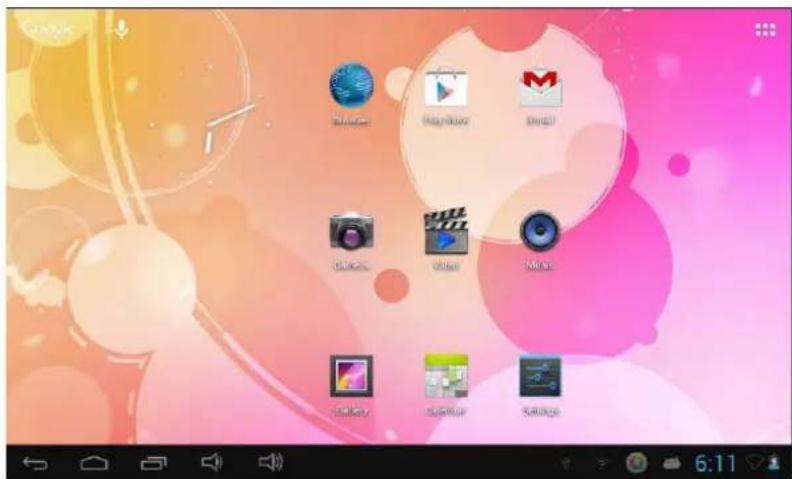
Notification and connection icons
Along the bottom of your screen is the status bar. On the left side, icons will appear, notify you of new messages, upcoming calendar events, alarms, and more. On the right side of the status bar, you will see the connection status icons.
Read notifications
When you see a notification in the status bar, tap the bar and slide your finger down the screen to open the list of notifications. To open the notification, tap the item. To clear notifications, Touch Clear at the top of the notification window.

To close the notification window, slide your finger up the screen.
 | New e-mail message |  | Downloading |
 | Song is playing |  | Alarm is set |
| KKAK | Battery change indicator |  | Wi-Fi service connected |
 | No SD Card | [w6D8] | Battery is charging |
 | USB connected |  | Wireless services are off |
 | Volume reduction |  | Volume is increase |
7. HDMI&Host
Using the HDMI output
Connect your Tablet to your display using the HD●I cable directly.
USB Host
USB Host supports USB-mouse, USB-keyboard, 3G ●odem and other peripherals
8. Language & Input
Language
You can setting language for Tablet to setting
- Touch settings, touch language & keyboard.
- Touch Select language.
- Touch the language that you want to.
Input
You can setting keyboard for Tablet setting
- Touch settings, touch language & keyboard.
- Touch the keyboard that you want to use.

You can install other keyboard for Tablet
7. Manage Apps
Allow install of non-Market application
- Touch settings
- Touch applications
- Touch unknown sources
Uninstall Application
- Touch settings.
- Touch Apps.
- Touch ALL.
- Touch the application that you want to
- Touch Disable.
6.Touch OK.

8. Music
Your music is organized into five categories: Artists, Albums, Songs, Playlists and Now playing. Select a category to view the lists within each. Once in a category, keep selecting until you reach the music you want to play. For example, if you select the Artists category, you will see a list of artists in A-Z order, the list opens to display that artist's albums. Select an album, and the album's song list displays. Your Tablet will play the following music file formats: ●p3, W●A, OGG, WAV and ●IDI change to WAV.

Access and play music
- On the home screen touch the Application button.
- Touch ● music, Touch Songs. You can also touch Artists, Albums, Playlists or Now Playing
- Touch the song to play.
Add songs to new play list
- On the home screen, touch the Application button.
- Touch • music. Touch Songs.
- Touch and hold the song that you want to add to the play list.
- Touch Add to playlist.
- Touch New.
- Type the name for the play list.
- Touch Save.
Delete play lists
- On the home screen, touch the Application button.
- Touch • music, touch Playlist.
- Touch and hold the play list you want to delete.
- Touch Delete
9. Photo
Your Tablet can play the photo file formats as follows: JPG、B●P、PNG、GIF. You can keep these files in SD card.
Slideshow the photos:
- Copy the photo to SD card.
- On the home screen touch the Application button.
- Touch Photo Gallery.
- Touch the folder of photos. Touch the photo.
- Touch Slideshow.

10. Video
Your Tablet can play the video file formats as follows: R●VB, R●, AVI, ●P4 on SD card.
Play a video:
- Copy the video to SD card
- On the home screen touch the Application button.
- Touch UT Play.
- Touch the video.
11. Wi-Fi
Your Tablet can connect to Wi-Fi networks. To connect
-
Touch settings, touch wireless 5 networks.
-
Touch Wi-Fi to turn it on. Touch Wi-Fi settings. Your Tablet scans for available Wi-Fi networks.
-
Touch the Wi-Fi network that you want to connect to.
-
Touch Connect. Some network may need you input the password.

12. Browser
Go to your home page
The Browser always opens to the last Web page you were viewing. First time you enter the Browser after powering on, your home page will display.
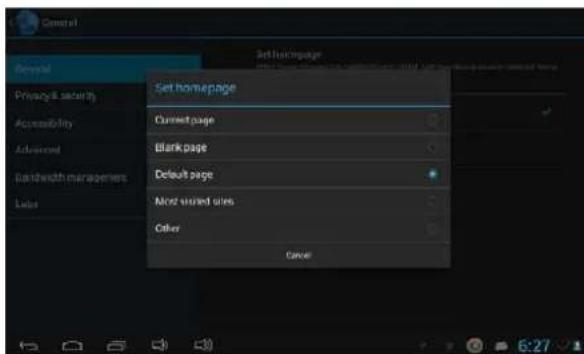
Change your home page
-
Touch Browser.
-
Press the ●enu key.
-
Touch more, touch settings, touch Set home page.
-
Type the site address and touch OK
Visit Web pages
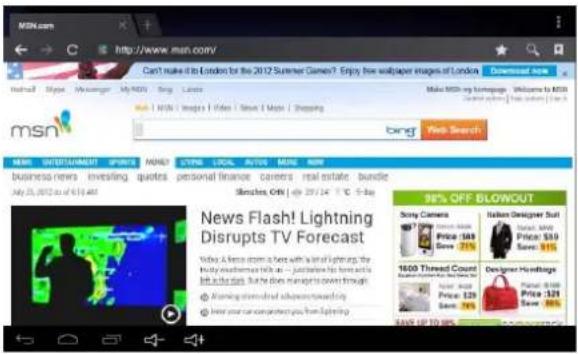
- Touch Browser.
- Press the ●enu key.
- Touch address bar.
- Type the Web address, touch Go.
13. Gmail
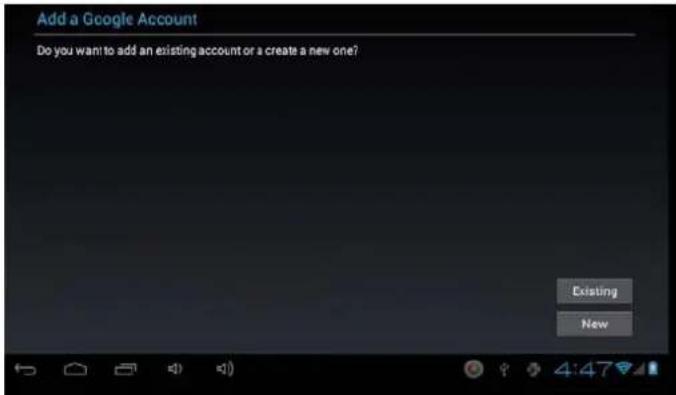
With Gmail, all your messages on the same subject are threaded together into conversations. To read the messages in a conversation, open the conversation and scroll through the individual messages. The most recent message appears at the bottom. All the Gmail that you fetch to your Tablet is delivered to your Inbox and the Inbox is your default Gmail view. The total number of unread messages displays in the title bar and individual unread messages display in bold. If you have labeled a message, its label appears in a colored rectangle to the left of the date.
Read new messages
- On the home screen, touch Gmail to display your inbox.
- Touch a message to read.
Write new messages
-
On the Home screen, touch Gmail to display your Inbox.
-
Press the ●enu key.
-
Touch Compose.
-
Type a name or e-mail address in the To field. ●atching contacts will appear. Select the contact or continue typing.
-
Type the subject and message.
-
To attach pictures, press the ●enu key and touch the picture to attach.
-
Touch Send.
16. Maps
Find a location
-
Open WI-Flconnection
-
Touch the home screen, touch the application button.
-
Touch ●aps.
-
Press the menuKey.
-
Touch Search.
-
Type an address, touch Go
-
Touch to see the result on a map.

You should select on the following two to achieve the location positioning in the ●ap
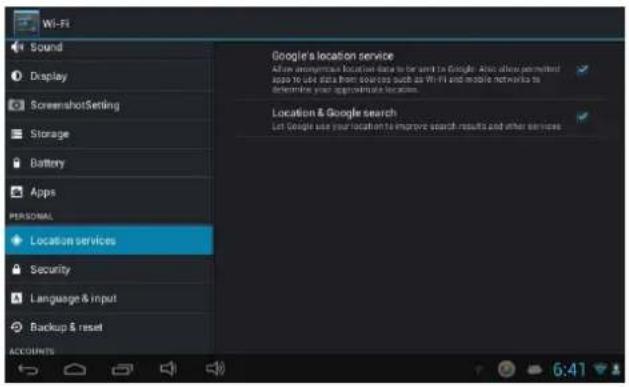
Get:direction
-
On the home screen, touch the application list button.
-
Touch ●aps
-
Press the menu key, touch Directions.
-
At From field, type your starting address, at To Field, type your destination address. Touch Go.

Change:map:mode
-aps give you both map and satellite of the area you are viewing. To view satellite, traffic or terrain.
-
On the home screen, touch the application button.
-
Touch ●aps.
-
Press the ●enu key.
-
Touch ●ap mode.
-
Touch satellite, traffic, or Terrain.

17. Google Play
Google Play provides you with direct access to software developers throughout the world. It is the place to go find fun games and cool applications.
Browse contents
When you first enter ●arket, you will see featured items, a list of item categories, a link to search, and a link to ●y downloads. Scroll through the featured items or select a category to browser its contents, then select a subcategory. Within each subcategory you can select to view items sorted By popularity or By date. Note that all items in s subcategory are listed in each tab, those in the By popularity tab are sorted most popular to least popular, and those in the By date tab are sorted newest oldest.
18. Recorder
A sound recording and playback9
-
On the Home screen, touch the Application button.
-
Touch Sound Recorder.
-
Touch Record and Touch Stop when the sound recording is completed.
-
Touch Use this recording.
-
On the Home screen, touch the Application button.
-
Touch • music.
-
Touch Playlists, touch •y recordings.

17. Camera
Shooting and playback a video9
- On the Home screen, touch the Application button.
- Touch Camera.
- Drag the button to the shooting mode.
- Touch Shooting. When finish recording pressStop.
- On the Home screen, touch the Application button.
- Touch Gallery and found this video just taken.
- Touch the video and Select a video player to play.
Photo shoot
- On the Home screen, touch the Application button.
- Touch Camera.
- Drag the button to the photo mode.
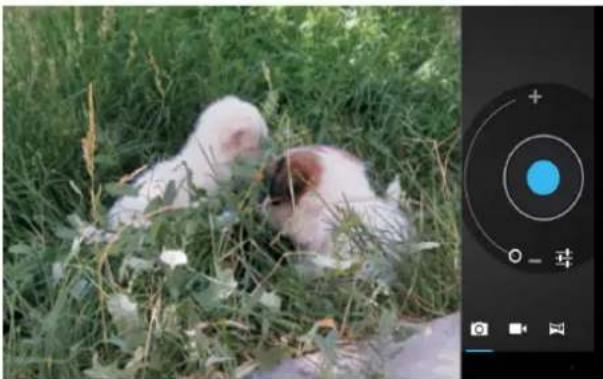
18. Troubleshooting
| Symptoms Solutions | |
| Cannot power on, even when the device is connected to an electrical outlet. | ● Check whether the AC power adapter rating is correct, and it is securely plugged to the device and to an electrical outlet. |
| Cannot turn off ● Long press POWER button for about | 20 |
| Fail to read TF memory card ● Check whether memory card is inserted properly.The notch should match the label on the device. Do not force the memory card in. | |
| Screen is to off or too dark ●Check whether the screen brightness is set | |
19. Specifications:
| Processor&Memory | |
| OS Google Android | 4.1 |
| CPU Rockchip | RK2926 |
| RAM | 512MB |
| Memory | 4GB |
| LCD 7" 800*480 | panel |
| Touch Panel 5 Point Capacitance multi-touch | screen |
| Wi-Fi | 802.11b/g/n |
| Camera | 0.3-megapixel |
| Music format MP3 WMA FLAC AAC OGG WAV | APE |
| Video format | VP8,RMVB,RM,MOV,MPG,MP4,AVI,3GP,DAI,FLV,MKV |
| Photo format | JPEG,BMP,GIF,PNG |
PRiMUX® TECH
- TARJETA SD
- MÚSICA
- VIDEO
- BUSCADOR
- VISITE PÁGINAS WEB
- GMAIL
- GOOGLE PLAY
- USER MANUAL
- ENGLISH
- PARTS:LIST
- GENERAL: SAFETY: INSTRUCTIONS
- GENERAL SAFETY INSTRUCTIONS (CONT.)
- MAINTENANCE
- SAFETY
- INDEX
- INTRODUCING YOUR TABLET
- BATTERY
- CHARGE VIA THE CHARGER
- BATTERY STATUS VIEW
- SD CARD
- COPY FILES TO THE MEMORY CARD
- DELETE FILES ON THE MEMORY CARD
- VIEW AVAILABLE MEMORY SPACE
- HOME SCREEN AND APPLICATION LIST
- NOTIFICATION AND CONNECTION ICONS
- READ NOTIFICATIONS
- HDMI&HOST
- LANGUAGE & INPUT
- INPUT
- MANAGE APPS
- ALLOW INSTALL OF NON-MARKET APPLICATION
- UNINSTALL APPLICATION
- MUSIC
- ACCESS AND PLAY MUSIC
- ADD SONGS TO NEW PLAY LIST
- DELETE PLAY LISTS
- PHOTO
- SLIDESHOW THE PHOTOS
- PLAY A VIDEO
- WI-FI
- BROWSER
- GO TO YOUR HOME PAGE
- CHANGE YOUR HOME PAGE
- VISIT WEB PAGES
- READ NEW MESSAGES
- MAPS
- FIND A LOCATION
- GET:DIRECTION
- CHANGE:MAP:MODE
- BROWSE CONTENTS
- RECORDER
- A SOUND RECORDING AND PLAYBACK9
- CAMERA
- SHOOTING AND PLAYBACK A VIDEO9
- PHOTO SHOOT
- TROUBLESHOOTING
- SPECIFICATIONS
- PRIMUX® TECH
Brand : Primux
Model : Zonda 3
Category : Tablet