
TT-688 - AV Extender Epcom - Free user manual and instructions
Find the device manual for free TT-688 Epcom in PDF.


| Product Type | HDMI Extender |
| Brand | Epcom |
| Model | TT-688 |
| Category | AV Extender |
| Transmission Distance | Up to 50 meters via CAT5/6 cable |
| Video Resolution Support | 1080p Full HD |
| Audio Support | Stereo analog audio |
| IR Pass-through | Yes, for remote control extension |
| Power Supply | 5V DC, 1A (included) |
| Dimensions (Transmitter) | 75 x 45 x 25 mm |
| Dimensions (Receiver) | 75 x 45 x 25 mm |
| Weight (each unit) | 50 g |
| Connector Type (Transmitter) | HDMI input, RJ45 output |
| Connector Type (Receiver) | RJ45 input, HDMI output |
| Main Functions | Extend HDMI signal over long distances; supports 1080p; IR control pass-through |
| Maintenance | Keep connectors clean; avoid moisture; unplug when not in use |
| Safety | Use only provided power adapter; do not expose to liquids; keep away from heat sources |
| Spare Parts & Repairability | Contact Epcom support for replacement parts; no user-serviceable components |
| General Information | Plug-and-play installation; no drivers needed |
Frequently Asked Questions - TT-688 Epcom
User questions about TT-688 Epcom
0 question about this device. Answer the ones you know or ask your own.
Ask a new question about this device
Download the instructions for your AV Extender in PDF format for free! Find your manual TT-688 - Epcom and take your electronic device back in hand. On this page are published all the documents necessary for the use of your device. TT-688 by Epcom.
USER MANUAL TT-688 Epcom
Connection instruction:
1). Connect HDMI input with HDMI source device and connect IR blaster extension cable with IR OUT interface of the sender (TX).
2). Connect HDMI output with HDMI display device and connect IR receiver extension cable with IR IN interface.
3). Power on the device (power led lights) and it works. Note:
1) When the wireless signal transmits through wall, glass or other obstacles, it will cause signal loss. Suggest installing this device in good environment with few obstacles.
2) The external environment wireless signal interfere the transmission, such as micro waver, wireless mouse and keyboard etc.
• FAQ
Q: TV display "waiting for connection" on the bottom right corner?
A: Please check if the power supply of TX (sender) and RX(receiver) is well connected and the power indicator led lights on.
Q: TV display "Please check the TX input signal"?
A: 1) please check if there is an HDMI signal input of sender TX
2) Try to connect the signal source directly to display device to see if there is signal output from source device or change the signal source, HDMI cables and try again.
Q: Display not fluent and stable?
A: 1) Please move the position of sender (TX) and receiver (RX) and make sure the device is within the required signal range.
2) Press "reset" button on the TX/RX panel, reset and reconnect. 3) Remove other wireless signal disturbance and reduce the obstacles on the way.
- Specification
| Items | Specification |
| HDMI signal | Full compatible with HDCP |
| Transport protocol | HDbitT |
| Support resolution | 480@60Hz, 480p@60Hz, 576@50Hz, 576p@50Hz, 726p@50/60Hz, 1080@50/60Hz, 1080p@50/60Hz, 4K+2K@30Hz/24Hz/25Hz |
| IR remote control | Support 20~60kHz wide frequency IR remote device |
| Transmit distance | 200m at 4K×2K@30Hz |
| Working temperature | 0°C~60°C |
| Power supply | DC5V/3.5A *2PCS |
| Power consumption | TX ≤15W; RX ≤15W |
| Enclosure material | Metal |
| Product dimension | 195(Ω) x 137(W) x .32(H)mm *2PCS |
| Weight | TX 560g TX 560g |
| Color | Black |
Disclaimer
The product name and brand name may be registered trademark of related manufacturers.TM and ® may be omitted on the user manual. The pictures on the user manual are just for reference,and there may be some slight difference with the real products. We reserve the rights to make changes without further notice to a product or system described herein to improve reliability, function or design.
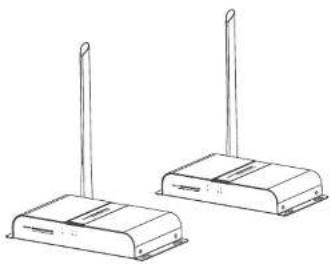
4K HDMI Wireless Extender 200m
User manual
4KX2K
natural_image
Line drawing of two wireless devices with antennas (no text or symbols)• Important safety notice
Please read below safety instructions carefully before installation and operation:
-
Please pay attention to all the warnings and hints on this device.
-
Do not expose this unit to rain, moisture and liquid.
-
Do not put any stuff into the device.
-
Do not repair the device or open the enclosure without professional person guidance to avoid electronic shock.
-
Make sure good ventilation openings to avoid product overheating
damage.
-
Shut off power and make sure environment is safe before installation.
-
Do not plug-in/out the network cables and IR cables when it is in using to avoid cables damage.
-
Use DC5V only. Make sure the specification matched if using 3 ^rd party DC adapters
Introduction
This transmitter extends HDMI signal wirelessly from source device to display device up to 200 meters with the advanced application of HDbiT transport protocol and wireless technology. The signal resolution up to 4K×2K. It requires no cables between sender (TX) and receiver (RX) which makes the installation easy and clean.
Note:
1) Transmission distance will be different due to the environment.
2) Wall, brick or glass will shorten the signal cover range or cause big signal loss.
Features
-
Transmit HDMI signal from source device to display device up to 200 meters wirelessly.
-
Support IR remote control function to control source device content from long distance.
-
No cable between sender(TX) and receiver[RX]
-
Easy and clean installation
• Package contents
HDMI Extender TX
sonder-1pts

HDMI Extender RX
Recliner-2PCS

DCSV/3.5A power
adapter-2pcs

IR blaster extension

A receiver extension
cable"1pcs

User manual*1pcs
• Installation Requirement
- HDMI source device (DVD, PS3, Set top box, PC etc)
- HDMI display device (SDTV, HDTV, and projector etc.).
- Panel description
- HDMI Extender TX sender

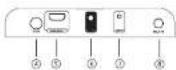
| 1 Power led | It lights when power is on |
| 2 Data transmission led | Led blinks slowly when it is building connection. Led blinks fast when it is successfully connected and transmitting data |
| 3 Connection led | It lights when wireless signal is well connected |
| 4 Power input | Connect with DCSV/3.5A power adapter |
| 5 HDMI input | Connect with HDMI source device |
| 6 IR OUT | Connect with IR blaster extension cable. Please put the IR blaster close to source device to best transmit the IR signal from receiver |
| 7 Reset | Press reset button to restart the device |
| 8 Antenna | Launch wireless signal |
- HDMI Extender RX receiver

| 1 Power led | It lights when power is on |
| 2 Data transmission led | Led blinks slowly when it is building connection. Led blinks fast when it is successfully connected and transmitting data |
| 3 Connection led | It lights when wireless signal is well connected |
| 4 Power input | Connect with DCSV/3.5A power adapter |
| 5 HDMI output | Connect with HDMI display device |
| 6 IR IN | Connect with IR receiver extension cable. Please make sure the remote control is within the required range of IR receiver |
| 7 Reset | Press reset button to restart the device |
| 8 Antenna | Receive wireless signal |
⑤ Antenna receive wireless signal
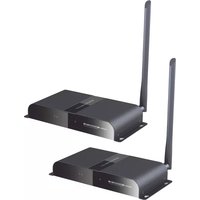


Brand : Epcom
Model : TT-688
Category : AV Extender