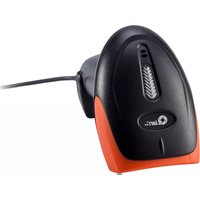
QLL1701 - Barcode scanners Qian - Free user manual and instructions
Find the device manual for free QLL1701 Qian in PDF.


| Product Type | Barcode Scanner |
| Model | QLL1701 |
| Brand | Qian |
| Scan Technology | Laser |
| Scan Type | 1D |
| Dimensions (L x W x H) | 170 mm x 70 mm x 100 mm |
| Weight | 150 g |
| Power Supply | 5V via USB |
| Interface | USB |
| Scan Rate | 100 scans per second |
| Read Distance | 0 - 300 mm |
| Supported Symbologies | UPC, EAN, Code 128, Code 39, etc. |
| Operating Temperature | 0°C to 40°C |
| Storage Temperature | -20°C to 60°C |
| Humidity | 5% to 95% non-condensing |
| Drop Resistance | 1.5 m |
| Laser Class | Class 1 |
| Cable Length | 1.8 m |
| Operating Systems Supported | Windows, macOS, Linux |
| Plug and Play | Yes |
| Cleaning | Wipe lens with soft dry cloth |
| Spare Parts | USB cable, stand (optional) |
| Repairability | Not user-serviceable; contact support |
| Warranty | 1 year |
Frequently Asked Questions - QLL1701 Qian
User questions about QLL1701 Qian
0 question about this device. Answer the ones you know or ask your own.
Ask a new question about this device
Download the instructions for your Barcode scanners in PDF format for free! Find your manual QLL1701 - Qian and take your electronic device back in hand. On this page are published all the documents necessary for the use of your device. QLL1701 by Qian.
USER MANUAL QLL1701 Qian
Scan Rate: 100 ± 20 (scans/second)
Lights Indicator
LED Indicator
Blue lights blinking
Red light On
Explanation
Decoding Successfully
Standby status / repose
Buzzer
Beep Indication
One beep
Three beep
Four beep
Continuous Beep
Explanation
Decoding Successfully
USB Data transfer failed
Power on
Successfully parameter setting
1 Scanner Overview

Barcode Scanner
4 Scanning Angle
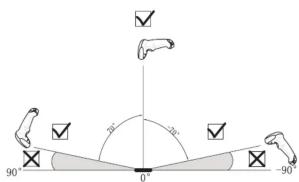
1D Images scanner
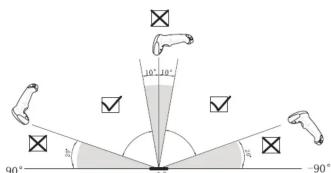
1D Laser scanner
2 Cable Plug & Unplug
(Plugable scanner applies)

①Plug as picture abover

②Press the buckle click, the pull out the cable
3 Data cable connection guide
(1). Cable USB

5 Methods and distance

Correct

Wrong

NOTE: Laser beam should be full covered on the barcode
(2). Cable RS232
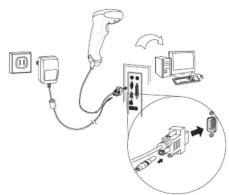
(3). Cable RS485


Troubleshooting Q&A:
Q1: USB barcode scanner with "beep beep beep" after scannig and no data uploaded.
A1: Unplug the scanner into another USB port.
Q2: USB barcode scanner without data upload and alarm buzzer after scanning.
A2: Restore factory default.
Q3: No laser beam after connection via RS232.
A3: Refer to data cable connection guide and check the power supply.
Q4: No data upload and alarma buzzer after scanning via RS232.
A4: Terminal should have software to transfer data when using RS232, not cursor position.
Q5: How to set barcode data with increase and decrease digits when scanning barcodes?
A5: Refer to barcode settings as 10 and 11, 12 to set the scanner.
Barcode Settings
Setting Step
1
Scan the barcode of
"Enter setting"
1111111111111
111111111111
↓
2
Scan function barcode
(Support multiple scanning setting barcodes)
[NO TEXT]
Disable repeat reading same barcode
[Barcode]
0x0 D as suffix
↓
3
Scan "Exit and Save" barcode
[Barcode]
Exit and save (%END)
NOTE: All functions must be in accordance with the settings for the above process or scan the barcode setting function is invalid
① Restore factory default
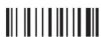
Restore factory default (DF)
NOTE: 1. Resotore factory default will not change interface mode.
Refer to Interface Mode Selection for setting interface
- With " - in bold means factory default parameter.
② Interface Mode Selection
Setting step as below with function barcodes when using RS232 to transfer data.
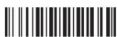
Serial Output ( A0000 )
NOTE: Terminal should have software to transfer data whe using RS232, not cursor position.
Setting step as below with function barcodes when using USB to transfer data.

*USB HID Keyboard (A0001)
Setting step as below with function barcodes when using RS485 to transfer data.
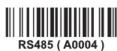
③ Auto trigger (optional)

Disable auto trigger ( H0000 )
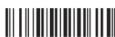
*Enable auto trigger ( H0001 )
④ Trigger Mode

*Single read ( F0000 )

Continuous read ( F0001 )
Continuous: The reader will produce as much data as ir can decode regardless whether it is the same or not. This mode is mainly used for demonstration and diagnosis.
Single read: When a bar code has been decoded, the reader will turned off. The reader must be triggered again to read another label.
⑤ Reading Mode

isable repeat read ( F0100 )

*Enable repeat read (F0101)

Multiple read ( F0102 )
Disable repeat read: Disable continue to read the same barcode.
Multiple read: The same label can only be decoded again after the label
has not been detected for a number of scans, This mod
can only be programmed in Continuous trigger mode.
⑥ Repeat the same barcode reading interval


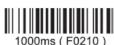
⑦ Set Suffix


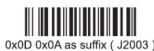
⑧ Version Reading

Version Reading ( RV )
⑨ RS232 Baud rate
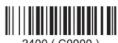

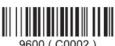


⑩ UPC Setting

Enable UPC-E convert to UPC-A (ID100)
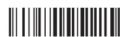
*Disable UPC-E convert to UPC-A (ID101)

Enable UPC-A convert to EAN-13 (IA101)

*Disable UPC-A convert to EAN-13 (IA100)
⑪ Code 39 Setting

Transmit ST/SP (IF101)

*Not Transmit ST/SP ( IF100 )
⑫ Delete some barcode
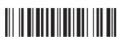
*Disable deleting star
character ( K0200 )

Delete start one charcater (K0201

Delete end one character (K0301)

*Disable deleting end character (K0300)

Delete start two characters ( K0202 )

Delete end two characters (K0302)
GUARANTEE POLICY
Qian.mx, guarantees this product in all of its components and workforce during 12 months, starting the date of acquirement against any manufacturing and operating defects during normal and domestic use of this product.
Qian.mx guarantees the buyer the absence of any manufacturing and operating anomalies including pieces and components of the product or anything referring to the materials.
-
This policy protects only the products commercialized by Qian.mx, through its authorized distributors inside the Mexican Republic.
-
To make valid this guarantee, it would be necessary to present this policy (original) with the information required in the table below with the physical product and with all the accessories that integrates it:
| Product: | |
| Model: | Distributor Seal |
| Brand: Glan.mx | |
| Serial Number: | |
| Invoice Number: | |
| Delivery Date: | |
-
In case of loosing the policy it would be necessary to present the original invoice with the serial number of the product.
-
Qian.mx could use new pieces, restored, or used in good conditions to repair or replace any product, without any additional cost to the consumer, as long as the warranty period stipulated isn't over.
-
In case that the product doesn't have arrangement, it would be changed for a similar product or for one with superior characteristics.
-
The time of repair won't be longer than 30 natural days since the date of reception of the product by Qian.mx or by Authorized Service Centers.
-
In case that Qian.mx doesn't count with an Authorized Service Center in the client's city, the client will have to pay the shipping cost to the nearest point and Qian.mx will pay the cost of the returning shipment to the client once the service is fulfilled, within the warranty period.
EXCLUSIONS
Qian.mx will not make valid this policy in the next cases:
- When the product had been used under other conditions than the normal.
- When the product hasn't been operated according the instructive that's included.
- When the product would have been modified or repaired by unauthorized people by Qian.mx.
To make valid this guarantee, as well as the acquisition of components, consumable parts and accessories request more information in www.qian.mx or go to any Qian.mx Authorized Service Center.
Main Offices:
Qian S.A. de C. V.
Av. Américas #1501 Piso 20-A
Col. Providencia
Guadalajara, Jal.
Tel. 1078.3404

- Lights Indicator
- Buzzer
- Scanner Overview
- Scanning Angle
- Cable Plug & Unplug
- Data cable connection guide
- Methods and distance
- Troubleshooting Q&A:
- Barcode Settings
- ① Restore factory default
- ② Interface Mode Selection
- ③ Auto trigger (optional)
- ④ Trigger Mode
- ⑤ Reading Mode
- ⑥ Repeat the same barcode reading interval
- ⑦ Set Suffix
- ⑧ Version Reading
- ⑨ RS232 Baud rate
- ⑩ UPC Setting
- ⑪ Code 39 Setting
- ⑫ Delete some barcode
- GUARANTEE POLICY
- EXCLUSIONS
Brand : Qian
Model : QLL1701
Category : Barcode scanners