KM0420 - Smartwatch Krüger&Matz - Free user manual and instructions
Find the device manual for free KM0420 Krüger&Matz in PDF.


| Type | Smartwatch |
| Brand | Krüger&Matz |
| Model | KM0420 |
| Operating System Compatibility | Android 4.3+ / iOS 8+ |
| Bluetooth | 4.0 BLE + 2.1 |
| Chipset | MTK SOC |
| CPU | MediaTek Aster MT2502 (LinkIt Linux) |
| Display | 1.6" (240x240 px) |
| Battery Capacity | 315 mAh |
| IP Rating | IP67 |
| Weight | 50.3 g |
| Dimensions | 45x40x11 mm (watch body), 20 mm strap width |
| Sensors | UV sensor, Accelerometer (pedometer) |
| Audio | Built-in microphone and speaker |
| Charging | USB cable (supplied) |
| Touch Screen | Yes, with swipe and tap gestures |
| Pre-installed Apps | Pedometer, Ultraviolet UV index |
| Additional Apps | Yahoo! Weather (available via SmartWear) |
| Remote Camera Control | Yes (Remote capture) |
| Notifications | Call, message, and app notifications |
Frequently Asked Questions - KM0420 Krüger&Matz
User questions about KM0420 Krüger&Matz
0 question about this device. Answer the ones you know or ask your own.
Ask a new question about this device
Download the instructions for your Smartwatch in PDF format for free! Find your manual KM0420 - Krüger&Matz and take your electronic device back in hand. On this page are published all the documents necessary for the use of your device. KM0420 by Krüger&Matz.
USER MANUAL KM0420 Krüger&Matz
OWNER'S MANUAL
INSTRUKCJA OBSŁUGI


LEARN THE BASICS
1. Product description

Turn on/ Turn off/ Back:
- Press and hold power key for 3 seconds to turn on/off smartwatch.
- Press power key to enter Home screen.
2. Charge your watch
To charge your smartwatch, connect USB plug to a charger/USB computer port; the other end of the cable connect with power supply input in smartwatch (as illustrated). Use only charging cable supplied.

3. Navigation
Kruger&Matz smartwatch Classic navigation is based on few essential moves:
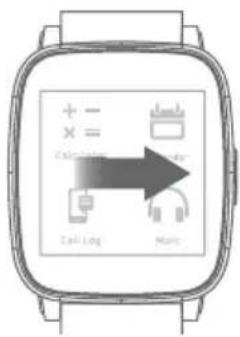
- Swipe the watchface to the left to view the app page.

- Swipe the app page to the right to return to watchface, or to return to app page from upper level menu.
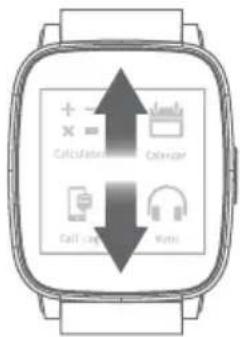
- Swipe the app page up or down to flip through Menu, options or applications.
- Touch and hold screen in a given place to activate option in a certain application (e.g. in Messaging, touch and hold on a text message to delete it. The device will ask for permission to delete selected message).
Hint: To change main menu clock style, press and hold the clock (while the clock is on). The display will show available clock motives. Click OK to select a style.

4. Using smart watch with your phone
- Please download Sync APK into your Android phone by scanning the QR code on the right. It supports FW update and extra application installation; You can also download another APK/APP named "Mediatek SmartDevice" from Google Play or App Store, but FW upgrade function will not be available.
- Find BT connection in app page, use it to pair with your phone, and start to sync!

Requires: BLE Bluetooth and Android 4.3./iOS8 operating systems (or higher).
Caution:
- smartwatch works with smartphones operating Bluetooth 4.0 BLE.
- This device may not support some applications manufactured by other producers.
- If the pairing is issued from the smartwatch, the smartphone will ask for permission to synchronize Contacts and Call Logs. If paired through SmartWear, the data will synchronize automatically.
5. SmartWear application
SmartWear app works as a tool for smartwatch control from your smartphone.
SmartWear application offers various options, including: Find my device, scan for BT devices, run additional applications, notifications, alert settings, Bluetooth mode settings, firmware update and information about SmartWear app.
Scan for BT devices
In case of lack of connection between two paired devices, or while connecting a new smartwatch, this option scans and connects with smartwatch.
My applications
Enter this option to manage additional applications on your smartwatch (installation, deinstallation, settings adjustment).
Notifications
Select this option to personalize notifications settings displayed on your smartwatch.
Alerts
To switch on/off and adjust alerts settings select Alerts.
SmartWear app gives you possibility to customize your smartwatch' name, change Bluetooth mode (between SPP and GATT), look up basic info concerning application as well as check available updates and carry one out if possible.
6. Find my device
Find my device function locates misplaced or lost phone/smartwatch. This function works by paging smartphone, using selected smartwatch app; it also works the other way around, as the smartwatch can be located by SmartWear App on your phone. Option available on condition of Bluetooth connection between these two devices.
To locate your smartphone:
Enter Menu on your smartwatch, launch Find my Device app, and press START to locate your phone. The phone will produce sound signals.
To locate your smartwatch:
Run SmartWear Application on your phone, and press FIND DEVICE. The smartwatch will start producing sound signals.
7. Settings
To customize basic settings on your smartwatch, go to main menu, enter Settings (symbolized with ⏻) and select option to be adjusted.
BT Settings
Enter this option to enable/disable Bluetooth on your smartwatch, and turn the visibility on/off.
Clock
In default settings, clock auto-synchronization is enabled. After connecting with smartphone, smartwatch will automatically synchronize time, date and adjust hour format accordingly to phone settings. However, after switching auto-synchronization, user can manually change settings concerning date, time and auto-synchronization.
Sound/Volume
To change sound/volume on your smartwatch, enter one of the two and select desired option.
Display
Personalize your smartwatch display: set number of displayed icons on Menu list, brightness and screen time out.
International
To change language settings, enter International, turn off auto-synchronization and select language you prefer. While still in International, set your Contact displaying preferences: first name first or last name first.
Applications
Select this option to remove all additional applications on your smartwatch.
Reset
To restore factory settings, choose this option; all data saved on smartwatch will be removed, default settings will be applied.
About
Enter to see information about your smartwatch.
DownloadApp
Open this option to display SmartWear QR code. Scan the code with an appropriate application on your smartphone. Your smartphone browser will go to webpage where you can download SmartWear application.
8. Tools
- Calendar
Smartwatch calendar synchronizes with smartphone calendar (as soon as the two devices are paired and connected). Every calendar notifications from your smartwatch will be also displayed on smartwatch (unless set differently).
- Alarm
Smartwatch alarm function works independently from phone alarm. To enable Alarm on your smartwatch, enter main menu, go to Alarm, and touch plus "+" sign on the
display. You'll see new alarm edition page. Enter your settings. To enable it, swipe the screen to the right and select ON.
To enable more than one alarm, enter Main Menu, go to Alarm and swipe screen up or down, until you'll see plus "+"sign again. Then, follow the instructions above.
To delete an alarm, touch and hold screen when alarm is displayed. You will be asked to confirm; press OK to delete.
9. Manage calls
Use your smartwatch to manage calls: pick up or ignore incoming calls and place outgoing calls (dial the number manually, select a number from Contacts or from a Call Logs). Once your devices are paired and connected, you are still able to place/take calls on your phone.
Audio function
By default, phone calls are streamed through smartwatch' speaker and microphone. To change conversation medium, adjust that setting during conversation on your smartphone display.
To turn off the default setting of streaming conversation through smartwatch, go to Bluetooth connection settings on your smartphone, enter smartwatch connection details and switch off phone audio control.
10. Messaging
Smartphone's and smartwatch' inboxes synchronize automatically after connecting the two devices. As per user's settings, notifications on new incoming text messages are displayed on smartwatch as well. Smartwatch Messaging also allows also to browse through latest phone incoming text messages.
You can also respond to the incoming texts and place a return call.
- Reply
To send a reply text message, select desired text, scroll down if necessary and press Reply. You will see list of template messages. Press to send one.
- Place a call
To place a return call, display the text message, scroll down if necessary and select Call. Smartwatch will automatically place a call to the message sender.
11. Music
To control smartphone music player with the use of smartwatch, go to main menu and select BT music. This app lets you control music player: play/pause, skip to next/previous file and adjust volume level.
12. Notifications
Smartphone notifications are also displayed on smartwatch screen unless set differently. Notifications settings are subject to change for user's convenience. To switch on/off notifications from certain sources to be displayed on smartwatch, input changes in SmartWear Notifications, or block them directly on your smartwatch: after receiving notification from the source you wish to block, display it and press Block, you will no longer receive notifications from that source.
13. Remote capture
Remote capture in smartwatch main menu works as a remote control for your phone camera function. To take a photo, go to Remote capture in main menu. While enabled, smartwatch display duplicates smartphone's screen. Touch the smartwatch screen on symbol to take a photo. Photos taken through smartwatch are saved in smartphone internal/SD card memory.
NOTE: Before running Remote capture function, make sure your phone is active and unlocked.
14. Additional Apps
To manage and run additional applications on your smartwatch, go to SmartWear app on your smartphone and see list of available apps list.
User can install, uninstall and change settings according to his preferences. By default, Pedometer and Ultraviolet are already installed on your watch.
- Pedometer
This app counts your steps, wherever you are. Turn it on and be up-to-date with your daily walking routine. To enable Pedometer, open the app and press Start. Apart from steps, smartwatch displays the distance you've covered, and calories you've burned during that walk.
- Ultraviolet
The Ultraviolet app provides information on the UV Index. All you have to do is go out and open the app (remember not to cover the smartwatch). Ultraviolet app will show you current level of sunshine radiation exposure.
Note: The UV index is an internationally applied measurement standard for the sunshine radiation intensity. The values on the index scale range from zero upwards. The higher the number, the higher the risk of skin or eyes damage. One point on this scale equals roughly 250 mW/m 2 .
| UV Index | Exposure level |
| 0-2 | Low |
| 3-5 | Moderate |
| 6-7 | High |
| 8-10 | Very High |
| > 11 | Extreme |
- Y! Weather
Additionally, Yahoo! Weather is available for installation. The application provides current information on weather conditions in any city. To install Yahoo!Weather go to My Applications in SmartWear, touch the corresponding icon, and accept approval if necessary. After successful installation, select desired temperature units and city.
To uninstall additional app, go to My Applications in SmartWear, touch appropriate app icon and accept approval if necessary.
15. Firmware update
In order to update smartwatch' firmware, go to SmartWear app on your phone, and select Firmware update. First, check whether your firmware version is up-to-date. If not, the app will search for the latest update, and ask for approval to perform an update. Following your acceptance, the app will automatically carry out an update.
NOTE: Before performing firmware update, make sure that both your smartwatch and smartphone are charged. If the battery level of one of the devices is lower than 60%, the update process will not be performed.
16. Safety instructions
- Use only the cable supplied to charge smartwatch.
- Use the supplied cable only with USB-compliant ports and chargers.
- Do not charge smartwatch in extremely high or low temperatures.
- Do not charge smartwatch when it is wet, as it may cause danger of electric shock.
- Keep the device away from fire. The battery could explode, causing injury or death.
17. Technical specifications
Specifications are subject to change without prior notice.
| Requirements | operating system 4.3, iOS8 (or higher),Bluetooth 4.0 BLE + 2.1 |
| Chipset | MTK SOC |
| CPU | MediaTek Aster MT2502 based on LinkIt Linux system |
| Battery capacity | 315 mAh |
| IP67 | |
| Display | 1,6” (240×240 px) |
| Weight | 50.3 g |
| Dimensions | couvette (45x40x11 mm)strap (20 mm width) |
| UV Sensor | |
| Build-in microphone, speaker |
The Lechpol company declares that product KM0420 is consistent with the essential requirements and other relevant provisions of directive 1999/5/EC. The proper declaration for download from www.lechpol.eu
English
Correct Disposal of This Product
(Waste Electrical & Electronic Equipment)


(Applicable in the European Union and other European countries with separate collection systems) This marking shown on the product or Its literature, indicates that It should not be disposed with other household wastes at the end of its working life. To prevent possible harm to the environment or human health from uncontrolled waste disposal, please separate this from other types of wastes and recycle it responsibly to promote the sustainable reuse of material resources. Household users should contact either the retailer where they purchased this product, or their local government office, for details of where and how they can take this item for environmentally safe recycling. Business users should contact their supplier and check the terms and conditions of the purchase contract This product should not be mixed with other commercial wastes for disposal.
Made in China for LECHPOL Zbigniew Leszek, Miętne, 1 Garwolińska Street, 08-400 Garwolin.
PIERWSZE KROKI
1. Opis zegarka

3. Nawigacja

www.krugermatz.com
Krüger&Matz is a registered trademark

- LEARN THE BASICS
- PRODUCT DESCRIPTION
- CHARGE YOUR WATCH
- NAVIGATION
- USING SMART WATCH WITH YOUR PHONE
- CAUTION
- SMARTWEAR APPLICATION
- SCAN FOR BT DEVICES
- MY APPLICATIONS
- NOTIFICATIONS
- ALERTS
- FIND MY DEVICE
- SETTINGS
- BT SETTINGS
- CLOCK
- SOUND/VOLUME
- DISPLAY
- INTERNATIONAL
- APPLICATIONS
- RESET
- ABOUT
- DOWNLOADAPP
- TOOLS
- CALENDAR
- ALARM
- MANAGE CALLS
- AUDIO FUNCTION
- MESSAGING
- MUSIC
- REMOTE CAPTURE
- ADDITIONAL APPS
- PEDOMETER
- ULTRAVIOLET
- Y! WEATHER
- FIRMWARE UPDATE
- SAFETY INSTRUCTIONS
- TECHNICAL SPECIFICATIONS
- ENGLISH
- PIERWSZE KROKI
- OPIS ZEGARKA
- NAWIGACJA
Brand : Krüger&Matz
Model : KM0420
Category : Smartwatch