DX-46L260A12 - Television Dynex - Free user manual and instructions
Find the device manual for free DX-46L260A12 Dynex in PDF.


| Product Type | LED TV |
| Brand | Dynex |
| Model | DX-46L260A12 |
| Screen Size | 46 inches (diagonal) |
| Display Technology | LCD with LED backlight |
| Resolution | 1920 x 1080 (Full HD) |
| Refresh Rate | 60Hz |
| Aspect Ratio | 16:9 |
| Contrast Ratio (Dynamic) | 5000:1 |
| Brightness | 350 cd/m² |
| Response Time | 6.5 ms |
| Viewing Angle (Horizontal/Vertical) | 178° / 178° |
| Built-in Speakers | 2 x 10W |
| Audio Decoding | Dolby Digital |
| Video Inputs | 3x HDMI, 1x VGA (PC), 1x Component, 1x Composite, 1x RF |
| USB Port | 1x USB 2.0 |
| Power Consumption (Typical) | 180W |
| Standby Power | < 1W |
| Weight (with stand) | 22.5 kg |
| Dimensions (with stand) WxHxD | 108.5 x 70.5 x 28 cm |
| VESA Mount Pattern | 400 x 400 mm |
| Energy Class | B |
| Included Accessories | Remote control, batteries, power cord, stand base |
Frequently Asked Questions - DX-46L260A12 Dynex
User questions about DX-46L260A12 Dynex
0 question about this device. Answer the ones you know or ask your own.
Ask a new question about this device
Download the instructions for your Television in PDF format for free! Find your manual DX-46L260A12 - Dynex and take your electronic device back in hand. On this page are published all the documents necessary for the use of your device. DX-46L260A12 by Dynex.
USER MANUAL DX-46L260A12 Dynex
Important safety instructions 2
Warnings 2
Cautions 2
Online User Manual 3
One-year limited warranty 9
US and Canada Markets 9
Online User Manual
WE ARE GOING GREEN!
A copy of your User Guide is not provided in the box but is available online. Go to www.dynexproducts.com, click
Support & Service, enter your model number in the Product Search field, then click Search.

CHILD SAFETY
It makes a difference how and where you use your flat panel display
As you enjoy your new product, keep these safety tips in mind
The issue
The home theater entertainment experience is a growing trend, and larger TVs are popular purchases. However, TVs are not always supported on the proper stands or installed according to the manufacturer's recommendations. We and the consumer electronics industry are committed to making home entertainment enjoyable and safe.
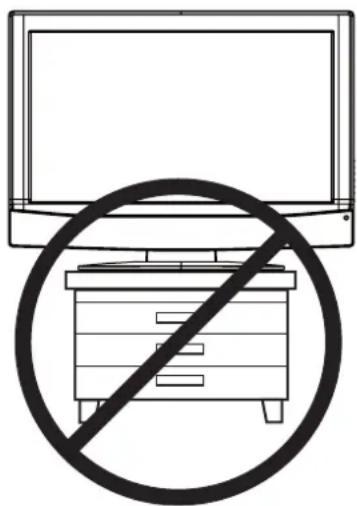
TVs that are inappropriately placed on dressers, bookcases, shelves, desks, speakers, chests, or carts may fall over and cause injury.
Tune into safety
- One size of TV stand does not fit all. Use only a TV stand rated for the weight of your TV.
- Carefully read and understand all enclosed instructions for proper use of this product.
- Don't let children climb on or play with entertainment system furniture and TVs.
- Don't place TVs on furniture that can easily be used as steps, such as a chest of drawers.
- Remember that children can become excited while watching a program, especially on a “larger-than-life” TV. Make sure that you place or install the TV where it cannot be pushed, pulled over, or knocked down.
• Make sure that you route all cords and cables so that they cannot be pulled or grabbed by curious children.
Wall mounting
If you decide to wall mount your TV, always remember:
- One size of wall mount does not fit all. Use only a wall mount rated for the weight of your TV and that has been recommended by this TV manufacturer, listed in this manual, or otherwise listed by an independent laboratory as suitable for your TV.
• Follow all instructions supplied by the TV and wall mount manufacturers.
- If you have any doubts about your ability to safely wall mount your TV, get help from a professional installer.
- Make sure that the wall where you are mounting the TV is appropriate. Some wall mounts are not designed to be mounted to walls backed with steel studs or cinder blocks. If you are unsure, ask a professional installer.


Consumer Electronics Association
• TVs can be heavy. At least two people are required for safe wall mount installation.
This apparatus is intended to be supported by a UL listed Wall Mount bracket.
Important safety instructions


This symbol indicates that dangerous voltage constituting a risk of electric shock is present within your TV. This label is located on the back of your TV.

This symbol indicates that there are important operating and maintenance instructions in the literature accompanying your TV.
1 Read these instructions.
2 Keep these instructions.
3 Heed all warnings.
4 Follow all instructions.
5 Do not use this apparatus near water.
6 Clean only with a dry cloth.
7 Do not block any ventilation openings. Install in accordance with the manufacturer's instructions.
8 Do not install near any heat sources such as radiators, heat registers, stoves, or other apparatus (including amplifiers) that produce heat.
9 Do not defeat the safety purpose of the polarized or grounding-type plug. A polarized plug has two blades with one wider than the other. A grounding type plug has two blades and a third grounding prong. The wide blade or the third prong are provided for your safety. If the provided plug does not fit into your outlet, consult an electrician for replacement of the obsolete outlet.
10 Protect the power cord from being walked on or pinched particularly at plugs, convenience receptacles, and the point where they exit from the apparatus.
11 Only use attachments/accessories specified by the manufacturer.
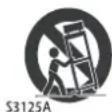
12 Use only with a cart, stand, tripod, bracket, or table specified by the manufacturer, or sold with the apparatus. When a cart is used, use caution when moving the cart/apparatus combination to avoid injury from tip-over.
13 Unplug this apparatus during lightning storms or when unused for long periods of time.
14 Refer all servicing to qualified service personnel. Servicing is required when the apparatus has been damaged in any way, such as power-supply cord or plug is damaged, liquid has been spilled or objects have fallen into the apparatus, the apparatus has been exposed to rain or moisture, does not operate normally, or has been dropped.
15 The wall plug is the disconnecting device. The plug must remain readily operable.
16 An apparatus with a three-prong, grounding-type plug is a Class I apparatus, which needs to be grounded to prevent possible electric shock. Make sure that you connect this Class I television to a grounding-type, three-prong outlet.
17 Remote control batteries should not be exposed to excessive heat such as sunshine, fire, or the like.
18 The apparatus should not be exposed to dripping or splashing, and no objects filled with liquids, such as vases, should be placed on the apparatus.
Warnings
Electric shock hazard
To reduce the risk of fire or electric shock, do not remove any cover or expose the device to rain or moisture. No user-serviceable parts are inside. Refer servicing to qualified service technicians.
Lightning
For added protection for your device receiver during a lightning storm, or when it is left unattended and unused for long periods of time, unplug it from the power outlet and disconnect any antenna or cable system. This helps prevent property damage and personal injury from lightning and power line surges.
Power lines
An outside antenna system should not be located in the vicinity of overhead power lines or other electric light or power circuits, or where it can fall into such power lines or circuits. When installing an outside antenna system, extreme care should be taken to keep from touching such power lines or circuits as contact with them might be fatal.
Handling the LCD panel
- Your TV's screen is made of glass. Do not drop your TV or hit, jolt, or press hard against the LCD panel. If the screen breaks, be careful of broken glass.
- If the LCD panel is broken, make absolutely sure that you do not touch the liquid in the panel. This may cause skin inflammation.
- If the liquid gets in your mouth, immediately gargle, rinse, and consult with your doctor. Also, if the liquid gets in your eyes or touches your skin, consult with your doctor after rinsing for at least 15 minutes or longer in clean water.
Replacement parts
When replacement parts are required, make sure that the service technician uses replacement parts specified by the manufacturer that have the same characteristics as the original part. Unauthorized substitutions may result in fire, electric shock, personal injury, or other hazards.
Safety check
After completing any service or repair to this device, ask the service technician to perform routine safety checks to determine that your TV is in correct operating condition.
Power source
Operate your TV only from the type of power source indicated on the marking label. If you are not sure of the type of power supplied to your home, consult an electrician or your local power company.
Cautions
Damage requiring service
Unplug this TV from the power outlet and refer servicing to qualified service personnel under the following conditions:
- When the power supply cord or plug is damaged or frayed.
- If liquid has been spilled or objects have fallen into your TV.
-
If your TV has been exposed to rain or water.
-
If your TV does not operate normally by following the operating instructions. Adjust only those controls that are covered by the operating instructions because incorrect adjustment of other controls may result in damage and will often require extensive work by a qualified technician to restore your TV to its normal operation.
- If your TV has been dropped or damaged in any way.
- When your TV exhibits a distinct change in performance.
Outdoor antenna grounding
If an outside antenna or cable system is connected to your TV, make sure that the antenna or cable system is grounded to provide some protection against voltage surges and built-up static charges. Article 810 of the National Electrical Code, ANSI/NFPA No. 70, provides information with respect to correct grounding of the mast and supporting structure, grounding of the lead-in wire to an antenna discharge unit, size of grounding conductors, location of the antenna-discharge unit, connection to grounding electrodes, and requirements for the grounding electrode.

| 1 | Antenna lead-in wire |
| 2 | Grounding clamp |
| 3 | Antenna discharge unit |
| 4 | Grounding conductors |
| 5 | Ground clamps |
| 6 | Power service grounding electrode system |
| 7 | Electric service equipment |
Note to CATV system installer
Article 820 of the National Electrical Code, ANSI/NFPA No. 40 provides guidance for correct grounding. Specifically, it states that the cable ground must be connected to the grounding system of the building as close to the point of cable entry as practical.
Condensation
Moisture will form on the TV if the TV is brought from cool surroundings into a warm room or if the temperature of the room rises suddenly. When this happens, the TV's performance may be impaired. To prevent this, let the TV stand in its new surroundings for about an hour before switching it on, or make sure that the room temperature rises gradually. Condensation may also form during the summer if the TV is exposed to the breeze from an air conditioner. In such cases, change the location of the TV.
Mobile telephone warning
To avoid interference with your TV picture and sound, operating problems, or even damage, keep your cordless and cellular telephones away from the TV.
End of life directives
Your TV contains tin-lead solder. Disposal of this material may be regulated for environmental reasons. Your TV also contains material that can be recycled and reused. For disposal or recycling information, contact your local authorities or the Electronic Industries Alliance at www.eia.org to find a recycler in your area.
Non-active pixels
The LCD panel contains almost 3 million thin film transistors, which provide exceptionally sharp video quality. Occasionally, a few non-active pixels may appear on the screen as a fixed blue, green, or red point. These non-active pixels do not adversely affect the performance of your TV, and are not considered defects.
Online User Manual
WE ARE GOING GREEN! For the full user manual, go to www.dynexproducts.com and click Support & Service. Enter your model number in the Product Search field, then click Search.
Troubleshooting
Warning
Do not try to repair your TV yourself. Contact authorized service personnel.
Video and audio
| Picture does not fill the screen. There are black bars around the picture. | · Change the aspect ratio. An increasing amount of digital TV and movies are presented in wide screen (16:9). See “Adjusting the TV picture” in the online User Guide. |
| No picture (screen is not lit) and no sound. | · Press on the TV or the remote control. · Make sure that Audio Only option is set to Off. See “Playing TV audio only” in the online User Guide. · Make sure that the video cables are connected securely to the back of your TV. · Adjust the contrast and brightness. See “Adjusting the TV picture” in the online User Guide. · Make sure that the power cord is plugged in. · Make sure that the correct video input source is selected. See “Selecting the video input source” in the online User Guide. · Try another channel. The station may be experiencing problems. · Make sure that the incoming signal is compatible. · Make sure the antenna or cable TV is connected correctly and securely. See “Connecting a cable or satellite box” or “Connecting an antenna or cable TV (no box)” in the online User Guide. · Check the closed caption settings. Some TEXT modes can block the screen. |
| Dark, poor, or no picture (screen is lit), but sound is good. | Try another channel. The station may be experiencing problems.Make sure that the antenna or cable TV is connected correctly and securely. See “Connecting a cable or satellite box” or “Connecting an antenna or cable TV (no box)” in the online User Guide.Adjust the brightness. See “Adjusting the TV picture” in the online User Guide.Make sure that the correct picture mode is selected. See “Adjusting the TV picture” in the online User Guide.If you are using an antenna, the digital channel signal may be low. To check the digital channel signal strength, see “Checking the digital signal strength” in the online User Guide.If you are using an antenna and the signal strength is low, adjust the antenna or use a highly directional outdoor antenna or set-top antenna with a built-in amplifier.Make sure that the video cables are connected securely to the back of your TV.The video cable(s) you are using may be bad. Try a new set.Try another channel. The station may be experiencing problems. |
| No color, dark picture, or color is not correct. | Try another channel. The station may be experiencing problems.Adjust the color saturation. See “Adjusting the TV picture” in the online User Guide.Make sure that the video cables are connected correctly and securely to the back of your TV.Make sure that the antenna or cable TV is connected correctly and securely. See “Connecting a cable or satellite box” or “Connecting an antenna or cable TV (no box)” in the online User Guide.If you are using an antenna, the digital channel signal may be low. To check the digital channel signal strength, see “Checking the digital signal strength” in the online User Guide.If you are using an antenna and the signal strength is low, adjust the antenna or use a highly directional outdoor antenna or set-top antenna with a built-in amplifier. |
| Only snow (noise) appears on the screen. | Try another channel. The station may be experiencing problems.Make sure that the antenna or cable TV is connected correctly and securely. See “Connecting a cable or satellite box” or “Connecting an antenna or cable TV (no box)” in the online User Guide.If you are using an antenna, the digital channel signal may be low. To check the digital channel signal strength, see “Checking the digital signal strength” in the online User Guide.If you are using an antenna and the signal strength is low, adjust the antenna or use a highly directional outdoor antenna at set-top antenna with a built-in amplifier. |
| Dotted lines or stripes appear on the screen. | Make sure that the antenna or cable TV is connected correctly and securely. See “Connecting an cable or satellite box” or “Connecting an antenna or cable TV (no box)” in the online User Guide.If you are using an antenna, the digital channel signal may be low. To check the digital channel signal strength, see “Checking the digital signal strength” in the online User Guide.If you are using an antenna and the signal strength is low, adjust the antenna or use a highly directional outdoor antenna or set-top antenna with a built-in amplifier.Make sure that the video cables are connected securely to the back of your TV.The video cable(s) you are using may be bad. Try a new set.Other devices (for example, surround sound receiver, external speakers, fans, or hair dryers) may be interfering with your TV. Try turning off one device at a time to determine which device is causing interference. Once you have determined which device is causing interference, move it further from the TV to eliminate the interference. |
| Double images. | Use a highly directional outdoor antenna, cable TV, or satellite TV. |
| The picture has a few bright or dark spots. | A few bright or dark spots on an LCD screen is normal. It does not affect the operation of this TV. |
| Good picture, but no sound. | In cre a set he vMake sure that the sound is not muted.Make sure that the correct audio mode is selected.Make sure that the audio cables are connected correctly and securely to the back of your TV.Make sure that the antenna or cable TV is connected correctly and securely. See “Connecting a cable or satellite box” or “Connecting an antenna or cable TV (no box)” in the online User Guide.If you are using an antenna, the digital channel signal may be low. To check the digital channel signal strength, see “Checking the digital signal strength” in the online User Guide.The audio cable(s) you are using may be bad. Try a new set. |
| Poor picture | Make sure that the room is not too bright. Light reflecting off the screen can make the picture difficult to see.If an S-VHS camera or a camcorder is connected while another connected device is turned on, the picture may be poor. Turn off one or more devices. |
| Good sound but poor color | Adjust the contrast, color, and brightness settings. |
| Audio noise | Other devices (for example, surround sound receiver, external speakers, fans, or hair dryers) may be interfering with your TV. Try turning off one device at a time to determine which device is causing interference. Once you have determined which device is causing interference, move it further from the TV to eliminate the interference. |
o l u m
| No output from one of the speakers | Adjust the audio balance. See “Adjusting sound settings” in the online User Guide.Make sure that the audio cables are connected correctly and securely to the back of your TV. |
| After images appear | Do not display a still image, such as a logo, game, or computer image, for an extended period of time. This can cause a permanent after-image to be burned into the screen. This type of damage is not covered by your warranty. |
Remote control
| Remote control does not work. | Make sure that the power cord is correctly connected to your TV and a power outlet.Make sure that there are no obstructions between the remote control and the remote control sensor on the front of the TV.Point the remote control directly at the remote control sensor on your TV. For the location of the remote control sensor, see “Front” in the online User Guide.Make sure that the batteries are installed correctly. See “Installing remote control batteries” in the online User Guide.Replace dead batteries with new batteries. See “Installing remote control batteries” in the online User Guide. |
| Trouble programming your existing universal remote control. | See instructions and a table of common codes in “Programming a different universal remote control” in the online User Guide.Codes are subject to change. For up to date codes, go to www.dynexproducts.com.Replace dead batteries with new batteries. See “Installing remote control batteries” in the online User Guide.Refer to the User Guide that accompanied your universal remote control and contact the manufacturer if problems persist. |
General
| No power | Make sure that the power cord is correctly connected to your TV and a power outlet.Unplug the power cord, wait 60 seconds, then plug the cord back in and turn on your TV.Other devices (for example, surround sound receiver, external speakers, fans, or hair dryers) may be interfering with your TV. Try turning off one device at a time to determine which device is causing interference. Once you have determined which device is causing interference, move it further from the TV to eliminate the interference. |
| “No signal” error message is displayed | Press INPUT and make sure that you have selected the correct input for the device or service you are trying to use.If you are using a cable or satellite box, use the remote that came with that box to change channels.Make sure you have the correct input selected to view channels from the cable or satellite box. |
| After Auto Channel Search, there are no channels | • Reception can vary by channel depending on the broadcast power level of a given station. Contact your cable or satellite TV provider.• Make sure the antenna or cable/satellite TV is connected securely to your TV.• Try replacing the cable between the antenna/cable or cable/satellite box and your TV. |
| One or more channels do not display. | • Make sure that the channels are not blocked. See “Setting parental control levels.”• Make sure that the channels are not hidden. The channel may have been deleted from the channel list. You can tune to the channel by pressing the number buttons or you can add the channel back to the channel list. See “Hiding channels” in the onlineUser Guide.• If you are using a cable or satellite box, use the remote that came with that box to change channels.• Make sure you have the correct input selected to view channels from the cable or satellite box.• If you are using an antenna, the digital channel signal may be low. To check the digital channel signal strength, see “Checking the digital signal strength” in the onlineUser Guide. |
| Password is lost. | • Enter 9999to access parental controls, the new password. See “Setting or changing the password” in the onlineUser Guide. |
| Some settings cannot be accessed. | • If a setting is grayed, the setting is not available in the current video input mode. |
| TV cabinet creaks. | • When the TV is in use, the temperature rises naturally and may cause the cabinet to expand or contract which can cause a creaking noise. This is not a malfunction. |
| Control buttons do not work | • Make sure that theButton Lockoption is set to Off. See “Locking control buttons” in the onlineUser Guide.• Unplug the power cord, wait a few seconds, then plug the cord back in and turn on your TV. |
| TV keeps turning off | • Make sure that the sleep timer is not turned on. See “Setting the sleep timer” in the onlineUser Guide. |
Note
If the problem is not solved by using these troubleshooting instructions, turn off your TV, then turn it on again.
Maintenance
Cleaning
- Clean your TV with a soft, dry cloth. If surfaces are extremely dirty, use a soft cloth dampened with a weak detergent solution.
- Use an eyeglass cleaner to clean the screen. Never use alcohol, paint thinner, or benzine.
- Before using a chemically treated cloth, read the instructions that came with the cloth.
Specifications
Specifications are subject to change without notice.
Warranty
| DX-46L260A12 |
| Parts: 1 yearLabor: 1 year |
Dimensions and weight
| DX-46L260A12 |
| Without stand:44.06 × 27.13 × 4.88 in.(111.9 × 68.9 × 12.4 cm) |
| With stand:44.06 × 29.8 × 10.63 in.(111.9 × 75.7 × 27.0 cm) |
| Without stand:47.4 lbs. (21.5 kg) |
| With stand:51.8 lbs. (23.5 kg) |
Screen
| DX-46L260A12 | |
| Screen size measured diagonally 46" | |
| Display type LCD | |
| Panel 60 Hz vs.120 Hz 60Hz | |
| Display resolution 1080p | |
| Panel resolution 1920 (H) × 1080 (V) | |
| Aspect ratio 16:9 | |
| Contrast ratio (typical)-panel 2000:1 | |
| Brightness (center typical) cd/m2 | 430 nits |
| Comb filter 3d y/c digital | |
| Response time 8 ms | |
| Horizontal viewing angle 178 | |
| Vertical viewing angle 178 | |
Display resolutions/VGA scan rates
| DX-46L260A12 | |
| HDMI Suggested Resolutions: | 1080p, 1080i, 720p, 480p, 480i |
| Component video | Suggested Resolutions: 1080i, 720p, 480p, 480i |
| PC/VGA | Suggested scan rates: 640 × 480/60Hz , 800 × 600/60Hz , 1024 × 768/60Hz , 1920 × 1080/60Hz |
Tuner
| DX-46L260A12 | |
| Analog | NTSC |
| Digital | ATSC, 8-VSB, Clear-QAM |
Inputs
| DX-46L260A12 | |
| HDMI/DVI | 2 (side)E-EDID compliantHDCP compliant |
| Component video 1 (side) | |
| Composite video | 1 (side) |
| Shared audio (component and composite) | No |
| S-Video | No |
| PC/VGA | 1 (side) |
| 3.5mm PC audio input | 1 (side) |
| USB | 1 (side)Supports firmware upgrade only |
Outputs
| DX-46L260A12 | |
| Video | No |
| Analog audio | No |
| Digital audio | 1 (side) |
| WiFi | No |
| Ethernet | No |
| Headphone | 1 (side) |
Audio
| DX-46L260A12 | |
| Simulated Surround Sound | No |
| Audyssey Dynamic Volume | No |
| Sound Leveler | Yes |
| Watts/Channel | 10W x 2 |
| Number of Speakers 2 |
Power
| DX-46L260A12 | |
| Power consumption | On: 180 WStandby: <1 W |
| Power input | 120V/60Hz |
Miscellaneous
| DX-46L260A12 | |
| OSD languages | English, French, Spanish |
| INlink | No |
| Game Mode | No |
| ENERGY STAR qualified | No |
| Internet connectable No | |
| TV base screws | M6 type (12 mm length)(4 pcs) |
| V-Chip (version 2.0) Yes | |
| Sleep timer | Yes |
| Channel labeling | No |
| VESA mount (mm)(horizontal × vertical) | 400 × 400 |
Note
The length of the wall-mount screws vary depending on the wall-mount bracket you purchased. See the instructions that came with the wall-mount bracket for screw lengths.
Legal notices
FCC Part 15
This device complies with Part 15 of the FCC Rules. Operation of this product is subject to the following two conditions: (1) this device may not cause harmful interference, and (2) this device must accept any interference received, including interference that may cause undesired operation.
This equipment has been tested and found to comply within the limits for a class B digital device, pursuant to Part 15 of the FCC Rules. These limits are designed to provide reasonable protection against harmful interference in a residential installation. This equipment generates, uses, and can radiate radio frequency energy and, if not installed and used in accordance with the instructions, may cause harmful interference to radio communications. However, there is no guarantee that interference will not occur in a particular installation. If this equipment does cause harmful interference to radio or television reception, which can be determined by turning the equipment off and on, the user is encouraged to try to correct the interference by one or more of the following measures:
- Reorient or relocate the receiving antenna.
- Increase the separation between the equipment and receiver.
- Connect the equipment into an outlet on a circuit different from that to which the receiver is connected.
- Consult the dealer or an experienced technician for help.
FCC warning
Changes or modifications not expressly approved by the party responsible for compliance with the FCC Rules could void the user's authority to operate this equipment.
Cables
Connections to this device must be made with shielded cables with metallic RF/EMI connector hoods to maintain compliance with FCC Rules and Regulations.
Canada ICES-003 statement
This Class B digital apparatus complies with Canadian ICES-003.
HDMI, the HDMI logo, and High-Definition Multimedia Interface are trademarks or registered trademarks of HDMI Licensing LCC.
Dolby Laboratories
Manufactured under license from Dolby Laboratories. Dolby and the double-D symbol are trademarks of Dolby Laboratories.
One-year limited warranty - Dynex Televisions
Definitions:
Dynex Products ("Dynex") warrants to you, the original purchaser of this new Dynex-branded television ("Product"), that the Product shall be free of defects in the original manufacturer of the material or workmanship for a period of one (1) year from the date of your purchase of the Product ("Warranty Period"). For this warranty to apply, your Product must be purchased in the United States or Canada from a Best Buy or Future Shop authorized dealer of Dynex brand products only that are packaged with this warranty statement.
How long does the coverage last?
The Warranty Period lasts for 1 year (365 days) from the date you purchased the Product. Your purchase date is printed on the receipt you received with the Product.
What does this warranty cover?
During the Warranty Period, if the original manufacture of the material or workmanship of the Product is determined to be defective by an authorized Dynex repair center or store personnel, Dynex will (at its sole option): (1) repair the Product with new or rebuilt parts; or (2) replace the Product at no charge with new or rebuilt comparable products or parts. Products and parts replaced under this warranty become the property of Dynex and are not returned to you. If service of Products or parts are required after the Warranty Period expires, you must pay all labor and parts charges. This warranty lasts as long as you own your Dynex Product during the Warranty Period. Warranty coverage terminates if you sell or otherwise transfer the Product.
How to obtain warranty service?
If you purchased the Product at a Best Buy or Future Shop retail store location and your television Product has a screen size of less than 37 inches, please take your original receipt and the Product to any Best Buy or Future Shop store. Make sure that you place the Product in its original packaging or packaging that provides the same amount of protection as the original packaging. If you purchased the Product from a Best Buy or Future Shop online web site, mail your original receipt and the Product to the address listed on the web site. Make sure that you put the Product in its original packaging or packaging that provides the same amount of protection as the original packaging. To obtain in-home warranty service for a television with a screen 37 inches or larger, in the United States call 1-888-BESTBUY, Canada call 1-866-BESTBUY for Future Shop call 1-800-663-2275. Call agents will diagnose and correct the issue over the phone or will have a Dynex-approved repair technician dispatched to your home.
Where is the warranty valid?
This warranty is valid only to the original purchaser of the product in the United States and Canada at Best Buy or Future Shop branded retail stores or websites.
What does the warranty not cover?
This warranty does not cover:
- Customer instruction/education
• Installation - Set up adjustments
- Cosmetic damage
- Damage due to acts of God, such as power surges
- Accident (s)
- Misuse
- Abuse
• Negligence - Commercial purposes/use, including but not limited to use in a place of business or in communal areas of a multiple dwelling condominium or apartment complex, or otherwise used in a place of other than a private home.
- Modification of any part of the Product, including the antenna
- Plasma display panel damaged by static (non-moving) images applied for lengthy periods (burn-in).
• Damage due to incorrect operation or maintenance - Connection to an incorrect voltage or power supply
- Attempted repair by any person not authorized by Dynex to service the Product
- Products sold "as is" or "with all faults"
- Consumables, including but not limited to batteries (i.e. AA, AAA, C etc.)
- Products where the factory applied serial number has been altered or removed
- Loss or Theft of this product or any part of the product
- Up to three (3) pixel failures (dots that are dark or incorrectly illuminated) grouped in an area smaller than one tenth (1/10) of the display size or up to five (5) pixel failures throughout the display. (Pixel based displays may contain a limited number of pixels that may not function normally.)
- Failures or Damage caused by any contact including but not limited to liquids, gels or pastes.
REPAIR REPLACEMENT AS PROVIDED UNDER THIS WARRANTY IS YOUR EXCLUSIVE REMEDY FOR BREACH OF WARRANTY. DYNEX SHALL NOT BE LIABLE FOR ANY INCIDENTAL OR CONSEQUENTIAL DAMAGES FOR THE BREACH OF ANY EXPRESS OR IMPLIED WARRANTY ON THIS PRODUCT, INCLUDING, BUT NOT LIMITED TO, LOST DATA, LOSS OF USE OF YOUR PRODUCT, LOST BUSINESS OR LOST PROFITS. DYNEX PRODUCTS MAKES NO OTHER EXPRESS WARRANTIES WITH RESPECT TO THE PRODUCT, ALL EXPRESS AND IMPLIED WARRANTIES FOR THE PRODUCT, INCLUDING, BUT NOT LIMITED TO, ANY IMPLIED WARRANTIES OF AND CONDITIONS OF MERCHANTABILITY AND FITNESS FOR A PARTICULAR PURPOSE, ARE LIMITED IN DURATION TO THE WARRANTY PERIOD SET FORTH ABOVE AND NO WARRANTIES, WHETHER EXPRESS OR IMPLIED, WILL APPLY AFTER THE WARRANTY PERIOD. SOME STATES, PROVINCES AND JURISDICTIONS DO NOT ALLOW LIMITATIONS ON HOW LONG AN IMPLIED WARRANTY LASTS, SO THE ABOVE LIMITATION MAY NOT APPLY TO YOU. THIS WARRANTY GIVES YOU SPECIFIC LEGAL RIGHTS, AND YOU MAY ALSO HAVE OTHER RIGHTS, WHICH VARY FROM STATE TO STATE OR PROVINCE TO PROVINCE.
Contact Dynex:
For customer service please call 1-800-305-2204
www.Dynexproducts.com
Distributed by Best Buy Purchasing, LLC
7601 Penn Avenue South, Richfield, Minnesota, U.S.A. 55423-3645
© 2011 BBY Solutions, Inc.
All rights reserved. DYNEX is a trademark of BBY Solutions, Inc. Registered in some countries. All other products and brand names are trademarks of their respective owners.
DYNEX™
www.dynexproducts.com
US and Canada Market - (800) 305-2204
Distributed by Best Buy Purchasing, LLC
7601 Penn Ave. South, Richfield, MN 55423 U.S.A.
© 2011 BBY Solutions, Inc. All rights reserved.
DYNEX is a trademark of BBY Solutions, Inc. Registered in some countries. All other products and
brand names are trademarks of their respective owners.
11-0092
ENGLISH
- ONLINE USER MANUAL
- WE ARE GOING GREEN
- CHILD SAFETY
- IT MAKES A DIFFERENCE HOW AND WHERE YOU USE YOUR FLAT PANEL DISPLAY
- AS YOU ENJOY YOUR NEW PRODUCT, KEEP THESE SAFETY TIPS IN MIND
- THE ISSUE
- TUNE INTO SAFETY
- WALL MOUNTING
- IMPORTANT SAFETY INSTRUCTIONS
- WARNINGS
- ELECTRIC SHOCK HAZARD
- LIGHTNING
- POWER LINES
- HANDLING THE LCD PANEL
- REPLACEMENT PARTS
- SAFETY CHECK
- POWER SOURCE
- CAUTIONS
- DAMAGE REQUIRING SERVICE
- OUTDOOR ANTENNA GROUNDING
- NOTE TO CATV SYSTEM INSTALLER
- CONDENSATION
- MOBILE TELEPHONE WARNING
- END OF LIFE DIRECTIVES
- NON-ACTIVE PIXELS
- TROUBLESHOOTING
- WARNING
- NOTE
- MAINTENANCE
- CLEANING
- SPECIFICATIONS
- LEGAL NOTICES
- FCC PART 15
- FCC WARNING
- CABLES
- CANADA ICES-003 STATEMENT
- DOLBY LABORATORIES
- ONE-YEAR LIMITED WARRANTY - DYNEX TELEVISIONS
- DEFINITIONS
- HOW LONG DOES THE COVERAGE LAST
- WHAT DOES THIS WARRANTY COVER
- HOW TO OBTAIN WARRANTY SERVICE
- WHERE IS THE WARRANTY VALID
- WHAT DOES THE WARRANTY NOT COVER
Brand : Dynex
Model : DX-46L260A12
Category : Television