PL-104U-EU - Powerline Adapter Planet - Free user manual and instructions
Find the device manual for free PL-104U-EU Planet in PDF.


User questions about PL-104U-EU Planet
0 question about this device. Answer the ones you know or ask your own.
Ask a new question about this device
Download the instructions for your Powerline Adapter in PDF format for free! Find your manual PL-104U-EU - Planet and take your electronic device back in hand. On this page are published all the documents necessary for the use of your device. PL-104U-EU by Planet.
USER MANUAL PL-104U-EU Planet
Powerline Communication
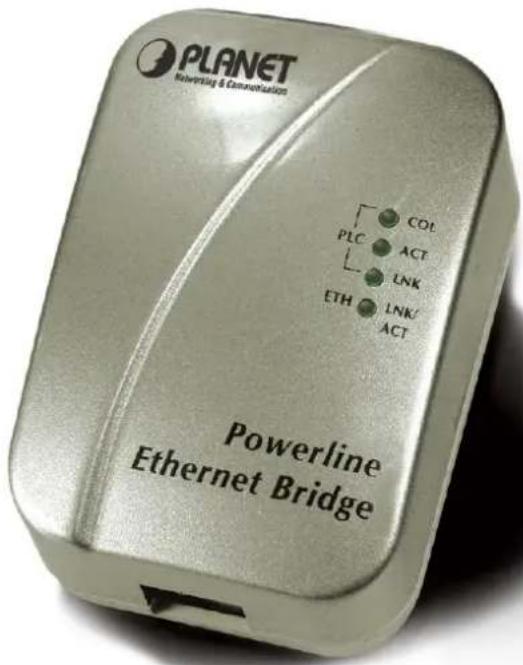
Powerline Ethernet Bridge – PL-104E
USB Powerline Adapter - PL-104U
USER'S MANUAL
Copyright
Copyright (C) 2004 PLANET Technology Corp. All rights reserved.
The products and programs described in this User's Manual are licensed products of PLANET Technology, This User's Manual contains proprietary information protected by copyright, and this User's Manual and all accompanying hardware, software, and documentation are copyrighted.
No part of this User's Manual may be copied, photocopied, reproduced, translated, or reduced to any electronic medium or machine-readable form by any means by electronic or mechanical. Including photocopying, recording, or information storage and retrieval systems, for any purpose other than the purchaser's personal use, and without the prior express written permission of PLANET Technology.
Disclaimer
PLANET Technology does not warrant that the hardware will work properly in all environments and applications, and makes no warranty and representation, either implied or expressed, with respect to the quality, performance, merchantability, or fitness for a particular purpose.
PLANET has made every effort to ensure that this User's Manual is accurate; PLANET disclaims liability for any inaccuracies or omissions that may have occurred.
Information in this User's Manual is subject to change without notice and does not represent a commitment on the part of PLANET. PLANET assumes no responsibility for any inaccuracies that may be contained in this User's Manual. PLANET makes no commitment to update or keep current the information in this User's Manual, and reserves the right to make improvements to this User's Manual and/or to the products described in this User's Manual, at any time without notice.
If you find information in this manual that is incorrect, misleading, or incomplete, we would appreciate your comments and suggestions.
CE mark Warning
The is a class B device, in a domestic environment, this product may cause radio interference, in which case the user may be required to take adequate measures.
Trademarks
The PLANET logo is a trademark of PLANET Technology. This documentation may refer to numerous hardware and software products by their trade names. In most, if not all cases, these designations are claimed as trademarks or registered trademarks by their respective companies.
Revision
User's Manual for Powerline Communication product
Model: PL-104E, PL-104U
- Read these instructions carefully.
- Follow all warnings and instructions marked on the product.
-
Unplug this product from the wall outlet before cleaning. Do not use liquid cleaners or aerosol cleaners. Use a damp cloth for cleaning.
-
Do not use this product near water.
-
This product should never be placed near or over a radiator or heat register, or in a built-in installation unless proper ventilation provided.
-
This product should be operated from the type of power indicated on the marking label. If you are not sure of the type of power available, consult your dealer or local power company.
-
This product relies on the building's electrical installation for short-circuit (over current) protection. Ensure that a fuse or circuit breaker no larger than 240 VAC (depends on the power supply type in your country) is used on the phase conductors (all current-carrying conductors).
-
Plug the device directly into a 240 VAC (depends on the power supply type in your country) wall outlet. Do not use an extension cord between the adapter and the AC power source.
-
Do not attempt to service this product yourself, as opening or removing covers may expose you to dangerous voltage points or other risks as well as ruin product warranty. Refer all servicing to qualified service personnel.
-
Unplug the AC coupler from the wall outlet and refer the product to qualified service personnel for the following conditions:
-
If liquid has been spilled into the product.
- If the product has been exposed to rain or water.
- If the product does not operate normally when the operating instructions are followed.
- If the product exhibits a distinct change in performance.
Table of Content
1. Introduction.... 1
1.1 Powerline Ethernet Bridge – PL-104E.... 1
1.1.1 Features....2
1.1.2 Package Content.... 2
1.1.3 Hardware Description.... 3
1.1.4 System Requirements.... 3
1.2 USB to Powerline Network Adapter – PL-104U 4
1.2.1 Features....4
1.2.2 Package Contents 4
1.2.3 Hardware Description....5
1.2.4 System Requirements....6
1.3 Specification 6
- Planning your Powerline Network....8
- Powerline Ethernet Bridge Installation....9
3.1 Hardware Installation....9
3.2 Driver Installation....9
- Powerline USB Adapter Installation.... 10
4.1 Connecting USB to Powerline Network Adapter.... 10
4.2 Powerline USB Adapter Driver Installation 10
- Powerline Configuration Utility.... 13
5.1 Install the Powerline Configuration Utility 13
5.2 Using the PLANET Powerline Configuration Utility.... 13
- Troubleshooting....18
1. Introduction
Powerline communication is revolution in home and small office networking, greatly simplifying the task of installing a high-speed local area network. With PLANET's powerline communication products, you can utilize existing AC power outlets and wires to connect your computers, servers and other devices safely, securely and at true LAN speeds of up to 14Mbit/second. No complex and expensive specialized wiring usually associated with LAN's is required, or management, security and interference problems associated with 802.11 wireless technologies – just convenient, reliable, secure and simple networking where you need it most. PLANET's Powerline products allow you to place a computer anywhere in your home or small office with flawless, uninterrupted high-speed network connection, simply by plugging your computer's Ethernet or USB interface into PL-104E/U equipped power outlet – and you're almost guaranteed to have one of these wherever you need it.
The PL-104E is a Powerline to Ethernet Bridge with a 10base-T RJ-45 Ethernet interface for directly connecting to a computer's Ethernet card or existing Ethernet switch, hub or broadband router. The PL-104U is an USB to Powerline network adapter with an USB type B connector for directly connecting to computer's USB port. Both of them provide a power socket for connecting to wall outlet.
Security of PLANET's Powerline communication technology is assured by the use of 56-bit DES encryption – the same system used to protect banking systems all over the world, and is interference free, avoiding the problems of wireless systems.
1.1 Powerline Ethernet Bridge - PL-104E
The PLANET Powerline Ethernet Bridge PL-104E offers a complete Internet connection solution for your home powerline network. The PL-104E makes sharing your high-speed broadband Internet access easier than ever. Build a strong and simple-to-use home network by taking advantage of the most pervasive medium - powerline.
The PL-104E is ideal for users who already have a router. It can be plugged into an Ethernet port on a router to equip a network with powerline capabilities and take advantage of the router's features. The PL-104E can also be plugged directly into a cable or DSL modem to allow Internet access and data transfer rates up to 14Mbps over powerline.
1.1.1 Features
HomePlug Powerline Alliance Specification 1.0 compliant
Built-in power plug for both powerline network and power supply
- Connects 10/100 Ethernet network to powerline Network for seamless integration
◆ 56-bit data encryption to ensure data security and reliability
- Easy to use Windows-based security key configuration utility
◆ Easy to read LED indicators
◆ Support CSMA/CA protocol on power line interface
♦ Up to 90m between powerline nodes
◆ Plug-and-play operation provides easy setup
◆ Shares internet access across your entire home powerline network
◆ Up to 14 Mbps data transfer over powerline
1.1.2 Package Content
Check the contents of your package for following parts:
■ One Powerline Ethernet Bridge
■ One RJ-45 cable
■ One Manual and Utility CD-ROM
■ One Quick Installation Guide
If any of these pieces are missing or damaged, please contact your dealer immediately, if possible, retain the carton including the original packing material, and use them against to repack the product in case there is a need to return it to us for repair.
1.1.3 Hardware Description
PL-104E front panel:
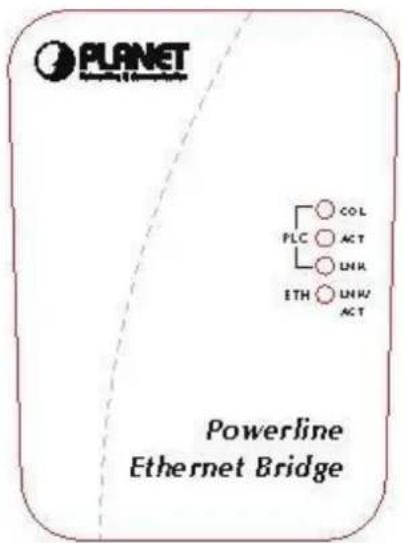
LEDs status
| LED | Description | |
| PLC | COL | Blinking indicates there exists collision in powerline network |
| ACT | Blinking indicates there exists powerline network traffic | |
| LNK | Steady on indicates PL-104E has connected to a powerline network | |
| ETH | LNK/ACT | Steady on indicates the RJ-45 port has correctly connected to the network card of your PC or the Ethernet network |
1.1.4 System Requirements
- Existing Ethernet/fast Ethernet network or an existing Ethernet/fast Ethernet network adapter and network cable
- TCP/IP protocol
- CD-ROM Drive (for installing Encryption Utility)
1.2 USB to Powerline Network Adapter - PL-104U
The newest and fastest way to network your PCs is through powerline networking, which allows you to turn the powerline in your home into your network cable. The easiest way to integrate any PC or laptop into such a powerline network is with PLANET Powerline USB Adapter. Use your existing USB port with your existing powerline. The Plug-and-Play USB Adapter connects directly to virtually any USB-ready PC — just plug it in and you are ready to share data, printers, or high-speed Internet access over your existing powerline network. For desktop installation, you do not have to open your PC case. With user-friendly software, it is simple to set up.
Not only is PL-104U easy to install and use, but it also powerful. You can send and receive data at speeds of up to 12Mbps. Plug it into the USB port; set it up, and you are ready to go. So for full desktop and notebook PC flexibility and powerline convenience, the PL-104U provides the perfect solution.
1.2.1 Features
◆ HomePlug Powerline Alliance Specification 1.0 compliant
◆ Power plug for powerline network
◆ Shares internet access across your entire home powerline network
◆ Provides powerline connectivity through Your USB port
◆ 56-bit data encryption to ensure data security and reliability
◆ Easy to use Windows-based security key configuration utility
◆ Easy to read LED indicators
◆ Support CSMA/CA protocol on power line interface
◆ Plug-and-play operation provides easy setup
◆ Up to 14 Mbps data transfer rate
◆ Compatible with Windows 98SE, ME, 2000 and XP
1.2.2 Package Contents
Check the contents of your package for following parts:
■ One powerline USB adapter
■ One USB cable
■ One Manual and Utility CD-ROM
■ One Quick Installation Guide
If any of these pieces are missing or damaged, please contact your dealer
immediately, if possible, retain the carton including the original packing material, and use them against to repack the product in case there is a need to return it to us for repair.
1.2.3 Hardware Description
PL-104U front panel
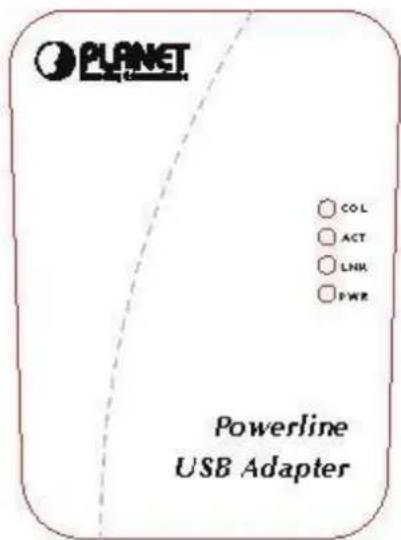
LEDs status
| LED | Description |
| PWR | Steady on indicates PL-104U has correctly connected to the USB port of your PC |
| LNK | Steady on indicates PL-104U has connected to a powerline network |
| ACT | Blinking indicates there exists powerline network traffic |
| COL | Blinking indicates there exists collision in powerline network |
USB port
The USB port is where you will connect your USB cable. To work with USB ports, your computer must be running Windows 98SE, ME, 2000 or XP.
1.2.4 System Requirements
■ Pentium-class 90 MHz or higher
■ Minimum 32 MB RAM
■ USB-ready PC
■ Windows 98SE, ME, 2000 and XP
- CD-ROM Drive (for installing driver and Encryption Utility)
1.3 Specification
| Product | Powerline Ethernet Bridge | Powerline USB Adapter |
| Model | PL-104E | PL-104U |
| Standards | HomePlug 1.0IEEE 802.3 10Base-T | HomePlug 1.0USB 1.1 |
| Ports | One Powerline PortOne 10Mbps EthernetRJ-45 port | One Powerline portOne USB type B jack |
| Speed | LAN: 10MbpsPowerline: 14Mbps (actual throughput is about 6Mbps) | USB: 12MbpsPowerline: 14Mbps (actual throughput is about 6Mbps) |
| PowerlineFrequency Band | 4.3MHz to 20.9MHz | |
| Encryption | 56-bit DES with Key configuration software | |
| Dimension | 65 x 93 x 78 mm | |
| Weighy | 230g | 110g |
| Certifications | FCC Class B, CE | |
| Operating Temp. | 0 ~ 50 degree C | |
| Storage Temp. | -20 ~ 70 degree C | |
| Operating Humidity | 10~90% non-condensing | |
| Storage Humidity | 5~95% non-condensing | |
| OS support | Any system that provides an Ethernet interface | Windows 98SE, 2000, Me and XP |
| Utility compatibility | Windows 98SE, 2000, Me and XP | |
2. Planning your Powerline Network
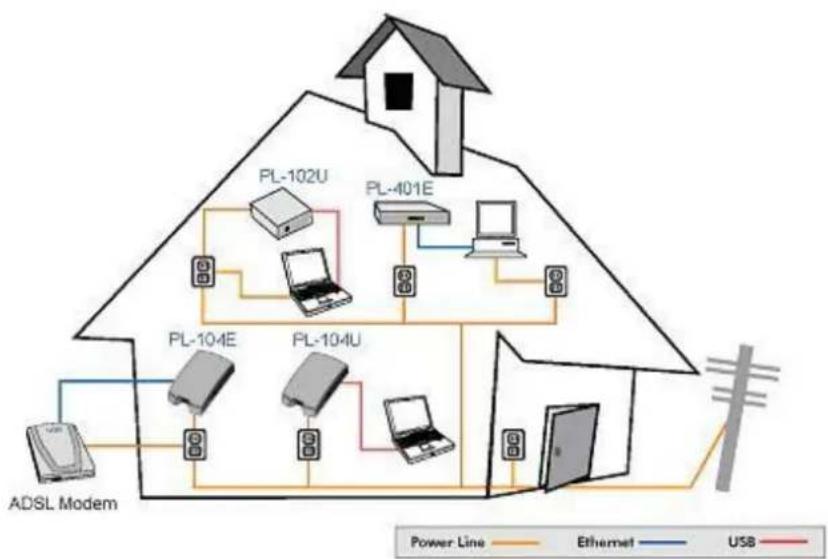
With PLANET Powerline products, a network can be created using home powerline. Computers can be networked over powerline using a USB Adapter or an Ethernet converter. Use PL-104U for an USB-enabled computer or use PL-104E for an Ethernet-enabled computer. The PL-104E is also ideal for any user who already has a router and wants to share high-speed Internet access across the powerline network. Connect PL-104E to the router after you have configured it using the Security Configuration Utility. Connect a straight-through UTP Category 5 cable to the uplink port of the router, or connect crossover UTP Category 5 cable to a LAN port on the router.
flowchart
graph TD
    A["ADSL Modem"] --> B["PL-102U"]
    A --> C["PL-104E"]
    A --> D["PL-104U"]
    B --> E["Power Line"]
    C --> F["Ethernet"]
    D --> G["USB"]
    E --> H["PL-401E"]
    F --> I["PL-401E"]
    G --> J["PL-401E"]
    H --> K["Power Line"]
    I --> L["Power Line"]
    J --> M["Power Line"]
    K --> N["Power Line"]
    L --> O["Power Line"]
    M --> P["Power Line"]
All the powerline devices on the network must use the same password to communicate each other. This password can be configured through the Powerline Configuration utility that can be found in the CD-ROM. The default password of PLANET powerline devices is "HomePlug". Thus, all the PLANET powerline devices can communicate each other without prior password configuration. Please refer to chapter 5 on detail of installing and using PLANET Powerline Configuration utility.
3. Powerline Ethernet Bridge Installation
3.1 Hardware Installation
- Plug one end of an UTP category 5 cable into the computer, switch or hub's LAN port.
- Plug the other end of the network cable into the 10/100 RJ-45 Ethernet ports on PL-104E.
- Plug the PL-104E to the power outlet.
NOTE: Because PL-104E sends data over the powerline of your house; it is best to plug it directly into a power outlet. Do not plug PL-104E into a UPS power strip with surge protection. PL-104E has its own power filter for protection against surges. - Perform procedure 1\~3 for all other PL-104E on your network.
3.2 Driver Installation
PL-104E does not need any driver to work if connected to a PC, since the PC should install an Ethernet Adapter and its driver already.
4. Powerline USB Adapter Installation
4.1 Connecting USB to Powerline Network Adapter
- Plug the other end of the USB cable into the computer's USB port.
- Plug the USB cable into the USB port on PL-104U.
- Plug the PL-104U directly into a power outlet.
NOTE: Because PL-104U sends data over the powerline of your house; it is best to plug it directly into a power outlet. Do not plug PL-104U into a UPS power strip with surge protection. PL-104U has its own power filter for protection against surges.
4.2 Powerline USB Adapter Driver Installation
The installation procedure for the network driver will vary depending on which operating system you are using on your computer. PL-104U support Windows 98SE, Me, 2000 and XP. The following procedure is for installation under Windows XP. Installation on other operation system is similar.
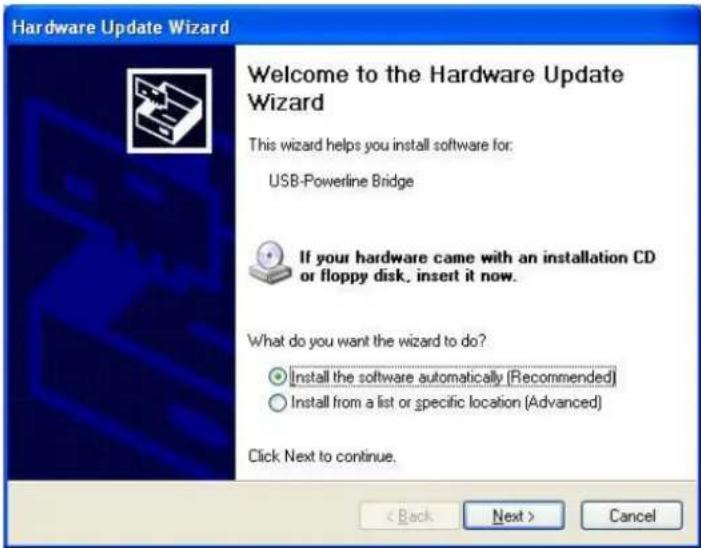
- Windows will automatically detect the presence of the USB Adapter hardware in your computer once you have completed the hardware installation. Insert the bundled CD, select "Install the software automatically (Recommended)" and click the Next button.
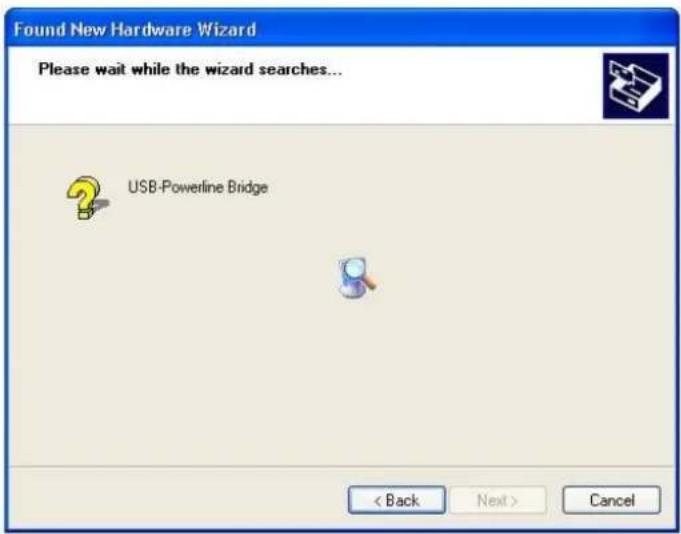
- Windows will start to search the CD to find the suitable driver.
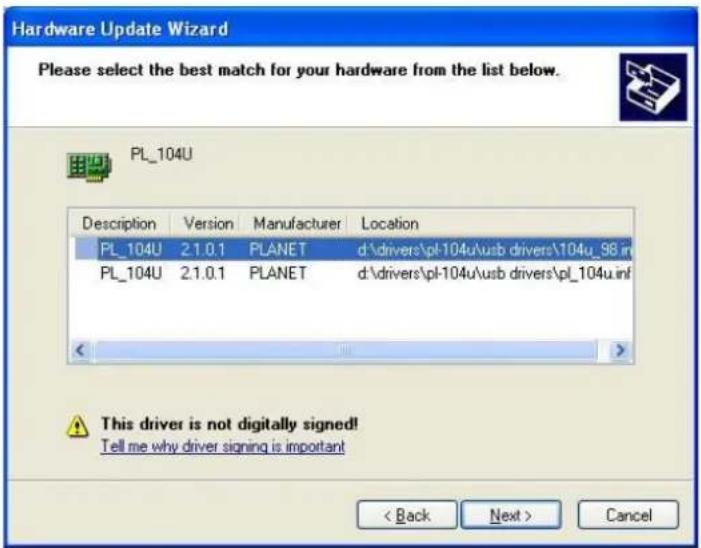
- Windows may ask you to select the suitable driver to install. Please select "pl_104u.inf" for Windows 2000 and XP, "104u_98.inf" for Windows 98SE and Me. Click "Next" to continue.
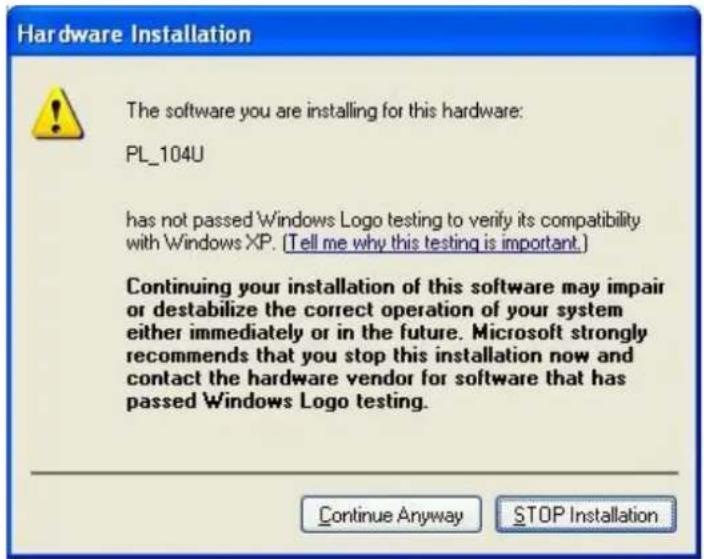
NOTE: Windows 2000 and XP will inform you that there is no digital signature found. Click the Yes button to continue the installation.
- Windows will tell you when it has finished installing the new driver. Click the Finish button.
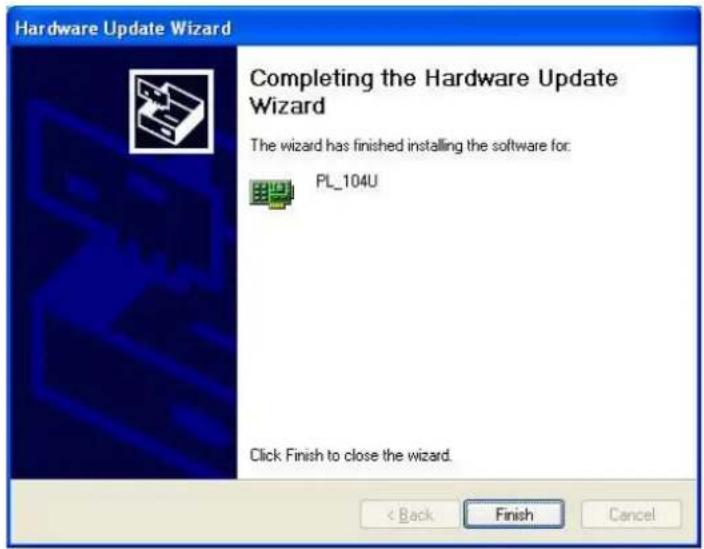
- If Windows ask you to restart the system, please click the Yes button to restart your computer, or click the No button to restart later.
5. Powerline Configuration Utility
5.1 Install the Powerline Configuration Utility
The installation procedure for the Powerline Configuration utility will vary depending on which operating system you are using on your computer. The following procedure is for installation under Windows XP. Installation on other operation system is similar.
- Insert the CD-ROM into the CD-ROM drive to initiate the autorun program. Once completed, a menu screen will appear.
-
Click on the "Powerline Configuration Utility" hyperlink in PL-104E or PL-104U field to start the installation. If the menu screen is not shown, you can start the installation as follows.
-
Click on Start Menu/ Run.
- Enter "E:\Utility\PL-104E\setup.exe" in the appeared box, where "E" is the letter of your CD-ROM drive.
-
Click on "OK" button.
-
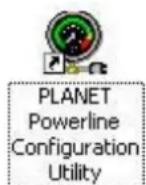
The utility will be installed into your computer and a new icon called "PLANET Powerline Configuration" will appear on your desktop.
5.2 Using the PLANET Powerline Configuration Utility
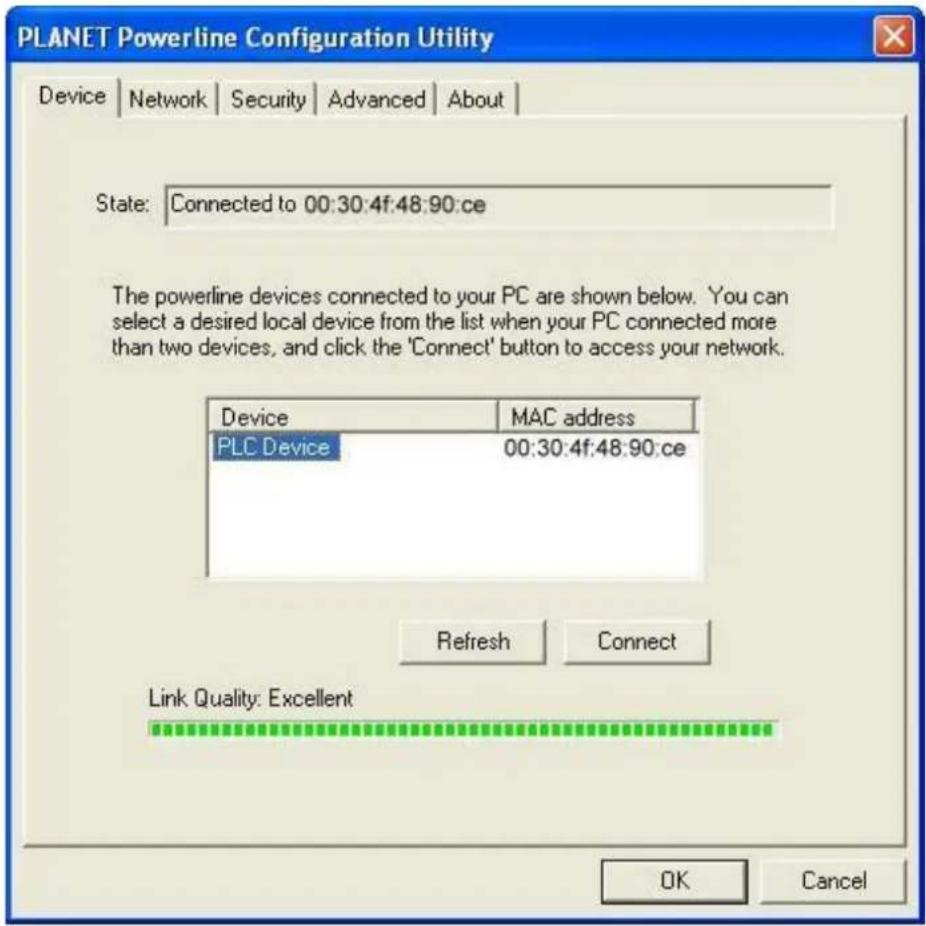
- Double click the PLANET Powerline Configuration Utility icon shown on your desktop. The Device tab shows the MAC address of your Powerline device connected to your computer. If you have installed more than two Powerline devices, select the preferred one and click Connect to access your network. Click Refresh whenever you add or eliminate Powerline devices. The Link Quality depends on the site's power circuit condition, power stability, etc.
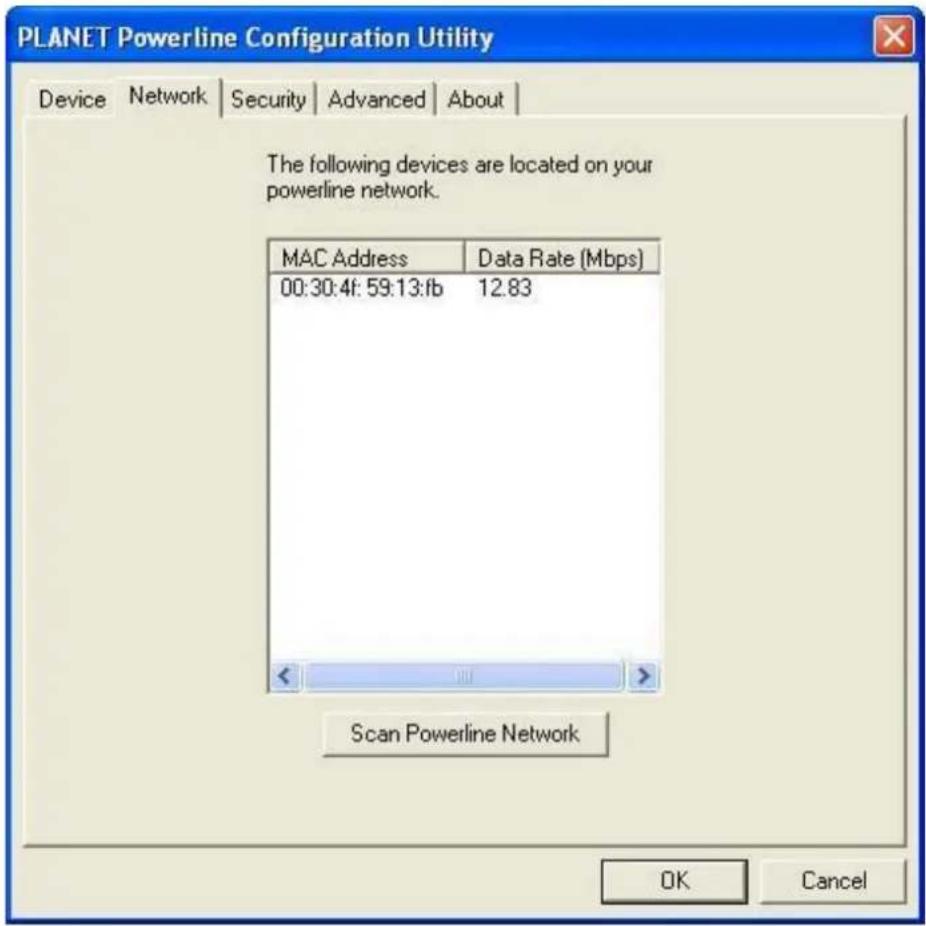
- The Network tab shows all Powerline devices present on your network. Click Scan Powerline Network to update Powerline network.
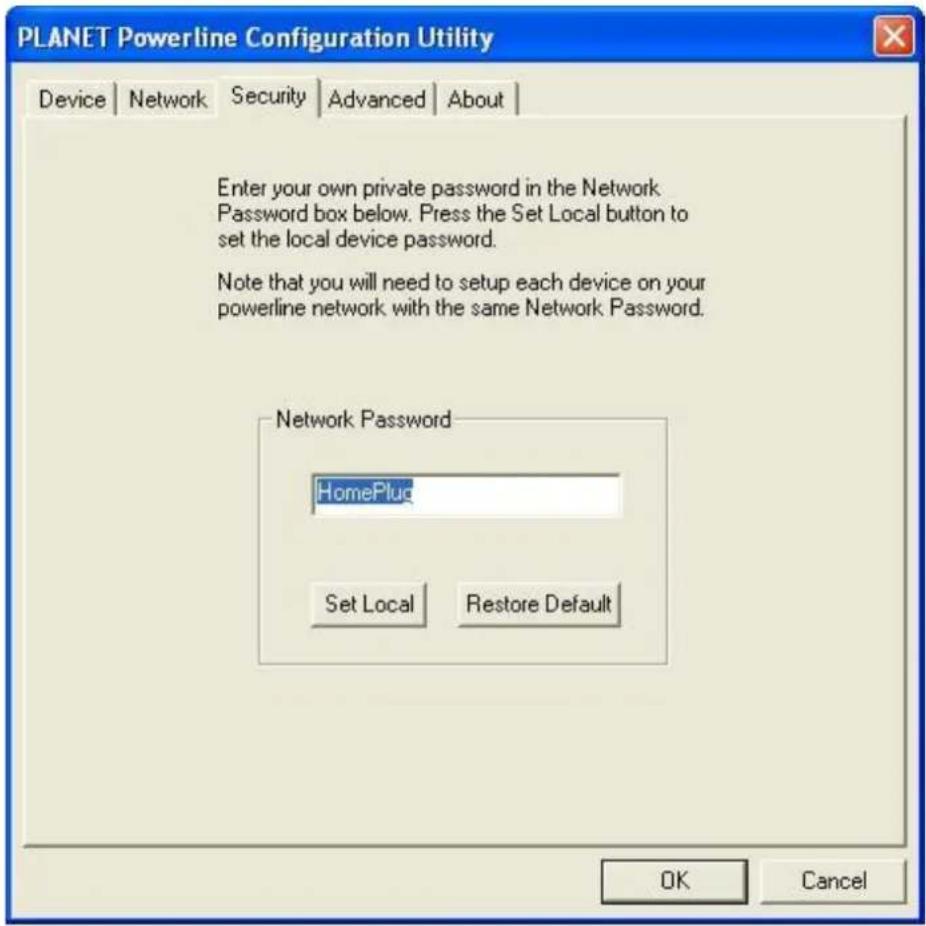
- The Security tab shows the default network password is HomePlug. Enter your own private network password if needed and click Set Local.
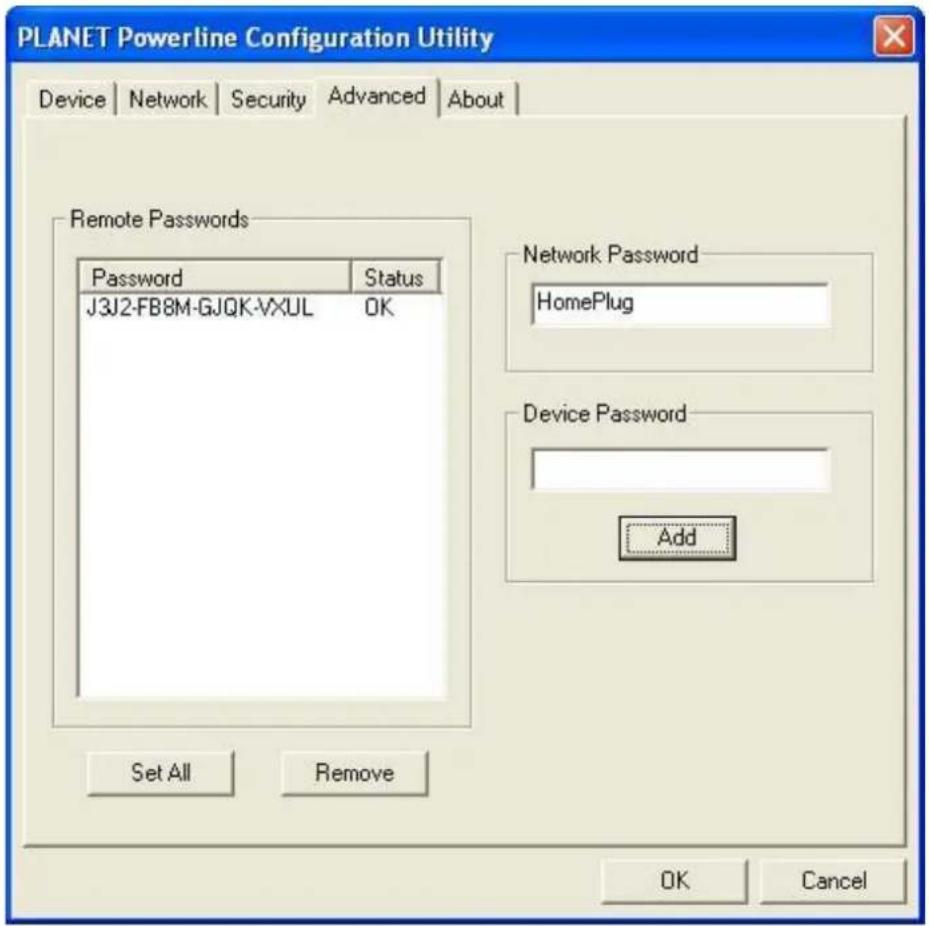
- The Advanced tab allows you to add other remote device password. You don't need this password unless other devices set different network password with yours. Each device password is different and listed on the bottom case label stuck on each Powerline Adapter. Enter the device password (The format is xxxx-xxxx-xxxx-xxxx) and click Add. Click Set All to activate the new-added password and the status column will be shown OK.
- Click OK to close the Utility program.
6. Troubleshooting
- Why other Powerline Adapters aren't listed on the network of my Configuration Utility?
A: Make sure other devices are working properly and correctly installed. Please also check if every device uses the same network password. Try to set each device with the same network password or add other device's device password into your remote password list.
- What types of security problems will I be encountering?
A: If your house is on the same power grid as your neighbor, it is possible for a hacker to get in your network. However, this problem can be easily overcome by activating the encryption key of each Powerline device.
- Will HomePlug operate on different circuit breakers?
A: HomePlug can operate on different circuit breakers without affecting the performance. However, the signal will not pass through the power transformers outside your house.
- What OS does the HomePlug utility software fully support?
A: Windows 98SE, ME, 2000, and XP. Windows NT and Mac are only supported by the Ethernet Powerline Adapter as a Bridge.
- How does 56bit-DES compare with Wireless 802.11b 128bit-WEP encryption?
A: 56bit-DES is superior because of its DES type encryption. Just because 802.11b uses 128bit-WEP with more bits doesn't mean the encryption is better. HomePlug devices use hardware 56bit-DES encryption. With hardware encryption the signal is almost impossible to crack. The hardware encryption process does not affect bandwidth, and the encryption is enabled at all times.
- I cannot connect to other computers on my powerline network or to the Internet.
A: Make sure the IP address and TCP/IP protocol are set up correctly for all the powerline networked computers.
- Do the PL-104E/U device cause interference with other home networking or products?
A: No. PL-104E/U can co-exist with phoneline and wireless networking technologies.
PL-104E/U operates in a different frequency band than powerline control and co-exists with technologies such as X-10, CEBus and LONworks.
- How do the PL-104E/U devices handle signal interference between two adjacent homes? How is eavesdropping prevented?
A: PL-104E/U 56-bit DES security encryption to ensure network separation between homes. To enable 56-bit DES security encryption on PL-104E/U, you must run the security configuration utility on each and every PL-104E/U.
- How does PL-104E/U handle node address on the network?
A: PL-104E/U adheres to standard Ethernet addressing protocols using destination and source MAC address.