
EL-6061A - Calculator SHARP - Free user manual and instructions
Find the device manual for free EL-6061A SHARP in PDF.


| Product Type | Electronic Organizer with Calculator |
| Brand | Sharp |
| Model | EL-6061A |
| Dimensions (W × D × H) | 108 × 68 × 6.9 mm (excluding wallet) |
| Weight | 70 g (including wallet) |
| Power Supply | 3 V DC, 1 lithium battery CR2016 |
| Power Consumption | 0.0002 W |
| Battery Life | Approx. 2,000 hours continuous display |
| Display | Upper line: 12 columns, 2 symbols; Lower line: 12 columns, 2 symbols |
| Memory Capacity | 1888 bytes total for telephone and schedule modes |
| Digits | 12 digits |
| Functions | Addition, subtraction, multiplication, division, percent, square root, memory calculation, telephone directory, schedule, secret function, calendar |
| Operating Temperature | 0°C to 40°C (32°F to 104°F) |
| Key Functions | Telephone mode (TEL), schedule mode (SCHEDULE), calculator mode (CALC), secret (SECRET), edit (EDIT), memory check (M-CK), etc. |
| Auto Power Off | After approx. 7 minutes of inactivity |
| Maintenance | Clean with a soft, dry cloth only. Do not use solvents. |
| Warranty | 1 year parts and labor from date of purchase (US only) |
| Accessories | 1 lithium battery (installed), operation manual |
| Data Backup | Keep written records of important data; data may be lost during battery replacement. |
Frequently Asked Questions - EL-6061A SHARP
User questions about EL-6061A SHARP
0 question about this device. Answer the ones you know or ask your own.
Ask a new question about this device
Download the instructions for your Calculator in PDF format for free! Find your manual EL-6061A - SHARP and take your electronic device back in hand. On this page are published all the documents necessary for the use of your device. EL-6061A by SHARP.
USER MANUAL EL-6061A SHARP
SHARP ELECTRONICS CORPORATION warrants to the first consumer purchaser that this Sharp brand product (the 'Product'), when shipped in its original container, will be free from defective workmanship and materials and agrees that it will, at its option, either repair the defect or replace the defective Product or part thereof at no charge to the purchaser for parts or labor for the time period(s) set forth below.
This warranty does not apply to any appearance items of the Product nor to the additional excluded item(s) set forth below nor to any product the exterior of which has been damaged or defaced, which has been subjected to misuse, abnormal service or handling or which has been altered or modified in design or construction.
In order to enforce the rights under this limited warranty, the purchaser should follow the steps set forth below and provide proof of purchase to the servicer.
The limited warranty described herein is in addition to whatever implied warranties may be granted to purchasers by law. ALL IMPLIED WARRANTIES INCLUDING THE WARRANTIES OF MERCHANTABILITY AND FITNESS FOR USE ARE LIMITED TO THE PERIOD(S) FROM THE DATE OF PURCHASE SET FORTH BELOW. Some states do not allow limitations on how long an implied warranty lasts, so the above limitation may not apply to you.
Neither the sales personnel of the seller nor any other person is authorized to make any warranties other than those described herein or to extend the duration of any warranties beyond the time period described herein on behalf of Sharp.
The warranties described herein shall be the sole and exclusive warranties granted by Sharp and shall be the sole and exclusive remedy available to the purchaser. Correction of defects, in the manner and for the period of time described herein, shall constitute complete fulfillment of all liabilities and responsibilities of Sharp to the purchaser with respect to the Product and shall constitute full satisfaction of all claims, whether based on contract, negligence, strict liability or otherwise. In no event shall Sharp be liable, or in any way responsible, for any damages or defects in the Product which were caused by repairs or attempted repairs performed by anyone other than an authorized servicer. Nor shall Sharp be liable, or in any way responsible, for any incidental or consequential economic or property damage. Some states do not allow the exclusion of incidental or consequential damages, so the above exclusion may not apply to you.
THE WARRANTY GIVES YOU SPECIFIC LEGAL RIGHTS. YOU MAY ALSO HAVE OTHER RIGHTS WHICH VARY FROM STATE TO STATE.
Your Product
Warranty Period for this Product:
Additional items excluded from warranty coverage:
Where to obtain service:
What to do to obtain service
Electronic Organizer
One (1) year parts and labor from date of purchase.
Any consumable items such as paper, maintenance cartridge, ink cartridges supplied with the Product or to any equipment or any hardware, software, firmware, fluorescent lamp, power cords, covers, rubber parts, or peripherals other than the Product.
At a Sharp Authorized Servicer located in the United States. To find out the location of the nearest Sharp Authorized Servicer, call Sharp toll free at 800-BE-SHARP.
Ship (prepaid) or carry in your Product to a Sharp Authorized Servicer. Be sure to have proof of purchase available. If you ship or mail the Product, be sure it is packaged carefully.
TO OBTAIN SUPPLY, ACCESSORY OR PRODUCT INFORMATION. CALL 1-800-BE-SHARP
NOTICE
- SHARP strongly recommends that separate permanent written records be kept of all important data. Data may be lost or altered in virtually any electronic memory product under certain circumstances. Therefore, SHARP assumes no responsibility for data lost or otherwise rendered unusable whether as a result of improper use, repairs, defects, battery replacement, use after the specified battery life has expired, or any other cause.
- SHARP assumes no responsibility, directly or indirectly, for financial losses or claims from third persons resulting from the use of this product and any of its functions, such as stolen credit card numbers, the loss of or alteration of stored data, etc.
Page Cautions 1 Using the Organizer for the First Time 1 Part Names 3 Selecting Operation Modes 6 Entering Characters 7 Telephone Mode 9 Schedule Mode 17 Secret Function 23 Data Deletion 29 Calculator Mode 32 Memory 35 Power Supply 37 Specifications 39
Cautions
- Do not carry the Organizer in the pocket of your slacks or trousers.
- Do not drop or apply excessive force.
- Do not subject the Organizer to extreme temperatures. • Clean only with a soft, dry cloth.
- At times, 力ナ, 英, 機能, ⬆, ⚙, ▶, AM and PM may appear faintly on the display. This, however, will not affect the operation of the Organizer. • Use only a SHARP approved service facility.
Using the Organizer for the First Time
RESET operation
To ensure that the memory of the Organizer is blank, perform the following operation.
(The memory contents will be cleared by this operation.)
1. Press ON C-CE and then the RESET switch on the back, then press SHIFT ENTER.
2. Repeat: press the RESET switch again, then press SHIFT ENTER again.
- Press the RESET switch with a ball-point pen or similar object.
When abnormal conditions cause a malfunction
Abnormal conditions may occur in which no keys will respond, etc. If this happens, press the RESET switch on the back of the Organizer and then any key other than SHIFT ENTER.
If an internal error occurs, "DATA PROBLEM" and "PRESS RESET!" are displayed alternately. Press the RESET switch and then SHIFT ENTER to clear the error. (The memory contents will be cleared by this operation.)
Part Names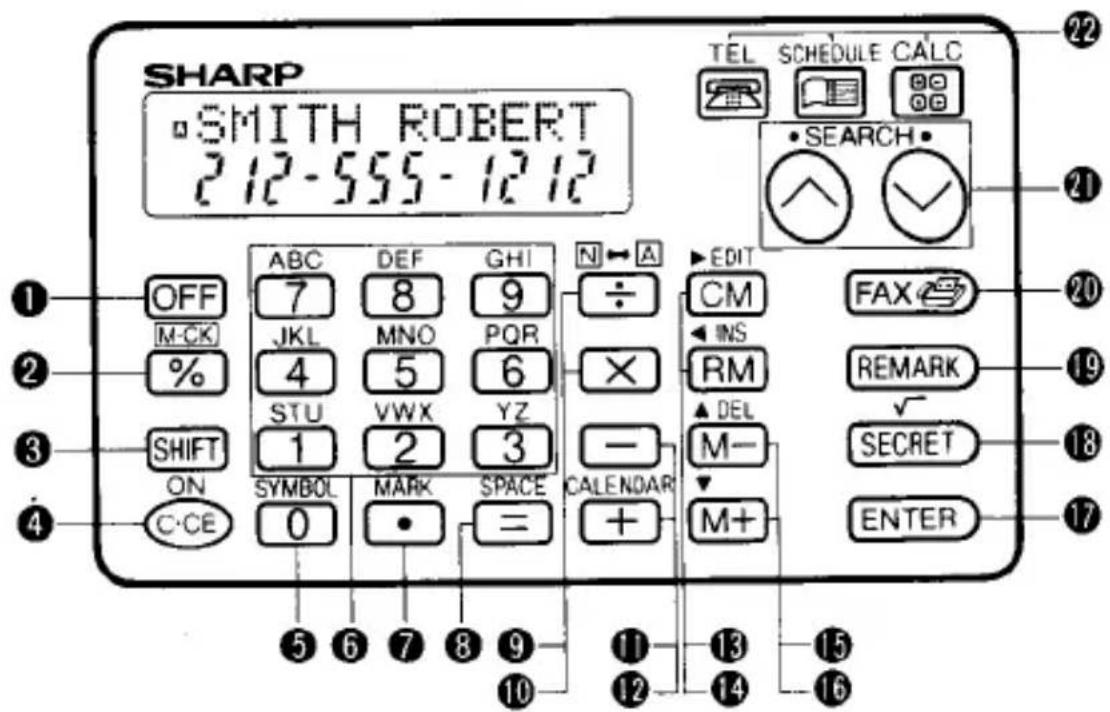
If a key has several functions, only the function to be used will be shown.
Examples: ▶ EDIT CM
When used as the right cursor key: ▶ When used as the clear memory key: CM
When used as the EDIT key: EDIT
Cursor movement
The cursor can be moved by ▶, ◀, ▲ or ▼.
: Moves the cursor to the right. : Moves the cursor to the left. ▲: Moves the cursor to the leftmost column of the previous line. : Moves the cursor to the leftmost column of the next line.
Hold ▶ or ◀ for rapid movement.
When ↓ or ↑ is displayed, there are additional lines which do not fit on the display. Press ▼ or ▲ to scroll the lines one by one onto the display.
Selecting Operation Modes
This Organizer has three operation modes: telephone mode, schedule mode and calculator mode.
Press the corresponding key to select the desired mode.
Telephone mode
TEL
Schedule mode
SCHEDULE
Calculator mode
CALC


Entering Characters
The telephone mode has 4 fields (NAME, NUMBER, FAX and REMARK) and the schedule mode has 2 fields (ITEM and DATE).
Letters, symbols and numbers can be entered into the NAME, REMARK and ITEM fields by the method shown below.
Only numbers can be entered into the NUMBER, FAX and DATE fields by pressing the alphanumeric keys.
The example shown is for the telephone mode. Press TEL to select the telephone mode.
1. Entering letters
Example: Enter AB.
1 Press N↔A to display A. 2 Press ABC. "A" will be displayed. 3 Press ▶ to move the cursor to the next column.
- This step can be omitted if the same key is not used to enter successive letters.
4 Press ABC twice. "B" will be displayed.
- As ABC is pressed repeatedly, the displayed letter changes in the following order: A → B → C → A …
- Entering symbols (\$, ¥, →, :, (, ), #, *)
1 Press N↔A to display A.
2 Press SYMBOL. As SYMBOL is pressed repeatedly, the displayed symbol changes in the following order: \→ ¥ → → : → ( → ) → # → * → \ …
3 To enter successive symbols, press ▶ then SYMBOL.
- Entering numbers
1 Press N↔A to clear A.
2 Press 0 through 9 to enter numbers.
4. Entering hyphens, dots or spaces
Press - , · or SPACE .
In the schedule mode, dots (.) cannot be entered.
Telephone Mode
The telephone mode is divided into two files (TEL1 and TEL2) which can be used, for example, to store business and private telephone numbers separately.
Press TEL to select the file. At each press the file changes: TEL1 → TEL2 → TEL1 ...
1. Entry
Example: Enter the following into TEL1:
Name: ROBERT SMITH
Telephone number: 212-555-1212
Fax number: 212-555-2121
Company name: SUNSHINE
1 Press TEL to select TEL1 and then press C-CE. 2 Enter the name into the NAME field and press ENTER. (Up to 12 characters can be entered.)


3 Enter the telephone number into the NUMBER field and press ENTER. (Up to 48 digits can be entered.)


4 Enter the fax number or second telephone number into the FAX field and press ENTER.
(Up to 48 digits can be entered.)
2 1 2 - 5 5 5 - 2 1 2 1 ENTER
5 Enter the company name into the REMARK field and press ENTER.
(Up to 10 characters can be entered.)
STU ▶ STU STU STU MNO MNO STU GHI GHI ▶ GHI GHI GHI MNO MNO DEF DEF ENTER
- Any field except the NAME field can be skipped. To skip a field, simply press ENTER without entering any characters.
- To store data in TEL2, select TEL2 in step 1 and enter data using the above procedure.
- If an attempt is made to enter a 13th character in a NAME field, it is automatically entered into the NUMBER field.
- The NUMBER field can include only one period in the first line. Once a period has been entered, data cannot be entered into the second or later lines of the NUMBER field.
A period cannot be entered in the FAX field.
2. Recall
Telephone items are sorted according to the first character in the NAME field, in this order:
Space → letters → numbers → - → • → symbols (\$ → ¥ → ➞ → : → ( → ) → # → *)
- To display the fax number of the recalled item, press FAX. The telephone number disappears and FAX and the fax number are displayed.
To display the remark, press REMARK. The contents of the remark are displayed in parentheses in place of the name.
In both cases, if the key is pressed again, the display of the telephone number or name reappears.
12
(1) Sequential search
After pressing TEL to select a file, press √ or ∧ to recall items in forward or reverse order.
Hold ▼ or ▲ down for rapid recall.
(2) Direct search in the NAME field
After pressing TEL to select a file, enter the first character(s) in the NAME field and press v or ∧ to recall that item directly.
(3) Remark search
After pressing TEL to select a file, press REMARK. "(REMARK?)" is displayed. Press √ or ∧ to recall items in forward or reverse order using the REMARK field instead of the NAME field.
• The recall order is the same for the NAME field.
(4) Direct search in the REMARK field
Press TEL to select a file, press REMARK. "(REMARK?)" is displayed. Enter the first character(s) in the REMARK field and press √ or ∧.
Items that begin with the entered character(s) are sequentially recalled.
- After the desired remark is recalled, pressing SHIFT √ or SHIFT ∧ recalls the next item starting with the same remark. (To recall more items starting with the same remark, press √ or ∧. SHIFT can be omitted.)
- For direct search, if an item that begins with the specified character is not in memory, "NOT FOUND!" will be displayed.
3. Correction
1 Recall the item to be corrected. 2 Press SHIFT EDIT.
The cursor flashes.
3 Move the cursor to the position to be corrected.
To correct the fax number or remark, recall it with FAX or REMARK, respectively, before moving the cursor.
4 Correct the data.
14
To overwrite a character, simply enter the correct character.
To insert a character, press SHIFT INS to open a space and then enter the correct character.
To delete a character, press SHIFT DEL.
5 Press ENTER.
• Perform the same operation as in step 4 when correcting the data being entered. - If the maximum number of characters has already been entered, characters cannot be inserted using SHIFT INS.
4. Data memo calculation
Conversion calculations and other calculations can be performed using data stored in the telephone mode.
Example: Convert 10 inches to cm. 1 inch = 2.54 cm.
1 Enter the conversion rate.

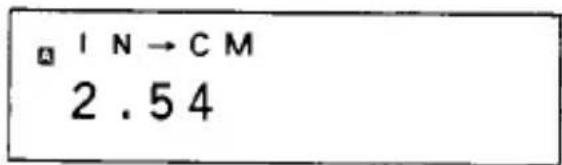
- Enter the numbers into the first line of the NUMBER field or FAX field.
- Numbers entered in the second or later lines of the NUMBER field and FAX field cannot be used for calculations. Also, numbers entered in the first line of a field cannot be used for calculations if there are numbers in the second or later lines.
2 Perform the conversion.

25.4
If an incorrect number such as a telephone number is entered, an error will occur ("E" will be displayed). Press C-CE and perform the correct operation.
Schedule Mode
1. Entry
Example: Enter FLIGHT AB12 scheduled for 10:30 P.M. on August 26, 1993.
1 Press SCHEDULE to select the schedule mode, and then press C-CE. 2 Set the year.
▲ 1 9 9 3
Skip this step if there is no need to change the year that is displayed.
- Enter the year as a 4-digit number. Years that can be set are from 1901 to 2099.
- When entering the data the next time, the year that was last set will be displayed. Change it in the same way as above if necessary.
3 Enter the date and time in the lower line. Enter the time in the 24-hr. system. Each number should have two digits.
| 0 | 8 | 2 | 6 | 2 | 2 |
| 3 | 0 |
| ITEM?08-26 22:30 |
- After date and time entry, the cursor moves to the ITEM field and A is displayed.
- When not entering the time, press ENTER and proceed to the next step. The time will be entered as 00:00.
4 Enter the schedule details.
| DEF | DEF | DEF | JKL | JKL | JKL |
| GHI | GHI | GHI | ▶ | GHI | ▶ |
| GHI | GHI | STU | STU | SPACE | |
| ABC | ▶ | ABC | ABC | N↔A | |
| 1 | 2 |
| FLIGHT | AB12_ |
| 08-26 | 22:30 |
5 Press ENTER to store in memory.
If an attempt is made to store an impossible date or time, "ERROR!" is displayed. Enter the correct date and time and press ENTER.
2. Recall
Schedule items entered are sorted in chronological order. Items can be recalled using any of the following four methods.
(1) Sequential search
Press □ or △ to recall items in forward or reverse order. Hold □ or △ down for rapid recall.
(2) Detail search
Press ▼ once or twice to move the cursor to the ITEM field, enter the first character(s) of the schedule details and press ▼ or ∧ to recall the item directly.
(3) Date search
Enter the date and press ▼ or △ to recall the item directly.
(4) Priority mark search
Attach the priority mark to an item in the method described below. That item will be recalled first with □ or △. Pressing □/□ again recalls in forward/reverse order items stored after/before the item with the priority mark.
During entry, press MARK (☐ will be displayed), enter the data and press ENTER. To mark an item already entered, recall it with √ or ∧, press SHIFT EDIT, press MARK (☐ will be displayed), then press ENTER.
- The priority mark can only be attached to one item.
Recall the item with the priority mark, press SHIFT EDIT, MARK (O will be cleared), then press ENTER.
- The priority mark is removed from one item when it is attached to a different item.
3. Correction
Correct items using the same procedure as that used in the telephone mode (page 14).
- To correct the year, press ▲ once or twice to move the cursor to the year, and then correct the entry.
To move the cursor from the year to the ITEM field, press ▼ twice.
4. Calendar function
The day of the week for a specific date can be checked. The day of the week for a previously stored schedule item can also be displayed.
(1) Checking the day of the week for a specific date Example: Check the day of the week for March 25th, 1994.
1 Press C-CE to display the item entry prompt. 2 Press ▲ to move the cursor to the year and enter the year.
▲ 1 9 9 4
- Skip this step if there is no need to change the year.
3 Enter the date in the lower line, then press and hold CALENDAR.
CALENDAR
1994 FRI 03-25 00:00
- The day of the week will be displayed while CALENDAR is pressed.
(2) Checking the day of the week for a stored item
1. Recall the item to be checked.
2. Press CALENDAR.
- Press CALENDAR again to return to the original screen.
Secret Function
Use this function to prevent other people from having access to the stored items. The secret function can be used in telephone and schedule modes. Up to 6 characters can be entered as a password. (Spaces must be followed by some other character.)
1. Registering a password
Example: Register the password ADG.
1. Select the telephone (or schedule) mode, press C-CE to display the item entry prompt.
2. Press SECRET, will appear.
- If "PASSWORD?" is displayed, a password has already been registered.
To register a new password (if you forget the password), delete the current password and secret items. (Refer to "Deleting the password and secret items" on page 30.) Be sure to jot the password down somewhere safe.
3 Enter the password "ADG" by pressing ABC DEF GHI. 4 Press SECRET.
2. Closing the secret function
1 Press C-CE SECRET. The password will be displayed. 2 Press SECRET. "□ ON!" will be displayed for an instant, and ■ will be cleared to indicate that the secret function is closed.
- The secret function can also be closed by pressing SECRET when recalling stored items. Furthermore, it automatically closes when the power is turned off.
3. Opening the secret function
1 Select the telephone or schedule mode. 2 Press C-CE SECRET. "PASSWORD?" will be displayed. 3 Enter the password and press SECRET. "□ OFF!" will be displayed for an instant and □ will be displayed to indicate that the secret function is open.
If the entered password is incorrect, "PW.ERROR!" is displayed. Enter the correct password.
4. Storing secret items
(1) To make a new item secret
Items entered when the secret function is open ( ▶ is displayed) are stored as secret items. "*" is assigned to the secret items and appears on the display.
1 Open the secret function.
Refer to "3. Opening the secret function" above.
2 Store the item using the procedure described for non-secret items. The item will be stored as a secret item.
(2) To make a previously entered item secret
1 Recall the item to be made secret. 2 Press SHIFT EDIT. The cursor flashes. 3 Press SECRET. "*" is displayed. 4 Press ENTER. The item is stored as secret.
- Close the secret function by performing the procedure described in "2. Closing the secret function" on page 24. The item can no longer be recalled.
5. Recalling secret items
Secret items can be recalled only when the secret function is open ( ▶ is displayed).
1 Open the secret function. Refer to "3. Opening the secret function" on page 25.
2 Press ∨ or ∧ to recall the item.
Secret items can also be recalled using the same procedure as for non-secret items.
- Items with * are secret items.
- In the telephone mode, secret items are recalled before non-secret items.
6. Correcting and deleting secret items
After opening the secret function, secret items can be corrected and deleted using the same procedures as described for non-secret items. For deletion, refer to "Deleting an item" on page 29.
7. Changing a secret item to non-secret
1 Recall the secret item to be made non-secret.
2 Press SHIFT EDIT. The cursor flashes.
3 Press SECRET. " * " will disappear.
4 Press ENTER. The item is stored as non-secret.
8. Changing the password
1 Open the secret function. Refer to "3. Opening the secret function" on page 25. 2 Press C-CE SECRET. The password will be displayed. 3 Press SHIFT EDIT. The first character of the password will flash.
4 Enter a new password.
5 Press SECRET.
The password has now been changed.
Data Deletion
1. Deleting an item
1 Recall the item to be deleted. 2 Press SHIFT DEL. 3 Press ENTER.
(To cancel the deletion, press any key other than ENTER.)
2. Clearing a file
If the entire contents of a telephone or schedule mode are unnecessary, the file can be completely cleared.
TEL1 and TEL2 files in the telephone mode can be cleared independently.
Example: Clear the TEL1 file.
1 Press TEL to select TEL1.
Turn the secret function off.
2 Press C-CE to display the item entry prompt.
3 Press SHIFT DEL.
TELI DELETE?
4 Press SHIFT ENTER.
(To cancel the deletion, press any key other than SHIFT ENTER.)
- When "☐-ON!" is displayed, the secret function is on and the file cannot be deleted. Press C-CE to clear the message, turn the secret function off, and repeat the procedure above.
All secret and non-secret items in the file selected in step 1 will be cleared.
3. Deleting the password and secret items
The password and all secret items can be deleted at the same time.
1 Press either TEL or SCHEDULE.
2 Press SECRET. 3 Press SHIFT DEL.

4 Press SHIFT ENTER.
(To cancel the deletion, press any key other than SHIFT ENTER.)
4. Clearing all memory contents
1 Display the number of stored items using the memory check procedure on page 35. (Display as in step 2 or 3 in "Memory check".)
2 Press SHIFT DEL.

3 Press SHIFT ENTER.
(To cancel the deletion, press any key other than SHIFT ENTER.)
Calculator Mode
Press CALC to select the calculator mode.
Before performing a calculation, press C-CE C-CE CM
| Example | Operation | Display |
| (-24+2)÷4=-5.5 | C-CE - 24 + 2 ÷ 4 = | -5.5 |
| 34+57=91 | 34 + 57 = | 91. |
| 45+57=102 | 45 = | 102. |
| 68×25=1700 | 68 × 25 = | 1700. |
| 68×40=2720 | 40 = | 2720. |
| 200×10%=20 | 200 × 10 % | 20. |
| 9÷36=25(%) | 9 ÷ 36 % | 25. |
| 200+(200×10%)=220 | 200 + 10 % | 220. |
| 500-(500×20%)=400 | 500 - 20 % | 400. |
 |
| Example | Operation | Display |
| 123456789098 × 145= 17901234419210 | 123456789098 × 145 = 17.9012344192C-CE 17.9012344192(17.9012344192 × 1012 = 17901234419200) | |
Errors
When the integer part of a calculation result or any integer in the memory exceeds 12 digits, or other impossible operations are attempted, an error occurs. ("E" will appear in the upper line.)
Press C-CE to clear the error.
Memory
Memory check
1 Select the telephone or schedule mode, then press M-CK to display how many more characters can be stored in memory. 2 Press M-CK again to display the number of stored telephone items. 3 Press M-CK again to display the number of stored schedule items.
These displays are toggled by pressing M-CK.
Press any key other than M-CK to return the display to the item entry prompt.
- The Organizer can store up to 1888 characters in its telephone and schedule memory. Up to 118 items (6 characters for the name and 12 characters for the number) can be stored if all memory is used as a telephone directory. If ENTER is pressed to store items when the remaining memory capacity is insufficient, "FULL! NOT IN" will be displayed and the item will not be stored.
In this case, press C-CE, and either delete previously stored items or change the item to be stored so that it will not exceed the memory capacity, and then repeat the storing procedure.
When storing characters, each character in the NAME, REMARK, ITEM fields is counted as one character, and two digits in the NUMBER, FAX fields are counted as one character. If there is an odd number of digits in the NUMBER, FAX fields, the leftover digit is counted as one character. Five characters are utilized including the year in the DATE field. Four space characters are used as separators for each item, in addition to the space utilized by the data. (In the telephone mode, when data is entered in the FAX field or the REMARK field, five characters are used. When entered in both fields, six characters are used.)
Power Supply
The Organizer uses one lithium battery (CR2016).
The Organizer will automatically turn off if no key is pressed for about 7 minutes. (The actual time may vary depending upon the conditions of use.)
When the battery becomes exhausted, the display will appear faint and will be difficult to read.
The contents of the memory will be lost when the battery is replaced, so be sure to keep a written record of all important data.
- Keep batteries out of the reach of children. • An old battery left in the Organizer may leak and damage the Organizer.
- Do not dispose of batteries in a fire as they may explode.
- Replace the battery only with a battery of the same type.
Battery replacement
1 Turn the power off and remove the screw and battery cover. (Fig. 1) 2 Remove the old battery with a ball-point pen or similar object. (Fig. 2)
Install the new battery with the plus ⊕ side up. (Fig. 3)
3 Replace the battery cover and secure the screw. (Fig. 4)

4 To proceed with the reset operation, refer to page 1.
- The reset operation must be performed after replacing the battery, or the Organizer may not operate properly.
Specifications
| Model: | EL-6061A |
| Display: | Upper line: 12 columns, 2 symbolsLower line: 12 columns, 2 symbols |
| Name, telephone number, fax number, remark; entry and recall | |
| Schedule details, year, date and time; entry and recall | |
| Memory capacity: | 1888 bytes (Total for both the telephone and schedule modes) |
| Digits: | 12 |
| Functions: | Addition, subtraction, multiplication, division, percent, square root, memory calculation, etc. |
| Power supply: | 3 V — DC (Lithium battery CR2016; 1) |
Power consumption: 0.0002 W
Operating temperature: 0°C - 40°C (32°F - 104°F)
Battery life: Approx. 2,000 hours (continuous display)
The original battery is factory installed in the Organizer, so actual battery life may be less than 2,000 hours.
Weight: 70g (0.15 lb.) (including the wallet)
Dimensions: 108(W) × 68(D) × 6.9(H) mm (4-1/4"(W) × 2-11/16"(D) × 9/32"(H)) (excluding the wallet)
Accessories: 1 lithium battery (installed), operation manual
MEMO
MEMO
SHARP
SHARP ELECTRONICS CORPORATION
Sharp Plaza, Mahwah, New Jersey, 07430-2135
SHARP CORPORATION
PRINTED IN HONG KONG
- NOTICE
- CAUTIONS
- USING THE ORGANIZER FOR THE FIRST TIME
- RESET OPERATION
- WHEN ABNORMAL CONDITIONS CAUSE A MALFUNCTION
- EXAMPLES: ▶ EDIT CM
- CURSOR MOVEMENT
- SELECTING OPERATION MODES
- ENTERING CHARACTERS
- ENTERING LETTERS
- EXAMPLE: ENTER AB
- ENTERING HYPHENS, DOTS OR SPACES
- TELEPHONE MODE
- ENTRY
- RECALL
- CORRECTION
- DATA MEMO CALCULATION
- SCHEDULE MODE
- CALENDAR FUNCTION
- SECRET FUNCTION
- REGISTERING A PASSWORD
- CLOSING THE SECRET FUNCTION
- OPENING THE SECRET FUNCTION
- STORING SECRET ITEMS
- RECALLING SECRET ITEMS
- CORRECTING AND DELETING SECRET ITEMS
- CHANGING A SECRET ITEM TO NON-SECRET
- CHANGING THE PASSWORD
- DATA DELETION
- DELETING AN ITEM
- CLEARING A FILE
- EXAMPLE: CLEAR THE TEL1 FILE
- DELETING THE PASSWORD AND SECRET ITEMS
- CLEARING ALL MEMORY CONTENTS
- CALCULATOR MODE
- ERRORS
- MEMORY
- MEMORY CHECK
- POWER SUPPLY
- BATTERY REPLACEMENT
- SHARP
- SHARP CORPORATION
Brand : SHARP
Model : EL-6061A
Category : Calculator