
SPF1127 - Digital photo frame PHILIPS - Free user manual and instructions
Find the device manual for free SPF1127 PHILIPS in PDF.


| Product Type | Digital Photo Frame |
| Brand | Philips |
| Model | SPF1127 |
| Display Size | 7 inches |
| Display Resolution | 800 x 480 pixels |
| Aspect Ratio | 16:9 |
| Supported Memory Cards | SD, SDHC, MMC |
| USB Port | USB 2.0 Host (for flash drives) |
| Internal Memory | 512 MB |
| Supported Image Formats | JPEG, BMP, PNG |
| Slideshow Modes | Fade, Slide, Zoom, Random |
| Clock / Calendar | Yes |
| Power Supply | AC adapter (5V, 1A) |
| Power Consumption | 5W typical |
| Dimensions (W x H x D) | 200 x 150 x 30 mm |
| Weight | 300 g |
| Orientation | Landscape or Portrait (auto-rotate) |
| Wall Mountable | Yes (VESA 75x75) |
| Cleaning Instructions | Wipe with soft dry cloth. Do not use liquids. |
| Safety Features | CE, RoHS certified. Use only supplied adapter. |
| Repairability | Battery not user-replaceable. Contact service for repairs. |
Frequently Asked Questions - SPF1127 PHILIPS
User questions about SPF1127 PHILIPS
0 question about this device. Answer the ones you know or ask your own.
Ask a new question about this device
Download the instructions for your Digital photo frame in PDF format for free! Find your manual SPF1127 - PHILIPS and take your electronic device back in hand. On this page are published all the documents necessary for the use of your device. SPF1127 by PHILIPS.
USER MANUAL SPF1127 PHILIPS
Register your product and get support at
www.philips.com/welcome
PhotoFrame
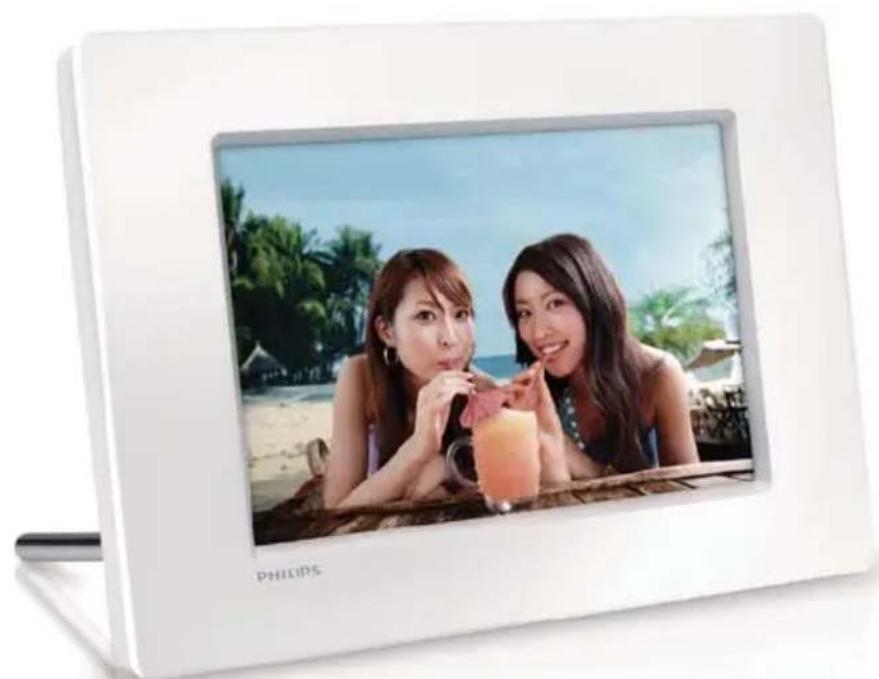
SPF1127
SPF1137
EN
User manual
Contents
1 Important 2
Safety
Safety precautions and maintenance 2
Notice 2
End of life disposal 2
Recycling Information for Customers 3
Recycling 3
North Europe Information
(Nordic Countries) 3
Banned Substance Declaration 3
2 Your PhotoFrame 4
Introduction 4
What's in the box 4
Overview of your PhotoFrame 5
3 Get started 6
Install the stand 6
Connect power 6
Turn on the PhotoFrame 7
Turn off the PhotoFrame 7
Transfer photos 7
4 Display photos 9
Manage slideshow and photos 9
5 Browse and manage photos 10
6 Clock and calendar 11
7 Setup 12
Select an on-screen language 12
Adjust display brightness 12
Set time and date 12
Set display auto on/off 13
Select slideshow frequency 13
Select a slideshow transition effect 13
View the status of the PhotoFrame 14
Restore factory defaults 14
8 Upgrade the PhotoFrame 15
9 Product information 16
10 Frequently asked questions 17
11 Glossary 18 2
Need help?
Please visit www.philips.com/welcome where you can access a full set of supporting materials such as user manual, the latest software updates and answers to frequently asked questions.
1 Important
Safety
Safety precautions and maintenance
Never touch, push, rub or strike the • screen with hard objects as this may damage the screen permanently.
When the product is not used for long periods, unplug it.
Before you clean the screen, turn off and • unplug the power cord. Only clean the screen with a soft, water-damp cloth.
Never use substances such as alcohol, chemicals or household cleaners to clean the product.
Never place the product near naked • flames or other heat sources, including direct sunlight.
Never expose the product to rain or • water. Never place liquid containers, such as vases, near the product.
Never drop the product. When you drop • the product, it will be damaged.
Ensure that you install and use services or • software only from trustworthy sources free of virus or harmful software.
This product is designed for indoor use • only.
Only use the supplied power adaptor for • the product.
Notice

Be responsible Respect copyrights
The making of unauthorized copies of copy-protected material, including computer programs, files, broadcasts and sound recordings, may be an infringement of copyrights and constitute a criminal offence. This equipment should not be used for such purposes.
End of life disposal
Your new product contains materials that can be recycled and reused. Specialized companies can recycle your product to increase the amount of reusable materials and to minimize the amount to be disposed of.
Please find out about the local regulations • on how to dispose your old monitor from your local Philips dealer.
(For customers in Canada and U.S.A.) •
Dispose the old product in accordance to local-state and federal regulations.
For additional information on recycling contact www.eia.org (Consumer Education Initiative).
Recycling Information for Customers
Philips establishes technically and economically viable objectives to optimize the environmental performance of the organization's product, service and activities. From the planning, design and production stages, Philips emphasizes the importance of making products that can easily be recycled. At Philips, end-of-life management primarily entails participation in national take-back initiatives and recycling programs whenever possible, preferably in cooperation with competitors.
There is currently a system of recycling up and running in the European countries, such as The Netherlands, Belgium, Norway, Sweden and Denmark. In U.S.A., Philips Consumer Lifestyle North America has contributed funds for the Electronic Industries Alliance (EIA) Electronics Recycling Project and state recycling initiatives for end-of-life electronics products from household sources. In addition, the Northeast Recycling Council (NERC) - a multi-state non-profit organization focused on promoting recycling market development - plans to implement a recycling program. In Asia Pacific, Taiwan, the products can be taken back by Environment Protection Administration (EPA) to follow the IT product recycling management process, detail can be found in web site www.epa.gov.tw.
Recycling

Your product is designed and manufactured with high quality materials and components, which can be recycled and reused.
When you see the crossed-out wheel bin symbol attached to a product, it means the product is covered by the European Directive 2002/96/EC:

Never dispose of your product with other household waste. Please inform yourself about the local rules on the separate collection of electrical and electronic products. The correct disposal of your old product helps prevent potentially negative consequences on the environment and human health.
Banned Substance Declaration
This product complies with RoHS.
2 Your PhotoFrame
Congratulations on your purchase, and welcome to Philips! To fully benefit from the support that Philips offers, register your product at www.philips.com/welcome.
Introduction
With Philips Digital PhotoFrame, you can display JPEG photos in high quality directly from your memories cards.
What's in the box
Philips Digital PhotoFrame•

Stand•

AC-DC power adaptor•

User manual•
Overview of your PhotoFrame
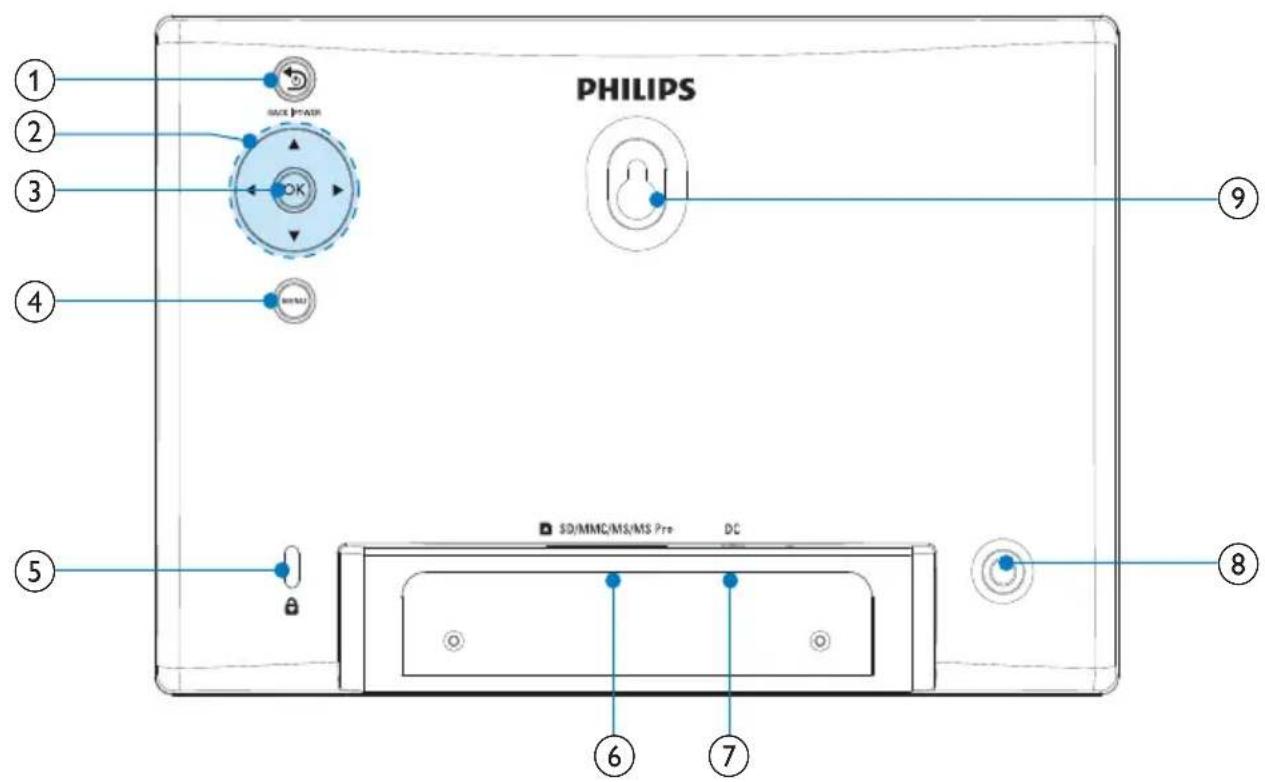
① BACK|POWER
Hold to turn on/off the PhotoFrame• Press to go to the home screen• Press to go back•
⑧ Stand hole
⑨ Wall mounting hole
② ▲/▼/◄►
Press to select the upper/lower/• right/left option
③ OK
Press to play/pause slideshow• Press to confirm a selection•
④ MENU
Press to enter/exit a menu
⑤ 🔒 Kensington lock
⑥ SD/MMC/MS/MS Pro
Slot for an SD/MMC/MS/MS Pro • card
⑦ DC
- Socket for the AC-DC power adaptor
3 Get started

Caution
Use the controls only as stated in this user • manual.
Always follow the instructions in this chapter in sequence.
If you contact Philips, you will be asked for the model and serial number of this apparatus. The model number and serial number are on the back of the apparatus. Write the numbers here: Model No. ____ Serial No. ____
Install the stand
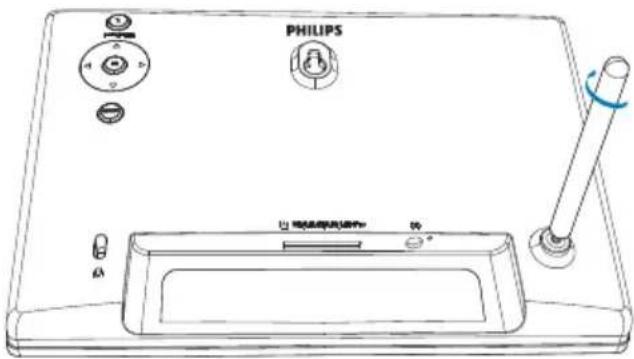
To place the PhotoFrame on a flat surface, attach the supplied stand to the back of the PhotoFrame.
1 Insert the stand into the PhotoFrame.
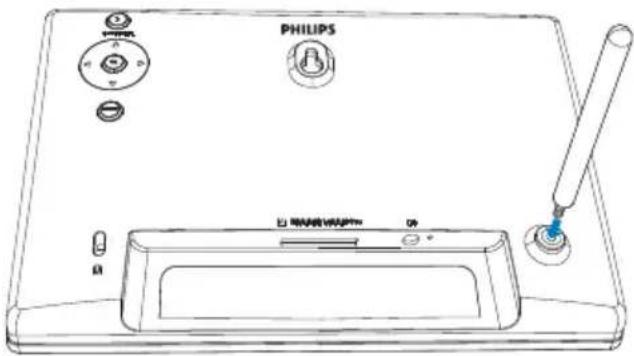
2 Screw the stand into the stand hole firmly.
Connect power

Note
When you position the PhotoFrame, ensure that the power plug and outlet are easily accessible.
1 Connect the supplied power adaptor to: the • DC socket of the PhotoFrame the AC outlet•
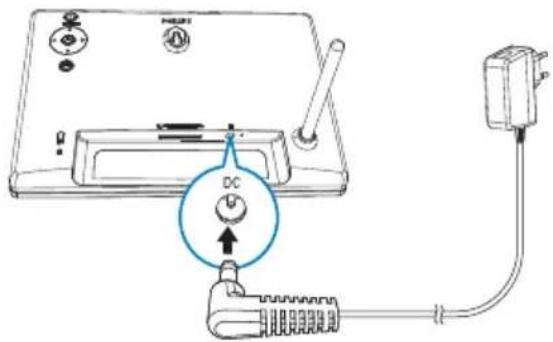
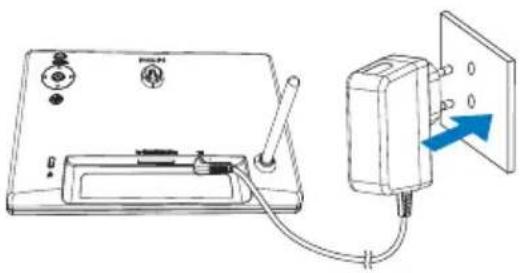
A few seconds later, the PhotoFrame → turns on automatically.
Turn on the PhotoFrame

Note
When you connect the PhotoFrame to a power supply, the PhotoFrame turns on automatically.
1 When the PhotoFrame is turned off and connected to the power supply, you can press BACK|POWER to turn on the PhotoFrame.
A few seconds later, the home screen is displayed.
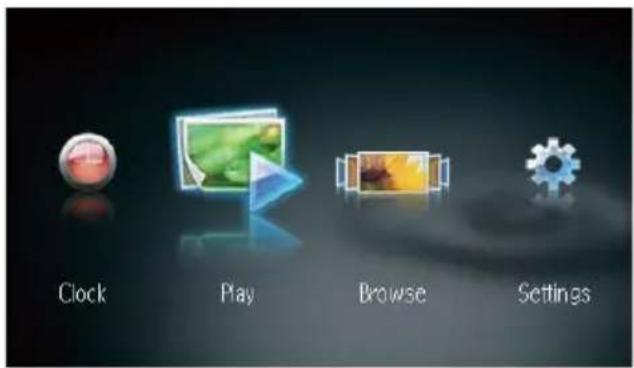
For the first time you turn on the PhotoFrame:
• The screen prompts you to select a language.
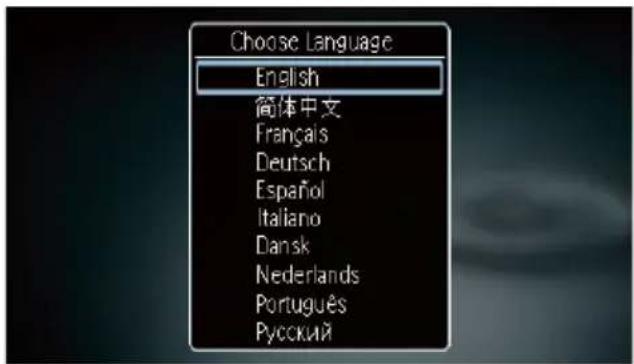
- Press ▲/▼ to select a language, and then press OK to confirm.
Turn off the PhotoFrame

Note
You can only turn off the PhotoFrame after all copy and save actions are complete.
To turn off the PhotoFrame, press and hold BACK|POWER for 2 seconds.
Transfer photos

Caution
Do not remove a storage device from the • PhotoFrame when you are transferring photos from or to the storage device.
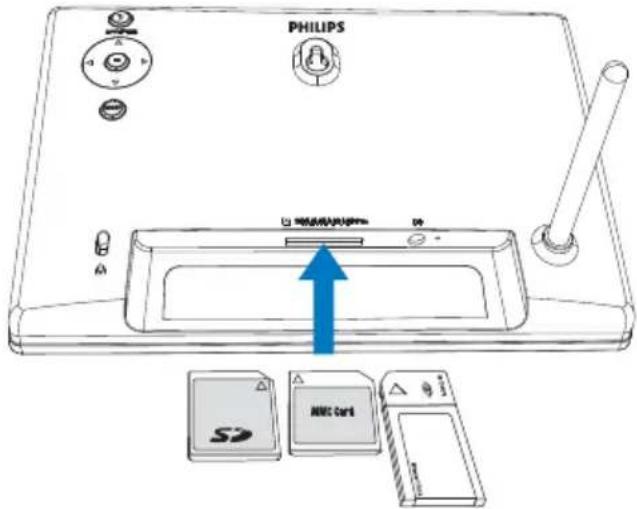
You can play JPEG photos on one of the following storage device that is connected to the PhotoFrame:
Secure Digital (SD)•
Secure Digital High Capacity (SDHC)•
Multimedia Card (MMC)•
Memory Stick (MS)•
Memory Stick Pro (MS Pro, with adaptor)
However, we do not guarantee the operations for all types of storage device media.
1 Insert a storage device into the slot.
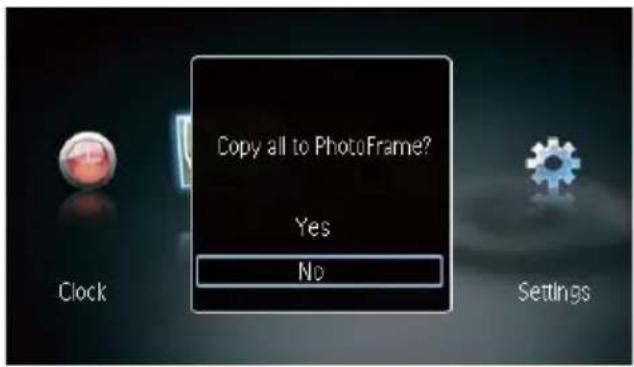
To copy photos to the PhotoFrame:
1 Select [Yes], and then press OK to confirm.
To display photos directly:
1 Select [No], and then press OK to confirm.
2 Select [Play], and then press OK.
• To remove a storage device, pull it out.
4 Display photos
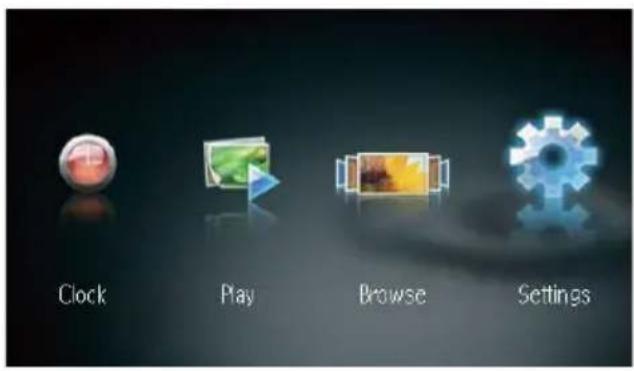
1 In the home menu, press / ◀ to select [Play] and then press OK.
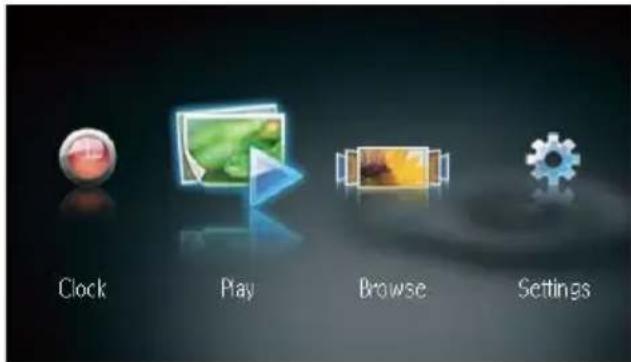
Photos are displayed in slideshow mode. → During slideshow, press ◀/▶ to display the next/previous photo.
Manage slideshow and photos
You can take the following steps to manage a photo in slideshow.
1 During slideshow, press MENU. A menu bar is displayed.

2 Press ◀▶ to select an icon, and then press OK.
• Zoom in a photo
- Rotate a photo
• Select a display mode.
- Save a photo
• Delete a photo
To exit the menu bar, press • MENU again.
5 Browse and manage photos
You can browse and manage photos.
1 In the home menu, press / ◆ to select [Browse], and then press OK.
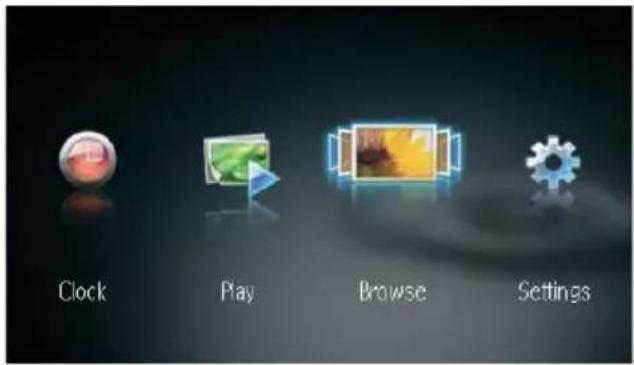
The album thumbnails are displayed.
To manage photos:
1 Select a photo, and then press MENU. A menu bar is displayed.
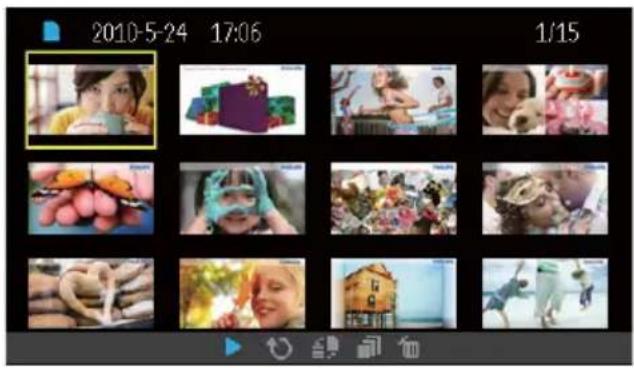
2 Press ◀▶ to select an icon, and then press OK.
• ▶: Play photos in slideshow
• ; Rotate a photo
• 📄: Change source device
• Save a photo
• Delete a photo
To exit the menu bar, press • MENU again.
6 Clock and calendar
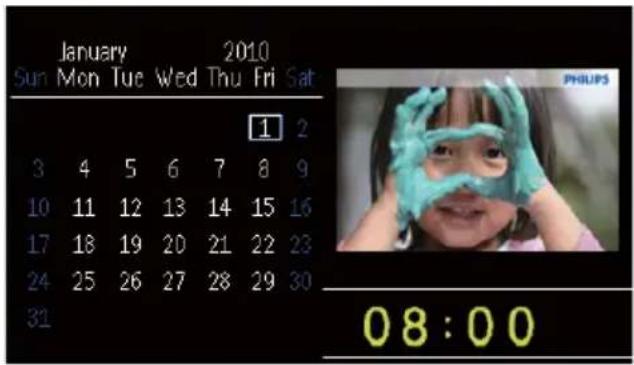
You can display clock and calendar in slideshow or display the clock separately.
1 Ensure that you have set the time and date correctly.
2 In the home menu, press / ◀ to select [Clock], and then press OK.
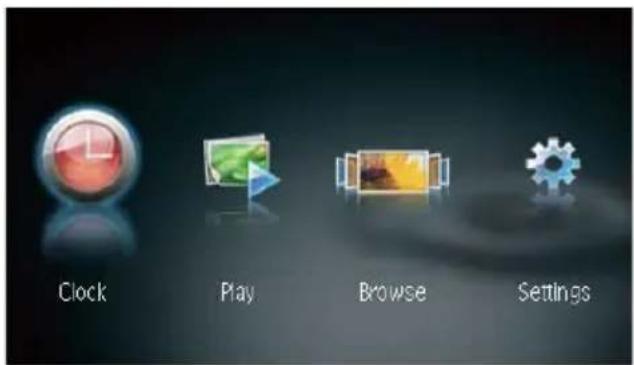
3 Press ◀/▶ to select different clock/calendar display mode.
7 Setup
1 In the home menu, press / ◀ to select [Settings], and then press OK.
Select an on-screen language
1 Select [Language], and then press OK.
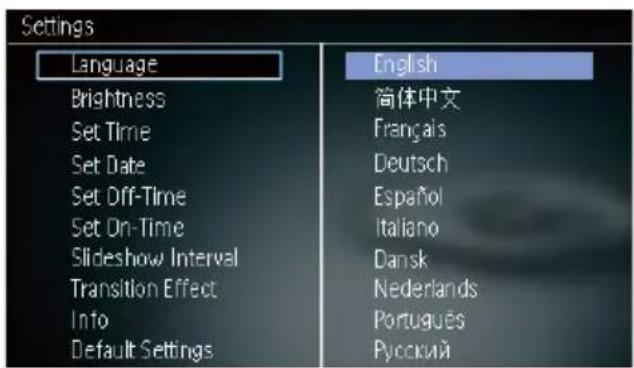
2 Select a language, and then press OK.
Adjust display brightness
1 Select [Brightness], and then press OK.
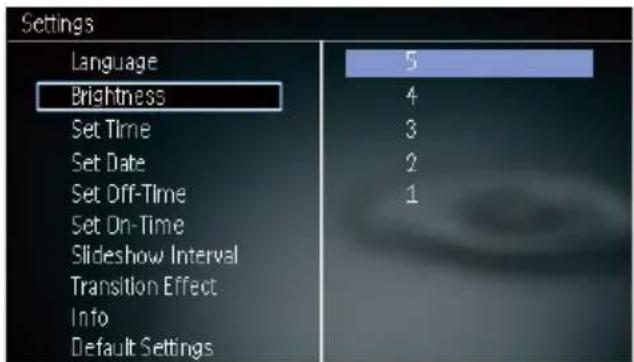
2 Select a brightness level, and then press OK.
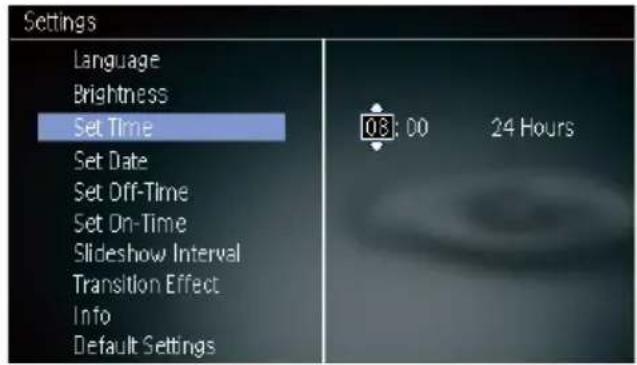
Set time and date
1 Select [Set Time]/[Set Date], and then press OK.
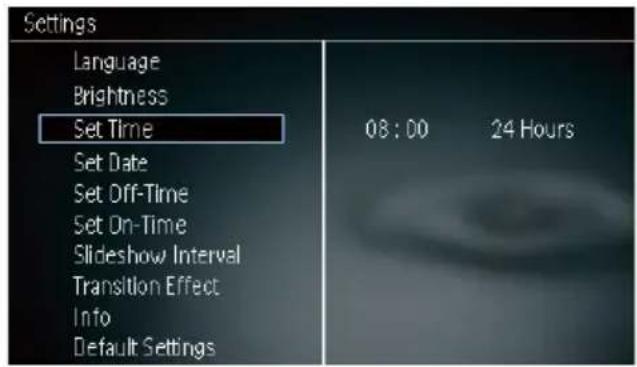
2 Press ▲/▼/◄/► to set time/time format or date, and then press OK.

Note
If the PhotoFrame is disconnected from the power supply for a long time, you need set time and date again after you turn on the PhotoFrame.
Set display auto on/off
With the SmartPower feature, you can configure the time for the PhotoFrame to turn on or off the display automatically.

Note
Ensure that you set the current time and date of the PhotoFrame correctly before you set the auto on/off function.
1 Select [Set Off-Time]/[Set On-Time], and then press OK.
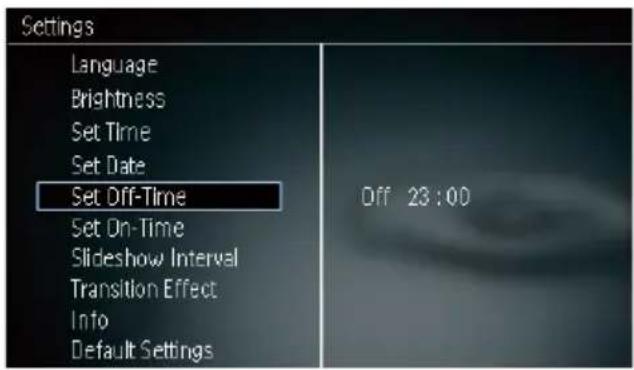
2 Select [On]/[Off] to turn on/off the timer.
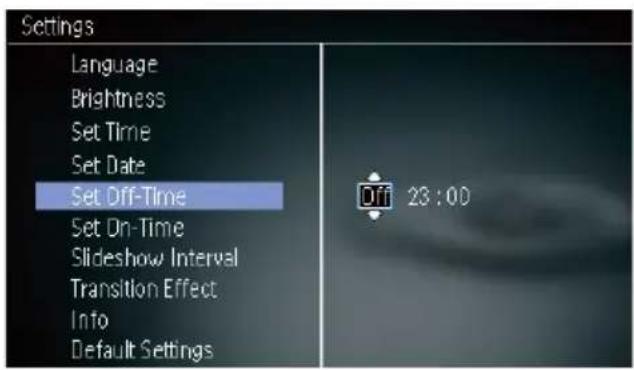
3 Press ▲/▼/◄► to set time, and then press OK.
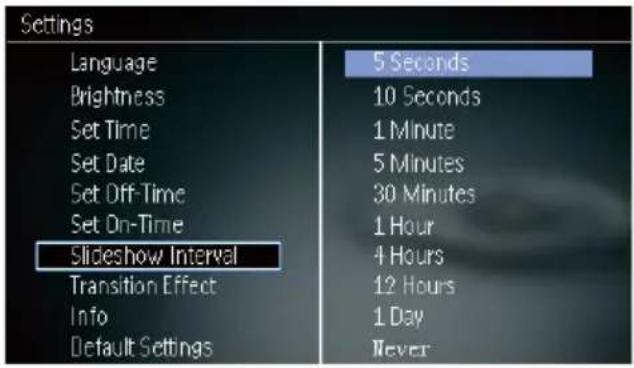
Select slideshow frequency
1 Select [Slideshow Interval], and then press OK.
2 Select an interval, and then press OK to confirm.
Select a slideshow transition effect
1 Select [Transition Effect], and then press OK.
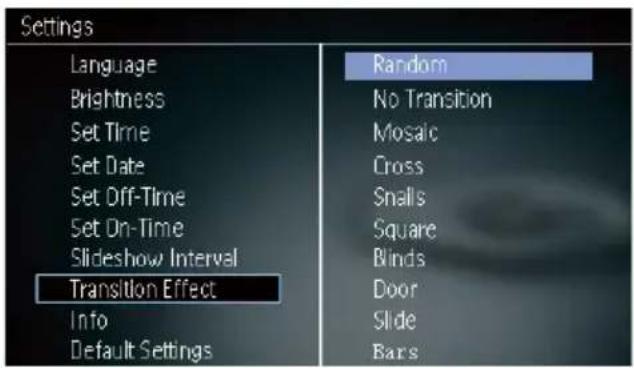
2 Select an option, and then press OK.
View the status of the PhotoFrame
1 Select [Info].
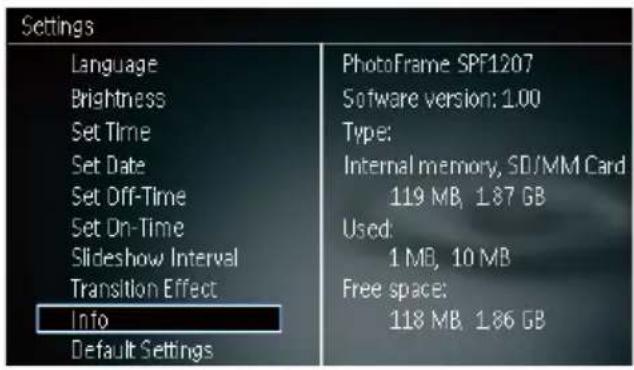
The information of the PhotoFrame is ↩ displayed on the right of the screen.
Restore factory defaults
1 Select [Default Settings], and then press OK. A confirmation message is displayed.
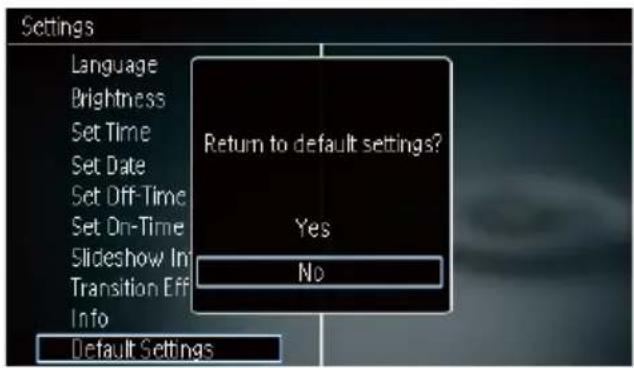
2 Select [Yes], and then press OK.
8 Upgrade the PhotoFrame

Caution
Do not power off the PhotoFrame during • upgrade.
If there is a software update, you can download the latest software from www.philips.com/support to upgrade your PhotoFrame. The earlier software is unavailable on line.
1 Visit www.philips.com/support.
2 Search for your PhotoFrame and go to the software section.
3 Download the latest software onto the root directory of an SD card.
4 Insert the SD card into the PhotoFrame.
5 Turn on the PhotoFrame
A confirmation message is displayed.
6 Select [Yes], and then press OK to confirm. When the upgrade is complete, the ↩ PhotoFrame reboots.
9 Product information

Note
- Product information is subject to change without prior notice.
Picture/Display
• Viewing angle: @ C/R > 10, 120° (H)/100° (V)
• Lifetime, to 50% brightness: 20000 hr
• Aspect ratio: 16:10
• Panel visible resolution: 432 × 234
• Best-fit photo resolution: 432 x 270
• Brightness (typical): 150 cd/m²
• Contrast ratio (typical): 300:1
• Photo format supported:
- JPEG photo (Up to 20MB JPEG files, Up to 64 Megapixels)
• Progressive JPEG photo (Up to 1024 x 768 pixels)
Storage media
• Memory card types:
- Secure Digital (SD)
- Secure Digital (SDHC)
• Multimedia Card (MMC)
• Memory Stick (MS)
• Memory Stick Pro (MS Pro)
• Built-in memory capacity:
• SPF1127: about 100 KB
• SPF1137: about 100 KB
• SPF1207: 128 MB
Dimensions & Weight
- Set dimensions without stand (W × H × D): 205.5 × 138 × 25 mm
- Set dimensions with stand (W × H × D): 205.5 × 138 × 102.5 mm
• Weight without stand: 0.30 kg
Power
Power mode supported: AC powered Efficiency level: V Average consumption (system on): 4 W Power adaptor:
Manufacturer: Philips Consumer • Lifestyle International B.V.
Model number: DSA-3RNA-05 Fc • xy (c=EU, UP, UK, US, UJ, JP, CH, AU, AN or AR; xy=output voltage/current code)
Input: AC 100-240V\~, 50/60Hz•
Output: DC 5V = 0.65A
Adaptor Region
| DSA-3RNA-05 FEU/UP | Europe, Russia, and Singapore |
| DSA-3RNA-05 FUK U.K. and Hong Kong | |
| DSA-3RNA-05 FUS/UJ | U.S.A and Canada |
| DSA-3RNA-05 FJP | Japan |
| DSA-3RNA-05 FCH | China |
| DSA-3RNA-05 FAU | Australia |
| DSA-3RNA-05 FAN | Argentina |
Temperature
• Operation: 0°C - 40°C/32°F - 104°F
• Storage: -10°C - 60°C/14°F - 140°F
10 Frequently asked questions
Is the LCD screen touch-enabled?
The LCD screen is not touch-enabled. Use the buttons on the back to control the PhotoFrame.
Can I switch different slideshow photos by using different memory cards?
Yes. When a memory card is connected to the PhotoFrame, you can play photos on the specific memory card in slideshow mode.
Will the LCD be damaged, if I keep showing the same photo for a long time?
No. The PhotoFrame can display the same photo continuously for 72 hours without any damage to the LCD screen.
Why does my PhotoFrame not show some of my photos?
The PhotoFrame supports only JPEG photos. Ensure that these JPEG photos are not damaged.
Can I use the PhotoFrame during its display auto-off periods?
Yes. You can press and hold ➕ to wake up the PhotoFrame.
Why does the PhotoFrame not go into auto-off status after I set it?
Ensure that you set the current time, auto-off time, and auto-on time correctly. The PhotoFrame automatically turns off its display exactly at the auto-off time. If the time has already passed for the day, it starts to enter auto-off status at the specified time from the next day.
Can I increase the memory size to store more pictures on the PhotoFrame?
No. The internal memory of the PhotoFrame is fixed and cannot be expanded. However, you could switch between different photos by using different storage devices on the PhotoFrame.
After I insert a memory card and transfer all content to the PhotoFrame, I find that the folder structure saved on the PhotoFrame is different from the original structure on the memory card. Why?
The PhotoFrame can only read a folder structure up to 3 levels and write on only 1-level folder structure. In that case, photos on a memory card, which are in folders with the same name but in different levels, will be saved in the same folder on the PhotoFrame. For example, photos in folders “\AA”, “\01\AA” and “\02\AA” on a memory card will all be copied into the folder named “\AA” on the PhotoFrame.
What is the best resolution of photos to be displayed on the PhotoFrame?
The best resolution is 432 × 270 , 864 × 540 , or a similar aspect ratio.
Why does the PhotoFrame automatically turn off?
If you enable the SmartPower function, the PhotoFrame automatically turns off at the preset time. For details, see section "Set display auto on/off".
11 Glossary
A
Aspect ratio
Aspect ratio refers to the length to height ratio of TV screens. The ratio of a standard TV is 4:3, while the ratio of a high-definition or wide TV is 16:9. The letter box allows you to enjoy a picture with a wider perspective on a standard 4:3 screen.
J
JPEG
A very common digital still picture format. A still-picture data compression system proposed by the Joint Photographic Expert Group, which features small decrease in image quality in spite of its high compression ratio. Files are recognized by their file extension '.jpg' or '.jpeg.'
K
Kbps
Kilobits per second. A digital-data-rate measurement system which is often used with highly compressed formats such as AAC, DAB, MP3 etc. The higher the amount, the better the quality generally is.
Kensington lock
A Kensington Security Slot (also called a K-Slot or Kensington lock). Part of an anti-theft system. It is a small, metal-reinforced hole found on almost all small or portable computer and electronics equipment, particularly on expensive and/or relatively light ones, such as laptops, computer monitors, desktop computers, gaming consoles, and video projectors. It is used for attaching a lock-and-cable apparatus, in particular those from Kensington.
M
Memory Stick
Memory Stick. A flash memory card for digital storage on cameras, camcorders and other handheld devices.
MMC Card
MultiMedia Card. A flash memory card that provides storage for cellphones, PDAs and other handheld devices. The card uses flash memory for read/write applications or ROM chips (ROM-MMC) for static information, the latter widely used for adding applications to a Palm PDA.
S
SD Card
Secure Digital Memory Card. A flash memory card that provides storage for digital cameras, cellphones and PDAs. SD Cards use the same 32 x 24mm form factor as the MultiMediaCard (MMC), but are slightly thicker (2.1mm vs. 1.4mm), and SD Card readers accept both formats. Cards up to 4GB are available.
T
Thumbnail
A thumbnail is reduced-size versions of a picture that is used to make it easier to recognize an them. Thumbnails serve the same role for images as a normal text index does for words.



- PHOTOFRAME
- CONTENTS
- IMPORTANT
- YOUR PHOTOFRAME
- GET STARTED
- DISPLAY PHOTOS
- BROWSE AND MANAGE PHOTOS
- CLOCK AND CALENDAR
- SETUP
- UPGRADE THE PHOTOFRAME
- FREQUENTLY ASKED QUESTIONS
- GLOSSARY
- NEED HELP
- SAFETY
- SAFETY PRECAUTIONS AND MAINTENANCE
- NOTICE
- BE RESPONSIBLE RESPECT COPYRIGHTS
- END OF LIFE DISPOSAL
- RECYCLING INFORMATION FOR CUSTOMERS
- RECYCLING
- BANNED SUBSTANCE DECLARATION
- INTRODUCTION
- WHAT'S IN THE BOX
- OVERVIEW OF YOUR PHOTOFRAME
- CAUTION
- INSTALL THE STAND
- CONNECT POWER
- NOTE
- TURN ON THE PHOTOFRAME
- FOR THE FIRST TIME YOU TURN ON THE PHOTOFRAME
- TURN OFF THE PHOTOFRAME
- TRANSFER PHOTOS
- TO COPY PHOTOS TO THE PHOTOFRAME
- TO DISPLAY PHOTOS DIRECTLY
- MANAGE SLIDESHOW AND PHOTOS
- TO MANAGE PHOTOS
- SELECT AN ON-SCREEN LANGUAGE
- ADJUST DISPLAY BRIGHTNESS
- SET TIME AND DATE
- SET DISPLAY AUTO ON/OFF
- SELECT SLIDESHOW FREQUENCY
- SELECT A SLIDESHOW TRANSITION EFFECT
- VIEW THE STATUS OF THE PHOTOFRAME
- SELECT [INFO]
- RESTORE FACTORY DEFAULTS
- SELECT [DEFAULT SETTINGS], AND THEN PRESS OK. A CONFIRMATION MESSAGE IS DISPLAYED
- SELECT [YES], AND THEN PRESS OK
- PRODUCT INFORMATION
- PICTURE/DISPLAY
- STORAGE MEDIA
- DIMENSIONS & WEIGHT
- POWER
- TEMPERATURE
- A
- ASPECT RATIO
- J
- JPEG
- K
- KBPS
- KENSINGTON LOCK
- M
- MEMORY STICK
- MMC CARD
- S
- SD CARD
- T
- THUMBNAIL
Brand : PHILIPS
Model : SPF1127
Category : Digital photo frame