
ET510 - Audio/video converter AVERMEDIA - Free user manual and instructions
Find the device manual for free ET510 AVERMEDIA in PDF.


| Product Type | Audio/Video Converter (Scaler) |
| Brand | AVerMedia |
| Model | ET510 |
| Category | Audio/Video Converter |
| Input Ports | 2x HDMI, 1x VGA, 1x Component (YPbPr), 2x A/V (Composite/RCA) |
| Output Ports | 1x HDMI, 1x VGA, 1x A/V (Composite/RCA) |
| Audio Input | 3.5mm stereo audio jack |
| Audio Output | 3.5mm A/V output (shared with video) |
| Additional Ports | USB (firmware upgrade), IR extender port |
| Supported Resolutions | Up to 1920x1080 @ 60Hz (PC & HDTV including 480p, 576p, 720p, 1080i, 1080p) |
| Power Adapter | DC power adapter (included) |
| Remote Control | Included with batteries |
| Control Panel | Touch buttons on top (Power, Source, Menu, Navigation, Volume) |
| Video Scaling | Yes, supports aspect ratio switching (4:3, 16:9) and zoom modes |
| On-Screen Display (OSD) | Yes, multi-language menu |
| Closed Captioning | Supported via remote (TXT/C.C button) |
| Sleep Timer | Automatic shut-off after 30, 60, 90, 120, or 150 minutes |
| Default Resolution Button | Toggle between 1024x768 @ 60Hz and 1280x720 @ 60Hz |
| Package Contents | Converter box, remote control (with batteries), HDMI cable, vertical stand, 3.5mm to component cable, 3.5mm to composite/audio cable (3), IR extender cable, power adapter, quick guide |
| Warranty | 1-2 years (varies by region) |
| Compliance | CE (Class B), WEEE |
Frequently Asked Questions - ET510 AVERMEDIA
User questions about ET510 AVERMEDIA
0 question about this device. Answer the ones you know or ask your own.
Ask a new question about this device
Download the instructions for your Audio/video converter in PDF format for free! Find your manual ET510 - AVERMEDIA and take your electronic device back in hand. On this page are published all the documents necessary for the use of your device. ET510 by AVERMEDIA.
USER MANUAL ET510 AVERMEDIA
All the screenshots in this documentation are only example images. The images may vary depending on the product and software version. Information presented in this documentation has been carefully checked for reliability; however, no responsibility is assumed for inaccuracies. The information contained in this documentation is subject to change without notice.
Copyright
© 2015 by AVerMedia Technologies, Inc. All rights reserved. No part of this publication, in whole or in part, may be reproduced, transmitted, transcribed, altered or translated into any language in any form by any means without the written permission of AVerMedia Technologies, Inc. Information and specification contained in this manual are subject to change without notice and do not represent a commitment on the part of AVerMedia.
For more information, please refer to www.avermedia.com.
"AVerMedia" is a trademark or registered trademark of AVerMedia Technologies, Inc.
The pictures contained in this manual are provided for reference purposes only. Made in Taiwan (Except Accessories).
International Headquarters
Address No.135, Jian 1st Rd., Zhonghe Dist., New Taipei City 23585, Taiwan
Website www.avermedia.com
Telephone +886-2-2226-3630
Support www.avermedia.com/support
Benelux Europe Office
Address Kwartsweg 50, 2665 NN Bleiswijk, The Netherlands
Support http://www.avermedia.com/avertv/Support/
Telephone +31-10-7600-500
V 1.0
11/2015
Important Safety Instructions and Disclaimer
WARNING: Failure to follow these safety instructions could result in fire, electric shock, other injury or damage to device or other property, and/or loss of life. AVerMedia is not responsible for damage or injury arising from failure to follow safety instructions relating to the product's use.
General Guidelines and Warning
- Read and follow these instructions.
- Do not use the device on uneven or unstable surfaces.
- Do not use this device in a wet environment or near water.
- Unplug the device before cleaning. Clean only with a dry cloth.
- Use in a well ventilated environment. Do not block any ventilation openings.
- Use the device within the specified temperature range.
- Use power sources within the specified voltage range.
- Do not place heavy objects on the device.
- Do not install near heat sources such as radiators or stoves.
- Do not defeat the safety purposes of the polarized or grounding-type plug.
- Protect the power cord from being walked on or pinched, particularly where the cord connects with plugs or adapters.
- Only use the attachments and accessories specified by the manufacturer.
- Unplug this device during lightning storms or when unused for prolonged time.
- Do not modify or disassemble the device in any way.
- Refer all servicing to qualified personnel.
- Do not dispose the device as general household waste. Dispose in accordance with local environmental laws.
General Battery Instructions
- Never short circuit the battery terminals.
- Store the batteries in a cool dry place.
- Keep the battery away from children.
- Keep the battery away from fire.
- Stop using or charging the battery immediately if the battery becomes or appears damaged, gives off an odor, becomes discolored or deformed, starts to balloon or swell, leaks.
- Never store or charge the battery inside your car or in extreme temperature. Extreme temperatures might ignite the battery and cause fire.
- Do not dispose of used batteries in domestic waste. Dispose of batteries at special collection points or return to point of sale if applies.
Removable Battery for Remote Control
- Do not charge the batteries.
- Do not mix old with new batteries.
- Do not attempt to disassemble the battery.
- Do not expose the battery to water or rain.
- Use of carbon-zinc battery for remote control is strongly recommended. Use of other types of batteries, such as alkaline or rechargeable (nickel-cadmium) may cause battery current overload or battery leakage and corrosion which can damage the remote control.
- Do not mix different types of batteries: alkaline, standard (carbon-zinc) or rechargeable (nickel-cadmium).
- Remove the batteries during long periods of non-use. Always remove exhausted batteries from the remote control. Battery leakage and corrosion can damage the remote control, dispose of batteries safely.

IMPORTANT!
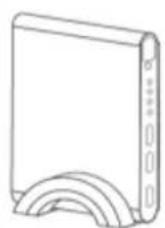
O
Please place Multi-I/O Converter Box 510 in the vertical stand so that the device can cool down efficiently.

X
Limited Warranty
AVerMedia warrants that the Product is free from defects in material and/or workmanship under normal use.
AVerMedia does not warrant that the operation of the Product will be uninterrupted or error-free. The Limited Warranty does not cover:
● The warranty period has expired;
● Product that has (a) serial numbers or the warranty sticker that have been removed tampered, damaged or altered, or (b) nonconforming.
● Product purchased from an unauthorized distributor;
● Product has been tested, altered, modified, repaired or serviced by someone other than AVerMedia (or its authorized service centers);
● Failure to adhere to user's manual.
- Product that are operated in combination with third party's software which may be obtained by user or provided by AVerMedia in the product packaging.
- Product that are operated in combination with third party's device(s)/equipment(s), or the damage is caused from computer viruses
- Damage caused by (a) misuse, abuse, neglect, improper use of the physical or operating environment (such as the exterior ruptures, moisture, exposure to temperature, high or low humidity, power overload, placement subject to extreme environments that include a lack of ventilation or stacking, throwing, soakage, etc.) or modification; (b) improper or unauthorized installation, wiring, repair, testing; (c) use of the Product outside AVerMedia published guidelines; (d) accident, fire, acts of God or force majeure such as natural disasters, environmental distress, or lightning; power surges; (e) improper maintenance or failure to use the information content in accordance with the Product.
● Other than the above, similar circumstances not attributable to AVerMedia.
Warranty Period
The term of the warranty begins from the date of purchase. Your dated sales receipt showing the date of purchase is the proof of purchase. The warranty period varies by product and is generally 1 or 2 years; consult your original AVerMedia product packaging or user information provided by AVerMedia and local in-country distributor at the time of purchase for the warranty term specific to your product ("Warranty Period").
How to Obtain Warranty Service – Contact your local in-country distributor
- To obtain warranty service, an original or copy of the sales receipt from the original retailer is required.
- A separate warranty may be provided by international distributors. This warranty is provided by the local in-country distributor and this distributor provides local service for your device. Distributor warranties are only valid in the area of intended distribution.
- When a Product or part is replaced, the replacement item becomes your property and the returned product or part becomes the property of AVerMedia or its distributor.
Usage of Personal Contact Information
If you obtain service under this warranty, you agree to and fully authorize AVerMedia or its distributor to store, use, and handle information related to the warranty service, as well as your personal contact information, including but not limited to your name, phone number, address, and email. AVerMedia or its distributor requires this information to perform the necessary service set forth by this warranty. For warranty service and outcome satisfaction, AVerMedia reserves the right to contact you in order to understand the problems that occur during usage of the product; the company may also notify you about any product recalls or safety issues. To achieve satisfactory results, you agree to fully license AVerMedia to transfer his/her customer information to the country or region of the original purchase. This allows AVerMedia to undertake the scope of product or parts maintenance of the warranty service. AVerMedia may also disclose this information under certain legal requirements.
How to provide Warranty Service
Services may vary by geographic region, please contact AVerMedia or its distributor for a response regarding the appropriate services for your Product. The Warranty Service may be provided by the following types.
a. Customer Delivery Service
According to “Customer Delivery Service,” the customer must pay for their own product to be delivered to a designated service center for repair or replacement, and all risks are borne by the customer. The customer may retrieve the product after the repair or replacement process has been completed. Should the customer fail to collect the product, the company will handle the product as it sees fit without incurring any liability.
b. Mail-In Service
According to “Mail-In Service,” customers will be required to pay for their own products to be mailed to a designated service center for repair or replacement, and all the risks are borne by the customer. After the product has been repaired or replaced, AVerMedia will send the product back to the customer at their own expense and bear all risks, except where otherwise specified by service dealers.
c. Customers' Two-Way Mail Service
According to “Customers’ Two-Way Mail Service,” customers will be required to pay for their own product to be delivered to a designated service center for repair or replacement, and all the risks are borne by the customer. After the product has been repaired or replaced, the product will be returned to the customer, for which all delivery and other risks are borne by the customer. If the customer fails to arrange for the return transport of the product, the company will handle the product as it sees fit without incurring any liability.
No On-Site Service
AVerMedia and its distributor do not provide on-site service, including but not limited to, installation, maintenance, instructing, troubleshooting problems, the usage of the product or the warranty service. In the event that calling, updating software, or other means fail to resolve the issue, AVerMedia and its distributor will arrange warranty service as specified under “Scope of Warranty Services (a).”
Limitation of Liability
AVerMedia accepts responsibility for the damage of loss of products only under the following circumstances: when the company has a product in store or when a product is being transported by the company.
If any information contained in the product (including confidential information, proprietary information, or personal information) is missing or revealed, AVerMedia or its service dealers are without responsibility. Under any circumstances, if the solutions proposed under the warranty have not fulfilled its basic purpose, AVerMedia, its subsidiaries, suppliers, and dealers do not assume any burden of liability: (a) loss, damage, or disclosure of client data; (b) special damages, incidental damages, punitive damages, or consequential damages, including but not limited to loss of profits, loss of business revenue, goodwill, or anticipated damage to balance loss, and even if the possibility has been raised, whether the claim is based on contract, warranty, negligence, strict liability, or other liability. Under the circumstances that AVerMedia, its subsidiaries, suppliers and distributors assumes responsibility for damages caused by any reason, the amount of its total liability shall not exceed the actual payable of direct damages, nor shall it exceed the amount paid by the customer for the product.
Prejudice to the foregoing restriction does not apply to personal injury or death caused by injury, nor does it apply to the compensation required by law for AVerMedia to assume with regards to real or tangible property.
Where the law does not exclude or limit incidental or consequential damages, the above limitations or exclusions may not apply to the customer.
Other Rights
This warranty provides the customer with specific legal rights. The customer may be subject to jurisdiction in accordance with the relevant laws in his or her district, but the customer is subject to the laws and regulations that govern the country or state where the product was originally purchased. This warranty does not affect any legal rights, including the limitations or exclusions laid out by this contract; instead, the control of the consumer goods sold is governed by the relevant laws or regulations born of consumer rights.
Chapter 1 What's in the Package
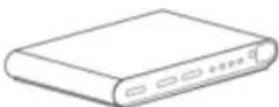
Multi-I/O Converter Box 510 package contains the following items:

natural_image
Front view of a computer interface panel with ports and buttons (no text or symbols visible)Multi-I/O Converter Box 510

Remote Control (with batteries)

natural_image
Illustration of two USB connectors with labeled ports, shown in U-bond (no text or symbols beyond port labels)HDMI Cable
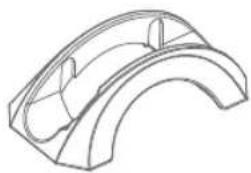
natural_image
Technical line drawing of a curved mechanical component (no text or symbols)Vertical Stand

3.5 mm to Component Cable
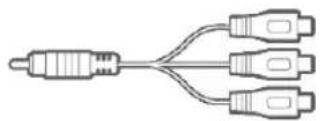
3.5 mm to Composite/Audio Cable (3)

IR Extender Cable

Power Adapter
Quick Guide
Chapter 2 The Unit Parts
2.1 Touch Button Control Panel
The Touch Button Panel found on the top side of the unit provides quick access to commonly used functions.
| 1 | Turn the unit on/off | |
| 2 | Press this button to switch between PC and other available video sources. OSD Menu: Function as OK | |
| 3 | Press and to make the selection in the menu or picture setting | |
| 4 | Call up/close the menu display | |
| 5 | Press Volume to increase and Volume to decrease the volume level. Use these buttons to adjust the menu or picture setting | |
2.2 Infrared Sensor
When using the remote control, aim it at the Infrared Sensor which is located at the front panel of the unit.

2.3 Connection Ports
The port connectors allow connection of your PC, VGA Monitor, LCD Monitor or Projector, speakers, DVD Players, Camcorders, Gaming Console, or other Video Devices.
| Front Panel | 1 | USB port (for firmware upgrade) |
| 2 | HDMI input 1 and 2 | |
| 3 | Component (YPbPr) input | |
| 4 | A/V input 1 and 2 | |
| 5 | IR extender port | |
| Back Panel | 6 | DC port |
| 7 | Audio input | |
| 8 | A/V output | |
| 9 | VGA input | |
| 10 | VGA output | |
| 11 | HDMI output |
Chapter 3 Installation and Setup
The figure below shows the proper cable connections for installing Multi-I/O Converter Box 510 and connecting it to your audio/video equipment.

3.1 The Remote Control
The diagram below shows the remote control unit layout.

| 1. POWER | Turn the unit on/off |
| 2.Number Buttons | 1-6: Quick source selection1: AV 12: AV 23: Component4: HDMI 15: HDMI 26: PC7-0: N/A |
| 3. Dot/Dash | N/A |
| 4. EPG | N/A |
| 5. VOL ◀/▶ | OSD Menu: Switch menu or modes. Function as the LEFT and RIGHT arrow buttons. |
| 6. OK | OSD Menu: Confirm the selection |
| 7. MENU | Enter or exit the OSD menu |
| 8. MUTE | Turn off/on the sound |
| 9. ZOOM MODE | Switch among different aspect ratios |
| 10. Red Button | N/A |
| 11. TXT/C.C | View closed caption information |
| 12. Green Button | On-screen function |
| 13. Source | Switch among external video sources |
| 14. RECALL | N/A |
| 15. CH LIST | N/A |
| 16. CH▲/▼ | OSD Menu: Function as the UP and DOWN arrow button |
| 17. EXIT | OSD Menu: Exit menu |
| 18. MTS/AUDIO | N/A |
| 19. INFO | Display source and resolution |
| 20. SLEEP | Automatically turn off the unit after 30, 60, 90, 120 or 150 minutes |
| 21. DEFAULT RES. | Switch between 1024x768 60 Hz and 1280x720 60Hz |
| 22. Blue Button | On-screen function |
| 23. Yellow Button | On-screen function |
3.2 Supported Display Setting
The reference table below lists the monitor display resolution and refresh rate settings that Multi-I/O Converter Box 510 supports.
| 640X480 60Hz | 480p 60Hz |
| 800x600 60Hz | 720p 60Hz |
| 1024x768 60Hz | 1080i 60Hz |
| 1280x720 60Hz | 1080p 60Hz |
| 1280x1024 60Hz | 576p 50Hz |
| 1600x1200 60Hz | 720p 50Hz |
| 1920x1080 60Hz | 1080i 50Hz |
| 1080p 50Hz |
If the resolution setting is not in 4:3 or 16:9 aspect ratio, the image will still be kept in 4:3 or 16:9 aspect ratio (with black bars on sides) for the best viewing experience.
European Community Compliance Statement

Class B
This product is herewith conrmed to comply with the requirements set out in the Council Directes on the approximaon of the laws of the Member States relang to Electromagnec Compatibility Directive (EMC) 2014/30/EU, Low Voltage Directive (LVD) 2014/35/EU and Energy-related Products Directive (ErP) 2009/125/EC.

HIGH-DEFINITION MULTIMEDIA INTERFACE
WASTE ELECTRICAL AND ELECTRONIC EQUIPMENT (WEEE)
The mark of Crossed-out wheeled bin indicates that this product must not be disposed of with your other household waste. Instead, you need to dispose of the waste equipment by handing it over to a designated collecon point for the recycling of waste electrical and electronic equipment. For more informaon about where to drop o your waste equipment for recycling, please contact your household waste disposal service or the shop where you purchased the product.
Product name: Converter box

- Copyright
- International Headquarters
- Benelux Europe Office
- Important Safety Instructions and Disclaimer
- General Guidelines and Warning
- General Battery Instructions
- Removable Battery for Remote Control
- IMPORTANT!
- Limited Warranty
- Warranty Period
- How to Obtain Warranty Service – Contact your local in-country distributor
- Usage of Personal Contact Information
- How to provide Warranty Service
- a. Customer Delivery Service
- b. Mail-In Service
- c. Customers' Two-Way Mail Service
- No On-Site Service
- Limitation of Liability
- Other Rights
- Chapter 1 What's in the Package
- Chapter 2 The Unit Parts
- Touch Button Control Panel
- Infrared Sensor
- Connection Ports
- Chapter 3 Installation and Setup
- The Remote Control
- Supported Display Setting
- European Community Compliance Statement
- WASTE ELECTRICAL AND ELECTRONIC EQUIPMENT (WEEE)
Brand : AVERMEDIA
Model : ET510
Category : Audio/video converter