S500HD - Smartphone Billow - Free user manual and instructions
Find the device manual for free S500HD Billow in PDF.


User questions about S500HD Billow
0 question about this device. Answer the ones you know or ask your own.
Ask a new question about this device
Download the instructions for your Smartphone in PDF format for free! Find your manual S500HD - Billow and take your electronic device back in hand. On this page are published all the documents necessary for the use of your device. S500HD by Billow.
USER MANUAL S500HD Billow
5500HD | user guide v.i.o billow
d

text_image
mr oSMARTPHONE
text_image
Rear Camera Micro USB Flash light Jack 3.5 mm 13.0 mm Rear Speaker| Keys Function | |
| On/Off/Lock | Holding down this key turns on or off the phone. When pressed lightly the touch screen blocks. |
| Home | Pressing the key briefly shows home screen and the list of recent applications opened. |
| Menu | If you press this key, the menu of available options in the active application opens. |
| Return | Press this key to return to the previous screen or to remove the keyboard. |
| Volume +/- | Press to increase or decrease the call volume, tone, music, games, and other audio functions. When the phone rings, you can switch it to silent mode. To activate the "meeting" mode, hold the Volume key - |
Описание на частите
въведение
natural_image
Close-up of a black electronic device showing internal components with red arrows indicating movement or change (no text or symbols visible)Преди да започнете
text_image
Rear Camera Micro USB Flash light Jack 3.5 mm 13.0 mm Rear Speaker| Keys Function | |
| On/Off/Lock | Holding down this key turns on or off the phone. When pressed lightly the touch screen blocks. |
| Home | Pressing the key briefly shows home screen and the list of recent applications opened. |
| Menu | If you press this key, the menu of available options in the active application opens. |
| Return | Press this key to return to the previous screen or to remove the keyboard. |
| Volume +/- | Press to increase or decrease the call volume, tone, music, games, and other audio functions. When the phone rings, you can switch it to silent mode. To activate the "meeting" mode, hold the Volume key - |
Popis částí úvod
natural_image
Close-up of a black electronic device showing internal components with red arrows indicating features (no text or symbols visible)Dříve než začnete
text_image
Front Causes Sensor Front Speaker billow TECHNOLOGY ON/OFF/LOCK button Volume +/-. Welcome to Billow Technology. Get all of the information on our product ange. Follow us on Facebook Follow us on Twitter www.billowtechnology.com Menu Home Return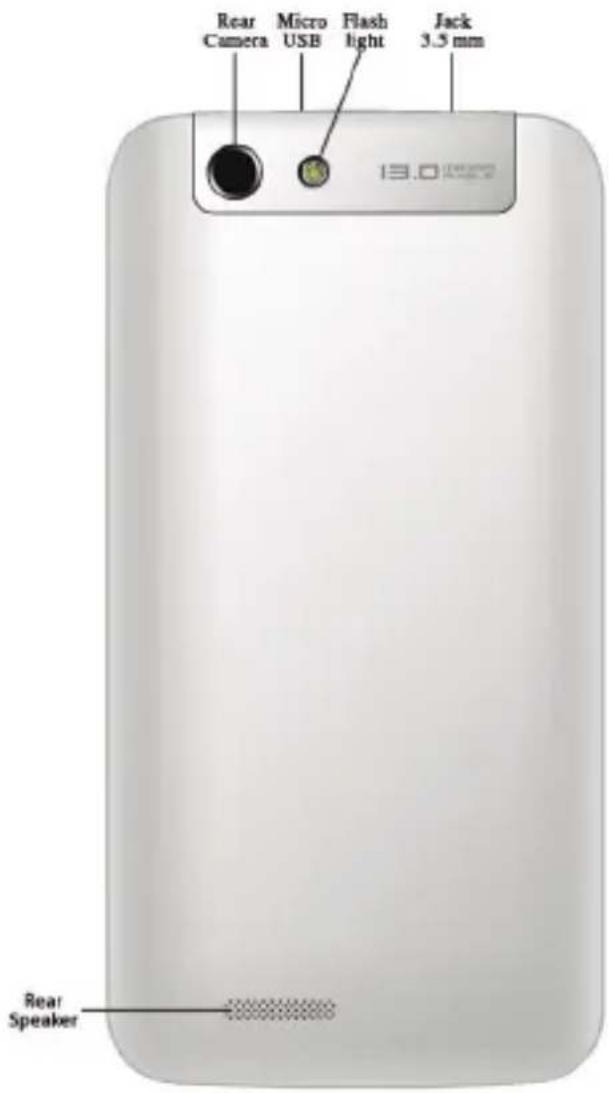
text_image
Rear Camera Micro USB Flash light Jack 3.5 mm 13.0 mm Rear Speaker| Keys Function | |
| On/Off/Lock | Holding down this key turns on or off the phone. When pressed lightly the touch screen blocks. |
| Home | Pressing the key briefly shows home screen and the list of recent applications opened. |
| Menu | If you press this key, the menu of available options in the active application opens. |
| Return | Press this key to return to the previous screen or to remove the keyboard. |
| Volume +/- | Press to increase or decrease the call volume, tone, music, games, and other audio functions. When the phone rings, you can switch it to silent mode. To activate the "meeting" mode, hold the Volume key - |
Teile Beschreibung
natural_image
Close-up of a black electronic device showing internal components with red arrows indicating features (no text or symbols visible)Einführung
Bevor Sie beginnen
You have just purchased your Billow Smartphone
This guide provides all the information regarding the use of this device in order to quickly become familiar with your Smartphone
Contents:
- Smartphone
- Power adapter
- Micro USB cable
- Earphones
- Battery
- Quick user guide
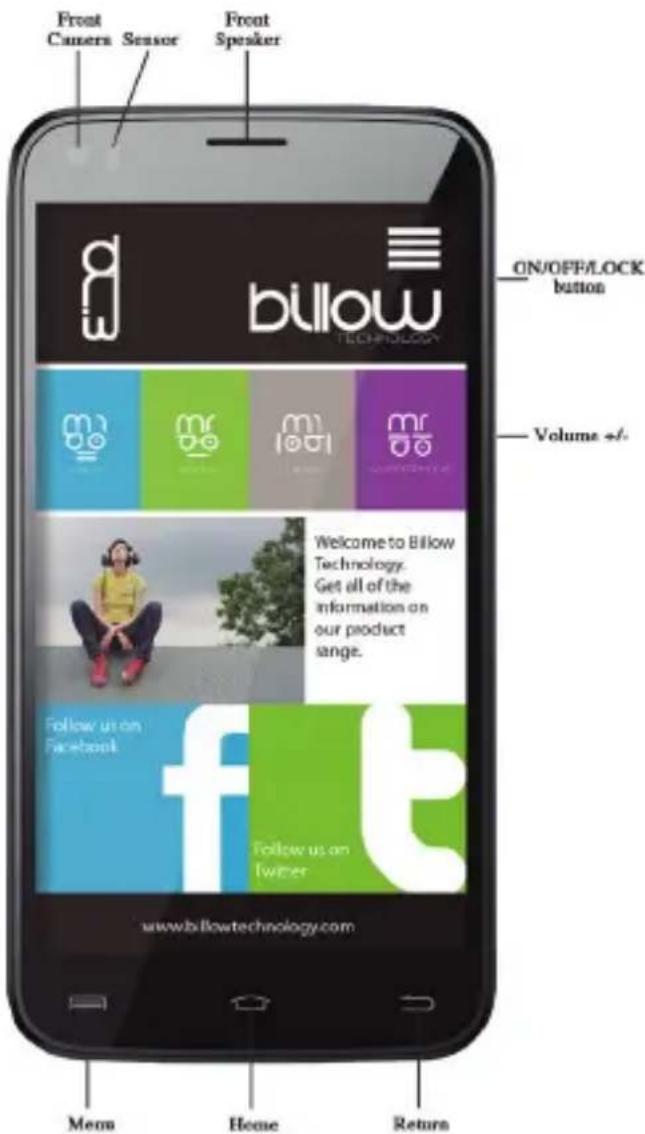
text_image
Front Camera Sensor Front Speaker ON/OFF/LOCK button Volume +/-. billow TECHNOLOGY www.billowtechnology.com Mem Home Return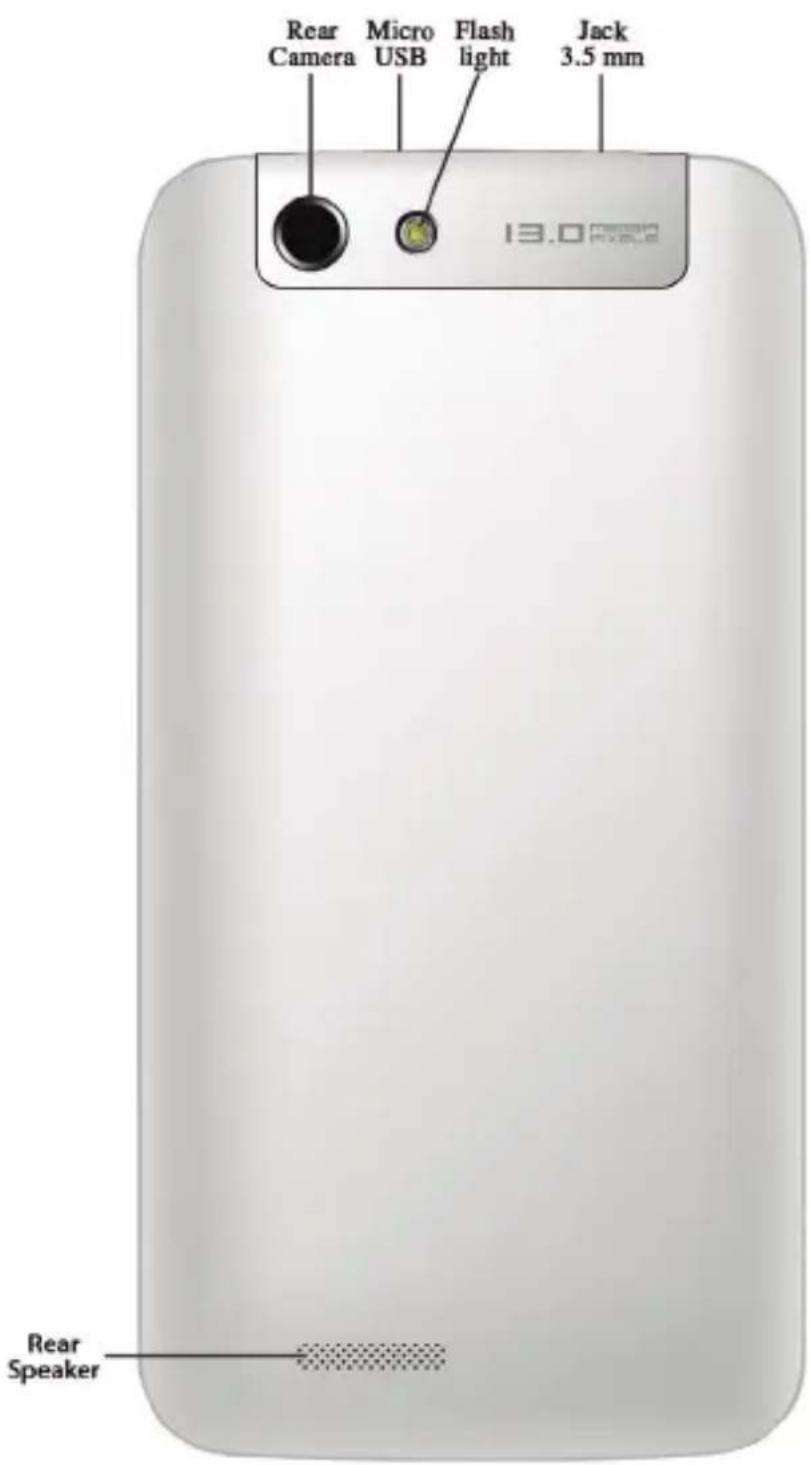
text_image
Rear Camera Micro USB Flash light Jack 3.5 mm 13.0 mm Rear SpeakerParts Description
| Keys Function | |
| On/Off/Lock | Holding down this key turns on or off the phone. When pressed lightly the touch screen blocks. |
 Home Home | Pressing the key briefly shows home screen and the list of recent applications opened. |
| [BXKC] Menu | If you press this key, the menu of available options in the active application opens. |
 Return Return | Press this key to return to the previous screen or to remove the keyboard. |
| Volume +/- | Press to increase or decrease the call volume, tone, music, games, and other audio functions. When the phone rings, you can switch it to silent mode. To activate the "meeting" mode, hold the Volume key - |
Introduction
Before you begin
natural_image
Close-up of a black electronic device casing with red directional arrows indicating movement or ports (no text or symbols visible)Installing the SIM card, memory card and battery
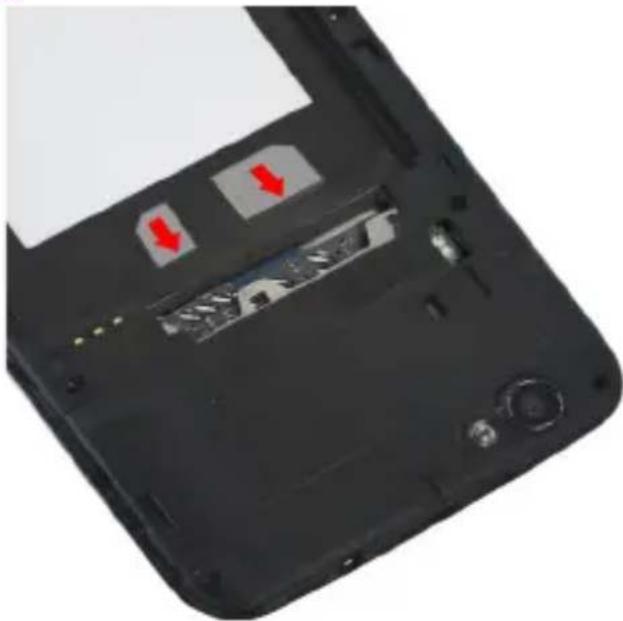
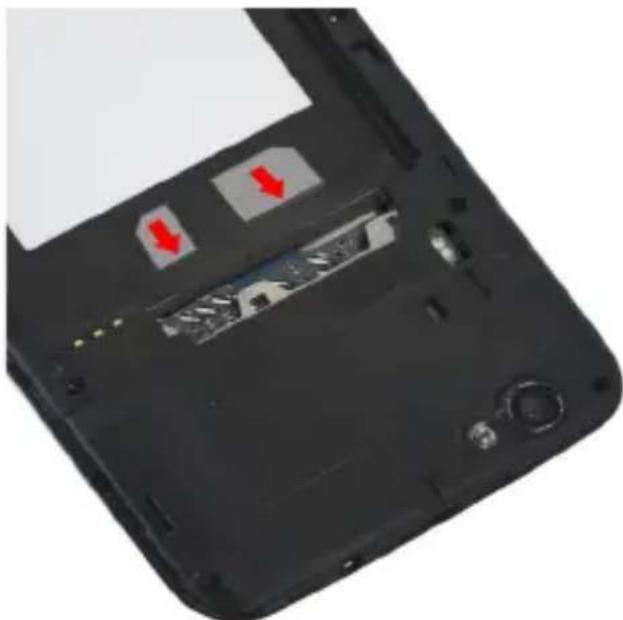
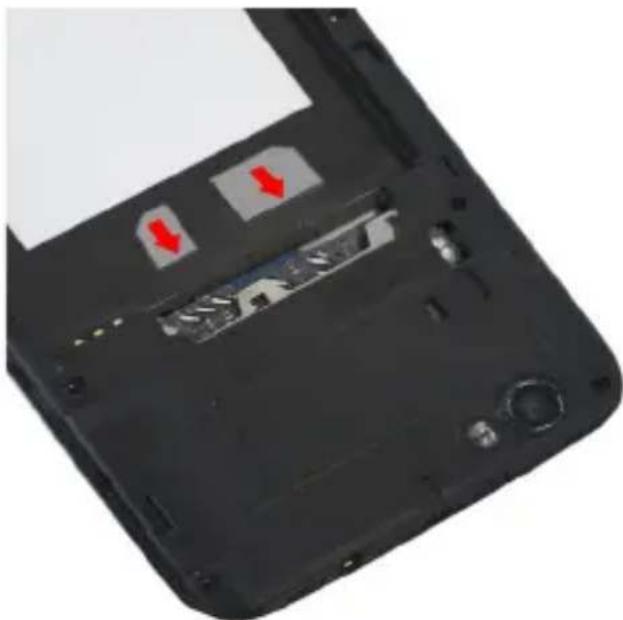
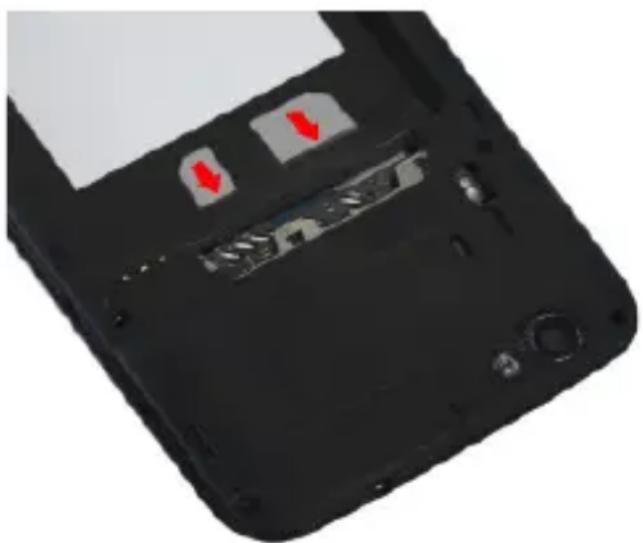
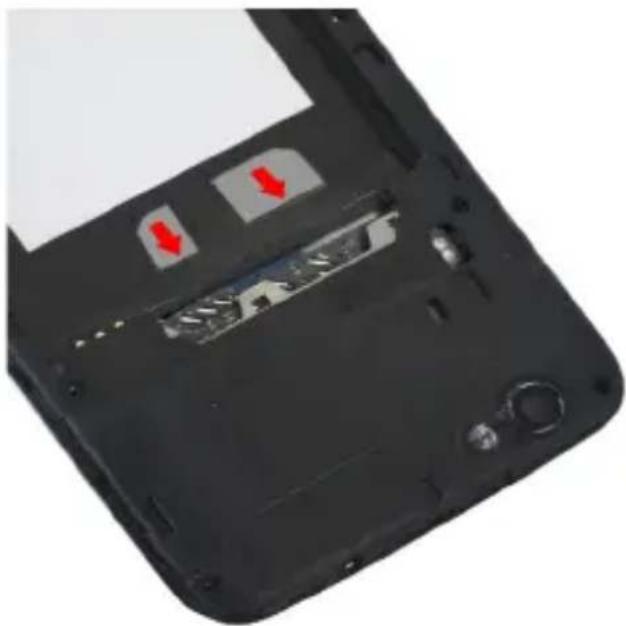
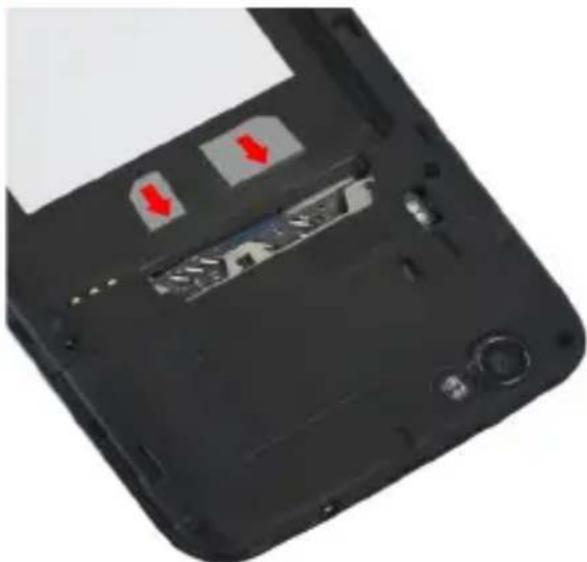
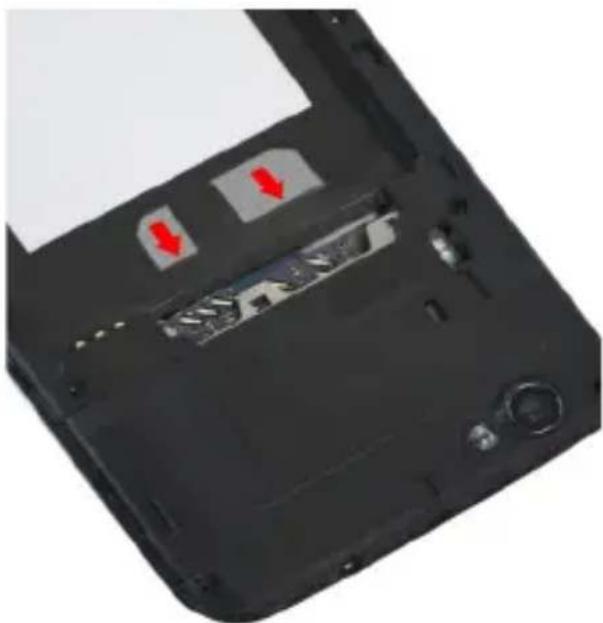
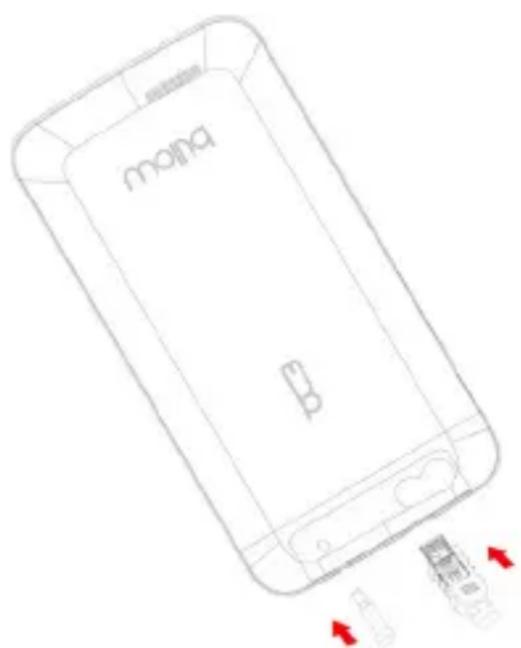
Before using your phone, install the SIM card.
The SIM tray is located at the top of the housing of the phone battery. Remove the housing by pulling from the bottom right slot up.
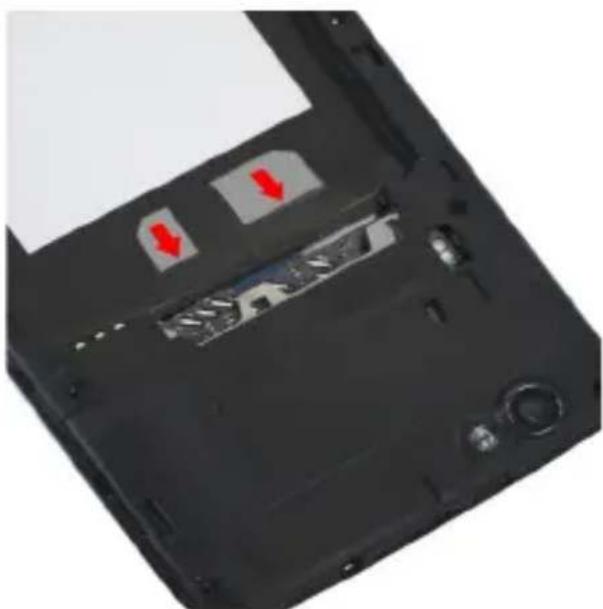
Correctly insert the standard SIM card in the SIM A slot on the left.
In the same slot, install the Micro MD Memory card (up to 32 GB). The housing of the Micro SD card is under the SIM A.
On the right is the SIM B slot for Micro SIM card usage. Correctly insert the Micro SIM card.
Insert the battery carefully, taking into account the direction of the pins and battery orientation.
Charging the battery
This phone uses a rechargeable battery.
For a first use fully charge the battery for at least 6h.
With normal use of the device, the battery indicator will warn you when the battery is low. Proceed to load. Plug the charger into a free power outlet and the end of the micro USB cable in the Micro USB port of the phone. The charging indicator is displayed on the screen and indicates the phone is charging.
After the charge is complete, disconnect the charger from the phone. CAUTION : The phone battery must not be removed
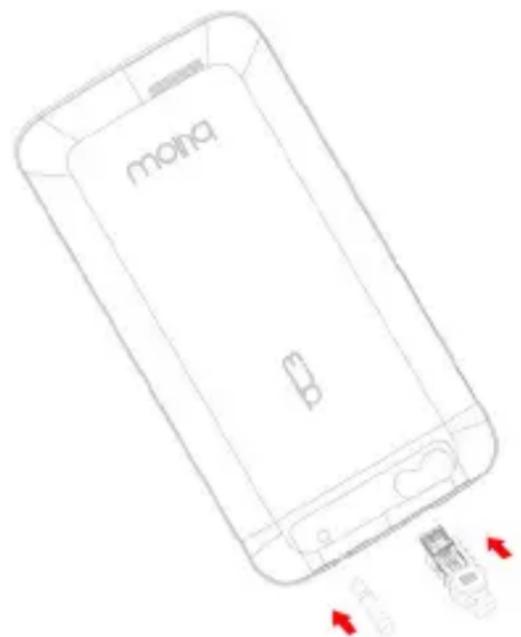
text_image
molnaduring charging.
On, Off, lock the phone
To turn on your phone, hold the ON / OFF button until the phone switches on.
If your SIM card is locked, enter the corresponding PIN code to unlock it. The PIN code is provided by your service provider, if you do not have it or have lost it contact your operator.
After three failed attempts to enter the PIN code, the phone will be locked and must be unlocked using the PUK code (supplied with the SIM card)
To turn off the phone, hold the ON / OFF button until the menu is displayed. Then click Shut Down. Then click Ok to confirm. To lock the phone press the ON / OFF button lightly.
Basic functions
Management of SIM cards
When using the phone for the first time, you will receive different messages about the SIM card or cards, which allows you to modify your Smartphone settings. As well as messages, internet connection will be displayed. If the default settings are correct, click Close. If you press no, The Management of SIM card menu will be displayed and you can then:
Set the default SIM for Voice Call, Video Call, Messaging, and Data Connection. The default SIM is underlined. If you choose “Always ask” with the coverage indicator icon will appear when accessing the menu call and SMS / MMS.
Data Connection
Activate data connection
To check your connection settings database:
Navigate to Settings> Wireless and Network Connections> More...> Mobile> APN Networks, and activate the access point by operator / contract.
Return to the previous menu setting and press mobile network data connection, then click the name of your SIM card to activate. You can also slide down the notification panel to activate a data connection.
3G service if you have two SIM cards inserted, only one of them
can be activated for 3G service, please activate SIM1 for increased performance.
Notifications Panel
For details of all your notifications, slide down the status bar. Information regarding the arrival of new messages, calendar of future events, the status of downloads ... will be displayed. The operator's name is shown in the lower panel.
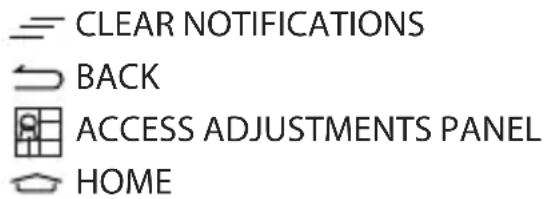
Press CLEAR NOTIFICATIONS to clear all notifications. The applications will be maintained in the list. To delete a notification, slide left or right to delete it. To close the panel, slide or press BACK.
text_image
CLEAR NOTIFICATIONS BACK ACCESS ADJUSTMENTS PANEL HOMETo access the adjustments panel, press ACCESS ADJUSTMENTS PANEL.
To go faster, slide two fingers down the notifications bar.
Show recent applications
Hold down the HOME key HOME and a list of recently used applications will open. Click an icon to open the application. Move the icon to the left or right to stop this process.
Using the menus
The menus of your phone in the form of menu options.
Options Menu
To display a menu of options, hold the item on the screen and the context menu will propose actions associated with that item. For example, if you press and hold a text element, the options of that message will appear.
Please note: All items have no context menu. If you hold down an item that is not linked to any menu, nothing will happen.
To display a menu of options, press the MENU key . The options menu proposes actions or adjustments related to the application or the current screen, but not a necessary element as the context
menu
Please note that some screens do not have options menus.
Important Notices use
In order to increase the operating life of your battery, use only Billow chargers and batteries. Replacing the original battery with a non-compliant one can cause it to explode.
The battery can be charged hundreds of times prior to replacement. When the battery performance decreases, contact your service representative for replacement.
If you're not going to use your mobile phone for a long period, be sure to recharge the battery to optimize its operating life.
Do not leave the battery on charge for days because it could generate overload and reduce the operating life of the product.
Handle SIM cards with care, if you need to clean it, wipe it gently with a dry cloth.
Repairs to your phone has to be done by a qualified technician. The repair of the phone to a person not authorized by Billow can void the warranty.
ATTENTION
The wear and tear of the product (batteries, displays, keyboards, camera objectives) is not covered by BILLOW's warranty
Technical Support
For more information about this product please visit our support section on our web site www.billowtechnology.com or send an email to support@billowtechnology.com
text_image
Rear Camera Micro USB Flash light Jack 3.5 mm 13.0 Rear Speaker| Keys Function | |
| On/Off/Lock | Holding down this key turns on or off the phone. When pressed lightly the touch screen blocks. |
| Home | Pressing the key briefly shows home screen and the list of recent applications opened. |
| Menu | If you press this key, the menu of available options in the active application opens. |
| Return | Press this key to return to the previous screen or to remove the keyboard. |
| Volume +/- | Press to increase or decrease the call volume, tone, music, games, and other audio functions. When the phone rings, you can switch it to silent mode. To activate the "meeting" mode, hold the Volume key - |
natural_image
Close-up of a black electronic device casing with red directional arrows indicating ports or features (no text or symbols visible)εισαγωγή
Πριν ξεκινήσετε
natural_image
Close-up of a black electronic device showing a cable with two red arrows pointing to its side panel (no text or symbols visible)text_image
Rear Camera Micro USB Flash light Jack 3.5 mm 13.0 MHz Rear Speaker| Keys Function | |
| On/Off/Lock | Holding down this key turns on or off the phone. When pressed lightly the touch screen blocks. |
| Home | Pressing the key briefly shows home screen and the list of recent applications opened. |
| Menu | If you press this key, the menu of available options in the active application opens. |
| Return | Press this key to return to the previous screen or to remove the keyboard. |
| Volume +/- | Press to increase or decrease the call volume, tone, music, games, and other audio functions. When the phone rings, you can switch it to silent mode. To activate the "meeting" mode, hold the Volume key - |
natural_image
Close-up of a black electronic device showing internal components with red arrows indicating movement or change (no text or symbols visible)sissejuhatus
Enne alustamist
Olulised marked kasutada
text_image
Rear Camera Micro USB Flash light Jack 3.5 mm 13.0 mm Rear Speaker| Keys Function | |
| On/Off/Lock | Holding down this key turns on or off the phone. When pressed lightly the touch screen blocks. |
| Home | Pressing the key briefly shows home screen and the list of recent applications opened. |
| Menu | If you press this key, the menu of available options in the active application opens. |
| Return | Press this key to return to the previous screen or to remove the keyboard. |
| Volume +/- | Press to increase or decrease the call volume, tone, music, games, and other audio functions. When the phone rings, you can switch it to silent mode. To activate the "meeting" mode, hold the Volume key - |
introduction
natural_image
Close-up of a black hard drive with red directional arrows indicating ports (no text or symbols visible)Avant de commencer
text_image
Rear Camera Micro USB Flash light Jack 3.5 mm 13.0 mm Rear Speaker| Keys Function | |
| On/Off/Lock | Holding down this key turns on or off the phone. When pressed lightly the touch screen blocks. |
| Home | Pressing the key briefly shows home screen and the list of recent applications opened. |
| Menu | If you press this key, the menu of available options in the active application opens. |
| Return | Press this key to return to the previous screen or to remove the keyboard. |
| Volume +/- | Press to increase or decrease the call volume, tone, music, games, and other audio functions. When the phone rings, you can switch it to silent mode. To activate the "meeting" mode, hold the Volume key - |
Uvod
Prije nego što započnete
natural_image
Close-up of a black electronic device showing internal components with red arrows indicating features (no text or symbols visible)Umetanje SIM kartice, memorijske kartice i baterije
Prije korištenja telefona, instalirati SIM karticu.
SIM ladicu se nalazi na vrhu kućišta baterije telefona. Uklonite kućište povlačenjem donjem desnom slot up.
Ispravno umetnite standardnu SIM karticu u SIM1 utor na lijevoj strani.
U istom terminu, instalirajte Micro MD memorijske kartice (do 32 GB). Kućište od Micro SD karticu pod SIM1.
Na desnoj strani je SIM2 utor za korištenje Micro SIM kartica. Ispravno umetnite Micro SIM karticu.
Pažljivo umetnite bateriju, uzimajući u obzir smjer igle i orijentacije baterije.
text_image
maina BPunjenje baterije
Ovaj telefon koristi punjive baterije.
text_image
Front Camera Sensor Front Speaker ON/OFF/LOCK button Volume +/-. billow TECHNOLOGY Welcome to Billow Technology. Get all of the information on our product ange. Follow us on Facebook Follow us on Twitter www.billowtechnology.com Menu Home Return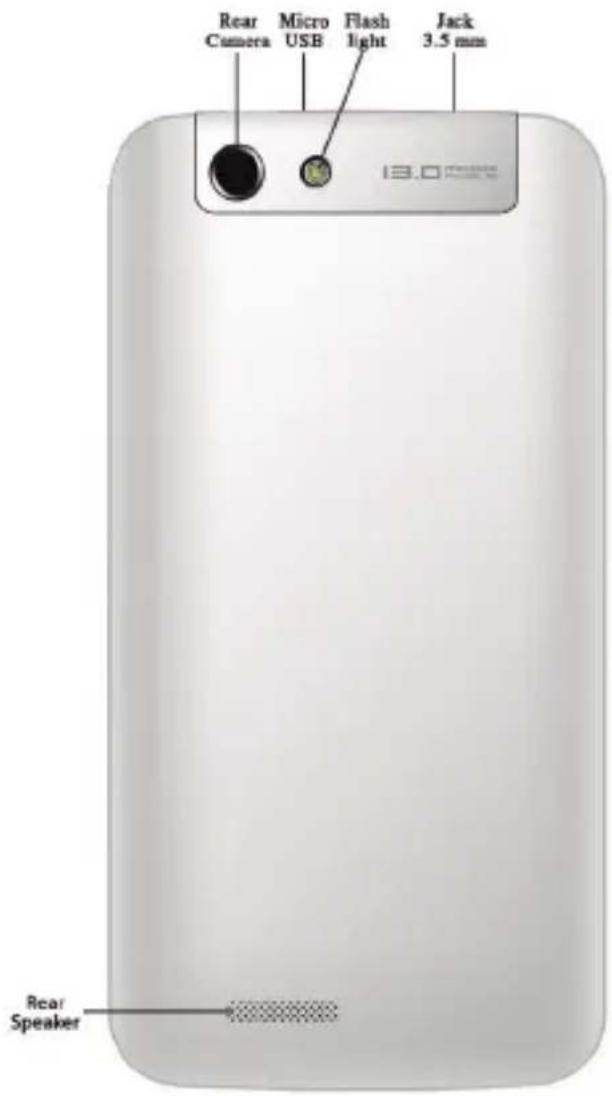
text_image
Rear Camera Micro USB Flash light Jack 3.5 mm 13.0 mm Rear Speaker| Keys Function | |
| On/Off/Lock | Holding down this key turns on or off the phone. When pressed lightly the touch screen blocks. |
| Home | Pressing the key briefly shows home screen and the list of recent applications opened. |
| Menu | If you press this key, the menu of available options in the active application opens. |
| Return | Press this key to return to the previous screen or to remove the keyboard. |
| Volume +/- | Press to increase or decrease the call volume, tone, music, games, and other audio functions. When the phone rings, you can switch it to silent mode. To activate the "meeting" mode, hold the Volume key - |
Bevezetés
Mielött elkezdené
natural_image
Close-up of a black hard drive with red directional arrows indicating ports or features (no text or symbols visible)text_image
Rear Camera Micro USB Flash light Jack 3.5 mm 13.0 mm Rear Speaker| Keys Function | |
| On/Off/Lock | Holding down this key turns on or off the phone. When pressed lightly the touch screen blocks. |
| Home | Pressing the key briefly shows home screen and the list of recent applications opened. |
| Menu | If you press this key, the menu of available options in the active application opens. |
| Return | Press this key to return to the previous screen or to remove the keyboard. |
| Volume +/- | Press to increase or decrease the call volume, tone, music, games, and other audio functions. When the phone rings, you can switch it to silent mode. To activate the "meeting" mode, hold the Volume key - |
introduzione
Prima di iniziare
natural_image
Close-up of a black hard drive with red arrows indicating ports or features (no text or symbols visible)text_image
Rear Camera Micro USB Flash light Jack 3.5 mm 13.0 mm Rear Speaker| Keys Function | |
| On/Off/Lock | Holding down this key turns on or off the phone. When pressed lightly the touch screen blocks. |
| Home | Pressing the key briefly shows home screen and the list of recent applications opened. |
| Menu | If you press this key, the menu of available options in the active application opens. |
| Return | Press this key to return to the previous screen or to remove the keyboard. |
| Volume +/- | Press to increase or decrease the call volume, tone, music, games, and other audio functions. When the phone rings, you can switch it to silent mode. To activate the "meeting" mode, hold the Volume key - |
introductie
Voordat u begint
natural_image
Close-up of a black electronic device casing with two red directional arrows indicating movement or features (no text or symbols visible)text_image
Rear Camera Micro USB Flash light Jack 3.5 mm 13.0 mm Rear Speaker| Keys Function | |
| On/Off/Lock | Holding down this key turns on or off the phone. When pressed lightly the touch screen blocks. |
| Home | Pressing the key briefly shows home screen and the list of recent applications opened. |
| Menu | If you press this key, the menu of available options in the active application opens. |
| Return | Press this key to return to the previous screen or to remove the keyboard. |
| Volume +/- | Press to increase or decrease the call volume, tone, music, games, and other audio functions. When the phone rings, you can switch it to silent mode. To activate the "meeting" mode, hold the Volume key - |
Wprowadzenie
Przed rozpoczęciem
natural_image
Close-up of a black hard drive with two red arrows pointing to specific slots (no text or symbols visible)text_image
Rear Camera Micro USB Flash light Jack 3.5 mm 13.0 mm Rear Speaker| Keys Function | |
| On/Off/Lock | Holding down this key turns on or off the phone. When pressed lightly the touch screen blocks. |
| Home | Pressing the key briefly shows home screen and the list of recent applications opened. |
| Menu | If you press this key, the menu of available options in the active application opens. |
| Return | Press this key to return to the previous screen or to remove the keyboard. |
| Volume +/- | Press to increase or decrease the call volume, tone, music, games, and other audio functions. When the phone rings, you can switch it to silent mode. To activate the "meeting" mode, hold the Volume key - |
introdução
Antes de começar
natural_image
Close-up of a black electronic device showing internal components with red arrows indicating movement or features (no text or symbols visible)PT
text_image
Rear Camera Micro USB Flash light Jack 3.5 mm 13.0 mm Rear Speaker| Keys Function | |
| On/Off/Lock | Holding down this key turns on or off the phone. When pressed lightly the touch screen blocks. |
| Home | Pressing the key briefly shows home screen and the list of recent applications opened. |
| Menu | If you press this key, the menu of available options in the active application opens. |
| Return | Press this key to return to the previous screen or to remove the keyboard. |
| Volume +/- | Press to increase or decrease the call volume, tone, music, games, and other audio functions. When the phone rings, you can switch it to silent mode. To activate the "meeting" mode, hold the Volume key - |
Introducere
Înainte de a începe
natural_image
Close-up of a black hard drive with red directional arrows indicating ports (no text or symbols visible)text_image
Rear Camera Micro USB Flash light Jack 3.5 mm 13.0 mm Rear Speaker| Keys Function | |
| On/Off/Lock | Holding down this key turns on or off the phone. When pressed lightly the touch screen blocks. |
| Home | Pressing the key briefly shows home screen and the list of recent applications opened. |
| Menu | If you press this key, the menu of available options in the active application opens. |
| Return | Press this key to return to the previous screen or to remove the keyboard. |
| Volume +/- | Press to increase or decrease the call volume, tone, music, games, and other audio functions. When the phone rings, you can switch it to silent mode. To activate the "meeting" mode, hold the Volume key - |
Úvod
Skôr ako začnete
natural_image
Close-up of a black electronic device casing with red arrows indicating ports or features (no text or symbols visible)text_image
Front Camera Sensor Front Speaker ON/OFF/LOCK button billow TECHNOLOGY Volume +/- Welcome to Billow Technology. Get all of the information on our product ange. Follow us on Facebook Follow us on Twitter www.billowtechnology.com Menu Home Return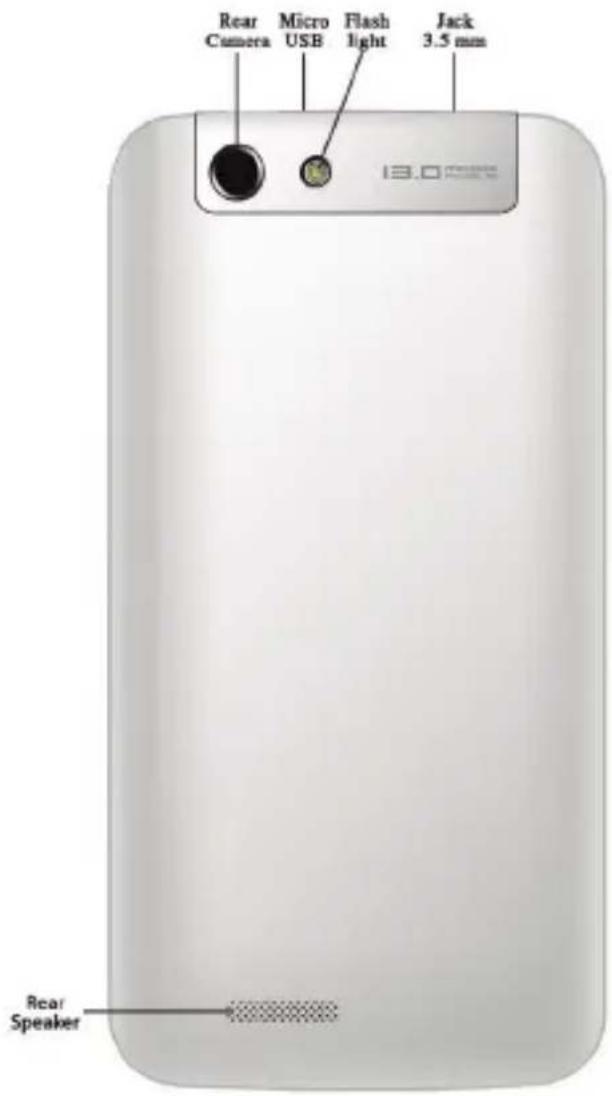
text_image
Rear Camera Micro USB Flash light Jack 3.5 mm 13.0 mm Rear Speaker| Keys Function | |
| On/Off/Lock | Holding down this key turns on or off the phone. When pressed lightly the touch screen blocks. |
| Home | Pressing the key briefly shows home screen and the list of recent applications opened. |
| Menu | If you press this key, the menu of available options in the active application opens. |
| Return | Press this key to return to the previous screen or to remove the keyboard. |
| Volume +/- | Press to increase or decrease the call volume, tone, music, games, and other audio functions. When the phone rings, you can switch it to silent mode. To activate the "meeting" mode, hold the Volume key - |
Giriş
Başlamadan önce
natural_image
Close-up of a black hard drive with red arrows indicating ports or features (no text or symbols visible)EC DECLARATION OF CONFORMITY
We declare under our sole responsibility that the product:
Brand name: BILLOW TECHNOLOGY
Model no: S500HD
Product description: Smartphone 5"
The measurements shown in this test report were made in accordance with the procedures given in the:
· EMC DIRECTIVE: 2004/108/EC
· RTTE DIRECTIVE: 1999/5/EC
· RoHS DIRECTIVE: 2011/65/EU
· LVD DIRECTIVE: 2006/95/EC
To which this declaration is based on with full conformance to the following European norms and standards:
Gelves (Sevilla), Spain.
Website: www.billowtechnology.com

text_image
C€To use this tablet in a fully secure manner, please read the following safety tips carefully:
- Children: Pay special attention to children.
Tablets contain many individual parts, so you should pay special attention when a child is in contact with a mobile tablet.
This product contains small parts that may be swallowed or cause choking if swallowed.
If your tablet has a camera or lighting device, do not use them too close to the eyes of children or animals.
- Hearing: Prolonged listening at high power through earphones or headphones can cause hearing damage. Try to adjust the volume to the minimum necessary when you're listening to music or during a call. Avoid prolonged listening at high volume.
- Behind the wheel: Be cautious while driving. Driving requires extreme and uninterrupted care, thus reducing the risk of accidents. Tablet use can distract the user's attention and lead to an accident. It is essential to scrupulously respect the local laws and regulations in force concerning the use of devices behind the wheel. Therefore it is forbidden to use the tablet while driving, and use of a headset cannot be considered a solution.
In airplane: Turn off your tablet in an airplane.
Please disable connections when you're on a plane (Wi-Fi + Bluetooth), as interferences may occur.
- In hospitals: Turn off the tablet when in proximity to any medical device.
It is very dangerous to launch the tablet having a medical device nearby. This can cause interferences with these devices. Therefore, all instructions and warnings in hospitals or health centers must be respected.
Please turn off your Tablet in service stations. Do not use your tablet at a gas station or in the vicinity of fuel.
- Electronic implants and pacemakers: People who have an electronic implant or a pacemaker should be cautious with the use of the Tablet. If you notice that your tablet causes interference with a pacemaker, turn the tablet off immediately and contact the manufacturer of the pacemaker or your doctor to find out about what course to take.
- Fire Hazards: Do not let your tablet next to heat sources such as radiators
or gas stove. Do not charge your Tablet near flammable materials (risk of fire is unquestionable).
-
Contact with liquid: Avoid all contact with liquid or handle tablet with wet hands. The water can cause irreparable damage.
-
Use only accessories approved by Billow. The use of non-approved accessories may damage or endanger your Tablet.
-
Do not manipulate the battery and charger.
Never use a damaged battery or charger.
Do not place in contact the tablet's battery with magnetized objects, as this can result in short-circuits between the + and - terminals of the batteries as well as damage the battery or Tablet.
In general terms, do not expose the batteries to very cold or very high (below 0 °C or above 45 °C ) temperatures. These differences in temperature can reduce the autonomy and operational life of the batteries.
- Falls or impacts, Handle your Tablet with great care.
Protect your tablet from falls or impacts that could damage it. Some elements of your tablet are made of glass, so it may break if dropped. Never touch the screen with sharp objects.
-
Electric shock: Do not try to disassemble your tablet. It could give you an electric shock.
-
Maintenance: If you want to clean your tablet, use a dry cloth (never solvents such as benzene or alcohol).
-
Charge your tablet in a well ventilated area.
Do not charge if placed on a fabric.
Important Notice use
-
In order to increase the operating life of your battery, use only Billow batteries and chargers. Replacing the original battery with a non-compliant battery can cause it to explode.
-
Never dispose of batteries in fire. Respect the laws into place on the recycling of used batteries and Tablets.
-
Pay attention to not damage or crush the battery. This would lead to the risk of internal short circuit and overheating.
-
Do not disassemble the battery.
-
The battery can be charged hundreds of times prior to replacement. When the battery performance diminishes, contact your service representative for replacement.
-
If you are not going to use your tablet for a long time, do not forget to recharge your battery and optimize its operational life.
-
Do not throw batteries along with household waste. Consider recycling and follow the manufacturer's guidelines. If the battery is damaged, take it to customer service or the nearest Billow dealer.
-
In order to reduce power consumption, disconnect the charger from the socket once the tablet has finished charging.
-
Do not leave the battery on charge for days as it could generate an overload and reduce the operating life of the product.
-
The repair of your tablet has to be done by a qualified technician. If the tablet repair is done by an unauthorized technician, Billow will not assume the tablet warranty.
ATTENTION
The normal wear and tear of the product (batteries, displays, keyboards, camera objectives) is not covered by the warranty Billow.
Recycling
This product is subject to European directive 2002/96 / EC: electrical and electronic products, batteries, and batteries and other accessories necessarily have to be the subject of a separate collection.
At the end of the life of the tablet, make use of the recycling bins, or take it to a shop for Tablets. This gesture will help reduce risks to health and preserve the environment.
Municipalities and distributors, and national builders associations will provide the essential details regarding disposal of your old appliance.
Importado por / Imported by:
APPROX IBERIA S. L.
CIF: B-91202499
Soporte técnico / Technical support:
support@billowtechnology.com
MADE IN PRC
The content of this guide is subject to typographical errors

billow
billowtechnology.com
SSOOHD | user guide vi.o billow
d