Xacti ICR-EH800D - Voice recorder SANYO - Free user manual and instructions
Find the device manual for free Xacti ICR-EH800D SANYO in PDF.


| Product Type | Voice Recorder |
| Brand | Sanyo |
| Model | Xacti ICR-EH800D |
| Dimensions | 4.5 x 1.5 x 0.8 inches (114 x 38 x 20 mm) |
| Weight | 2.2 oz (62 g) including batteries |
| Power Source | 1 x AAA battery (alkaline or rechargeable) |
| Battery Life | Up to 30 hours (LP mode) |
| Memory Capacity | 2 GB internal flash memory |
| Recording Format | MP3 (128 kbps) and WMA (64 kbps) |
| Playback Format | MP3, WMA |
| Recording Modes | HP (High), SP (Standard), LP (Long Play) |
| Microphone | Built-in stereo microphone |
| Speaker | Built-in monaural speaker |
| Interface | USB 2.0 mini-B, headphone jack (3.5 mm) |
| Display | LCD with backlight |
| Key Features | Voice activation, folder management, A-B repeat, voice filter |
| Maintenance | Clean with soft dry cloth; avoid liquids |
| Safety | Do not disassemble; keep away from moisture |
| Spare Parts | Battery compartment door, headphone jack cap; contact support |
| Repair | No user-serviceable parts; consult authorized service |
| General Information | Manual available for free download in PDF |
Frequently Asked Questions - Xacti ICR-EH800D SANYO
User questions about Xacti ICR-EH800D SANYO
0 question about this device. Answer the ones you know or ask your own.
Ask a new question about this device
Download the instructions for your Voice recorder in PDF format for free! Find your manual Xacti ICR-EH800D - SANYO and take your electronic device back in hand. On this page are published all the documents necessary for the use of your device. Xacti ICR-EH800D by SANYO.
USER MANUAL Xacti ICR-EH800D SANYO
natural_image
Line drawing of a portable electronic device with control buttons and a display (no text or symbols)
1AJ6P1P0073--
Contents
Precautions 8
Before using the unit .....9
Checking the accessories 9
Controls 10
Main unit 10
LCD display 11
About the screens 12
Using the USB terminal 13
About files/folders 14
Folders for recording 14
Name of recorded file 14
MUSIC folder 15
Other folders 16
Selecting a folder 17
Using the list screen 18
Displayingalist....18
Using the list screen 19
Switching between the internal memory
and a microSD card....20
Preparation 21
Insertingthebattery....21
Turning on/off the power 22
Remaining battery power 23
Resume function 23
Preventing accidentally pressing a
button (hold function) 24
Inserting/removing a microSD card ... 25
microSD cards that can be used on the unit 26
Settingthecalendar(date&time).....28
Display 30
Switching information display .... 30
Recording 31
Information you want to know before
recording 31
About wind noise 31
About the possible recording time....31
About the external recording mode (external input/microphone) 32
Using the scene select function ..... 33
Selecting a recording scene 33
Recording 35
Switching between the built-in microphone and external microphone 39
Setting recording EQ 40
About the preset recording EQ 40
Selecting a preset recording EQ mode ..... 41
Setting your favorite recording EQ mode (only when USER is selected) 42
Recording from an external device 44
Playback.... 46
Playing a file 46
Screen display during playback 48
To fast forward 49
To rewind 49
To skip to the next or previous file 49
To skip to the next or previous index mark 49
To skip forward or backward by specified time interval 50
Changing the playback speed ..... 51
Performing A-B repeat playback
(segment repeat playback)....52
Performing phrase playback 53
Performing time search for playback... 54
Playing the MUSIC folder files ..... 55
Editing 56
Setting or erasing an index mark ..... 56
Setting an index mark 56
Erasing index marks 57
Dividing a file.... 59
Using the playlists (in MUSIC folder only) 62
Registering a file or folder in a playlist (MYLIST) 62
Changing the play order of files in a playlist 63
De-registering a file from a playlist (MYLIST) 64
De-registering all files from a playlist (MYLIST) 65
Using the timer 66
Setting up the timer 66
Erasing files 71
About the recycle bin function ....
About the RECYCLE folder display when the recycle bin function is turned on 72
About name of file when moved to the RECYCLE folder 72
Recovering a file from the RECYCLE folder 73
Emptying the RECYCLE folder 74
Erasing a file 75
Erasing all files in a folder 77
Formatting the internal memory or a microSD card 79
About the menus 81
How to use the menus.... 81
Menu list 82
Using the recording menu (REC MENU) 87
Changing the recording mode 87
Changing the microphone sensitivity ..... 88
Changing the "MIC ALC" setting 89
Changing the microphone mode 90
Setting the low cut filter 91
Setting the peak limiter 91
Using the auto divide function 92
Using the self timer 92
Using the VAS function 94
Using the playback menu (PLAY MENU) 96
Changingthe"REPEAT"setting....96
Setting phrase playback (slight rewind) ...97
Setting time skip 98
Setting the sound equalizer 99
Setting the recording scene select
function 101
71 Customizing a recording scene ..... 102
Restoring a recording scene to its default 104
Using the common menu (COMMON MENU) 105
Setting the "BEEP SOUND" 105
Turning on/off the recording LED 106
Changing the battery type 106
Setting the auto power off function ..... 107
Turning on/off the screen backlight ..... 107
Adjusting the screen contrast....108
Using the security function (applied to the internal memory only) 108
Turning on/off the recycle bin function ... 110
Initializing the menu settings 111
Changing the display language.... 111
Contents
Checking the version 112
Before using the unit with your PC ...113
Checking the operating environment 113 Operating environment .... 113
What can you do from your PC? ...
Connecting/disconnecting your PC 116
ConnectingyourPC....116 Disconnecting your PC .... 117
Viewing the unit's folders and files from your PC 118
Troubleshooting 120
Check to see that the unit is correctly recognized by your PC. 120 If Device Manager does not display the information correctly 121
Additional information ..... 122
Error messages 122 Before contacting your local dealer 125 Frequently asked questions 131 Cleaning.... 132 Main specifications .... 133
Index 136
Note:
This handling description is printed prior to product development. When a part of the product specification must be changed to improve operability or other functions, priority is given to the product specification itself. In such instances, the instruction manual may not entirely match all the functions of the actual product. Therefore, the actual product and packaging, as well as the name and illustration, may differ from the manual. The screen/LCD display shown as an example in this manual may be different from the actual screen/LCD display.
Please read this manual before use.
Keep the manual in a safe place for future reference.
SANYO takes no responsibility for damages or lost profits caused by the use/failure of the unit, or claims or expenses from a third party for any use.
FOR AMERICAN USERS
The following advisory is included in accordance with the laws of the State of California (USA):
WARNING:
This product contains chemicals, including lead, known to the State of California to cause cancer, birth defects or other reproductive harm. Wash hands after handling.
FOR CANADIAN USERS
This class B digital apparatus complies with Canadian ICES-003.
Declaration of Conformity
Responsible Party: SANYO North America Corporation
Address: 21605 Plummer Street
Chatsworth,
California
91311
Telephone No.: (818) 998-7322
- This device complies with Part 15 of the FCC Rules.Operation is subject to the following two conditions:
(1) this device may not cause harmful interference, and
(2) this device must accept any interference received, including interference that may cause undesired operation.
FOR EU USERS
The symbol mark and recycling systems described below apply to EU countries and do not apply to countries in other areas of the world.
Your SANYO product is designed and manufactured with high quality materials and components which can be recycled and/or reused.
The symbol mark means that electrical and electronic equipment, batteries and accumulators, at their end-of-life, should be disposed of separately from your household waste.
Note:
If a chemical symbol is printed beneath the symbol mark, this chemical symbol means that the battery or accumulator contains a heavy metal at a certain concentration. This will be indicated as follows: Hg: mercury, Cd: cadmium, Pb: lead
In the European Union there are separate collection systems for used electrical and electronic equipment, batteries and accumulators.
Please, dispose of them correctly at your local community waste collection/recycling centre.
Please, help us to conserve the environment we live in!
CAUTION
- It is forbidden to copy this manual, whole or in part, without prior written permission.
- All images and illustrations given in this manual are for explanation purposes and may differ slightly from that of the actual product. Also, actual specifications are subject to change without prior notice and therefore may differ from the contents of this manual.
Sanyo cannot be held responsible for damage caused by improper use or modifications to the device, or data that is lost or destroyed.
SANYO Sales & Marketing Europe GmbH
Stahlgruberring 4, D-81829 München, Germany
SANYO Electric Co., Ltd.
1-1, Sanyo-cho, Daito City, Osaka 574-8534, Japan
Precautions
- The apparatus shall not be exposed to dripping or splashing.
- Do not remove the battery during operating the unit.
- Do not drop the unit or subject it to strong shocks.
- Do not use where there are ext remes of temperature (below 5 °C or exceeding 35 °C).
- Microsoft, Windows Media ^TM , and the Windows ^ Logo are trademarks or registered trademarks of Microsoft Corporation in the United States and/orother countries.
- Windows Media ^TM Player is trademark or registered trademark of Microsoft Corporation.
- microSDHC logos are trademarks.


- Other system and product names generally are the registered trademarks or trademarks of the respective development manufacturers. The symbols ^TM and ^® are not shown in this manual.
- SANYO takes no responsibility for recording failure due to power cuts or damage to the unit.
- To avoid potential risk of data loss caused by accidental operation or malfunction of the unit, we recommend that you save a backup copy of your recorded messages on a PC, etc.
- Recording copyright material without permission of the copyright owners is usually an infringement. If you wish to re-record copyright material, permission from the copyright owner is necessary. SANYO does not approve of, and cannot be held responsible for, any unlawful use of this machine.
Before using the unit
Checking the accessories
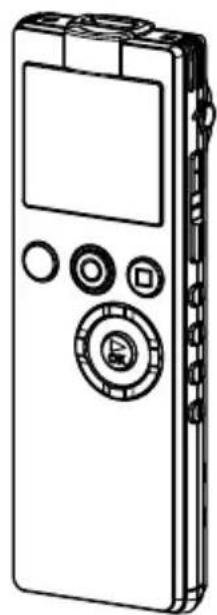
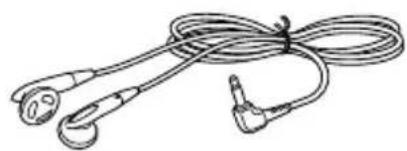
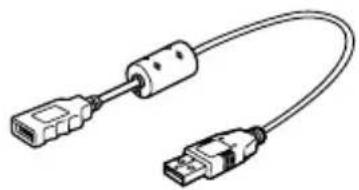
Make sure the packing box contains the following items.
Sound recorder Stereo Earphones*
natural_image
Line drawing of a handheld electronic device with control buttons and a display (no text or symbols)1
natural_image
Line drawing of a medical or electrical device with two leads and a coiled cable (no text or symbols)USB extension cable
natural_image
Illustration of a USB cable with two connectors (no text or symbols)AAA alkaline battery This manual
*1 4-pin stereo earphones such as those with remote control cannot be used with the unit.
Controls
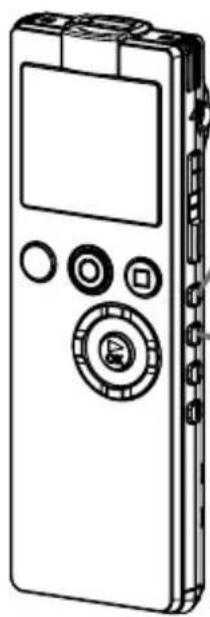
Main unit
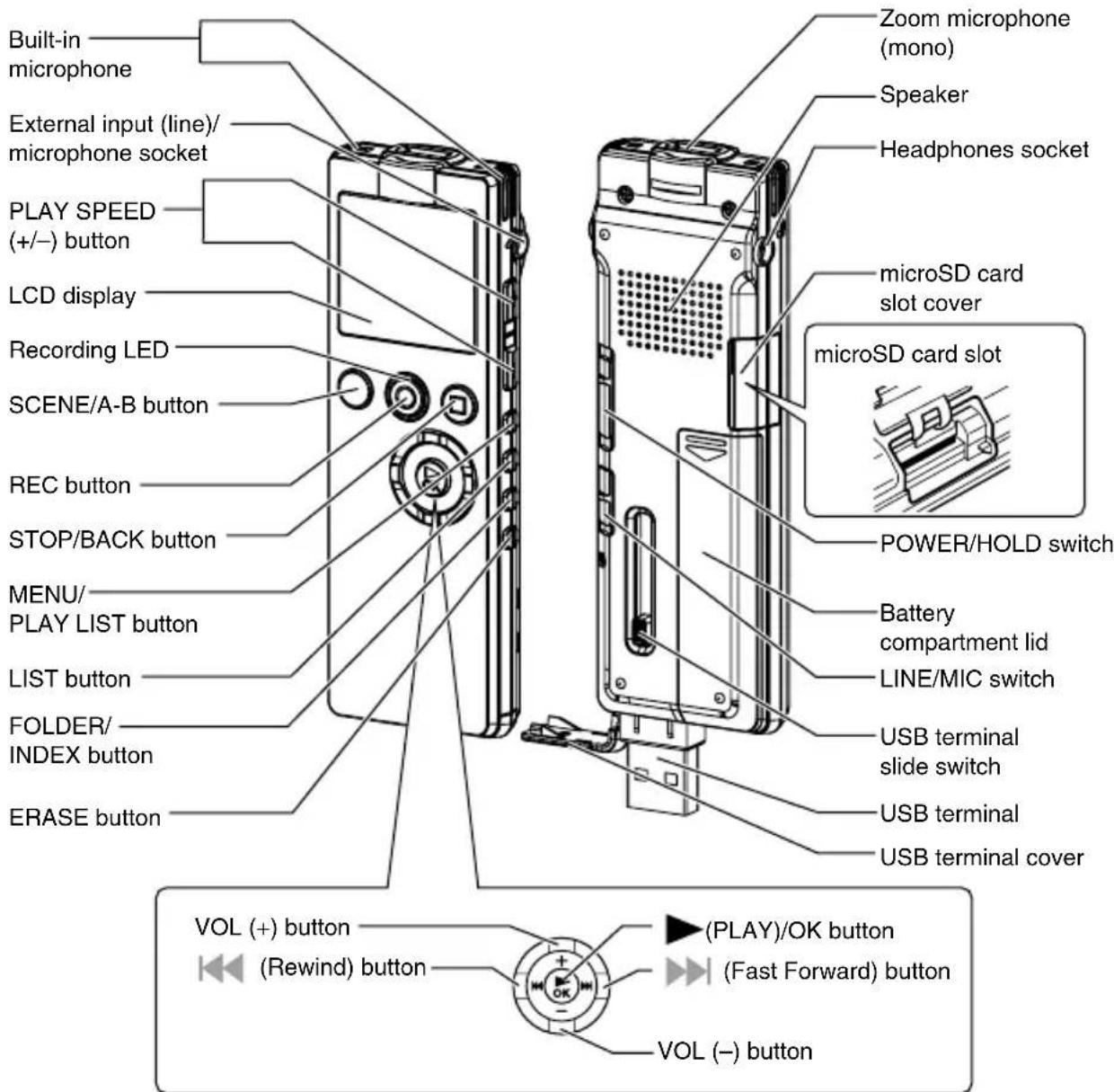
LCD display
■ Basic screen
It is not possible to display all screens at once.
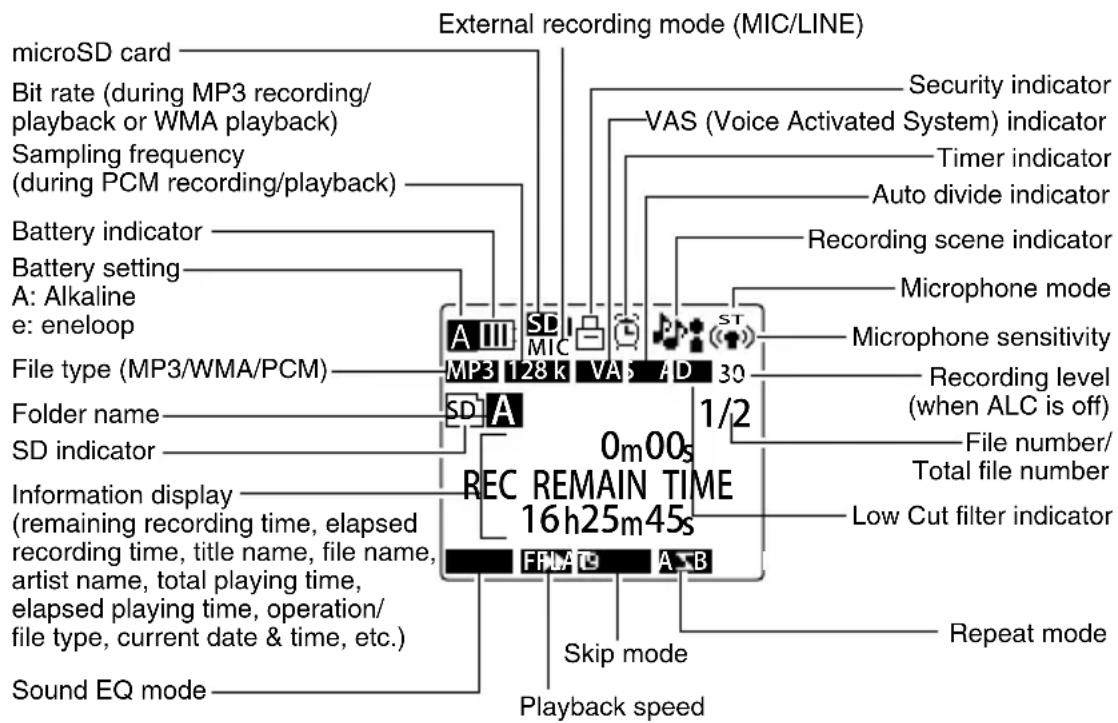
flowchart
graph TD
    A["External recording mode (MIC/LINE)"] --> B["MicroSD card"]
    A --> C["Bit rate (during MP3 recording/ playback or WMA playback)"]
    A --> D["Sampling frequency (during PCM recording/playback)"]
    A --> E["Battery indicator"]
    A --> F["Battery setting"]
    A --> G["File type (MP3/WMA/PCM)"]
    A --> H["Folder name"]
    A --> I["SD indicator"]
    A --> J["Information display (remaining recording time, elapsed recording time, title name, file name, artist name, total playing time, elapsed playing time, operation/ file type, current date & time, etc.)"]
    A --> K["Sound EQ mode"]

    C --> L["Security indicator"]
    C --> M["VAS (Voice Activated System) indicator"]
    C --> N["Timer indicator"]
    C --> O["Auto divide indicator"]
    C --> P["Recording scene indicator"]
    C --> Q["Microphone mode"]
    C --> R["Microphone sensitivity"]
    C --> S["Recording level (when ALC is off)"]
    C --> T["File number/ Total file number"]
    C --> U["Low Cut filter indicator"]

    L --> V["0m00s REC REMAIN TIME 16h25m45s"]
    M --> V
    N --> V
    O --> V
    P --> V
    Q --> V
    R --> V
    S --> V
    T --> V
    U --> V

    V --> W["Skip mode"]
    V --> X["Playback speed"]
You can adjust the contrast of the LCD display.
Adjusting the screen contrast (page 108)
About the screens
■ Basic screen
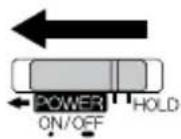
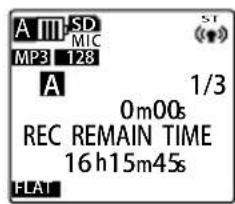
This screen appears when you turn on the power.
Turning on the power (page 22)
■ Menu screen

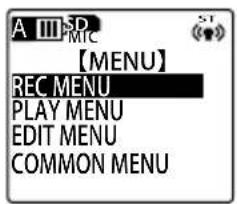
This screen appears when you press the MENU/PLAY LIST button while on the basic screen.
You can use this screen to change the recording mode, set date & time, perform initialization, etc.
About the menus (page 81)
natural_image
Line drawing of a portable electronic device with control buttons and a display (no text or symbols)■ List screen

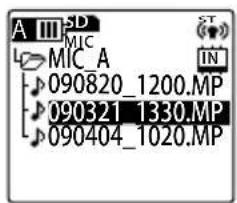
This screen appears when you press the LIST button while on the basic screen.
You can use this screen to display, in a tree format, files stored in the internal memory or on a microSD card.
Using the list screen (page 18)
Using the USB terminal
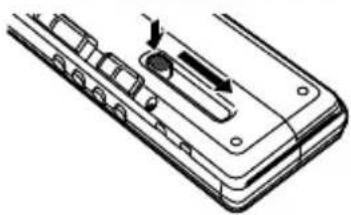
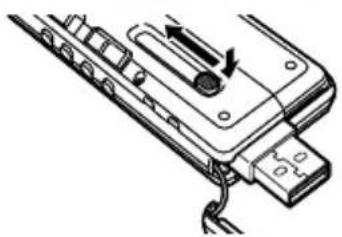
Slide out the USB terminal from the unit when connecting to your PC or a USB AC adapter.
■ To slide out the USB terminal
1 Slide the USB terminal slide switch in the direction of the arrow to open the USB terminal cover.
While slightly pressing down the lever, slide the switch until it clicks.
natural_image
Technical line drawing of a device component with an arrow indicating direction (no text or symbols)■ To slide the USB terminal back into the unit
1 Slide the USB terminal slide switch in the direction of the arrow.
While slightly pressing down the lever, slide the switch until it clicks.
natural_image
Technical line drawing of a mechanical component with no visible text or symbolsClose the USB terminal cover.
- When not using the USB terminal, always close the cover.
About files/folders
Folders for recording
In terms of folders used for recording, the unit provides the MIC folders (A to D) for storing recordings made via the built-in microphone, as well as the LINE folder for storing line-in recordings made via external devices.
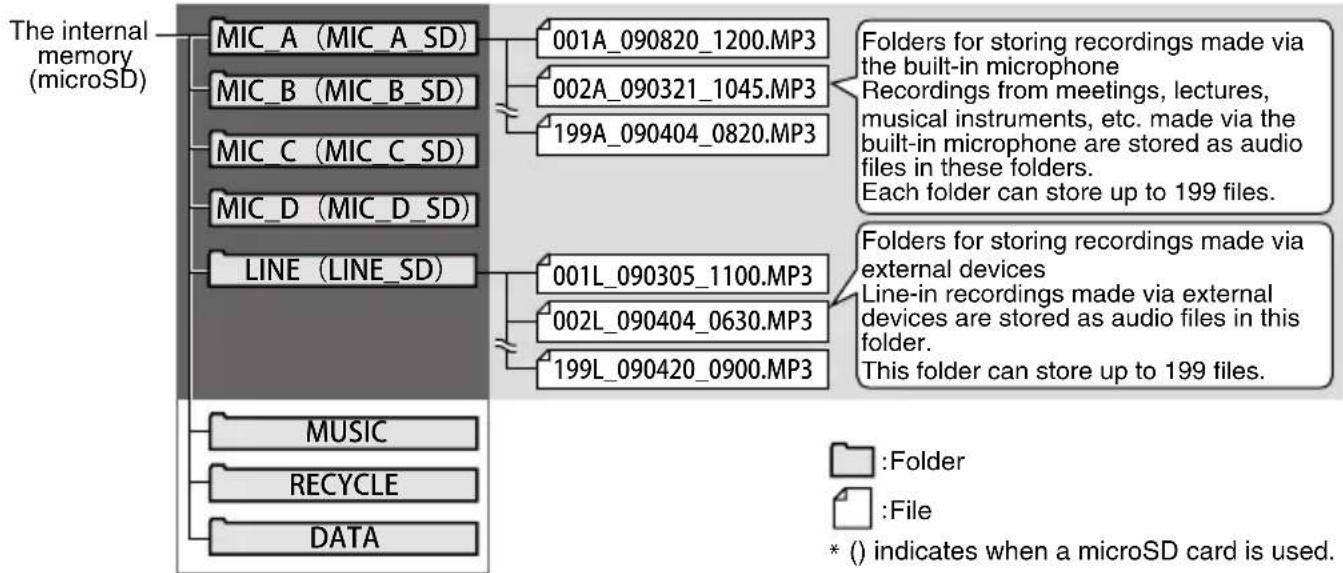
flowchart
graph TD
    A["The internal memory (microSD)"] --> B["MIC_A (MIC_A_SD)"]
    A --> C["MIC_B (MIC_B_SD)"]
    A --> D["MIC_C (MIC_C_SD)"]
    A --> E["MIC_D (MIC_D_SD)"]
    A --> F["LINE (LINE_SD)"]
    F --> G["MUSIC"]
    F --> H["RECYCLE"]
    F --> I["DATA"]
    B --> J["001A_090820_1200.MP3"]
    C --> K["002A_090321_1045.MP3"]
    D --> L["199A_090404_0820.MP3"]
    E --> M["001L_090305_1100.MP3"]
    F --> N["002L_090404_0630.MP3"]
    F --> O["199L_090420_0900.MP3"]
    J --> P["Folders for storing recordings made via the built-in microphone"]
    K --> Q["Recordings from meetings, lectures, musical instruments, etc. made via the built-in microphone are stored as audio files in these folders. Each folder can store up to 199 files."]
    M --> R["Folders for storing recordings made via external devices"]
    N --> S["Line-in recordings made via external devices are stored as audio files in this folder. This folder can store up to 199 files."]
    O --> T["* () indicates when a microSD card is used."]
- A file with extension .INX contains index information. If you erase this file from your PC, then the index information will be gone.
Name of recorded file
The unit automatically assigns a file name for each recording.
001A_091001_1200.MP3
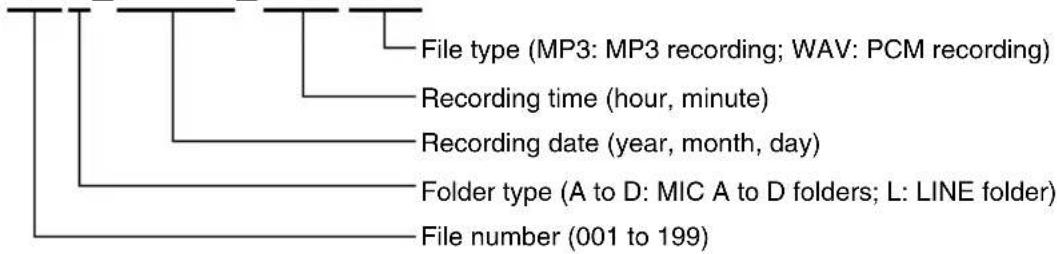
flowchart
graph TD
    A["File number (001 to 199)"] --> B["Folder type (A to D: MIC A to D folders; L: LINE folder)"]
    B --> C["Recording date (year, month, day)"]
    C --> D["Recording time (hour, minute)"]
    D --> E["File type (MP3: MP3 recording; WAV: PCM recording)"]
- The unit does not display file number and folder type. However, you can connect the unit to your PC and check this information from your PC.
- If you use your PC to change the name of a file recorded on this unit, the file can no longer be played from its original folder (MIC_A to MIC_D or LINE folder). Therefore, follow the naming rule described on the previous page when changing a file name, or move the file to the MUSIC (M) folder and then play the file from there.
MUSIC folder
The MUSIC folder stores files such as MP3 and WMA transferred from your PC. Playback of these files is possible. By transferring CD tracks from your PC to this folder, you can use the unit as a musical player.
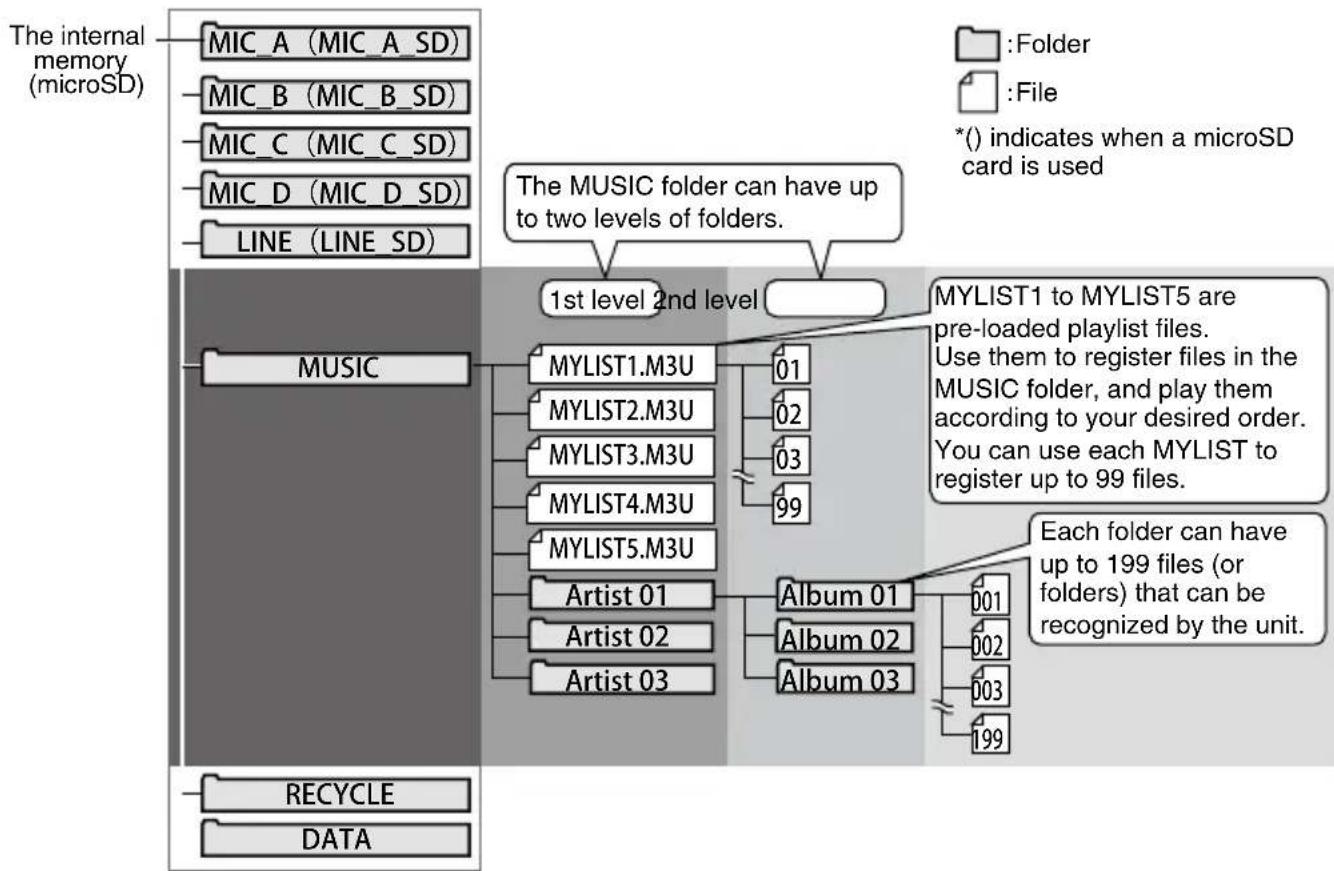
flowchart
graph TD
    A["The internal memory (microSD)"] --> B["MIC_A (MIC_A_SD)"]
    A --> C["MIC_B (MIC_B_SD)"]
    A --> D["MIC_C (MIC_C_SD)"]
    A --> E["MIC_D (MIC_D_SD)"]
    A --> F["LINE (LINE_SD)"]
    G["MUSIC"] --> H["MYLIST1.M3U"]
    G --> I["MYLIST2.M3U"]
    G --> J["MYLIST3.M3U"]
    G --> K["MYLIST4.M3U"]
    G --> L["MYLIST5.M3U"]
    G --> M["Artist 01"]
    G --> N["Artist 02"]
    G --> O["Artist 03"]
    H --> P["01"]
    H --> Q["02"]
    H --> R["03"]
    H --> S["99"]
    I --> T["Album 01"]
    I --> U["Album 02"]
    I --> V["Album 03"]
    W["RECYCLE"] --> X["DATA"]
    Y["*() indicates when a microSD card is used"] --> Z["The MUSIC folder can have up to two levels of folders."]
    AA["1st level 2nd level"] --> AB["MYLIST1 to MYLIST5 are pre-loaded playlist files. Use them to register files in the MUSIC folder, and play them according to your desired order. You can use each MYLIST to register up to 99 files."]
    AC["Each folder can have up to 199 files (or folders) that can be recognized by the unit."] --> AD["Album 01"]
    AC --> AE["Album 02"]
    AC --> AF["Album 03"]
Note:
- If you transfer a folder of files from your PC to the MUSIC folder, the basic screen shows only FILE 0/0, giving you the impression that there is no file. Also, because MYLIST1 to MYLIST5 appear first on the list screen, press the VOL (+/-) button to make sure the folder is copied.
■ Maximum number of files for the MUSIC folder
The maximum number of files that can be stored in the MUSIC (M) folder (199 files) includes sub folders and playlist files.
Other folders
● RECYCLE folder (1)
This is a recycle folder. If this recycle bin function is turned on, when you erase files from the unit, they are moved to this folder. This means that if you accidentally erase a file, you can recover it from this folder.
About the recycle bin function (page 71)
● DATA folder
This folder is not visible from the unit. You can see it only from your PC connecting to the unit. You can store files such as Word files or Excel files in this folder, and then access the folder by using the unit as a microSD card reader/writer (removable disk).
Functioning as USB memory or microSD card reader/writer (page 115)
● MANUAL folder
This folder is not visible on the unit. You can see it only on your PC connected to the unit. This folder contains the PDF version of the instruction manual. Be sure to save the folder to your PC for backup.
Selecting a folder
1 Turn on the power. Turning on the power (page 22)
2 Press the FOLDER/INDEX button.
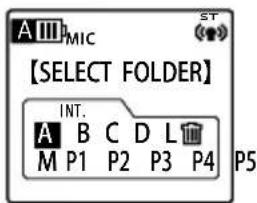
A to D: Folders containing files recorded from the built-in microphone
L: Folder containing files created from line-in recording.
M: Folder containing music files transferred from your PC
P1 to P5: Folders containing playlist files within the M folder
RECYCLE folder
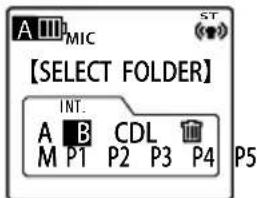
- If any folder from A to D is selected, the basic screen returns.
- If M is selected, the display changes to the list screen.
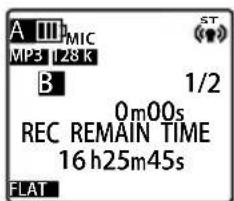
- You can also select a folder from the list screen. (page 19)
Using the list screen
The list screen displays folders and files in a tree format. You can use this screen to quickly select a folder or file.
Displaying a list
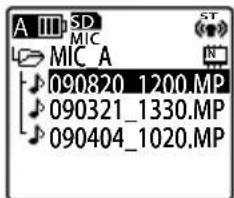
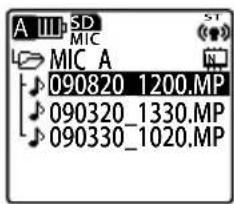
From the basic screen, pressing the LIST button displays the list screen. By default, the list screen displays the file selected from the basic screen.
Basic screen (MIC_A folder) List screen (MIC_A folder)

- During playback or recording, you cannot display the list screen. During playback, pressing the LIST button stops the playback and switches to the list screen.
- If there are more files than the screen can display, just keep the highlight where it is. In a moment, the screen will start scrolling so that you can see more files.
- Pressing the LIST button again returns to the basic screen.
Name of recorded file (page 14)
■ Icons displayed on the list screen
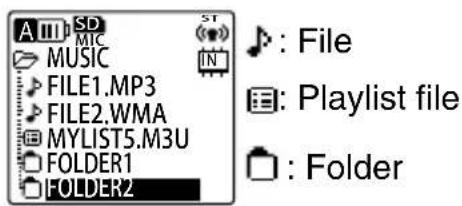
The above screen is an example.
If there is no file in a folder
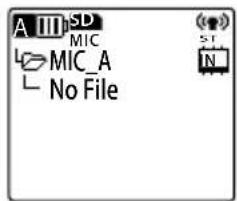
Using the list screen
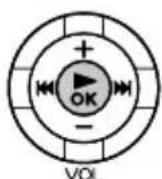
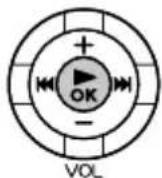
To select a file or folder, you can just use the VOL (+/-) and the ◀◀/▶▶ buttons.
■ Functions of buttons during list display
 | + Move the highlight up. | |
| - Move the highlight down. | ||
| Move back up one level. | ||
| Open the selected folder. | ||
 | Start playing the selected file.If there is no file in the selected folder,“NO DATA” appears and the basic screen returns. | |
 | Switch folder | Single press:Switch folder.Long press: Switch between the internal memory and microSD card. |
 | Recording | Exit the list screen and start recording. |
 | Stop | Exit the list screen and return to the basic screen. |
Switching between the internal memory and a microSD card
If a microSD card is inserted in the unit and you want to use the microSD card for recording, playback, or erasing files, you can switch from the internal memory to the microSD card.
Inserting/removing a microSD card (page 25)
1 Turn on the power. Inserting the battery (page 21)
2 Press the FOLDER/INDEX button.

3 Press the VOL (+) button.
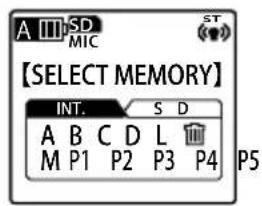
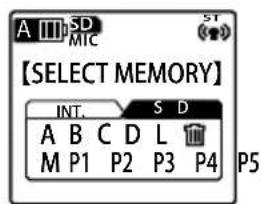
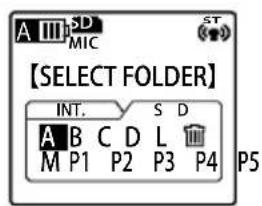
4 Press the / button to select "SD" (or "INT." for the internal memory).
5 Press the OK button. - Then, select a folder for further operation. Selecting a folder (page 17)
Preparation
Inserting the battery
Insert the AAA alkaline battery(supplied) or AAA eneloop battery(optional) in the unit, as follows:
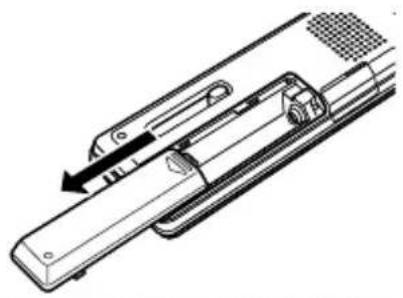
1 Open the battery compartment lid.
Slide the battery compartment lid in the direction of the arrow.
natural_image
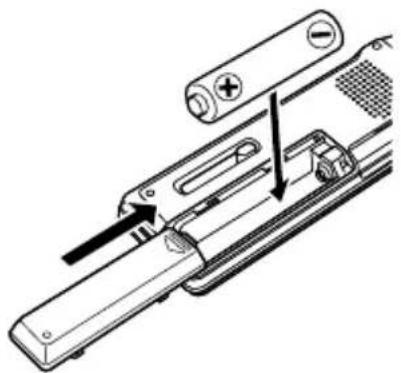
Technical line drawing of a mechanical device with an arrow indicating direction (no text or symbols)2 Insert the AAA alkaline battery(supplied) or AAA eneloop battery(optional), and then close the battery compartment lid.
- Make sure the + / - polarity of the battery is correct.
- When replacing the battery, if you remove the battery for more than 5 minutes, the calendar settings may be lost. If this happens, re-set the calendar. However, recordings and the alarm setting are not lost.
natural_image
Technical line drawing of a mechanical assembly with no visible text or symbolsNote:
- When using the eneloop battery, change the "BATTERY SETTING" setting to "eneloop". If you want to use the alkaline battery, change the "BATTERY SETTING" setting to "ALKALINE".
- When you use a rechargeable nickel hydride battery such as SANYO's eneloop battery, note that the battery duration is about 30% shorter than the alkaline battery.

Changing the battery type (page 106)
Turning on/off the power
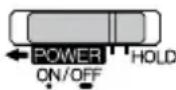
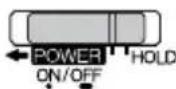
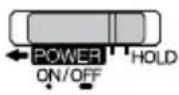
■ Turning on the power Slide the POWER/HOLD switch in the direction of the arrow.
- When the power turns on, "HELLO" appears on the screen. Then, the resume function operates to display the last file selected before the power was turned off last time.
- You can resume and play from where playback stopped last time (playback resume function).
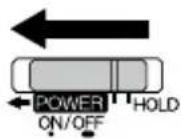
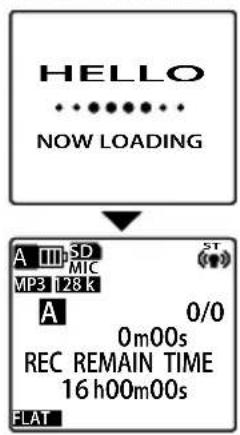
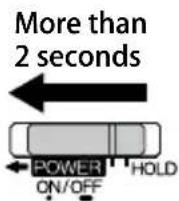
■ Turning off the power Slide the POWER/HOLD switch in the direction of the arrow for more than 2 seconds.
• After "SEE YOU" appears, the power turns off.

Note:
■ When you turn on the power the first time
When you turn on the power the first time, remember to set up the calendar.

Setting the calendar (date & time) (page 28)
■ About the auto power off function
When the auto power off function is enabled, if you do not operate the unit for a preset time, the power turns off automatically. (When shipped, the unit is set to "15min".)

Setting the auto power off function (page 107)
Remaining battery power
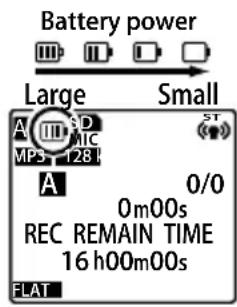
You can check the remaining battery power from the screen. When ☐ appears, replace as soon as possible with a new battery.
- When the battery is low, "LOW BATTERY PLEASE CHANGE THE BATTERY" appears and then the screen goes off.
- When the battery is low, if the "BEEP SOUND" setting is set to "ON", you can hear a beep sound.
- Depending on the ambient temperature and usage, the battery duration may change. Therefore, take the battery indicator as a rough guide.
- Once the alkaline battery is low, do not continue to use the alkaline battery. For an eneloop battery, recharge it sufficiently before using it again.
Resume function
The resume function remembers file used and playback position before the power was turned off last time. When you turn on the power again, the unit resumes with these settings. However, the resume function does not work in the following cases.
- If you switch the folder
- If the unit is connected to your PC
- If you remove the battery or a microSD card without turning off the power first
- If you switch between the internal memory and a microSD card
Preventing accidentally pressing a button (hold function)
When you put the unit in a bag or pocket, any movement may accidentally result in a button or switch being pressed and battery being consumed. To prevent this problem, we recommend that you turn on the hold function before putting the unit in a bag or pocket.
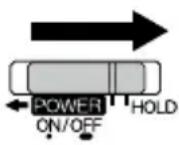
Slide the POWER/HOLD switch to the HOLD position.
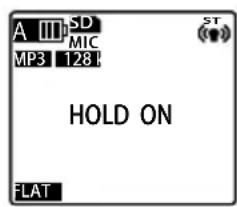
"HOLD ON" appears and all buttons are disabled. Slide the POWER/HOLD switch away from the HOLD position.
"HOLD OFF" appears and all buttons are enabled again.
Inserting/removing a microSD card
In addition to the internal memory, you can also use a microSD card, as follows:
1
Turn off the power.
Turning off the power (page 22)
2
Open the microSD card slot cover.
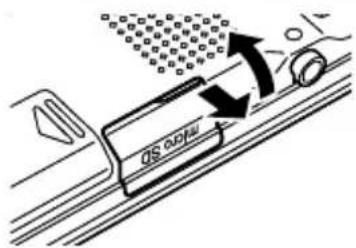
3
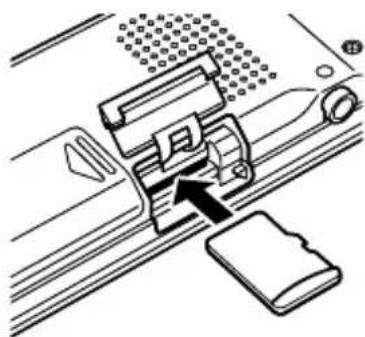
- To insert a microSD card Insert a microSD card (sold separately) straight into the microSD card slot, following the direction indicated in the diagram, until it clicks firmly into position.
- Check the slot, and then insert the microSD card straight into the slot.
- When you turn on the power, "SD" appears on the screen.
- If the inserted microSD card is not recognized by the unit, remove the card and then insert it again.
natural_image
Diagram of a vehicle's internal components and dashboard, showing no text or symbols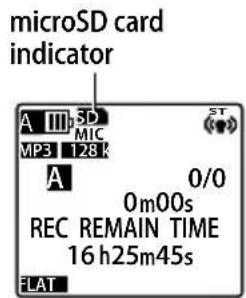
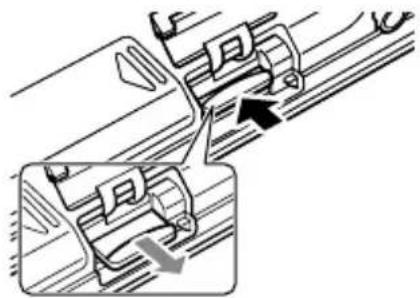
● To remove the microSD card Slightly press the microSD card.
The microSD card comes out slightly.
Gently remove the card.
natural_image
Technical diagram showing mechanical assembly with arrows indicating motion (no text or symbols)
Close the microSD card slot cover.
microSD cards that can be used on the unit
The unit can use 512MB to 2GB microSD cards, as well as 4GB and 8GB microSDHC cards (as of October, 2009).
- Depending on the manufacturer/type of a microSD card or microSDHC card, the card may not function properly on the unit.
■ Handling a microSD card
- Format a microSD card before using it on the unit. Be sure to always use the unit to format the card. You may not be able to use microSD cards formatted using your PC or other devices.
Formatting the internal memory or a microSD card (page 79)
- Be sure to insert a microSD card correctly in the unit. If the card is not inserted correctly, recording/playback cannot be performed on the microSD card.
- When inserting or removing a microSD card, do not apply unnecessary force; otherwise, your hand or fingers may be injured, or the microSD card and the card slot may become damaged.
- Do not touch the terminal surface of a microSD card. Keep the card away from water or dirt.
- Do not bend or fold a microSD card, and do not place a heavy object on it.
- Do not insert or remove a microSD card while the power is still turned on; otherwise, data on the microSD card may become damaged.
- Because the size of a microSD card is small, be careful when inserting or removing it.
- Do not use or store a microSD card at a location where static electricity or electrical noise can occur easily.
- Do not place a microSD card at a location where there are corrosive drugs, or where corrosive gas can occur; otherwise, malfunction or loss of data on the card may result.
- When you dispose a microSD card, you may be giving away sensitive data on the card as well. We recommend that you erase all data on the card first, and then physically damage the card before disposing it.
- If the insertion direction or top side/bottom side of a microSD card is wrong, you cannot insert the card all the way in.
- If the insertion direction or top side/bottom side of a microSD card is wrong, this may result in damage to the card or the microSD card slot.
- Never leave a microSD card at a location where small children can reach with their hands; otherwise, the children may swallow the card by mistake.
- If the microSD card is not recognized by the unit when you turn on the power, turn off the power, re-insert the microSD card, and then turn on the power again.
Setting the calendar (date & time)
Once you set the calendar correctly, the correct recording date & time information is stored in each file (timestamp function). Also, because each file name makes use of the recording date & time information, we recommend that you set the calendar correctly.
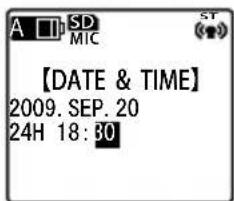
The following procedure describes how to set the calendar to "2009.SEP.20 24H 18:30".

Turn on the power.
Turning on the power (page 22)

Press the MENU/PLAY LIST button.
MENU

PLAY LIST
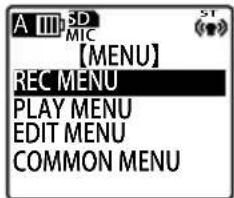

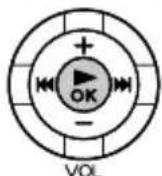
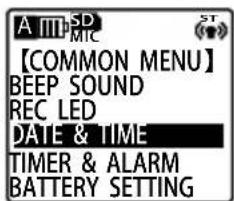
Press the VOL (+/-) button to select "COMMON MENU".
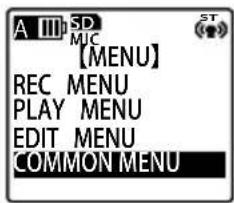

Press the OK button.
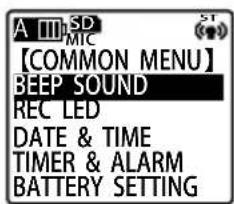
5 Press the VOL (+/-) button to select "DATE & TIME".
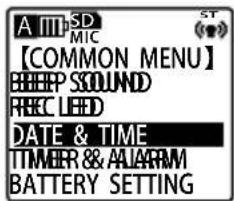
6 Press the ▶OK button.
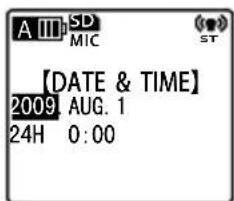
Set the calendar's date and time.
① Press the ◀◀/▶ button to select year, month, day, 24H/12H (AM/PM), time, and minute to change.
② Press the VOL (+/-) button to change the value.
8 Press the ▶OK button.
Press the MENU/PLAY LIST button to exit the menu.
Switching information display
From the basic screen, pressing the STOP/BACK button repeatedly changes the display, in the following order (using MIC_A FOLDER as an example).
| Display order | Display information | If there is a playback file If there is no playback file | |
| 1 | Remaining recording time | 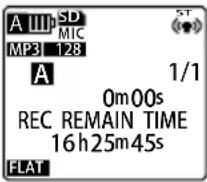 | 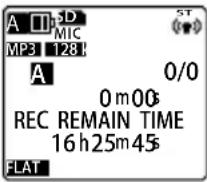 |
| 2 | Current date & time | 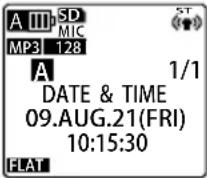 | 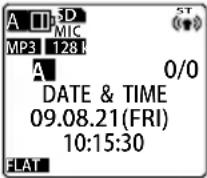 |
| 3 | Total playing time | 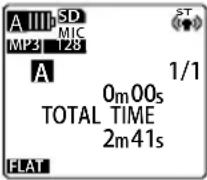 | Not displayed |
| 4 File name | 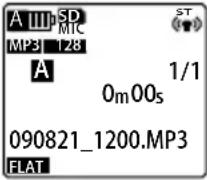 | Not displayed | |
| 5 | Recording date & time | 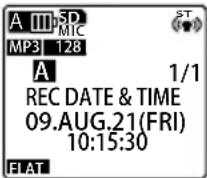 | Not displayed |
* Regarding the MUSIC folder, even if the folder contains a playback file, the recording date & time information is not displayed. Also, the remaining recording time is not displayed.
Recording
Information you want to know before recording
About wind noise
The unit comes with a high performance built-in microphone. Therefore, if wind or your own breath hits the microphone directly, the wind or breathing noise is also recorded. In this case, we recommend that you set the “LOW CUT FILTER” setting ( page 91) to “ON”, and then start recording.
About the possible recording time
The possible recording time is the total time that can be achieved from the moment the unit starts recording to the moment it ends, assuming the unit is in its default state (shipped from factory with no recording data on the unit) and the recording mode is not changed during the operation.
Depending on the recording mode, the quality and possible recording time may change. When shipped, the unit is set to "MP3 128kbps", but you can change the recording mode according to your use.
Changing the recording mode (page 87)
About the external recording mode (external input/microphone)
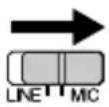
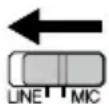
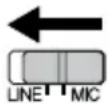
For external input, you can use the LINE/MIC switch on the unit to set to LINE or MIC.
■ To use an external microphone
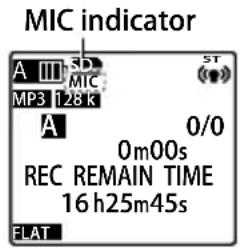
Slide the LINE/MIC switch to MIC. The external recording mode is set to MIC and the screen displays "MIC". Connect the external input (line)/microphone socket with a stereo microphone (sold separately) for recording.
When purchasing an external microphone, make sure the microphone meets the following recommended specification.
Recommended specification:
- Type: Electret condenser/plug-in power system
- Impedance: 2 k Ω
• Power: Guaranteed to operate at 1.3 V - Plug: Mini-plug (3.5 )
If you set the "MIC MODE" setting to "ZOOM" and then use an external microphone for recording, mono* recording will result.
* If PCM recording is used, the same sound is recorded on both L and R channels in stereo format.
■ To connect to other audio devices
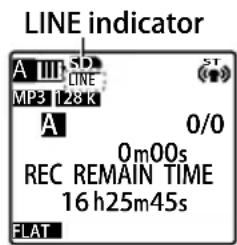
Slide the LINE/MIC switch to LINE.
The external recording mode is set to LINE and the screen displays "LINE".
- Recorded files are automatically stored in the LINE (L) folder.
Using the scene select function
The unit provides a number of recording scenes to handle various recording environments. Each recording scene is a combination of recording settings. You can select a scene to suit your particular recording environment.
Selecting a recording scene
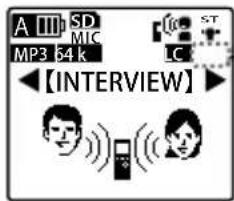
The unit provides the following four preset recording scenes: INTERVIEW, MEETING, LECTURE, and MUSIC. You can also use the three user-defined scenes (FAVORITE1 to FAVORITE3) to create and register your own favorite recording scenes. Also, the recording scenes can be edited to suit your preference.
| Preset recording scene | INTERVIEW MEETING LECTURE MUSIC FAVORITE1-3 | ||||
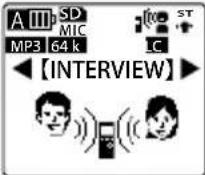 | 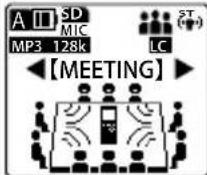 | 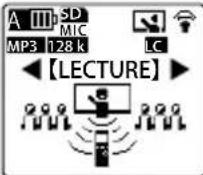 | 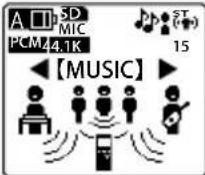 | 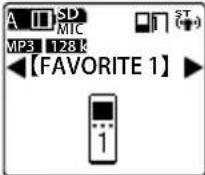 | |
| Most suitable for recording interviews and conversations | Most suitable for recording omnidirectional sound such as meetings | Most suitable for recording sound coming from the front (fixed direction) such as lectures | Most suitable for recording high quality sound such as musical instruments and animal sounds | Use these three scenes to register your favorite recording scenes. | |
| REC MODE MP3: 64kbps MP3: 128kbps MP3: 128kbps PCM: 44.1kHz MP3: 128kbps | |||||
| MIC SENS. | LOW | HIGH | HIGH | HIGH | HIGH |
| MIC ALC | ON | ON | ON | OFF | ON |
| MIC MODE | STEREO | STEREO | ZOOM (mono) | STEREO | STEREO |
| LOW CUT FILTER | ON | ON | ON | OFF | OFF |
| PEAK LIMITER | OFF | OFF | OFF | OFF | OFF |
| AUTO DIVIDE | OFF | OFF | OFF | OFF | OFF |
| SELF TIMER | OFF | OFF | OFF | OFF | OFF |
| VAS | OFF | OFF | OFF | OFF | OFF |
1 Turn on the power. → Turning on the power (page 22)
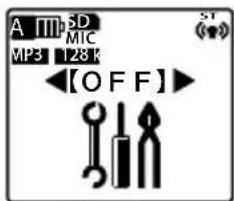
Press the SCENE/A-B button.

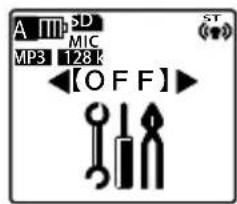
- When shipped, the unit's recording scene is set to "OFF".
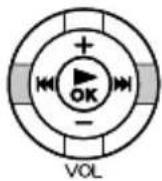
3 Press the / button to select a desired recording scene.
- After you select a recording scene, you can press the MENU/PLAY LIST button to check the recording settings for this scene.
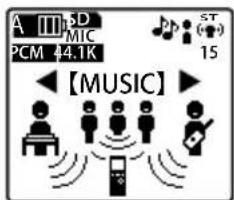
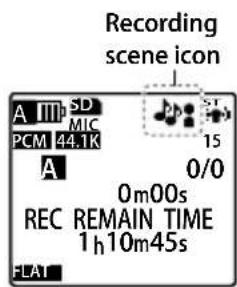
- The icon for the selected recording scene appears on the screen.
| OFF | INTERVIEW | MEETING | LECTURE | MUSIC FAVORITE | |
| No | |||||
Note:
- You can edit the settings in each recording scene to suit your preference.
Setting the recording scene select function (page 101) - You can also use the menu to change the recording settings such as recording mode and microphone sensitivity.
About the menus (page 81) - After selecting a recording scene, if you use the menu to change the recording settings, the "SCENE SELECT" setting becomes "OFF".
Recording
This section describes how to use the built-in microphone for recording. If the "SCENE SELECT" setting is set to "MUSIC" or the "MIC ALC" setting is "OFF", you can manually adjust the recording level according to the content of recording or the sound level.
1 Turn on the power. → Turning on the power (page 22)
2 Select a folder for recordings. Selecting a folder (page 17)
3 Select a recording scene. Selecting a recording scene (page 33)
- If the "SCENE SELECT" setting is set to "MUSIC" or the "MIC ALC" setting is "OFF", proceed to step 4 to adjust the recording level.
(If a number appears on the top right side of the screen, this means "MIC ALC" is "OFF".) - If the "SCENE SELECT" setting is not set to "MUSIC" or the "MIC ALC" setting is "ON", you don't need to adjust the recording level. Instead, skip to step 5.

![A III SD MIC PCM 44.1K [MUSIC] ST 15](/content/2026/05/1068121/images/171351998c5a633ddc238c847aa63a8b2acf3935f1f1352ef6920b1426be1980.jpg)
-ALC OFF Recording level displayed
-ALC ON Recording level not displayed
4 Adjust the recording level (only if the "SCENE SELECT" setting is set to "MUSIC" or the "MIC ALC" setting is "OFF").
Use the following procedure to adjust the recording level.
① Press the REC button.
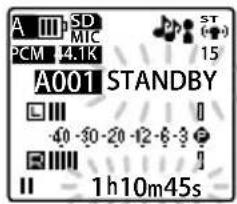
The recording standby screen appears.
• In this state, recording has not started.
- You can use the stereo earphones to monitor the recording sound. Use the VOL (+/-) button to adjust the sound volume.
② When recording musical instruments, etc., produce sound in the direction of the microphone.
The level meter extends to the right as the recording level increases. The further it extends to the right, the louder sound the microphone collects.
③ Press the / button to adjust the recording level.
- These buttons allow you to adjust the displayed recording level from 0 to 30. The recording level can be set for each microphone sensitivity. If the recording level is set to 0, no sound will be recorded.
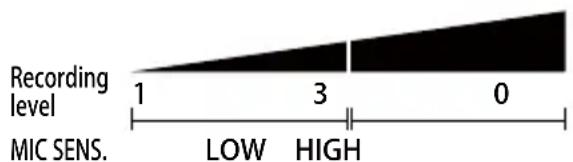
area
| MIC SENS. | Value | | --------- | ----- | | 1 | LOW | | 3 | HIGH | | 0 | 0 |1 3 0
(to be continued on next page)
- In the range where the recording LED does not light up, try as much as possible to increase the recording level (level meter extending to the right) by pressing the button.
- If the recording LED lights, press the button to slightly lower the recording level until the recording LED goes off.
- If the recording LED still lights after you have dropped the recording level to 1, change the "MIC SENS." setting to "LOW". If the level meter does not reach an appropriate recording level after you have increased the recording level to 30, change the "MIC SENS." setting to "HIGH".
Changing the microphone sensitivity (page 88)
- An appropriate recording level is when even you increase the sound you want to record to its maximum, the level meter does not extend to the right and the recording LED does not light.
* If the "REC LED" setting is set to "OFF", the recording LED does not light.
Turning on/off the recording LED (page 106)
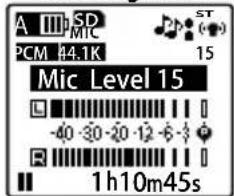
If the recording level is too low
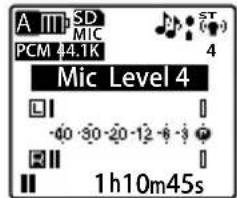
If the recording level is too high
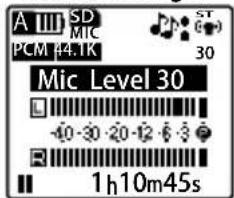
REC LEDREC LED
Appropriate recording level

Press the REC button.
The recording LED lights and recording starts.
- During recording, do not touch or move the unit; otherwise any contact sound will be recorded.
Folder name /file number
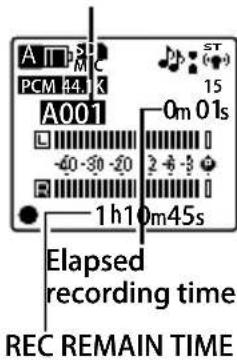
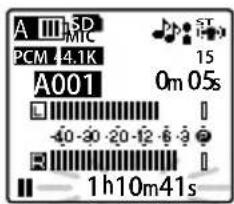
- During recording, you can press the REC button to pause, and then press it again to resume recording.
- During recording, you can set an index mark.
- The recorded file is saved in the folder specified in step 2.
Setting an index mark (page 56)

Press the STOP/BACK button.
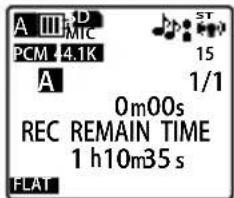
The recording LED goes off and recording ends. The basic screen returns.

Switching between the built-in microphone and external microphone
If you connect an external stereo microphone to the external input (line)/microphone socket for recording, depending on the “MIC MODE” setting in the menu, the recording format (stereo/mono) will change. Also, while recording with the external stereo microphone, if you disconnect the microphone from the unit, the “MIC MODE” setting will change to the built-in microphone.
- If the "MIC MODE" setting is set to "STEREO" or "STEREO WIDE"
The recording format will be stereo (L/R).
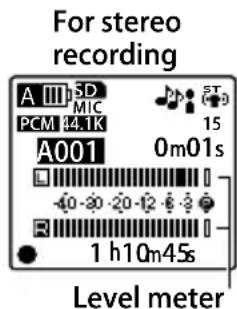
- If the "MIC MODE" setting is "ZOOM"
The recording format will be mono.*
* If PCM recording is used, the same sound is recorded on both L and R channels in stereo format.
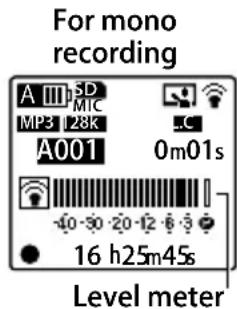
- In stereo recording (STEREO or STEREO WIDE), two level meters are used; in mono recording (ZOOM), only one level meter appears.
Note:
When an external stereo microphone is used, change the "MIC MODE" setting to "STEREO" or "STEREO WIDE". When an external mono microphone is used, change the "MIC MODE" setting to "ZOOM".
Setting recording EQ
With the recording EQ function, you can record using your desired sound quality, such as by emphasizing the bass range or middle range.
- Recording EQ can be set for microphone recording (using folders A to D).
- Recording EQ can only be set in the recording standby state. (The "SCENE SELECT" setting is set to "MUSIC" or "MIC ALC" setting is set to "OFF".)

Recording (page 31)
About the preset recording EQ
The unit comes with seven preset recording EQ modes: FLAT, SUPER BASS, BASS, MIDDLE, BASS & TREBLE, TREBLE, and SUPER TREBLE, plus a USER option that you can use to set up 5-band recording.
The seven preset recording EQ modes have the following features.
| FLAT | SUPER BASS | BASS MIDDLE | BASS&TREBLE | TREBLE | SUPER TREBLE | |
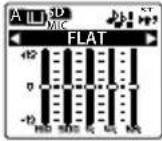 | 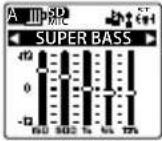 | 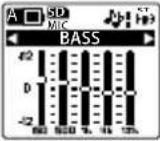 | 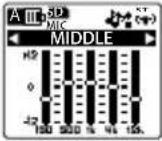 | 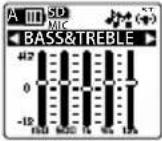 | 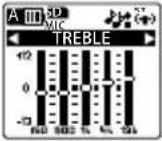 | 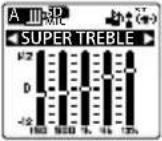 |
| This is the recommended setting for using the built-in stereo microphone. | Record by emphasizing the bass range strongly. | Record by emphasizing the bass range slightly. | Record by emphasizing the middle range. | Record by emphasizing the bass and treble ranges slightly. | Record by emphasizing the treble range slightly. | Record by emphasizing the treble range strongly. |
- When the unit is shipped, the USER setting is same as FLAT.
- The seven preset recording EQ modes cannot be modified.
If you want to fine tune your recording EQ mode, select USER and then customize it.
Setting your favorite recording EQ mode (only when USER is selected) (page 42)
Selecting a preset recording EQ mode
1 Turn on the power. Turning on the power (page 22)
2 Change the "MIC ALC" setting to "OFF" or the "SCENE SELECT" setting to "MUSIC". Changing the "MIC ALC" setting (page 89)
3 Select a folder for recording. Selecting a folder (page 17) • Select a folder from A to D.

4 Press the REC button. The recording standby screen appears.
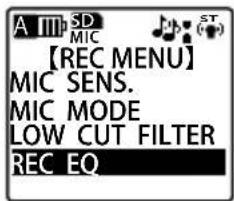
5 Press the MENU/PLAY LIST button. The recording menu screen appears.

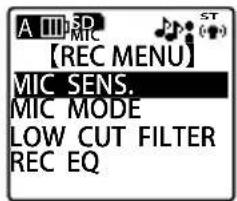
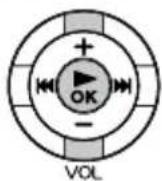
6 Use the VOL (+/-) button to select "REC EQ", and then press the ▶/OK button.
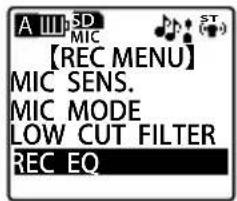
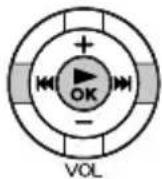
7 Press the ▶/▲ button to select a recording EQ mode, and then press the ▶/OK button.
The selected recording EQ is set and the recording menu screen returns.
You can select one of the seven preset recording EQ modes, or the user-defined USER mode to create your own favorite recording EQ mode.
- If you select USER, see "Setting your favorite recording EQ mode (only when USER is selected)" (page 42) and set your favorite recording EQ mode.
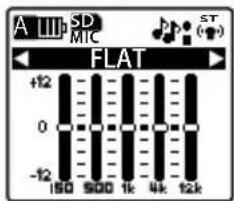
8 Press the MENU/PLAY LIST button. The recording standby screen returns.
• After adjusting the recording level, press the REC button again to start recording.
- While setting a recording EQ mode, you can press the STOP/BACK button to cancel the operation and return to the previous state.

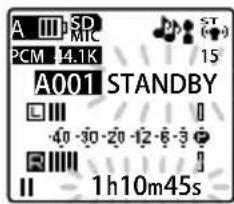
- The recording EQ setting is not lost when you turn off the power, or when you turn off the power and replace the battery power. However, if you replace the battery without first turning off the power, the setting will be lost.
Setting your favorite recording EQ mode (only when USER is selected)
When you select USER as the recording EQ mode, you can customize this mode by changing each of the five bands of the recording EQ mode.
1 Change the recording EQ mode to "USER". Selecting a preset recording EQ mode (page 41)
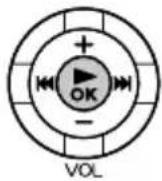
2 Press the VOL (−) button.
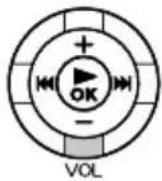
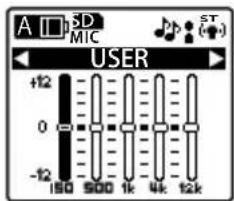
3 Press the / button to select a frequency band you want to change.
- The following frequency bands are available: 150Hz, 500Hz, 1kHz, 4kHz, and 12kHz.
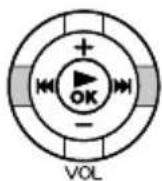
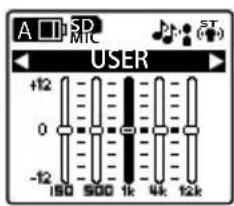
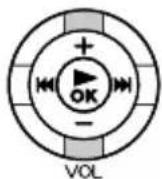
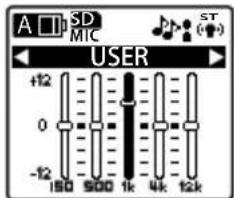
4 Press the VOL (+/-) button to change the level of the selected frequency band.
You can change the level from -12dB to 12dB (25 increments), with each increment being 1dB. The larger the dB number, the stronger it becomes.
- Pressing the VOL (+) button increases the level.
- Pressing the VOL (−) button decreases the level.
- To modify another frequency band, repeat steps 3 and 4.
- While making changes, if you want to cancel the operation, press the STOP/BACK button. The screen in step 1 returns.
5
Press the OK button.
6
Press the MENU/PLAY LIST button.

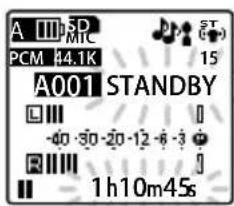
- During the operation, if you press the STOP/BACK button twice, the recording standby screen returns.
- The USER mode you just set up is not lost when you turn off the power, or when you turn off the power and replace the battery power. However, if you replace the battery without first turning off the power, the setting will be lost.
Recording from an external device
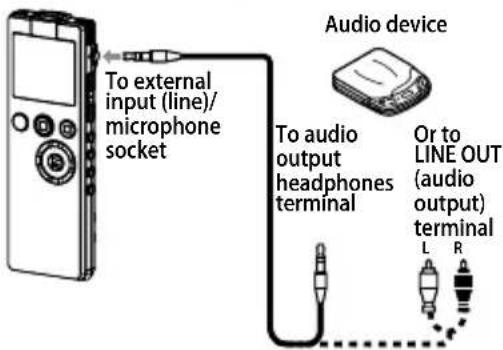
You can use the following procedure to connect a radio cassette player, CD/MD player, or another external device to the unit for recording music, etc.
1
Connect the audio output terminal of an external device to the external input (line)/microphone socket of the unit.
- Use a commercially available audio cable (stereo mini-plug: 3.5 with no resistance).

Turn on the power. Turning on the power (page 22)

Slide the LINE/MIC switch to LINE. Changing the recording mode (page 87)

Start playing the external sound source, and press the REC button on the unit to start recording.

- The recording will be stored in the LINE (L) folder.
- For recording from external input, the recording level on the unit cannot be adjusted.
- Before the real recording, first test it so that you can adjust the external device for desired quality.
If the sound volume is too high, cracking sound will occur.

To stop recording, press the STOP/BACK button. Also, stop playback on the external device.

- If the sound volume on the external device has already been set to its maximum but yet the sound in line-in recording is small, slide the LINE/MIC switch to MIC and adjust the recording level, then perform recording again. In this case, recording will be saved in the selected microphone folder (A to D). ( page 17)
Playback
Playing a file
Use the following procedure to play a file recorded on the unit.
1
Turn on the power.
Turning on the power (page 22)
2
Press the LIST button.

3
Press the FOLDER/INDEX button to select the folder containing the file you want to play.

• Each time you press the button, the list display remains but the folder changes.
A to D: Folders containing files recorded from the built-in microphone
L: Folder containing files created from line-in recording.
M: Folder containing music files transferred from your PC
P1 to P5: Folder containing playlist files within the M folder
RECYCLE folder
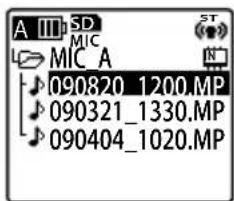
4 Press the VOL (+/-) button to select a file to play.
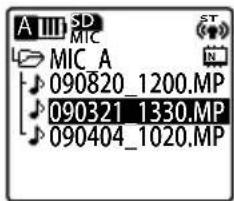
5 Press the ▶OK button. The basic screen returns and the file plays.
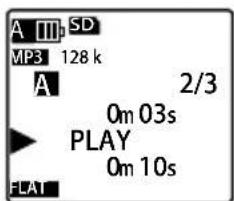
6 Press the STOP/BACK button Playback stops and the basic screen returns.

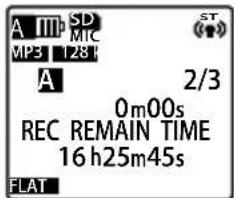
Screen display during playback
During playback, the screen on the LCD display changes, depending on the folder to play. It is not possible to display all screens at once.
- MIC\_A to D (A to D), LINE (L) folders
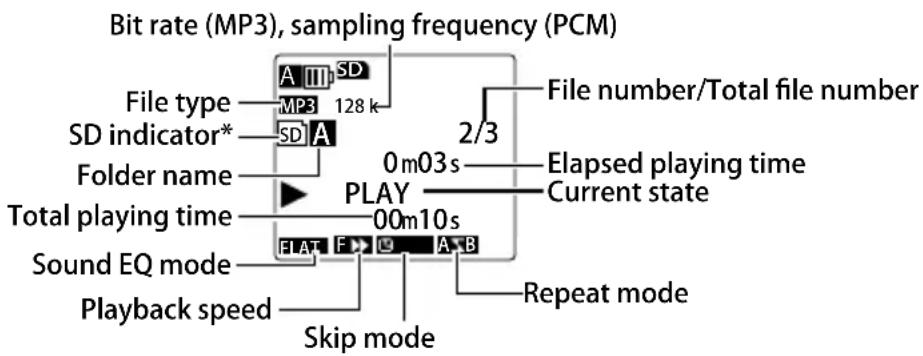
flowchart
graph TD
    A["Bit rate (MP3), sampling frequency (PCM)"] --> B["File type"]
    B --> C["SD indicator*"]
    C --> D["Folder name"]
    D --> E["Total playing time"]
    E --> F["Sound EQ mode"]
    F --> G["Playback speed"]
    G --> H["Skip mode"]
    H --> I["Repeat mode"]
    I --> J["Current state"]
    J --> K["Elapsed playing time"]
    K --> L["0m03s"]
    L --> M["PLAY"]
    M --> N["00m10s"]
    N --> O["FLAT"]
    O --> P["A"]
    P --> Q["B"]
    Q --> R["2/3"]
    R --> S["File number/Total file number"]
* Appears when playing microSD card
● MUSIC (M) folder
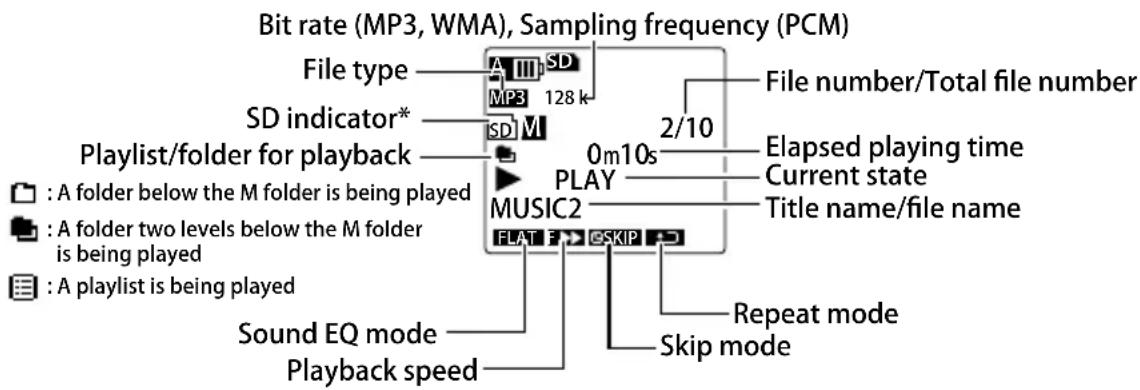
flowchart
graph TD
    A["Bit rate (MP3, WMA), Sampling frequency (PCM)"] --> B["File type"]
    B --> C["SD indicator*"]
    C --> D["128 k"]
    D --> E["Playlist/folder for playback"]
    E --> F["0m10s"]
    F --> G["PLAY"]
    G --> H["MUSIC2"]
    H --> I["FLAT"]
    I --> J["SKIP"]
    J --> K["Repeat mode"]
    J --> L["Skip mode"]
    M["Sound EQ mode"] --> N["Playback speed"]
    O["A folder below the M folder is being played"] --> P["A playlist is being played"]
    Q["A folder two levels below the M folder is being played"] --> R["A playlist is being played"]
    S["Elapsed playing time"] --> T["Current state"]
    U["Title name/file name"] --> V["Title name/file name"]
    W["File number/Total file number"] --> X["2/10"]
* Appears when playing microSD card
- Depending on the file, the elapsed playing time and the actual elapsed time may be different.
- Depending on the file, registered artist name, title name, etc. may not be displayed.
- During playback, any long file name will scroll off the screen.
To fast forward
During playback, pressing the ▶ button for more than 1 second starts fast forward. Once fast forward starts, it will continue even if you remove your finger from the button. If you want to return to the normal playback speed, press the ▶/OK button.
To rewind
During playback, pressing the ◀ button for more than 1 second starts rewind. Once rewind starts, it will continue even if you remove your finger from the button. If you want to return to the normal playback speed, press the ▶/OK button.
To skip to the next or previous file
During playback* or stop, pressing the ▶ button skips to the next file. You can continue skipping to the next file by repeatedly pressing the ▶ button. Pressing the button skips to the previous file. You can continue skipping to the previous file by repeatedly pressing the ▶ button.
* If the "TIME SKIP" setting is turned on, skipping will be determined by the time interval set by the "TIME SKIP" setting.
To skip to the next or previous index mark
During playback* of a file with index marks set, pressing the ▶ button skips to the next index. You can continue skipping to the next index by repeatedly pressing the ▶ button. Pressing the ◀ button skips to the previous index mark. You can continue skipping to the previous index mark by repeatedly pressing the ◀ button.
Setting an index mark (page 56)
* If the "TIME SKIP" setting is turned on, skipping will be determined by the time interval set by the "TIME SKIP" setting.
- The index function cannot be used in the RECYCLE folder.
To skip forward or backward by specified time interval
If the "TIME SKIP" setting has been set to a time interval, during playback, pressing the / button skips forward or backward by the specified time interval only.
Setting time skip (page 98)
- If the file skip position or index mark position is closer than the time skip position, the unit will skip to that position.
- If the "TIME SKIP" setting is turned on, to skip to the next or previous file, stop the file playback first, and then press the ◀◀/button once.
Changing the playback speed
When learning a language or musical instrument, you may want to slow down the playback speed. On the other hand, you may want to speed up the slow sections of a meeting. The unit allows you to adjust the playback speed as needed. The audio is digitally adjusted and is done automatically, and the musical interval does not change when you listen to it.
- For PCM recordings, you cannot change the playback speed.
During playback, if you want to increase the playback speed, press the PLAY SPEED (+) button.
Each press of the button further increases the playback speed.
During playback, if you want to decrease the playback speed, press the PLAY SPEED (−) button.
Each press of the button further decreases the playback speed.
- For SLOW playback, you can decrease the speed by 5% each time. For FAST playback, you can increase the speed by 10% each time.
| NORMAL SLOW FAST | |||
| Icon No | S |► | F ►► | |
| MP3 100% | From 50% to | 100%,at 5% interval | From 100% to 200%,at 10% interval |
| WMA 100% | From 50% to | 100%,at 5% interval | From 100% to 120%,at 10% interval |
Performing A-B repeat playback (segment repeat playback)
During playback, you can specify a segment of the file (point A to point B) and then play that segment continuously.
1 Play the file you want to perform A-B repeat playback. Playing a file (page 47)
2 Press the SCENE/A-B button at the position you want to start the segment. The start position indicator lights.

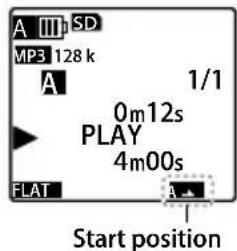
3 Press the SCENE/A-B button at the position you want to end the segment. This segment will play continuously until you release A-B repeat playback.

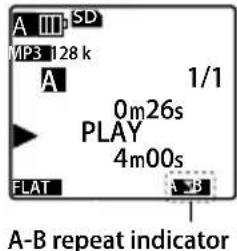
- During A-B repeat playback, performing any of the following operations releases A-B repeat playback.
- Pressing the SCENE/A-B button again
- Pressing the STOP/BACK button
- Pressing the / button
- Even during A-B repeat playback, you can change the playback speed (page 51), set index marks (page 56), or perform phrase playback (page 53).
- You cannot set up A-B repeat playback if point A and point B are too close.
• After setting up point A, if you do not set up point B, the end of the file will become point B. - Point A and point B must both be set within the same file.
Performing phrase playback
During playback, this function enables you to rewind by only the specified number of seconds. This is useful when you are listening to short phrases of music or just missed an important audio portion.
During playback, press the /OK button.
The unit rewinds by the specified number of seconds and plays again.
Setting phrase playback (slight rewind) (page 97)
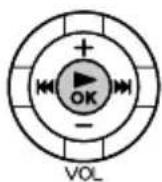
- You can press the ▶/OK button again if you want to hear the "phrase" again.
- During A-B repeat playback, phrase playback will take place within the A-B segment.
- If the specified number of seconds is longer than the current playback position from the beginning of the file, then playback will start from the beginning of the file.
- Regardless of how large the specified number of seconds is, playback will only go as far back to the beginning of the file but not the previous file.
Performing time search for playback
You can specify a position in a file for playback, using time.
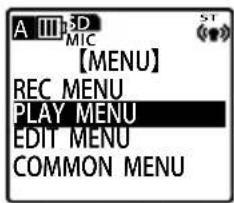
1 Turn on the power (or during playback), and then press the MENU/PLAY LIST button.

2 Use the VOL (+/-) button to select "PLAY MENU", and then press the ▶/OK button.
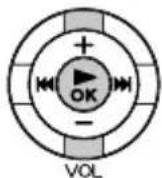
3 Use the VOL (+/-) button to select "TIME SEARCH", and then press then ▶/OK button.
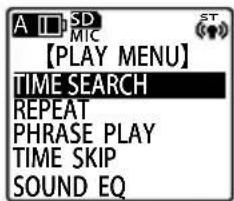
4 Enter the "NOW" time. Press the ◀◀/▶▶ button to select hour (h), minute (m), or second (s). Use the VOL (+/-) button to change each of the values. 000h00m00s to 999h59m59s
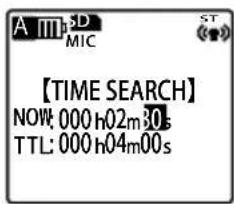
Hour Minute Second
5 Press the OK button. The unit skips to the specified time position and the file plays again.
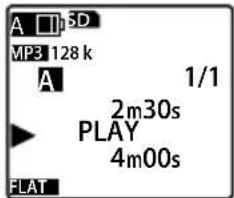
- Time search playback applies only to the currently selected file.
Playing the MUSIC folder files
The MUSIC (M) folder stores MP3 and WMA files transferred from your PC, as well as WAV file recorded on the unit. You can create sub folders within the MUSIC (M) folder to store and play files.
Using Windows Media Player to transfer music files (page 115)
■ About MYLIST1 to MYLIST5 files
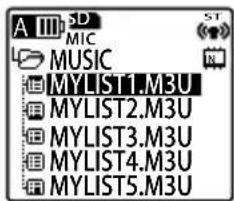
The MUSIC folder comes with five playlist files (MYLIST1 to MYLIST5) by default. You can register files in the MUSIC folder to each of MYLIST1 to MYLIST5 playlist and then play the files according to your favorite order.
Using the playlists (in MUSIC folder only) (page 62)
■ Sorting the MUSIC folder files
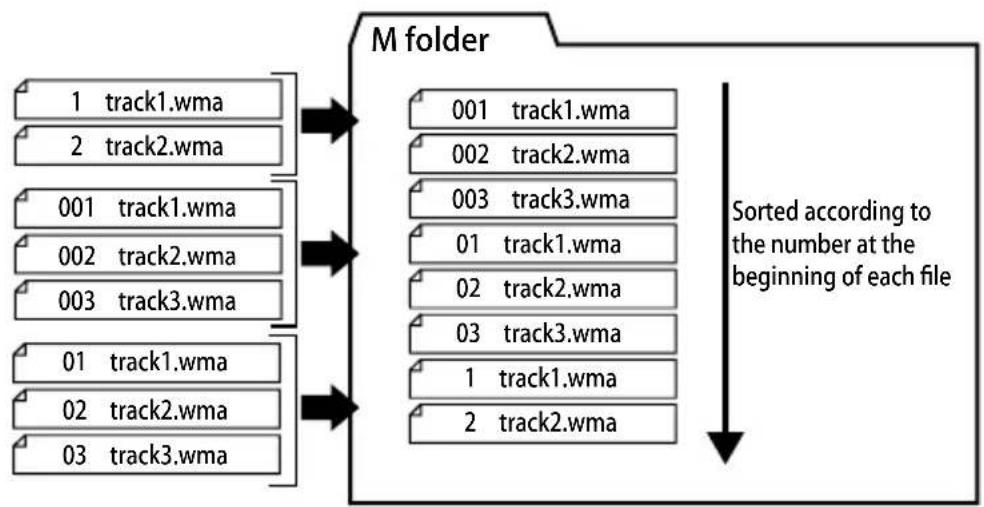
Within the MUSIC folder, files are sorted automatically by their names in ascending order. Sorting is based on the number that appears at the beginning of each file name. If there are some files starting with 001, some with 01, and some with 1, then 001 takes priority over 01 and then 1.
flowchart
graph TD
    A["1 track1.wma"] --> B["001 track1.wma"]
    C["2 track2.wma"] --> D["002 track2.wma"]
    E["001 track1.wma"] --> F["003 track3.wma"]
    G["002 track2.wma"] --> H["01 track1.wma"]
    I["003 track3.wma"] --> J["02 track2.wma"]
    K["01 track1.wma"] --> L["03 track3.wma"]
    M["02 track2.wma"] --> N["1 track1.wma"]
    O["03 track3.wma"] --> P["2 track2.wma"]
    B --> Q["Sorted according to the number at the beginning of each file"]
    D --> Q
    F --> Q
    H --> Q
    L --> Q
    N --> Q
    P --> Q
Editing
Setting or erasing an index mark
When you set an index mark at a desired position in a file, you can quickly skip to that position during playback.
To skip to the next or previous index mark (page 49)
Setting an index mark
- You cannot set index marks in files stored in the MUSIC (M) folder, LINE (L) folder, and RECYCLE (☐) folder, or when timer recording is in progress.
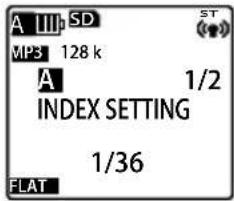
During recording, recording pause, or playback, press the FOLDER/INDEX button to set an index mark at the desired position.

"INDEX SETTING" appears and the index is set.
- After you set an index mark, recording or playback will continue and so you can use the same operation to set another index mark at a different position.
- Index marks in a file will disappear if you divide the file.
• You can set a maximum of 36 index marks.
Erasing index marks
1 Turn on the power. → Turning on the power (page 22)
2 Select the folder containing file for erasing index marks. Selecting a folder (page 17)
3 Press the / button to select a desired file.
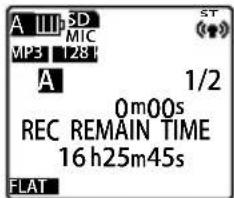
4 Press the ERASE button.

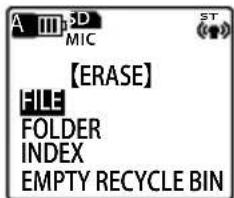
5 Press the VOL (+/-) button to select "INDEX", and then press the ▶/OK button.
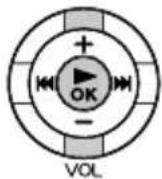
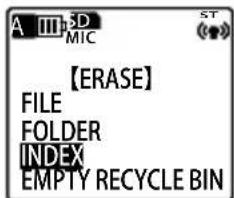

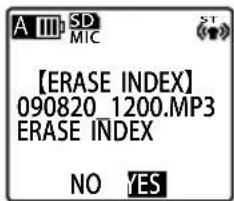
Press the / button to select "YES".
- If you want to cancel the operation, select "NO".

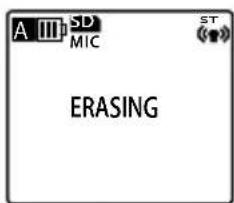
Press the OK button.
- Erasing index marks from a file does not erase the audio part of the file.
- This function erases all index marks in a file. This means you cannot choose to erase just one index mark in the file.
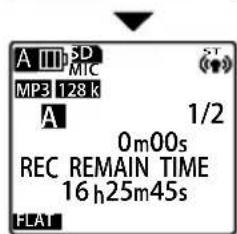
Dividing a file
You can use this function to divide a file into two, thus allowing you to get rid of unneeded parts or extract only those that are needed.
- Files stored in the MUSIC (M) folder and RECYCLE (☐) folder cannot be divided.
- To use this function, there must be empty space in the internal memory (or microSD card).
• This function cannot be used when a folder is full.
1 Play the file you want to divide. Playing a file (page 46)
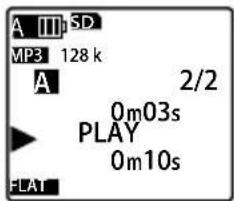
2 At the position you want to divide, press the STOP/BACK button.

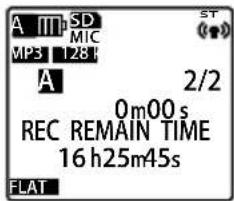
3 Press the MENU/PLAY LIST button.

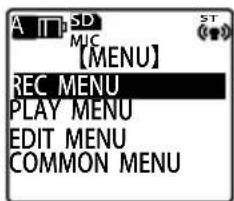
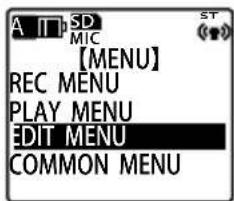
4 Press the VOL (+/-) button to select "EDIT MENU", and then press the ▶/OK button.
5 Press the VOL (+/-) button to select "DIVIDE", and then press the ▶/OK button.
![A III D MIC [EDIT MENU] DIVIDE](/content/2026/05/1068121/images/489ec20489fd1a55cd847b842444b21a76802f10a85af4bbf226ad1847570eb7.jpg)
Press the / button to select "YES".
- If you do not want to divide the file, select "NO" instead.
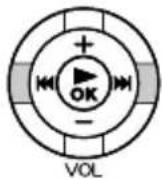
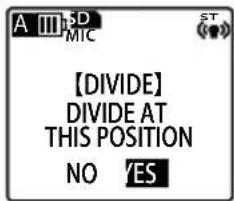
Press the OK button.
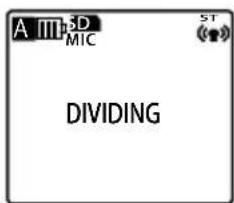
- While the file is being divided, the recording LED flashes.
- After the file is divided, the number of files in the folder increases by one.
- If a file containing index marks is divided, the index marks will disappear after the file is divided.
- The file may not be divided exactly at the specified position. Instead, it may be divided slightly before or after the position.
- If there is no empty space in the internal memory (or microSD card), or if there is already a total of 199 files in the folder, you cannot use this function to divide a file.
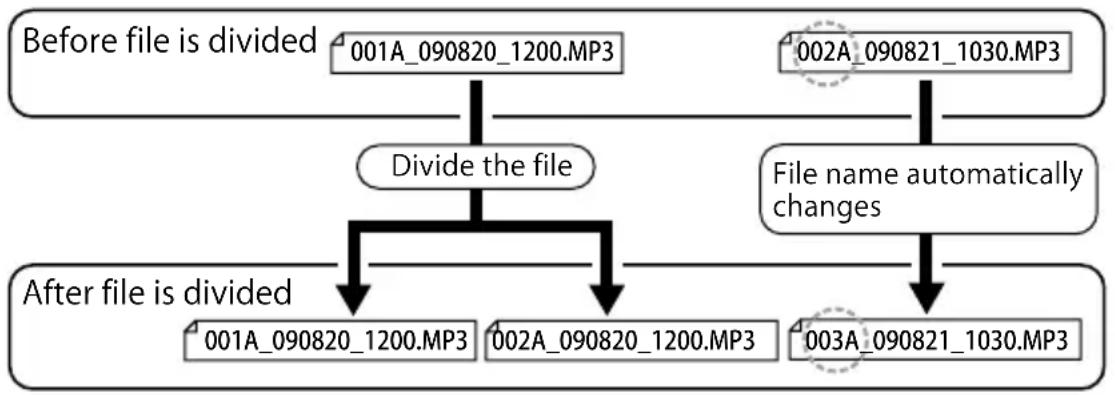
■ How the file division function works and how file names are determined
Example: Dividing the 001A_090820_1200.MP3 file
flowchart
graph TD
    A["Before file is divided"] --> B["001A_090820_1200.MP3"]
    C["002A_090821_1030.MP3"] --> D["File name automatically changes"]
    B --> E["Divide the file"]
    D --> F["After file is divided"]
    E --> G["001A_090820_1200.MP3"]
    E --> H["002A_090820_1200.MP3"]
    F --> I["003A_090821_1030.MP3"]
When you divide the file 001A_090820_1200.MP3, a new file 002A_090820_1200.MP3 is created. However, if a file with the same file number already exists in the folder, this file will give up its number to the new file created; instead, it will take on a new file number. In this example, when you divide 001A_090820_1200.MP3, this results in 001A_090820_1200.MP3 and 002A_090820_1200.MP3. In the same folder, the file 002A_090821_1030.MP3 becomes 003A_090821_1030.MP3 automatically.
- The divided parts of a file overlap slightly. The overlap time and recording time required for file division are listed below.
| Recording mode Overlap time File recording time | |||
| MP3 | 32kbps | About 8 seconds | About 16 seconds or more |
| 64kbps | About 4 seconds | About 8 seconds or more | |
| 128kbps | About 2 seconds | About 4 seconds or more | |
| 192kbps | About less than 1 second | About 2 seconds or more | |
| 320kbps | |||
| PCM 44 | 1kHz | ||
Using the playlists (in MUSIC folder only)
The unit provides five playlist files in the MUSIC (M) folder by default. You can edit the playlist files (MYLIST1.M3U to MYLIST5.M3U). This allows you to play your favorite songs in the MUSIC (M) folder in the desired order.
- You can register songs only to the playlist files stored in the MUSIC (M) folder.
- MYLIST1 to MYLIST5 cannot be erased.
- Do not edit MYLIST from your PC.
• Each MYLIST can have up to 99 files registered. - If you select English, French, German or Spanish in “ID3 LANGUAGE”, you cannot register files with Russian file names in a playlist, and you cannot play back files registered in a playlist with Russian file names while Russian is selected. If you select Russian in “ID3 LANGUAGE”, you cannot register files with French, German or Spanish file names in a playlist, and you cannot play back files registered in a playlist with French, German or Spanish file names while one of these three languages is selected.
Changing the display language (page111)
Registering a file or folder in a playlist (MYLIST)
1 Select a MUSIC (M) folder. Selecting a folder (page 17)
2 Press the VOL (+/-) button or // button to select a file or folder you want to register, and then press the MENU/PLAY LIST button.
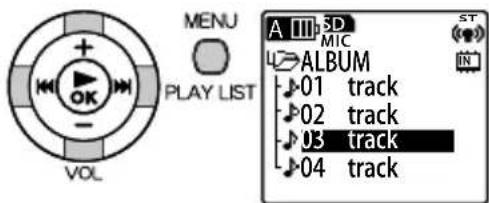
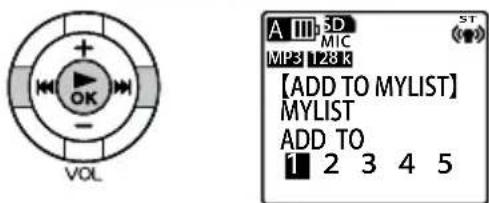
3 Press the ▶/▲ button to select a playlist (one from MYLIST1 to MYLIST5), and then press the ▶/OK button.
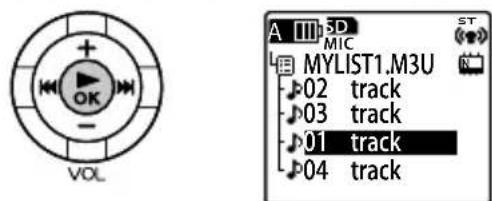
Changing the play order of files in a playlist
Use the following procedure to change the play order of files in a playlist.
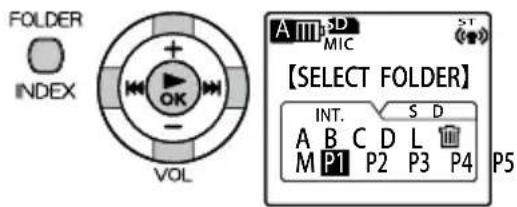
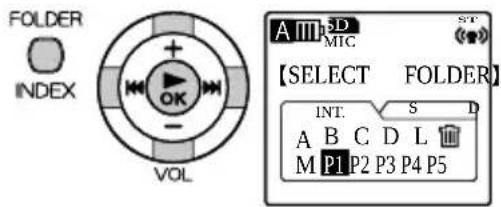
1 Press the FOLDER/INDEX button, and then use the VOL (+/-) button or ▶/▶ button to select one from "P1" to "P5". Press then ▶/OK button.
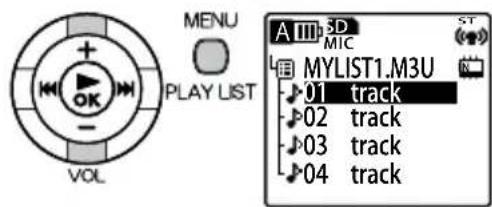
2 Press the VOL (+/-) button to select a file to change, and then press the MENU/PLAY LIST button.
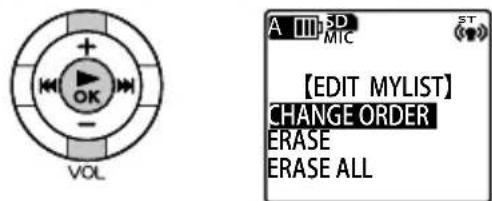
3 Press the VOL (+/-) button to select "CHANGE ORDER", and then press the ▶/OK button.
4 Press the VOL (+/-) button to move the selected file to a desired play position. The icon of the selected file changes to →.
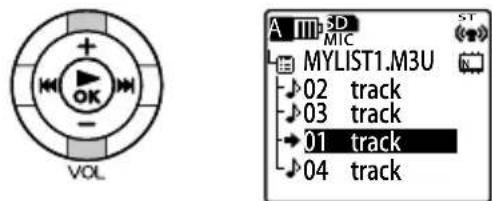
5 Press the ▶OK button.
De-registering a file from a playlist (MYLIST)
Use the following procedure to de-register a file from a playlist.
- De-registering a file from a playlist does not erase the actual file.
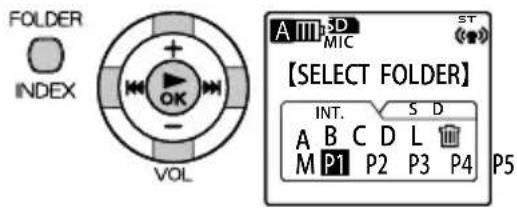
1 Press the FOLDER/INDEX button, and then use the VOL (+/-) button or / button to select one from "P1" to "P5". Press the ▶/OK button.
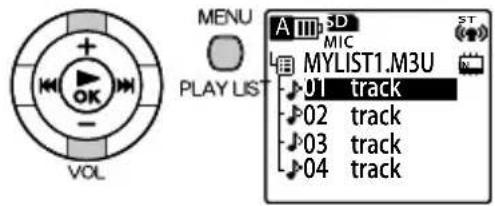
2 Press the VOL (+/-) button to select a file you want to de-register, and then press the MENU/PLAY LIST button.
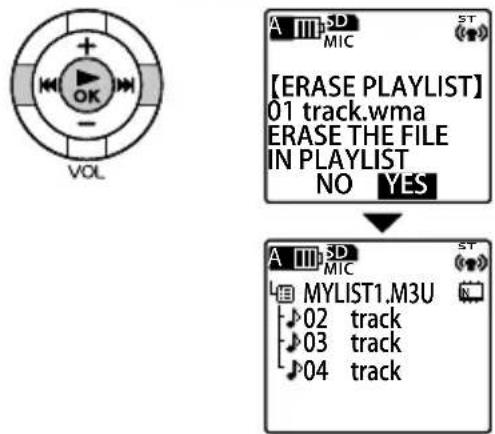
- In this example, we want to de-register FILE01.
3 Press the VOL (+/-) button to select "ERASE", and then press the ▶/OK button.
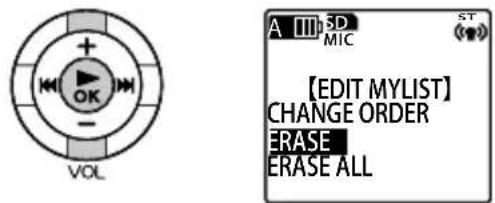
4 Press the ▶/▲ button to select "YES", and then press the ▶/OK button.
- The file FILE01 is de-registered. The playlist MYLIST has only files 02 to 04 registered.
De-registering all files from a playlist (MYLIST)
Use the following procedure to de-register all files from a playlist.
- De-registering a file from a playlist does not erase the actual file.
1 Press the FOLDER/INDEX button, and then use the VOL (+/-) button or ◀◀/▶ button to select one from "P1" to "P5". Press the ▶/OK button.
2 Press the MENU/PLAY LIST button.
3 Press the VOL (+/-) button to select "ERASE ALL", and then press the ▶/OK button.
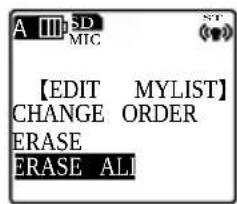
4 Press the ▶/▲ button to select "YES", and then press the ▶/OK button.
![A 3D MIC [ERASE PLAYLIST] MYLIST1.M3U ERASE ALL FILES IN PLAYLIST NO YES A 3D MIC MYLIST1.M3U No File](/content/2026/05/1068121/images/e4f7eda958254748289f2e8f948a28b0ed9a9fbc882509750dc4db85fde9ee4f.jpg)
Using the timer
Setting up the timer
You can set the timer to record, play file, or activate the beep sound at a designated time. The procedures to set timer recording and timer playback are slightly different.

Remaining battery power (page 23)

Setting the calendar (date & time) (page 28)

Turn on the power. When the unit stops, press the MENU/PLAY LIST button.
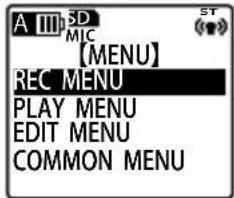

Press the VOL (+/-) button to select "COMMON MENU", and then press the ▶/OK button.
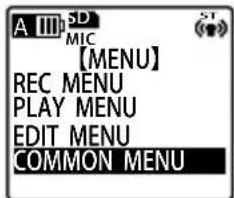

Press the VOL (+/-) button to select "TIMER & ALARM", and then press the ▶/OK button.
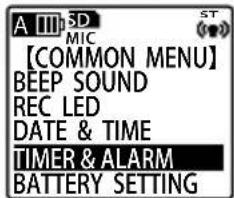

Press the VOL (+/-) button to select a setting, and then press the ▶/OK button.
For information on how to change each setting, see pages 67 to 70.
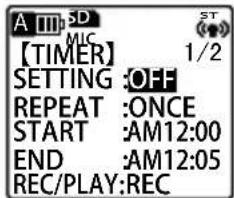
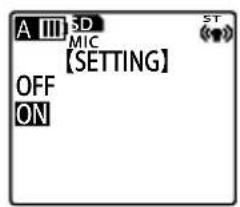
■ Timer on/off
① Press the VOL (+/-) button to select "ON" or "OFF".
OFF: Turn off timer.
ON: Turn on timer.
② Press the OK button.
① Press the VOL (+/-) button to select how often to repeat the timer: "ONCE", "DAILY", or "SELECT".
ONCE: Perform timer recording (or playback) only once, at the designated time.
DAILY: Perform timer recording (or playback) everyday, at the designated time.
SELECT: Perform timer recording (or playback) on the selected day of week, at the designated time.
![A III SD MIC [REPEAT] ONCE DAILY SELECT](/content/2026/05/1068121/images/189113d0f25cd5ed0b6206a82f7a1e20794d3ed9fc811acc768255c1f91e583b.jpg)
② Press the OK button.
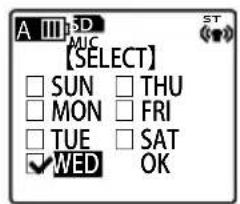
■ If repeat timer is set to "SELECT"
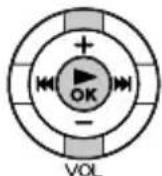
① Press the VOL (+/-) button or ◀◀/▶ button to highlight a day of the week, and then press the ▶/OK button to select it.
• You can select several days of the week.
- To clear a selection, press the ▶/OK button again.
② Press the VOL (+/-) button or ◀◀/▶button to select "OK", and then press the ▶/OK button.
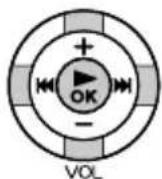
① Press the ◀◀/▶button to select hour or minute for the start time.
② Press the VOL (+/-) button to change the value.
• AM12:00 is midnight and PM12:00 is noon.
③ Press the OK button.
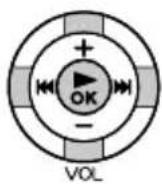
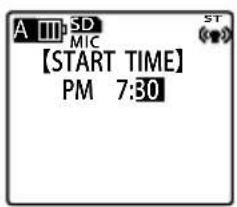
① Press the ◀◀/▶ button to select hour or minute for the end time.
② Press the VOL (+/-) button to change the value.
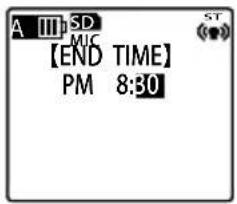
• AM12:00 is midnight and PM12:00 is noon.
- The maximum interval between the start time and end time that you can set is 12 hours.
③ Press the OK button.
■ Timer operation
① Press the VOL (+/-) button to select "PLAY" or "REC".
PLAY: Start playback at the time designated by the timer.
REC: Start recording at the time designated by the timer.
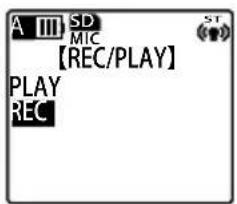
② Press the ▶/OK button.
■ What to play (only when timer operation is set to "PLAY")
① Press the VOL (+/-) button to select "BEEP" or "FILE".
BEEP: Activate beep sound.
FILE: Play the selected file.
- If you select "FILE", the list screen (page 18) appears so that you can select a file (excluding files in playlists) to play.
② Press the OK button.
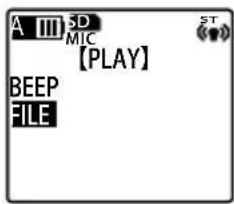
■ Sound quality (only when timer operation is set to "REC")
① Press the VOL (+/-) button or ◀◀/▶ button to select a recording mode.
- Timer recording will use the sound quality specified here, regardless of the scene select setting (page 33) or recording mode (page 87).
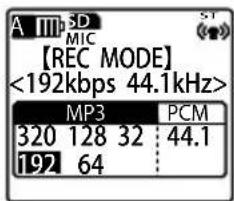
② Press the OK button.
■ Recording destination (only when timer operation is set to "REC")
① Press the VOL (+/-) button or ◀◀/▶ button to select a folder for recordings.
- If you want to record to one of the four SD folders (MIC_A_SD to MIC_D_SD), be sure to insert a microSD card in advance.
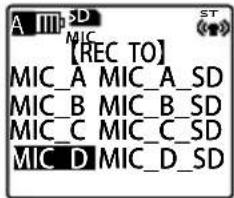
② Press the ▶/OK button.
■ Completing timer setup
① Press the VOL (+/-) button to select "OK".
② Press the OK button.
- Timer is set up and the "COMMON MENU" screen returns.
③ Press the MENU/PLAY LIST button.
- The basic screen returns. If the timer is turned on, 📋 appears on the screen.
MENU
PLAY LIST
![A III SD MIC [TIMER] 2/2 MODE:MP3 192kbs REC TO:MIC_A OK](/content/2026/05/1068121/images/0bc5f2dc6f407666c4701dc991837da9c54c9b7ac9340a3af7cbc3005ddc9bbe.jpg)
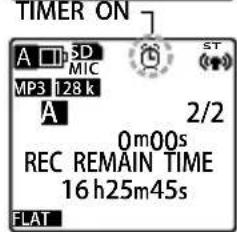
Note:
- When the calendar settings are initialized, timer recording is turned off.
- After you have set up the timer to play a file from the internal memory, if the selected file is erased or the security setting is not turned off, when the designated time arrives, the unit beeps for 30 seconds instead of playing the file.
- In the following cases, timer recording (or playback) may not function correctly.
- If the internal (or microSD card) does not have enough memory for recording as specified by the timer
- If you have specified to use a file (for playback) or folder (for recording) on a microSD card but no microSD card is inserted
- If the number of recorded files has exceeded the limit
- If the unit is connected to your PC but has not started even when the time designated by the timer has arrived
- If the battery is low or the power is turned off during time recording (or playback)
- If for some reason the timer operation does not activate well as "CAN'T START TIMER OPERATION" appear.
☒: If the timer repeat setting is set to "ONCE" and timer recording fails, the timer then changes to "OFF".
If the timer repeat setting is set to "DAILY" or "SELECT" and timer recording fails, the timer remains "ON".
Erasing files
About the recycle bin function
If you turn on the recycle bin function, when you erase a file on the unit, it goes into the RECYCLE (☐) folder. Therefore, you can still recover the file from the RECYCLE (☐) folder later. This is very useful when you accidentally erase a file.
When shipped, the unit has its recycle bin function turned on. If you turn off the recycle bin function, when you erase a file or folder, the data is completely erased from the internal memory (or microSD card) so that you can no longer recover the data. To avoid accidentally erasing data, we recommend that you turn on the recycle bin function (page 107).
- The RECYCLE ( ☐ ) folder can hold a maximum of 199 files. If there are already 199 files in the folder, you can no longer erase any file. When this happens, either empty the RECYCLE ( ☐ ) folder or recover some of the files from the folder.
Recovering a file from the RECYCLE folder (page 73)
Emptying the RECYCLE folder (page 74) - Regardless of whether the recycle bin function is turned on or off, files stored in the M folder, when erased, do not go into the RECYCLE (17) folder. Instead, they are completely erased from the unit.
- If there are a lot of files in the RECYCLE (☐) folder, this may decrease the performance of the unit. Therefore, we recommend that you regularly empty the RECYCLE folder.
- If the recycle bin function is turned on, when you erase files, the remaining recording time displayed does not increase.
- When a file with index marks is moved to the RECYCLE (☐) folder, its corresponding index file is also moved to the RECYCLE folder. (However, the index function cannot be used within the RECYCLE folder.)
- When you format the internal memory or a microSD card, all files in the RECYCLE folder are erased.
- When you turn off the recycle bin function, files already in the RECYCLE (☐) folder are not erased.
- The RECYCLE ( 🔊) folder appears on the list screen as "RECYCLE".
- If there is not enough free memory, you may not be able to move files to the RECYCLE folder.
About the RECYCLE folder display when the recycle bin function is turned on
● When there is no file
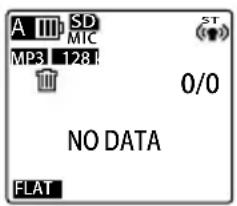
- When there is a file
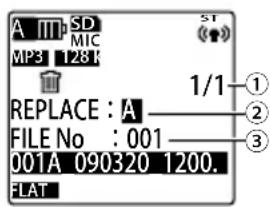
① Filenumber of file in RECYCLE folder
② Folder of file before it is erased
③ File number of file before it is erased
About name of file when moved to the RECYCLE folder
When a file is moved to the RECYCLE folder, its name is changed automatically.
Example: A file 001A_090320_1200.MP3 in folder MIC_A is moved to the RECYCLE folder.
■001\_001 A\_090320\_1200.MP3 ① ② ③ ④ ⑤ ⑥
① A new file number* is added to the beginning of the file now stored in the RECYCLE folder. (A file number is determined in the sequence of 001, 002, 003, etc.)
② File number (original file number before the file was moved to the RECYCLE folder)
③ Folder where the file was stored before (A to D, L)
④ Date (date when the file was recorded)
⑤ Recording time (time when recording started)
⑥ File extension (This indicates the file type:MP3 for MP3 recording or WAV for PCM recording.)
* This information is not displayed on the unit. It appears only on your PC.
Recovering a file from the RECYCLE folder
1 Select the RECYCLE (folder. Selecting a folder (page 17)
2 Press the ◀ button to select a file you want to recover, and then press the ERASE button.
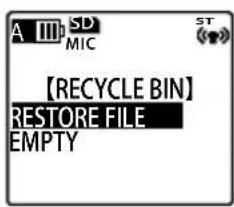
The "RECYCLE BIN" menu appears.
- You can press the ▶/OK button to play files stored in the RECYCLE folder.
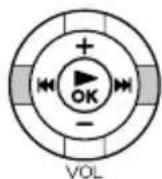
ERASE
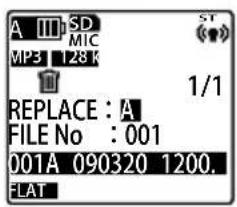
3 Press the VOL (+/-) button to select "RESTORE FILE", and then press the ▶/OK button.
4 Press the ◀ button to select "YES".
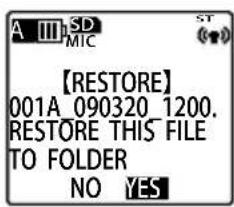
5 Press the ▶OK button.
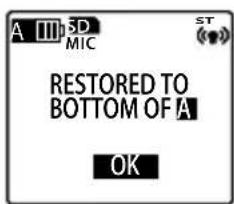
- When a file is recovered from the RECYCLE folder, its file name changes and it is placed at the end of the folder.
- In step 5, if “* FOLDER FULL CANNOT RETURN” appears, this indicates that the number of files in the original folder has reached its limit. If this happens, erase some files in the folder to make more room. (* indicates a folder name.)
Emptying the RECYCLE folder
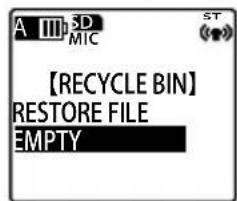
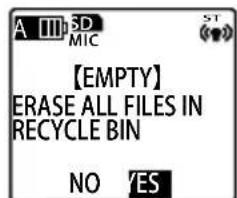
When you empty the RECYCLE folder, all files in the folder are completely erased from the memory. The files in the RECYCLE folder can no longer be recovered. For this reason, be sure to copy any necessary files to your PC or an external device before emptying the RECYCLE folder.
- Before emptying the RECYCLE folder, be sure to check whether the internal memory or microSD card is selected.
Switching between the internal memory and a microSD card (page 20)
1 In step 3 on page 73, select "EMPTY" and then press the ▶/OK button.
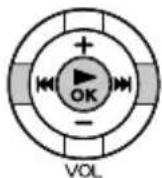
2 Press the ▶/▲ button to select "YES", and then press the ▶/OK button.
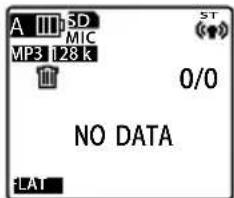
- You can also empty the RECYCLE folder as follows: From the basic screen, when the unit stops, press the ERASE button to display the "ERASE" menu. Then, empty the RECYCLE folder from the menu.
Erasing a file
You can select a file in a folder and then erase it.
- If the recycle bin function is turned off (page 110), once you erase a file, it can no longer be recovered. Therefore, before erasing a file, always check the content of the file to make sure you really do not need it any more.
- Before this operation, check to make sure there is enough remaining battery power.
- Before emptying the RECYCLE folder, be sure to check whether the internal memory or microSD card is selected.
Switching between the internal memory and a microSD card (page 20)

Turn on the power.
Turning on the power (page 22)

Press the LIST button.


Press the FOLDER/INDEX button to switch to the folder containing the file you want to erase.
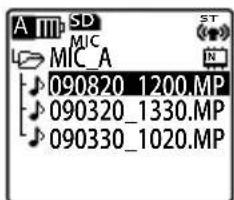
• Each time you press the button, the list display remains but the folder changes.

Press the VOL (+/-) button to select the file you want to erase.
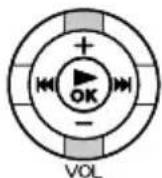
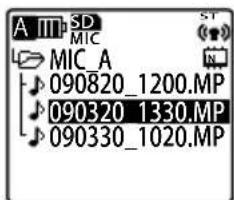
5 Press the ERASE button.
ERASE

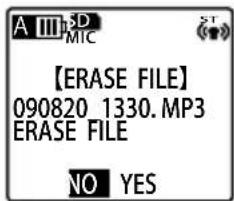
Press the / button to select "YES".
- If you want to cancel the operation, select "NO".
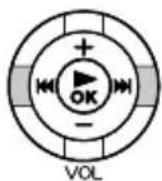
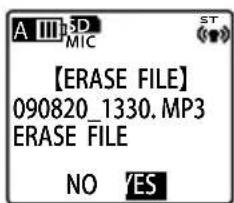
Press the OK button.
- If the recycle bin function is turned on "ERASING" is displayed, and then followed by "FILE WAS MOVED TO RECYCLE BIN". The file is moved to the RECYCLE folder. Pressing the ▶/OK button again returns to the basic screen.
- If the recycle bin function is turned off After "ERASING" is displayed, the file is erased and the basic screen returns.
- The corresponding index file is also moved to the RECYCLE folder.
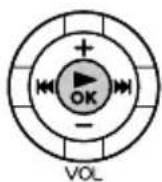
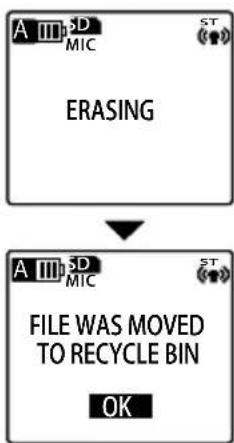
Erasing all files in a folder
You can use the following procedure to erase all files in a folder.
- If the recycle bin function is turned off (page 110), once you erase a file, it can no longer be recovered. Therefore, before erasing a file, always check the content of the file to make sure you really do not need it any more.
- Before performing this operation, check to make sure there is enough remaining battery power.
- Before emptying the RECYCLE folder, be sure to check whether the internal memory or microSD card is selected.
Switching between the internal memory and a microSD card (page 20)
1 Turn on the power. Turning on the power (page 22)
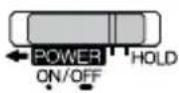
2 Press the LIST button.

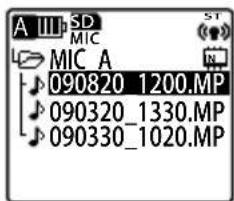
3 Press the button or VOL (+/-) button to select a desired folder. Using the list screen (page 18)
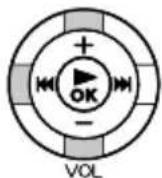
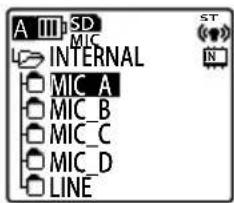
4 Press the ERASE button.

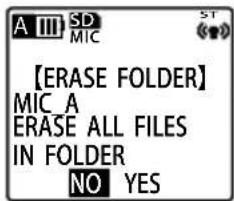
Press the / button to select "YES".
- If you want to cancel the operation, select "NO".
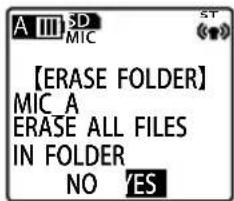
Press the OK button.
- If the recycle bin function is turned on "ERASING" is displayed, and then followed by "FILE WAS MOVED TO RECYCLE BIN". The files are moved to the RECYCLE folder. Pressing the ▶/OK button again returns to the basic screen.
- If the recycle bin function is turned off After “ERASING” is displayed, the files are erased and the basic screen returns.
- The corresponding index files are also moved to the RECYCLE folder.
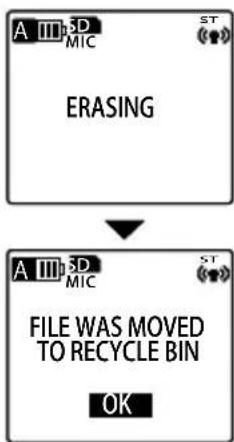
Note:
- You can also erase a file or a folder of files as follows: From the basic screen, when the unit stops, press the ERASE button to display the "ERASE" menu. Then, erase a file or a folder of files from the menu.
- Sub folders in the M folder cannot be erased. In this case, connect the unit to your PC and then erase from your PC.
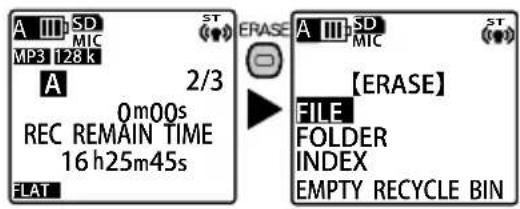
Formatting the internal memory or a microSD card
When you format the internal memory or a microSD card, even if the recycle bin function is turned on, all files in the internal memory or on the microSD card are completely erased and can no longer be recovered.
Therefore, before formatting, always check the contents of files in the internal memory or on the microSD card to make sure you really do not need them any more. If necessary, copy any necessary files to your PC or an external device before performing this operation. (pages 115 and 131)
- Before performing this operation, check to make sure there is enough remaining battery power.
1 Press the MENU/PLAY LIST button.
2 Press the VOL (+/-) button to select "COMMON MENU", and then press the ▶/OK button.
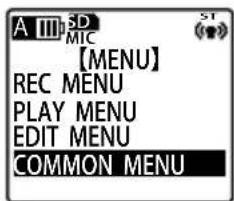
3 Press the VOL (+/-) button to select "FORMAT", and then press the ▶/OK button.
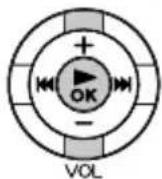

4 Press the VOL (+/-) button to select "INTERNAL MEMORY" or "microSD CARD", and then press the ▶/OK button.
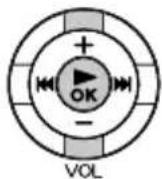
![A III SD MIC [FORMAT] INTERNAL MEMORY microSD CARD](/content/2026/05/1068121/images/51d02a8b8585c7fee36b6137185bdb715c4ba7d17a008da9a69a8fd9feda9f21.jpg)
5
Press the ◀/◄ button to select "YES", and then press the ►/OK button.
- If you do not want to format, select "NO" and then press the ▶K button.
- While formatting is in progress, you cannot cancel the operation.
- While formatting is in progress, do not remove the microSD card or the battery.
- While formatting is in progress, the recording LED flashes.
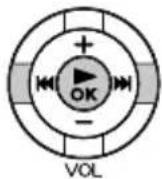
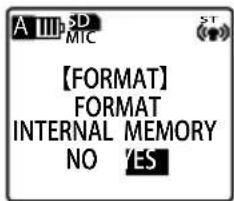
Press the MENU/PLAY LIST button to exit the menu.
About the menus
How to use the menus
From the menu screen, you can change the settings of the unit and also use functions of the unit. This section describes the basics in using the menus.
Example: Changing the recording mode
1 Turn on the power, and press the MENU/PLAY LIST button.
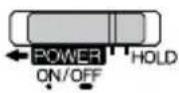

Select a menu.
Press the VOL (+/-) button to select a menu, and then press the OK button.
Here, "REC MENU" is selected.
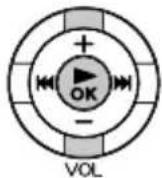
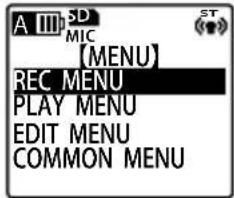
Select a setting to change.
Press the VOL (+/-) button to select a setting, and then press the ▶K button.
Here, the "REC MODE" setting is selected. The settings available change depending on the menu.
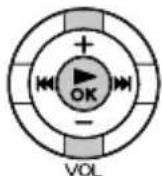
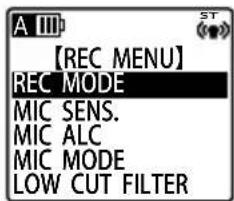
4 Change the value of the setting.
Press the VOL (+/-) button or ▶/▶▶ button to select a value, and then press the ▶/OK button.
Here, the value "MP3:128kbps" is selected.

Press the MENU/PLAY LIST button.
The menu operation is finished. The setting has been changed.

Menu list
■ Menus available when the unit stops
From the basic screen, while the unit stops, pressing the MENU/PLAY LIST button displays the following menus.
* Values displayed in bold are default values
(when the unit is shipped from the factory).
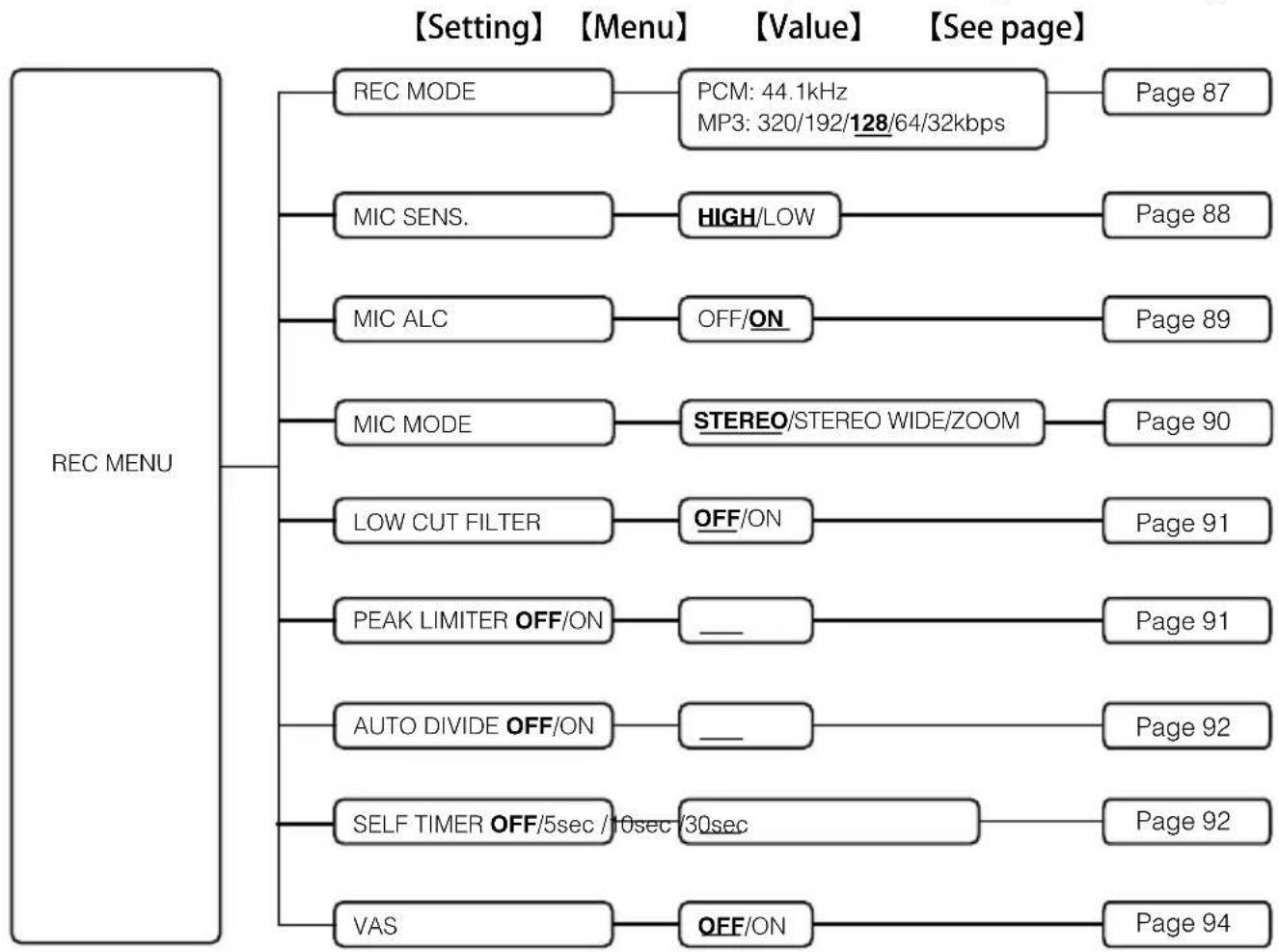
flowchart
graph TD
    A["REC MENU"] --> B["REC MODE"]
    A --> C["MIC SENS."]
    A --> D["MIC ALC"]
    A --> E["MIC MODE"]
    A --> F["LOW CUT FILTER"]
    A --> G["PEAK LIMITER OFF/ON"]
    A --> H["AUTO DIVIDE OFF/ON"]
    A --> I["SELF TIMER OFF/5sec /10sec/30sec"]
    A --> J["VAS"]

    B --> K["PCM: 44.1kHz\nMP3: 320/192/128/64/32kbps"]
    C --> L["HIGH/LOW"]
    D --> M["OFF/ON"]
    E --> N["STEREO/STEREO WIDE/ZOOM"]
    F --> O["OFF/ON"]
    G --> P["______"]
    H --> Q["______"]
    I --> R["______"]
    J --> S["OFF/ON"]

    K --> T["Page 87"]
    L --> U["Page 88"]
    M --> V["Page 89"]
    N --> W["Page 90"]
    O --> X["Page 91"]
    P --> Y["Page 91"]
    Q --> Z["Page 92"]
    R --> AA["Page 92"]
    S --> AB["Page 94"]
* Values displayed in bold are default values (when the unit is shipped from the factory).
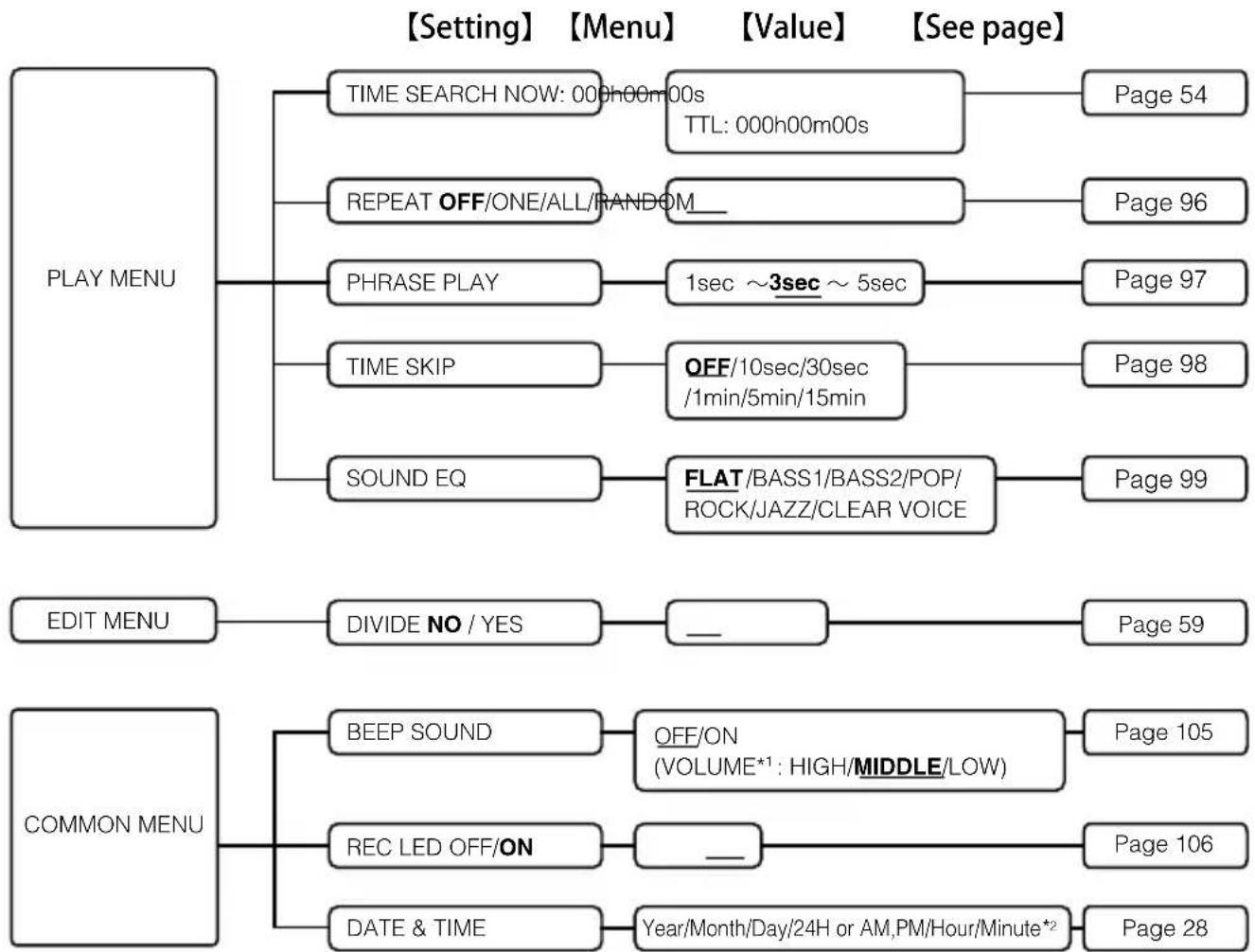
flowchart
graph TD
    A["PLAY MENU"] --> B["TIME SEARCH NOW: 000h00m00s"]
    A --> C["REPEAT OFF/ONE/ALL/RANDOM"]
    A --> D["PHRASE PLAY"]
    A --> E["TIME SKIP"]
    A --> F["SOUND EQ"]
    B --> G["TTL: 000h00m00s"]
    C --> H["Page 96"]
    D --> I["1sec ~3sec ~ 5sec"]
    E --> J["OFF/10sec/30sec /1min/5min/15min"]
    F --> K["FLAT/BASS1/BASS2/POP/ROCK/JAZZ/CLEAR VOICE"]
    L["EDIT MENU"] --> M["DIVIDE NO / YES"]
    M --> N["—"]
    N --> O["Page 59"]
    P["COMMON MENU"] --> Q["BEEP SOUND"]
    Q --> R["OFF/ON (VOLUME*1 : HIGH/MIDDLE/LOW)"]
    R --> S["Page 105"]
    T["REC LED OFF/ON"] --> U["—"]
    U --> V["Page 106"]
    W["DATE & TIME"] --> X["Year/Month/Day/24H or AM,PM/Hour/Minute*2"]
    X --> Y["Page 28"]
*1 You can adjust the sound volume only when the "BEEP SOUND" setting is "ON". *2 When shipped, the unit is set to "2009.OCT.01 24H 00:00".
* Values displayed in bold are default values (when the unit is shipped from the factory).
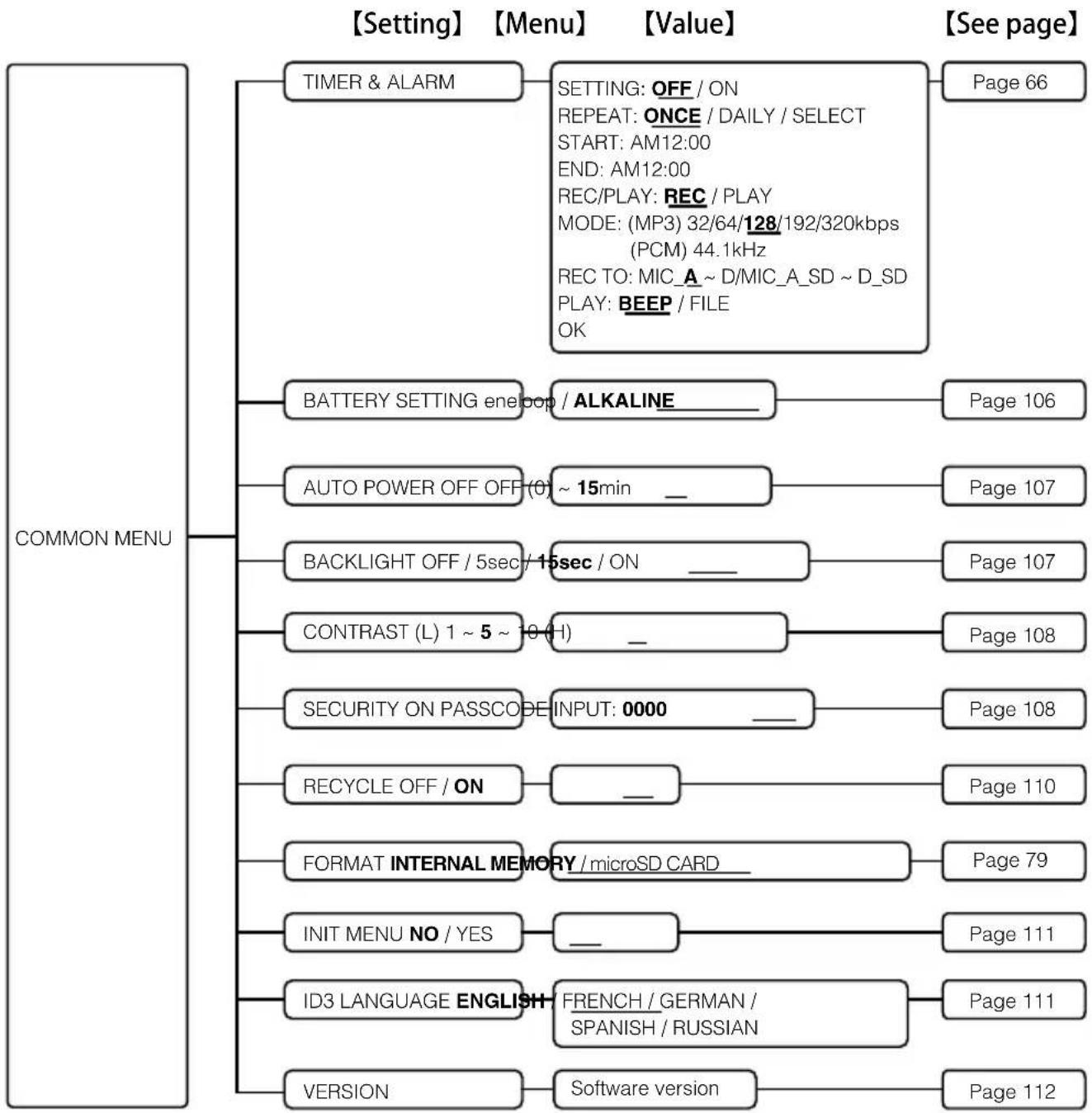
flowchart
graph TD
    A["COMMON MENU"] --> B["TIMER & ALARM"]
    B --> C["SETTING: OFF / ON"]
    C --> D["REPEAT: ONCE / DAILY / SELECT"]
    D --> E["START: AM12:00"]
    E --> F["END: AM12:00"]
    F --> G["REC/PLAY: REC / PLAY"]
    G --> H["MODE: (MP3) 32/64/128/192/320kbps (PCM) 44.1kHz"]
    H --> I["REC TO: MIC_A ~ D/MIC_A_SD ~ D_SD"]
    I --> J["PLAY: BEEP / FILE"]
    J --> K["OK"]
    A --> L["BATTERY SETTING enable / ALKALINE"]
    L --> M["Page 106"]
    A --> N["AUTO POWER OFF OFF (0) ~ 15min"]
    N --> O["Page 107"]
    A --> P["BACKLIGHT OFF / 5sec / 15sec / ON"]
    P --> Q["Page 107"]
    A --> R["CONTRAST (L) 1 ~ 5 ~ 10 (H)"]
    R --> S["Page 108"]
    A --> T["SECURITY ON PASSCODE INPUT: 0000"]
    T --> U["Page 108"]
    A --> V["RECYCLE OFF / ON"]
    V --> W["Page 110"]
    A --> X["FORMAT INTERNAL MEMORY / microSD CARD"]
    X --> Y["Page 79"]
    A --> Z["INIT MENU NO / YES"]
    Z --> AA["Page 111"]
    A --> AB["ID3 LANGUAGE ENGLISH"]
    AB --> AC["FRENCH / GERMAN / SPANISH / RUSSIAN"]
    AB --> AD["Page 111"]
    A --> AE["VERSION"]
    AE --> AF["Software version"]
    AF --> AG["Page 112"]
■ Playback menu
During playback, you can press the MENU/PLAY LIST button to access the following settings.
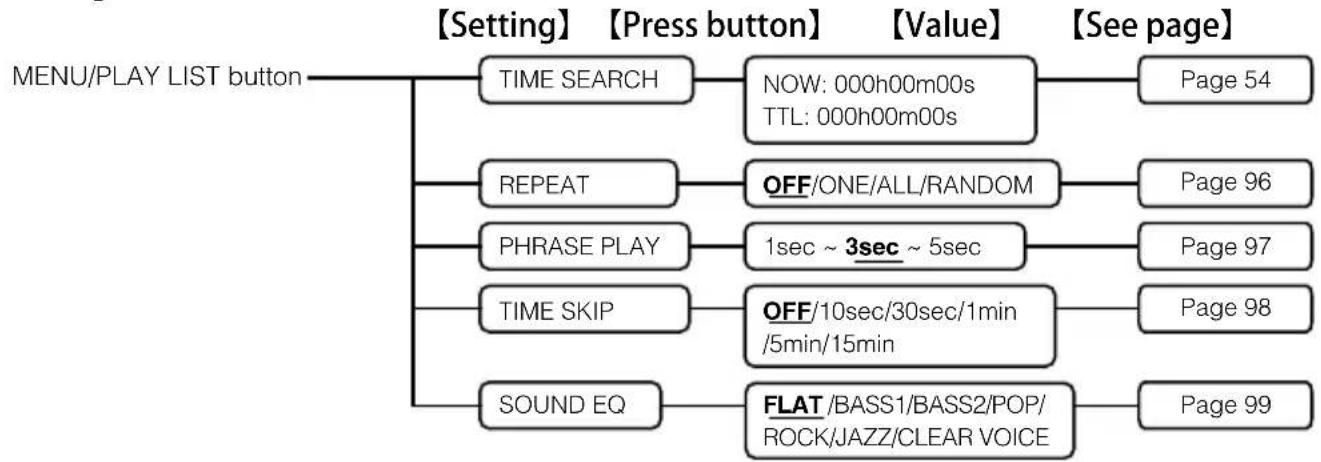
flowchart
graph TD
    A["MENU/PLAY LIST button"] --> B["TIME SEARCH"]
    A --> C["REPEAT"]
    A --> D["PHRASE PLAY"]
    A --> E["TIME SKIP"]
    A --> F["SOUND EQ"]
    B --> G["NOW: 000h00m00s\nTTL: 000h00m00s"]
    C --> H["OFF/ONE/ALL/RANDOM"]
    D --> I["1sec ~ 3sec ~ 5sec"]
    E --> J["OFF/10sec/30sec/1min /5min/15min"]
    F --> K["FLAT/BASS1/BASS2/POP/ROCK/JAZZ/CLEAR VOICE"]
    G --> L["Page 54"]
    H --> M["Page 96"]
    I --> N["Page 97"]
    J --> O["Page 98"]
    K --> P["Page 99"]
■ Erase menu
While the unit stops, you can press the ERASE button to access the following settings.
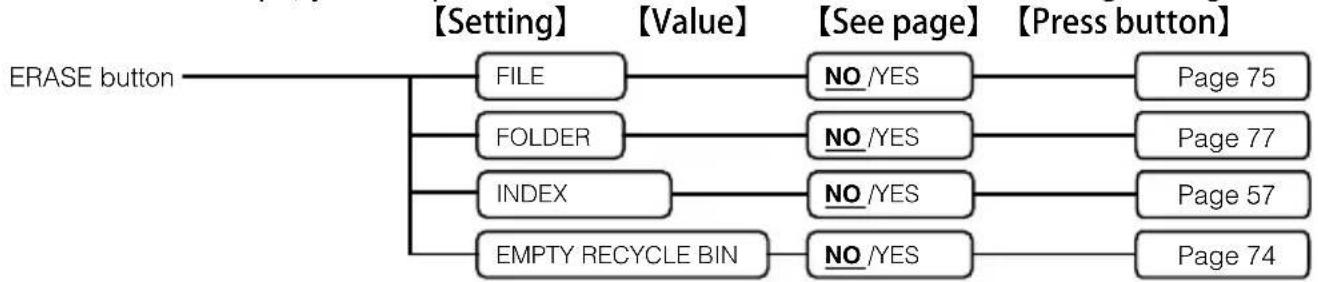
flowchart
graph TD
    A["ERASE button"] --> B["FILE"]
    A --> C["FOLDER"]
    A --> D["INDEX"]
    A --> E["EMPTY RECYCLE BIN"]
    B --> F["NO /YES"]
    C --> G["NO /YES"]
    D --> H["NO /YES"]
    E --> I["NO /YES"]
    F --> J["Page 75"]
    G --> K["Page 77"]
    H --> L["Page 57"]
    I --> M["Page 74"]
■ RECYCLE folder menu
While in the RECYCLE folder, you can press the ERASE button to access the following settings.

flowchart
graph LR
    A["ERASE button"] --> B["RESTORE FILE"]
    A --> C["EMPTY"]
    B --> D["NO/YES"]
    C --> E["NO/YES"]
    D --> F["Page 73"]
    E --> G["Page 74"]
■ Playlist editing menu
During display of playlist (MYLIST), you can press the MENU/PLAY LIST button to access the following settings.

flowchart
graph LR
    A["MENU/PLAY LIST button"] --> B["CHANGE ORDER"]
    A --> C["ERASE NO/YES"]
    A --> D["ERASE ALL NO/YES"]
    B --> E["Page 63"]
    C --> F["Page 64"]
    D --> G["Page 65"]
    B --> H["See page"]
    C --> I["See page"]
    D --> J["See page"]
    B --> K["Press button"]
    C --> L["Press button"]
    D --> M["Press button"]
■ Recording scene editing menu
From the recording scene screen, you can press the MENU/PLAY LIST button to access the following settings.
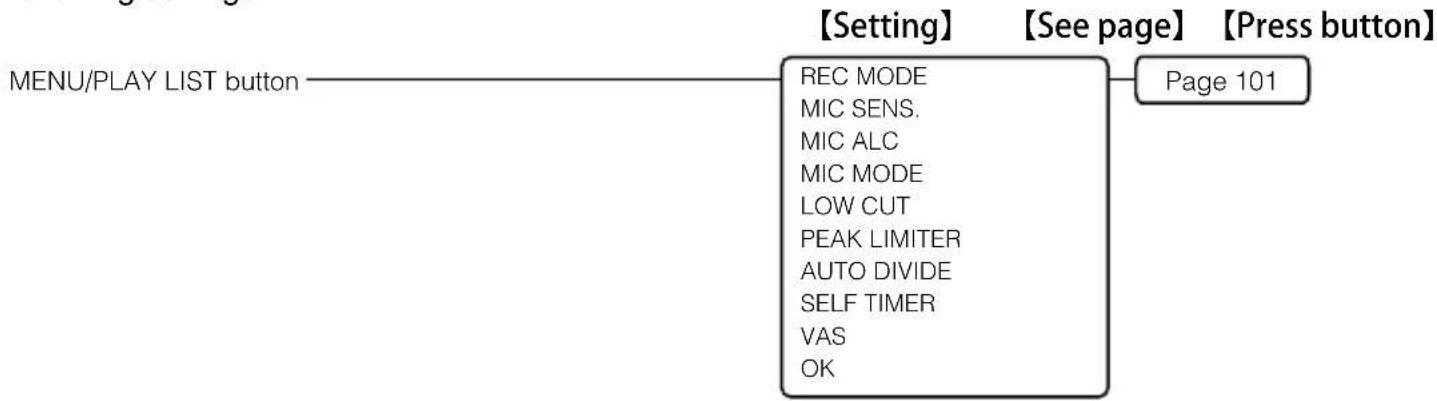
flowchart
graph LR
    A["MENU/PLAY LIST button"] --> B["REC MODE"]
    B --> C["MIC SENS."]
    C --> D["MIC ALC"]
    D --> E["MIC MODE"]
    E --> F["LOW CUT"]
    F --> G["PEAK LIMITER"]
    G --> H["AUTO DIVIDE"]
    H --> I["SELF TIMER"]
    I --> J["VAS"]
    J --> K["OK"]
    B --> L["【Setting】"]
    L --> M["【See page】"]
    M --> N["【Press button】"]
    N --> O["Page 101"]
■ Recording standby menu
During recording standby, you can press the MENU/PLAY LIST button to access the following settings.
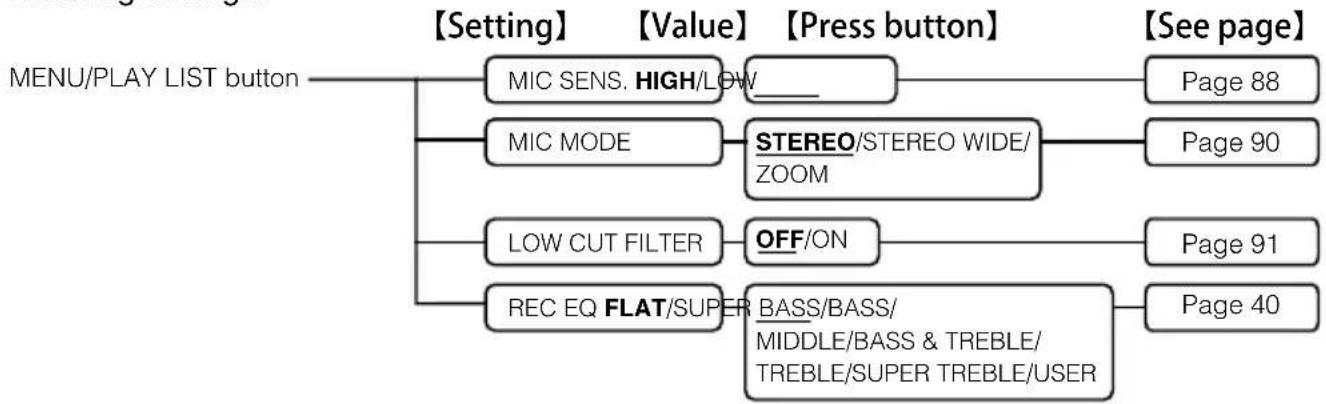
flowchart
graph TD
    A["MENU/PLAY LIST button"] --> B["Setting"]
    A --> C["Value"]
    A --> D["Press button"]
    A --> E["See page"]

    B --> F["MIC SENS. HIGH/LOW"]
    C --> G["MIC MODE"]
    G --> H["STEREO/STEREO WIDE/ZOOM"]
    H --> I["Page 88"]
    C --> J["LOW CUT FILTER"]
    J --> K["OFF/ON"]
    K --> L["Page 90"]
    C --> M["REC EQ FLAT/SUPER"]
    M --> N["BASS/BASS/MIDDLE/BASS & TREBLE/TREBLE/SUPER TREBLE/USER"]
    N --> O["Page 91"]
    M --> P["Page 40"]
Using the recording menu (REC MENU)
Changing the recording mode
You can change the sound quality for microphone recording or line-in recording. This allows you to provide the best sound quality for the particular purpose.
1 Turn on the power. From the basic screen, press the MENU/PLAY LIST button.
2 Press the VOL (+/-) button to select "REC MENU", and then press the ▶/OK button.
3 Press the VOL (+/-) button to select "REC MODE", and then press the ▶/OK button.
4 Press the VOL (+/-) button or ◀◀/▶ button to select a recording mode, and then press the ▶/OK button.
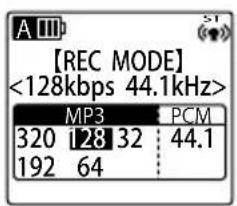
| PCM 44.1kHz | High quality recording ↓ | |
| MP3 | 320kHz | |
| 192kbps | ||
| 128kbps | Standard sound quality | |
| 64kbps | ↑Long recording | |
| 32kbps |
- PCM uses non-compression in recording of all audio data while MP3 uses compression in recording. If you increase the sound quality, this will also increase the data size, thus reducing the possible recording time. Therefore, consider whether sound quality or possible recording time should take priority, and then select the appropriate recording mode.
Recording mode and possible recording time (page 133)
Press the MENU/PLAY LIST button to exit the menu.
- The selected recording mode appears on the screen.
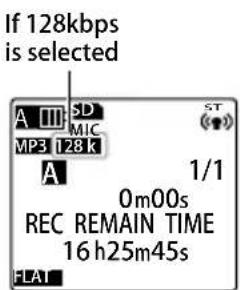
Changing the microphone sensitivity
You can change the microphone sensitivity according to the recording situation. Change the microphone sensitivity if you find recorded sound too small or too large.
1 Turn on the power. From the basic screen, press the MENU/PLAY LIST button.
2 Press the VOL (+/-) button to select "REC MENU", and then press the ▶/OK button.
3 Press the VOL (+/-) button to select the "MIC SENS." setting, and then press the ▶/OK button.
4 Press the VOL (+/-) button to select "HIGH" or "LOW", and then press the ▶/OK button.
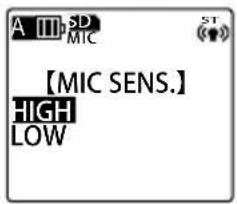
HIGH: Select this value if recorded sound is too small.
LOW: Select this value if recorded sound is too large.
Press the MENU/PLAY LIST button to exit the menu.
- When the "MIC SENS." setting changes, its icon on the screen also changes.
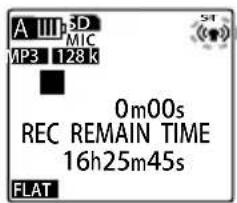
| MIC SENS. | STEREO STEREO WIDE | ZOOM |
| HIGH | ||
| LOW |
- The "MIC SENS." setting is valid only during microphone recording.
Changing the "MIC ALC" setting
MIC ALC refers to Microphone Auto Level Control. When recording meetings and talks, turn on the "MIC ALC" setting. When recording musical instruments or sound from the nature where you want to manually adjust the recording level, turn off this setting.
| “MIC ALC” setting ON OFF | ||
| Feature | A uniform recording level is maintained during recording by making loud sounds quieter and quiet sounds louder. Files recorded using this function can be played at a volume that is easy on the ears, without cracking sound or distortion. | Sound is recorded as it is change. Therefore, faithful recording of the sound source is obtained. |
| Main use | When recording meetings, business discussions, lectures, and interviews | When recording musical instruments, etc. |
witho
1 Turn on the power. From the basic screen, press the MENU/PLAY LIST button.
2 Press the VOL (+/-) button to select "REC MENU", and then press the ▶/OK button.
3 Press the VOL (+/-) button to select the "MIC ALC" setting, and then press the ▶/OK button.
4 Press the VOL (+/-) button to select "OFF" or "ON", and then press the ▶/OK button.
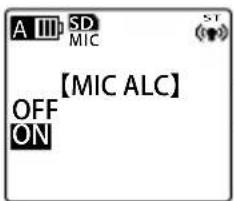
OFF: Turn off ALC. ON: Turn on ALC
Press the MENU/PLAY LIST button to exit the menu.
- When you change the "MIC ALC" setting, its icon on the screen also changes.
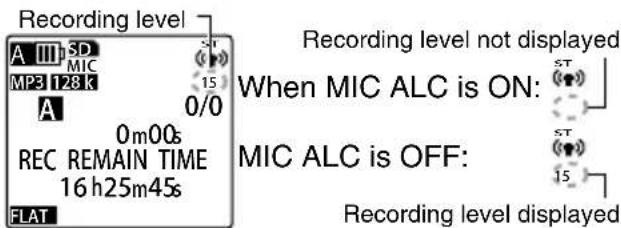
- When the "MIC ALC" setting is "OFF", the current recording level appears below the microphone sensitivity icon. (When the "MIC ALC" setting is "ON", nothing appears.)
- The "MIC ALC" setting is valid only during microphone recording.
- When the "MIC ALC" setting is "OFF", you can change the following settings while in the recording standby state: MIC SENS., MIC MODE, LOW CUT FILTER, and REC EQ.
Changing the microphone mode
The unit comes with built-in omnidirectional stereo microphone and zoom microphone that you can choose according to the recording scene.
| STEREO STEREO WIDE ZOOM | |||
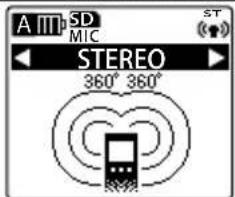 | 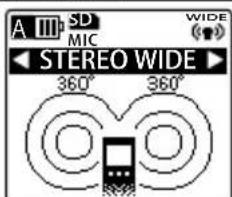 | 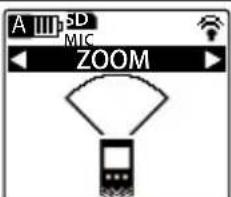 | |
| Microphone type | Omnidirectional microphone | Omnidirectional microphone | Zoom microphone |
| Stereo wide function | OFF ON OFF | ||
| Feature Enable well-b | balanced recording by picking up sound from all directions | Enable recording with strong emphasis on the stereo aspect | Enable recording of sound coming from the front |
| Usage | • Dictations• Small meetings | • Talks, interviews • Lectures | |
1 Turn on the power. From the basic screen, press the MENU/PLAY LIST button.
2 Press the VOL (+/-) button to select "REC MENU", and then press the ▶/OK button.
3 Press the VOL (+/-) button to select the "MIC MODE" setting, and then press the ▶/OK button.
4 Press the ▶/button to select a desired microphone mode, and then press the ▶/OK button.
- Pressing the / button repeatedly enables you to cycle through the following microphone modes: STEREO→STEREO WIDE →ZOOM (mono)→STEREO again.
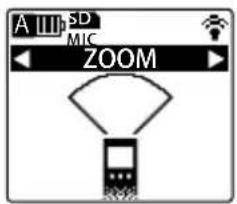
Press the MENU/PLAY LIST button to exit the menu.
- When you change the microphone mode, its icon on the screen also changes.
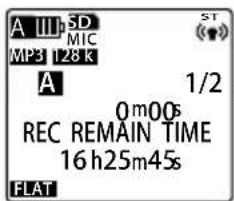
ST: STEREO
WIDE: STEREO WIDE
: ZOOM
Setting the low cut filter
The low cut filter reduces low frequency sound to enable you to obtain clear recording. This is helpful when you want to filter out unwanted sound, such as air conditioning, when recording a meeting.
1 Turn on the power, and press the MENU/PLAY LIST button.
2 Press the VOL (+/-) button to select "REC MENU", and then press the ▶/OK button.
3 Press the VOL (+/-) button to select the "LOW CUT FILTER" setting, and then press the ▶/OK button.
4 Press the VOL (+/-) button to select "OFF" or "ON", and then press the ▶/OK button.
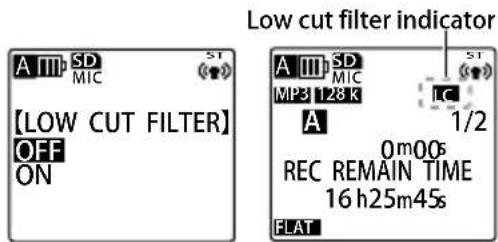
Press the MENU/PLAY LIST button to exit the menu.
- When you turn on the "LOW CUT FILTER" setting, its icon appears on the screen.
Setting the peak limiter
This setting automatically adjusts for any sudden, excessive input. This allows you to suppress any sound distortion while recording.
- This setting is valid only when the "MIC ALC" setting is "OFF".
1 Turn on the power, and press the MENU/PLAY LIST button.
2 Press the VOL (+/-) button to select "REC MENU", and then press the ▶/OK button.
3 Press the VOL (+/-) button to select the "PEAK LIMITER" setting, and then press the ▶/OK button.
4 Press the VOL (+/-) button to select "OFF" or "ON", and then press the ▶/OK button.
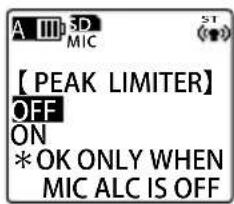
When you are performing line-in recording from a CD player, MD player, or another external device, you can use the auto divide function to automatically divide recorded input into files. If this function is turned on, when the unit detects a silence exceeding two seconds, it pauses recording and interprets the silence as the break between two sound tracks. It automatically divides the input as follows: file 1 for track 1, file 2 for track 2, etc.
- This function is valid only during line-in MP3 recording.
1 Turn on the power, and press the MENU/PLAY LIST button.
2 Press the VOL (+/-) button to select "REC MENU", and then press the ▶/OK button.
3 Press the VOL (+/-) button to select the "AUTO DIVIDE" setting, and then press the ▶/OK button.
4 Press the VOL (+/-) button to select "OFF" or "ON", and then press the ▶/OK button.
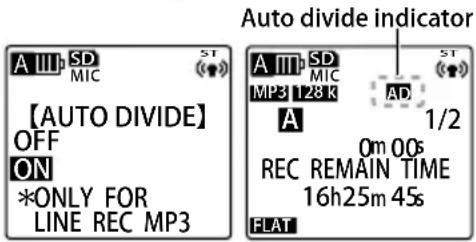
Press the MENU/PLAY LIST button to exit the menu.
- When you turn on the "AUTO DIVIDE" setting, its icon appears on the screen.
Using the self timer
During microphone recording, you can specify when recording will begin after you press the REC button. This function is very useful where you need time for preparation before recording should start – for example in musical instrument practice.
1 Turn on the power, and press the MENU/PLAY LIST button.
2 Press the VOL (+/-) button to select "REC MENU", and then press the ▶/OK button.
3 Press the VOL (+/-) button to select the "SELF TIMER", and then press the ▶/OK button.
4 Press the VOL (+/-) button to select a value for the self timer, and then press the ▶/OK button.
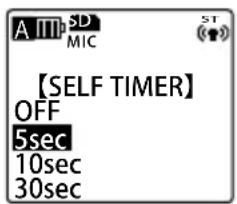
OFF: Do not use the self timer function.
5sec: Recording starts 5 seconds after you press the REC button.
10sec: Recording starts 10 seconds after you press the REC button.
30sec: Recording starts 30 seconds after you press the REC button.

Press the MENU/PLAY LIST button to exit the menu.
The basic screen returns.

Press the REC button.
The self timer standby screen appears and countdown for the specified time begins. (If the “REC LED” setting is “ON”, the recording LED flashes.)
- If the “SCENE SELECT” setting is “MUSIC” or the “MIC ALC” setting is “OFF”, the unit goes into the recording standby mode. After adjusting the recording level, press the REC button again. The self timer standby screen appears and countdown begins.
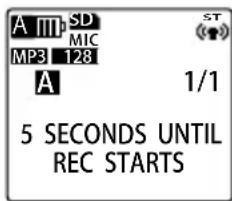
When the time specified in step 4 elapses, recording starts.
- Once you use self timer recording, the self timer value is saved until you change the "SELF TIMER" setting to "OFF" or initialize the menu settings.
Initialize the menu settings (page 111)
- During countdown, you can press the STOP/BACK button to cancel self timer recording. After you cancel the operation, you can re-start countdown by pressing the REC button again.
Using the VAS function
If the "VAS" (Voice Activated System) setting is "ON" and the unit is ready for recording, recording starts automatically when the unit detects sound. When the sound drops below a certain level, recording automatically pauses (recording standby).
- VAS recording is not possible when the "MIC ALC" setting is "OFF".
- If the “VAS” setting is “ON”, the auto power off function does not operate even when the unit pauses during recording (recording standby). However, if you press the REC button (to pause) during VAS recording, this is same as the pause state in normal recording. (If the “AUTO POWER OFF” setting is “ON”, the power turns off after the specified time elapses.)
- You cannot change the "VAS" setting during line-in recording.
- Because small sound may not be recorded, turn off the VAS function for important recording.
- If the "LOW CUT FILTER" setting is "ON", low frequency sound may be cut out and recording may not activate. In this case, change the "LOW CUT FILTER" setting to "OFF".
1 Turn on the power, and press the MENU/PLAY LIST button.
2 Press the VOL (+/-) button to select "REC MENU", and then press the ▶/OK button.
3 Press the VOL (+/-) button to select the "VAS" setting, and then press the ▶/OK button.
4 Press the VOL (+/-) button to select "OFF" or "ON", and then press the ▶/OK button.
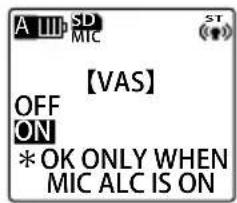
OFF: Turn off VAS. ON: Turn on VAS.
Press the MENU/PLAY LIST button to exit the menu.
- When you turn on the "VAS" setting, its icon appears on the screen.
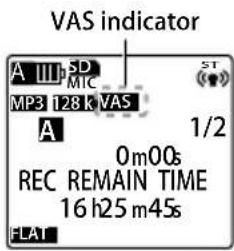
From the basic screen, press the REC button.
When the unit detects sound, it starts recording automatically. When it cannot detect sound, it pauses (recording standby); the elapsed time and the VAS indicator flash.
- Pressing the STOP/BACK button stops recording.
■ Adjusting the sound detection level
If the "VAS" setting is "ON", you can press the ◀◀ / button during recording to adjust the sound detection level.
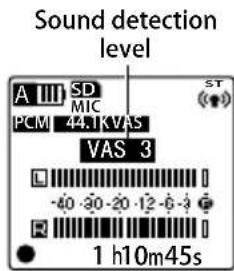
- You can adjust the sound detection level from 1 to 5. (When shipped, the unit is set to 3 in its sound detection level.)
- If the level is set to a larger number, small sound can be detected and so recording starts. In a place with a lot of noises, recording may not pause.
Using the playback menu (PLAY MENU)
Changing the "REPEAT" setting
You can play files repeatedly (repeat playback). This means you can just play a file repeatedly, or repeat playing files in a folder either in sequence or randomly.
1 Turn on the power (or during playback), and then press the MENU/PLAY LIST button.
2 Use the VOL (+/-) button to select "PLAY MENU", and then press the ▶/OK button.
3 Press the VOL (+/-) button to select the "REPEAT" setting, and then press the ▶/OK button.
4 Press the VOL (+/-) button to select one of the following repeat modes, and then press the ▶/OK button.
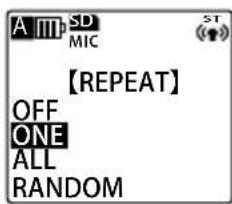
ONE: Repeat the current file only.
ALL: Repeat all files in the current folder in sequence. (Repeat playback is limited to just one folder.)
RANDOM: Repeat all files in the current folder randomly. (Repeat playback is limited to just one folder.)
Press the MENU/PLAY LIST button to exit the menu.
- When you set the repeat mode, its icon appears on the screen.
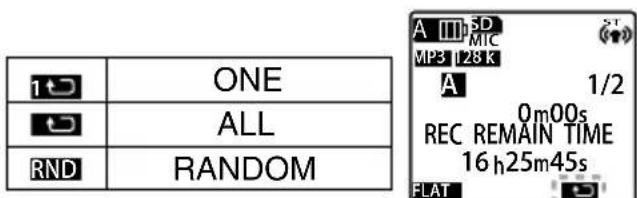
Repeat mode
When you play files, playback will follow the repeat mode in determining how to play the files.
- To stop repeat playback, change the "REPEAT" setting to "OFF".
Setting phrase playback (slight rewind)
During playback, this function enables you to rewind by only the specified number of seconds. This is useful when you are listening to short sections of music or just missed an important audio portion.
1 Turn on the power (or during playback), and then press the MENU/PLAY LIST button.
2 Use the VOL (+/-) button to select "PLAY MENU", and then press the ▶/OK button.
3 Press the VOL (+/-) button to select the "PHRASE PLAY" setting, and then press the ▶/OK button.
4 Press the VOL (+/-) button to select a time for phrase playback, and then press the ▶/OK button.
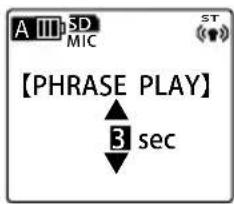
You can select between 1 and 5 seconds, in 1-second increments.
Press the MENU/PLAY LIST button to exit the menu.
During playback, pressing the
▶/OK button starts phrase playback.
Performing phrase playback (page 53)
Setting time skip
During playback, you can skip forward or backward by the time interval you have specified. This allows you to quickly move to a position for playback, or repeat playback of the same portion in a file.
1 Turn on the power (or during playback), and then press the MENU/PLAY LIST button.
2 Use the VOL (+/-) button to select "PLAY MENU", and then press the ▶/OK button.
3 Press the VOL (+/-) button to select the "TIME SKIP" setting, and then press the ▶/OK button.
4 Press the VOL (+/-) button or / button to select one of the following time intervals, and then press the ▶/OK button.
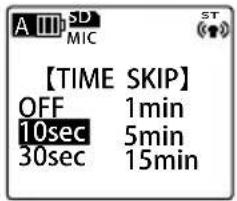
OFF: Turn off the time skip function.
10sec: Skip 10 seconds each time.
30sec: Skip 30 seconds each time.
1min: Skip one minute each time.
5min: Skip 5 minutes each time.
15min: Skip 15 minutes each time.
Press the MENU/PLAY LIST button to exit the menu.
- When you set up time skip, its icon appears on the screen.
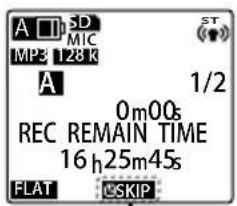
Skip mode
To skip forward or backward by specified time interval (page 50)
Setting the sound equalizer
By setting the sound equalizer, you can enjoy music using your favorite sound quality.
- The sound equalizer function is valid only during playback using stereo earphones.
■ Selecting a sound equalizer mode
The unit comes with seven preset sound equalizer modes: FLAT, BASS1, BASS2, POP, ROCK, JAZZ, and CLEAR VOICE. The seven preset sound equalizer modes have the following features.
| FLAT BA | SS1 BASS2 | POP ROCK JAZZ | CLEAR VOICE | |||
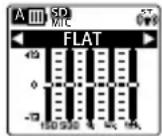 | 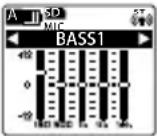 | 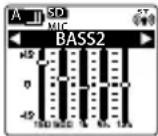 | 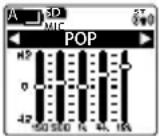 | 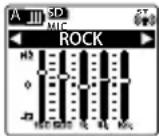 | 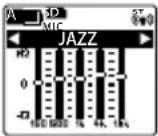 | 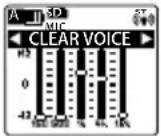 |
| The sound equalizer function is not used. You hear the original sound without any change. | Emphasize the bass range slightly. | Emphasize the bass range strongly. | Emphasize the treble range strongly. | Emphasize the bass and treble ranges slightly. | Emphasize the middle range. | Reduce noise to make the sound easy to listen. |
- The seven preset sound equalizer modes cannot be modified (adjusted).
1 Turn on the power (or during playback), and then press the MENU/PLAY LIST button.
2 Use the VOL (+/-) button to select "PLAY MENU", and then press the ▶/OK button.
3 Press the VOL (+/-) button to select the "SOUND EQ" setting, and then press the ▶/OK button.
4 Press the / button to select a sound equalizer mode, and then press the ▶/OK button.
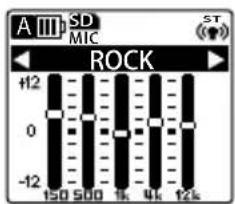
You can select one of the seven preset sound equalizer modes.
Press the MENU/PLAY LIST button to exit the menu.
- The selected sound equalizer mode appears on the screen.
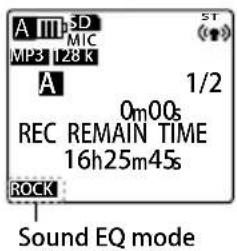
Setting the recording scene select function
The unit provides the following four preset recording scenes that you can edit to your liking. You can also use FAVORITE1 to FAVORITE3 to create and register your favorite recording scenes. The following table lists the recording scenes as well as the settings you can change.
| Preset recording scene | INTERVIEW MEETING LECTURE MUSIC | FAVORITE1-3 | |||
| REC MODE MP3: 64kbps MP3: 128kbps MP3: 128kbps PCM: 44.1kHz MP3: 128kbps | |||||
| MIC SENS. LOW HIGH HIGH HIGH HIGH | |||||
| MIC ALC ON ON ON OFF ON | |||||
| MIC MODE | STEREO | STEREO | ZOOM (mono) | STEREO | STEREO |
| LOW CUT FILTER | ON ON ON OFF | OFF | |||
| PEAK LIMITER | OFF | OFF | OFF | OFF | OFF |
| AUTO DIVIDE | OFF | OFF | OFF | OFF | OFF |
| SELF TIMER | OFF | OFF | OFF | OFF | OFF |
| VAS | OFF | OFF | OFF | OFF | OFF |
Customizing a recording scene
You can customize the preset recording scenes. Changes made to a scene are saved.
1 Turn on the power.
Turning on the power (page 22)
2 Press the SCENE/A-B button.
3 Press the / button to select a recording scene.
- If you select "OFF", you cannot modify it.
• Here, "INTERVIEW" is selected.
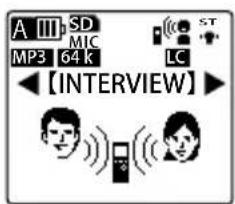
4 Press the MENU/PLAY LIST button.
The setting screen for "INTERVIEW" appears.
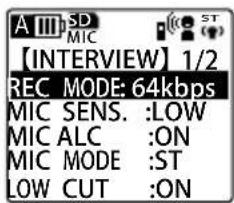
5 Press the VOL (+/-) button to select a setting to change.
- Here, the "REC MODE" setting is selected.
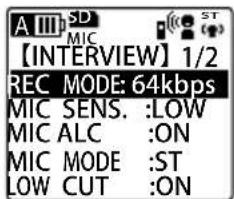
Press the OK button.
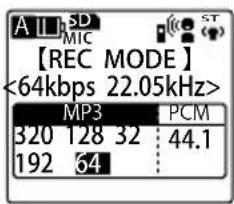

Change the value of the selected setting.
The method is different depending on what is selected in step 4. For a description of the methods, see the pages indicated below.
REC MODE (page 87)
MIC SENS. (page 88)
MIC ALC (page 89)
MIC MODE (page 90)
LOW CUT FILTER (page 91)
PEAK LIMITER (page 91)
AUTO DIVIDE (page 92)
SELF TIMER (page 92)
VAS (page 94)
To continue and change another setting, repeat steps 4 to 7.

Press the VOL (+/-) button to select "OK", and then press the ▶/OK button.
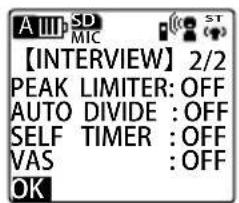
- Be sure to always select "OK", and then press the ▶/OK button; otherwise, the changes are not updated.
Press the SCENE/A-B button to return to the basic screen.
Restoring a recording scene to its default
You can use the following procedure to restore (initialize) a recording scene to its default.
1 Turn on the power.
→ Turning on the power (page 22)
2 Press and hold the SCENE/A-B button for more than 2 seconds.
3 Press the VOL (+/-) button or ◀◀/ button to select a desired recording scene, and then press the ▶/OK button.
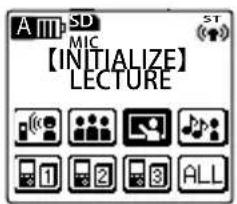
- If you want to restore all recording scenes to their defaults, select "ALL".
4 Press the / button to select "YES", and then press the ▶/OK button.
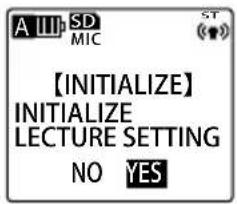
Using the common menu (COMMON MENU)
Setting the "BEEP SOUND"
You can use this setting to determine the kind of sound to hear when buttons are pressed.
1 Turn on the power, and press the MENU/PLAY LIST button.
2 Press the VOL (+/-) button to select "COMMON MENU", and then press the ▶/OK button.
3 Press the VOL (+/-) button to select the "BEEP SOUND" setting, and then press the ▶/OK button.
4 Press the VOL (+/-) button to select "OFF", or "ON", and then press the ▶/OK button.
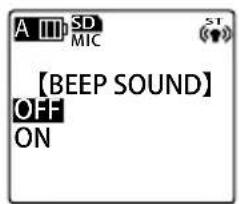
OFF: No sound accompanies the button operation.
ON: You hear only beep sound when buttons are pressed.
5 If you selected "ON", press the VOL (+/-) button to select a desired sound volume, and then press the ▶/OK button.
Turning on/off the recording LED
You can use this setting to turn on or off the recording LED for use during recording.
1 Turn on the power, and press the MENU/PLAY LIST button.
2 Press the VOL (+/-) button to select "COMMON MENU", and then press the ▶/OK button.
3 Press the VOL (+/-) button to select the "REC LED" setting, and then press the ▶/OK button.
4 Press the VOL (+/-) button to select "OFF" or "ON", and then press the ▶/OK button.
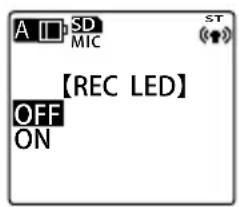
OFF: During recording, the recording LED does not light.
ON: During recording, the recording LED lights.
Press the MENU/PLAY LIST button to exit the menu.
Changing the battery type
Use this setting to specify the type of battery to use (eneloop battery or alkaline battery).
1 Turn on the power, and press the MENU/PLAY LIST button.
2 Press the VOL (+/-) button to select "COMMON MENU", and then press the ▶/OK button.
3 Press the VOL (+/-) button to select the "BATTERY SETTING" setting, and then press the ▶/OK button.
4 Press the VOL (+/-) button to select a battery type, and then press the ▶/OK button.
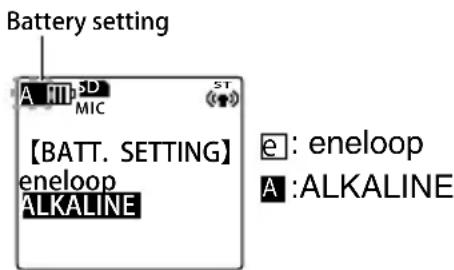
Press the MENU/PLAY LIST button to exit the menu.
- If the setting does not match the actual battery in use, the battery indicator will not be correctly displayed.
Setting the auto power off function
If you specify a time for this function, when the unit is not used for the specified time, the power turns off automatically (excluding pause during recording and VAS recording, as well as playback). This function helps you save battery when you forget to turn off the power.
1 Turn on the power, and press the MENU/PLAY LIST button.
2 Press the VOL (+/-) button to select "COMMON MENU", and then press the ▶/OK button.
3 Press the VOL (+/-) button to select the "AUTO POWER OFF" setting, and then press the ▶/OK button.
4 Press the / button to select a time for the auto power off function to activate, and then press the ▶/OK button.
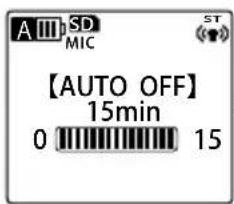
• You can set the time in 1-minute increments.
- If the "AUTO POWER OFF" setting is "OFF", the auto power off function is disabled.
Press the MENU/PLAY LIST button to exit the menu.
Turning on/off the screen backlight
Use this function to specify how long the screen backlight stays on after you press a button.
1 Turn on the power, and press the MENU/PLAY LIST button.
2 Press the VOL (+/-) button to select "COMMON MENU", and then press the ▶/OK button.
3 Press the VOL (+/-) button to select the "BACKLIGHT" setting, and then press the ▶/OK button.
4 Press the VOL (+/-) button to select "OFF", "5sec", "15sec", or "ON", and then press the ▶/OK button.
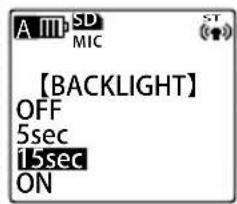
5sec: Backlight stays on for
5 seconds after you press a button.
15sec: Backlight stays on for
15 seconds after you press a button.
ON: Backlight always stays on.
Press the MENU/PLAY LIST button to exit the menu.
- When shipped, the unit is set to "15sec".
- If the battery is low, the backlight may not come on.
Adjusting the screen contrast
Use this function to adjust the contrast of the screen. You can choose from 10 levels for the adjustment.
1 Turn on the power, and press the MENU/PLAY LIST button.
2 Press the VOL (+/-) button to select "COMMON MENU", and then press the ▶/OK button.
3 Press the VOL (+/-) button to select the "CONTRAST" setting, and then press the ▶/OK button.
4 Press the / button to adjust the contrast, and then press the ▶/OK button.
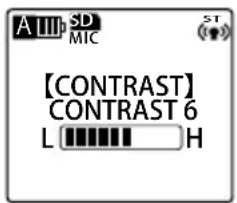
Contrast adjustment: 1 (L) to 10 (H)
Press the MENU/PLAY LIST button to exit the menu.
Using the security function (applied to the internal memory only)
You can set up a passcode on the unit to apply playback lock to files. (Recording and erasing files are not affected by the security function.)
- Once you turn on the security function, when the unit is connected to your PC, folders protected by the security function do not appear on the PC.
- If you forget the passcode, you cannot play or use files. For this reason, be sure to write down the passcode and keep it in a safe place. SANYO cannot help you decipher or clear the passcode.
Theft, loss, or fraud may cause leakage of personal information on the unit to third parties. SANYO is not responsible for any damage due to leakage of personal information to third parties. Also, SANYO takes no responsibility for damages caused by the use/failure of the unit.
■ Setting a passcode
1 Turn on the power, and press the MENU/PLAY LIST button.
2 Press the VOL (+/-) button to select "COMMON MENU", and then press the ▶/OK button.
3 Press the VOL (+/-) button to select the "SECURITY ON" setting, and then press the ▶/OK button.
4 Enter a passcode.
Press the / button to select a digit, and then press the VOL (+/-) button to change its value.
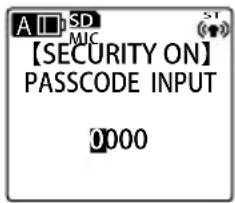
- Be sure to write down the passcode so that you won't forget it.
5 Press the / button to select "YES", and then press the ▶/OK button.
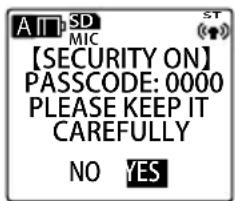
- When the security function is turned on, the playback lock icon appears on the screen.
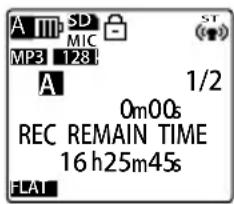
Press the MENU/PLAY LIST button to exit the menu.
• Security settings and icons on screen
| Security setting | Playback lock | Playback lock released |
| Icon |
Once the security function is turned on, when you play files (or access some menus), you'll be asked to enter the passcode. In this case, enter the passcode and then press the ▶/OK button to release the playback lock.
- If playback lock is enabled (which applies to the internal memory), when you connect the unit to your PC, it does not appear as a drive. ( page 121)
■ Turning off the security function
1 Turn on the power, and press the MENU/PLAY LIST button.
2 Press the VOL (+/-) button to select "COMMON MENU", and then press the ▶/OK button.
3 Press the VOL (+/-) button and select the "SECURITY OFF" setting, and then press the ▶/OK button.
4 Enter the passcode. Press the ◀◀/▶▶ button to select a digit, and then press the VOL (+/-) button to change its value.
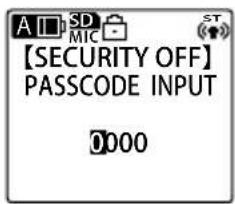
5 Press the OK button. When the security function is turned off, the icon disappears from the screen.
Press the MENU/PLAY LIST button to exit the menu.
If you want to turn on the security function again, set a passcode again.
- If you don't remember the passcode, you can format the internal memory. This will clear the security function and restore the passcode to the default 0000. Also, when you format the internal memory, all files in the memory will be completely erased.
(page 79)
Turning on/off the recycle bin function
If you turn off the recycle bin function, when you erase a file, it is completely erased so that you can no longer recover the file. To avoid accidentally erasing a file, we recommend that you turn on the recycle bin function.
1 Turn on the power, and press the MENU/PLAY LIST button.
2 Press the VOL (+/-) button to select "COMMON MENU", and then press the ▶/OK button.
3 Press the VOL (+/-) button to select the "RECYCLE" setting, and then press the ▶/OK button.
4 Press the VOL (+/-) button to select "ON" or "OFF", and then press the ▶/OK button.
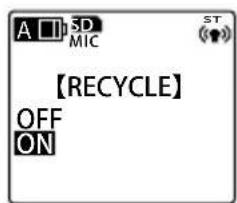
OFF: Turn off the recycle bin function. ON: Turn on the recycle bin function.
Press the MENU/PLAY LIST button to exit the menu.
Initializing the menu settings
When you initialize the unit's menu settings, all settings (except calendar settings) are restored to their defaults.
- Initializing the menu settings does not erase any file stored in the internal memory or on the microSD card. Also, this operation does not clear the security function.
1 Turn on the power, and press the MENU/PLAY LIST button.
2 Press the VOL (+/-) button to select "COMMON MENU", and then press the ▶/OK button.
3 Press the VOL (+/-) button to select the "INIT MENU" setting, and then press the ▶/OK button.
4 Press the VOL (+/-) button to select "YES", and then press the ▶/OK button.
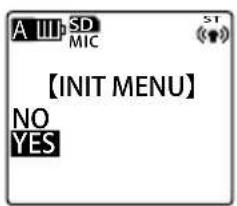
You can change the language that is displayed on the screen.
1 Turn on the power, and press the MENU/PLAY LIST button.
2 Press the VOL (+/-) button to select "COMMON MENU", and then press the ▶/OK button.
3 Press the VOL (+/-) button to select "ID3 LANGUAGE", and then press the ▶/OK button.
4 Press the VOL (+/-) button to select the language, and then press the ▶/OK button.
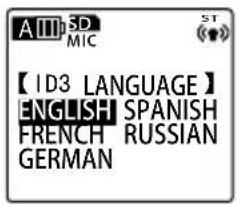
Press the MENU/PLAY LIST button to exit the menu.
- If you select English, French, German or Spanish, you cannot register files with Russian file names in a playlist, and you cannot play back files registered in a playlist with Russian file names while Russian is selected.
If you select Russian, you cannot register files with French, German or Spanish file names in a playlist, and you cannot play back files registered in a playlist with French, German or Spanish file names while one of these three languages is selected.
Using the playlists (in MUSIC folder only) (page 62)
Checking the version
You can check the version of firmware used by the unit.
1 Turn on the power, and press the MENU/PLAY LIST button.
2 Press the VOL (+/-) button to select "COMMON MENU", and then press the ▶/OK button.
3 Press the VOL (+/-) button to select the "VERSION" setting, and then press the ▶/OK button.
Before using the unit with your PC
Checking the operating environment
Operating environment
The unit works in the following PC environment.
| Hardware PC with Windows installed | |
| OS | Windows VistaWindows XPWindows 2000 Professional (SP3 or later) |
| USB terminal | One available for connection with the unit |
| Others | Speaker or headphones requiredSound playback function available on PC |
● About Windows Media Player
Use the Windows Media Player appropriate for the OS of the PC, as follows:
| Windows Media Player 11 | Windows Vista / Windows XP |
| Windows Media Player 10 | Windows XP |
| Windows Media Player 9 | Windows 2000 Professional (SP3 or later) |
* If you use a Windows Media Player not listed above, the operation will not be guaranteed.
* The operating environment described above is current as of October, 2009.
Obtain the latest Windows Media Player from the following URL.
http://www.microsoft.com/windows/windowsmedia/player/11/
- If you use a computer where Windows is not installed (e.g. Macintosh), the operation will not be guaranteed.
• Operation in the following environments is not guaranteed.
- Upgraded from Windows OS
- Windows 95, Windows NT, Windows 98, Windows 98SE, or Windows Me
- Dual boot environment with Windows OS
• Guaranteed operation does not apply to all PCs in recommended environment.
- Depending on the operating environment, some modes such as standby and suspend* may not function correctly. If this happens, do not use these modes when operating your PC with the unit.
- When running Windows Vista/XP/2000, log on using an administrator account (Administrators).
- Operation of dynamic disks introduced since Windows 2000 is not guaranteed.
* Suspend:
This is the state when the CPU, LCD, and HDD all stop, thus reducing the power consumption to its minimum. Suspend is different from sleep. In the suspend state, the CPU stops but power is still supplied to the ROM.
■ Notes on PC connection
- If you change from your PC names of MP3 files or WAV files recorded on the unit, playback of these files in their original folder becomes not possible. To solve this problem, you can rename the files following the naming rule, or move them to the MUSIC folder and then play them. (I page 14)
- Always format a microSD card from the unit. If you format the card from your PC, subsequent recording may not be correct.
- If you have formatted the card from your PC, just format it again from the unit. ( page 79)
- If a bus-powered USB hub or USB extension cable (not supplied cable) is used, the operation will not be guaranteed. Therefore, always use the supplied original USB extension cable for the connection.
- When the unit is connected to your PC, it can operate even if the battery is low.
This manual describes operations for the English version of Windows XP.
What can you do from your PC?
You can perform the following operations from your PC.
■ Backing up recorded files to your PC
You can copy files recorded on the unit to your PC as backup.
■ Restoring audio files from your PC
You can restore audio files (backed up to your PC) to the unit. You can then listen to the files from the unit.
■ Copying audio files to CD-R/RW
You can use Windows Media Player to copy audio files (recorded on the unit) to a CD-R/RW disc.
■ Creating audio files (CD ripping)
You can use your PC to rip music CD or language CD into files (in a form which can be played on the unit) and then copy the files to the unit.
■ Using Windows Media Player to transfer music files
You can use Windows Media Player to transfer music files (created on the PC) to the unit.
■ Functioning as USB memory or microSD card reader/writer
In addition to using the unit as a voice recorder, you can also use it as USB memory or microSD card reader/writer. This means that you can store documents or pictures in the internal memory or on a microSD card.
Connecting/disconnecting your PC
Connecting your PC
1 Slide out the USB terminal from the unit. To slide out the USB terminal (page 13)
2 With the power turned off, connect the USB terminal to your PC.
- If a bus-powered USB hub or USB extension cable (not supplied cable) is used, the operation will not be guaranteed. Therefore, always use the dedicated USB extension cable for the connection.
- When the unit is connected to your PC, it can operate even if the battery is low.
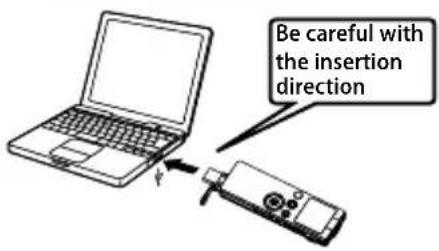
■ Screen display during connection with PC
During file transfer, do not disconnect the unit from your PC.
While the connection screen appears, all buttons and switches on the unit are disabled.
■ The first time you connect the unit to your PC
Because multiple "Found New Hardware" messages will appear, do not disconnect the unit from your PC until all messages disappear.
• If nothing appears on your PC
(page 120)
■ About the AutoPlay screen
If you are running Windows XP or Windows Vista on your PC, the AutoPlay screen may appear. From the AutoPlay screen, select "Open folder to view files" and then click "OK". Folders of the unit appear. Also, the options and descriptions on the AutoPlay screen change depending on your PC environment.
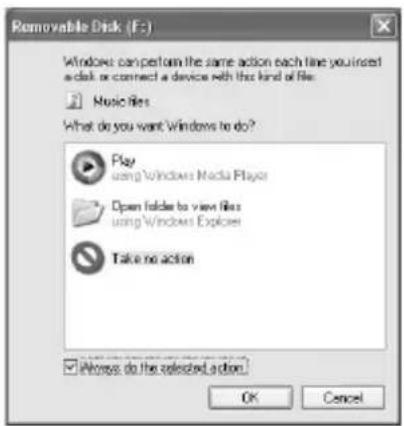
Disconnecting your PC
1 Click the Task Tray icon, and then click "Safely remove USB mass storage device".
- Depending on your PC environment, the drive letter that appears may be different. This is not a problem.
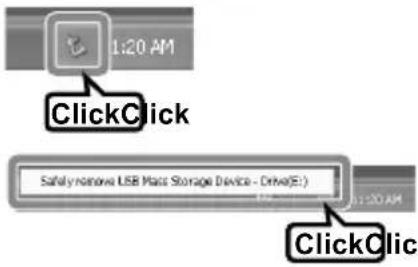
2 When the "Safe To Remove Hardware" message appears, disconnect the unit from your PC.
- If does not appear on the Task Tray, click to display hidden icons. If it still does not appear, turn off your PC and then disconnect the unit from your PC.
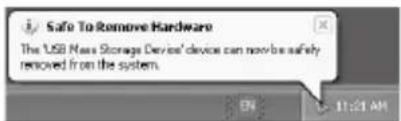
Viewing the unit's folders and files from your PC
This section describes the case where a microSD card (already formatted by the unit) is inserted. When you connect the unit to your PC, the screen displays the "EH800D" (internal memory) and "EH800D_SD" (microSD card) folders.
However, if the OS of your PC is Windows 2000, both the internal memory and the microSD card appear as “removable disks”. This section uses Windows XP (as OS) for explanation.
1 Connect the unit to your PC.
Connecting your PC (page 116)
Open My Computer.
Click My Computer from the Start menu, or double-click the My Computer icon on the Desktop.
Open the EH800D or EH800D\_SD folder.
Double-click "EH800D" or "EH800D_SD".
If EH800D or EH800D_SD does not appear (page 120)
The unit's folders appear.
About files/folders (page 14)
- Drive name for the internal memory
The internal memory is displayed as "EH800D".
- Drive name for the microSD card
If the microSD card is formatted by the unit, it appears as "EH800D_SD". If you do not use the unit to format the microSD card, it will appear as "removable disk". If no microSD card is inserted in the unit or the a microSD card not formatted by the unit is inserted, "removable disk" will appear.
- If you change from your PC names of MP3 files or WAV files recorded on the unit, playback of these files in their original folder becomes not possible. To solve this problem, you can rename the files following the naming rule, or move them to the MUSIC folder and then play them. (page 14)
■ Security settings and removable disk display on your PC
() indicates a drive name.
| Security setting | Security icon of the unit | The internal memory | microSD card | |
| OFF | O(EH800D) | O(EH800D_SD) | ||
| ON | Playback lock | ### | × | O(EH800D_SD) |
| Playback lock released | ### | O(EH800D)* | O(EH800D_SD) | |
O : Displayed on your PC
× : Not displayed on your PC
The table refers to the case where the unit is turned on and connected to your PC.
* Turning the power off sets the playback lock, so nothing is displayed if the unit is connected to your PC with the power off.
Troubleshooting
Check to see that the unit is correctly recognized by your PC.
● Windows Vista
With the unit connected to your PC, perform the following operation.
From the Start menu, right-click the Computer icon and then select Properties from the displayed menu, and then open the System screen.
Click Device Manager. When the user account control screen appears, select Continue to open the Device Manager screen.
If the devices indicated in the following diagrams are shown below "Disk drives" and "Universal Serial Bus controllers", the unit is connected to your PC correctly
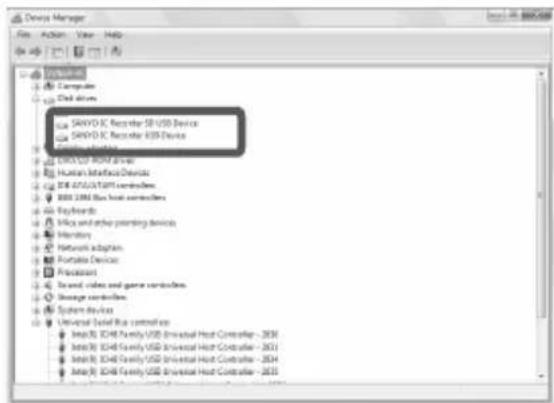
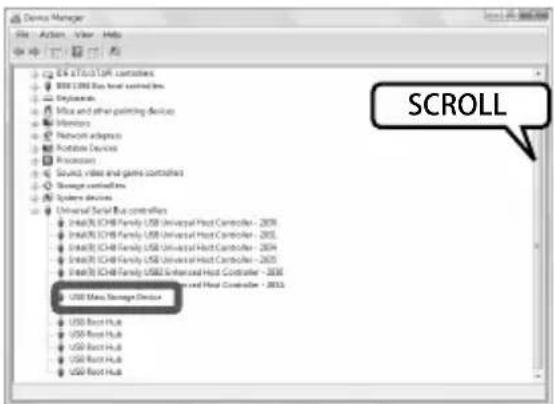
● Windows XP or Windows 2000
With the unit connected to your PC, perform the following operation.
From the Start menu (or Desktop), right-click the My Computer icon and then select Properties from the displayed menu, and then open the System Properties screen.
Click Device Manager on the Hardware tab to open the Device Manager screen.
If the devices indicated in the following diagrams are shown below "Disk drives" and "USB (Universal Serial Bus) controllers", the unit is connected to your PC correctly.
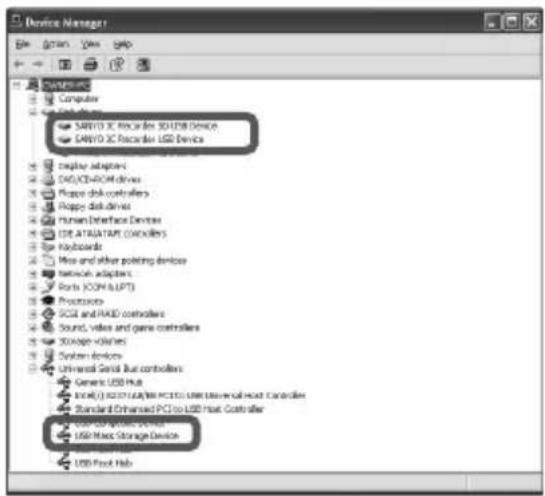
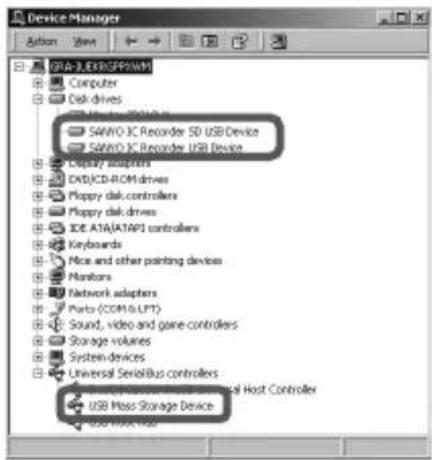
If Device Manager does not display the information correctly
Perform the following procedure.
① Close all applications that are still running.
② Unplug all other USB devices (excluding correctly functioning mouse/keyboard) and connect only the unit to your PC.
③ If there are multiple USB terminals on your PC (e.g. on the front or back), try to use another USB terminal to connect the unit to your PC.
④ If the unit is connected to your PC via a bus-powered USB hub (with multiple ports for plugging in USB devices), remove the hub and use the dedicated USB extension cable to connect the unit directly to a USB terminal on your PC.
• Always use the dedicated USB extension cable to connect the unit to your PC.
Additional information
Error messages
Error messages may appear during operation of the unit. The following table describes the error messages.
| State of the unit (function) | Error message Description See page | ||
| Battery is low LOW BATTERY PLEASE CHANGE THE BATTERY | This error message appears when the “BATTERY SETTING” is “ALKALINE” and the battery is low. | page 23 | |
| Playback | NODATA | This error message appears when there is no file in the folder and you press the ▶/OK button. | page 46 |
| VARIABLE SPEED PLAYBACK NOT AVAILABLE | This error message appears when you change the playback speed during PCM recording/playback. | page 51 | |
| Recording | MEMORY FULL | This error message appears when you try to record but there is no free space left in the internal memory or on the microSD card. | page 133 |
| FILE FULL | This error message appears when the number of files that can be recorded in a folder has exceeded its limit. | page 14page 15 | |
| Editing (index) | INDEX FULL | This error message appears when the number of index marks exceeds the maximum (36 per file). | page 56 |
| Editing (dividing file) | CAN'T CREATE ANYMORE FILES IN THIS FOLDER | This error message appears when you try to divide a file but the number of files you can play in the folder has already reached its maximum. | page 59 |
| CAN'T DIVIDE! MEMORY FULL | This error message appears when there is not enough free space in the internal memory or on the microSD card. | page 59 | |
| CAN'T DIVIDE! REC TIME TOO SHORT | This error message appears when you try to divide a file which has a time length shorter than the minimum time length required for recording. | page 59 | |
| CAN'T DIVIDE FILE AT THIS POSITION | This error message appears when you try to divide a file at a position that cannot be divided. | page 59 | |
| Editing (general) | CAN'T EDIT IN MUSIC FOLDER | This error message appears when you select the “EDIT MENU” while the MUSIC folder is selected. | page 15 page 59 |
| List display | NODATA | This error message appears when there is no file in the folder that can be used for playback on the unit. | page 18 |
| RECYCLE folder | CAN'T EDIT IN RECYCLE BIN | This error message appears when you select the “EDIT MENU” while the RECYCLE folder is selected. | page 16 page 59 |
| PLEASE EMPTY RECYCLE BIN | If the “RECYCLE” setting is “ON”, this error message appears when you try to erase files but they cannot go to the RECYCLE folder because the RECYCLE folder is already full (199 files). | page 75 page 77 | |
| *FOLDER FULL CAN'T RESTORE | This error message appears when you try to restore a erased file from the RECYCLE folder but the original folder is already full. (* indicates name of original folder.) | page 73 | |
| CAN'T MOVE FILE EMPTY RECYCLE BIN | This error message appears when there is no more free space in the internal memory or on the microSD card, so that you cannot erase file or folder. | page 71 | |
| microSD card-related | CAN'T IDENTIFY microSD CARD! PLEASE INSERT AGAIN | This error message appears when the unit cannot recognize the inserted microSD card or the microSD card is damaged. | page 25 |
| WRITING SPEED OF microSD CARD IS SLOW | This error message appears when write to microSD card during PCM recording cannot be performed correctly. | page 26 | |
| Playlist editing | CAN'T ADD FILES! PLAYLIST FULL | This error message appears when you try to register a file to a playlist (MYLIST1 to MYLIST5) which is already full (with 99 files). | page 62 |
| YOU CAN ONLY EDIT PLAYLISTS IN MUSIC FOLDER | This error message appears when you select a file located in a folder other than the MUSIC (M) folder and then try to register it to a playlist (MYLIST1 to MYLIST5). | page 62 | |
| CAN'T ADD ALL FILES TO PLAYLIST | This error message appears when you try to register more than 99 files to a playlist (MYLIST1 to MYLIST5). | page 62 | |
| CAN'T EDIT PLAYLIST! NO FILE | This error message appears when a file registered in a playlist is erased. | page 62 | |
| CAN'T SELECT PLAYLIST FILE | This error message appears when you select a playlist file during list display and then press the MENU/PLAY LIST button. | page 62 | |
| UPDATING FILE NAME | If the power turns off while you are erasing a file or folder, when you turn on the power again or when you access the microSD card and the file name is updated, this error message appears. | page 71 | |
Before contacting your local dealer
Try the following solutions. If the problem still persists, contact your local dealer for assistance.
The unit does not start.
| Cause | Battery is not inserted properly or is low. |
| Solution | Check to make sure the battery is inserted correctly.Remove the battery completely and then insert it back into the unit again, or replace with a new alkaline battery.See “Inserting the battery” on page 21. |
Buttons or switches do not respond.
| Cause | The Hold function to prevent accidentally pressing a button is turned on. |
| Solution | Turn off the Hold function.See “Preventing accidentally pressing a button (hold function)” on page 24. |
| Cause | The USB terminal of the unit is still connected to your PC. |
| Solution | Disconnect the unit from your PC.See “Disconnecting your PC” on page 117. |
The microSD card is not recognized by the unit.
| Cause | The microSD card is not inserted correctly. |
| Solution | Turn off the power of the unit, and then insert the microSD card again. |
| Cause | The microSD card has been formatted by another device (e.g. PC) instead of the unit. |
| Solution | Use the unit to format the microSD card again.See “Formatting the internal memory or a microSD card” on page 79. |
You cannot hear any sound.
| Cause | The sound volume is too low. |
| Solution Adjust | the sound volume.See “Playing a file” on page 46. |
A file in the MIC_A to MIC_D, LINE or recycle folder cannot be played.
| Cause | The name of the file has been changed. |
| Solution | If you have used your PC to change the name of a file in one of the folders mentioned, the file can no longer be played after it is returned to its original folder. However, if you move the file to the MUSIC (M) folder, playback of the file by the unit becomes possible. |
| Cause | The WAV-format audio file is not recorded by the unit. |
| Solution | You cannot play any WAV-format audio file which is not recorded by the unit. |
You cannot play a file in the MUSIC (M) folder, or the playback is not correct.
| Cause | The file format is wrong. |
| Solution | Make sure the file is WMA or MP3 file for normal playback. |
| Cause | The WAV-format audio file is not recorded by the unit. |
| Solution | You cannot play any WAV-format audio file which is not recorded by the unit. |
| Cause | The file is moved to the wrong folder. |
| Solution | When you transfer a file from your PC to the unit, if you place it in a folder other than the MUSIC (M) folder, playback of the file by the unit is not possible. Therefore, make sure to transfer the file to the MUSIC (M) folder within EH800D or EH800D_SD. |
| Cause | The file cannot be played by the unit. |
| Solution | Use an encoder (MP3 or WMA conversion) software to convert the file to a new file. |
| Cause | A file registered in the playlist does not exist in the MUSIC(M) folder. |
| Solution | Erase the file name from the playlist, or transfer the file to the MUSIC(M) folder. |
| Cause | The wrong file transfer method is used. |
| Solution | If you use Explorer to transfer files protected by copyright, playback on the unit is not possible. Instead, use Windows Media Player to transfer the files. |
| Cause | The number of files in the folder has exceeded the limit. |
| Solution Only | a maximum of 199 files from a folder can be played. If there are sub folders within the folder, the number of files that can be played is reduced by the number of sub folders. Store the extra files in another folder. |
You cannot divide a file.
| Cause | There is not enough free space in the internal memory or on the microSD card. |
| Solution Erase unwanted files.See “Erasing a file” on page 75. | |
| Cause | The recording length of the file is too short. |
| Solution | Use a file with longer recording length.More than 2 seconds for PCM44.1, MP3:320, and MP3:192. More than 4 seconds for MP3:128. More than 8 seconds for MP3:64. More than 16 seconds for MP3:32. |
| Cause | The number of files in the folder has exceeded its limit (199). |
| Solution Erase unwanted files.See “Erasing a file” on page 75. | |
You cannot erase a file.
| Cause | The file's attribute has been set to read-only. |
| Solution | Connect the unit to your PC and then change the attribute of the file or erase it. Or, format the microSD card.See “Formatting the internal memory or a microSD card” on page 79. |
EH800D or EH800D_SD is not displayed when the unit is connected to your PC.
| Cause | The unit is not correctly connected to your PC. |
| Solution | Check that the USB extension cable is used to correctly connect the unit to your PC. If necessary, do the connection again.See “Connecting your PC” on page 116. |
| Cause | The security function that protects the internal memory is turned on. |
| Solution | Turn off the security function.See “Turning off the security function” on page 109. |
| Cause | The unit is connected to a Macintosh or PC running Windows 98, 98SE, Me. |
| Solution | Macintosh and PC running Windows 98, 98SE, or Me are not supported. |
| Cause | The power supply from your PC is not enough. |
| Solution If the unit is connected to your PC via a bus-powered USB hub, try to connect the unit directly to your PC. You can also use a self-powered type (with AC adapter) USB hub. Or, if your PC has several USB terminals, try to connect the unit to another USB terminal.See “Connecting your PC” on page 116. | |
| Cause | A network drive is assigned. |
| Solution | If a network drive is assigned, this will conflict with the drive letter of the unit so that EH800D or EH800D_SD may not be created. To solve the problem, change the assigned network drive and then connect the unit to your PC again.Contact your network administrator for information on network drive assignment. |
| Cause | The OS of your PC is Windows 2000. |
| Solution | If your PC is running Windows 2000, it'll show both the internal memory and the microSD card as “removable disks”. |
Recorded sound is distorted (cracking sound).
| Cause | The microphone sensitivity is not appropriate. |
| Solution | · Change the “MIC SENS.” setting to “LOW”. If you still hear cracking sound, change the “LOW CUT FILTER” setting to “ON”, “MIC ALC” setting to “OFF”, and adjust the recording level. Then, try to record again.See “Changing the microphone sensitivity” on page 88.See “Setting the low cut filter” on page 91. |
Sound skipping happens to recorded file.
| Cause | The microSD card has been formatted by another device (e.g. PC) instead of the unit.The memory is increasingly fragmented. |
| Solution | Use the unit to format the microSD card again.See “Formatting the internal memory or a microSD card” on page 79. |
When the unit is connected to your PC, the connection icon does not appear on the unit's screen.
| Solution | Depending on the PC, the PC may not recognize the unit, or the connection icon may not appear on the unit's screen. If this happens, disconnect the unit from the PC and then connect again. |
The calendar is not displayed correctly.
| Solution | Set the date and time again.See “Setting the calendar (date and time)” on page 28. |
Files are erased, but the free space does not increase.
| Cause The “RECYCLE” setting is “ON”. | |
| Solution Empty the RECYCLE folder. See “Emptying the RECYCLE folder” on page 74. |
The timer doss not function correctly. (Timer recording is not ready.)
| Cause | The calendar has not been set. |
| Solution Set | the calendar.See “Setting the calendar (date and time)” on page 28. |
| Cause | The folder for storing recordings is full. |
| Solution Erase | e unwanted files.See “Erasing a file” on page 75.Use a different folder for storing recordings. |
| Cause | There is no remaining battery power. |
| Solution Replace | the battery.See “Remaining battery power” on page 23. |
| Cause | There is no free space in the internal memory or on the microSD card. |
| Solution Erase | e unwanted files.See “Erasing a file” on page 75. |
| Cause | You try to record to a microSD card, but no microSD card is inserted in the unit. |
| Solution | Insert a microSD card in the unit.See “Inserting/removing a microSD card” on page 25. |
You hear noise while recording.
| Cause The recording mode or microphone sensitivity (for microphone recording) is not appropriate. |
| Solution Change the “REC MODE” setting or “MIC SENS.” setting to obtain the most appropriate recording environment, and then try to record again.See “Changing the recording mode” on page 87.See “Changing the microphone sensitivity” on page 88. |
Frequently asked questions
Q: Why do I hear rustling noise in audio recorded from the microphone?
A: During microphone recording, if you move the unit or if the hand (or fingers) holding the unit moves, that noise is also recorded. Therefore, during microphone recording, try to avoid moving the unit.
Q: How can I save recordings to a tape or MD?
A: By using a commercially available audio cable (mini-plug: 3.5 ), you can easily dub files recorded on the unit to external devices such as tape recorder or MD recorder.
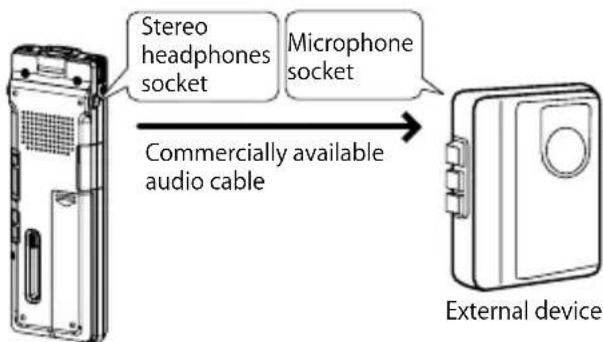
Audio cable
| On the external device | Audio cable |
| Microphone input | Mini-plug:3.5 φ with resistance |
| Audio line input | Mini-plug:3.5 φ with no resistance |
- Use a stereo audio cable.
- Before the actual dubbing, first test the recording operation so that you can adjust the volume on the unit.
- You can also record on the unit using a tape recorder or CD/MD player as the sound source.
page 44
Q: When I move a file from my PC back to the unit, it can no longer be played.
A: On your PC, have you changed the name of the file? If you have, even when this file is returned to its original folder (MIC_A to MIC_D or LINE folder), it can no longer be played. In this case, you can move the file to the MUSIC (M) folder and then play the file from there.
Cleaning
Use a soft cloth to wipe or polish the unit.
- Do not use benzene, alcohol, or thinner, because they will damage or discolor the finish of the surfaces. Also, do not apply any pesticide to the unit.
■ About rising temperature of the unit
If you use the unit for a long time, its temperature may rise. This is not malfunction.
Main specifications
Supported OS : Windows Vista/XP/2000
Internal memory : 2GB
Supported media
Recording mode and possible recording time
Internal memory 2GB
(microSD card/microSDHC card)
: microSD card, microSDHC card
| PCM44.1kHz Approx. 3 hours | |
| MP3 320kbps | Approx. 13 hours 30 minutes |
| MP3 192kbps | Approx. 22 hours 30 minutes |
| MP3 128kbps Approx. 34 hours | |
| MP3 64kbps Approx. 68 hours | |
| MP3 32kbps Approx. 136 hours | |
| Recording mode | Size of microSD card | ||||
| 512MB 1G | B 2GB 4GB 8 | GB | |||
| PCM44.1kHz | Approx. 45 minutes | Approx. 1 hour 20 minutes | Approx. 3 hours | Approx. 6 hours | Approx. 12 hours |
| MP3 320kbps | Approx. 3 hours 30 minutes | Approx. 7 hours | Approx. 13 hours 30 minutes | Approx. 27 hours | Approx. 54 hours |
| MP3 192kbps | Approx. 5 hours 50 minutes | Approx. 11 hours | Approx. 22 hours 30 minutes | Approx. 45 hours | Approx. 90 hours |
| MP3 128kbps | Approx. 8 hours 50 minutes | Approx. 16 hours 30 minutes | Approx. 34 hours | Approx. 68 hours | Approx. 136 hours |
| MP3 64kbps | Approx. 17 hours 40 minutes | Approx. 33 hours | Approx. 68 hours | Approx. 136 hours 30 minutes | Approx. 272 hours |
| MP3 32kbps | Approx. 35 hours 30 minutes | Approx. 66 hours | Approx. 136 hours | Approx. 273 hours | Approx. 544 hours |
The above values apply when an SD memory card from Toshiba is used.
- The indicated recording time is only an approximate figure and may be different depending on the microSD card manufacturer or specification.
- If there are multiple recorded files, their total recording time will be shorter than the figures.
- The possible recording time is the total time that can be achieved from the moment the unit starts recording to the moment it ends, assuming the unit is in its default state (shipped from factory with no recording data on the unit) and the recording mode is not changed during the operation. This covers all the folders.
* The maximum recording length of one file (continuous recording) is 2GB. However, continuous recording cannot exceed the battery duration.
| Recording frequency(During external microphone recording) | : 40 to 21,000Hz (for PCM 44.1kHz 16bit)40 to 20,000Hz (for MP3 320kbps)40 to 20,000Hz (for MP3 192kbps)40 to 15,000Hz (for MP3 128kbps)40 to 7,500Hz (for MP3 64kbps)40 to 6,500Hz (for MP3 32kbps) | |
| (During built-in microphone recording) | : 60 to 20,000Hz (for PCM recording)* The frequency upper limit of MP3 recording follows each recording mode of external microphone recording. Also, the lower limit for each recording mode is 60 Hz. | |
| Format : MP3, PCM (WAV) | ||
| Playback format | : MP3 (MPEG1 LAYER3, MPEG2 LAYER3, MPEG2.5 LAYER3), WMA, PCM (only files recoded on the unit) | |
| Playback frequency | : 20 to 21,000Hz (for 44.1kHz sampling frequency) | |
| Sampling frequency | : 16 to 44.1 kHz | |
| Playback bitrate | : 16 to 320 kbps (MP3)32 to 192 kbps (WMA)* Depending on the file, normal playback may not be possible. | |
| Input/output sockets | : USB, stereo headphones mini-plug 3.5 φ, stereo microphone (doubling as line input) mini-plug 3.5 φ, microSD card slot | |
| Operating temperature | : +5°C to +35°C | |
| Rated output (headphones) | : 10mW + 10mW (when 16Ω load, JEITA/DC) | |
| Power source : AAA alkaline battery × 1 | ||
| Battery duration(Recording time) | : [MP3] 64 kbps Stereo mode [PCM] 44.1 kHz 16bit | Approx. 26 hours (alkaline battery) Approx. 19 hours (eneloop battery) Approx. 10 hours (alkaline battery) Approx. 9 hours (eneloop battery) |
| (Playback time/speaker) | : [MP3] 64 kbps | Approx. 18 hours (alkaline battery) |
| Stereo mode | Approx. 14 hours (eneloop battery) | |
| [PCM] 44.1 kHz 16bit | Approx. 8 hours (alkaline battery) | |
| Approx. 8 hours (eneloop battery) | ||
| (Playback environment: Speaker playback, backlight off, SOUND EQ = FLAT) | ||
| * The battery duration may change, depending on the battery type, manufacturer, storage state, usage condition, and ambient temperature. Therefore, the time indications above are approximate figures only and they are not guaranteed. Operation not using alkaline battery or SANYO battery (eneloop battery) is not guaranteed. | ||
| Maximum dimensions | : Approx. 35.4(W) × 103.0(H) × 13.9(D) mm | |
| Weight | : Approx. 53 g (including alkaline battery) | |
| Accessories : Stereo Earphones | (1) | |
| USB extension cable | (1) | |
| AAA alkaline battery | (1) | |
| This manual | (1) | |
| Specifications subject to change without notice | ||
Index
A
A-B repeat ....52
ALC
(Auto Level Control).....89
AUTO DIVIDE .....92
Auto Level Control .....89
Auto power off function 107
B
Backlight setting ..... 107
Basic screen ......12
Battery indicator .....23
Battery setting 106
BEEP sound ...... 105
C
Calendar settings .....28
Change playback speed 51
CLEAR VOICE .....99
Common settings ..... 105
Contrast 108
D
Display 30
Divide file ....59
E
Editing 56
eneloop 21, 106
Erase 71
Erase all files....77
Erase file 75
Erase folder .....77
Error message ...... 122
External devices .....44
F
Fast forward .....49
File 14
File naming rule .....14
Folder 14
Folder layout ...... 14, 15
Folder selection screen 17
Format 79
H
Headphones socket .....10
Hold function......24
|
Indexmark....56
Initialize (internal memory/
microSD card) .....79
Initialize (menu) ..... 111
Initialize (recording scene) 104
L
LCD display ....11
Line-in recording .....44
Switch....32
List screen 18
Low Cut filter....91
M
Menu 81
MIC ALC 89
MIC MODE 90
Microphone recording ...35
Switch 32
Microphone sensitivity ...88
microSD card ..... 25, 26
microSDHC card .....26
Monitor 36
Monitor recording .....36
MUSIC 15, 55
MYLIST 62
P
Passcode 108
PC 113
Connect to PC ..... 116
Save audio 115
PEAK LIMITER .....91
Phrase playback ... 53, 97
Playback lock 108
Playback setting .....96
Playback speed .....51
Playlist 62
Possible recording time .... 31, 133
R
Recording ....31
Recording date & time ...30
Recording EQ ....40
Recording LED .....10,106
Recording level ..... 36, 89
Recording mode .....87
Recording scene 33, 101
Recording settings .....87
RECYCLE 16,71
Recycle bin function 71, 110
Remaining recording time 30
Repeat mode .....96
Repeat setting .....96
Resume function .....23
Rewind 49
Z
ZOOM 90
S
Scene select ..... 33, 101
Security off 109
Security setting...... 108
Self timer 92
Skip....49
SOUND EQ 99
STEREO 90
Stereo Earphones ..... 9
STEREO WIDE......90
T
Time search ....54
Time skip 50, 98
TIMER 66
Troubleshooting ..... 120
U
USBterminal.....13,116
V
VAS....94
Version 112
W
Windows Media Player 113
CD ripping 115
Create CD-R ..... 115
Synchronize music 115

SANYO Electric Co., Ltd.