
GUW2015VKIT - Audio/video converter IOGEAR - Free user manual and instructions
Find the device manual for free GUW2015VKIT IOGEAR in PDF.


| Product Type | Wireless HDMI Extender Kit |
| Brand | IOGEAR |
| Model | GUW2015VKIT |
| Category | Audio/Video Converter |
| Connectivity | Wireless (5 GHz) and Wired HDMI |
| Video Resolution | Up to 1080p Full HD |
| Transmission Range | Up to 100 feet (30 meters) line-of-sight |
| Input Interface | HDMI (on transmitter) |
| Output Interface | HDMI (on receiver) |
| Power Supply | 5V DC via included USB power adapters |
| Dimensions (Transmitter) | Approximately 3.5 x 2.5 x 1 inches |
| Dimensions (Receiver) | Approximately 3.5 x 2.5 x 1 inches |
| Weight (Each) | Approximately 0.5 lbs (225 g) |
| Color | Black |
| Operating Temperature | 32°F to 104°F (0°C to 40°C) |
| Storage Temperature | -4°F to 140°F (-20°C to 60°C) |
| Package Contents | Transmitter, Receiver, 2 x HDMI cables, 2 x Power adapters, Quick Start Guide |
| Warranty | 1 year limited warranty |
| Maintenance | Wipe with dry cloth; avoid liquids and solvents |
| Safety | Use only provided power adapters; keep away from water and heat sources |
| Repairability | Not user-serviceable; contact IOGEAR support for issues |
Frequently Asked Questions - GUW2015VKIT IOGEAR
User questions about GUW2015VKIT IOGEAR
0 question about this device. Answer the ones you know or ask your own.
Ask a new question about this device
Download the instructions for your Audio/video converter in PDF format for free! Find your manual GUW2015VKIT - IOGEAR and take your electronic device back in hand. On this page are published all the documents necessary for the use of your device. GUW2015VKIT by IOGEAR.
USER MANUAL GUW2015VKIT IOGEAR
Wireless USB to VGA Kit
GUW2015VKIT
PART NO. M1062

natural_image
Solid gray rectangular image with no visible content, text, or symbols.Table of Contents
System Requirements 4
Important Information 5
Package Contents 6
Device Overview 7
Wireless USB Host Adapter 7
Wireless VGA Adapter 8
Wireless VGA Software Installation 10
Wireless VGA Display Settings 19
Wireless USB Manager 24
Wireless USB Host Adapter Settings 26
Wireless USB Host Adapter Selection 28
Wireless USB Host Adapter Reset 29
Wireless VGA Adapter in wired mode 30
Frequently Asked Questions 31
Technical Specifications 34
Limited Warranty 36
Federal Communications Commission 37 (FCC) Statement
Contact 38
Appendix 39
Compatibility with GUWH104KIT 39
Cable Association 40
System Requirements
- Microsoft Windows® XP 32-bit (Service Pack 2)
- Microsoft Windows® Vista® 32/64-bit
- USB 2.0 Compliant hardware and system
- Display with VGA port (VGA cable not included)
Important Information
Before you get started, please NOTE:
Do not place Wireless USB devices under direct sunlight or near high heat emitting devices;
Do not place Wireless USB devices near water or wet surfaces to avoid electric hazards;
Do not place Wireless USB devices on any moving or unstable surfaces.
Package Contents
1 x Wireless USB Host Adapter (for PC)
1 x Wireless VGA Adapter (for Monitor/TV/Projector)
1 x USB 2.0 A to mini-B Cable (3 ft.)
1 x USB 2.0 Extension Cable (5 ft.)
1 x Velcro fabric hook-and-loop fastener
1 x Power Adapter
1 x Quick Start Guide
1 x Registration / Warranty Card
1 x Installation CD (with User Manual)
Device Overview
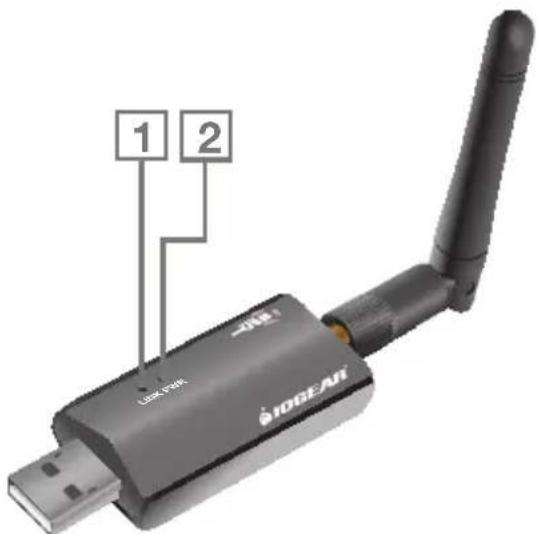
Wireless USB Host Adapter
- LINK: Data Transfer Activity Indicator
a. LED blinks when data is being transferred - PWR: Power
a. LED is solid when powered by the PC
Wireless VGA Adapter
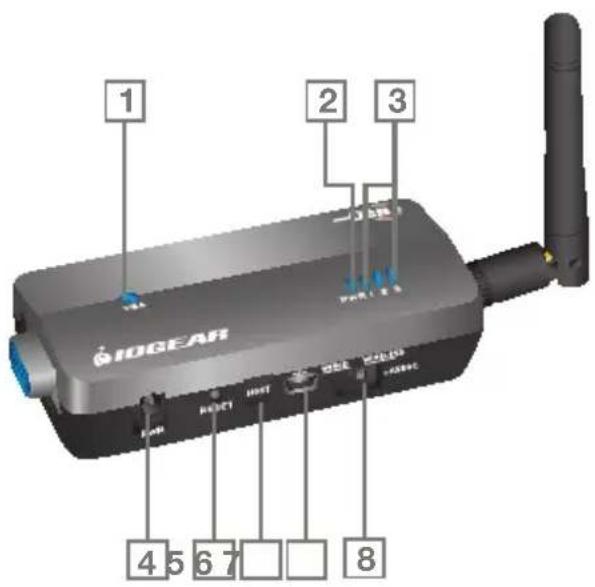
- VGA : VGA Activity Indicator
a. LED is solid when display cable is connected
b. LED is blinking when data is being transferred
- PWR: Power Indicator
a. LED is solid when power is applied
- 1 - 2 - 3: Status Indicator
a. Single* solid light: device is wirelessly connected to the selected Wireless USB Host Adapter Single* slowly blinking light: device is searching for b. a Wireless USB Host Adapter Single* quickly blinking light: device is trying to con-c. nect to a Wireless USB Host Adapter Rapidly scrolling lights: device is used in wired d. mode. Three Simultaneous Blinking Lights: Cable As-e. sociation Mode
*Only one light at a time. The position of the light indicates which Wireless USB Host Adapter the device is trying to communicate with.
- PWR plug
a. Power adapter socket
- RESET
a. Association history can be erased by pressing and holding this button for 10 seconds
- HOST
a. This button is used to select a different Wireless USB Host Adapter
- USB connector
a. In wireless mode, this connector is used for cable association
b. In wired mode, this connector is used for wired operation
- WIRELESS/WIRED switch
a. Choose from wired or wireless mode by using this switch
Wireless VGA Software Installation
IMPORTANT NOTE:
If installing on Windows XP, Service Pack 2 (SP2) is required, verify that this has been installed before installing the Wireless VGA kit software.
Before installing the software, please make sure that the Wireless USB Host Adapter and Wireless VGA Adapter are not connected to the computer, and the Wireless VGA Adapter is not powered.
Step 1 – Insert installation CD into drive on your computer.
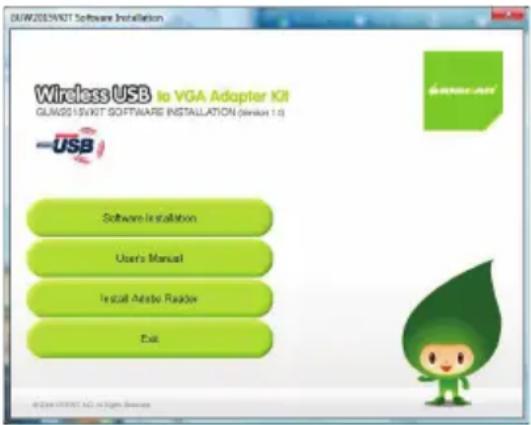
Step 2 - Select "Software Installation" from the menu.
Step 3 – Choose installation method.
The next screen will let you choose whether you want to install the latest software from the IOGEAR website or if you want to install the software directly from the installation CD.
If selecting Option 2: Download latest software installer from the Web, a web browser window will launch directing you to the IOGEAR website where you will find the most up-to-date software. Once you download the software, double-click on the .exe file to begin the installation process.
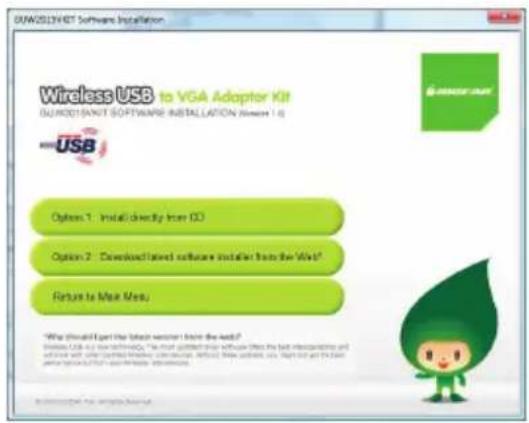
If selecting Option 1: Install directly from CD, the installation will start automatically.
Step 4 -If you previously installed the GUWH104KIT software, then you will be prompted to remove the software from your computer. For more information, please see Appendix.
Step 5 – For Windows XP users, if you do not have Microsoft .NET Framework 2.0 installed, you will be prompted to have it installed.
Click "Yes" to install .NET 2.0 Framework. 1.
Check "License Agreement" and click "Install". 2.
Click "Finish" to complete installing .NET Framework 2.0.3.
Restart the computer when prompted.4.
Eject your CD and go to Step 1.5.
Step 6 - Wireless VGA kit software installation procedures.
Make sure the Wireless USB Host Adapter is NOT connected to PC, and the Wireless VGA Adapter 1. is NOT powered or connected to any device.
- Follow the on-screen instructions. Important: reboot if prompted.
Step 7 - Driver Installation for Wireless USB Host Adapter.
Make sure the antenna is connected to the Wireless USB Host Adapter. A.
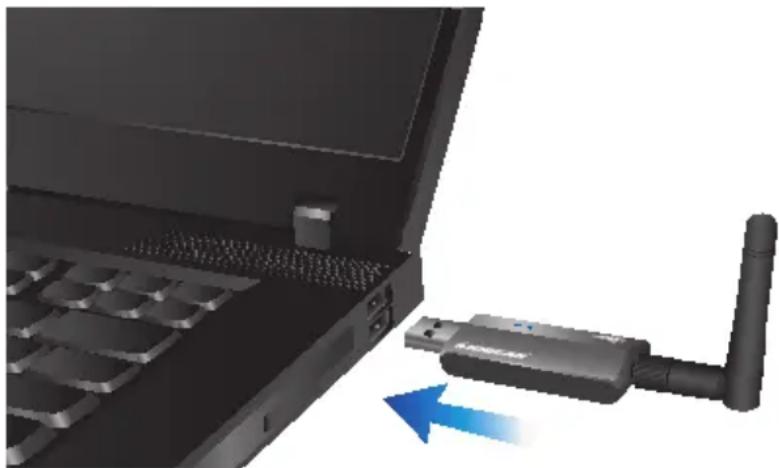
Plug the Wireless USB Host Adapter to your computer via option 1 or 2. Windows will detect the B. device and complete the driver installation process automatically.
Option 1:
Plug the Wireless USB Host Adapter into any available USB 2.0 port on your computer.
natural_image
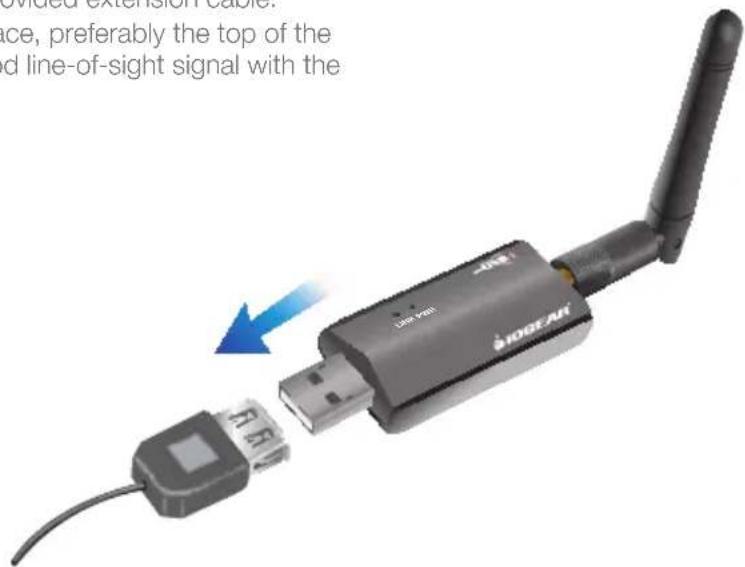
Laptop with keyboard and wireless router connected to a USB flash drive (no text or symbols visible)Option 2:
If using with a Desktop PC, plug the Wireless USB Host Adapter into an available USB 2.0 port utilizing the provided extension cable. Place the extension cable on a fl at surface, preferably the top of the desk/work area in order to ensure a good line-of-sight signal with the Wireless VGA Adapter.
Step 8 - Driver Installation for Wireless VGA adapter
Make sure the antenna is connected to the A. Wireless VGA adapter.
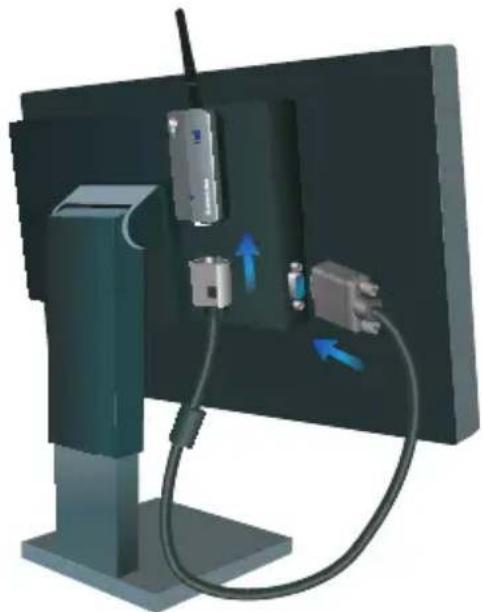
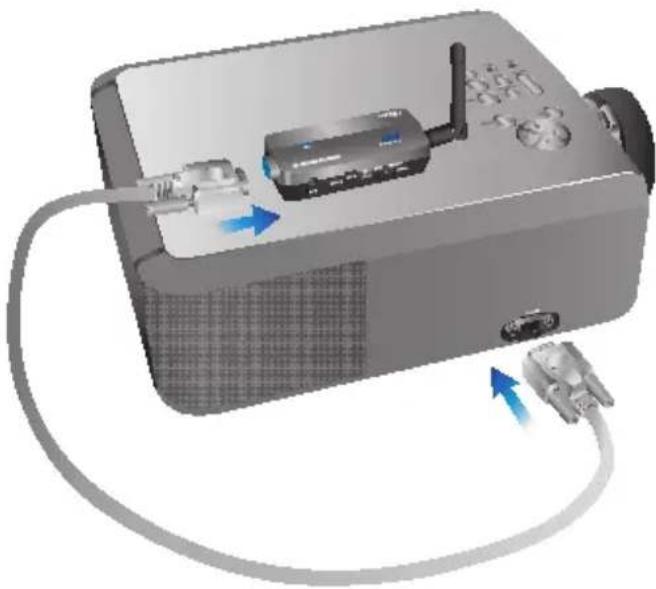
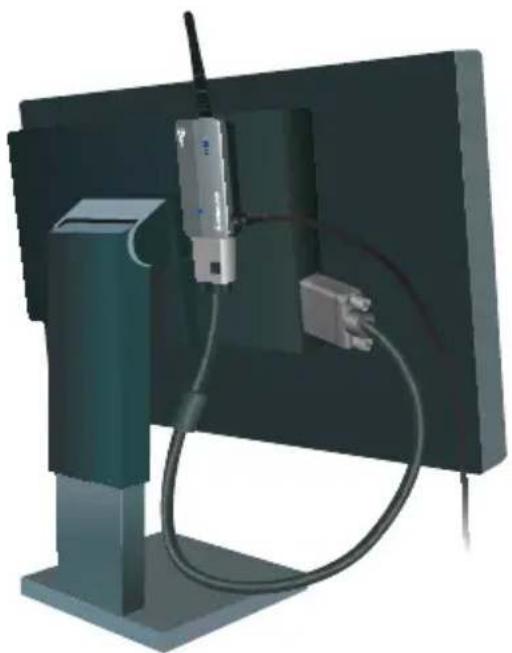
Connect one end of the VGA cable (not in-B. cluded) to the Wireless VGA Adapter, and the other end to your display's blue VGA port.
For LCD Monitor / Flat-Panel TV•
natural_image
3D rendering of a computer monitor with attached cables and ports, showing no visible text or symbolsFor Projector•
natural_image
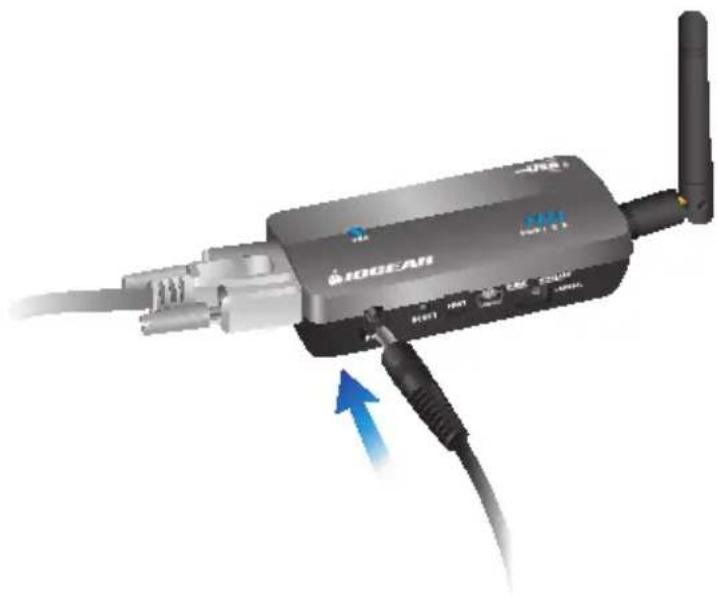
3D illustration of a projector with cable and connectors, showing internal components and blue directional arrows (no text or symbols)Plug the power cable into the Wireless VGA adapter. Make sure the Power Indicator LED is solid.C.
natural_image
Close-up of a HOGean wireless device with USB port and external antennas (no visible text or symbols)Windows will automatically install the appropriate Wireless VGA Adapter drivers.
Change your display's setting to select VGA as your input device. Please refer to the operating instructions supplied with your display.
You may use the included Velcro® fabric hook-and-loop fastener to attach the Wireless VGA adapter to your projector or LCD display in order to ensure a good line-of-sight signal with the Wireless USB Host adapter.
Congratulations, your Wireless VGA Kit is ready for use.
natural_image
3D rendering of a computer monitor with attached electronic device and cable (no visible text or symbols)Wireless VGA Display Settings
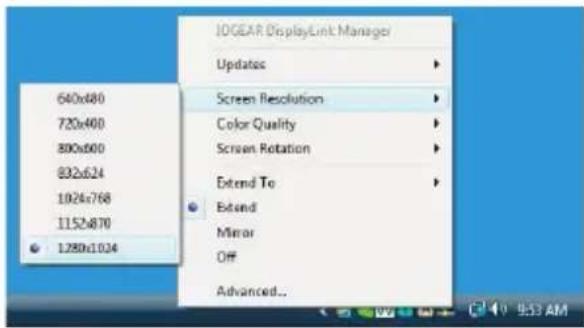
To change the display settings, right click on the Monitor icon in the Windows system tray. A menu will appear and you will have the ability to change parameters such as resolution, color quality,

mirror mode or extension mode and more.
Video Mode Configuration
By default, your installation will be set with the best resolution for your computer and will extend your screen to the right. You may change the screen mode and the operation mode.
Note: If no output is seen on the monitor connected to the Wireless VGA Adapter, it may be in a mode which cannot be displayed by the monitor. This can happen if the monitor does not have its supported modes to the Wireless VGA Adapter. Reduce the resolution of the primary display until an image is shown.
There are two options to adjust the Resolution, Color Quality, Screen Rotation, and Extended or Mirror Mode. One is to click on the IOGEAR DisplayLink Manager icon in the Windows tray
as shown above, another is to go to Control Panel, double click on "Display", then choose "Settings" tab.
Mirror Mode
Mirror mode duplicates the primary display to the monitor connected to the Wireless VGA Adapter.
The resolution, color depth and refresh rate of the primary screen will be replicated to the monitor connected to the Wireless VGA Adapter. If the monitor connected to the Wireless VGA Adapter supports a lower resolution than the primary display, then a part of the screen is shown on the mirrored display. As the mouse is moved around the screen, the Wireless VGA Adapter display will scroll to the current area.
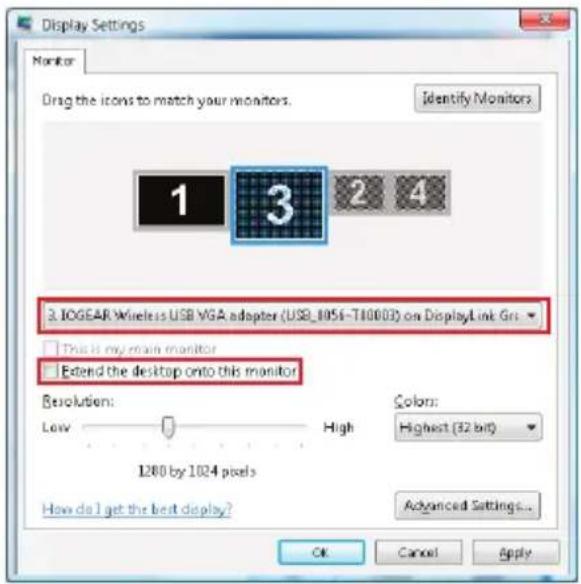
To set up the Wireless VGA Adapter to mirror the primary display:
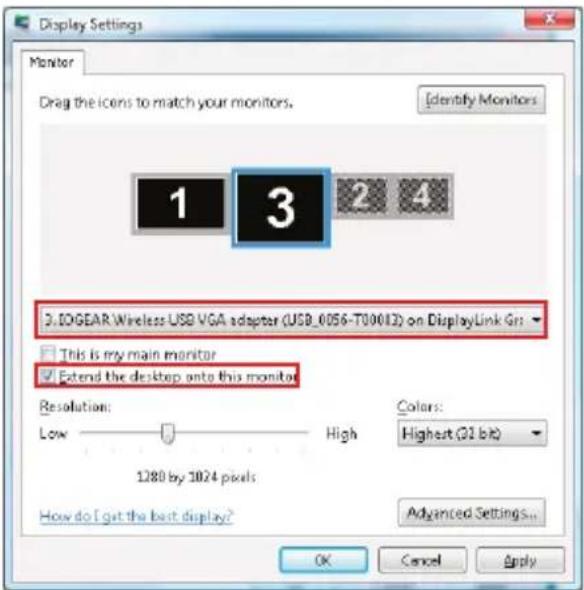
Go to the "Settings" tab of the Display 1. Properties page Click on the Monitor connected to the 2. "IOGEAR Wireless USB VGA adapter" Ensure that "Extend my Windows desktop 3. onto this monitor" is Unchecked Click "Apply"4.
Extended Mode
Extended mode extends the desktop across multiple monitors.
To set up extended mode:
Go to the "Settings" tab of the Display 1.
Properties page
Click on the Monitor connected to the 2.
"IOGEAR Wireless USB VGA adapter"
Ensure that "Extend my Windows desktop 3. onto this monitor" is checked
Click "Apply"4.
The orientation of the screens can also be adjusted by dragging the location of the blue screens to match the actual physical layout.
Screen Refresh Rate Configuration
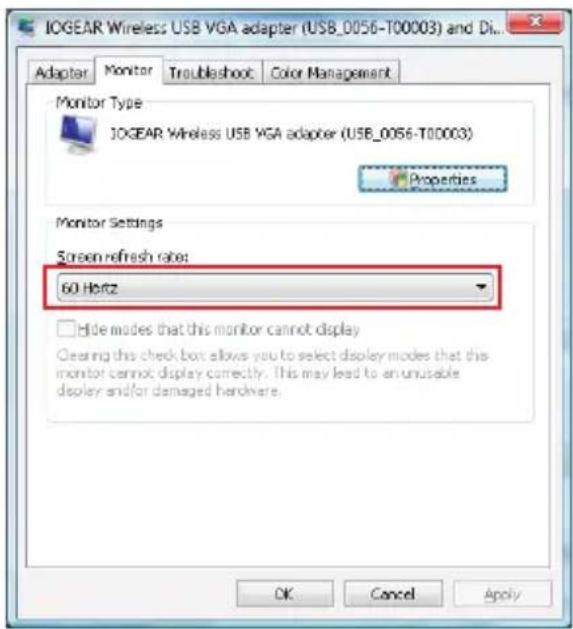
To adjust the refresh rate of the extended screen, click on "Advanced" and then the "Monitor" tab.
Wireless USB Manager
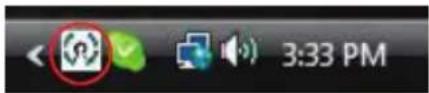
The Wireless USB Manager is a simple and easy-to-use interface that allows you to manage your Wireless USB devices and control your Wireless USB Host Adapter settings. The Wireless USB Manager can be accessed via the Wireless USB Manager icon located in the Windows system tray.
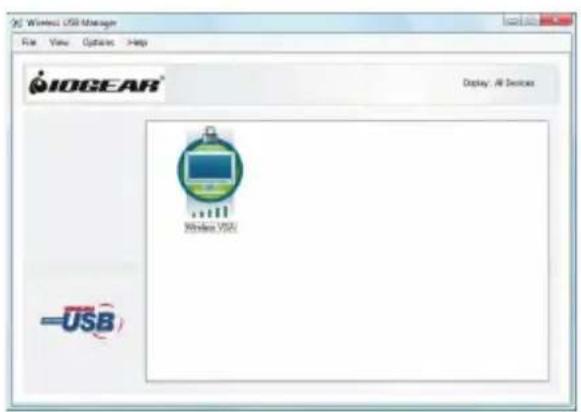
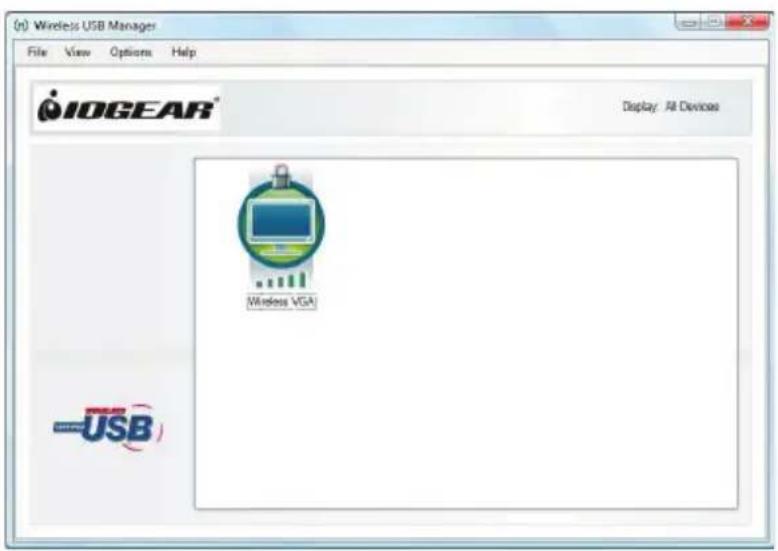
To launch the Wireless USB Manager, double click on the Wireless USB Manager icon. On the main pane, you will find an icon representing your Wireless VGA Adapter. If your Wireless VGA Adapter is not connected, the icon will be grayed out.
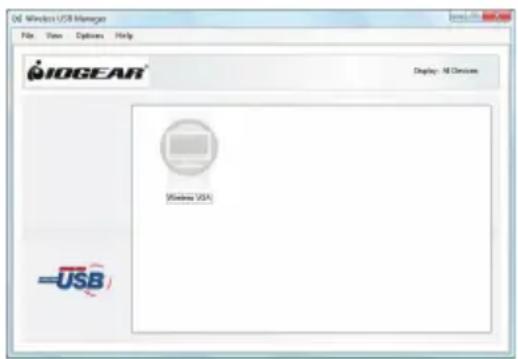
If your Wireless VGA Adapter is connected and working, then the icon will change and show the current signal strength.
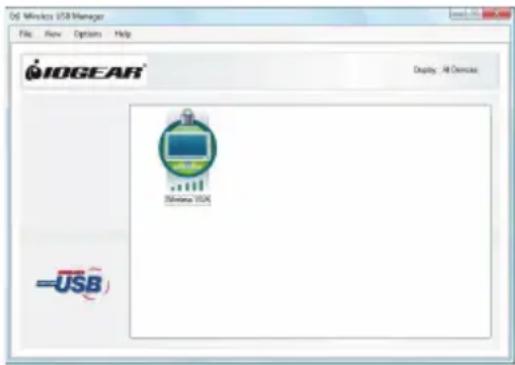
The View menu will give the option of what type of devices you wish to display (All Devices, Connected Devices and Disconnected Devices).
The Options menu will give the option to launch Host Settings window and turn the Wireless USB Host Adapter radio on or off.
The Help menu offers quick help on how to connect devices to your Wireless USB Host Adapter.
Wireless USB Host Adapter Settings
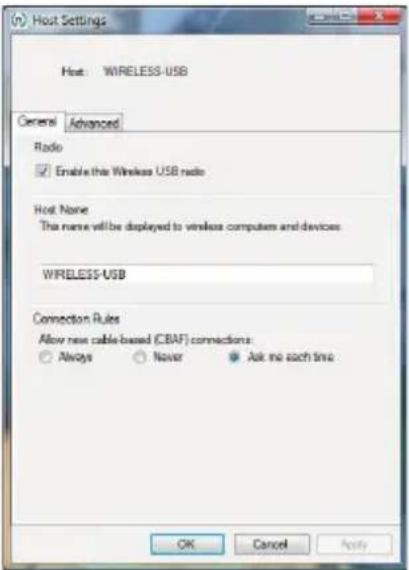
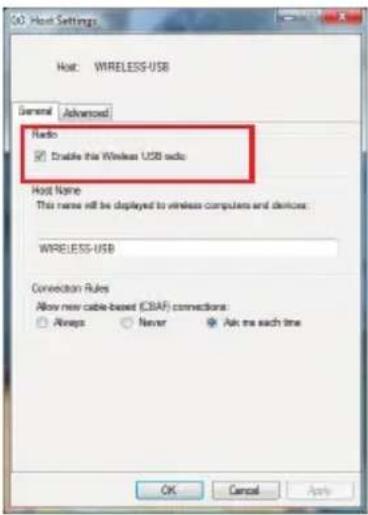
To manage the Wireless USB Host Adapter settings, either select "Host Settings" in the "Option" menu of the Wireless USB Manager application or right click on the Wireless USB Manager icon in the Windows tray.
General• Settings
Enable the Wireless USB radio: turn on or off the 1.
Wireless USB radio.
Host name: Change the name of your Wireless 2.
USB Host Adapter.
Cable association connection rules*: Always, 3.
Never or Ask me each time. By default Wireless
USB will ask you each time to do the cable
association.
*Note that the cable association function is NOT needed to run your kit. This function will be used if you purchase additional Wireless USB devices.
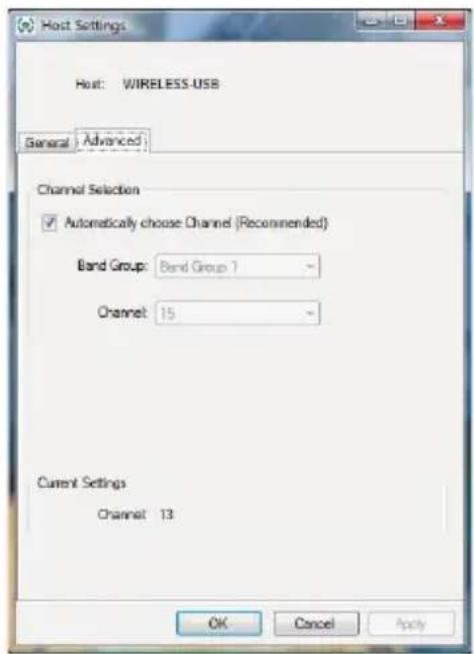
Advanced• Settings
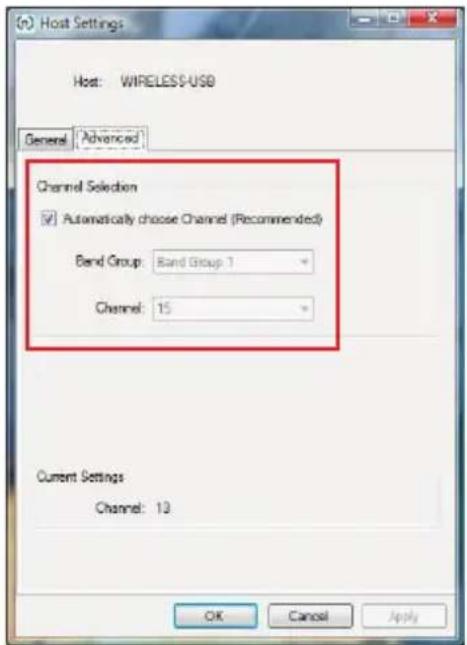
Channel selection: this function allows you to manually set a radio channel (not recommended) for the wireless communication (combination of Band Group and Channel).
For optimal performance, the automatic setting is recommended.
Wireless USB Host Adapter Selection
To use this button, you must purchase at least one additional Wireless USB Host Adapter (GUWA200). The additional Wireless USB Host Adapters not included in this kit will have to go through the association process before they can be used with the Wireless VGA Adapter. For more information about the association process, please refer to Appendix - Cable association with other devices.
The “HOST” button on the Wireless VGA Adapter is used to switch between Wireless USB Host Adapters. By pressing this button, the Wireless VGA Adapter will look for the next associated Wireless USB Host Adapter in its list and connect to it. The 1-2-3 lights will move to the next position. If multiple Wireless USB Host Adapters have been associated with the Wireless VGA Adapter, you may have to press the button multiple times before a connection is made with the desired Wireless USB Host Adapter. Up to 16 Wireless USB Host Adapters can be associated with your Wireless VGA Adapter.
Wireless USB Host Adapter Reset
To erase all Wireless USB Host Adapters (except the Wireless USB Host Adapter included in this kit) associated* to your Wireless VGA Adapter, hold down the "RESET" button on the Wireless VGA Adapter for 10 seconds. This will cause the Wireless VGA Adapter to erase all Wireless USB Host Adapters that have been associated from its list. Each Wireless USB Host Adapters will then have to be re-associated with the Wireless VGA Adapter using the cable association process in order to connect to the Wireless VGA Adapter again.
*For more information about the association, please refer to the Appendix - Cable association with other devices.
Wireless VGA Adapter in Wired Mode
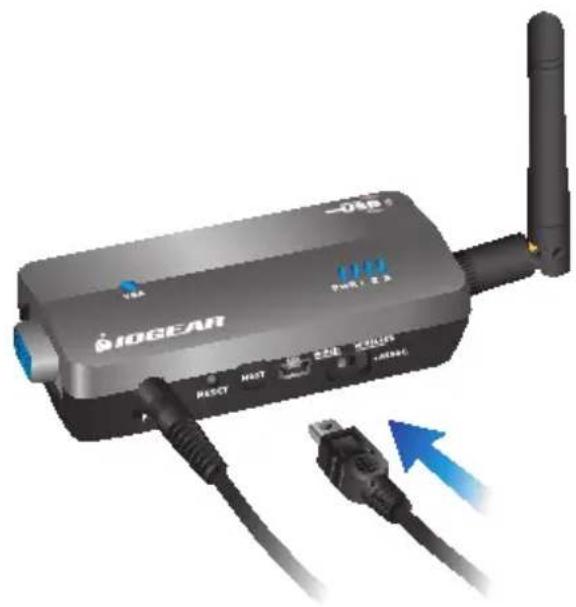
Your Wireless VGA Adapter can also be used in wired mode. Make sure the position of the WIRELESS/WIRED switch is in the WIRED position. Plug the USB cable between your computer and the Wireless VGA Adapter. The function is the same as the wireless mode but data will be transferred through the cable and does not require the use of the Wireless USB Host Adapter.
natural_image
Exterior view of a TiOGEAR wireless device with USB port and external wiring (no text or symbols on main body)Frequently Asked Questions
For the latest FAQs, please go to IOGEAR website (www.iogear.com).
Why can't I install .NET?1.
You may have an older version of .net, preventing the newer one from being installed. Using Add/Remove Programs or Programs and Features on the Control Panel, uninstall any version of Microsoft .NET Framework older than version 2.0. Then install Microsoft .NET Framework from the Wireless VGA kit installer.
My Wireless USB Host Adapter is plugged into my computer and my Wireless VGA Adapter is 2. powered but I do not see anything on my display. What's wrong?
Check the Wireless USB Manager to see if there is an icon for your Wireless VGA Adapter. If there is no icon, try unplugging and plugging in your Wireless USB Host Adapter to reload the Wireless VGA Adapter driver.
If you see an icon that is grayed out in the Wireless USB Manager, try resetting the Wireless VGA Adapter by unplugging its power cord and plugging it back in. You should see the icon in the Wireless USB Manager appear in color when it is connected.
Still not connected?
Double check that the radio for your Wireless USB
Host Adapter is on in the Wireless USB Manager.
Why is my video choppy?3.
If you are experiencing choppy video, try changing the channel or move in your computer closer to the display.
Technical Specifications
Specifications
| Function GUW2015VKIT | |
| Operating System Support Microsoft XP 32-bit; Microsoft Vista 32/64-bit | |
| PHY Data Rate 53.3Mbps, 80Mbps, 106.6Mbps, 160Mbps, 200Mbps, 320Mbps, 400Mbps, 480Mbps | |
| Operating Range Up to 30 feet (10 meters) | |
| Frequency 3.1GHz to 4.8GHz (WiMedia Band Group 1) | |
| Number of Channels 7 channels (3 FFI + 4 TFI) | |
| RF Modulation Type QPSK/DCM | |
| Interface VGA | |
| Video Resolution Up to UXGA (1600x1200) or WSXGA+ (1680x1050) | |
| Video Streaming Up to 720p (720p only available at resolution 1024x768 or lower) | |
| Screen Mode Extended and Mirror mode | |
| Color Depth 32-bit True Color | |
| USB Specification Certified Wireless USB 1.0; USB 2.0 | |
| Association Mode Pre-Association and Cable Association; Stores up to 16 Associated Hosts | |
| Native Mode For playback of high resolution video | |
| Antenna Type Omni directional | |
| Reset Switch Used for erasing association history by pressing and holding this button for 10 seconds | |
| Power Consumption Wireless USB Host Adapter: 1.2W; Wireless VGA Adapter: 3.3W | |
| Max Output Power -41.3 dBm/MHz | |
| Power Adapter 5V, 2A; 100-240VAC | |
Limited Warranty
IN NO EVENT SHALL THE DIRECT VENDOR'S LIABILITY FOR DIRECT, INDIRECT, SPECIAL, INCIDENTAL OR CONSEQUENTIAL DAMAGES RESULTING FROM THE USE OF THE PRODUCT, DISK, OR ITS DOCUMENTATION EXCEED THE PRICE PAID FOR THE PRODUCT.
The direct vendor makes no warranty or representation, expressed, implied, or statutory with respect to the contents or use of this documentation, and especially disclaims its quality, performance, merchantability, or fitness for any particular purpose.
The direct vendor also reserves the right to revise or update the device or documentation without obligation to notify any individual or entity of such revisions, or updates. For further inquiries please contact IOGEAR.
Federal Communications Commission (FCC) Statement
This device complies with part 15 of the FCC Rules. Operation is subject to the following two conditions: (1) this device may not cause harmful interference, and (2) this device must accept any interference received, including interference that may cause undesired operation. This device is authorized under 47 CFR 15.519 (the FCC Rules and Regulations). The operation of this device is subject to the following restriction: This UWB device shall transmit only when it is sending information to an associated receiver. This UWB device shall cease transmission within 10 seconds unless it receives an acknowledgement from the associated receiver that its transmission is being received. An acknowledgement of reception must continue to be received by the transmitting device at least every 10 seconds of operation or the UWB device must cease transmitting.
Contact
IOGEAR
23 Hubble
Irvine, CA 92618
P 949.453.8782
F 949.453.8785
Visit us at: www.iogear.com
© 2008 IOGEAR® Part No. M1062
IOGEAR, the IOGEAR logo, are trademarks or registered trademarks of IOGEAR, Inc. Microsoft and Windows are registered trademarks of Microsoft Corporation. All other brand and product names are trademarks or registered trademarks of their respective holders. IOGEAR makes no warranty of any kind with regards to the information presented in this document. All information furnished here is for informational purposes only and is subject to change without notice. IOGEAR, Inc. assumes no responsibility for any inaccuracies or errors that may appear in this document.
Appendix
I. Compatibility with IOGEAR GUWH104KIT
Important: To retain the functionality of both the Wireless VGA kit and the GUWH104KIT, you MUST follow these steps:
Uninstall the GUWH104KIT software by using Add/Remove Programs or Programs and Features on 1. the Control Panel. Please select and remove "Ultrasuite with WiCenter Basic". The Wireless VGA kit installer will not allow you to proceed until this software is removed.
Complete the installation of the Wireless VGA kit as shown in the Wireless VGA Software Installation 2. section.
Install the GUWH104 software "Driver Hub Only" for your Wireless USB Hub from IOGEAR 3.
website. Please make sure that you are in the correct product page.
http://www.iogear.com/support/dm/driver/GUWH104#display
Use the Wireless USB Host Adapter (GUWA200) that comes with this kit to communicate with your 4.
Wireless USB Hub.
Note: After this upgrade, the Wireless USB Host Adapter (GUWA100U) will not function with the Wireless VGA Adapter (GUW2015V) or the Wireless USB Hub (GUWH104) on the PC system where the GUW2015VKIT software has been installed. However you may use this Wireless USB Host Adapter (GUWA100U) on a different PC.
For more support information, please contact IOGEAR.
II. Cable association with other devices
Association Concept:
In order to establish a secure wireless connection, between both the Wireless USB Host Adapter and the Wireless USB devices, you will need to go through the cable association process. The association process will allow the Wireless USB Host Adapter and the Wireless USB device to exchange security information about each other necessary to operate in a secured wireless mode.
Note: Your Wireless USB to VGA Kit has been pre-associated for your convenience and the process described below has been done for you.
Association Process:
If you purchase additional Wireless USB devices, you will have to associate them with your Wireless USB Host Adapter. Refer to your Wireless USB device documentation for more information on its settings for cable association.
Cable association steps:
Make sure that the Wireless USB Manager is running. Check your Windows tray for the Wireless 1. USB Manager icon.
Power on your Wireless USB device. 2.
Connect the USB cable between an available 3. USB port on your computer and your Wireless USB device.
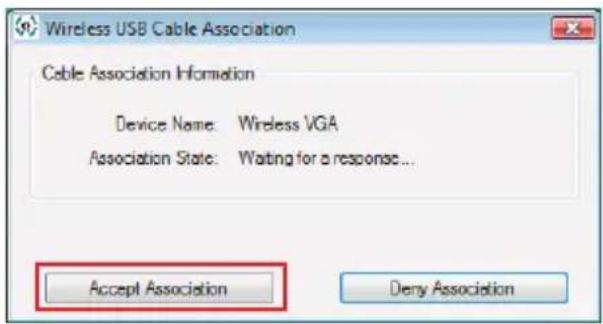
Complete cable association by pressing the 4.
"Accept Association" button when prompted. Remove the USB cable from your Wireless 5.
USB device and computer then follow instructions specific to your Wireless USB device for wireless operation.
Associated Wireless USB devices will appear as icons in the Wireless USB Manager. When the Wireless USB device is connected to your computer, the icon will appear in color.

natural_image
Cartoon character with green leaf-like head and green outfit against a solid green background (no text or symbols)About Us

FUN
IOGEAR offers connectivity solutions that are innovative, fun, and stylish, helping people enjoy daily life using our high technology products.

GREEN
IOGEAR is an environmentally conscious company that emphasizes the importance of conserving natural resources. The use of our technology solutions helps reduce electronic waste.

HEALTH
IOGEAR supports healthy and fit lifestyles. By integrating products with the latest scientific developments, IOGEAR's solutions enhance the life of end-users.
- Table of Contents
- System Requirements
- Important Information
- Package Contents
- Device Overview
- Wireless USB Host Adapter
- Wireless VGA Software Installation
- IMPORTANT NOTE:
- Step 7 - Driver Installation for Wireless USB Host Adapter.
- Option 1:
- Option 2:
- Step 8 - Driver Installation for Wireless VGA adapter
- Wireless VGA Display Settings
- Video Mode Configuration
- Mirror Mode
- Extended Mode
- Screen Refresh Rate Configuration
- Wireless USB Manager
- Wireless USB Host Adapter Settings
- General• Settings
- Advanced• Settings
- Wireless USB Host Adapter Selection
- Wireless USB Host Adapter Reset
- Wireless VGA Adapter in Wired Mode
- Frequently Asked Questions
- Technical Specifications
- Limited Warranty
- Federal Communications Commission (FCC) Statement
- Contact
- IOGEAR
- Appendix
- Compatibility with IOGEAR GUWH104KIT
- Cable association with other devices
- Note: Your Wireless USB to VGA Kit has been pre-associated for your convenience and the process described below has been done for you.
- About Us
- FUN
- GREEN
- HEALTH
Brand : IOGEAR
Model : GUW2015VKIT
Category : Audio/video converter