
ZEW2590 - Network card Zonet - Free user manual and instructions
Find the device manual for free ZEW2590 Zonet in PDF.


| Product Type | 10/100/1000 Mbps Gigabit Ethernet PCI Network Adapter |
| Interface | PCI (32-bit, 33/66 MHz) |
| Standards | IEEE 802.3, 802.3u, 802.3ab |
| Data Transfer Rate | 10/100/1000 Mbps (auto-negotiation) |
| Connector | RJ-45 (Female) |
| LED Indicators | Link/Activity, Speed (10/100/1000) |
| Dimensions (approx.) | 120 x 60 x 20 mm |
| Weight (approx.) | 40 g |
| Power Consumption | 2.5 W (from PCI bus) |
| Operating Temperature | 0°C to 50°C |
| Storage Temperature | -20°C to 70°C |
| Operating Humidity | 10% to 90% (non-condensing) |
| Chipset | Realtek RTL8111/8168 or compatible |
| Compatible Operating Systems | Windows 11/10/8/7, Linux, macOS |
| Wake-on-LAN (WoL) | Supported |
| Jumbo Frame Support | Up to 9K bytes |
| Auto MDI/MDIX | Yes |
| Maintenance | Keep dry; clean connector with isopropyl alcohol if needed |
| Safety Precautions | Disconnect power before installation; avoid static discharge |
| Spare Parts / Reparability | Non-repairable; replace unit if defective |
Frequently Asked Questions - ZEW2590 Zonet
User questions about ZEW2590 Zonet
0 question about this device. Answer the ones you know or ask your own.
Ask a new question about this device
Download the instructions for your Network card in PDF format for free! Find your manual ZEW2590 - Zonet and take your electronic device back in hand. On this page are published all the documents necessary for the use of your device. ZEW2590 by Zonet.
USER MANUAL ZEW2590 Zonet
natural_image
Black Zonet wireless router with USB port, no visible text or symbols on the device bodyCopyright Statement
Zonet is the registered trademark of Zonet Technology Inc. All the products and product names mentioned herein are the trademarks or registered trademarks of their respective holders. Copyright of the whole product as integration, including its accessories and software, belongs to Zonet Technology Inc. Without the permission of Zonet Technology Inc., any individual or party is not allowed to copy, plagiarize, imitate or translate it into other languages.
Table of Content
Chapter 1. Introduction......2
1.1 Welcome....2
1.2 Product Feature....2
1.3 Content of Package....2
1.4 Before You Begin....3
1.4 Know Your ZEW2590....3
Chapter 2. Installation......4
Chapter 3. Configuration....7
3.1 Station Mode ....7
3.1.1 Profile....8
3.1.1.1 Add/Edit Profile....8
3.1.2 Network ......10
3.1.3 Link Status....10
3.1.4 Advanced....11
3.1.5 Statistics ......11
3.1.6 WMM 12
3.1.7 WPS 13
3.1.8 SSO....14
3.1.9 CCX 14
3.2 AP Mode....15
3.2.1 Configuration....15
3.2.2 Access Control....17
3.2.3 MAC Table 18
3.2.4 Switch to Working Station Mode ....18
3.3 Use Zero Configuration....19
Chapter 4. How to connect with PSP....22
4.1 Configure PSP with Ad-Hoc mode.....22
4.2 Configure XLink Kai....24
Chapter 5. Product Specifications....25
Chapter 6. TroubleShooting....26
Chapter 1 Introduction
1.1 Welcome
ZEW2590- 802.11n High Gain USB Adapter delivers an incredible speed to your desktop/laptop PC without running wires. It complies with the IEEE 802.11n standard, making it backward compatible with 802.11b/g networks for assured compatibility. ZEW2590 adopts the advanced signal-amplification technology and is equipped with a 3.5dBi detachable antenna. Therefore wireless reception increase 6 times range of 802.11g and reduce "dead spots" in the wireless coverage area. Advanced 64/128-bit WEP, WPA/WPA2 encryption is supported to provide secure access for your data. Once you're connected, you can stay in touch with your email, access to the internet and send large files across the network at greater distances than ever before.
1.2 Product Feature
- Complies with IEEE 802.11g and IEEE 802.11b standards
- Compliant with USB 2.0 Standard
- Provides up to 150Mbps transmission rate and up to 300 meters transmission distance
● Auto-detects and changes the network transmission rate - Provides two work modes: Infrastructure and Ad-Hoc
● Supports Soft AP to establish your wireless LAN networking
● supports PS3, PSP, Wii and Nintendo DS connecting with Internet and XLink Kai to enjoy on-line gaming
● Supports 64/128-bit WEP, WPA, WPA2 encryption methods and 802.1x security authentication standard
● Supports Wireless Roaming function - WPS (Wi-Fi Protected Setup) simplify the security setup and management of Wi-Fi networks.
● Supports WMM for Multimedia Applications with Quality of Service in Wi-Fi® Networks
● Supports Windows 2000 / XP / Vista / 7, Macintosh, and Linux
1.3 Contents of Package
- One ZEW2590
- One Antenna
● One Installation CD w/User Manual
● One Quick Installation Guide
Contact your local authorized reseller or the store purchased from for any items damaged and/or missing.
1.4 Before You Begin
You must have the following:
● A laptop computer/desktop PC with an available USB 2.0 slot
● Minimum 300MHz processor and 32MB memory
● Windows 2000, XP, Vista, 7; Macintosh; Linux
● A CD-ROM Drive
- USB controller properly installed and working in the computer
- 802.11n or 802.11b/g Access Point (for infrastructure Mode) or another 802.11n or 802.11b/g wireless adapter (for Ad-Hoc; Peer-to-Peer networking mode.)
1.5 Know Your ZEW2590
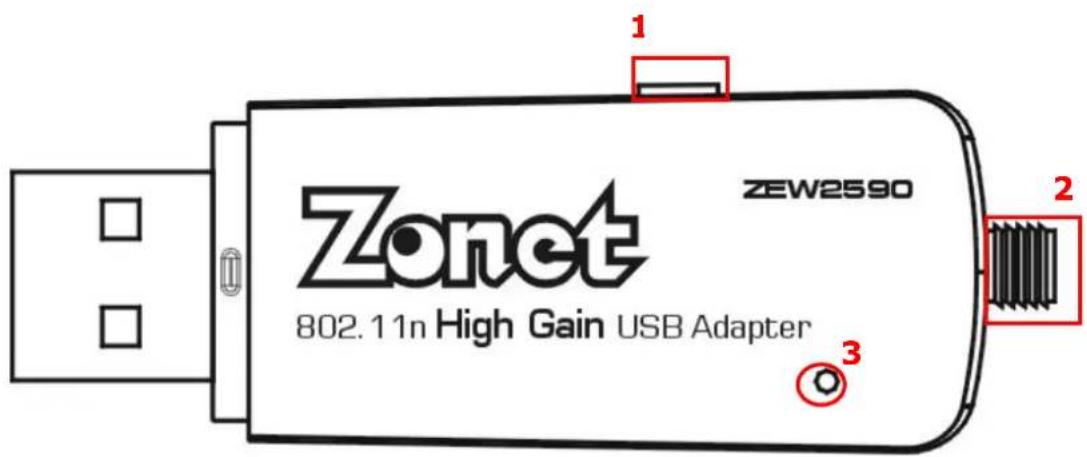
| No | Item Description | ||
| 1 | WPS Button Press this button for 1 second to start WPS function | ||
| 2 | Antenna Connector | Attach provided 3.5dBi antenna | |
| 3 | LED Indicator | ON ZEW2 | 590 is switched on and correctly powered |
| Flashing ZEW2590 is transmitting or receiving data | |||
Chapter 2 Installation
NOTE:
- For future driver upgrading, please visit our website at www.zonetusa.com
-
Snap-shot screens of the following installation procedure are based on Windows XP. Installation procedures will be similar for other windows operating systems.
-
Power on your PC, let the operating system boot up completely, and log in as needed.
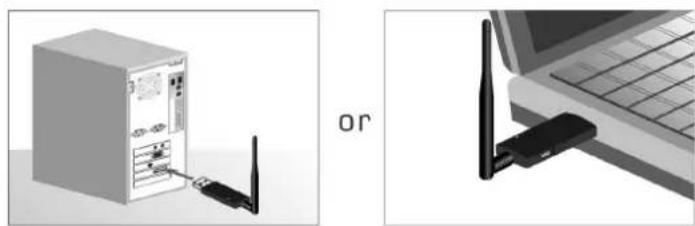
- Attach the external antenna to ZEW2590's antenna port. Then insert ZEW2590 into a USB slot of your computer
- Attach the external antenna to ZEW2590's antenna port. Then insert ZEW2590 into a USB slot of your computer
natural_image
Illustration of a network device connected to a laptop keyboard, showing wireless ports and an external network (no text or symbols present)- Select Cancel when Found New Hardware window appears.

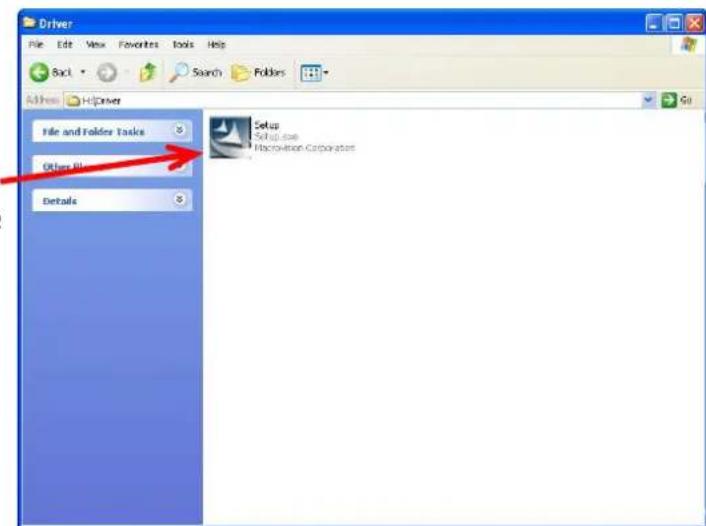
- Insert Installation CD to your CD-ROM drive. Browse CD and double-click Setup.exe in Driver folder to execute it. The wizard will run and install all necessary files to your computer automatically.
- Click Next to accept the Agreement. Or click Cancel to cancel the installation.

- Select Install driver and Ralink WLAN Utility or Install driver only then click Next.

- Select Ralink Configuration Tool or Microsoft Zero Configuration Tool then click Next.
a. It's recommended to select Ralink Configuration Tool, which provides fully access to all function of ZEW2590.
b. If you prefer to use the wireless configuration tool provided by Windows XP or Vista, please select Microsoft Zero Configuration Tool.

- Click Install to start installation. Or click Cancel to cancel the installation.

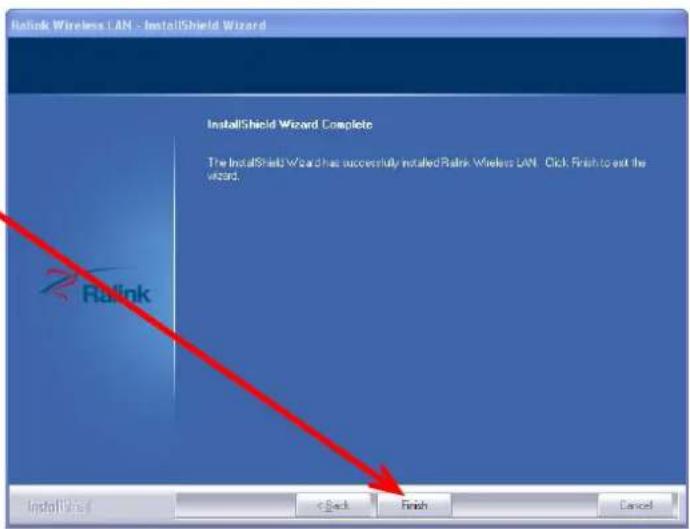
- Click Finish to complete the software installation.
You will see a tray icon 3 appear in your system tray at the bottom of the screen after the software and hardware installation completed successfully.
Chapter 3 Configuration
3.1 Station Mode
Station Mode is the default access mode for ZEW2590.
In this mode, ZEW2590 serves as a client to receive the wireless signals to access the Internet.

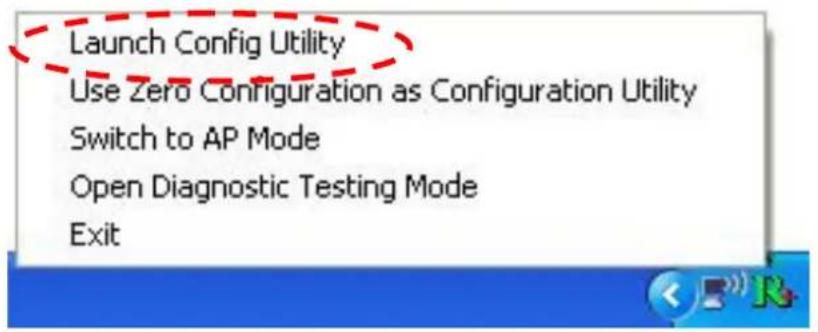
Double-click the tray icon 📄 to launch the configuration utility. Or right click the tray icon and select Launch Config Utility.
3.1.1 Profile
Profile can keep your favorite wireless setting among your home, office, and other public hotspot. You may save multiple profiles and activate the one at your preference.
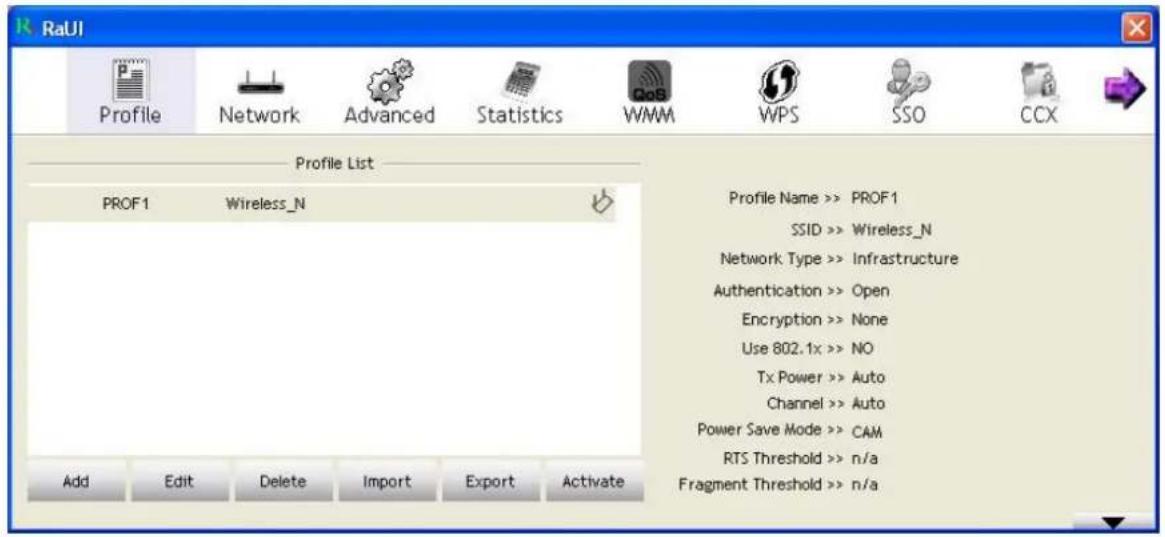
- Add: to create a new profile
- Edit: to edit/modify/change parameter of an existing profile
- Delete: to delete an existing profile
● Activate: to make an existing profile become active and to connect
3.1.1.1 Add/Edit Profile
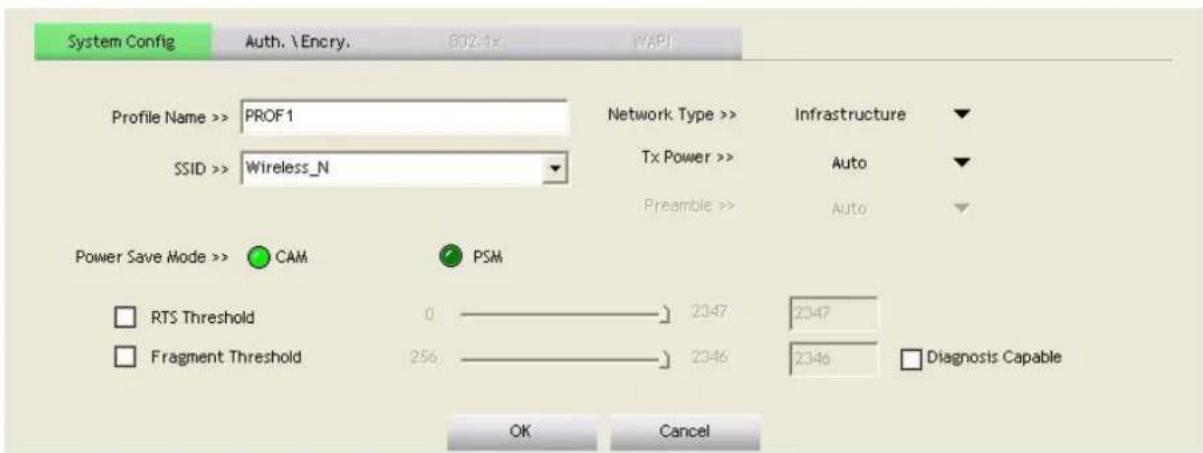
a. System Configuration
• Power Save Mode:
a. CAM (Constantly Awake Mode) – ZEW2590 will stay power-ON as long as the computer is connected to a power outlet.
b.PSM (Power Saving Mode) – ZEW2590 will hibernate when the computer is hibernating.
• Network Type:
a. Infrastructure – A wireless Router and/or Access Point is required. b. Ad-hoc – Peer-to-Peer network, no base station required.
• TX Power:
Amount of transmit power used by the radio transceiver to send out signal. User can choose different value in the drop down menu
- Preamble:
Only available under Ad-hoc mode. Value can be chose from Auto, Long, or Short
- Threshold:
Frame size when RTS/CTS handshake performs before attempt to transmit.
a. RTS Threshold: Default value = 2347
b. Fragment Threshold: Default value = 2346
b. Authentication and Encryption

- Authentication: Open, Shared, WPA(CCKM capable), WPA-PSK, WPA2(CCKM capable), WPA2-PSK, WPA-NONE, WAPI-PSK, WAPI-CERT
- Encryption: None, WEP, TKIP, AES, TKIP(MFP), AES(MFP), SMS4
c. 802.1X

3.1.2 Network
Under Network tab, you will know information of all surrounding wireless networks from the last scan.
Click Rescan to update and refresh.

3.1.3 Link Status
Link status page shows detail information about the current connection.
![Status >> Wireless_N <-> C8-3A-35-5B-5F-B0 Extra Info >> Link is Up [Tx Power >>:100%] Channel >> 6 <-> 2437 MHz; central channel : 8 Authentication >> Open Encryption >> NONE Network Type >> Infrastructure IP Address >> 192.168.0.103 Sub Mask >> 255.255.255.0 Default Gateway >> 192.168.0.1 HT BW >> 40 SNRO >> 10 GI >> long MCS >> 7 SNR1 >> n/a Link Quality >> 100% Signal Strength 1 >> 100% Transmit Link Speed >> 135.0 Mbps Max 0.192 Kbps Throughput >> 0.000 Kbps Receive Link Speed >> 1.0 Mbps Max Throughput >> 53.272 Kbps 148.436 Kbps](/content/2026/05/1067965/images/362a74c3aec5be99f49e77a857752c2919e969cd5df027c394fee1961034bd02.jpg)
3.1.4 Advanced
The Advanced tab shows Advance function of UI

- Enable Tx Burst:Ralink's proprietary frame burst mode. Suggest using with an Access Point that has the same technology.
- Enable TCP Window Size: Check this box and the configuration utility will adjust TCP window size automatically to get better performance.
- Fast Roaming at: Fast to roaming, setup by transmitting power
3.1.5 Statistics
Statistics tab displays the detail counter information based on 802.11 MIB counters. This page translates that MIB counters into a format easier for user to understand.

3.1.6 WMM

• WMM Enable: Enable Wi-Fi Multi-Media
- WMM - Power Save Enable: Enable WMM Power Save
- Direct Link Setup Enable: Enable DLS (Direct Link Setup). This function will greatly improve the data transfer rate between WMM-enabled wireless devices.
a. MAC Address: Input the MAC address of another WMM-enabled wireless device you wish to establish a direct link.
b. Timeout Value: must be between 0\~65535 in integer. If the value is zero represents it always connects. Default value of Timeout Value is 60 seconds.
c. Tear Down: If you want to remove a specific wireless device from DLS table, select the device and click this button to remove it.
3.1.7 WPS
WPS tab supports the configuration setup using PIN configuration method or PBC configuration method.
WPS(Wi-Fi Protected Setup) simplify the security setup and management of Wi-Fi networks.

● PIN: Enter the Pin code and click PIN to automatically connect ZEW2590 with wireless devices around.
- PBC: Click PBC to complete auto-check and connections between ZEW2590 and other wireless device.
- Rescan: Update information on surrounding wireless network.
● Information: Display the information about WPS IE on the selected network.
• Pin Code: 8 digit numbers.
- Renew: Click to update the Pin code.
- Config Mode: Enrollee or external Registrar.
● Detail: Information about Security and Key in the credential.
- Connect: click to connect the WPS wireless network.
- Rotate: Connect to the next network inside credentials.
- Disconnect: to disconnect the connected wireless network.
- Export Profile: Export all credentials to Profile.
- Delete: Delete an existing credential.
Note: When clicking PIN or PBC button, please don't click Rescan within two-minute. If you want to abort this setup within the interval, restart PIN/PBC or press Disconnect to stop WPS.
3.1.8 SSO
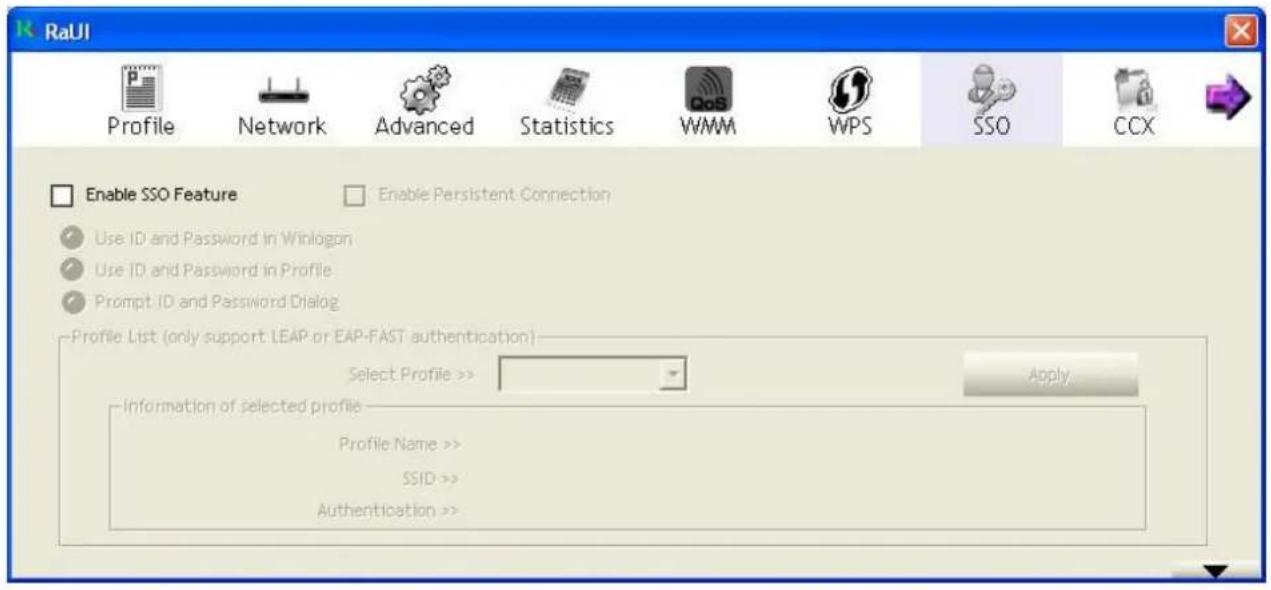
SSO (Backup Exec for Windows servers SAN Shared Storage Option) is a strong LAN-free backup solution.
3.1.9 CCX

- Enable CCX(Cisco Compatible eXtensions):
- Enable Radio Measurement: channel measures every 0\~1023 milliseconds
3.2 AP Mode
ZEW2590 also can serve as an access point to transmit wireless signals and create wireless network, allowing other wireless clients to access the network.
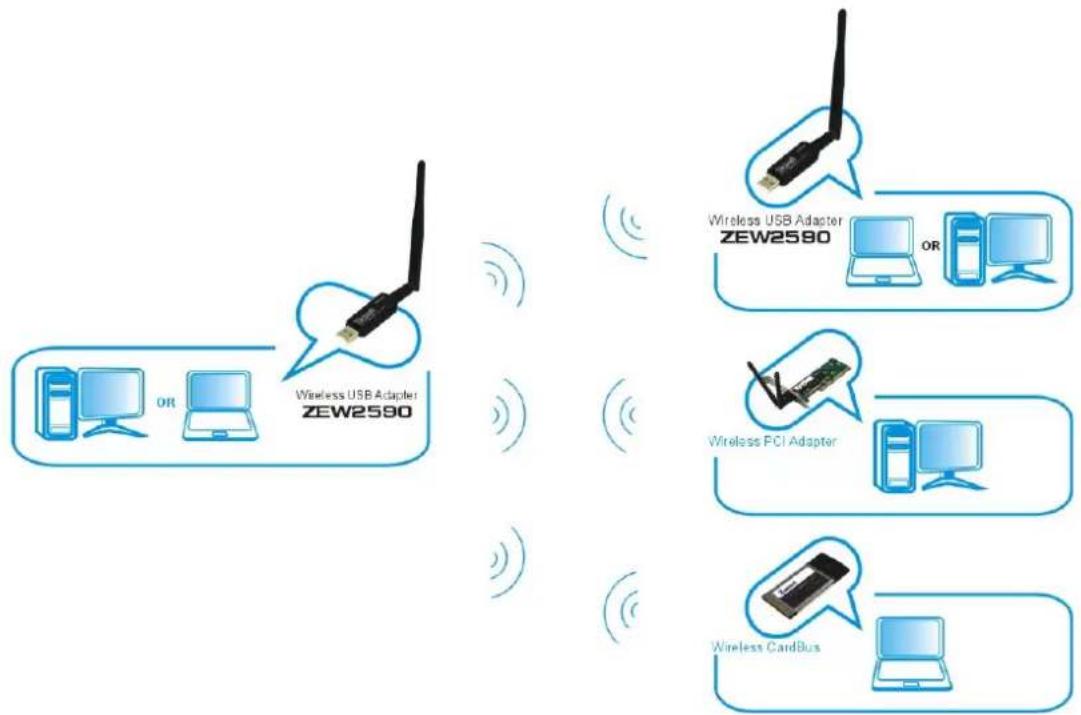
flowchart
graph TD
    A["Wireless USB Adapter ZEW2590"] --> B["Wireless USB Adapter ZEW2580"]
    A --> C["Wireless PCI Adapter"]
    A --> D["Wireless Cardbus"]
    style A fill:#f9f,stroke:#333
    style B fill:#bbf,stroke:#333
    style C fill:#bfb,stroke:#333
    style D fill:#ffb,stroke:#333
Right-click the tray icon and select Switch to AP Mode.

3.2.1 Configuration
In soft AP configuration Utility page, you can make some basic configurations, such as wireless network name, mode, channel and authentication.
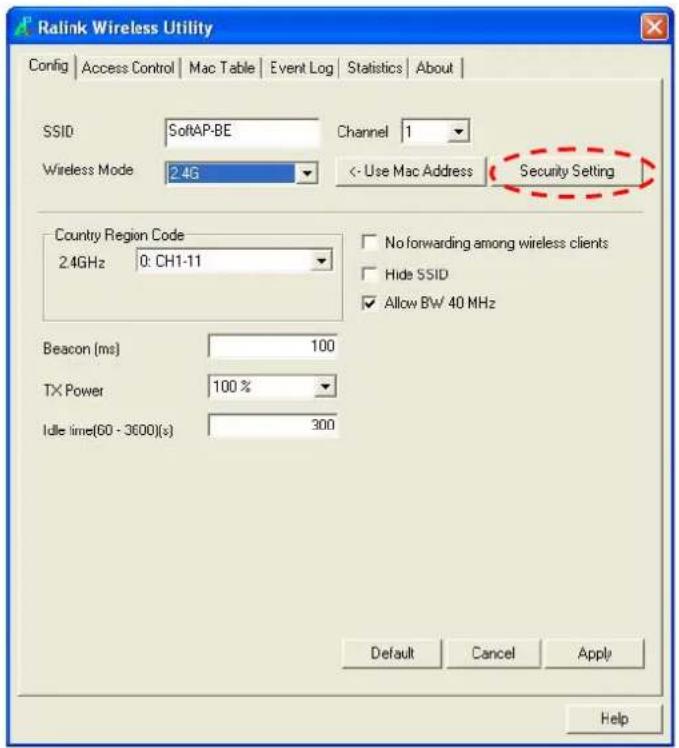
Click Security Setting button to make different security configurations of wireless communication, and you can choose the authentication type or encryption type.
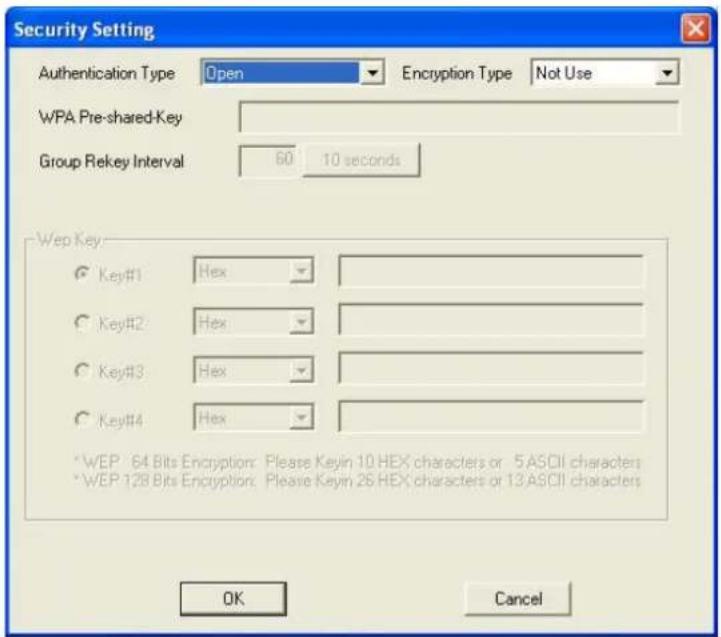
Note:
- The Hex characters include 0\~9 numbers and a\~f letters.
- ASCII characters include any numbers/letters and characters.
3.2.2 Access Control
Choose Access Control tab to start MAC control. Access control includes Allow All and Reject All. After editing the MAC address access list, only the MAC in the Allow All list could access the Soft AP.

3.2.3 MAC Table
MAC Table page shows the information of the wireless devices accessed to this soft AP.

3.2.4 Switch to Working Station mode
In the Soft AP mode, right-click the icon in the system tray and choose Switch to Station Mode, then ZEW2590 is switching to working station mode with an interface of working station.

3.3 Use Zero Configuration
Windows XP and Vista has a built-in wireless network configuration utility "Windows Zero Configuration" (WZC). It is a built in service to configure your wireless clients from Windows
- Start using WZC, right click the tray icon and select Use Zero Configuration as Configuration utility.

- The windows wireless network connection will appear. Double click the wireless network icon 📄 on the system tray to check the wireless network, choose the network and click Connect to setup the association.

-
If your wireless router has been encrypted, there will be a window appeared for input the key. Please input the key and click Connect, then the connection connect.
-
To configure the wireless connect properties, please right click the wireless icon in the system tray and choose Status to open the page Wireless Network Connection Status.
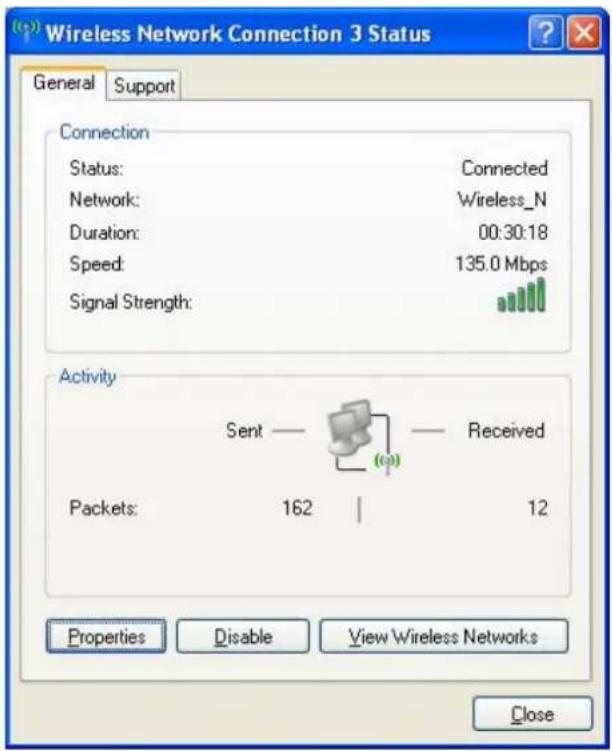
- Click Properties button in General page and choose the tab Wireless Networks to add the SSID of available network by clicking Add, if there are several available networks, linking priority could be configured by the button Move up and Move down. The icon 🔒 shows the current linked AP. Click Properties to configure authentication of wireless connection.


- Advanced page configures firewall and connection sharing.

Chapter 4 How to connect with PSP

4.1 Configure PSP with Ad-Hoc mode
- Select Network Settings on PSP

- Select Ad-Hoc mode on PSP
![Network Settings [Ad Hoc Mode] Infrastructure Mode Settings for direct communication between PSIP® systems without using an access point: X Back O Enter](/content/2026/05/1067965/images/82cc501d57a13ddcb51323110d548e09b380a48f97248bb06d33cb21350a293c.jpg)
- Select Channel on PSP

- Select Start → Control Panel → double-click System icon → select Hardware tab → click Device Manager button → select ZEW2590 (802.11n USB Wireless LAN Card) list in Network adapters

- Double-click 802.11n USB Wireless LAN Card to configure properties → select Advanced tab → select PSP XLink Mode list in Property and choose Enable from Value drop-down menu.

4.2 Configure XLink Kai
XLink Kai is a global gaming network - bringing together XBox, Playstation, Gamecube and PSP users, in one integrated community. It is software running on your PC or Macintosh that allows you to play system-link enabled games online for free.
Select Start All programs XLink Kai Evolution VII Start Kai Config to configure the user name, password and other parameters.

Login XLink Kai: Select Start → All programs → XLink Kai Evolution VII → Start Kai. PSP will connect with XLink Kai automatically. The following window will indicate the connection is established well now.

Chapter 5 Product Specifications
| Chipset Ralink RT3070 | ||
| Standards IEEE 802.11n, | IEEE 802.11g, IEEE 802.11b | |
| Interface USB2.0 | ||
| OS | Windows 2000/ XP/ Vista/ 7; Macintosh; Linux | |
| User interface | Easy to use user configuration software | |
| Transmit distance | Indoor up to 100M, Outdoor up to 300M | |
| Antenna type One detachable antenna | ||
| Antenna Gain 1x 3.5 | dBi | |
| Media Access Protocol | WMM | |
| Data security | WPA/WPA2; 64/128-bit WEP; TKIP/AES | |
| Frequency Range 2.412GHz~2.484GHz | ||
| Transmission Power 19dbm | ||
| Sensitivity | 11n | -68dBm@10% PER |
| 11g | -70dBm@10% PER | |
| 11b | -87dBm@8% PER | |
| Channels | 11 Channels (USA, Canada)13 Channels (Europe)14 Channels (Japan) | |
| Operating Temperature 0°C ~ 40°C | ||
| Storage Temperature -40°C~70°C | ||
| Operating Humidity 10%~90% RH Non-condensing | ||
| Storage Humidity 5% ~ 90% RH Non-condensing | ||
| speed | 11b | 11 Mbps/5.5 Mbps/2 Mbps/1 Mbps |
| 11g | 54 Mbps/48 Mbps/36 Mbps /24 Mbps/18 Mbps/12 Mbps/9 Mbps/6 Mbps | |
| 11n | 40MHz:130Mbps/117Mbps/104Mbp/78Mbp/52Mbp/39Mbp/26Mbp/13Mbp20MHz:65Mbp/58.5Mbp/52Mbp/39Mbp/26Mbp/19.5Mbp/13Mbp/6.5Mbp | |
Chapter 6. TroubleShooting
This chapter provides solutions to problems that may occur during the installation and operation of ZEW2590. Read the descriptions below to solve your problems.
1. The ZEW2590 does not work properly.
Reinsert ZEW2590 into your PC's USB slot.
Right click on My Computer and select Properties. Select the device manager and click on the Network Adapter. You will find ZEW2590 if it is installed successfully. If you see the yellow exclamation mark, the resources are conflicting. You will see the status of ZEW2590. If there is a yellow question mark, please check the following:
Make sure that your PC has a free IRQ (Interrupt ReQuest, a hardware interrupt on a PC.)
Make sure that you have inserted the right adapter and installed the proper driver. If ZEW2590 does not function after attempting the above steps, remove it and do the following:
Uninstall the driver software from your PC.
Restart your PC and repeat the hardware and software installation as specified in this User Guide.
2. I cannot communicate with the other computers linked via Ethernet in the Infrastructure configuration.
Make sure that the PC to which ZEW2590 is associated is powered on.
Make sure that ZEW2590 is configured on the same channel and with the same security options as with the other computers in the Infrastructure configuration.
3. What should I do when the computer with ZEW2590 installed is unable to connect to the wireless network and/or the Internet?
Check that the LED indicators for the broadband modem are indicating normal activity. If not, there may be a problem with the broadband connection.
Check that the LED indicators on the wireless router are functioning properly. If not, check that the AC power and Ethernet cables are firmly connected.
Check that the IP address, subnet mask, gateway, and DNS settings are correctly entered for the network.
In Infrastructure mode, make sure the same Service Set Identifier (SSID) is specified on the settings for the wireless clients and access points.
In Ad-Hoc mode, both wireless clients will need to have the same SSID. Please note that it might be necessary to set up one client to establish a BSS (Basic Service Set) and wait briefly before setting up other clients. This prevents several clients from trying to establish a BSS at the same time, which can result in multiple singular BSSs being established, rather than a single BSS with multiple clients associated to it.
Check that the Network Connection for the wireless client is configured properly. If Security is enabled, make sure that the correct encryption keys are entered on both ZEW2590 and the access point.
4. I can't find any wireless access point / wireless device in Network tab.
- Click Rescan for few more times and see if you can find any wireless access point or wireless device.
- Please move closer to any known wireless access point.
- Ad-hoc function must be enabled for the wireless device you wish to establish a direct wireless link.
- Please adjust the position of ZEW2590 and click Rescan button for few more times. If you can find the wireless access point or wireless device you want to connect by doing this, try to move closer to the place where the wireless access point or wireless device is located.
5. Nothing happens when I click Launch config utilities
- Please make sure ZEW2590 is inserted into your computer's USB port. If the Ralink configuration utility's icon is black, ZEW2590 is not detected by your computer.
● Reboot the computer and try again. - Remove ZEW2590 and insert it into another USB port.
- Remove the driver and re-install.
6. I can not establish connection with a certain wireless access point
- Click Connect for few more times.
- If the SSID of access point you wish to connect is hidden (nothing displayed in SSID field in Network tab), you have to input correct SSID of the access point you wish to connect.
- You have to input correct passphrase / security key to connect an access point with encryption.
- The access point you wish to connect only allows network cards with specific MAC address to establish connection. Please go to About tab and write the value of Phy_Addess down, then present this value to the owner of access point to add the MAC address of your ZEW2590 to owner's access point's list.
7. The network is slow / having problem when transferring large files
- Move closer to the place where access point is located.
● Enable Wireless Protection in Advanced tab.
● Try a lower TX Rate in Advanced tab.
● Disable Tx Burst in Advanced tab. - Enable WMM in WMM tab if you need to use multimedia / telephony related applications.
- Disable WMM – Power Save Enable in WMM tab.
- There could be too much people using the same radio channel. Ask the owner of the access point to change the channel number.


- Copyright Statement
- Table of Content
- Chapter 1. Introduction......2
- Chapter 2. Installation......4
- Chapter 3. Configuration....7
- Station Mode ....7
- AP Mode....15
- Use Zero Configuration....19
- Chapter 4. How to connect with PSP....22
- Chapter 5. Product Specifications....25
- Chapter 6. TroubleShooting....26
- Chapter 1 Introduction
- Welcome
- Product Feature
- Contents of Package
- Before You Begin
- Know Your ZEW2590
- Chapter 2 Installation
- NOTE:
- Chapter 3 Configuration
- Station Mode
- Profile
- Add/Edit Profile
- a. System Configuration
- • Power Save Mode:
- • Network Type:
- • TX Power:
- - Preamble:
- - Threshold:
- b. Authentication and Encryption
- c. 802.1X
- Network
- Link Status
- Advanced
- Statistics
- WMM
- WPS
- SSO
- CCX
- AP Mode
- Configuration
- Access Control
- MAC Table
- Switch to Working Station mode
- Use Zero Configuration
- Chapter 4 How to connect with PSP
- Configure PSP with Ad-Hoc mode
- Configure XLink Kai
- Chapter 6. TroubleShooting
- The ZEW2590 does not work properly.
- I cannot communicate with the other computers linked via Ethernet in the Infrastructure configuration.
- What should I do when the computer with ZEW2590 installed is unable to connect to the wireless network and/or the Internet?
- I can't find any wireless access point / wireless device in Network tab.
- Nothing happens when I click Launch config utilities
- I can not establish connection with a certain wireless access point
- The network is slow / having problem when transferring large files
Brand : Zonet
Model : ZEW2590
Category : Network card