Discover - Smartphone PANTECH - Free user manual and instructions
Find the device manual for free Discover PANTECH in PDF.


| Product Type | Smartphone |
| Brand | Pantech |
| Model | Discover |
| Display Size | 4.5 inches |
| Display Resolution | 480 x 854 pixels |
| Processor | 1.2 GHz dual-core |
| RAM | 1 GB |
| Internal Storage | 8 GB |
| Rear Camera | 8 MP with autofocus and LED flash |
| Front Camera | 2 MP |
| Battery | Li-Ion 2100 mAh (removable) |
| Operating System | Android 4.0 (Ice Cream Sandwich) |
| Dimensions (HxWxD) | 130 x 67 x 10 mm |
| Weight | 140 g |
| Connectivity | Wi-Fi 802.11 b/g/n, Bluetooth 4.0, GPS, microUSB 2.0 |
| Network | GSM / HSPA |
| SIM Type | Mini-SIM |
| Memory Card Slot | microSD, up to 32 GB |
| Audio | 3.5 mm jack, loudspeaker |
| Sensors | Accelerometer, proximity, compass |
| Cleaning Instructions | Wipe with a soft dry cloth. Do not use harsh chemicals. |
| Safety Information | Use only approved chargers. Avoid exposure to water or extreme temperatures. |
| Spare Parts and Repairability | Battery and back cover replaceable. Other repairs by authorized service center. |
Frequently Asked Questions - Discover PANTECH
User questions about Discover PANTECH
0 question about this device. Answer the ones you know or ask your own.
Ask a new question about this device
Download the instructions for your Smartphone in PDF format for free! Find your manual Discover - PANTECH and take your electronic device back in hand. On this page are published all the documents necessary for the use of your device. Discover by PANTECH.
USER MANUAL Discover PANTECH
Thank you for choosing the Pantech P9090, our latest smartphone. The Pantech P9090 has many features designed to enhance your mobile experience. With its unique and stylish design you will enjoy the entire phone experience.
This User Guide contains important and useful information that will maximize your familiarity with all that this phone has to offer.

Some of the contents in this manual may differ from your phone depending on the software of the phone. Actual color may vary.
Your phone is designed to make it easy for you to access a wide variety of content. For your protection, we want you to be aware that some applications that you enable may involve the location of your phone being shared. For applications available through AT&T, we offer privacy controls that let you decide how an application may use the location of your phone and other phones on your account. However, the AT&T privacy tools do not apply to applications available outside of AT&T. Please review the terms and conditions and the associated privacy policy for each location-based service to learn how location information will be used and protected. In addition, your AT&T phone may be used to access the Internet and to download and/or purchase goods, applications, and services from AT&T or from third parties. AT&T provides tools for you to control access to the Internet and certain Internet content. These controls may not be available for certain devices which bypass AT&T controls.
Service provided by AT&T Mobility. Portions © 2012 AT&T Intellectual Property. All rights reserved. AT&T, the AT&T logo and all other AT&T marks contained herein are trademarks of AT&T Intellectual Property and/or AT&T affiliated companies. All other marks contained herein are the property of their respective owners.
Copyright © 2012. Pantech. All Rights Reserved.
1
READ THIS FIRST

text_image
Important Safety Information Trademarks On-screen Indicators PANTECH P9090 at&tImportant Safety Information
The following describes how to maintain and use your phone safely.
- Keep your phone and its accessories out of the reach of children and pets.
- Maintain your phone in dry conditions and keep it within normal operating temperatures.
• Temperatures higher than 131^ F ( 55^ C) or lower than -4^ F (- 20^ C) may damage your phone. - Do not attempt to dry your phone in a microwave oven. If you do, arcing can occur and cause an explosion or fire.
• Do not use or store your phone in dusty or dirty areas.
• Do not attempt to disassemble your phone.
• Do not drop or cause severe impact to your phone. - Do not use chemical products, cleaning solvents or detergents to clean your phone.
- If your phone does not work properly, contact your dealer immediately.
- Use only authorized batteries, battery chargers and accessories. Any malfunction or damage caused by the use of unauthorized batteries, battery chargers and accessories will void the limited product warranty.
- Ensure that the battery and battery charger do not come into contact with conductive objects.
- For optimal phone performance, use cases and accessories that do not contain magnets that may come into close proximity with the phone.
Do not use a phone while driving
Please check local laws and regulations with regard to the prohibition of phone use while driving and comply with them. Use of your phone while you are driving may disturb your concentration and result in an accident. Always switch your phone off and drive safely. If you need to use your phone in an emergency, either use a hands-free device or pull over to a safe place first.
Switch off your phone in restricted areas
Always switch your phone off in areas where phone use is restricted.
Switch off in explosive or dangerous areas
Always switch your phone off in areas where there are explosive or dangerous materials (such as fuel, fuel stations or areas containing chemical goods) and obey any instructions or signs. Do not remove your phone battery in such areas.
Switch off your phone in an aircraft
Always switch your phone off when you are on board an aircraft. The electromagnetic waves emitted by your phone may affect the electronic navigation equipment in the aircraft.
Switch off your phone in hospitals and near medical equipment
Always switch your phone off in hospitals and obey the regulations of the hospital. Switch your phone off when using medical equipment that may be affected by electromagnetic waves emitted from the phone. Consult the medical equipment's manufacturer or an expert regarding phone use near the medical equipment.
Use caution when installing a hands-free device in your vehicle
Install hands-free devices in your vehicle with proper clearance from the steering wheel and airbag area. Failure to do so may result in injuries.
About the Battery Usage
Your phone is powered by a Lithium Ion (Li-Ion) battery. This type of battery typically has a longer lifespan than other types of batteries. However, it must be handled with care. Please read and follow these battery guidelines:
- Do not use a damaged battery or charger.
- Do not disassemble, open, crush, bend, deform, puncture or break up a battery.
- Do not modify or remanufacture, or attempt to insert foreign objects into the battery; or immerse or expose it to water or other liquids; or expose it to fire, explosion or other hazard.
- Dispose of and recycle used batteries in accordance with local regulations. Do not dispose of batteries by burning as they may explode. Do not use an unauthorized charger or battery.
- Do not put your battery into contact with conductive objects.
- Dispose of and recycle used batteries in accordance with local regulations. Do not dispose of batteries by burning; they may explode.
• Do not use an unauthorized charger.
- Only use the battery with a charging device that has been authorized for use with the device according to IEEE-Std-1725-2006. Use of an unauthorized or non-standard battery or charger may present a risk of fire, explosion, leakage, or other hazard.
- Do not short circuit a battery or allow metallic conductive objects to contact the battery terminals.
- Replace the battery only with another battery that has been authorized for use with the device according to IEEE-Std-1725-2006.
- Use of a non-standard battery may present a risk of fire, explosion, leakage or other hazard.
- Promptly dispose of used batteries in accordance with local regulations.
• Children should not be allowed to handle the battery.
- Avoid dropping the phone or battery. If the phone or battery is dropped, especially on a hard surface, and the user suspects damage, take it to a service center for checking.
• Use your battery for the specified purpose only.
- The farther you are from a network's base station, the more battery power will be consumed to maintain the connection.
- Battery recharging time varies depending on the remaining battery capacity and the battery and charger type you use.
READ THIS FIRST
• Battery life inevitably shortens over time.
- Overcharging may shorten the battery's life. Therefore, remove the phone from its charger once it is fully charged and unplug the charger. Avoid leaving the battery in hot or cold places, such as inside a car in summer or winter, as this may reduce the capacity and life of the battery. Always store the battery within normal operating temperatures.
Table of Contents
1. READ THIS FIRST
Important Safety Information ....4
Trademarks....10
On-screen Indicators 11
2. GETTING STARTED
Layout....14
Inside the Package 15
Using the SIM or USIM Card 15
Using the Battery....16
Installing an Optional microSD Card 18
Turning the Phone On or Off....18
Setting Up the Phone....19
Resetting the Phone 19
Locking the Screen 20
Unlocking the Screen 20
Using the Touch Screen 23
Entering Text 25
3. PHONE EXPERIENCE
About the Phone Experience ....28
Setting the Phone Experience ....28
Learning to Use the Pantech Easy Experience ....29
4. BASIC OPERATIONS
Understanding the Home Screen ....32
Customizing the Home Screen 33
Using the Extended Launcher Bar 36
Using the Task Manager ....37
Using the Applications Menu ....38
Using Motion Commands ....39
Connecting to the Internet.... 41
Sharing the Internet Connection 42
Setting up a Bluetooth Connection ....43
Using Bluetooth 43
Installing or Uninstalling Applications ....45
5. CALLING & MESSAGING
Calling....47
Managing Contacts 49
Messaging....52
6. COMMUNICATION
Using the Internet 55
Setting Up Email Accounts 56
Using Email 57
Setting Up a Google Account ....58
Using Gmail 59
Using Google+....60
READ THIS FIRST
Using Social World....61
Using Social Gallery 63
Using Facebook....64
Using Twitter 64
Using Talk....64
7. MEDIA CENTER
Using the Camera 66
Capturing the Screen 69
Using the Gallery 70
Downloading Music or Video Files from a computer 71
Using the Music Player 72
Using Play Music 73
Using MOG Music 74
Using the Video Player 74
Using Play Movies & TV 75
Enjoying YouTube 75
8. MENU FUNCTIONS
Alarm/Clock....78
Calculator 78
Calendar....79
Chrome....79
Converter....79
Downloads 80
File Manager 80
Latitude....80
Local....82
Maps....82
Navigation 82
Net Media 83
Notepad 86
Pill Reminder 87
Play Books 87
Play Magazines 87
Smart beam 88
Smart Voice 88
Tip Calculator 88
ThinkFree Office 88
Voice Recorder 89
Weather....90
9. AT&T SERVICES
Amazon Kindle 92
AT&T Code Scanner 92
AT&T DriveMode 92
AT&T FamilyMap 92
AT&T Locker 93
AT&T Navigator 93
AT&T Ready2Go....93
AT&T Smart Wi-Fi 93
Live TV 94
Device Help....94
YPmobile 94
myAT&T....94
Messages 94
10. SETTINGS
Pantech Settings 96
Wireless & Networks 96
Device 99
Personal 101
System....104
11. APPENDIX
Cautions when Using External Memory Cards ....109
Troubleshooting Checklist....109
Specifications....110
Caution....111
FCC Hearing-Aid Compatibility Regulations for Wireless Devices .111
FCC Regulatory Compliance 112
Limited Warranty 114
Legal Notice 116
Trademarks
DIVX HD
DivX® is a digital video format created by DivX, LLC, a subsidiary of Rovi Corporation. This is an official DivX Certified® device that plays DivX video. Visit www.divx.com for more information and software tools to convert your files into DivX videos.
About DivX Video-On-Demand
This DivX Certified® device must be registered in order to play purchased DivX Video-on-Demand (VOD) movies. To obtain your registration code, locate the DivX VOD section in your device setup menu. Go to vod.divx.com for more information on how to complete your registration.
DivX Certified® to play DivX® video up to HD 720p, including premium content.
DivX®, DivX Certified®, and associated logos are trademarks of Rovi Corporation or its subsidiaries and are used under licence.
Covered by one or more of the following U.S. patents: 7,295,673; 7,460,668; 7,515,710; 7,519,274

DOLBY. DIGITAL PLUS
Manufactured under license from Dolby Laboratories. Dolby and the double-D symbol are trademarks of Dolby Laboratories.

dts 2.0 Channel
Manufactured under license under U.S. Patent Nos: 5,956,674; 5,974,380; 6,487,535 & other U.S. and worldwide patents issued & pending. DTS, the Symbol, & DTS and the Symbol together are registered trademarks & DTS 2.0 Channel is a trademark of DTS, Inc. Product includes software. © DTS, Inc. All Rights Reserved.
On-screen Indicators
| Icon Description | |
| A call is in progress. | |
| Missed call | |
| Call on hold | |
| A call is in progress using a Bluetooth device. | |
| Microphone muted | |
| The speakerphone is active. | |
| New voicemail | |
| New SMS message | |
| New MMS message | |
| New Email | |
| New Google Talk message | |
| No SIM or USIM card | |
| Silent mode is active. | |
| Vibrate mode is active. | |
| Icon Description | |
| Drive mode is active. | |
| An error has occurred. | |
| Motion recognition is active. | |
| An alarm has been set. | |
| Timer has been set. | |
| Music is playing. | |
| Another device is attempting to play back content. | |
| Data manager is connected. | |
| The GPS is active. | |
| Synchronization in progress | |
| Downloading data | |
| Uploading data | |
| Connected to a Bluetooth device | |
| Bluetooth is active. | |
Icon Description

Wi-Fi signal strength

Portable Wi-Fi hotspot is active.

USB tethering is active.

Bluetooth tethering is active.

Connected to a computer via a supported USB cable connection

USB debugging mode is active.

Smart Beam is active.

Connected to the LTE 4G network

Signal strength: The number of bars increases when the signal is strong.

No signal

Airplane mode is active.

Battery level: The more green filled up, the more charge that is remaining.

The battery is charging.
2
GETTING STARTED

text_image
PANTECH P9090 at&t Layout Inside the Package Using the SIM or USIM Card Using the Battery Installing an Optional microSD Card Turning the Phone On or Off Setting Up the Phone Resetting the Phone Locking the Screen Unlocking the Screen Using the Touch Screen Entering TextLayout
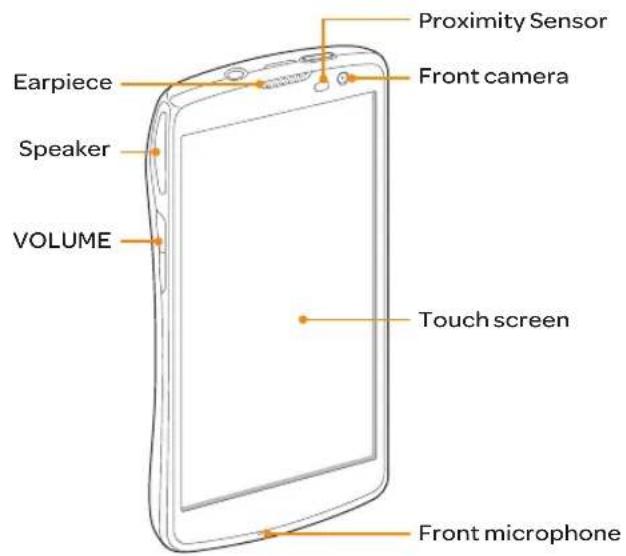
Front View
text_image
Proximity Sensor Front camera Earpiece Speaker VOLUME Touch screen Front microphoneKey Function
VOLUME Adjust sound volume. Adjust the ring mode.
① Note Do not cover the proximity sensor area with LCD protection film. If you cover the sensor, the touch screen may not perform properly.
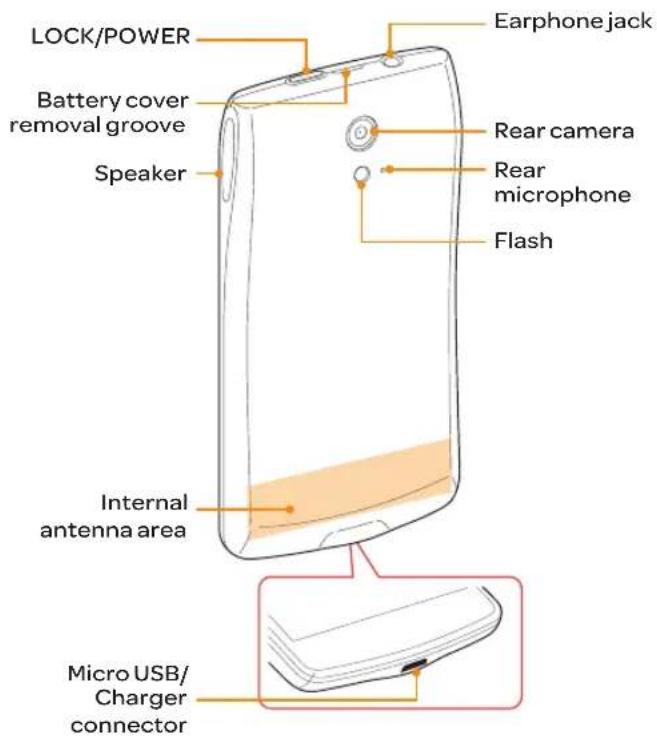
Rear View
text_image
LOCK/POWER Battery cover removal groove Speaker Internal antenna area Micro USB/Charger connector Earphone jack Rear camera Rear microphone FlashKey Function
LOCK/PWR Lock the screen. Turn the phone on or off.
① Note
- Your phone may not be compatible with all types of stereo earphones.
- Do not allow the touch screen to come in contact with water or chemicals.
• Do not cover the internal antenna embedded in the phone. - Do not hold the phone too close to your face, as you may block the microphone and prevent others from hearing you clearly.
Gripping the Phone
Hold the phone in the correct position to avoid covering the internal antenna.

text_image
Correct Incorrect① Note
- If you cover the internal antenna, you may disrupt the wireless signal and increase battery consumption.
- Do not use metallic cases or accessories, as they can interfere with the signal reception.
Inside the Package
Check your product package for the following items:
- Phone
- Battery
- Adapter
- USB cable
- Quick Start Guide
Using the SIM or USIM Card
Before Using the Card
- Be careful not to damage your fingernails when you remove the battery cover.
• Turn off the phone before installing the SIM or USIM card. - Do not bend or force the card. Doing so may damage the card or destroy data on the card.
• Turn off the phone before removing the SIM or USIM card.
• Do not expose the SIM or USIM card to moisture. - Avoid static electricity.
- Do not lose or transfer your SIM or USIM card to someone. Pantech is not responsible for damage due to theft or loss.
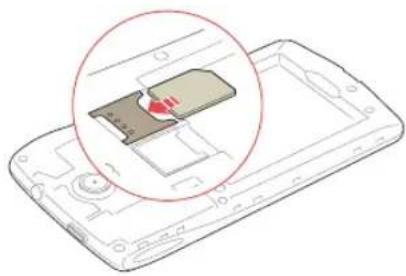
Installing the SIM or USIM Card
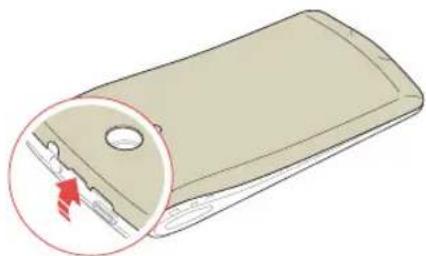
- Insert your fingernail into the groove at the top of the phone, and then lift up to remove the battery cover.
- Remove the battery.
- Insert the SIM or USIM card into the card slot. Ensure that the gold contacts on the card are facing the metal contacts on the phone.
natural_image
Diagram of a smartphone showing a physical component with a red arrow indicating a specific area, enclosed in a circular outline (no text or symbols present)- Reinsert the battery and reattach the battery cover.
About SIM or USIM Cards
When you sign up for phone service, you will receive a SIM or USIM card that contains your registration information, PIN code, and other personal data. Keep the card secure and handle it carefully. Do not bend or scratch the card and keep it away from moisture and static electricity. Pantech is not responsible for damages of your personal data due to theft or loss.
Using the Battery
Inserting the Battery
- Turn off the phone, if it is not already turned off.
- Insert your fingernail into the groove at the top of the phone, and then lift up to remove the battery cover.
natural_image
Illustration of a mobile phone casing with a magnified inset showing internal components (no text or symbols)- Align the gold contacts on the battery with the contacts located at the top of the battery compartment.
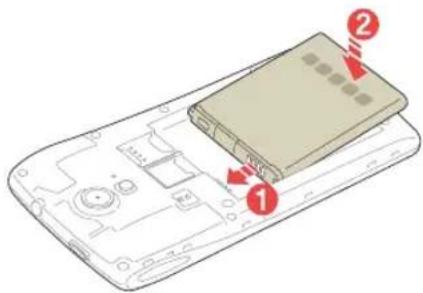
text_image
Diagram of a mobile phone casing with labeled components and directional arrows indicating parts of the lid.- Slide the battery into the phone until it lays flat in the compartment.
- Reattach the battery cover.
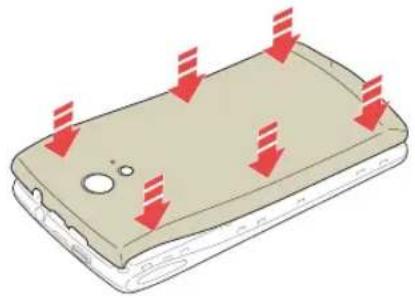
natural_image
Illustration of a smartphone with red arrows pointing to the screen area (no text or symbols)Note Be careful not to damage your fingernails when you remove the battery cover.
About the Battery
Your battery uses a lithium ion (Li-Ion) battery. Use only approved batteries and chargers with your phone. The average battery life will vary, based on your usage behaviors. For more details, contact your dealer.
Charging the Battery
Insert the plug into a power outlet, and then connect the charger adapter to the Micro USB/Charger connector of the phone.
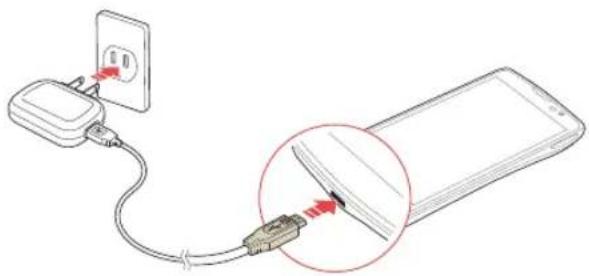
text_image
Diagram showing connection between a power outlet and a smartphone, with a magnified view highlighting the cable's internal structure.① Note
- Do not use the phone while the battery is charging. Doing so may result in an electric shock.
- Use only authorized adapters. Using unauthorized adapters may cause the phone to malfunction or may damage the phone or battery.
- Carefully align the connector as indicated in the image. Failure to do so may damage the charger connector or prevent the battery from charging.
Installing an Optional microSD Card
Insert a microSD card to store files, such as photos or videos.
- Insert your fingernail into the groove at the top of the phone, and then lift up to remove the battery cover.
- Remove the battery.
- Insert the microSD card into the memory card slot. Ensure that the gold contacts on the card face the metal contacts on the phone.
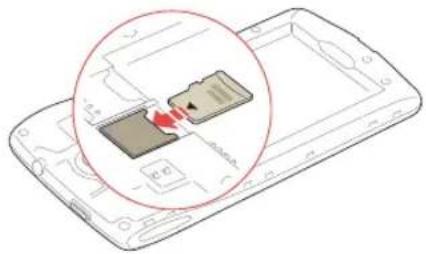
natural_image
Diagram of a smartphone showing a card slot inserted into a memory compartment, with no visible text or symbols.- Reinsert the battery and reattach the battery cover.
About the microSD Card
Inserting a microSD card allows you to store files and application data. You can use up to a 32 GB microSD card. We recommend that you format the microSD card before using it.
Turning the Phone On or Off
Turning the Phone On
Press and hold the LOCK/PWR key for more than two seconds.
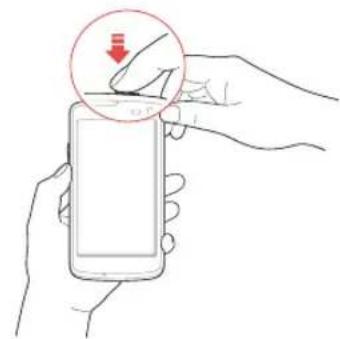
natural_image
Illustration of a hand holding a smartphone with a magnified circular detail showing a finger pointing to the screen (no text or symbols present)Turning the Phone Off
- Press and hold the LOCK/PWR key for more than two seconds.
- Tap Power off > OK.
① Note If you forcibly shut down the phone by removing the battery, the screen may malfunction shortly. This is normal and should not affect the lifespan of the screen.
Restart the Phone
- Press and hold the LOCK/PWR key for more than two seconds.
- Tap Restart > OK.
Setting Mute Mode
Press and hold the LOCK/PWR key for more than two seconds, and then tap ✕. All sounds except multimedia and alarms are silenced.
Setting Vibrate Mode
Press and hold the LOCK/PWR key for more than two seconds, and then tap ☐.
Setting Airplane Mode
Press and hold the LOCK/PWR key for more than two seconds, and then tap Airplane mode to turn off Wi-Fi and Bluetooth functions. You can reactivate these functions individually, if desired.
Setting Up the Phone
When you turn on the phone for the first time, a welcome screen appears. To set up the phone online, you must set up Ready2Go. To use Google applications and services, you must create or sign into a Google account. You can synchronize Contact, Calendar, and Gmail data for each account if you register multiple accounts.
- Tap Get Started to use Ready2Go.
- Tap Cancel if you want to use Ready2Go later. You can set up Ready2Go by tapping 🧑> AT&T Ready2Go.
-
Select and tap a language, and then tap START.
-
Select and tap a phone experience, and then tap Next.
- Your phone provides two experiences, Pantech Easy and Standard. For details about how to change the phone experience, refer to page 27.
- Tap Connect to Wi-Fi network, and then select and tap an available Wi-Fi network.
- Tap Skip, and go to step 6 to connect to the network later.
-
Follow the necessary steps, and then tap Next.
-
Tap Tap to set up Google account to set up a Google account, and then follow the necessary steps.
- Tap Skip to set up an account later.
- Tap Location service to use Google location, and then tap Agree for Location consent.
- Go to step 8 if you do not want to use Google location.
-
Tap Finish.
-
Read the notice for recycling your phone, and then tap OK.
Resetting the Phone
Email, Google account information, and contacts will also be deleted when you reset the phone. Before you reset the phone, back up your contacts, messages, photos, and other data.
-
Tap > Settings > Backup & reset.
-
Tap Factory data reset.
-
Tap Reset phone.
-
Tap Erase everything.
① Note If you reset the phone, all data saved on the phone will be lost.
Locking the Screen
Press the LOCK/PWR key briefly to lock the screen.
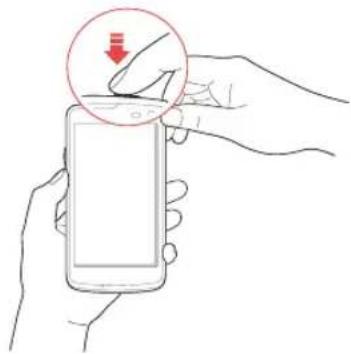
natural_image
Illustration of hands holding a smartphone with a red circular arrow pointing to the screen (no text or symbols)Changing the Screen Lock Type
- Tap > Settings.
- Tap Security > Screen lock.
- Select and tap a screen lock type.
Setting an Unlock Pattern, PIN, or Password
You must connect at least four dots for a pattern lock, enter at least four numbers for a PIN lock, or enter a password that is at least four characters long (at least one character must be a letter).
- Tap ⚠️> Settings > Security > Screen lock.
- Select and tap a lock type, and then follow the on-screen instructions.
- Tap None to disable the screen lock.
Unlocking the Screen
Unlocking the Screen with a Pattern
- Press the LOCK/PWR key if the phone is automatically locked.
- Draw a pattern on the screen.
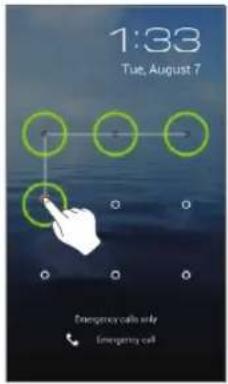
text_image
1:33 Tue, August 7 Emergency calls only Emergency callNote You can make emergency calls without having to unlock the screen.
If You Forget Your Pattern
If you draw an incorrect pattern for more than five times in a row, you will not be able to retry for 30 seconds. When this happens, you can unlock the phone by entering your Google account information.
If you draw an incorrect pattern for more than 20 times, you must do one of the following to unlock the device:
If you registered a Google account:
Enter your account information.
If you did not register a Google account:
Visit the Pantech website.
Visit a Pantech Service Center.
① Note For more details about registering your Google account, refer to page 58.
Unlocking the Screen with a PIN or Password
- Press the LOCK/PWR key if the phone is automatically locked.
- Enter your PIN or password, and then tap OK.
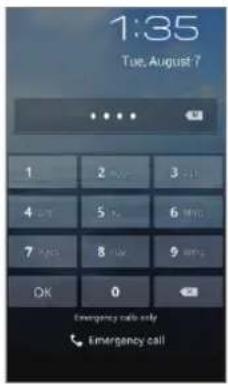
text_image
1:35 Tue, August 7 1 2 3 4 5 6 7 8 9 OK 0 Emergency calls only Emergency call① Note You can make emergency calls without having to unlock the screen.
If you Forget Your PIN or Password
Visit a Pantech Service Center to unlock the phone.
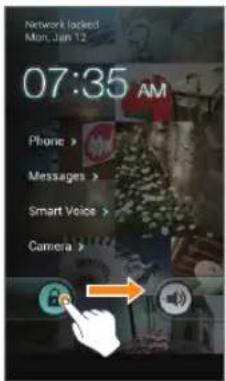
Unlocking the Phone with the Visual Lock
When the phone is not in use for specified length of time or the LOCK/PWR key is pressed, the screen turns off and phone locks automatically.
- Press the LOCK/PWR key.
- Tap and drag 🔒 to 🍎
- You can also drag an application shortcut to ☐ to unlock the screen and launch the application.
text_image
Network locked Mon. Jan 12 07:35 AM Phone > Messages > Smart Voice > Camera >To Add a Screen Lock Wallpaper
Tap > Settings > User theme > Screen lock > Wallpaper, select a folder that contains images, and then tap Save. If you do not select a folder, only the default image will appear.
To Change Screen Lock Shortcuts
Tap > Settings > User theme > Screen lock > Shortcuts. You can change the shortcuts to your favorite applications on the locked screen.
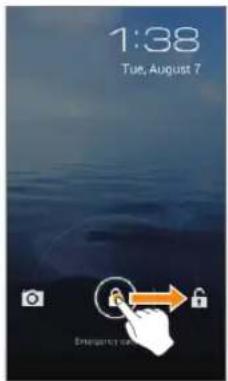
Unlocking the Phone with the Slide Lock
When you do not use the phone for a specified length of time or press the LOCK/PWR key, the screen turns off and the phone locks automatically.
- Press the LOCK/PWR key.
- Tap and drag 🔒 to 🔒
- You can also tap and drag to 📷 to unlock the screen and launch the camera application.
text_image
1:38 Tue, August 7 Emergency toUnlocking the Phone with the Modern Lock
When you do not use the phone for a specified length of time or press the LOCK/PWR key, the screen turns off and the phone locks.
- Press the LOCK/PWR key.
- Tap and drag 6 into the circle.
- You can also drag an application shortcut into the circle to unlock the screen and launch the application.

text_image
Emergency calls only Time App 07 1:39To Add a Screen Lock Wallpaper
Tap > Settings > User theme > Screen lock > Wallpaper > a category > an image.
① Note
- If you select an image from Gallery, you can crop the image to set as wallpaper.
• If you select Home wallpaper image, the default image will appear.
To Change Screen Lock Shortcuts
Tap > Settings > User theme > Screen lock > Shortcuts. You can change the shortcuts to your favorite applications on the locked screen.
Using the Touch Screen
About the Touch Screen
- Do not subject the touch screen to strong impacts.
- Do not use sharp tools that can scratch the touch screen.
- Do not allow the touch screen to come in contact with water or chemicals.
- Do not sit on the phone. Doing so may damage the touch screen.
Performing Touch Screen Commands
- Tap: Tap once to access a menu or an option.
- Drag: Tap and hold your finger on an item, and then move your finger without releasing it from the screen.
- Flick: Place a finger on the screen and slide it up, down, left, or right.
- Pinch: Place two fingers on the screen, and then spread them apart to zoom in, or squeeze together to zoom out.
- Select and tap: Tap an item in a list.
- Tap and hold: Touch and hold an area for a few seconds.
GETTING STARTED

text_image
Alarm/Clock Add alarms 7:30 AM Alam, Tue, Wed, Thu, Fri 9:00 AM Sat, SunTapDrag

text_image
Sound Volumes Music, video, games, & other media Repture & notifications Alarm OK Disk pod touch tones
natural_image
Hand holding a small yellow object in a green field, captured in an outdoor setting (no visible text or symbols)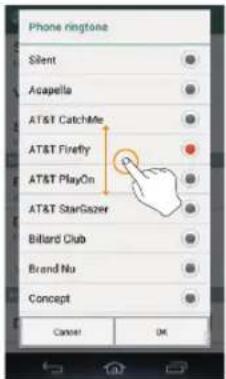
text_image
Phone rington Silent Acapella AT&T CatchMe AT&T Firefly AT&T PlayOn AT&T StarGazer Billard Club Brand No Concept Cancer OKSelect and tap Tap and hold

text_image
0°F Sat location 12:24 Acc@www.com Wednesday, Sep 25, 2012 Contacts Calendar Messages A1&T iPhone Email Apps Web CameraEntering Text
Entering Text with the Android Keyboard
Enter text with the keypad at the bottom of the screen. The keyboard shows word suggestions as you enter. Tap a word to use it.

text_image
New message To: Hel Send Hel Hel Help q w e r t y u i o p a s d f g h j k l ① z x c v b n m ② ③ ④ ⑤No. Description
| 1 | Change the case. |
| 2 | Clear your input. |
| 3 | Switch between ABC and Number/Symbol mode. |
| 4 | Switch to Voice mode. Tap and hold to select an input method or access the settings. |
| 5 | Insert a space. Tap and hold to select an input method. |
| 6 | Insert a period. |
| 7 | Start a new line. |
Entering Text with SwiftKey for Pantech
SwiftKey predicts what you want to enter before you enter your text. SwiftKey learns new words as you enter them, and suggests those words in its future predictions. Tap one of the three word suggestions above the keyboard to select a prediction.

text_image
New message To: Hello Send Hello Hello Help 1 2 3 q w e r t y u i o p a s d f g h j k l z x c v b n m 10 11 12 13 14 15 16 17 18 19 20 21 22 23No. Description
| 1 | Actual characters entered. |
| 2 | Primary SwiftKey prediction. Tap on the word or tap space to enter (depending on your spacebar settings). |
| 3 | Secondary SwiftKey prediction. Tap on the word to enter. |
| 4 | Change the case. |
| 5 | Clear your input. |
| 6 | Switch between ABC and Number/Symbol mode. |
No. Description
| 7 | Switch to Voice mode. Tap and hold to select an input method; configure the settings; share SwiftKey via Gmail, Twitter, or more; view support. |
| 8 | Insert a comma. |
| 9 | Insert a space. |
| 10 | Insert a period. |
| 11 | Start a new line. |
Entering Text with Your Voice
Use your voice to enter text with the Voice to Text function.
- Tap or on the keyboard.
- Speak clearly into the microphone.
Editing Text
- Tap and hold a word that you want to copy or cut.
- Drag the handles to adjust the selection.
- Tap: to select all text.
- Tap (cut) or (copy).
- Tap the point where you want to paste the text.
- Tap the handle, and then tap PASTE.
text_image
To: Hello Send Lloyd 10 looks q w e r t y u i o p a s d f g h j k l z x c v b n m 123Adding a Word to the User Dictionary
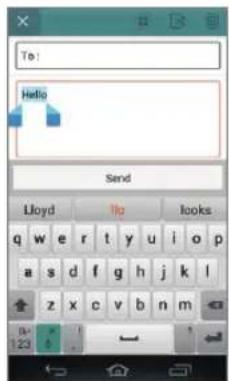
Add frequently-used words to the user dictionary for later use. You cannot add words that are already registered in the word suggestion list.
- Enter a word in the text input field.
- Tap the word in the word suggestion list.
- Tap the word again to add to the user dictionary.
- Tap add to dictionary > OK.
To Insert a Word from the User Dictionary
Enter a few characters of the word, and then tap the word when it appears in the word suggestion list.
3
PHONE EXPERIENCE

text_image
About the Phone Experience Setting the Phone Experience Learning to Use the Pantech Easy Experience PANTECH P9090 at&tPHONE EXPERIENCE
About the Phone Experience
Your phone provides two phone experiences, Pantech Easy and Standard. The Pantech Easy Experience provides an easy-to-use interface that helps you to use the phone more simply. The Standard Experience is recommended for general users. The instructions in this manual are based on the Standard Experience.

text_image
11:56 PM Mon, Sep 3 0°F Set location Acc@localhost.com Web Quick Contacts Shortcuts Phone Camera Messages Menu
text_image
0°F Bet location 12:24 Wednesday, Sep 25, 2012 Contacts Calendar Messages AT&T Phone Email Apps Web CameraPantech Easy Experience Pantech Standard Experience
Setting the Phone Experience
When you turn on the phone for the first time and set it up, you are asked to select a phone experience. You can change the phone experience at anytime in the Settings menu.
Changing the Phone Experience
If you are using Pantech Easy Experience, tap Games & Apps > Pantech Standard Experience > OK.
If you are using Pantech Standard Experience, tap 📋 > Pantech Easy Experience > OK.
① Note Some functions and menus are not available in Pantech Easy Experience.
Learning to Use the Pantech Easy Experience
Learn how to use the functions and menus in Pantech Easy Experience.
Layout of the Home Screen

text_image
11:56 PM 11:56 PM Mon, Sep 3 0°F Set location Acc@HaPos.com 3 4 5 6 7 8 9 Photo Camera Macintosh MeersNo. Description
| 1 | Drag the area at the top of the screen downward to access Quick settings or view battery usage, current time and date, your phone number, signal strength, or ongoing events. |
| 2 | View the current time, date, and temperature. |
| 3 | Access the web. |
| 4 | Open Quick Contacts. |
| 5 | Open shortcuts for applications. |
No. Description
| 6 | Make calls. |
| 7 | Take pictures and record videos. |
| 8 | Send and receive messages. |
| 9 | Open menus. |
Menu Items in Pantech Easy Experience
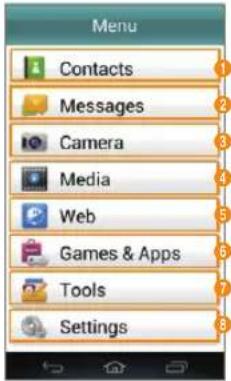
text_image
Menu Contacts Messages Camera Media Web Games & Apps Tools SettingsNo. Description
| 1 | View contacts. |
| 2 | Send and receive messages. |
| 3 | Take pictures and record videos. |
| 4 | Launch Gallery, Music, ThinkFree Office, or Videos. |
| 5 | Access the web. |
| 6 | Play games or launch applications. |
No. Description

Launch Alarm/Clock, Calculator, Calendar, Converter, File Manager, Notepad, Pill Reminder, Tip Calculator, or Voice Recorder.

Access the settings (refer to page 95).
Locked Screen for the Pantech Easy Experience
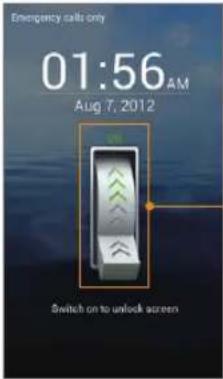
text_image
Emergency calls only 01:56 AM Aug 7, 2012 Switch on to unlock screenSwitch on to unlock the screen.
4
BASIC OPERATIONS
text_image
PANTECH P9090 at&t Understanding the Home Screen Customizing the Home Screen Using the Extended Launcher Bar Using the Task Manager Using the Applications Menu Using Motion Commands Connecting to the Internet Sharing the Internet Connection Setting up a Bluetooth Connection Using Bluetooth Installing or Uninstalling ApplicationsBASIC OPERATIONS
Understanding the Home Screen
Layout of the Home Screen
The Home screen is the starting point for using applications. Here you can access widgets, shortcuts, or folders. The Home screen consists of three panels. When you access the Home screen for the first time, you will be shown usage tips for the Home screen.

text_image
0°F Get location Auto@chatte.com 12:24 Wednesday, Sep 26, 2012 Google Place shortcuts and followers here. Phone Email Google Web Camers Play Short Gallery MOO Music Movies Place smartphones and fosters here.No. Description
Notification bar
1 View the phone's status, battery usage, current time, and more.
No. Description
Home screen
- Flick to the left or right to move to another panel. There is a panel to the left and to the right.

- Spread your fingers apart to hide icons. Pinch your fingers to show icons again.
- Pinch your fingers together to edit the Home screen.
Panel location bar

View the number of panels and the location of the current panel.
- Drag the white line to move to another panel. - Tap the line below a panel to switch to that panel.
Basic launcher bar

View shortcut icons and the applications menu icon.
- Tap a shortcut to run an application.
• Tai to open the Menu screen.
- Flick to the left or right to view the Extended launcher bar.
Extended launcher bar

View shortcut icons and folders.
- Tap a shortcut to launch an application. - Tap a folder to open it.
Navigation buttons

- (Back): Return to the previous screen. - (Home): Return to the Home screen. - (Recent applications): View a list of recently-accessed applications.

Access the Home screen options.
Navigating the Quick Settings, Settings Shortcuts, and Notification Screen
The Quick settings, Settings shortcuts, and Notification screens help you manage important functions easily and keep the following functions such as events, network, GPS, sound settings, and launching applications. Drag the area at the top of the screen downward.
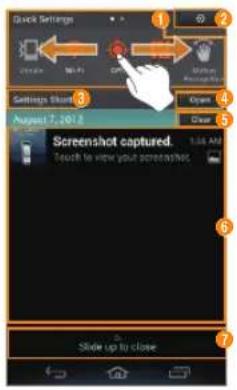
text_image
Quick Settings Settings Shock August 7, 2012 Screenshot captured. Touch to view your screenshots. Slide up to closeNo. Description
Quick settings
1 Turn on or off vibrate mode, WI-FI, GPS, NFC, Motion recognition, Bluetooth, data connection, mobile hotspot, or Auto rotate.
2 Access the settings.
No. Description
Settings shortcuts
3 Access the settings for sound, Wi-Fi, display, Bluetooth, motion recognition, lock, mobile hotspot, application management, or synchronization.
4 Close or open the Settings shortcuts.
5 Clear all notifications.
Ongoing events or notifications
6 View running applications, notifications for application updates, missed calls, new emails, or new messages.
7 Drag it upward to close the screen.
Customizing the Home Screen
Adding a Widget or Shortcut
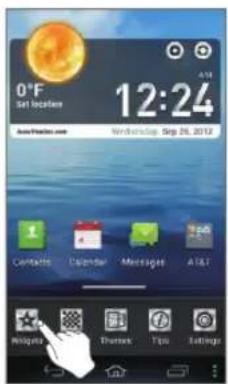
- On the Home screen, tap and hold an empty area.
• You can also flick the Home screen upward or tap.
- Tap Widget.
text_image
0°F Set location AutoPlayer.com 12:24 Wednesday, Sep 26, 2012 Contacts Calendar Messages A&T Message Pharmen Tips SettingsBASIC OPERATIONS
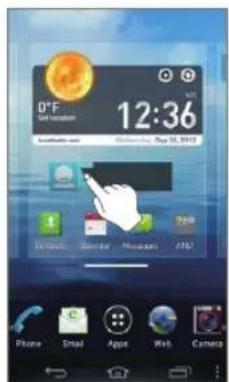
- Tap and hold an item
- Drag it to the desired location.
- Tap an item to align it with other icons automatically.
text_image
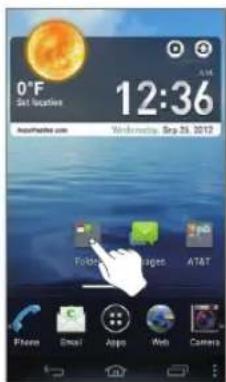
0°F Get location 12:36 Available at www.mai.com Mobile Email Apps Web Camera- Release your finger when a folder is created.
text_image
0°F Sat location 12:36 Windstream Sep 25, 2012 F Mobile Apps AT&T Phone Email Apps Web CameraAdding a Folder
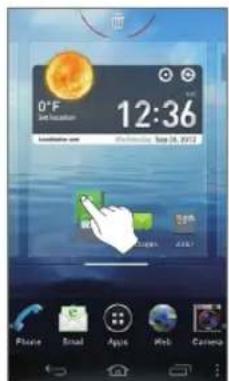
Add a folder that contains shortcuts or application icons to the Home screen.
- On the Home screen, tap and hold an icon.
- Drag it onto another icon.
text_image
0°F Set location 12:36 Satellite-up Photonic: Sep 05, 2012 Phone Email Apps Web Camera① Note
- Open the folder and tap to change the title or color of the folder. - T to close the folder.
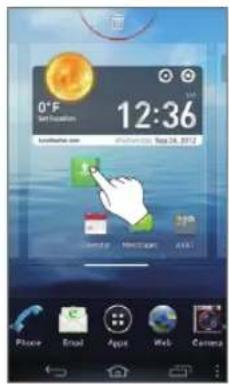
Arranging an Icon, Widget, or Folder
- On the Home screen, tap and hold an item.
- Drag it to a desired location.
• To delete an item, drag it to at the top of the screen.
text_image
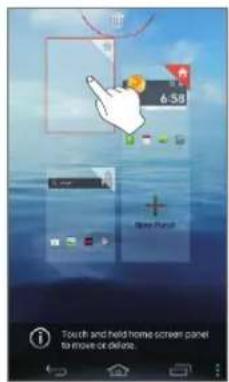
0°F Set up to 12:36 Suzhoukou.com Phone Email Apps Web CameraArranging a Panel
- On the Home screen, pinch your fingers together.
- Tap and hold a panel.
- Drag it to a desired location.
• To delete a panel, drag it to at the top of the screen.
- Tap New Panel to add a new panel. You can create up to seven panels.
text_image
6.58 Touch and held home screen panel to move or delete.① Note To set a panel as the primary panel for the Home screen, tap.
Setting the Home Screen Wallpaper
- On the Home screen, tap and hold an empty area.
• You can also flick the Home screen upward or tap. - Tap Wallpaper.
- Tap Wallpapers.
- Tap Live Wallpapers, Gallery, or Downloaded Wallpapers to use images from other sources.
- Tap a wallpaper > Set Wallpaper.
- When you tap a wallpaper in the Gallery tab, you can crop the image.

natural_image
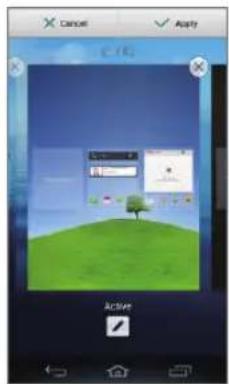
Colorful abstract background with a spherical object and textured bands, no visible text or symbolsChanging the Home screen Theme
- On the Home screen, tap and hold an empty area.
• You can also flick the Home screen upward or tap 📁. - Tap Themes.
- Flick the screen to the left or right.
- Select a theme.
- Tap Apply.
- Tap to edit the theme name.
- Tap× to delete the theme.
text_image
Cancel Apply ActiveUsing the Extended Launcher Bar
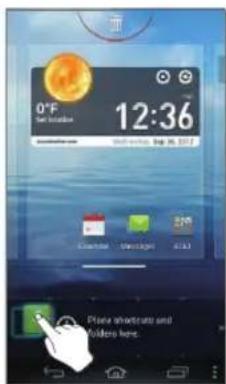
Arranging Shortcut Icons or Folders
Move shortcut icons or folders from the Home screen to the Extended launcher bar.
- Flick the Basic launcher bar to the left or right.
- Tap and hold an item on the Home screen.
- Drag it to a desired location.
• To delete an item, drag it to at the top of the screen.
text_image
0°F Get location 12:36 February 2017 February 2017 February 2017 February 2017 February 2017 February 2017 February 2017 February 2017 February 2017 February 2017 February 2017 February 2017 February 2017 February 2017 February 2017 Fiona illustrate and follows here.Using the Task Manager
Accessing Recently-used Applications
Use the Task Manager to access recently-used applications.
1. Tap
-
Tap an application.
-
Flick the application to the left or right to delete it from the list.
- Tap and hold the application to delete it from the list or view the application information.
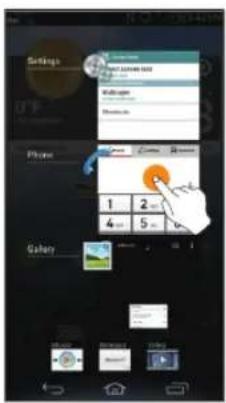
text_image
Settings Phone 1 2 4 5 GaleryClosing Running Applications
If you launch an application and do not close it with the Task Manager, the application remains active even when you switch to the Home screen or launch another application. Running multiple applications can slow down the performance of the phone. Close unnecessary application with the Task Manager.
1. Tap 📋> Task Manager.
- Tap End next to an application.
- Tap Total X apps End All to close all applications.
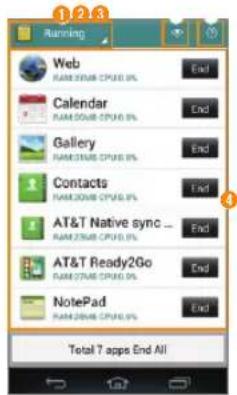
text_image
123 Running Web RAM:26KB CPU8.0 % Calendar RAM:26KB CPU8.0 % Gallery RAM:26KB CPU8.0 % Contacts RAM:26KB CPU8.0 % AT&T Native sync ... RAM:26KB CPU8.0 % AT&T Ready2Go RAM:26KB CPU8.0 % NotePad RAM:26KB CPU8.0 % Total 7 apps End AllNo. Description
1 Select a category.
2 Select a view type.
3 View the tips.
List of active applications
4 • 4p an application to view its information or protect it from forced closure.
Using the Applications Menu
Layout of the Menu Screen
You can sort applications by group, alphabetical order, or downloads. Tap to open the Applications menu.
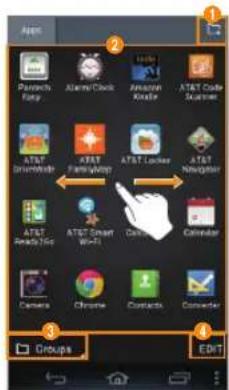
text_image
App Passets Easy Alstine Clock Apple Amazon Kindle AT&T Code Browser AT&T Broadcast AT&T Framework AT&T Locker AT&T Navigator AT&T Awards Plus AT&T Smart Wi-Fi Data Calculator Camera Chrome Contacts Converter Groups EDITNo. Description
| 1 | Create a new group. |
| Tap an icon to launch the application.Tap and hold an icon to create a shortcut on the Home screen.Flick the screen to the left or right to move to the previous or next page. | |
| Sort applications.ap Groups to arrange icons manually.Tap Alphabetical to sort icons in alphabetical order (flick upward or downward to search for applications).Tap Downloads to view downloaded applications. |
No. Description
View application information or move, uninstall, or hide applications.

- Tap and hold an icon, and then drag it to another location.
- Tap an icon to view application information, or uninstall or hide applications.
① Note You cannot uninstall pre-installed applications.
Using the Menu Options
Use the menu options to configure the Menu screen.
- Tap □ ▶ an option.
Option Description
Search Search for an application.
Share Share applications with people.
| Manage groups | Add, move, or delete groups. |
| View hidden apps | View hidden applications. |
Change Icons Change icon style.
Play Store Access Play Store.
Tips View the tips.
① Note When you tap the items available will vary depending on the sorting method (Groups, Alphabetical, or Downloads).
Using Motion Commands
You can use your phone without touching the screen. The phone recognizes motion commands for simple actions, such as calling, messaging, viewing the gallery, and listening to music. This is helpful when you wearing gloves or you must keep your attention on another task.
About Motion Commands
The front camera lens of the phone recognizes three actions: waving, moving your hand to the left or right, and covering the screen. For best results, ensure you direct the motion at the front camera lens and move your hand away from the front camera after completing the motion. This function is deactivated by default. To use this function, you must first activate it.

text_image
Front camera① Note
• Perform the motion about a hand span from the phone.
- Ensure there is sufficient light for the camera to recognize the motion.
- Turn off the motion recognition function when not in use to conserve battery power.
Activating Motion Recognition
- Drag the area at the top of the screen downward.
- In Quick Settings, tap Motion Recognition.
① Note You can also activate motion recognition by tapping Settings > Motion recognition.
Receiving a Call
When a call comes in, wave your hand two or more times in front of the front camera. The call will be answered with the speakerphone on, to allow for hands-free communication. To disable the automatic speakerphone function, tap ⚙ > Settings > Motion recognition > Speakerphone usage > Use speakerphone.
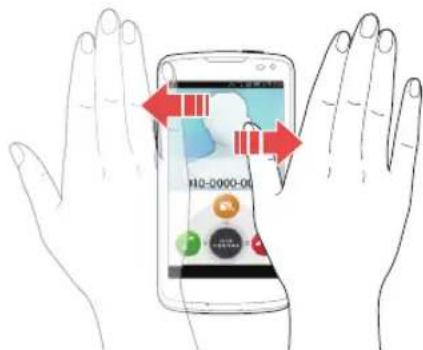
text_image
H2-0000-00Navigating Files or Messages
While reading messages or browsing music or image files, move your hand across the screen to see the next or previous message or file. Move your hand to from left to right to go to the previous message or file. Move your hand from right to left to go to the next message or file.
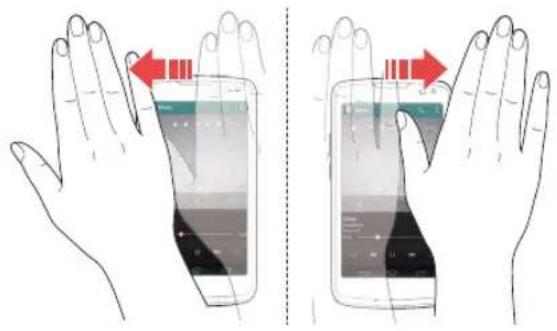
text_image
Diagram illustrating hand positioning and screen transition, showing red arrows indicating movement or change in the screen.① Note You cannot use the motion recognition function in conversation view.
Playing Slide Shows or Music
In the Gallery, cover the front camera with your hand to begin a slide show.
When using the music player, cover the front camera with your hand to pause or resume a track.
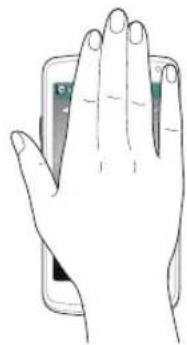
natural_image
Line drawing of a human hand holding a smartphone with a green screen (no text or symbols)Viewing Speed Dial Numbers
You can view speed dial numbers by tilting or flipping your phone.
① Note Before using this function, set speed dial numbers (refer to page 50).
- Tap 🧑 > Phone > □ > Dialpad setting.
- Scroll to Motion-Tilt or Motion-Flip and then tap Save.
- Tilt or flip your phone to view speed dial numbers.
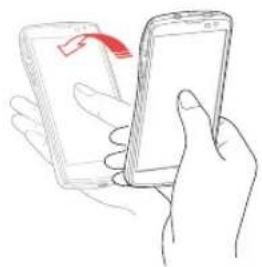
natural_image
Line drawing of a hand holding a smartphone with a red arrow pointing to the screen (no text or symbols present)Tilt the phone. Flip the phone.
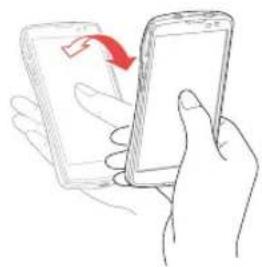
natural_image
Line drawing of a hand holding a smartphone with a red arrow indicating the drop, no text or symbols presentConnecting to the Internet
Connecting to a Wi-Fi Network
When you activate Wi-Fi after turning on the phone for the first time or resetting the phone, the Wi-Fi settings screen appears.
- Drag the area at the top of the screen downward.
- Tap Wi-Fi in Quick Settings to turn on Wi-Fi.
- Tap Wi-Fi again to turn off Wi-Fi.
- Select and tap a network in the Wi-Fi network list.

text_image
Wi-Fi settings HSEUG02-2 Secured with WEP (protected network available) HSEUG04 Secured with WEP (protected network available) T wifi zone_secure Secured with 802.1x T wifi zone HSEUG02 Secured with WEP (protected network available) strongEggMJ Secured with WPA ITRIC7B97 Show Add networkNo. Description
1 Turn Wi-Fi on or off.
2 Secured network
3 Unsecured network
4 Search for available Wi-Fi networks again.
No. Description
| 5 | Add a Wi-Fi network. |
| 6 | Access advanced settings and configure a WPS connection. |
① Note
- You can also connect Wi-Fi by tapping ⚠️ > Settings > Wi-Fi.
- You must enter a password to connect to a secured Wi-Fi network.
Connecting to a Mobile Network
You will need a data plan to access a mobile network.
- Drag the area at the top of the screen downward.
- Tap Data in Quick Settings to access the mobile network.
- Tap Data again to disconnect from the mobile network.
① Note You can also enable data access over mobile networks by tapping ⚪ > Settings > More... > Mobile networks > Data Services.
Sharing the Internet Connection
The phone can provide other devices with an Internet connection. To view the help, tap Settings > More... > Tethering & portable hotspot > Help.
Activating USB Tethering
- Connect the phone to a computer with the data cable.
- Tap ⚙ > Settings > More... > Tethering & portable hotspot > USB tethering.
- Follow the on-screen instructions.
Activating Wi-Fi Tethering
- Tap 🎨> Settings > More... > Tethering & portable hotspot > Portable Wi-Fi hotspot.
- Read the instructions, and then tap OK.
- Follow the on-screen instructions.
- Tap Portable Wi-Fi hotspot settings and configure the settings.
Activating Bluetooth Tethering
- Tap ⚠️> Settings > More... > Tethering & portable hotspot > Bluetooth tethering.
- Read the instructions, and then tap OK.
- Follow the on-screen instructions.
Setting up a Bluetooth Connection
Bluetooth is a short-range wireless technology that enables wireless connections between electronic devices over a distance of about 10 meters (33 feet).
Turning on Bluetooth
- Drag the area at the top of the screen downward.
- Tap Bluetooth in Quick Settings to turn on Bluetooth.
- Tap Bluetooth again to turn off Bluetooth.
Pairing with Devices
- Drag the area at the top of the screen downward.
- Tap Open in Settings Shortcuts and then tap Bluetooth Settings.
• The phone search for Bluetooth devices.
- Select and tap a device from the list.
- Tap to rename the phone, set a visibility timeout, or view received files.
- Tap Pair.
- If you are prompted to enter a PIN, follow the instructions on the screen.
① Note
- You can also launch the Bluetooth function by tapping ⚙> Settings >Bluetooth.
- To unpair a device, tap next to the paired device, and then tap Unpair.
• Some devices may be unpaired as you tap them.
- To use the Bluetooth technology on a computer, the computer must have a built-in Bluetooth capability or you must install an external Bluetooth Dongle. Refer to the computer user manual for more details.
Using Bluetooth
Before Using
- You can send data up to 10 meters (33 feet), but if there are obstacles between the devices, the operating distance may be reduced. Other manufacturers' phones or computers may be incompatible with your phone.
- Using the Bluetooth technology may affect battery life. Turn off Bluetooth when it is not in use to prevent unnecessary battery consumption.
- Bluetooth may interfere with other wireless devices that use the same frequency band.
- Headsets and hands-free devices may not be discoverable when they are connected to and in use with other devices, or when other devices are attempting to pair with them.
- When you make a call, listen to music, or watch TV with a Bluetooth device, the sound quality degrades and the Bluetooth device eventually disconnects as you move farther away from the phone. If you exceed the operating distance, the speakerphone function will activate.
- When you use a Bluetooth headset, sound quality may degrade, due to obstacles or interference. For optimal performance, use a Bluetooth headset within a short distance and remove obstacles from between the devices.
-
You may have difficulty hearing some calls in noisy environments or outdoors, due to surrounding noise.
-
Some Bluetooth headsets may not be compatible with the phone.
- When you connect the phone to a Bluetooth-enabled car stereo and start the music player on the car stereo, the music application on the phone will launch.
Making a Call
If a Bluetooth headset or hands-free device is paired with the phone, it automatically connects to the phone when you make a call. You can make or answer a call by pressing the call key on the Bluetooth headset or hands-free device.
-
Pair the phone with a Bluetooth headset or a hands-free device (refer to page 43).
-
Start talking.
① Note
- Instructions on using Bluetooth headsets or hands-free devices may vary depending on device type. Refer to the device user manual for more details.
- Some headsets may automatically attempt to reconnect when they are disconnected. The service status of the reconnection may differ from your settings.
- You can switch between a headset and the phone by holding the call key on the Bluetooth headset when the hands-free device is connected. You can also tap Bluetooth on the screen during a call. Some Bluetooth headsets do not support the switching function.
Enjoying Multimedia
Listen to music and watch video or TV with a Bluetooth headset or a hands-free device.
-
Pair the phone with a Bluetooth headset or a hands-free device (refer to page 43).
-
Tap
-
Tap Music, Videos, or Live TV.
① Note
- Instructions on using Bluetooth headsets or hands-free devices may vary depending on device type. Refer to the device user manual for more details.
- If you connect to another headset while a headset is connected in stereo, the second headset can be connected in hands-free mode. Sound quality may degrade when you connect two headsets, due to differences in specifications between them.
- Adjusting the volume on a phone only affects the headset volume. The volume of the phone must be adjusted on the phone.
Transferring Data
Transfer multimedia files, contacts, and more from the phone to other devices.
To Transfer Photos and Videos from Gallery
Pair the phone with other Bluetooth devices (refer to page 43).
- TapGallery>a photo or video.
- Tap > Bluetooth > a Bluetooth device.
To Transfer Contacts
Pair the phone with other Bluetooth devices (refer to page 43).
- Tap > Contacts.
- Tap and hold a contact.
- Tap Share contact > Bluetooth > a Bluetooth device.
① Note
- The transfer procedure and available items may differ depending on content type.
- If a device is disconnected while attempting to connect to the phone, a pop-up window for entering a password will appear when you attempt to pair again. You must enter the correct password to complete the connection.
Installing or Uninstalling Applications
Installing Applications from Play Store
Download useful applications from Play Store and use them for your purposes. You must consent to the Play Store Terms of Service if you are accessing the Play Store for the first time.
- Tap > Play Store.
- Search for an application.
- Select and tap an application.
-
Follow the on-screen instructions to install the application.
① Note -
Settings screens and steps may vary.
- To view installed applications, tap and move to the last page, or tap the bottom-left corner of the screen to select Downloads.
- You can view the installation progress by dragging the area at the top of the screen downward.
- When you access Play Store for the first time, the account registration screen appears. Follow the on-screen instructions to register an account.
Deleting Applications
- Tap
- Tap EDIT.
- Select and tap an application to delete, and then tap Uninstall > OK > OK.
① Note You cannot uninstall pre-installed applications.
5
CALLING & MESSAGING

text_image
PANTECH P9090 at&t Calling Managing Contacts MessagingCALLING & MESSAGING
Calling
Making a Call
- Tap > Phone.
- Enter a phone number.
- Tap at the bottom of the screen.
- Tap to end the call.

text_image
1 Phone 2 Call Bag 3 0 4 5 6 7 8 9 * 0 + # 7No. Description
1 Dialpad
2 Call logs
3 Favorite contacts
4 Delete entry.
Save the number to Contacts. Search Contacts. Set a speed dial number. Add a pause or wait symbol. Change the dialpad type. Access the settings.
No. Description
6 Access the voice mailbox.
7 Launch Contacts.
① Note
- Tap and hold a speed dial number to make a call. If the speed dial number is two digits, tap the first digit, and then tap and hold the second digit.
- You must tap to end a call. If you are using other functions during a call, drag the area at the top of the screen downward, and then tap End call
• Available items that appear when you tapdiffer depending on how you dial the number (manually or via speed dial).
Making a Call by Voice
You can make a call or open an application with your voice.
- Tap > Voice Dialer.
- Say a command.
Adding a Pause or a Wait to a Phone Number
To Add Pause
- Tap > Phone.
- Enter the phone number.
- Tap: > Add 3-sec pause.
- Enter the additional number.
- Tap
- The additional numbers will be entered automatically after 3 seconds.
To Add Wait
- Tap > Phone.
- Enter the phone number.
- Tap: > Add wait.
- Enter the additional numbers.
- Tap
- Tap Yes when the Send following tones? message appears on the screen.
Answering a Call
-
Drag into the circle to answer a call.
-
Drag into the circle to reject a call with a message.
-
Press the Volume key or the LOCK/PWR key to mute the ringtone or stop the vibration.
-
Start talking.
-
Tap to end a call.
① Note
- The Caller ID may be displayed differently or may not be displayed depending on the caller's preferences. Contact your service provider for more details.
- You must tap to end a call. If are using other functions during a call, drag the top of the screen downward, and then tap End call
Rejecting a Call
Drag into the circle to reject a call. You can also send a message after rejecting a call by dragging into the circle.
To Check Missed Calls
Drag the area at the top of the screen downward when appears on the notification bar. You can also view missed calls by tapping Phone > Call log.
To Edit Reject Messages
Tap > Settings > Call settings > Edit reject message.
Create or delete a message that is sent when you reject a call.
Using Functions During a Call
Tap the menu icons that appear on the screen during a call to use the following functions:
Function Description
| Speaker Talk through the speaker. | |
| Hold Place a call on hold. | |
| Swap | Switch between two calls. |
| Mute | Mute the phone. |
| More | Turn Bluetooth On. Turn Noise Suppression Off. |
| Dialpad | Switch to the dialpad. |
| End | End a call. |
| Add call | Dial a second call. |
| Merge | Make a conference call. |
① Note You can adjust the volume by pressing the Volume key.
Tap the Home or Back button to use other menus during a call.

text_image
00:07 Yes/no Take to call Line call 2012 Phone Email Apps Web CameraDrag the box to any location.
Managing Call Logs
Tap the menu icons that appear on the screen during a call to use a variety of functions.
-
Tap > Phone > Call log.
-
Tap a call log to view details.
- Tap and hold to make a call, send a message, send an email, view a contact, or delete an item from a log.
- View the log.
① Note Up to 500 entries can be displayed in the received or dialed call logs.
Managing Contacts
Synchronizing Contacts
When you access Contacts for the first time, the AT&T Address Book window will appear. To synchronize the contacts with the AT&T Address Book, tap OK.
Creating Contacts
Save new contacts to your phone or your Google account. If you have registered more than two Google accounts, you can select an account for saving contacts.
-
Tap > Contacts.
-
Tap +
-
Enter related information.
- Tap: >Join to choose a contact to merge with the new contact.
- Tap Save.
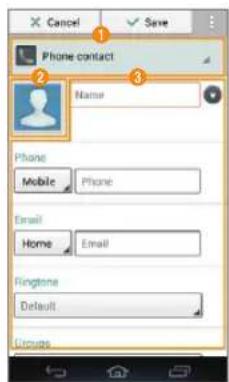
text_image
Cancel Phone contact Name Phone Mobile Phone Email Home Email Ringtone Default CirrupsNo. Description
| 1 | Choose a location for saving the contact. |
| 2 | Register a photo. |
| 3 | Enter a name, phone number, or email address. Set a ringtone. Select a group. Add more information. |
Setting a Speed Dial Number
- Tap > Contacts.
- Tap : > Speed dial setting.
- Select and tap a number, and tap Assign.
- Select and tap a contact.
Viewing Saved Contacts
- Tap > Contacts.
- Select and tap a contact.
- Enter a letter of the name to show names that include that letter.
- View the contact information.
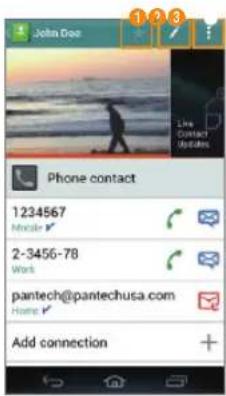
text_image
John Doe 1 2 3 Line Contact Updates Phone contact 1234567 Mobile 2-3456-78 Work pantech@pantechusa.com Home Add connectionExample: When you save a contact on your phone.
No. Description
| 1 | Designate the contact as a favorite. |
| 2 | Edit the contact. |
| 3 | Share or delete a contact, join with another contact, set a ringtone, or forward all calls to voicemail. |
To Delete Contacts
Tap and hold a contact to delete, and then tap Delete contact > OK.
Importing or Exporting Contacts Information
- Tap > Contacts.
- Tap : > Import/Export.
- Select and tap an option.
Option Function
| Import from SIM card | Import contacts from the SIM or USIM card. |
| Export to SIM card (Copy) | Copy contacts from the phone to the SIM or USIM card. |
| Export to SIM card (Move) | Move contacts from the phone to the SIM or USIM card. |
| Import from SD card / Internal memory | Import contacts from the SD card to the phone. |
| Export to SD card / Internal memory | Export contacts from the phone to the SD card. |
① Note Contact items that can be exported may differ depending on the SIM or USIM manufacturer or service provider.
Synchronizing Contacts with Google Account
- Tap > Contacts.
- Tap : > Accounts.
- Select and tap an account.
• Turn on Accounts & sync if it is turned off.
- Tap the check box next to Sync Contacts.
① Note You must register a Google account to synchronize contacts with it (refer to page 58).
Setting Contacts Groups
Manage multiple contacts in groups. If you have registered more than two Google accounts, you must select an account for setting groups.
- Tap > Contacts > Groups.
- Tap
- Select a location for saving the group.
- Enter a group name and add group members.
- Tap Save.
To Add Group Members
Tap and hold a group in the group list, and then tap Edit group. Tap Add group member and select the names of the members to add.
To Manage Groups
Tap and hold a group in the group list, and then select and tap one of the menu items. You can edit or delete the group, or set a group ringtone. Alternatively, select and tap the group, and then tap 📄. You can send a message to up to 10 group members by tapping Send.
Adding to Favorite Contacts
-
Tap > Contacts.
-
Select and tap a contact, and then tap
• You can also tap and hold a desired contact, and then tap Add to Favorites.
① Note You can view your favorite contacts by tapping Contacts > Favorites.
Finding Local Businesses
- Tap > Contacts > Local Search.
- Read the License Agreement, and then tap Accept.
- Enter keywords to begin searching or tap one of the business categories.
- Tap OK to allow this function to use your current location.
- Select and tap a result to view details.
- Tap to call the business.
Messaging
Viewing the Conversations List
- Tap > Messages.
- View the conversations list.
- Tap: to delete a conversation, search messages, sort conversations, select a quick text, manage templates, or access the settings.
To Search Messages
In the conversations list, tap 📄 > Search and enter a keyword.
To Sort Conversations
In the conversations list, tap > Sort by > an option.
① Note Available options differ depending on the stored message.
Viewing a Conversation
View sent and received messages in a conversation and sort conversations by date or contact name.
- Tap > Messages.
- Select and tap a conversation.
• Tap the photo to view contact information.
-
View the messages.
-
Tap and hold a message to view the message detail, lock it or unlock it, edit it, forward it, save the attachment, copy the message as text, delete it, or view message information.
- Tap to attach a picture, video, audio, contact, or others.
- Tapi to reply to the message, insert text, add a slide, add cc or bcc fields, manage templates, save the message as a template, delete the message, or move the message to the SIM or USIM card.
① Note You can enlarge or reduce the font size by spreading two fingers apart or pinching them together.
Sending a New Message
Send text (SMS) or multimedia (MMS) messages.
- Tap > Messages.
- Tap
- Enter the recipient's number or email address.
- Tap the message input field and enter a message.
- Tap Send.
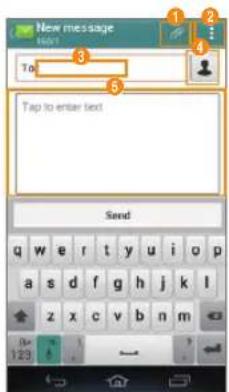
text_image
New message 1 2 3 4 To 5 Tap to enter text SeedNo. Description
| 1 | Attach a picture, video, audio, contact, or others. |
| 2 | Insert text. Add a slide. Add cc or bcc fields. Discard a message. Manage templates. Launch the slide manager. Save the message as a template. |
| 3 | Recipient input field |
| 4 | Select recipients from contacts, call log, or group. |
| 5 | Message input field |
① Note You can add multiple recipients in the recipient input field by adding a comma, space, or semicolon between each recipient's phone number or email address.
Configuring Message Settings
- Tap >Messages.
- Tap : > Settings.
- Select and tap an option.
Option Function
| Storage settings | Set the old message auto-deletion limit. Set the text message or multimedia message limit. View used memory. |
| Signature settings | Edit your signature. Append your signature to outgoing messages automatically. |
| Text message (SMS) settings | Manage messages stored on your SIM card. |
| Multimedia message (MMS) settings | Retrieve multimedia messages automatically. Access the extra settings. Set the storage for saving attachments. |
| Notification settings | Set the message notification to appear. Select a ringtone or vibration for message notifications. |
6
COMMUNICATION

text_image
PANTECH P9090 Using the Internet Setting Up Email Accounts Using Email Setting Up a Google Account Using Gmail Using Google+ Using Social World Using Social Gallery Using Facebook Using Twitter Using Talk at&tCOMMUNICATION
Using the Internet
Accessing the Internet
Search for information on the Internet and bookmark your favorite websites.
- Tap > Web.
- Tap the address bar, and then enter a URL or keyword.
-
Tap
-
Tap and hold unlinked text to copy or share it, find it on the page, or search for the text on the web.
- Drag upward to open the toolbar.
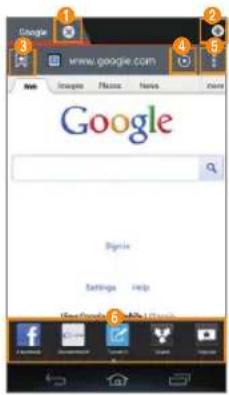
text_image
Google www.google.com Search Images Features News Google Search Settings Help Google Search ToolsNo. Description
| 1 | Close the tab. |
| 2 | Open a new tab. |
| 3 | View bookmarks or bookmark the page. |
| 4 | Refresh a page. |
| 5 | Forward the page. Manage tabs. Open a tab without leaving history. Set the page as a homepage. View bookmarks, browsing history, or saved pages. Share the page. Adjust the brightness. Search for text in the page. Change to desktop view. Save the page for offline viewing. Save or share the page as an image. Access the settings. |
| 6 | Access Facebook. Share the webpage. Read articles of a specific topic.• Add More to add more buttons on the toolbar. |
To Download Files from the Internet
Tap and hold a picture, link, or file, and then tap Save image or Save link. You can find downloaded files at 🧑 > Downloads.
Using the Google Search
- Tap > Search.
-
Enter a keyword in the search box, and then tap 🔒.
-
Tap to access the settings or view the help.
• Tap! to search by voice. -
Select a browser.

text_image
Type to search the web and your phone, ex to launch apps The Thanks q w e r t y u i o p a s d f g h j k l z x c v b n m 123Setting Up Email Accounts
Setting Up Email Accounts Automatically
- Tap > Email.
- Select and tap an email service.
- Enter your email address and password, and then tap Next.
- Configure the settings, and then tap >.
- Enter an account name and your name, and then tap
Setting Up Email Accounts Manually
- Tap > Email.
- Select and tap an email service.
- Enter your email address and password, and then tap Manual setup.
- Select and tap an account type.
- Enter the server information, and then tap >.
- Configure the settings, and then tap
- Enter an account name and your name, and then tap
To Add Another Email Account
After setting up the email account, in the mail list screen, tap
Accounts > @. You can also tap 🎨 > Settings >
Accounts & sync > Add account > Email.
To Delete an Email Account
- Tap > Email.
- Tap : > Settings.
- Select and tap an email account to remove.
- Tap Remove account > OK.
Synchronizing Emails
- Tap ⚠> Settings > Accounts & sync.
- Select and tap an email account.
- Tap the check box next to Sync Email.
Using Email
Viewing Email Messages
1. Tap > Email.
- Tap the check boxes next to emails, and then tap to move them or mark them as read or unread.
2. Tap a message to view it.
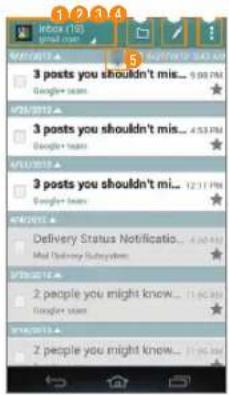
text_image
3 posts you shouldn't mi... 9:00 PM Google fans 4/26/2017 3 posts you shouldn't mi... 4:53 PM Google fans 4/18/2015 3 posts you shouldn't mi... 12:17 PM Google fans 4/2/2015 Delivery Status Notification... 3:30 AM Mail Delivery Subsystems 5/26/2014 2 people you might know... 11:30 AM Google fans 5/18/2013 2 people you might know... 11:30 AMNo. Description
| 1 | Switch to another account. |
| 2 | Switch to another mailbox. |
| 3 | Create a message. |
| 4 | Refresh mail lists. Search an email. Manage accounts. Sort emails. Manage folders. Access the settings. |
| 5 | Refresh mail lists. |
3. View the message.
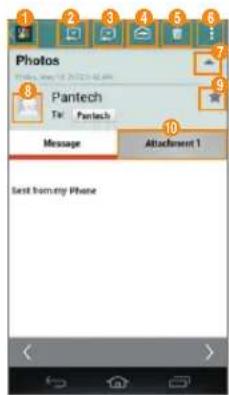
text_image
Photos Pantech TV Pantech Message Attachment 1 Text from any PhoneNo. Description
| 1 | Return to the mailbox. |
| 2 | Send a reply. |
| 3 | Reply to all. |
| 4 | Forward the mail. |
| 5 | Delete the mail. |
| 6 | Move the message to another mailbox. Save an event in the message to the calendar. Mark the message as unread. |
| 7 | Show or hide the sent date and time, sender's email address, or star. |
| 8 | Add the email address to contacts or view options when the address is already saved. |
| 9 | Mark the message as favorite. |
| 10 | View or save the attachment. |
Creating an Email Message
- Tap > Email.
- Tap to create a new message.
- Tap the To field and enter the recipient's email address.
- Tap the Subject field and enter a subject.
- Tap the text input field and write a message.
- Tap to attach a file.
- Tap: to add cc or bcc fields, save the message to the calendar, or set priority.
- Tap to send the message.
Changing Email Settings
- Tap > Email.
- Tap : > Settings.
- Select and tap an option.
Option Settings
| General | Set whether or not to show images in messages. Set to request confirmation before deleting messages. Change the view mode. Set to send the message automatically when the phone fails to transmit. |
| Pre-registered accounts | Configure basic and detailed account settings. Configure notification settings. Remove a registered account. |
Setting Up a Google Account
Registering a Google Account
- Tap > Settings > Accounts & sync.
- Tap Add account > Google.
- Tap New to create a new account.
• Tap Existing if you have a Google account.
- Follow the on-screen instructions.
Note
• You must sign in to your Gmail account to use applications that require a Google account.
• You can add other accounts, such as Facebook, Picasa, or Twitter.
Synchronizing Google Accounts
- Tap > Settings > Accounts & sync.
- Select and tap a Google account.
- Tap the check box next to Sync Gmail.
- Tap items to synchronize them automatically.
Using Gmail
Viewing Gmail Messages
- Tap > Gmail.
- From the Gmail inbox, tap a message to view it.
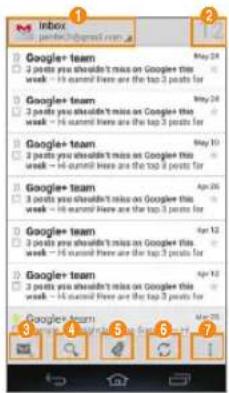
text_image
Inbox Google+ team 3 paints you shouldn't miss on Google this week - Hi could have are the top 2 points for Google+ team 3 paints you shouldn't miss on Google this week - Hi could have are the top 2 points for Google+ team 3 paints you shouldn't miss on Google this week - Hi could have are the top 2 points for Google+ team 3 paints you shouldn't miss on Google this week - Hi could have are the top 2 points for Google+ team 3 paints you shouldn't miss on Google this week - Hi could have are the Top 2 points for Google+ team 3 paints you shouldn't miss on Google this week - Hi could have are the Top 2 points for Google+ team 3 paints you shouldn't miss on Google this week - Hi could have are the Top 2 points for Google+ team 4 paints you shouldn't miss on Google this week - Hi could have are the Top 2 points for Google+ team 3 paints you shouldn't miss on Google this week - Hi could have are the Top 2 points for Google+ team 4 paints you shouldn't miss on Google this week - Hi could have are the Top 2 points for Google+ team 5 posts you shouldn't miss on Google this week - Hi could have are the Top 2 points for Google+ team 6 posts you shouldn't miss on Google this week - Hi could have are the Top 2 points for Google+ team 7 posts you shouldn't miss on Google this week - Hi could have are the Top 2 points forNo. Description
| 1 | Switch to another account or mailbox. |
| 2 | Number of unread messages |
| 3 | Create a message. |
| 4 | Search for a mail. |
| 5 | Show all labels. |
| 6 | Refresh the mail list. |
| 7 | Configure label settings. Access the settings. View the help. Send feedback about Gmail. |
- View the email message.

text_image
Photos week www.fgrp.com.cn Tel: me 6 WP_00001.jpg 2011.8 Images VIEW SAVE Send from my Windows PhoneNo. Description
| 1 | Return to the mailbox. |
| 2 | Add the email address to contacts or view options when the address is already saved. |
| 3 | Designate as a favorite. |
| 4 | Send a reply. |
| 5 | Reply to all or forward. |
| 6 | View or save the attachment. |
| 7 | Archive a message. |
| 8 | Delete a message. |
| 9 | Change labels. |
| 10 | Mark the message unread. |
| 11 | Mark the message as important or not. Hide the message. Move the message to the Spam mailbox. Access the settings. View the help. Send feedback about Gmail. |
Creating a Gmail Message
- Tap > Gmail.
- Tap to create a new message.
- Tap the To field and enter the recipient's email address.
- Tap the Subject field and enter a subject.
- Tap the Compose email field and write a message.
- Tap ▶ to send the message.
- Tap: to attach a file, add cc or bcc fields, save as a draft, discard it, access the settings, view the help, or send feedback about Gmail.
Changing Gmail Settings
- Tap > Gmail.
- Tap : > Settings.
- Select and tap an option.
- Tap: to view the help or send feedback.
Option Settings
| General settings | Set to request confirmation before archiving, deleting, or sending messages. Set to reply to all by default. Set a list to show after deletion. Enlarge or reduce the font size. Set to show check boxes next to messages and message actions. Clear search history. Set whether or not to show images in messages. |
Option Settings
| Pre-registered accounts | Set the Inbox as the default mail folder. Configure notification settings. Append your signature to outgoing messages automatically. Configure the synchronization settings. |
| About Gmail | View Gmail version and open source licenses. Send feedback about Gmail. Report a problem about Gmail. |
Using Google+
Google+ allows you to share things with people, send messages, and more.
- Tap 📋> Google+.
- Follow the on-screen instructions.
- Tap All circles to move to other circles.
-
Select and tap an option.
-
Tap to refresh the posts.
- Tap to search for posts, send feedback about Google+, access the settings, view the help, or sign out of Google+.
- Tap to post a new message.
-
Tab or to post a new message with a photo or location.
-
Tap and launch a Google+ menu.
① Note Tap 🧑 > Messenger to start the Messenger function manually.
Using Social World
Social World allows you to use social services, such as Facebook, Twitter, and LinkedIn.
Setting up Social World Accounts
- Tap > Social World.
- Tap a Social World service.
- Enter your username or email address and password.

text_image
Social World All needs Taikita Facebook Pantach Pantach Unlnd Pantach Manage accountsNo. Description
| 1 | View all notifications. |
| 2 | Change the order of social services. |
| 3 | Access the settings. |
| 4 | All feeds |
| 5 | Pre-registered accounts |
Using Social World Facebook
- Tap > Social World.
- Select and tap your Facebook account.
- Select and tap a tab.
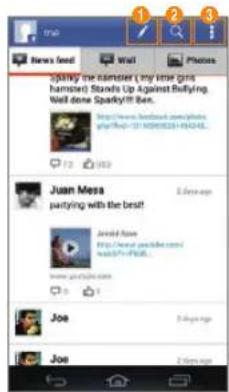
| 1 | Post a new message on Facebook. |
| 2 | Search friends. |
| 3 | Manage the friends list, groups, and your profile.Refresh feeds. Move to Social World. Access the settings. |
① Note Tap and hold a message to view the available options.
Using Social World Twitter
- Tap > Social World.
- Select and tap your Twitter account.
- Select and tap a tab.
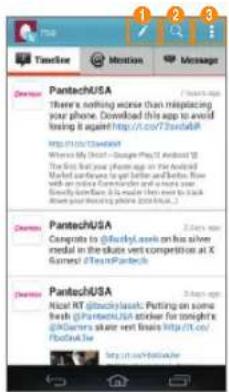
text_image
Timeline Mission Message Deems PantechUSA There's nothing excuse than misleading your phone. Download this app to avoid losing it against http://c.csc/72345688 http://www.deems/ Waste No. 10-10 - Image Web: Android 18 The first book your phone app on the Android Market can continue to get better and better. Now with an online Calendar and more your Society store, it is made then ever to back away your shopping phone (https://pantech.com) Deems PantechUSA Compacts to @duty.com on the silver medal in the state vent competition at K Games! https://pantech.com Deems PantechUSA Nicot RT @duty.com: Petting on some fresh @duty.com sticker for tonight's @Duty.com store next before http://c.csc/72345688 http://www.deems/ DeemsNo. Description
| 1 | Post a new message on Twitter. |
| 2 | Search friends. |
| 3 | Manage the friends list, favorites, and your profile.Refresh feeds. Move to Social World. Access the settings. |
① Note Tap and hold a message to view the available options.
Using Social World LinkedIn
- Tap > Social World.
- Select and tap your LinkedIn account.
- Select and tap a tab.
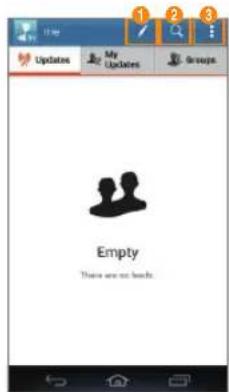
text_image
1 2 3 Updates My Updates Groups Empty There are not beds.No. Description
| 1 | Post a new message on LinkedIn. |
| 2 | Search friends. |
| 3 | Manage the friends list and your profile. Refresh feeds. Move to Social World. Access the settings. |
① Note Tap and hold a message to view the available options.
Using Social Gallery
Social Gallery allows you to view photos and videos on your social service accounts or your phone.
Setting Up Accounts
- Tap > Social Gallery.
- Select and tap a service to add your social network service (SNS) account.
- Enter your username or email address and password.
Using Social Gallery
- Tap > Social Gallery.
- Select and tap a tab.

text_image
Social Gallery 1 2 3 4 Me My Friends Favorite Home Gallery (1) Camera (1) Edited (1) Screenchute (87) Facebook - org (1) Blue Profile Pictures (1) Teacher - org (1) No albumsNo. Description
| 1 | Pictures from My gallery |
| 2 | Pictures from Friends' social network service (SNS) account |
No. Description
3 Items selected as favorites
4 Pictures by location
- Select and tap a folder from the list.
- Select and tap a photo or video.
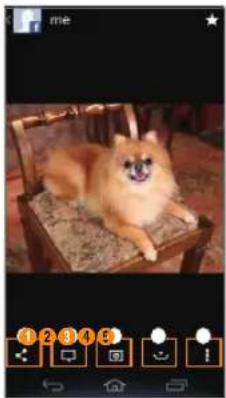
natural_image
A small brown poodle sitting on a wooden chair, looking at the camera interface (no text or symbols visible)Example: When you select a picture of your Facebook friends.
No. Description
| 1 | Share the picture via Bluetooth, Facebook, Gmail, or other method. |
| 2 | Write a comment or delete the file. |
| 3 | Play a slide show. |
| 4 | Download the picture on the phone. |
| 5 | View the photo information. Print the picture. Set as a contact photo or wallpaper. |
① Note Available options differ depending on the account type.
Using Facebook
- Tap > Facebook.
- Enter your email address and password, and then tap Log In.
- Tap Sign Up for Facebook if you do not have a Facebook account.
- Select and tap a contacts synchronizing option, and then tap Sync or Done.
- Tap ≡ to select and tap a tab.
Using Twitter
- Tap > Twitter.
- Tap Sign In, and then enter your username or email address and password.
• Tap Sign Up if you do not have a Twitter account. - Select and tap a tab.
Using Talk
Talk is an instant messenger offered by Google that allows you to chat with your friends.
- Tap > Talk.
- Tap your Google account.
- Tap ADD ACCOUNT to log in with another Google account.
-
Select and tap a friend.
-
Chat with your friends.

text_image
me@pantechusa.com me@pantechusa.com Kate Kim Jim JackNo. Description
| 1 | Current account• ap to select another account. |
| 2 | Search for friends or chat history. |
| 3 | Send a chat invitation. |
| 4 | Sort friends by options. End all chats. Sign out.Access the settings. View the help. Send feedback about Talk. |
| 5 | Your account• ap to change your status or message. |
| 6 | Friends list• : Online• : Away• : Busy• : Offline |
7
MEDIA CENTER

text_image
Using the Camera Capturing the Screen Using the Gallery Downloading Music or Video Files from a computer Using the Music Player Using Play Music Using MOG Music Using the Video Player Using Play Movies & TV Enjoying YouTube PANTECH P9090 at&tUsing the Camera
Before Using
- It is recommended that you take pictures in bright areas. Avoid direct fluorescent or harsh lighting.
• To achieve good pictures, hold the phone firmly and ensure that the subject is steady. - The camera sensor needs some time to automatically adjust the exposure. Wait until the camera achieves the correct exposure.
- The built-in camera is vulnerable to impacts. Be careful not to drop the phone. Wipe the camera lens regularly with a soft, clean cloth.
- The phone consumes more battery power when you use the camera. It is recommended that you use the camera only when needed to save battery power.
- Location information may be saved to pictures, depending on the GPS settings.
- Use the camera responsibly and adhere to all laws and regulations concerning its use.
Taking Pictures
The camera automatically detects a scene and adjusts the focus. You can tap the screen to focus on a desired area. Captured pictures are saved in the Camera folder under the Gallery application.
- Tap > Camera.
- Rotate the phone horizontally.
-
Tap the screen to focus.
-
Tap
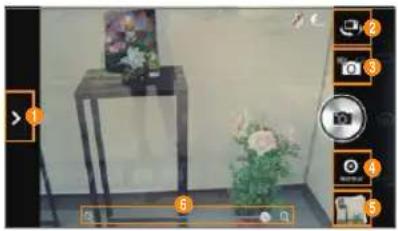
text_image
Photo editing interface screenshot showing a room scene with a display case, floral arrangement, and camera control buttons labeled 1-5.No. Description
| 1 | Open menus and options. |
| 2 | Switch to the front camera. |
| 3 | Switch to video or panorama mode. |
| 4 | Set the HDR function. |
| 5 | View captured pictures. |
| 6 | Zoom in or out. |
① Note
• You can also zoom in or out by pressing the Volume key or spreading your fingers apart or pinching them together.
- You can take pictures faster at 8M resolution than in the highest resolution.
• Available picture resolutions differ when you use the front camera. Tap > Options > Resolution to view available resolutions.
- The High Dynamic Range (HDR) function automatically adjusts the bright and the dark areas of a photo. It allows a greater dynamic range between the brightest and darkest areas of a photo.
Using Options for Taking Pictures
Configure the camera settings to match shooting conditions.
- Tap :Camera.
- Rotate the phone horizontally.
- Tap the screen to focus.
- Tap
- Tap a menu > an item.
- Tap and hold an item, and then drag it into an orange box to add a shortcut.
- Tap and hold a shortcut, and then drag it off of the menu bar to delete it.
Menu Setting (when you use the rear camera)
| Options | Configure exposure, timer, flash, focus mode, resolution, and white balance settings. |
| Mode Change the shooting mode. | |
| Effects Select a color effect. | |
| Settings | Show the review screen after taking pictures. Select a metering type. Use voice recognition, GPS, shutter sounds, and grid lines. Select a location for storage pictures. |
① Note
- Instant Film mode allows you to apply the instant camera effect and edit pictures.
- If you set the Review Screen function, you can use the album, edit, share, and delete menus after taking pictures.
- If you take in vertical mode, you can drag the screen upward or downward to view items.
Recording Videos
Record videos with the built-in camera. You can also capture an image during playback. Captured videos and photos are saved in the Camera folder under the Gallery application.
- Tap 📄Camera.
- Rotate the phone horizontally.
- Tap to switch to the video mode.
- Tap the screen to focus.
- Tap

text_image
Cropped image showing a wooden box with numbered annotations and control panel, likely from a software interface or photo frame.MEDIA CENTER
No. Description
| 1 | Open menus and options. |
| 2 | Zoom in or out. |
| 3 | Capture an image during recording. |
- Tap to stop recording.
① Note You can also zoom in or out by pressing the Volume key or spreading your fingers apart or pinching them together.
Using Options for Recording Videos
Configure the camera settings to match shooting conditions.
- Tap > Camera.
- Rotate the phone horizontally.
- Tap > To switch to the video mode.
- Tap
-
Tap a menu > an item.
-
Tap and hold an item, and then drag it into an orange box to add a shortcut.
- Tap and hold a shortcut, and then drag it off of the menu bar to delete it.
Menu Setting (when you use the rear camera)
| Options | Configure exposure, timer, flash, resolution, and white balance settings. |
| Effects | Select a color, time lapse, face, or background effect. |
| Settings | Show the review screen after recording videos. Record audio along with video. Record video with limits for MMS attachment. Use GPS, shutter sounds, and grid lines. Select a location for storage videos. |
Taking Panoramic Pictures
Take a wide panoramic scene in a single picture. Captured pictures are saved in the Camera folder under the Gallery application.
- Tap > Camera.
- Rotate the phone horizontally.
- Tap to >to switch to panorama mode.
- Tap
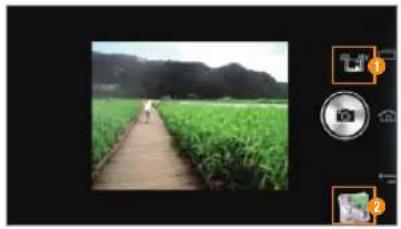
natural_image
Photo of a wooden boardwalk through a green rice field with forested hills in the background (no text or symbols visible)No. Description
1 Switch to picture or video mode.
2 View captured pictures.
- Move the phone continuously in one direction until the panorama is complete.
- Tap
Viewing Captured Picture or Videos
- Tap > Camera.
- After finishing capturing, tap the image viewer at the bottom right of the screen.
① Note The Gallery application starts when you tap the image viewer (refer to page 70).
Capturing the Screen
Press the Volume Down key and the Lock/PWR key together to capture an image of the screen. You can edit and share the captured image, and also set it as a wallpaper or contact photo.
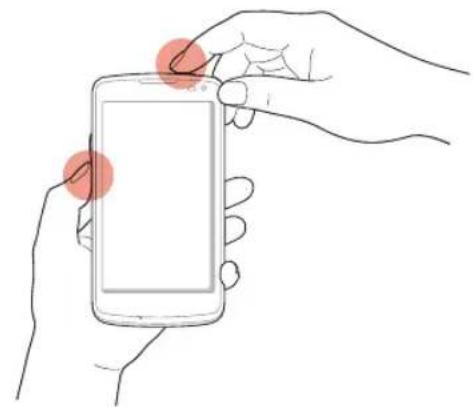
natural_image
Line drawing of two hands holding a smartphone with red circular markers on the screen (no text or symbols)Viewing Captured Images
Drag the area at the top of the screen downward, and then tap Screenshot captured. You can also view captured images by tapping 🎨 > Gallery > Screenshots.
Using the Gallery
Viewing Pictures
1. Tap > Gallery.
-
Select and tap a folder.
-
Tap to play a slide show.
• Tap to select items or view pictures in groups. -
Tap and hold a picture to share or delete the picture, or view menu items.
-
Select and tap a picture.

natural_image
Grid of outdoor scenes including a house, houses, water, and a cup with a hand holding a cup (no visible text or symbols)- View the picture.

natural_image
Close-up photo of a white ceramic mug with red rim, displayed on a red saucer (no visible text or symbols)Example: When you select a picture in the Camera folder.
No. Description
| 1 | Return to the folder. |
| 2 | Share the picture via Social World, Bluetooth, or other method. |
| 3 | Delete the picture. |
| 4 | Play a slide show. Edit the picture. Rotate the picture.Crop the picture. Set as a contact photo or wallpaper.View the file information. |
| 5 | The selected picture• 4p to view or hide the option menus. |
Viewing Videos
1. Tap > Gallery.
- Select and tap a folder.
• Tap to play a slide show.
• Ta to select items or view videos in groups.
- Tap and hold a video to share or delete the video, or view menu items.
-
Tap to play the video.
-
Tap to share the video.
- Tap to delete the video.
-
Tap to view the file information.
-
View the video.
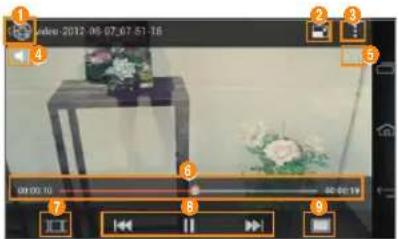
text_image
October-2012 06 07 07 51:16 09:00:10 00:01:19No. Description
| 1 | Return to the playlist. |
| 2 | Switch to compact mode. |
| 3 | Share the video. View the file information. Access the settings. If the video has a caption, you can configure the caption settings. |
| 4 | Adjust the volume. |
| 5 | Set the sound effects. |
| 6 | Playback progress bar |
| 7 | View the thumbnails of a video.Tap a thumbnail move to that scene. |
| 8 | Control the playing. |
| 9 | Adjust the screen size. |
Downloading Music or Video Files from a computer
Share music or video files with a computer via the data cable. You must first install Windows Media Player 10 or higher.
- Tap ⚙ > Settings > USB connection settings > Media device (MTP).
- Tap Tips to view tips about connection modes.
- Connect the phone to a computer with the data cable.
- Open the MTP device on the computer, and then transfer files from the computer to your phone.
- Disconnect the data cable when the transfer completes.
① Note
- To connect the phone to a computer in MTP mode, the computer and Windows Media Player must meet the requirements under the following path. Tap > Settings > USB connection settings > Tips, and then tap the Media device (MTP) tab.
- If you do not tap the check box next to Show settings when USB connected, in the USB connection settings screen, the screen will not appear next time you connect your phone to a computer. In that case, drag the area at the top of the screen downward, and then tap Touch for other USB options to open the USB connection settings screen.
- The USB connection may fail depending on your computer's operating system. Tap Tips in the USB connection settings screen for details.
Using the Music Player
Listening to Music
Enjoy music on the phone.
- Tap > Music.
-
Select and tap a tab.
-
Tap: to delete files or access the settings.
-
Tap and hold a file to set it as a ringtone, add it to a playlist, delete it, send it, or view file information.
-
Select and tap a file to play.

text_image
Music 1 2 3 4 5 6 7 8 9 10 Song 1 11 12 13 14No. Description
| 1 | Switch to compact mode. |
| 2 | Search for the file in an application. |
| 3 | Add the song to a playlist. Set the song as ringtone. Set the sleep mode. Access the settings. |
| 4 | Adjust the volume. |
| 5 | Rate the file. |
| 6 | Set the sound effects. |
| 7 | Album cover• Drag the left or right to skip to the previous or next track. |
| 8 | Switch to the playlist. |
| 9 | View similar songs on YouTube and share the information via social network service (SNS). |
| 10 | View the song information. |
| 11 | Progress bar |
| 12 | Set random play. |
| 13 | Control the playing. |
| 14 | Set repeat play. |
To Control Music on the Locked Screen
If the screen is locked when you play music, drag the CD image at the upper-right of the screen to the left. You can use the playback bar to pause, playback, or skip to the previous or next track.

text_image
Tue, Jul 17 4:30Example: When you use Modern lock.
① Note
• The playback screen differs when you rotate the phone horizontally.
- The instructions in this manual are based on the default playback screen. Available items may differ depending on the options you select.
Creating a Playlist
- Tap > Music.
- Drag the tab to the left and tap Playlists.
- Tap : > New playlist.
- Enter a name for the playlist, and then tap OK.
- Select and tap the tracks that you want to add to the playlist.
- Tap
To Add Songs to a Playlist
Tap and hold a track, and then tap Add to playlist > a playlist.
To Edit Playlists
Drag the tab to the left, tap Playlists, and then tap and hold a playlist. Select and tap an option to edit the playlist.
Using Play Music
Play Music allows you to play music stored on your Google Play music library or on your phone.
- Tap > Play Music.
- Select and tap a track.
- Follow the on-screen instructions.
Using MOG Music
With MOG Music, you can enjoy unlimited music on demand.
-
Tap > MOG Music.
-
Tap the appropriate option.
-
Follow the on-screen instructions.
① Note
- The first time you open this application, you must download the updated application from the Play Store.
- The MOG service requires a subscription. A free trial period is provided for new users. Once the trial period expires, you must subscribe to continue using the service.
Using the Video Player
Before Using
• Supported video formats and codecs are H.263, H.264 AVC, MPEG-4, VC-1(WMV), DivX/XviD, VP8.
- Supported files types and container formats are .3gp, .3g2, .mp4, .mkv, .avi, .wmv, .asf, .divx.
• Some videos may not appear as thumbnails in Gallery or other applications due to performance limitations.
- Damaged or incompatible files may not play or may play abnormally.
- The maximum resolution is 1920 X 1080. Some files in certain formats or codecs may not play or may play abnormally according to encoding options such as profile or level, frames per second, or bit rate.
- Some files may not play or may play abnormally due to performance or memory limitations.
• Large video files may take longer to start playing or to search.
- If you play video files with a Bluetooth headset connected, playback may differ depending on file formats or codecs.
- Subtitles (.smi or .srt) are supported with video files.
Viewing Videos
-
Tap > Videos.
-
Select and tap a video.
-
Tap: to play, delete, share, or sort files, go to DivX registration, or access the settings.
-
Tap and hold a video file to delete, share, search for, or view the file information.
-
View the video.
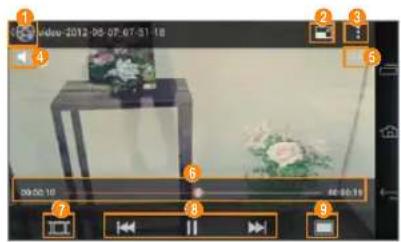
text_image
1 2 3 4 5 6 7 8 9 00:00:10 00:00:10No. Description
| 1 | Return to the playlist. |
| 2 | Switch to compact mode. |
| 3 | Share the video. View the file information. Access the settings. If the video has a caption, you can configure the caption settings. |
No. Description
| 4 | Adjust the volume. |
| 5 | Set the sound effects. |
| 6 | Playback progress bar |
| 7 | View thumbnails of the video.• ̅ap a thumbnail to move to that scene. |
| 8 | Control the playing. |
| 9 | Adjust the screen size. |
Using Play Movies & TV
Play Movies & TV allows you to play videos stored in Google Play or on your phone.
1. Tap>Play Movies & TV.
- Tap to launch Play Store.
-
Tap to select an account, access the settings, view the help, report a problem, or send feedback about the service.
-
Tap a tab and select a video.
Enjoying YouTube
Watching Videos
- Tap > YouTube.
- Select and tap a video.
- View the video.

text_image
Pantech's Element & Burst on the Price is Right's Back to School Show! 12 March 22, 2012 PantechUSA SUSCONSCE 5 Pantech's relief. Element and the lighting-back burst 48:174 (####### will be found on the Price inNo. Description
| 1 | Share via Gmail, Messages, Bluetooth, or other method. |
| 2 | Search for videos. |
| 3 | Add accounts. If you log in, you can add the video to a playlist or share it. Rate the video. Share the video with a TV. Copy URL. Report an inappropriate video. Access the settings. Send feedback about YouTube. View the help. |
No. Description

Playback screen
• Tap to pause the video.
• Tap to resume the video.

Rate the video.
① Note Rotate the phone horizontally to switch to full screen view.
Uploading Videos
- Tap > YouTube.
- Tap Sign in.
• If you have logged in, tap your account.
- Select and tap an account.
- Tap New to create an account.
- Tap the account >
- Select and tap a folder > a video.
- Select and tap an upload option.
- Enter the title, description, and tags for the video, and then configure the privacy settings.
- Tap Upload.
8
MENU FUNCTIONS
text_image
PANTECH P9090 Alarm/Clock Calculator Calendar Chrome Converter Downloads File Manager Latitude Local Maps Navigation Net Media Notepad Pill Reminder Play Books Play Magazines Smart beam Smart Voice Tip Calculator ThinkFree Office Voice Recorder Weather at&tMENU FUNCTIONS
Alarm/Clock
Set alarms, view the world time, use a timer, or set a stopwatch.
Adding a New Alarm
-
Tap > Alarm/Clock.
-
Tap to use your phone as a desk clock.
- Tap to delete alarms.
-
Tap to access alarm settings.
-
Tap Alarm > Add alarm.
-
Select an alarm time from the numbers displayed, and then tap Set.
- Configure the settings for the alarm, and then tap Save.
• A red bar appears under the alarm.
- Tap to turn on or off an alarm.
① Note To change the alarm setting, tap the alarm time.
Viewing the World Time
- Tap > Alarm/Clock.
- Tap World Time > Add new city.
- Enter the first letter of a city.
- Select and tap the name of the city.
Note To delete cities, tap 📋, select and tap the cities, and then tap 📋 again.
Using the Timer
- Tap > Alarm/Clock.
- Tap Timer.
- Set the timer by tapping the middle of the screen, and then tap Set.
- Tap Start.
① Note You can reset the timer by tapping Reset while the timer is running.
Using the Stopwatch
- Tap > Alarm/Clock.
- Tap Stopwatch.
- Tap Start to start the stopwatch and tap Record to measure lap/split times.
Calculator
Perform basic mathematical calculations.
- Tap > Calculator.
- Enter numbers and tap the appropriate mathematical operators.
- Tap to view the result.
• Tax to delete a number.
- Tap and hold to delete all numbers.
① Note Rotate your phone horizontally to use the scientific calculator function.
Calendar
Manage your schedules and events.
- Tap > Calendar.
- Select and tap a date.

text_image
July 2012 Sun Mon Tue Wed Thu Fri Sat 1 2 3 4 5 6 7 8 9 10 11 12 13 14 15 16 17 18 19 20 21 22 23 24 25 26 27 28 29 30 31 1 2 3 4 5No. Description
| 1 | View the calendar by day, week, month, or agenda. |
| 2 | Add an event. |
| 3 | Move to today. |
| 4 | Refresh or search events. Select calendars to display.Access the settings. |
| 5 | Events for the selected day. |
- Tap+
- Enter information, and then tap Save.
Chrome
Search for information on the Internet with the Google Chrome browser. You can synchronize the browser with your desktop and your phone to share your search history and bookmarks.
- Tap > Chrome.
- Read the Terms and Conditions carefully, and then tap Accept and Continue.
- To connect to your Google account, tap Sign in. Otherwise, tap No thanks.
- Tap : > Other devices.
• To view the tutorial, tap Take a tour.
- Tap the address bar, and then enter a URL or keyword.
-
Browse the Internet.
-
Tap: to return to the webpage.
• Tap★ to view your bookmarks.
• Tap to view your search history.
Converter
Convert values for length, volume, weight, temperature, area, and speed.
- Tap > Converter.
- Select a unit type.
- Enter a value.
- Select the original unit.
- Select a target unit.
• The converted value is shown.
Downloads
Downloads allows you to view and manages the files you download from the Internet.
- Tap > Downloads.
- Select and tap a file.
① Note Tap the check box next to a file, if you want to share or delete the file.
File Manager
Manage files that are stored in the phone or on a memory card.
- Tap > File Manager.
- Select and tap a folder > a file.
- Tap and hold a folder or file to set it as a favorite, cut, copy, delete, rename, or zip it, or view its information.
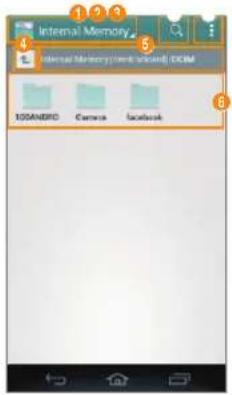
text_image
Internal Memory Internal Memory (Windows NT) - EXCM 100MBD Camera Facebook| No. Description | |
| 1 | Switch between internal memory and a memory card. |
| 2 | Search for files and folders. |
| 3 | View favorites. Create a new folder. Change the view type. Sort files and folders. View the storage capacity. Refresh lists. Access the settings. |
| 4 | Move up one level in the file directory. |
| 5 | Current location |
| 6 | Folders and files |
Latitude
Share your location with your friends or view your friends' locations. You must have a Google account to use Latitude.
Sharing Location with Your Friends
- Tap > Latitude.
- From the FRIENDS LIST screen, tap 📁 > Select from Contacts or Add via email address.
- Select and tap a contact or enter an email address.
- Tap Yes to send sharing requests.
Accepting Invitation from Friends
- Tap > Latitude.
- Tap new sharing request on the top of the screen.
-
Select and tap an option to share your location.
-
Tap Accept and share back to add the person to your friends list and share your location as well.
- Tap Accept, but hide my location to add the person to your friends list and keep your location hidden.
- Tap Don't accept if you do not want to add the person to your friends list.
- Tap Block to block all future requests from the person. This option is available only after you turn down the person's request.
Managing Friends
- Tap > Latitude.
-
Select and tap a friend from the FRIENDS LIST screen.
-
Tap Ping for check in, and then select the time interval for refreshing locations.
- Tap Manage sharing and select an option.
• Tap Remove this friend and tap OK.
Viewing Your Location History
- Tap > Latitude.
- Tap your name from the FRIENDS LIST screen.
- Tap Location history.
- View your location history.
- Tap Location settings > Enable location history, and then follow the on-screen instructions if you have not turned on the location history function.
Managing Location Settings
- Tap > Latitude.
- Tap > Location settings.
- Configure the settings.
Option Description
| Location reporting | Set how to report your location. |
| Report from this device | Send your location history automatically. |
| Enable location sharing | Allow sharing of your location with your friends. |
| Manage your friends | Add or remove friends who can see your location. |
| Enable location history | Set to record your location history. |
Local
Find restaurants, cafes, bars, attractions, and other businesses.
- Tap > Local.
- Select and tap one of the business categories.
- Select and tap a business.
Maps
Find a location and a route to your destination. You can also get traffic, satellite, and altitude information, as well as geographic information from Wikipedia.
- Tap > Maps.
- Select and tap an option.

text_image
Maps United States Mexico| No. Description | |
| 1 | Launch Local, Navigation, or Latitude. View location history or favorite places. |
| 2 | Find my location. Change the view mode. |
| 3 | Search. |
| 4 | Find a route. |
| 5 | Launch Local. |
| 6 | Add a layer of additional information. |
| 7 | Clear the map. Make the map available offline.Access the settings. View the help. |
Navigation
Find a route to your destination with the navigation function.
Searching for a Destination
- Tap >Navigation.
- Select and tap an option.
Option Description
| STARRED | Select the destination from starred places. |
| SHORTCUTS | Speak destination: Search for the destination by voice.Type destination: Search for the destination by entering.Go home: Find a way back home.Map: View traffic condition on the map. |
| Option Description | |
| RECENT DESTINATIONS | View the addresses of recent destinations. |
| CONTACTS | Select the destination from your contacts. |
- Select and tap a destination.
① Note You can also search for a destination by entering it or selecting it in the contacts.
Checking Traffic Conditions
Flick the screen along the suggested route to the destination.
- Depending on the traffic conditions, the road will be highlighted in green (good), yellow (slow), or red (heavily congested).
Net Media
Play or share media files between DLNA-supported devices.
① Note The DLNA-supported devices must be connected to the same Wi-Fi network.
About Digital Living Network Alliance (DLNA)
The Digital Living Network Alliance (DLNA) is a collaborative organization that leads commercialization of global home network services. Its goal is to build compatible platforms by using standards- based technology to make it easier for DLNA-certified device users to share media contents over a home network.
Playing Media Files
-
Tap > Net Media.
-
Select and tap a device to import contents from.
-
Tap your phone to upload files from your phone to another device.
- Tao to search device.
-
Tap to access the settings (refer to page 85).
-
Select and tap a device to play contents with.
- Tap Next.
-
Select and tap a folder.
-
Tap and hold a file and tap Download to download the file to your phone.
-
Tap and hold a file and tap Properties to view the file information.
-
Select and tap a file to view.
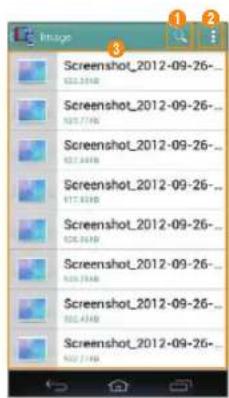
text_image
Screenshot_2012-09-26 122.34KB Screenshot_2012-09-26 528.77KB 122.34KB Screenshot_2012-09-26 917.83KB 122.34KB Screenshot_2012-09-26 528.77KB 122.34KB Screenshot_2012-09-26 502.43KB 122.34KB Screenshot_2012-09-26 502.43KBMENU FUNCTIONS
No. Description
1 Search for a file.
Move to main. Select a playlist. Select files to download or upload. View files by content type or folder type. Change the sorting order.
3 File list
7. View the file.
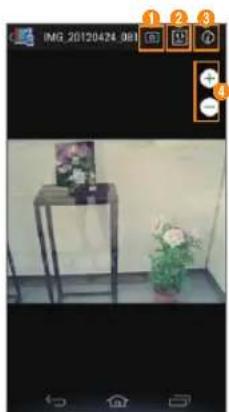
natural_image
Interior scene with a small table holding flowers and a potted plant, no visible text or symbolsExample: When you view a photo.
No. Description
1 Play a slide show.
2 Select a device to play the file with.
3 View the file information.
4 Zoom in or out.

text_image
2019/3 1 2 3 4 5 6 7 05:26 30:21Example: When you play music.
No. Description
1 Adjust the volume.
2 Select a device to play the file with.
3 Create a playlist. View the file information.
4 Playback progress bar
5 Set random play.
6 Control the playing.
7 Set repeat play.

text_image
video-2012-07-17_08-09-01 1 2 3 4 5 6Example: When you play a video.
No. Description
| 1 | Adjust the volume. |
| 2 | Select a device to play the file with. |
| 3 | View a playlist. View the file information. |
| 4 | Playback progress bar |
| 5 | Control the playing. |
| 6 | Adjust the screen size. |
Sharing or Uploading Media Files with Other Devices
To Share or Upload Photo or Video
- Tap > Gallery.
- Select and tap a folder > a photo or video.
- Tap > Net Media.
- Tap Select device to play or Upload.
To Share or Upload Music
- Tap > Music.
- Select and tap a tab.
- Tap and hold a music file to share or upload.
- Tap Send > Net Media.
- Tap Select device to play or Upload.
Permitting Other Devices to Search Your Device
- Tap > Net Media.
- Tap Yes in the question that pops up when another device tries to access your contents through Net Media.
① Note To view devices that can access your contents, tap > Contents share device.
Customizing Settings
- Tap > Net Media.
- Tap
Option Description
| Device Name | Change the phone name. You can add up to 32 characters for the name. |
| Network Info Connected Wi-Fi network | |
| Net Media Server On | Set to use the phone as DLNA server. |
| Contents Share | Permit other devices to search the phone. |
| Option Description | |
| Contents share device | View devices that can access your contents. |
| Contents Position | Change the place where contents to share are saved. Tap Internal Memory or SD Card if the microSDTM card is inserted. |
| Contents Share Folder | Change the folder where shared contents will be saved. |
| Download directory | Select the directory to download files. |
| Upload directory | Select the directory to upload files. |
Notepad
Create and share memos.
Creating a New Memo
- Tap > Notepad.
- Tap to add a new memo.
- Enter the text using the on-screen keypad.
- Tap Done to save the memo.
Layout of the Memo List Screen
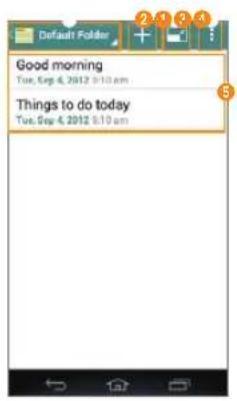
text_image
Default Folder Good morning Tue, Sep 4, 2012 9:10 am Things to do today Tue, Sep 4, 2012 9:10 amNo. Description
| 1 | Select a folder. |
| 2 | Create a memo. |
| 3 | Switch to compact mode. |
| 4 | Delete, sort, move, or search memos. |
| 5 | Memo list |
① Note Tap and hold a memo to edit, share, move, or delete it.
Creating a Folder
You can create a folder or change the name of an existing folder. When you first start NotePad, only the Default Folder exists.
- Tap > Notepad.
- Tap: > Folder Setting.
- Tap to add a folder or tap an existing folder.
- Enter the name of the folder and select a color of the folder.
- Tap Done.
Locking or Synchronizing Memos
You can lock your memos or synchronize them with your Google account.
- Tap > Notepad.
- Tap: >Lock & sync.
- To lock memos, tap Set password, and then configure the settings.
• To synchronize memos, tap Add account, and then configure account settings.
- Tap Done.
Pill Reminder
Pill Reminder reminds you to take your medications regularly.
- Tap > Pill Reminder.
- Tap
- Set options.
- Tap Done.
Play Books
Play Books allows you to read books stored in Google Play.
- Tap 🧑>Play Books.
• Tao to launch Play Store.
- Tap to search for a book.
- Tap: to save a book for offline viewing, change the view mode, refresh the book list, select an account, access the settings, or view the help.
- Select and tap a book.
• To move to another page, flip the page as you would with a real book.
Play Magazines
Play Magazines allows you to read magazines stored in Google Play.
- Tap 🧠> Play Magazines.
• Tap to launch Play Store.
- Ta: to subscribe to a magazine, refresh the magazine list, access the settings, or view the help.
- Select and tap a magazine.
Smart beam
Smart beam allows you to transfer files easily by placing two phone back-to-back. You can transfer files, contacts, schedules, and more.
① Note
- You cannot share Digital Rights Management (DRM)-protected files, files on the Internet, or files that must be streamed.
- Pantech is not responsible for illegal sharing of data.
- When you are using Smart beam, the Bluetooth and Wi-Fi direct functions are activated automatically. After the files have been shared, turn off these functions to conserve battery power.
Activating the Smart beam
- Tap > Settings > More...
- Tap the check box next to NFC.
- The Android beam function is activated along with the NFC function automatically.
Transferring files
- Select and open a file you want to transfer.
- Place the back of your phone against the back of another phone that supports the Smart beam functions.
- When the message appears, tap the screen.
- When the transfer is complete, the transferred fill will open automatically.
- Tap Confirm.
Smart Voice
Smart voice allows you to send a message, make a call, or search for and play music by voice. Tap 1 to learn how to use Smart Voice.
- Tap > Smart Voice.
- Read the License Agreement, and then tap Agree.
- Read the instructions, and then tap Okay.
- Tap and say a command.
Tip Calculator
Calculate tips and split bills.
- Tap 🧑> Tip Calculator.
- Enter the total amount of the bill, the tip percentage, and the number of people that are splitting the bill.
- Tap Done.
ThinkFree Office
ThinkFree Office allows you to edit Office documents on your phone.
Create a document
- Tap 🧑> ThinkFree Office.
- Read the License Agreement, and then tap Accept.
- Tap Activate now to complete registration. Tap Later if you want to register later.
4. Tap+
- If you want to use a template to create a document, tap Template.
- Select a document type.
- To create the document, you can perform the following functions:

text_image
Good morning How areExample: When you select Word.
No. Description
| 1 | Save the document. |
| 2 | Cancel the last action. |
| 3 | Redo the last action. |
| 4 | Show or hide the keyboard. |
| 5 | Access the settings. |
View a document
- Tap 🧑>ThinkFree Office.
- Select and tap a folder.
- Tap another option for viewing files, if you want:
• Tap My Docs to view the files saved on your phone.
- Tap Recent Docs to view the files you recently opened.
- Tap Online to view the files saved you your cloud service.
- Select and tap a file.
Voice Recorder
Record an audio file.
- Tap > Voice Recorder.
-
Tap to start recording.
-
Tao to view the file list.
-
Tap: to set the location for saving files.
-
Tap to stop recording.
• The audio file is saved automatically.
Weather
View weather information for certain cities.
Adding a New City
- Tap > Weather.
- Enter the name of the city you want to add, and then tap
• Tap+ if you already added a city. - Select and tap the city.
- Current weather information for the city appears on the list.
- Tap the city on the top to view other city's weather forecast.
Viewing Weather Information
- Tap > Weather.
- Select and tap a city in the list.
- Tap to view updated information.
Changing the Weather Settings
- Tap > Weather.
-
Tap : > Settings.
-
Configure the settings.
| Option Description | |
| Temperature scale | Choose a temperature unit. |
| Auto update | Choose a time period for auto updating weather information. |
| Current location | View weather for your current location automatically in the city list. |
9
AT&T SERVICES

text_image
PANTECH P9090 Amazon Kindle AT&T Code Scanner AT&T DriveMode AT&T FamilyMap AT&T Locker AT&T Navigator AT&T Ready2Go AT&T Smart Wi-Fi Live TV Device Help YPmobile myAT&T Messages at&tAT&T SERVICES
Make your phone do more for you with useful applications from AT&T.
Amazon Kindle
Read books on your phone.
- Tap > Amazon Kindle.
① Note The first time you open this application, you need to download the updated application from the Play Store. - Tap Get Kindle for Android.
- Log in with your Amazon account.
AT&T Code Scanner
Read UPC, QR, and Data Matrix barcodes found on products, magazines, and the Internet.
- Tap > AT&T Code Scanner.
① Note The first time you open this application, you need to download the updated application from the Play Store. - Read the Terms and Conditions carefully, and then tap Accept.
- When the pop-up window appears, tap OK.
- Enter your personal information, and then tap Done.
- View the tutorial.
- Place your phone 2 to 5 inches away from a barcode.
• The scanner will automatically scan the barcode.
- Ensure that the barcode is completely within the frame.
- Tap Yes to see the information provided by the barcode.
AT&T DriveMode
Turn Drive mode on or off. In Drive mode, you cannot receive some incoming calls or notifications and some applications are restricted. Drive mode turns on automatically when you travel faster than 25 mph (40 kmh).
- Tap > AT&T DriveMode.
- Read the Terms and Conditions carefully, and then tap I Accept.
- Read the text and tap Continue.
- Follow the on-screen instructions.
- Tap OFF to turn on Drive mode.
AT&T FamilyMap
View the location of your family members at any time with a monthly fee.
- Tap > AT&T FamilyMap.
① Note The first time you open this application, you need to download the updated application from the Play Store. - Enter your phone number and password, and then tap Submit.
- Follow the on-screen instructions.
AT&T Locker
Store and share your contents in a cloud server.
- Tap > AT&T Locker.
① Note The first time you open this application, you need to download the updated application from the Play Store. - Tap Sign In and enter your user name and password. • Tap Sign Me Up if you do not have an AT&T account.
- Follow the on-screen instructions.
AT&T Navigator
AT&T Navigator takes you to your destination with turn-by turn voice and on-screen driving directions.
- Tap > AT&T Navigator.
① Note To use this function, you must have a data plan. - Read the Terms and Conditions carefully, and then tap Accept.
- Enter your phone number and tap Continue.
- Follow the on-screen instructions.
① Note This application is an AT&T subscription service. To new AT&T Navigator customers, a 30 day free trial is provided. If you do not cancel the service until the trial period is over, you will be charged the monthly fee automatically.
AT&T Ready2Go
Ready2Go allows you to setup and personalize your phone by computer.
- Tap > AT&T Ready2Go.
- Tap Get Started.
- Follow the on-screen instructions.
AT&T Smart Wi-Fi
AT&T Smart Wi-Fi provides an easy way to manage your access to Wi-Fi Hot Spots.
- Tap > AT&T Smart Wi-Fi.
- Read the License Agreement, and then tap Accept.
- Select the auto-connect Wi-Fi hotspot option.
Option Description
| My Spots | Only enable near AT&T Wi-Fi hotspots and networks saved on your device. |
| Popular Hotspots | Only enable near AT&T Wi-Fi hotspots, saved networks, and other near hotspots. |
| Public Hotspots | Enable all public hotspots. |
- Manage your Wi-Fi hotspot connections.
Live TV
Watch live and on-demand TV shows on your phone.
- Tap > Live TV.
① Note The first time you open this application, you need to download the updated application from the Play Store.
2. Read the License Agreement, and then tap Accept.
3. Follow the on-screen instructions.
① Note This application is an AT&T subscription service.
Device Help
View videos and tutorials about how to use the functions of your phone.
- Tap > Device Help.
- Select a web browser.
- Select and tap an item.
YPmobile
Find local businesses and the best gas prices.
- Tap > YPmobile.
- Read the License Agreement, and then tap Accept.
- Tap OK to allow this function to use your current location.
- Enter keywords to begin searching or tap one of the business categories.
- Select and tap a result to view details.
myAT&T
myAT&T is an online account management application.
- Tap >myAT&T.
① Note The first time you open this application, you need to download the updated application from the Play Store.
2. Read the Terms and Conditions carefully, and then tap Accept.
3. Enter your wireless number and password, and then tap Login.
4. Follow the on-screen instructions.
Messages
AT&T Messages brings your calls, text messages, and voicemails together and synchronizes them across all devices.
- Tap > Messages.
① Note The first time you open this application, you need to download the updated application from the Play Store. - Tap Record Greeting to record a personal greeting. • Tap Skip to do it later.
- Follow the on-screen instructions.
10
SETTINGS
text_image
Pantech Settings Wireless & Networks Device Personal System PANTECH P9090 at&tPantech Settings
Change Experience
Change the home screen type.
- Tap > Settings > Change Experience.
- Select an option.
Option Description
| Pantech Easy Experience | Streamlined, easy-to-use experience with: - One home screen for quick access to key functions. - Easy navigation with limited scrolling - Large text and buttons. |
| Pantech Standard Experience | User experience you can make your own with all the customization options that Android has to offer - widgets, shortcuts and more. |
User Theme
Customize the lock screen and dial pad, and set default programs.
- Tap > Settings > User theme.
- Select an option.
Option Description
| Screen lock | Select a lock screen type and lock screen wallpapers or select shortcuts on the lock screen. |
| Dialpad Set a type of dial pad. | |
| Default programs | Reset default programs for each application. |
Wireless & Networks
Set and manage the wireless and network options.
Wi-Fi
- Tap > Settings > Wi-Fi.
- Select an option by tapping it or
Option Description
| Scan Scan for networks. | |
| Add network Add a network. | |
| Network notification | Notify when an open network is available. |
| Automatic connection | Automatically connect to AT&T Wi-Fi networks. |
| Keep Wi-Fi on during sleep | Set when to keep Wi-Fi on during sleep. |
| Wi-Fi Signal Filter | Filter Wi-Fi networks based on signal strength. |
| MAC address View the MAC address. | |
| IP address View the IP address. | |
| WPS connection | Set to connect to WPS-enabled devices by entering a PIN or pressing a button. |
① Note The phone may not connect to a Wi-Fi network when the signal is weak, even if the "Wi-Fi networks available" message appears on the screen.
Bluetooth
- Tap > Settings > Bluetooth.
- Select an option by tapping it or ☐.
Option Description
| Search for devices | Search for Bluetooth devices. |
| Rename phone | Change the phone's Bluetooth name. |
| Visibility timeout | Set the length of time during which the phone is visible to other devices. |
| Show received files | View received files via Bluetooth. |
Data Usage
- Tap > Settings > Data usage.
- Select an option by tapping it or ☐.
Option Description
| Mobile data Turn on or off Mobile data. | |
| Set mobile data limit | Set to disable mobile connection when the specified limit is reached. |
| Data usage cycle | Set the data usage cycle. |
| Data roaming | Turn on or off data roaming. |
Option Description
| Restrict background data | Set to restrict background data. |
| Show Wi-Fi usage | Set to view the Wi-Fi usage. |
Call Settings
- Tap ⚠> Settings > Call settings.
- Select an option.
Option Description
| Fixed Dialing Numbers | Enable or disable Fixed Dialing Numbers (FDN). Change PIN for FDN access. Manage phone numbers list. |
| Volume Key Answer | Set to answer calls by pressing the Volume Up key. |
| Voicemail service | Select a voicemail service. |
| Voicemail settings | Configure voicemail settings. |
| In call option | Set to view the call status while you are on the phone. |
| Auto Redial Turn on or off the auto redial option. | |
| TTY mode | Set the teletypewriter (TTY) mode.1 Note To use the TTY mode, an earphone must be plugged into the earphone jack. |
| Caller ID Choose how your Caller ID will be displayed. | |
SETTINGS
| Option Description | |
| Call forwarding | Set call forwarding options. |
| Call barring settings | Set call barring options. |
| Call waiting | Set the phone to notify when there is an incoming call during another call. |
| Edit reject message | Create or delete the message that is sent when you reject a call. |
| Noise Suppression | Turn on or off the noise suppression option. This function allows you to hear clear sounds by suppressing background noise. |
More...
-
Tap > Settings > More...
-
Select an option.
| Option Description | |
| Airplane mode | Set whether or not to use Wi-Fi and Bluetooth functions. |
| VPN Set up and manage virtual private networks. | |
| Tethering & portable hotspot | Set the phone to provide other devices with an mobile connection by becoming a Wi-Fi hotspot. |
| NFC | Set to use the NFC function to share contents. |
| Option Description | |
| Android Beam | Set to use Android Beam to share your contents wirelessly. |
| Wi-Fi direct Turn on or off the Wi-Fi direct function. | |
| Wi-Fi direct settings | Configure Wi-Fi direct settings. |
| Mobile networks | Enable data access over mobile networks.Turn on or off the international data roaming option. Set the access point name (APN).Select network operators. |
| SSLv2/SSLv3 | Set the phone to use Secure Socket Layer (SSLv2 and SSLv3) protocols for secure network connections. |
① Note
- If you turn on Airplane mode, wireless functions will be disabled. You can turn on the Wi-Fi function separately on an airplane that supports Wi-Fi service.
- Windows 2000 does not support the USB tethering function. On Windows XP, update the OS with Service Pack 3(SP3) or later to use the USB tethering function. If you use Windows XP SP2 or the computer does not detect the USB tethering device, visit http://support.microsoft.com/kb/959765, click "View and request hotfix downloads", and then install the driver on the computer.
Device
Sound
Change various sound settings.
-
Tap > Settings > Sound.
-
Select an option.
General Options
| Option Description | |
| Sound Theme | Set ringtone, notification, screen lock, and alarm sounds. |
| Volumes | Set the volume for music, videos, games, and other media. Set the volume for ringtones and notifications. Set the volume for alarm sounds. |
| Silent mode | Set the silent mode to Off (default), Vibrate, or Mute. |
Ringtone & Notifications
| Option Description | |
| Phone ringtone | Set a ringtone for incoming calls. |
| Default notification | Set a ringtone for notifications. |
| Vibrate and ring | Set the phone to both vibrate and ring. |
System
| Option Description | |
| Dial pad touch tones | Set to emit a sound when you tap the dial pad. |
| Call connecting sound | Set to emit a sound when a call is connected. |
| Battery low tone | Set to emit a sound when the battery is low. |
| Touch sounds | Set to emit a sound when you tap the screen. |
| Screen lock tone | Set to emit a sound when you lock or unlock the screen. |
| Vibrate on touch | Set to vibrate when you touch some screens or Navigation buttons. |
Display
Change various display settings.
- Tap > Settings > Display.
- Select an option.
Option Description
| Brightness | Adjust the brightness of the screen or set the automatic brightness option. |
| Wallpaper Set the wallpaper. | |
| Auto-rotate screen | Make the screen rotate automatically when you rotate the phone horizontally or vertically. |
SETTINGS
| Option Description | |
| Sleep | Set the time delay for automatically turning off the screen when you perform no operations. |
| Font size Adjust the font size. | |
Storage
View the storage information for the internal storage or SD card and mount or unmount an SD card.
-
Tap > Settings > Storage.
-
Select an option.
Option Description
| Mount SD card/ Unmount SD card | Recognize an SD card inserted into the phone. Remove an SD card from the phone safely. |
| Erase SD card | Erase all data on the SD card. |
USB Connection Settings
Manage settings for connecting the phone to the computer via USB.
-
Tap > Settings > USB connection settings.
-
Select an option.
| Option Description | |
| Media device (MTP) | Set to transfer media files between the phone and computer. |
| Camera (PTP) | Set to transfer photos from the phone to a computer. |
| External memory (SD card) | Set to use the SD card as external memory and transfer files between the SD card and computer. |
| PC data mode | Set to transfer files with computer tools. |
| Show settings when USB connected. | Set to view settings when connected via USB. |
| Tips View tips on USB connection settings. | |
Battery
View the battery usage information of the phone.
-
Tap >Settings >Battery.
-
View the battery usage.
- Tap the check box at the upper-right of the screen to display the remaining battery life percentage on the notification bar.
Apps
View and manage applications installed on the phone.
- Tap > Settings > Apps.
- Select an option.
Option Description
Downloaded Manage downloaded applications.
Running Manage running applications.
All Manage all applications.
Motion Recognition
Turn motion recognition on or off and configure the motion recognition settings.
- Tap > Settings > Motion recognition.
- Select an option.
Option Description
| Motion recognition | Turn motion recognition on or off. |
| Instructions - how to use it | Learn how to use motion recognition. |
| Motion sensing will work in | Set options for motion recognition. |
Personal
Accounts & Sync
Add a new account and manage the synchronizing options.
- Tap ⚠️> Settings > Accounts & sync.
- Tap an account.
- Select an option by tapping it or
Option Description
| DATA & SYNCHRONIZATION | Select items to synchronize automatically. |
Remove account Delete an account from the list.
Sync now Start synchronizing.
① Note The synchronizing options that appear on the screen may differ depending on the type of account selected.
SETTINGS
Location Services
Set the options for location services.
- Tap > Settings > Location services.
- Select an option.
Option Description
| Google's location service | Let applications use data from sources such as Wi-Fi and mobile networks to determine your approximate location. |
| GPS satellites | Let applications use GPS to pinpoint your location. |
| Location & Google Search | Let Google use your location to improve search results and other services. |
Security
Manage security options.
- Tap > Settings > Security
- Select an option.
Screen Security
| Option Description | |
| Screen lock Select a screen lock type. | |
| Lock detail settings | Select a lock screen type and lock screen wallpapers or select shortcuts on the lock screen. |
① Note The screen security options that appear on the screen may differ depending on the type of screen lock selected.
Encryption
| Option Description | |
| Encrypt phone | Require a PIN or password to decrypt the phone each time you turn it on. |
SIM Card Lock
| Option Description | |
| Set up SIM card lock | Lock or unlock the SIM card. Change the SIM PIN. |
Passwords
| Option Description | |
| Make passwords visible | Set whether or not to display the password entered. |
Device Administration
| Option Description | |
| Device administrators | View or deactivate phone administrators. |
| Unknown sources | Set to allow installation of non-market applications. |
Credential Storage
| Option Description | |
| Trusted credentials | View the list of trusted credentials and set whether or not applications will use the credentials. |
| Install from SD card | Install certificates from an SD card. |
| Clear credentials | Remove all certificates. |
Language & Input
Set language and text input options.
-
Tap > Settings > Language & input.
-
Select an option.
General Options
| Option Description | |
| Language Set a language for the display text. | |
| Spelling correction | Set the automatic spelling correction option. |
| Personal dictionary | Manage word suggestions for entering text. |
Keyboard & Input Methods
| Option Description | |
| Default Set a default keyboard. | |
| Android keyboard | Configure the settings for the Android keyboard. |
| Google voice typing | Set to use Google Voice to Text function and configure the settings. |
| SwiftKey for Pantech | Configure the settings for the SwiftKey keyboard. |
Speech
| Option Description | |
| Voice search | Select a language for the voice search. Set the SafeSearch option. Hide offensive words in voice search results. |
| Text-to-speech output | Select the preferred TTS engine. Set speed at which the text is spoken. Play a short demonstration of speech synthesis. |
SETTINGS
Mouse/Trackpad
| Option Description | |
| Pointer speed | Adjust the pointer speed when using a Bluetooth device or other pointing device. |
Backup & Reset
Set backup and reset options.
-
Tap > Settings > Backup & reset.
-
Select an option.
Backup & Restore
| Option Description | |
| Back up my data | Set to back up application data, Wi-Fi passwords, and other settings to Google servers. |
| Backup account | Add or select an account to back up data. |
| Automatic restore | Set to restore backed up settings and data when reinstalling an application. |
Personal Data
| Option Description | |
| Factory data reset | Erase all data on the phone. |
System
Date & Time
Set date and time options.
- Tap > Settings > Date & time.
- Select an option.
Option Description
| Automatic date & time | Set to use the network-provided time. |
| Automatic time zone | Set to use the network-provided time zone. |
| Set date Set the current date manually. | |
| Set time Set the current time manually. | |
| Select time zone | Select a time zone manually. |
| Use 24-hour format | Set to use the 24-hour format. |
| Select date format | Select a date display type. |
Accessibility
Set the accessibility options to help people with physical challenges use the phone more easily.
-
Tap > Settings > Accessibility.
-
Select an option.
Services
| Option Description | |
| TalkBack | Turn on or off TalkBack, which provides spoken feedback to help blind or visually-impaired users. |
System
| Option Description | |
| Large text Set to enlarge fonts on the screen. | |
| Power button ends call | Set to end calls when you press the LOCK/PWR key. |
| Auto-rotate screen | Set the screen to rotate automatically when you rotate the phone. |
| Speak passwords | Set the phone to say passwords as you enter them. |
| Touch & hold delay | Adjust the recognition time for tapping and holding the screen. |
| Install web scripts | Set applications to install scripts from Google that make web content more accessible. |
Developer Options
Set application development options.
-
Tap ⚠ > Settings > Developer options.
-
Select an option.
General Options
| Option Description | |
| USB debugging | Set to activate the debug mode when the phone is connected to a computer via USB. |
| Development device ID | View the phone's development device ID. |
| Allow mock locations | Set the phone to send mock locations for testing. |
| Desktop backup password | Set a backup password. |
User Interface
| Option Description | |
| Strict mode enabled | Set the screen to flash when applications do long operations on a main thread. |
| Pointer location | Set to display the current touch data. |
| Show touches | Set to display a feedback for touches. |
SETTINGS
| Option Description | |
| Show screen updates | Set the updating area of the screen to flash. |
| Show CPU usage | Set to display the current CPU usage. |
| Force GPU rendering | Set to use 2D hardware acceleration in applications. |
| Window animation scale | Set a window animation scale. |
| Transition animation scale | Set a transition animation scale. |
Apps
| Option Description | |
| Don't keep activities | Set to clear activity history as soon as an application ends. |
| Background process limit | Set a limit for background processes. |
| Show all ANRs | Set to show a pop-up window when background applications do not respond. |
Setup Wizard
Specify basic information, such as language, network connection, location service, and account when you turn on the phone for the first time.
- Tap > Settings > Setup wizard.
- Select and tap a language, and then tap START.
- Tap Connect to Wi-Fi network, and then select and tap an available Wi-Fi network.
- Tap Skip, and go to step 6 to connect to the network later.
- Follow the necessary steps, and then tap Next.
- Tap Add a Google Account to set up a Google account, and then follow the necessary steps.
- Tap Skip to skip this step.
- Tap Location service to use Google location.
-
Go to step 7 if you do not want to use Google location.
-
Tap Finish.
AT&T Software Update
Check and update your software without visiting the dealer.
- Tap > Settings > AT&T software update.
- Select an option.
Option Description
| Check for updates | Check for software updates. |
| Continue update | Resume a postponed software update. |
① Note After downloading the software, the phone will ask you to update the software immediately. If you choose to update the software immediately, the phone will restart. If you postpone updating the software, you can select to be reminding in 1 hour, 4 hours, or 8 hours in Options. After selecting an option, you will be sent back to standby mode. To resume an update, tap Continue update.
About Phone
View general information of your phone.
- Tap ⚙> Settings > About phone.
- Select an option.
Option Description
| Status | View the battery status, battery level, network, signal strength, mobile network type, service state, roaming, mobile network state, my phone number, IMEI, IMEI SV, IP address, Wi-Fi MAC address, Bluetooth address, serial number, and Up time. |
| Legal information | View the Open source licenses and Google legal information. |
| Model number | View the model number. |
| Android version | View the Android OS version. |
| Baseband version | View the baseband version. |
| Kernel version | View the kernel version. |
| Build number | View the build number. |
11
APPENDIX
text_image
Cautions when Using External Memory Cards Troubleshooting Checklist Specifications Caution FCC Hearing-Aid Compatibility Regulations for Wireless Devices FCC Regulatory Compliance Limited Warranty Legal Notice PANTECH P9090 at&tAppendix
Cautions when Using External Memory Cards
- Unstable voltages may cause memory cards or the phone to malfunction.
- Avoid using or storing memory cards near strong magnetic fields or electrical noise.
- Avoid using or storing memory cards in areas with high temperature, high humidity, or corrosive substances.
- Do not bend, drop, or subject memory cards to heavy impact or pressure.
- Keep memory cards away from small children or pets.
- Memory cards may heat up after using the phone for an extended period time. This is normal and does not indicate a malfunction.
- Ensure that a memory card is inserted in the correct direction. Inserting a memory card in the wrong direction may cause a malfunction.
- This phone supports only microSD memory cards. Use the correct type of memory card.
- You cannot use a memory card when its lifespan has expired. In this case, use a new memory card.
• Handle all memory card carefully. - Format a memory card only on your computer or the phone where it will be used.
-
Do not remove the battery from the phone when a memory card is being used. This may corrupt the data or cause a malfunction. Pantech is not responsible for any loss of data.
-
Your phone supports only microSD memory cards in sizes up to 32 GB. Some memory cards may not work on your phone depending on the capacity or manufacturer. Pantech does not guarantee the functionality or compatibility of memory cards.
- You can store photos, videos, documents, MP3 files, and more on a memory card. Ensure your memory card has enough available space. Your phone cannot recognize a memory card that is full.
- To remove a memory card from your phone safely, tap Menu > Settings > Storage > Unmount SD card or turn off the phone before removing the card.
Troubleshooting Checklist
When the audio quality is poor:
End the call and try again.
When the other party cannot hear you speaking:
Your phone may be set to mute. Disable the mute function. Ensure that your hand is not covering the microphone.
When battery life is shorter than usual:
This may happen when you are in an area with low signal strength. Turn off your phone when it is not in use. Change the battery when necessary.
When you cannot turn on your phone:
Make sure your battery is charged. Check to see if your phone works while recharging the battery.
When you are unable to send a message:
This may happen when you are not registered to receive SMS service, you may be in an area where your network service provider cannot provide such a service, your phone memory is full, or the Fixed Dialing Numbers function is set.
Appendix
When you are unable to make a call:
Your phone may be set to "fixed dial." Cancel the "fixed dial" function. When you are unable to receive a call: Your phone may be set to "Call forwarding." Cancel the "Call forwarding" function.
When you are unable to charge the battery:
This may be the result of one of three cases:
- Your charger may be out of order. Contact your nearest dealer.
- You may be attempting to use the phone in an overly hot or cold environment. Try changing the charging environment.
- Your battery may have not been connected to the charger properly. Check the connector.
When you are unable to input data into your Address Book:
Your Address Book's memory may be full. Delete some entries from your Address Book.
When you are unable to select a certain function:
You may not have subscribed to that function or you may be in an area where such service cannot be provided. Contact your local service provider.
Specifications
Design
Touch Candy Bar
Display
16M colors TFT LCD with 4.8" display, 720 x 1280(HD) pixel resolution
Melodies
AAC LC/LTP, AAC+, eAAC+, AMR-NB, AMR-WB, FLAC, MP3, MIDI, Vorbis, PCM/WAVE, WMA, E-AC3, DTS
Camera
Back: 12.6M CMOS Camera with AF (Auto Focus), Front: 2M CMOS Camera
• Resolution up to 4096X3072 (12,582,912 pixels)
• Video Encoding up to 30fps; decoding up to 30fps
• Photo album and video album
Dimensions & Weight
• Weight: 135g (with battery pack)
• Dimensions: 134 x 69.4 x 8.98 mm (5.28" x 2.73" x 0.35")
Power Management (Performance)
| Battery Type | Capacity | Standby Time | Talk Time |
| Standard Lithium-Ion (Li-ion) | 2100mAh Typ. / 2050mAh Min. | Up to 250 hours | Up to 3 hours |
| Audio Playback time Video | Playback time | ||
| Up to 22 hours Up to 8 hours | |||
Operating Frequency
- GSM/GPRS/EDGE Quad(850/900/1800/1900) MHz, UMTS/HSPA+ Tri(850/1900/2100) MHz, LTE Quad(700/850/1900/AWS) MHz
• Automatic band switching - The provided battery cover is specific for this device and no other approved covers are available.
- Do not use other battery covers with this device as they have not been tested.
Caution
In the United States, 5180 \~ 5240 MHz band is restricted to indoor-use only. Outdoor operation on this band is a strict violation of the FCC rules and can cause harmful interference to commercial radar communications. For outdoor operation, channels in 5180 \~ 5240 MHz band must not be used. If using automatic channel assignment, add channels in this band to the Automatic channel exclusion list.
FCC Hearing-Aid Compatibility Regulations for Wireless Devices
On July 10, 2003, the U.S. Federal Communications
Commission (FCC) Report and Order in WT Docket 01-309 modified the exception of wireless phones under the Hearing Aid Compatibility Act of 1988 (HAC Act) to require that digital wireless phones be compatible with hearing-aids.
The intent of the HAC Act is to ensure reasonable access to telecommunications services for persons with hearing disabilities.
While some wireless phones are used near some hearing devices (hearing aids and cochlear implants), users may detect a buzzing, humming, or whining noise. Some hearing devices are more immune than others to this interference noise, and phones also vary in the amount of interference they generate.
The wireless telephone industry has developed a rating system for wireless phones, to assist hearing device users to find phones that may be compatible with their hearing devices. Not all phones have been rated. Phones that are rated have the rating on their box, or a label located on the box.
The ratings are not guarantees. Results will vary depending on the user's hearing device and hearing loss. If your hearing device happens to be vulnerable to interference, you may not be able to use a rated phone successfully. Trying out the phone with your hearing device is the best way to evaluate it for your personal needs.
- M-Ratings: Phones rated M3 or M4 meet FCC requirements and are likely to generate less interference to hearing devices than phones that are not labeled. M4 is the better/higher of the two ratings.
- T-Ratings: Phones rated T3 or T4 meet FCC requirements and are likely to generate less interference to hearing devices than phones that are not labeled. T4 is the better/higher of the two ratings.
This phone has been tested and rated for use with hearing aids for some of the wireless technologies that it uses. However, there may be some newer wireless technologies used in this phone that have not been tested yet for use with hearing aids. It is important to try the different features of this phone thoroughly and in different locations, using your hearing aid or cochlear implant, to determine if you hear any interference. Consult your service provider about its return and exchange policies and for information on hearing aid compatibility.
Hearing devices may also be rated. Your hearing device manufacturer or hearing health professional may help you find this rating. Higher ratings mean that the hearing device is relatively immune to interference noise. The hearing aid and wireless phone rating values are then added together. A sum of 5 is considered acceptable for normal use. A sum of 6 is considered best.
In the above example, if a hearing aid meets the M2 level rating and the wireless phone meets the M3 level rating, the sum of the two values equals M5. This is synonymous for T ratings. This should provide the hearing aid user with "normal usage" while using their hearing aid with the particular wireless phone. "Normal usage" in this context is defined as a signal quality that is acceptable for normal operation.
The M mark is intended to be synonymous with the U mark. The T mark is intended to be synonymous with the UT mark. The M and T marks are recommended by the Alliance for Telecommunications Industries Solutions (ATIS). The U and UT marks are referenced in Section 20.19 of the FCC Rules. The HAC rating and measurement procedure are described in the American National Standards Institute (ANSI) C63.19 standard.
To ensure that the Hearing Aid Compatibility rating for your phone is maintained, secondary transmitters such as Bluetooth and WLAN components must be disabled during a call. See the manual for instructions on how to disable these components.
This phone has been tested and rated for use with hearing aids for some of the wireless technologies that it uses. However, there may be some newer wireless technologies used in this phone that have not been tested yet for use with hearing aids. It is important to try the different features of this phone thoroughly and in different locations, using your hearing aid or cochlear implant, to determine if you hear any interference. Consult your service provider about its return and exchange policies and for information on hearing aid compatibility.
FCC Regulatory Compliance
FCC Regulatory Compliance
This device complies with Part 15 of the FCC Rules. Operation is subject to the following two conditions: (1) this device may not cause harmful interference, and (2) this device must accept any interference received, including interference that may cause undesired operation.
Your mobile device is a low power radio transmitter and receiver. When it is ON, it receives and also sends out radio frequency (RF) signals. In August 1996, the Federal Communications Commission (FCC) adopted RF exposure guidelines with safety levels for mobile devices. Those guidelines are consistent with safety standards previously set by both U.S. and international standards bodies: the American National Standard Institute (ANSI), the National Council of Radiation Protection and Measurements (NCRP), and the International Commission on Non-Ionizing Radiation Protection (ICNRP). These standards were based on comprehensive and periodic evaluations of the relevant scientific literature. The design of your phone complies with the FCC guidelines.
Statement according to FCC part 15.105
Note: This equipment has been tested and found to comply with the limits for a Class B digital device, pursuant to Part 15 of the FCC Rules. These limits are designed to provide reasonable protection against harmful interference in a residential installation. This equipment generates, uses and can radiate radio frequency energy and, if not installed and used in accordance with the instructions, may cause harmful interference to radio communications. However, there is no guarantee that interference will not occur in a particular installation. If this equipment does cause harmful interference to radio or television reception, which can be determined by turning the equipment off and on, the user is encouraged to try to correct the interference by one or more of the following measures:
• Reorient or relocate the receiving antenna.
- Increase the separation between the equipment and receiver.
- Connect the equipment to an outlet on a circuit different from that to which the receiver is connected.
- Consult the dealer or an experienced radio/TV technician for help.
Statement according to FCC part 15.21
Modifications not expressly approved by this company could void the user's authority to operate the equipment.
RF exposure FCC
For body worn operation, to maintain compliance with FCC RF exposure guidelines, use only accessories that contain no metallic components and provide a separation distance of 10 mm (0.39 inches) from the body. Use of other accessories may violate FCC RF exposure guidelines and should be avoided.
This device and its antenna must not be co-located or operated in conjunction with any other antenna or transmitter.
Health and Safety Information FCC
This EUT has been shown to be capable of compliance with the localized specific absorption rate (SAR) for uncontrolled environment/general population exposure limits specified in ANSI/IEEE Std. C95.1-1992 and has been tested in accordance with the measurement procedures specified in FCC/OET Bulletin 65 Supplement C (2001) and IEEE Std. 1528-2003 Ministry of Health (Canada), Safety Code 6. The standards include a substantial safety margin designed to assure the safety of all persons, regardless of age and health. The exposure standard for wireless mobile phones employs a unit of measurement known as the Specific Absorption Rate, or SAR. The SAR limit set by the FCC is 1.6W/kg*.
* In the U.S. and Canada, the SAR limit for mobile phones used by the public is 1.6 watts/kg (W/kg) averaged over one gram of tissue. The standard incorporates a substantial margin of safety to give additional protection for the public and to account for any variations in.
** This device contains 1800 MHz GSM functions that are not operational in U.S. Territories; this filing is applicable only for 850 MHz GSM and 1900 MHz PCS operations.
Limited Warranty
Protect Your Warranty
Read your Warranty carefully, with special consideration to paragraph seven of the Limited Warranty for your unit:
"Warranty does not apply to... or to any product or part there of which has suffered through alteration... mishandling, misuse, neglect or accident."
Many companies are making look-alike accessories and in some cases, claiming that their product is equal to or better than the Pantech product. Exercise caution—some of these products may not be compatible for use with your Pantech product and may damage the unit or cause it to malfunction.
If service is required on your unit and it is determined that a non-Pantech accessory has created the problem, the Warranty will not apply. In addition, if the unit has already suffered irreversible damage due to use of a non-compatible accessory, the Warranty will be voided. To protect your Warranty, use only compatible accessories that cannot damage or interfere with the functionality of your Pantech product.
12-Month Limited Warranty
Pantech Wireless, Inc. (the Company) warrants to the original retail purchaser of this Pantech handheld portable cellular telephone, that should this product or any part thereof, during normal consumer usage and conditions, be proven defective in material or workmanship that results in product failure within the first twelve (12) month period from the date of purchase, such defect(s) will be repaired or replaced (with new or rebuilt parts) at the Company's option, without charge for parts or labor directly related to the defect(s).
The antenna, key pad, display, rechargeable battery and battery charger, if included, are similarly warranted for twelve (12) months from the date of purchase. This Warranty extends only to consumers who purchase the product in the United States or Canada and it is not transferable or assignable.
This warranty does not apply to:
(a) Products subjected to abnormal use or conditions, accidents, mishandling, neglect, unauthorized alterations, misuse, improper installations or repairs or improper storage;
(b) Products whose mechanical serial numbers or electronic serial numbers have been removed, altered or defaced;
(c) Damages from exposure to moisture, humidity, excessive temperatures or extreme environmental conditions;
(d) Damages resulting from connection to, or use of any accessory or other product not approved or authorized by the Company;
(e) Defects in appearance or cosmetic, decorative or structural items, such as framing and non-operative parts;
(f) Products damaged by external causes such as fire, flooding, dirt, sand, weather conditions, battery leakage, blown fuses, theft or improper usage of any electrical source.
The Company disclaims liability for removal or reinstallation of the product, for geographic coverage, for inadequate signal reception by the antenna or for communications range or operation of the cellular system as a whole.
To obtain repairs or replacement within the terms of this Warranty, the product should be delivered with proof of Warranty coverage (e.g., a dated bill of sale), the consumer's return address, a daytime phone number and/or fax number and complete description of the problem, with all postage prepaid, to the Company. Call the number listed below or the place of purchase for repairs or replacement processing.
To locate your Pantech Authorized Service Center, call: (800) 962-8622 or email HandsetHelp@Pantech.com.
To locate Pantech Authorized Service Center, call: (800) 962-8622 or email HandsetHelp@Pantech.com.
Please have the following information available when you send the phone in for repair:
• A valid, original Proof of Purchase
- Return address
• Daytime phone number or fax number
- Model #
• IMEI # (look for the 15 digit IMEI # behind battery)
• Complete description of the problem
• Prepaid postage (both ways)
Other Warranty Program
You may have another warranty program with your purchase, such as a warranty exchange. If so, please refer to your equipment package or the original point of sale. THE EXTENT OF THE COMPANY'S LIABILITY UNDER THIS WARRANTY IS LIMITED TO THE REPAIR OR REPLACEMENT PROVIDED AS ABOVE AND, IN NO EVENT, SHALL THE COMPANY'S LIABILITY EXCEED THE PURCHASE PRICE PAID BY THE PURCHASER FOR THE PRODUCT.
ANY IMPLIED WARRANTIES, INCLUDING ANY IMPLIED WARRANTY OF MERCHANTABILITY OR FITNESS FOR A PARTICULAR PURPOSE, SHALL BE LIMITED TO THE DURATION OF THIS WRITTEN WARRANTY. ANY ACTION FOR BREACH OF ANY WARRANTY MUST BE BROUGHT WITHIN A PERIOD OF 18 MONTHS FROM THE DATE OF ORIGINAL PURCHASE. IN NO CASE SHALL THE COMPANY BE LIABLE FOR ANY SPECIAL CONSEQUENTIAL OR INCIDENTAL DAMAGES FOR BREACH OF THIS OR ANY OTHER WARRANTY, EXPRESS OR IMPLIED, WHATSOEVER. THE COMPANY SHALL NOT BE LIABLE FOR DELAY IN RENDERING SERVICE UNDER THIS WARRANTY OR LOSS OF USE DURING THE TIME THE PRODUCT IS BEING REPAIRED OR REPLACED.
No person or representative is authorized to assume for the Company any liability other than that expressed herein in connection with the sale of this product.
Some states or provinces do not allow limitations on how long an implied warranty lasts or the exclusion or limitation of incidental or consequential damage, so the above limitation or exclusions may not apply to you. This Warranty gives you specific legal rights, and you may also have other rights which vary from state to state or province to province.
Appendix
For technical support in the U.S. & Canada, call (800) 962-8622, email HandsetHelp@Pantech.com, or visit our web site (www.pantechusa.com). For all other inquiries, write to:
PANTECH WIRELESS, INC.
5607 Glenridge Dr. Suite 500
Atlanta, GA
USA 30342
Legal Notice
Bluetooth is a trademark of Bluetooth SIG, Inc. Wi-Fi is a trademark of the Wi-Fi Alliance. Google, YouTube, Picasa, Gmail, Google Maps and Android Market are trademarks of Google, Inc.