CodeXML M3 - Network Card/Adapter Code Corporation - Free user manual and instructions
Find the device manual for free CodeXML M3 Code Corporation in PDF.


| Product Type | Network Adapter |
| Brand | Code Corporation |
| Model | CodeXML M3 |
| Interface | USB 2.0 |
| Wireless Standards | IEEE 802.11 b/g/n |
| Frequency Band | 2.4 GHz |
| Data Transfer Rate | Up to 150 Mbps |
| Security | WEP, WPA, WPA2 |
| Antenna | Internal |
| Dimensions (L x W x H) | 2.5 x 1.5 x 0.5 in (6.4 x 3.8 x 1.3 cm) |
| Weight | 0.5 oz (14 g) |
| Power Source | USB bus-powered |
| Operating Temperature | 32°F to 104°F (0°C to 40°C) |
| Operating Humidity | 10% to 90% non-condensing |
| Compatible Operating Systems | Windows, macOS, Linux |
| LED Indicators | Power, Link/Activity |
| Maintenance | Keep dry and clean; avoid dust |
| Spare Parts Availability | None user-serviceable |
| Included Accessories | Quick Start Guide |
| Warranty | 1 year limited |
Frequently Asked Questions - CodeXML M3 Code Corporation
User questions about CodeXML M3 Code Corporation
0 question about this device. Answer the ones you know or ask your own.
Ask a new question about this device
Download the instructions for your Network Card/Adapter in PDF format for free! Find your manual CodeXML M3 - Code Corporation and take your electronic device back in hand. On this page are published all the documents necessary for the use of your device. CodeXML M3 by Code Corporation.
USER MANUAL CodeXML M3 Code Corporation
CodeXML M3 Bluetooth® Modem Installation as a USB Keyboard
Cable Installation
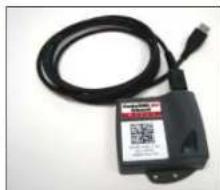
Attach the end of the USB cable to the CodeXML M3 Bluetooth® Modem (Figure 2). Plug the USB connector into the USB port on the computer (Figure 3). Once plugged in the modem's blue LED light will a ash.
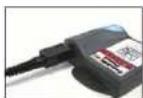
Figure 2
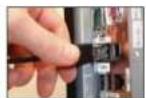
Figure 3
natural_image
Black and white photo of a medical or electronic device with a coiled cable and connector (no visible text or symbols)USB Cable installed to
CodeXML M3 Bluetooth® Modem
Connecting with QuickConnect Code
Scan the QuickConnect Code on the label of the CodeXML M3 Bluetooth® Modem using the Code Reader with which you wish to establish a paired connection. The reader and computer should connect within 10 seconds. The reader will beep once as confirmation, the modem's LED light will become solid once the connection is established. If the reader does not connect, the reader will beep four times in rapid succession.
Establish Mode
Establish connection (see above), then scan the USB Mode code (M708_01). Scan the QuickConnect Code again. You are ready to begin reading bar codes and transmitting data to the computer.
USB Mode

Keyboard Input (USB)
The modem is defaulted to English language keyboards. If you need to communicate in a different language requiring a change in keyboard settings, please scan the appropriate code below, after connecting to the modem:
English (Default)

M590 01
Universal French

M591 01
German

M594.01

M595 01
Japanese

Non-printable ASCII Keyboard (No Leading 0)

M593_01
Non-printable ASCII
Keyboard (Crtl + character)

M597 01
CodeXML M3 Blueooth® Modem Installation as a RS-232 (Serial)
Cable Installation
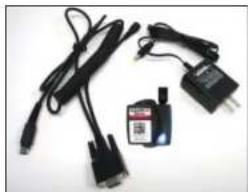
Attach the end of the RS-232 cable to the CodeXML M3 Bluetooth® Modem (Figure 4). Connect the RS-232 adapter to the back of the computer (Figure 5). Connect the RS-232 cable to the power supply (Figure 6). Plug the power supply into a wall socket (Figure 7). Once connected the Modem's blue LED light will turn on.
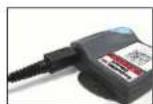
Figure 4 Figure 5
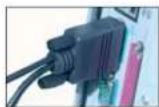
Figure 6
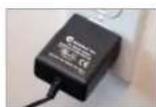
Figure 7
Connecting with QuickConnect Code
See instructions on page 2 for establishing a Bluetooth connection between the modem and the reader.
Establish Mode
Establish connection (see page 2), then scan the RS-232 Mode code (M661_01). Scan the QuickConnect Code again. You are ready to begin reading bar codes and transmitting data to the computer.
RS-232 Mode

M661 01
natural_image
Electrical components including USB cable, connector, and power adapter (no visible text or symbols)RS-232 Cable (Left), CodeXML M3 Bluetooth® Modern (Center), Power Supply (Right)
Change Baud Rate Settings: Scan the appropriate code below, after connecting to
the modem:
Note: Codes only affect Baud Rate for the modem and do not affect any settings on Code Readers.
9600 (Default)

M316 01

M317 01
19200

M318 01
38400
Default Modem settings:
Baud Rate: 9600
Stop Bits: 8
Parity:
Stop Bits: 1
Hardware: None
None
2 C003996_03_CodeXML_M3_Modem_Quickstart
code
code
C003996_03_CodeXML_M3_Modem_Quickstart 3


Modem Firmware Version Output & Values (for reference only):
| VVVVvvvvCKPE BaudString: | ||
| VVVV | 4 digit 5 rmware version | |
| For All Readers: Scan to View Firmware Version | vvvv | Not Applicable to the CodeXML M3 Bluetooth Modem |
| C | 1 digit comm mode: 1=RS-232, 2=Wand Emul., 3=USB KBD | |
| K | Keyboard Map, same as reader host ICD setting 0x2d | |
| P | 1 digit packet protocol: 0=Raw, 1=SPX packet, 2=Code | |

E Pre-emptible Mode
0-off/disabled
M Max Packet Sized (Firmware version 1080 and Higher)
1= enabled, 0=off/disabled
BaudString spx: Baud:DataBitsParityStopbits
CodeXML M3 Bluetooth® Modem Important Note:
The CodeXML M3 Bluetooth® Modem has been tested for compliance with FCC and CE regulations and was found to be compliant with all applicable FCC Rules and Regulations. FCC ID#: QQ6-XML02 Model #: BTHDG-M3-RO-CX
This equipment has been tested and found to comply with the limits for a Class B digital device, pursuant to Part 15 of the FCC Rules. These limits are designed to provide reasonable protection against harmful interference in a residential installation. This equipment generates, uses, and can radiate radio frequency energy and, if not installed and used in accordance with the instructions, may cause harmful interference to radio communications. However, there is no guarantee that interference will not occur in a particular installation. If this equipment does cause harmful interference to radio or television reception, which can be determined by turning the equipment off and on; the user is encouraged to try to correct the interference by one or more of the following measures:
- Reorient or relocate the receiving antenna.
- Increase the separation between the equipment and receiver.
- Connect the equipment into an outlet on a circuit different from that to which the receiver is connected.
- Consult the dealer or an experienced radio/TV technician for help.
Any changes made by the user not approved by Code Corporation can void the user's authority to operate the equipment.
To satisfy FCC RF exposure requirements for mobile transmitting devices, a separation of 20 cm or more should be maintained between the antenna of this device and persons during device operation. To ensure compliance, operations at closer than this distance are not recommended. The antenna used for this transmitter must not be co-located in conjunction with any other antenna or transmitter.
US Patent: US 7,240,831, Patents Pending.
4 C003996_03_CodeXML_M3_Modem_Quickstart

code

Quickstart Guide
CodeXML M3 Bluetooth® Modem - Multiple Interface Unit (MIU)
The CodeXML M3 Bluetooth® MIU Modem is an external PC accessory designed to be connected to a computer for use with a Code Reader (CR2 or CR3). The Modem enables a reader to wirelessly transmit data to the computer without installing any software or drivers. The Modem can accommodate USB and RS-232 (Serial) cables (Figure 1).
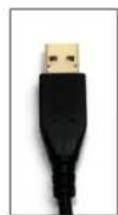
USB
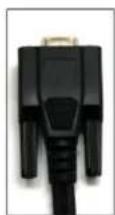
RS-232
Figure 1
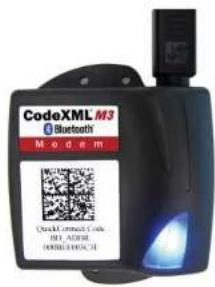
CodeXML M3 Bluetooth® Modem
The CodeXML M3 Bluetooth® Modem is 'plug & play.' You simply plug-in the Modem, scan the QuickConnect code on the Modem label and start transmitting data from Code Readers without downloading any drivers or software. The Modem can receive Bluetooth signals from up to 300 feet (100 meters) away.
For assistance, contact Code Technical Support at: (801) 495 2200; or by email: support@codecorp.com
code
C003996_03_CodeXML_M3_Modem_Quicksstart 1

- CodeXML M3 Bluetooth® Modem Installation as a USB Keyboard
- Cable Installation
- Connecting with QuickConnect Code
- Establish Mode
- Keyboard Input (USB)
- CodeXML M3 Blueooth® Modem Installation as a RS-232 (Serial)
- Modem Firmware Version Output & Values (for reference only):
- CodeXML M3 Bluetooth® Modem Important Note:
- CodeXML M3 Bluetooth® Modem - Multiple Interface Unit (MIU)
Brand : Code Corporation
Model : CodeXML M3
Category : Network Card/Adapter