DVD514 - DVD player COBY - Free user manual and instructions
Find the device manual for free DVD514 COBY in PDF.


| Product Type | DVD Player |
| Brand | Coby |
| Model | DVD514 |
| Disc Compatibility | DVD, DVD±R/RW, CD, CD-R/RW, MP3, JPEG, VCD |
| Video Output | Composite, Component, S-Video |
| Audio Output | Stereo RCA, Coaxial Digital |
| Dimensions (W x D x H) | 430 x 250 x 35 mm |
| Weight | 2.5 kg |
| Power Supply | AC 100-240V, 50/60Hz |
| Power Consumption | 15W (standby <1W) |
| Remote Control | Included (batteries not included) |
| Playback Functions | Play, Pause, Stop, Skip, Repeat, Shuffle, A-B Repeat |
| Parental Control | Yes, user-selectable rating levels |
| Language Support | Multi-language on-screen display |
| Region Code | Region 1 (NTSC) or Region 2 (PAL) depending on version |
| Maintenance | Clean lens with soft cloth; avoid moisture and dust |
| Safety | Adult supervision required for children; do not insert objects |
| Spare Parts | Remote control, power cord available from Coby |
| Repairability | Laser unit and belts replaceable by qualified technician |
| Environmental | Operating temperature 5-35°C, humidity 20-80% |
| Accessories Included | Remote control, RCA AV cable, user manual |
Frequently Asked Questions - DVD514 COBY
User questions about DVD514 COBY
0 question about this device. Answer the ones you know or ask your own.
Ask a new question about this device
Download the instructions for your DVD player in PDF format for free! Find your manual DVD514 - COBY and take your electronic device back in hand. On this page are published all the documents necessary for the use of your device. DVD514 by COBY.
USER MANUAL DVD514 COBY
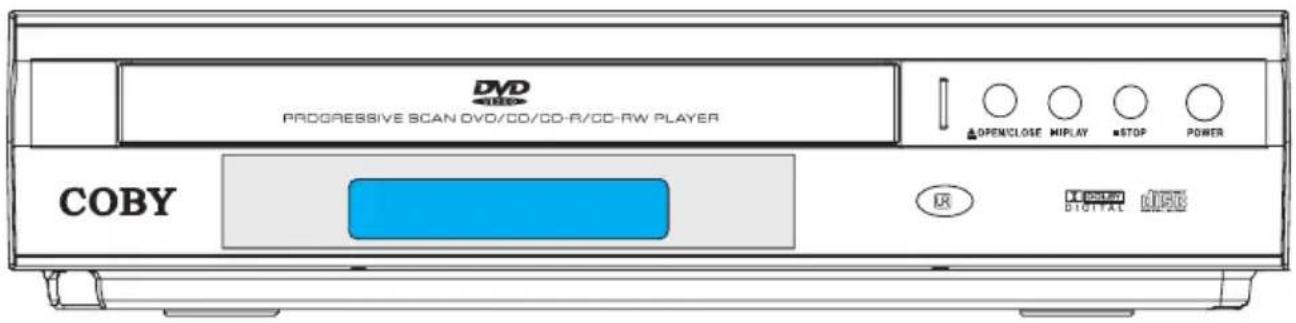
Compact 5.1-Channel Progressive Scan DVD Player
text_image
DVD PROGRESSIVE SCAN DVD/CD/CD-R/CD-RW PLAYER COBY OPENCLOSE MIPLAY STOP POWER R E POWER DIGITAL MSCI


Instruction Manual
Please read this manual carefully before operation.
PRECAUTIONS
CAUTION
RISK OF ELECTRIC SHOCK DO NOT OPEN

CAUTION: TO REDUCE THE RISK OF FIRE AND ELECTRIC SHOCK, DO NOT REMOVE THE COVER (OR BACK) OF THE UNIT. REFER SERVICING ONLY TO QUALIFIED SERVICE PERSONNEL.
For Customer Use:
Enter below the serial number that is located on the bottom of the unit. Retain this information for future reference.
Model No. DVD-514
Serial No.
The lightning flash with arrowhead symbol within an equilateral triangle is intended to alert the user to the presence of uninsulated “dangerous voltage” within the product’s enclosure that may be of sufficient magnitude to constitute a risk of electric shock.

The exclamation point within an equilateral triangle is intended to alert the user to the presence of important operation and servicing instructions in the literature accompanying the appliance.
WARNING:
To prevent fire or shock hazard, do not expose this device to rain or moisture. Dangerous high voltage is present inside the enclosure. Do not open the cabinet.
CAUTION:
This Digital Video Disc player employs a laser system. To prevent direct exposure to the laser beam, do not try to open the enclosure or defeat the safety interlocks. When open and the interlocks are defeated, visible laser radiation is present.
Use of controls, adjustments, or performance of procedures other than those specified herein may result in hazardous radiation exposure. DO NOT STARE INTO THE BEAM.
FCC Notice:
This equipment has been tested and found to comply with the limits for a Class B digital device pursuant with the FCC Rules, Part 15. These limits are designed to provide reasonable protection against harmful interference in a residential installation. This equipment generates, uses, and can radiate radio frequency energy, and if not installed and used in accordance with the instructions may cause harmful interference to radio communication.
CAUTION:
To prevent electric shock, match wide blade of plug to wide slot of outlet and fully insert.
NOTICE:
This product incorporates copyright protection technology that is protected by U.S. patents and other intellectual property rights. Use of this copyright protection technology must be authorized by Macrovision, and is intended for home and other limited viewing uses only unless otherwise authorized by Macrovision. Reverse engineering or disassembly is prohibited.

natural_image
Recycling symbol composed of three chasing arrows, no text or labels presentFor recycling or disposal information about this product, please contact your local authorities or the Electronics Industries Alliance: www.eiae.org.
IMPORTANT SAFETY INSTRUCTIONS
- Read these instructions carefully. Keep these instructions for future reference.
- Heed all warnings and follow all instructions.
- Do not expose to water or moisture.
- Clean only with a dry cloth.
- Keep objects away from ventilation openings. Do not block ventilation openings at any time.
- Do not install near any apparatus that produces heat such as stoves, radiators, amplifiers, etc.
- Do not force the power plug into a wall outlet. If the plug provided does not fit into your outlet, consult an electrician for replacement of the obsolete outlet. (A polarized plug has two blades where one is wider than the other; the wide blade is provided for your safety.)
- Do not place heavy objects on the power cord. Protect the cord from being walked on, pinched by objects, or torn and exposed to liquids (especially at plugs, convenience receptacles, and the point at which they exit from the device).
- Use only with attachments/accessories specified by the manufacturer. Use of attachments/accessories not recommended by the product manufacturer may be hazardous.
- Unplug the device during lightning storms. Unplug the device and remove any batteries when the device will be unused for long periods of time.
- Do not use this device near water. Do not place objects filled with liquids (e.g., vases) on the device. Never spill liquid of any kind on the device.
- Never push objects of any kind into this device through openings as they may touch dangerous voltage points or short out parts that could result in a fire or electric shock.
- Do not use headphones/earphones while cycling, driving, or operating a motorized vehicle.
- Do not use headphones/earphones at high volume.
- Do not drop or otherwise subject the device to impact.
- Do not open or attempt to repair this device. Refer all repairs to authorized service personnel.
- When replacements parts are required, be sure the service technician has used replacement parts specified by the manufacturer or that have the same characteristics as the original part. Unauthorized substitutions may result in fire, electric shock, or other hazards.
- Upon completion of any service or repairs to this device, ask the service technician to perform safety checks to determine that the device is in proper operating condition.
Note:
The rating label is located on the rear panel of the device.
TABLE OF CONTENTS
PRECAUTIONS....2
IMPORTANT SAFETY INSTRUCTIONS .... 3
TABLE OF CONTENTS......4
ABOUT OPTICAL DISCS....6
Disc Requirements....6
Disc Care and Maintenance 6
Standard Television Set Connection 11
Progressive Scan Video Connection....11
Stereo Audio (2-Channel) Connection with Amplifier....12
Digital Audio (5.1-Channel Connection with Digital Decoding Amplifier....12
Remote Control....13
Power Supply 13
BASIC OPERATIONS 14
Basic Playback....14
Play/Pause/Stop 14
Previous/Next (Skip)....14
Forward/Reverse (Search) 14
Slow 14
Menu Navigation....15
Numeric Keypad....15
Adjusting the Volume 15
Disc Error Messages ....15
Power Management....15
PLAYER FUNCTIONS 16
Menu / Title 16
Setup 16
On-Screen Display....16
Search....16
DVD Chapter/Title Search....16
DVD Time Search (within a specified title)....16
CD Time Search 16
TABLE OF CONTENTS
Repeat Mode....17
Repeat A-B Mode 17
Multi-Angle/Subtitle/Audio 17
Zoom 17
Program 17
DVD Program Mode....18
CD Program Mode....18
SETUP 19
Language Setup....19
Screen Setup 19
Audio Setup....20
Custom Setup 20
SPECIFICATIONS 21
TROUBLESHOOTING 22
ABOUT OPTICAL DISCS
Disc Requirements
This DVD player supports playback of the following discs.
| Type Disc Mark Content Type | Disc Size Max. Playback Time | |||
| DVD-Video Discs |  | Audio + Video (moving picture) | 12 cm | 133 min (SS-SL) |
| 242 min (SS-DL) | ||||
| 266 min (DS-SL) | ||||
| 484 min (DS-DL) | ||||
| Audio Compact Discs (CDs) | Audio 1  min min | |||
| JPEG CDs -- Still Picture 12 cm -- | ||||
This unit can play back CD-R and CD-RW discs that contain audio titles or JPEG picture files. Discs not listed above are not supported by this unit (e.g., PC CD-ROM, CD-Extra, CD-G, CD-I, etc.)
Disc Care and Maintenance
Optical discs (DVDs, CDs) contain high-density compressed data and need proper handling.
Handling a Disc
- Hold a DVD/CD by its edges. Avoid touching the recorded side of the disc. To remove a DVD/CD from its storage case, press down on the center retention mechanism of the case and lift the disc out.
- Do not subject discs to prolonged exposure to direct sunlight, high humidity, or high temperatures.
• Do not bend or press discs.
• To reduce the risk of scratches, always put discs back in their case after use. Store discs vertically in a cabinet.
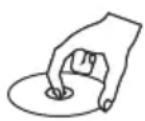

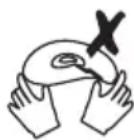
• Do not place stickers or labels on either side of a disc.
Cleaning a Disc
Use a dry, soft cloth to wipe off any fingerprints and dusts from the playing surface of the disc. Wipe in a straight line radially from the center to the outside edge of the disc. Small dust particles and light stains will not affect playback quality.
- Never use chemicals such as record sprays, anti-static sprays, benzene, or thinners to clean a disc. Doing so will damage the surface of the disc permanently.
FEATURES
• Progressive Scan DVD Player
• Compact, Slim Design (2" High)
• Dolby Digital Decoder
• 5.1-Channel Output
• Digital, Optical, and Analog AV Outputs
• DVD, DVD±R/RW, CD, CD-R/RW, and JPEG Compatible
• NTSC/PAL Compatible
• Convenient Front Panel LCD and On-Screen Display
• Multiple Subtitles/Viewing Angles Supported
• Picture Zoom Function
• Parental Lock Control
• 100-240V Automatic Power Switching
LOCATION OF CONTROLS
Front Panel
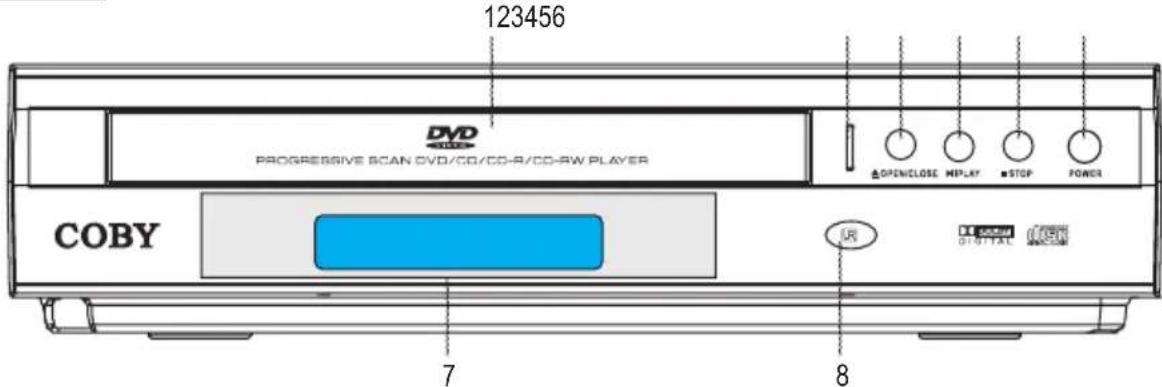
text_image
123456 DVD PROGRESSIVE SCAN CVD/CD/CO-R/CD-RW PLAYER OPENCLOSE MEPLAY STOP POWER COBY 7 8- Disc Tray
- Power Indicator
- Open/Close button
-
Play/Pause button
-
Stop button
- Power button
- Front Panel Display
- Remote Control sensor
Rear Panel
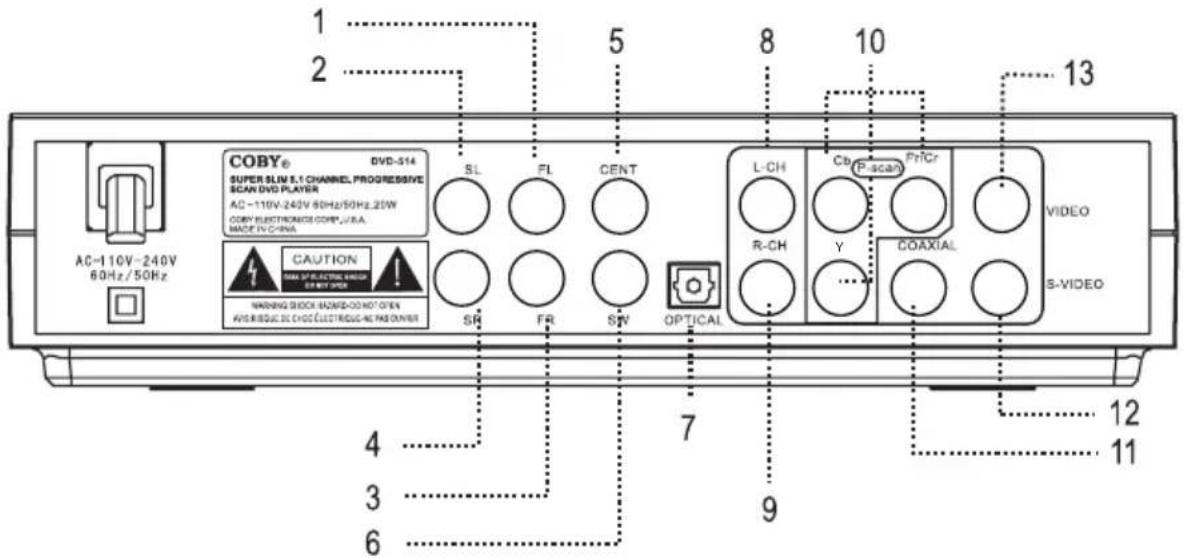
text_image
1 2 5 8 10 13 COBY® SUPER SLIN 9.1 CHANNEL PROGRESSIVE SCAN DVD PLAYER AC-110V-240V 90Hz/50Hz.25W COPY ELECTRONICS CORP., U.S.A. MADE IN CHINA SL FL CENT CAUTION MAIN OF ELECTRIC EIGHT ON I/O OFFER WARNING BLOCK 62#ED-00 NOT OPEN ANSI RIOOL SCCH ELECTRIGC-HEL PAS OWNER SR FR SW OPTICAL L-CH CBr P-scan FrCr VIDEO R-CH Y COAXIAL S-VIDEO 4 3 6 7 9 12 11- Audio (Front Left)
- Audio (Surround Left)
- Audio (Front Right)
- Audio (Surround Right)
- Audio (Center)
- Audio (Subwoofer)
-
Audio (Digital Optical)
-
Audio (Left)
- Audio (Right)
- Component Video Jacks (Progressive Scan)
- Audio (Digital Coaxial)
- S-Video Jack
- Composite Video Jack
LOCATION OF CONTROLS
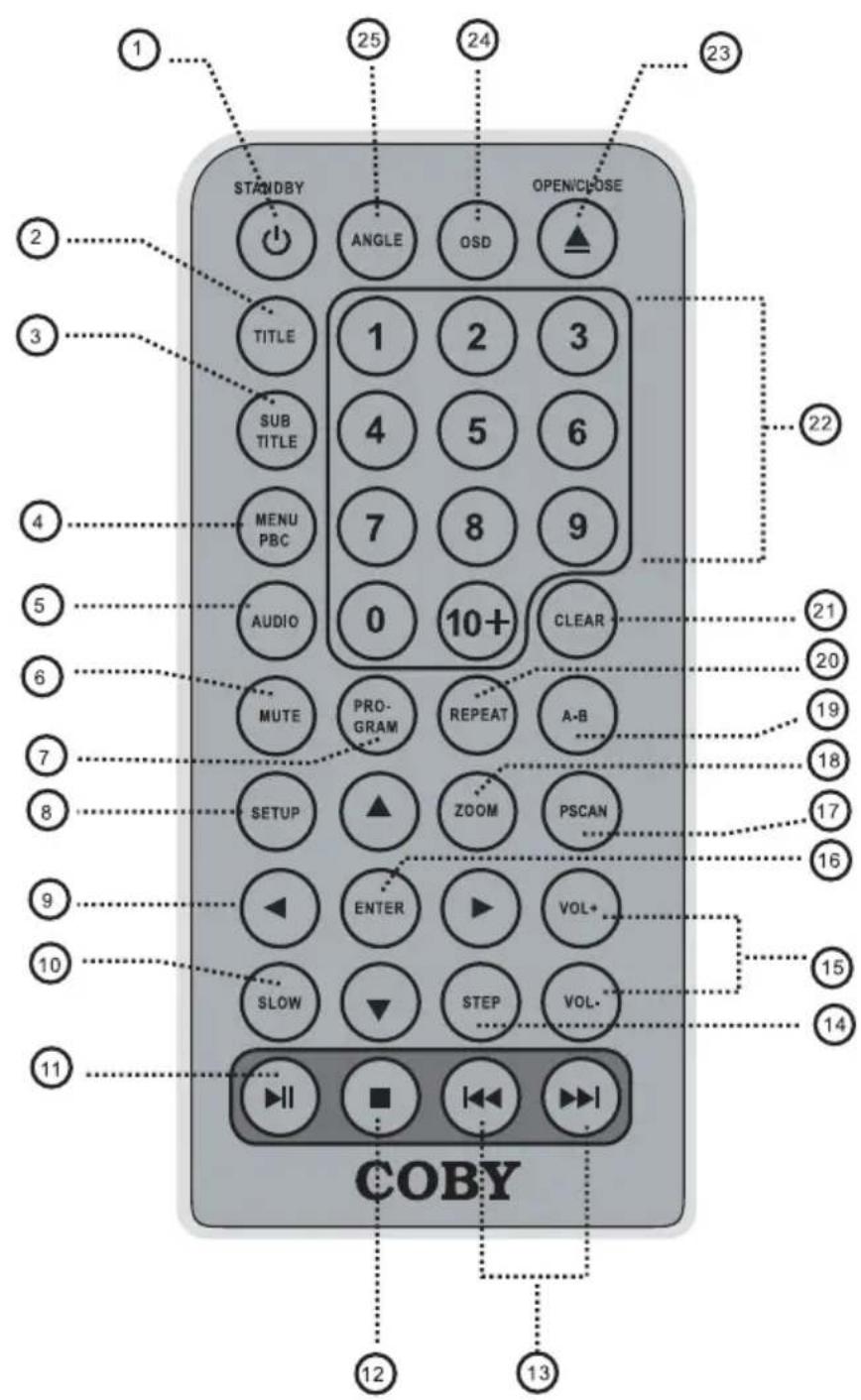
Remote Control
- STANDBY key
- TITLE key
- SUBTITLE key
- MENU PBC key
- AUDIO key
- MUTE key
- PROGRAM key
- SETUP key
- NAVIGATION keys
- SLOW key
- PLAY/PAUSE key
- STOP key
- FWD/REV keys
- STEP key
- VOLUME keys
- ENTER key
- P-SCAN key
- ZOOM key
- A-B key
- REPEAT key
- CLEAR key
- NUMERIC keys
- OPEN/CLOSE key
- OSD key
- ANGLE key
text_image
1 25 24 23 STANDBY ANGLE OSD OPEN/CLOSE TITLE 1 2 3 SUB TITLE 4 5 6 MENU PBC 7 8 9 AUDIO 0 10+ CLEAR MUTE PROGRAM REPEAT A-B SETUP ZOOM PSCAN ENTER VOL+ SLOW STEP VOL- COBY 12 13CONNECTIONS
Audio/Video Connections
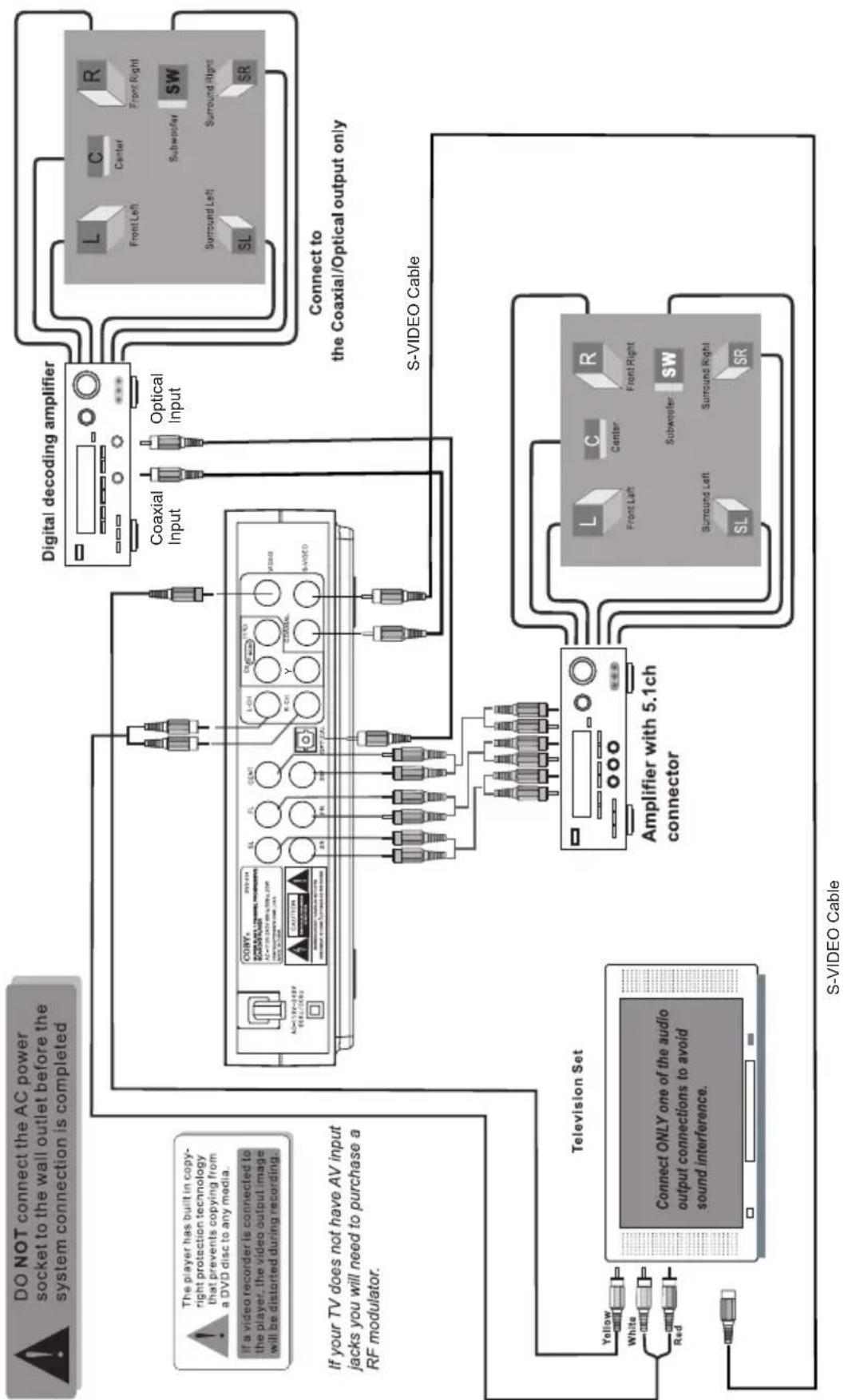
flowchart
graph TD
    A["DO NOT connect the AC power socket to the wall outlet before the system connection is completed"] --> B["The player has built in copyright protection technology that prevents copying from a DVD disc to any media."]
    B --> C["If a video recorder is connected to the player, the video output image will be distorted during recording."]
    C --> D["Connect only one of the audio output connections to avoid sound interference."]
    D --> E["Television Set"]
    E --> F["Yellow White Red"]
    E --> G["S-VIDEO Cable"]
    G --> H["Amplifier with 5.1ch connector"]
    H --> I["Coaxial Input"]
    H --> J["Optical Input"]
    H --> K["Digital decoding amplifier"]
    K --> L["Coaxial Input"]
    K --> M["Optical Input"]
    K --> N["L Front Left"]
    K --> O["C Center"]
    K --> P["R Front Right"]
    K --> Q["Subwoofer SW"]
    K --> R["Surround Left"]
    K --> S["Surround Right"]
    K --> T["SL SR"]
    K --> U["S-VIDEO Cable"]
    U --> V["Connect to the Coaxial/Optical output only"]
CONNECTIONS
Standard Television Set Connection
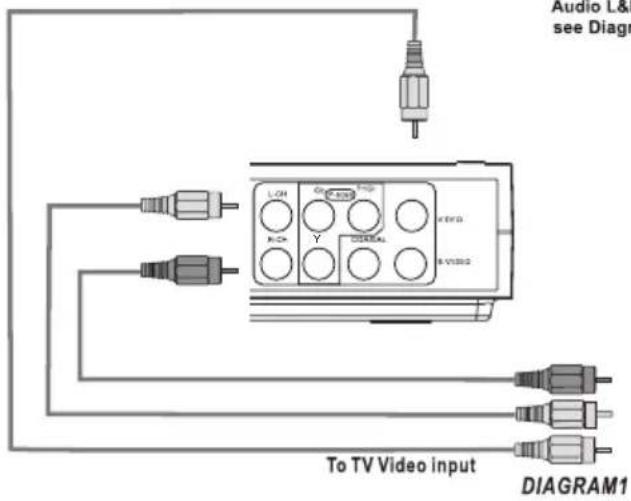
text_image
Audio L& see Diag LCH GND HND RCH Y CORNAL B V1000 To TV Video input DIAGRAM1- Connect the player's L and R Audio and Video Outputs to the TV's Audio L&R Audio and Video Inputs. "VIDEO OUT" setup "NORMAL", see Diagram 1.
natural_image
Front view of a flat-screen computer monitor with control buttons and display screen (no visible text or symbols)Progressive Scan Video Connection
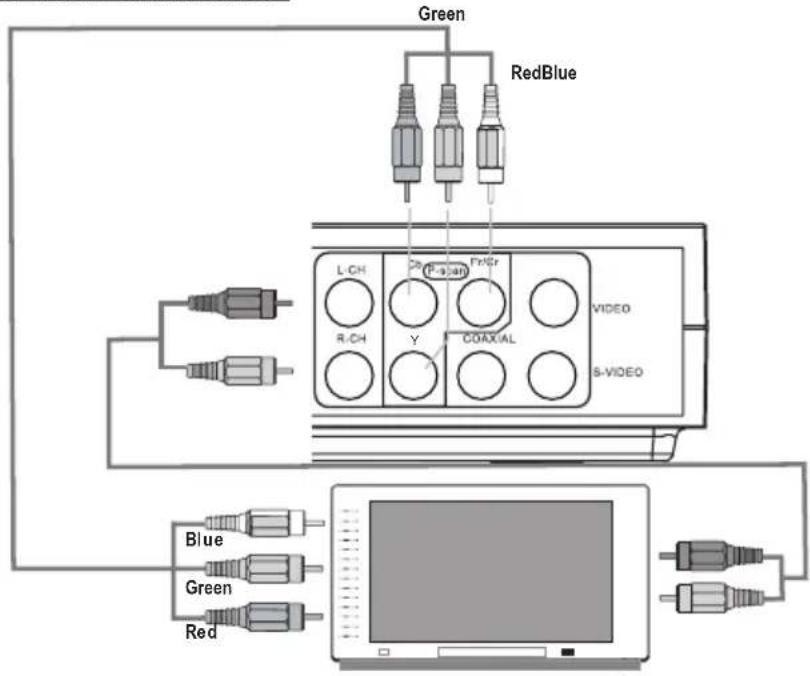
text_image
Green RedBlue L-CH P-sian Fr/Gr R-CH Y COAXIAL VIDEO S-VIDEO Blue Green Red① The player is equipped with composite A/V outputs at the rear of the player. Your TV will require at least one set of A/V inputs. The patch cord supplied with the player will connect your player's A/V output to your TV'S inputs.
② Please remember to push the "Line" or "Input" or "Video/TV" button on your TV remote to view the DVD signal. Depending on your brand of TV, this button will have a different name for the same function, as per the examples above.
That function will allow your TV to be switched from the broadcast reception mode to one of the A/V signals. Some TVs have more than one A/V input.
3 The player is equipped for stereo playback. To fully realize 2 channel sound, a Stereo TV or A/V receiver is necessary. However, a Mono TV may be used providing the TV one set of A/V Inputs. The A/V input for Mono sound. You may connect either the Left or Right audio channel from the DVD Composite audio out to the mono TV audio input.
CONNECTIONS
Stereo Audio (2-Channel) Connection with Amplifier
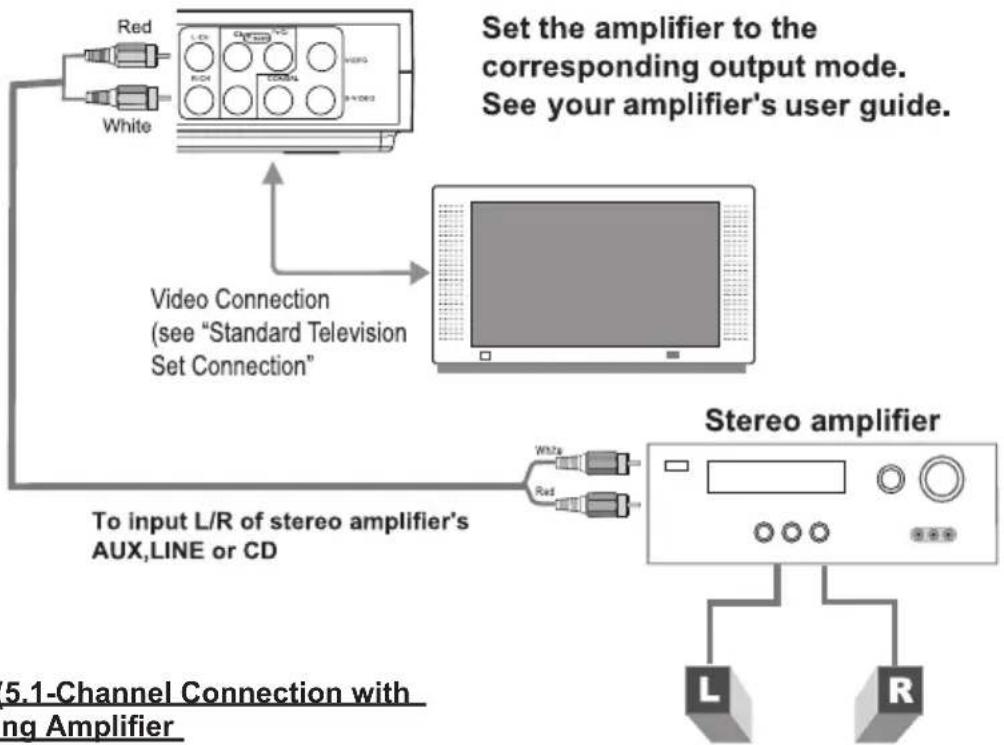
flowchart
graph TD
    A["Red"] --> B["Video Connection"]
    C["White"] --> B
    B --> D[" Stereo amplifier "]
    D --> E["L"]
    D --> F["R"]
    style A fill:#f9f,stroke:#333
    style C fill:#f9f,stroke:#333
    style B fill:#ccf,stroke:#333
    style D fill:#cfc,stroke:#333
    note right of B: Video Connection (see "Standard Television Set Connection")
    note right of D: To input L/R of stereo amplifier's AUX,LINE or CD
    note left of D: 5.1-Channel Connection with Ampifier
    note right of D: Set the amplifier to the corresponding output mode.
    note right of D: See your amplifier's user guide.
Digital Audio (5.1-Channel Connection with Digital Decoding Amplifier
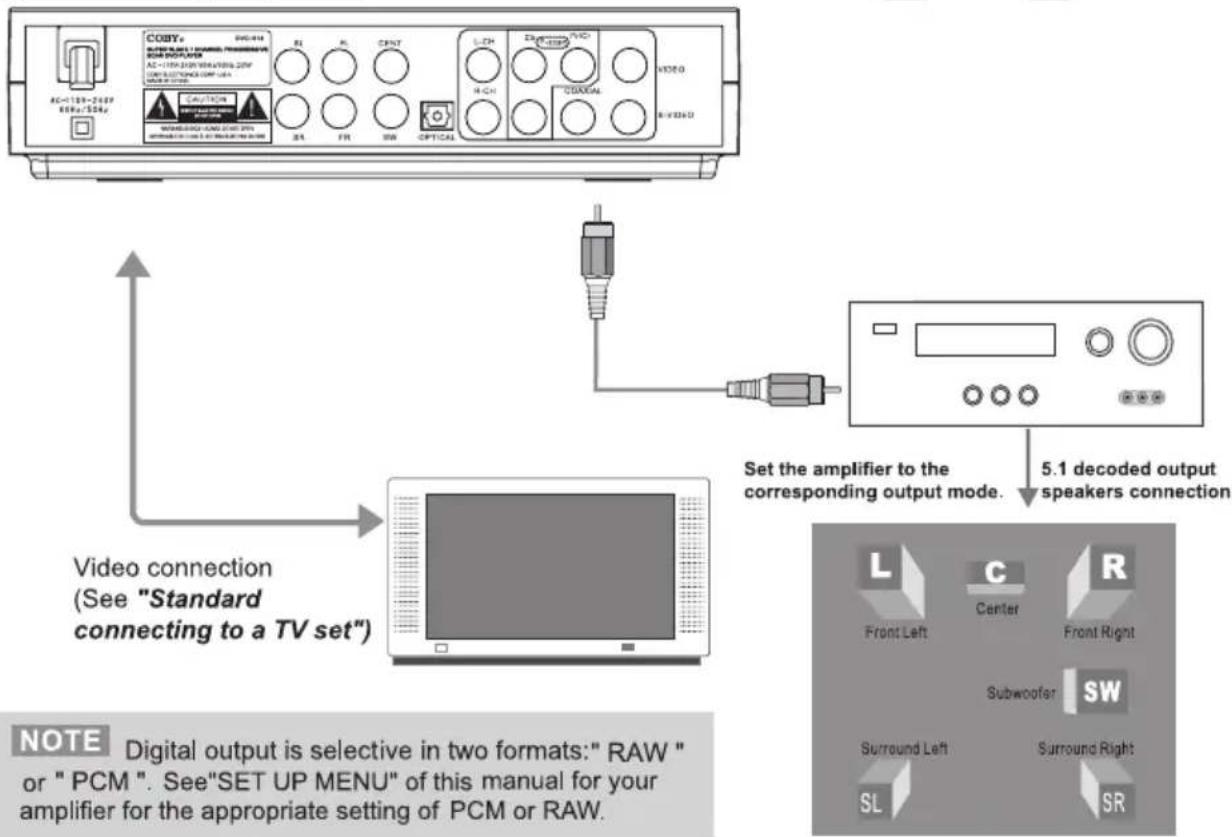
text_image
AC=128-200F 66Hz/55Hz COPY AVG-414 AC=128-200F 66Hz/55Hz CYC/TCM COM/CCM/CCM/CCM/CCM/CCM/CCM/CCM/CCM/CCM/CCM/CCM/CCM/CCM/CCM/CCM/CCM/CCM/CCM/CCM/CCM/CCM/CCM/CCM/CCM/CCM/CCM/CCM/CCM/CCM/CCM/CCM/CCM/CCM/CCM/ EX=128-200F 66Hz/55Hz CYC/TCM COM/CCM/CCM/CCM/CCM/CCM/CCM/CCM/CCM/CCM/CCM/CCM/CCM/CCM/CCM/CCM/CCM/CCM/CCM/CCM/CCM/CCM/CCM/CCM/CCM/CCM/ EX=128-200F 66Hz/55Hz CYC/TCMRemote Control
- Refer to the diagram. Remove the battery compartment cover located on the rear of the remote control. Insert batteries, making sure to match their polarities (+/-) to the markings on the inside of the compartment. Replace the cover.
- To use the remote, point it at the remote sensor of the player. Operate the remote within 15 feet of the sensor and at an angle of +/- 60 degrees.
- Batteries in the remote will last for approximately 1 year. Replace the batteries if the remote control does not work. Do not mix old with new batteries, or different types of batteries.
- Remove the batteries from the remote if it will not be used for a long period of time.
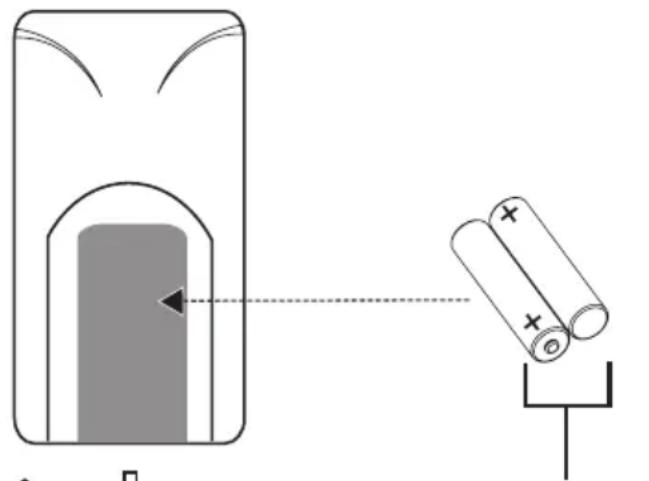
text_image
Diagram illustrating a battery cell setup with an arrow indicating direction and two batteries moving in series to form a positive charge.2 x "AAA" 1.5V batteries
natural_image
Simple line drawing of a device with an upward arrow and a shield-like symbol (no text or labels)WARNING
- The batteries used in the remote control may present a fire or chemical burn if mistreated. Do not recharge, disassemble, incinerate, or heat the battery ( 212^ ).
- Keep batteries away from children.
Power Supply
This unit should be used with 100-240V 50/60Hz AC wall outlets, only.
Caution:
- Do not connect the power plug to a power outlet other than that which is indicated here and on the label as this may result in the risk of fire or electric shock.
• Do not handle the power plug with wet hands. Doing so may cause electric shock.
BASIC OPERATIONS
Basic Playback
- Prepare the power supply.
Set the Power Switch to the ON position to turn the player on.
- Load a disc.
Press the Open/Close button to open the disc tray. Insert a disc with the label-side up.
Press the Open/Close button again to close the disc tray.
- If a single-sided disc is inserted upside-down, the player will display "NO DISC" or "BAD DISC".
- Start playback.
Press PLAY to start playback (some discs may start playing automatically).
Play/Pause/Stop
• Press to play the disc for the first time.
- Press during playback to pause. Press again to resume playback.
- Press during playback to stop the disc ("Pre-Stop"). Press to resume playback at the time-point at which the disc was stopped.
- Press ☐ when the disc is "Pre-Stopped" to stop playback completely. (When ⏻ is pressed, the disc will start playing from the beginning.)
Previous/Next (Skip)
• Press to skip to the next track (DVD, CD, etc).
- Press to return to the previous track (DVD, CD, etc).
Forward/Reverse (Search)

- Press to change the rate of forward playback. Each successive press of will change the rate of forward playback.
- Press to change the rate of reverse playback through the disc. Each successive press of will change the rate of reverse playback.
Slow

- Press SLOW for slow-motion playback. Each successive press of SLOW will change the rate of slow-motion playback. Press 📋 resume normal playback.
- Press STEP frame-by-frame playback. Each successive press of STEP will advance the video one frame. Press 📄 to resume normal playback.
Note:
Audio will be muted during fast-forward, fast-reverse, and slow-motion playback.
Menu Navigation
To navigate DVD disc menus or the player's setup menus:
- Press the NAVIGATION keys (arrows) to select a desired feature or option in the menu.
- Press ENTER to confirm a selection in the menu.
- For some menu options, you may be able to use the numeric keypad to input data.
- Press Clear to cancel an entry.
Adjusting the Volume
• Turn the Volume Control dial to adjust the volume level up or down.
- Press MUTE to turn the volume off completely; press mute again to restore the volume to its previous level.
Disc Error Messages
The following messages will be displayed on-screen if there is a problem with the format of the loaded disc.
- WRONG REGIONAL DISC. The region code of the disc does not match the player's region code (Region 1).
- WRONG PASSWORD. The parental rating level of the disc is higher than the parental rating level setting of the player. The player will not play the disc.
-
WRONG DISC. The player is equipped with automatic disc quality detection software. If the player detects a disc that is damaged or has a format problem, it may play the disc at a lower quality or stop play completely, depending on how damaged the disc is.
• DTS Discs: This player does not have a built-in DTS decoder. -
Connect to a digital amplifier using a Digital Audio Connection (optical or coaxial) to enjoy DTS audio discs.
- Select Dolby 5.1 or 2-Channel Stereo Downmix instead of the DTS setting.
Note:
DVD disc production quality may vary; some discs may deviate from the industry standard. Some incorrectly-formatted discs may still play, however, the playback and operational quality of the disc may be substandard.
Power Management
If the player will not be in use for a long period of time, set the Power Switch to the OFF position, unplug the player, and remove the batteries from the remote control.
PLAYER FUNCTIONS
Menu / Title
- Press the MENU key during DVD playback to return to the DVD's Main menu.
- Press the TITLE key during DVD playback to return to the DVD's Title menu.
Setup
Press the SETUP key to enter the player's setup menu. Enter the Setup menu to adjust the player's internal settings; please see the SETUP section for more details.
On-Screen Display
Press the OSD key once to show time information on-screen; press it twice to show status information on-screen; press it a third time to exit the on-screen display mode. The on-screen display will disappear automatically if another function key is pressed.
Search
Press SEARCH to go directly to a desired point of a disc (e.g., Title, Chapter, Time).
DVD Chapter/Title Search
- Press SEARCH once to display the Chapter/Title Search Bar shown to the right.
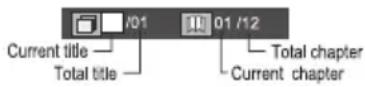
- Press the left/right NAVIGATION keys to select (highlight) an entry field.
- Use the Numeric keypad to input the desired chapter/title number, or press the up/down NAVIGATION keys to increase/decrease the chapter/title number.
- Press ENTER to confirm and execute the search or press SEARCH to exit search mode.
DVD Time Search (within a specified title)
- Press SEARCH twice to display the Time Search Bar shown to the right.
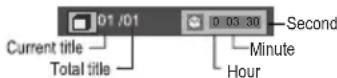
• Use the Numeric keypad to input the desired time (hours, minutes, seconds).
- Press CLEAR to cancel any input errors.
- Press ENTER to confirm and execute the search or press SEARCH to exit search mode.
CD Time Search
- Press SEARCH once to display the CD Time Search Bar shown to the right.
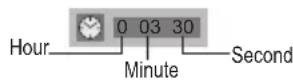
• Use the Numeric keypad to input the desired time (hours, minutes, seconds).
- Press CLEAR to cancel any input errors.
- Press ENTER to confirm and execute the search or press SEARCH to exit search mode.
Repeat Mode
Press REPEAT to change the repeat mode of the player. Each successive press of REPEAT will change the mode as follows:
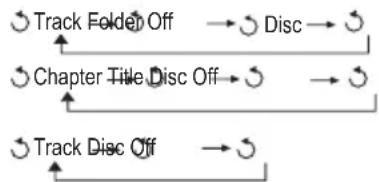
flowchart
graph TD
    A["Track Folder Off"] --> B["→ Disc"]
    C["Chapter Title Disc Off"] --> D["→"]
    E["Track Disc Off"] --> F["→"]
Note:
Some DVD discs do not allow Repeat mode.
Repeat A-B Mode
To repeat playback of a specific section of a disc (loop):
- Press A-B to set the desired start point ("A") of the section to be repeated.
- Press A-B again to set the desired end point ("B" of the section to be repeated.
- The section "A-B" will now play repeatedly as a loop. Press A-B again to resume normal playback.
Multi-Angle/Subtitle/Audio
- During playback of a DVD that has been mastered with multiple angles, press ANGLE to view the available alternate camera angles. (A DVD may have up to 9 selectable angles.)
- During playback of a DVD that has been mastered with subtitles, press SUBTITLE to view the available subtitle tracks. (A DVD may have up to 32 selectable subtitles.)
- During playback of a DVD that has been mastered with alternate language/audio tracks, press AUDIO to hear the alternate tracks. (A DVD may have up to 8 selectable audio tracks.)
Zoom
Press ZOOM to change the magnification level of the picture.
- During DVD playback, each successive press of ZOOM will change the level of magnification to: Zoom 2x, Zoom 4x, Normal.
- During JPEG CD playback, each successive press of ZOOM will change the level of magnification to: 25%, 50%, 100%, 150%, 200%.
When the magnification level is greater than Normal/100%, use the NAVIGATION keys to pan around the magnified picture.
Note: The picture quality will decrease as the zoom level increases.
Program
Enter Program mode to create a custom sequence of tracks to be played.
(Program mode is available only when the player is in NAVIGATE OFF mode. Press the PBC key to set the player to NAVIGATE OFF mode.)
Note:
You can also use the numeric keypad to enter numbers directly in the fields. Use the navigation keys to move between entry fields.
PLAYER FUNCTIONS
DVD Program Mode
-
Load a DVD and press PROGRAM.
-
Press the right NAVIGATION key to select the "Title" column; press the up/down NAVIGATION keys to select a title.
-
Press the right NAVIGATION key to select the "Chapter" column; press the up/down NAVIGATION keys to select a chapter.
-
Press PLAY (or ENTER) to confirm the selection.
-
Repeat steps 2-4 until you have finished programming your selections or when you have programmed the maximum 20 tracks.
-
Press PLAY to start playback. Press PROGRAM to cancel.
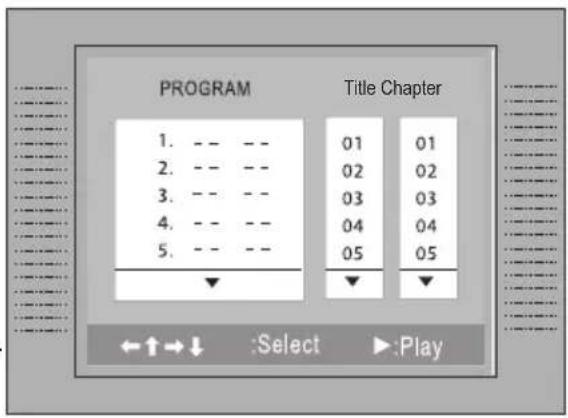
text_image
PROGRAM 1. -- -- 2. -- -- 3. -- -- 4. -- -- 5. -- -- Title Chapter 01 01 02 02 03 03 04 04 05 05 ←↑→↓ :Select ▶:PlayCD Program Mode
-
Load a CD and press PROGRAM.
-
Press the right NAVIGATION key to select the "Track" column; press the up/down NAVIGATION keys to select a track.
-
Press PLAY (or ENTER) to confirm the selection.
-
Repeat steps 2-3 until you have finished programming your selections or when you have programmed the maximum 20 tracks.
-
Press PLAY to start playback. Press PROGRAM to cancel.
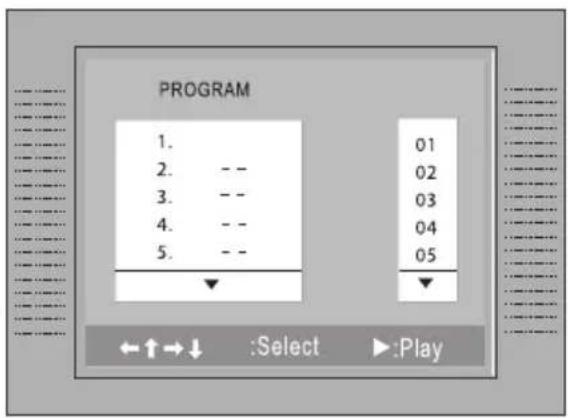
text_image
PROGRAM 1. 01 2. -- 02 3. -- 03 4. -- 04 5. -- 05 ←↑→↓ :Select ▶:PlaySETUP
Enter Setup mode to adjust the various internal settings of the player. Make sure the player has been completely stopped before entering Setup mode.
- Press SETUP to enter Setup mode.
- Use the NAVIGATION keys to select a desired item.
- Press ENTER to confirm a selection.
- Press SETUP to exit Setup mode (or select EXIT and press ENTER).
Language Setup
Use the NAVIGATION keys to highlight the desired language selection and press ENTER to confirm.
| Item Description | Options | |
| OSD | Sets the language of the player's on-screen display. | English, French, German, Italian |
| Menu | Sets the default menu language of loaded DVDs. | English, Chinese, Japanese, French, German, Italian, Spanish, Portuguese, Hindi, Thai, Russian, Korean, Others |
| Audio | Sets the default language audio track of loaded DVDs. | English, Chinese, Japanese, French, German, Italian, Spanish, Portuguese, Hindi, Thai, Russian, Korean, Others |
| Subtitle | Sets the default subtitle track of loaded DVDs. | English, Chinese, Japanese, French, German, Italian, Spanish, Portuguese, Hindi, Thai, Russian, Korean, Others |
Screen Setup
Use the NAVIGATION keys to highlight the desired screen selection and press ENTER to confirm.
| Item Description | Options | |
| TV Type | Sets the aspect ratio of the display. (The TF-DVD7307 screen is 16:9.) | 4:3 (PS), 4:3 (LB), 16:9 |
| Screen Saver | The screensaver prevents burn-in damage to the player's screen. | On, Off |
| TV System | Sets the player's Video Out signal type. Set this to correspond with your TV. | NTSC, PAL, Auto |
| Brightness Select | a preset screen brightness. Normal, Bright, Soft | |
| Contrast Adjust | the screen's contrast. -4 to +4 (0 is default) | |
SETUP
Audio Setup
Use the NAVIGATION keys to highlight the desired audio selection and press ENTER to confirm.
| Item Description | Options | |
| Digital Out | Sets the player's Optical Out (audio) signal. For use with 5.1-channel receivers (see your receiver's manuals for more details). | SPDIF/RAW, SPDIF/PCM, Off |
Custom Setup
Use the NAVIGATION keys to highlight the desired Custom Setup selection and press ENTER to confirm.
| Item Description | Options | |
| Parental Ctrl | Sets the maturity rating level of the player. The player will not play any discs rated higher than this setting.This setting is password protected(the default password is: 8888). | Levels 1 to 8. (8: ADULT is default) |
| Password | Change the Parental Ctrl password. Enter the old password, the new password, and then the new password again to verify.DO NOT FORGET THE PASSWORD; this password cannot be reset. | |
| Angle Mark | Displays an on-screen prompt whenever an alternate angle becomes available for viewing (press ANGLE to view). | On, Off |
| Default | Resets all settings to their factory-default state.This will not reset the Parental Ctrl password. | Read |
SPECIFICATIONS
Power Supply AC: 100-240V Automatic Power Switching
Video Signal System NTSC / PAL
Video Output Component Video (Progressive Scan)
S-Video
RCA Composite Video
Audio Output Optical Digital Out
Coaxial Digital Out
RCA Stereo Out
Media Supported DVD, DVD±R/RW, CD, CD-R/RW, JPEG-CD
Accessories Included Full Function Remote Control
AV Cable
Unit Dimensions 8.86" x 2.0" x 10.43" (WHD)
Specifications are subject to change without notice.
TROUBLESHOOTING
If you have a problem with this player, please read the troubleshooting guide below and check our website at www.cobyusa.com for Frequently Asked Questions (FAQs) and firmware updates. If these resources do not resolve the problem, please contact Technical Support.
COBY Electronics Technical Support
Hours: Monday to Friday, 8:30 AM–11:00 PM EST Saturday to Sunday, 9:00 AM–11:00 PM EST
Email: techsupport@cobyusa.com
Phone: 800-681-2629 or 800-727-3592 or 718-416-3197
Web: www.cobyusa.com
There is no power to the device.
- Ensure that the Power Switch is physically set to the ON position.
• Ensure that the AC adapter cord is securely connected to the player and the proper wall outlet.
• Ensure that the battery pack is fully charged.
The device will not play the disc.
- Ensure that a supported disc is loaded in the player label-side up.
- Ensure that the disc's rating level does not exceed the player's.
- Ensure that the disc is not damaged or too dirty. Clean the disc or try another disc.
- Moisture may have condensed inside the player. Remove the disc and leave the player on for 1-2 hours and then try again.
There is no picture.
• Ensure that the TV set has been powered on and is set to the correct AV mode.
• Ensure that the connections between the player and the TV are secure and correct.
• Check if the connection cables are damaged.
The picture is noisy or distorted.
• The disc may be damaged or dirty. Clean the disc or try another one.
- Reset your TV's color system.
- Ensure that the player is connected directly to the TV (and not through a VCR, cable box, satellite receiver, etc.)
There is no sound or distorted sound.
• Ensure that the TV and amplifier have been turned on and properly set up.
• Ensure that the TV and amplifier connections are secure and correct.
• Try a different Audio track of the DVD by pressing AUDIO.
• Ensure that the MUTE function of the TV, Amplifier, or Player is not engaged.
TROUBLESHOOTING
The remote control doesn't work.
• Ensure that the Power Switch has been physically set to the ON position.
• Ensure that there are no obstacles between the remote and the player.
- Point the remote at the remote sensor on the main unit.
• Ensure that the batteries in the remote retain a charge and have been installed correctly.
• Try replacing the remote's batteries.
The player has malfunctioned.
- Unplug the player. After 30 minutes, plug in and power on the player -- the restore function should reset the player.
COBY Electronics Corp.
56-65 Rust Street
Maspeth, NY 11378
www.cobyusa.com
www.ecoby.com