KTFDVD1093 - DVD player COBY - Free user manual and instructions
Find the device manual for free KTFDVD1093 COBY in PDF.


User questions about KTFDVD1093 COBY
0 question about this device. Answer the ones you know or ask your own.
Ask a new question about this device
Download the instructions for your DVD player in PDF format for free! Find your manual KTFDVD1093 - COBY and take your electronic device back in hand. On this page are published all the documents necessary for the use of your device. KTFDVD1093 by COBY.
USER MANUAL KTFDVD1093 COBY
text_image
COBY Widescreen Kichen LCD ATSC/NTSC TV with DVD Player and AM/TM Tuner KTF-DVD 1093 KTF-DVD 7093 Please read this manual before connection and use. Customer Service Hours Hours: 800AM-11:00 PM EST, seven days a week. E-Mail : lscnsupport@cobyusa.com Phone: 718-416-3197, 800-881-2629, or 800-727-3592 Web: www.cobyusa.com EnglishImportant Safety Instruction
CAUTION: Use of controls or adjustments or performance of procedures other than those specified herein may result in hazardous radiation exposure.
Please carefully study this manual and always keep it available. There are, however, some installation and operation precautions which you should be aware of.
(1) Read these instructions-All the safety and operating instructions should be read before the product is operated.
(2) Keep these instructions-The safety and operating instructions should be retained for future reference.
(3) Heed all warnings. All warnings on the product and in the operating instructions should be adhered to
(4) Follow all instructions-All operating and use instructions should be followed.
(5) Do not use this apparatus near water. The apparatus shall not be exposed to dripping or splashing and that no objects filled with liquids, such as vases, shall be placed on the apparatus.
(6) Clean only with dry cloth. Unplug this product from the wall outlet before cleaning. Do not use liquid or aerosol cleaners. Clean only with dry cloth.
Exception: A product that is meant for uninterrupted service and that for some specific reason, such as the possibility of the loss of an authorization code for a CATV converter, is not intended to be unplugged by the user for cleaning or any other purpose, may exclude the reference to unplugging the product in the cleaning description otherwise required in 131.8(5)
7) Do not block any ventilation openings. Install in accordance with the manufacturer's instruction-Slots and openings in the cabinet are provided for ventilation and to ensure reliable operation of the product and to protect it from overhealing, and these openings must not be blocked or covered. The openings should never be blocked by placing the product on a bed, sofa, rug, or other similar surfaces. This product should not be placed in a built-in installation such as a bookcase or rack unless proper ventilation is provided or the manufacturer's instructions have been adhered to .
(8) Do not install near any heat sources such as radiators, heat registers, sloves, or other apparatus (including amplifiers) that produce heat.
(9) Do not defeat the safety purpose of the polarized or grounding-type plug. A polarized plug has two blades with one wider than the other. A grounding type plug has two blacks and a third grounding prong. The wide blade or the third prong is provided for your safety. If the provided plug does not fit into your outlet, consult an electrician for replacement of the obsolete outlet.
(10) Protect the power cord from being walked on or pinched particularly at plugs, convenience receptacles, and the point where they exit from the apparatus. Power-supply cords should be routed so that they are not likely to be walked on or pinched by items placed upon or against them, paying particular attention to cords at plugs, convenience receptacles, and the point where they exit from the product.
(11) Only use attachments/accessories specified by the manufacturer. Do not use attachments not recommended by the product manufacturer as they may cause hazards.
(12) Use only the cart, stand, tripod, bracket, or table specified by the manufacturer. or sold with the apparatus. When a cart is used, use caution when moving the cartrapparatus combination to avoid injury from flip-over.

Important Safety Instruction
Continued
(13) Unplug this apparatus during lightning storms or when unused for long periods of time. Unplug it from the wall outlet and disconnect the antenna or cable system. This will prevent damage to the product due to lightning and power-line surges.
(14) Refer all servicing to qualified service personnel. Servicing is required when the apparatus has been damaged in any way, such as power-supply cord or plug is damaged, liquid has been spilled or objects have fallen into the apparatus, the apparatus has been exposed to rain or moisture, does not operate normally, or has been dropped.
(15) Power Sources. This product should be operated only from the type of power source indicated on the marking label. If you are not sure of the type of power supply to your home, consult your product dealer or local power company. For products intended to operate from battery power, or other sources, refer to the operating instructions.
(16) Protective Attachment Plug. The product is equipped with an attachment plug having overload protection. This is a safety feature. See instruction manual for replacement or resetting of protective device. It replacement of the plug is required, be sure the service technician has used a replacement plug specified by the manufacturer that has the same overload protection as the original plug.
(17) Outdoor Antenna Grounding- If an outside antenna or cable system is connected to the product, be sure the antenna or cable system is grounded so as to provide some protection against voltage surges and built-up static charges. Article 810 of the National Electrical Code, ANS/NFPA 70, provides information with regard to proper grounding conductors, location or antenna-discharge unit, connection to grounding electrodes, and requirements for the grounding electrode.
(18) Power lines: An outside antenna system should not be located in the vicinity of overhead power lines or other electric light or power circuits, or where it can fall into such power lines or circuits. When installing an outside antenna system, extreme care should be taken to keep from touching such power lines or circuits as contact with them might be fatal.
(19) Overloading. Do not overload wall outlets, extension cords, or integral convenience receptacles as this can result in a risk of fire or electric shock.
(20) Object and Liquid Entry- Never push objects of any kind into this product through openings as they may touch dangerous voltage points or short-out parts that could result in a fire or electric shock. Never spill liquid of any kind on the product.
(21) Servicing - Do no attempt to service this product yourself as opening or removing covers may expose you to dangerous voltage or other hazards. Refer all servicing to qualified service personnel.
(22) Replacement Parts-When replacement parts are required, be sure the service technician has used replacement parts specified by the manufacturer or have the same characteristics as the original part. Unauthorized substitutions may result in fire, electric, or other hazards.
(23) Safety Check- Upon completion of any service or repairs to this product, ask the service technician to perform safety checks to determine that the product is in proper operating condition.
Safety Precautions
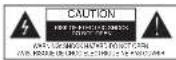

The lightning flash with arrowhead symbol within an equilateral triangle is intended to allow the user to the presence of uninsulated "dangerous voltage" within the product's enclosure that may be of sufficient magnitude to constitute risk of electric shock to persons.

. The exclamation point within an equilateral triangle is intended to alert the user to the presence of important operating and maintenance (servicing) instructions in the literature accompanying the product.
WARNING: To reduce the risk of fire or electric shock, do not expose this appliance to rain or moisture. Dangerous high voltage is present inside the enclosure. Do not open the cabinet.
CAUTION: To prevent electric shock, match wide blade plug to wide slot, and fully insert
CAUTION: This Digital Video Disc Player employs a laser System. To prevent direct exposure to the laser beam, do not try to open the enclosure. When open and the interlocks are defocated, visible laser radiation is present.
Use of controls or adjustments or performance of procedures other than those specified herein may result in hazardous radiation exposure. DO NOT STARE INTO BEAM.
FCC NOTICE: This equipment has been tested and found to comply with the limits for a Class B digital device. Pursuant with the FCC Rules, Part 15. These limits are designed to provide reasonable protection against harmful interference in a residential installation.
This equipment generates, uses and can radiate radio frequency energy and if not installed and used in accordance with the instruction may cause harmful interference to radio communication.
NOTICE: This product incorporates copyright protection technology that is protected by U.S. patents and other intellectual property rights. Use of this copyright protection technology must be authorized by Macrovision, and is intended for home and other limited viewing uses only unless otherwise authorized by Macrovision. Reverse engineering or disassembly is prohibited.
Note: 1 The batteries should not be exposed to excessive heat such as sunshine, fire or the like.
- The mains plug or an appliance coupler was used as the disconnect device, the disconnect device shall remain readily operable and should not be obstructed during intended use.
Table of Contents
IMPORTANT SAFETY INSTRUCTIONS
Page
SAFETY INFORMATION TABLE OF CONTENTS
UNPACKING....1
NOTE ON DISC....2
IDENTIFICATION OF CONTROLS....3-5
BUTTONS ON THE MAIN UNIT....3
REMOTE 5
CABLE CONNECTIONS 6
MOUNTING....7
BASIC OPERATION....8-9
TIME 8
RADIO....8
DVD 8
TV
AV 0
FUNCTION BUTTONS (BUTTONS ON THE REMOTE) 10-13
DVD SETUP 14-15
TV FUNCTION 16-17
TROUBLE SHOOTING....18
SPECIFICATION 19-20
Unpacking
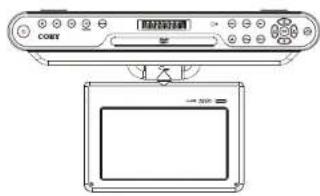
Please make sure the following items are included with your DVD player. If any items are missing, contact your dealer.
text_image
CRT [模拟显示器] COMYMain Unit
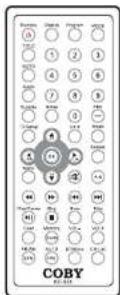
Remote Control
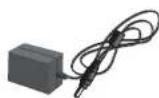
Adapter
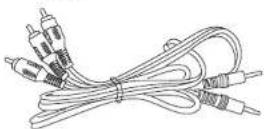
RCA Cable
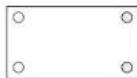

Mounting kit: Template x1
Screw x 4
Note on Disc
Disc Requirements
The DVD player can play back the following discs.
| Electrork | Currents | Distance | Maximum playground time | |
| 200 minute date | DVD | Action Date (moving to date) | 12cm | 130 min (65-81) |
| 240 min (65-71) | ||||
| 260 min (65-81) | ||||
| 280 min (65-91) | ||||
| Auto CDA | [IMAGE] | Auto | 12cm | 74min |
In addition, this unit can play back a CD-R, or CD-RW that contains audio titles or MP3 files. You cannot play cards other than those listed above (CD-ROM, CD-Extra, CD-G, and CD-I cards can not be played on this DVD player.)
Care of Disc
Video disc contains high-density compressed data that needs proper handling.
Hold the disc with fingers. Hold the disc's outer edge and/or the center spindle hole.


Do not bend or press the disc. Do not expose the disc to the direct sunlight or heating sources.

Store discs in cabinet vertically, and in dry condition. Prevent exposure to:
- Direct sunlight
- Heat or exhaust from a heating device.
- Extreme humidity.
Clean the disc surface with a soft, dry cleaning cloth. Wipe the disc surface gently and radically from center toward the outer edge. Do not apply thinner, alcohol, chemical solvent, or sprays when cleaning. Such cleaning fluids will permanently damage the disc surface.
text_image
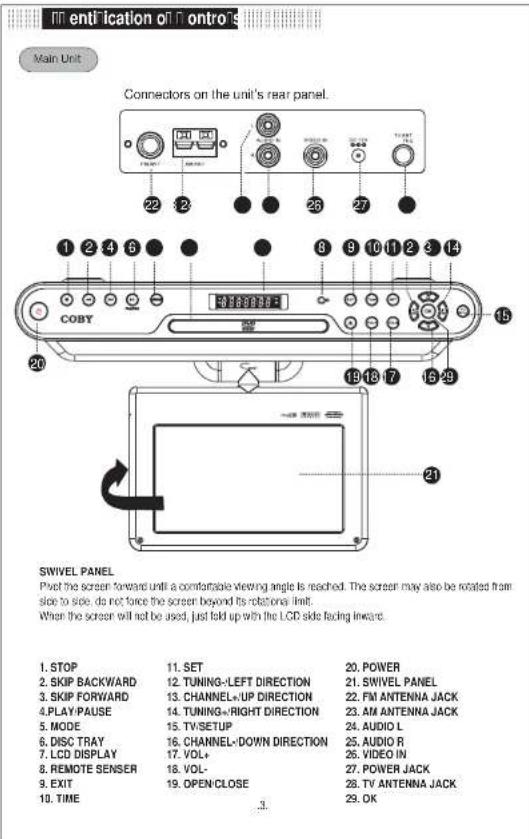
Main Unit Connectors on the unit's rear panel. COBY SWIVEL PANEL Pvct the screen forward until a comfortable viewing angle is reached. The screen may also be rotated from side to side. do not force the screen beyond its rotational limit. When the screen will not be used, just fold up with the LCD side facing inward. 1. STOP 2. SKIP BACKWARD 3. SKIP FORWARD 4. PLAY PAUSE 5. MODE 6. DISC TRAY 7. LCD DISPLAY 8. REMOTE SENSER 9. EXIT 10. TIME 11. SET 12. TUNING-LEFT DIRECTION 13. CHANNEL+/UP DIRECTION 14. TUNING-/RIGHT DIRECTION 15. TV/SETUP 16. CHANNEL-DOWN DIRECTION 17. VOL+ 18. VOL- 19. OPEN/CLOSE 20. POWER 21. SWIVEL PANEL 22. FM ANTENNA JACK 23. AM ANTENNA JACK 24. AUDIO L 25. AUDIO R 26. VIDEO IN 27. POWER JACK 28. TV ANTENNA JACK 29. OK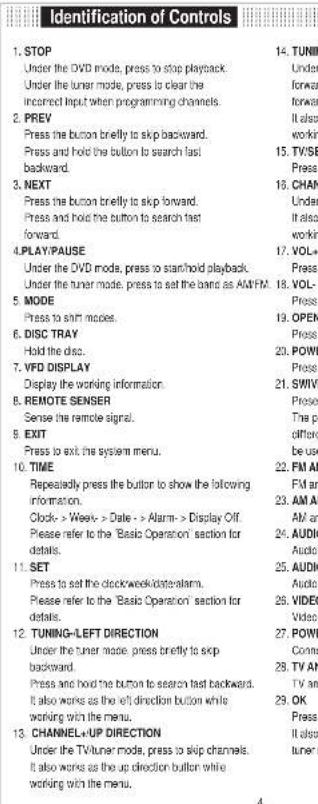
text_image
Identification of Controls 1. STOP Under the DVD mode, press to stop playback. Under the tuner mode, press to clear the incorrect input when programming channels. 2. PREV Press the button briefly to skip backward. Press and hold the button to search last backward. 3. NEXT Press the button briefly to skip forward. Press and hold the button to search last forward. 4. PLAY/PAUSE Under the DVD mode, press to start/hold playback. Under the tuner mode, press to set the band as AM/FM. 5. MODE Press to shift modes. 6. DISC TRAY Hold the disc. 7. VFD DISPLAY Display the working information. 8. REMOTE SENSER Sense the remote signal. 9. EXIT Press to exit the system menu. 10. TIME Repeatedly press the button to show the following information. Clock- > Week- > Date - > Alarm- > Display Off. Please refer to the "Basic Operation" section for details. 11. SET Press to set the clock/week/dater alarm. Please refer to the "Basic Operation" section for details. 12. TUNING-LEFT DIRECTION Under the tuner mode, press briefly to skip backward. Press and hold the button to search last backward. It also works as the left direction button while working with the menu. 13. CHANNEL+UP DIRECTION Under the TV/tuner mode, press to skip channels. It also works as the up direction button while working with the menu. 14. TUNING- Under the tuned mode, press to stop playback. Under the tuner mode, press to clear the incorrect input when programming channels. It also working with the menu. 15. CHAN- Press the button briefly to skip forward. Press and hold the button to search last backward. 16. VOL+ Press Press Press Press Press Press Press Press Press Press Press Press Press Press Press Press Press Press Press Press Press Press Press Press Press Press Press Press Press Press Press Press Press Press Press Press Press Press Press Press Press Press Press Press Press Press Press Press Press Press Press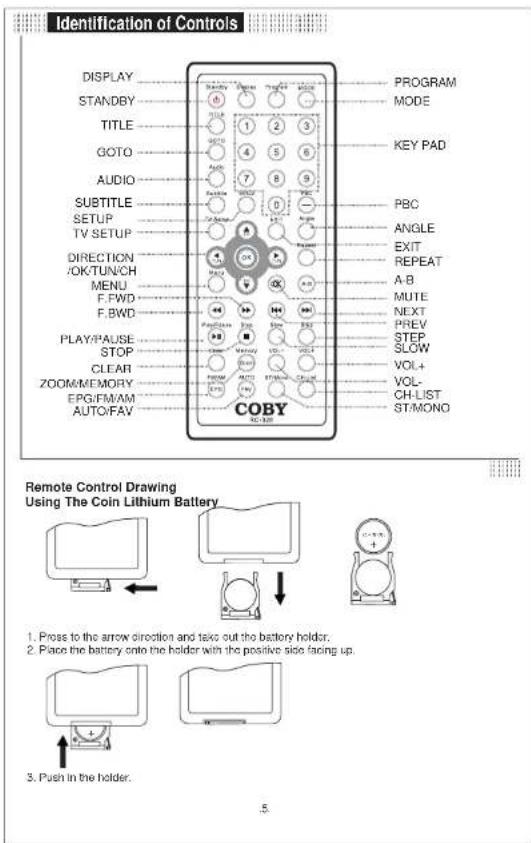
text_image
Identification of Controls DISPLAY STANDBY TITLE GOTO AUDIO SUBTITLE SETUP TV SETUP DIRECTION /OK/TUN/CH MENU F.FWD F.BWD PLAY/PAUSE STOP CLEAR ZOOM/MEMORY EPG/FMAM AUTO/FAV PROGRAM MODE KEY PAD PBC ANGLE EXIT REPEAT A-B MUTE NEXT PREV STEP SLOW VOL+ VOL- CH LIST ST/MONO Remote Control Drawing Using The Coin Lithium Battery 1. Press to the arrow direction and take out the battery holder. 2. Place the battery onto the holder with the positive side facing up. 3. Push in the holder. 5.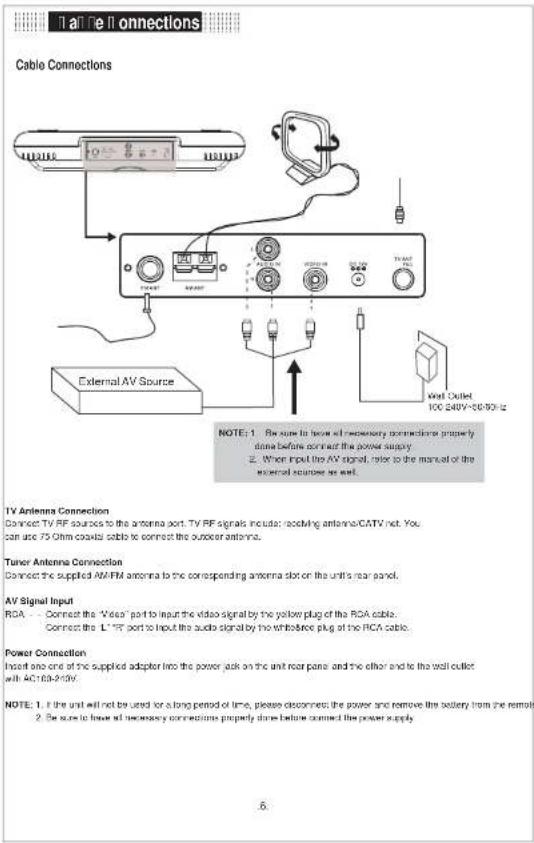
text_image
I all the connections Cable Connections External AV Source Note: 1. Be sure to have a necessary connection properly done before connect the power supply. 2. When input the AV signal, refer to the manual or the external source as well. Wet Outlet 100-248V~56/90Hz TV Antenna Connection Connect TV RF sources to the antenna port. TV RF signals include: receiving antenna/CATV not. You can use 75 Ohm cables cable to connect the outdoor antenna. Tuner Antenna Connection Connect the supplied AW/FM antenna to the corresponding antenna slot on the unit's rear panel. AV Signal Input RCA - Connect the "Video" part to input the video signal by the yellow plug of the RCA cable. Connect the L" RF port to input the audio signal by the white/bone plug of the RCA cable. Power Connection Insert one one of the supplied adapter into the power jack on the unit rear panel and the ether and to the wall outlet with AC/FLA/AC/V. NOTE: 1. If the unit will not be used for a long period of time, please disconnect the power and remove the battery from the remote. 2. Be sure to have a necessary connection properly done below connect the power supply.Mounting
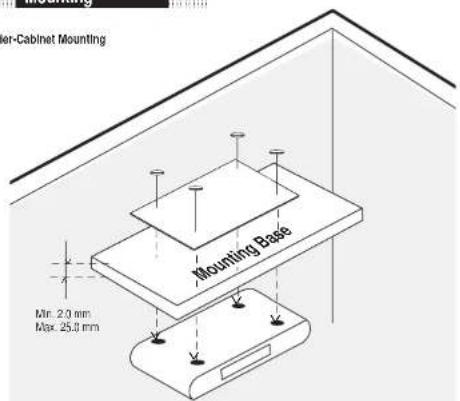
Under-Cabinet Mounting
text_image
Outer-Cabinet Mounting Mounting Base Min. 2.0 mm Max. 25.0 mmChoose an appropriate mounting location underneath a cabinet or shelf.
Choose an appropriate mounting location underneath a cabinet or shelf. Close proximity to an electrical outlet, a TV antenna or cable connection and a telephone jack will facilitate a neat, easy installation. Do not mount the product above a range or oven.
Be sure that the location chosen will provide adequate access to the electrical connection on the rear of the unit before continuing.
Under-cabinet Mounting
-
Upon opening the final package, you will find a position reference template that tells the standard position you have to drive through when mounting. Tape the template in place onto the cabinet surface and drill tour screw-holes accordingly through the cabinet base.
-
Position the product and mount it in place using the supplied screws. Do not over tighten.
-
Connect the cables. Route the wires safety away from the heat and moisture sources and secure them in place.
NOTE:
- The template is just for the position reference when mounting, please don't affix it to the mounting
surlaca.
- To ensure the product safety, it is recommended that the minimum thickness of your cabinet
base should be 2.0 mm and the maximum thickness should be 25.0 mm
- Take care when installing it. It may cause damage or serious injury should it fall from its mountings.
Basic Operation
Time Button
Repeatedly press the TIME button on the main unit to display the following information.
Clock --> Week --> Date --> Alarm --> Display Off Time button functions under any living modes
Time button functions under any living modes.
Set Clock
Press TIME to display the clock, press SET to access the active time interface.
While setting the clock, press the left-right button to move left-right, press the up/down button to adjust press OK
to confirm.
Set Date/Week/Alarm
Repeated press TIME on the main unit to display Date*Week\Alarm, press SET to access the active setting interface.
While setting Date-Week/Alarm, press the left/right direction button to move left/right, press the Updown direction button
to adjust. Press OK to confirm
Radio Operation
Basic Operation
-
Connect the AM or FM antenna and the power source. Refer to the "Cable Connections" section for details
-
Press MODE to select the tuner mode. Press the ENAM button to set band.
-
Press TUN+ briefly to skip forward or backward
Press and hold TUN+/- to search through the entire band and it will step at the captured channel or you can briefly
press the TUN+/- button to stop searching.
- Press CH- to listen to the preset channel
There is no channel preset in the memory location upon the initial use.
Refer to "Program Channels" section below for how to program channels.
Program Channels
Manual Program
-
Locate the program you want to save by the TUN+/button.
-
Press the Memory button on the remote or the OK button on the main unit to save.
-
Press the OK button to confirm. The saved program will be assigned a channel number automatically by the system.
-
To delete the channel, press C-H+/- to locate the channel you want to erase, press the Clear button on the remote or the
STOP button on the main unit to erase. Press OK to confirm
Auto Program
Press Auto on the remote to start auto program. The captured channels will be saved automatically into the memory
location overwriting the previous one.
DVD Operation
-
Connect the power source. Press MODE to set the player into the DVD mode.
-
Press Open-Close to open the disc room. Place a disc onto the holder with the label side facing up, close
the disc room.
- Press PLAY:PAUSE to start playing. Press STOP to stop. Press VOL 4- to adjust the volume.
Usually a DVD disc contains a root menu. The root menu appears once the data is recognized by the plaster.
Press the direction buttons to select a file in the root menu, press PLAY:PAUSE to start playing.
Some discs are recorded without the root menu and start playing automatically.
- Adjust the screen effect through the TFT menu. Press TV-SETUP to display the TFT menu.
NOTE: 1. The player supports discs as follow: DVD, CDR, MP3, JPEG.
- More DVD functions are listed clearly under the "Function Button" section and the "DVD Setup" section.
please read carefully.
.8.
Basic Operation
TV Operation
-
Connect the cables. Press POWER to turn on the player. Refer to the "Cable Connections" section for details.
-
Press MODE to set the unit into the TV mode.
-
Press CH+/- to skip channels. Press VOL+/- to adjust the volume.
For the initial use, please scan channels under the "Channel Setup" menu.
Refer to "Channel Setup" of the TV Function section for details
- Various TV features are preset through the TV setup menu. Press TV SETUP to show the TV setup menu.
Please read the "TV Function" section carefully.
AV Operation
The player has the AV input function. You can enjoy programs from the external sources.
-
Connect the AV cable and the power supply. See 'Cable Connections' section.
-
Set the player into the AV mode by the MODE button.
-
Adjust the screen effect through the TFT setting menu. Press TVSETUP to display the TFT menu.
NOTE: When input the AV signal, please see the user manual of the external AV signal source as well.
Be sure to have all necessary connections properly done before connecting the power.
9.
■ nction Buttons
Function Buttons on the Remote
isola
Press the Display button to show the time and status information. Repeatedly press the Display button to quit the display mode.
a Ⅲ a la
Press the Play/Pause button to start/hold playback.

Press STOP once to stop playback by a time point. Press the PLAY button to resume playback from where it was stopped. Press STOP twice to completely stop the disc. Press the PLAY button to start playback from the beginning.
Lip orllart Bacillar, 1111, 1111, 1111
Press the button to skip advance the DVD chapter or the CD track.

Oil II Player will not skip forward or backward during "WARNING" section of a DVD disc. Single chapter DVD or single track CD cannot be skipped.
[asl [or] ar [Bac] [ar]
Press the button to search fast forward through the disc. Repeatedly press the button to increase the search speed.

NOTE: The player is muted in the last forward or last backward mode.
The player will not fast forward or fast backward during the WARNING section of a DVD disc.
Press the SLOW button to start the slow motion playback. Repeatedly pressing the button will decrease the slow speed. Play → x1/2 → x1/4 → x1/8 → x1/16 → 1/32
NOTE: The player is muted at the SLOW mode.
Standby

TV Setup
under the AV:DVD mode, press to show the TFT setup menu.
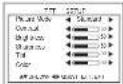
Press the up-down direction button to select the item. Press the left-right direction button to adjust. Press EXIT to exit.
■ nction Buttons
a

Under the DVD mode, press the Manu button to show the root menu.

Under the DVD mode, press the Title button to show the title menu.
Irection Bition O

While working with the menu, press the direction buttons to move the cursor.
Press OK to confirm.
TUN - Press to tune radio stations under the tuner mode.
ERIC en a
[Random Program access]
① ② ③
(2)
4 8 9
① ② ③
③
NOTE
Some DVD discs do not allow the direct access function.
-
-
-
-
-
-
-
-
-
-
-
-
-
-
-
-
-
-
-
-
-
-
-
-
-
-
-
-
-
-
-
-
-
-
-
-
-
-
-
-
-
-
-
-
-
-
-
-
-
-
-
-
-
-
-
-
-
-
-
-
-
-
-
-
-
-
-
-
-
-
-
-
-
-
-
-
-
-
-
-
-
-
-
-
-
-
-
-
-
-
-
-
-
-
-
-
-
- 99.
-
-
-
-
-
-
-
-
-
-
-
-
-
-
-
-
-
-
-
-
-
-
-
-
-
-
-
-
-
-
-
-
-
-
-
-
-
-
-
-
-
-
-
-
-
-
-
-
-
-
-
-
-
-
-
-
-
-
-
-
-
-
-
-
-
-
-
-
-
-
-
-
-
-
-
-
-
-
-
-
-
-
-
-
-
-
-
-
-
-
-
-
-
-
-
-
Press the MUTE button to muffle sound. Press it again to release.
MemoryZoom
Memory Zoom

Under the DVD mode, press the button to zoom into the picture
Repeatedly press the button to achieve the following zoom effect.
When playing the JPEG disc, press the direction buttons to rotate the picture of normal 1005s display
or press the direction buttons to move position of the enlarged picture.
NOTE: The picture quality decreases as the picture size increases.
Memory
Under the tuner mode, press the button to program channels.
□□□□
H07
Press Clear to cancel the incorrect input.
AutaFAV
AUTO
Press to search stations automatically under the tuner mode.
FAV
Press to show the favorite channel list under the TV mode.
AM'FM'EPG
FMAN Press to select band under the lunar mode.
EPG Press to show the electronic program guide under the TV mode.

Go to a desired section. Press GOTO is display the search menu.
图 2-12 图 一图 5-40
-
Press the direction buttons to move left-right.
-
Press the number buttons to input data.
To cancel the incorrect input press the Clear button.
-
Press OK to start searching.
-
Press GOTO to quit.
`epeat` `ection II` B
To repeat a specific section.
Press A-B once to set the starting point A, press A-B twice to set the ending point B.

It starts playing section A-B.
To carcle, press A-B again

Some DVD discs do not allow the A-B function playback. This function does not apply to MP3 discs.
2000
Press the REPEAT button repeatedly to select the repeal mode.

| DVD Mode | CD Mode |
| Repeat All | Repeat Disc |
| Repeat Title | Repeat Track |
| Repeat Chapter | Repeat Off |
| Repeat Off |
NOTE:
Some DVD discs do not allow the REPEAT function.
Step
Press STEP to start playback frame by frame.
Press PLAY to quit the STEP mode.
□□□□□ n □e□□ □ title□□ □ io
[Unreadable]
While playing a DVD disc, press ANGLE to view different camera angles on the disc.
A DVD disc may contain up to 8 selectable camera angles.
111 109
While playing a DVD disc press Sub-Tie to select the language at the viewable subtitle.
A DVD disc may contain up to 32 selectable subtitles.
[1]
While playing a DVD disc, press AUDIO to select the language of the audio sound track.
A DVD disc may contain up to 8 selectable audio sound tracks.
NOTE
Some DVD discs do not have multiple ANGLES, SUBTITLES or AUDIO features.
nction Buttons
STMicro
ST.Mono Switch between the stereo audio mode and the mono audio mode when there is stereo audio.
signal detected
C
CH-139
CHL in Press to display the channel list under the TV mode.
( )
SETUP
SETUP
Setup Press the SETUP button to enter the DVD setup menu.
The SETUP menu allows the viewer to adjust the setting details of the DVD player
Please refer to "DVD SETUP" section for further directions.
Program Function
•
16:10
( )
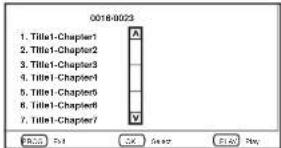
Press the "Program" button to access the Program function.
text_image
0018-0023 1. Title1-Chapter1 2. Title1-Chapter2 3. Title1-Chapter3 4. Title1-Chapter4 5. Title1-Chapter5 6. Title1-Chapter6 7. Title1-Chapter7- Press the up/down direction button to select the desired file.
and press OK to save. The chosen file will be displayed to the right screen.
When programming files, press MENU to access Titles, press OK to access Chapters. - To delete the program, press OK at the file to be erased.
To clear all programs, press the Clear button on the remote. - Press Play: Pause to start playback.
rnnnetn
DVD Setup
Various features of the DVD player can be adjusted in the SETUP menu.
1. Press SETUP to show the setup menu.
2. Press direction buttons to select the options.
3. Press CK to confirm sellings.
| Language | CDS Language |
| English | English |
| Chinese | Chinese |
| English | English |
Language Setup
| Item Description Default Setting | ||
| OSD Language | Set the OSD;On Screen-Display language | English |
| Subtitle Set the audio language English | ||
| Audio | Set the audio language | English |
| Menu Set the menu language English | ||
Display Setup
| Item Description Default Setting | |
| Aspect Ratio | Set the aspect ratios of the display. 4:3 is used with standard television displays. 10:5 is used with widespread television displays. |
| TV System | Set the player's Video Out signal type. Set this to correspondence with your TV's video System type.NTSC is the standard used in North America. |
| Angle Mark | When the angle mark is set ON, an icon will be displayed on the screen if the disc has multiple angle shots available for viewing.You also can access the function by pressing the ANGLE button on the remote control. The default setting is ON. |
| Screen Saver | The screen saver prevents burn-in damage to the player's screen.The default setting is ON. |

Audio Setup
| Item Description | Default Setting | |
| Channel Output | Sets the audio channel mix mode (LT/RT, Stereo). | Stereo |
Parental Setup
| Item | Description | Default Setting |
| Change | The Initial password is 8888.Enter the old password, the new password, and then the new password again to verifyRestore function will not reset the password. DO NOT FORGET THE PASSWORD; this password cannot be reset. | |
| Rating Level | Sets the maturity rating level of the player. The player will not play any class rated higher than this setting.There are eight rating levels. Level 1 will restrict playback to disc suitable for people of all ages.Lever 6 will allow playback of all class. Including those suitable for adults only.Please follow the below steps to change the parents level.Enter "Rating Level" >Press the left/right button to set line level: ->Press ENITCH to control:->Your are required to input the password to enable the new setting. | 8 |
| Default Reset | Reset the player to the factory default. | |
TV Function
TV Function
Preparations
- Connect the antenna and the power supply. Press POWER to turn on the line player.
See Cable Connections section.
-
Press MODE to select TV.
-
Press the CH+ button to skip channels or press numeric buttons to input the channel directly.
For the initial use, scan channels under the "Channel Setup" menu.
See the "Channel Setup" section for details.
Setup Menu
Various features can be preset through the TV setup menu.
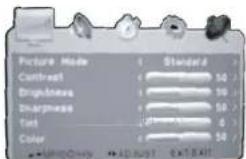
TV setup menu consists of Picture Setup, Audio Setup, Time Setup, Option Setup as well as Channel Setup.
-
Press TV-SETUP to display the menu.
-
Press the left-right button to select the menu, press OK to enter the menu.
text_image
Picture Mode Contrast Brightness Sharpness Noise Color Standard 50 50 50 50 50 50 50 50 50 50 50 50 50 50While working with the menu.
-
Press the up/down direction button to select the item
-
Press the left-right direction button to adjust
-
Press TV Setup to back up the menu. Press EXIT to exit the menu.
Picture Setup
| ITEM | DESCRIPTION |
| Picture Mode | Set up the picture mode (Personal, Standard, Soft, Dynamic) |
| Contrast | Adjust the color contrast |
| Brightness | Adjust the display brightness |
| Sharpness | Adjust the display sharpness |
| Tint | Adjust the image color. |
| Color | Adjust the display color. |
Audio Setup
| ITEM | DESCRIPTION |
| Sound Mode | Setup the sound mode, (Standard, Movie, Music, Personal) |
| Bass | Setup the bass effect. |
| Treadie | Setup the table effect. |
| Balance | Adjust the sound balance. |
| Audio Language | Setup the audio language. |
.15.
TV Function
Time Setup
| ITEM | DESCRIPTION |
| Time Zone Select (Central, Mountain, Pacific, Aizaka, Hawaii, Atlantic, Eastern) | |
| Daylight Saving Time Set the time saving function on/off. | |
Option Setup
| ITEM | DESCRIPTION |
| Menu Language | Setup the menu language. |
| Color Mode Setup the color mode.{Normal, Warm, Cool} | |
| Zoom Mode Adjust the display mode.{Normal, 4.5}. | |
| Restore Default | Restore settings to the factory default. |
Channel Selup
| ITEM | DESCRIPTION |
| Antenna. | Select the antenna type as Air or CATV. |
| Auto Scan | Search channels automatically. Press the right direction button to start searching, press EXIT to quit. |
| ShowMode | Sup the unwanted channels. Press the updown direction button to select the channel, press OK to set block. Press OK again to release. |
| Favorite | Make the favorite channels collection. Press the updown direction button to select the channel, press OK to set it as the favorite channel. Press OK again to release. |
| Channel No. | Edit the channel label. Channel Label 1. Select "Channel No", press the left/right direction button to set the channel. 2. Select "Channel Label", press the right direction button to show the edit menu. In the menu, press the left/right direction button to move left/right. Press the updown direction button to make changes. 3. To clear the label, repeatedly press the updown direction button to display the blank input. |
17
roll || ie || ootin
Should your DVD prayer develop a problem, please check below before requesting service:
| Symptom | Check and Action |
| No power | 1. Make sure the unit has been powered on manually.2. Check if the power cord has been properly connected to the power outlet.3. Make sure the battery pack is fully charged. |
| Does not play | 1. No disc, load a disc.2. Disc has been loaded upside down. Place the disc with the label side up.3. Disc's rating level is higher than the player's setting.4. Disc is incorrect type for the player.5. Disc is damaged or dirty. Clean the disc or try another one.6. Moisture may be condensed inside the player. Remove me disc and leaves the unit power on for one or two hours. |
| No Picture | 1. Check if the system connection is proper and secure.2. Check if the connection cables are damaged.3. Clean the disc. |
| Picture noisy, distorted | 1. Disc is damaged or dirty. Clean the disc or try another one.2. Reset the color system. |
| No sound or sound output not complete | 1. Check if the player has been switched on and correctly set.2. Check if the system connections are secured.3. Press AUDIO button to select other audio tracks of the disc.4. Check if the MUTE function of the TV or amplifier has been activated.5. There will be no sound output during REVERSE PLAY/PAUSE/SLOW and SEARCH. |
| Remote control does not work | 1. Make sure the unit is turned on.2. Remove the obstacles between the remote control and the player.3. Point the remote control towards the remote sensor on the player.4. Cross if the batteries of the remote control have been loaded with correct polaries.5. Replace the batteries of the remote control. |
| Mallfunction | Should the player develop a malfunction, unplug the player for 30 minutes. After that, power on the player and the restor function should reset the player. |
PROP 65 WARNING:
Handling the coated electrical wire of this product exposure you to lead a chemical known
to the State of California to cause cancer, birth defects and other reproductive harm.
Wash hands after use.
.18.
Specification
1093 Specification
| TV system | NT50+AT50 | |
| ACDC Adapter | AC InputDC output | 100-240V 50/60Hz(+2V/-2.0A) |
| Power consumption | On workingSpeaker | 24W (Max)2x 8Ω / 13.0 W |
| Operating temperature range | 10°C-40°C | |
| Dimension | 365x280x80 mm | |
| Weight | 2235g | |
| Channel Coverage | VFL 55.25 160.216 bVFLH 140.00V-120.00Hz cUFL 442.00 511.25XHZ | |
| Antenna Impedance 25 Ohm unbalance | ||
| Tuning System FS with PLL | ||
| TFT Panel Characteristic Active Area: 222.0Wx132.48" | ||
| DTV Characteristic DTV System AT5C/OAM | ||
75(W)x0.276(H)
Design specifications and manual are subject to change without prior notice.
Specification
7093 Specification
| TV system | NTSC + ATSC | |
| AC/DC Adapter | AC input 100-240V 50-60HzDC output (+12V / ± 0 A) | |
| Power consumption | On cooking 24W (Max)Speaker 2x 8Ω / 7.0 W | |
| Operating temperature range | 13°C 40°C | |
| Dimension | 385x280x80 mm | |
| Weight | 2008 g | |
| Channel Coverage | VHF L 32.25 122.00MHzVF-H 160.02-142.01MhzUHF 442.00-801.25Mhz | |
| Antenna impedance 25 Ohm unbalance | ||
| Tuning System PS with PLL | ||
| TFT Panel Characteristic Active Area 222.0W(×132.48) | HI | |
| Size | ||
| Pixel Pho(m2) 0.27 | ||
| Resolution 480PGBX234(√) | ||
| DTV Characteristic DTV System ATSC/OAM | ||
| Channel Restored by 3.157-1204 Hz | ||
| VHF-H, C: 100(156) 153 MHzUHF cl. LL to 89.089-100 Mhz | ||
5|W1<0.276(H)
Design specified one and manual are subject to change without prior notice.
PAN307 KD10-5002-01F