HAWNU1 - Network card / adapter Hawking Technologies - Free user manual and instructions
Find the device manual for free HAWNU1 Hawking Technologies in PDF.


| Product Type | Wireless USB Adapter / Network Card |
| Model | HAWNU1 |
| Brand | Hawking Technologies |
| Wireless Standard | IEEE 802.11b/g/n (2.4 GHz) |
| Maximum Data Rate | Up to 150 Mbps |
| Interface | USB 2.0 |
| Frequency Band | 2.4 GHz |
| Antenna | Internal omnidirectional |
| Security | WEP, WPA/WPA2 (TKIP/AES) |
| Operating Systems Supported | Windows (XP/Vista/7/8/10), Mac OS X, Linux |
| Dimensions (approx.) | 27 x 17 x 8 mm |
| Weight | 10 g |
| Power Supply | USB bus-powered (5V, 500 mA) |
| LED Indicators | Link/Activity (green) |
| Temperature Range | 0°C to 40°C (operating) |
| Certifications | FCC, CE |
| Package Contents | HAWNU1 adapter, Quick Installation Guide, Resource CD |
| Functions | Wireless networking, ad-hoc/infrastructure modes, WMM (QoS), WPS support |
| Maintenance & Cleaning | Keep dry; wipe with a soft cloth; no user-serviceable parts |
| Safety | Do not expose to water or excessive heat; use in ventilated area |
| Spare Parts & Repairability | No spare parts available; non-repairable, replace unit |
| General Information | Plug-and-play setup; compatible with most Wi-Fi routers |
Frequently Asked Questions - HAWNU1 Hawking Technologies
User questions about HAWNU1 Hawking Technologies
0 question about this device. Answer the ones you know or ask your own.
Ask a new question about this device
Download the instructions for your Network card / adapter in PDF format for free! Find your manual HAWNU1 - Hawking Technologies and take your electronic device back in hand. On this page are published all the documents necessary for the use of your device. HAWNU1 by Hawking Technologies.
USER MANUAL HAWNU1 Hawking Technologies
natural_image
Woman using a laptop on grass beside a wireless network device (no text or symbols visible)USER'S MANUAL

HI-GAIN™ WIRELESS-150N
USB NETWORK ADAPTER
with RANGE AMPLIFIER
website www.hawkingtech.com
e-mail techsupport@hawkingtech.com
tech support 1-888-202-3344
LIMITED WARRANTY
Hawking Technology guarantees that every HAWNU1 Hi-Gain Wireless-150N USB Adapter with Range Amplifier is free from physical defects in material and workmanship under normal use for one (1) year from the date of purchase. If the product proves defective during this two-year warranty period, call Hawking Customer Service in order to obtain a Return Authorization number. Warranty is for repair or replacement only. Hawking Technology does not issue any refunds. Hawking Technologies is not responsible for freight fees for items shipped to Hawking Technologies. BE SURE TO HAVE YOUR PROOF OF PURCHASE. RETURN REQUESTS CAN NOT BE PROCESSED WITHOUT PROOF OF PURCHASE. When returning a product, mark the Return Authorization number clearly on the outside of the package and include your original proof of purchase.
IN NO EVENT SHALL HAWKING TECHNOLOGY'S LIABILITY EXCEED THE PRICE PAID FOR THE PRODUCT FROM DIRECT, INDIRECT, SPECIAL, INCIDENTAL OR CONSEQUENTIAL DAMAGES RESULTING FROM THE USE OF THE PRODUCT, ITS ACCOMPANYING SOFTWARE OR ITS DOCUMENTATION. Hawking Technology makes no warranty or representation, expressed, implied or statutory, with respect to its products or the contents or use of this documentation and all accompanying software, and specifically disclaims its quality, performance, merchantability, or fitness for any particular purpose. Hawking Technology reserves the right to revise or updates its products, software, or documentation without obligation to notify any individual or entity. Please direct all inquiries to:
techsupport@hawkingtech.com
COPYRIGHT
Copyright ©2010/2011 by Hawking Technologies, Inc. All rights reserved. No part of this publication may be reproduced, transmitted, transcribed, stored in a retrieval system, or translated into any language or computer language, in any form or by any means, electronic, mechanical, magnetic, optical, chemical, manual or otherwise, without the prior written permission of this company.
This company makes no representations or warranties, either expressed or implied, with respect to the contents hereof and specifically disclaims any warranties, merchantability or fitness for any particular purpose. Any software described in this manual is sold or licensed "as is". Should the programs prove defective following their purchase, the buyer (and not this company, its distributor, or its dealer) assumes the entire cost of all necessary servicing, repair, and any incidental or consequential damages resulting from any defect in the software. Further, this company reserves the right to revise this publication and to make changes from time to time in the contents thereof without obligation to notify any person of such revision or changes.
Federal Communication Commission
Interference Statement
This equipment has been tested and found to comply with the limits for a Class B digital device, pursuant to Part 15 of FCC Rules. These limits are designed to provide reasonable protection against harmful interference in a residential installation. This equipment generates, uses, and can radiate radio frequency energy and, if not installed and used in accordance with the instructions, may cause harmful interference to radio communications. However, there is no guarantee that interference will not occur in a particular installation. If this equipment does cause harmful interference to radio or television reception, which can be determined by turning the equipment off and on, the user is encouraged to try to correct the interference by one or more of the following measures:
- Reorient or relocate the receiving antenna.
- Increase the separation between the equipment and receiver.
- Connect the equipment into an outlet on a circuit different from that to which the receiver is connected.
- Consult the dealer or an experienced radio technician for help.
FCC Caution
This device and its antenna must not be co-located or operating in conjunction with any other antenna or transmitter.
This device complies with Part 15 of the FCC Rules. Operation is subject to the following two conditions: (1) this device may not cause harmful interference, and (2) this device must accept any interference received, including interference that may cause undesired operation.
Any changes or modifications not expressly approved by the party responsible for compliance could void the authority to operate equipment.
Federal Communication Commission (FCC) Radiation Exposure Statement
This EUT is compliance with SAR for general population/uncontrolled exposure limits in ANSI/IEEE C95.1-1999 and had been tested in accordance with the measurement methods and procedures specified in OET Bulletin 65 Supplement C.
The equipment version marketed in US is restricted to usage of the channels 1-11 only.
R&TTE Compliance Statement
This equipment complies with all the requirements of DIRECTIVE 1999/5/EC OF THE EUROPEAN PARLIAMENT AND THE COUNCIL of March 9, 1999 on radio equipment and telecommunication terminal Equipment and the mutual recognition of their conformity (R&TTE)
The R&TTE Directive repeals and replaces in the directive 98/13/EEC (Telecommunications Terminal Equipment and Satellite Earth Station Equipment) As of April 8, 2000.
Safety
This equipment is designed with the utmost care for the safety of those who install and use it. However, special attention must be paid to the dangers of electric shock and static electricity when working with electrical equipment. All guidelines of this and of the computer manufacture must therefore be allowed at all times to ensure the safe use of the equipment.
EU Countries Intended for Use
The ETSI version of this device is intended for home and office use in Austria, Belgium, Denmark, Finland, France, Germany, Greece, Ireland, Italy, Luxembourg, the Netherlands, Portugal, Spain, Sweden, and the United Kingdom.
The ETSI version of this device is also authorized for use in EFTA member states: Iceland, Liechtenstein, Norway, and Switzerland.
EU Countries not intended for use
None.
TABLE OF CONTENTS
1 PRODUCT INFORMATION......1
1.1 Introduction and safety information....1
1.2 Safety Information .... 1
1.3 System Requirements....2
1.4 Package Contents....3
1.5 Familiarize with your new wireless network card....4
2 INSTRUCTIONS FOR WINDOWS OPERATING SYSTEM ....5
2.1 Driver & Software Installation....5
2.2 Connect to a Wireless Connection: Windows 7....7
2.3 Connect to a Wireless Connection: Windows Vista....9
2.4 Connect to a Wireless Connection: Windows XP/2000....11
2.5 Hawking Wireless Utility....12
Launch the Hawking Wireless Utility.... 12
Hawking Wireless Utility Overview.... 13
Scan for Other Wireless Devices 14
Connect to an Access Point.... 17
Add an Access Point to Profile 20
Profile Management.... 26
Advanced Settings 30
View Network Statistics.... 32
WMM Setting 33
WPS Configuration....34
CCX Configuration....39
Radio On/Off 41
About....43
On-line Help.... 44
2.6 Using Windows Zero Configuration....44
3 INSTRUCTIONS FOR MAC OPERATING SYSTEM ....48
3.1 Driver & Software Installation....48
3.2 Connecting To Your Wireless Network (Mac 10.5 or later) .....50
3.3 Connecting To Your Wireless Network (Mac 10.3\~10.4.9)....52
3.4 Configure IP Manually vs. Automatic (DHCP)....54
3.5 Hawking Wireless Utility for Mac OS X....55
Site Survey 55
Profiles 56
Configure Profile 56
Authentication vs. Security....58
Link Status 59
Statistics 60
Advanced 60
WPS 61
About....63
4 Product Specifications....64
5 Troubleshooting....64
6 Glossary 66
1 PRODUCT INFORMATION
1.1 Introduction and safety information
Thank you for purchasing this high-speed wireless network card! The HAWNU1
Wireless-150N USB Adapter is backward compatible with wireless 802.11b/g. This wireless card is capable of transfer data at speeds of up to 150Mbps, three times faster than 802.11g wireless network. In addition, the built-in USB Range Amplified helps booster your wireless range up to 250% compare to a standard wireless 802.11g network.
With easy-to-install USB 2.0 interface - a very common expansion port of computers - plug this wireless network card into any empty USB port of your computer, just that simple!
Other features of this wireless network card include:
• High-efficiency antenna expands the scope of your wireless network.
• High-speed data transfer rate - Up to 150Mbps.
- QoS function: control the bandwidth required for different applications.
• Work with 802.11b/g/n wireless networks.
• Supports major encryption methods like WEP, WPA, and WPA2 encryption.
- WPS configuration - You don't need an experienced computer technician to help you to get connected. Utilizing the software program of the card, you can get your computer connected by pushing a button or entering an 8-digit code.
- USB 2.0 interface - you can get it installed on your computer in just few seconds!
1.2 Safety Information
In order to keep the safety of users and your properties, please follow the following safety instructions:
- This USB wireless network card is designed for indoor use only. DO NOT expose this network card to direct sun light, rain, or snow.
- DO NOT put this network card at or near hot or humid places, like kitchen or bathroom. Also, do not leave this wireless network card in the car in heat.
- This network card is small enough to put in a child's mouth, and it could cause serious injury or could be fatal. If they throw the network card, the card will be damaged. PLEASE KEEP THIS NETWORK CARD OUT OF THE REACH OF CHILDREN!
-
This network card will become hot when being used for long periods of time (This is normal and is not a malfunction). DO NOT put the network card on paper, cloth, or other flammable objects after the network card has been used for a long time.
-
There's no user-serviceable part inside the network card. If you find that the network card is not working properly, please contact your dealer of purchase and ask for help. DO NOT disassemble the network card by yourself, warranty will be void.
-
If the network card falls into water, DO NOT USE IT AGAIN BEFORE YOU SEND THE CARD TO THE DEALER OF PURCHASE FOR INSPECTION.
-
If you smell something strange or even see some smoke coming out from the network card, switch the computer off immediately, and call dealer of purchase for help.
1.3 System Requirements
- An empty USB 2.0 port (USB 2.0 Port is recommended to maximize your wireless performance. Performance will be greatly reduced with a USB 1.1 port)
- Windows 2000, 2003, XP, Vista, and 7 operating system
• Mac OSX 10.3, 10.4, 10.5, and 10.6 - CD-ROM drive
- At least 100MB of available disk space
1.4 Package Contents
Before you start to use this wireless network card, please check if there is anything missing from the package.
- HAWNU1 Hi-Gain Wireless-N USB Adapter (1 pc)
- Protective Cap (1 pc)
- Quick Installation Guide (1 pc)
- Driver/Utility/User manual CD-ROM (1pcs)
Contact your dealer of purchase to claim for any missing item listed above.
4

natural_image
Simple diagram of concentric circles with no text or symbols
natural_image
Blank white image with a thin corner edge and faint curved lines at the bottom right (no text or symbols)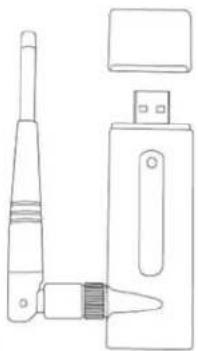
natural_image
Line drawing of a handheld electronic device with ports and connectors (no text or symbols)2
1
3
1.5 Familiarize with your new wireless network card
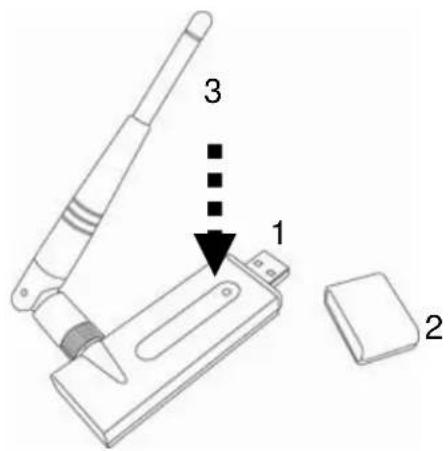
- USB Connector
- Connector Cap (To protect USB connector when not in use)
- Link/Activity LED
| LED Name Light Status | Description | |
| Radio Off Off W | Wireless LAN function is disabled. | |
| Radio On(No Link) | Off No link to wireless AP or Router | |
| Flashing | Transmitting management information | |
| Radio On(Link to AP orRouter) | On Link to wireless AP or Router | |
| Flashing Transmitting data or management information. | ||
2 INSTRUCTIONS FOR WINDOWS OPERATING SYSTEM
2.1 Driver & Software Installation
Please follow the instructions to install your new wireless network card:
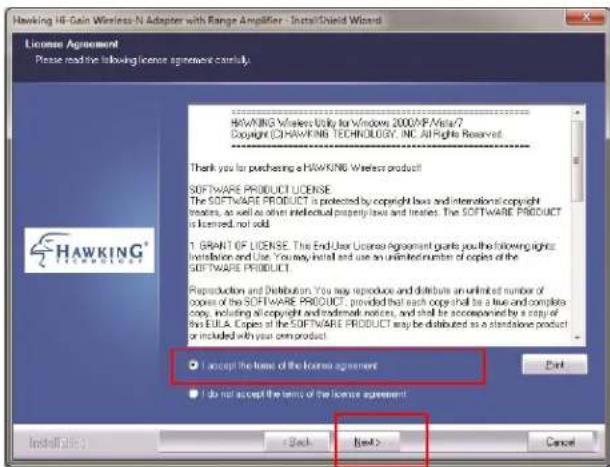
- Insert device driver CD-ROM into the CD/DVD-ROM drive of your computer, and execute 'Setup.exe' program. Please read the end user license agreement and click 'I accept the terms of the license agreement' then click 'Next' button, to accept license agreement.
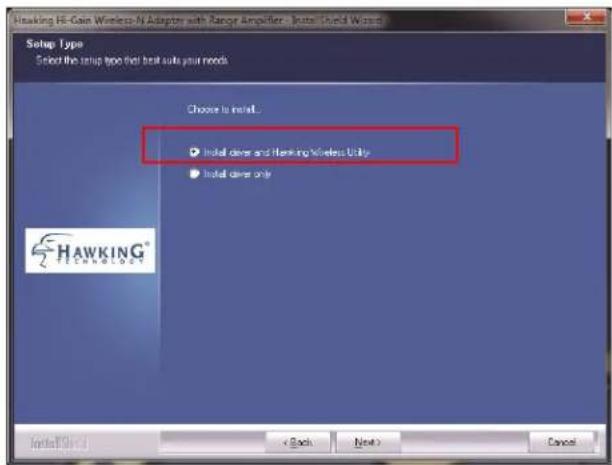
- Select 'Install driver and Hawking Wireless Utility'. Click 'Next' to continue.
Note: If you are using a Window Vista or 7, you may select 'Install driver only' since we recommend that you use the Windows Wireless Network Configuration and not the Hawking Wireless Utility.
- Select 'Install' to begin the installation.
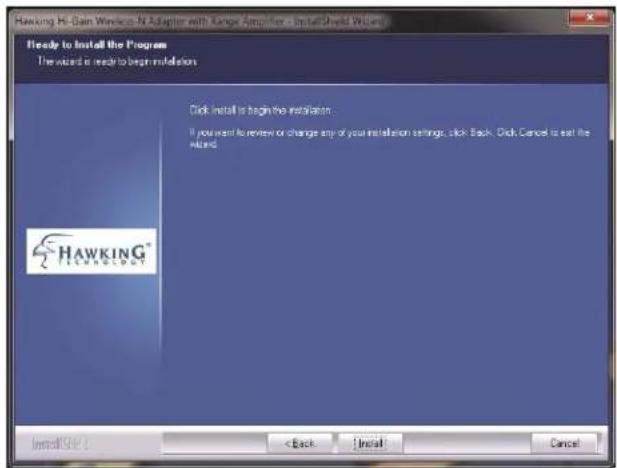
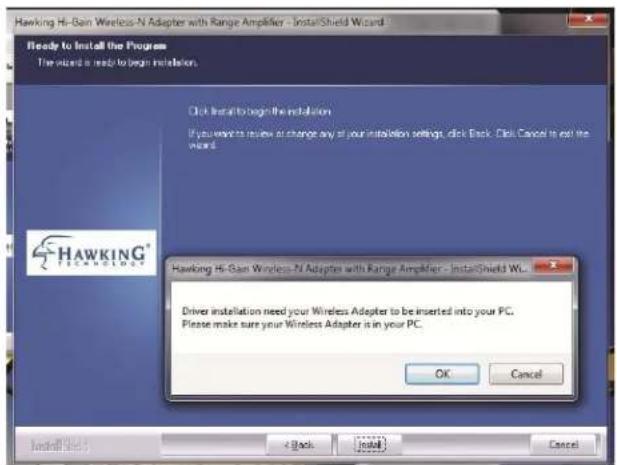
- The install wizard will prompt you to insert the USB Adapter into your PC. IGNORE the message for now. Select "OK" to continue. (It is recommended to finish installing the driver before plugging in the Adapter.)
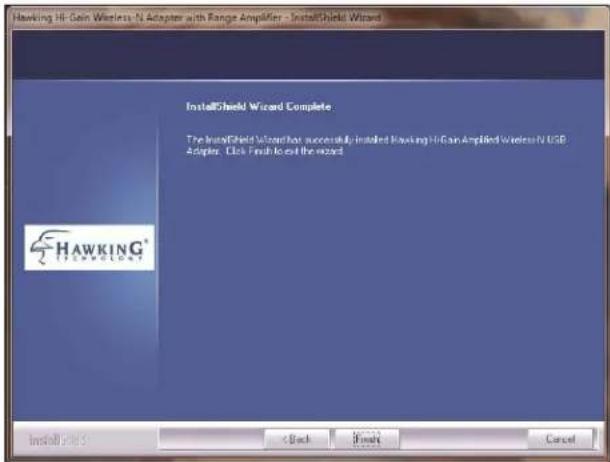
- Please wait while the install procedure is running. When Install Wizard completes, please click 'Finish.'
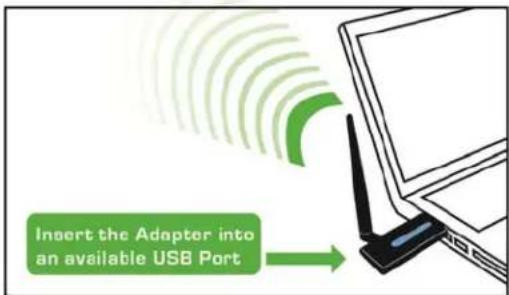
- Now, insert the Adapter into an available USB Port.
2.2 Connect to a Wireless Connection: Windows 7
(It is recommended that you use the Windows Wireless Utility for Windows 7 and Vista)
- Wait a few seconds until your system detects the new hardware (Adapter).
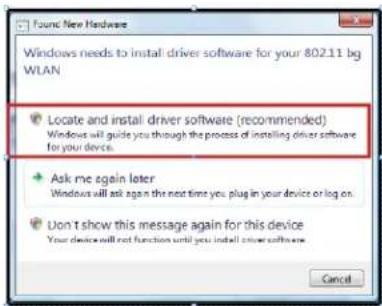
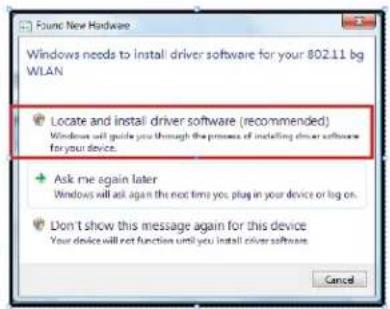
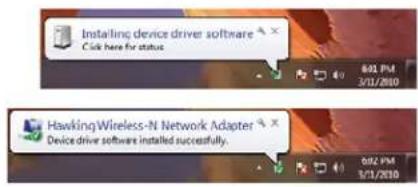
- A Found New Hardware screens may show up at this point, select "Locate and Install driver software (recommended)". Then, your system will automatically locate the software and complete the driver installation process.
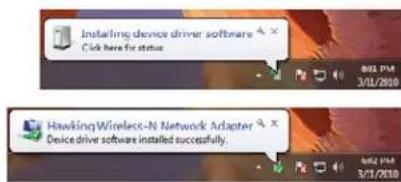
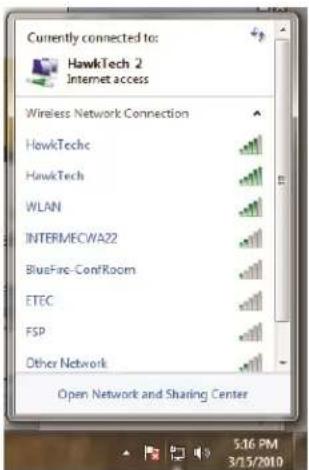
- Click on the Network and Sharing Center icon from your system tray (bottom right on your screen). A list of available wireless networks will appear. Select a wireless network that you wish to connect to.
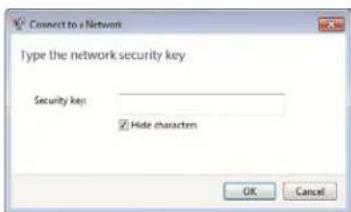
- If you are connecting to a Security-enabled Network, your system will prompt you to enter your security key. If you don't have the security key, please contact your network administrator or the person who set up the selected wireless network.
- If you are not connected to a security enabled network, you system will proceed to the next step and connect automatically.
2.3 Connect to a Wireless Connection: Windows Vista
(It is recommended that you use the Windows Wireless Utility for Windows 7 and Vista)
- Wait a few seconds until your system detects the new hardware (Adapter). A Found New Hardware screens may show up at this point, select "Locate and Install driver software (recommended)". Then, your system will automatically locate the software and complete the driver installation process.
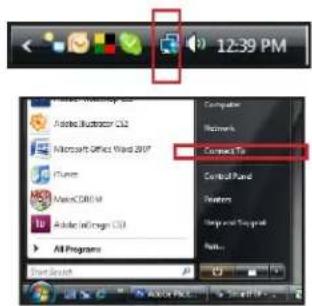
- Click on the Network icon from your system tray (bottom right on your screen). If you can't locate the Network icon, go to Start menu and select "Connect To".
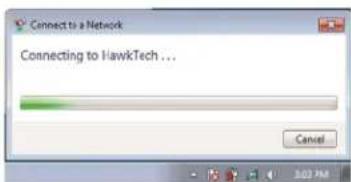
- Select a Network and click Connect. Please wait until the adapter connects.
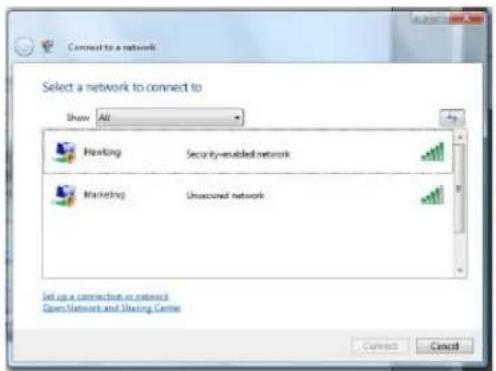
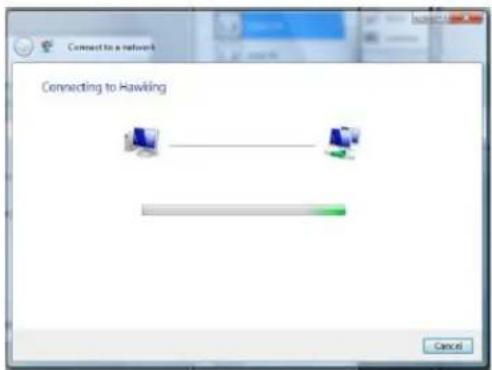
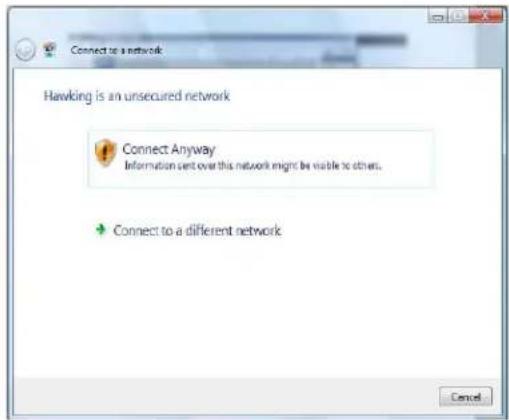
- If you are connecting to an unsecured networking, select Connect Anyway.
- If you are connecting to a security-enabled Network, type in the network security key or passphrase. If you do not have the security key or passphrase, please obtain it from your network administrator.
-
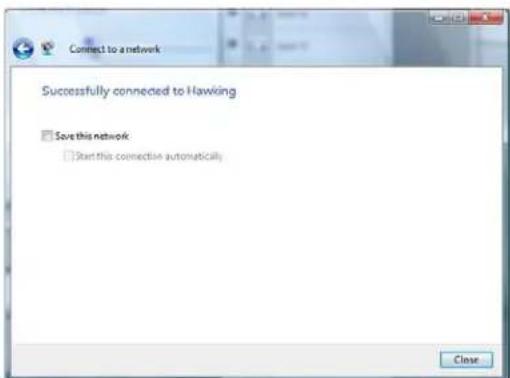
You are now connected to a wireless network. To save this specific network for future access, select Save this network.
-
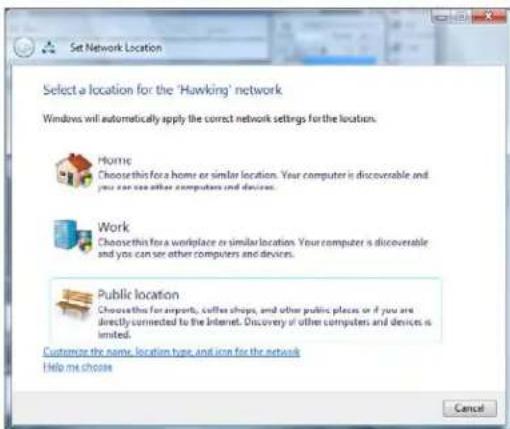
Select a location or you may customize the name and location type, etc.
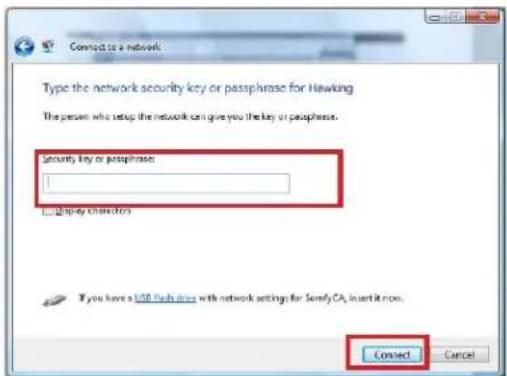
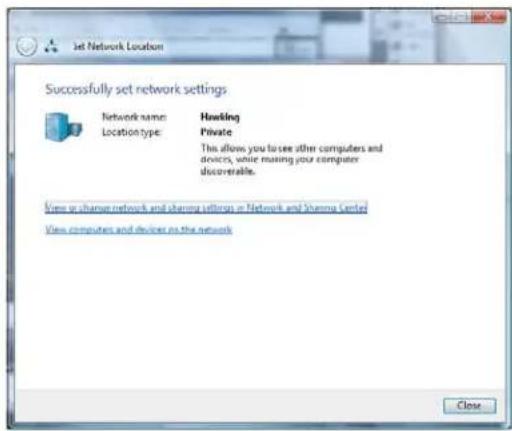
- Close the Set Network Location when you are done.
2.4 Connect to a Wireless Connection: Windows XP/2000
Note: Installation was performed on a Windows XP system. Install Screen may vary slightly, but the installation steps should be similar on a Windows 2000.
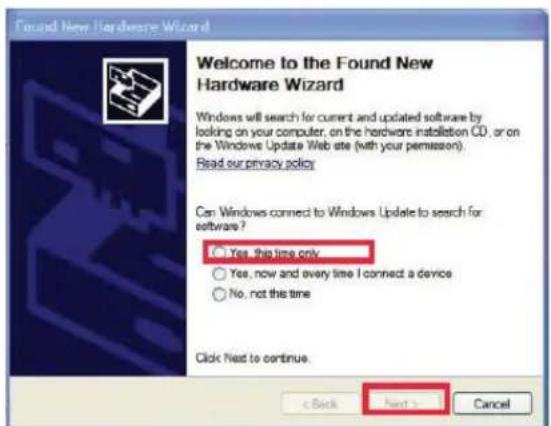
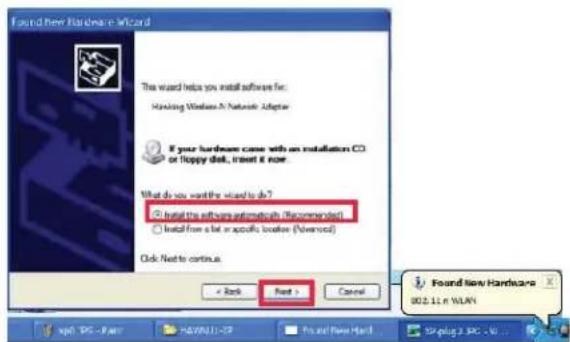
- Plug-in the Adapter into your USB port if you have not done so. A Welcome to the Found New Hardware Wizard screen will guide you through the rest of the installation. Select "Yes, this time only" and "Next".
- Select "Install the software automatically (Recommended) and wait until the wizard installs the software.
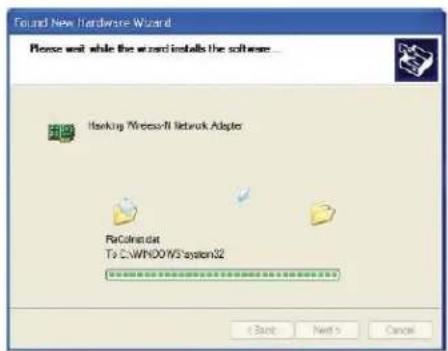
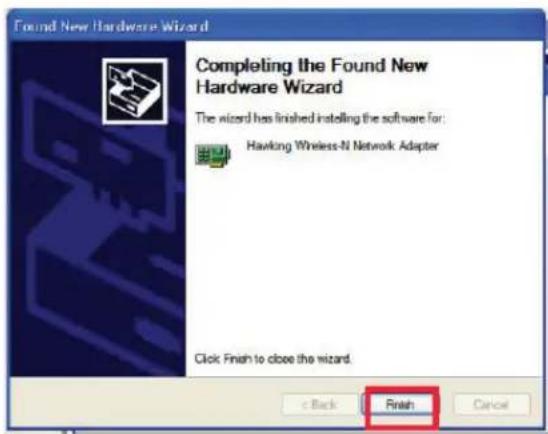
- When the wizard finishes installing the software, select "Finish".
-
After the driver is correctly installed, it will try to connect to any un-encrypted wireless access point automatically. If you want to connect to a specific wireless access point, or the access point you wish to connect uses encryption, you have to configure the wireless network card and input required parameters, to get connected to the wireless access point you wish to connect.
-
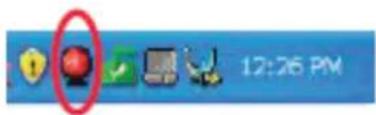
After installation is complete, Hawking wireless configuration utility will be shown in the system tray (lower-right corner of your windows system). Click on the icon to open up the Hawking Wireless Utility. (Note: Hawking Wireless Utility is recommended for Windows XP and 2000 users.)
2.5 Hawking Wireless Utility
There are two ways you can configure your HAWNU1 Adapter to connect to a wireless access point: 1. Using the Hawking Wireless Utility/Hawking Configuration Utility or 2. Using the built-in Windows Zero Configuration Utility (also known as the Windows Wireless Utility). If you are using Windows XP or 2000, it is recommended that you use the Hawking Wireless Utility. If you're using Windows Vista or 7, please use the Windows Zero Configuration/ Windows Wireless Configuration.
Launch the Hawking Wireless Utility
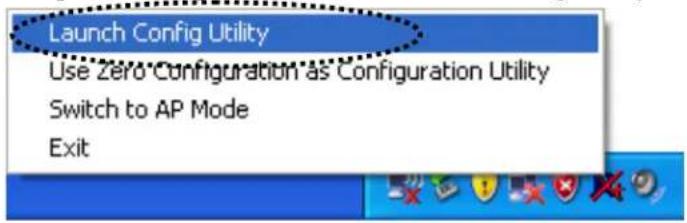
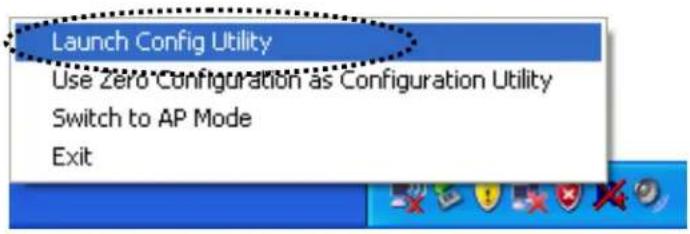
When you want to configure your wireless connection, please right click on this icon, and a popup menu will appear. You can click 'Launch Config Utility' to start configuration program.
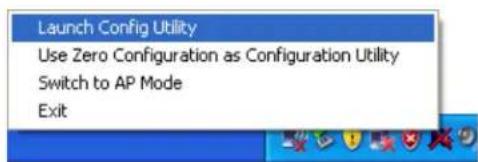
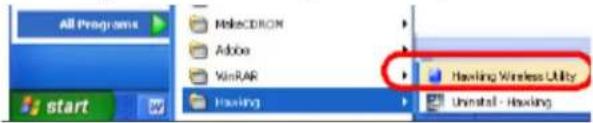
NOTE: If you accidentally exit from the Config Utility by selecting 'Exit' from the menu, you can start Config Utility again by going to 'Start Menu → All Programs → Hawking Wireless-N Amplified Adapter folder → HAWNU1 Wireless Utility icon.'
Hawking Wireless Utility Overview
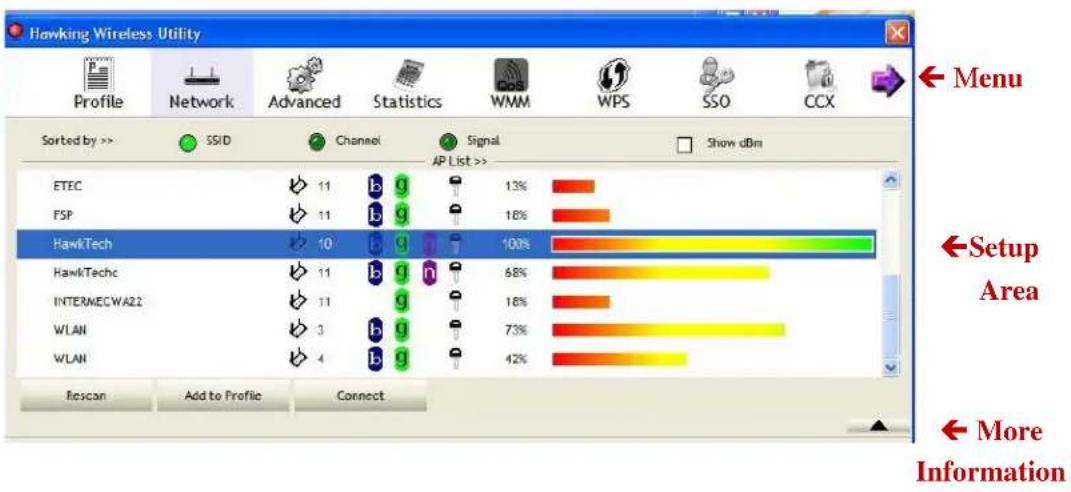
Hawking HAWNU1 Wireless Utility will launch, and begin to scan for all wireless access points automatically. The Wireless Utility is separated into three parts:
bar
| Category | Value | | -------------- | ----- | | ETEC | 11 | | FSP | 11 | | HawkTech | 10 | | HawkTechc | 11 | | INTERMECWA22 | 11 | | WLAN | 3 | | WLAN | 4 |- Menu: includes the following the following tabs (Profile, Network, Advanced, Statistic, WMM, WPS, SSO, CCX, and more)
- Setup Area: displays information corresponding to the menu above (i.e. profile, network, etc)
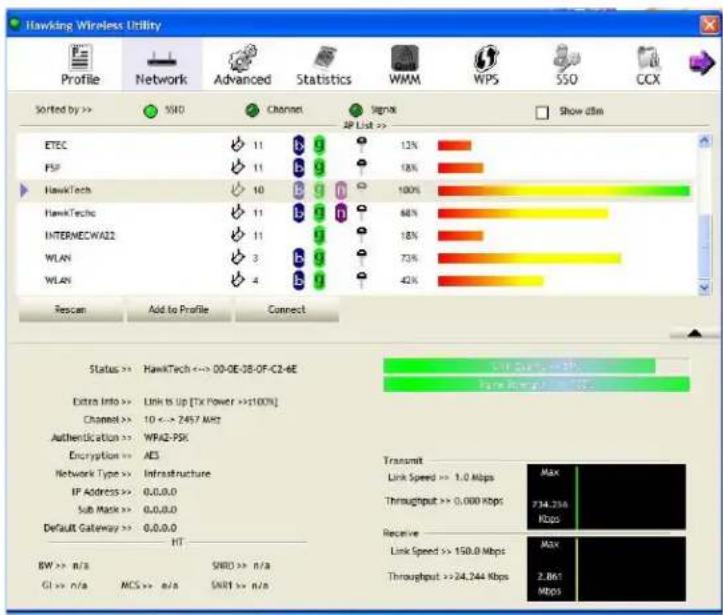
- More Information: displays additional information related to the selected menu and set up. The arrow option ▲ allows you to expand or contract the additional information area (see example below).
bar
Hawking Wireless Utility | Category | IP List >> (%) | | :--- | :--- | | ETEC | 13 | | PSF | 18 | | HawkTech | 100 | | HawkTechc | 66 | | INTERNECW422 | 18 | | WLAN | 73 | | WLAN | 42 | | Metric | Value | | :--- | :--- | | :--- | :--- | | Link Speed >> 1.0 Mbps | Max | | Throughput >> 0.000 Kbps | 734.756 Kbps | | Receive | Max | | Link Speed >> 150.0 Mbps | | | Throughput >> 24.344 Kbps | 2.861 Mbps | | BW >> n/a | | | CI >> n/a | MCS >> n/a | | SHRD >> n/a | | | SNRT >> n/a | |Tip: If a setup item requires more information to complete the setup procedure, the setup utility window will expand automatically.
Scan for Other Wireless Devices
There are two kinds of wireless connection mode: Infrastructure and Ad-Hoc. Infrastructure mode is used by wireless access points, which is able to establish wireless connection for you and other wireless / wired network clients. Ad-Hoc mode is also known as ‘point-to-Point’ mode, and in this mode, wireless devices such as computer or PDA will not be able to establish wireless connection with more than one wireless device, and is suitable for establishing a one-to-one wireless connection between two wireless devices.
Before you can connect to any wireless access point or device by infrastructure or Ad-Hoc mode, there are two things you must know:
Wireless device's 'SSID' (Service Set Identifier, some will call it access point's name.
You can scan for the SSID of other wireless devices nearby, but if the SSID of the wireless device you wish to connect is hidden, you must know exact SSID before you can establish connection with it.
If the wireless device you wish to connect uses encryption, you must know its encryption key.
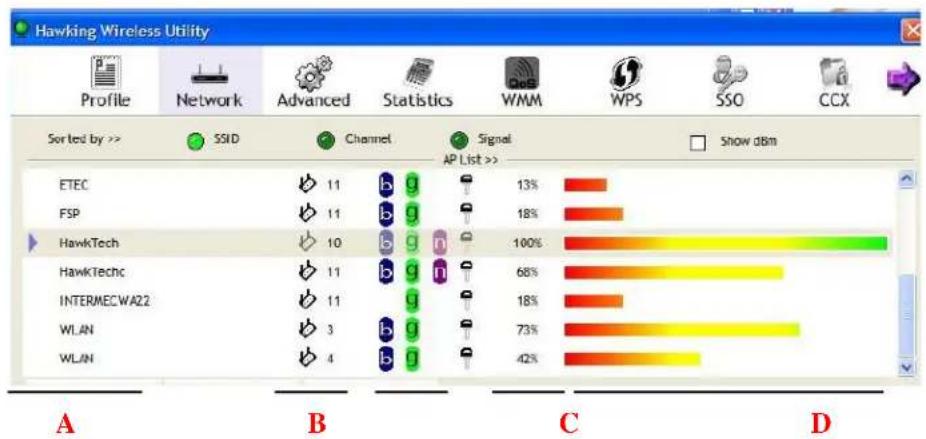
- Launch the Hawking setup utility. The Utility will automatically scan for wireless access points nearby. (Make sure in the menu area, you are on the Network tab)
bar
Hawking Wireless Utility | Category | Value | |---|---| | ETEC | 11 | | FSP | 11 | | HawkTech | 10 | | HawkTechc | 11 | | INTERMECWAZ2 | 11 | | WLAN | 3 | | WLAN | 4 | AP List >> (%) | | Signal | 13% | | Signal | 18% | | Signal | 100% | | Signal | 68% | | Signal | 18% | | Signal | 73% | | Signal | 42% |- Scan results will be displayed similar to the image shown above. Now, check if the wireless device (access point or another computer) with the SSID you wish to connect to is shown here.
| Scan result includes 6 types of information, they are: | |
| A | The SSID (Service Set Identifier) of wireless device. If nothing is displayed here, it means the SSID of this wireless device is hidden. If a ▶ symbol appears in front of the name of a wireless device, it means you’ve established a connection with that wireless device. |
| B | The type of this wireless device and the channel number of this wireless device.√ Means this wireless device is an access point√ Means this wireless device is a computer (Ad-Hoc mode, point-to-point connection) |
| C | The wireless standard supported by this access point is displayed here.‘n’ for 802.11n n; ‘g; for 802.11g , and ‘b’ for 802.11b .WPS icon will appear when the access point supports WPS. If the access point uses encryption, a key icon will appear.Note: When the access point supports WPS and WPS icon is shown, you will not see the key icon here even though the access point uses encryption |
| D | Shows the signal strength of access point by percentage. |
| E | Shows the bar graph of the signal strength. |
If you do not see the access point you wish to connect to here, please click 'Rescan' button to scan for access point again, until the one you prefer is displayed. You may have to click 'Rescan' more than twice before you can see the access point you wish to use here. However, if you still do not see the access point after clicking 'Rescan' for more than five times, please check your wireless source. Make sure you are not too far from the access point. For more details, go to 'Troubleshooting' section.
If you wish to see detailed information for a specific access point, please double-click on it, and you'll be provided with its detailed information.
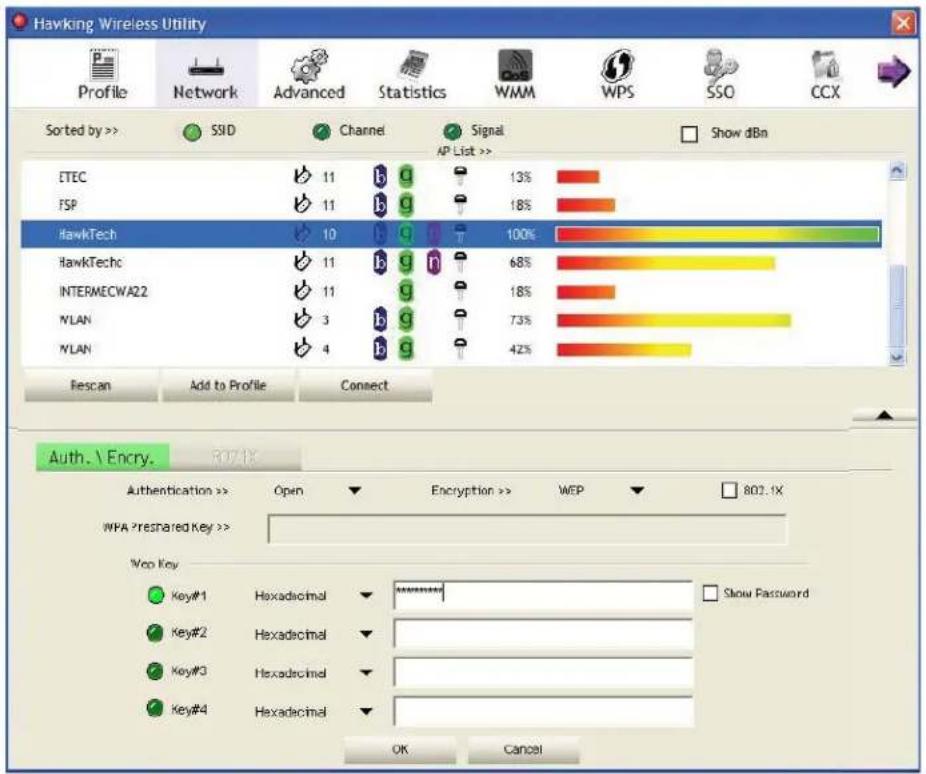
There are 4 types of technical information:
General: Displays basic information about this access point, such as SSID, MAC Address, authentication / encryption type, channel etc.
WPS: If this access point supports WPS (Wi-Fi Protected Setup), related information will be displayed here.
CCX: If this access point supports CCX (Cisco Compatible eXtension), related information will be displayed here.
802.11n: If this access point complies with 802.11n draft, related information will be displayed here.
Setup Area includes the following items:
| Item Name Description | |
| Sorted by >> You can | decide how to sort all listed access points by‘SSID’, ‘Channel’, or ‘Signal’ (signal strength). |
| Show dBm Check this | box to show the signal strength of access point, instead of percentage. |
| Rescan Click this button | to rescan access points. You can click this button for several times, if the access point you wish to use does not show in the list. |
| Add to Profile You can | store a specific access point to profile, so you can link to that access point directly next time, without inputting authentication key again.To add an access point to profile, you have to select an access point from the list first, then click ‘Add to Profile’ button. Detailed instructions will be given below. |
| Connect Connect to a | selected access point. You have to select an access point from the list first and then click ‘Connect’ to connect to the selected access point. |
Connect to an Access Point
- Once the wireless access point you wish to connect to is found, you can connect by selecting the access point then click on 'Connect'. See the image below.
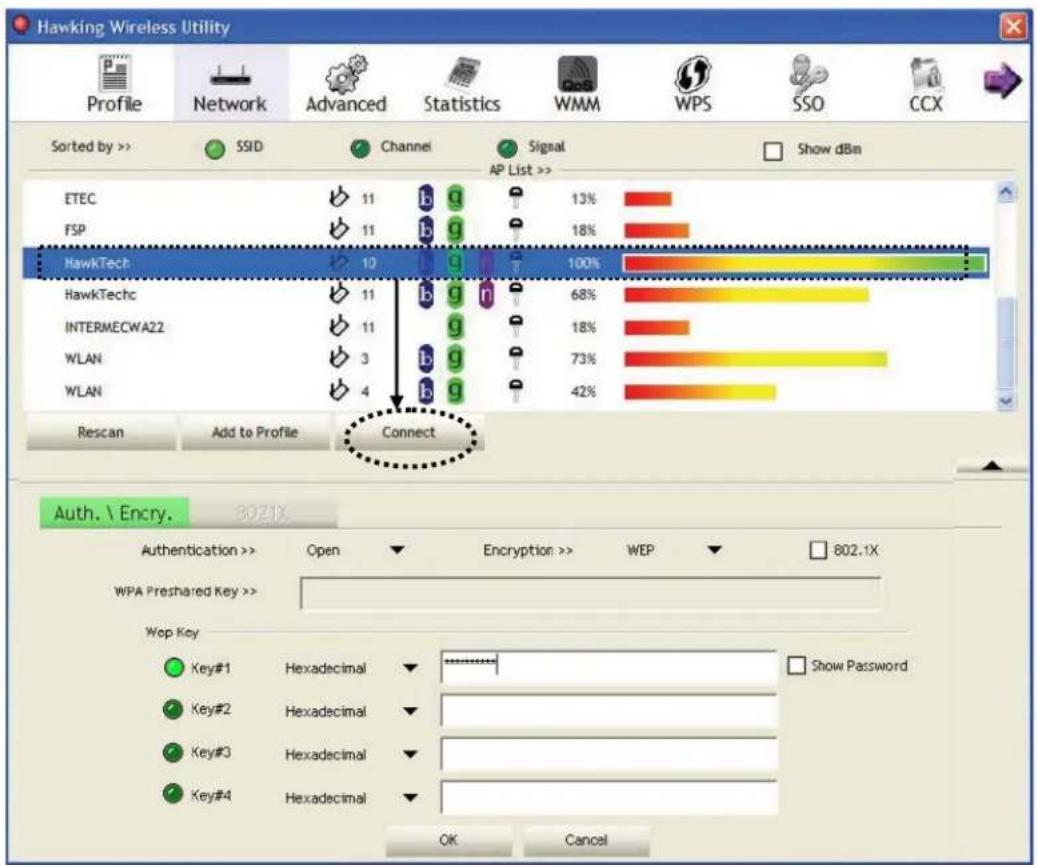
Note:
- Connect to an access point without an SSID: you'll be prompted to input the SSID. If you don't have the SSID, please ask the owner of wireless access point for the exact SSID and input it here, then click 'OK' when ready. If the SSID you provided here is wrong, you'll not be able to connect to this access point.
- Connect to an open wireless network (no encryption) - If the access point you selected does not use encryption, you will be connected to this wireless access point within one minute.
- Connect to an encrypted access point – you'll be prompted to input its WEP key or WPA preshared key.
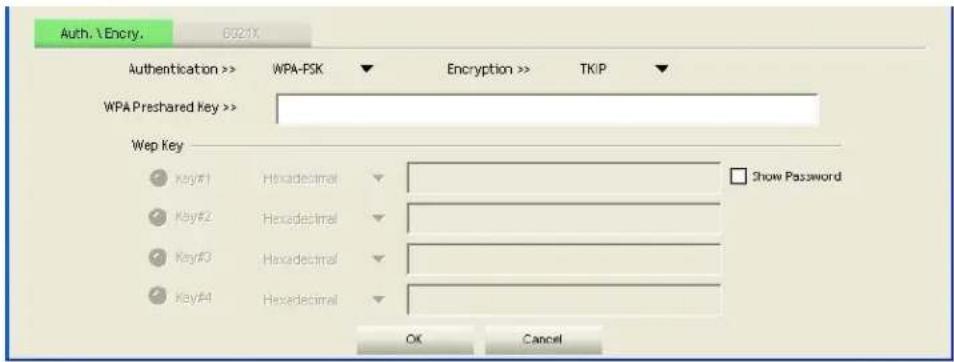
Please ask the owner of the wireless access point you want to connect to, and input the correct key here and then click 'OK'. By checking 'Show Password' box, the encryption key you inputted here will be displayed.
If the value you filled out is incorrect, you will not be able to connect to this wireless access point.
Authentication type will be selected by the authentication type of the access point automatically, please don't change it.
However, if you're connecting to an access point using 802.1x authentication, you have to check '802.1x' box and input related information. Instructions for 802.1x authentication will be given later.
If the wireless access point is successfully connected, you'll see a symbol appear in front of the name of the wireless device.
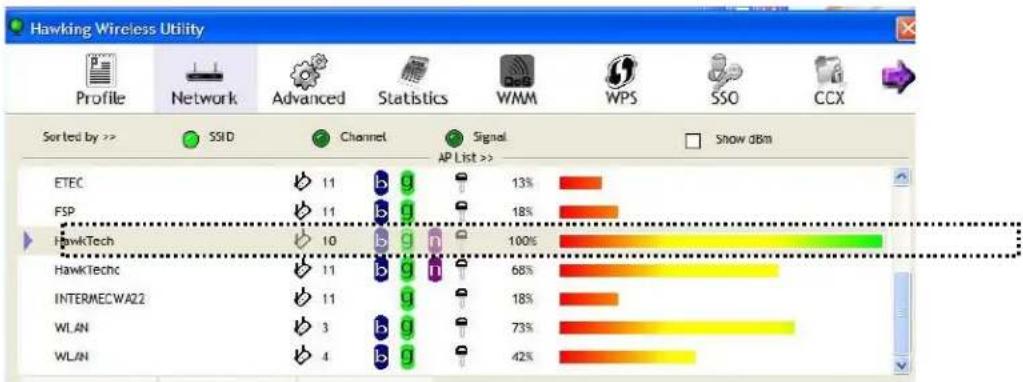
bar
| Network | Value | | ------------- | ----- | | ETEC | 11 | | FSP | 11 | | HawkTech | 10 | | HawkTechc | 11 | | INTERMECWA22 | 11 | | WLAN | 3 | | WLAN | 4 |You can put the mouse cursor over the Hawking configuration utility icon, and the brief information about link status and signal strength of current wireless connection will be shown as a popup balloon.

| Wireless Link is Excellent | There is no Wireless Link |
| Wireless Link is Average | Wireless Device is not detected (may not be plugged-in correctly) |
| Wireless Link is Weak |
You can also click More / Less button (▼/ ) to see detailed information of connected access point:
![Status >> KEN <-> 00-1C-10-AA-FE-0D Extra Info >> Link is Up [T×Power: 100%] Channel >> 6 <-> 2437 MHz; central channel : 6 Authentication >> WPA-PSI Encryption >> TKIP Network Type >> Infrastructure IP Address >> 192.168.168.117 Sub Mask >> 255.255.255.0 Default Gateway >> 192.168.168.1 HT BW >>20 SNRIO >> 27 GI >> long MCS >> 7 SNR1 >> n/a Link Quality >>7% Signal Strength 1>>7% Noise Strength >>26% Transmit Link Speed >> 65.0 kbps Max Throughput >> 1.648 Kbps 312.240 Kbps Receive Link Speed >> 39.0 kbps Max Throughput >>28.472 Kbps 22.244 Mbps](/content/2026/05/1066851/images/9214f0e52e1ea6931e11b4f7b1a069df5a20f0e5599e1c66f95b8c2f12b3a216.jpg)
Add an Access Point to Profile
If you are going to connect to a specific wireless access point frequently, you can create a profile to save your access information and you can connect to it directly without reentering the access information.
You can add a found access point to profile, or input all information of an access point by yourself.
To add a found access point to profile, please select a found access point first (to make it highlighted), then click 'Add to Profile' button; to input the information of access point by yourself, please go to 'Profile' menu and click 'Add' button.
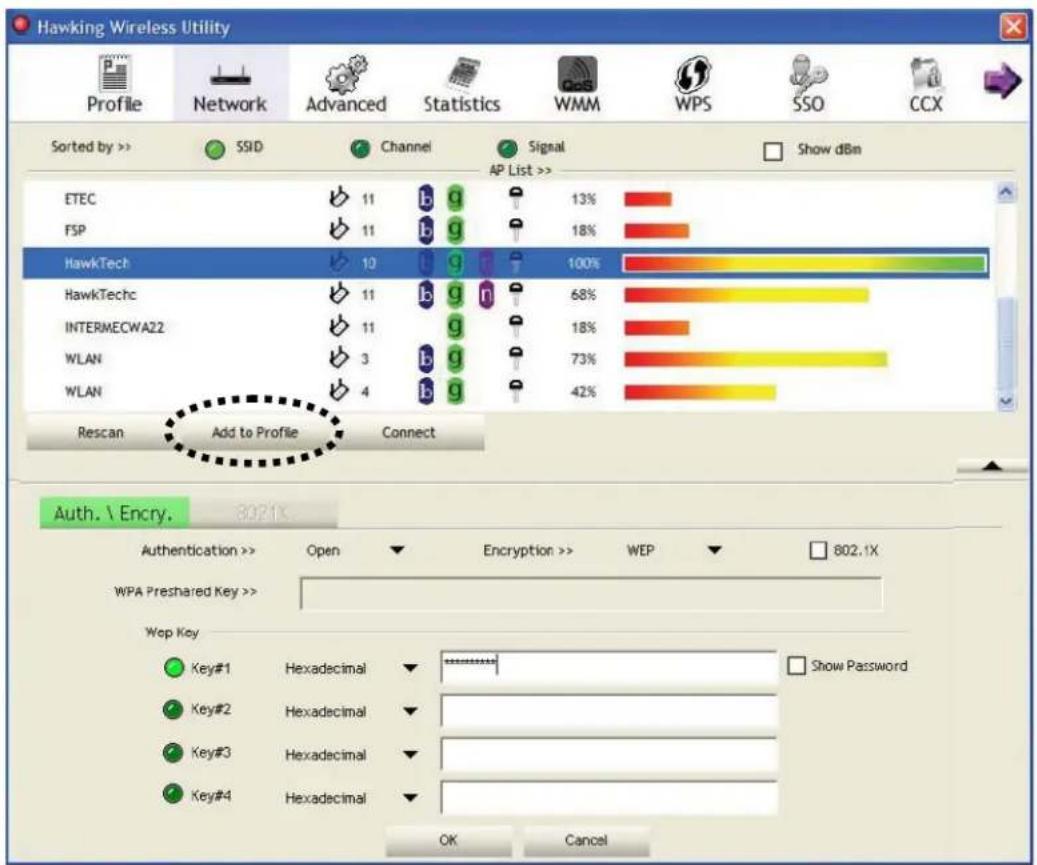
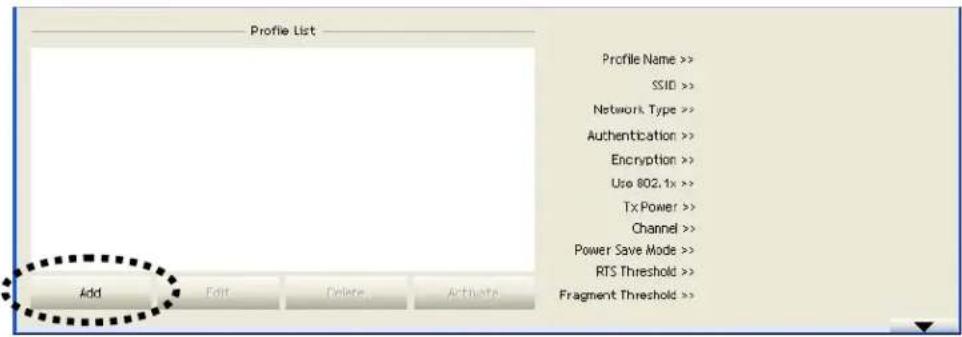
The setup utility will expand:
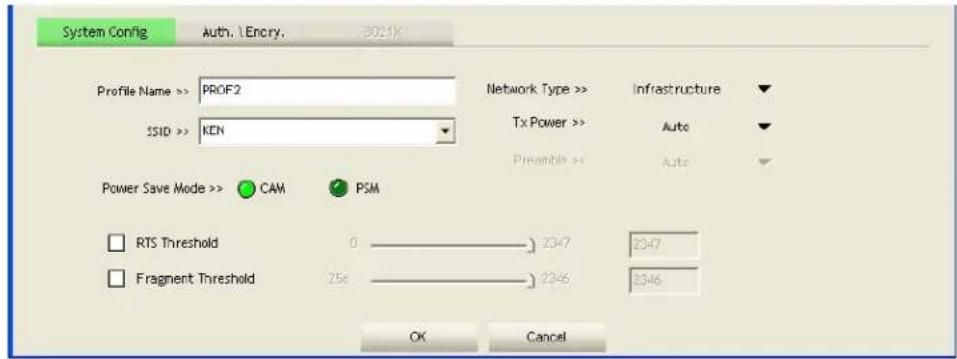
System Config Overview:
| Item Name Description | |
| Profile Name Name your | Profile. A unique name that you'll remember (i.e. Home, Work, etc.) |
| SSID If your SSID is hidden, please input the SSID of this access point. If you selected an access point from the list (not hidden SSID), the SSID will automatically be filled (note: you'll be able to modify the SSID) | |
| Network Type | Please select the network type: Ad hoc or Infrastructure. If you are connecting to an access point, please select ‘Infrastructure’. For point-to-point wireless connection (i.e. connecting to another computer using Ad Hoc mode), please select Ad hoc here. If you selected an access point from the list above, please keep this field unchanged. |
| Tx Power You can select the wireless output power here. If you're not too far from access point with good signal reception, | |
| you can select a lower output power to save energy; for a distant access point, you can select a higher output power. It is recommended to select “Auto” so the setup utility can determine the best output power for you. | |
| Preamble Select the preamble for Ad hoc mode here. Available options are ‘Auto’ and ‘Long’. ‘Auto’ option is recommended so that your utility can determine the preamble for you. | |
| Channel You can select the radio channel number for AdHoc mode here. | |
| Power Save Mode | CAM (Constantly Awake Mode) keeps your wireless radio on even when it is not transferring data.PSM (Power Saving Mode) turns your wireless radio off when it is not transferring data.If you are using this networking with a notebook computer, ‘PSM’ is recommended to help preserve your notebook battery. |
| RTS Threshold It is recommended to keep this value untouched unless you understand the RTS Threshold value and its value.Check this box to set the RTS threshold. You can drag the slider to set the threshold value, or input the value in the box located at right. | |
| Fragment Threshold Check this box to set the packet fragment threshold. You can drag the slider to set the threshold value, or input the value in the box located at right.It is recommended to keep this value untouched unless you understand the Fragment Threshold value. | |
To set authentication / encryption information for the access point. Please select 'Auth.\ Encry.' tab:
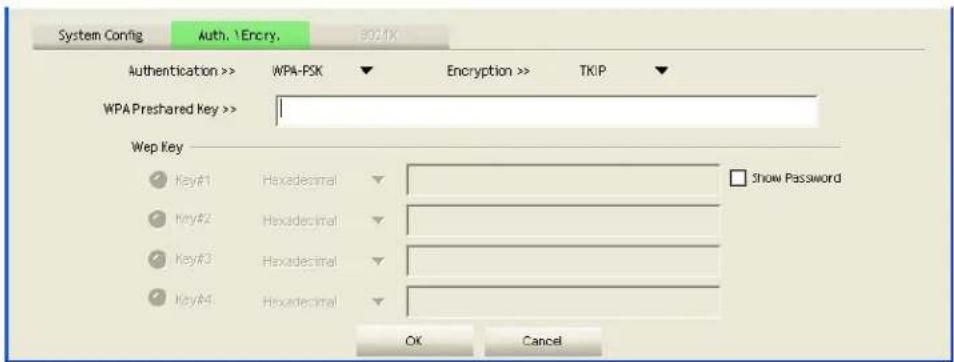
Auth.\Encry Overview:
| Item Name Description | |
| Authentication | Select the authentication type of the wireless access point or wireless device you wish to connect. When you are adding a profile from an existing access point or wireless device, authentication type will be selected automatically, and please do not change it.If you select ‘LEAP’, you’ll be prompted to input LEAD specific settings: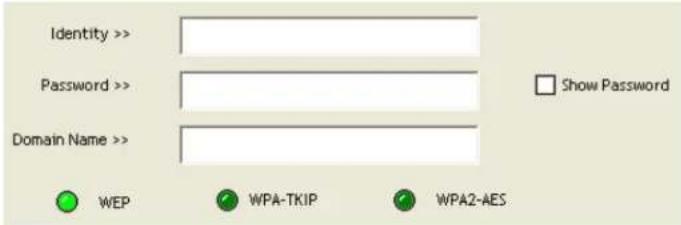 Please input LEAP identity, password, domain name, and select encryption type. You can check ‘Show Password’ box so the password you inputted will be displayed as you type, and not be replaced by asterisk. Please input LEAP identity, password, domain name, and select encryption type. You can check ‘Show Password’ box so the password you inputted will be displayed as you type, and not be replaced by asterisk. |
| Encryption Select | the encryption type of the wireless access point or wireless device you wish to connect. When you are adding a profile from an existing access point or wireless device, the encryption type will be selected automatically, and please do not modify it. |
| WPA Preshared Key | Input WPA preshared key here. If encryption is not enabled, or you select ‘WEP’ as encryption type, this field will be disabled and grayed out. |
| WEP Key You can select key type (Hexadecimal or ASCII) and input WEP key here. If encryption is not enabled, or you select ‘WPA’ as encryption type, this field will be disabled and grayed out. You can set up to 4 WEP keys here.There are two types of WEP key, Hexadecimal and ASCII. For Hexadecimal key, you can input number 0-9 and alphabet a-f; for example, ‘001122aabbcc’; For ASCII key, you can input number 0-9 and alphabet a-z; for example, mywepkey12345.The length of WEP key depends on the type of WEP key you selected. You can input 10 or 26 hexadecimal characters and 5 or 13 ASCII characters as WEP key. |
| Show Password Check this box and all passphrases or security keys you inputted will be displayed as you type, but not replace your input with asterisks. |
| Use 802.1x If the access point you wish to connect requires 802.1 x authentications, please click on ‘Use 802.1x’ box, then click ‘802.1X’ tab to set 802.1x parameters. |
To set 802.1x authentication for the access point. Please click '802.1X' tab:
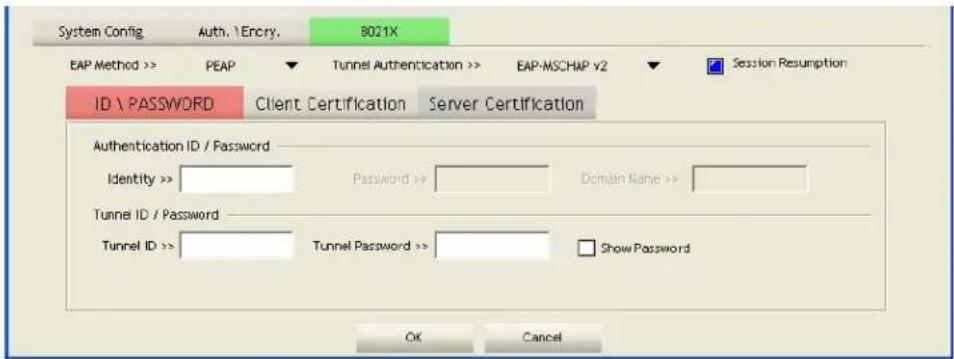
802.1X Tab Overview:
| Item Name Description | |
| EAP Method | Select 802.1 x EAP methods from the dropdown menu. Ask your network administrator or the access point owner if you do not have this information. |
| Tunnel Authentication | Select 802.1x tunnel authentication type from dropdown menu. Please ask the administrator of the access point you wish to connect to select a correct tunnel authentication method. This pull down menu is only available when authentication type you use is 'PEAP', 'TLS / Smart Card', or 'TTLS'. |
When you use 'EAP-FAST' as authentication type, the protocol setting is always 'Generic Token Card' and cannot be modified. You also need to select 'Soft Token' or 'Static Password' as password in 'ID \Password' setting.'EAP Fast' authentication type also have a sub-menu to set EAP fast-specific parameters: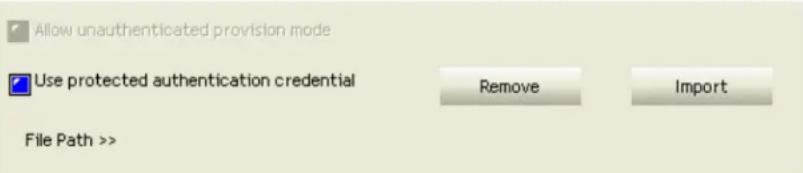 If you need to use protected authentication credential, check 'Use protected authentication credential' box, and click 'Import' to load credential file; to remove a loaded credential file, click 'Remove'. If you need to use protected authentication credential, check 'Use protected authentication credential' box, and click 'Import' to load credential file; to remove a loaded credential file, click 'Remove'. | |
| Session Resumption | You can enable or disable session resumption here. If you are unsure about enabling session resumption or not, please ask your 802.1x authentication administrator. |
| ID \Password tab | Input 802.1x username (ID) and password and other information if it is required here. Click 'Show Password' to show the actual character from your password. |
| Client Certification tab | Use this tab to select a local certificate from dropdown menu. If the access point you wish to connect requires a specific client certificate, the certificate must be installed on your computer, then you can select the certificate from your computer. |
| Server Certification tab | Use this tab to use server-based certification. Please select a CA (Certificate Authority) from dropdown menu. If intermediate certificates are allowed, please select 'Allow intermediate certificates'. Also, if you need to specify CA server's name, you can specify it in 'Server name' field. You can select 'Server name must match', so the CA server's name must be the same with the value you set in 'Server name' field; If only the domain name part of full server name must the same with the value you set in 'Server name' field, select 'Domain name must end in specified name'. |
After you complete all information related to the access point, click 'OK' to save the profile, or click 'cancel' to cancel adding a new profile.
If the profile is created, you will see the information in the Profile List.
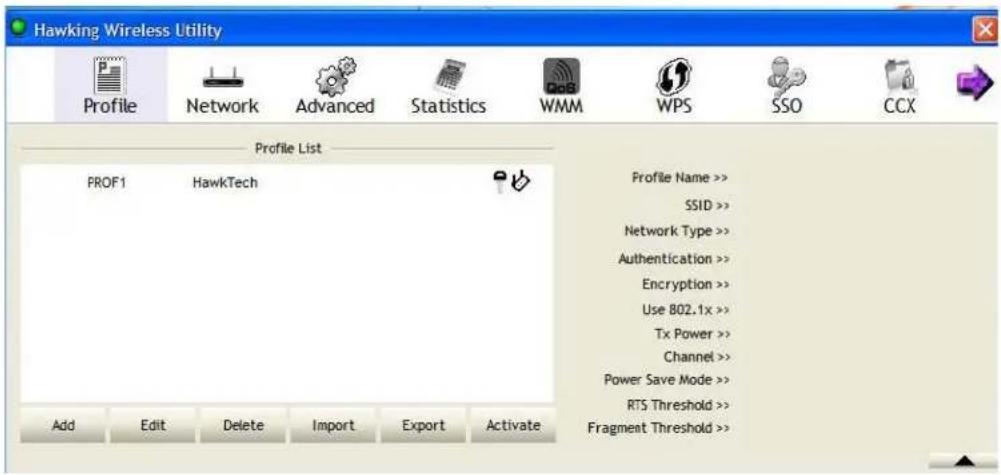
Profile Management#
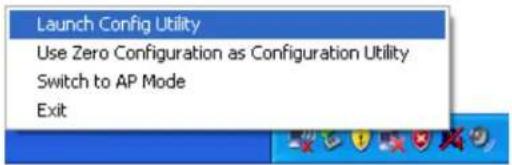
If you need to connect to different wireless access points at different time, like of access point of your home, office, cybercafé, or public wireless service, you can store the connection parameters (encryption, passphrase, security etc, etc.) as a profile for every access point, so you don't have to input these parameters every time when you want to connect to a specific wireless access point. To manage profiles, right-click the Hawking configuration utility icon located at lower-right corner of computer desktop, then click 'Launch Config Utility'.
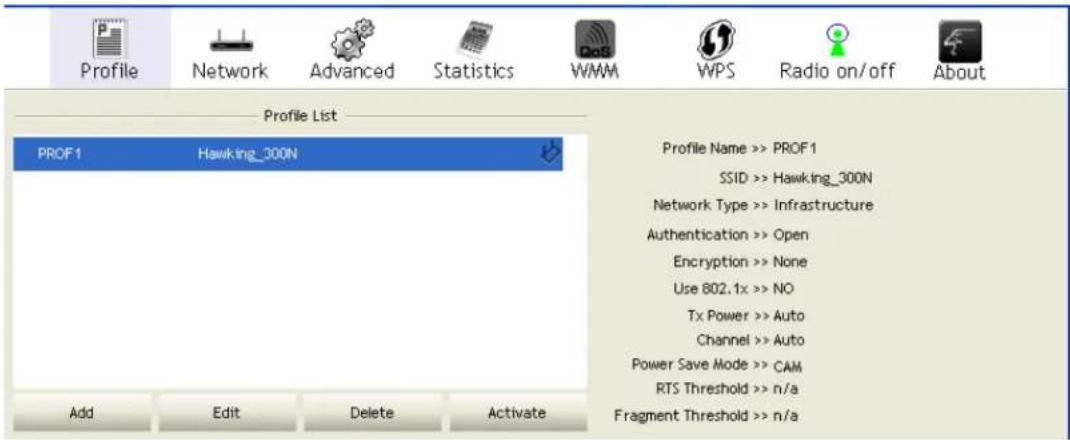
Click the 'Profile' menu. All profiles will be listed in 'Profile List', and you can select a profile from the list, all information about selected profile will be listed.
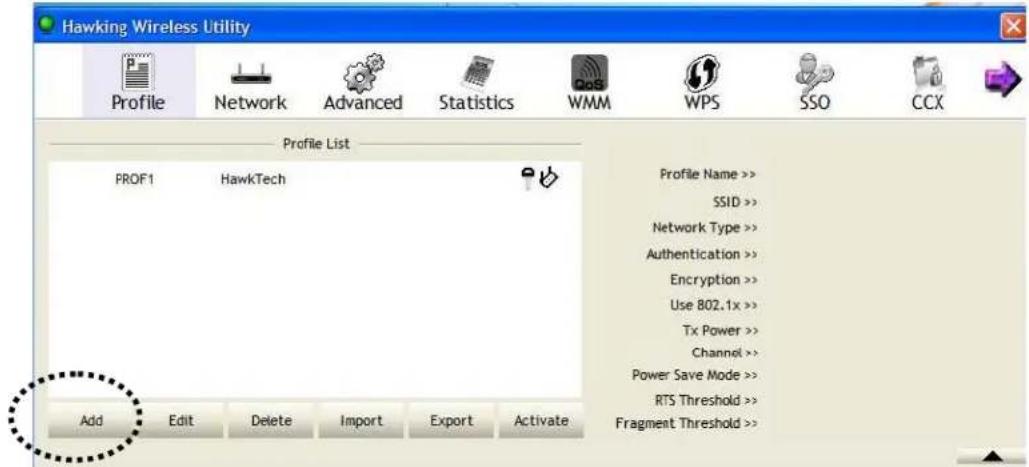
Add a Profile
If you want to click new profile, click 'Profile' menu, then click 'Add' button. You'll be prompted to input the selected access point's information.
Edit an existing profile
To change the content of an existing profile, please select the profile you wish to edit from your list, then click 'Edit' button. You'll be provided with the contents of selected profile, you can make your change then click 'OK' to save changes or click 'Cancel' to discard changes.
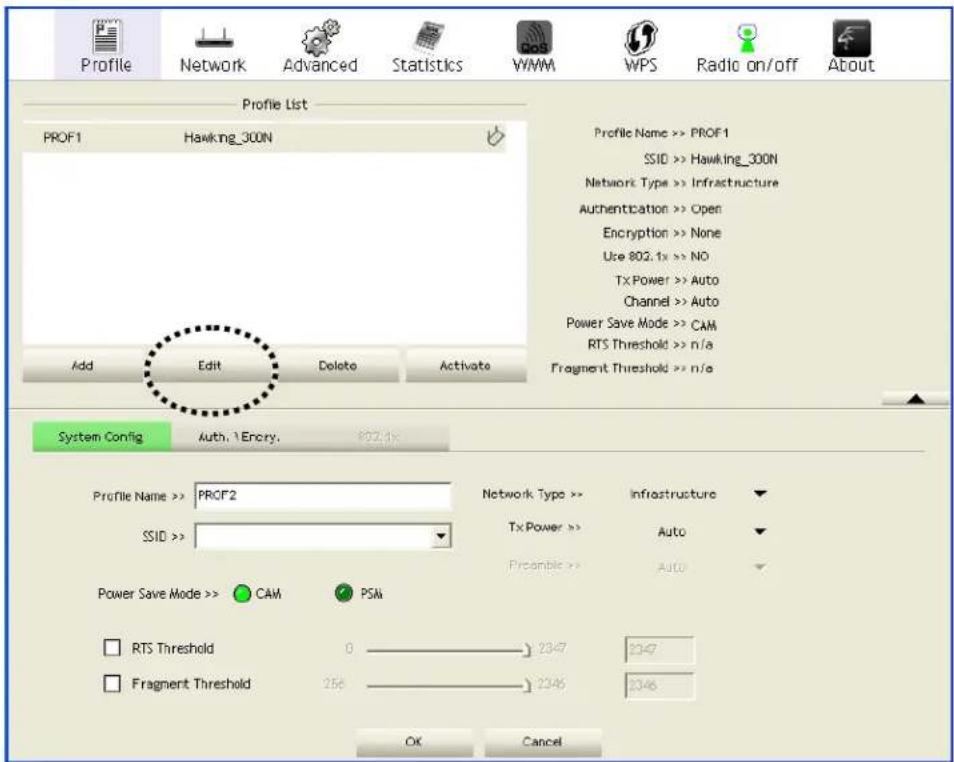
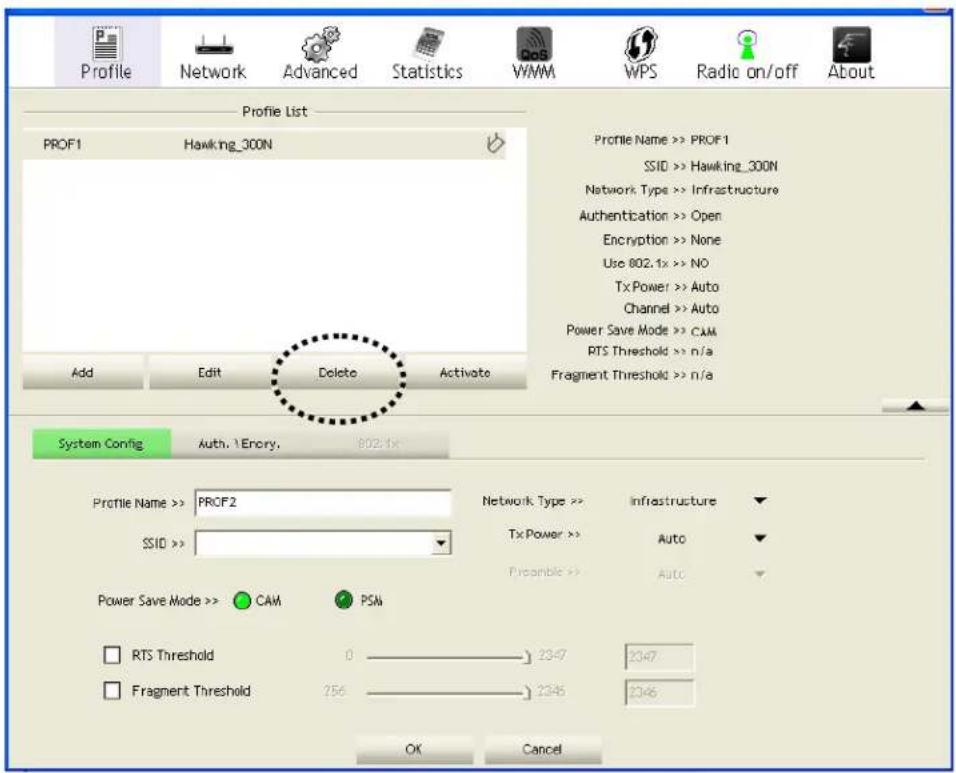
Delete an existing profile
To delete a profile, select the profile you wish to delete from the list, and click 'Delete' button to delete it.
Activate a profile
To connect to a specific wireless device from your profile list, select it and click 'Activate' button to establish a connection.
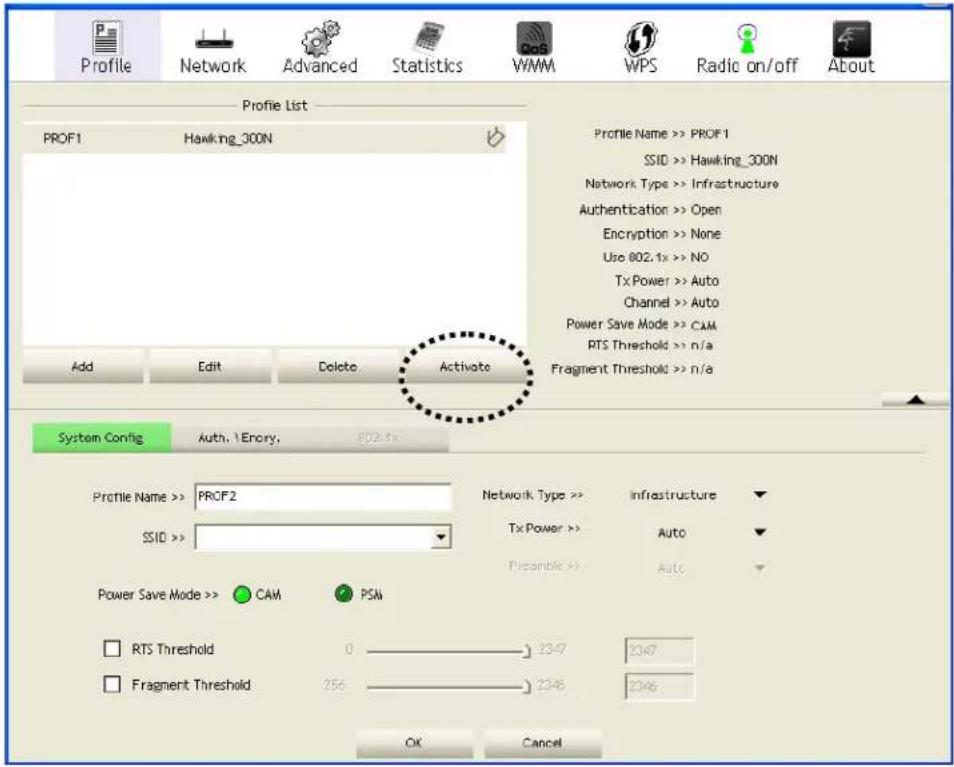
When you selected a profile and click 'Activate' button to activate the profile, a ▶ icon will be displayed in front of the profile to show that the connection is failed; When the connection is successfully established, a ▶ icon will be displayed.
Advanced Settings#
This wireless network card provides several advanced settings for experienced wireless users. You can change these settings to increase data transfer performance, or change operation mode.
Please follow the following instructions to set advanced wireless settings:
- Right-click the Hawking configuration utility icon located at lower-right corner of computer desktop and then click 'Launch Config Utility'.
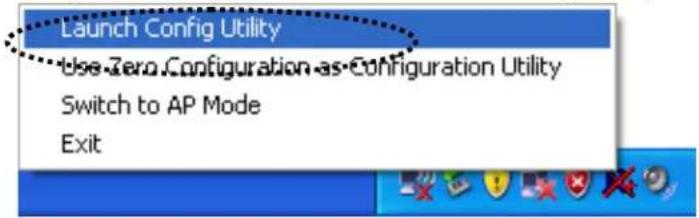
- Select 'Advanced' Menu.
![Hawking Wireless Utility Profile Network Advanced Statistics WMM WPS SSO CCX Wireless mode >> 2.4G Select Your Country Region Code 2.4GHz >> 1: CH1-13 Enable TX Burst Enable TCP Window Size Fast Rooming at 70 dlim Show Authentication Status Dialog Apply Status >> HawkTech <--> 00-0E-3B-OF-C2-6E Extra Info >> Link is Up [Tx Power >>;100%] Channel >> 10 <--> 2457 MHz; central channel : 8 Authentication >> WPA2-PSK Encryption >> AES Network Type >> Infrastructure IP Address >> 10.1.1.159 Sub Mask >> 255.255.255.0 Default Gateway >> 10.1.1.1 HT BW >> 40 SNR0 >> 22 GI >> long MCS >> 7 SNR1 >> n/a Link Country >> 103 signs for strength > 100% Transmit Link Speed >> 135.0 Mbps Max Throughput >> 0.000 Kbps 14,992 Kbps Receive Link Speed >> 135.0 Mbps Max Throughput >>41.632 Kbps 1.854 Mbps](/content/2026/05/1066851/images/05ad26c11e56ece59bc62a2ac07ebd4c1bd990856e3e5727166847e39eaf95c7.jpg)
Advanced Menu Overview:
| Item Name Description | |
| Wireless mode Display the wireless operation mode of the network card. | |
| Enable Tx Burst Check this box to accelerate the data transmit rate. It may not work with all wireless access point and wireless devices. | |
| Enable TCP Window Size | Check this box and the configuration utility will adjust TCP window size automatically to get better performance. It should be safe for most of wireless environments, but if you found some problem on data transfer, uncheck this box. |
| Fast Roaming Check this box and you can control the threshold that the wireless network card should switch to another wireless access point with better signal quality. Only adjust value when you understand what it means and you need to roam between multiple access points. | |
| Show Authentication Status Dialog | When your computer is being authenticated by a wireless authentication server, a dialog window with the process of authentication will appear. This function is helpful to find out the problem when you cannot be authenticated. Finally, you can provide this information to authentication server's administrator for debugging purpose. |
| Enable CCX Enable | Cisco Compatible eXtensions. CCX is a wireless feature developed by Cisco used to improve the wireless performance with CCX compatible wireless devices. Check this box if you need to connect to CCX-compatible wireless devices. When you enabled CCX, the following setup items will become available: Turn on CCKM: Check this box to enable CCKM (Cisco Centralized Key Management), which enables wireless clients to roam between CCKM-enabled access points in very short time. Enable Radio Measurements: When you're connecting to CCX-compatible access point, check this box to enable radio measurement function to improve wireless connectivity. Non-Serving Channel Measurements Limit: When you're connecting to CCX-compatible access point, check this box to enable measurement on unused radio channels to improve wireless connectivity. |
- After you finish the settings, click 'Apply' to apply new settings.
View Network Statistics
The configuration utility provides information about network statistics and link status. If you want to know how your wireless network card works, you can use these functions to get detailed information about the wireless connection you're using.
Please follow the following instructions to check network statistics:
- Right-click the Hawking configuration utility icon located at lower-right corner of computer desktop and then click 'Launch Config Utility'.
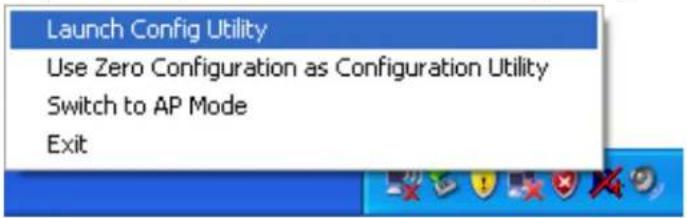
- Statistics Menu shows the current status of your wireless network: Transmit (Tx) and Receive (Rx) data.
![Hawking Wireless Utility Profile Network Advanced Statistics WMM WPS SSO CCX Transmit Receive Frames Transmitted Successfully - 2378 Frames Retransmitted Successfully = 398 Frames Fail To Receive ACK After AI Retries - 15 Reset Counter Status >> HawkTech <-> 00-0F-3B-0F-C2-9E Extra Info >> Link Is Up [Tx Power >>±100%] Channel >> 10 <-> 2457 MHz central channel: 8 Authentication >> WPA2-PSK Encryption >> ACS Network Type >> Infrastructure IP Address >> 10.1.1.159 Sub Mask >> 255.255.255.0 Default Gateway >> 10.1.1.1 HT BW >> 40 SNR0 >> 26 GI >> long MCS >> .7 SNR1 >> n/a Link Speed >> 135.0 Mbps Max Throughput >> 0.000 Kbps 0.800 Kbps Receive Link Speed >> 135.0 Mbps Max Throughput >> 24.692 Kbps 52.100 Kbps](/content/2026/05/1066851/images/a10c46ec38b45ae2aca4ca7e8cf4b858623fd5b16104f9aa9669e70b8a3e7142.jpg)
All connection-related statistics are displayed here. You can click 'Transmit' or 'Receive' tab, to view the statistics of transmitted or received packets. You can also click 'Reset Counter' button, to reset the statistics of all items back to 0.
WMM Setting
This wireless network card provides WMM (Wi-Fi Multimedia) function, which can improve the performance of certain network applications, like audio/video streaming, network telephony (VoIP), and others. When you enable the WMM function of this network card, you can define the priority of different kinds of data, to give higher priority to applications which require instant responding. Therefore you can improve the performance of such network applications.
Please follow the following instructions to set advanced wireless settings:
- Right-click the Hawking configuration utility icon located at lower-right corner of computer desktop and then click 'Launch Config Utility'.
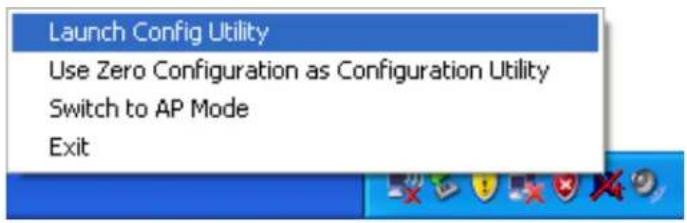
- Click 'WMM' menu, and the following settings will appear:
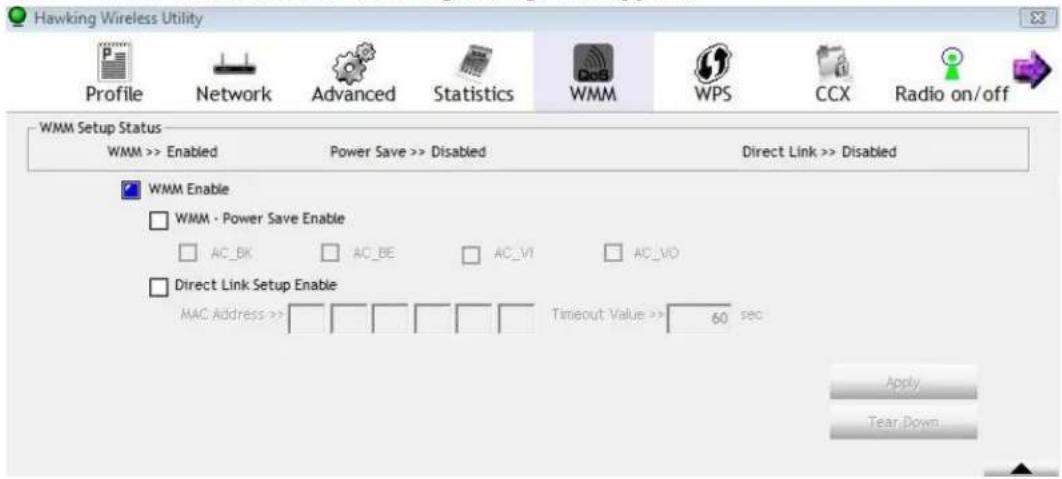
In 'WMM Setup Status' block, current WMM settings will be displayed. Below is WMM menu overview:
| Item Name Description | |
| WMM Enable Check this box to enable WMM function. Please click‘Apply’ button on the right of this check box after you check or uncheck this box, so corresponding settings in | |
| this window will be activated or deactivated respectively. | |
| WMM - Power Save Enable | Check this box to enable WMM power saving mode to save energy, and let your computer's battery live longer. You also have to select WMM power save modes here: AC_BE: Best PerformanceAC_BK: Worst PerformanceAC_VI: Video data has priorityAC_VO: Voice data has priority |
| Direct Link Setup Enable | If you have another WMM-enabled wireless device, you can enter its MAC address here, then click ‘Apply’ button, and this network card will establish a direct link to the wireless device you specified here.You also have to specify the timeout value of this directly-linked wireless device. Valid values are from 1 to 65535 (seconds), and input ‘0’ for infinity.If you want to remove a specific wireless device from direct link table, select the device and click this button to remove it. |
WPS Configuration#
Wi-Fi Protected Setup (WPS) is the latest wireless network technology which makes wireless network setup become very simple. If you have WPS-enabled wireless access point, and you want to establish a secure connection to it, you don't have to configure the wireless access point and setup data encryption by yourself. All you have to do is to go to the WPS setup page of this wireless card, click a button, and then press a specific button or enter a set of 8-digit code on the wireless access point you wish to establish a secure connection - just three simple steps!
For older wireless access points, it's possible to perform a firmware upgrade to become a WPS-enabled access point. Since they may not have a hardware button to press for WPS setup, you can use an alternative WPS setup method - input the pin code. Every WPS-compatible wireless network card support pin code configuration method; you can just input the code to wireless access point, and the wireless access point and wireless network card will do the rest for you.
This wireless network card is compatible with WPS. To use this function, the wireless access point you wish to connect to must support WPS function too. Now, please follow the following instructions to establish secure connection between WPS-enabled wireless access point and your wireless network card.
WPS Setup - PBC (Push-Button Configuration)
- Right-click the Hawking configuration utility icon located at lower-right corner of computer desktop and then click 'Launch Config Utility'.
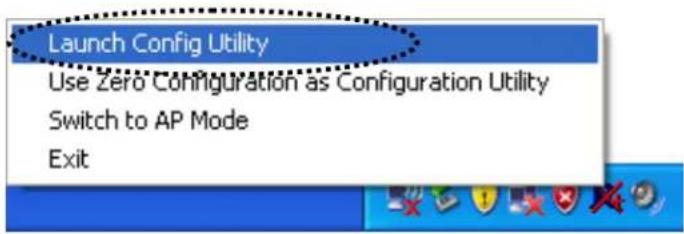
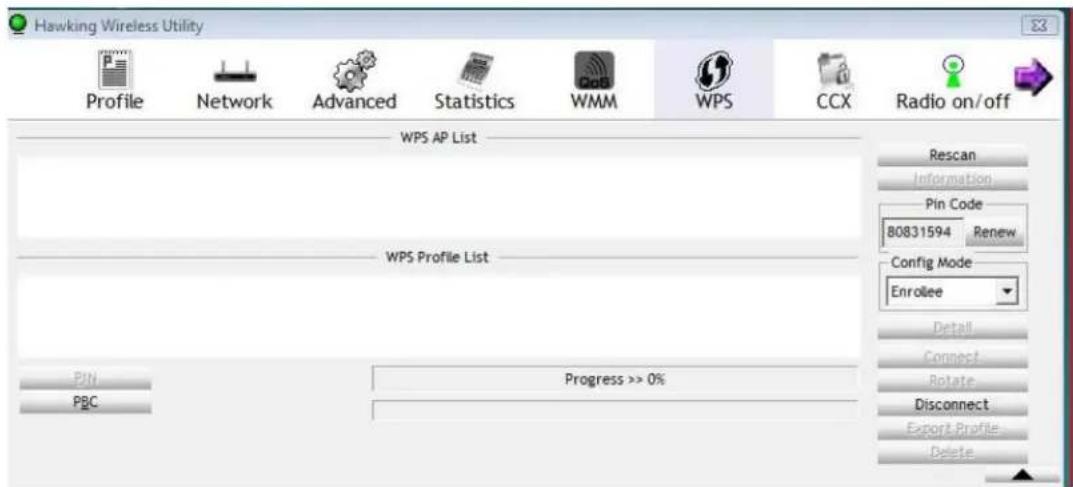
- Click 'WPS' menu and the following settings will appear.
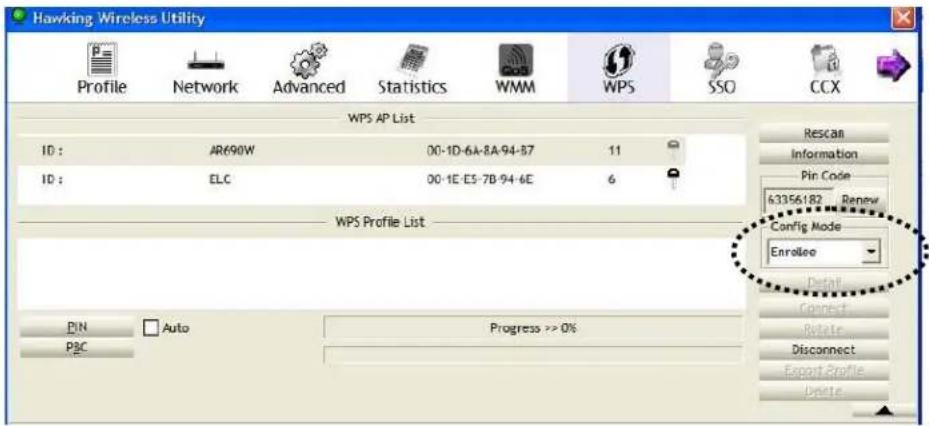
- Set 'Config Mode' to 'Enrollee', and then push the 'WPS' button on your wireless access point (the button used to activate WPS standby mode may have another name), or use other way to start WPS PBC standby mode as the instruction given by your wireless access point's user manual.
You can also set 'Config Mode' to 'Registrar'. In this mode, this wireless network card will wait for other WPS-enabled access points to send WPS pairing requests. Please refer to the instruction given by your wireless access point's user manual to understand how to send WPS requests.
- Before you start to establish the wireless connection by using WPS, you can click 'Rescan' button to search for WPS-enabled access points near you again, to make sure the WPS function of your access point is activated.
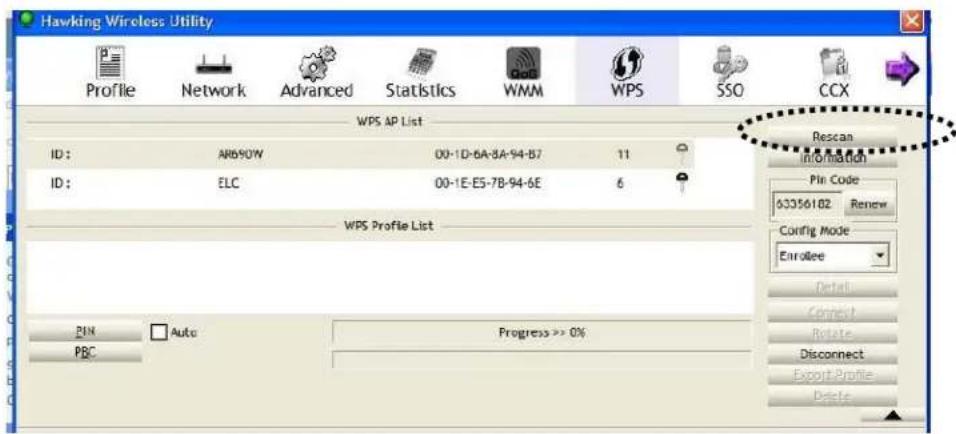
All access points with WPS function enabled will be displayed here. Please make sure the access point you wish to connect is displayed. If not, please click ‘Rescan’ few more times. You can also click ‘Information’ button to see the detailed information about selected access point.
- Start PBC pairing procedure at access point side (please refer to the instruction given by your access point's manufacturer), then click 'PBC' button in wireless configuration utility to start to establish wireless connection by WPS. Please be patient (This may require several seconds to one minute to complete). When you see 'WPS status is connected successfully' message, means the connection between this wireless network card and access point is successfully established by WPS, and the information about access point you connected to will be displayed.
- You can click 'Detail' button to see detailed information of connected access point. If you wish to save this connection as a profile, you can click 'Export Profile' button, and this connection will be saved. You can find this connection in 'Profile' tab in a later time.
- Sometime WPS may fail (In the following picture, WPS pairing failed because no WPS-enabled access point is found):
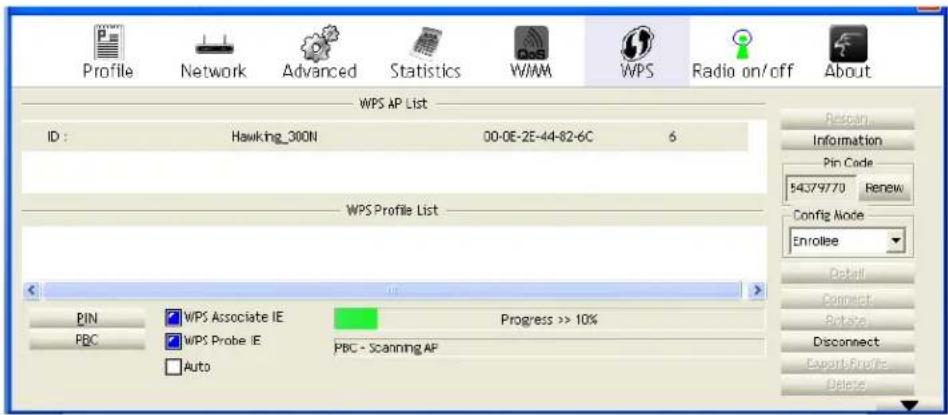
You can click 'PBC' button few more times to try again. When an access point is connected, you can click 'Disconnect' to disconnect your wireless network card from a connected access point, or select another WPS-enabled wireless access point, then click 'Connect' to establish connection to selected access point, if there are more than one WPS-enabled access point found. You can also click 'Rotate' button, and next access point on the list will be selected to establish connection.
If you want to delete a found access point from the list, select it and click 'Delete' button.
WPS Setup - PIN
If the wireless access point you wish to connect supports PIN, please follow the following instructions to establish connection to it:
- Right-click the Hawking configuration utility icon located at lower-right corner of computer desktop and then click 'Launch Config Utility'.
- Click 'WPS Configuration' menu, and the following settings will appear.
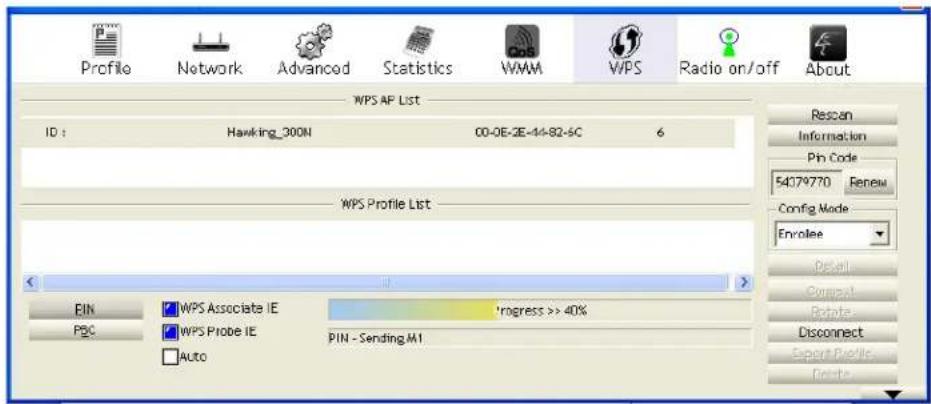
- The PIN code of your wireless network card is an eight-digit number located at the upper-right position of configuration utility. Remember it then input the number to your wireless access point as the WPS PIN code. (Please refer to the user manual of your wireless access point for instructions about how to do this).
NOTE: If you experienced problem with the pin code provided here, you can click 'Renew' to get a new pin code.
-
Click 'PIN' button now, and wait for few seconds to one minute. If a wireless access point with correct PIN code is found, you'll be connected to that access point.
-
You may have to click 'PIN' for few more times to try again. If you still can not connect to access point by this way, please make sure the PIN code you provided to access point is correct.
There are also other options available for WPS configuration:
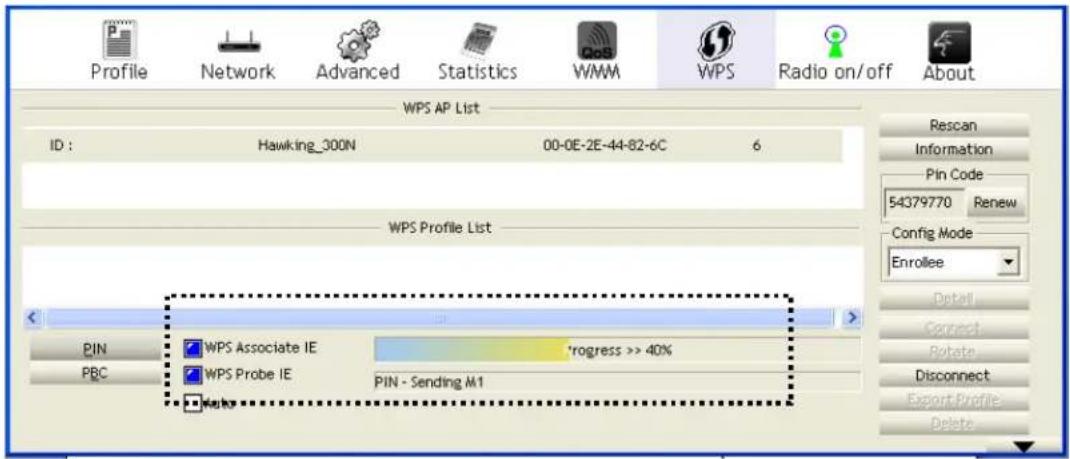
WPS associate IE: Check this box to send the association request with WPS IE during WPS setup. This is optional and you can use default value if you don't know what will be affected.
WPS probe IE: Check this box to send the WPS probe request with WPS IE during WPS setup. This is optional and you can use default value if you don't know what will be affected.
Auto: When in PIN mode, wireless access point to be connected will be selected automatically if this box is checked.
CCX Configuration
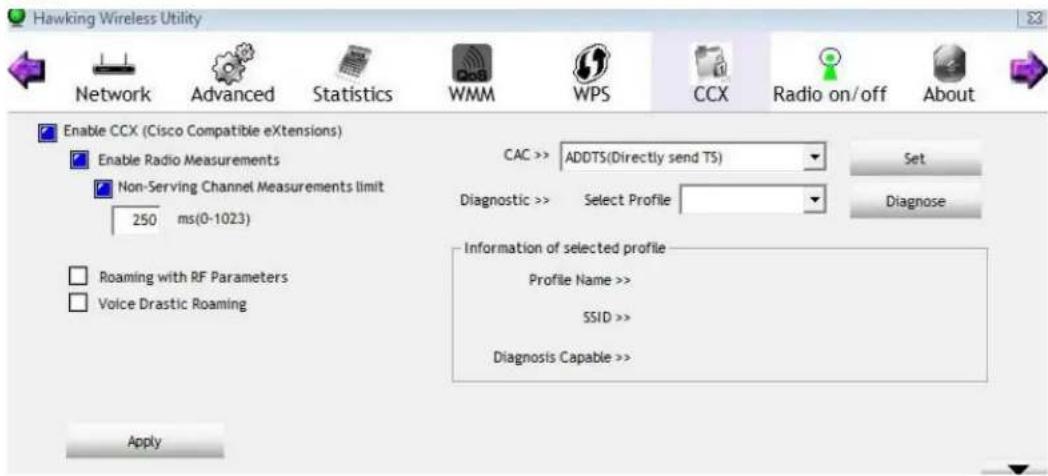
CCX is a wireless feature developed by Cisco used to improve the wireless performance with CCX compatible wireless devices. When you enabled CCX, the following setup items will become available:
CCX
CCX Menu Overview:
| Item Name Description | |
| Enable CCX(Cisco Compatible eXtensions) | Check this box if you need to connect to CCX-compatible wireless devices. When you enabled CCX, the following setup items will become available:Enable Radio Measurements: When you’re connecting to CCX-compatible access point, check this box to enable radio measurement function to improve wireless connectivity.Non-Serving Channel Measurements Limit: When you’re connecting to CCX-compatible access point, check this box to enable measurement on unused radio channels to improve wireless connectivity.Roaming with RF Parameters: When you are roaming from a CCX-compatible access point to another one, check this box to enable RF roaming function to improve the speed of wireless roaming.Voice Drastic Roaming: When you have introduced the voice devices (such as VoIP) into the standard WLAN networks, you can check this box to enable diagnostic roaming function by the voice traffic test. |
| CAC CAC (Call Admission Control) is a function to address | |
| the problems of VoIP stability and roaming. With CAC, QoS will be maintained in a network overload scenario by ensuring that the number of active voice calls does not exceed the configured limits on the access point.There are three selections: ADDTS, DELTS, and RESET. Please check with your network administrator for how to configure. | |
| Diagnostic Select a profile which you want to diagnose, then click‘Diagnose’ button to perform the diagnostic test. | |
| Information of selected profile | Here list the profile information you have selected. |
Radio On/Off#
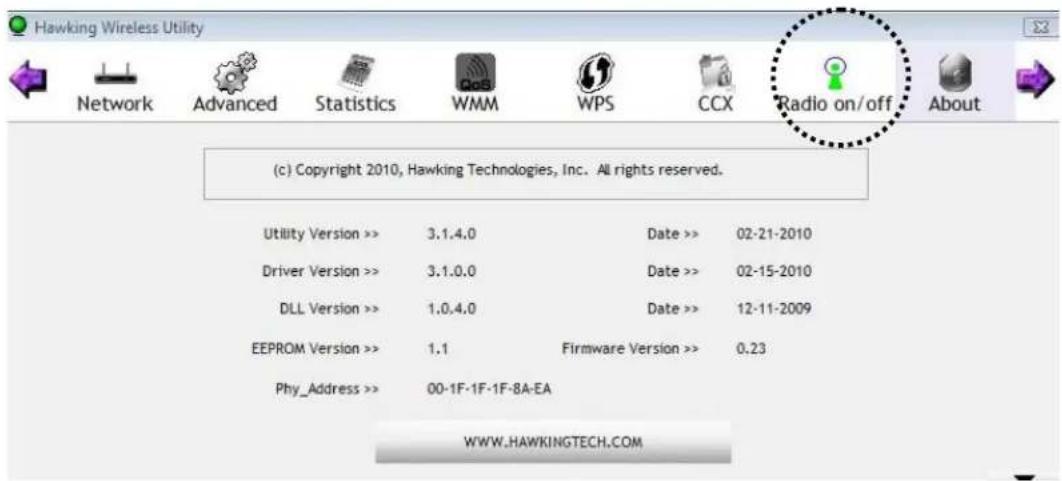
You can switch the wireless radio transceiver on and off by the utility, so if you want to disable wireless network function, you don't have to remove the network card physically.
- Right-click the Hawking configuration utility icon located at lower-right corner of computer desktop and then click 'Launch Config Utility'.
- To switch wireless radio on/off, please click 'Radio On/Off' button.
Radio On/Off
Wireless radio is on (Green)
Radio On/Off
Wireless radio is off (Red)
About#
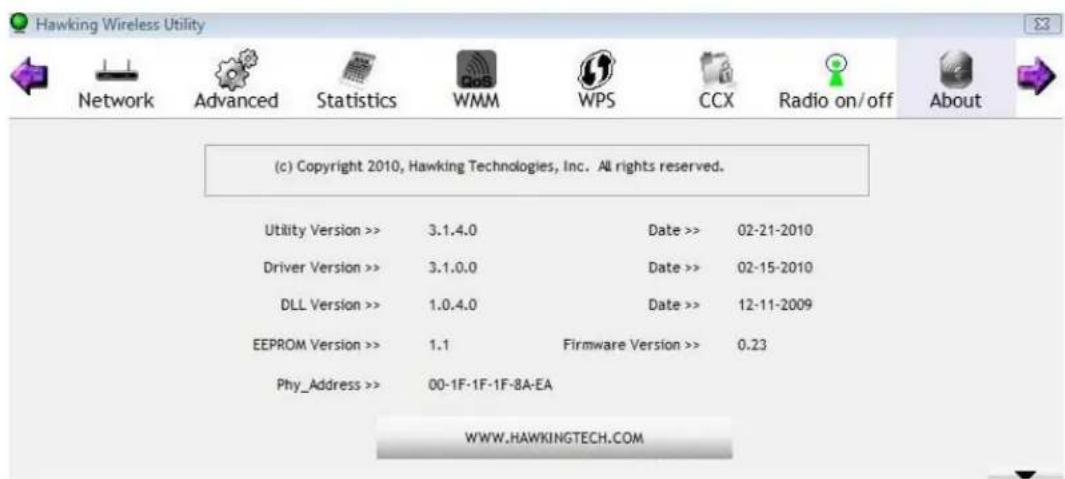
The ‘About’ tab provides you the information about version number of the configuration utility, driver, and other important information about your wireless network card.
Please follow the following instructions to see these information:
- Right-click the Hawking configuration utility icon located at lower-right corner of computer desktop and then click 'Launch Config Utility'.
- Click 'About' tab, and the following information will appear.
On-line Help
If you need to know the directions of how to use specific function in the utility, please click 'Help' button. On-line help documents will be presented in Windows help format.

Click this button to view on-line help documents.
2.6 Using Windows Zero Configuration
NOTE: In Vista, the network card will not connect to any un-encrypted wireless access point automatically.
Windows XP and Vista has a built-in wireless network configuration utility, called as 'Windows Zero Configuration' (WZC). You can also use WZC to configure your wireless network parameter:
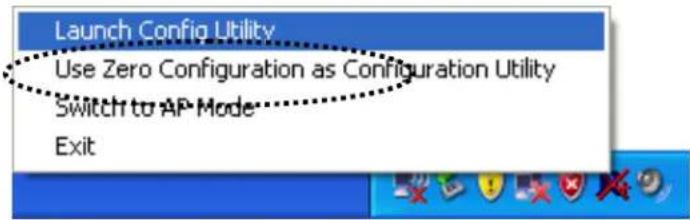
- Right-click Hawking configuration utility icon and select 'Use Zero Configuration as Configuration utility'.
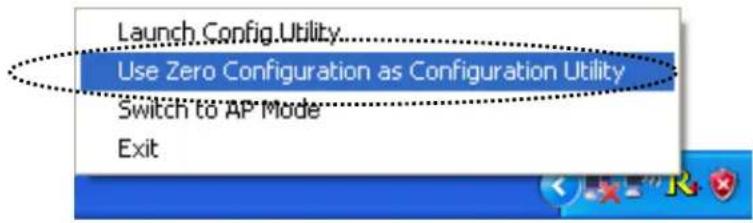
- Right click Windows Zero Configuration icon and select 'View Available Wireless Networks'. If you cannot find the icon, please follow the procedures from step 3 to step
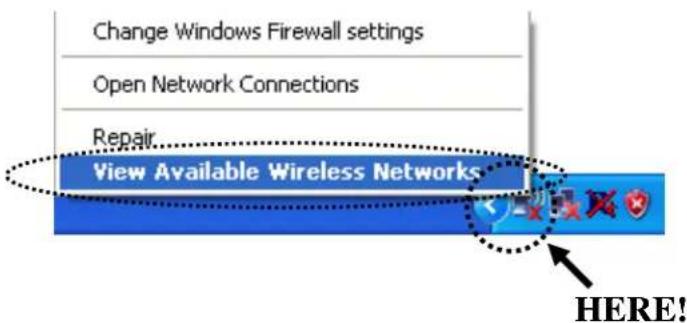
- Click 'Start' button (should be located at the bottom-left corner of windows desktop), click 'Control Panel', then click 'Network and Internet Connections' in Control Panel.
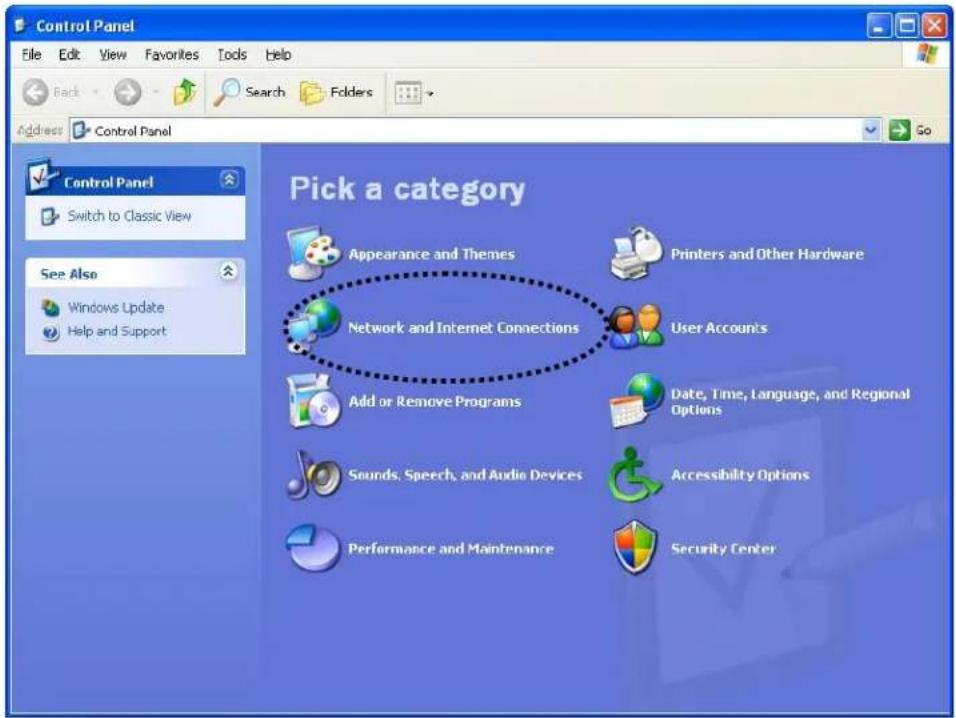
- Click 'Network Connections'.
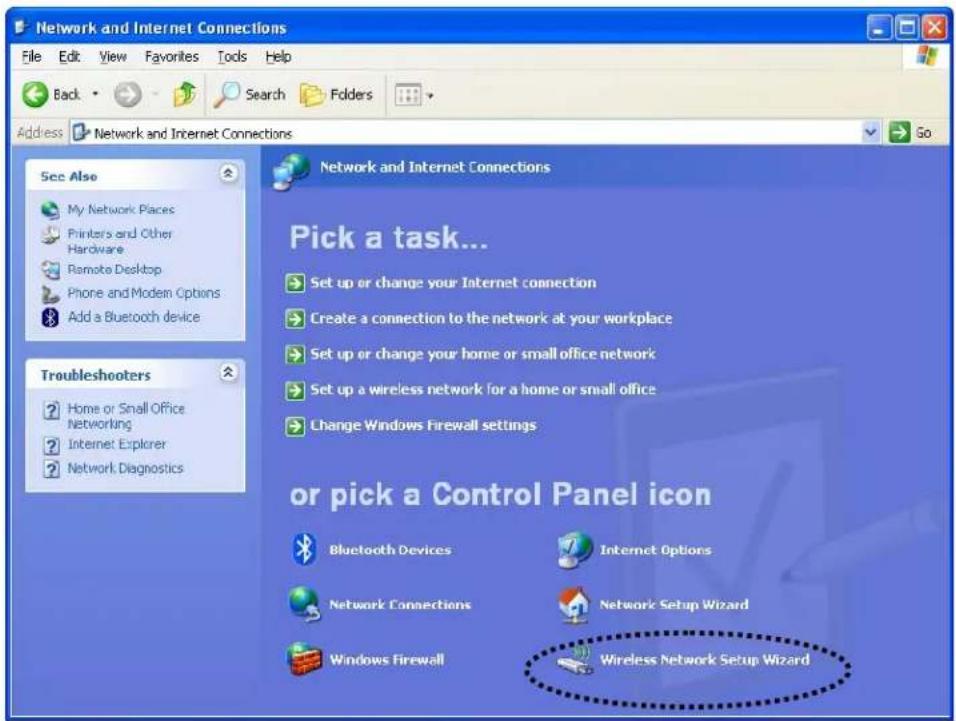
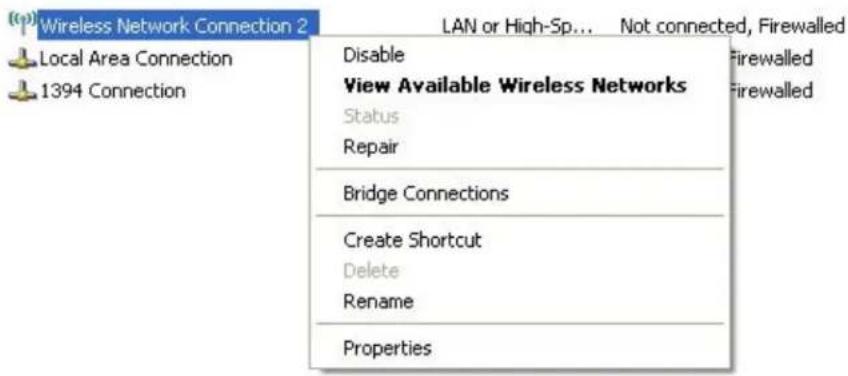
Right-click 'Wireless Network Connection' (it may have a number as suffix if you
have more than one wireless network card, please make sure you right-click the 'HAWNU1 Wireless LAN Card), then select 'View Available Wireless Networks'.
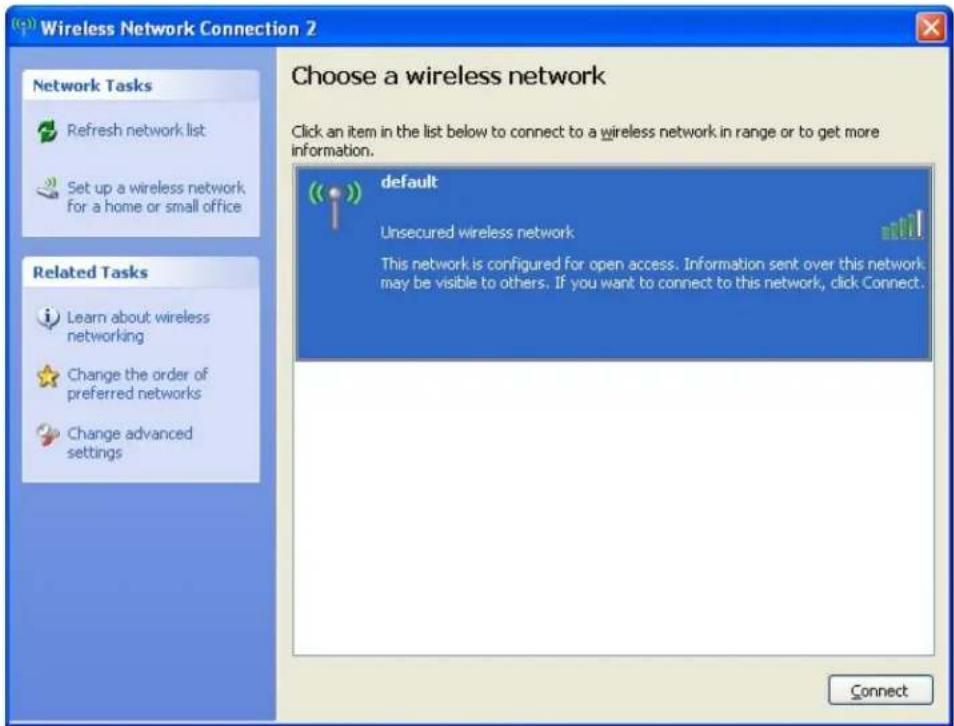
- All wireless access points in proximity will be displayed here. If the access point you want to use is not displayed here, please try to move your computer closer to the access point, or you can click 'Refresh network list' to rescan access points. Click the access point you want to use if it's shown, then click 'Connect'.
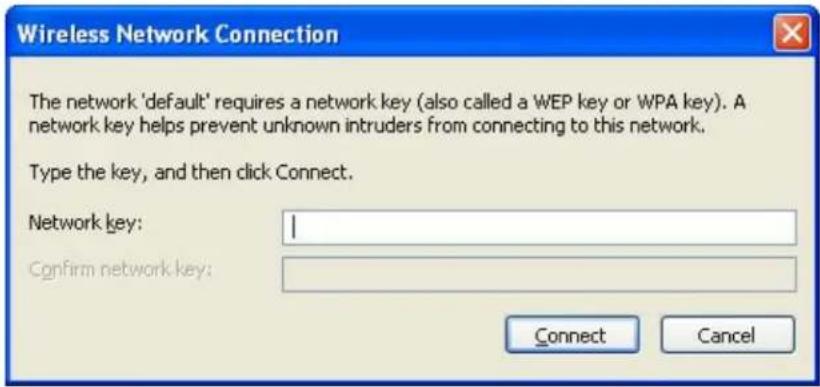
- If the access point is protected by encryption, you have to input its security key or passphrase here. It must match the encryption setting on the access point.
If the access point you selected does not use encryption, you will not be prompted for security key or passphrase.
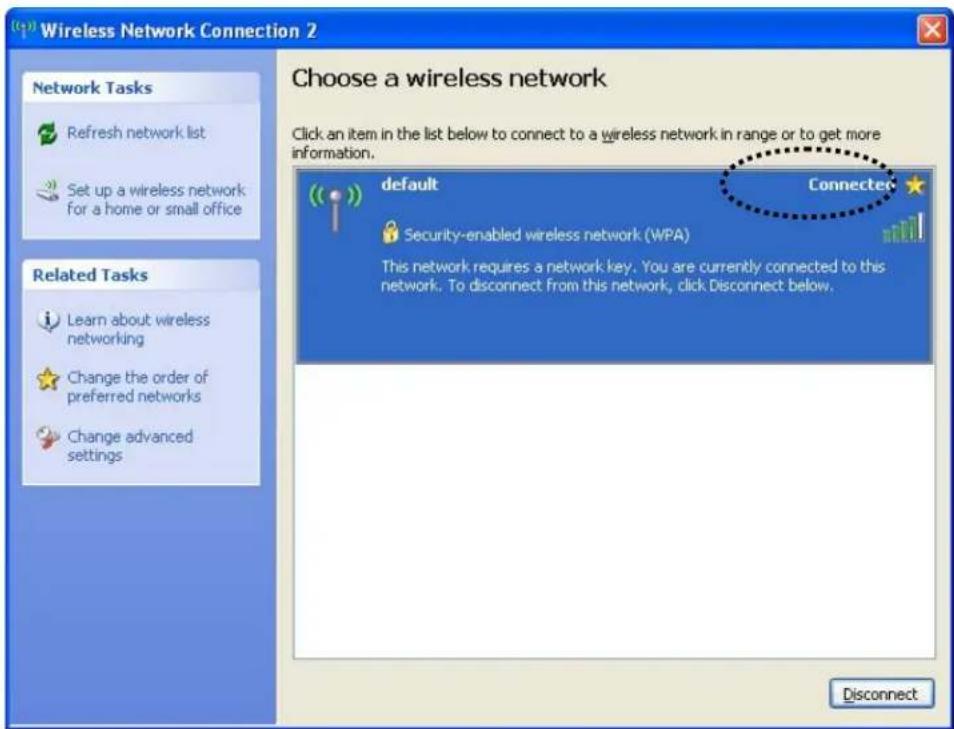
- If you can see ‘Connected’ message, the connection between your computer and wireless access point is successfully established.
3 INSTRUCTIONS FOR MAC OPERATING SYSTEM
3.1 Driver & Software Installation
IMPORTANT
- Please do not install the wireless adapter into your Mac desktop or notebook before installing the software program from the CD.
- The following installation was operated under Apple OSX 10.5 Leopard. (Installation Procedures are similar in other OS. However, the installation images and screens may not look the same as the ones in this manual)
-
If you have previously installed other Wireless Adapter Drivers & Utilities, please uninstall the older version first.
-
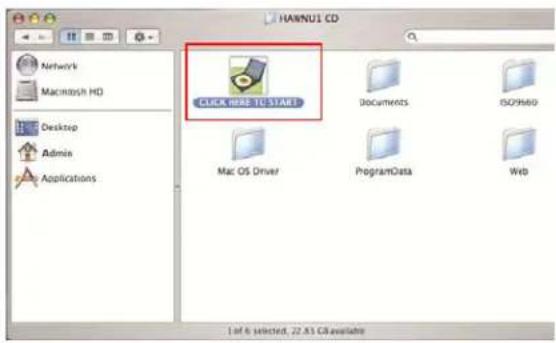
Power on your Computer and insert the Setup CD into your CD-ROM Drive. A folder should automatically open. Double click the icon in the folder that is titled "CLICK HERE TO START". (If there is no folder opening up automatically, click on the CD icon on your desktop to manually open the folder.)
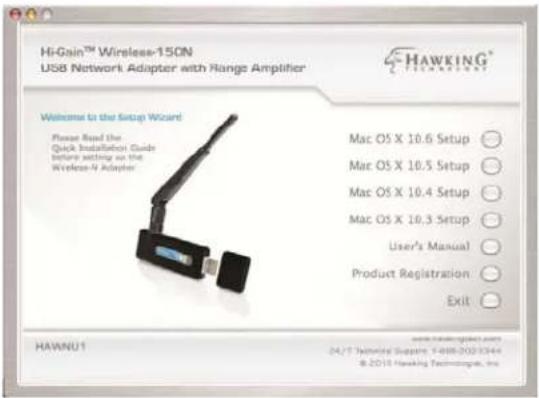
- Please select a Mac OS Setup according to the system you are operating:
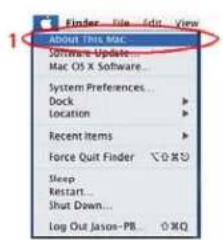
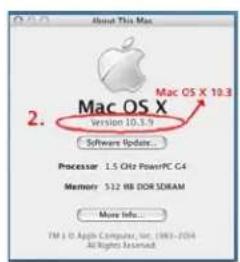
If you are uncertain about which version of the Mac OS X your are using, click on the Apple icon located on the left corner of the menu bar and select "About This Mac." The version number should appear in a pop up window.
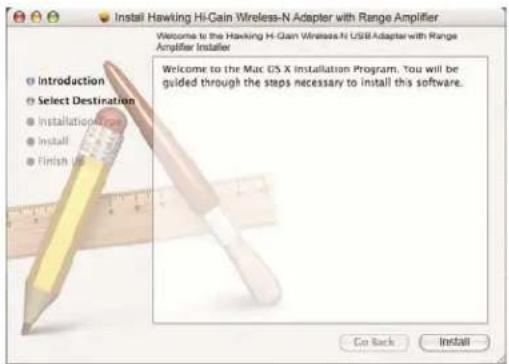
- The Introduction Screen will welcome you to the HAWNU1 Installer, select "Continue."
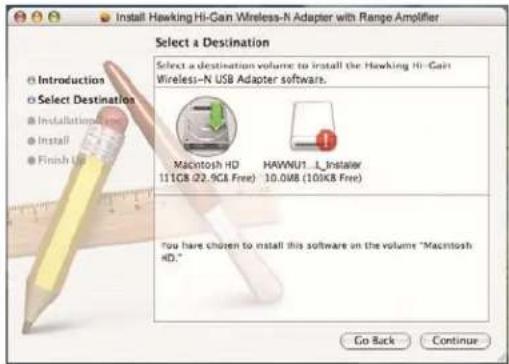
- Select a destination for the driver. Select “Continue”. (Typically, the default destination is the Macintosh HD.)
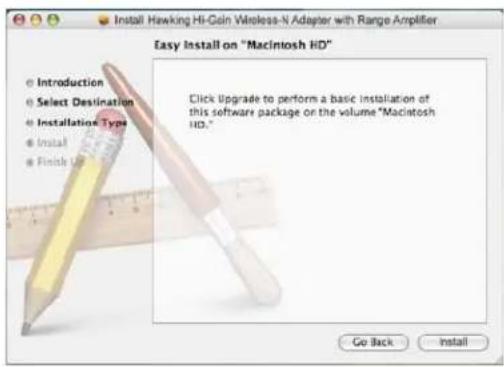
- Then select "Install".
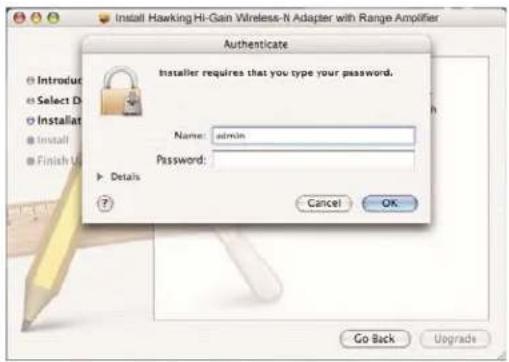
- If your computer is password protected*, enter the password and click OK. If it is not password protected, leave the password field blank and click OK to continue.
*If you do not have the password, please contact the owner/admin of this computer for Name and Password.
- Click Agree to continue.
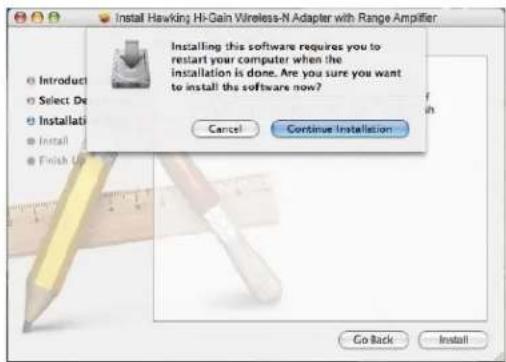
- Please wait for the installation process to complete. Select Finish when it is done and your computer will reboot.
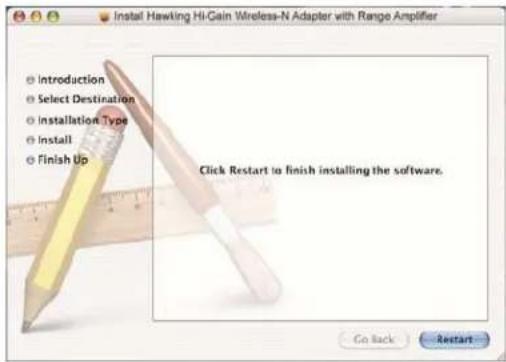
3.2 Connecting To Your Wireless Network (Mac 10.5 or later)
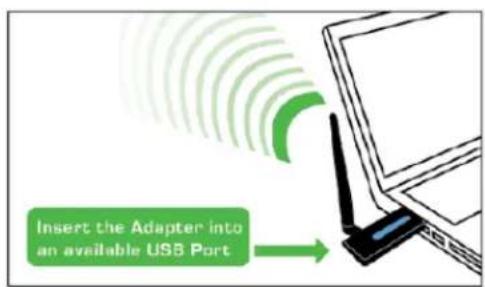
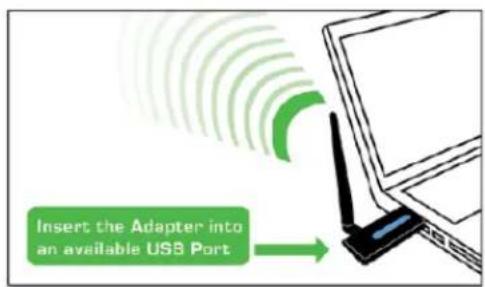
- After restarting your computer, insert the Adapter into an available USB port on your desktop or notebook computer. Insert the USB dish adapter firmly into the USB port to ensure a proper connection is made. When the adapter is inserted carefully lift the antenna unit upright.
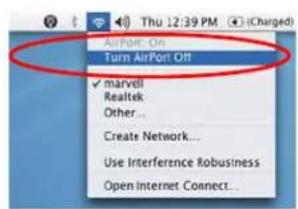
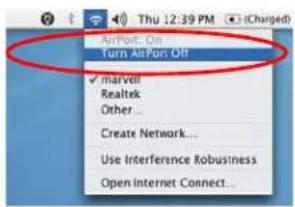
Note: If your computer or laptop already has a built-in Airport Card, please turn it off by going to the Wireless Icon on the top right corner or your screen and select "TURN OFF AIRPORT."
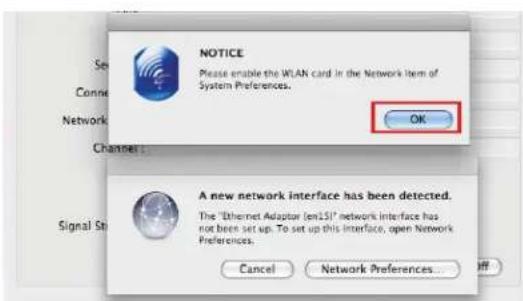
- The Hawking Wireless Utility will automatically pop up. You will be asked to enable your WLAN card. When a NOTICE comes up, select "OK". Then, select "Network Preferences."
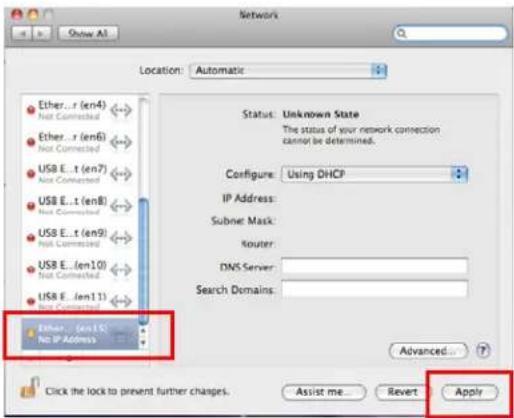
Please note the “Ethernet Adapter (en...)” network interface. You will need to enable this in the Network Preferences. Note: the screen above shows “Ethernet Adapter (en...)” network interface, however it may be vary slightly on your computer.
-
From your Network Preferences, select 'Ethernet Adapter (en...)', then click 'Apply.' Then skip the section below and go to step 4. If you are planning to use a static IP and manually enter an IP address, please go to section 3.4 Configure IP Manually vs. Automatic (DHCP)
-
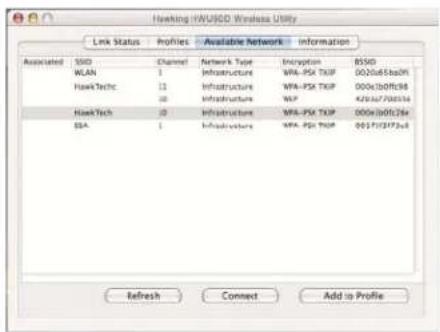
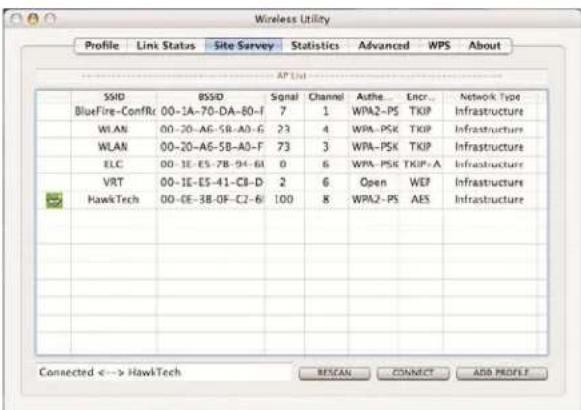
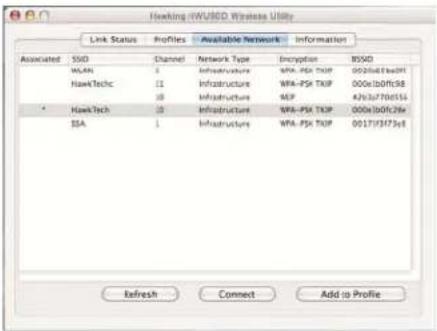
From Hawking Wireless Utility, select "Site Survey" tab. Then select your desired Wireless Network (SSID).
-
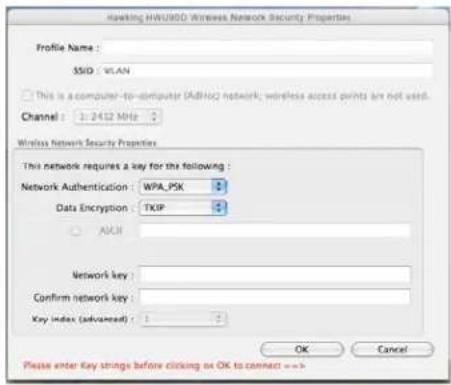
If your selected network has encryption, please enter the network key and confirm it. If the selected network has encryption, please enter the password and confirm it.
-
Congratulations! The asterisk sign (*) next to the selected network indicates that you are connected.
3.3 Connecting To Your Wireless Network (Mac 10.3\~10.4.9)
Note: Installation was performed on a Mac OSX 10.4. Installation is similar on Mac OSX 10.3, however the install images may vary slightly.
- After restarting your computer, insert the Adapter into an available USB port on your desktop or notebook computer. Insert the USB dish adapter firmly into the USB port to ensure a proper connection is made. When the adapter is inserted carefully lift the antenna unit upright.
Note: If your computer or laptop already has a built-in Airport Card, please turn it off by going to the Wireless Icon on the top right corner or your screen and select "TURN OFF AIRPORT."
- The Hawking Wireless Utility will automatically pop up. You will be asked to enable your WLAN card. When a NOTICE comes up, select "OK".
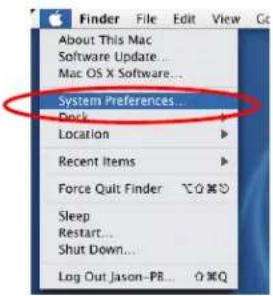
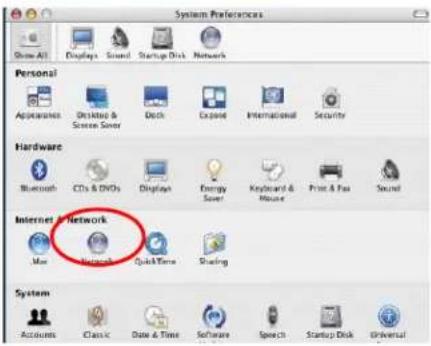
- Go to the APPLE icon on the top left corner of your desktop, select System Preferences → Network Settings. If this is your first time using the Hawking Wireless Adapter on your computer, you will need to enable the device before using the Wireless Utility. In the System Preferences page, locate the NETWORK icon and double click it to access the control panel.
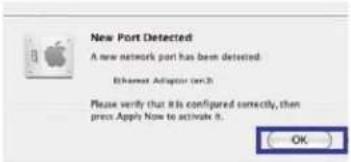
- The new USB wireless adapter will automatically be detected. Click "OK" to continue.
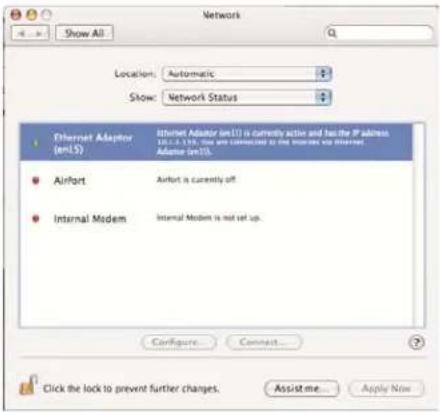
- Click "APPLY NOW" to confirm the selection.
- From your Network Preferences, select 'Ethernet Adapter (en...)', then click 'Apply.' Then skip the section below and go to step 4. If you are planning to use a static IP and manually enter an IP address, please go to section 3.4 Configure IP Manually vs. Automatic (DHCP)
3.4 Configure IP Manually vs. Automatic (DHCP)
- If you are using an automatically assigned IP address (MOST NETWORKS) you do not have to worry about this. Simply close the window to proceed.
- If you plan on using a “Static” (Manually entered) IP address for your computer, go to the ‘Configure you may do so here by double clicking the “USB Wireless Adapter” selection and selecting TCP/IP.
How to change your IP Address to Static Mode:
(Change from DHCP to Manual Configuration)
- If your wireless network uses a static IP address or requires manual configuration you may do so by highlighting the USB wireless adapter (Shown above).
- Select "Configure" to enter the configuration menu for the wireless adapter.
- Select the Tab that is named TCP/IP
- Select the menu button for "Configure IPv4" and choose the appropriate selection
- You can manually configure your IP Address, DNS Servers and other information here.
- Please contact a network administrator if you are uncertain of the settings that are required to connect to your network.
- When you have finished select APPLY NOW to continue.
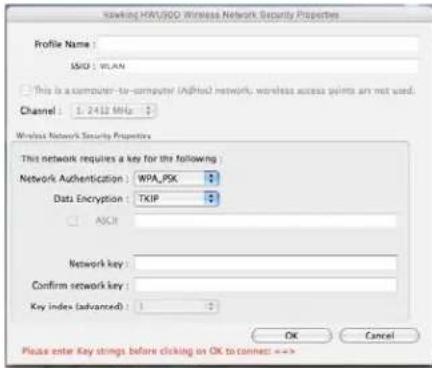
3.5 Hawking Wireless Utility for Mac OS X
The Hawking HAWNU1 Wireless Utility is an application that helps you configure the Adapter and monitor the link status and statistics of your wireless connection.
Each time you insert HAWNU1 into your computer, the Hawking Wireless Utility should automatically load. You can manually load the Hawking Wireless Utility by going into the
Applications folder and then select the Hawking Wireless Utility.
Site Survey
When you open the Wireless Utility, the system will scan all wireless channels to find all access points/stations within the accessible range of your adapter and automatically connect to the wireless device with the highest signal strength. The “Site Survey” tab will show a list of detected networks. You can change your connection to another network or you may add one of the networks to your own profile list.
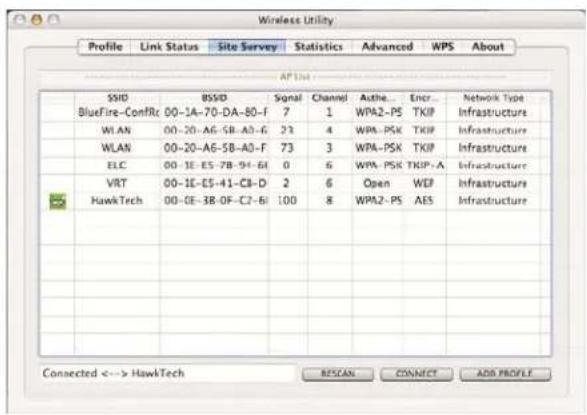
| Parameter | Description |
| Site Survey This tab shows | all available wireless networks within range of your card. It also displays the information of the networks including the SSID, BSSID, Channel, Encryption, Authentication and Network Type. If you want to connect to any networks on the list, double-click the item on the list, and the adapter will automatically connect to the selected network. An asterisk sign (*) in the Associated column shows that you are connected to the corresponding network (SSID). |
| Refresh Button Click “Refresh” button to view all the wireless networks nearby. | |
| Connect Button Click “Connect” to connect to the selected network. | |
| Add to Profile Button Add the selected network to Profiles list. | |
| [444W] | A green ‘handshake’ icon indicates you are connected to the selected network (shown respectively on the right hand column.) |
Profiles
The “Profiles List” is for you to manage the networks you connect to frequently. You are able to Add/Delete/Edit/Activate a profile.
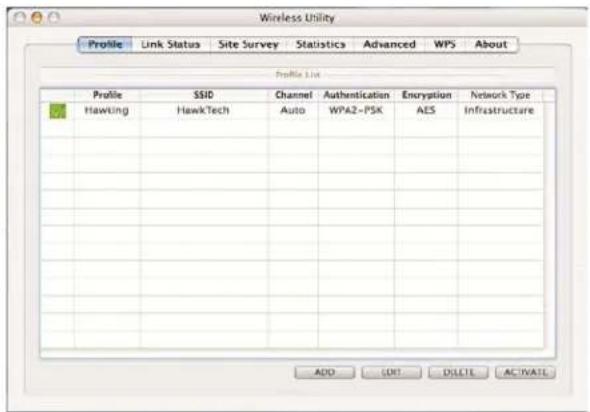
| Parameter | Description |
| Profiles List The profiles list display all the profiles and the relative information including Profile Name, SSID, Channel, etc. | |
| Add/Edit/Remove/Duplicate Button | Click these buttons to Add/ Edit/Remove/Duplicate the selected profiles. |
| Activate Click “Apply” to | connect to the selected profile. |
Configure Profile
System Configuration
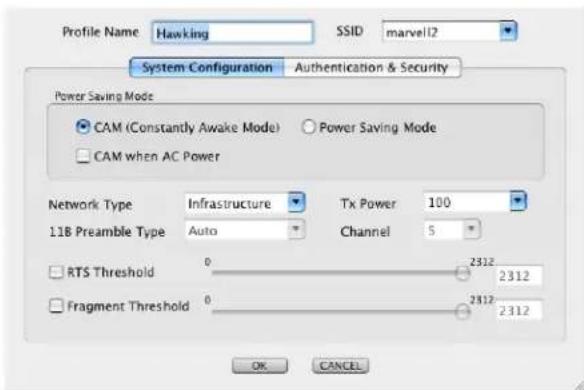
| Parameter | Description |
| Profile Name Define arecognizable profile name for you to identify the different networks. | |
| SSID The SSID (up to 32 printable ASCII characters) is the unique name identified in a WLAN. The ID prevents the unintentional merging of two co-located WLANs.You may specify a SSID for the card and then only the device with the same SSID can interconnect to the card. If you want to add one of the networks nearby to the profile list, pull down the menu, all the networks nearby will be listed and you can add one of them to the profile list. | |
| Power Saving Mode The | power saving function is only available when the network type is in Infrastructure.CAM (Constantly Awake Mode) – The card will always set in active mode.Power Saving Mode – Enable the card in the power saving mode when it is idle.CAM When AC Power – Select this option to automatically switch the card from power saving mode to CAM mode while the power of your laptop computer is supplied by the AC power but not battery. |
| Network Type Infrastructure – This operation mode requires the presence of an 802.11 Access Point. All communication is done via the Access Point or Router.Ad-Hoc – Select this mode if you want to connect to another wireless station in the Wireless LAN network without going through an Access Point or Router. Peer to Peer. | |
| Transmit Power If you wish to lower the transmit power of the card to save the power of your system, you can select the lower percentages from the list. | |
| 11B Preamble Type The | preamble defines the length of the CRC block for communication among wireless stations. This option is only active in the Ad Hoc network.There are two modes including Auto and Long Preamble. If “Auto" mode is selected, the card will automatically switch the preamble mode, depending on the wireless station where the adapter is connected. |
| RTS Threshold Minimum packet size required for an RTS (Request To Send). For packets smaller than this threshold, an RTS is not sent and the packet is transmitted directly to the wireless network. Select a setting within a range of 0 to 2312 bytes. Minor change is recommended. | |
| Fragment Threshold The | value defines the maximum size of packets; any packet size larger than the value will be fragmented. If you have decreased this value and experience high packet error rates, you can increase it again, but it will likely decrease overall network performance. Select a setting within a range of 256 to 2312 bytes. Minor change is recommended. |
| Channel This setting is only available for Ad Hoc mode. Select the number of the radio channel used for the networking. The channel setting should be the same with the network you are connecting to. | |
Authentication vs. Security
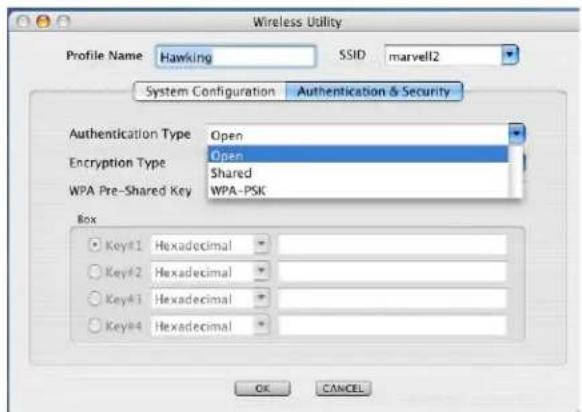
| Parameter | Description |
| Authentication Type | This setting has to be consistent with the wireless networks that the card intends to connect to. All security keys within a network must match to allow successful communications.None – No authentication is needed among the wireless network.Shared – Only wireless stations using a shared key (WEP Key identified) are allowed to connecting each other.WPA-PSK –It is a special mode designed for home and small business users who do not have access to network authentication servers. In this mode, known as Pre-Shared Key, the user manually enters the starting password in their access point or gateway, as well as in each wireless station in the network. WPA takes over automatically from that point, keeping unauthorized users that don't have the matching password from joining the network, while encrypting the data traveling between authorized devices. The encryption methods are including TKIP and AES. Note that this option is only available for Windows XP. |
| Encryption Mode | None – Disable the WEP Data Encryption.WEP – Enable the WEP Data Encryption. When the item is selected, you have to continue setting the WEP Encryption keys.TKIP – TKIP (Temporal Key Integrity Protocol) changes the temporal key every 10,000 packets (a packet is a kind of message transmitted over a network.) This insures much greater security than the standard WEP security.AES – AES has been developed to ensure the highest degree of security and authenticity for digital information and it is the most advanced solution defined by IEEE 802.11i for the security in the wireless network.Note: All devices in the network should use the same encryption method to ensure the communication. |
| WPA Pre-Shared Key | The WPA-PSK key can be from eight to 64 characters and can be letters or numbers. This same key must be used on all of the wireless stations in the network. |
| WEP Key(Key1 ~ Key4) | The WEP keys are used to encrypt data transmitted in the wireless network. There are two types of key length: 64-bit and 128-bit. Select the default encryption key from Key 1 to Key 4 by selected the radio button.Fill the text box by following the rules below.64-bit – Input 10-digit Hex values (in the “A-F”, “a-f” and “0-9” range) or 5-digit ASCII characters (including “a-z” and “0-9”) as the encryption keys. For example: “0123456aef” or “test1”.128-bit – Input 26-digit Hex values (in the “A-F”, “a-f” and “0-9” range) or 13-digit ASCII characters (including “a-z” and “0-9”) as the encryption keys. For example: “01234567890123456789abcdef” or “administrator”. |
Link Status
From the “Link Status” option, you can view all the information of the network you are connecting to. You can use this tool in while at the same time repositioning the Hi-Gain antenna to find the optimal location for antenna placement.
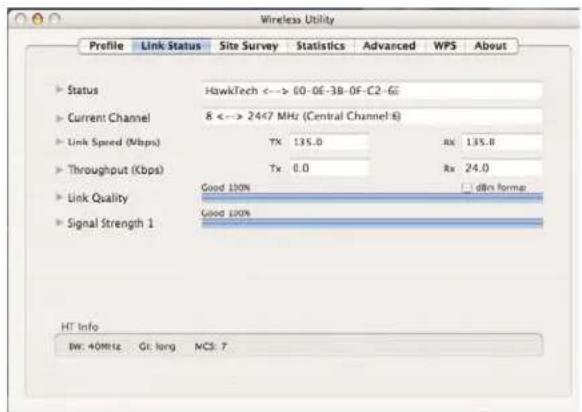
| Parameter | Description |
| Status Display the | SSID and MAC ID of the network the card is connecting to. |
| Current Channel | Display the number of the radio channel and the frequency used for the networking. |
| Link Speed (Mbps) | Display the transmission and receiving rate of your current network. It is the number of bits per second that can be transmitted. |
| Throughput (Kbits/sec) | Throughput is the average rate of successful message delivery over a communication channel. |
| Link Quality This | bar indicates the quality of the link. The higher the percentage, the better the quality. |
| Signal Strength This | bar shows the signal strength level. The higher percentage shown in the bar, the more radio signal been received by the card. This indicator helps to find the proper position of the wireless device for quality network operation. |
| dBm format If you want to know the signal strength in the unit of dBm, select this check box. | |
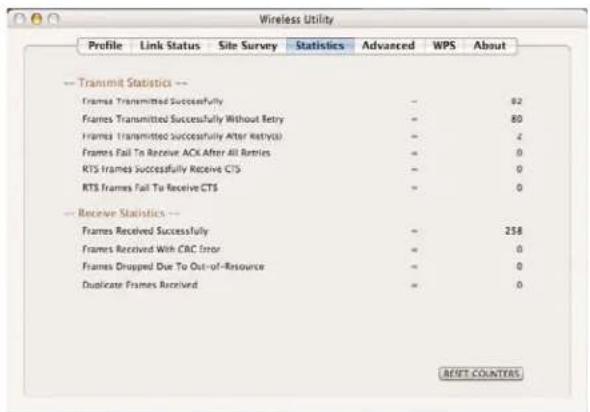
Statistics
This option enables you to view the available statistic information with its Tx counts (Tx success, Tx error, RTS Success and RTS Failed), and its Rx counts (Rx success, Rx error). You may reset the counters by selecting "Reset Counter".
Advanced
This option enables you to configure more advanced settings, for example: wireless mode, protection mode and etc.
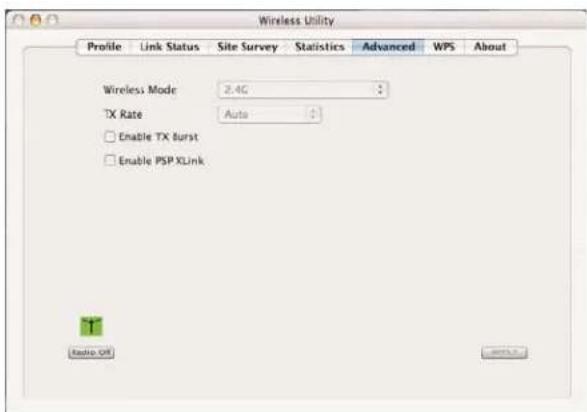
| Parameter | Description |
| Wireless Mode Supports | 2.4G wireless mode. |
| Tx Rate Tx Rate (transmit rate) | selects the allowable transfer rates of the wireless client. To optimize performance and range, the Tx Rate should be set to Fully Automatic. This will automatically adjust the transfer speed for the best performance and longest range. |
| Tx Burst This function enables the adapter to deliver better throughput during a period of time, it only takes effect when connecting with the AP that supports this function. Check to enable this function. | |
| Enable PSP XLink This will enable the card to work with xlink | |
| Radio Off Lets you turn the wireless radio on and off. | |
WPS
Wi-Fi Protected Setup (WPS) is the latest wireless network technology which makes wireless network setup become very simple. This Wireless Card supports the configuration setup using PIN configuration method or PBC configuration method through an internal or external Registrar.
To use WPS, your product must support WPS and be compatible with WPA security. WPS can automatically set up a random network name (SSID) and strong WPA wireless security for wireless routers, access points, computers, adapters, Wi-Fi phones, and other consumer electronics devices.
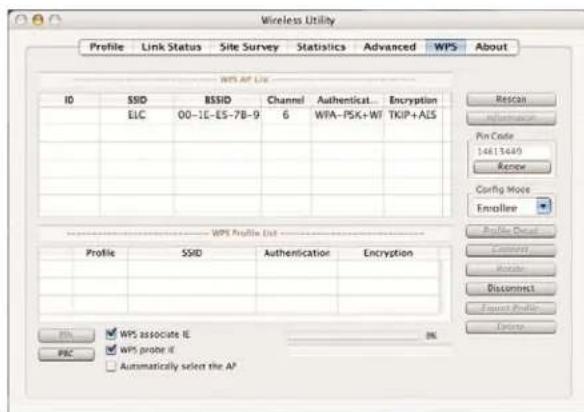
| Parameter | Description |
| WPS AP List | Display the information of surrounding APs with WPS IE from last scan result. List information includes SSID, BSSID, Channel, ID (Device Password ID), Security-Enabled. |
| Rescan | Issue a rescan command to wireless NIC to update information on surrounding wireless network. |
| Information | Display the information about WPS IE on the selected network. List Information includes Authentication Type, Encryption Type, Config Methods, Device Password ID, Selected Registrar, State, Version, AP Setup Locked, UUID-E and RF Bands. |
| Pin Code / Renew | 8-digit numbers. It is required to enter PIN Code into Registrar using PIN method. Each NIC Wireless has only one PIN Code of Enrollee. Some Wireless Access Point may support PIN function. Remember it, and input the number to your wireless access point as the WPS PIN code (Please refer to the user manual of your wireless access point for instructions about how to do this).(NOTE: If you experienced problem with the pin code provided here, you can click ‘Renew’ to get a new pin code.) |
| Config Mode | Select as an Enrollee or an external Registrar. |
| WPS Profile List | Display all of credentials got from the Registrar. List information includes 40 SSID, MAC address, Authentication and Encryption Type. If STA Enrollee, credentials are created as soon as each WPS success. If STA Registrar, RaUI creates a new credential with WPA2-PSK/AES/64Hex-Key and doesn’t change until next switching to STA Registrar.Control items on WPS Profile List:Detail: Information about Security and Key in the credentialConnect: Command to connect to the selected network inside credentials. The active selected credential is as like as the active selected Profile.Rotate: Command to rotate to connect to the next inside credentialsDisconnect: Stop WPS action and disconnect this active link. And then select the last profile at the Profile Page of RaUI if exist. If there is an empty profile page, the driver will select any non-security AP.Delete: Delete an existing credential. And then select the next credential if exist. If there is an empty credential, the driver will select any non-security AP. |
| PIN | Start to add to Registrar using PIN configuration method. IF STA Registrar, remember that enter PIN Code read from you Enrollee before starting PIN. |
| PBC (Push-Button Configuration) | One of the ways to establish a secure connection using WPS. See instruction from your AP to establish connection using PBC.Note: When you click PIN or PBC, please don’t do any rescan within two-minute connection. If you want to abort this setup within the interval, restart PIN/PBC or press Disconnect to stop WPS connection. |
| Rescan | You can click ‘Rescan’ button to search for WPS-enabled access points near you again, to make sure the WPS function of your access point is activated. |
| Profile Detail | You can click ‘Detail’ button to see detailed information of connected access point. If you wish to save this connection as a profile, you can click ‘Export Profile’ button, and this connection will be saved. You can find this connection in ‘Profile’ tab in a later time. |
| Export Profile | If you wish to save this connection as a profile, you can click ‘Export Profile’ button, and this connection will be saved. You can find this connection in ‘Profile’ tab in a later time. |
| WPS associate IE: | Check this box to send the association request with WPS IE during WPS setup. This is optional for STA |
| WPS probe IE Check this box | to send the WPS probe request with WPS IE during WPS setup. This is optional for STA. |
| Automatically Select the AP When in PIN mode, wireless access point to be connected will be selected automatically if this box is checked. | |
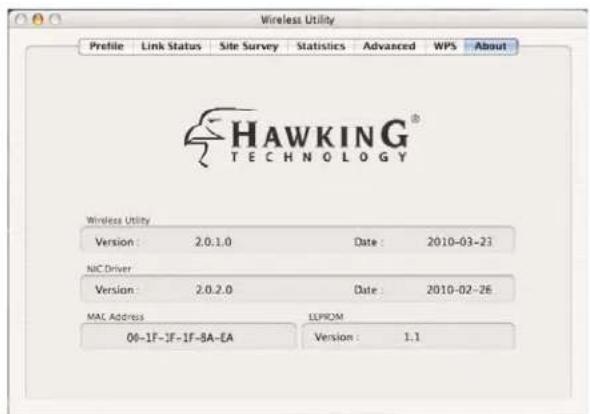
About
The ‘About’ tab provides you the information about version number of the configuration utility, driver, and other important information about your wireless network card.
4 Product Specifications
| Standard | IEEE 802.11b/g/n |
| Bus Type USB 2.0 Type A | |
| Frequency Band 2.4000~2.48 | 35GHz (Industrial Scientific Medical Band) |
| Data Rate 11b: 1/2/5.5/11Mbps | 11g: 6/9/12/24/36/48/54Mbps11n (20MHz): MCS0-7 (up to 72Mbps)11n (40MHz): MCS0-7 (up to 150Mbps) |
| Security WEP 64/128, WPA, WPA2Cisco CCX Support | |
| Antenna Detachable 3dBi Dipole Antenna with RP-SMA Connector | |
| Output Power | 11b: 22dBm±1dBm11g: 21dBm±1dBm11n(20MHz): 21dBm±1dBm11n(20MHz): 17dBm±1dBm |
| Drivers Windows 2000/XP/Vista/7Mac OS X 10.3 -10.6 | |
| LED Link/Activity | |
| Dimension 10(H) x 28(W) x | 89.6(L) mm |
| Temperature Operating | 32~104°F (0~40°C) |
| Storage | 14~140°F (-10~60°C) |
| Humidity Operating 10~90% (NonCondensing) | |
| Storage | Max. 95% (NonCondensing) |
| Certification | FCC, CE |
5 Troubleshooting
If you encounter any problem when you're using this wireless network card, don't panic! Before you call your dealer of purchase for help, please check this troubleshooting table, the solution of your problem could be very simple, and you can solve the problem by yourself!
| Scenario Solution | |
| I can’t find any wireless access point / wireless device in ‘Site Survey’ function. | 1. Click ‘Rescan’ for few more times and see if you can find any wireless access point or wireless device.2. Please move closer to any known wireless access point.3. ‘Ad hoc’ function must be enabled for the wireless device you wish to establish a direct wireless link.4. Please adjust the position of network card (you may have to move your computer if you’re using a notebook computer) and click ‘Rescan’ button for few more times. If you can find the wireless access point or wireless device you want to connect by doing this, try to move closer to the place where the wireless access point or wireless device is located. |
| Nothing happens when I click ‘Launch Config Utility’ | 1. Please make sure the wireless network card is inserted into your computer’s USB port. If the Hawking configuration utility’s icon is black, the network card is not detected by your computer.2. Reboot the computer and try again.3. Remove the card and insert it into another USB port.4. Remove the driver and re-install.5. Contact the dealer of purchase for help. |
| I can not establish connection with a certain wireless access point | 1. Click ‘Connect’ for few more times.2. If the SSID of access point you wish to connect is hidden (nothing displayed in ‘SSID’ field in ‘Site Survey’ function), you have to input correct SSID of the access point you wish to connect. Please contact the owner of access point to ask for correct SSID.3. You have to input correct security key to connect an access point with encryption. Please contact the owner of access point to ask for correct security key.4. The access point you wish to connect only allows network cards with specific MAC address to establish connection. Please go to ‘About’ tab and write the value of ‘Phy_Addess’ down, then present this value to the owner of access point so he / she can add the MAC address of your network card to his / her access point’s list. |
| The network is slow / having | 1. Move closer to the place where access point is |
| problem when transferring large files | located.2. Disable ‘Tx Burst’ in ‘Advanced’ tab.3. Enable ‘WMM’ in ‘WMM’ tab if you need to use multimedia / telephony related applications.4. Disable ‘WMM – Power Save Enable’ in ‘WMM’ tab.5. There could be too much people using the same radio channel. Ask the owner of the access point to change the channel number.Please try one or more solutions listed above. |
6 Glossary
1. What is the IEEE 802.11g standard?
802.11g is the new IEEE standard for high-speed wireless LAN communications that provides for up to 54 Mbps data rate in the 2.4 GHz band. 802.11g is quickly becoming the next mainstream wireless LAN technology for the home, office and public networks.
802.11g defines the use of the same OFDM modulation technique specified in IEEE 802.11a for the 5 GHz frequency band and applies it in the same 2.4 GHz frequency band as IEEE 802.11b. The 802.11g standard requires backward compatibility with 802.11b.
The standard specifically calls for:
A. A new physical layer for the 802.11 Medium Access Control (MAC) in the 2.4 GHz frequency band, known as the extended rate PHY (ERP). The ERP adds OFDM as a mandatory new coding scheme for 6, 12 and 24 Mbps (mandatory speeds), and 18, 36, 48 and 54 Mbps (optional speeds). The ERP includes the modulation schemes found in 802.11b including CCK for 11 and 5.5 Mbps and Barker code modulation for 2 and 1 Mbps.
B. A protection mechanism called RTS/CTS that govern how 802.11g devices and 802.11b devices interoperate.
2. What is the IEEE 802.11b standard?
The IEEE 802.11b Wireless LAN standard subcommittee formulates the standard for the industry. The objective is to enable wireless LAN hardware from different manufactures to communicate.
3. What does IEEE 802.11 feature support?
The product supports the following IEEE 802.11 functions:
• CSMA/CA plus Acknowledge Protocol
• Multi-Channel Roaming
• Automatic Rate Selection
- RTS/CTS Feature
- Fragmentation
• Power Management
4. What is Ad-hoc?
An Ad-hoc integrated wireless LAN is a group of computers, each has a Wireless LAN card, Connected as an independent wireless LAN. Ad hoc wireless LAN is applicable at a departmental scale for a branch or SOHO operation.
5. What is Infrastructure?
An integrated wireless and wireless and wired LAN is called an Infrastructure configuration. Infrastructure is applicable to enterprise scale for wireless access to central database, or wireless application for mobile workers.
6. What is BSS ID?
A specific Ad hoc LAN is called a Basic Service Set (BSS). Computers in a BSS must be configured with the same BSS ID.
7. What is WEP?
WEP is Wired Equivalent Privacy, a data privacy mechanism based on a 40 bit shared key algorithm, as described in the IEEE 802.11 standard.
8. What is TKIP?
TKIP is a quick-fix method to quickly overcome the inherent weaknesses in WEP security, especially the reuse of encryption keys. TKIP is involved in the IEEE 802.11i WLAN security standard, and the specification might be officially released by early 2003.
9. What is AES?
AES (Advanced Encryption Standard), a chip-based security, has been developed to ensure the highest degree of security and authenticity for digital information, wherever and however communicated or stored, while making more efficient use of hardware and/or software than previous encryption standards. It is also included in IEEE 802.11i standard. Compare with AES, TKIP is a temporary protocol for replacing WEP security until manufacturers implement AES at the hardware level.
10. Can Wireless products support printer sharing?
Wireless products perform the same function as LAN products. Therefore, Wireless products can work with Netware, Windows 2000, or other LAN operating systems to support printer or file sharing.
11. Would the information be intercepted while transmitting on air?
WLAN features two-fold protection in security. On the hardware side, as with Direct Sequence Spread Spectrum technology, it has the inherent security feature of
scrambling. On the software side, WLAN series offer the encryption function (WEP) to enhance security and Access Control. Users can set it up depending upon their needs.
12. What is DSSS? What is FHSS? And what are their differences?
Frequency-hopping spread-spectrum (FHSS) uses a narrowband carrier that changes frequency in a pattern that is known to both transmitter and receiver. Properly synchronized, the net effect is to maintain a single logical channel. To an unintended receiver, FHSS appears to be short-duration impulse noise. Direct-sequence spread-spectrum (DSSS) generates a redundant bit pattern for each bit to be transmitted. This bit pattern is called a chip (or chipping code). The longer the chip is, the greater the probability that the original data can be recovered. Even if one or more bits in the chip are damaged during transmission, statistical techniques embedded in the radio can recover the original data without-the need for retransmission. To an unintended receiver, DSSS appears as low power wideband noise and is rejected (ignored) by most narrowband receivers.
13. What is Spread Spectrum?
Spread Spectrum technology is a wideband radio frequency technique developed by the military for use in reliable, secure, mission-critical communication systems. It is designed to trade off bandwidth efficiency for reliability, integrity, and security. In other words, more bandwidth is consumed than in the case of narrowband transmission, but the trade off produces a signal that is, in effect, louder and thus easier to detect, provided that the receiver knows the parameters of the spread-spectrum signal being broadcast. If a receiver is not tuned to the right frequency, a spread –spectrum signal looks like background noise. There are two main alternatives, Direct Sequence Spread Spectrum (DSSS) and Frequency Hopping Spread Spectrum (FHSS).
14. What is WMM?
Wi-Fi Multimedia (WMM), a group of features for wireless networks that improve the user experience for audio, video and voice applications. WMM is based on a subset of the IEEE 802.11e WLAN QoS draft standard. WMM adds prioritized capabilities to Wi-Fi networks and optimizes their performance when multiple concurring applications, each with different latency and throughput requirements, compete for network resources. By using WMM, end-user satisfaction is maintained in a wider variety of environments and traffic conditions. WMM makes it possible for home network users and enterprise network managers to decide which data streams are most important and assign them a higher traffic priority.
15. What is WMM Power Save?
WMM Power Save is a set of features for Wi-Fi networks that increase the efficiency and flexibility of data transmission in order to conserve power. WMM Power Save has been optimized for mobile devices running latency-sensitive applications such as voice, audio, or video, but can benefit any Wi-Fi device. WMM Power Save uses mechanisms included in the IEEE 802.11e standard and is an enhancement of IEEE 802.11 Legacy Power Save. With WMM Power Save, the same amount of data can be transmitted in a shorter time while allowing the Wi-Fi device to remain longer in a low-power “dozing” state.
16. What is GI?
GI stands for Guard Interval. It's a measure to protect wireless devices from cross-interference. If there are two wireless devices using the same or near channel, and they are close enough, radio interference will occur and reduce the radio resource usability.
17. What is STBC?
STBC stands for Space-Time Block Coding, which is a technique used to transfer multiple copies of data by multiple antenna, to improve data transfer performance. By using multiple antennas, not only data transfer rate is improved, but also the wireless stability.
18. What is WPS?
WPS stands for Wi-Fi Protected Setup. It provides a simple way to establish unencrypted or encrypted connections between wireless clients and access point automatically. User can press a software or hardware button to activate WPS function, and WPS-compatible wireless clients and access point will establish connection by themselves. There are two types of WPS: PBC (Push-Button Configuration) and PIN code.