PAVILION ALL-IN-ONE MS228 - Desktop computer HP - Free user manual and instructions
Find the device manual for free PAVILION ALL-IN-ONE MS228 HP in PDF.

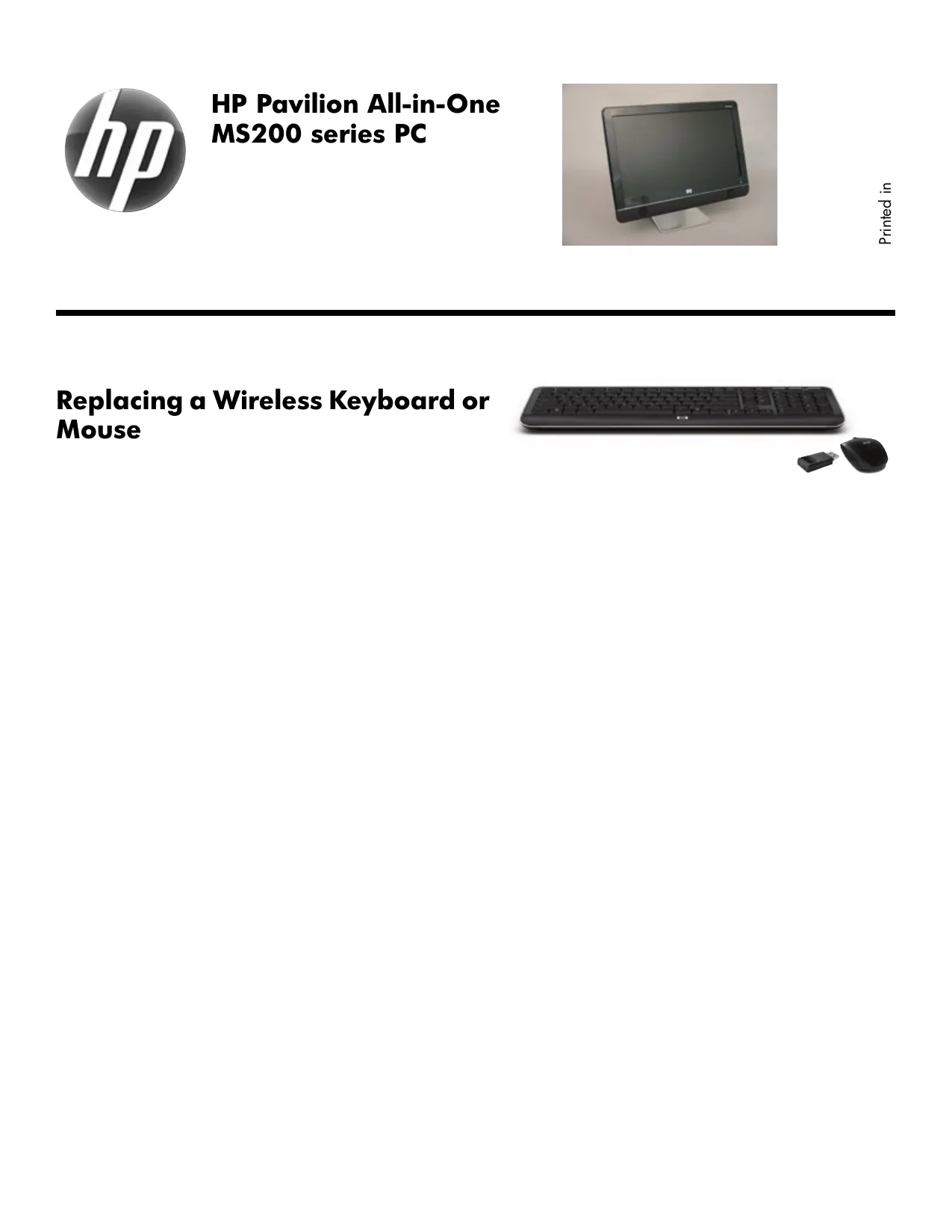

| Product type | All-in-one computer |
| Brand | HP |
| Model | Pavilion All-in-One MS228 |
| Dimensions (W x H x D) | Approximately 50 x 40 x 10 cm |
| Weight | Approximately 7 kg |
| Screen | 21.5 inches (estimated) |
| RAM | Up to 4 GB DDR2 SO-DIMM, 200-pin, PC2-4200/PC2-5300, 1.8 V |
| Hard drive | SATA, 3.5-inch form factor (estimated) |
| Optical drive | CD/DVD drive |
| Wireless connectivity | Wireless keyboard and mouse with USB receiver |
| Power supply | Integrated, 150 W (estimated) |
| Main functions | Memory upgrade, hard drive replacement, optical drive replacement, stand replacement |
| Maintenance and cleaning | Unplug the computer before cleaning, use a soft, non-abrasive cloth |
| Safety | Discharge static electricity before intervention, avoid sharp edges inside |
| Spare parts and repairability | Memory, hard drive, optical drive, stand, keyboard, mouse |
| General information | Service manual detailing upgrade and repair procedures |
Frequently Asked Questions - PAVILION ALL-IN-ONE MS228 HP
User questions about PAVILION ALL-IN-ONE MS228 HP
0 question about this device. Answer the ones you know or ask your own.
Ask a new question about this device
Download the instructions for your Desktop computer in PDF format for free! Find your manual PAVILION ALL-IN-ONE MS228 - HP and take your electronic device back in hand. On this page are published all the documents necessary for the use of your device. PAVILION ALL-IN-ONE MS228 by HP.
USER MANUAL PAVILION ALL-IN-ONE MS228 HP
Upgrading and Servicing Guide
Replacing a Wireless Keyboard or Mouse ....2
Before You Begin. 2
Replacing the Keyboard or Mouse 2
Replacing Batteries 3
Upgrading or Replacing Memory 6
Before You Begin 6
Computer Preparation 6
Troubleshooting 9
Removing and Replacing the
Computer Stand 12
Before You Begin. 12
Computer Preparation 12
Installing a New Stand. 13
Removing and Replacing a Hard Disk Drive .. 16
Before You Begin 16
Computer Preparation 16
Installing a New Hard Disk Drive 18
Removing and Replacing a CD/DVD Drive ....22
Before You Begin 22
Computer Preparation 22
Installing a New CD/DVD Drive 23
Replacing a Wireless Keyboard or Mouse
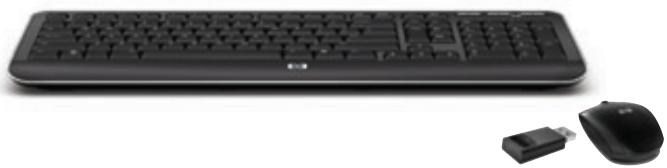
Replacing a Wireless Keyboard or Mouse

5-10 minutes
Before You Begin
Two replacement kits are available:
- Wireless keyboard
- Wireless mouse with wireless receiver
IMPORTANT: The keyboard and mouse must be next to the HP PC, within 1 foot (30 cm) and away from interference with other devices.
Replacing the Keyboard or Mouse
1 Leave the computer on.
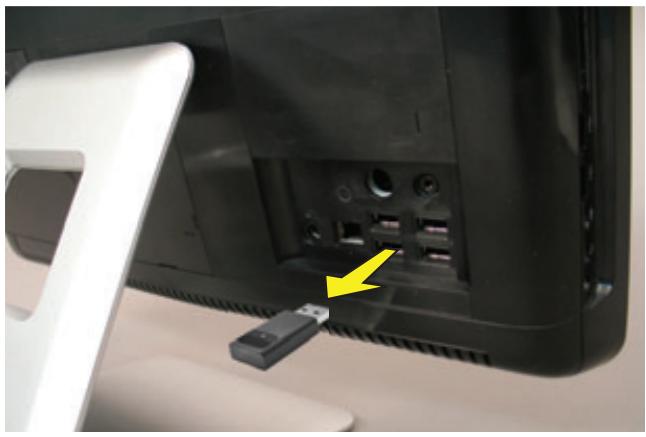
2 If you are replacing the wireless mouse, remove the old receiver and plug the new receiver into the back of the computer. Skip this step if you are replacing the keyboard only.
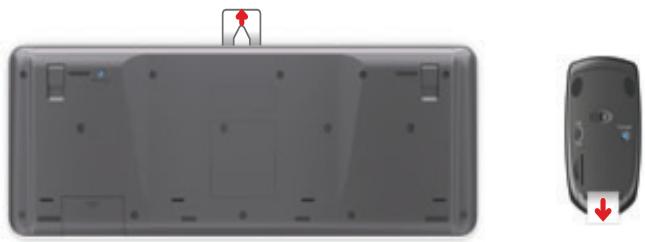
3 Remove the tab from the battery compartment on the bottom of the mouse and/or the keyboard. This activates the pre-installed battery.
4 If you are replacing the mouse and it has a power switch on the bottom, turn on the mouse power switch (A). The keyboard does not have a power switch, so you can skip this step if you are installing the keyboard only.
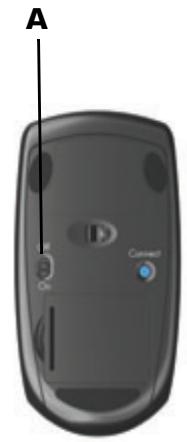
5 Press the blue connect button on the bottom of the keyboard (B) and/or mouse (C) for 5 to 10 seconds. The blue activity LED on the wireless receiver illuminates when the synchronization command has been received and goes off when synchronization is complete.
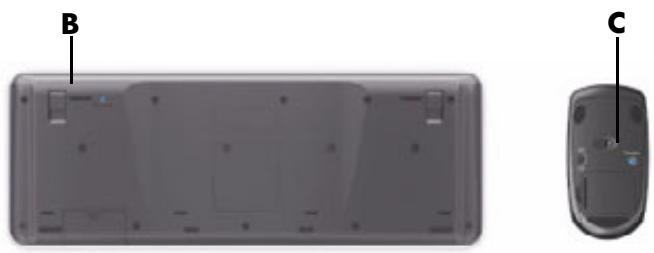
NOTE: If the synchronization does not work, remove and then re-insert the wireless receiver from the back of the computer and synchronize the keyboard and/or mouse again.

Replacing Batteries
If repeated attempts at synchronization do not work, you may need to replace the batteries in the keyboard and mouse.
- The mouse requires two AA batteries.
- The keyboard requires two AAA batteries.
Turn the devices over, take off the battery cover, remove the old batteries, and insert new alkaline batteries. Do not use rechargeable batteries.
Upgrading or Replacing Memory
Upgrading or Replacing Memory

10 - 15 minutes
Before You Begin
Observe the following requirements before removing and replacing memory cards.
Tools Needed
Phillips screwdriver #0 (very small tip)

CAUTION: Static electricity can damage the electronic components inside the computer. Discharge static electricity by touching the metal cage of the computer before touching any internal parts or electronic components.

WARNING:
- Never open the cover with the power cord attached or power applied. You may damage your computer.
- Avoid touching sharp edges inside the computer.
Computer Preparation
1 Remove any media (CD, DVD, and memory cards) from the computer.
2 Shut down the computer.
3 Unplug the computer by disconnecting the power cord from the back of the computer.
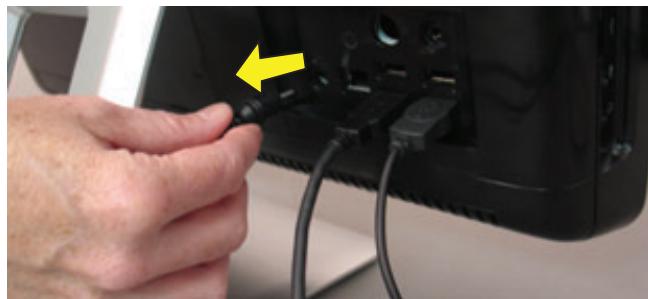
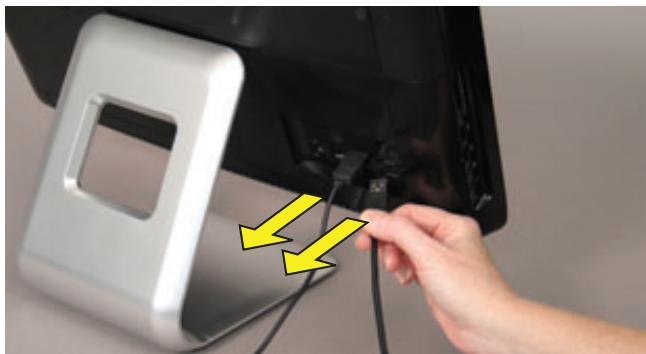
4 Unplug all attached cables from the back of the computer.
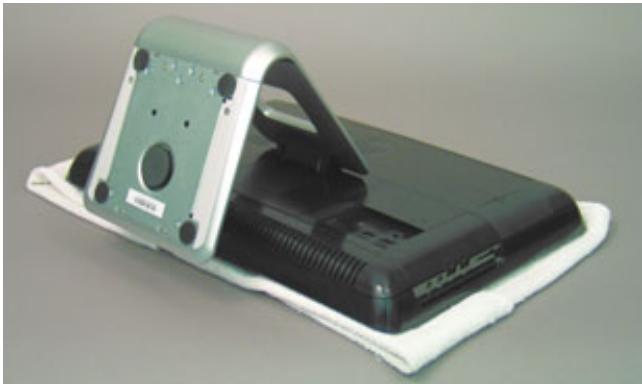
5 Set down a blanket, towel, or other soft cloth to protect the screen from scratches or other damage. Place the computer face-down on the soft surface.
Removing the Memory
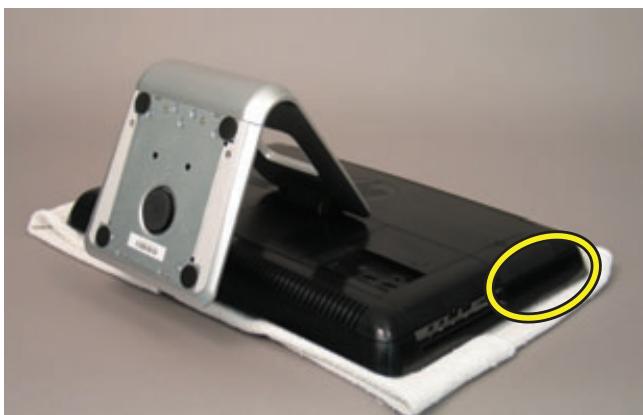
6 Locate the memory compartment in the upper right corner of the computer.
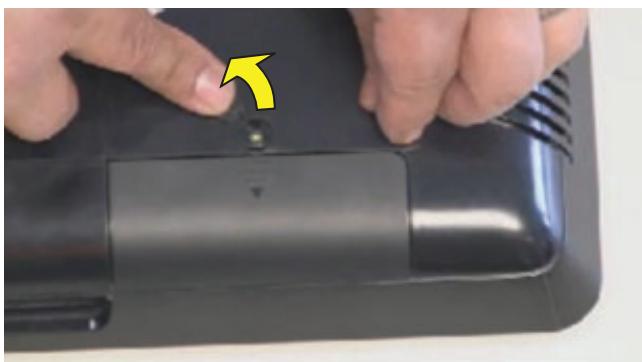
7 Use your finger to lift up the rubber cover over the screw.
8 Use a Phillips screwdriver to remove the screw.
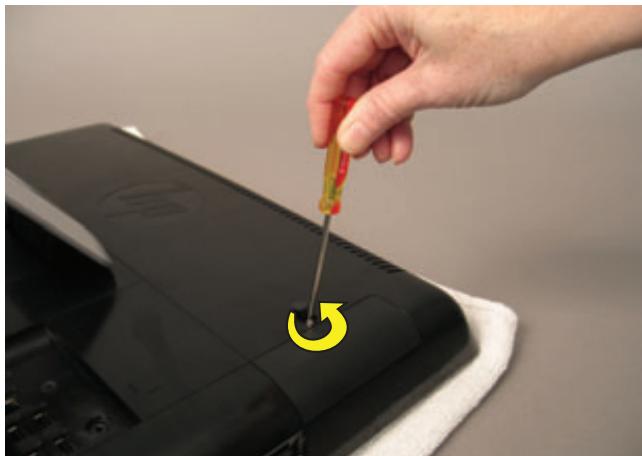

TIP: The screw is very small and can be lost easily. Use caution when you remove it. Work over a surface where you can retrieve a screw if it falls.
9 Slide the memory compartment cover off.
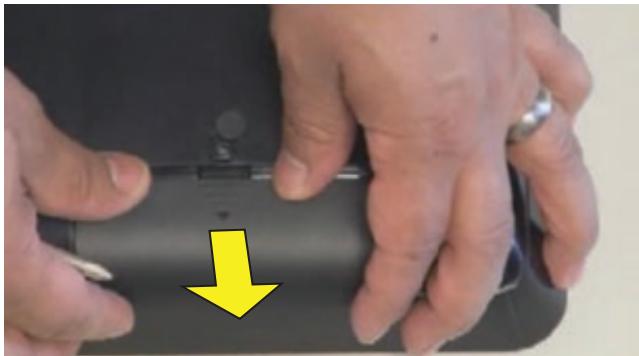
10 Use your fingers to press outwards on the tabs on the left and right sides of the top memory card to release it.
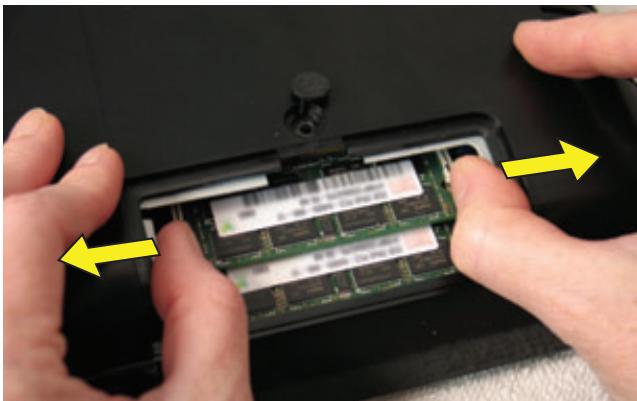
11 Holding the card by its edges, remove it from the compartment.
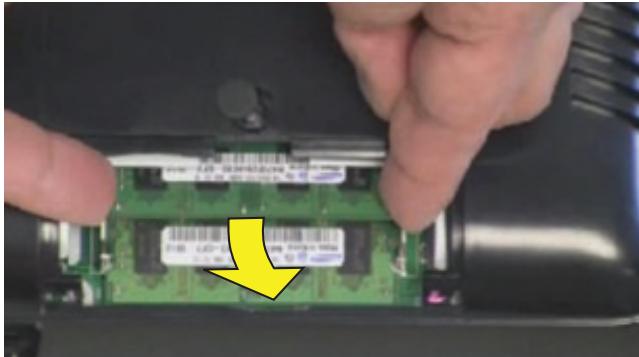

TIP: If you are removing both cards, you must remove the upper one before removing the lower one.
TASK COMPLETED
Installing a New Memory Card
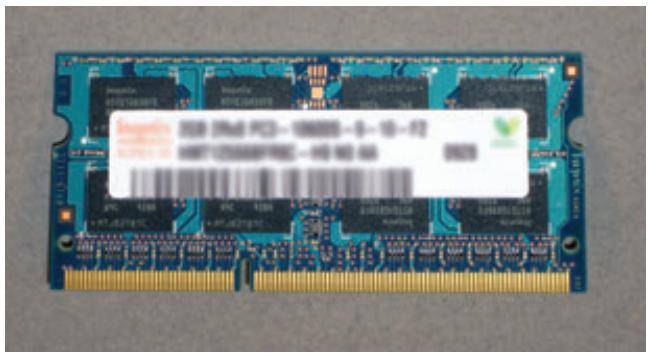
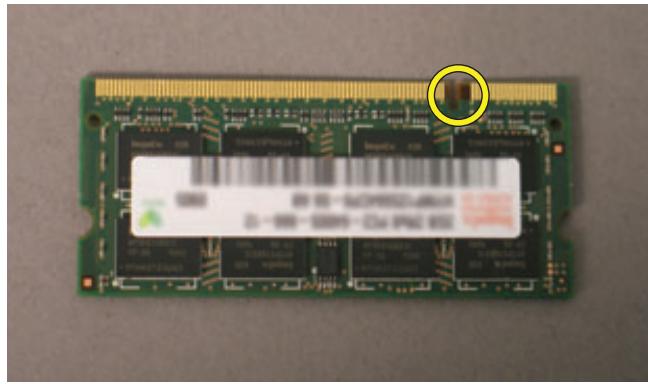
1 Orient the new card so that the notch on the edge of the card faces forward and is on the right.
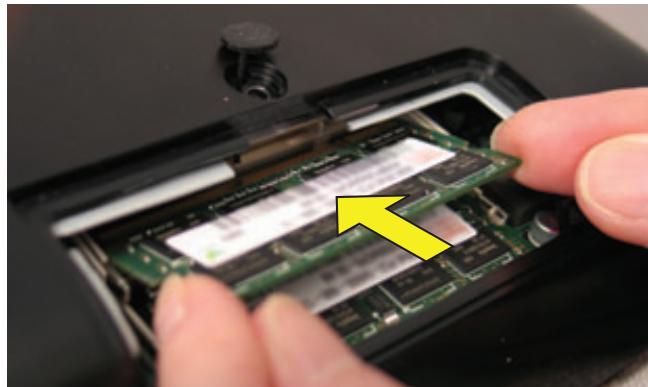
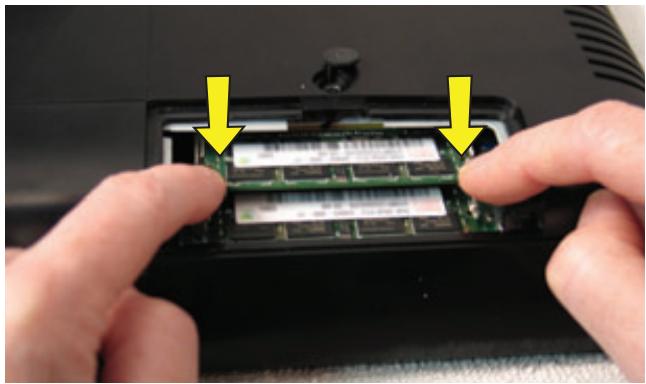
2 Holding the card by its edges, slide it all the way into the slot, and then gently push downward on it to snap it into place.
3 Slide the memory compartment cover into place.
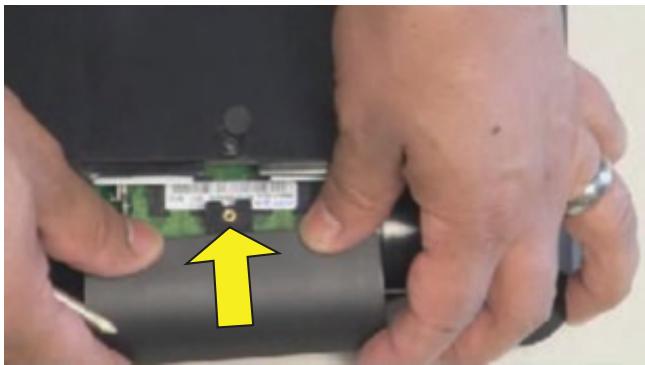
4 Replace the memory cover screw.
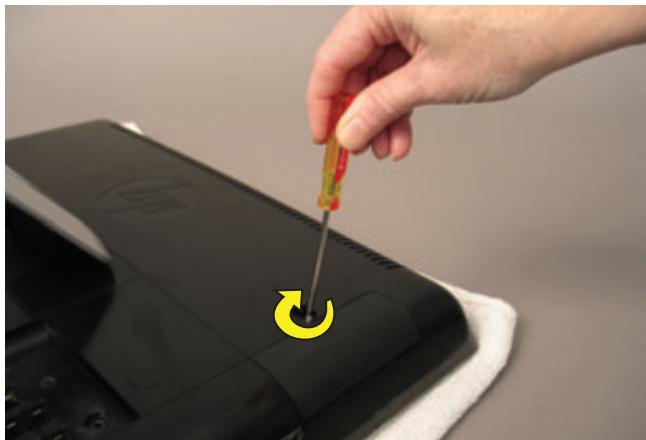
5 Replace the rubber screw cover.
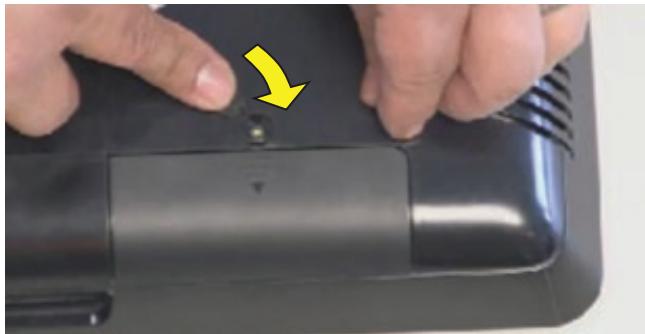
6 Reconnect any cables that were disconnected for this procedure.
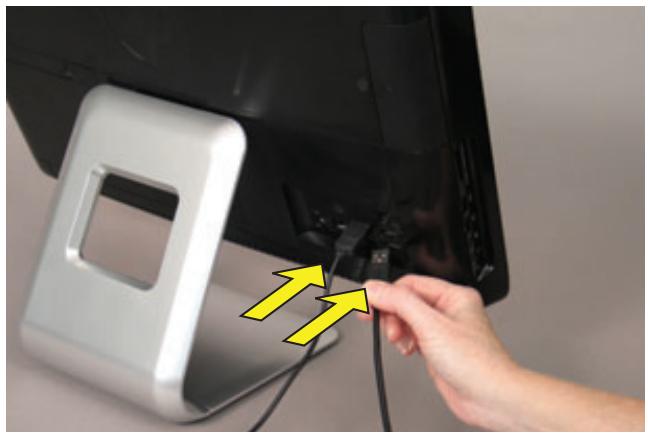
7 Plug the power cord into the back of the computer and then into the power source.
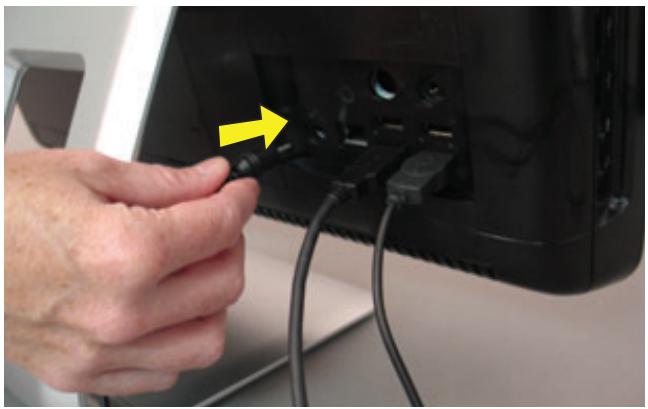
8 Return the computer to the upright position and turn on the computer.

Troubleshooting
If the computer displays a memory error after you have turned it back on, check the following:
- Turn the computer off and unplug the power cord, then open up the memory compartment and make sure the memory card is firmly seated. To install it correctly, make sure it inserted all the way into the compartment and then push down on it to snap it into place.
- Verify that the memory installed is compatible with this computer. SO-DIMMs are small outline dual inline memory modules. They are smaller and thinner than most other DIMMs, so that they take less space in the case.
SO-DIMM modules must meet the following requirements:
200-pin DDR2-DIMM
PC2-4200 (533 MHz) DDR2-SDRAM or PC2-5300 (667 MHz) DDR2-SDRAM
- Unbuffered, non-ECC (64-bit) DIMMs
1.8 V memory only
4.0 GB maximum installable memory. Actual available memory that can be used in Windows will be less.
- Because the memory uses dual channels, you should use the same DIMM type for both sockets.
Removing and Replacing the Computer Stand
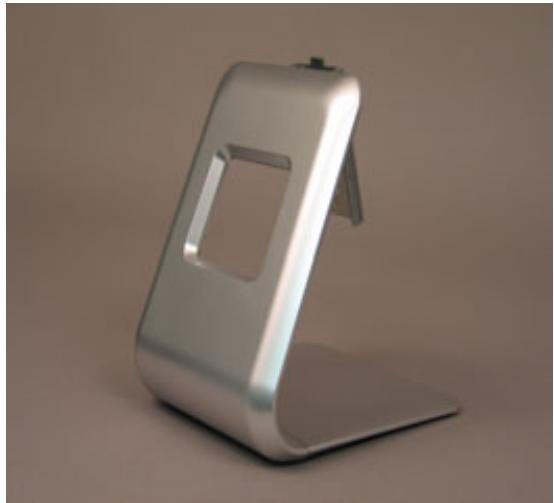
Removing and Replacing the Computer Stand

5-10 minutes
Before You Begin
Observe the following requirements before removing and replacing the computer stand.
Tools Needed
- Phillips screwdriver
- Flathead screwdriver

CAUTION: Static electricity can damage the electronic components inside the computer. Discharge static electricity by touching the metal cage of the computer before touching any internal parts or electronic components.

WARNING:
- Never open the cover with the power cord attached or power applied. You may damage your computer.
- Avoid touching sharp edges inside the computer.
Computer Preparation
1 Remove any media (CD, DVD, and memory cards) from the computer.
2 Shut down the computer.
3 Unplug the computer by disconnecting the power cord from the back of the computer.
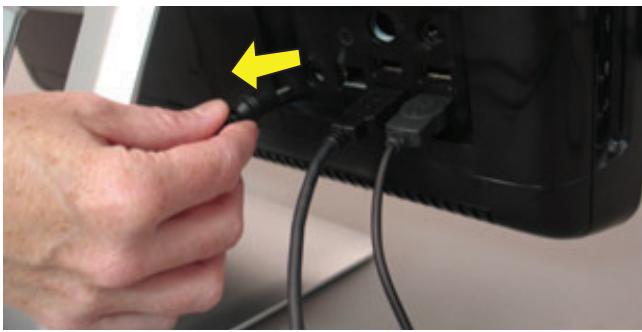
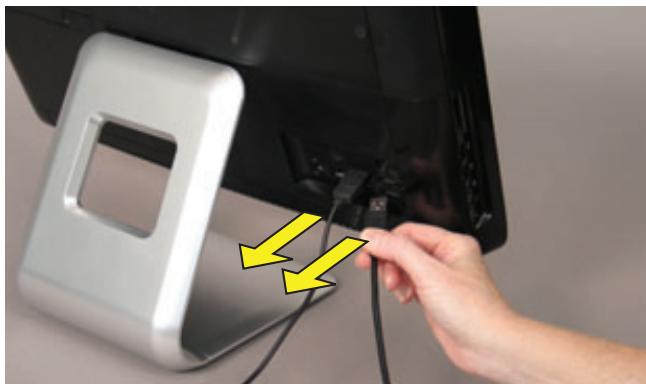
4 Unplug all attached cables from the back of the computer.
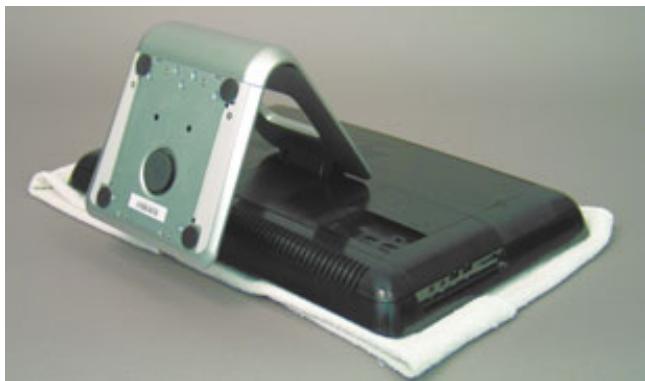
5 Set down a blanket, towel, or other soft cloth to protect the screen from scratches or other damage. Place the computer face-down on the soft surface.
Removing the Stand
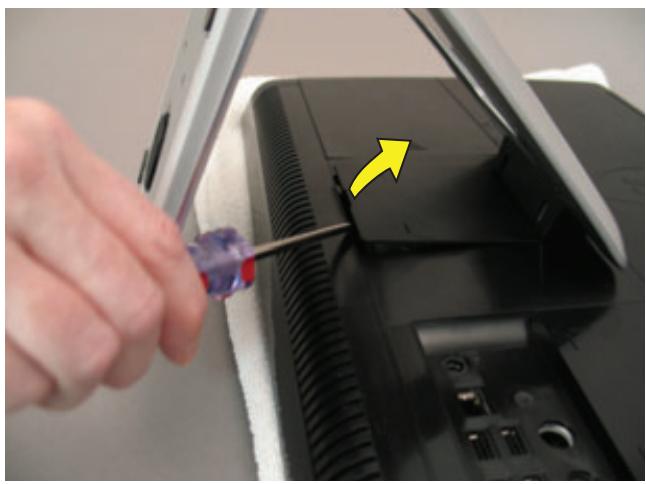
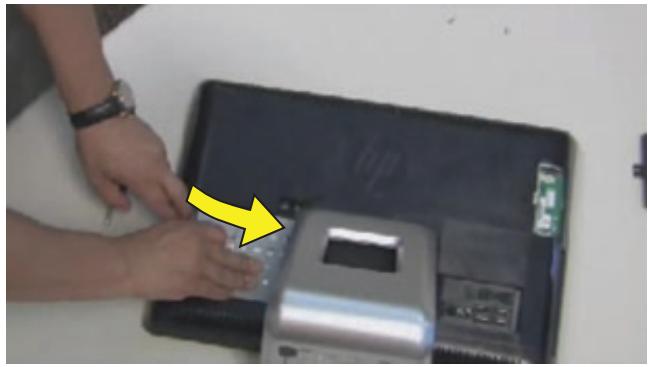
6 Use a flathead screwdriver to open the cover on the back of the computer behind the stand.
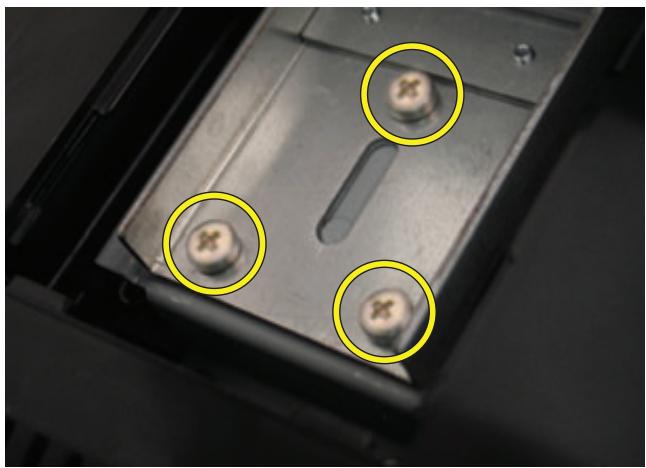
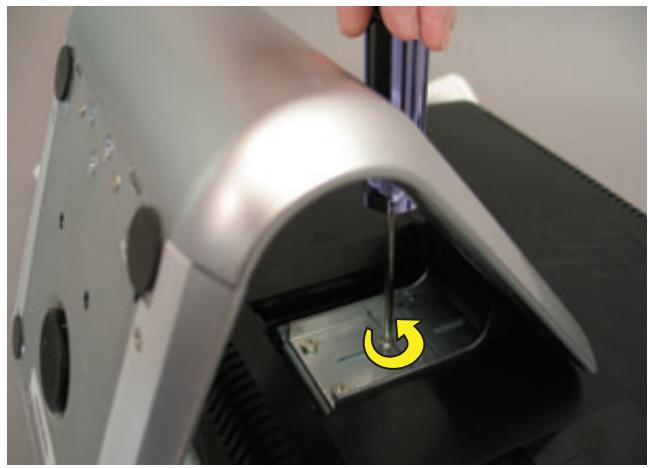
7 Use a Phillips screwdriver to remove the three screws holding the stand.
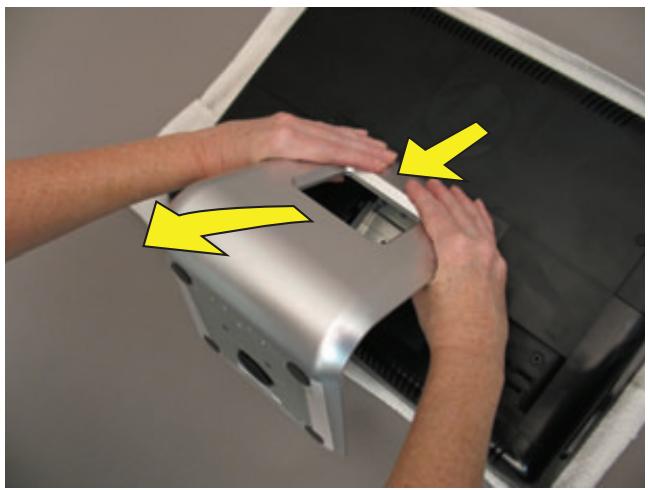
8 Slide the stand assembly down (toward you) and out to remove it.

Installing a New Stand
1 Position the new stand so that the tab on the top of the stand slides under the tab on the back of the computer.
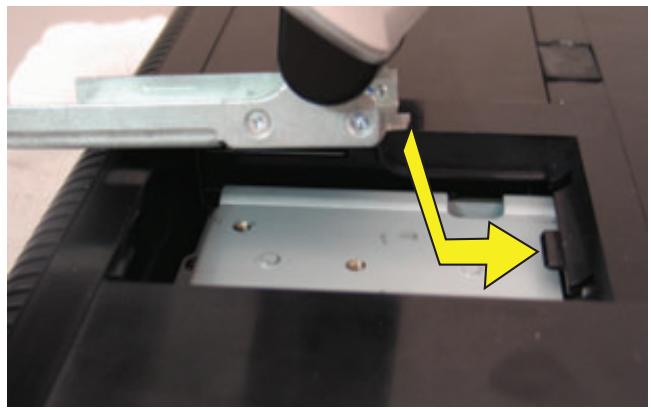
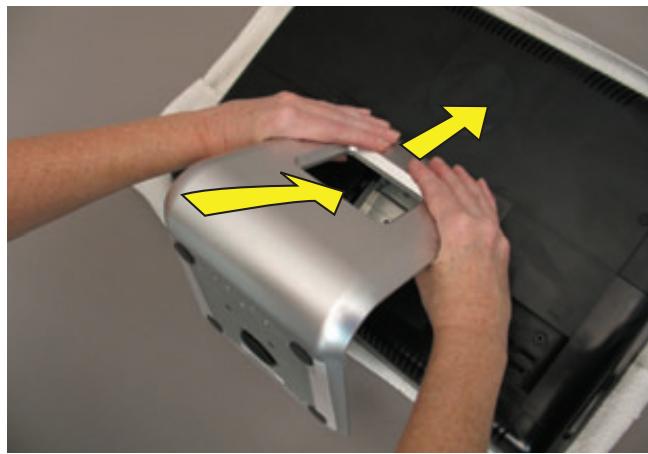
2 Slide the new stand into place.
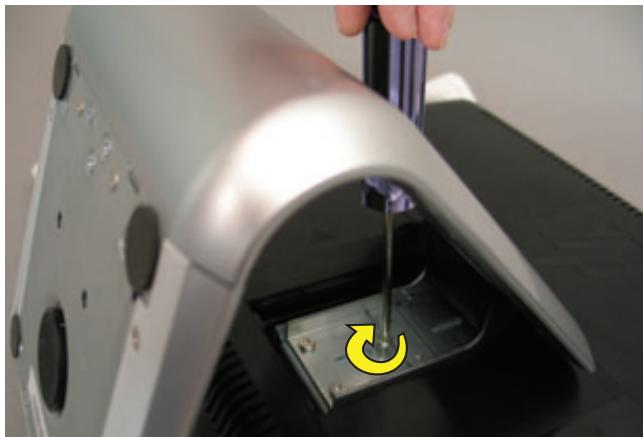
3 Replace and tighten the three screws.
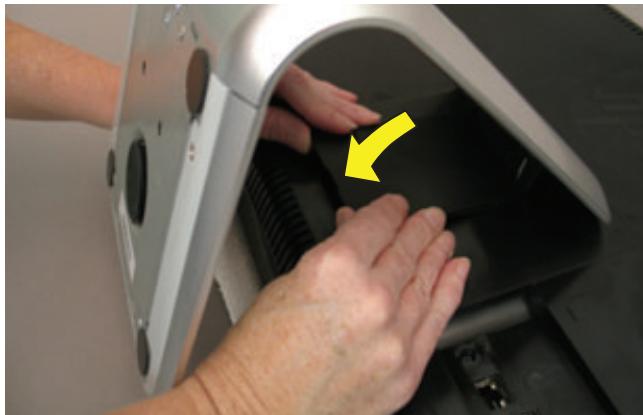
4 Replace the cover behind the stand and snap it closed.
5 Reconnect any cables that were disconnected for this procedure.
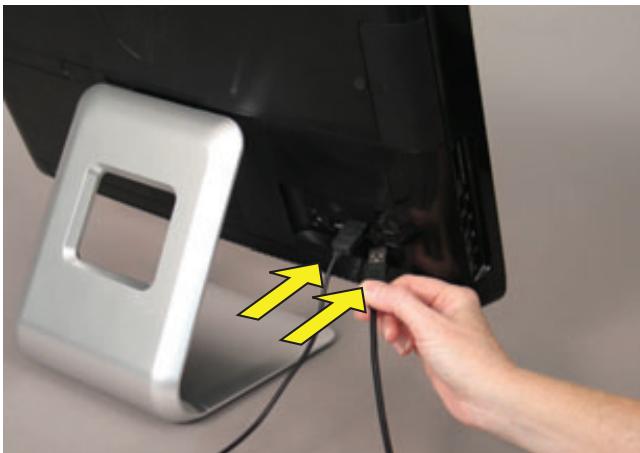
6 Plug the power cord into the back of the computer and then into the power source.
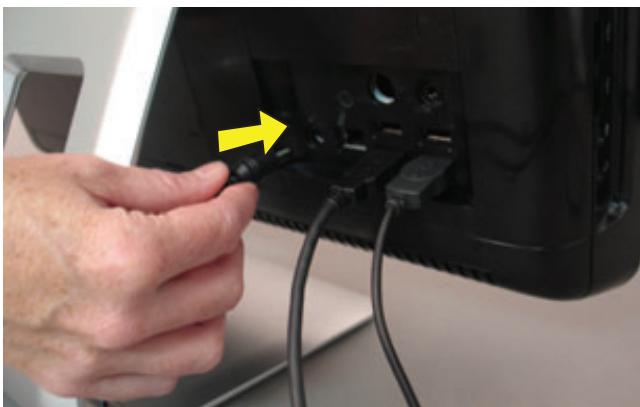
7 Return the computer to the upright position and turn on the computer.

Removing and Replacing a Hard Disk Drive
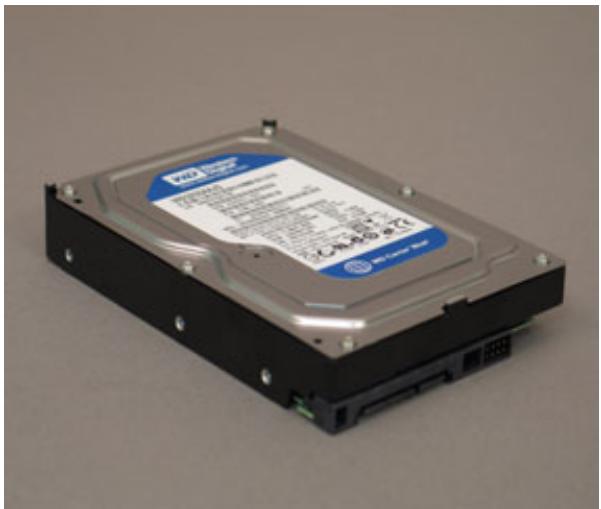
Removing and Replacing a Hard Disk Drive

10 - 15 minutes
Before You Begin
Observe the following requirements before removing and replacing the hard disk drive.
Tools Needed
Phillips screwdriver #0 (very small tip)
- Phillips screwdriver - medium-sized tip

CAUTION: Static electricity can damage the electronic components inside the computer. Discharge static electricity by touching the metal cage of the computer before touching any internal parts or electronic components.

WARNING:
- Never open the cover with the power cord attached or power applied. You may damage your computer.
- Avoid touching sharp edges inside the computer.
Computer Preparation
1 Remove any media (CD, DVD, and memory cards) from the computer.
2 Shut down the computer.
3 Unplug the computer by disconnecting the power cord from the back of the computer.
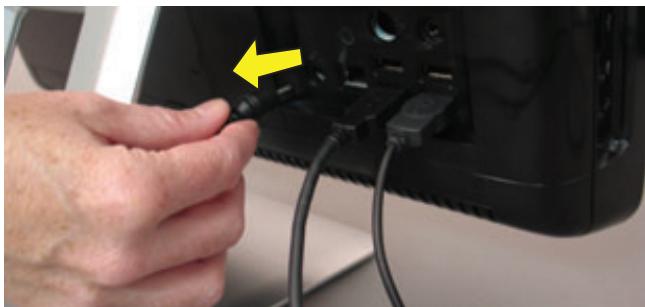
4 Unplug all attached cables from the back of the computer.
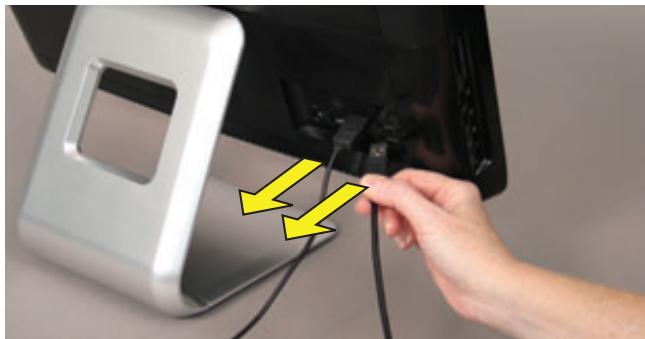
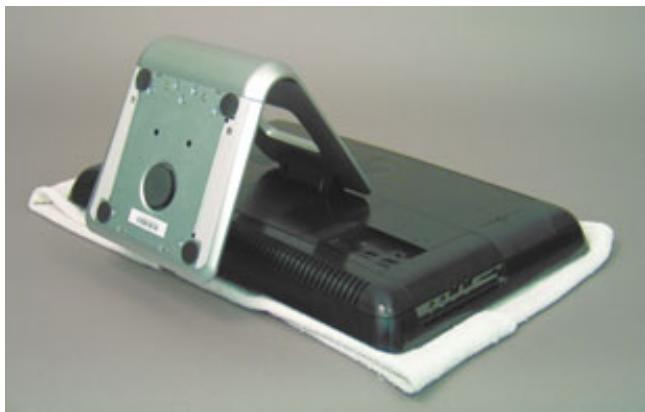
5 Set down a blanket, towel, or other soft cloth to protect the screen from scratches or other damage. Place the computer face-down on the soft surface.
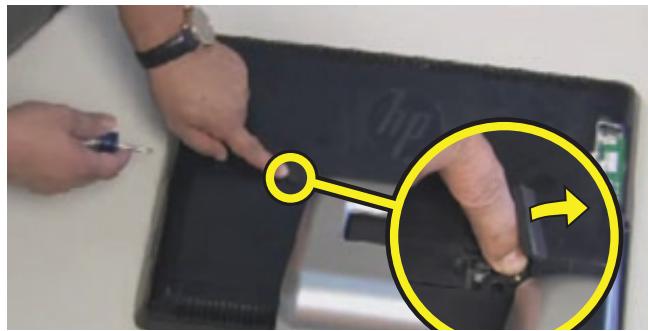
Removing the Hard Disk Drive
6 Use your finger to lift up the rubber screw cover.
7 Use a Phillips screwdriver to remove the hard disk drive cover screw.
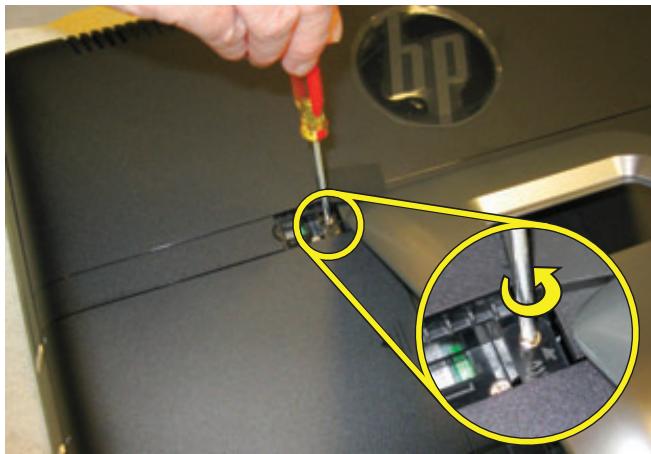

TIP: The screw is very small and can be lost easily. Use caution when you remove it. Work over a surface where you can retrieve a screw if it falls.
8 Slide the hard disk drive cover off.
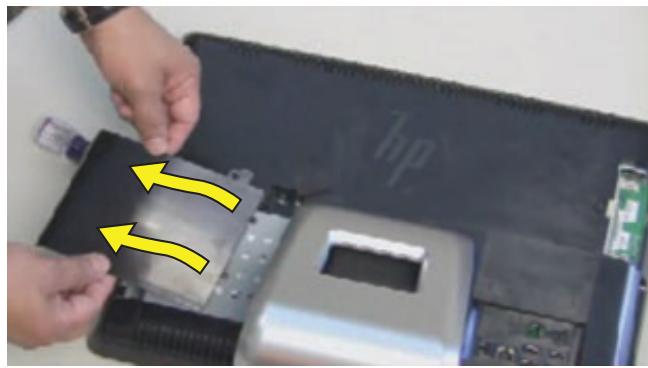

TIP: If you have trouble removing the hard disk drive cover, you can insert a screwdriver into the screw hole and use that to lever the cover off.
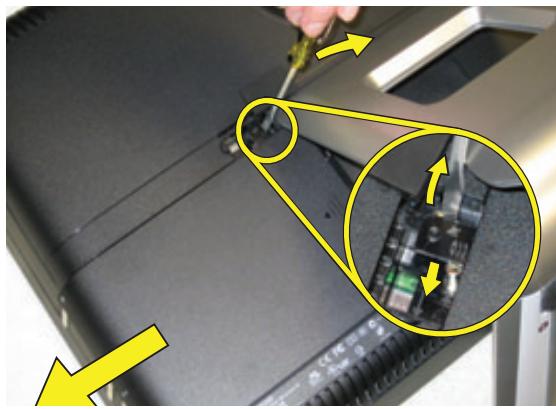
9 Loosen the screw at the front of the hard disk drive cage.
NOTE: You do not need to remove this screw, only loosen it in order to release the hard disk drive cage.
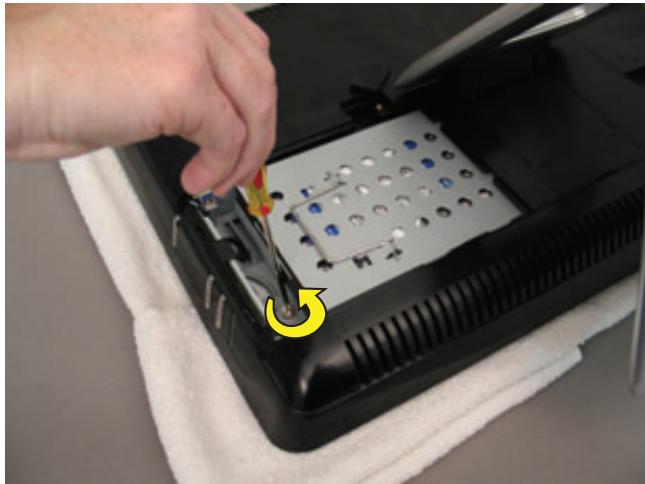
10 Lift up the metal handle on the hard disk drive cage and pull it firmly toward you to remove the hard disk drive cage from its bay.
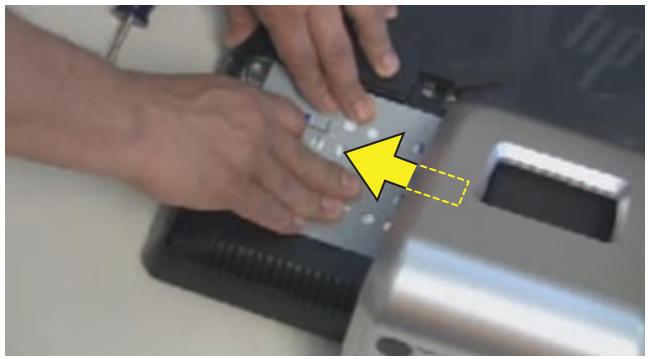
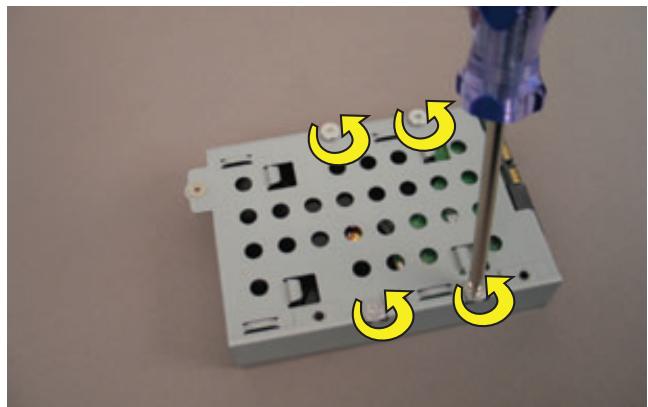
11 Turn the cage over and use the larger Phillips screwdriver to remove the four screws that hold the drive in the cage and remove the drive from the cage.

Installing a New Hard Disk Drive
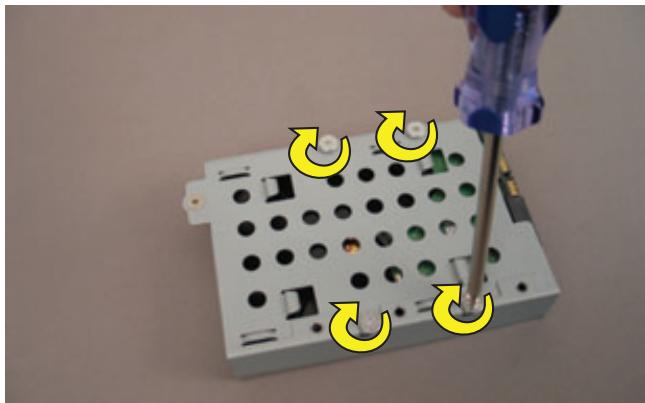
1 Insert the new hard disk drive into the cage and tighten the four screws on the bottom of the cage that hold it in. Make sure that the hard drive is inserted with the label facing up.
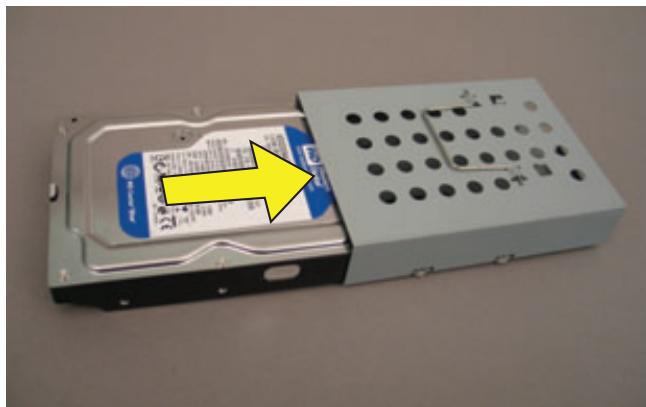
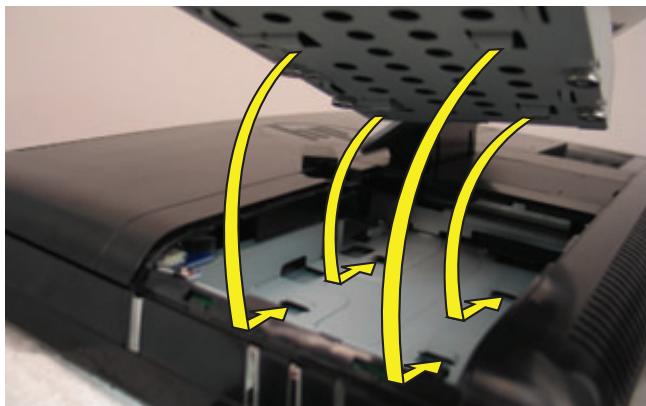
2 Holding it by the metal handle, slide the new hard disk drive all the way in to the hard disk drive bay, making sure that the slots on the bottom of the cage line up with the tabs on the bottom of the hard drive bay.
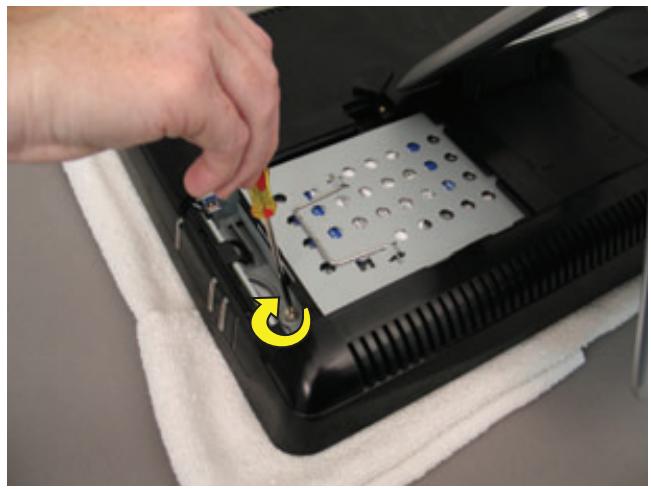
3 Tighten the captive screw on the hard disk drive cage.
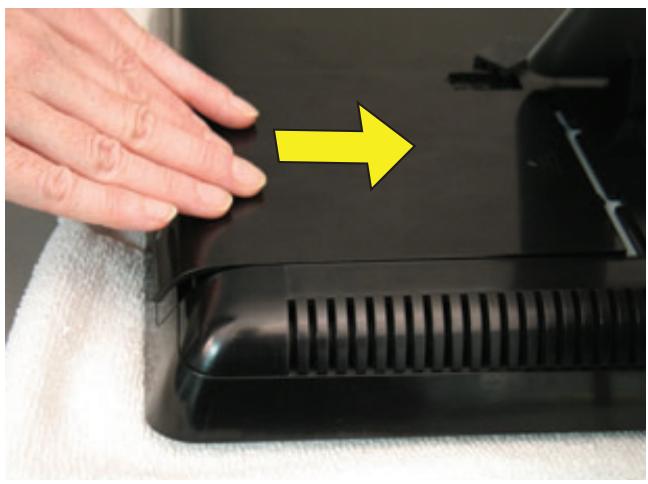
4 Slide the hard disk cover into place.
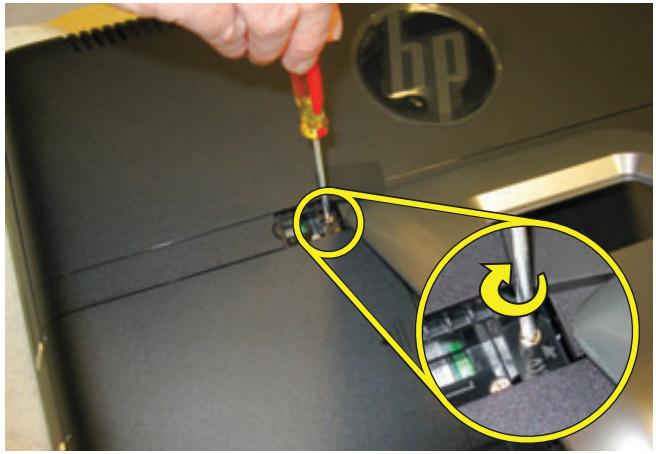
5 Replace the hard drive cover screw.
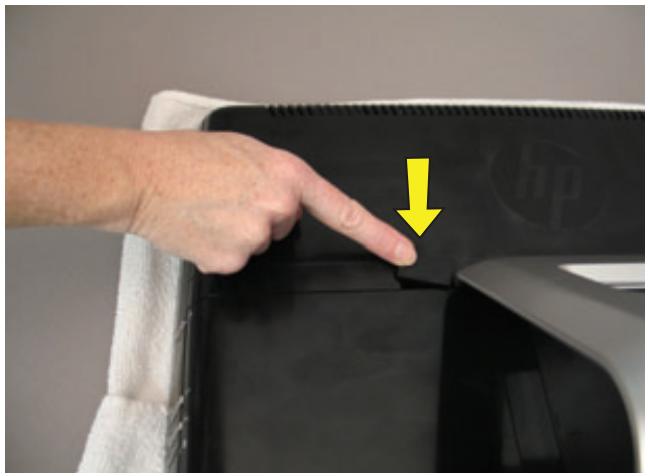
6 Replace the rubber screw cover.
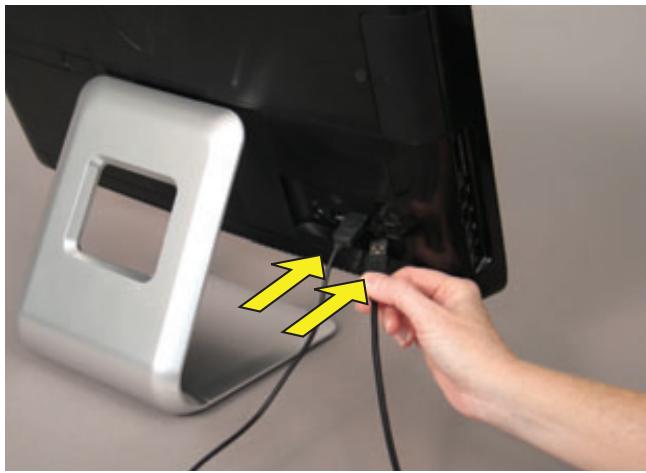
7 Reconnect any cables that were disconnected for this procedure.
8 Plug the power cord into the back of the computer and then into the power source.
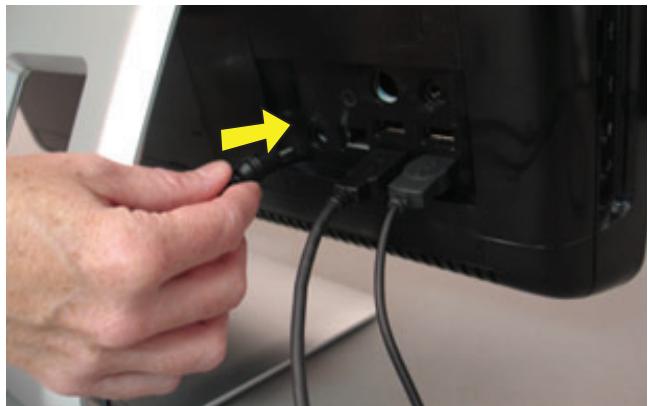
9 Return the computer to the upright position and turn on the computer.

Removing and Replacing a CD/DVD Drive
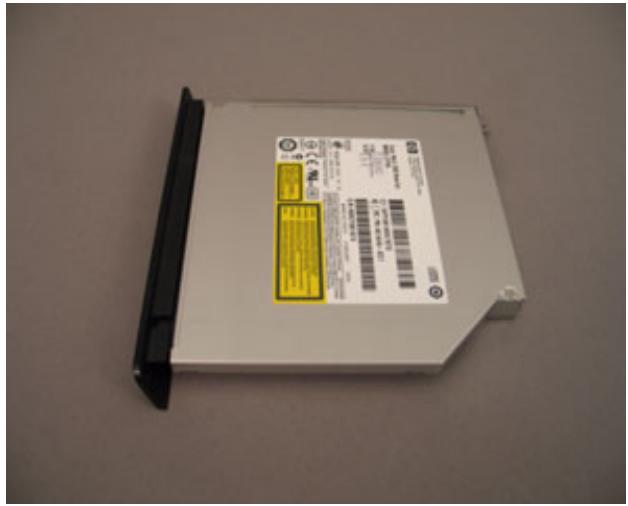
Removing and Replacing a CD/DVD Drive

10 - 15 minutes
Before You Begin
Observe the following requirements before removing and replacing the CD/DVD drive.
Tools Needed
Phillips screwdriver #0 (very small tip)
- Flathead screwdriver

CAUTION: Static electricity can damage the electronic components inside the computer. Discharge static electricity by touching the metal cage of the computer before touching any internal parts or electronic components.

WARNING:
- Never open the cover with the power cord attached or power applied. You may damage your computer.
- Avoid touching sharp edges inside the computer.
Computer Preparation
1 Remove any media (CD, DVD, and memory cards) from the computer.
2 Shut down the computer.
3 Unplug the computer by disconnecting the power from the back of the computer.
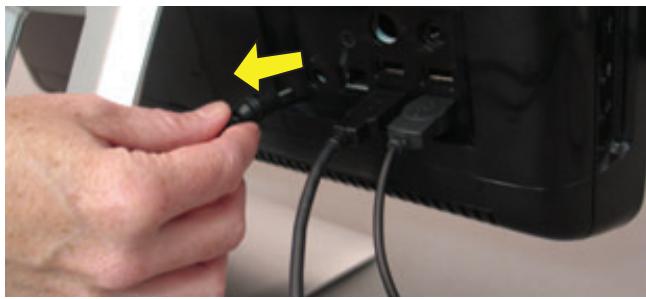
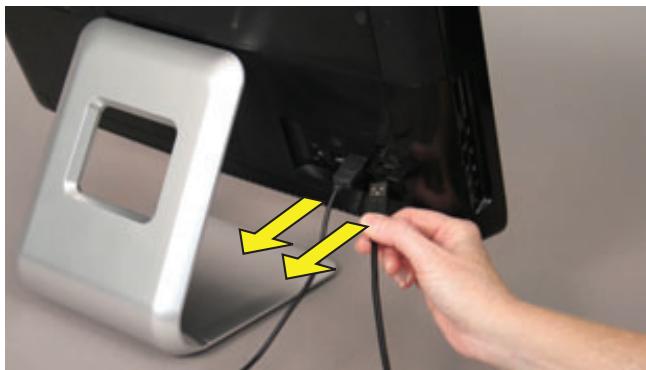
4 Unplug all attached cables from the back of the computer.
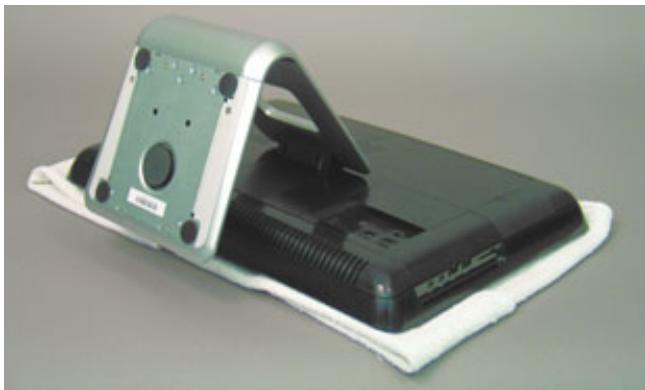
5 Set down a blanket, towel, or other soft cloth to protect the screen from scratches or other damage. Place the computer face-down on the soft surface.
Removing the CD/DVD Drive
6 Use your finger to lift up the screw cover and move it out of the way.
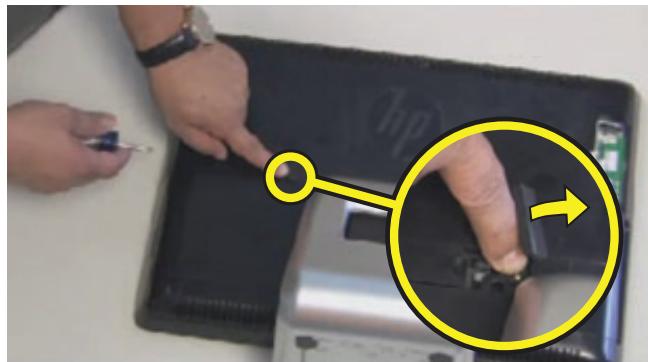
7 Use a Phillips screwdriver to remove the CD/DVD drive screw.
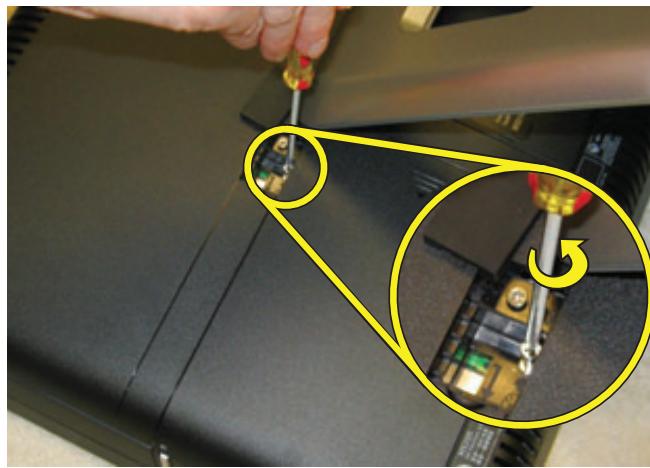
8 Insert a small flathead screwdriver gently into the notch and use a levering motion to disengage the CD/DVD drive assembly.
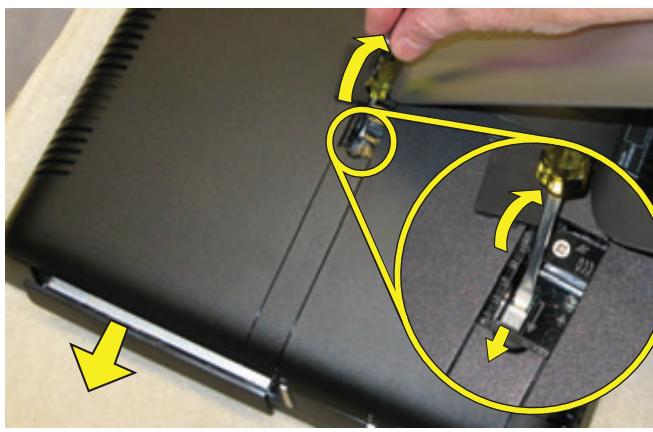
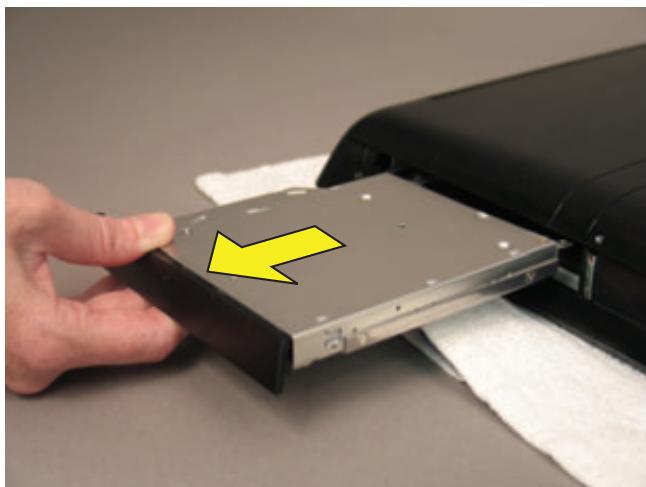
9 Pull the CD/DVD drive assembly out of the computer.

Installing a New CD/DVD Drive
1 Orient the new CD/DVD drive so that the label is on the bottom and the angle of the bezel on the CD/DVD drive matches the angle of the side of the computer.
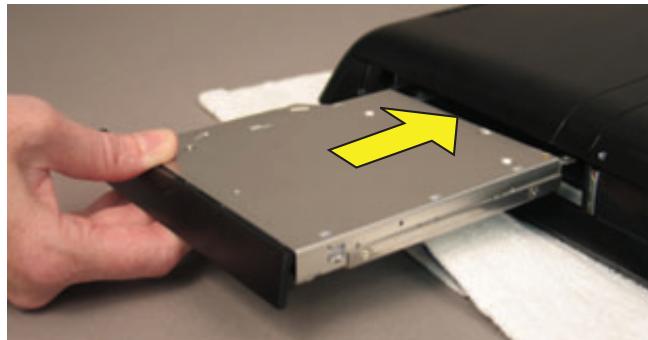
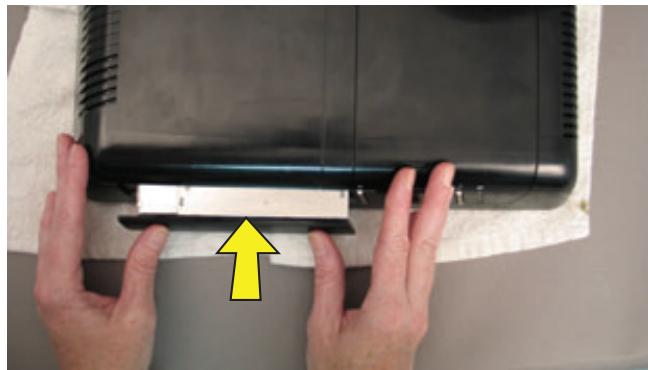
2 Slide the CD/DVD drive assembly all the way into the computer until the bezel is flush with the side of the computer and the drive locks into place.
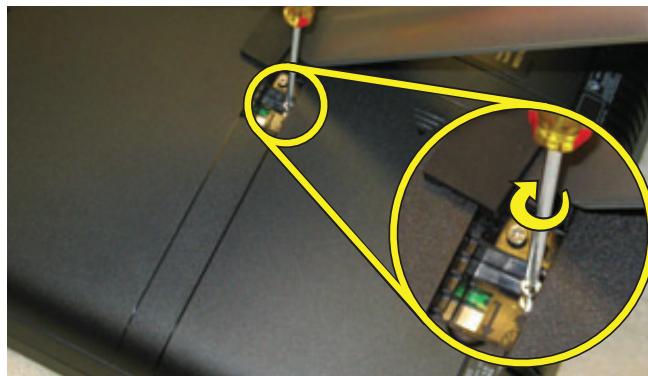
3 Using a Phillips screwdriver, replace and tighten the CD/DVD drive screw.
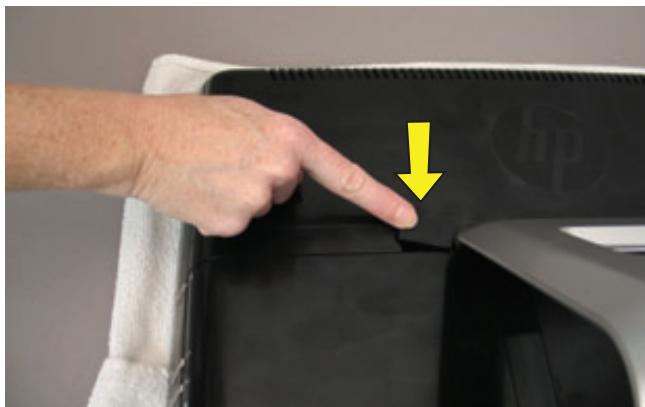
4 Replace the rubber screw cover.
5 Reconnect any cables that were disconnected for this procedure.
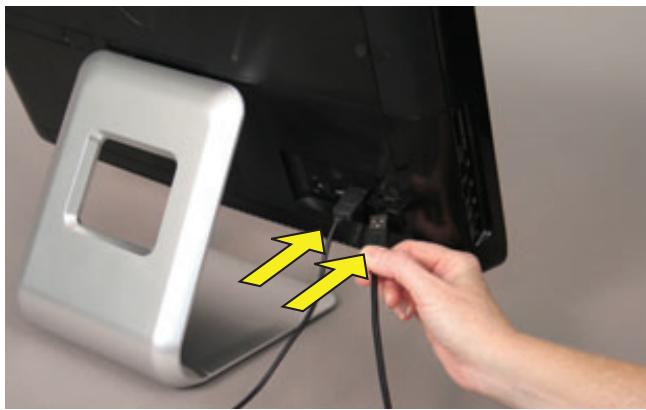
6 Plug the power cord into the back of the computer and then into the power source.
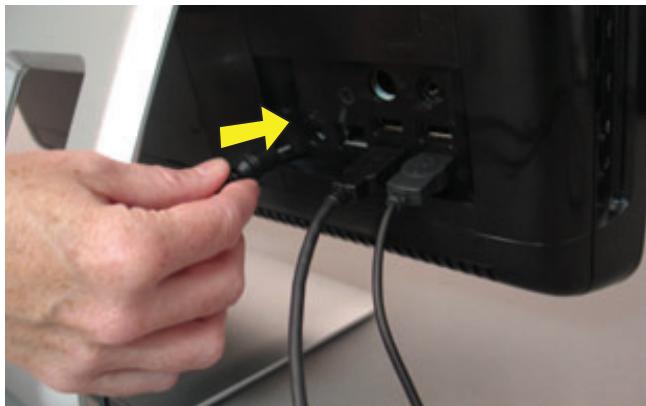
7 Return the computer to the upright position and turn on the computer.