
MOBILE REMOTE CONTROL - Remote control HP - Free user manual and instructions
Find the device manual for free MOBILE REMOTE CONTROL HP in PDF.


| Product Type | Infrared remote control for laptop |
| Brand | HP |
| Model | Mobile Remote Control |
| Reference | 367174-001 |
| First Edition Date | November 2004 |
| Approximate Dimensions | 10 cm × 4 cm × 0.8 cm |
| Approximate Weight | 20 g (with battery) |
| Power Supply | 1 CR2032 battery (lithium 3V) |
| Infrared Range | Up to 10 meters line of sight |
| Supported Operating Systems | Microsoft Windows, QuickPlay (on some models) |
| Main Functions | Navigation, media control (play/pause, forward/backward, volume), sleep, display management, application access (DVD, music, photos) |
| Storage | In the laptop's PC Card slot |
| Maintenance and Cleaning | Clean with a soft, dry cloth. Do not use chemical products. |
| Safety | Do not expose to extreme temperatures, humidity, or shocks. |
| Spare Parts and Repairability | Replaceable CR2032 battery. No other spare parts available. |
| Compatibility | HP laptops equipped with an infrared receiver and compatible software (Windows Media Center, QuickPlay, InterVideo Home Theater) |
Frequently Asked Questions - MOBILE REMOTE CONTROL HP
User questions about MOBILE REMOTE CONTROL HP
0 question about this device. Answer the ones you know or ask your own.
Ask a new question about this device
Download the instructions for your Remote control in PDF format for free! Find your manual MOBILE REMOTE CONTROL - HP and take your electronic device back in hand. On this page are published all the documents necessary for the use of your device. MOBILE REMOTE CONTROL by HP.
USER MANUAL MOBILE REMOTE CONTROL HP
© Copyright 2004 Hewlett-Packard Development Company, L.P.
Microsoft and Windows are U.S. registered trademarks of Microsoft Corporation.
The information contained herein is subject to change without notice. The only warranties for HP products and services are set forth in the express warranty statements accompanying such products and services. Nothing herein should be construed as constituting an additional warranty. HP shall not be liable for technical or editorial errors or omissions contained herein.
Quick Reference Guide
HP Mobile Remote Control
First Edition November 2004
Document Part Number: 367174-001
Contents
Introduction 1
Inserting the Battery.... 1
Storing the HP Mobile Remote Control.... 3
HP Mobile Remote Control Quick Reference ..... 5
HP Mobile Remote Control Component Functions.....11
Introduction
This guide provides information on using your HP Mobile Remote Control. The HP Mobile Remote Control allows easy and comfortable control of the notebook media software from the palm of your hand.
Inserting the Battery
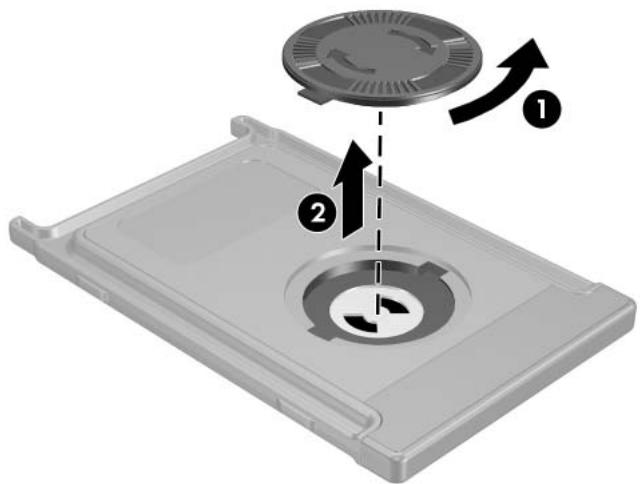
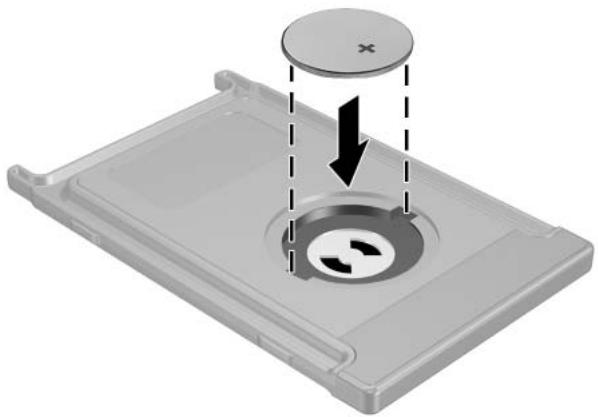
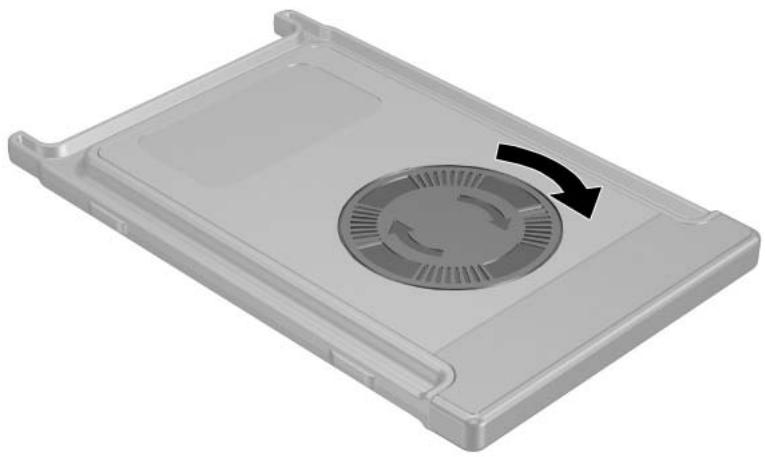
To insert the battery into the HP Mobile Remote Control, complete the following steps:
- On the back of the remote control, turn the battery compartment cover counterclockwise ① and remove it ②.
- With the positive side of the battery facing up, insert the battery into the compartment.
- Insert the tabs on the battery compartment cover into the slots in the battery compartment and turn the cover clockwise to close.
Storing the HP Mobile Remote Control
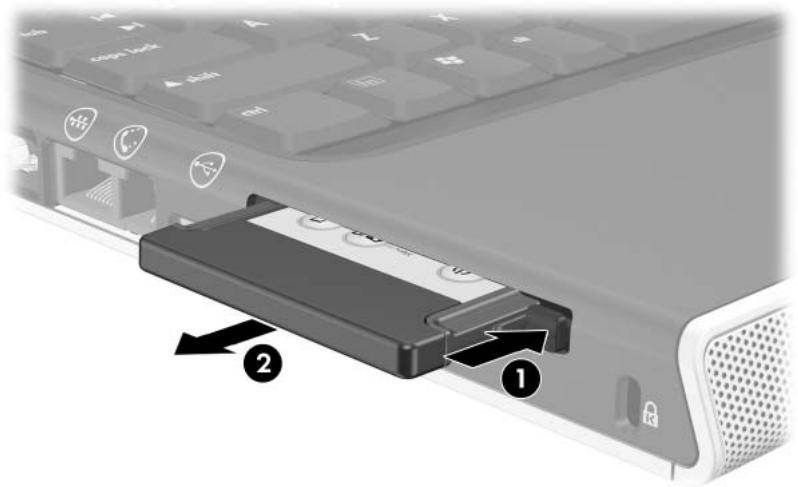
The HP Mobile Remote Control can be stored in the PC Card slot of your notebook for convenience and safety. To store the remote control, remove the PC Card slot blank, and then insert the remote control into the PC Card slot until it is firmly in place.
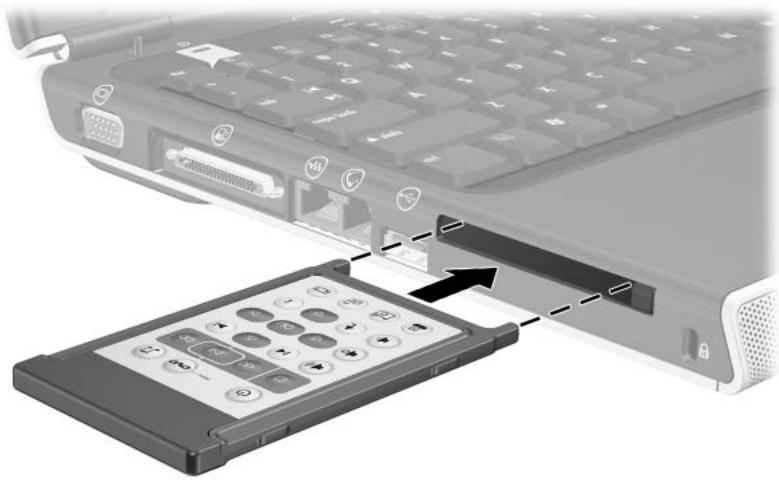
To remove the remote control:
-
Press the PC Card slot eject button ① to release the remote control from the PC Card slot.
-
Slide the remote control ② out of the slot.
HP Mobile Remote Control Quick Reference
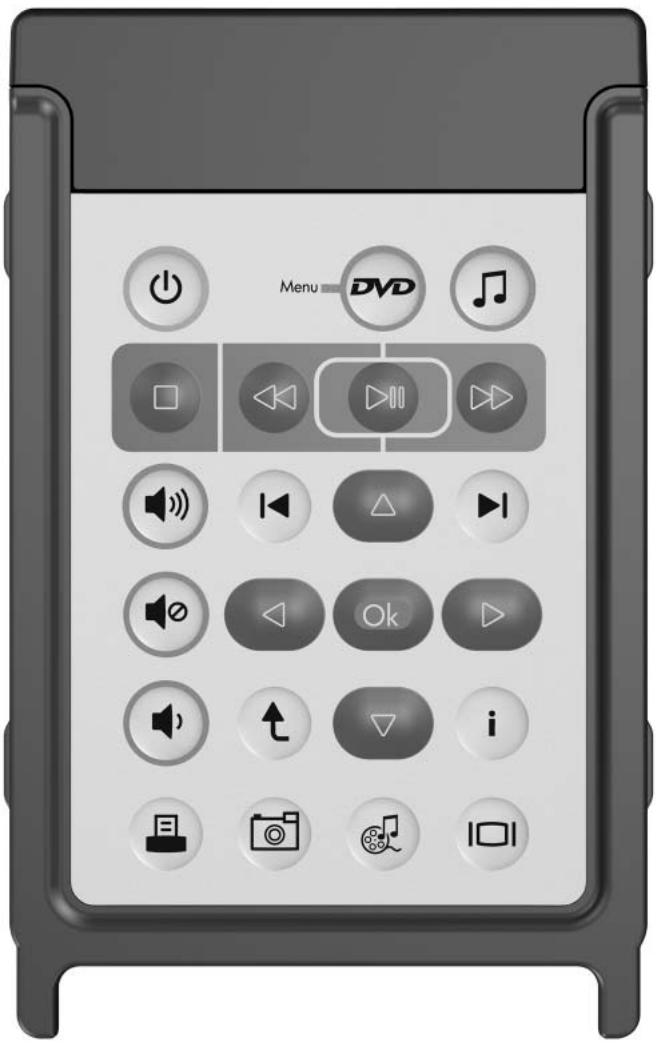
| Button | Button Function | ||
| When Notebook Is Off | In Microsoft® Windows® | In QuickPlay (select models only) | |
Power | Press to start notebook in Windows. | ■ In Windows, briefly press to initiate Hibernation.■ In Standby, briefly press to resume from Standby into Windows.■ In Hibernation, briefly press to restore from Hibernation into Windows. | Press to turn QuickPlay off. |
| DVD Menu[BYKX] | Press to open QuickPlay DVD mode (select models only). | ■ In Windows, press to open the default Windows DVD player.■ In Standby, press briefly to resume from Standby.■ In Hibernation, press to open QuickPlay DVD mode (select models only).■ When a DVD is playing, press to view the menu of the DVD. | ■ In QuickPlay music mode, press to switch to QuickPlay DVD mode.■ When a DVD is playing, press to view the menu of the DVD. |
(Continued)
| Button | Button Function | ||
| When Notebook Is Off | In Microsoft® Windows® | In QuickPlay (select models only) | |
Music | Press to open QuickPlay music mode (select models only). | ■ In Windows, press to open the default Windows music player.■ In Standby, press briefly to resume from Standby.■ In Hibernation, press to open QuickPlay music mode (select models only). | In QuickPlay DVD mode, press to switch to QuickPlay music mode. |
Stop | None | Press to stop the current media activity, such as playing, rewinding, etc. | Press to stop the current media activity, such as playing, rewinding, etc. |
Rewind | None | Press to rewind selected media. | Press to rewind selected media. |
Play/Pause | None | ■ Disc not playing, press to play the disc.■ Disc playing, press to pause the disc. | ■ Disc not playing, press to play the disc.■ Disc playing, press to pause the disc. |
Fast Forward | None | Press to fast forward selected media. | Press to fast forward selected media. |
(Continued)
| Button | Button Function | ||
| When Notebook Is Off | In Microsoft® Windows® | In QuickPlay (select models only) | |
| Volume Up[GGDS] | None | ■ Press to increase notebook volume. ■ If muted, press to restore notebook volume. | ■ Press to increase notebook volume. ■ If muted, press to restore notebook volume. |
Previous | None | Press to go back to the previous track or chapter. | Press to go back to the previous track or chapter. |
Up | None | Navigation. Press to scroll up. | Navigation. Press to scroll up. |
Next | None | Press to go to the next track or chapter. | Press to go to the next track or chapter. |
Mute | None | ■ Press to mute notebook volume. ■ If muted, press to restore notebook volume. | ■ Press to mute notebook volume. ■ If muted, press to restore notebook volume. |
Left | None | Navigation. Press to scroll left. | Navigation. Press to scroll left. |
Ok | None | Navigation. Press to select an item on the screen. | Navigation. Press to select an item on the screen. |
(Continued)
| Button | Button Function | ||
| When Notebook Is Off | In Microsoft® Windows® | In QuickPlay (select models only) | |
Right | None | Navigation. Press to scroll right. | Navigation. Press to scroll right. |
Volume Down | None | ■ Press to decrease notebook volume. ■ If muted, press to restore notebook volume. | ■ Press to decrease notebook volume. ■ If muted, press to restore notebook volume. |
Back | None | Press to emulate the “back” function of the alt+left arrow command in the active application. | ■ In music mode, press to move up one directory level in the My Music display. ■ In DVD mode, this button is inactive. |
Down | None | Navigation. Press to scroll down. | Navigation. Press to scroll down. |
Information | None | Press to view information about a selected item in an application (if available). | Press to display battery and volume status. If playing a DVD, the DVD title, chapter, and time information is also displayed. |
Print | None | Press to open the print options window of the active application. | None |
(Continued)
| Button | Button Function | ||
| When Notebook Is Off | In Microsoft® Windows® | In QuickPlay (select models only) | |
| Photo [xHCC] | None | Press to open default Windows picture application. | None |
Video  | None | Press to open default Windows media application. | None |
Switch Screens  | None | Press to switch the notebook image between the notebook display and an external display. | Press to switch the notebook image between the notebook display and an external display. |
HP Mobile Remote Control Component Functions
The infrared lens on the remote control links the remote control to the notebook. The link requires a line-of-sight path between the infrared lens on the remote control and the infrared lens on the notebook.
Things to remember:
■ The HP Mobile Remote Control operates within Microsoft® Windows®, QuickPlay (select models only), and InterVideo Home Theater software (select models only). Each button responds according to which application is active.

Refer to the InterVideo Home Theater on-screen help for remote control information.
■ Some remote control buttons perform the same functions as notebook buttons. For example, the DVD button on the remote control and the DVD button on the notebook have the same functions and can be used interchangeably.
■ Some remote control buttons perform the same functions as notebook key combinations. For example, the Information button on the remote control and the fn+end key combination on the notebook have the same function and can be used interchangeably.
■ Other remote control buttons, such as the Photo button, provide functions which are not duplicated by notebook buttons or preset key combinations.
Brand : HP
Model : MOBILE REMOTE CONTROL
Category : Remote control