
TEW-630APB - Router TRENDNET - Free user manual and instructions
Find the device manual for free TEW-630APB TRENDNET in PDF.


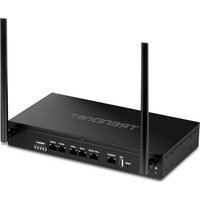
| Product Type | Wireless Router |
| Model | TEW-630APB |
| Brand | TRENDnet |
| Wireless Standard | 802.11b/g, Super G (108 Mbps) |
| Frequency Band | 2.4 GHz |
| Ports | 4 x 10/100 Mbps LAN, 1 x 10/100 Mbps WAN |
| Antenna | 2 external detachable antennas (RP-SMA) |
| Dimensions (W x D x H) | 7.5 x 5.5 x 1.4 in (191 x 140 x 36 mm) |
| Weight | 0.65 lbs (295 g) |
| Power Supply | 5V DC, 2.5A |
| Security Features | WEP 64/128-bit, WPA/WPA2-PSK, MAC address filtering |
| Network Functions | NAT, DHCP server, firewall, VPN pass-through, port forwarding |
| Management | Web-based interface (HTTP/HTTPS), firmware upgrade |
| Indicators | Power, WAN, LAN (x4), WLAN |
| Operating Temperature | 0°C to 40°C (32°F to 104°F) |
| Humidity | 10% to 90% non-condensing |
| Maintenance | Clean with a soft dry cloth; avoid liquids |
| Safety Instructions | Use only provided power adapter; keep away from water and heat |
| Spare Parts | Power adapter, antennas (compatible RP-SMA) |
Frequently Asked Questions - TEW-630APB TRENDNET
User questions about TEW-630APB TRENDNET
0 question about this device. Answer the ones you know or ask your own.
Ask a new question about this device
Download the instructions for your Router in PDF format for free! Find your manual TEW-630APB - TRENDNET and take your electronic device back in hand. On this page are published all the documents necessary for the use of your device. TEW-630APB by TRENDNET.
USER MANUAL TEW-630APB TRENDNET
natural_image
Blue Treadnet router with visible ventilation slots and two black antennas (no text or symbols on the device body)Quick Installation Guide






Table of Contents
English 1
- Before You Start 1
- Install Hardware 2
- Configure the Access Point 3
Troubleshooting 6
1. Before You Start

natural_image
Blue wireless router with three antennas (no visible text or labels)Package Contents
- TEW-630APB
- Quick Installation Guide
- User's Guide CD-ROM
• AC Power Adapter (12V DC, 1A) - 1 x RJ-45 Ethernet
Installation Requirements
• A web browser such as Internet Explorer (5.5 or higher)
• A computer with a network adapter properly installed
• A network Switch or Hub with an available network LAN port
• A RJ-45 network cable
Application

300Mbps, share multimedia throughout the house
2. Install Hardware
Note: Locate an optimum location for the Access Point. The best place for the Access Point is usually at the center of your wireless network. Please connect the computer configuring the TEW-630APB to the same switch/hub.
- Connect a RJ-45 cable from the Switch/Hub to the LAN port of the Access Point.

natural_image
Blue electronic device with three black antennas and orange cables, no visible text or symbols- Connect the AC Power Adapter to the Access Point and then to a power outlet.

natural_image
Blue wireless router with three black antennas and orange connectors (no visible text or symbols)- Verify that the following front panel lights are on: Power, LAN and WLAN.
3. Configure the Access Point
Note: It is recommended that you configure the Access Point from a wired computer. Before the Access Point can be configured, a Static IP address must be assigned to your computer's network adapter in the subnet of 192.168.1.x. Since the Access Point's default IP address is 192.168.1.100, make sure no other network devices are assigned an IP address of 192.168.1.1. (Refer to the Troubleshooting section on how to configure TCP/IP settings on your PC)
- Open your web browser, type http://192.168.1.100 in the Address bar, and press Enter.

- Enter User name and Password, and then click Log in. User name: admin By default, there is no password.

- Click Launch Wireless Setup Wizard.
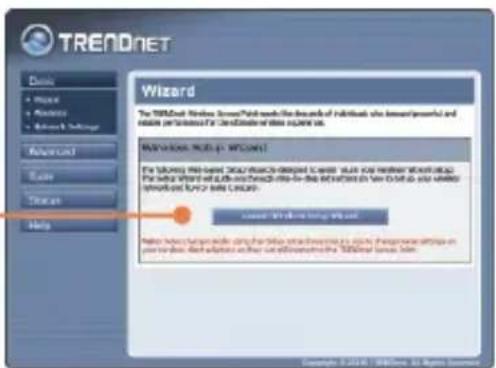
- Click Next.

5. Click Next.

Note: The example below is for WPA security. If you select Best (WPA2) or Better (WPA), make sure your wireless adapters support WPA2 or WPA. If your wireless adapters do not support WPA2 or WPA, then select Good (WEP).
- Select the desired level of security and then click Next.
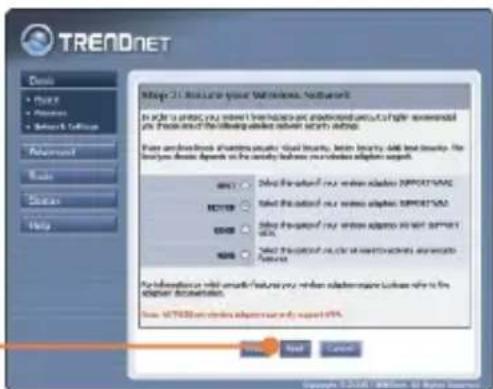
- If you have enabled security, type in any password and then click Next.

- Take note of the Pre-Shared Key and then click Save.
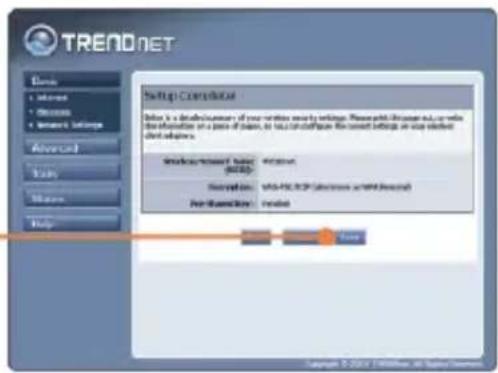
- Click Continue.

Note: If you enabled any level of security (Best, Better, Good), you need to make sure to enter the Pre-Shared key in your wireless adapter's configuration.
Your installation is now complete.
For detailed information regarding the TEW-630APB's configuration and advanced settings, please refer to the Troubleshooting section, User's Guide CD-ROM, or Trendnet's website at http://www.trendnet.com.
Register Your Product
To ensure the highest level of customer service and support, please take a moment to register your product Online at: www.TRENDnet.com/register
Thank you for choosing TRENDnet
Q1: How do I configure TCP/IP settings on my computer?

flowchart
graph TD
    A["1. Go into the Control Panel and double-click the Network Connections icon, right-click the Local Area Connection icon and then click Properties."] --> B["Local Connection Icon"]
    B --> C["Disable"]
    B --> D["Status"]
    B --> E["Repair"]
    B --> F["Bridge Connections"]
    B --> G["Create Shortcut"]
    B --> H["Delete"]
    B --> I["Rename"]
    B --> J["Properties"]
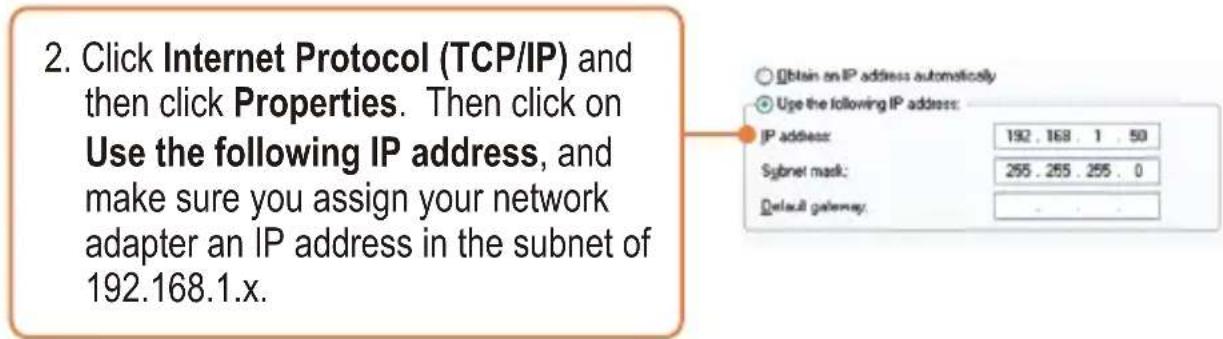
Q2: I typed http://192.168.1.100 in my Internet Browser's Address Bar, but an error message says "The page cannot be displayed". How can I get into the TEW-630APB's web configuration page?
A2: First, check your hardware settings again by following the instructions in section 2. Second, make sure the LAN and WLAN lights are lit. Third, make sure the TCP/IP settings are configured properly (see Q1). Fourth, since the Access Point's default IP address is 192.168.1.1, make sure that no other network devices are assigned an IP address of 192.168.1.1.
Q3: If my network's IP is different than the Access Point's range, what should I do?
A3: You should still configure the Access Point first. After all the settings are applied, go to the Access Point's configuration page, click Basic -> Network Settings, change the IP address of the Access Point to match your network's IP and save the settings.
Q4: After I successfully configured the Access Point to meet my network settings, I can not connect to my network using wireless computers.
A4: If you have a DHCP server in your network, you need to go into TCP/IP settings again and re-select "Obtain an IP address automatically" to allow the PC to regain an IP address from your DHCP server.
Q5: All the settings are correct, but I can not make a wireless connection to the Access Point.
A5: First, double check that the WLAN light on the Access Point is lit. Second, power cycle the Access Point. Unplug the power to the Access Point. Wait 15 seconds, then plug the power back in. Third, contact the manufacturer of your wireless network adapter. Make sure the wireless network adapter is configured with the proper SSID. The default SSID of the Access Point is TRENDnet. If you have enabled any encryption on the Access Point, make sure to configure the wireless network adapter with the same Pre-shared key.
If you still encounter problems or have any questions regarding the TEW-630APB, please contact TRENDnet's Technical Support Department.
Certifications
This equipment has been tested and found to comply with FCC and CE Rules. Operation is subject to the following two conditions:
(1) This device may not cause harmful interference.
(2) This device must accept any interference received. Including interference that may cause undesired operation.


Waste electrical and electronic products must not be disposed of with household waste. Please recycle where facilities exist. Check with you Local Authority or Retailer for recycling advice.

NOTE: THE MANUFACTURER IS NOT RESPONSIBLE FOR ANY RADIO OR TV INTERFERENCE CAUSED BY UNAUTHORIZED MODIFICATIONS TO THIS EQUIPMENT. SUCH MODIFICATIONS COULD VOID THE USER'S AUTHORITY TO OPERATE THE EQUIPMENT.
ADVERTENCIA
TRENDnet Technical Support
US·Canada
Toll Free Telephone: 1(866) 845-3673
24/7 Tech Support

Europe (Germany • France Italy Spain Switzerland UK)
Toll Free Telephone: +00800 60 76 76 67
English/Espanol - 24/7
Francais/Deutsch - 11am-8pm, Monday - Friday MET
Worldwide
Telephone: +(31) (0) 20 504 05 35
English/Espanol - 24/7
Francais/Deutsch - 11am-8pm, Monday - Friday MET
Product Warranty Registration
Please take a moment to register your product online.
Go to TRENDnet's website at http://www.trendnet.com
- Table of Contents
- English 1
- Troubleshooting 6
- Before You Start
- Package Contents
- Installation Requirements
- Application
- Install Hardware
- Configure the Access Point
- Click Next.
- Your installation is now complete.
- Register Your Product
- Certifications
- ADVERTENCIA
- TRENDnet Technical Support
- Product Warranty Registration
Brand : TRENDNET
Model : TEW-630APB
Category : Router