R Class Conversion to WES7 - Software Wyse - Free user manual and instructions
Find the device manual for free R Class Conversion to WES7 Wyse in PDF.


| Product Type | Software Conversion Kit for Wyse R Class Thin Client |
| Compatible Hardware | Wyse R Class (R50L, R90L, R90LE, R90L7) |
| Target Operating System | Windows Embedded Standard 7 (WES7) |
| Installation Method | USB drive or network deployment |
| Memory Requirement | Minimum 1 GB RAM |
| Storage Requirement | Minimum 4 GB free disk space |
| Processor Support | VIA C7 or Eden (1.2 GHz or higher) |
| License Type | Single upgrade license per device |
| Main Functions | Upgrades existing Wyse R Class from Windows XPe to WES7, includes drivers and configuration tools |
| Security Features | Compatible with Wyse Device Manager for centralized security policy enforcement |
| Maintenance | Regular updates available through Wyse Support |
| Cleaning Instructions | N/A (software product) |
| Spare Parts Availability | Licenses and media available from Wyse authorized distributors |
| Repairability | Software reinstallation possible via provided tools |
| General Information | Published by Wyse Technology; part of the R Class transition program |
| Warranty | 30-day replacement warranty for defective media |
Frequently Asked Questions - R Class Conversion to WES7 Wyse
User questions about R Class Conversion to WES7 Wyse
0 question about this device. Answer the ones you know or ask your own.
Ask a new question about this device
Download the instructions for your Software in PDF format for free! Find your manual R Class Conversion to WES7 - Wyse and take your electronic device back in hand. On this page are published all the documents necessary for the use of your device. R Class Conversion to WES7 by Wyse.
USER MANUAL R Class Conversion to WES7 Wyse
Wyse® R Class Conversion to WES7
Wyse® USB Firmware Tool™ Release 1.10
Issue: 102910
PN: 883887-18L Rev. B
Copyright Notices
© 2010, Wyse Technology Inc. All rights reserved.
This manual and the software and firmware described in it are copyrighted. You may not reproduce, transmit, transcribe, store in a retrieval system, or translate into any language or computer language, in any form or by any means, electronic, mechanical, magnetic, optical, chemical, manual or otherwise, any part of this publication without express written permission.
End User License Agreement ("License")
A copy of the Wyse Technology End User License Agreement is included in the software and provided for your reference only. The License at http://www.wyse.com/license as of the purchase date is the controlling licensing agreement. By copying, using, or installing the software or the product, you agree to be bound by those terms.
Trademarks
The Wyse logo and Wyse are trademarks of Wyse Technology Inc. Other product names mentioned herein are for identification purposes only and may be trademarks and/or registered trademarks of their respective companies. Specifications subject to change without notice.
Restricted Rights Legend
You acknowledge that the Software is of U.S. origin. You agree to comply with all applicable international and national laws that apply to the Software, including the U.S. Export Administration Regulations, as well as end-user, end-use and country destination restrictions issued by U.S. and other governments. For additional information on exporting the Software, see http://www.microsoft.com/exporting.
Ordering Information
For availability, pricing, and ordering information in the United States and Canada, call 1-800-GET-WYSE (1-800-438-9973) or visit us at http://www.wyse.com. In all other countries, contact your sales representative.
Contents
1 Introduction 1
Kit Contents 1
Overview 2
Wyse Technical Support 2
Related Documentation and Services 2
Wyse Online Community 2
2 Installing R90L Thin Client Flash and RAM 3
Requirements 3
Procedures 4
What's Next 6
3 Installing WES7 Firmware 7
Requirements 7
Procedures 7
Troubleshooting 13
USB Keys - Troubleshooting Boot Issues 13
SanDisk Cruiser Flash Drives - Troubleshooting Partition Issues
iv Contents
This page intentionally blank.
1 Introduction
This guide provides step-by-step instructions to convert R90L thin clients from XPe to WES7.

Caution
WES7 firmware requires R class thin clients to have a minimum of 4 GB flash and 2 GB RAM.

Tip
After converting your thin clients, obtain any available firmware update at http://www.wyse.com/serviceandsupport/support/downloads.asp.
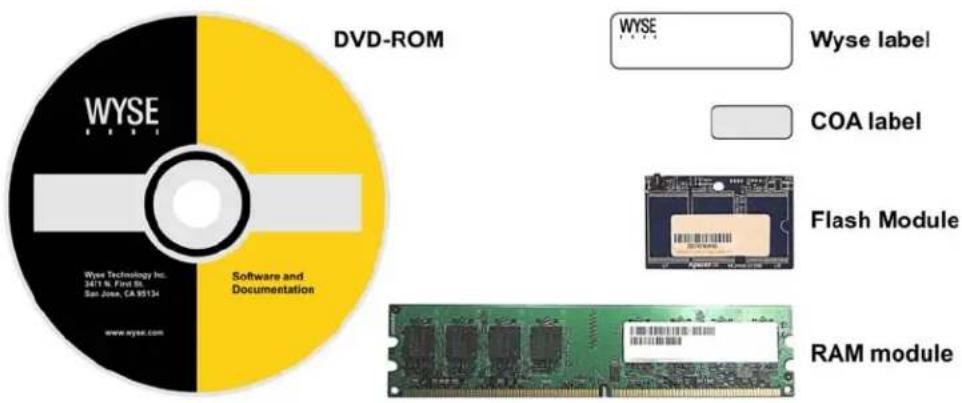
Kit Contents
The conversion kit can include:
- Conversion Software Assembly DVD-ROM
- Flash module
- RAM module
• Wyse Conversion Labels (you must attach a Wyse label to each converted thin client)
• Microsoft License Labels (you must attach a COA label to each converted thin client)
Figure 1 Kit contents (items may look different or not be included in your kit)
text_image
DVD-ROM WYSE Wyse Technology Inc. 2411 N. First St. San Jose, CA 95134 www.wyse.com Software and Documentation WYSE Wyse label COA label Flash Module RAM module2 Chapter 1
The Conversion Software Assembly DVD-ROM contains:
• A PDF of this Reference Guide
• Wyse USB Firmware Tool Release 1.10
- R Class WES7 Conversion Image folder containing the following files:
- bios.img
- cmos.img
- commandsXml.xml
· CRC.Txt
- initrd.pxe
- mbr.img
- par1.img
- vmlinuz
Overview
To convert your R class thin clients to WES7:
- (Optional) If you need to perform a hardware installation (install new flash and RAM), complete "Installing R90L Thin Client Flash and RAM."
- (Required) Complete "Installing WES7 Firmware."
Wyse Technical Support
To access Wyse technical resources, visit http://www.wyse.com/support. If you still have questions, you can submit your questions using the Wyse Self-Service Center (on the Wyse.com home page, go to Support > Knowledge Base > Home tab) or call Customer Support at 1-800-800-WYSE (toll free in U.S. and Canada). Hours of operation are from 6:00 A.M. to 5:00 P.M. Pacific Time, Monday through Friday.
To access international support, visit http://www.wyse.com/global.
Related Documentation and Services
Fact Sheets containing the features of hardware models are available on the Wyse Web site. Go to http://www.wyse.com/products, click the Thin Computing Hardware link, click the link for your hardware model, and then click the link for the Fact Sheet.
Administrator and other documentation for your thin client model are available at: http://www.wyse.com/manuals.
Wyse Online Community
Wyse maintains an online community where users of our products can seek and exchange information on user forums. Visit the Wyse Online Community forums at: http://community.wyse.com/forum.
2 Installing R90L Thin Client Flash and RAM
This chapter contains information for users of Wyse R90L thin clients who must install new flash and RAM. If you are installing firmware only, you can skip this chapter and proceed to "Installing WES7 Firmware."
Requirements
- Small Phillips screwdriver
- Needle-nose pliers
• (Optional) Container for holding screws

Warning
Flash and RAM modules may be susceptible to damage by Electro-Static Discharge (ESD). All industry-standard cautions should be followed to avoid ESD. Before you remove or install a module, touch any metal part of the chassis and keep that contact with the chassis during the installation process.
Procedures
Step 1: Remove the R90L Thin Client Left Side Cover

Caution
Follow all precautions listed in the Quick-Start Guide that came with your thin client for disconnecting and reconnecting the thin client.
- Perform a proper shutdown of the thin client by closing all files and ending your session, and then press the power button to turn off the thin client.
- Unplug the power cord and power adapter, remove all of the cables from the rear of the thin client, and then detach the vertical foot.
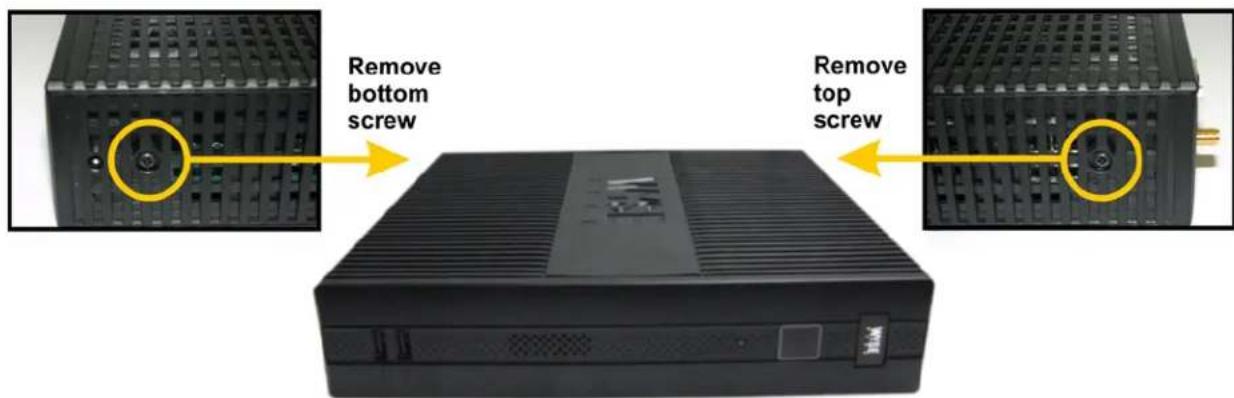
- Position the thin client horizontally, and then remove the screws from the top and bottom of the thin client using a small Phillips screwdriver as shown in Figure 2.
Figure 2 Removing the top and bottom screws
text_image
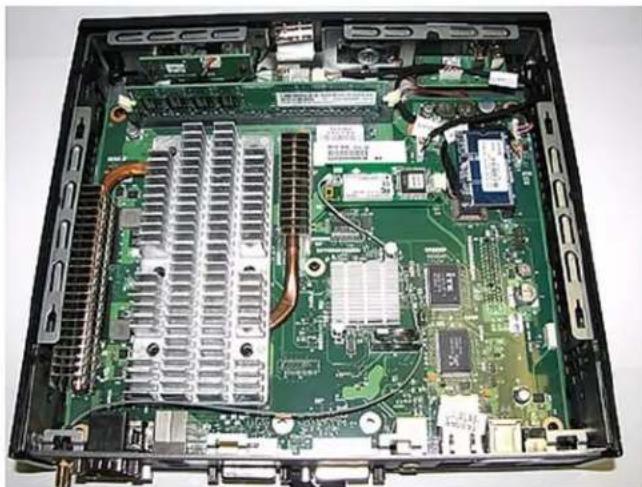
Remove bottom screw Remove top screw- Slide the left side cover toward the rear of the device and remove it to expose the main board as shown in Figure 3. Notice that the rear of the thin client is positioned at the bottom of the photo.
Figure 3 Left side cover removed to expose the main board
natural_image
Interior view of an open computer motherboard showing CPU socket, heatsink, and drive bays (no text or symbols visible)Step 2: Install the R90L Flash Module

Warning
Flash modules may be susceptible to damage by Electro-Static Discharge (ESD). All industry-standard cautions should be followed to avoid ESD. Before you remove or install a module, touch any metal part of the chassis and keep that contact with the chassis during the installation process.
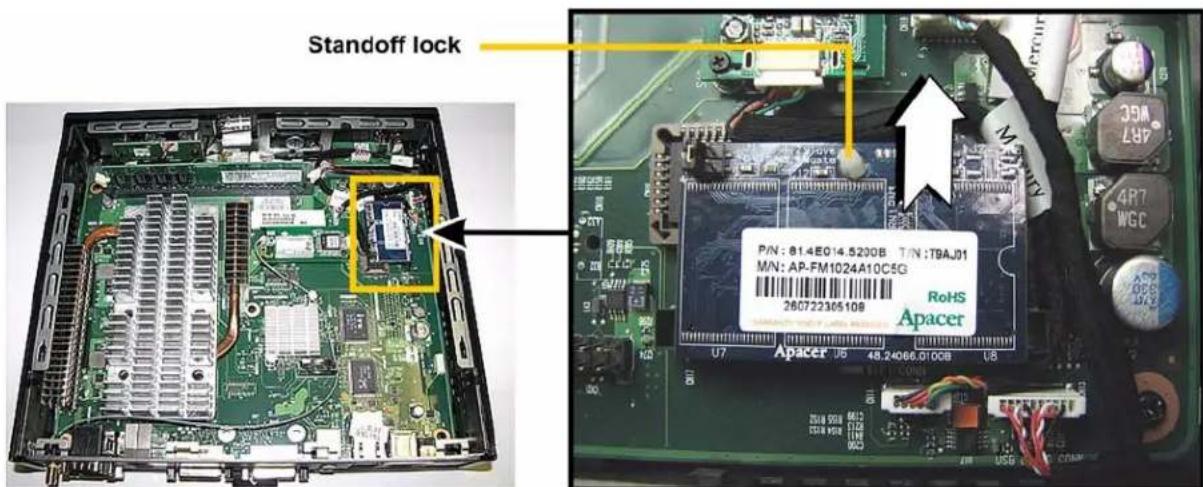
- Note where the connector of the flash module is located in Figure 4. Use needle-nose pliers to squeeze the plastic standoff lock as you rock the flash module back and forth to remove it from the socket.
Figure 4 Removing the existing flash module
text_image
Standoff lock P/N : 81.4E014.5200B T/N :T9AJ01 M/N: AP-FM1024A10C5G RoHS Apacer U7 Apacer U5 48.24066.0100B U8- Install the new flash module in the reverse order of removing the original flash module. Carefully press the flash module onto the standoff lock and connector, making sure to lock it into place.
Step 3: Install the R90L RAM Module

Warning
RAM modules may be susceptible to damage by Electro-Static Discharge (ESD). All industry-standard cautions should be followed to avoid ESD. Before you remove or install a module, touch any metal part of the chassis and keep that contact with the chassis during the installation process.
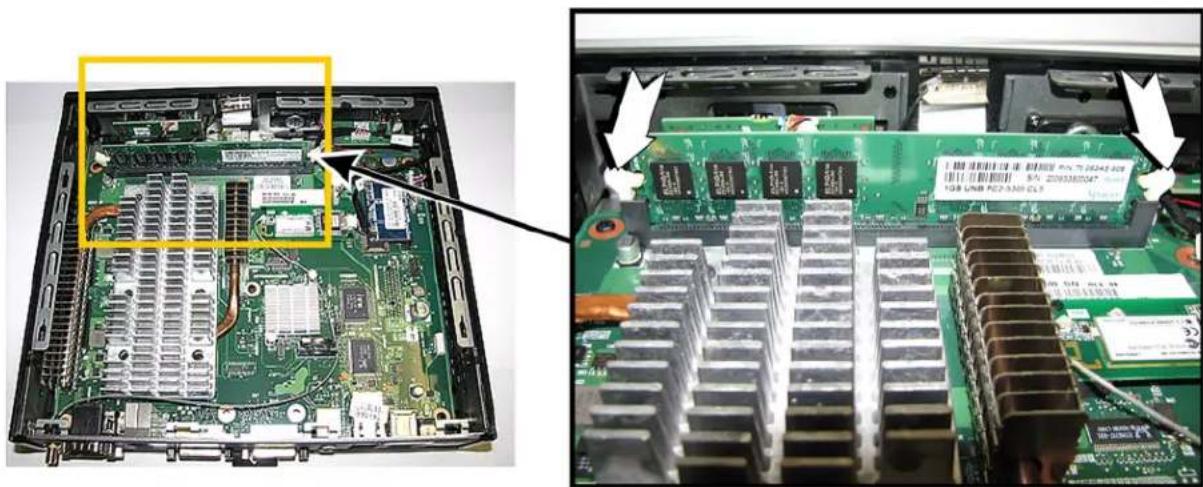
- Unlock the two locking clamps at either side of the RAM module by pushing in the direction of the arrows as shown in Figure 5.
- Remove the RAM module.
Figure 5 Removing the existing RAM module
natural_image
Interior view of a computer motherboard showing internal components and a close-up view of the circuit board (no readable text or symbols)- Insert the new RAM module into the connector of the original RAM module.
- Carefully press down on the RAM module until the locking clamps lock it into place.
Step 4: Reassemble the R90L Thin Client
- Replace the left side cover in the reverse order as described in "Step 1: Remove the R90L Thin Client Left Side Cover."
- Attach the vertical foot.
- Reconnect the video display, keyboard, mouse, network cable, and power adapter to the thin client before connecting to an electrical outlet.

Caution
Do not turn on the thin client. The thin client is ready to re-image, however the flash module does not contain an operating system. Turning on power to your thin client without firmware will display the error message "NO OPERATING SYSTEM FOUND."
What's Next
Continue with "Installing WES7 Firmware."
3 Installing WES7 Firmware
This chapter includes the requirements and procedures you need to install and use Wyse® USB Firmware Tool™ to update your thin client to WES7 firmware.
Requirements
• Windows XP Professional SP3 or Windows 2003 Server
- USB key size should be 4 GB or larger (up to 16 GB tested—see "USB Keys - Troubleshooting Boot Issues")
- (For a firmware only installation) Windows XP Embedded build 587 or later on the thin client
Procedures
Step 1: Copy the R Class WES7 Conversion Image Folder to Your Local Hard Drive
Navigate to the R Class WES7 Conversion Image folder (contained on the Conversion Software Assembly DVD-ROM) and copy it to your local hard drive.
Step 2: Install Wyse USB Firmware Tool 1.10
- Navigate to the Wyse USB Firmware Tool v1.10_GA.exe (contained on the Conversion Software Assembly DVD-ROM) and double-click it to execute the file and open the WinZip Self-Extractor dialog box.
Figure 6 Extract files to your hard drive (C:\USBFT110)

text_image
WinZip Self-Extractor - Wuse USB Firmware Toolv... To unzip all files in this self-Extractor file to the specified folder press the Unzip button. Unzip to folder C:\ Browse... Run WinZip Close About Help- Enter C:\USBFT110 in the Unzip to folder box, and then click Unzip to extract all files from the Wyse USB Firmware Tool v1.10_GA.exe file into the C:\USBFT110 directory. The default directory for the extracted files is Wyse USB Firmware Tool.

Caution
It is not recommended to use your desktop for the destination directory as there are several files that will be extracted from the .exe file.
- Create a shortcut on the desktop for the Wyse USB Firmware Tool.exe file.
Step 3: Use Wyse USB Firmware Tool to Configure a Single USB Key to Install Firmware
- Double-click the shortcut to run the tool and open the Wyse USB Firmware Tool wizard (the welcome page provides the product version and description, and a link to view the Wyse end user license agreement).
Figure 7 Wyse USB Firmware Tool wizard

text_image
Wynn USB Firmware Tool Welcome to the Wynn USB Firmware Tool [Product Version 1.0.0.0.2.3] The tool helps you to isolate firmware of the Wynn Tin client, or to Color Firmware from the Wynn Tin client and save it on a USB key. Using the Wynn USB Firmware Tool helps you to read and read to the Wynn Tin User License Agreement. Please do the link below to read the agreement. Read Wireless User License agreement.- Click Next to open the Select an Option dialog box.
Figure 8 Configuration options
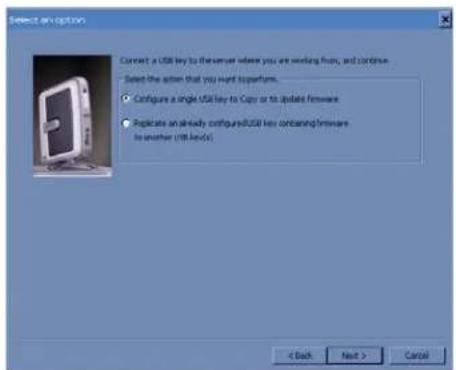
text_image
Select an option Connect a USB key to the server where you are working from, and continue. Select the action that you want superfurn. Configure a single USB key to Copy or to update firmware Replicate an already configured/USB key containing firmware to another (USB key). < Back Next > Cancel- Select the Configure a single USB key to Copy or Update firmware option, and then click Next to open the Select the Configuration dialog box.
Figure 9 Update firmware options

text_image
Select the configuration Select the operating system (OS) type Windows of Embedded Standard7 Windows CE Windows Embedded Standard7 Linux (VH7) Windows 2.0 / VH7 Select the operation to perform Copy hardware Select this option to format and configure the USB key to Copy Firmware From that Web is then client to the USB key. Update software Select this option to format and configure the USB key to Update firmware of the Web is then client from the USB key. Select the contents MS Image Includes Run Pre-position(Comment) Auto AMD5 Select the configuration options Reserve data partition data partition will be preserved if we choose it will be created as per data partition of what default value(128) < Back Next > Cancel- Select the Windows Embedded Standard 7 OS type option.
- Select the Update Firmware operation to perform option.

Tip
Although the Preserve data partition check box is automatically selected to preserve any existing data partition, you can clear the check box if you want to remove the existing data in the data partition.
- Select all three contents options (OS Image, BIOS, and CMOS).
- Click Next to open the browse dialog box.
Figure 10 Browse for image file
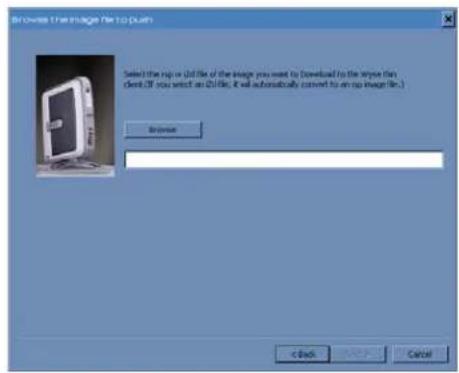
text_image
Browse the image file to push Select the image as (if file of the image you want to download to the image this client. If you want an image, it will automatically convert to an image file.) Browse < Back Cancel- Click Browse.
Figure 11 Browse to select commandsXml.xml
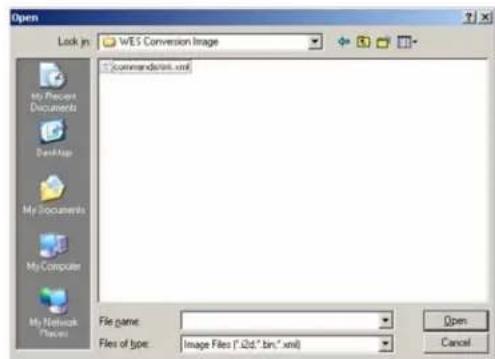
text_image
Open Lock in: WES Conversion Image Commandstring.xml File name: Files of type: Image Files (*.25d.* bin;*.xml) Open Cancel- Navigate to the R Class WES7 Conversion Image folder on your hard drive (this is the location you selected in "Step 1: Copy the R Class WES7 Conversion Image Folder to Your Local Hard Drive"), click on the commandsXml.xml file to select it, and then click Open.

Caution
Do not use the commandsXml.xml file directly from the Conversion Software Assembly DVD-ROM.
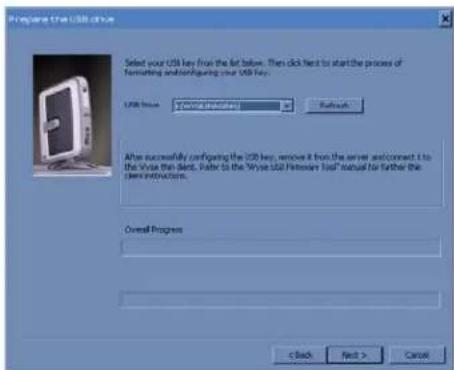
- In the browse dialog box, click Next to open the Prepare the USB Drive dialog box.
Figure 12 Prepare USB drive
text_image
Prepare the USB drive Select your USB key from the list below. Then click next to start the process of Formating and configuring your USB key. USB drive: 3 Devices configuration Refresh After successfully configuring the USB key, remove it from the server as connect to the Service then Select. Refer to the "Write USB Provider Help" manual for further the new instructions. Overall Progress < Back Next > Cancel-
Select the USB key onto which you want the configurations (you can use Refresh as needed to recognize an inserted USB key), and then click Next. The progress bars show the overall progress and task progress.
-
After configuration, click Finish to close the wizard and then remove the configured USB key for use (you will use the configured USB key on your target devices).

Caution
Before using any configured USB key on a target device (to push firmware), you must configure the target device to boot from the configured USB key as described in "Step 4: Use the Configured USB Key to Install Firmware on Each Thin Client."
Step 4: Use the Configured USB Key to Install Firmware on Each Thin Client
On each thin client you want to convert, use one of the following options to configure it to boot from the configured USB key:

Caution
It is highly recommended that you use the one-time boot menu, as it will not modify your default BIOS configurations.
- To enter and use the one-time boot menu: Attach the configured USB key to the thin client (be sure it is shut down). During boot, press and hold the P key. Select the USB HDD option (displaying your USB key vendor name) and press Enter. Follow the process prompts.
- To enter and change the BIOS Setup Utility: Attach the configured USB key to the thin client (be sure it is shut down). During boot, press and hold the Delete key. Enter the password Fireport (this is case sensitive) and press Enter. Select the Hard Disk Boot Priority option and press Enter. Select the USB HDD option (displaying your USB key vendor name) and move it to the 1 position by using the + key. Save the BIOS settings and reboot. Follow the process prompts.

Tip
When booting a target device from the configured USB key (containing the contents to be pushed to a target device), you will be prompted to continue with the push process (to continue, type y and press Enter). Once the push process is complete, you will be prompted to reboot (to reboot, press Enter and remove the USB key).
Step 5: Verifying Thin Client Operation
After the thin client reboots, you can verify the Version and that your general client information is correct.
Figure 13 Client Information (blank example)

text_image
Wyse Client Information General Installed Module WDM Packages Copyrights/Patents General Client Information Wyse Technology Inc. Website : Product Name : Product ID : Version : 9.01 (Build 0806. Windows WES7 Version : Ethernet MAC Address Wireless MAC Address : IP Address : Serial Number Terminal H/W Rev : CPU Type : CPU Speed in MHz : Flash Capacity : RAM Capacity System Partition : User Name: Close- On the General tab of the Client Information window (Start > All Programs > Wyse Client Information), verify the following:
• Version is 9.01 Build 0806.
- Click OK to close the Client Information window. The thin client is ready for operation and setup by an administrator.

Tip
For security, automatic logon to a User desktop is enabled on the thin client by default (and is a member of the User group; not a member of the Administrator group). To log on as a different user or an administrator: Use the Log off button (Start > Log off) to log off the current desktop while holding down the SHIFT key until the Log On window displays. Log on as follows (passwords are case sensitive):
Administrators - default Username is administrator and default Password is Wyse#123.
Users - default Username is user and default Password is Wyse#123.
Administrator and other documentation for your thin client model are available at: http://www.wyse.com/manuals.
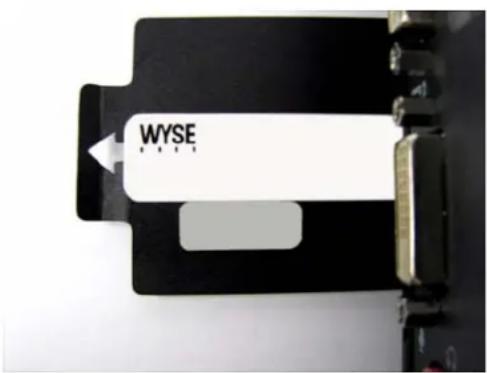
Step 6: Attach a Wyse Conversion Label and Microsoft License Label on Each Converted Thin Client
The conversion kit is supplied with Wyse Conversion Labels and Microsoft License Labels that must be attached to each thin client as shown in Figure 14. Be sure you have purchased the amount of labels you need.

Caution
Failure to install the labels may cause delays in service and support. The serial number must be given to a Customer Support Technician to validate entitlement to support and service from Wyse. Failure to do so will result in the original operating system being loaded on the device and is in breach of your license agreement.
Figure 14 Placement of labels on the R90L
text_image
WYSEStep 7: Obtain a Firmware Update
After converting your thin clients, obtain any available firmware update at http://www.wyse.com/serviceandsupport/support/downloads.asp.

Warning
Use of the firmware on more than one device requires that you first purchase from Wyse additional copies of, or licenses to, the firmware. Contact your local Wyse distributor or Wyse Inside Sales at 1-800-800-9973 option 1 or 1-408-473-1200 option 1.
Troubleshooting
This section contains general troubleshooting information.
USB Keys - Troubleshooting Boot Issues
Due to different manufacturing processes on USB keys (and the variety of them), not all brands have been tested with the Wyse USB Firmware Tool. If you experience problems booting from a configured USB key, it is recommended that you try a different brand of USB key. The following list of USB keys have been successfully tested with the Wyse USB Firmware Tool:
• Kingston Data Traveler 4 GB
• Kingston Data Traveler 8 GB
• SanDisk Cruzer micro 4 GB
• SanDisk Cruzer micro 8 GB
• SanDisk Cruzer micro 16 GB
- Transcendent 4GB
SanDisk Cruiser Flash Drives - Troubleshooting Partition Issues
Problem: How can I properly use a SanDisk Cruiser flash drive to image supported devices using the Wyse USB Firmware Tool? (KB17735)
Solution: SanDisk flash drives come with support for U3 (for details on U3, see http://www.u3.com). When you initially use these drives, you are prompted to select the use for the drive: Apps and Storage or only Storage. If you select the Apps and Storage option, the drive will create two partitions, one of which is identified as a CD and is a read only partition. This partition sometimes prevents the Wyse USB Firmware Tool to properly prepare the USB key for imaging a device. To resolve this problem you can do one of the following:
- Go to http://www.sansearchin the SanDisk Knowledge Base for document 2550, and then follow the instructions in the documentation.
- Go to http://www.sandisk.com/DriverDownload/driveselectUSB Flash Drives from the Select Product Type list, click Find Driver, select U3 LaunchPad Remover, click Continue, and then download and use the U3 Launchpad Remover according to the instructions.
Installation Guide
Wyse® R Class Conversion to WES7 Issue: 102910
Written and published by: Wyse Technology Inc., October 2010
Created using FrameMaker ^® and Acrobat ^®