
NET-i ware - Logiciel photo/vidéo SAMSUNG - Free user manual and instructions
Find the device manual for free NET-i ware SAMSUNG in PDF.


| Product Type | Photo/Video Software |
| Brand | Samsung |
| Model | NET-i ware |
| Category | Photo/Video Software |
| Language | English (manual available) |
| File Size (Approx.) | 500 MB (installation) |
| Platform | Windows 10+, macOS 10.12+ |
| System Requirements | 8 GB RAM, 2 GB free disk space, Internet connection |
| Main Functions | Photo editing, video editing, batch processing, filters, effects, color correction, export |
| Image Formats | JPEG, PNG, TIFF, RAW |
| Video Formats | MP4, AVI, MOV, MKV |
| Output Formats | JPEG, PNG, PDF, MP4, AVI |
| User Interface | Intuitive GUI with toolbar and menu |
| Updates | Free updates for registered users |
| Technical Support | Online support, included manual |
| Power Requirements | Runs on computer power (no separate power supply) |
| Maintenance | Regular updates; antivirus scan recommended |
| Safety | Standard software safety; regular security updates |
| Spare Parts | License key, installation file (downloadable) |
| Repairability | Reinstall software; license key required |
| General Information | 70-page PDF manual, user rating 8.0/10 |
Frequently Asked Questions - NET-i ware SAMSUNG
User questions about NET-i ware SAMSUNG
0 question about this device. Answer the ones you know or ask your own.
Ask a new question about this device
Download the instructions for your Logiciel photo/vidéo in PDF format for free! Find your manual NET-i ware - SAMSUNG and take your electronic device back in hand. On this page are published all the documents necessary for the use of your device. NET-i ware by SAMSUNG.
USER MANUAL NET-i ware SAMSUNG
Before installing or while using this program, visit the Samsung website www.samsungsecurity.com and download and upgrade with the latest S/W version available.
Before you start

3 Purpose
3 Audience
3 Organization
3 Terminology
4 What is NET-i ware?
6 Installing NET-i ware
setup

10 Name and Function of Each Control
11 Getting Started
12 Hardware
20 Record Setting
27 To set an Event
29 Event Alert Sound
29 Event Preset
30 Backup Setting
31 Network Setting
33 System Setting
BaCkup

39 To Backup Data
serviCe Manager

41 Using Service Manager
net-i ware update

42 Installation
43 Auto Update Setting
44 Auto Update Scenario
net-i weB viewer

45 What is the Web Viewer?
45 Getting Started with the Web Viewer
46 Installing Silverlight
47 Checking the Connection Status of Web Viewer
49 Live Viewer
56 Video Screen At a Glance
58 Search Viewer
62 Setup Viewer
69 About
Before you start
PURPOSE
Provides instructions for using NET-i ware.
Provides a description of work for configuring the NET-i ware settings and for using the NET-i ware Tool.
AUDIENCE
This user guide is designed for engineers who install, configure the settings of and maintain the NET-i ware system.
- The users who install NET-i ware are required to have good knowledge and experience of Windows applications and services.
ORGANIZATION
Installation
Guides you through the steps to install the NET-i ware component programs.
Setting
Provides a description of configuring the NET-i ware service and related settings.
Backup
Provides a description of manual backup.
Service Manager
Provides a description of controlling the NET-i ware service.
NET-i ware Update
Guides you through the steps to update NET-i ware with the latest version.
TERMINOLOGY
- Tree : Area where you can see information on and correlation between device, camera, alarm and user (group).
• Device : This is a generic term for network cameras and encoders. - fps (frames per second) : Number of frames per second.
• 4CIF : Resolution [704x480(NTSC), 704x576(PAL)]
• VGA : Resolution [640x480]
• CIF : Resolution [320x240(NTSC), 352x288(PAL)]
• QXGA : Resolution [2048x1536]
• UXGA : Resolution [1600x1200]
• 1080P(Full HD) : Resolution [1920x1080]
• 720P (HD) : Resolution [1280x720]
• SXGA : Resolution [1280x1024]
• XGA(XVGA) : Resolution [1024x768]
• SVGA : Resolution [800x600]
• QVGA : Resolution [320x180]
WHAT IS NET-i ware?
NET-i ware is an open storage solution for security and automatic monitoring environment.
This program includes general functions for monitoring sites and storing device images.
This program is integrated with network cameras via the network environment.
You can set to record video at the set time.
- You can search for and play recording data remotely using NET-i web viewer and NET-i viewer.
Key Features of NET-i ware
With NET-i ware, you can:
• Record up to 64 channels simultaneously
Record up to 64 channels manually or on schedule
- SNS-SF064 : Max. 64 Channels / SNS-SF032 : Max. 32 Channels / SNS-SF016 : Max. 16 Channels
- Save and search for system and event logs
- Play various formats of video source H.264 / MPEG4 / MJPEG
- Play various formats of audio source G.726, G.711, G.723
- Backup
REC1/SEC format supported
- Update automatically
- Advanced search (using NET-i viewer & Web Viewer) Date/Time & Event Search
- Provides multiple playback control options (using NET-i viewer & Web Viewer) Play up to 64x forward / backward
NET-i ware Program
Check if all applications of the NET-i ware system are included in the product package and check the system requirements.
NET-i ware Tool
You can configure the settings of NET-i ware and the remote device.
Language Settings
Register/Change/Delete Device
Create/Edit/Delete Recording Schedule
Event Setting
Create/Edit/Delete Backup Schedule
Manual Backup
Network Setting
Create/Edit/Delete User
Log Setting & Search
Update Device Firmware
Reset NET-i ware and Import/Export
Others
Service Manager
Start/Stop NET-i ware service
Add/Delete Product Key
Updater
Update automatically
Update manually
System Requirement
The below specification is for the minimum hardware and OS requirements to install and run the NET-i ware system alone.
| CPU Intel Core i3 (Recommended : Intel Core i7) | |
| OS | Windows XP Professional SP2, Windows Server 2003 SP2, Windows Vista Business / Ultimate, Windows Server 2008, Windows 7 |
| DRAM 4 GB or more | |
| HDD SATA2 | 2 or more (one for the OS and one for the data storage HDD)- at least 1 GB of free disk space is required to install NET-i ware. |
| VGA | 32MB, Direct X 8.1, 32 bit color, 1024 x 768 or higher resolution(Recommended: 64MB or more, DirectX 8.1 or later, 32 bit color, 1280 x 1024 or higher resolution) |
| Network Gigabit Ethernet | NIC |
| DVD Reader/ Writer For installing NET-i ware and backing up data | |

In case of a power failure or a problem with the power supply, NET-i ware may not work properly.
To cope with this, it is recommended to use the uninterruptible power supply (UPS).
- If you set the Restore on AC/Power Loss item in the CMOS settings of your PC, the system will reboot automatically after the power failure. Check if your PC supports this function.
Before you start
INSTALLING NET-i ware
Installing the NET-i ware Program
- Insert the provided dongle key into a corresponding port of your computer.
- Do not remove the dongle key while installing the program. If it's removed, the installation program may not proceed.
-
Run the SETUP.EXE file in the NET-i ware installation DVD or in the installation folder of your PC.
-
If .NET Framework 4.0 is not installed on your PC, .NET Framework 4.0 will be installed first.
- If .NET Framework 4.0 is not installed on your PC, NET-i ware will not work properly.
- You can download and install .NET Framework from the MS download center.
① Click [I have read and_accept the license terms.] in the .NET Framework Client Profile window.
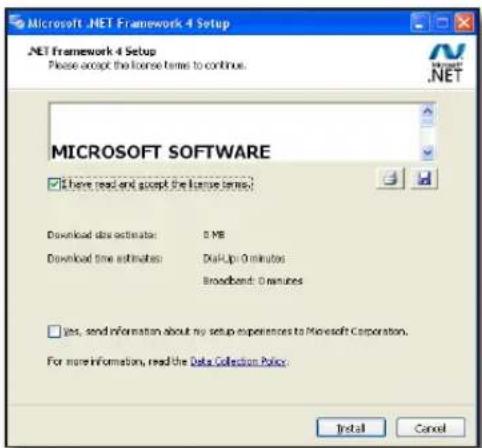
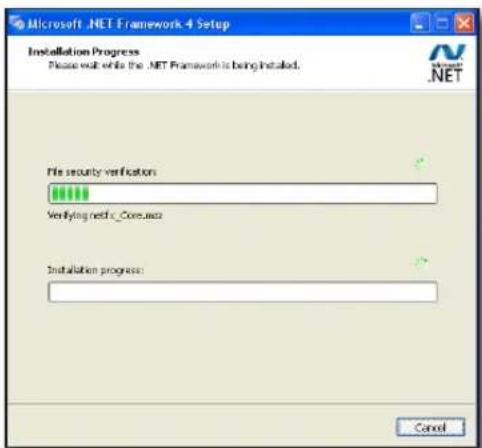
② The status bar will display the installation progress.
- When installation of .NET Framework 4.0 is done, you may need to restart your system depending on the PC environment.
- If your PC has not installed a driver for the dongle key, HASP SRM run-time will be installed first.
- If HASP SRM run-time is yet to install, NET-i ware will not work normally.
- You can download and install HASP SRM run-time from Aladdin.com.
① Click [Next >] in the HASP SRM run-time setup window.
② The installation status will be shown in the status bar during the installation.
- Click [Next >] to move to the license agreement step.
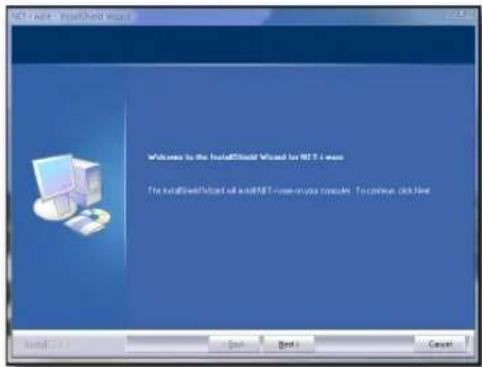
- Read the license agreement carefully and select "I accept the terms of the license agreement." And click [Next >] to proceed with the next step.
![License Agreement Please need a book or related to the following license agreement: Any U.S. NOTICE: SAMSUNG licenses the accompanying software to you only upon the condition that you accept all of the terms contained in this license agreement Please note that the terms continue before, continuing installation, or applying the "Yes" button will indicate your proof to think. If you do not agree to these terms, please press the "No" button to include all SAMSUNG is willing to license the software to you, in which event you should return the full product with proof of purchase to the dealer. LICENSED AND WARRANTY: The software which accompanies this business (the "Software") is the property of SAMSUNG or its license and is prohibited by copyright law. While SAMSUNG continues to own the Software, you will have certain rights from the Software when your acceptance of this business. Should you be notified by a license and/or which accounts this business, your rights and obligations with respect to the use of the Software are as follows: YOU MAP: [Use one copy of the Software on a single computer] [Make one copy of the Software for archival purposes, or copy the software] I accept the loss of the license agreement Do I did not accept the loss of the license agreement.](/content/2026/05/1065684/images/d40110e9cc71713572ae5c6a89410091e2d64b155a1133f2e024c7d56dcf2af8.jpg)
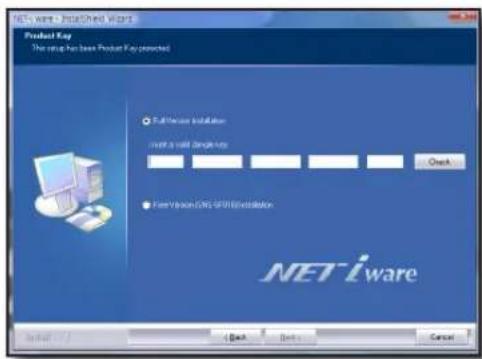
- To activate NET-i ware, enter the product key (26 characters) and click [Check].
- You can find the product key on the surface of the DVD case.

If you replace a model featuring lots of available channels with a different model that has less channels available, some of the configuration and recording data can be lost.
If you want to connect to NET-i ware 16CH model without a dongle key, select to install "Free Version (SNS-SF016) Installation"
-
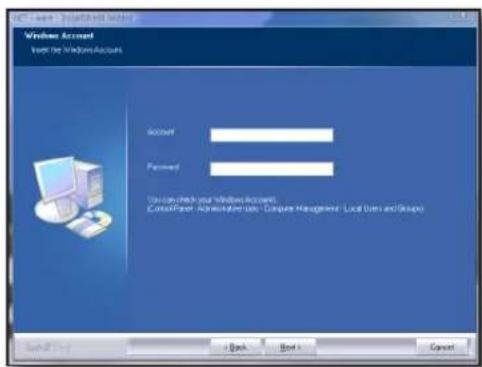
Provide the Windows logon account information, and click [Next>].
-
The Windows logon account is information required to log onto the Windows OS of your PC.
You can check your Windows logon account in Control Panel – Administrative Tools – Computer Management – Local Users and Groups. - The Windows logon account information can be also edited in NET-i ware tool after its installation. (Page 35)
Before you start
- Click [Install] to install the program.
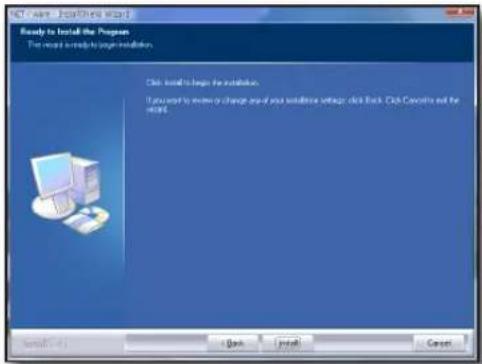
- The Wizard is ready to install the NET-i ware program.
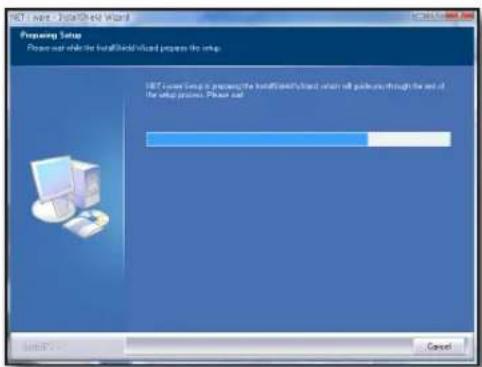
- The Wizard starts installing the NET-i ware program.
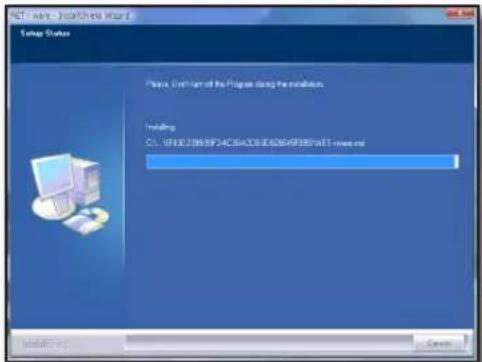
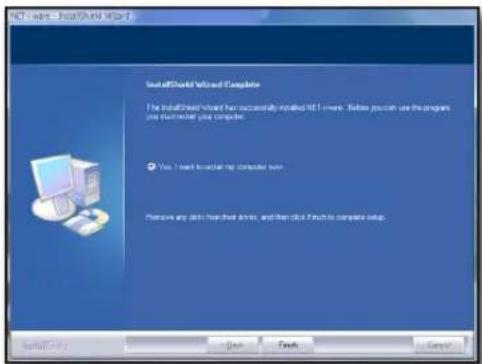
- When the installation is completed, click [Finish] to complete the installation.
■ When done, your PC will reboot.
Checking Installation
Check if NET-i ware is installed successfully on your system.
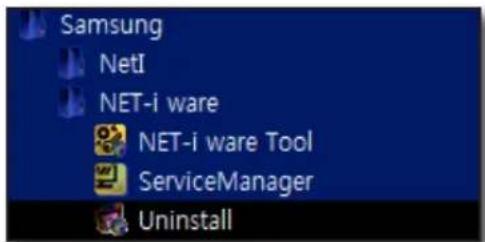
- Move to the Start menu.
- If NET-i ware is properly installed, you will see 3 sub components in the NET-i ware program menu: NET-i ware Tool ServiceManager and Uninstall.

- When you first run NET-i ware, the language of NET-i ware is defaulted to that of the operating system.
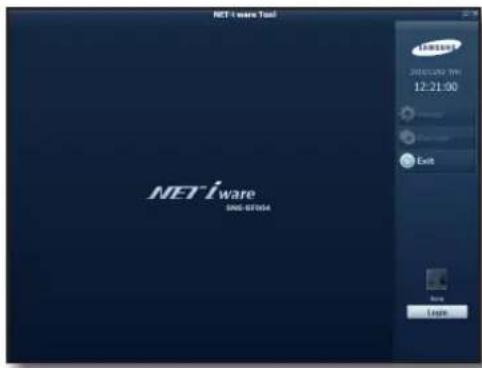
Check the use instructions of the NET-i ware Tool that enables you to configure the tree and system related options.
You can configure the NET-i ware settings with the NET-i ware Tool.
You can configure the device settings in the Device Setting page.
naMe and funCtion of eaCh Control
| Category Item Description | |||
| Main Menu Set | Setup Displays | the Setting page. | |
| Backup Displays the Manual Backup page. | |||
| Exit Exits the NET-i ware Tool. | |||
| Login Displays the Login dialog. | |||
| Logout Displays the Logout dialog. | |||
| Setup Menu | Hardware Register Displays the Register Device and Change Information of Server, Device or Camera pages. | ||
| Activation Displays a page where you can activate a camera to use. | |||
| Camera | |||
| Video | |||
| Record | NET-i ware | You can check the HDD information, disk quota for each camera and basic record settings. | |
| Schedule | You can create / edit / delete a schedule with holidays and assign a camera to the schedule. | ||
| Event | You can set the pre / post recording time for the camera and event. | ||
| Camera | Display the recording FPS for each camera as well as the storage period of the recording file. | ||
| Event | Camera | You can set the event discard time and alarm in link for each camera. | |
| You can create / edit / delete an e-mail and set the e-mail notice interval. | |||
| Alert Sound | You can set the alert sound for each event. | ||
| Preset | Displays the preset setup page for the applicable Alarm In. | ||
| Backup | Schedule | You can create / edit / delete a schedule backup instance. | |
| Network Drive | Displays a page where you can specify the network connection retry count and configure to delete the backup file automatically. | ||
| Network Interface Display the network settings and transfer settings pages. | |||
| DDNS | |||
| System | User | You can create / edit / delete a user account. | |
| Setting | You can set the language, date/time format, windows logon account, overwrite options and IP filtering and restore the settings to the default, sync with the updater and import/export settings. | ||
| Log | You can set the log storage options and view the search result. | ||
Double-click the <icon on your desktop. The main page of the NET-i ware Tool will appear.
Login/Logout
Login
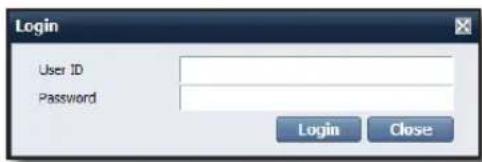
You must have logged in before using the Setup page.
-
Click [Login] in the Setup main page. You will see the Login dialog.
-
Enter your ID and password.
- Default ID: admin
- Password: 4321

■ Login will fail in the following cases:
- If you enter an unregistered user ID
- If you enter a wrong password
- You can make settings for only one user at a time. If a different user has already accessed the web viewer, you can disconnect the current connection and make yourself access the web viewer by force.
- If you are forced to log in to the web viewer, the user logged in to NET-i ware tool will be logged out automatically.
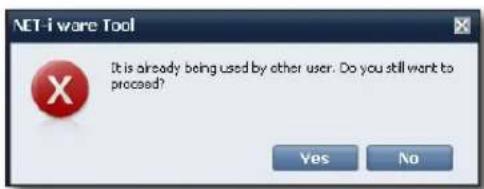

- The default password can be exposed to a hacking thread so it is recommended to change the password after installing the product. Note that the security and other related issues caused by the unchanged password shall be responsible for the user.
◆ Logout
You must log out when you have completed your settings.
-
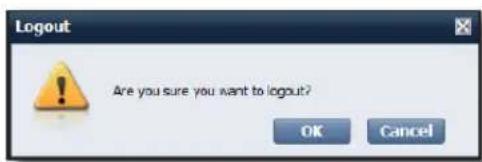
Click [Logout] in the Setup main page. You will see the Logout dialog.
-
Click [OK] in the dialog. You will be logged out.
- You will be automatically logged out if you exit the Setup program.
Registering Hardware
Registering Device
You can add / change / delete a desired device to and from NET-i ware.
Register a desired device in two ways:
① You can register up to 64 devices.
- SNS-SF064 : Max. 64 Devices / SNS-SF032 : Max. 32 Devices / SNS-SF016 : Max. 16 Devices
② Only devices connected in the network can be registered.
Automatic Registration of Devices
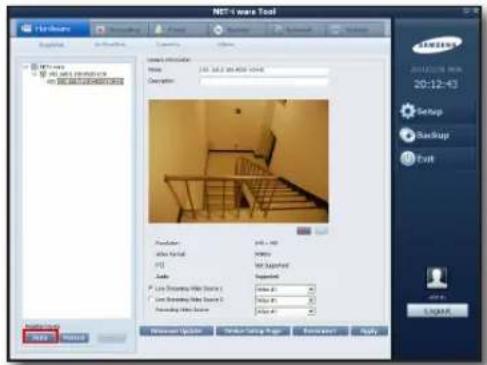
Press the [Auto] button in the bottom left corner of the main window to register a device automatically.
- Click [Auto] to register a device automatically.
All devices connected in the local network will be listed in "Register Device(Auto)" window.
Registered devices will be marked grey.

- The Auto Device Scan function may not work due to firewall of the vaccine program. To use Auto Device Scan, you must turn off the firewall first.
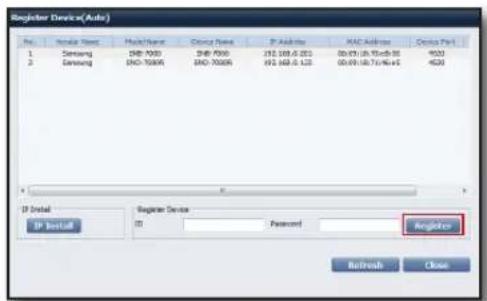
- To register a specific device in the list, simply click the device in the list.
- Provide the device ID and password, and click [Register].
The device information includes the ID and password that are specified for the device.
- IP Install: You can change the network address of the device. Enter an IP address, subnet mask, gateway, HTTP port, device port and password, and click [OK].
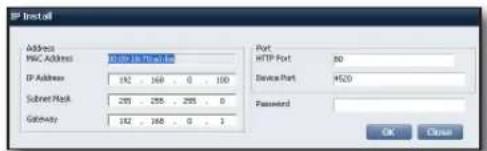

- You may not be enabled to configure IP settings of the device, depending on the device model.
- Refresh: Reloads to list devices that are connected to the local network.
-
Close: Closes the Register Device window.
-
If you experience a problem, you will see the appropriate error message.
Registered devices will be listed in the tree.
■ For more information about errors, refer to "Error Type". (Page 13)
Manual Registration of Devices
Press the [Manual] button in the bottom left corner of the main window to register a device manually.
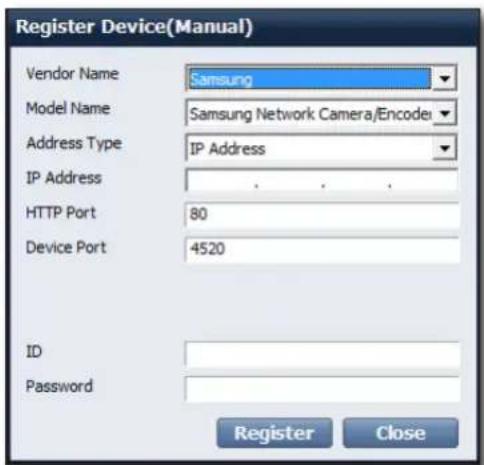
- Click [Manual] to open the "Register Device(Manual)" window.
- Select a vendor name and model name.
- Select an address type.
- Available address types include: IP Address, URL, websamsung.net, samsungipolis.com
- Provide necessary information to connect to the device.
- You should provide different information, according to the vendor name, model name and address type.
- Provide the ID and password.
The device information includes the ID and password that are specified for the device.
- Click [Register].
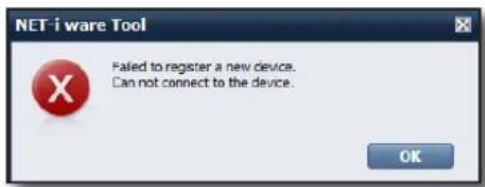
When registration is completed, the device will be added to the tree. If it fails, you will see an error message with the cause (see registration error messages).
- Ex) If connection to the device fails, you will see the error message shown.
Error Type
If you experience a registration problem, you will see one of the following error messages:
| Error Message Description Action | ||
| Parameter Error Invalid registration | parameter. Verify the information that you provided. | |
| Device Connection Error Device is | not connected. Check if the device is connected to the network properly. | |
| Network Error Network connection | failed. Check if the device is connected to the network properly. | |
| Duplicate Address Error The address | already exists. Please check the MAC address of the device again. | |
| Login ID Error The login ID is not valid. | Verify the login ID that you provided. | |
| Login Password Error | The login password is not valid. | Verify the login password that you provided. |
| Login Conflict Error | The login ID is out of range.Ex) If you try to log in as an ID that can not be connected concurrently | Please check the allowable number of simultaneously logged-in devices. |
| Exceed the maximum number | Exceeded the maximum number of devices to register. | Please check the number of devices that you have registered. |
| Unknown Error | Unknown error occurred. | Please restart the NET-i ware service. |
Tree View
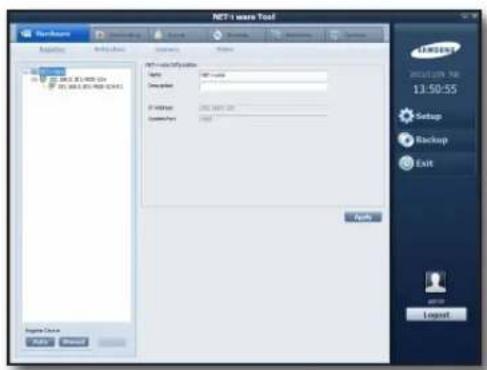
The tree will cascade a list of servers, registered devices and cameras.
The connection status of the server, device and camera will be displayed in the form of an icon.
You can check the status of the server and device by the color of the icon.

Connected

Not connected
◆ Checking the camera status
There are 6 states for the camera connection:

Connected + Activated + Schedule Recording

Connected + Activated + Manual Recording

Connected + Activated + Schedule & Manual Recording

Connected + Activated

Not Connected + Activated

Not Connected + Not Activated
- You can use the +/- buttons to show or hide the sub menus.
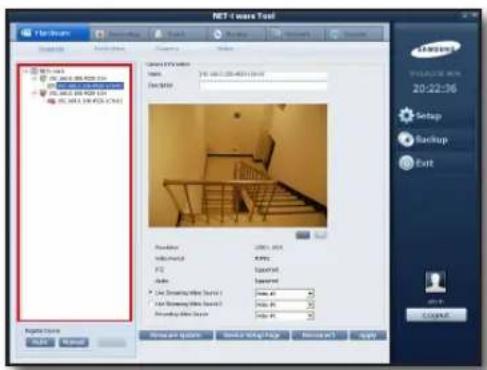
◆ To delete a device
You can select a device to delete.
1) To delete a device
① Select a device in the tree and click [Delete].
② In the Delete Device dialog, decide to delete recording files and click [Delete].

- If you check the Delete Recording Data option, the recording data of the device will be deleted accordingly.
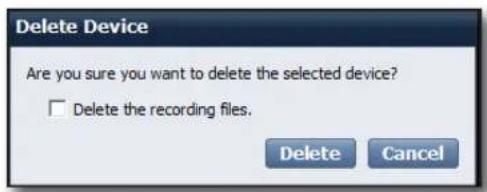
2) Result of deletion
- The device or camera will be deleted in the tree.
- If the appropriate camera is in process of recording or playback, it will be stopped.
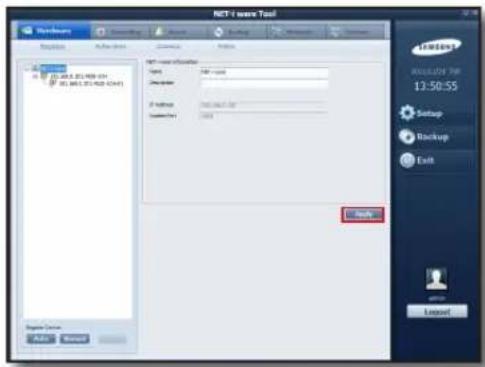
◆ To view the server information
You can change the server name or description and check the address and port number.
-
In the tree, click the server icon <☐>. You can change the server name and description.
-
To save your work, click [Apply].
To view the device information
You can change the device information or request to connect.
■ For camera activation, refer to page 18.
-
In the tree, click the device icon <>.
-
Change the information or request to connect.
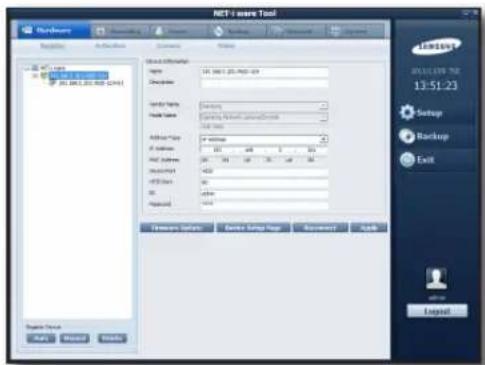
To change the device information
- Change the name, description or properties.
■ The device information includes the ID and password that are specified for the device.
- Out-of-order devices can be replaced with.
■ The model name and MAC address cannot be modified while the device is connected.
- Connect the replacing device to the network, and edit its properties(address type and IP, etc.) with those of replaced device.
-
Click [Apply] to save the changes.
-
If connection to the device with the changed properties fails, you will see the Properties window where you can restore the previous settings.
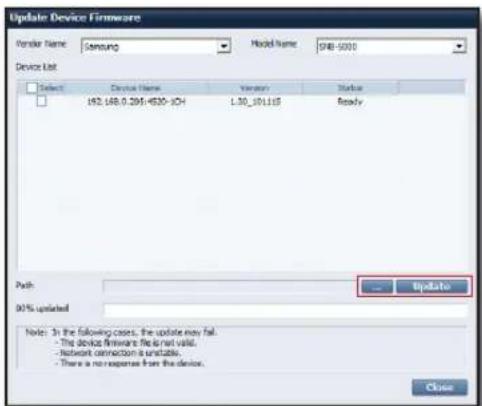
To update the firmware
You can update the device firmware remotely.
- Click [Firmware Update].
- Select a vendor name and model name to update. The selected devices will be listed.
- Check to select for devices to update.
- Click [File Browser ( ... )] and select a firmware file.
- Click [Update] to update the selected devices. If there is more than one device to update the firmware, the update will perform in the sequence from top.
- When the update is done, the status bar will display a message of completed. During the update process, no other function will be enabled.
If the firmware update fails during the process, the system will just proceed with the next device.
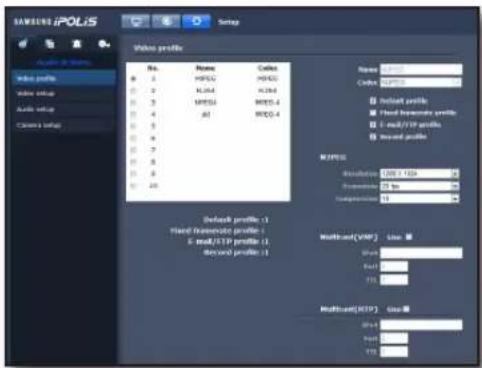
◆ To view the device settings
For device settings, you can move to the Setup page for each device.
- For more information, refer to the user guide of the appropriate device.
- Click [Device Setup Page].
You will see the Setup page of the selected device.
◆ To view the camera information
You can change the camera information or view the live video.
- You can change the information or view the live video only if the camera is activated.
-
You can check the resolution, video format, PTZ and audio permissions of the camera.
-
In the device list, click the camera icon <
-
Change the information of the connected camera or play the live video.
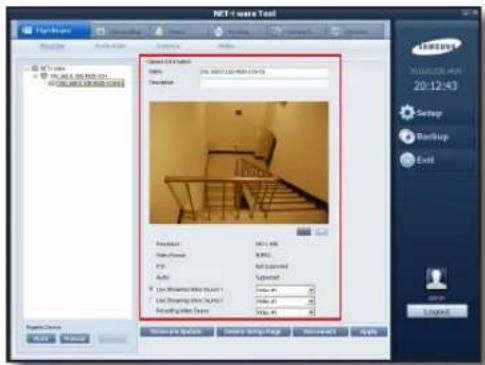
To change the camera information
- Change the name, description or video source.
If the camera supports more than one video source, you can select one for live playback 1, 2 and one for recording, respectively.
- Click [Apply] to save the changes.

It is recommended to set a different source (video profile) for each of live source 1 and 2.
To play the live video
You can play the live video, and start/stop manual recording.
-
To start manual recording, click < > in the bottom of the screen.
-
The minimum recording time is 30 minutes and you can not stop recording within 30 minutes after the start of recording.
- You must assign the camera to a disk before you can proceed with manual recording.
For more information, refer to "To assign a camera to each disk" (Page 21)
- To stop manual recording, click <
■ Manual recording will be stopped if the connection terminates.
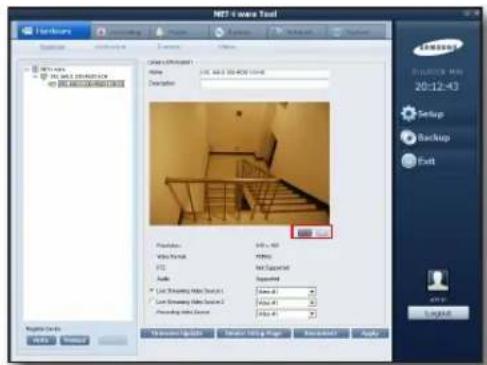

If the camera has an incoming video loss event, recording will not start even if you press the Start Manual Recording button.
Activation
To activate a camera
To use a camera, you must activate the camera after you registered it.
■ You can activate up to 64 cameras.
- SNS-SF064 : Max. 64 Cameras / SNS-SF032 : Max. 32 Cameras / SNS-SF016 : Max. 16 Cameras

If you want to register a multi-channel device for operational purposes, sometimes there happens where not all devices are available.
Ex) If you register one 4-channel encoder and 31 network cameras with model SNS-SF032, a total of the channels to be registered will be 35. If this is the case, the maximum number of active channels available is 32 so the remaining 3 will be disabled.
- Select a camera in the camera list of the left pane and click

The selected camera will move to the right list.
- To change the camera index, select a camera and use the <▲, >buttons to change the index.
- The changed index will have the same list order of cameras as in NET-i viewer.
- To deactivate an already activated camera, select a camera in the right list and click <◀>.
The selected camera will move to the left list.
- If you want to sort or find more about the camera list in the left pane, right-click an empty area to select one of the followings:
- Find object
Enter the name of a device or camera to search for a desired configuration file.
- Sort by name / sort by active index
You can sort the device or camera configuration files by name (ascending) or by index.
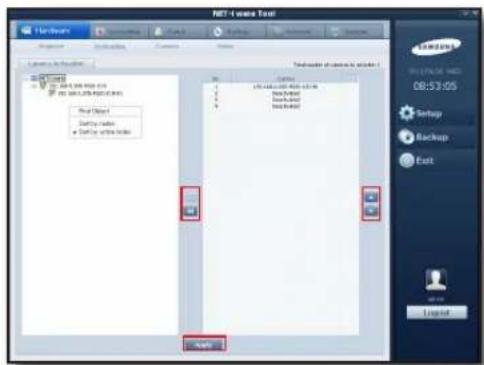
- To save your work, click [Apply].
If you activate a camera, the camera will automatically connect to the network.
If you deactivate a camera, the camera will be automatically disconnected from the network.
Camera
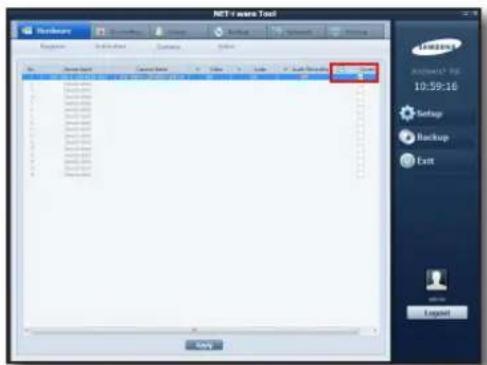
You can turn on/off functions of Video, Audio and Covert.
Video
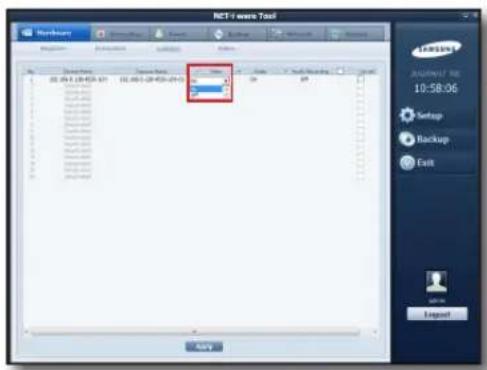
- Select the video item of a camera that you want to change the settings of.
- Select either On or Off.

If you set the Video function to Off, you can not play the live video, nor record. If the Video function is set to Off, the Audio function will be turned off accordingly.
Audio
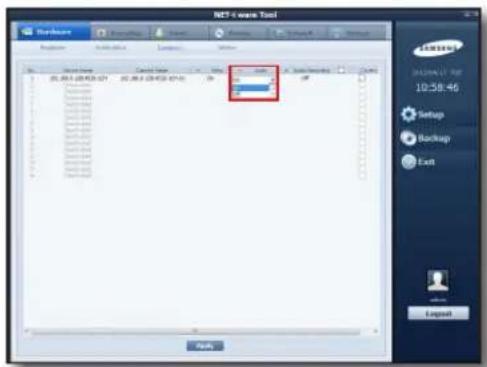
- Select the Audio item of a camera that you want to change the settings.
- Select either On or Off.

If you set the Audio function to Off, you can not play the live audio, nor voice record.
Audio Recording
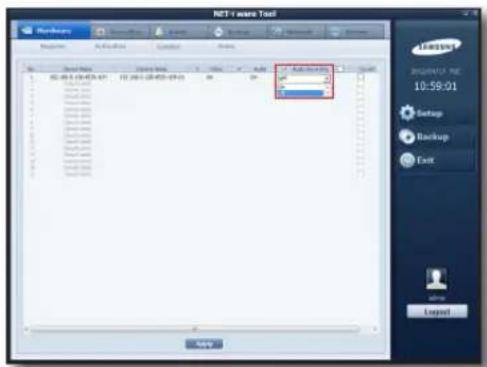
- Click on the Audio Recording of the desired camera.
- Select either one of On and Off.

- If you set the camera's Audio Recording to Off, no audio will be recorded.
◆ Covert
- Select the Covert item of a camera that you want to change the settings of.
- Check the item. The Covert function will be set to On.

If you check the Covert item, you can not play the live video or audio, but can make video or voice recording.
Video
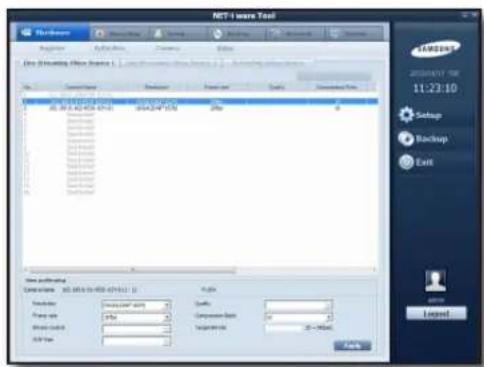
You can configure the live 1, 2 and recording video properties for each active camera.
- Configure the video properties for the live 1, 2 and recording video source specified in Camera Properties. (To change the camera information, refer to page 17)
- In Video Properties, there are Resolution, Quality, Frame Rate, Compression, Bitrate Control, Bitrate and GOP size.

■ Cameras in link with a device that does not support this function will be displayed inactive.
RECORD SETTING
NET-i ware
◆ To change the disk status
The HDD information list will show the information of the HDD currently installed. You can change the status of the local disk to Assigned or Released.
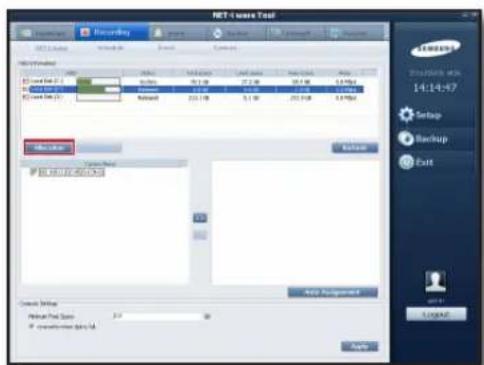
Allocation
If the local disk is assigned, you can record/scan/play a source.
-
Select a disk that is not assigned. The [Allocation] button will be activated.
-
Click [Allocation]. The Assign dialog appears.
-
Click [Yes] to change the status of the disk to Assigned. The icon of the local disk will be displayed green.

- The system disk where the OS is installed can not be assigned. - If there is no other disk than the system disk for recording purposes, you can not proceed with recording.
Released
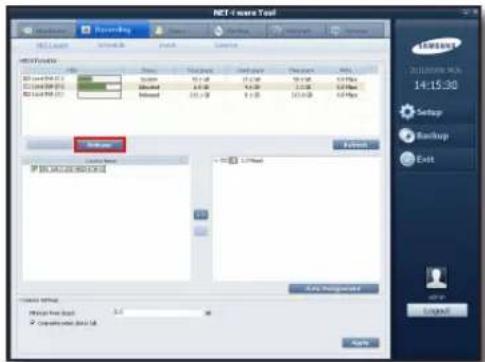
If the local disk is released, you can scan/play but not record a source.
- Select a disk that is currently assigned. The [Release] button will be activated.
- Click [Release]. The Release dialog appears.
- Click [Yes] to change the status of the disk to Released. The icon of the local disk will be displayed red.

- You cannot release the disk to which unauthorized cameras are assigned by the user group.
Refresh
Click [Refresh] to update information of the local disk with the latest.
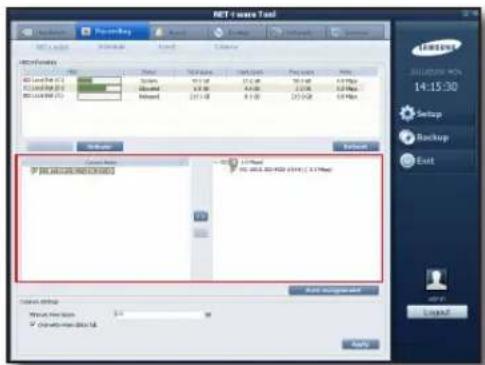
◆ To assign a camera to each disk
You can assign a camera to each disk.
- Select a camera to assign in the left list.
- Click [ >> ].
The selected camera will be copied under the assigned disk.
You can distribute a single camera into multiple disks.

- You can not record the source of a camera that is not assigned to a disk.
- The Auto Distribution feature will reset the camera distribution settings for each disk and perform distribution in the name order.
- Disc and camera in recording indicate the amount of written/received data.
If exceeded allowed limit of data writing, it appears in red. On such an occasion, distribute cameras to other discs appropriately or set the camera's video transfer for lower transmission rate.
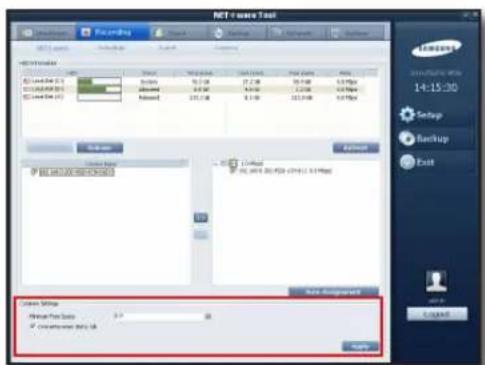
◆ Common Settings
Minimum Free Space
You can set the minimum free disk space.
You can proceed with recording only if the free space for recording is larger than the minimum value.
Overwrite when disk is full.
If there is no free space on the disk, you are prompted to overwrite the existing recording file.
Schedule
You can use NET-i ware to make scheduled recording.
NET-i ware will start or stop recording according to your schedule.
You can create a schedule and apply it to multiple cameras.
You can also create multiple schedules.
■ You can create schedules for up to 64 cameras.
- SNS-SF064 : Max. 64 Cameras / SNS-SF032 : Max. 32 Cameras / SNS-SF016 : Max. 16 Cameras
You can start scheduled recording through the following 3 steps:
1) Create a schedule
2) Set the schedule contents
3) Apply the schedule setting to the camera
You can check a list of cameras to which the same schedule is applied.
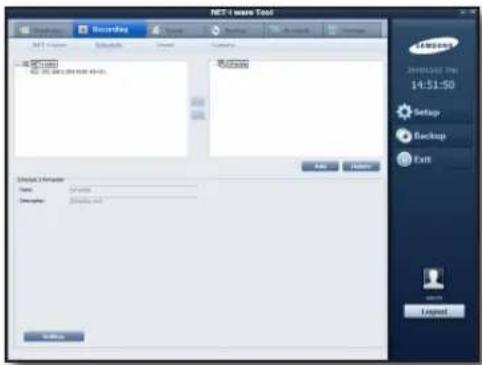
◆ To create a schedule
-
Click [Add] in the bottom of the schedule tree. The Add Schedule window appears.
-
Provide information in the Add Schedule window and click [Add].
The default schedule is displayed in the right tree.
■ Default: Continuous Recording
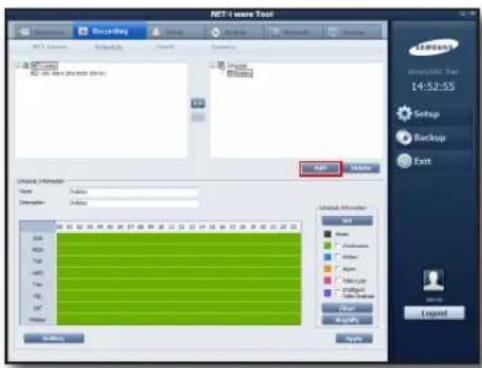
To edit a schedule
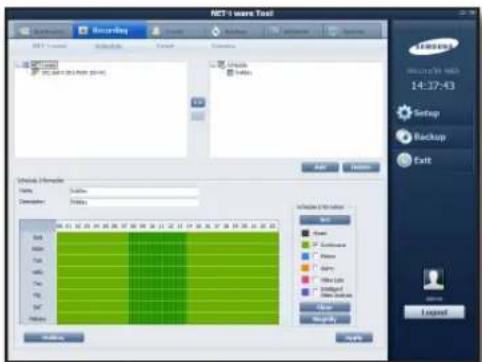
You can edit the recording schedule by the minute.
You can specify the settings of Continuous/Motion/Alarm/Video Loss/Intelligent Video Analysis for each time unit.
To edit
-
Select the icon of a schedule to edit in the tree.
-
Enter a schedule name and description.
-
In the schedule table, drag the cursor to a specific point to specify the time range.
-
Select a desired item(s) from Continuous/Motion/Alarm/Video Loss/Intelligent Analysis, and click [Set].
-
Click [Delete] to delete the values in the selected range.
-
Click [Apply]. The changes will be applied.
To check your work
When your settings are completed, the changes will be applied. The camera may start or stop recording, according to the setting.
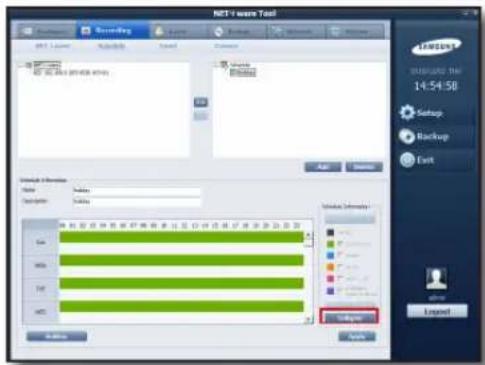
- Click [Magnify] to extend the schedule tree so you can check the duplicate area across the time ranges.
The [Magnify] button will switch to [Collapse] while other buttons will be grayed.
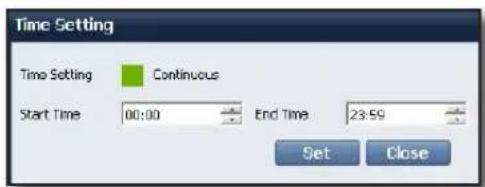
- If you double-click a scheduled range in the table, you will see a window where you can fine tune the time settings with the start and end times at the minute's interval.
■ The minimum time range is 15 minutes.
To delete a schedule
You can delete a schedule.
-
Select a schedule to remove from the tree and click [Delete] in the bottom of the tree. You can also delete the current schedule where recording is in process.
-
If you delete the current schedule, recordings of all cameras with the schedule setting will be stopped.

- You cannot edit or delete a schedule to which unauthorized cameras are assigned.
◆ To apply a schedule to a camera
You can create and apply a schedule to a camera.
If you create and apply a schedule to a camera, the camera will perform recording according to the schedule.
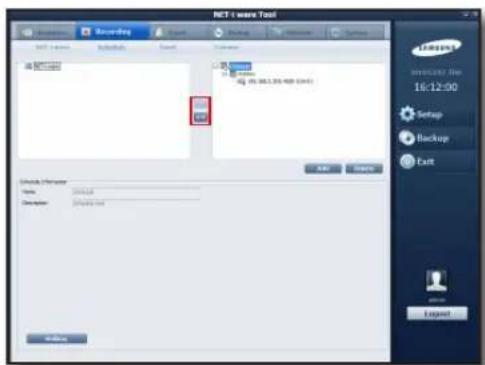
To apply a schedule
- Select a schedule to apply in the right tree.
-
Select a camera to apply in the left tree and click < >>>.
-
Select a camera in the right tree and click < <> to cancel the schedule.
Holiday
You can specify a holiday and perform scheduled recording on that holiday.
You can also set the execution cycle and period for each holiday.
Cycle
• No Cycle: The holiday is effective only on that day.
• Days: Effective at the set interval of days.
- Weeks: Effective at the set interval of weeks.
• Months: Effective at the set interval of months.
• Years: Effective at the set interval of years.
Range
- Start Date: The first date of the holiday period.
- Unlimited: Stays effective without the end date.
• Count : Effective as many as the set times.
• End Date: Effective till the specified date.
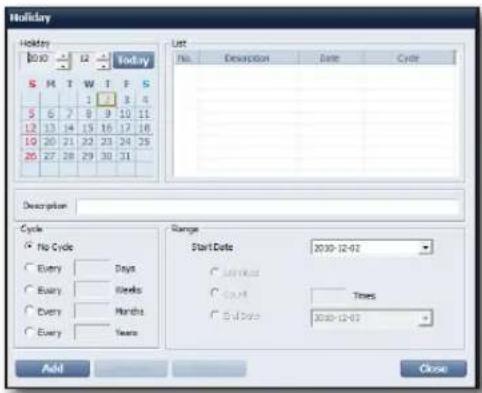
To edit a holiday
- Select a date in the calendar.
- Set the cycle, end date and description, and click [Add]. The created holiday will be added to the list.
- Ex) If you select to add every second week for the holiday, your settings will be as shown.
To create a holiday
- Select a holiday to edit in the list.
- Change the cycle, end date and description to your preference, and click [Update].
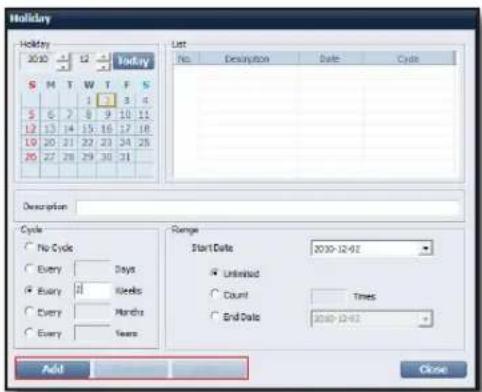
To delete a holiday
- Select a holiday to delete in the list.
- Click [Delete]. The selected holiday will be removed.
Recording Event
For your better understanding of the event situation, you can set the pre and post recording times based on the event occurrence point.
Pre and post images as many as specified based on the event occurrence time will be saved.
- Motion, Alarm, Intelligent Video Analysis Event: You can set both pre and post times.
• Video Loss Event: As there will be no image to record after occurrence of the event, the pre time alone can be specified.
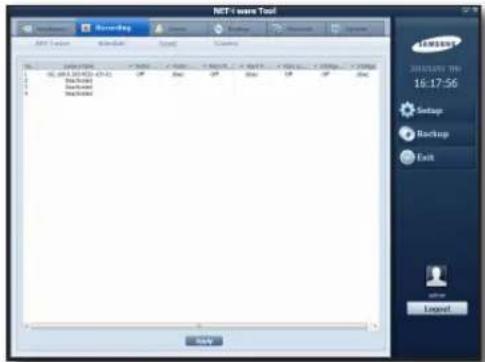
- Select an item to record. If the time option is activated, you will see a list of sub items available.

■ If you set the time option to Off, recording will not proceed.
- Select pre and post times to record and specify a recording time for each event.
- Click [Apply] in the bottom side to save your settings.
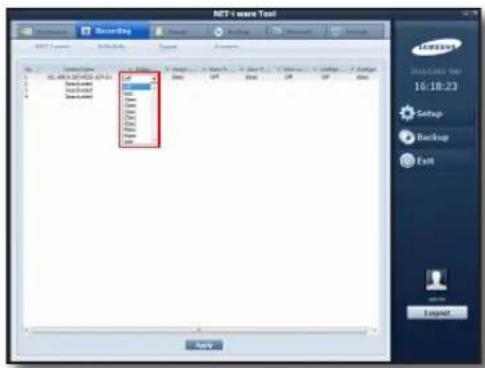
Recording Camera
You can set the fps to save for each activated camera and recording type (normal/event).
- The normal recording type includes manual recording and continuous scheduled recording.
- Available event recording types include Motion/Alarm/Video Loss/Intelligent Video Analysis.
You can specify the storage period of a recording file for each active camera.
- An expired recording file will be deleted automatically.
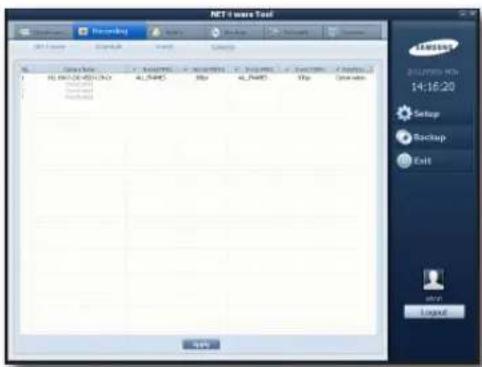
| Video Setup Item Description | ||
| MPEG ALL FRAMES Saves all incoming frames. | ||
| KEY FRAMES Saves only I-frame. | ||
| MJPEG 1 ~ 30 Saves as many fps as you selected. |
This will not affect the video setting.
The actual incoming frame rate from the device may differ from the setting here, and you will receive just as many frames as incoming.
■ The maximum throughput of recording is 250 Mbps.
- Recording in 3M of resolution is possible if it's not exceeding the maximum throughput.
- For stable recording, it is recommended to use a HDD that meets the minimum specification of SATA2 7200rpm. (It is also recommended that the maximum throughput of a single HDD does not exceed 125Mbps.)
- You can search for and play the recoding data using NET-i viewer or Web Viewer.
Event Camera
You can set the event discard time for, and the Alarm Into sync with each activated camera.
The event discard time is to discard a duplicate event in the specified time range.
You can also set an Alarm In to sync with each camera, which occurs from the device.
- If you did not set an Alarm In to sync: Any Alarm In from the device will not affect NET-i ware.
- If you set an Alarm In to sync: If an Alarm In occurs from the device according to the recording and event settings, scheduled recording will starts according to the recording and event settings or an e-mail will be sent.
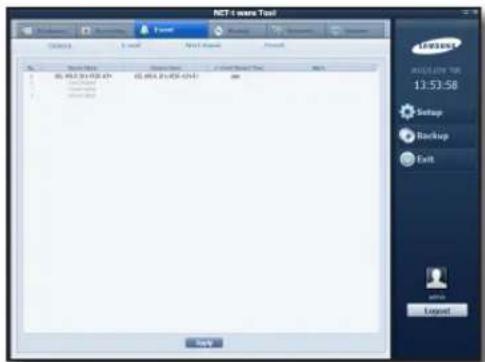

As long as the Alarm In function of the device is not active, the Alarm In event will not occur even if you have set the Alarm In in NET-i ware Tool.
-
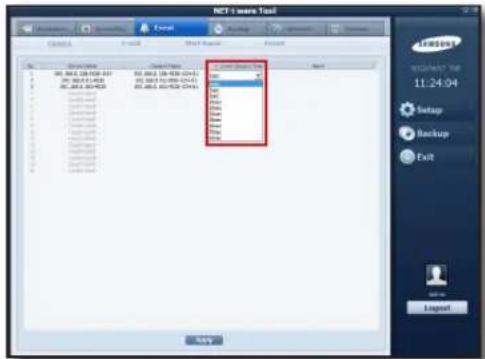
In the camera menu window, click the Event Discard Time item of the connected camera. Time options available will be listed.
-
Select an event ignorance time.
-
Click the Alarm item and select an Alarm In to sync.
- You can select multiple items.
Event Messaging
You can set to send an e-mail if an event occurs.
◆ E-mail Object Management
You can create/edit/delete an e-mail. In the left pane of the screen, you will see the e-mail list while you can check the information of the selected e-mail in the right pane.
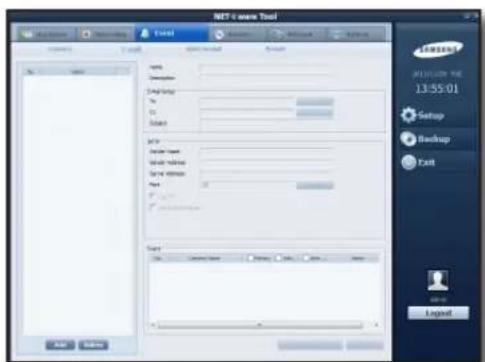
To create an e-mail
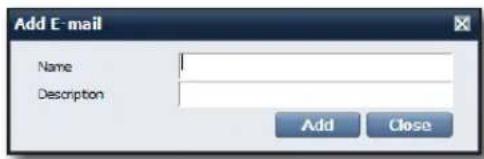
Click [Add] in the bottom list, and provide a name and description and click [Add] in the dialog.
An e-mail of the default settings will be created.
To edit an e-mail
Change the name, description or subject in the E-mail page.
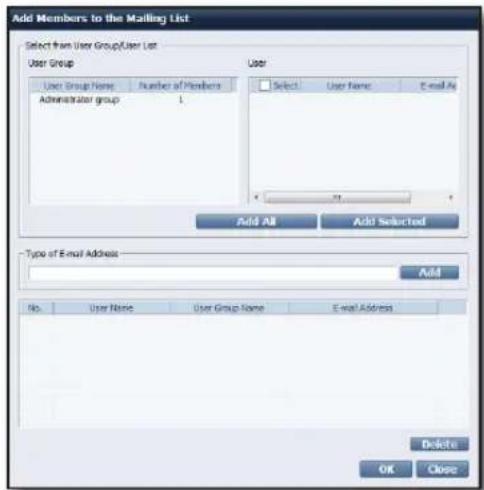
To add a recipient or CC
- Click [Add].
Using the user information that is already registered with NET-i ware
- Click [Add All] or select a desired user and click [Add Selected]. Or, provide an e-mail address and click [Add].
The e-mail address that you added will be displayed in the bottom list.
When done, click [OK].
- Change the mail server settings as necessary, including: sender, receiver, server address, server port, enable authentication, ID, password, and enable SSL.
- Press the [Default] button to set the server port number as default.
-
For your preferred transfer settings, select a desired item(s) from Motion, Video Loss, Intelligent Video Analysis and Alarm for each camera.
-
To save your work, click [Apply].
To delete an e-mail
Select an e-mail in the list and click [Delete].
To transfer an e-mail
When the e-mail transfer conditions are completed, an e-mail will be sent to the recipient(s) with the CC at the moment an event occurs from the camera.
The e-mail message includes the camera name, event type and event occurrence time.
If there is a JPEG image recorded at the event occurrence time, it will also be attached to the e-mail.
This function is to sound the alert upon the occurrence of an event.
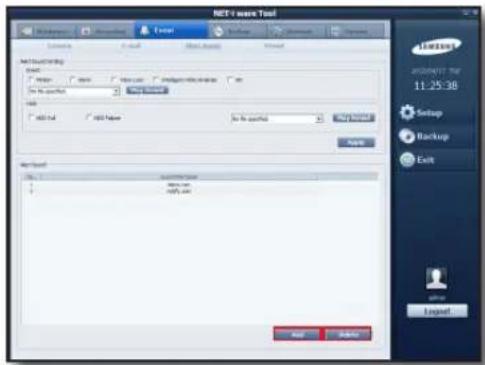
◆ To register an alert sound file
You can register an alert sound file to use.
- Only the wav format is supported.
By default, two wav files are provided:
- alarm.wav, notify.wav
-
Click [Add] in the bottom corner.
-
Select an alert sound file to use.
The selected file will be registered.
- To delete an already registered alert sound file, select a file in the list and click [Delete].
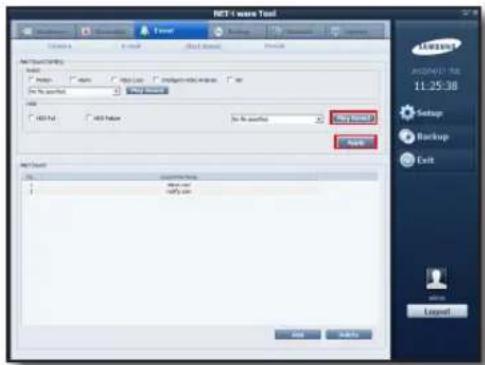
To set an event
You can specify an event for which the alert sound will be output. Event types available are as follows:
- Motion: If a motion event is incoming from the connected device
- Alarm: If an alarm event is incoming from the connected device
• Video Loss: If a video loss event is incoming from the connected device
- Intelligent Video Analysis: If receiving an intelligent video analysis event from the device
• HDD Full: The HDD is full and can not store any more
- HDD Failure: The HDD is out of order and can not store data.
-
Select an alert sound in the list to output when a device or HDD event occurs.
-
Click [Play Sound] to listen to the sound in advance.
-
Click[Apply] to save the changes.
EVENT PRESET
This enables you to move the camera preset at the moment an alarm occurs.
◆ Preset settings
Specify a preset to which the current preset is moved when an alarm occurs.

- This is enabled only when the device supports the alarm event and preset features.
You must specify the alarm that is used in the event camera setup page.
■ Press Refresh to update the current preset list.
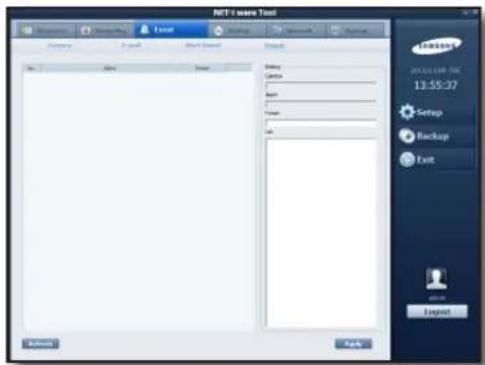
Schedule Backup
You can backup stored data according to the schedule that you set.
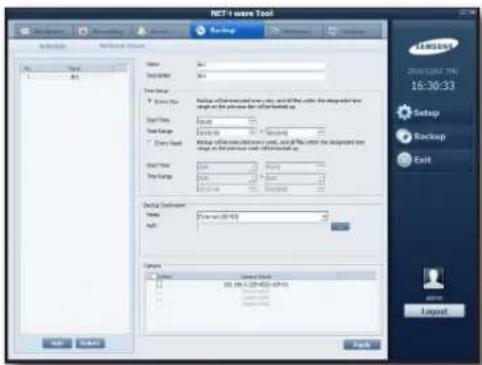
◆ Schedule Backup Management
You can create/edit/delete a schedule backup.
In the left pane of the screen, you will see the schedule backup list while you can check the information of the selected schedule in the right pane.
◆ To create a schedule backup
-
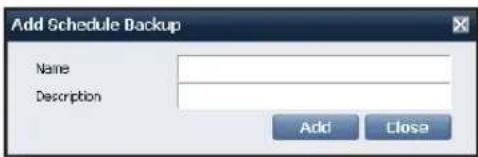
Click [Add] in the bottom list. You will see the Add Schedule Backup dialog.
-
Provide a name and description in the dialog and click [Add]. A schedule backup of the default settings will be created.
◆ To edit a schedule backup
You can change the schedule backup name and description.
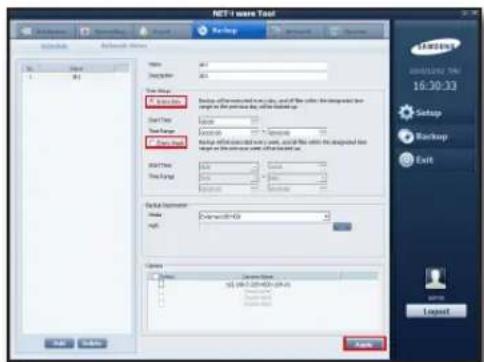
- Change the schedule backup cycle and range. Select [Every Day] or [Every Week] for the backup cycle.
-
Enter the schedule backup start time and range.
-
Select an item to backup the schedule. You can specify a path for the external usb HDD and Network Drive as it is supported.

- You can use only those drives that can be recognized by the operating system.
-
If you select a network drive for the media, enter a valid ID and password for the backup media. If any of them is invalid, the schedule backup may not be performed normally.
If you cannot find any network drive in the folder browser, restart the NET-i ware Tool program. -
Select multiple cameras to backup the schedule.
-
Click [Apply] to save the changes.
◆ To delete a schedule backup
Select a schedule backup in the schedule backup list and click [Delete].
To perform and play the schedule backup
Schedule backup will perform according to the schedule that you set.
- If you set the schedule backup cycle to Every Day: Recording data one day before within the backup range will be backed up.
- If you set the schedule backup cycle to Every Week: Recording data one week before within the backup range will be backed up.
- Path for the schedule backup file: User specified path\NIWData\Camera ID\Recording Date\Sstart-end_ID_0000(1).rec1 The camera ID is created based on the MAC address of the device and other information.
■ 4 digits trailing ID is overlapping index, where smallest number is the latest recording.
■ Parenthesized number is the distinguisher for same filenames. - You can play the schedule backup file using the video playback function of NET-i viewer.
Network drive
If you use the network drive to perform the schedule backup, you can configure the settings for the network connection retry and auto deletion of the backup files.
◆ Network connection retry
If the network is disconnected at the start of the schedule backup, it will try to connect again according to the specified cycle and times.
◆ Auto deletion of backup files
Any backup file earlier than the specified auto deletion date will be deleted at the start of the schedule backup.
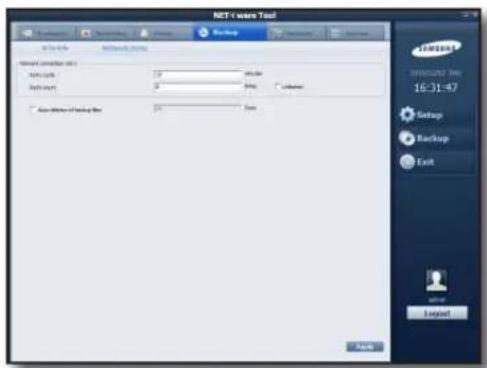
NETWORK SETTING
You can check and configure the settings for accessing NET-i viewer and web viewer.
Interface
◆ Network Access Count
You can specify the number of networks that you want to access.
-
Check a network that you want to access.
-
If accessing a single network: Uncheck the option of "Enable Network 2". If accessing only one network, all communications with NET-i ware and external devices, will be via the selected network.
-
If accessing two networks: Check "Use network 2." If this is the case, communications with NET i-ware will be via network 1 while communications with external devices will be through network 2, which will distribute the network load (traffic).
-
Click [Apply] to save the changes.
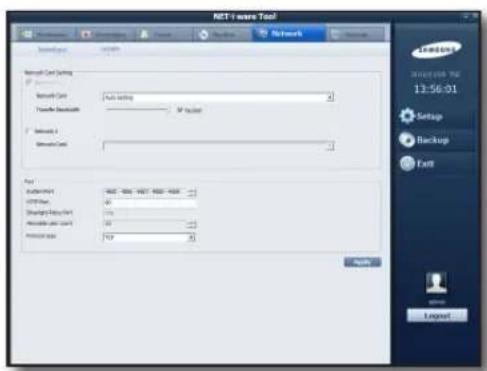
To select a network
Select one from network 1 and network 2, which is installed and in service on the PC. For network 1, you can change the bandwidth if you want.
- If the network setting is changed, the NET-i ware service will restart.
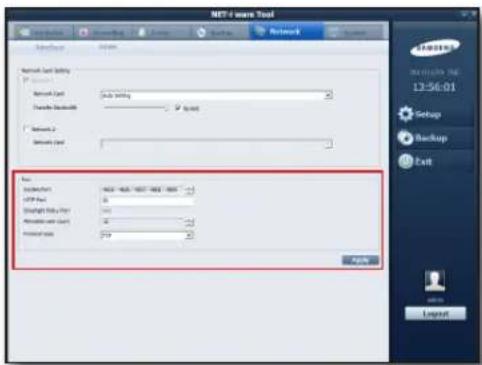
◆ Port Setting
- Set the port range to use.
For the concurrent user count, you can specify 10 users for TCP/UDP (Unicast), and up to 20 for UDP (Multicast). You can specify the client program and protocol type.
- TCP
- UDP (Unicast)
-
UDP (Multicast): Provide the multicast address, port and TTL.
-
Click [Apply] to save the changes.

- To enable a connection method of UDP (Multicast), you must configure the network setting so that it supports multicasting.
- It is recommended to use a switch device supporting Layer 3 or higher.
Network DDNS
Register DDNS with NET-i ware.
■ Provided DDNSs are as follows:
- websamsung.net
- dyndns.com (Private DDNS)
- no-ip.com (Private DDNS)
- changeip.com (Private DDNS)
-
samsungipolis.com
-
Select a DDNS to use.
■ websamsung.net can be registered without additional settings.
If selecting the private DDNS option, you must provide the product ID, user name and password so that it can be registered.
- Click [DDNS Test] to check if it can be registered properly. If registration succeeds, you will see the confirmation window.
- You can set the update cycle by the minute and register it with DDNS periodically.
- Click [Apply] to save the changes.
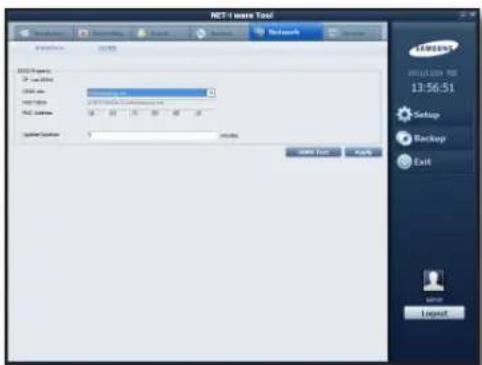
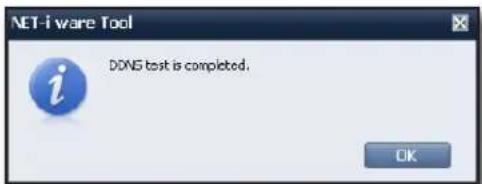

- Once you registered DDNS with NET-i ware, you can register NET-i ware using the URL of the DDNS.
System User
You can register users and user groups and set the necessary permissions.
The default user (admin) and user group with the manager permissions are provided.
- The users (groups) are of parent-child relationship with each other.
- A user group can own more than one user.
■ The user can not own other user or user group. - The default password for the default user is 4321. For security purposes, change the password for the default user.
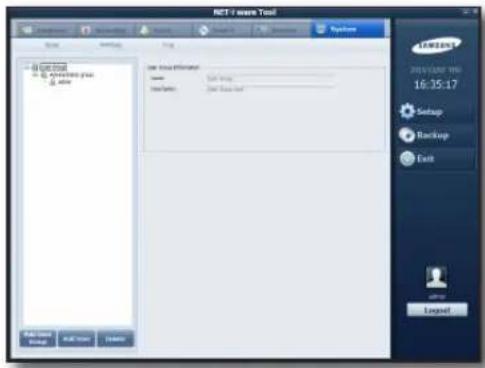
◆ User (Group) Management
You can create/edit/delete a user (group).
In the left list of the System User setting window, there displays the user (group) tree; in the right pane, you can check information of the selected user (group).
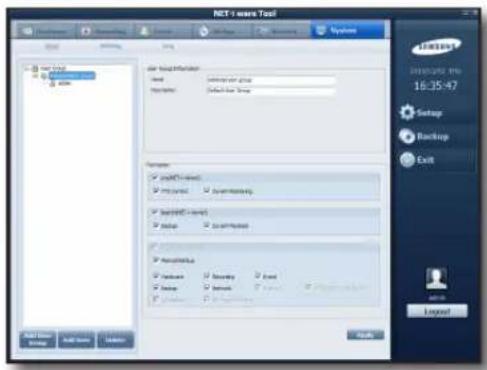
To create a user group
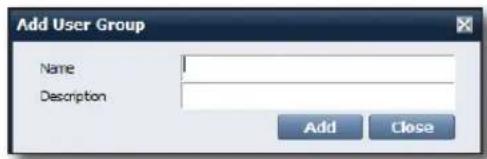
- Select a user group to use as parent in the tree, and click [Add User Group] in the bottom list.
- Provide a name and description in the Add User Group window, and click [Add].
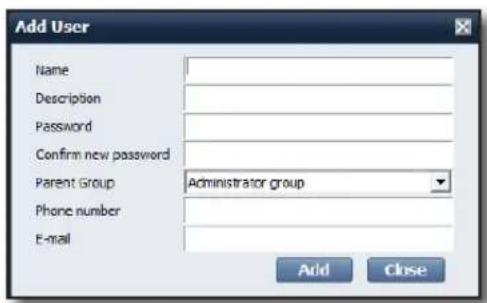
To create a user account
- Select a user group to use as parent in the tree, and click [Add User] in the bottom list.
- Provide a name, description, password, phone number and e-mail address in the Add User window, and click [Add].
- The user account will be created under the selected parent.
- If you did not select a parent user group, the user account will be created under the default user group.
◆ To edit a user (Group) account
- Select a user (group) account to edit in the tree of the System User page.
For the user group, you can change the following settings:
- Name, Description
- Permission
Live (NET-i viewer) : Monitoring, PTZ Control, Covert Monitoring
■ Covert Monitoring: You can monitor the camera image of which the Covert function is set to On.
Search (NET-i viewer): Playback, Backup, Covert Playback
■ Covert Playback: You can play the camera image of which the Covert function is set to On.
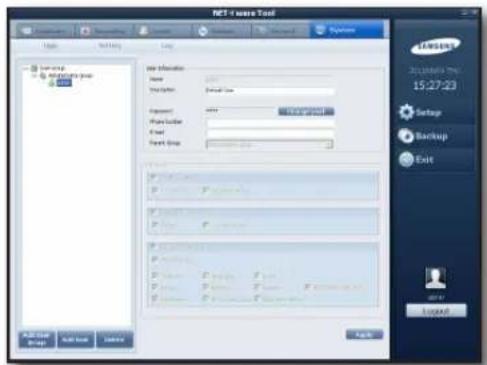
NET-i ware Tool Login: Manual backup, hardware, recording, event, backup, network, system
■ Camera access permission : You can set or cancel the access permission to each camera.

■ The admin user has the following permissions:
- Add/delete a user (group)
- Change monitoring a user (group)
- Initialize
- Configure NET-i ware settings
- Add/Delete Device
- Change the camera access permission
- Automatic permission to an additional camera
As a user, you can change the following settings:
- Name, Description
- Password
- Phone Number
- E-mail Address
- Parent User Group (You can also use the drag-and-drop method to edit user information in the tree.)
■ The default user can not change its parent user group. -
Permissions can not be changed and will inherit from the parent user group.
-
Click [Apply] to save the changes.
To delete a user (group) account
Select a user (group) account to delete in the tree of the System User page, and click [Delete].

If you delete a user group, its child users (or user groups) will be deleted accordingly.
User Login
If you log in to NET-i ware from NET-i ware Tool or NET-i viewer, the functions will be limited according to the user permission.
You can configure the system settings of NET-i ware.
Language
You can set a preferred language for the program. Select one from Korean, English, Chinese, French, German, Italian, Russian, Spanish, Japanese, Turkish, Czech, Polish, Serbian, Rumanian, Portuguese, Dutch, Croatian, Hungarian, Greek, Taiwanese, Swedish, Danish, Norwegian and Finnish.
- The default will be the language of the operating system and, if you select a language that is not supported by the OS, English will be selected.
- Check the followings if the change of the language is not applied:
- If there is a language pack for the selected language, install the language pack first.
- Windows XP/Windows 2003
Select the appropriate language in [Control Panel – Regional and Language Options – Regional Options] and [Control Panel – Regional and Language Options – Advanced].
- Windows Vista
Select the appropriate language in [Control Panel – Regional and Language Options – Form] and [Control Panel – Regional and Language Options – Keyboard and Language – Normal].
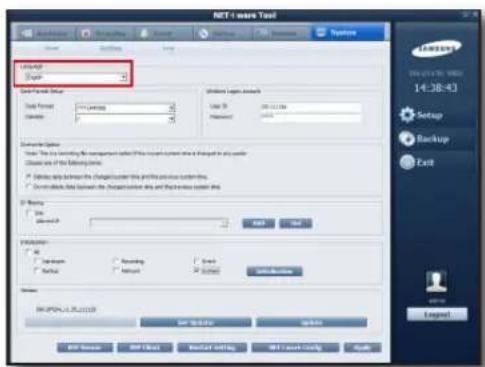
◆ Windows Logon Account Setting
You must create a Windows logon account before you can back up schedules using a network drive.
- The Windows logon account is information required to log onto the Windows OS of your PC. You can check your Windows logon account in Control Panel – Administrative Tools – Computer Management – Local Users and Groups.
- Once a valid Windows logon account is created, you may need to restart the system.
◆ Overwrite Options
If you change the PC time behind the current time, you can select to delete data recorded later than the changed time.
If you do not delete the data, the data may be redundant in the overlapped time range.
If changed your computer's standard time (GMT/DST), you need to restart your computer for proper NET-i ware operation.
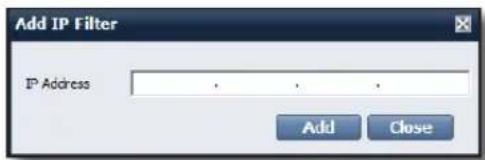
IP filtering
Specify the use of the IP filtering option.
You can also add or delete an allowable IP.
If you use the IP filtering function, you can log in to NET-i ware from NET-i viewer using only an allowable IP.
- If you want to use the IP filtering, check the applicable option item.
- Click [Add].
- Enter an IP address and click [Add].
- Click [Apply] to save your settings.
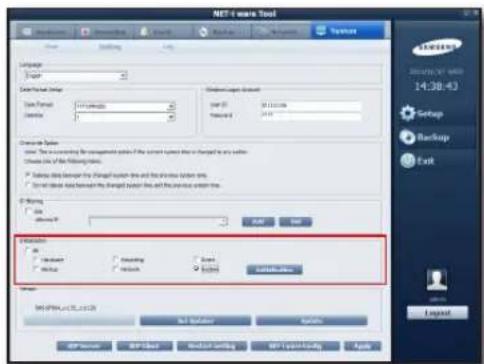
◆ Initialization
This will restore the NET-i ware settings to the default.
Select a desired item to reset.
Items that can be reset are as below:
- All: Resets all settings.
- Hardware: Resets the hardware settings.
- Recording: Resets the record settings.
- Event: Resets the event settings.
- Backup: Resets the backup settings.
- Network: Resets the network settings.
-
System: Resets the system settings.
For the language, it will be reset to the language set by the OS. -
Select an item to reset.
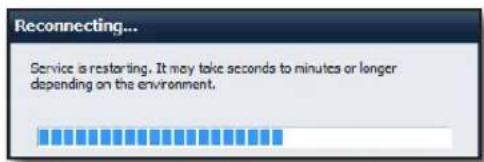
- Click [Initialization] in the right corner. If you reset an item, the NET-i ware service will restart and display the Reconnect dialog.
Version
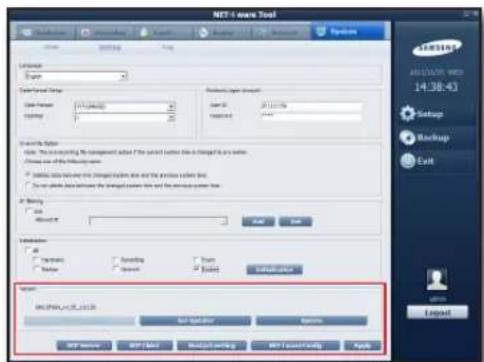
Displays the version of NET-i ware.
NET-i ware Updater
Performs the NET-i ware Updater manually.
Setting Updater
You can set the auto update.
Update
You can perform the update manually.
NTP Server
You can check the service status and address of the NTP server. You can start or stop operating the NTP server service.
NTP Client
Specify the NTP server for time synchronization.
You can change the PC time manually.
You can specify the frequency that the time synchronization is performed on a regular basis.
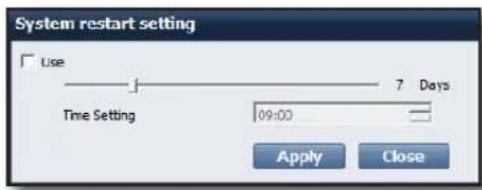
◆ System restart setting
You can specify the activation frequency and time to restart the vsystem (PC).
◆ Import/Export NET-i ware Configuration
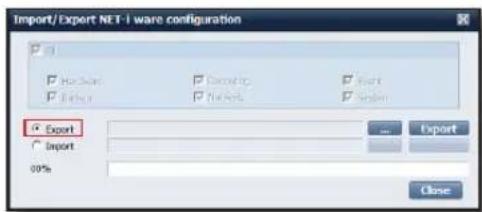
You can extract the NET-i ware settings and apply them to the NET-i ware that is installed on other PC. Recording data can not be imported / exported.
Export NET-i ware Configuration
- Click [NET-i ware Config] in the bottom. You will see the Import/Export NET-i ware Configuration dialog.
- Select Export and specify a file path.
- Click [Export]. All settings are created as a file.
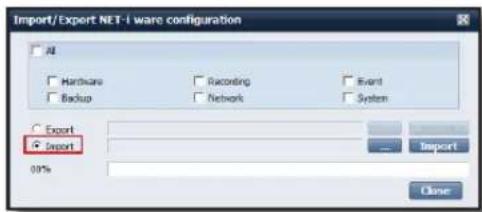
Import NET-i ware Configuration
- Click [NET-i ware Config] in the bottom. You will see the Import/Export NET-i ware Configuration dialog.
- Select an item to import and click Import. The Import button will be activated.
- Select a file path and click [Import].
System Log
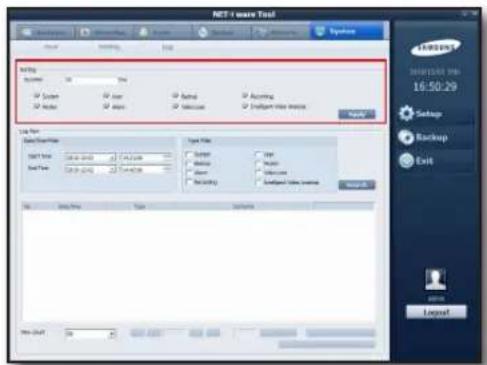
You can set to save the log and search for a stored log.
Log Setting
Only logs in the set period will be saved, and those that expire will be deleted automatically.
Set the type of the log to save.
- Log types available are as follows:
- System: Start/Stop service, HDD Full and Write Error, Time Change, Initialization
- User: User Login/Logout
- Backup: Start/Stop Backup and Backup Failure
- Recording: Start/Stop Recording/Recording Failed
- Motion: Motion detection event of the device
- Alarm: Alarm event of the device
- Video Loss: Video loss event of the device
-
Intelligent Video Analysis: An intelligent video analysis event of the device
-
Provide a log storage period.
- Storage Period: 1\~365 days
-
Check to select a log type.
-
Click [Apply] to save your settings.

- Up to 20,000 logs can be saved, and if the log count exceeds the maximum, the logs will be backed up as a file with the oldest first. You can check the backup logs in the following path: "Log" folder under the installation folder of NET-i ware. ex) C:\Program Files\Samsung\NET-i ware\log
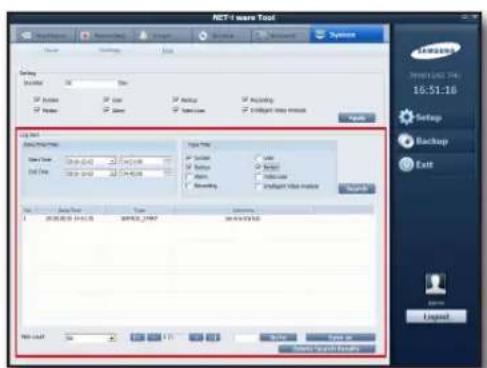
To search for a log
You can set the log search criteria for your search.
- Provide the date/time settings for the log search range. Provide the search range including the time unit of second.
- Check to select a search type.
- Click [Search]. Logs meeting the search criteria will be listed.
- You can set the log count per page in [View Count]. You can scroll through the pages to move to the previous or next page in a long list.
- Click [Save As] to export the logs in the current page.
- Click [Delete Search Results] to delete searched logs. Deleted logs are not searched.
TO BACKUP DATA
You can search for and backup desired data manually.
- Click [Backup] in the right corner of the main page.
- Select a backup file format, time, storage device and backup data and click [Start Backup] to backup the selected data.
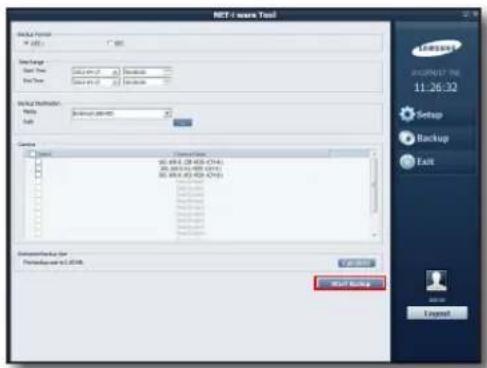
Backup File Format
Select a backup file format from REC1 and SEC.
- REC1 : File format that can be played using the video playback function in the Search Viewer of NET-i viewer.
- SEC : File format that can be played without an additional viewer.
- The minimum requirements for normal operation of SEC Backup Viewer are as follows: CPU Quad Core 2.5GHz or higher, DRAM 3GB or more.
Backup Criteria
Select a backup time, storage device and camera to backup.
- Time Range: Set the time range for the recording data to backup.
- Backup Destination: Select one from the External USB HDD, DVD/CD, USB Flash Memory and specify the sub path.
- You can reuse a DVD-RW disk using the "Erase this CD-RW" menu in the Windows Explorer.
■ The DVD+RW disk can not be reused.
- Camera: Select multiple cameras to backup.
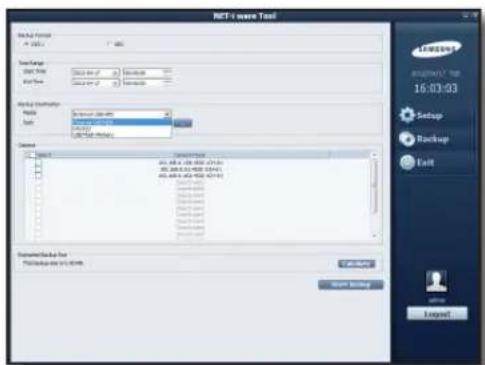

- You can use only those drives that can be recognized by the operating system.
- For the Windows 7 user, select "CD/DVD Drive" in the Backup Destination pane to display the disk burning popup. If you select "Disk Setup Option" from the disc burning popup, CD/DVD backup will not operate properly. From the disk burning popup, press the "Cancel" button.
To calculate the size of backup data
You can check the original size of backup data that you selected in the above step.
Select data to backup and click [Calculate] in the bottom right corner.

The actual size of the backup data will be slightly larger than the original as additional information is included.
If there are multiple recording sections in the backup time period, select one of them to estimate backup data size.
Backup Progress
- Select a file to backup.
- Click [Start Backup].
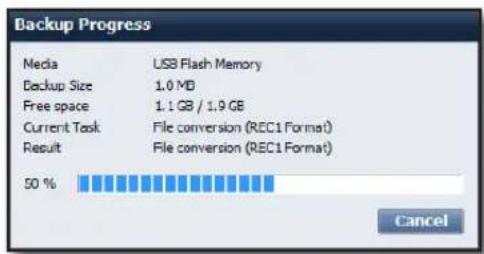
Backup will start, and you will see the Backup Progress window.
- If you want to cancel the backup, click [Cancel] in the Backup Progress window.
In the Backup Progress window, you can also check the following information:
- Média
- Backup Size
- Free space
- Current Task
- Result
- Backup progress
If there are multiple recording sections in the backup time period, select one of them to backup.
bar
| Metric | Value | | -------------------- | --------- | | Media | USB Flash Memory | | Backup Size | 1.0 MB | | Free space | 1.1 GB / 1.9 GB | | Current Task | File conversion (REC1 Format) | | Result | File conversion (REC1 Format) | | 50 % | 50% |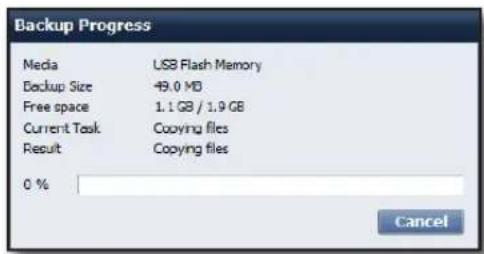
Service Manager
When the program is installed on the PC, the Service Manager icon will be displayed in the right tray on desktop.
USING SERVICE MANAGER
The Manager will reside in the Windows tray that manages the NET-i ware service.
Select the icon and right-click it.
The Service menu will appear.
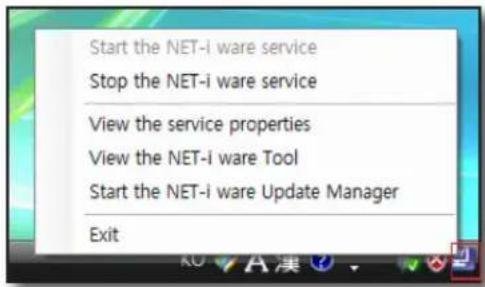
Service Management
You can start or stop the service.
- Start the NET-i ware service: Starts the NET-i ware service.
- Stop the NET-i ware service: Exits the NET-i ware service.
◆ NET-i ware Tool Program
You can run the NET-i ware Tool program.
◆ Viewing Service Information
Click [View the Service Properties] to display the NET-i ware Service Information window.
- Start Service Tab: You can check the status of the service.
- Setup Tab: You can set to automatically run the NET-i ware service when the system starts.
- Product Key Tab: Shows the installed product's product key.
- S/W Version Tab: You can check the current version of the software installed on the PC.
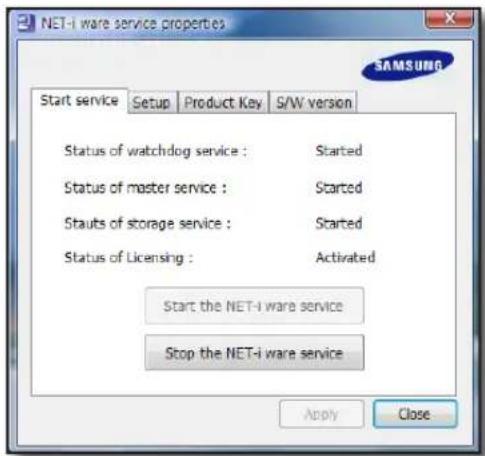
INSTALLATION
The updater file will be installed together when you run the installer file of NET-i ware.
Run
Click Execute Updater in the System Setup page of the NET-i ware Tool, or click Start Updater in the Service Manager to launch the NET-i ware Updater.
If the program starts normally, you will see the tray icon of the "NET-i ware Updater Manager" program in the task bar.
- Place the cursor over the icon. You will see a tool tip as shown.
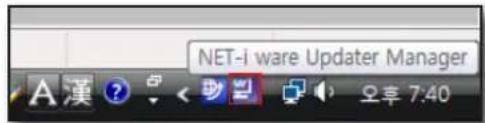
- Right-click the tray icon. You will see a context menu as show.
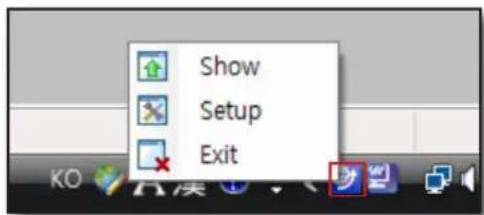
◆ To update with the latest version
You can connect to the server and update the program with the latest version, regardless of the autocheck function.
- Right-click the [NET-i ware Updater Manager] tray icon.
- In the context menu that pops up, select the [Show] item. You will see the NET-i ware Updater Manager window.
- In the "NET-i ware Updater Manager" window, click [Check New Version].
① In this window, you can check the current version and installation date.
② Select the [ ] button to check the release note of the current version.
③ You can check the communication log.
You can use the log to check the cause of failure.
④ If you select the [Check New Version] button, you can check if a later version than the current is released on the server.
⑤ Click [Log Clear] to delete a log or logs.
⑥ Click [Hide] to disappear the menu window.
![NET-i ware Update Manager NET-i ware Updater Manager SAMSUNG NET-i ware v0.501.098709 Last Update Date 2009-07-09 11:19:56 Server [10.240.53.37] Connect Checking ... Start NET-i ware Update... [2009-07-09 11:20:03] .... Checking whether NET-i ware update is locked. If it's locked, up .... Receiving NET-i ware Update information .... Analyzing update data file .... You already have the latest version. .... NET-i ware Update completed Check New Version Log Clear Hide](/content/2026/05/1065684/images/ca61a2d610be7f81b4e0f7bdb0f3f628d11b8fea1ba82f0bbf096d3ff4c81bf2.jpg)
You can set the check update cycle to check any update automatically.
- Click the [NET-i ware Updater Manager] tray icon.
- In the context menu that pops up, select the [Setup] item.
- Change the settings in the Setup window, and click [Save].
Using AutoCheck
You can set to check any update every day.
- Click Daily.
- Select a time to perform the auto check. Ex) The right figure shows the auto check performs 08:00:00 AM every morning.
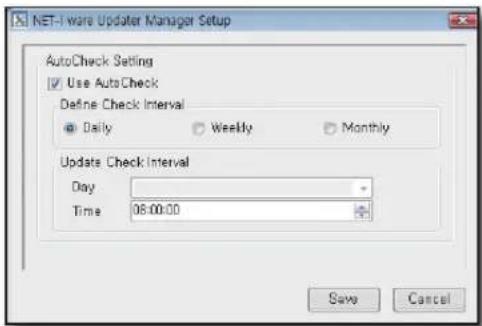
You can set to check any update every week.
- Click Weekly.
- Select a day of the week to perform the auto check.
- Select a time to perform the auto check. Ex) The right figure shows the auto check performs 08:00:00 AM every Sunday morning.
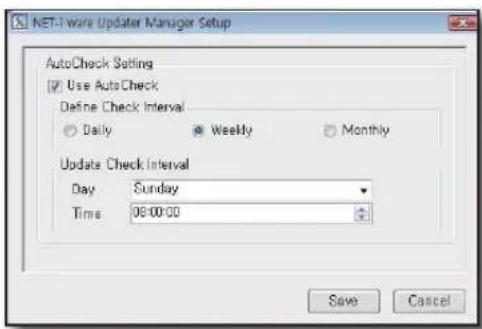
You can set to check any update every month.
- Click Monthly.
- Select a date to perform the auto check.
- Select a time to perform the auto check. Ex) The right figure shows the auto check performs 17:02:24 PM every first day of the month.
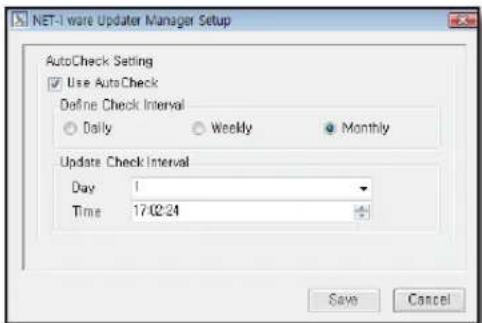
AUTO UPDATE SCENARIO
Notice of the Latest Version
If there exists the latest version on the server, you will see a message as shown.
You can check the release note, and select to proceed with or cancel the update.
![Confirm The new version of NET-i ware is found, Do you want to update to version [v1,10_091026]? Update Cancel NET-i ware update Check Release Note first.](/content/2026/05/1065684/images/93ed13b9a16c5f870c75d0fe17e0af3daa0bd74d0546214388baefdeaea058e4.jpg)
Download
Click [Update] to download the installation files.
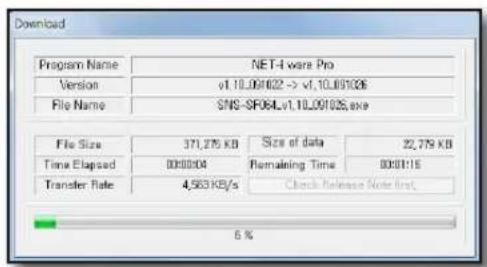
Checking Installation
When the download process is completed, you are prompted to install the update files now.
If you select [No], you will see the "NET-i ware Install" popup as shown where you can choose to install next time the program starts; this message will appear only if there is the latest version downloaded on the PC.
If you select [No] in the "NET-i ware Install" window and run the program, [NET-i ware Updater Manager] will check for any new version in the server and, if any, discard the existing update and try to download the newer version.
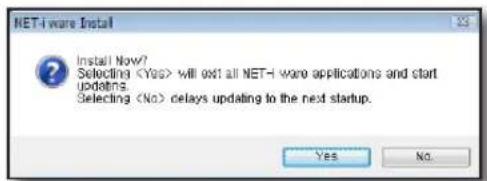
Installation
If you select [Yes], all NET-i ware applications will exit and the Manager will proceed with the installation.
NET-i Web Viewer
what is the weB viewer?
It is a remote viewer that allows you to remotely connect to NET-i ware and to perform the real-time monitoring, PTZ (if specified) control, and search.
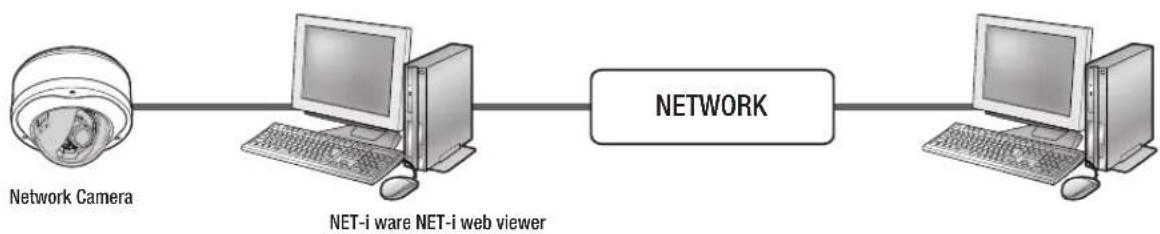
flowchart
graph LR
    A["Network Camera"] --> B["Computer"]
    B --> C["NETWORK"]
    C --> D["Computer"]
    style A fill:#f9f,stroke:#333
    style B fill:#ccf,stroke:#333
    style C fill:#cfc,stroke:#333
    style D fill:#fcc,stroke:#333

■ NET-i ware web viewer supports most major web browsers.
- Internet Explorer, Safari, Chrome, Firefox
- Using the Chrome browser on MAC OS X 10.7 Lion is not supported.
getting started with the weB viewer
- Open the web browser and enter the IP address of the PC that is running NET-i ware in the address bar.

- If Silverlight is not installed or a lower version of Silverlight is installed, you must install Silverlight or upgrade the current version before proceeding. (Page 46)
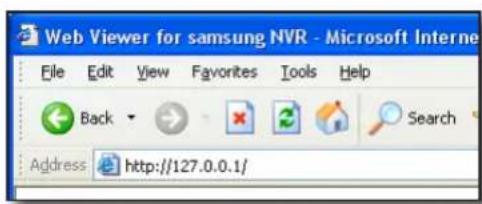
-
Provide the user ID and password.
-
Default ID: admin
- Password: 4321
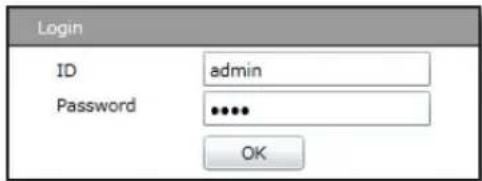
- Click [ok].
You will see the main screen of the live viewer.
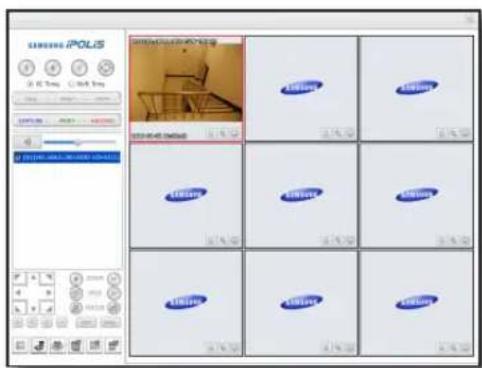
INSTALLING SILVERLIGHT
If your PC has not installed Silverlight or has just installed an older version, you will be redirected to the Silverlight installation page automatically when accessing the web viewer.
- Click
.

- When the file download dialog pops up, click
.
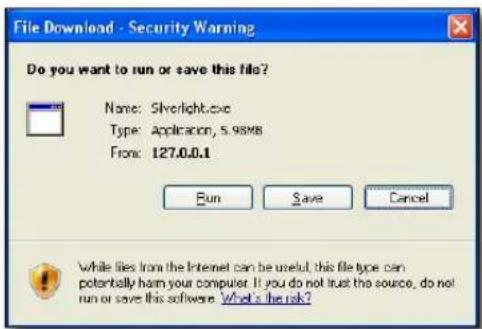
- When the download is completed, click
.
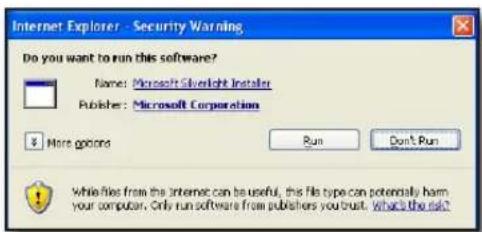
- The Silverlight installation page will be displayed. Click
to proceed with the installation.

-
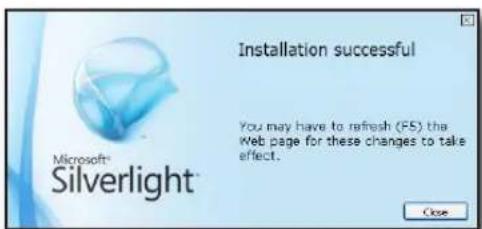
When done, click
. -
Close and restart the web browser, and try to access the Web Viewer. When Silverlight is installed properly, you will see the live screen displayed.

- For a proper installation, set the Block Popup setting as follows: Ex) Internet Explorer→Tools → Block Popup → Turn off Pop-up Blocker (B)
46_ English
If you fails to connect to the web viewer, check the followings:
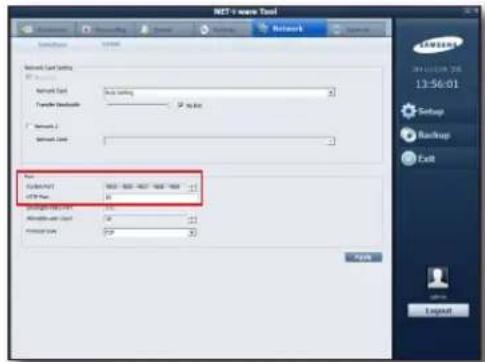
- Ensure that the system port is set to between 4505 and 4534.
You can check and change the port number in
- - of NET-i ware. - Ensure that the HTTP port specified in NET-i ware is not used simultaneously in any other program.
You can change the settings in
- - of NET-i ware.

If the port number is other than 80, you should add the port number next to the IP address in the address bar of the web viewer.
If the web viewer is disconnected due to a changed system port, reload the web browser and log in again.
- To check if the web server of NET-i ware operates properly, launch the Monitor Apache Server.
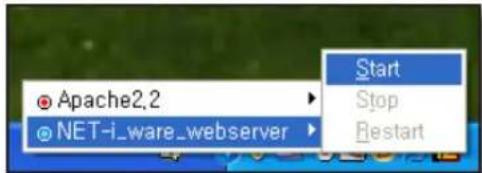
Run the program by clicking the tray icon or by selecting the program menu to check if "NET-i_ware_webserver" is currently running.
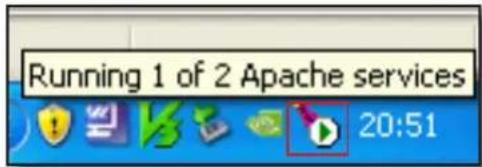
If it's not running (green icon), move to the Apache services item and click
To ensure a proper operation of the service, you should not use the same port as mentioned in step 2 above.
- For Windows Server 2003/2008, the Web Viewer may have a problem making connection due to the enhanced security of the Internet Explorer. If you encounter blocked contents of the web page that you accessed with the Web Viewer, check the followings.
- For Windows Server 2003
Move to [Control Panel – Add/Remove Programs – Add/Remove Windows Components], and uncheck [Internet Explorer Enhanced Security Configuration].
- For Windows Server 2008
Move to [Control Panel – Management Tools – Server Manager – Server summary – Security Information – IE ESC Configuration] and change the [Internet Explorer Enhanced Security Configuration] to [Do not Use].
NET-i Web Viewer
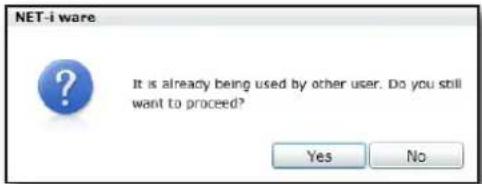
- Only one user can access the web viewer setup page or NET-i ware tool at a time.
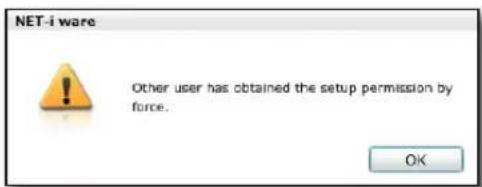
If a different user has already accessed the setup page, you will be prompted to access the page by force.
- If selecting
, you cannot access the page. - If selecting
will disconnect the access by the current user and enable you to access the page.
If this is the case, the current user cannot configure any setting in the Setup page and will be notified of the forcible access by a different user.
Live Viewer At a Glance
![SAMSUNG iPOLiS 1 2 3 4 5 6 7 8 [01]192.166.0.180:4520-1CH-01 PC Time NVR Time SEQ PREV NEXT CAPTURE PRINT RECORD [01]192.166.0.180:4520-1CH-01(1) 2012-01-01 14:30:21 SAMSUNG SAMSUNG SAMSUNG](/content/2026/05/1065684/images/961af93b6cd6230616353100522332179ababb339534971d06919e6582a339d6.jpg)
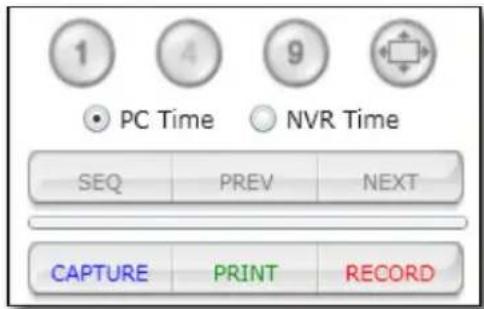
| Item Description | ||
| 1 | Split Mode | Switch to a split mode or full screen. |
| 2 | Time Display Options | Based on OSD time information of Live Viewer, select one from(on which Web Viewer is running) and(on which NET-i ware is running). |
| 3 | Channel Selection | Switch to Auto Sequence mode, or to the previous or next channel. |
| 4 | Auto Sequence Status | Display the sequence status of the channel being displayed. |
| 5 | Perform the screen capture, printing or recording as necessary. | |
| 6 | Audio | Adjust the audio volume. |
| 7 | Camera Name | Display the name of the connected camera. |
| 8 | PTZ | Control the Pan/Tilt/Zoom operation and adjust the iris or focus as necessary. |
| 9 | Video Screen | Display the channel screen connected to NET-i ware. |
| 10 | Event Display Off | Turn off the display of an event, if occurred, appearing in the top right corner. |

- The IP address and the model name of NET-I ware currently connected will be displayed on the top right corner of the Live viewer.
If selecting any of, , , and on the top right web viewer, you will move to each corresponding menu screen.
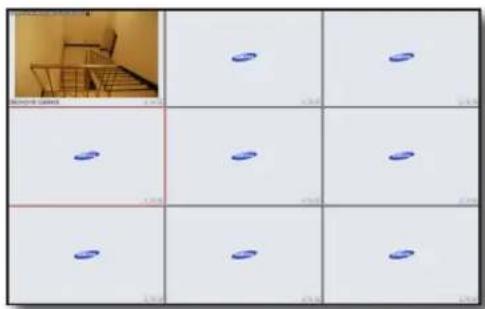
Changing the split mode
Click the Split Mode button to switch to the selected split mode.
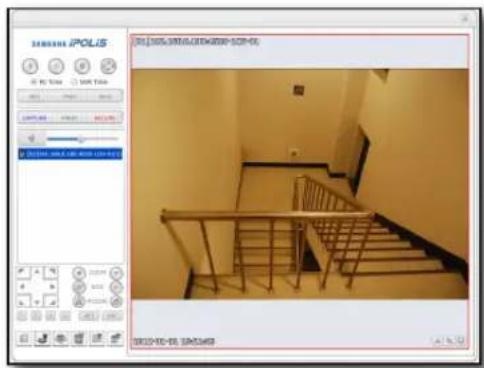
To switch to Single mode
Click <>.
The video screen will switch to single mode for the selected camera.
- You can double-click the tile of a desired camera to switch to Single mode.
natural_image
Interior view of a staircase with metal railings and stairs, displayed within an image editing software interface (no readable text or symbols on the staircase itself)To switch to 4-split mode
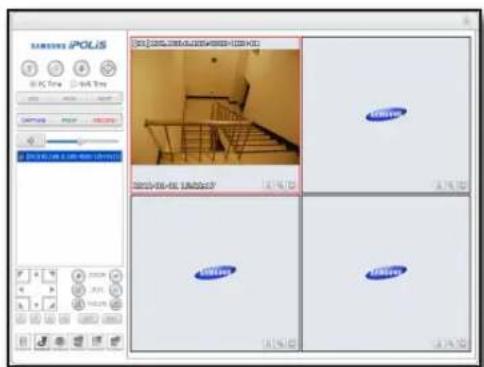
Click < >>
The video screen will switch to 4-split mode with the channel of the selected camera moving up to the first tile.
To switch to 9-split mode
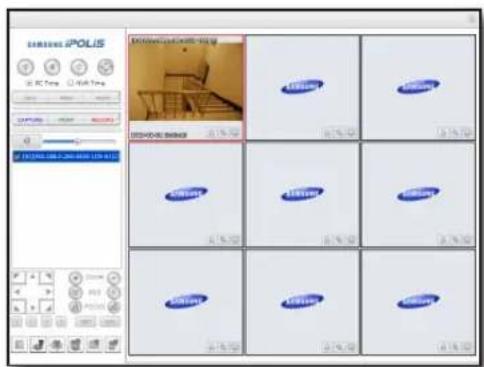
Click < ≥slant
The video screen will switch to 9-split mode with the channel of the selected camera moving up to the first tile.
To switch to full screen
Click < >
Switch the current split mode to full screen.
To exit the full screen, press [ESC] on your keyboard.
Using the Live menus
You can perform Auto Sequence, or move to the previous or next channel.
To perform Auto Sequence
Click < >SEQ
This will switch the screen of the connected camera in sequence.
- The number of cameras should be greater than the channel number of the split screen where you want to perform auto sequence.
- You can specify the sequence interval in
To move to the previous/next channel
Click < >OR < >. NEXT
Move to the previous or next channel of the connected device in the current split mode.
Screen capture
- Click < ➕PTURE
You will see the window where you can specify the saving path of the captured image.
- Specify the path and provide the file name. Then, click
This will save the video of the selected camera as .bmp or .jpg format.
Printout
Click < >PRINT
This will print out the video image of the selected camera using the printer connected to the PC that runs the web viewer.
Record
- Click < > RECORD
You will see the window where you can specify the saving path of your recording.
- Specify the path and provide the file name. Then, click
This will save the video of the selected camera as .avi format.
- The max recording time is 10 minutes. The recorded video can be played only with DivX codec.
- For playing an .AVI video clip, you can use the free video player to play the video. (ex:GOM Player, KM Player, etc) However, the video may not be played properly, depending on the CODEC compliance of the player.

- If the web viewer is in recording mode, the split-screen selection button and other buttons such as
To adjust the volume
Select a camera and hold the volume bar while dragging it to a desired point.
Click < 🔵 > to mute the sound.
Click < 🔍 > to release the mute.

natural_image
User interface slider with speaker icon and circular button (no text or symbols)PTZ control
If the selected camera supports the PTZ operation, the buttons available will be active and you can press an active button to activate a desired operation.
Using the PTZ buttons
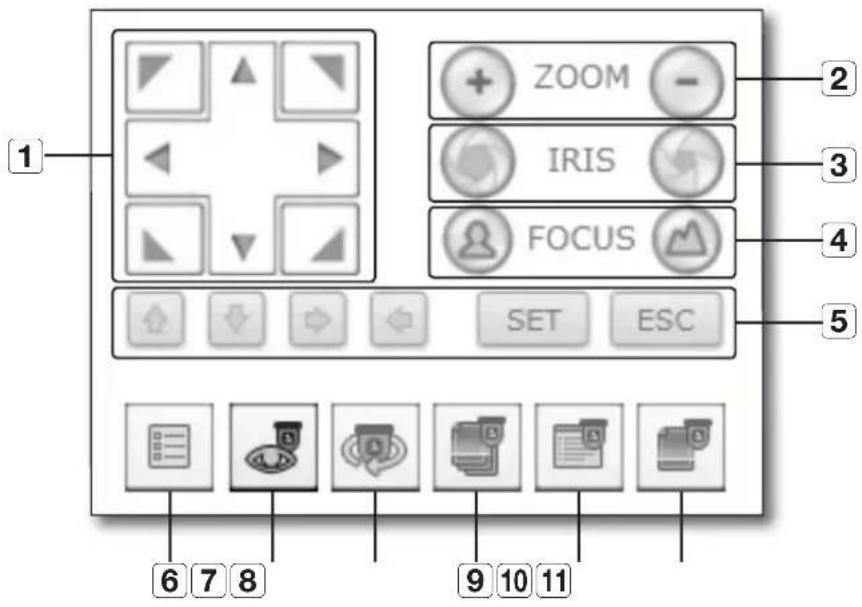
| Item Description | ||
| 1 | Direction | Adjust the camera orientation. |
| 2 | ZOOM | Adjust the zoom factor of the camera. |
| 3 | IRIS | Adjust the iris of the camera. |
| 4 | FOCUS | Adjust the focus of the video from the camera. |
| 5 | SET, ESC | Change the selection in the menu screen and confirm or cancel your selection. |
| 6 | Menu | Open the camera menus. |
| 7 | Preset | Once you have specified preset positions of the camera, you can select a desired preset to move to the preset position. |
| 8 | Swing / Autopan | Make the camera travel between specified start and end points. |
| 9 | Tour | Make the camera follow the specified route combining multiple groups. |
| 10 | Trace / Pattern | Make the camera follow the specified route. |
| 11 | Group / Scan | Make the camera follow the selected route in combination of Preset, Pattern and Autopan. |
To define a preset
-
Click <
-
Click < 1 > to select a preset number.
-
Provide the preset name.
-
Use the direction buttons to adjust the camera angle to a desired direction.
-
Click < SAVE >.

- The camera supports adding and displaying up to 20 presets regardless of the preset number. However, both SSNP-series camera and SPE-100/400/1600 supports adding and displaying up to preset #127.
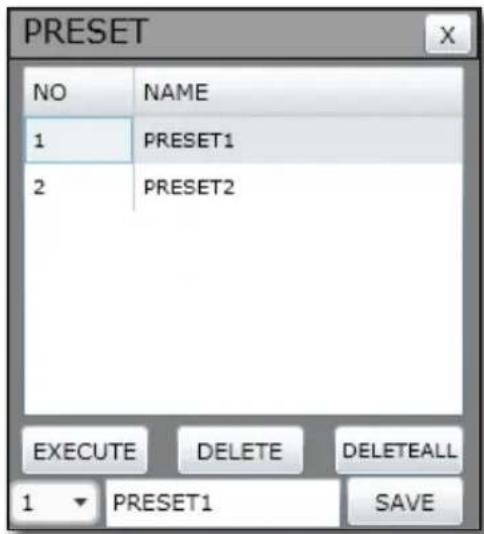
To perform the preset
-
From the preset list, select a registered preset.
-
Click < EXECUTE >.
The camera lens will move to a specified position.
Swing/Autopan, Trace/Pattern, Group/Scan, Tour
-
Click the button corresponding to a desired PTZ operation. The selected operation will be performed.
-
To stop the operation, click the button again.
-
To change the route or settings, make your change in the camera's Setup menu.
- You can also open the camera Setup page from
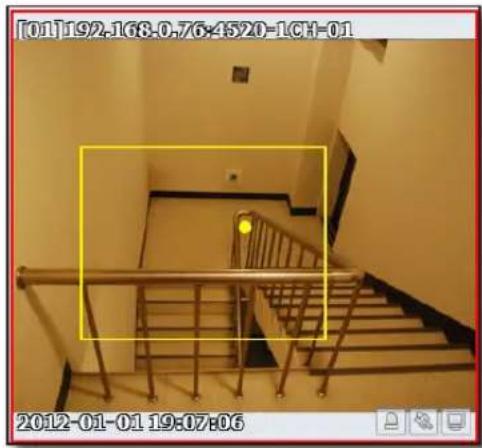
To perform the AreaZoom
-
Move the cursor to a desired camera tile and right-click it.
-
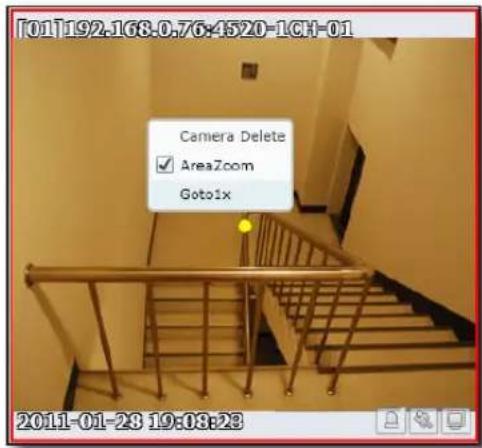
From the context menu that appears, select
. You will see a yellow spot on the screen.
![[01]192.168.0.76:4520-1CH-01 Camera Delete ✓ AreaZoom Goto1x 2011-01-28 19:05:20](/content/2026/05/1065684/images/35eefe1f7168bb8d18c3f28387ef48218d8b66c663b77a965848d460a959cebb.jpg)
- Drag the yellow spot and drop it at a desired position. Only as much area as the selected box will be zoomed.
■ The camera will perform the pan or tilt so that the box will be positioned center.
- The zoom will be performed only to the max zoom factor supported by the camera.
natural_image
Interior staircase with metal railings and a highlighted rectangular area, no visible text or symbols on the structure itself.- To restore the previous size, right-click the screen and select
in the context menu.
video sGreen at a glanCe
![[08]192.163:0.75:4520-1CH-01 REC 2 2012-01-01 20:37:56 4 5 6 3](/content/2026/05/1065684/images/9cd494d211dcdb13de8576939bda8e1a277a744a88d3ad3f6b663455dbe3a2ba.jpg)
| Item Description | ||
| 1 | Camera Name | Display the camera name specified in NET-i ware. |
| 2 | Record | Display the status of recording made on the PC that is running the web viewer. |
| 3 | Intelligent Video Analysis | If Intelligent Video Analysis is activated, the button will be displayed in a different color.Click the active button again to release the display of intelligent video analysis. |
| 4 | Motion | If a motion is detected by the camera, the button will be displayed in a different color.Click the active button to release the display of the motion. |
| 5 | Alarm | If an event occurs in the camera, the button will be displayed in a different color.Click the active button to release the display of the event. |
| 6 | Time & Date | Display the time information of the video. |
To perform the tile context menu
Move the cursor to a desired context menu of camera tile and right-click it.
You will see the available context menu items of the tile.
- Camera Delete: Remove the camera from the selected tile.
- AreaZoom : Perform the AreaZoom.
- For more information, refer to "To perform the AreaZoom". (Page 54)
- Goto1x : Return to the previous screen before the AreaZoom is performed.
![[01]192.168.0.76-4520-1CH-01 Camera Delete ✓ AreaZoom Gotoix 2011-01-23 19:05:20](/content/2026/05/1065684/images/68f46dc76698cab143d9e4234b0a80c0aa2109183c09c31cbe1560d3f141f94d.jpg)
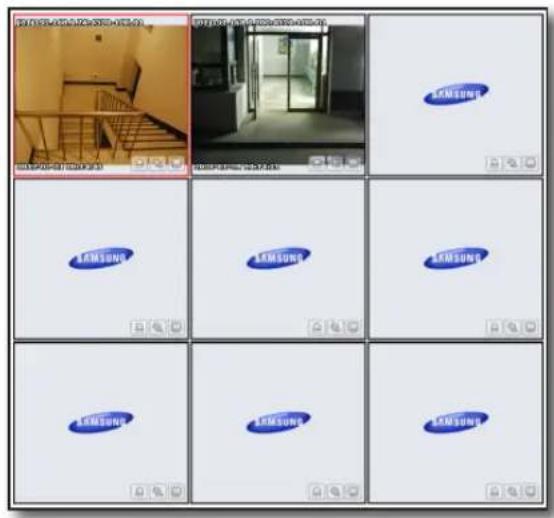
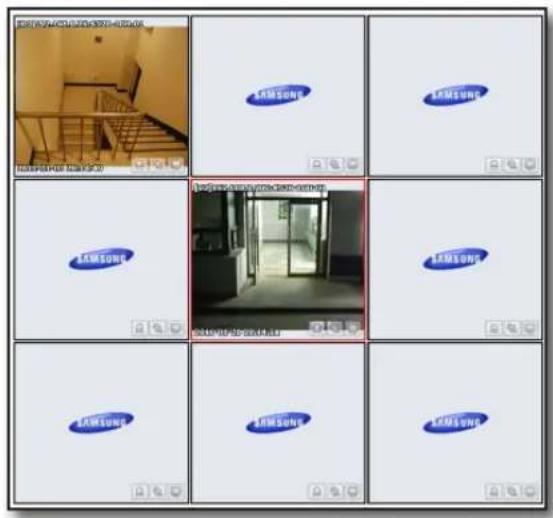
To move the video screen
- Select a desired one from the tiles displaying videos.
- Drag and drop it to a desired tile position.
The other tiles will move up by one cell.
Ex: if you move the second tile to the fifth, the third tile will move up to the second cell.
SEARCH VIEWER
You can search for and play recording data in the PC that is running NET-i ware.
Search Viewer At a Glance
![SAMSUNG iPOLiS 1 2 3 Select All [01]192.168.0.180:4520-1CH-01 [SAMSUNG] 2012-01 01 14:39:55 [SAMSUNG] January, 2012 Su Mo Tu We Th Fr Sa 25 26 27 28 29 30 31 1 2 3 4 5 6 7 8 9 10 11 12 13 14 15 16 17 18 19 20 21 22 23 24 25 26 27 28 29 30 31 1 2 3 4 Today Search No ObjectName StartTime EndTime Preview 1 192.168.0.180:4520-1CH-1 2011-08-05 14:39:32 2011-08-05 15:15:49 Overlapped Data 9 8 7 6](/content/2026/05/1065684/images/d067f1bd5dc21ed94fc6a4998a9227825b76f6c26b2413caf4777e62a03e9bcd.jpg)
| Item Description | ||
| 1 | Split Mode | Select a split mode or full screen.▪ For more information, refer to “Changing the spit mode”. (Page 50) |
| 2 | Perform the screen capture, printing or recording as necessary.▪ For more information, refer to “Using the Live menus”. (Page 51) | |
| 3 | Audio | You can adjust the volume of the audio data of your search, if any. |
| 4 | Camera List | Display a list of connected cameras where you can select one to search. |
| 5 | Calendar | Specify a date to search or display the search result. |
| 6 | Result Pane | Display the search result. |
| 7 | Overlapped Data | It shows whether overlapping recordings exist for the same time line. If exist, user can select one to play. |
| 8 | Timeline / Play Bar | You can play the recording data, zoom in/out the video screen, and fix /release the timeline bar. Adjust the play speed of the current video.▪ For more information, refer to “Play”. (Page 60) |
| 9 | Play Screen | If you select a search result, it will be displayed in the video screen. |

- The IP address and the model name of NET-i ware currently connected will be displayed on the top left corner of the search viewer.
Search
- From the camera display pane, check the checkbox of the camera to search.
To select all cameras, check the
![Select All [01]192.168.0.76:4520-1CH-01 [02]192.168.0.75:4520-1CH-01 [03]192.168.0.200:4520-1CH-01](/content/2026/05/1065684/images/dc484b00d8b0237997dcdfc17e5101c1973d31afdbab6d06069774c72284e463.jpg)
-
Select a month to search in the calendar. Click
to move to the current month. -
Click
.
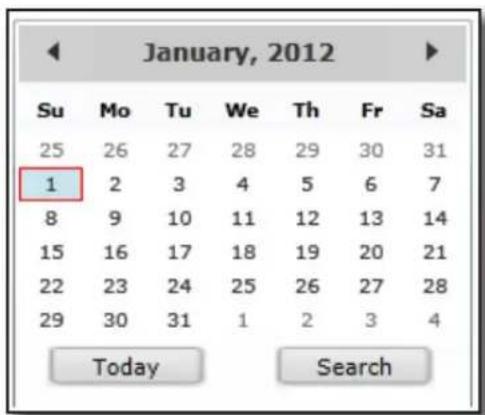
Play
1. Click the date containing a search result.
The details will be displayed in the result pane.
- Preview : The recording type for the section containing search results will be displayed in a different color.
- Yellowish Green: Continuous
- Blue: Motion
- Orange: Alarm
- Pink: Video Loss
• Purple: Intelligent Video Analysis - Black: Manual
- In the result pane, double-click a desired data item or drag and drop it over to a tile.
The selected item will be displayed.
To adjust the currently playing data
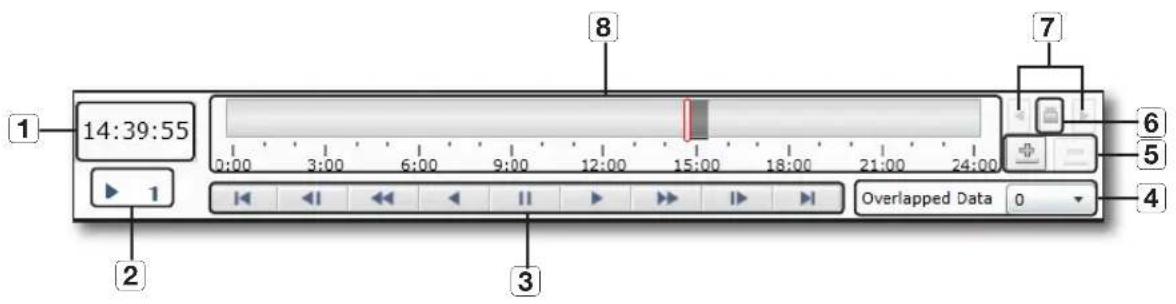
| Item Description | |||
| 1 | Time Information | Display the recording time of the currently playing data. | |
| 2 | Playback Status | Display the status of Play, Pause or Speed. | |
| 3 | Play Bar | Move to the start point of recording in the timeline. | |
| Play reversely one frame by one. | |||
| Play reversely at a max of x64 speed by increasing by x2. | |||
| Play reversely. | |||
| 3 | Play Bar | Stop playing temporarily. | |
| Play forward at normal speed. | |||
| Play forward at a max of x64 speed by increasing by x2. | |||
| Play forward one frame by one. | |||
| Move to the end point of recording in the timeline. | |||
| 4 | Overlapped Data | It shows whether overlapping recordings exist for the same time line. If exist, user can select one to play. | |
| 5 | Expand/Collapse the timeline bar | Enlarge or shrink the time display bar. | |
| 6 | Fix/Release the timeline | Fix or release the timeline bar.- Timeline fixed: If the current position is out of the timeline range, the next timeline range will be shown accordingly. In the fixed state, you cannot move to the previous or next timeline range.- Timeline released: Even if the current position is out of the timeline range, the next timeline range will not be shown accordingly so the playback range can be different from the visible range. Only in the state of released timeline, you can move to the previous or next timeline range by the hour. | |
| 7 | Move | You can expand the timeline and navigate through the timeline forward or backward. | |
| 8 | Timeline | The recording section (0 ~ 24 hr) of a specific date containing a search result will be displayed in a different color according to the recording reason. | |
SETUP VIEWER
Hardware
For more information, refer to "Hardware". (Page 12)
Register
You can add/edit/delete a desired device to/from NET-i ware.
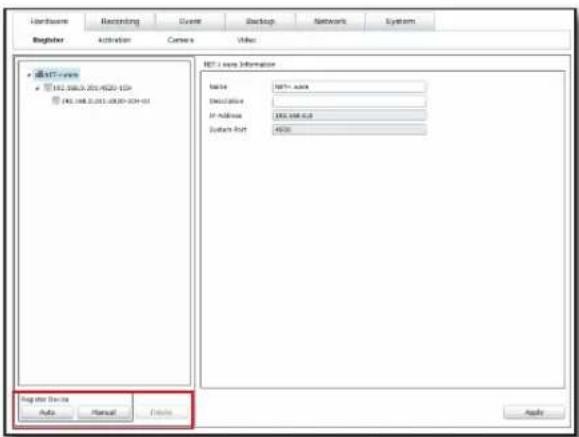
Camera Information
Once you select a video source for the web viewer, you can select a profile that will be monitored on the Live screen of the web viewer.
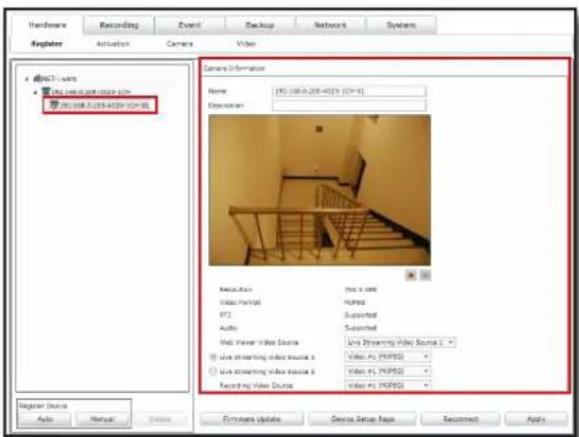
Activation
To take advantage of the camera, you must activate the camera after registering it.

- In the web viewer, the cameras will be sorted by index. And Find Object and Sort options are provided.
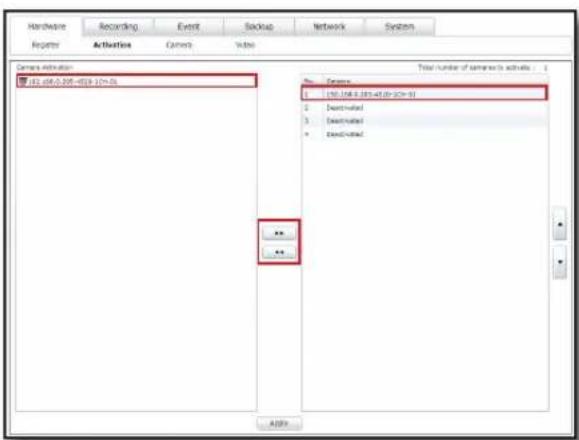
Camera
Turns On/Off the camera's Video, Audio, Audio Recording and Covert functions.
You can configure the settings so that only the video from the camera where
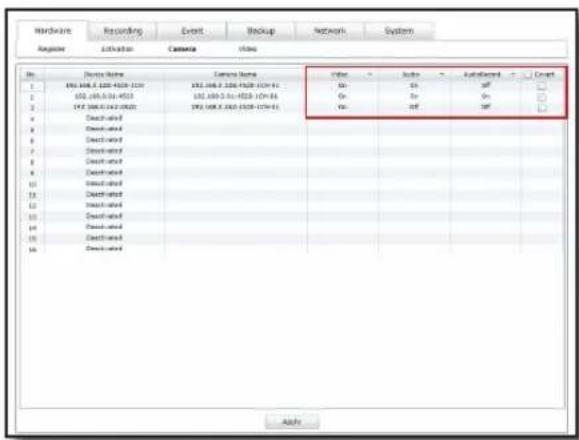
Video
You can set Live 1, 2 or set the recording properties for an activated camera.
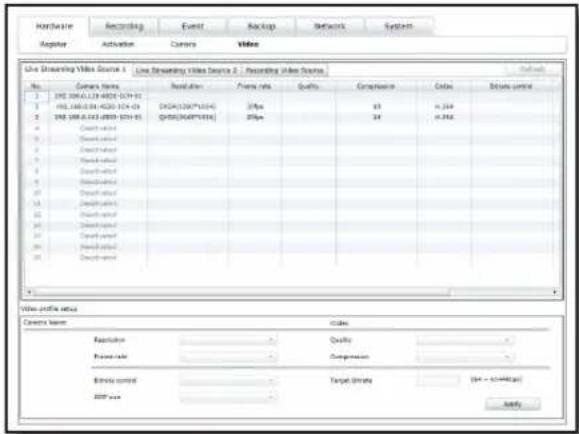
Record
For more information, refer to "Record Settings". (Page 20)
NET-i ware
It will display information about the current local disk.
You can assign cameras that you want to make recording for by the disk. Specify the minimum free space of the disk in General Settings.
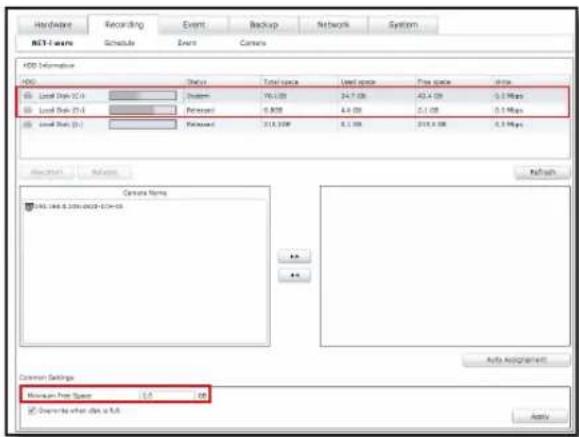
NET-i Web Viewer
Schedule
You can access NET-i ware to make scheduled recording. Then, NET-i ware will start or stop recording according to the set schedule.
You can create one schedule and apply it to multiple cameras.
You can also create multiple schedules.
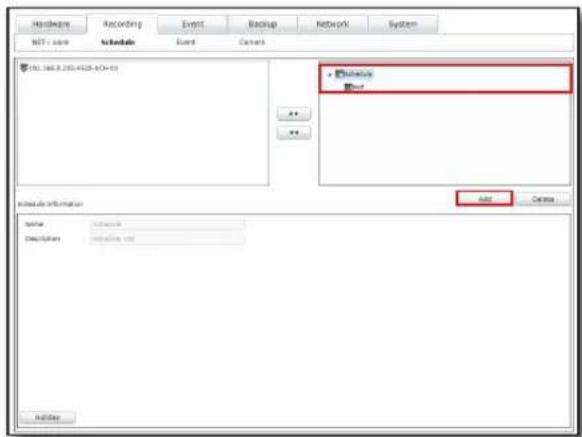
To make a schedule
From the web viewer, click the time table or specify an area to create a schedule to your preference.
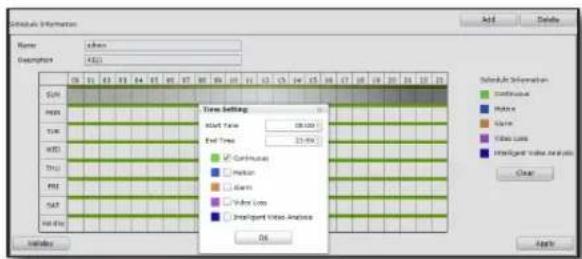
Event
To help the user better understand the event situation, you can specify the pre- and post-recording times from the event occurrence time.
Based on the event occurrence time, recording will be made for as much as specified for the pre- and post-recoding times.
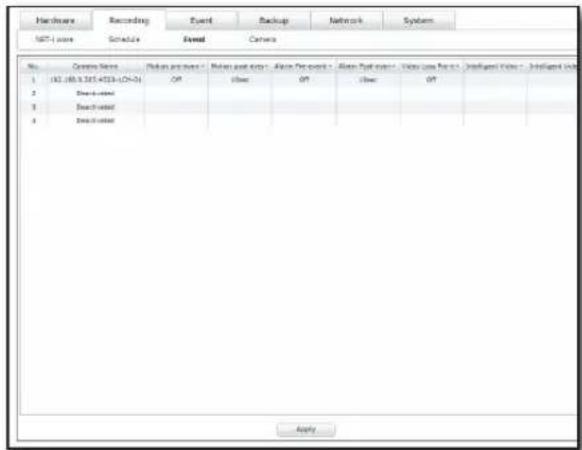
Camera
You can specify the frame rate (fps) for each active camera or recording type (normal/event).
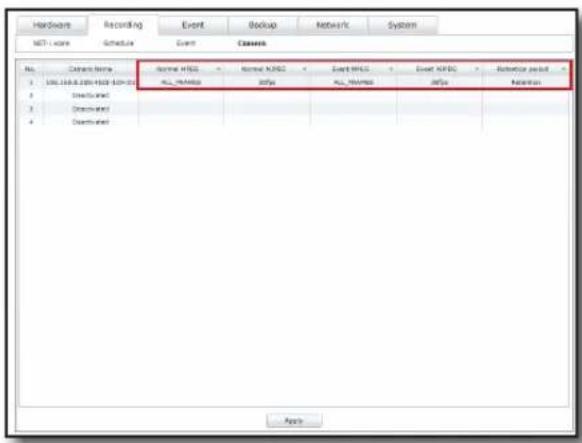
Event
For more information, refer to "To set an Event". (Page 27)
Camera
You can specify the discard time or set the alarm-in to synchronize with for each active camera.
The discard time is a time to discard (ignore) any duplicate event that occurs in the same time line.
You can also set the alarm-in for each camera, which will synchronize with the alarm-in occurring from the device.
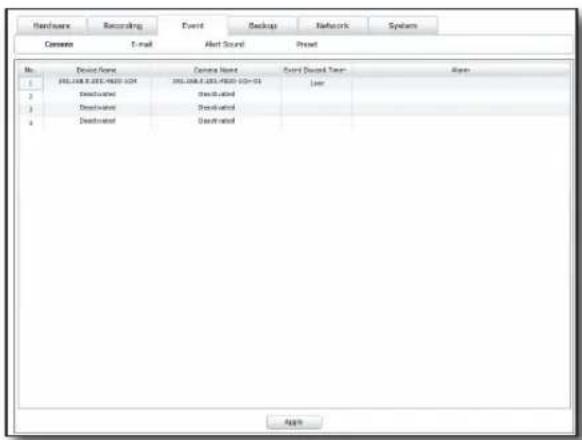
You can set to send an email notice when an event occurs.
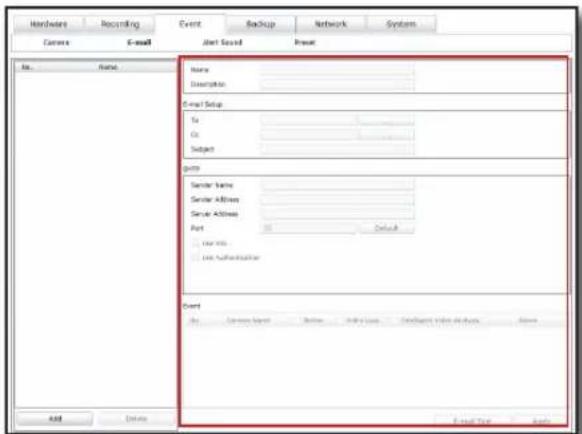
NET-i Web Viewer
Alert Sound
A beep will sound the moment an event occurs.

In the web viewer, you cannot save or delete a .wav file that will be used as a beep.
- In the web viewer, you cannot play the .wav file (that will be used as a beep) in advance.
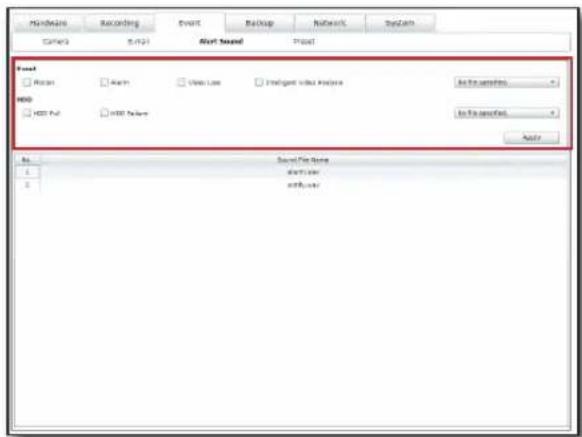
Preset
As soon as an alarm occurs, you can set to move to a camera preset.

- Press Refresh to update the current preset list.
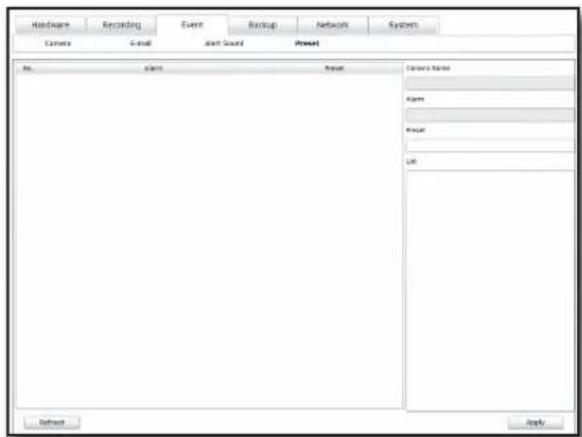
Backup
For more information, refer to "Backup Setting". (Page 30)
Schedule
You can backup recording data according to the specified schedule.
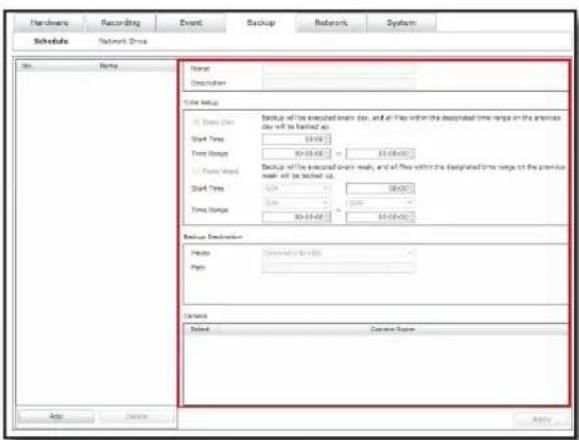
Network Drive
If you use a network drive for scheduled backup, you can set the retry time (against a network failure) or specify the use of auto deletion of a backup file.
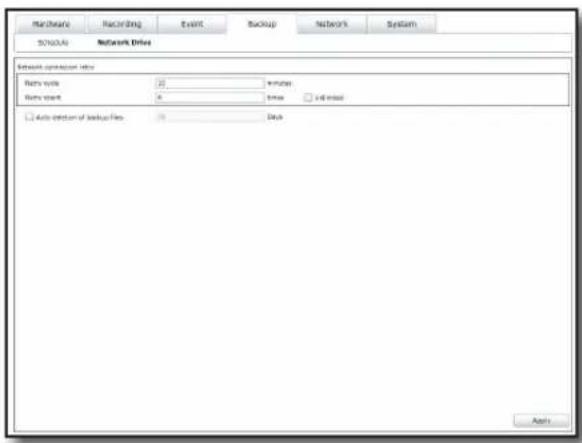
Network
For more information, refer to "Network Setting". (Page 31)
Interface
You can check and make necessary settings of the interface information.

- The web viewer does not support UDP (Unicast/Multicast) settings.
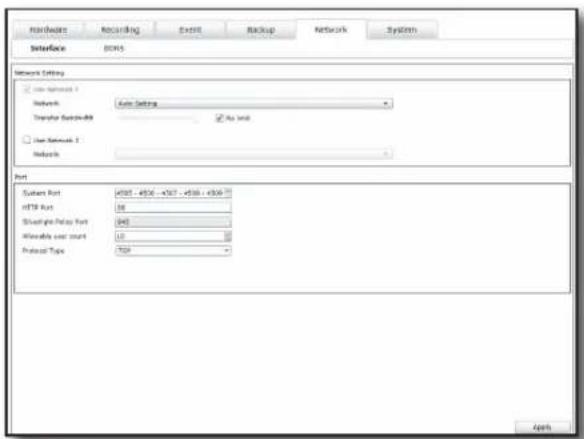
DDNS
Register NET-i ware with DDNS.
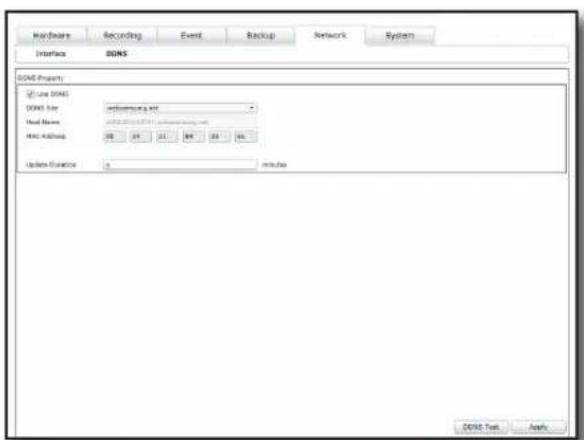
System
For more information, refer to "System Setting". (Page 33)
User
You can add a user or user group and set the access permissions as necessary.
Accounts available include: default user group with the admin permissions and default user (admin).
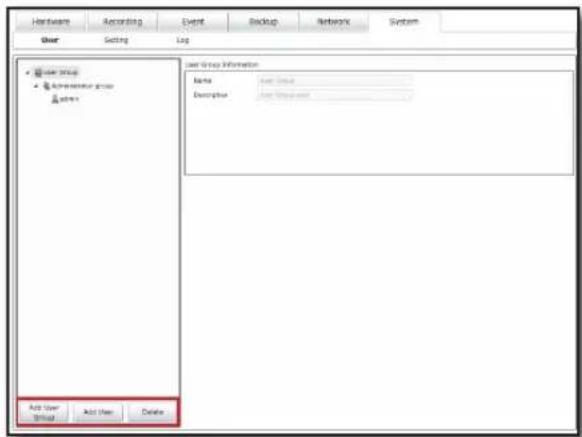
Setting
You can configure the NET-i ware settings to your preference.

- If you change the current language in the web viewer, the new language will be applied only to the Setup menu of the web viewer.
(The OSD language for NET-i ware Tool, Service Manager and Update Manager will comply with that of NET-i ware Tool.)
- The web viewer does not allow you to set the time and date display information.
- The web viewer does not support any update process.
- The web viewer does not allow you to create/edit the Windows logon account.
In the web viewer, you can set the sequence time to between 10 seconds and 60 seconds.
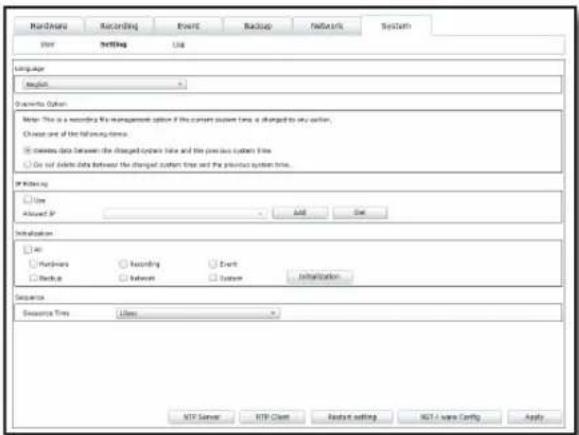
Log
You can configure the log saving settings and search for an existing log.
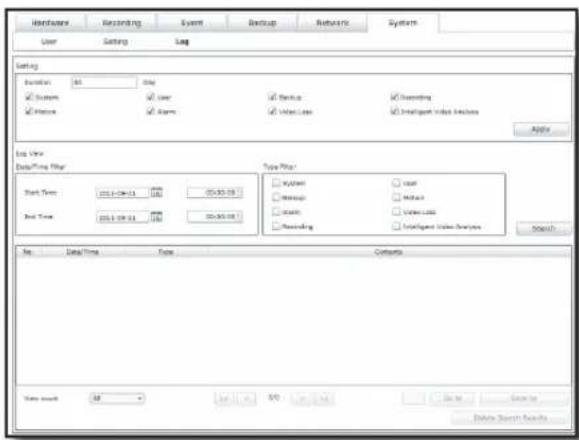
ABOUT
Display the program version and creation date of the web viewer.
SAMSUNG
SALES NETWORK
SAMSUNG TECHWIN CO., LTD.
Samsungtechwin R&D Center, 701, Sampyeong-dong, Bundang-gu, Seongnam-si, Gyeonggi-do, Korea, 463-400
TEL: +82-70-7147-8740\~60 FAX: +82-31-8018-3745
100 Challenger Rd. Suite 700 Ridgefield Park, NJ 07660
Toll Free : +1-877-213-1222 Direct : +1-201-325-6920
Fax: +1-201-373-0124
www.samsungcctvusa.com
SAMSUNG TECHWIN EUROPE LTD.
Samsung House, 1000 Hillswood Drive, Hillswood Business Park
Chertsey, Surrey, UNITED KINGDOM KT16 OPS
TEL: +44-1932-45-5300 FAX: +44-1932-45-5325
www.samsungtechwin.com
www.samsungsecurity.com
www.samsungipolis.com

- Before you start
- setup
- BaCkup
- serviCe Manager
- net-i ware update
- net-i weB viewer
- PURPOSE
- AUDIENCE
- ORGANIZATION
- Installation
- Setting
- TERMINOLOGY
- WHAT IS NET-i ware?
- Key Features of NET-i ware
- NET-i ware Program
- NET-i ware Tool
- Updater
- System Requirement
- INSTALLING NET-i ware
- Installing the NET-i ware Program
- Checking Installation
- Login/Logout
- Login
- ◆ Logout
- Registering Hardware
- Registering Device
- Automatic Registration of Devices
- Manual Registration of Devices
- Error Type
- Tree View
- ◆ Checking the camera status
- ◆ To delete a device
- 1) To delete a device
- 2) Result of deletion
- ◆ To view the server information
- To view the device information
- To change the device information
- To update the firmware
- ◆ To view the device settings
- ◆ To view the camera information
- To change the camera information
- To play the live video
- Activation
- To activate a camera
- Camera
- Video
- Audio
- Audio Recording
- ◆ Covert
- RECORD SETTING
- NET-i ware
- ◆ To change the disk status
- Allocation
- Released
- Refresh
- ◆ To assign a camera to each disk
- Create a new Web...
- ◆ Common Settings
- Minimum Free Space
- Overwrite when disk is full.
- Schedule
- ◆ To create a schedule
- To edit a schedule
- To edit
- To check your work
- To delete a schedule
- ◆ To apply a schedule to a camera
- To apply a schedule
- Holiday
- Cycle
- Range
- To edit a holiday
- To create a holiday
- To delete a holiday
- Recording Event
- Recording Camera
- Event Camera
- Event Messaging
- ◆ E-mail Object Management
- To create an e-mail
- To edit an e-mail
- To add a recipient or CC
- Using the user information that is already registered with NET-i ware
- To delete an e-mail
- To transfer an e-mail
- ◆ To register an alert sound file
- To set an event
- EVENT PRESET
- ◆ Preset settings
- Schedule Backup
- ◆ Schedule Backup Management
- ◆ To create a schedule backup
- ◆ To edit a schedule backup
- ◆ To delete a schedule backup
- To perform and play the schedule backup
- Network drive
- ◆ Network connection retry
- ◆ Auto deletion of backup files
- NETWORK SETTING
- Interface
- ◆ Network Access Count
- To select a network
- ◆ Port Setting
- Network DDNS
- System User
- ◆ User (Group) Management
- To create a user group
- To create a user account
- ◆ To edit a user (Group) account
- To delete a user (group) account
- User Login
- Language
- ◆ Windows Logon Account Setting
- ◆ Overwrite Options
- IP filtering
- ◆ Initialization
- Version
- NET-i ware Updater
- Setting Updater
- Update
- NTP Server
- NTP Client
- ◆ System restart setting
- ◆ Import/Export NET-i ware Configuration
- Export NET-i ware Configuration
- Import NET-i ware Configuration
- System Log
- Log Setting
- To search for a log
- TO BACKUP DATA
- Backup File Format
- Backup Criteria
- To calculate the size of backup data
- Backup Progress
- USING SERVICE MANAGER
- Service Management
- ◆ NET-i ware Tool Program
- ◆ Viewing Service Information
- Run
- ◆ To update with the latest version
- Using AutoCheck
- AUTO UPDATE SCENARIO
- Notice of the Latest Version
- Download
- what is the weB viewer?
- getting started with the weB viewer
- INSTALLING SILVERLIGHT
- Live Viewer At a Glance
- Changing the split mode
- To switch to Single mode
- To switch to 4-split mode
- To switch to 9-split mode
- To switch to full screen
- Using the Live menus
- To perform Auto Sequence
- To move to the previous/next channel
- Screen capture
- Printout
- Record
- To adjust the volume
- PTZ control
- Using the PTZ buttons
- To define a preset
- To perform the preset
- Swing/Autopan, Trace/Pattern, Group/Scan, Tour
- To perform the AreaZoom
- video sGreen at a glanCe
- To perform the tile context menu
- To move the video screen
- SEARCH VIEWER
- Search Viewer At a Glance
- Search
- Play
- Click the date containing a search result.
- To adjust the currently playing data
- SETUP VIEWER
- Hardware
- Register
- Camera Information
- To make a schedule
- Event
- Alert Sound
- Preset
- Network
- DDNS
- System
- User
- Log
- ABOUT
- SAMSUNG
- SALES NETWORK
Brand : SAMSUNG
Model : NET-i ware
Category : Logiciel photo/vidéo