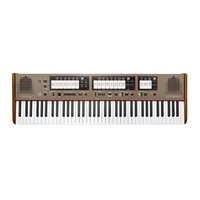
VIVO H10V - Keyboard Dexibell - Free user manual and instructions
Find the device manual for free VIVO H10V Dexibell in PDF.


| Product Type | Digital Piano / Stage Keyboard |
| Brand | Dexibell |
| Model | VIVO H10V |
| Keyboard Action | 88 fully weighted keys with graded hammer action |
| Sound Engine | T2L (True to Life) sampling and physical modeling |
| Polyphony | 320 voices |
| Preset Sounds | Over 100 presets including pianos, organs, strings, and synthesizers |
| Effects | Reverb, chorus, delay, EQ, and more |
| Pedals | 3 built-in pedals (soft, sostenuto, sustain) |
| Display | OLED display with detailed menu navigation |
| Connectivity | USB-MIDI, 5-pin MIDI In/Out, Stereo Audio In/Out, Headphone out |
| Bluetooth | Bluetooth Audio and MIDI (optional or built-in) |
| Speakers | 2x 40W built-in stereo speakers |
| Power Supply | AC adapter (included), 12V DC |
| Dimensions (W x D x H) | 1300 x 300 x 150 mm |
| Weight | 20 kg |
| Accessories Included | AC adapter, music rest, owner's manual |
| Maintenance | Clean with a soft, dry cloth. Avoid moisture and extreme temperatures. |
| Safety Warnings | Do not disassemble. Keep away from liquids and children under 3 years. |
| Spare Parts & Repairability | Contact Dexibell authorized service center for repairs. Some parts are user-replaceable. |
Frequently Asked Questions - VIVO H10V Dexibell
User questions about VIVO H10V Dexibell
0 question about this device. Answer the ones you know or ask your own.
Ask a new question about this device
Download the instructions for your Keyboard in PDF format for free! Find your manual VIVO H10V - Dexibell and take your electronic device back in hand. On this page are published all the documents necessary for the use of your device. VIVO H10V by Dexibell.
USER MANUAL VIVO H10V Dexibell
natural_image
Interior view of a black electronic device with visible control panel and drive slots (no readable text or symbols)HANDMADE
IN ITALY
Regulatory and Safety Information
Users in U.S.A
This product has been tested and found to comply with the limits for a Class B digital devices, pursuant to Part 15 of the FCC Rules. These limits are designed to provide reasonable protection against harmful interference in a residential installation. This equipment generates, uses, and can radiate radio frequency energy and, if not installed and used in accordance with the instructions, may cause harmful interference to radio communications. However, there is no guarantee that interference will not occur in a particular installation. If this equipment does cause harmful interference to radio or television reception, which can be determined by turning the equipment off and on, the user is encouraged to try to correct the interference by one or more of the following measures:
– Reorient or relocate the receiving antenna.
– Increase the separation between the equipment and receiver.
- Connect the equipment into an outlet on a circuit different from that to which the receiver is connected.
- Consult the dealer or an experienced radio/TV technician for help.
This device complies with part 15 of the FCC Rules. Operation is subject to the following two conditions:
1) This device may not cause harmful interference; and
2) This device must accept any interference received, including interference that may cause undesired operation.
FCC CAUTION: Any unauthorized changes or modifications not expressly approved by the party responsible for compliance could void the user's authority to operate the equipment.
NOTE: The manufacturer is not responsible for any radio or tv interference caused by unauthorized modifications to this equipment. Such modifications could void the user's authority to operate the equipment.
Radiation Exposure Statement
This product complies with the US portable RF exposure limit set forth for an uncontrolled environment and is safe for intended operation as described in this manual. Further RF exposure reduction can be achieved if the product is kept as far as possible from the user body or is set to a lower output power if such function is available. This transmitter must not be co-located or operated in conjunction with any other antenna or transmitter.
Users in Canada
This device complies with Industry Canada's licence-exempt RSSs. Operation is subject to the following two conditions:
(1) this device may not cause interference, and
(2) this device must accept any interference, including interference that may cause undesired operation of the device.
Radiation Exposure Statement
The product complies with the Canada portable RF exposure limit set forth for an uncontrolled environment and are safe for intended operation as described in this manual. The minimum separation distance for portable use is limited to 15mm assuming use of antenna with 2 dBi of gain. The further RF exposure reduction can be achieved if the product can be kept as far as possible from the user body or set the device to lower output power if such function is available.
This device complies with Industry Canada's licence-exempt RSSs. Operation is subject to the following two conditions:
This device complies with the essential requirements of the 2014/53/EU – Radio Equipment Directive (RED). The following test methods have been applied in order to prove presumption of conformity with the essential requirements of the 2014/53/EU – Radio Equipment Directive (RED):
• EN 62368-1:2014/A11:2017
Safety requirements for audio/video, information, and technology equipment
- EN 300 328 v2.2.2 (2019-07)
Wideband transmission systems; Data transmission equipment operating in the 2,4 GHz band; Harmonized Standard for access to radio spectrum
■ EN 62311:2008 | EN 50385:2017
RF exposure
- EN 301 489-1 v2.2.0 (2017-03)
Electromagnetic compatibility and Radio Spectrum Matters (ERM); ElectroMagnetic Compatibility (EMC) standard for radio equipment and services; Part 1: Common technical requirements
• EN 301 489-17 V3.2.0 (2017-03)
Electromagnetic compatibility and Radio spectrum Matters (ERM); ElectroMagnetic Compatibility (EMC) standard for radio equipment and services; Part 17: Specific conditions for 2,4 GHz wideband transmission systems and 5 GHz high performance RLAN equipment
• EN 301 893 v2.1.1 (2017-05)
5 GHz RLAN; Harmonized Standard covering the essential requirements of article 3.2 of Directive 2014/53/EU
• EU 2015/863 (RoHS 3)
Declaration of Compliance – EU Directive 2015/863; Reduction of Hazardous Substances (RoHS)
VIVO |H10w| home piano
Owner's Manual
Welcome to the reference manual of VIVO H10V Digital Piano, and congratulations to purchasing it.
The flagship VIVO H10V Digital Piano uses Dexibell's latest technology to give players the ultimate piano sound.
This instrument is the perfect and accurate simulation of an upright acoustic piano; each element of this piano has been carefully designed to spread a warm acoustic environment in the room, just like an upright piano, reverberating the sound over the whole body of the instrument. The splendid upright piano cabinet adds a touch of splendour to any room.
With its 88-note Progressive Hammer-Action keyboard with escapement and high-quality stereo-sampled piano sounds, VIVO H10V offers players the ultimate piano sound.
All sounds was recorded with holophonic method for an amazing 3D listening experience and reproduced using the new technology called T2L (True to Life), based on interaction between Sampling and Modelling methods. Moreover, the sound quality has been enhanced to 24-bit - 48KHz, and the recorded samples are now five times longer on average (15" on lower piano notes).
VIVO H10V reproduces a real upright acoustic piano, also thanks to unlimited notes polyphony (320 oscillators).
The accurate sustain pedal simulation is designed for a good-feeling response and allows subtle performance nuances to be expressed.
Reading this manual, you will discover many other features, such as sympathetic resonances, harmonics, noises, staccato sounds, timbre variances, etc.
To ensure that you obtain the maximum enjoyment and take full advantage of the piano functionality, please read all sections of this owner's manual carefully.
Keep this manual handy for future reference.

Start to take advantage of valuable benefits available simply registering your product on www.dexibell.com.
• You can benefit from DEXIBELL's 3-years extended warranty (The extended warranty is subject to terms and conditions. Please refer to the related section).
- Keeps you updated on special offers.
- You can be updated on any new software release and new sounds.
• and so much more!
For European countries
| UK | This Symbol indicates that in EU countries, this product must be collected separately from household waste, as defined in each region. Products bearing this Symbol must not be discarded together with household waste. | Tento symbol vyjadruje, že v krajinách EÚ sa musí zber tohto produktu vykonávať oddelene od domového odpadu, podlá nariadení platných v konkrétnej krajine. Produkty s týmto symbolom sa nesmú vyhadzovať spolu s domovým odpadom | |
| IT | Questo simbolo indica che nei paesi della Comunità europea questo prodotto deve essere smaltito separatamente dai normali rifiuti domestici, secondo la legislazione in vigore in ciascun paese. I prodotti che riportano questo simbolo non devono essere smaltiti insieme ai rifiuti domestici. Ai sensi dell’art. 13 del D.Lgs. 25 luglio 2005 n. 151. | Ez a szimbólum azt jelenti, hogy az Európai Unióban ezt a terméket a háztartási hulladéktól elkülönítve, az adott régióban érvényes szabályozás szerint kell gyűjteni. Az ezzel a szimbólummal ellátott termékeket nem szabad a háztartási hulladék közé dobni. | |
| FR | Ce symbole indique que dans les pays de l’Union européenne, ce produit doit être collecté séparément des ordures ménagères selon les directives en vigueur dans chacun de ces pays. Les produits portant ce symbole ne doivent pas être mis au rebut avec les ordures ménagères | Tämä merkintä ilmaisee, että tuote on EU-maissa kerättävä erillään kotitalousjätteistä kunkin alueen voimassa olevien määräysten mukaisesti. Tällä merkinnällä varustettuja tuotteita ei saa hävittää kotitalousjätteiden mukana. | |
| DE | Dieses Symbol bedeutet, dass dieses Produkt in EU-Ländern getrennt vom Hausmüll gesammelt werden muss gemäß den regionalen Bestimmungen. Mit diesem Symbol gekennzeichnete Produkte dürfen nicht zusammen mit den Hausmüll entsorgt werden. | To σύμβολο αυτό υποδηλώνει ότι στις χώρες της Ε.Ε. το συγκεκριμένο προϊόν πρέπει να συλλέγεται χωριστά από τα υπόλοιπα οικιακά απορρίμματα, σύμφωνα με όσα προβλέπονται σε κάθε περιοχή. Τα προϊόντα που φέρουν το συγκεκριμένο σύμβολο δεν πρέπει να απορρίπτονται μαζὶ με τα οικιακά απορρίμματα | |
| ES | Este símbolo indica que en los países de la Unión Europea este producto debe recogerse aparte de los residuos domésticos, tal como esté regulado en cada zona. Los productos con este símbolo no se deben depositar con los residuos domésticos. | See sümbol näitab, et EL-i maades tuleb see toode olemprügist eraldi koguda, nii nagu on igas piirkonnas määratletud. Selle sümboliga märgitud tooteid ei tohi ära visata koos olmeprügiga. | |
| NL | Dit symbool geeft aan dat in landen van de EU dit product gescheiden van huishoudelijk afval moet worden aangeboden, zoals bepaald per gemeente of regio. Producten die van dit symbool zijn voorzien, mogen niet samen met huishoudelijk afval worden verwijderd. | Ta simbol označuje, daje treba proizvod v državah EU zbirati ločeno od gospodinjskih odpadkov, tako kot je določeno v vsaki regiji. Proizvoda s tem znakom ni dovoljeno odlagati skupaj z gospodinjskimi odpadki. | |
| PT | Este símbolo indica que nos países da UE, a recolha deste produto deverá ser feita separadamente do lixo doméstico, de acordo com os regulamentos de cada região. Os produtos que apresentem este símbolo não deverão ser eliminados juntamente com o lixo doméstico. | Šis simbols norāda, ka ES valstīs šo produktu jäievāc atsevišķi no mājsaimniecības atkritumiem, kā noteikts katrā régionā. Protfuktus ar šo simbolu nedrikst izmest kopā ar mājsaimniecības atkritumiem. | |
| DK | Dette symbol angiver, at i EU-lande skal dette produkt opsamles adskilt ffa husholdningsaffald, som defineret i hver enkelt region. Produkter med dette symbol må ikke smides ud sammen med husholdningsaffald. | Šis simbolis rodo, kad ES šalyse šis produktas turi būti surenkamas atskirai nuo buitiniių atlieku, kaip nustatyta kiekviename regione. Šiuo simboliu paženklinti produktai neturi būti išmetami kaitų su buitinėmis atliekomis. | |
| NO | Dette symbolet indikerer at produktet må behandles som spesialavfall i EU-land, iht. til retningslinjer for den enkelte regionen, og ikke kastes sammen med vanlig husholdningsavfall. Produkter som er merket med dette symbolet, må ikke kastes sammen med vanlig husholdningsavfall. | Symbolen anger att i EU-länder måste den här produkten kasseras separat från hushållsavfall, i enlighet med vaije regions bestämmelser. Produkter med den här symbolen får inte kasseras tillsammans med hushållsavfall. | |
| PL | Symbol oznacza, że zgodnie z regulacjami w odpowiednim regionie, w krajach UE produktu nie należy wyrzucać z odpadami domowymi. Produktów opatzonych tym symbolem nie można utylizować razem z odpadami domowymi. | Tento symbol udává, že v zemích EU musí být tento výrobek sbírán odděleně od domácího odpadu, jak je urěeno pro každý region. Výrobky nesouci tento symbol se nesmí vyhazovat spolu s domácím odpadem. |

1 Important Safety Instruction
PLEASE READ CAREFULLY BEFORE PROCEEDING

WARNING
Always follow the following precaution listed below to avoid user to the risk of serious injury or even death from electrical shock, fire or other hazard.
Only use non-tropical weather
This unit and its AC adaptor can only be safely used in non-tropical weather. The operating temperature range is 5^ -40°C ( 41^ -104°F).
Do not repair, modify or replace parts by yourself
Do not attempt to repair the unit, modify or replace parts of the product. Please contact all the nearest Dexibell Service Center.
Do not disassemble or modify by yourself
Do not open the unit or its AC adaptor or attempt to disassemble or modify the internal component in any way.
Use only the supplied AC adaptor (DEXIBELL DYS6150-2400500W).
Use only the AC adaptor included with the unit. Connecting a different AC adaptor can cause serious damage to the internal circuitry and may even pose a shock hazard.
Use only the supplied power cord
Use only the AC power cord supplied with the AC adaptor included in the package.
Do not excessively bend the power cord
Do not excessively twist or bend the power cord otherwise you damage it. Damaged cords may cause fire and shock hazards!.
Do not place the unit in an unstable location
Do not place the unit in a unstable position where it might accidentally fall over.
Take care not to allow liquid or foreign objects to enter unit; Do not place containers with liquid on unit
Do not place object filled with liquid (glass of water on this product. Never allow foreign objects (e.g., flammable objects, coins, wires) or liquids (e.g., water or juice) to enter this product. Doing so may cause short circuits, faulty operation, or other malfunctions.
Never place or store the product in the following types of locations
- Exposed to extreme cold or heat (such as in direct sunlight, near a heater, or in a car during the day)
- Subject to steam or smoke
• Damp (such washroom, baths, on wet floors) - Subject to salt water exposure
- Exposed to rain
- Dusty or sandy
- Subject to high levels of vibration and shakiness.
- Subject to extreme changes of temperature or humidity (The condensation may occur and water may collect on the surface of the instrument. Wooden parts may absorb water and be damaged)
Do not drop the unit or subject it to strong impact
Do not drop the unit. Protect it from strong impact!
Do not connect the unit to an outlet with an unreasonable number of other devices
Do not connect the unit's power-supply cord to an electrical outlet with an unreasonable number of other devices. This could cause the outlet to overheat and possibly cause a fire.
Adults must provide supervision in places where children are present
When using the unit in locations where children are present, never leave the unit unattended. Keep a special watch over any children so that they don't mishandling of the unit can take place.
Avoid extended use at high volume
This unit, either alone or in combination with an amplifier and headphones or speakers, may be capable of producing sound levels that could cause permanent hearing loss. DO NOT operate for a long period of time at a high volume level, or at a level that is uncomfortable. If you experience any hearing loss or ringing in the ears, you should immediately stop using the unit, and consult an audiologist.
If you notice any abnormality turn off the unit immediately
Turn off the unit and remove the AC adaptor from the outlet when:
- If the AC adaptor, the power-supply cord, or the plug has been damaged
• If smoke or unusual smells occurs.
- If the product has been exposed to rain.
- If objects have fallen into, or liquid has been spilled into the unit.
- If the unit does not operate or exhibits a marked change in performance.
- If the unit has been dropped, or the enclosure of the product has been damaged.
Contact the nearest qualified Service Center.






CAUTION
Always follow the following precaution listed below to avoid user to the risk of serious injury or even death from electrical shock, fire or other hazard.
Grasp the plug connecting or disconnecting the AC adaptor
When removing the electric plug from the instrument or an outlet, always hold the plug itself and not the cord. Pulling by the cord can damage it.

Do not use wet hands to connect or disconnect AC adaptor
Never handle the AC adaptor or its plugs with wet hands when plugging into, or unplugging from, an electrical outlet.

Keep clean the AC adaptor's plug
At regular intervals, unplug the AC adaptor and using a dry cloth clean the adaptor's plug.

If the unit will be unused for an extended period of time, unplug the AC power cord from the AC outlet.
Keep cables from getting entangled
Try to prevent cords and cables from becoming entangled. Place all cords and cables away from children.

Before cleaning the unit, unplug the AC adaptor from the outlet
To avoid electric shock or damage the unit, before cleaning the unit, turn it off and unplug the AC adaptor from the outlet (p. 22).

If there is a possibility of lightning strike in your area, disconnect the AC adaptor from the outlet
If you know a thunderstorm is predicted in your area, disconnect the AC adaptor from the outlet.

Take care so as not to get fingers pinched by lid
Be careful to avoid catching fingers (yours, or others, especially children's) when opening or closing the lid. Adult supervision is recommended whenever small children use the unit.

Do not rest your weight on or place heavy objects on the unit.
Avoid to climb on top of, nor place heavy objects on the unit.

Cautions when moving this unit
- When transporting or moving the unit always use two or more people. Attempting to lift the unit by yourself may damage your back, result in other injury, or cause damage to the unit itself.

- The unit should be handled carefully, all the while keeping it level.
- Disconnect the power cord and all connected cables.
- Close the lid.
Place in a well ventilated location
The unit and the AC adaptor should be located so their location or position does not interfere with their proper ventilation.

Do not use in tropical climates
Use the unit and the AC adaptor only in a moderate climates (not in tropical climates).

Place near the socket outlet
This equipment should be installed near the socket outlet and disconnection of the device should be easily accessible

In addition to the items listed under "Important Safety Instruction" on p. 5, please read and observe the following:

Power supply related
- Do not plug this unit into the same electrical outlet used same by an electrical appliance that is controlled by an inverter or a motor (such as a refrigerator, washing machine or air conditioner). Doing so, can result in an audible noise.
- The power adaptor may become warm after long hours of consecutive use. It can be a normal dissipation of heat through the adaptor casing. To reduce the possibility of overheating place the power adaptor on the floor in a well-ventilated location.
- Before connecting the unit to other equipment, turn off the power to all equipment. Otherwise, electrical shock or damage to the equipment may occur.
- If the unit is not operative for 120 minutes, to prevent unnecessary power consumption, this unit features an "AUTO OFF" function that automatically turns the unit off. If you don't want the unit to turn off automatically, change the "AUTO OFF" setting to "OFF" as described on "Auto OFF" (p. 70).
NOTE
The "AUTO OFF" setting is memorized when you switch off the unit.

Maintenance related
- To clean the unit, put a soft cloth in lukewarm water, squeeze it well, then wipe the entire surface using an equal amount of strength. Rubbing too hard in the same area can damage the finish.
- If your unit has a polished finish, it needs careful, periodic care. Dust should be removed using a soft feather or wool-type duster. Care should be taken not to apply pressure to the finish or to drag the dust across the finish, which can create fine scratches in the surface. Fingerprints or similar marks can be cleaned with a dampened soft cloth, followed by a dry cloth. In cases of stubborn greasy dirt, using a small amount of mild detergent (such as mild dishwashing liquid) on the damp cloth may help. Do not use any cleaners or detergents, since they might deteriorate the surface of the cabinet, and produce cracks. Do not use dusting cloths that contain chemicals.
- Do not wipe this unit with benzene, alcohol or solvent of any kind. Doing so may result in discoloration and/or deformation of the unit.

Related to repairs
- Always back up your data on a USB memories before you send this unit for repair to an authorized center. All data contained in the unit's memory my be lost. Important data should always be backed up, or written down on paper (when possible). Dexibell assumes no liability concerning such loss of data.

Related to appropriate location
- Do not place the unit near power amplifiers (or other equipment containing large power transformers) to avoid induced hum. In case of hum, to reduce the problem, change the orientation of your unit or place it away from the source of interference.
- Do not use this unit in the vicinity of a TV or radio. This unit may interfere with radio and television reception.
- When using this unit along with application on your iPhone/iPad, we recommend that you set "Airplane Mode" to "ON" on your iPhone/iPad in order to avoid noise caused by communication.
- Noise may be produced if cell phones are operated in the vicinity of this unit. In case of noise you should relocate such wireless devices so they are at a greater distance from this unit, or switch them off.
- Do not expose the unit to extreme cold or heat, to direct sunlight or near devices that radiate heat. Do not leave the unit inside an vehicle during the day. Extreme temperature can damage the unit.
- Take care when move the unit from one location to another with drastic changes in ambient temperature. Condensation can occur in the unit due to drastic change of temperature. Using the device while condensation is present can cause damage. If there is reason to believe that condensation might have occurred, leave the device for several hours until the condensation has completely dried out.
- Do not place, for long periods of time, vinyl, plastic or rubber objects on this unit. Such objects can discolor or otherwise harmfully affect the finish.
- Do not place objects for long period of time on top of the keyboard. This can be the cause of malfunction of the keys of the keyboard.
- Do not apply any stickers, decals or self-adhesive material to this unit. The glue is difficult to remove and solvents are damaging the exterior finish.
- Do not place object filled with liquid (glass of water on this unit. Avoid to use alcohol, perfume, hairspray, nail polish, etc., near the unit. In the event of liquid spill on the unit, swiftly wipe away the surface using a dry, soft cloth.
Related to external memories
- Insert the USB Memory (commercially available) into the slot with care and at the correct angle.
• Take particular care when handling USB Memory:
• Always ground yourself to something metal before handling a USB Memory - Do not touch the pins of the USB Memory connector, or allow them to become dirty.
- Do not subject the USB Memory to temperature extremes (e.g., direct sunlight in an enclosed vehicle)
- Do not allow the USB Memory to become wet
- Do not drop or subject it to excessive shock or vibration.
- Do not disconnect the USB Memory while writing and reading data (i.e., while the USB Memory indicator blinks).
- Never use USB hub to connect USB Memory to the unit.
- This unit allows you to use commercially available USB Memory. You can purchase such devices at a computer store, a digital camera dealer, etc
- The audio recording require a USB storage device to support high sustained transfer rates. Not all USB devices will guarantee flawless performance.

Other precautions
- The contents of memory could be lost due to malfunction or improper operation. To help prevent the loss of your data, we highly recommend that you periodically save a backup copy of important data you have stored in the unit's memory on another storage device. (e.g., USB memories).
- Unfortunately, an error may occur during the data restore previously stored in the USB memories. Dexibell shall not be liable for loss of profits or any consequential loss, loss of data.
- Do not use excessive force when handling unit's buttons, switches, sliders and controls and when use connectors and jacks. Rough handling can cause damage o malfunctions.
- Do not to apply strong pressure on the display.
- Always pull by the connector when disconnecting a cable, never pull the cable. Not doing so you will cause shorts, or damage to the cable's internal elements.
- Keep the unit's volume levels down. The instrument should be used at a reasonable volume, to avoid disturbing neighbours, especially at night and in the early morning. Use headphones if you want to play your music loud or late at night.
- When you need to transport the unit, put it in its original packaging with padding in the box. Otherwise, you will need to use equivalent packaging materials. When transporting or moving the unit always use two or more people.
- To prevent possible damage, avoid applying excessive force to the music stand.
- For connecting this unit use cable low impedance cables. The use of cables that contain resistor can cause the sound level to be extremely low, or impossible to hear.

Related to copyright and trademarks
- Dexibell do not assume legal liability regarding any infringement the user through the use of this unit.
- Recording, copying, distribution of copyrighted material (songs, live performance, etc.) belonging to a third party in part or in whole without the permission of the copyright owner is forbidden by law.
• Copyright © 2003 by Bitstream, Inc. All rights reserved. Bitstream Vera is a trademark of Bitstream, Inc. - iPad ^ and iPhone ^ are registered trademarks of Apple Inc.
- App Store ^2011 is an Apple's Service Mark
- The Bluetooth® word mark and logos are registered trademarks owned by Bluetooth SIG, Inc. and any use of such marks by Dexibell is under license.
Conventions Used in This Manual
The following symbols are used.
NOTE
It indicates an important note; be sure to read it.
MEMO
It indicates a memo regarding the setting or function; It's up to you read it.
TIPS
It indicates a useful hint for operation; read it as necessary.
Contents
Important Safety Instruction ....5
Relevant Indications....7
General Description....10
Panel Description....12 Rear Jack Sockets Panel View....14
Connections Quick Guide 15
Quick Guide....16
Before You Start to Play 18
Connecting the AC Adaptor 18
Connecting the Pedal Cord 18
Listening Through Headphones 18
Connecting an Optional Microphone 19
Connecting an External Amplifier 19
Opening and Closing the Lid ....19
Opening the Lid 19
Using the Music Rest....20
Closing the Lid....20
Opening and Closing the Upright Piano's Top Cover .....20
Connecting the VIVO H10V to Your Computer 21
Connecting the VIVO H10V to a USB MIDI Keyboard (USB
host function)....21
Connecting an USB Memory (commercially available) ..... 21
How to Format the USB Memory....21
Safely Remove the USB Memory 22
Turning the Power On/Off 22
Turning the Power Off 22
Demo of the VIVO H10V 23
Basic Operation 24
About the Display and Cursor Operation 24
Main Page 24
Moving the Cursor and Setting Parameter Values....25
Assigning the Name You Specify 25
Selecting Tones 26
Grand Piano Mode 26
How to Customize and Save Your Grand Piano Mode
Configuration....26
How to Select Tones 26
Most Frequently Used Tones (Favorite Tone) 26
Playing Two Sounds Over the Entire Keyboard (Layer) ..... 27
Splitting the Keyboard Range and Playing Two Different Tones27
How to Change the Split Point....27
Mute the Lower Part 28
How to Play All Parts at the Same Time (Layer or Split mode) .28
How to Enable the Instrument to Play Three Tones ..... 28
Play Three Tones in Split or Layer Mode....28
How to Reorder the Tone List....29
Tone MIDI Information 29
Four Hands Mode....30
How to Adjust the Volume Balance Between the Left and
Right Piano Section....30
How to Choose the Tone for the 4 Hands Mode....30
Sound Effects....31
Going Around Sound Effects....31
Adding Reverb to the Sound....31
Other Functions 32
Transposing the Musical Key of the Keyboard ....32
Shifting the Tuning of a Keyboard Part in Octave Steps .....32
Adjust the Volume of the VIVO H10V 32
Adjusting the Volume of the Internal Speakers and Audio
Output Separately....32
How to Balance the Level of the Internal Speakers (Tweeter,
Woofer and Back) 33
Practicing with the Metronome....33
Metronome Settings....33
How to Adjust the Tempo Value 34
Use Tap Tempo Function to Set the Tempo Value....3.
Setting the Metronome Time Signature 34
Adjusting the Keyboard Response (Key Touch) ....34
Customize the Global Keyboard Response (Key Touch) ..... 35
Master Equalizer ....35
Master Equalizer Preset 36
Saving Your User Preset 36
Restoring the Factory Settings (Factory Reset)....36
Restore the Factory Sounds....36
How to Protect Your Settings, Contents and Sounds List
(Backup) 37
Backup Your Settings, Contents and Sounds List....37
Restore Your Settings, Contents and Sounds List....37
Panic Function 37
Additional Sound (Sound Library) 38
Remove and Add Sound Libraries....38
Removing a Sound Library....39
How To Load Sound Libraries From a USB Memory ..... 39
Adding a Library 39
Sound Setup (Export/Import)....41
Exporting a Sound Set ("EXPORT SETUP").......41
Importing a Sound Set ("IMPORT SETUP") 41
Personalizing Your Sounds (T2L) 42
Making Slight Additions or Sound Alterations ....42
Parameters to be edited 42
Adjusting the Keyboard Velocity Response According to
the Sound 44
Using an Microphone (optional) 46
Adjusting the Microphone Level and the Amount of Vocal
Effects 46
Microphone Preset 46
Selecting a MIC Preset 46
Saving Your MIC Preset....46
Adding Dedicate Vocal Effects 47
Reverb Effect 47
Delay Effect 48
Setting the Microphone Equalizer....48
Setting the Microphone Compressor....48
Setting the Low Cut Filter 49
Practice with Song Player 50
Playing a Song 50
Useful Song Controls 51
Recording Your Performance 52
Recording Your Music as audio data (WAVE). 52
How to Record your Performance over an Existing Audio
Base (Overdub)....52
Working with the Memories 53
About the Memories and Memory Set Structure....53
Saving Your Settings in the Internal Memory ....53
Recalling your Settings from Internal Memory....53
How to Rearrange the Order of Memories....53
Saving Your Settings in the USB Memory (commercially
available) 54
Recalling your settings from a USB Memory 55
Renaming a Memory 55
Exporting a Memory Set in the USB Memory 56
Importing a Memory Set from the USB Memory.....56
Deleting a Memory Set....57
How to Automatically Recall Your Favorite Setting at the
Power On....57
How to Customize the Grand Piano Mode....57
Playing with Audio Backing Tracks 58
Connecting your Mobile Device 58
Playing with X MURE Application 58
Wireless Function 59
Bluetooth® Audio and MIDI Connectivity....59
Turning on the VIVO H10V's Bluetooth® Function .....59
Connecting with the Mobile Device....59
Connecting an Already Paired Mobile Device....60
Using Bluetooth® Audio 60
Transferring Bluetooth® MIDI Data 60
MENU Options (Advanced Section) 62
General procedure 62
SETTING Parameters Group .....63
T2L EDITOR 64
EFFECTS 64
MICROPHONE 64
SPEAKER LEVEL 64
CONTROL 64
TEMPO 65
TUNING 66
MEMORY 67
USB MEMORY 67
USB AUDIO 67
BLUETOOTH 68
MIDI 68
GLOBAL 70
SOUND LIBRARY 70
SOUND SETUP 70
SOUND LIST 70
FACTORY RESET 70
FACTORY SOUND 70
BACKUP 70
PANIC 70
VERSION INFO 70
Appendix....71
Effects Types and Parameters List....71
VIVO H10V Tone List....74
Troubleshooting....75
Specifications....76
Index....78

Advanced Acoustic System

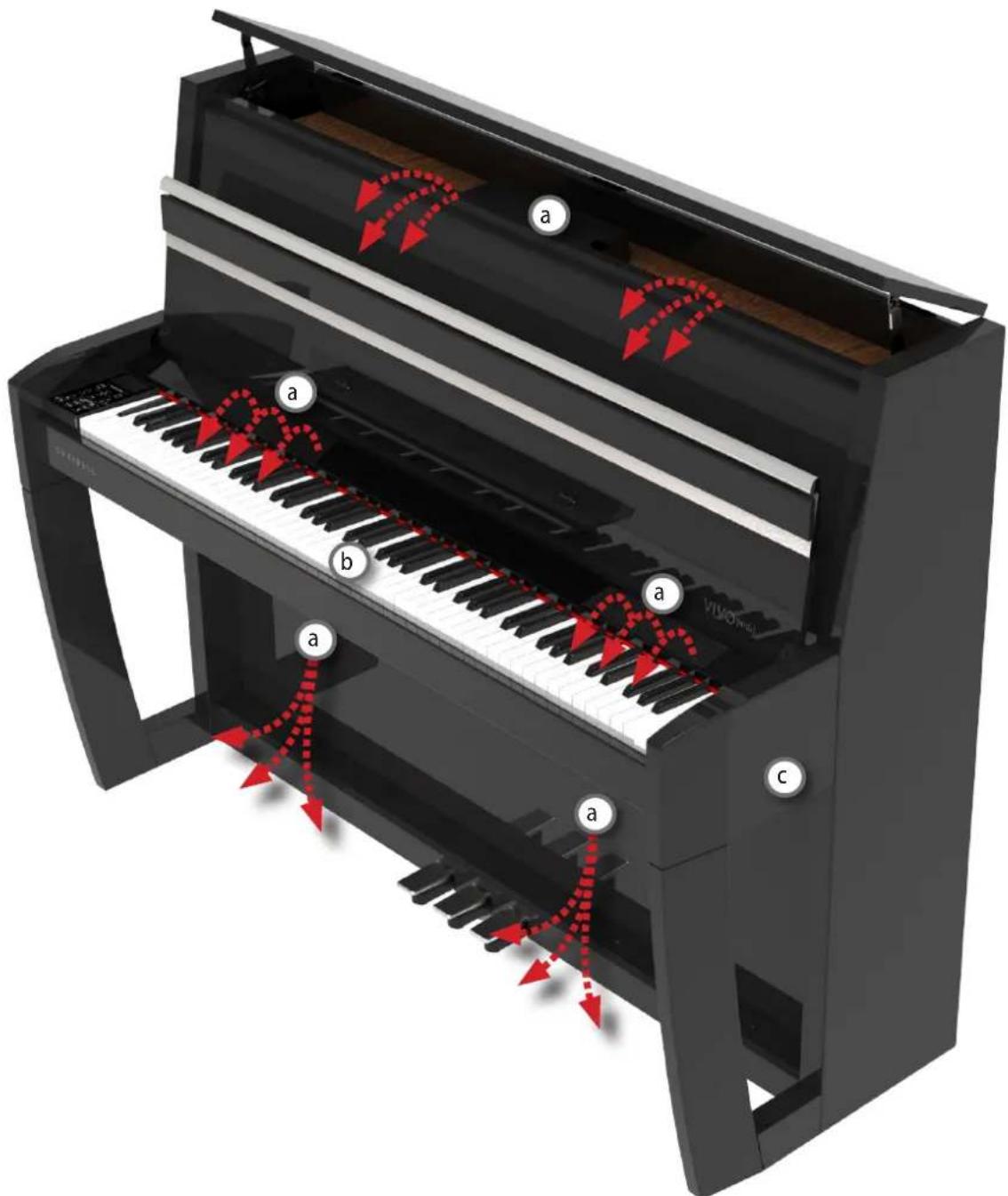
The VIVO H10V has a speaker system, 3 DSPs, and three amplifiers specially designed to achieve perfect 360-degree sound diffusion. The special speakers in the top part of the instrument create a more realistic sound, typical of the upright piano. See "How to Balance the Level of the Internal Speakers (Tweeter, Woofer and Back)" (p. 33).

Progressive Hammer Action Keyboard with Escapement
An upright piano touch from the new exclusive Progressive Hammer Action Keyboard with Escapement, which associates the look and feel of wood with the durability of modern materials.

Elegant Wood Cabinet
Enhance your living room wall with elegant finishes.
Adjustable System for Lifting the Top Lid.

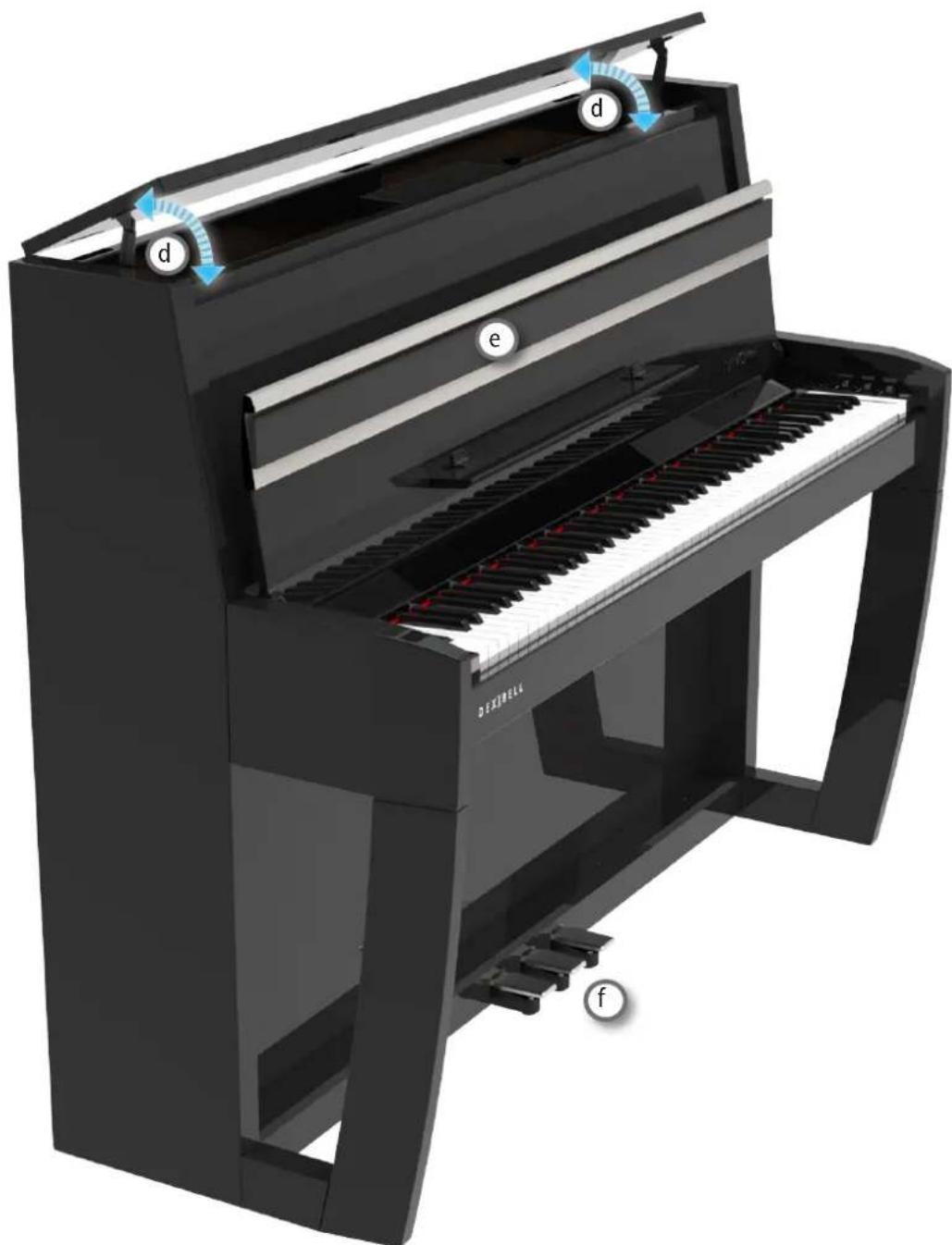
You can lift the top cover of the upright piano; this will influence, as in a real acoustic piano, the volume and openness of the sound produced. With the top cover completely open, the waves will propagate better in the environment, making the sound brighter. With the lid closed, you get the opposite effect, a darker and more muffled sound. See "Opening and Closing the Upright Piano's Top Cover" (p. 20).

Keyboard Lid
Folding Keyboard Lid with soft closing and reclining blind. See "Opening and Closing the Lid" (p. 19).

Grand Pedal System
The pedals continuously sense depth of pressure, allowing players to make small pedal movements, changing the depth and character of the piano's sound. Every detail is perfectly simulated up to the noise generated by the pressure and release of the pedal, all as an upright piano.
4
Panel Description

[Non-Text]
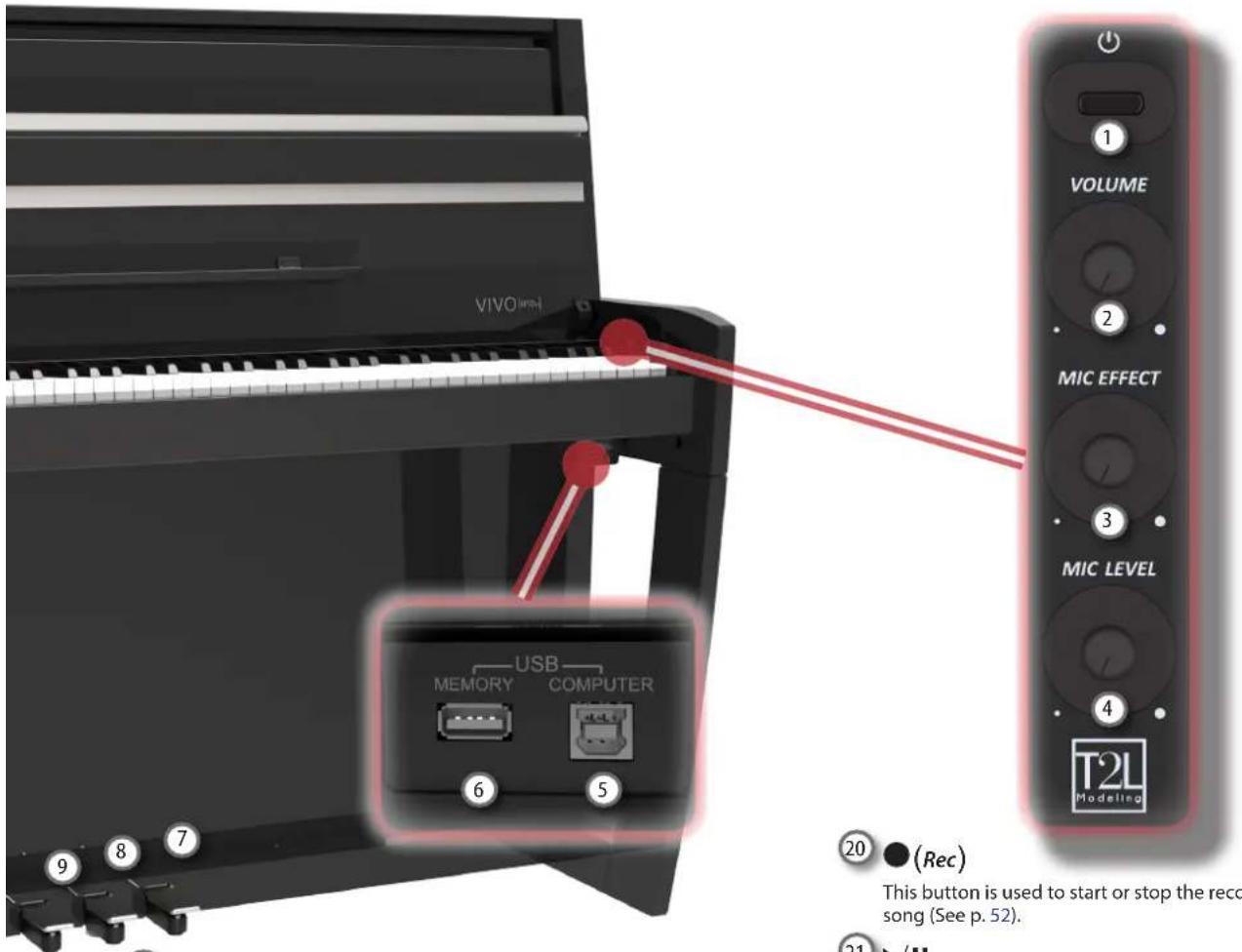
Turns the power on or off (p. 22).
With the factory settings VIVO H10V's power will automatically be switched off 120 minutes after you stop playing or operating the VIVO H10V.
If VIVO H10V's power has been turned off automatically, you can use the [POWER] switch to turn the VIVO H10V back on. If you don't want the power to turn off automatically, set the "AUTO OFF" parameter to "OFF" (p. 70).
NOTE
To avoid malfunctions, never disconnect the AC/DC adaptor while the instrument is turned on.

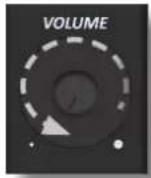
VOLUME
Use this knob to set VIVO H10V's overall volume. See "Adjust the Volume of the VIVO H10V" (p. 32).

MIC EFFECT
Use this knob to adjust the amount of the effects currently applied to the microphone.

MIC LEVEL
It adjust the level of the microphone connected to the MIC socket.

USB Computer Port
Use a USB cable to connect the VIVO H10V to your computer via this connector (p. 21).

USB Memory Port
Connect an commercially available USB Memory here.
If you connect to this port a USB MIDI keyboard or modules you can exchange MIDI data without a computer and without using two MIDI cables. See "Connecting the VIVO H10V to a USB MIDI Keyboard (USB host function)" (p. 21).
NOTE
* Carefully insert the USB Memory making sure that the connector on the device is appropriate and that it is connected in the proper direction.
* Dexibell does not recommend using USB hubs, irrespective of whether they are active or passive. Please connect only one USB Memory to this port

Damper Pedal
Use this pedal to sustain the sound (p. 64).

Sostenuto Pedal
The notes you are pressing when this pedal is depressed will be sustained, allowing future notes played to be unaffected (p. 65).

Soft Pedal
This pedal is used to reduce the volume and slightly changes the timbre (p. 65).
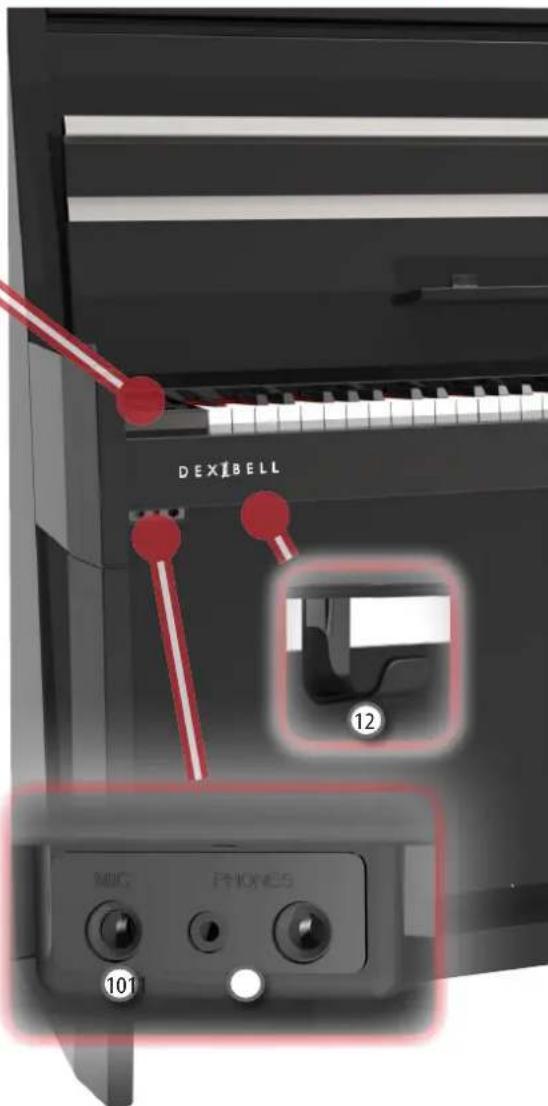
10 MIC socket
Use this socket to connect a microphone (unbalanced mono 1/4").
11 PHONES output
This is where you can connect one or two pairs of optional headphones. Doing so switches off the internal speakers.
12 Headphones Hook
Here you can hang your headphones.
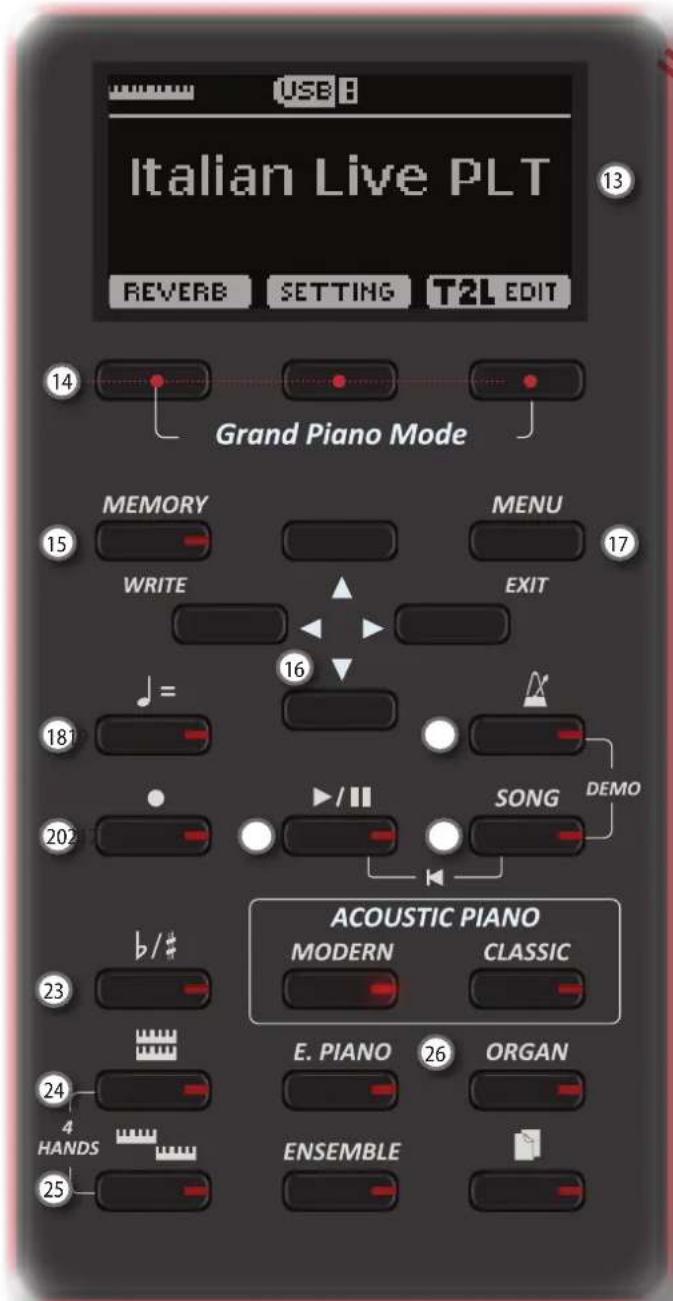
13 Display
This display shows information related to your operation.
14 Function buttons
These buttons are used to select one of three functions/options shows at the bottom of the display.
15 MEMORY/WRITE button
This button allows you shows the list of memories and then recall one of them. (See p. 53).
Pressing and holding this button to write a memory (See p. 53).
16 Arrow buttons
These buttons are used to navigate around the various menus, adjust values.
17 MENU/EXIT
This button allows you to open and close the menu page where you can view and select all available functions.
18 ♩ = (Tempo)
Use this button to change the tempo of metronome.
You can also enter tempos simply by tapping your finger on the button.
19 (Metronome)
This button allows you to turn the metronome on or off.
20 (Rec)
This button is used to start or stop the recording of your song (See p. 52).
21▶/II
Press this button to start playing. Press it again to stop playing (See p. 50).
Press and hold it while pressing the [SONG] button to return to the beginning of the song.
22 SONG
This button allows you to switch to Song Mode (See p. 50).
Press it together with the 🔒 button to listen to the demo song.
23 b/#
This button calls up the transposition function (See p. 32). Its settings can be applied to the keyboard.
If the button indicator doesn't light the instrument uses its normal pitch.
24
This button enables or disables the layer keyboard mode (See p. 27).
Press it together with the button to enable or disable the "4 HANDS" keyboard mode.
25
This button enable or disable the split function (See p. 27).
Press it together with the button to enable or disable the "4 HANDS" keyboard mode.
26 These buttons allow you to select tones by category
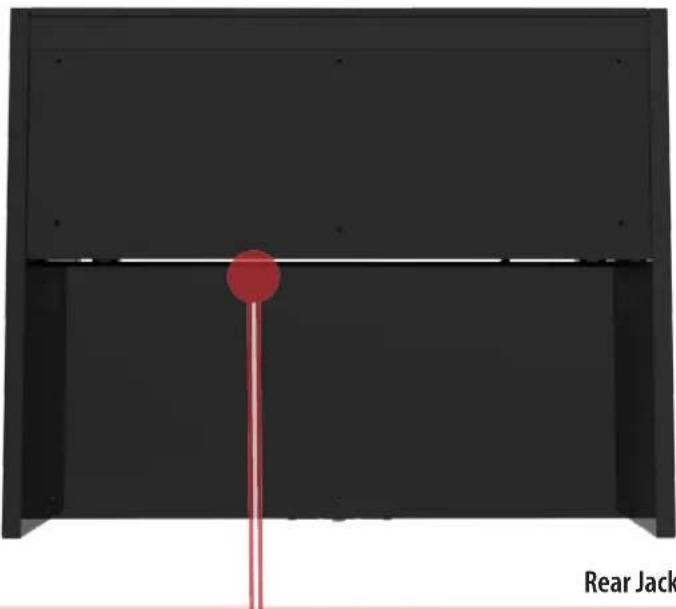
Rear Jack Sockets Panel View
NOTE
The rear jack sockets panel can be found on the back, underneath the keyboard.
Rear View of the VIVO H10V
natural_image
Simple diagram of a black rectangular frame with a red vertical line and a red circle at the center, labeled 'Rear Jack' at the bottom (no other text or symbols)Rear Jack Sockets
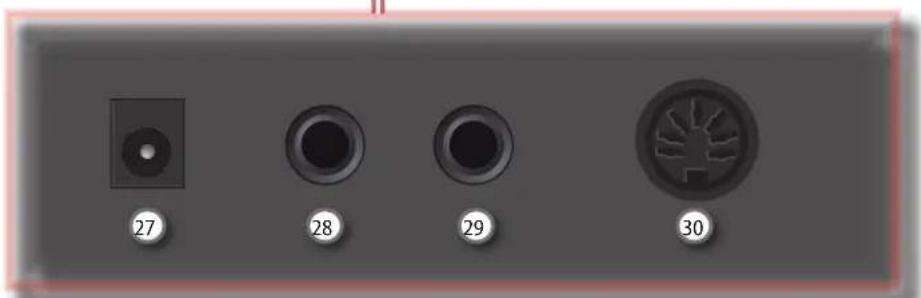
Observing the jack sockets from behind the instrument.

DC IN socket
Connect the supplied AC/DC adaptor here (p. 18).

AUDIO OUTPUT R jack
This socket allows you to connect an external amplified speaker.

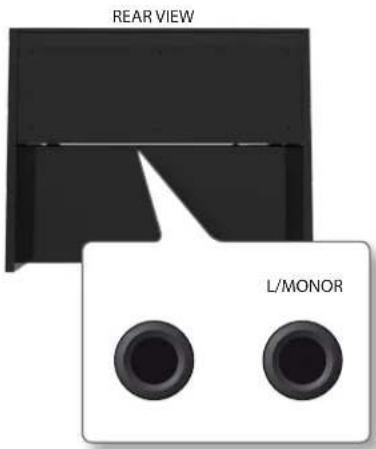
AUDIO OUTPUT L/MONO jack
This socket allows you to connect an external amplified speaker.
NOTE
If you can/want to use only one channel on your external amplifier, connect this "L/MONO" socket to its input. For optimum sound quality, we recommend working in stereo, though.

Pedals Socket
Here is were you connect the pedals cable.
NOTE
It's possible that the pedal cable is already connected at the factory.
Peripheral Devices
NOTE
Before to connect your microphone to the MIC socket, rotate the [MIC LEVEL] knob counterclockwise to minimize the volume.
![microphone to the MIC socket, rotate the [MIC LEVEL] knob counterclockwise to minimize the volume. Audio and MIDI Bluetooth AUDIO MIDI Streaming USB to Computer (MIDI) MIC IN 2 Headphones USB Memory OR VIVO H10V - Master (host) USB cable A→B-type Slaves NOTE Before to connect external Ampli ed Speakers, move the [VOLUME] knob counterclockwise to minimize the volume. Left Amplified Speaker Uplified Speaker](/content/2026/05/1064909/images/c160a7abf746086a63ff372822d8363682d2f619edab554d241a6e0420db0c8e.jpg)
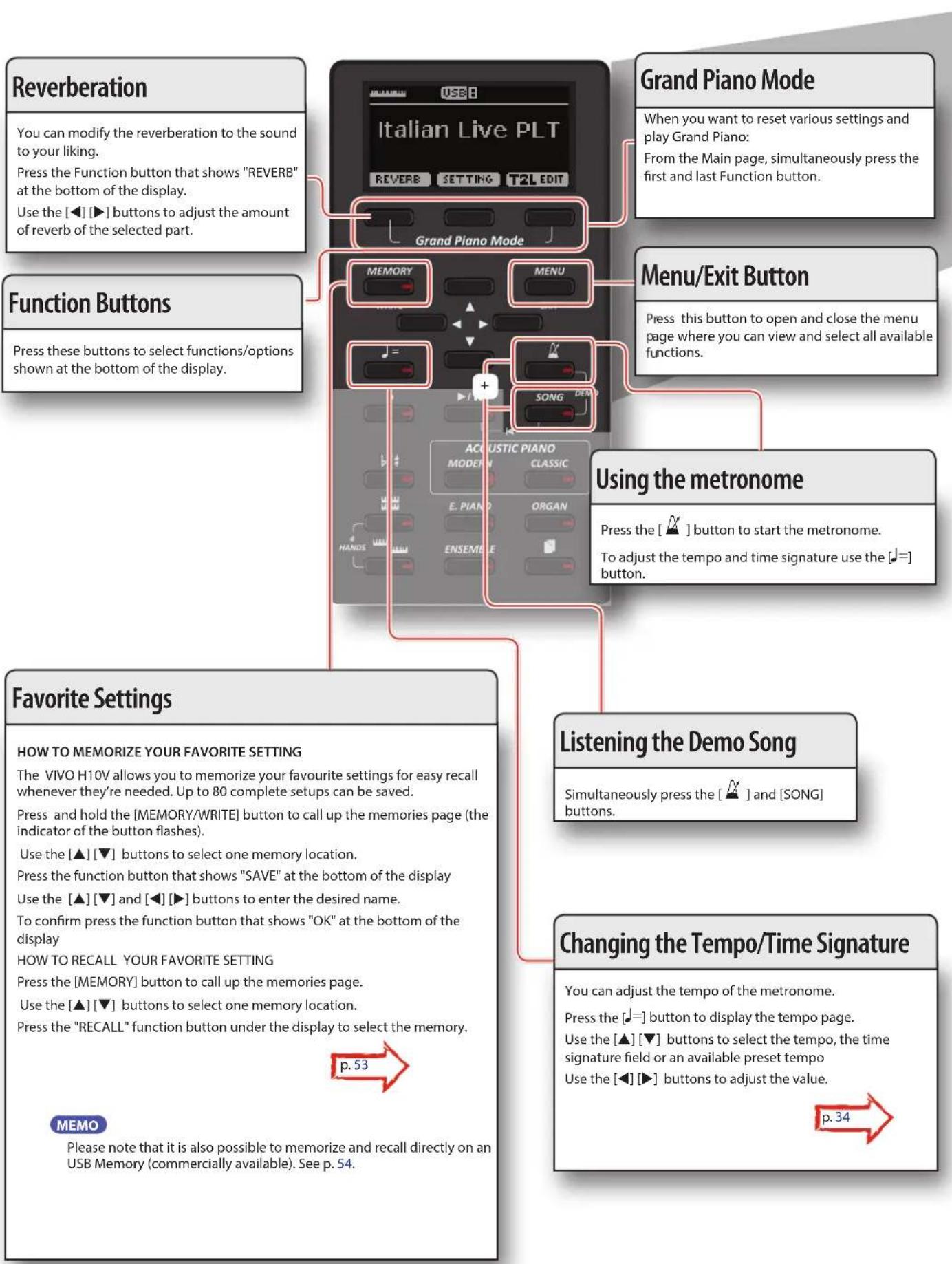
flowchart
graph TD
    A["Reverberation"] --> B["You can modify the reverberation to the sound to your liking."]
    B --> C["Press the Function button that shows "REVERB" at the bottom of the display."]
    C --> D["Use the [◀"] [▶] buttons to adjust the amount of reverb of the selected part.]
    E["Function Buttons"] --> F["Press these buttons to select functions/options shown at the bottom of the display."]
    G["Grand Piano Mode"] --> H["When you want to reset various settings and play Grand Piano: From the Main page, simultaneously press the first and last Function button."]
    I["Menu/Exit Button"] --> J["Press this button to open and close the menu page where you can view and select all available functions."]
    K["Using the metronome"] --> L["Press the [◀"] button to start the metronome. To_adjust_the_tempo_and_time_signature_use_the["◀="] button.]
    M["Favorite Settings"] --> N["How TO MEMORIZE YOUR FAVORITE SETTING"]
    N --> O["The VIVO H10V allows you to memorize your favourite settings for easy recall whenever they're needed. Up to 80 complete setups can be saved."]
    N --> P["Press and hold the [MEMORY/WRITE"] button to call up the memories page (the indicator of the button flashes).]
    N --> Q["Use the [▲"] [▼] buttons to select one memory location.]
    N --> R["Press the function button that shows "SAVE" at the bottom of the display"]
    N --> S["Use the [▲"] [▼] and["◀"] [▶] buttons to enter the desired name.]
    N --> T["To confirm press the function button that shows "OK" at the bottom of the display"]
    N --> U["HOW TO RECALL YOUR FAVORITE SETTING"]
    U --> V["Press the [MEMORY"] button to call up the memories page.]
    U --> W["Use the [▲"] [▼] buttons to select one memory location.]
    U --> X["Press the "RECALL" function button under the display to select the memory."]
    X --> Y["p. 53"]
    Z["MEMO"] --> AA["Please note that it is also possible to memorize and recall directly on an USB Memory (commercially available). See p. 54."]
    AB["Listening the Demo Song"] --> AC["Simultaneously press the [◀"] and["SONG"] buttons.]
    AD["Changing the Tempo/Time Signature"] --> AE["You can adjust the tempo of the metronome. Press the [◀="] button to display the tempo page. Use_the["▲"] [▼] buttons to select the tempo, the_time_signature_field_or_an_available_preset_tempo_Use_the["◀"] [▶] buttons to adjust the value.]
    AF["p. 34"] --> AG
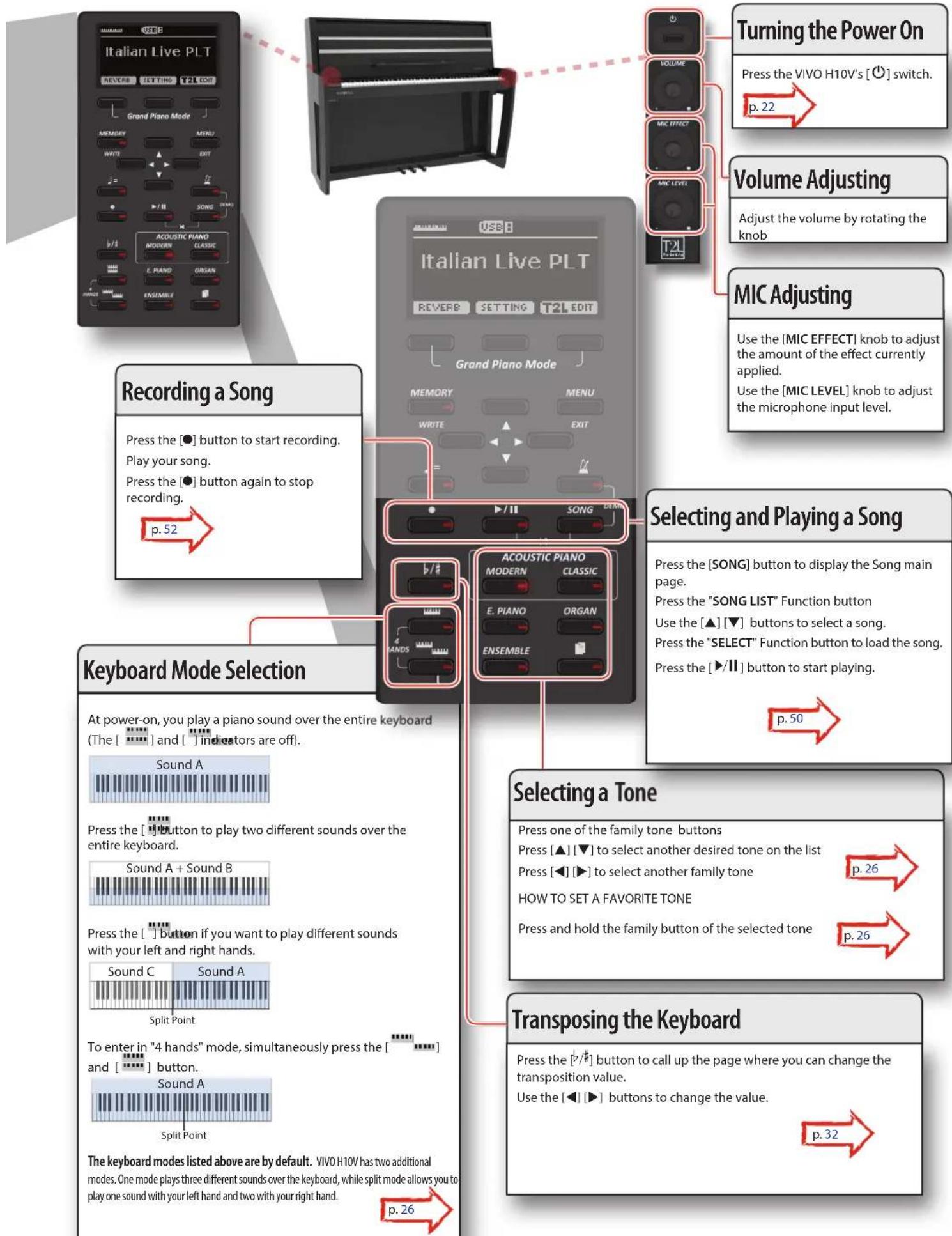
flowchart
graph TD
    A["Recording a Song"] --> B["Recording a Piano"]
    B --> C["Selecting and Playing a Song"]
    C --> D["Keyboard Mode Selection"]
    D --> E["Selecting a Tone"]
    E --> F["Transposing the Keyboard"]

    subgraph Recording a Song
        G["Press the [●"] button to start recording.
Play your song.
Press_the["●"] button again to stop recording.
p. 52]
    end

    subgraph Selecting and Playing a Song
        H["Press the [SONG"] button to display the Song main page.
Press the "SONG LIST" Function button
Use_the["▲"][▼] buttons to select a song.
Press the "SELECT" Function button to load the song.
Press_the["▶/II"] button to start playing.
p. 50]
    end

    subgraph Keyboard Mode Selection
        I["At power-on, you play a piano sound over the entire keyboard (The [■■■■"] and["■"] indicators are off).]
        J["Sound A"] --> K["Press the [■"] button to play two different sounds over the entire keyboard.]
        L["Sound A + Sound B"] --> M["Press the [■"] button if you want to play different sounds with your left and right hands.]
        N["Sound C"] --> O["Split Point"]
        P["Sound A"] --> Q["To enter in "4 hands" mode, simultaneously press the [■■■■"] and["■■■■"] button.]
        R["Sound A"] --> S["Split Point"]
        T["The keyboard modes listed above are by default. VIVO H10V has two additional modes. One mode plays three different sounds over the keyboard, while split mode allows you to play one sound with your left hand and two with your right hand.<br>p. 26"]
    end
7 Before You Start to Play
Connecting the AC Adaptor
- Rotate the [VOLUME] knob counterclockwise to minimize the volume.
- Connect the included power cord to the AC adaptor.
To an AC outlet

NOTE
Depending on your area, the included power cord may differ from the one shown above.
NOTE
Be sure to use only the AC adaptor (DEXIBELL DYS6150-2400500W) supplied with the unit. Also, make sure the line voltage at the installation matches the input voltage specified on the AC adaptor body. Other AC adaptors may use a different polarity or be designed for a different voltage, so their use could result in damage, malfunction, or electric shock.
NOTE
If you won't be using the VIVO H10V for an extended period of time, disconnect the power cord from the electrical outlet.
NOTE
To avoid malfunctions, never disconnect the AC/DC adaptor while the instrument is turned on.
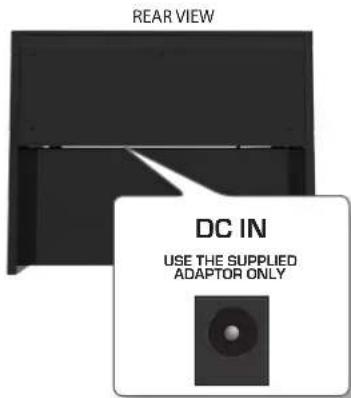
- Connect the AC adaptor to the VIVO H10V's DC IN socket on the back under the keyboard. For details see "Rear Jack Sockets Panel View" (p. 14).
Connecting the Pedal Cord
REAR SIDE
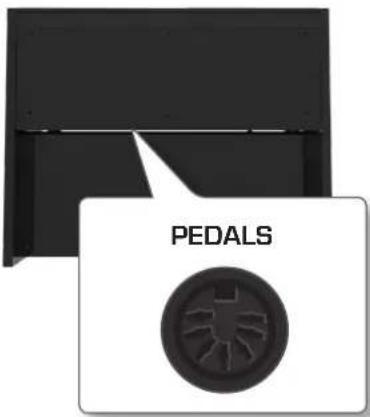
- If the cable from the pedals is not connected, connect it. The socket is placed on the back under the keyboard. For details see "Rear Jack Sockets Panel View" (p. 14).
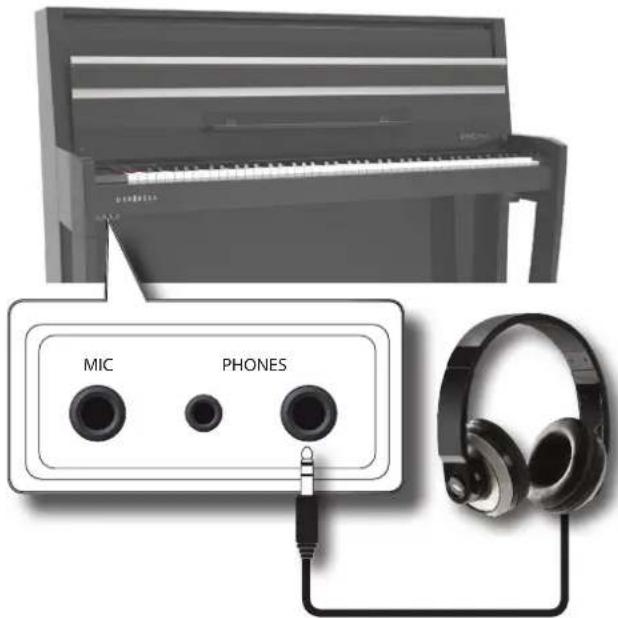
Listening Through Headphones
You can use headphones to enjoy the VIVO H10V without disturbing those around you, such as at night.
- Here, you can connect stereo headphones. VIVO H10V has two headphone jacks. Two people can use headphones simultaneously.
natural_image
Audio setup with piano, microphone, and headphones connected to a speaker (no text or symbols visible)- Rotate the VIVO H10V's [VOLUME] knob to adjust the headphone volume.
Cautions when using headphones
- To prevent damage to the cord's internal conductors, avoid rough handling. When using headphones, mainly try to handle the plug or the headset.
- Your headphones may be damaged if the volume of a device is already turned up when you plug them in. Minimize the volume
before you plug in the headphones.
- Excessive input will not only damage your hearing but may also strain the headphones. Please enjoy music at a reasonable volume.
Connecting an Optional Microphone
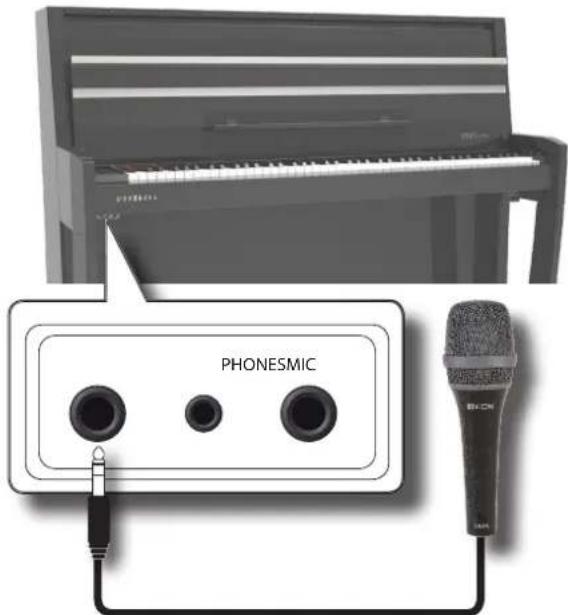
By plugging an optional microphone into the MIC socket, you can use the VIVO H10V to accompany you while you sing.
MEMO
Your VIVO H10V allows you to record in WAVE format your performance including the microphone signal.
- Rotate the [VOLUME] knob counterclockwise to minimize the volume.
You should do so every time you need to connect or disconnect a microphone. Furthermore, only increase the setting if you actually wants to sing, and then set it back to the minimum value. - Connect an optional microphone (unbalanced mono 1/4") in the "MIC" socket.
natural_image
Illustration of a piano setup with a phone and microphone, no text or symbols present- Rotate the VIVO H10V's [VOLUME] knob to adjust the volume.
- Sing or talk into the microphone and gradually turn the "MIC LEVEL" knob to adjust the level of the microphone signal.
- Rotate the VIVO H10V's [MIC EFFECT] knob to adjust the amount of the current effects.
NOTE
Howling could be produced depending on the location of microphones relative to speakers. This can be remedied by:
- Changing the orientation of the microphone.
- Relocating microphone at a greater distance from speakers.
- Lowering volume levels.
Connecting an External Amplifier
You can connect the OUTPUT jack to an external amplifier, stereo system, or other stereo audio device.
-
Rotate the [VOLUME] knob counterclockwise to minimize the volume.
-
Connect the VIVO H10V's OUTPUT jacks on the back under the keyboard to the inputs of your external amplifier. For details see "Rear Jack Sockets Panel View" (p. 14).
Opening and Closing the Lid
NOTE
- This unit has a safe closing system to avoid finger injuries when opening or closing the lid. Anyway, be careful to avoid catching your fingers when opening or closing the lid. Adult supervision is recommended whenever small children use the unit.
- If you need to move the unit, make sure that the lid is closed to prevent accidents.
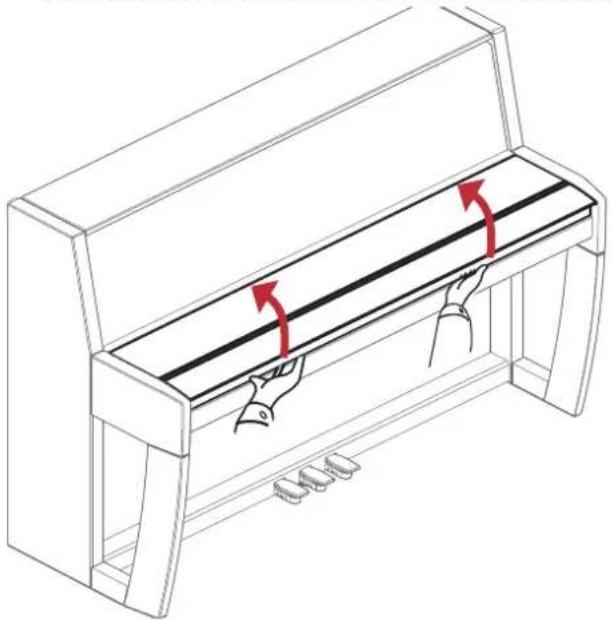
Opening the Lid
WARNING
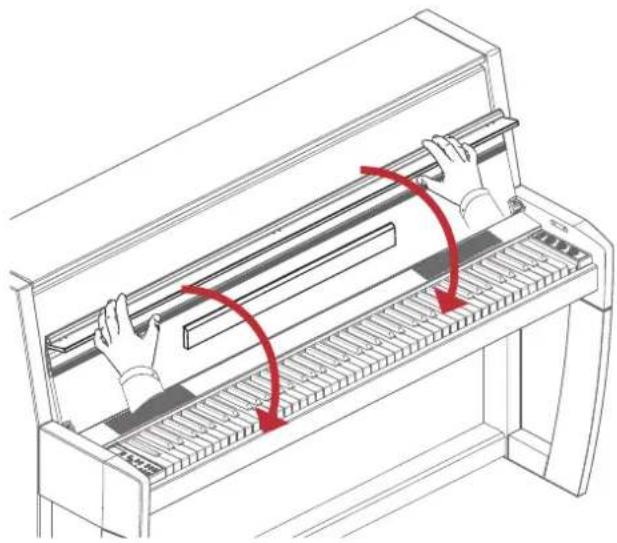
- Do not release the lid until it is fully opened.
- Hold the front edge of the lid with both hands, then open the lid slowly until it reaches the end-of-stroke position.
natural_image
Line drawing of a piano with hands holding keys and arrows indicating motion (no text or symbols)Using the Music Rest
Please find here below instructions regarding the opening and closing of the music rest.
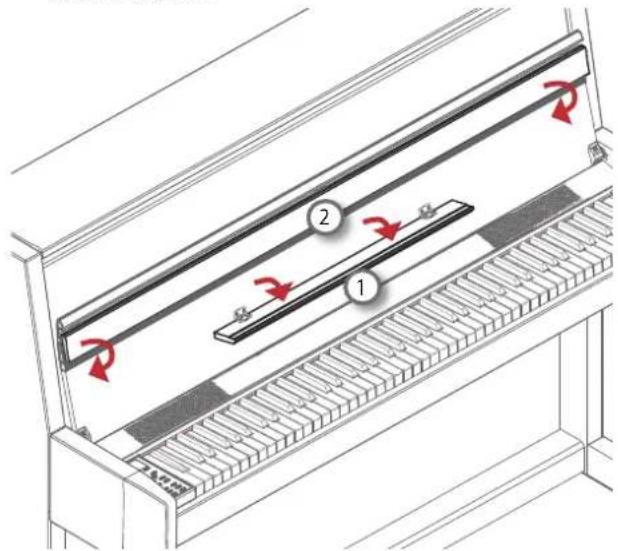
Opening the Music Rest
- Open the lid. See "Opening the Lid" (p. 19).
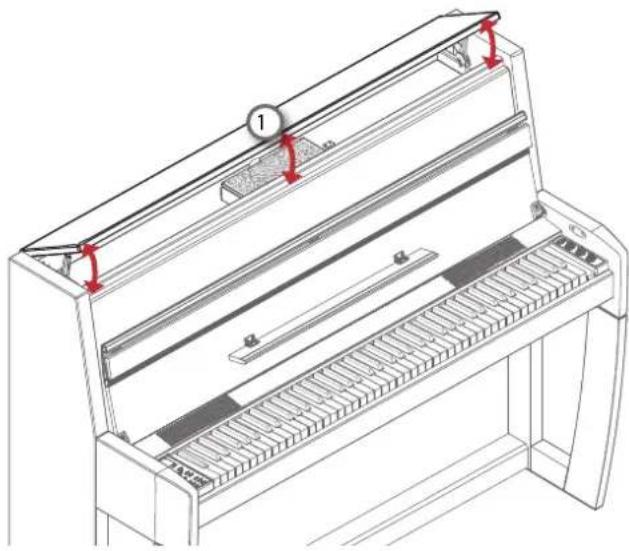
- To make closing the keyboard lid easier, the music rest (1) is usually folded upward. Fold down the music rest to open it, as depicted in the following illustration. Fold down the front part of the lid (2) to provide extra space for the music sheet.
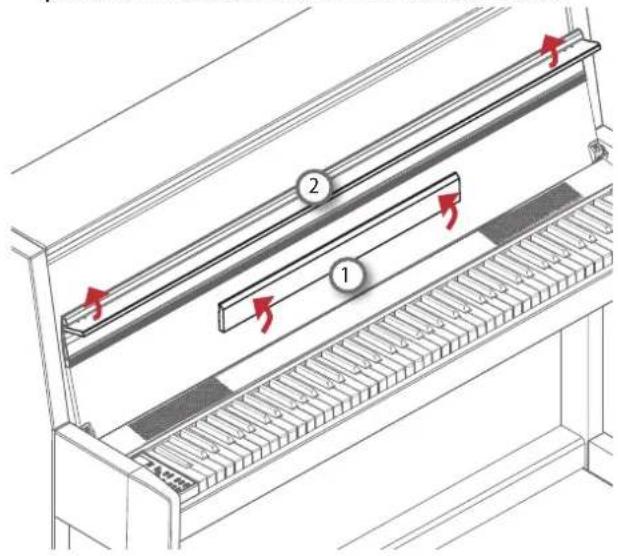
Closing the Music Rest
- Fold up the music rest to close it (1) and fold up the front part of the lid (2), as shown in the illustration below.
Closing the Lid
WARNING
- Allow the lid to close automatically. Do not force the lid.
-
Be careful to avoid catching your fingers when closing the lid. Adult supervision is recommended whenever small children use the unit.
-
Before closing the lid, close the music rest. See "Closing the Music Rest" as described above.
-
Hold the lid with both hands and slowly accompany it to close automatically.
Allow the lid to close automatically. Do not force the lid.
natural_image
Line drawing of a piano keyboard with hands operating the keys and red arrows indicating rotation or movement (no text or symbols)Opening and Closing the Upright Piano's Top Cover
The top cover of the upright piano can be fully closed or fully open, depending on your preference. With the top cover completely open, the waves will propagate better in the environment, making the sound brighter. With the lid closed, you get the opposite effect, a darker and more muffled sound.
- Use both hands to adjust the top cover (1) to the desired height and release it. The top cover will stay in the desired position.
natural_image
Technical line drawing of a piano with labeled parts and red arrows indicating motion (no text or symbols present)Connecting the VIVO H10V to Your Computer
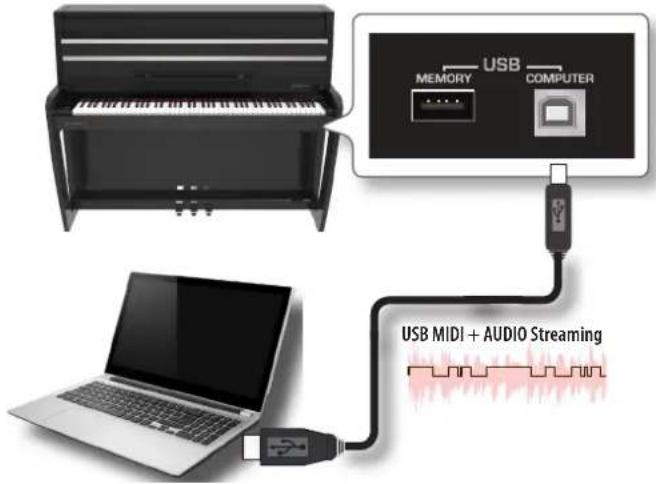
If you use a USB cable (commercially available) to connect the VIVO H10V to your computer, you can record and play audio and/or MIDI data with your MIDI software (DAW software).
NOTE
VIVO H10V does not support GM/GS standard.
What do you need to connect the VIVO H10V to your computer?
- USB cable (type A-male - type B-male: commercially available)
- Use a standard USB cable (A→B-type connectors, commercially available) to connect the VIVO H10V to your computer as shown below.
NOTE
- Switch on the VIVO H10V before you start up the DAW software on your computer.
- Before connecting any other equipment, move the [VOLUME] knob counterclockwise to minimize the volume.
Now, the same sound coming out of the VIVO H10V can be recorded into your computer and the sound from your computer can be played from the audio system of the VIVO H10V.
Connecting the VIVO H10V to a USB MIDI Keyboard (USB host function)
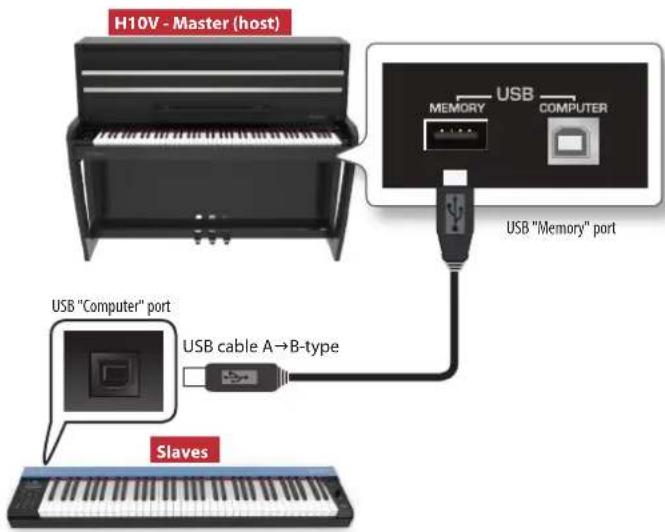
Using the following connection, your piano becomes a master (host). You can connect other keyboards or modules from any brand directly to the DEXIBELL USB "Memory" port and exchange MIDI data without a computer and without using two MIDI cables.
The connection consists of the following main components:
- Your DEXIBELL piano.
• One slave MIDI USB Devices as a keyboard. - A physical bus is represented by a USB cable that links the devices with the host.
Connecting an USB Memory (commercially available)
- Plug a USB Memory to the MEMORY port on the VIVO H10V's right panel under the keyboard.
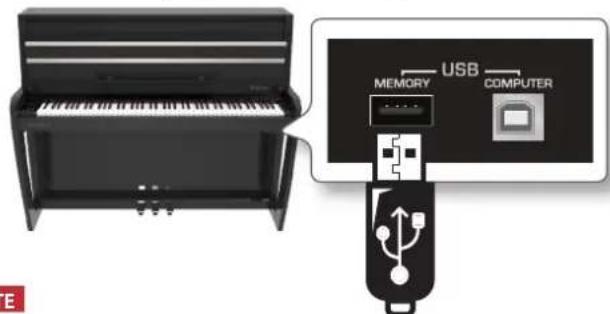
NOTE
Carefully insert the USB Memory, ensuring that the connector on the device is appropriate and connected in the proper direction.
NOTE
The VIVO H10V supports all USB memory (FAT 32 formatted).
Because there are so many USB memories on the market and it is almost impossible to check all types of memories, the USB memory might be incompatible with your instrument.
How to Format the USB Memory
- Press the "MENU" button.
- Use the [▲] [▼] buttons to select the "USB MEMORY" functions group and press the [▶] button to access them.
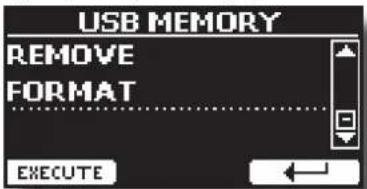
- Use the [▲] [▼] buttons to select "FORMAT" and press the [EXECUTE] Function button to access the function. The display shows:
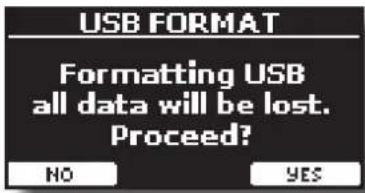
- Press the "YES" Function button to format the USB Memory.
A confirmation message informs you that the USB memory has been formatted.
Safely Remove the USB Memory
NOTE
You should always safely eject the USB Memory before physically unplugging it from the USB socket. Before unplugging the USB Memory use the "USB REMOVE" function.
- Press the "MENU" button.
- Use the [▲] [▼] buttons to select the "USB MEMORY" functions group and press the [▶] button to access them.
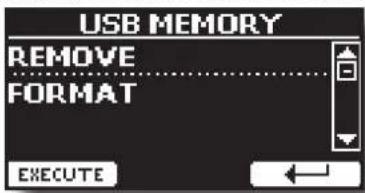
- Use the [▲] [▼] buttons to select "REMOVE" and press the [EXECUTE] Function button to access the function.
The display shows:
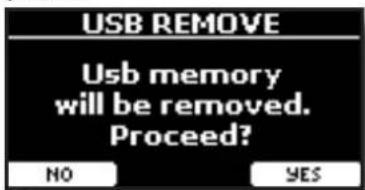
- Press the "YES" Function button to remove the USB Memory safely.
Now you can unplug the USB Memory safely.
Turning the Power On/Off
Once everything is connected correctly, follow the procedure below to turn on the instrument.
- Rotate the [VOLUME] knob counterclockwise to minimize the volume.
NOTE
Always turn the volume down before turning the VIVO H10V on/off. You might hear some sound when switching the VIVO H10V on/off, even with the volume turned down.
However, this is normal and does not indicate a malfunction.
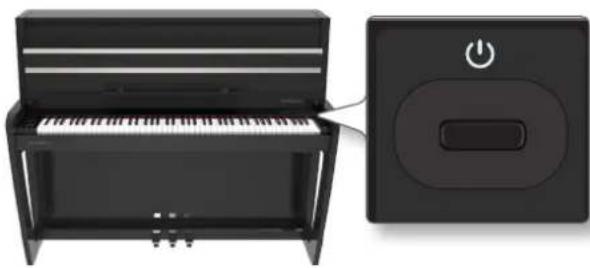
- Press the VIVO H10V's [◎] button on the right panel to switch it on.
natural_image
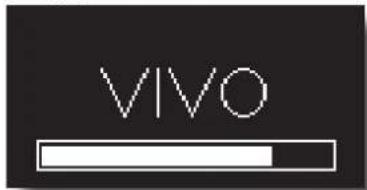
Black piano with open case and close-up of a black electronic device labeled 'Power Switch' (no text or symbols on the instrument itself)The power will turn on, and a progress bar appear in the VIVO H10V's display.
After a brief interval, the main page will appear and VIVO H10V will be ready to produce sound.
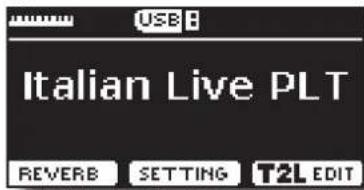
- Use the [VOLUME] knob to adjust the volume.
NOTE
This unit is equipped with a protection circuit. A brief interval (a few seconds) after power-up is required before the unit will operate normally.
Turning the Power Off
- Rotate the [VOLUME] knob counterclockwise to minimize the volume.
NOTE
Never disconnect the AC/DC adaptor while the instrument is turned on to avoid malfunctions.
- Press the VIVO H10V's [⏻] switch.
A power-off confirmation message appears:
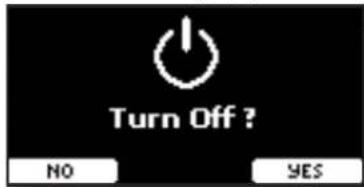
- Press the "YES" Function button to confirm.
The display shows the following message:
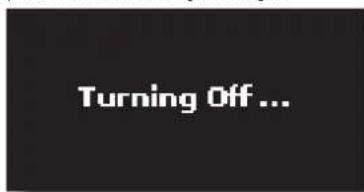
The unit will turn off after few seconds.
If you do not want power off, press the "NO" Function button.
NOTE
To completely power down the instrument, press the [⏻] button and unplug the power cord from the outlet. Refer to "Connecting the AC Adaptor" (p. 18).
If you do not operate the unit for a certain of time while the power is on, this unit turns off automatically.
If you don't want the power to turn off automatically, turn off the "AUTO OFF" setting!
With the factory settings, the unit's power will automatically be switched off 120 minutes after you stop playing or operating the unit.
Shortly before the VIVO H10V shuts down automatically, the display count down the seconds. Press any button if you want to keep using the VIVO H10V at this stage.
If you don't want the power to turn off automatically, change the "AUTO OFF" setting to "OFF" as described on p. 70.
Demo of the VIVO H10V
Your VIVO H10V contains a demo that introduces all the best of its tones.
- Simultaneously press the [ ] and [SONG] buttons.
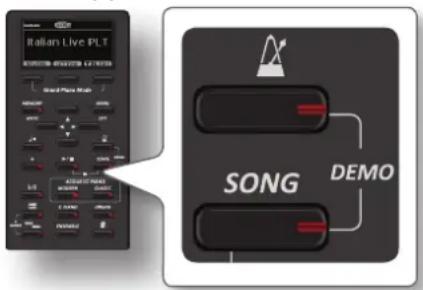
Playback starts automatically with the demo song.
- Press the [MENU/EXIT] button to leave the demo function.
NOTE
All rights reserved. Unauthorized use of this material for purposes other than private, personal enjoyment violates applicable laws.
About the Display and Cursor Operation
This section introduces the information that appears on the main page. Moreover, this section illustrates how to navigate the menu.
Main Page
The VIVO H10V main page contains many useful information.
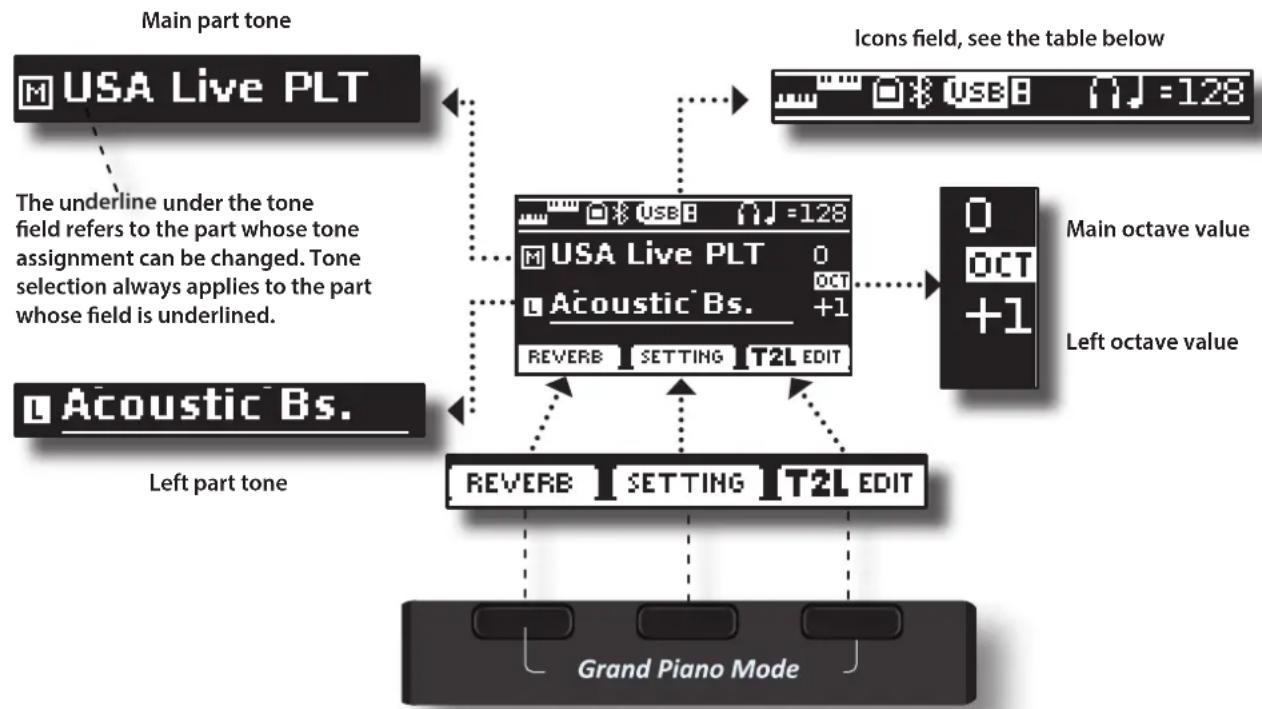
flowchart
graph TD
    A["Main part tone"] --> B["USA Live PLT"]
    B --> C["The underline under the tone field refers to the part whose tone assignment can be changed. Tone selection always applies to the part whose field is underlined."]
    A --> D["Acoustic Bs."]
    D --> E["Reverb SETTING T2L EDIT"]
    E --> F["Grand Piano Mode"]
    G["Icons field, see the table below"] --> H["USA Live PLT 0 OCT +1 REVERB SETTING T2L EDIT"]
    H --> I["Main octave value"]
    H --> J["Left octave value"]
    K["Reverb SETTING T2L EDIT"] --> L["Grand Piano Mode"]
    M["Left part tone"] --> N["Acoustic Bs."]
Function buttons
Use these function buttons to select one of three functions/options shown at the bottom of the display.
| Icons Field Explanation Icons Field Explanation | ||||
| Keyboard Mode: A USB memory is connected to your | unit | |||
| Split | Bluetooth indicatorSteady icon: Connected to a device | |||
| Layer | The internal speakers are switched off (The "Speaker" parameter is set to "OFF".For complete details on the "Speaker" parameter, check the Global Parameters section (p. 70). | |||
| Split | Please consult the Global Parameters section for more information on these settings p. 70.4 Hand is set: "Split+Layer" | A headphone is plugged into the [PHONES] output jackTempo setting value | ||
| Layer | ||||
| A computer is connected to the VIVO H10V's USB "COMPUTER" port | ||||
Moving the Cursor and Setting Parameter Values
- Press the [MENU/EXIT] button to access the function groups available.
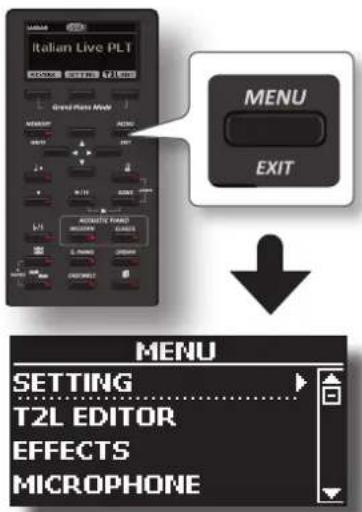
- Use the [▲] [▼] buttons to select the desired function group.
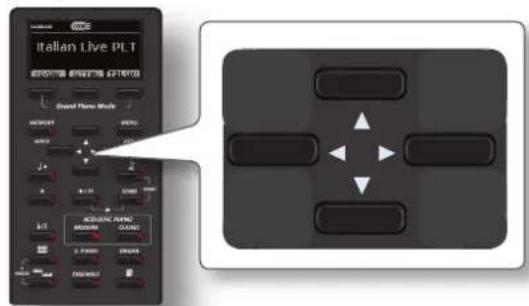
- Press the [▶] button to enter the selected function group.
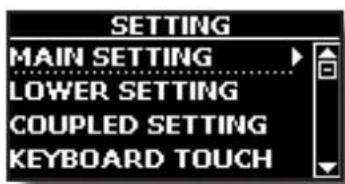
- Use the [▲][▼] buttons to scroll the list of parameters. The selected parameter field is underlined.
- Use the [◀] [▶] buttons to set the desired value.
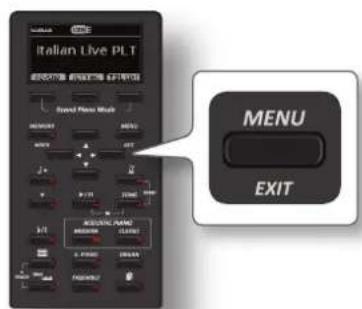
- Press the [MENU/EXIT] button to return to the main page.
Assigning the Name You Specify
You'll often have to assign a name to a file. In the following example, we will learn how to give a memory name.
After the selection of saving memory, the display looks:
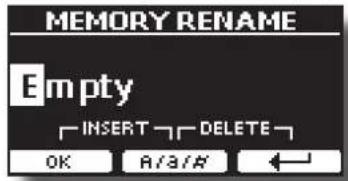
The VIVO H10V suggests a Memory name.
- Use the [▲][▼] buttons to select a different character.
- Use the [◀][▶] buttons to select the next character position you want to change, then use the [▲][▼] buttons again.
- Press the [A/a/#] Function button to switch between upper- and lower-case characters and numbers.
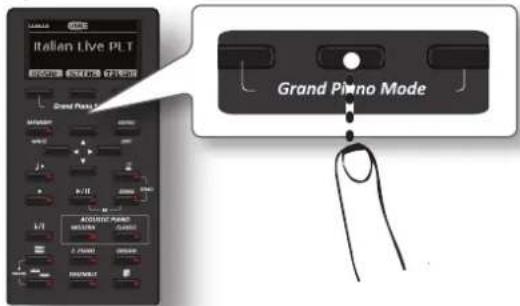
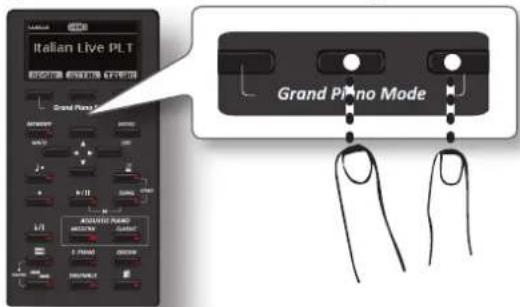
- To delete the selected character, press the centre and right Function buttons simultaneously.
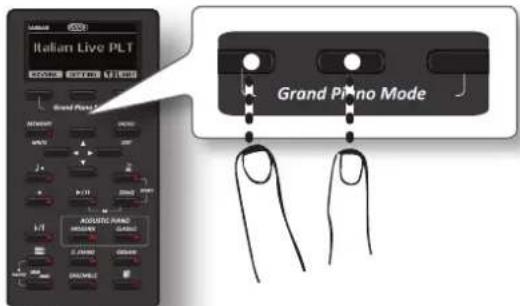
- To insert a character, simultaneously press the centre and left Function buttons.
- Repeat steps (2) and (3) to complete the name.
VIVO H10V has a wide selection of high-quality tones arranged in six categories. In particular, the new sound engine faithfully reproduces the Piano tones with all the subtle nuances of a real acoustic piano.
The VIVO H10V allows you to assign any available tones to the three real-time parts. Tone selection always applies to the part (Main, Coupled or Lower) whose field is currently underlined on the main page.
Grand Piano Mode
NOTE
At power-on, the instrument is automatically selected in Grand Piano Mode.
- From the Main page, simultaneously press the first and last Function buttons.
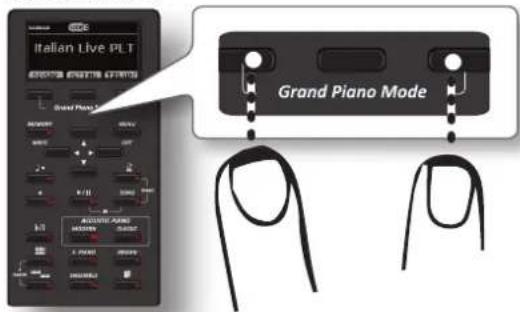
The "Grand Piano" tone is called and all various parameters are modified to play the best piano sound.
- Play the keyboard to enjoy the piano sound.
All keys of the keyboard play a piano sound.
Main Part
How to Customize and Save Your Grand Piano Mode Configuration
Personalize the Grand Piano mode by changing the tone and other parameters. Save your configuration using the "SAVE AS G.P. MODE function.
For more information, please see "How to Customize the Grand Piano Mode" (p. 57).
How to Select Tones
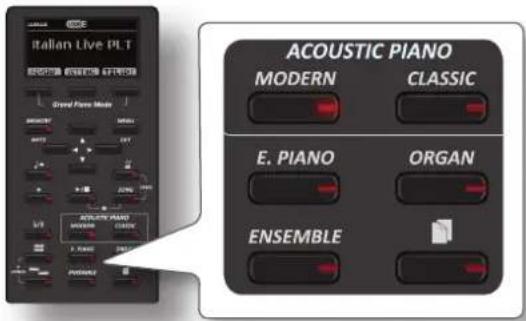
- Press the desired Tone button to select the sound category you want to play.
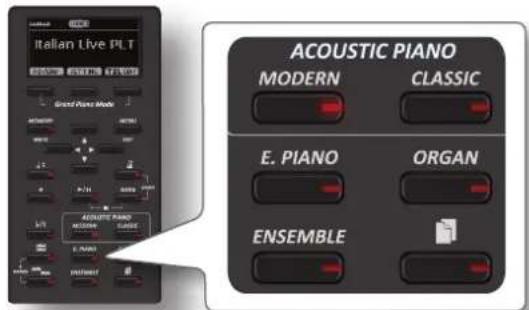
The last sound you selected for that category is recalled.
The button indicator lights up, and a temporary window displays the list of tones where the recalled sound is underlined:
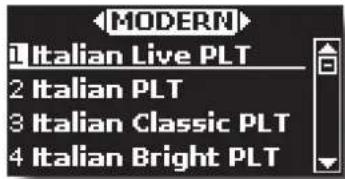
In the example was pressed [MODERN] button.
- While the tone window is active, use the [▲] [▼] buttons to select a tone in the same category.
If, during regular operation, the window closes automatically, press the Tone button again.
See page 74 for a list of available Tones.
- Play the keyboard.
You'll hear the sound of the selected instrument.
MEMO
The last sound you select in each category is memorized temporarily and will be recalled every time you press the corresponding Tone button
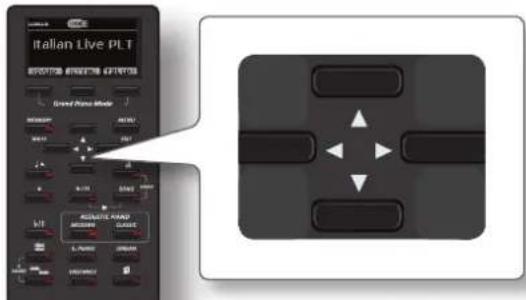
- While the tone window is active, press the [◀] [▶] buttons to select the previous or next tone category or another desired tone buttons.
The Main page is shown after a few seconds of inactivity of the change of tone operation.
TIPS
A quick way to change a tone from the Main page: use the [◀] [▶] buttons to select the next or previous tone in the same category.
Most Frequently Used Tones (Favorite Tone)
The "Favorite Tone" function lets you easily recall the most frequently used sounds. You can memorize your Favorite Tone for each of the six categories and recall it by simply pressing the tone button. It will be helpful in a live performance situation.
-
Select a tone you prefer. See "Selecting Tones" (p. 26).
-
Press and hold the Tone button that contains the selected tone to memorize it.
The display shows a confirmation message.
The position of the sound you selected is memorized and will be recalled every time you press the corresponding Tone button.
The instrument will remember your choice at the next power-on.
Playing Two Sounds Over the Entire Keyboard (Layer)
In the previous paragraph "How to Select Tones", you learned how to select a Tone. Below you'll learn how to add a second sound over the entire keyboard.
- Press the [] button to add a second tone (Coupled Part) over the entire keyboard.
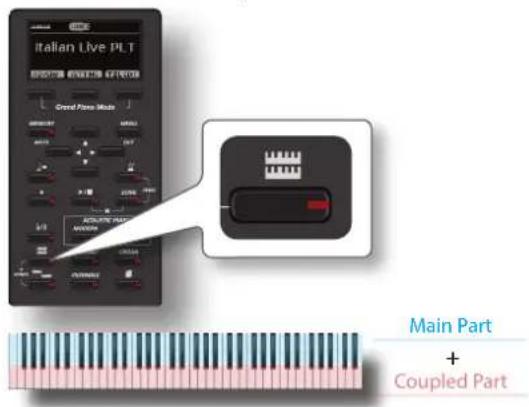
The Coupled part [C] is automatically selected. If the main page is displayed shows:
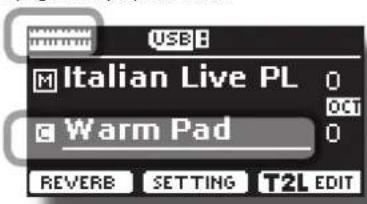
The Coupled part [C] field on the main page is underlined to inform you that the tone selection is applied on this part.
NOTE
For Tone selection, it would be a good idea to check on the main page which part is currently selected to ensure that you don't select a Tone for the wrong part.
- Play the keyboard.
You'll hear the tones of the Main part [M] and Coupled part [C] playing together.
-
To adjust the volume move the [VOLUME] knob.
-
To change the tone of the Coupled part, see "How to Select Tones" (p. 26).
-
To select the Main part, from the main page, use the [▲] [▼] buttons to select it.
-
To change the tone of the Main part, see "How to Select Tones" (p. 26).
Splitting the Keyboard Range and Playing Two Different Tones
Split mode enables you to play two different voices on the keyboard, one with the left hand and another with the right hand.
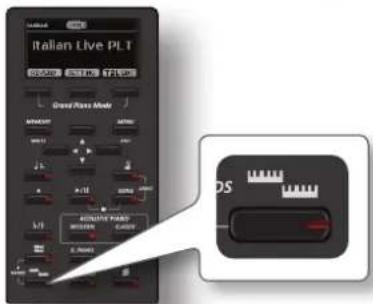
- If you want to use your left and right hands to play different tones, press the [ ] button.
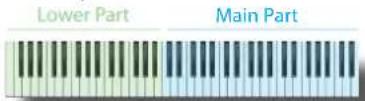
The Keyboard is divided into two sections. The region of the keyboard to the left of the split point becomes the Lower part, while the region of the keyboard to the right of the split point becomes the Main part.
If the main page is displayed shows:
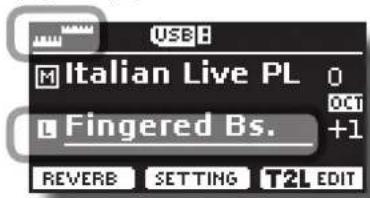
The Lower part [L] field on the main page is underlined to inform you that the tone selection is applied on this part.
- Play the keyboard.
Turn the [VOLUME] knob to adjust the volume.
MEMO
The default split point is set between keys E3 and F3. To change the split point, see "How to Change the Split Point" (p. 27).
-
To change the tone of the Left part, see "How to Select Tones" (p. 26).
-
To select the Main part, from the main page, use the [▲] [▼] buttons to select it.
-
To change the tone of the Main part, see "How to Select Tones" (p. 26).
How to Change the Split Point
- Press and hold the [] button until the display shows the following page.
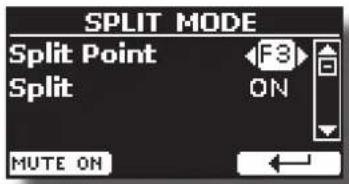
MEMO
You can reach the "SPLIT MODE" page also pressing [MENU/EXIT] button and select SETTING→SPLIT MODE function. See "Moving the Cursor and Setting Parameter Values" (p. 25).
- Use the [◀] [▶] buttons to change the split point.
| Parameter Setting | |
| Split Point | F1 ~ C#7Default: F3 |
- Press the "←" function button to return to the previous page or press [MENU/EXIT] button to go directly to the main page.
Mute the Lower Part
Use this function to mute the Lower part. This function can be useful when you want to play only an external device connected via MIDI.
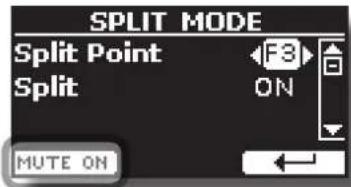
- From the SPLIT page, press the "MUTE ON" Function button.
The notes played on the Lower part don't produce sound. The name of the Function button change to "MUTE OFF"
- Press again the "MUTE OFF" Function to exit from the mute function.
How to Play All Parts at the Same Time (Layer or Split mode)
Previously, we saw how to play two different tones over the entire keyboard (layer) or split the keyboard (split). Now, we will explain how to play three tones in Split or Layer mode.
To enable the instrument to play all parts, we need to set opportunely a global parameter, the "4hands" parameter.
How to Enable the Instrument to Play Three Tones
At default, the "4hands" global parameter is set in "4hands". Please see "4 Hands" (p. 70).
This means that if we press the [ ] and [ ] buttons contemporarily, we will access to "4 Hands" mode. See "Four Hands Mode" (p. 30).
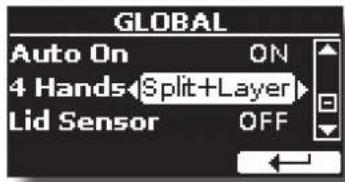
To enable the instrument to play all parts (three tones) in layer or split mode, we have to change the "4hands" global parameter
setting in "Split+Layer". Please see "4 Hands" (p. 70).
-
Press [MENU/EXIT] button and select GLOBAL function. See "Moving the Cursor and Setting Parameter Values" (p. 25).
-
Use the [▲], [▼] buttons to select the "4hands" parameter and use the [◀][▶] buttons to set "Split+Layer".
Play Three Tones in Split or Layer Mode
You can play all parts (Main. Coupled and Lower) in layer or split mode.
- Simultaneously press the [] and the [] to enable the keyboard to play all parts (three tones) at the same time.
Split Mode (default)
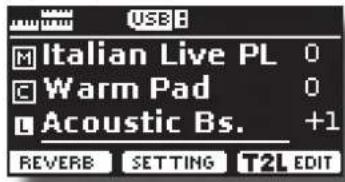
The Keyboard is divided into two sections. The region of the keyboard to the left of the split point becomes the Lower part, while the region of the keyboard to the right of the split point becomes the Main and Coupled part.

If the main page is displayed shows:
Layer Mode
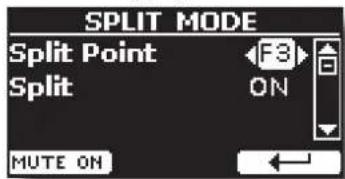
- Press and hold the [] button until the display shows on the following page:
-
Use the [▲] [▼] buttons to select the "Split" parameter.
-
Use the [◀] [▶] buttons to set the "Split" parameter to OFF.
| Parameter Setting | |
| Split | OFF, ONDefault: ON |
Playing a note on the keyboard, the Main, Coupled and Lower parts play together.

If the main page is displayed shows:
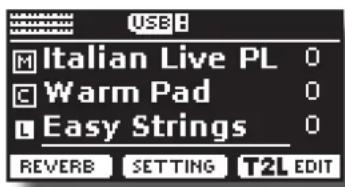
MEMO
To play the keyboard in split mode set again the "SPLIT" parameter to "ON".
How to Reorder the Tone List
Use this function if you need to reorder the tones list. If you wish, you can move the position of the individual tone in the list.
- Press the [MENU/EXIT] button and select SOUND LIST.
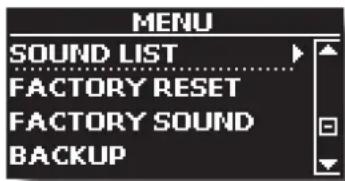
The display shows the tone list.
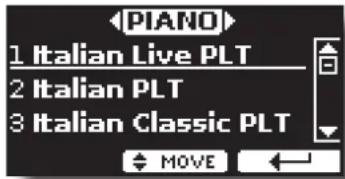
- Use [DATA ENTRY] knob or the [▲] [▼] buttons to select the tone you want to reorder.
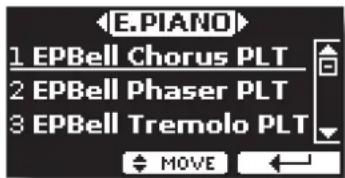
- Press the "MOVE" function button.

bol appears to the left of the selected tone.
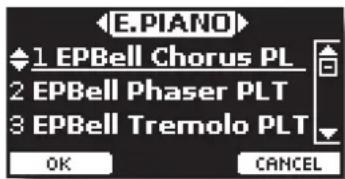
- Use the [DATA ENTRY] knob or the [▲][▼] buttons to select the new position where you want to move the selected tone. If you want to move the tone in another category use the [◀][▶] buttons.
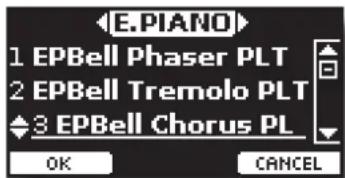
- Press the "OK" Function button to confirm the operation
or the "CANCEL" Function button to cancel the process.
Tone MIDI Information
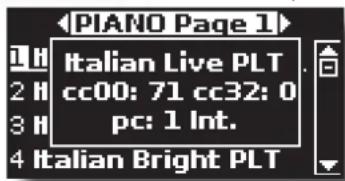
Tones can also be selected via MIDI. To this effect, they use an "internal" address, which is not usually displayed. For MIDI applications involving sequencers or external controllers, knowing the "official" address may come in handy. The VIVO H10V has a convenient system that provides this information instantly—there is thus no need to look up the MIDI address in the tones list at the end of this manual.
- Select a tone. See "How to Select Tones" (p. 26).
The following temporary page is shown:
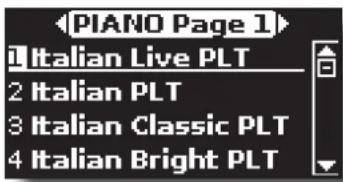
In the example above, we selected the "VIVO Live" tone.
- Press one of the Function buttons located below the display.
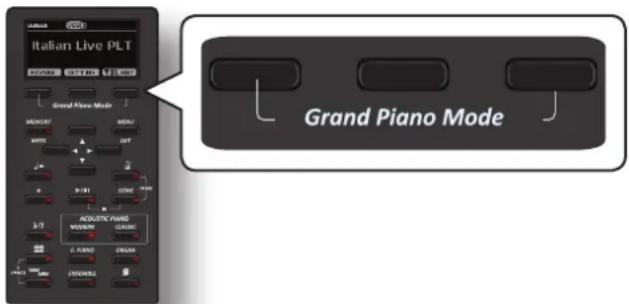
The tone MIDI information is temporarily shown:
This function divides the keyboard into two sections, left and right zone, so that two people can play the same range of pitches, just as though there were two pianos.
When this mode is active, it is as if you have two separate 44-keys pianos with the same playing range and octave.
The right pedal acts as a damper pedal for the right piano section. The left pedal must be assigned as the damper pedal for the left piano section (see below).
Entering in "4 Hands" mode
NOTE
The "4Hands" mode is available if the "4Hands" parameter in the "GLOBAL" section is set in "4Hands" (default). Please see "4 Hands" (p. 70).
- To enter into "4 hands" mode, simultaneously press the [......] and [•] button.
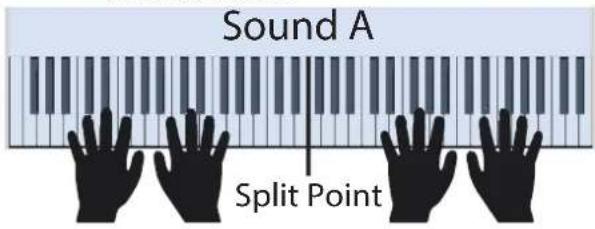
The instrument is now in the "4 Hands" mode.
NOTE
The default four hands mode split point is set between keys B3 and C4.
Assigning the damper for the left piano section.
To assign the left pedal as a damper for the left section, please follow the next instructions.
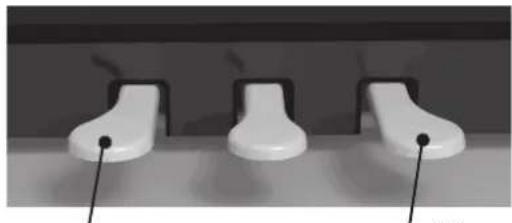
natural_image
Close-up of three white mechanical components with black brackets, no visible text or symbolsDamper pedal for the left section. See below how to assign it.
Damper pedal for the right section
- To enter in "4 hands" settings, press and hold the [ ] and [ ] button until the following page is displayed. The display shows the "4 HANDS MODE" page:
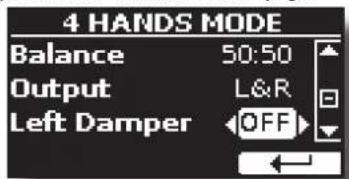
-
By the [▲] [▼] buttons select the "Left Damper" parameter and press the [▶] button to set it "ON". Now you are ready to have a four hand performance.
-
To leave the "4 hands" mode, simultaneously press the [____] and [____] buttons or press one of the two
bottons individually.
How to Adjust the Volume Balance Between the Left and Right Piano Section
In the "4 HANDS MODE" page, you can adjust the "Balance" and "Output" parameters.
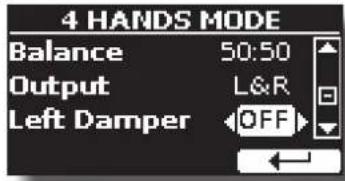
-
Use the [▲] [▼] buttons to select the parameter that you want to adjust.
-
Use the [◀] [▶] buttons to set the desired value.
| Parameter Setting Explanation | ||
| Balance 90:10 ~ 50:50 ~ 10:90 | Adjust the balance between the Left and Right piano section. | |
| Output,L&R | L&R | Select the audio signal output socket.: The sound of the Left piano section will be heard only from the left speakers.The sound of the Right piano section will be heard only from the right speakers.L&R: The sound of the Left and Right piano section will be heard from both speakers (Left and Right).NOTEIf using headphones, you have the same behaviour as speakers. |
How to Choose the Tone for the 4 Hands Mode
You have the option to choose which tone will be recalled when entering 4 hands mode by the "Sound" parameter".
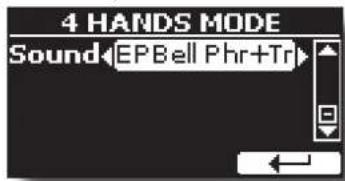
- From the "4 HANDS MODE" use the [▲] [▼] buttons to select the "Sound" parameter and use the [◀] [▶] buttons to select your favourite tone.
NOTE
Please take note that this parameter is automatically saved in the memory Global area when the instrument is turned off.
Going Around Sound Effects
VIVO H10V is quite simply a superlative instrument with the most advanced and best sound generation technology Dexibell has to offer.
When you recall a tone, the instrument automatically adds the appropriate effects for that sound.
Anyway, VIVO H10V give you the possibility to change the type of effect or modify some parameter of it.
VIVO H10V manage two effector units (FX-A and FX-B) for each keyboard part (Main, Lower, Coupled).
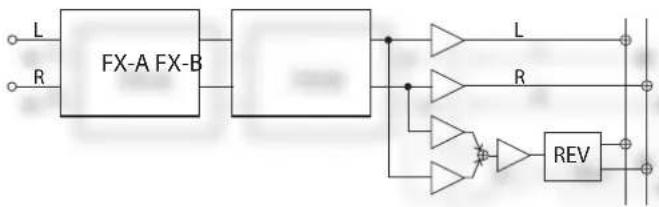
flowchart
graph LR
    L --> FX-A
    R --> FX-B
    FX-A --> Block1
    FX-B --> Block2
    Block1 --> INV1
    Block1 --> INV2
    Block2 --> INV3
    INV1 --> L
    INV2 --> R
    INV3 --> REV
    REV --> L
    REV --> R
- To access the "EFFECTS" page, press the [MENU] button and select the page using the [▲], [▼] and [▶] button.
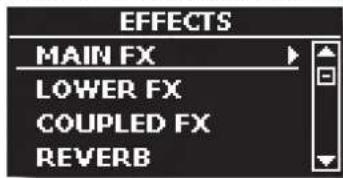
- Select one of the FX pages relative to the keyboard part ("MAIN FX", "LOWER FX" and "COUPLED FX").
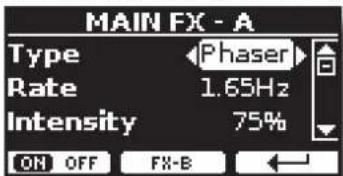
In the example, we selected the "MAIN FX" page.
- Use the [◀] [▶] buttons to choose the type of effect. Press the "ON/OFF" Function button if you don't need the FX processor.
For the list of effects see "Effects Types and Parameters List" (p. 71).
-
Use the [▲] [▼] buttons to select the parameter relative to the chosen effect.
-
Use the [◀] [▶] buttons to adjust the parameter value. For details about the parameters for each effects, see p. "Effects Types and Parameters List" (p. 71).
-
To edit the second FX processor, press the "FX-B" Function button.
Adding Reverb to the Sound
The reverb enables you to select various digital reverb effects that would add extra depth and expression to the sound to create a realistic acoustic ambience.
- While the main page is displayed, press the left Function button to access the Reverb parameters.
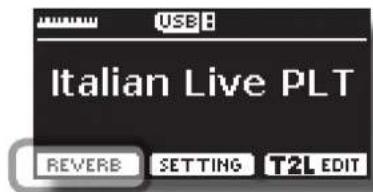
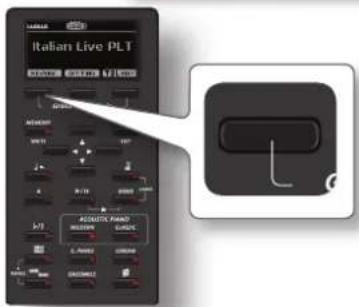
The display shows the Reverb page:
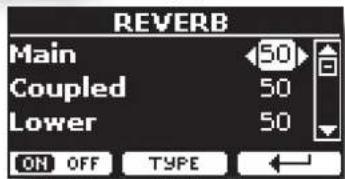
MEMO
You can also select this function pressing [MENU] button → EFFECTS → REVERB.
-
Use the [▲] [▼] buttons to specify the part you wish to change the Reverb level.
-
Use the [◀][▶] buttons to adjust the Reverb level.
Changing the Reverb Type
This parameter allows you to specify what kind of reverb effect you need.
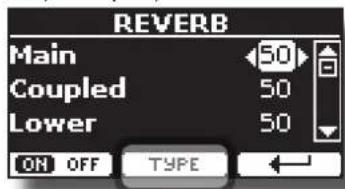
- While the Reverb page is displayed, press the "TYPE" Function button to access the Reverb Type page.
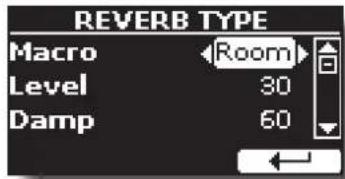
- Use the [◀] [▶] buttons to choose the Macro Type you prefer.
The available Macro reverb types are:
Setting
Hall, Dark Hall, Mid Hall, Concert Hall, Large Hall, Chathedral, Arena, Cave, Chamber, Room, Venue, Ambience, Wooden Room, Brick Room, Studio Booth, Small Room, Living Room, Office, Warehouse, Music Club, Plate, Small Spring, Bright Spring, AmpSpring
Transposing the Musical Key of the Keyboard
The Transpose setting allows the musical key of your digital piano keyboard to be raised or lowered in semi-tone steps.
This is particularly useful when accompanying instruments tuned for different keys, or when a song learned in one key must be played in another key or when a singer sings in a different key than the original music.
- Press the [b/#] button.
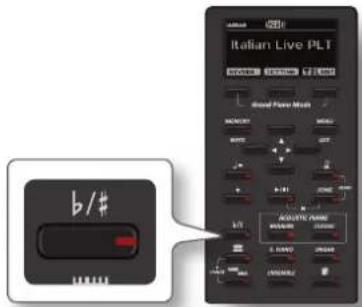
The display shown the following page.
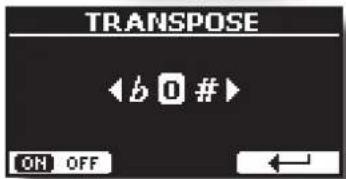
- Use the [◀] [▶] buttons to adjust the transposition value.
"Transpose" setting
-12 \~ 0 \~ +12 (semitone units)
If you set a value different than 0, the [b/#] button indicator lights and the keyboard is transposed.
MEMO
You can also select this parameter by pressing [MENU] button SETTING→TRANSPOSE.
Shifting the Tuning of a Keyboard Part in Octave Steps
The Octave function is a useful parameter that allows you to change the pitch of the selected part in octave steps (12 semitones at a time).
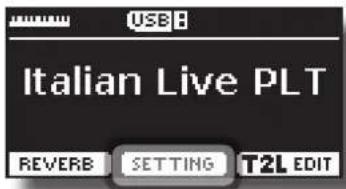
- From the Main page, press the "SETTING" Function button to access the MAIN SETTING page.
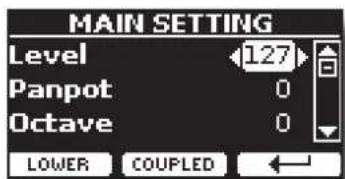
The Main setting page can also be selected using [MENU] button → SETTINGS→ MAIN SETTING.
- Use the [▲] [▼] buttons to select the "Octave" parameter.
- Use the [◀][▶] buttons to set the desiderate octave for the Main part.
On this page you can also adjust the audio level and mute the part. For details, see the "MENU Options (Advanced Section)".
- To change the Octave of another keyboard part, press the function button related to the part.
Adjust the Volume of the VIVO H10V
- Use this knob to set VIVO H10V's overall volume.
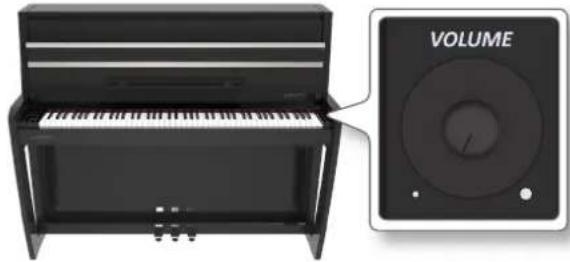
natural_image
Black piano with a volume control panel shown on the right (no text or symbols on the instrument itself)At default, the "VOLUME" knob adjusts the volume of the internal speakers and adjusts the sound that comes out of the "OUTPUT L/MONO" sockets.
Adjusting the Volume of the Internal Speakers and Audio Output Separately.
Sometimes, it can be helpful to adjust the volume of the internal speakers only, leaving the volume of the external outputs unchanged or vice versa. To do this, you need to set the parameter "Mode" appropriately:
- Press [MENU/EXIT] button and select the CONTROL→VOLUME function. See "Moving the Cursor and Setting Parameter Values" (p. 25).
The following page is shown:
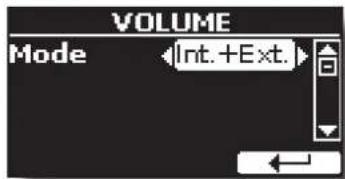
If you rotate the Volume knob, it adjusts the internal speakers' volume and the sound that comes out of the "OUTPUT R - L/MONO" sockets. This is the default behaviour.
- Use the [◀][▶] buttons to set the "Mode" parameter to "Int" instead of "Int.+Ext".
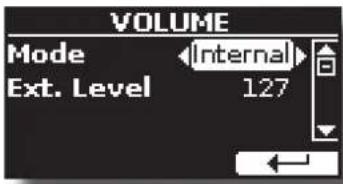
Now, if you rotate the VOLUME knob, it adjusts the volume of the internal speakers only. The volume of the external "OUTPUT R - L/MONO" sockets is fixed to 127. To adjust the volume of the "OUTPUT R - L/MONO" sockets, you need to change the "Ext. Level" parameter.
-
Use the [▲] [▼] buttons to select the "Ext. Level" parameter.
-
Use the [◀] [▶] buttons to set the desiderate volume for the "OUTPUT R - L/MONO" sockets.
| Parameter Setting | Explanation | |
| Mode Int.+Ext, Int | Sets the Volume mode:Int.+Ext:The Volume knob adjusts the volume of the internal speakers and adjusts the sound that comes out of the "OUTPUT L/MONO" sockets.Int:The Volume knob adjusts the volume of the internal speakers only. | |
| Ext. Level 0~127 | Adjust the volume of the "OUTPUT R - L/MONO" sockets. |
NOTE
When the instrument is turned off, these parameters are automatically saved in the memory Global area.
How to Balance the Level of the Internal Speakers (Tweeter, Woofer and Back)
The VIVO H10V's internal amplification has been designed to simulate a real upright acoustic piano. The amplification of the tweeter and woofer speakers is adjusted by the factory to achieve this.
You can adjust the volume of the woofer and tweeter speakers to your liking, including the top speaker's volume using the "Back" setting.
In this way, you can emphasize the mid-high frequencies by increasing the volume of the Tweeters or emphasizing the bass by raising the level of the woofers.
MEMO
If the top lid is closed, you can decide whether to amplify the top speaker's box or not. See "Lid Sensor" (p. 70).
- Press [MENU/EXIT] button and select the SPEAKER LEVEL function. See "Moving the Cursor and Setting Parameter Values" (p. 25).
The following page is shown:
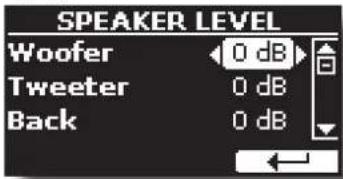
-
Use the [▲] [▼] buttons to select the parameter.
-
Use the [◀][▶] buttons to set the desiderate value.
| Parameter Setting | Explanation | |
| Woofer -6db ~ +2db | Adjust the amplification volume of the Woofer speakers. | |
| Tweeter -6db ~ +2db | Adjust the amplification volume of the Tweeter speakers. | |
| Back -6db ~ +2db | Adjust the amplification volume of the top speaker's box. |
NOTE
These parameters are automatically saved in the memory Global area when the instrument is turned off.
Practicing with the Metronome
The metronome provides a steady tempo to aid in practising the piano at a consistent tempo.
- Press the [button.
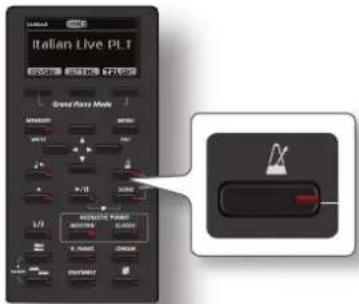
The [Button will blink, and the metronome will sound. To change the Tempo value see "How to Adjust the Tempo Value" (p. 34).
- To stop the metronome, press the [button once again.
The [button indicator turns the lights off.
Metronome Settings
The VIVO H10V also allows you to specify when and how the metronome should sound:
- Press and hold the [A] button until the display shows the following page.
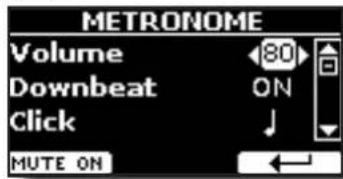
The metronome settings can be also selected using [MENU] button → TEMPO → METRONOME.
-
Use the [▲] [▼] buttons to select the parameter.
-
Use the [◀][▶] buttons to adjust the value.
The metronome parameters you can set are:
| Parameter Setting | Explanation | |
| Volume 1~100 Sets the metronome's level. | ||
| Downbeat OFF, ON | Select "ON" to activate the downbeat (the first beat of a measure in music) sound.Default: ON | |
| Click |  | Specifies the metronome's resolution. |
4. To mute the sound of Metronome, press the "MUTE ON" Function button.
Press again to activate it again.
MEMO
The settings can be saved to the VIVO H10V's global memory.
How to Adjust the Tempo Value
You can modify the tempo of the metronome.
MEMO
You can also use the TAP TEMPO function to set the desired tempo. See "Use Tap Tempo Function to Set the Tempo Value" below.
1. Press the [♩=] button.
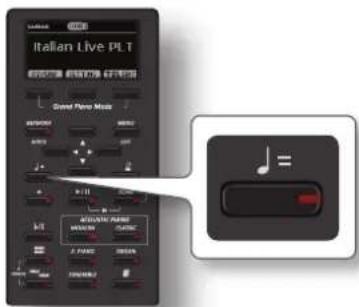
The following page is shown:
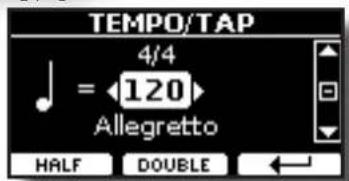
The metronome settings can also be selected using [MENU] button →TEMPO→TEMPO_TAP.
2. Use the [◀] [▶] buttons to adjust the tempo value.
| Parameter Setting | |
| ♩= | 20~300 |
3. You can set the tempo on the same display page using the tempo indication. The tempo indication is typically written at the start of the score. Use the [▲] [▼] to select the tempo indication and use [◀] [▶] buttons to select a preset tempo.
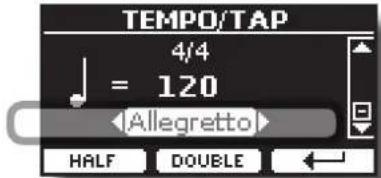
The Tempo indications are the following:
| Parameter Setting | Assigned Tempo | Value |
| Preset Tempo | GRAVE, LARGO, LARGHETTO, LENTO, ADAGIO, ANDANTE, ANDANTINO, MODERATO, ALLEGRO, ALLEGRETTO, VIVACE, PRESTO, PRESTISSIMO | 40 45 49 51 57 61 71 81 101 113 127 145 181 |
Half and Double
- Use the [HALF] or [DOUBLE] Function buttons to halve or double the tempo value.
Use Tap Tempo Function to Set the Tempo Value
- Press the [♩=] button at least three times at the desired tempo.
The instrument calculates the intervals between your presses and sets the corresponding tempo value.
Setting the Metronome Time Signature
The time signature is a notational convention to specify how many beats will be contained in each bar and which note value will be given one beat. The time signature appears at the piece's beginning in a musical score.
- From the TEMPO/TAP page, use the [▲] [▼] and [◀] [▶] buttons to change the Time Signature value.
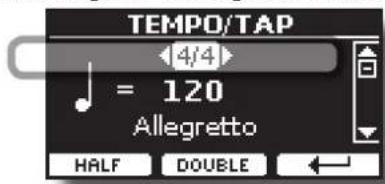
| Parameter Setting | |
| Time Signature | 2/2,2/4 ~ 15/4,2/8 ~ 15/8 |
MEMO
The settings can be saved to the VIVO H10V's global memory.
Adjusting the Keyboard Response (Key Touch)
If the keyboard response doesn't meet your taste, you can adjust it. You can choose up to four dynamic responses.
- Press [MENU/EXIT] button and select SETTING→KEYBOARD TOUCH function using the [▲], [▼] and [▶] buttons. See
"Moving the Cursor and Setting Parameter Values" (p. 25).
The following page is shown.
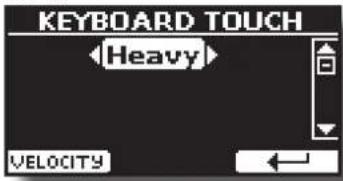
2. Use the [◀][▶] buttons to choose your desiderate dynamic response.
The following settings are available:
| Setting Value | Explanation | |
| Keyboard Touch | Light++, Light+, Light, Normal, Heavy, Heavy+, Heavy++, Fixed [1~127] | "Heavy" range: Select this setting for maximum expressiveness. Even small variations of the force with which you strike a key produce audible changes. The trade-off is, however, that you have to strike the keys forcefully to reach the maximum volume."Normal": Medium velocity sensitivity. The keyboard responds to velocity changes, but the maximum volume can be obtained more easily than with "Hard"."Light" range: Select this setting if you are used to playing on an electronic organ or do not want velocity changes to bring about major volume changes."Fixed": Select this setting if all notes you play on the keyboard should have the same velocity value. When you set this parameter, the "Fixed Value" field can be edited. |
| *Fixed Value | 1~127 | Allows you to set the value when "Curve" is set to "Fixed". |
[*] This parameter can only be edited if the "Keyboard Touch" parameter is set to "Fixed".
Customize the Global Keyboard Response (Key Touch)
We have previously seen how you can choose the keyboard response from 7 predefined curves: Heavy++, Heavy+, Heavy, Normal, Light, Light+, Light++. Below, we will see how to modify the velocity curve as you wish, starting from one of the preset curves.
- Press the [MENU/EXIT] button and select SETTING→KEYBOARD TOUCH function. See "Moving the Cursor and Setting Parameter Values" (p. 25).
The following page is shown.
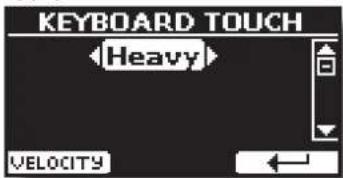
- Use the [◀] [▶] buttons to choose your desiderate dynamic response.
- To customize the velocity curve, press the "VELOCITY" Function button.
- Use the [◀][▶] buttons to select one of the 5 points that characterize the curve: "pp", "p", "mf", "f", "ff".
- Use the [▲] [▼] buttons to modify the value of the selected point.
| Curve Point Explanation | |
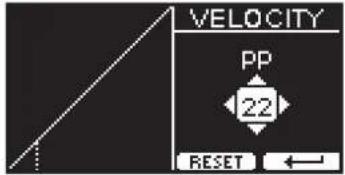 | "pp" stands for pianissimo and means "very soft". |
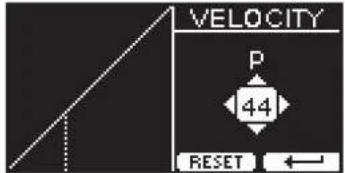 | "p" stands for piano and means "soft". |
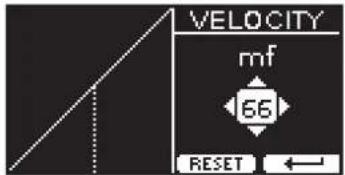 | "mf" stands for mezzo-forte and means "half loud". |
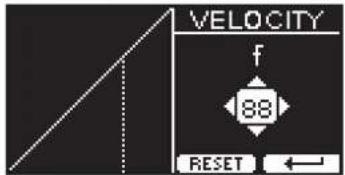 | "f" stands for forte and means "loud". |
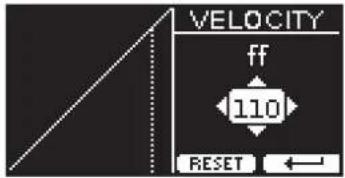 | "ff" stands for fortissimo and means "very loud". |
- Use the "RESET" Function button to restore the point at the default value.
NOTE
When the instrument is turned off, your velocity curve is automatically saved in the global area.
Master Equalizer
The equalizer allows you to boost or reduce the low-frequency or high-frequency range of the sound. Adjust the Master EQ parameters to reach the best possible sound when listening through different reproduction systems, headphones, or an external speaker system.
- Press the [MENU/EXIT] button and select EFFECTS→MASTER EQ
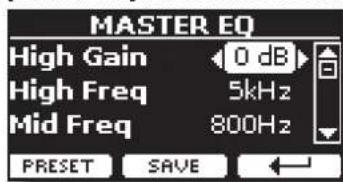
- Use the [▲] and [▼] buttons to select the parameter and use the [◀][▶] buttons to adjust the value.
| Parameter Setting Explanation | ||
| High Gain -12~ | 0 +12 dB | Use this parameter to set the level of the high frequency. Positive values boost (increase) the volume of that frequency. Negative values cut (attenuate) it. |
| High Freq 400 ~ | 10000 Hz | This parameter allows you to set the cutoff frequency of the high band. |
| Mid Freq 100 ~ | 8000 Hz | This parameter allows you to set the cutoff frequency of the middle band. |
| Mid Gain -12~ | 0 +12 dB | Use this parameter to set the level of the selected MID frequency. Positive values boost (increase the volume of) that frequency. Negative values cut (attenuate) it. |
| Mid Q 0.5 ~ 12.0 | Move this parameter to adjust the width of the area around the Middle frequency that will be affected by the Gain setting.Higher values of Mid Q set the narrowest area. | |
| Low Gain -12~ | 0 +12 dB | Use this parameter to set the level of the low frequency. Positive values boost (increase) the volume of that frequency. Negative values cut (attenuate) it. |
| Low Freq 40 ~ | 600 Hz | This parameter allows you to set the cutoff frequency of the low band. |
Master Equalizer Preset
VIVO H10V comes with some Presets that can be handy in particular situations or a good way to get you started. You might want to start with a preset, then customize it until it is just right and save it in the user area.
- From the "MASTER EQ" page press the "PRESET" Function button.
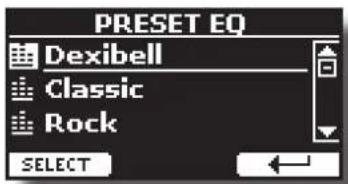
- Use the [▲] and [▼] buttons to select the desired preset.
- Press the "SELECT" Function button to confirm your choice.
Its "EQ" icon is highlighted to indicate that the preset has been loaded.
Saving Your User Preset
Make the necessary adjustments to obtain the sound that suits you best.
- From the "MASTER EQ" page, press the "SAVE" Function button.
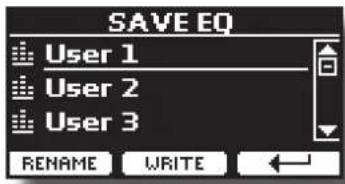
- If you wish, you can give a name to the preset by pressing the "RENAME" Function button. For details on how to rename, see "Assigning the Name You Specify" (p. 25).
- Press the "WRITE" Function button to save your preset. The display shows a confirmation message.
Restoring the Factory Settings (Factory Reset)
The following function allows you to recall the VIVO H10V's original factory settings.
WARNING
All data will be deleted. Backup your own settings to a USB memory.
- Press the [MENU/EXIT] button and select the FACTORY RESET function using the [▲], [▼] and [▶] buttons. See "Moving the Cursor and Setting Parameter Values" (p. 25).
The display shows the following window.
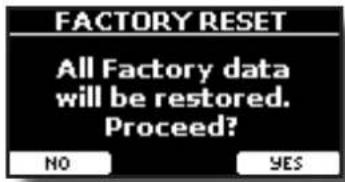
- Press the "YES" Function button to proceed.
The message "Complete" informs you that the VIVO H10V has been initialized.
NOTE
The Factory Reset function initializes also the Global Area.
Restore the Factory Sounds
Using this function you can restore all sound libraries as they came out of the factory.
- Press the [MENU/EXIT] button and select the FACTORY SOUND function. See "Moving the Cursor and Setting Parameter Values" (p. 25).
The following page appears:
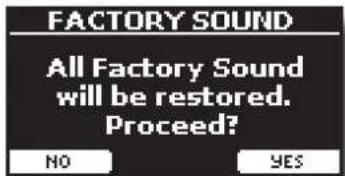
- Press the "YES" Function button to proceed.
The message "Complete" informs you that the VIVO H10V Sound Libraries have been restored.
If you no longer want to restore the sound libraries, press the "NO" Function button.
How to Protect Your Settings, Contents and Sounds List (Backup)
You can back up contents, settings, and sounds list from your VIVO H10V into a USB Memory.
This function is also useful before sending your instrument for repair.
- Press the [MENU/EXIT] button and select the BACKUP function. See "Moving the Cursor and Setting Parameter Values" (p. 25).
The following page appears:
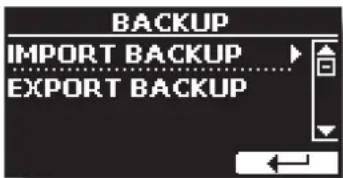
Backup Your Settings, Contents and Sounds List
- Connect the USB Memory to which you wish to save your data. See "Connecting an USB Memory (commercially available)" (p. 21).
- Select the "EXPORT BACKUP" function. See "Moving the Cursor and Setting Parameter Values" (p. 25). The following page appears:
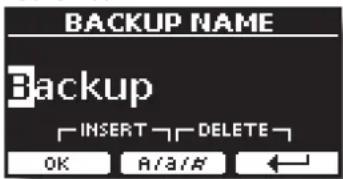
- If you want to name your backup, see "Assigning the Name You Specify" (p. 25) for details.
- Press the "OK" Function button to perform the function. The following data are saved:
| Backup Data |
| Global Parameters |
| Master Eq User Parameters |
| Memory Parameters |
| Memory Set Parameters |
| MIDI Set User Parameters |
| Temperament User Scale Parameters |
| Sound Library List |
| MIC Preset |
Restore Your Settings, Contents and Sounds List
- Connect the USB Memory that contains the data. See "Connecting an USB Memory (commercially available)" (p. 21).
- Select the "IMPORT BACKUP" function. See "Moving the
Cursor and Setting Parameter Values" (p. 25). The contents of the USB memory are displayed:
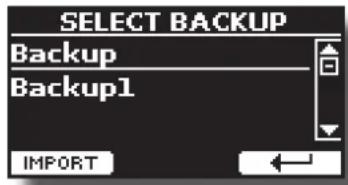
- Use the [][] to select the backup data you want.
- Press the "IMPORT" Function button to perform the function.
The following page appears:
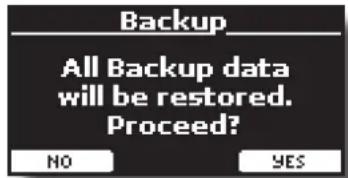
- Press the "YES" function button to proceed. All data will be restored.
Panic Function
Use this function if some operation on your instrument or an external tone generator (connected via a MIDI or USB cable) has caused strange sounds or stuck some notes.
- Press the [MENU/EXIT] button and use the [▲][▼] to select the PANIC function.
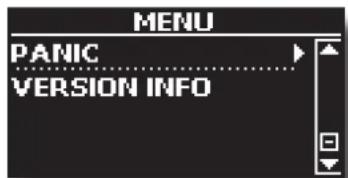
The following page appears:
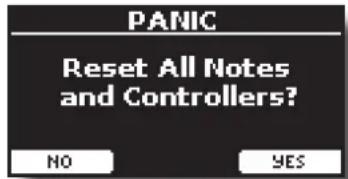
- Press the "YES" Function button to confirm the operation or the "NO" Function button to cancel the process. "All notes off" and "Reset All Controllers" messages are sent to your VIVO H10V sound generator and on all MIDI channels of a possibly connected sound generator.
What is a Sound Library?
The sound (patch) in the DEXIBELL's devices is composed of several oscillators that reproduce waveforms. The patch contains also information about Pitch,/TVA,/TVF envelope, filters and so on. All this and more contribute to shaping the sound.
A Sound library contains sounds that use the same waveforms. For example, the "Electric Piano" library, contains the following sounds: Dyno Stage, Suitcase, Phaser EP, etc.
Sound Library Memory Structure
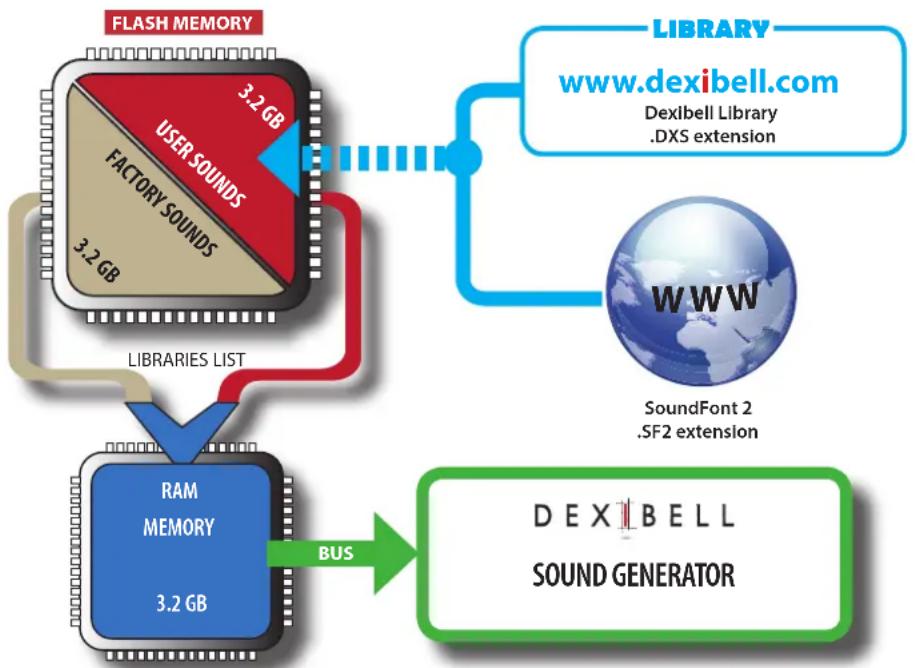
flowchart
graph TD
    A["FLASH MEMORY"] --> B["USER SOUNDS"]
    A --> C["FACTORY SOUNDS"]
    B --> D["RAM MEMORY"]
    C --> D
    D --> E["3.2 GB BUS"]
    F["LIBRARY"] --> G["www.dexibell.com\nDexibell Library\n.DXS extension"]
    H["WWW"] --> I["SoundFont 2\n.SF2 extension"]
    J["DEXIBELL SOUND GENERATOR"] --> K["Data Bus"]
The VIVO H10V's Internal Flash Memory contains the Sound Libraries. This memory is divided into two parts of 3.2 GB:
• the first part, not erasable, contains the Factory Libraries.
- the second part, programmable, can contain the User Sound Libraries.
Using the list of libraries to load, at the power on, the VIVO H10V load the sound libraries from the Internal Flash Memory into the Internal RAM of 3.2 GB. At default, the list contains the Factory Libraries only.
You can load the new libraries into the User Sound area by taking them from the DEXIBELL library (www.dexibell.com) or third-party sounds (.SF2 extension).
By a programmable list, you can choose which sound libraries (User or Factory or part of them) to load in the RAM Internal Memory. You can decide to completely replace the factory sounds loading all sounds from the User sounds area or decide to load a part of the sounds from the factory area and another from the User area.
Sound Library

VIVO H10V gives you the possibility to install new sounds from:
☐ DEXIBELL Official Sounds (.DXS extension)
These sounds will be available and downloadable from the following website:
http://www.dexibell.com/
Stay tuned for new sounds and updates by visiting our website regularly!
☐ third-party sounds (.SF2 extension)
You can easily find on the web many sound libraries with the ".SF2" extension. VIVO H10V is compatible with these types of sounds.
Remove and Add Sound Libraries
In the "SOUND LIBRARY" page you can decide which libraries load into the RAM area.
NOTE
The removed libraries are not deleted. They remain in the
Factory area ("INTERNAL ARCHIVE") ready to be reloaded again. See "Recovery a Library From the "INTERNAL ARCHIVE" (p. 40) and "Restore the Factory Sounds" (p. 36).
- Press the [MENU/EXIT] button and select the SOUND LIBRARY function, pressing the [▶] button. See "Moving the Cursor and Setting Parameter Values" (p. 25).
A page like this appears:
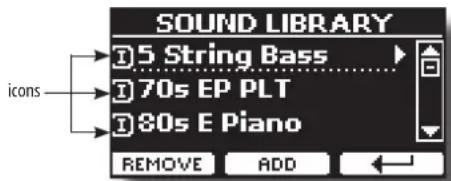
The list of the Sound Libraries in the internal Memory is shown. You can note, at the left of each library name, an icon:
| Icon Explanation | |
| Icon Explanation | The library sound comes from the Factory Sound libraries. |
| The library sound comes from the User Sound libraries. | |
At the bottom of the screen you can recall two functions: "REMOVE" and "ADD". Here below, we will explain how to remove or add sound libraries.
Removing a Sound Library
- Use the [▲] [▼] buttons to select the sound library you want to temporarily remove.
- If you want to know the sounds contained in the library, press the [▶] button to open it.
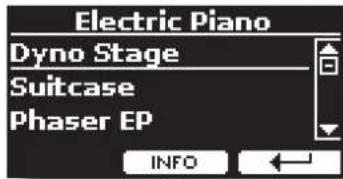
- If you want to listen to the library's sounds, use the ▲] [▼ buttons to select the sound and activate notes by the keyboard of the VIVO H10V.
If you don't need these sounds, you can proceed with the removal.
- From the "SOUND LIBRARY" page, press the "REMOVE" Function button to perform the removal.
The display shows:
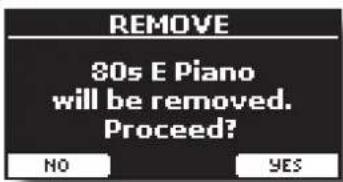
- Press the "YES" Function button to perform the removal.
Press "NO" if you no longer want to perform the function.
NOTE ABOUT THE REMOVAL OF SOUND LIBRARIES
- Factory libraries - The factory libraries are not deleted but are removed from the list of libraries to load at startup.
- User Sound libraries. The User Sound libraries are permanently deleted. Make sure to have a backup if you think you need them again.
How To Load Sound Libraries From a USB Memory
You can import the sounds library in the User Sound memory of VIVO H10V and use them in your performances. To import them you need a USB Memory and your Personal computer.
Loading a sounds library from a USB Memory
- Using your computer, download the new sound library from the DEXIBELL website (.DXS) or any other website (.SF2).
- Create a folder "SOUND" in the root of the USB Memory.
- Copy the sound library (.DXS/.SF2) into the USB Memory's "/SOUND" folder.
- Insert the USB Memory into the VIVO H10V USB port. See "Connecting an USB Memory (commercially available)" (p. 21).
- See "Adding a Library from USB Memory" (p. 39) to import the sound library.
Adding a Library
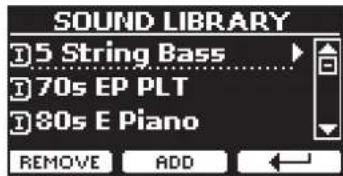
- Press the "ADD" Function button to add a library. The display shows the libraries previously removed:
In the example above, the list of removed libraries is empty (no libraries have been previously deleted). In this case, you can add only libraries from a USB Memory previously loaded. The following example shows that some libraries were removed, and the list of "INTERNAL ARCHIVE" shows which they are:
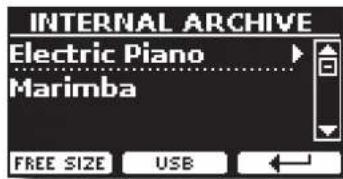
- If you want to get information about the RAM Internal free memory, press the "FREE SIZE" Function button.
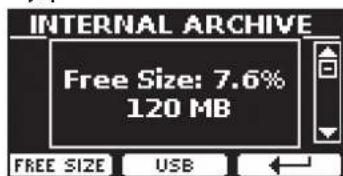
The page shows the RAM Internal memory available expressed in MB and per cent.
This function is useful to know how much available free memory you have to load new libraries.
Adding a Library from USB Memory
-
To load the library into your USB Memory, please refer to "Loading a sounds library from a USB Memory" (p. 39).
-
Insert the USB Memory into the USB port of the VIVO H10V.
- From the "INTERNAL ARCHIVE" page, press the "USB" Function button to list the sound libraries in the USB Memory.
The following page is shown:
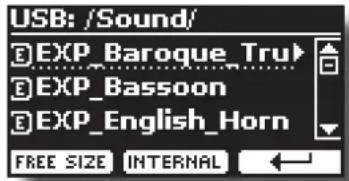
The instrument shows the sound libraries in the USB Memory's "\SOUND" folder.
MEMO
To navigate inside the folders, use the [▶] button to open a folder and the [◀] button to return to a higher level.
Press the "INTERNAL" Function button to return to viewing the internal archive.
- Use the [▲] [▼] buttons to select the sound library you prefer.
- To open the sounds library, press the [▶] button.
The sound/sounds contained in the library are displayed.
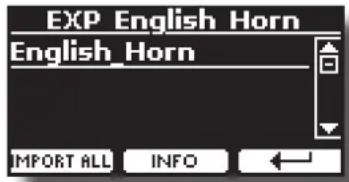
- Use the [▲] [▼] buttons to select the sounds and listen to them on the keyboard.
If the sounds are to your liking, you can import the library into the internal memory.
- if you want to know the size of the library, press the "INFO" Function button.
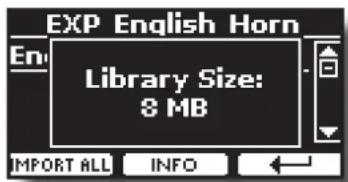
- Press the "IMPORT ALL" Function button to import the sound library.
The instrument asks you in which sound family you want to import the library:
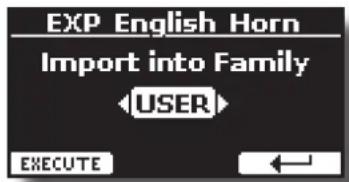
- Use the [▶] [◀] buttons to select in which sound family you want to import the library.
- Press the "EXECUTE" Function button to perform the function.
A confirmation message informs you that the sound library has been imported.
Recovery a Library From the "INTERNAL ARCHIVE"
Thanks to this function, you can reload previously removed internal libraries.
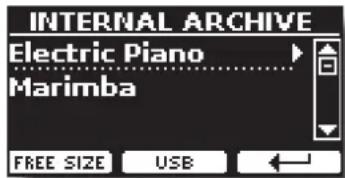
- Use the [▲][▼] buttons to select the library you want to reload into internal memory.
- To open the sound library, press the [▶] button.
The sound/sounds contained in the library are displayed.
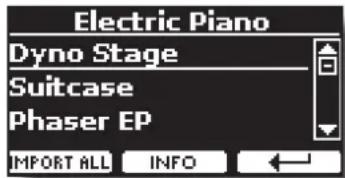
- Use the [▲] [▼] buttons to select the sounds and listen to them on the keyboard.
If the sound is to your liking, you can import the library into the internal memory.
- If you want to know the size of the library, press the "INFO" Function button.
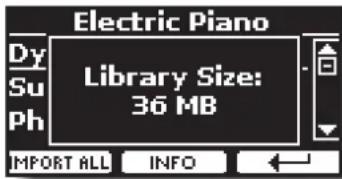
- Press the "IMPORT ALL" Function button to import the sound library.
The instrument asks you in which sound family you want to import the library:
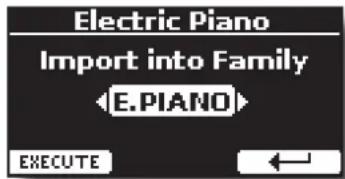
- Use the [▶] [◀] buttons to select in which sound family you want to import the library.
- Press the "EXECUTE" Function button to perform the function.
A confirmation message informs you that the sound library has been imported.
How to Restore the Factory Sounds
See "Remove and Add Sound Libraries" (p. 38).
14 Sound Setup (Export/Import)
This helpful function allows you to prepare a sound set for a performance. If, in a performance, you will use only piano sounds, you can create a Sound Set that contain only piano sounds. In this way, you can use the maximum size of the instrument's internal memory for piano sounds.
At your convenience, you can also download sound sets from the http://www.dexibell.com/ website.
Exporting a Sound Set ("EXPORT SETUP")
This function exports the sound set you previously prepared in a USB Memory.
- Prepare your Sound Set using the functions previously explained: "ADD" and "REMOVE". See "Remove and Add Sound Libraries" (p. 38).
- Insert a USB Memory into the USB port of your instrument.
- Press the [MENU/EXIT] button and use the [▲][▼] buttons to select the "SOUND SETUP" function group.
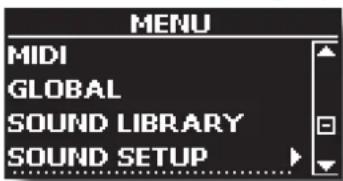
The "SOUND SET" page appears:
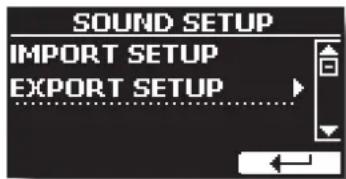
- Use the [▲] [▼] buttons to select "EXPORT SETUP" and press the [▶] button to access the function.
The display changes to:
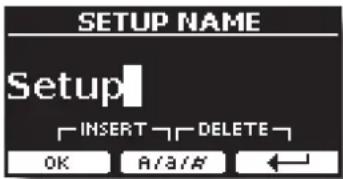
- If you want to name your Sound Set, please see "Assigning the Name You Specify" (p. 25).
- Press the "OK" Function button to save your Set.
A confirmation message is temporarily shown.
Importing a Sound Set ("IMPORT SETUP")
This function imports the sound set previously saved in a USB Memory.
NOTE
Before importing a Sound Set, take into consideration that your current Sound Set, in the internal memory will be replaced. You can lose external sound libraries previously loaded from a USB Memory. Regarding the internal sound libraries, no problem. You can recover them in the "INTERNAL ARCHIVE". See "Adding a Library" (p. 39).
-
Insert a USB Memory that contains previously saved Sound Set into the USB port of your instrument.
-
Press the [MENU/EXIT] button and use the [▲] [▼] buttons to select the "SOUND SETUP" function group.
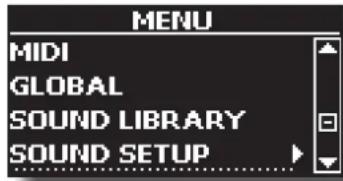
The "SOUND SET" page appears:
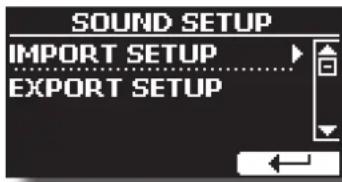
- Use the [▲] [▼] buttons to select "IMPORT SETUP" and press the [▶] button to access the function.
The display shows the list of the Sound Set in the USB Memory:
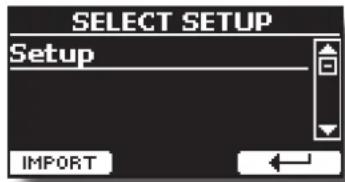
- Use the [▲] [▼] buttons to select the Sound Set.
- Press the "IMPORT" F1 Function button to load the Sound Set.
A confirmation message is temporarily shown.

T2L-Modelling
The revolutionary technology is found on all models of DEXIBELL Digital Pianos.
T2L-modelling is the combination of innovative technologies developed to achieve maximum timbre accuracy and precise sound responsiveness to the multiple articulations of a pianist..
T2L modelling has many algorithms that simulate all the characteristics of an acoustic piano. It takes care of many aspects as:
No Damper ("No Damper" on high notes)
The last 18 higher notes, like in the acoustic instrument, do not have the presence of the dampers and are free to vibrate even when keys are released. The duration of these notes, playing in staccato mode, is much longer than the previous notes that instead have the presence of the damper
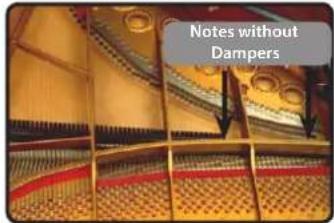
FP-Simulation ("Forte Pedal" multi actions simulation)
The "Forte" Pedal (Sustain) performs several actions simulated through this function.
A) When the "Forte" pedal is pressed, a sound is generated to simulate the damper friction noises of felts when released from the strings (Damper Friction Noise).
B) Pressing the "Forte" pedal, the active notes will be enriched with resonances produced by all strings free to vibrate, thanks to the raised dampers (Strings Resonance). The result of the String's Resonance makes the sound of a sustained note by using the "Forte" pedal substantially different from the sound of a just-held note.
C) When the "Forte" pedal is released, a noise is simulated like the mechanical noise in the acoustic instrument (Sustain Pedal Mechanical Noise).
natural_image
Close-up of a coiled metal or plastic component with repeating bands (no visible text or symbols)(A) & (B) "Forte" pedal is pressed, and felt dampers are raised.
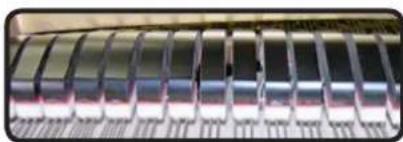
natural_image
Close-up of a corrugated metal grate with visible ridges and surface texture (no text or symbols)(C) "Forte" pedal is released and felt dampers are resting on strings.
SP-Simulation ("Soft Pedal" Simulation)
The "Soft" Pedal changes the sound's volume and timbre colour, simulating the "soft" function on the acoustic piano.
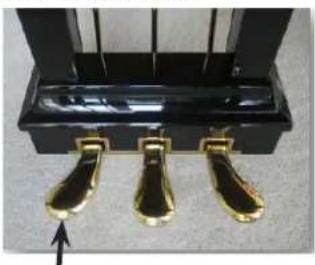
natural_image
Close-up of three brass keys with gold handles and black plastic bands, no visible text or symbolsSoft Pedal
Making Slight Additions or Sound Alterations
Although Dexibell sounds are developed to achieve maximum sound accuracy, you can modify them to your taste or create new sonority.
- Select the sound that you want to personalize.
- Press the "T2L" Function button from the main page to access the Editor function.
MEMO
You can also select this function by pressing the [MENU] button →T2L EDITOR.
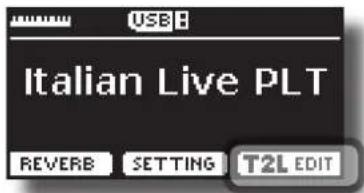
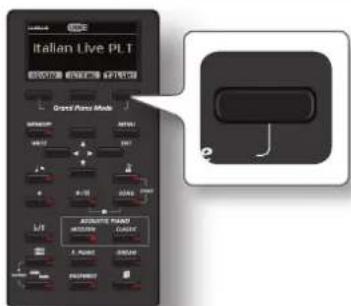
The display shows the Editor sound page that contains all possible parameters for the tone you selected:
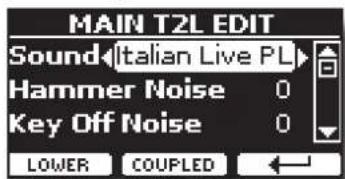
In the example above, the Italian Live Platinum was selected.
- Use the [▲][▼] buttons to select the parameter you wish to modify.
- Use the [◀][▶] buttons to adjust the value.
- Press the relative Function button to modify a tone in the LOWER or COUPLED part.
Saving your changing
All you need to do is to save your setting in a memory. See "Working with the Memories" (p. 53).
Parameters to be edited
The parameter list depends on the characteristics of the selected sound.
Hammer-Noises (Key On impulsive Noises)
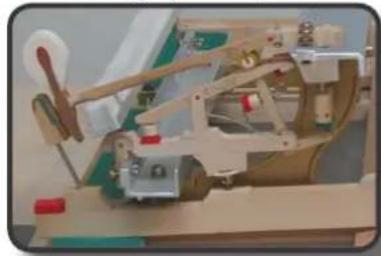
natural_image
Mechanical robotic device with articulated arms and green components (no visible text or symbols)Attack of notes contains an impulsive portion of sound produced by the hit of the Hammer to the strings, amplified and sustained by the resonance of the piano body. A function is available to reduce/increment this element of the sound.
| Parameter Setting |
| Hammer Noise -64 ~ 0 ~ +63 |
Key Off Noise (Key Off Mechanical Noises)
The release of keys causes mechanical noises proportional to the speed of the release itself. This function reproduces the behaviour of the acoustic instrument.
| Parameter Setting | |
| Key Off Noise -64 | ~ 0 ~ +63 |
Damper Noise
This is the typical noise of an acoustic piano when the pedal sustain is pressed (lift all dampers) or released (lower all dampers).
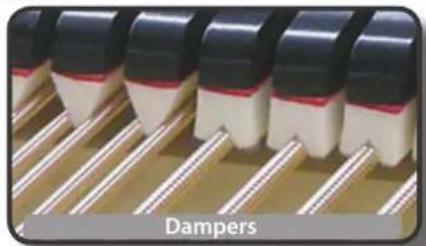
natural_image
Close-up of industrial dampeders on a metal cutting board (no text or symbols visible)| Parameter Setting |
| Damper Noise -64 ~ 0 ~ +63 |
String Reso (Sympathetic Harmonic Resonances)
As in the acoustic Piano, while holding down some keys and playing other notes in staccato mode, many additional harmonics can listen, thanks to "sympathetic resonance" generated by the held notes' free-to-vibrate strings (due to raised dampers).
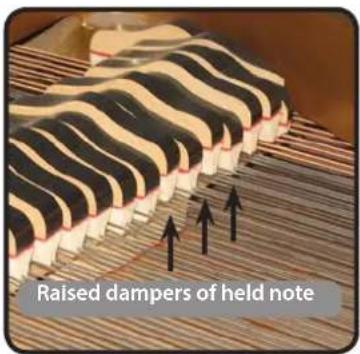
| Parameter Setting | |
| String Reso -64 ~ | 0 ~ +63 |
Damper Reso
It's the typical noise the free-to-vibrate strings (all damper raised) make when the damper pedal is pressed.
| Parameter Setting | |
| Damper Reso -64 | ~ 0 ~ +63 |
Cabinet Reso (for Wurly, Ac. Guitar, and Harp)
Thanks to this parameter, you can increase or decrease the cabinet resonance.
| Parameter Setting | |
| Cabinet Reso -64 | ~ 0 ~ +63 |
Bell (for Electric Piano)
The "bell sound" is characteristic of some electric pianos that became particularly popular throughout the 1970s.
You can adjust the quantity of this typical sound.
| Parameter Setting |
| Bell -64 ~ 0 ~ +63 |
Click (for Vintage Organ)
The key click is typical of vintage organs. It's an electrical pop which was the result of the keys making contact. It was considered a defect, there were all kinds of efforts to reduce it, but it never could be eliminated. Meanwhile, it has become a characteristic "click" for rock and modern musicians. You can adjust the quantity of click sound when pressing and releasing a key.
| Parameter Setting |
| Click -64 ~ 0 ~ +63 |
Growl (for Eletric Piano)
This is a typical distortion of the sound during the phase attack that gives a "growling" effect. Thank to this parameter you can increase or decrease the effect.
| Parameter Setting |
| Growl -64 ~ 0 ~ -63 |
Off Noise (for Clavinet, Harpsy, Church Organ, E. Piano, Bass, Trumpet)
You can adjust the quantity of the noise effect that some instruments produce when the key is released.
| Parameter Setting | |
| Off Noise -64 ~ 0 | ~ +63 |
On Noise (for Trumpet, Flugelhorn)
This parameter adjusts the quantity of the noise of the trumpet when the piston is pressed.
| Parameter Setting | |
| On Noise -64 ~ 0 | ~ +63 |
Attack, Hold, Decay, Sustain and Release (For Brass, Strings, Pad, Choir, Synth)
These parameters characterize the envelope of the sound. For example, when a organ key is pressed, it plays a note at constant volume; the sound dies quickly when the key is released. By contrast, the sound of a guitar is loudest immediately after a string is plucked, and quickly fades. Try to change the envelop of a sound by these parameters.
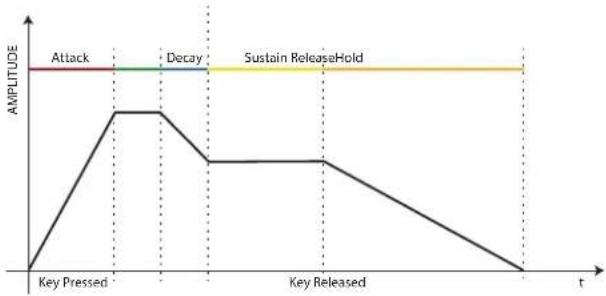
line
| Time Point | AMplitude | | ---------------- | --------- | | Key Pressed | 0 | | Peak | High | | Decay | Medium | | Key Released | Low | | End | 0 || Parameter Setting | |
| Attack | -64 ~ 0 ~ +63 |
| Hold | |
| Decay | |
| Sustain | |
| Release | |
Ride
This parameter increases or decreases the volume of Ride Cymbals sound contained in the "Ac. Bass&Ride" tone.
| Parameter Setting |
| Ride -64 ~ 0 ~ +63 |
Amp noise
This parameter simulates the noise of the bass amplifier.
| Parameter Setting | |
| Amp noise -64 ~ | 0 ~ +63 |
String noise
This parameter simulates the resonance of the bass strings.
| Parameter Setting | |
| String noise -64 | 0 ~ +63 |
Key Noise
This parameter simulates the noise of Saxophone Key.
| Parameter Setting | |
| Key noise -64 ~ 0 ~ +63 |
Polyphonic
This parameter becomes useful when you use some solo instruments like flute, violin, saxophone, trumpet and accordion.
| Parameter Setting | Explanation | |
| Polyphonic | Low, High, Last, Poly | Low - The part becomes monophonic and play the leftmost note you played.High - The part becomes monophonic and play the rightmost note you played.Last - The part plays monophonic.Poly - The part plays polyphonic. |
Blow
Blowing is possibly the most important part of any woodwind instrument. This parameter adjusts the amount of blowing in a flute sound.
| Parameter Setting |
| Blow -64 ~ 0 ~ +63 |
Pluck
This parameter is used to emphasize the sounds of "Pedal Bass" and "Pedal DoubleBs". It works to emphasize the attack phase of the sound.
| Parameter Setting |
| Pluck -64 ~ 0 ~ +63 |
Adjusting the Keyboard Velocity Response According to the Sound
By the "Velocity Compand" function in the T2L MENU, you can adjust the keyboard velocity for each sound. You can choose to expand the velocity of a Piano sound and compress the velocity of a strings or Pad sound.
- Access the T2L EDITOR" function and select the keyboard part and the sound you want to edit. See "Making Slight Additions or Sound Alterations" (p. 42).
- In the example below we selected the sound of the Main part. Use the [▲] [▼] buttons to move the cursor and select the "Velocity Compand" function.
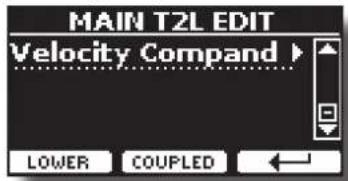
- Press the button [▶] to access the function.
The following page appears:
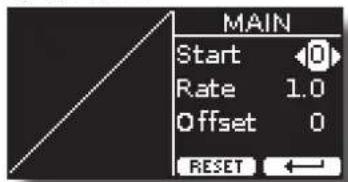
- Use the [▲] [▼] buttons to select one of the three parameters available.
- Use the [◀][▶] buttons to adjust the parameter you selected.
| Parameter Setting Explanation | ||
| Start 0~127 | It is the starting point of the velocity curve where you want to operate with the compression or expansion. | |
| Rate 0.1~8.0 | It is the compression/expansion coefficient that you want to use. | |
| Offset 0~127 It's the minimum value of velocity. | ||
In the example below, you can see that the Start point was set to 52, the "Offset" starts from the value of 35 and the rate was set to 2.7.
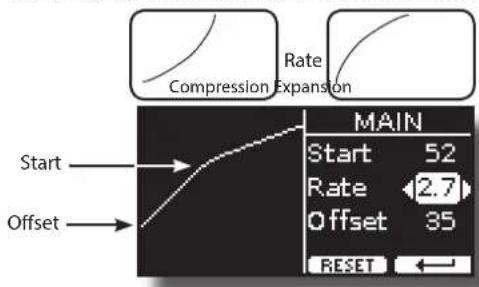
- Press the "RESET" Function button to restore the parameters at the default value.
By plugging an optional microphone in the MIC socket, you can:
- Accompany yourself while you sing. See "Connecting an Optional Microphone" (p. 19).
- Add vocal effects such as reverb and delay, and adjust the tone of your voice with a dedicated equalizer.
• Control the dynamic range of your voice using a dedicated compressor. - Cut out the lower frequencies of your voice by a Low Cut Filter.
- Easily select from six microphone settings already preset by the factory as "Standard", "Talk", etc.
- Record your voice with high-quality sound. See "Recording Your Performance" (p. 52)
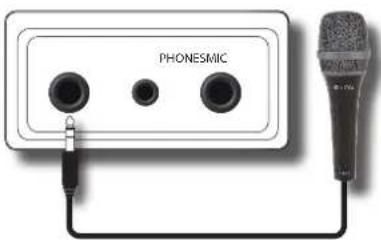
NOTE
Use only dynamic microphones.
Cautions when using a microphone
- Lower the volume before you connect a microphone to the VIVO H10V. If the volume is raised when you connect a microphone, noise may be output from the speakers.
- Howling could be produced depending on the location of the microphone relative to the speakers of your instrument or/ and amplification system.
This can be remedied by: - Changing the orientation of the microphone.
- If you use external speakers, relocate the microphone at a greater distance from them.
- Lowering volume levels.
Adjusting the Microphone Level and the Amount of Vocal Effects
- Sing or talk into the microphone and gradually turn the "MIC LEVEL" knob to adjust the volume of your voice and balance it with the volume of the piano sound.
NOTE
If you hear nothing, check the setting of the [VOLUME] knob.
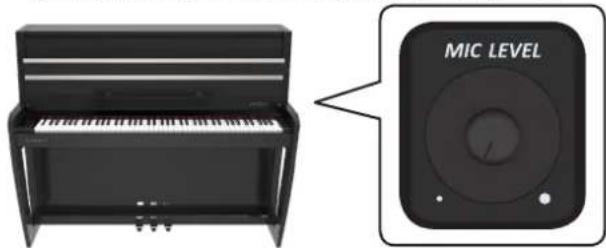
- Use the "MIC EFFECT" knob to adjust the amount of vocal
effect (Reverb and Delay).
Turn it towards the right to increase the amount of the effect, and to the left to decrease the amount.
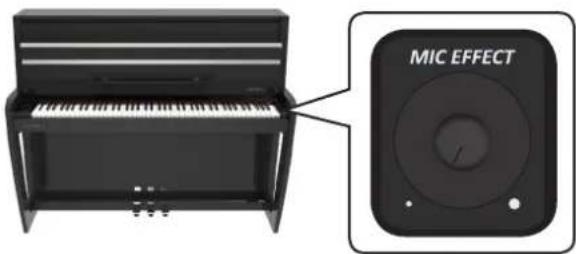
Microphone Preset
VIVO H10V has a series of settings that help you to adapt your voice to different situations. In addition, is possible to adjust any MIC parameters as you like to create your personal preset and save it into the memory.
Selecting a MIC Preset
- Press the [MENU/EXIT] button and select the MICROPHONE function. See "Moving the Cursor and Setting Parameter Values" (p. 25).
The following page is shown.
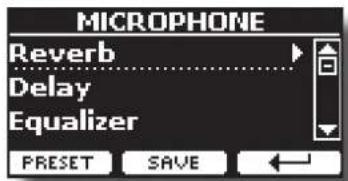
- Press the "PRESET" Function button to access the "MIC PRESET" page.
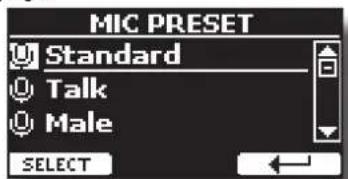
- Use the [▲] and [▼] buttons to select the desired preset and press the "SELECT" Function button to recall it.
Saving Your MIC Preset
Create your setting by adjusting the various parameters of the equalizer, compressor, delay, reverb, etc etc., as you like.
From the main page of the "MICROPHONE":
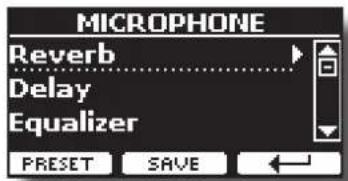
- Press the "SAVE" Function button to access to the "SAVE MIC PRESET" page.
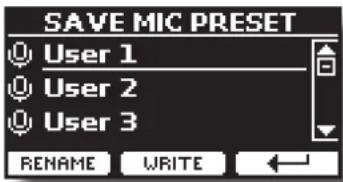
The list of presets is shown.
- Use the [▲] and [▼] buttons to select the save location.
RENAME Your Preset
If you don't need to rename, jump to "WRITE Your Preset".
- Press the "RENAME" Function button to rename your preset.
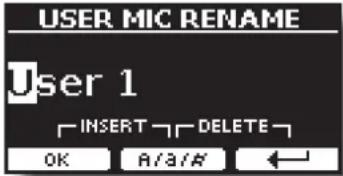
- Use the [▲][▼] and the [◀][▶] buttons to rename your preset. See "Assigning the Name You Specify" (p. 25) for details.
- Press the "OK" Function button to confirm the name.
The preset is renamed and the list of the User presets is shown again.
WRITE Your Preset
- Press the "WRITE" Function button to save your preset.
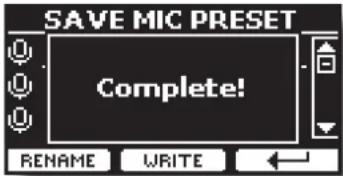
The preset is saved, and the list of the User presets is shown again.
Adding Dedicate Vocal Effects
Take advantage of the VIVO H10V's voice effects to enhance your vocals.
REVERB EFFECT
What is the Reverb effect? When you make a sound in any room or outdoors, the sound waves travel around that space, bouncing off the walls before returning back to your ears as a series of delayed echoes. This effect gives depth to the sound, adding a near-far dimension. Reverb and Delay are the most widely used effects.
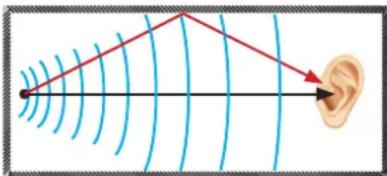
VIVO H10V gives you the ability to control this effect through many presets (macro) and parameters, such as the size of the room, the level, etc.
DELAY EFFECT
What is the Delay effect? It's the result of the reflection of the sound similar to the reverb but works on big spaces as canyons or inside a gigantic room. Delay is also called an echo.
You can control this effect by many preset (macro) and parameters such as the time of the delay, the level, etc.
Reverb Effect
- Press the [MENU/EXIT] button and select the MICROPHONE→Reverb function. See "Moving the Cursor and Setting Parameter Values" (p. 25).
The following page is shown.
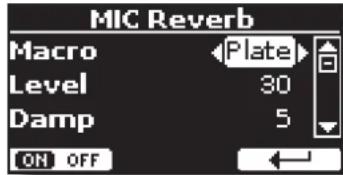
- Use the [▲] and [▼] buttons to select the parameter and use the [◀][▶] buttons to adjust the value.
- Use the "ON OFF" Function button to enable or disable the reverb effect.
| Parameter Setting | Explanation | |
| Macro | Hall, Mid Hall, Concert Hall, Large Hall, Cathedral, Chamber, Venue, Ambience, WoodenRoom, Brick Room, Studio Booth, Plate, Bright Spring, AmpSpring | This parameter allows you to select one of the preset reverb types. |
| Level 0 ~ 127 | Set the quantity of the Reverb effect. | |
| Damp 0 ~ 127 | Adjust the amount of damping in the room | |
| RoomSize 0 ~ 127 | It determines the size of the simulated room. | |
| Width 0 ~ 127 | Adjusts the stereo width of the Reverb effect. | |
| Parameter Setting Explanation | ||
| Predelay 0 ~ 127 ms | Adjusts the delay from the direct signal and the moment when the reverb starts working. This is used to simulate the distance between the original signal and the reflective surfaces | |
MEMO
If you want to use these settings again at a later stage, consider saving them in an MIC preset. See "Saving Your MIC Preset" (p. 46).
Delay Effect
1. Press the [MENU/EXIT] button and select the
MICROPHONE→Delay function. See "Moving the Cursor and Setting Parameter Values" (p. 25).
The following page is shown.
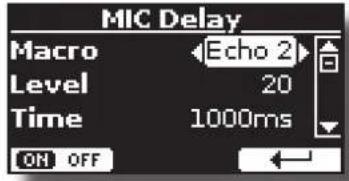
- Use the [▲] and [▼] buttons to select the parameter and use the [◀][▶] buttons to adjust the value.
- Use the "ON OFF" Function button to enable or disable the delay effect.
| Parameter Setting Explanation | ||
| Macro | Voice 1, Voice 2, Voice 3, Voice 4, Echo1, Echo 2 | This parameter allows you to select one of the preset delay types. |
| Level 0 ~ 127 | Set the quantity of delay effect. | |
| Time 0 ~ 1000 ms Set the delay time. | ||
| Feedback -96% ~ +96% | Adjusts the proportion of the delay sound fed back into the effect.Negative (-) settings will invert the phase. | |
MEMO
If you want to use these settings again later, consider saving them in a MIC preset. See "Saving Your MIC Preset" (p. 46).
Setting the Microphone Equalizer
What is a Equalizer?
An equalizer (EQ) consists of a series of audio filters that adjust the amplitude of audio signals at particular frequencies. You can use this equalizer to adjust the tone of your voice.
1. Press the [MENU/EXIT] button and select the
MICROPHONE→Equalizer function. See "Moving the Cursor and Setting Parameter Values" (p. 25).
The following page is shown.
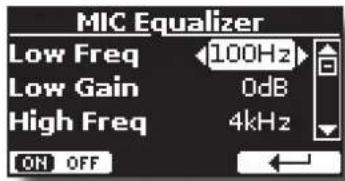
- Use the [▲] and [▼] buttons to select the parameter and use the [◀][▶] buttons to adjust the value.
- Use the "ON OFF" Function button to enable or disable the equalizer.
| Parameter Setting Explanation | ||
| Low Freq | 40Hz, 60Hz, 80Hz,100Hz, 120Hz, 150Hz,200Hz, 250Hz, 300Hz,400Hz, 500Hz, 600Hz | This parameter allows you to set the cutoff frequency of the low band. |
| Low Gain -12~ 0 | +12 dB | Use this parameter to set the level of the low frequency. Positive values boost (increase) the volume of that frequency. Negative values cut (attenuate) it. |
| Mid Freq | 100Hz, 150Hz, 200Hz,250Hz, 300Hz, 350Hz,400Hz, 450Hz, 500Hz,550Hz, 600Hz, 650Hz,700Hz, 750Hz, 800Hz,850Hz, 900Hz 950Hz,1KHz, 1.5KHz, 2KHz,3KHz, 4KHz, 5KHz,6KHz, 7KHz, 8KHz | This parameter allows you to set the cutoff frequency of the middle band. |
| Mid Gain -12~ 0 | +12 dB | Use this parameter to set the level of the selected MID frequency. Positive values boost (increase the volume of) that frequency. Negative values cut (attenuate) it. |
| High Freq | 400Hz, 600Hz, 800Hz,1KHz, 1,5KHz, 2KHz,3KHz, 4KHz, 5KHz,6KHz, 7KHz, 8KHz,10KHz | This parameter allows you to set the cutoff frequency of the high band. |
| High Gain -12~ 0 | +12 dB | Use this parameter to set the level of the selected high frequency. Positive values boost (increase the volume of) that frequency. Negative values cut (attenuate) it. |
| Mid Q 0.5 ~ 12 | Move this parameter to adjust the width of the area around the Middle frequency that will be affected by the Gain setting.Higher values of Mid Q set the narrowest area. | |
MEMO
If you want to use these settings again later, consider saving them in a MIC preset. See "Saving Your MIC Preset" (p. 46).
Setting the Microphone Compressor
What is a Compressor?
A compressor reduces the dynamic range of an audio track by lowering the volume level of the loudest parts. This will cause an audio track that has fewer variations in volume. Audio compression is a must, especially for voice recording. It evens out the erratic levels that a singer can produce, and it lowers transients that can cause digital distortion.
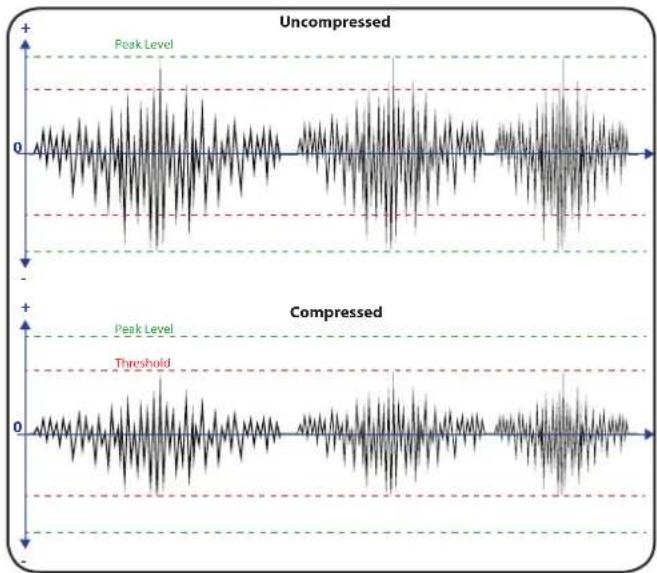
line
| Condition | Peak Level | | ------------- | ---------- | | Uncompressed | Peak Level | | Compressed | Peak Level | | Compressed | Threshold |1. Press the [MENU/EXIT] button and select the
MICROPHONE→Compressor function. See "Moving the Cursor and Setting Parameter Values" (p. 25).
The following page is shown.
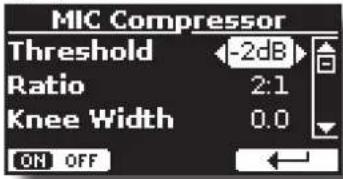
- Use the [▲] and [▼] buttons to select the parameter and use the [◀][▶] buttons to adjust the value.
- Use the "ON OFF" Function button to enable or disable the compressor.
| Parameter Setting Explanation | ||
| Threshold -40 ~ 0 dB | Adjusts the volume at which compression begins. | |
| Ratio | 1:1, 1.2:1, 1.4:1, 1.6:1, 1.8:1, 2:1, 3:1,4:1, 5:1, 6:1 7:1, 8:1, 9:1, 10:1, 11:1, 12:1, INF:1 | The ratio parameter tells how much to compress once the signal has surpassed the threshold value.1:1 means no compression.For example, 2:1 means that for every 2 dB of volume that shoots over the threshold, only 1 dB may to sound out.INF:1 means that any signal does not exceed the amplitude of the threshold. |
| Knee Width 0.0 ~ 1.0 | The "knee" parameter refers to how the compressor transitions between the non-compressed and compressed states of an audio signal. Transition hard (0.0) or soft (1.0). | |
| Attack Time 0 ~ 250 ms | The "Attack Time" is the time that the audio processor takes for the signal to become fully compressed after exceeding the threshold level. | |
| Release Time 0 ~ 1000 ms | The "Release Time" refers to how long the compressor will take to relax the compression once the signal has fallen below the threshold. | |
| Parameter Setting Explanation | |
| Gain -24 ~ +24 dB | Increase or decrease the volume of the compressed signal. |
MEMO
If you want to use these settings again later, consider saving them in a MIC preset. See "Saving Your MIC Preset" (p. 46).
Setting the Low Cut Filter
What is a Low Cut Filter?
Also known as a high-pass filter, it's a filter that allows to cutting off of low-frequency signals, usually from 40 to 300 Hz 00 Hz. These frequencies are often the same ones associated with ambient room noise.
- Press the [MENU/EXIT] button and select the MICROPHONE→Low Cut Filter function. See "Moving the Cursor and Setting Parameter Values" (p. 25).
The following page is shown.
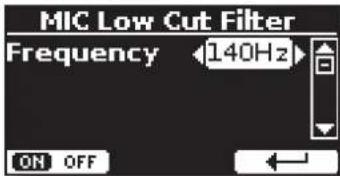
- Use the [◀] [▶] buttons to adjust the value.
- Use the "ON OFF" Function button to enable or disable the filtering.
| Parameter Setting | Explanation | |
| Frequency | 40Hz, 60Hz, 80Hz,100Hz, 120Hz, 140Hz,160Hz, 180Hz, 200Hz,220Hz, 240Hz, 260Hz,280Hz, 300Hz | Use this parameter to set the cut frequency. |
MEMO
If you want to use these settings again later, consider saving them in a MIC preset. See "Saving Your MIC Preset" (p. 46).
This section explains how playback audio songs are stored in the internal or USB Memory (commercially available).
You can practice playing along to the backing song.
VIVO H6 play back the following file types:
| File Type Extension | |
| Audio files | .mp3 |
| .wav | |
| .aiff or .aif | |
Playing a Song
Loading a Song From Internal Memory
- Press the [SONG] button. Its indicator lights.
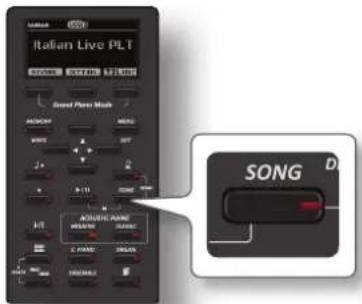
The display shows the Song's main page, and the current song's name is shown if already loaded.
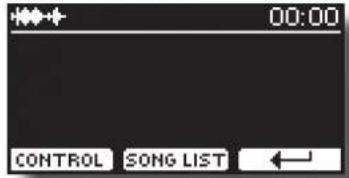
- Press the "SONG LIST" function button.
The display shows the contents of the Song's internal memory.
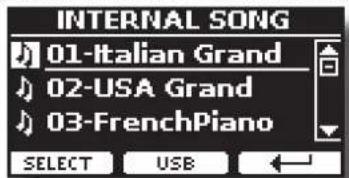
-
Use the [▲][▼] buttons to scroll through the files to choose the song to load.
-
Press the "SELECT" Function button to load the song you want to practice.
Loading a Song From USB Memory
- Insert a USB Memory that contains songs. See "Connecting an USB Memory (commercially available)" (p. 21).
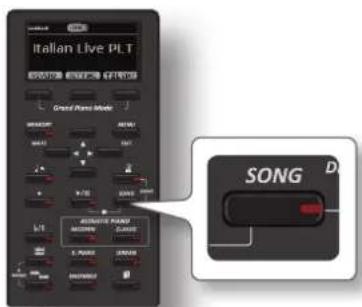
The display shows the Song's main page, and the current song's name is shown if already loaded.
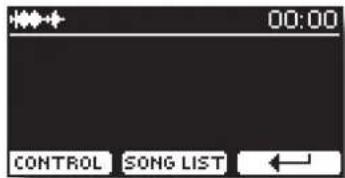
- Press the "SONG LIST" function button. The display shows the contents of the Song's internal memory.
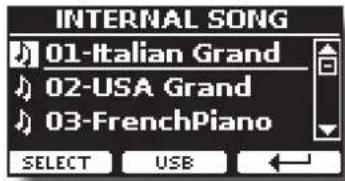
- To list the USB Memory contents, press the "USB" Function button.
The display shows the contents of the USB Memory.
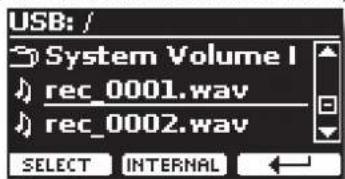
-
Use the [▲][▼] buttons to scroll through files and folders.
-
If the song you need is located inside a folder, you must first select that folder, press the "OPEN" Function button to see its contents and then select the song. If you mistakenly opened a folder, press the "-" Function button to return to a higher level.
-
Press the "SELECT" Function button to load the song you want to practice. The song icon is highlighted to indicate the song selected.
Playing the loaded song
- Press the [▶/II] button.
The [▶/■] button's indicator lights and song playback starts.
-
Press the ▶/□□ button again to pause the song playback. The ▶/□□ button goes dark.
-
To return to the beginning of the song, simultaneously press the [▶/II] and [SONG] buttons.
4. Press [▶/II] yet again to resume playback.
Useful Song Controls
VIVO H10V has useful song controls that allow you to adjust the volume, rewind or fast-forward within the currently selected song, etc.
1. Load the song you want to playback. See "Playing a Song" (p. 50).
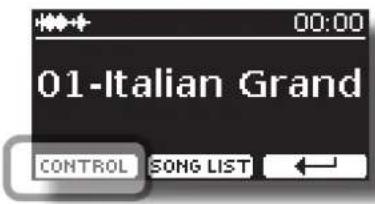
2. From the Song main page, press the "CONTROL" Function button.
The display shows:
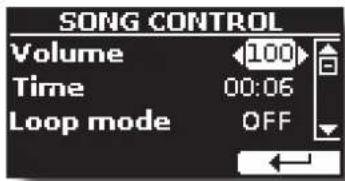
3. Use the [▲][▼] buttons to select the control parameter.
4. Use the [◀] [▶] buttons to choose your setting.
| Parameter Value Explanation | ||
| Volume 0~127 Adjust the Volume of the song player. | ||
| Time | It depends on the duration of the song. | Press the [◀] to rewind within the song.Press the [▶] to fast-forward within the song. |
| Loop Mode OFF, SONG, LIST | "OFF": No loops. Playback stops at the end of the current selected song."SONG": Continuously repeats playback of the current selected song. Playback repeats until you select a different song or stop playing the song.LIST": Continuously repeats playback of all music files available in a folder, in consecutive order. Playback repeats until you select a different song or stop playback. | |
Your digital piano allows you to record your performance and save it internally or to a USB storage device.
Record and play back what you've played on the instrument can be an effective practice aid.
Recording as Audio Data
Your performance will be recorded as audio data. The recorded song can be used on your computer, phone and in any audio player.
NOTE
To use this method of recording, you must connect a USB drive (sold separately) to the USB Memory port (p. 21).
Recording Your Music as audio data (WAVE).
This useful function allows professional-quality stereo recordings. If a microphone is connected to the MIC socket, you can add your voice to the recording.
You can reproduce directly by portable music players by using a computer.
Recordings are saved in the external USB Memory (commercially available).
In addition, the VIVO H10V digital piano allows you to record audio from a Bluetooth device. See "Wireless Function" (p. 59).
NOTE
- You will need a USB Memory (commercially available) to record your performance.
Audio Recorder format specifications
Audio Format \$pecification
WAV 48 kHz, 32 bit, Stereo
Before you start recording
- Connect the USB Memory to which you wish to save the audio data. See "Connecting an USB Memory (commercially available)" (p. 21).
- Prepare everything you want to record: select the tone and the keyboard mode that you want to use for performing. See "Selecting Tones" (p. 26).
- If desired, sound the metronome. See "Practicing with the Metronome" (p. 33).
MEMO
The metronome signal is not recorded.
Starting/stopping recording
- Press the [●(Rec) button to start recording.
The indicator of the I button lights and the VIVO H10V starts to record everything you play on the keyboard. - At the end of the song, press the[●] (Rec) button to stop recording.
The recording stop, and the display shows a confirmation message.
Your audio file is saved to the "Recording" folder on the USB memory.
NOTE
Do not disconnect the USB Memory during the song recording or before the confirmation message is shown at the end of the recording.
About the Recording Files
The audio files are saved in the "Recording" folder on the USB Memory.
If the "Recording" folder doesn't exist, it is automatically created at the first recording.
The songs are saved with a different progressive number: rec_0001.wav, rec_0002.wav and so on.
Listening to your recording
- Press the ▶/□ button to listen to your song.
If you want to re-record again, repeat from step 4.
NOTE
You should always safely eject the USB Memory before physically unplugging it from the USB socket. Before unplugging the USB Memory use the "USB REMOVE" function. See "Safely Remove the USB Memory" (p. 22).
How to Record your Performance over an Existing Audio Base (Overdub)
This is a technique used in audio recording. While listening to an existing recorded audio base, play a new performance along with it. All is recorded in a new song.
- Connect the USB Memory to which you wish to save the audio data. See "Connecting an USB Memory (commercially available)" (p. 21).
- Prepare everything you want to record: select the tone and the keyboard mode you wish to use for performing. See "Selecting Tones" (p. 26).
- Load an existing audio base. See "Loading a Song From Internal Memory" (p. 50).
- Press the [●(Rec) button to start recording.
- Press the [▶/II] button to start the playback of the audio base as background.
- Play your performance while listening to the audio base.
- At the end of the song, press the [●] (Rec) button to stop recording. The recording stops, and the display shows a confirmation message.
- Press the [▶/II] button to listen to your song.
Using the Memories is a much faster than calling up one of the VIVO H10V's functions, modifying the settings, etc. while playing. VIVO H10V provides 80 Memories that allow you to store almost all settings (or registrations) you make on the front panel and the various display pages. Additional Memories can be imported directly from a USB Memory.
About the Memories and Memory Set Structure.
The Memories you create are saved in the internal Memory Set or in an external Memory Set previously saved in the USB Memory. This allows you to prepare one set of Memories for weddings, another for corporate events, a third for anniversaries, etc.
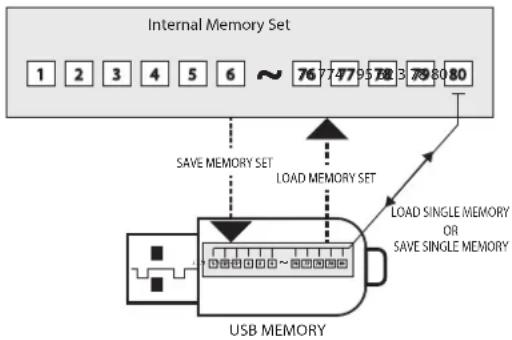
flowchart
graph TD
    A["Internal Memory Set"] --> B["1 2 3 4 5 6 ~ 76 77 77 95 78 3 79 80 80"]
    B --> C["SAVE MEMORY SET"]
    B --> D["LOAD MEMORY SET"]
    C --> E["USB MEMORY"]
    D --> F["LOAD SINGLE MEMORY OR SAVE SINGLE MEMORY"]
Saving Your Settings in the Internal Memory
- Change all settings the way you want to save them. For details on settings memorized, see p. 62.
- Press and hold the [MEMORY/WRITE] button until the display shows:
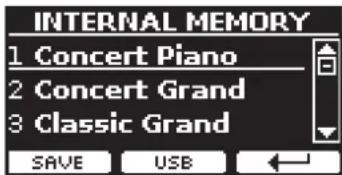
The [MEMORY/WRITE] button indicator flashes and the list of Internal Memory is shown.
MEMO
You can also select this function by pressing the [MENU] button → MEMORY→WRITE.
- Use the [▲][▼] buttons to move the cursor inside the list in the position you want to replace the Memory.
- Press the "SAVE" Function button to confirm.
The display changes to:
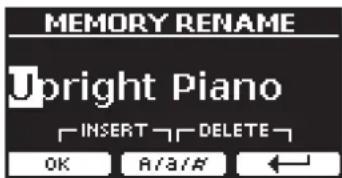
- If you want to name your new Memory, see "Assigning the Name You Specify" (p. 25) for details.
- Press the "OK" Function button to save the Memory. The memory will be saved and the list of Internal Memory is shown.
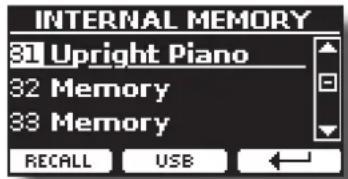
Recalling your Settings from Internal Memory
- Press the [MEMORY/WRITE] button.
The [MEMORY/WRITE] button indicator lights steady and the list of Internal Memory is shown.
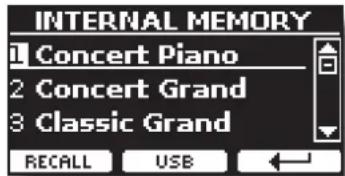
MEMO
You can also select this function by pressing the [MENU] button → MEMORY→RECALL.
- Use the [▲][▼] buttons to move the cursor inside the list to select the Memory you want to recall.
- Press the "RECALL" Function button to recall the Memory. The Memory is recalled and the display shows the Memory highlighted.
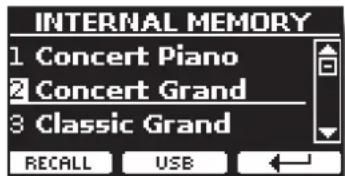
How to Rearrange the Order of Memories
Use this function if you need to rearrange your Memories in a different order.
- Press the [MENU/EXIT] button and select MEMORY→REORDER.
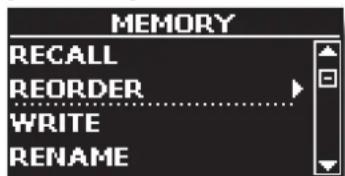
The display shows a list of Memories.
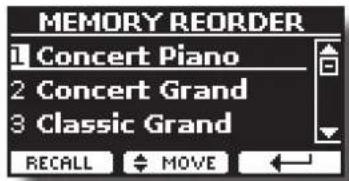
- Use the [▲][▼] buttons to move the cursor inside the list to select the Memory you want to reorder and press the "MOVE" function button.
A symbol appears to the left of the selected Memory.
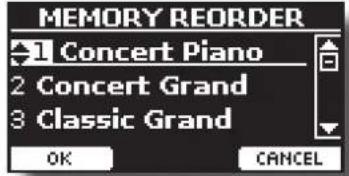
- Use the [▲][▼] buttons to select the new position where you want to move the Memory chosen.
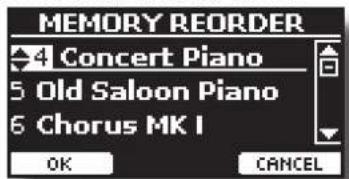
- Press the "OK" Function button to confirm the operation. Press the "CANCEL" Function button to cancel the operation.
Saving Your Settings in the USB Memory (commercially available)
- Connect the USB Memory to which you wish to save the Memory. See "Connecting an USB Memory (commercially available)" (p. 21).
- Change all settings the way you want to save them.
- Press and hold the [MEMORY/WRITE] button until the display shows:
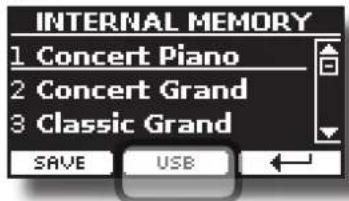
The list of Internal Memory is shown.
MEMO
You can also select this function by pressing the [MENU] button → MEMORY→WRITE.
- Press the [USB] Function button to select the destination memory.
The display shows a list of all files and folders on the USB storage device you have just connected.
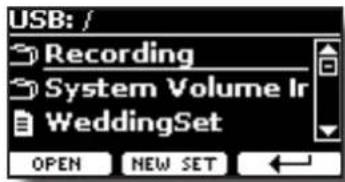
Now you can save:
In a Memory Set previously saved. Continue from step (5)
In a new Memory Set. See "Saving in the New Memory Set" below.
Saving in the Memory Set previously saved
- Use the [▲][▼] buttons to scroll through files and folders to select the Memory Set.
| Memory Set Icon Memory Set file extension | |
| .rif | |
Use the "OPEN" Function button if you need to enter a folder. If you mistakenly opened a folder a folder, press the [←] button to return to a higher level.
- Press the "OPEN" Function button to recall the Memory Set.
The display shows the list of memories in the Memory Set.
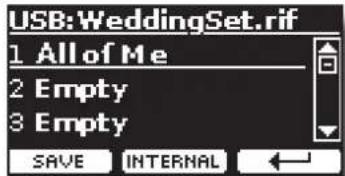
- Use the [▲][▼] buttons to move the cursor inside the list in the position you want to replace the Memory.
- Press the "SAVE" Function button to confirm. The display changes to:
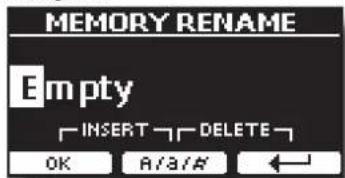
- If you want to name your new Memory, see "Assigning the Name You Specify" (p. 25) for details.
- Press the "OK" Function button to save the Memory. The memory will be saved and the list of memories is shown.
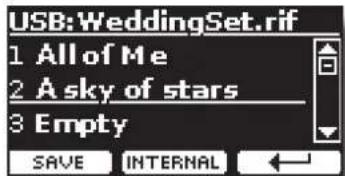
Saving in the New Memory Set
- Press the "NEW SET" Function button to create an empty Memory Set.
This page allows you to create a new Memory Set List whose name is selected automatically by the VIVO H10V.
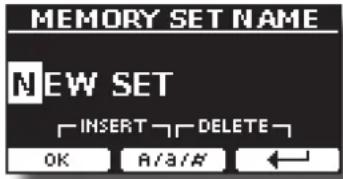
- If you want to name your new Memory Set, see "Assigning the Name You Specify" (p. 25) for details.
- Press the "OK" Function button to confirm the name. The display shows the contents of the new Set just created.
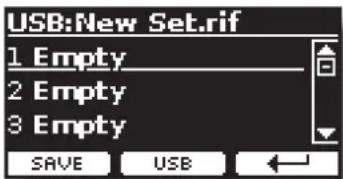
- Use the [▲][▼] buttons to move the cursor inside the list in the position you want to write the Memory.
- Press the "SAVE" Function to confirm. The display changes to:
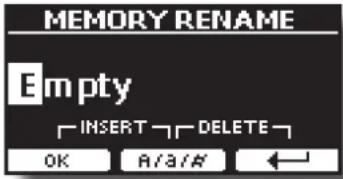
VIVO H10V suggests a Memory name.
- If you want to name your new Memory, see "Assigning the Name You Specify" (p. 25) for details.
- Press the "OK" Function button to save the Memory. The memory will be saved and the list of Memories is shown.
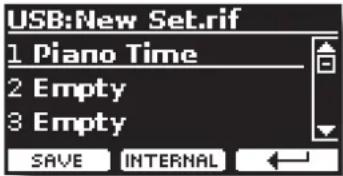
Recalling your settings from a USB Memory
- Connect a USB memory to the VIVO H10V. For details, see p. 21.
A USB icon appears in the Icons field of the Main page. See "Main Page" (p. 24).
- Press the [MEMORY/WRITE] button.
The [MEMORY/WRITE] button indicator lights steady, and the list of Internal Memory is shown.
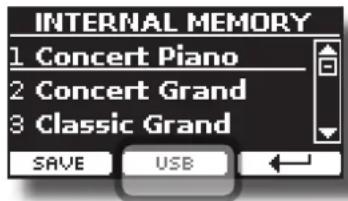
MEMO
You can also select this function by pressing the [MENU] button → MEMORY→RECALL.
- Press the "USB" Function button.
The display shows a list of all files and folders on the USB storage device you have just connected.
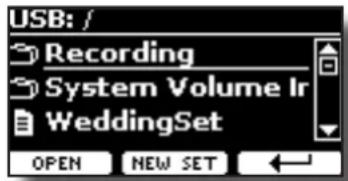
- Use the [▲][▼] buttons to scroll through files and folders to select the Memory Set.
| Memory Set Icon M | Memory Set file extension |
| .rif |
Use the "OPEN" Function Button to enter in folder.
If you mistakenly opened a folder, press the [←] button to return to a higher level.
- Press the "OPEN" Function button to open the selected Memory Set.
The display shows the list of Memories:
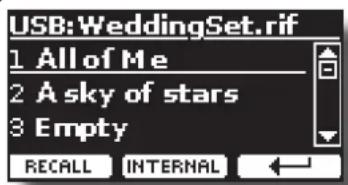
- Use the [▲][▼] buttons to move the cursor inside the list to select the Memory you want to recall.
- Press the "RECALL" Function button to recall the Memory. The Memory is recalled and the display shows the Memory highlighted.
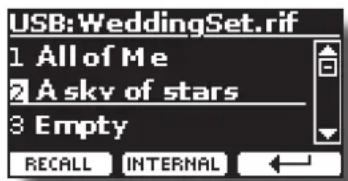
MEMO
Press the "INTERNAL" Function button to display the Internal Memories again.
Renaming a Memory
This function allows you to change the name of a selected Memory.
- Press the [MENU] button and select MEMORY→RENAME. The list of Internal Memory is shown:

-
Use the [▲][▼] buttons to move the cursor inside the list in the position you want to rename the Memory.
-
Press the "RENAME" Function button to confirm. The display changes to:
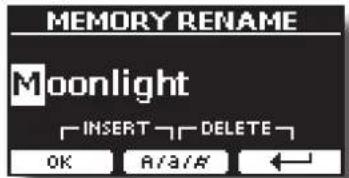
-
Use the [▲][▼] and the [◀][▶] buttons to rename the Memory. See "Assigning the Name You Specify" (p. 25) for details.
-
Press the "OK" Function button to confirm the name. The memory will be renamed and the list of Internal Memory is shown.
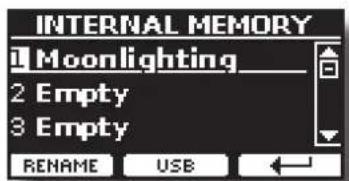
Exporting a Memory Set in the USB Memory
Use this function for exporting the Internal Memory Set in the USB Memory (commercially available).
This function is helpful in creating special sets for each event and importing them at your convenience.
You can also use this function to back up the Internal Memories.
-
Connect a USB memory to the VIVO H10V. For details see p. 21. A USB icon appears in the Icons field of the Main page. See "Main Page" (p. 24).
-
Press the [MENU] button and select MEMORY→EXPORT SET.
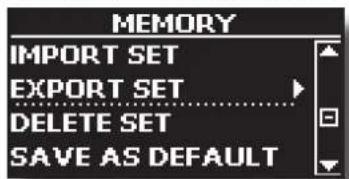
The display lists of all files and folders on the USB storage device you have just connected.
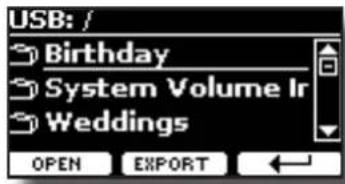
- Use the [▲][▼] buttons to scroll through folders to select the destination folder.
Use the "OPEN" Function button to enter a folder.
If you mistakenly opened a folder, press the [←] button to return to a higher level.
- Press the "EXPORT" Function button to confirm your selection.
The display changes to:
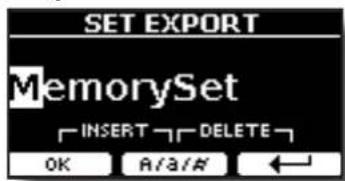
A Memory Set name is suggested by the VIVO H10V.
-
If you want to name the Memory Set, see "Assigning the Name You Specify" (p. 25) for details.
-
Press the "OK" Function button to export the Memory Set. A message confirms the operation.
NOTE
You should always safely eject the USB Memory before physically unplugging it from the USB socket. Before to unplugging the USB Memory use the "USB REMOVE" function. See "Safely Remove the USB Memory" (p. 22).
Importing a Memory Set from the USB Memory.
Use this function for importing Sets from the USB Memory (commercially available) to Internal Memory.
- Connect a USB memory that contains Memory Sets to the VIVO H10V. For details see p. 21.
A USB icon appears in the Icons field of the Main page. See "Main Page" (p. 24).
- Press the [MENU] button and select MEMORY→IMPORT SET. The display shows a list of all files and folders on the USB storage device you have just connected.
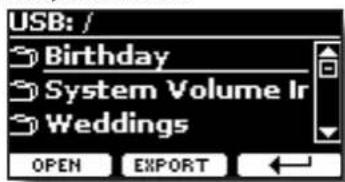
- Use the [▲][▼] buttons to scroll through folders to select the Memory Set to import.
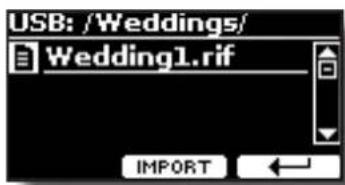
Use the "OPEN" Function button to enter a folder.
If you mistakenly opened a folder, press the [←] button to return to a higher level.
4. Press the "IMPORT" Function button to confirm your selection.
A message confirm that the Memory Set was imported.
NOTE
You should always safely eject the USB Memory before physically unplugging it from the USB socket. Before to unplugging the USB Memory use the "USB REMOVE" function. See "Safely Remove the USB Memory" (p. 22).
Deleting a Memory Set
Use this function to delete a Memory Set from a USB Memory.
- Press the [MENU] button and select MEMORY→DELETE SET.
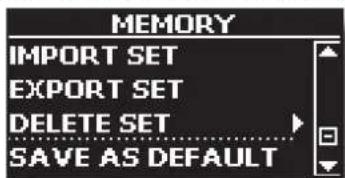
The display lists all files and folders on the USB storage device you have just connected.
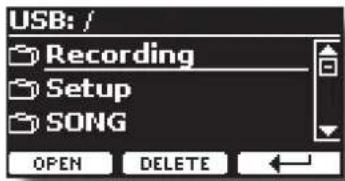
- Use the [DATA ENTRY] or the [▲][▼] buttons to move the cursor inside the list in the position you want to delete the Memory Set.
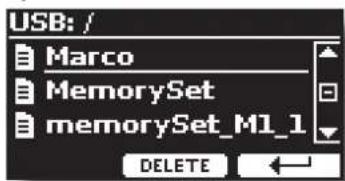
- Press the "DELETE" Function button to delete the selected Memory Set.
A message confirms the operation.
How to Automatically Recall Your Favorite Setting at the Power On.
The VIVO H10V give you the possibility to have your favourite setting directly at the startup of the instrument. To do this, follow the procedure below:
- Set all the parameters you want when you turn on the
instrument.
- Press the [MENU] button and select MEMORY→SAVE AS DEFAULT.
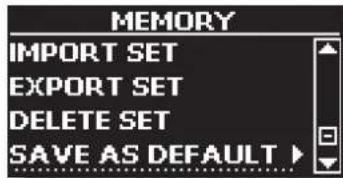
The instrument asks you if you want your settings as default.
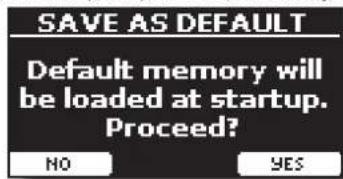
- Press the "Yes" Function button to confirm the operation. Press "No" to quit the function.
How to Customize the Grand Piano Mode
As seen in the "Selecting Tones" chapter, we can easily recall the best piano sound, pressing simultaneously the first and last Fucntion button from the Main page. See "Grand Piano Mode" (p. 26).
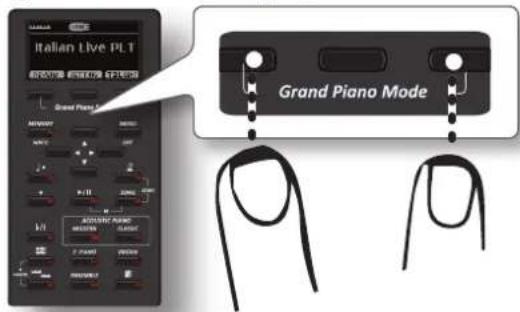
The "SAVE AS G.P. MODE" function allows us to save our own setting and recall it when entering the "Grand Piano Mode".
-
Modify the sound and all the parameters you want for the "Grand Piano Mode".
-
Press the [MENU] button and select MEMORY→SAVE AS G.P. MODE.
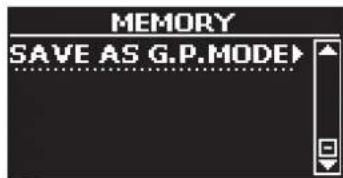
The instrument asks if you want to save your "Grand Piano Mode".
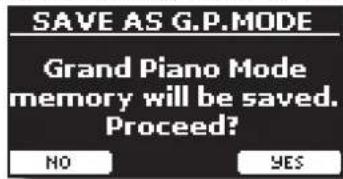
- Press the "Yes" Function button to confirm the operation. Press "No" to quit the function.
Thanks to X MURE® application and VIVO H10V, you can play your favourite melodies while controlling an audio pattern.

X MURE® is a DEXIBELL® software product
WHAT IS X MURE
• X-MURE is an application that runs on iPhone or iPad.
- Using "Harmony Poly Fragmentor" the world first algorithm able to modify "audio tracks" in real-time, "X MURE" allows you to play music directly on the screen of your iPad/iPhone or with a musical instrument connected via USB.
- "X MURE" does not use sound generators, virtual instruments or "Standard MIDI file", it is exclusively based on audio tracks recorded by real musical instruments, so it does not simulates reality... it is the reality.
WHAT YOU CAN DO WITH X MURE
• Control X MURE audio patterns by live chord progression played by VIVO H10V.
- Re--arrange your favourite music tracks using countless musical genres or create a completely new song hit.
WHAT YOU NEED TO USE X MURE
• VIVO H10V Digital Piano.
- Apple iPad Camera Connection Kit (Camera connectors made by Apple Inc.).
- USB cable (type A–male - type B–male: commercially available).
- Download X MURE application from the App Store.
Connecting your Mobile Device
- Connect your iPad with your VIVO H10V by using a USB iPad camera connector and a USB cable.
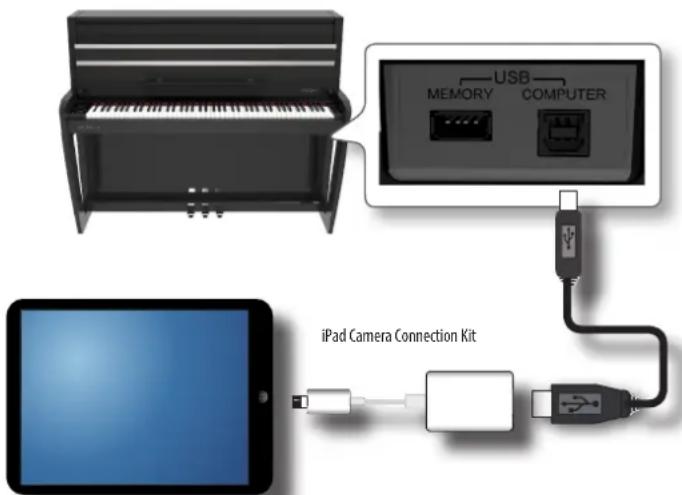
- Rotate the [VOLUME] knob toward the lower position to minimize the volume.
Playing with X MURE Application
- Turn your VIVO H10V and your iPad on.
- Touch the X MURE icon on your iPad to open the app. Now you have three choices:



- Touch the Dexibell VIVO icon to have the maximum performance with VIVO H10V.
The following page appears:
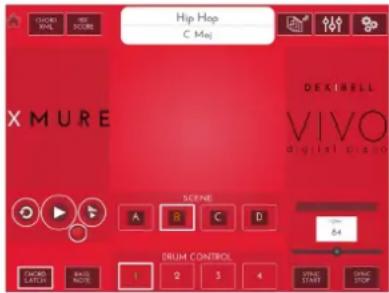
- Play a note on the keyboard to inform X MURE which part you want to use to control it.
- On X MURE select the audio pattern you want playback.
- Touch the play icon of the X MURE application.
The pattern starts to playback.
MEMO
You can use a pedal to play or stop the play back of the pattern. See "CENTRAL PEDAL" or "LEFT PEDAL" (p. 65).
- Play chords on the keyboard. The audio pattern follows your chord progression.
- On X MURE, touch the "A", "B", "C", and "D" icon buttons to choose a different scene.
MEMO
You can use a pedal to select different scenes. See "CENTRAL PEDAL" or "LEFT PEDAL" (p. 65).
- On X MURE, touch the "1", "2", "3", and "4" icon buttons to choose a different drum pattern.
MEMO
You can use a pedal to select different drum patterns. See "CENTRAL PEDAL" or "LEFT PEDAL" (p. 65).
Bluetooth® Audio and MIDI Connectivity
VIVO H10V Pianos are equipped with Audio and MIDI Bluetooth ^® (4.2 Low Energy) function.
Thanks to this technology, you'll be able to :
■ listen through the speakers of the VIVO H10The music played back by smartphone, tablet.
■ exchange MIDI data between the mobile device and the VIVO H10V.

Bluetooth®
Wireless Connection
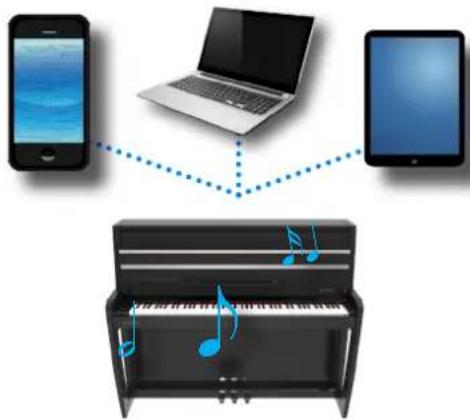
Turning on the VIVO H10V's Bluetooth® Function
- Press the [MENU] button and select the Bluetooth® page.
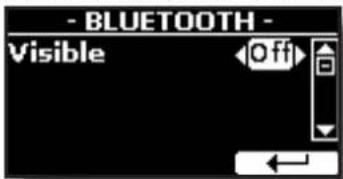
- Use the [▲][▼] buttons to select the "Visible" parameter.
- Use the [◀] [▶] buttons to set it to "On".
The VIVO H10V is now visible to other devices:
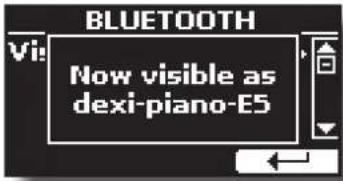
The first time you use a new mobile device, you need to "pair" it with your device so that both devices know how to connect securely.
Connecting with the Mobile Device
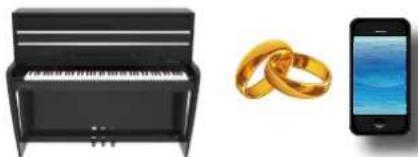
natural_image
Illustration of a piano, two gold rings, and a smartphone (no text or symbols)NOTE
Please consider the explanation for paring your mobile device with the VIVO H10V as an example. The operations to pair your mobile device can differ from our description and depend on the operating system of your device. For details, please refer to the owner's manual for your mobile device.
- Place the mobile device within 1 meter (3 ft) from VIVO H10V.
NOTE
When pairing, ensure other devices are off or out of range.
- Make sure that VIVO H10V is visible to other devices. See "Turning on the VIVO H10V's Bluetooth® Function" (p. 59).
- On the mobile device you want to connect, turn on the Bluetooth® function and, if necessary, search for the available devices.
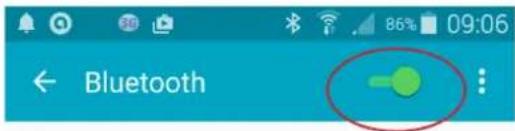
For details on how to enable the Bluetooth ^® function, refer to the owner's manual of your mobile device.
The list of available devices is now shown on your mobile device.
- Select the "dexi-piano-xx" device that is shown in the Bluetooth® list of your mobile device.
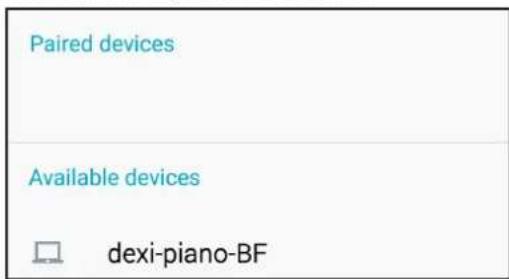
In the example above, the device name is "dexi-piano-BF".
- If the mobile device and the VIVO H10V ask you to confirm the connection showing the "passkey" screen, confirm before on VIVO H10V and then on your mobile device.
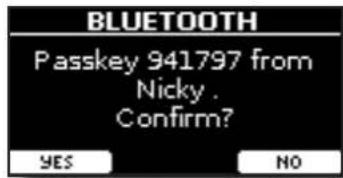
When pairing succeeds, "dexi-piano-xx" is added to the list of paired
devices in the mobile device. Vice versa, the mobile device is added to the list of "Paired" devices of VIVO H10V.
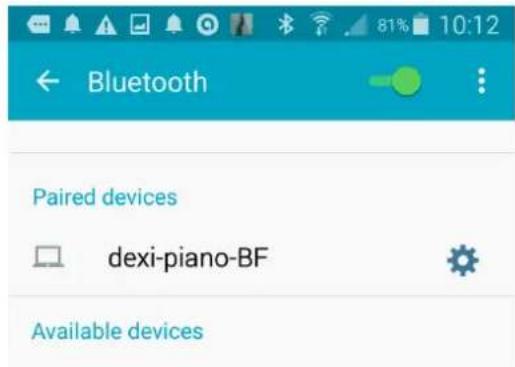
- Select the "dexi-piano-xx" device shown in your mobile device's paired devices list.
MEMO
For details, refer to the owner's manual of your mobile device.
MEMO
Once the devices have been paired, there is no need to perform pairing again. Once the device is recognized, the VIVO H10V ask you to authorize the connection:
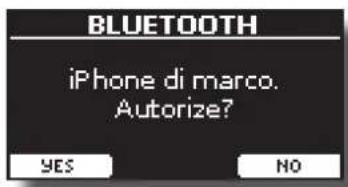
Choose "YES" to authorize the connection. The following page appears:
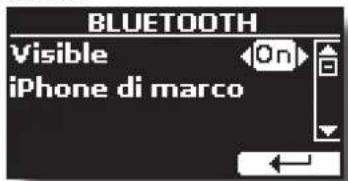
The connection is now established, and a Bluetooth ^® icon is shown in the main menu. The music data played back by the mobile device can be heard through VIVO H10V.
NOTE
Pairing is required again if you execute a Factory Reset (p. 36).
Connecting an Already Paired Mobile Device
NOTE
Please consider the explanation for connecting your mobile device with the VIVO H10V as an example. The operations to connect your mobile device can be different from our description and depend on the operating system of your device. For details, please refer to the owner's manual of your mobile device.
- Place the mobile device within 1 meter (3 ft) from the VIVO H10V.
- If necessary, turn on the Bluetooth® function on the mobile device.
- Select the "Dexi-piano-xx" device that is shown in the Bluetooth® list of your mobile device.
MEMO
For details, refer to the owner's manual of your mobile device.
Using Bluetooth® Audio
You can use the speakers of the VIVO H10V to listen to music or music videos played on your mobile device.
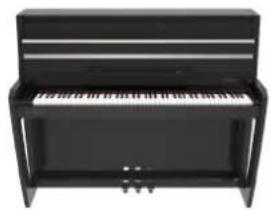
natural_image
Black piano with visible keys and front panel (no text or symbols)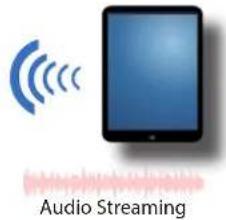
- If necessary, turn on the Bluetooth® function of the VIVO H10V and pair your mobile device. You don't need it if it's already paired.
See "Turning on the VIVO H10V's Bluetooth" Function" (p. 59) and "Connecting with the Mobile Device" (p. 59). - Locate your mobile device near the VIVO H10V.
- Turn on the Bluetooth® function of your mobile device.
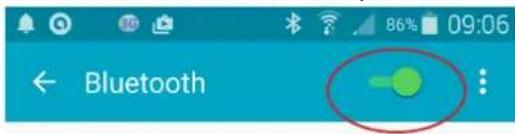
All music data played back by your mobile device can now be heard through VIVO H10V.
Transferring Bluetooth® MIDI Data
Here's how to transmit and receive MIDI data between the VIVO H10V and your mobile device.
natural_image
Black piano with visible keys and a blank front panel (no text or symbols)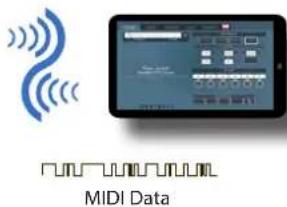
In particular, we will take as an example the connection between the VIVO H10V and the "Dexibell VIVO EDITOR" application.

What is the "Dexibell VIVO EDITOR" application?
It is a free iOS application downloadable from the Apple Store.
What does the "Dexibell VIVO EDITOR" do?
It allows you to modify any parameter of the VIVO H10V in real-time. It is as if the device becomes the colour display with the touch screen of your instrument.
- Turn on the "Visible" parameter of the VIVO H10V on the Bluetooth page and pair your mobile device.
See "Turning on the VIVO H10V's Bluetooth" Function" (p. 59) and "Connecting with the Mobile Device" (p. 59).
- Locate your mobile device near the VIVO H10V.
- Turn on the Bluetooth® function of your mobile device.
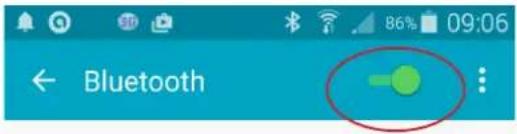
- Start the "Dexibell VIVO EDITOR" and tap the "MEMORY" page.
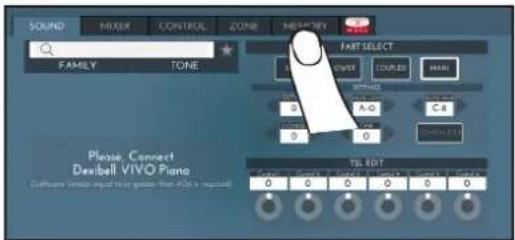
- Tap the "icon."
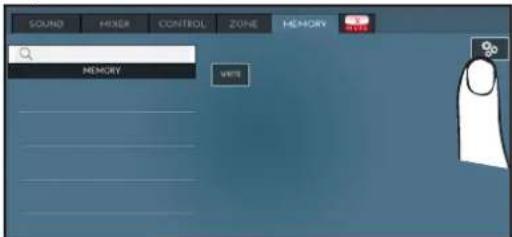
- In the Bluetooth MIDI field, Tap the "DEVICE" button.
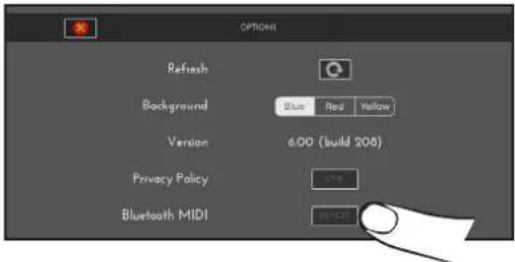
The Bluetooth MIDI devices page is opened and the VIVO H10V (dexi-piano-xx) is in the list of found devices.
- Tap "Not Connected" to connect the VIVO H10V (dexipiano-xx).
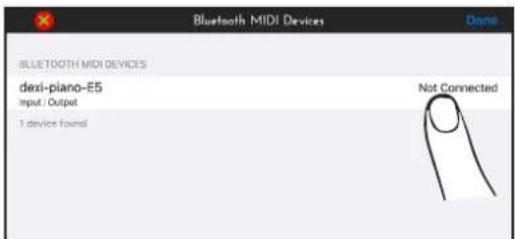
Wait until the VIVO H10V is connected.
- Tap "Done" to exit from the page.
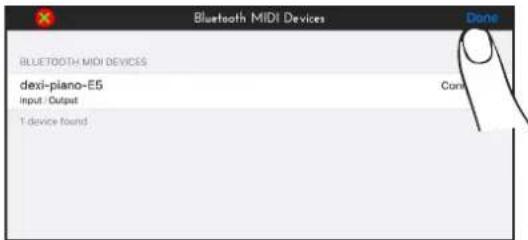
Now you can change a tone, activate or deactivate a part, modify the octave, select functions and so on. Now if you want, you can control every function of your instrument by this application without using the VIVO H10V's panel anymore.
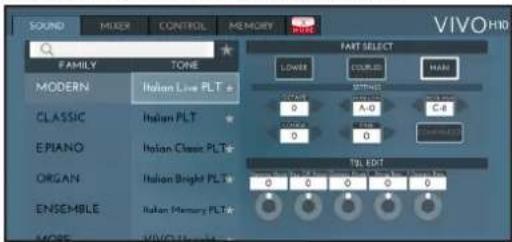
The VIVO H10V's [MENU] button provides access to the available parameters and functions.
General procedure
1. Press the [MENU] button.
The display changes to:
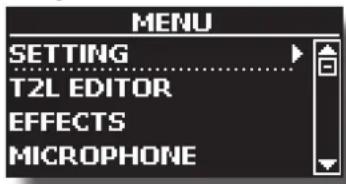
- Use the [▲] [▼] buttons to select the entry of the desired function group.
- Press the [▶] button to go to the display page, where you can edit the parameters of the selected group or execute the specified command.
For more details about the parameters selection, see "Moving the Cursor and Setting Parameter Values" (p. 25).
The following parameters and functions are available:
Parameters Group
| SETTING Parameters Group | 63 |
| MAIN SETTING | 63 |
| Level | 63 |
| Panpot | 63 |
| Octave | 63 |
| Mute | 63 |
| Coarse Tune | 63 |
| Fine Tune | 63 |
| Note Low | 63 |
| Note High | 63 |
| COUPLED SETTING | 63 |
| Level | 63 |
| Panpot | 63 |
| Octave | 63 |
| Mute | 63 |
| Coarse Tune | 63 |
| Fine Tune | 63 |
| Note Low | 63 |
| Note High | 63 |
| LOWER SETTING | 63 |
| KEYBOARD TOUCH | 63 |
| TRANSPOSE | 63 |
| SPLIT MODE | 63 |
| Split Point | 63 |
| Split | 64 |
| 4 HANDS MODE | 64 |
T2L EDITOR 64
| EFFECTS | 64 |
| MAIN FX | 64 |
| LOWER FX | 64 |
| COUPLED FX | 64 |
| REVERB | 64 |
| MASTER EQ | 64 |
MICROPHONE 64
| SPEAKER LEVEL | 64 |
| CONTROL | 64 |
| VOLUME | 64 |
| DAMPER PEDAL | 64 |
| Part | 65 |
| CENTRAL PEDAL | 65 |
| Funct | 65 |
| Part | 65 |
| LEFT PEDAL | 65 |
| Funct....65 | |
| Part....65 | |
| TEMPO | 65 |
| TEMPO/TAP | 66 |
| METRONOME | 66 |
| TUNING | 66 |
| MASTER TUNE | 66 |
| TEMPERAMENT | 66 |
| Equal Flat | 66 |
| Equal Stretch (default) | 66 |
| VIVO Stretch | 66 |
| Vallotti | 66 |
| Just Major | 66 |
| Pythagorean | 66 |
| Mean-Tone | 66 |
| Werckmeister III | 66 |
| Kimberger III | 66 |
| User 1, User 2, User 3 | 66 |
| MEMORY | 67 |
| USB MEMORY | 67 |
| REMOVE | 67 |
| FORMAT | 67 |
| USB AUDIO | 67 |
| Input Level | 68 |
| Output Level | 68 |
| BLUETOOTH | 68 |
| MIDI | 68 |
| RECEPTION | 68 |
| Main, Coupled, Lower | 68 |
| Status | 68 |
| Channel | 68 |
| Shift | 68 |
| Modulation | 68 |
| Volume | 68 |
| Panpot | 68 |
| Expression | 68 |
| Reverb | 68 |
| Hold | 68 |
| Sostenuto | 68 |
| Soft | 68 |
| PG (Program Change) | 68 |
| PB (Pitch Bender) | 68 |
| Memory | 68 |
| Status | 68 |
| Channel | 69 |
| TRANSMISSION | 69 |
| Main, Coupled, Lower | 69 |
| Status | 69 |
| Channel | 69 |
| Shift | 69 |
| Local | 69 |
| Modulation | 69 |
| Volume | 69 |
| Panpot | 69 |
| Expression | 69 |
| Reverb | 69 |
| Hold | 69 |
| Sostenuto | 69 |
| Soft | 69 |
| PG (Program Change) | 69 |
| PB (Pitch Bender) | 69 |
| Memory | 69 |
| Status | 69 |
| Channel | 69 |
| MIDI SET | 69 |
| SAVE MIDI SET | 69 |
| EXPORT MIDI SET | 69 |
| IMPORT MIDI SET | 69 |
| GLOBAL | 70 |
| Speaker | 70 |
| Auto OFF | 70 |
| Pedal | 70 |
| Auto On | 70 |
| 4 Hands | 70 |
| Lid Sensor | 70 |
| SOUND LIBRARY | 70 |
| SOUND SETUP | 70 |
| SOUND LIST | 70 |
| FACTORY RESET | 70 |
| FACTORY SOUND | 70 |
| BACKUP | 70 |
| PANIC | 70 |
| VERSION INFO | 70 |
NOTE
The parameters can be stored in various memory areas. The following table shows you how to know in which memory area it is stored.
Icons Explanation
This symbol indicates that the parameter or the parameters group can be stored in the Internal Memory area. See "Working with the Memories" (p. 53).

This symbol indicates that the parameter or the parameters group can be stored in the Global Internal Memory area.
The Global Internal Memory Area is automatically saved when you turn off the instrument.
NOTE
Use the appropriate button to turn off the instrument. Do not disconnect the power adapter from the outlet before the instrument is turned off.
SETTING Parameters Group
[MENU] button → SETTING
In this parameters group, you can access the important settings of your digital piano.
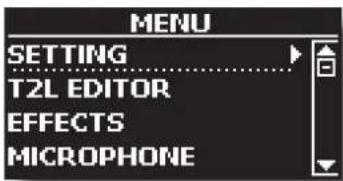
MAIN SETTING
This is where you can edit parameters related to the keyboard's Main part.
| Parameter Setting Explanation | ||
| Level 0 ~ 127 | Adjusts the volume of the Main keyboard part.Selecting “0” means that the part in question is no longer audible. | |
| Panpot -64 ~ 0 ~ +63 | Use this parameter to set the stereo placement of the signal. “0” means “no change”, negative values shift the signal towards the left, and positive values shift it towards the right. | |
| Parameter Setting Explanation | ||
| Octave -4 ~ 0 ~ | +4 | Use this parameter to transpose the Main part up or down by up to 4 octaves. |
| Mute OFF, ON | Select "ON" to mute the keyboard part. | |
| Coarse Tune | -24 ~ 0 ~ +24 | The Coarse and Fine Tune are used to create interference patterns between two sounds of slightly different frequencies.Changes the pitch in semi-tone steps. |
| Fine Tune | -99 ~ 0 ~ +99 | Changes the pitch in steps of 1 cent (1/100 semi-tone). |
| Note Low | A0 ~ B7 | You can set the keyboard range for the Main part. |
| Note High | Bb0 ~ C8 | |
▶ COUPLED SETTING
Contains the parameters for the Coupled part.
| Parameter Setting | Explanation | |
| Level 0 ~ 127 | Same settings asthe Main part. See above. | |
| Panpot -64 ~ 0 ~ +63 | ||
| Octave -4 ~ 0 ~ +4 | ||
| Mute OFF, ON | Select "ON" to mute the keyboard part. | |
| Coarse Tune | -24 ~ 0 ~ +24 | The Coarse and Fine Tune are used to create interference patterns between two sounds of slightly different frequencies.Changes the pitch in semi-tone steps. |
| Fine Tune | -99 ~ 0 ~ +99 | Changes the pitch in steps of 1 cent (1/100 semi-tone). |
| Note Low | A0 ~ B7 | You can set the keyboard range for the Coupled part. |
| Note High | Bb0 ~ C8 | |
LOWER SETTING
Contains the parameters for the keyboard's Lower part. Same settings as Main and Coupled parts. See above.
KEYBOARD TOUCH
See "Adjusting the Keyboard Response (Key Touch)" (p. 34).
TRANSPOSE
This function allows you to transpose the VIVO H10V's pitch in semi-tone steps. Depending on the mode setting, this transposition applies to all sections or just a specific setting. For more details see "Transposing the Musical Key of the Keyboard" (p. 32).
▶ SPLIT MODE
This parameter allows you to set the point of keyboard split.
MEMO
You can also select this parameter by pressing and holding the [ ] button until the display shows the following page:
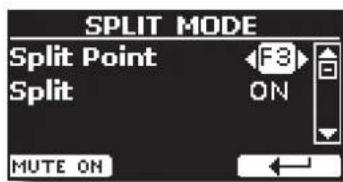
| Parameter Setting | Explanation | |
| Split Point | F1 ~ C#7Default: F3 | See "How to Change the Split Point" (p. 27). |
| Parameter Setting Explanation | ||
| Split | OFF, ONDefault: ON | See "How to Play All Parts at the Same Time (Layer or Split mode)" (p. 28). |
4 HANDS MODE
This function divides the keyboard into two sections, left and right zone so that two people can play the same range of pitches, just as though there were two pianos.
MEMO
You can also select this page by pressing and holding simultaneously press the [ ] and [ ] buttons.
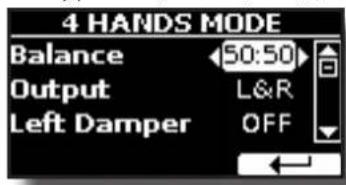
For more information regarding these parameters, see "Four Hands Mode" (p. 30).
T2L EDITOR
[MENU] button →T2L EDITOR
See "Personalizing Your Sounds (T2L)" (p. 42).
EFFECTS
[MENU] button → EFFECTS
Your instrument contains two multi-effects (FX-A and FX-B) processors that can be used for processing any Keyboard part you like.
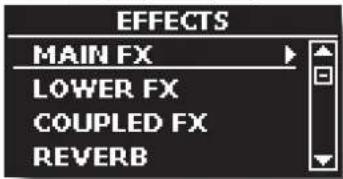
MAIN FX
This selection provides access to the display pages where you can set the effects parameters of the VIVO H10V's Main part.
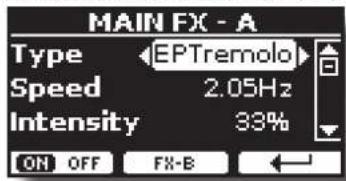
Refer to the "Effects Types and Parameters" table p. 71 for details regarding effects parameters.
For more details about selecting FXs and the relative parameters, see the section "Sound Effects" (p. 31).
LOWER FX
It contains the effect parameters for the keyboard's Lower part. Same settings as the Main part. See above.
▶ COUPLED FX
Contains the effect parameters for the Coupled part Same settings as the Main part. See above.
REVERB
See "Adding Reverb to the Sound" (p. 31).
MASTER EQ
See "Master Equalizer" (p. 35).
MICROPHONE
[MENU] button → MICROPHONE

VIVO H10V has a series of settings that help you to adapt your voice for different situations. In addition, it is possible to adjust any MIC parameters as you like to create your personal preset and save it into the memory.
For more details see "Using an Microphone (optional)" (p. 46).
Selecting a MIC Preset
- Press the [MENU/EXIT] button and select the MICROPHONE function. See "Moving the Cursor and Setting Parameter Values" (p. 25).
The following page is shown.
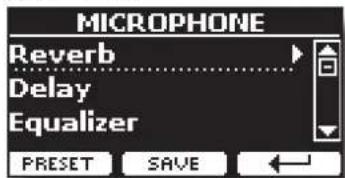
SPEAKER LEVEL
[MENU] button → SPEAKER LEVEL

See "How to Balance the Level of the Internal Speakers (Tweeter, Woofer and Back)" (p. 33).
CONTROL
[MENU] button →CONTROL

VOLUME
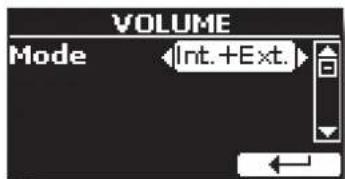
See "Adjust the Volume of the VIVO H10V" (p. 32).
▶ DAMPER PEDAL
This group of parameters, "DAMPER PEDAL", "CENTRAL PEDAL", and "LEFT PEDAL", are related to the pedal controls. The VIVO H10V allows you to manage and assign various functions to the pedals.
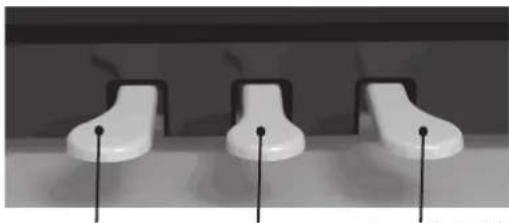
natural_image
Three white plastic objects with black outlines and black dots, arranged horizontally (no text or symbols visible)Damper PedalLeft Pedal Central Pedal
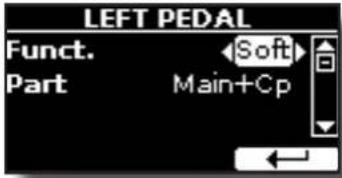
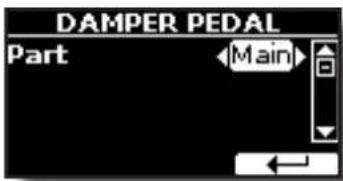
| Parameter Setting Explanation | ||
| Part | Off, Main, Coupled, Lower, Main+Lw, Main+Cp, Main+Lw+Cp, Lower+Cp | OFF: Select "OFF" if you don't need a damper pedal.MAIN, COUPLED, LOWER, MAIN+LW, MAIN+CP: the damper pedal is assigned to the specified part or parts. |
▶ CENTRAL PEDAL
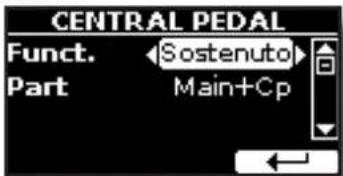
| Parameter Setting Explanation | ||
| Funct. | OFF,Sostenuto,Soft,FXA On-Off,FXB On-Off,Memory Prev,Memory Next,Rotary S/L,Part On/Off,XMure FillUp,XMure FillIDw,XMure SceneUp,XMure SceneDw,XMure Play,XMure Ending,FX Manual,Main Hold,Lower Hold,Coupled HoldDefault: Sostenuto | Off: No function assignedSee "Pedal Functions Explanation" (p. 65).MEMOSome functions are commands that do not need to specify the part (Main, Coupled, Lower or Bass). |
| Part | Off, Main, Coupled, Lower,Main+Lw, Main+Cp, Main+Lw+Cp,Low+Cp | OFF: Select "OFF" if you don't need a pedal.MAIN, COUPLED,LOWER, MAIN+LW, MAIN+CP,MAIN+LW+CP, LOW+CP: the pedal is assigned to the specified part or parts. |
LEFT PEDAL
| Parameter Setting Explanation | ||
| Funct. | OFF,Sostenuto,Soft,FXA On-Off,FXB On-Off,Memory Prev,Memory Next,Rotary S/L,Part On/Off,XMure FillUp,XMure FillDw,XMure SceneUp,XMure SceneDw,XMure Play,XMure Ending,FX Manual,Main Hold,Lower Hold,Coupled HoldDefault: Soft | Off: No function assigned.See "Pedal Functions Explanation" (p. 65).MEMOSome functions are commands that do not need to specify the part (Main, Coupled, Lower or Bass). |
Part Same as "Int. Part" of CENTRAL pedal. See the above explanation.
Pedal Functions Explanation
| Function Explanation | |
| Sostenuto The pedal is used as Sostenuto. | |
| Soft | The pedal is used as a Soft. The soft pedal reduces the volume and slightly changes the timbre of notes played while the pedal is pressed. |
| Damper | This assignment is proper when you use the "4 Hands" mode. See "Four Hands Mode" (p. 30). |
| FXA On-Off | Allows you to switch the MFXA/B on and off. |
| FXB On-Off | |
| Memory Prev Memory Next | It allows you to select the next or previous Memory. |
| Rotary S/L This function alternates between the fast and slow Rotary speeds. | |
| Part On/Off | Enable or disable the selected keyboard part. |
| XMure FillUp | Using these functions, you can select a the next or the previous drum pattern in the XMure® application. |
| XMure FillDw | |
| XMure SceneUp | These functions allow you to change the scene of the accompaniment in the XMure® application. |
| XMure SceneDw | |
| XMure Play | Play or Stop the playback of an XMure® pattern. |
| Xmure Ending | Select the Ending pattern. |
| FX Manual | You can control the "Manual" parameter of the effector. See the "16: Wah-Wah" (p. 72) and the "17: Cut Filter" (p. 73). |
| Main Hold | Enable or disable the hold function for the Main, Lower and Coupled parts. |
| Lower Hold | |
| Coupled Hold | |
TEMPO
[MENU] button → TEMPO
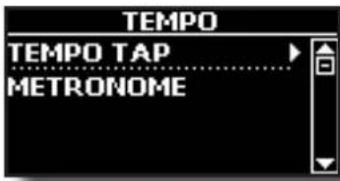
TEMPO/TAP
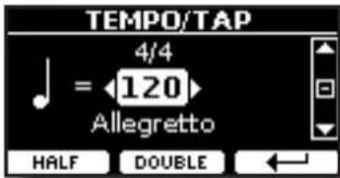
Please refer to "How to Adjust the Tempo Value" (p. 34) and "Use Tap Tempo Function to Set the Tempo Value" (p. 34).
METRONOME
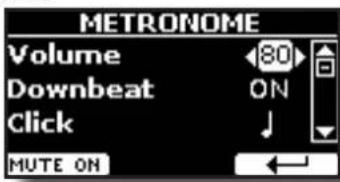
Please refer to "Practicing with the Metronome" (p. 33).
TUNING
[MENU] button → TUNING

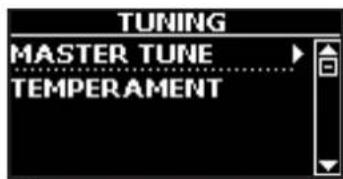
MASTER TUNE
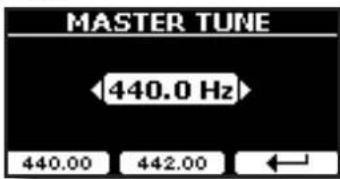
| Setting Explanation | |
| 415.4 Hz~ 440.00 Hz~ 466.1 Hz Select the desiderate tuning. | |
| "440.00 Hz" Function button Use the "440.00 Hz" and "442.00 Hz" Function buttons to tune the instrument at those values. | |
| "442.00 Hz" Function button | |
Some Information About the Master Tune
Pianos are generally tuned to an A 440 pitch standard adopted during the early 1900s in response to widely varying standards. Previously, the pitch standards had gradually risen from about A 415 during the late 1700s and early 1800s to A 435 during the late 1800s. Though A 440 is generally the standard, some orchestras, particularly in Europe, use a higher pitch standard, such as A 444.
TEMPERAMENT
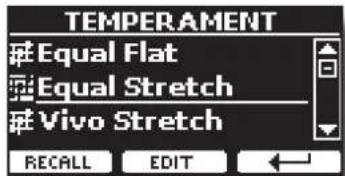
The modern pianos are tuned in Equal Stretch temperament, in which every pair of adjacent pitches is separated by the same interval.
There are other scales used in different music styles. Modern musical scales in Western culture are different in one other way from older classic music. At the time of Bach, the scales were based on the note A being about 415 Hz. In Handel's time the frequency A was 422.5 Hz and today it is 440.0 Hz.
| Setting Explanation | |
| Equal Flat | This tuning divides each octave into 12 equal steps (intervals). |
| Equal Stretch (default) | This tuning is a correction of Equal Flat. A benefit of stretching octaves is the correction of dissonance that equal temperament imparts to the perfect fifth. |
| VIVO Stretch | This tuning is similar to the Equal Stretch, with minor adjustments to make it more suitable for piano sounds. |
| Vallotti | This tuning is the default for many of today's Baroque musicians. |
| Just Major This is a just scale for pieces in major keys. | |
| Pythagorean | This system was invented in ancient Greece. It resolves the ambiguity of fourths and fifths. Though thirds are somewhat imperfect, melodies sound clearer. |
| Mean-Tone | A temperament that adds some compromises to the just temperament and facilitates transposition. |
| Werckmeister III | A combination of the Mean Tone and Pythagorean temperaments, this tuning allows for playing in any key. |
| Kimberger III | As a result of improvements made to the Mean Tone and Just temperaments, this tuning system is relatively tolerant towards transposition and can be used to play in all keys. |
| User 1, User 2, User 3 | These settings refer to the tuning systems programmed by yourself (or someone else). |
- Select your favourite temperament scale.
- Press the "RECALL" Function button to load the scale.
The temperament scale is recalled.
Editing the Equal Flat, Equal Stretch or Vivo Stretch scale
If you selected the Equal Flat, Equal Stretch or Vivo Stretch scale: The "EDIT" Function button appears.
- Press the "EDIT" Function button to program your scale.
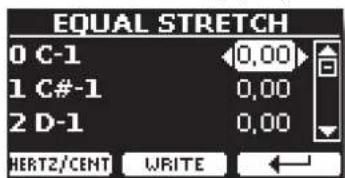
In the example above we select the Equal Stretch scale.
- Use the [▲][▼] or play a note on the keyboard to select a note.
- Use the [◀][▶] buttons to modify the tuning of the selected note.
- Press the [FINE] Function button to change the tuning in steps of 1/100 of a cent.
| Setting Explanation | |
| -99.99 ~ 0 ~ +99.99 (cent) Set the note tuning. | |
- Press the "WRITE" Function button to save your scale.
The following page appears:

- Use the [▲][▼] buttons to select the USER scale where you want to save your scale.
- Press the "WRITE" Function button to save your scale.
A message of confirmation appears.
If you selected a scale other than equal temperament:
- If you selected a scale other than equal temperament as Pythagorea, Mean-Tone, Werckmeister III, Kimberger III and the Just Major and Minor temperament scale, you can specify the root note:
The "ROOT NOTE" Function button appears.
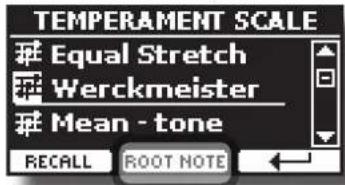
- Press the "ROOT NOTE" Function button if you want specify the base note.
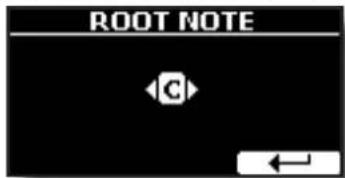
- Select the root note.
| Setting Explanation | |
| C, C#, D, E#, E, F, F#, G, A#, A, B#, B | Select the base note of the temperament scale. |
- Press the "←" Function button to come back to the previous page.
If you selected one of the USER scales:
The "EDIT" Function button appears.
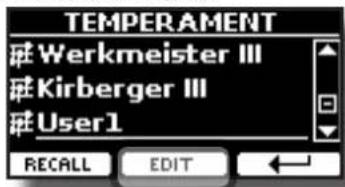
- Press the "EDIT" Function button to program your scale.
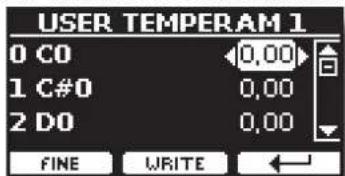
- To select a note, use the [▲][▼] or play a note on the keyboard.
- Use the [◀][▶] buttons to modify the tuning of the selected note.
- Press the [FINE] Function button to change the tuning in steps of 1/100 of a cent.
| Setting Explanation | |
| -99.99 ~ 0 ~ +99.99 (cent) Set the note tuning. | |
- Press the "WRITE" Function button to save your scale.
A message of confirmation appears.
- Press the "←" Function button to come back to the previous page.
MEMORY
[MENU] button → MEMORY
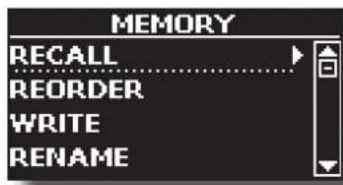
For the explanation of this section please refer to "Working with the Memories" (p. 53).
USB MEMORY
[MENU] button → USB MEMORY
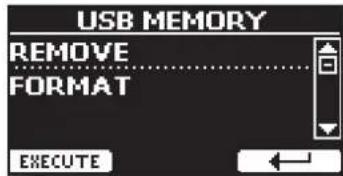
REMOVE
Before unplugging the USB Memory, use this function to safely remove it. See "Safely Remove the USB Memory" (p. 22).
FORMAT
Use this function to format your USB Memory. See "How to Format the USB Memory" (p. 21).
USB AUDIO
[MENU] button → USB AUDIO
Use this function if you need to adjust the audio output and input levels via USB.
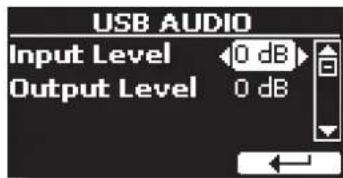
| Parameter Setting | |
| Input Level | -inf ~ 0 dBDefault: 0 dB |
| Output Level | -inf ~ 0 dBDefault: 0 dB |
BLUETOOTH
[MENU] button → BLUETOOTH
VIVO H10V Pianos are equipped with Audio and MIDI Bluetooth ^® (4.2 Low Energy) functions.
Thanks to this technology, you'll be able to stream music and send MIDI data wirelessly from a Bluetooth® capable smartphone, tablet or computer to VIVO H10V.
For details, see "Wireless Function" (p. 59).
MIDI
[MENU] button → MIDI
This group allows you to configure the MIDI parameters. You can transfer MIDI data between the VIVO H10V and your sequencer software.
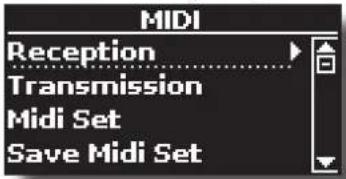
Here is a brief explanation of VIVO H10V keyboard parts:
| Part Explanation | |
| Main | At power-on, the instrument is automatically selected in Grand Piano Mode. The Main part plays over the entire keyboard.Main Part |
| Coupled | This part can be combined with the Main part. To do this press the [ ] button. The second part (Coupled Part) plays over the entire keyboard in combination with the Main part.Main Part + Coupled Part |
| Lower | This part is activated when you split the keyboard into two zones: Left and Right. To split the keyboard press the [ ] button. The Keyboard is now divided into two sections. The region of the keyboard to the left of the split point becomes the Lower part, while the region of the keyboard to the right of the split point becomes the Main part.Lower Part Main Part |
- Select the group of parameters you need (Reception, Transmission and Global).
RECEPTION
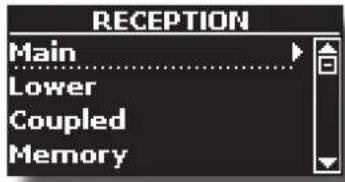
You can configure the MIDI receive parameters of the Main, Coupled and Lower parts.
- Select the part you want to edit (Main Coupled and Lower).
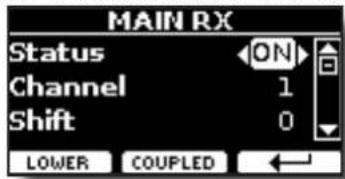
In the example above, we selected the Main keyboard part.
| Main, Coupled, Lower | ||
| Parameter Setting | Explanation | |
| Status | Off, OnDefault: On | Select “On” if you want the selected part to receive MIDI data. |
| Channel | 1 ~ 16Default: 1 | Allows you to assign a MIDI receive channel to the selected part. |
| Shift | -48~0~+48Default : 0 | This parameter lets you to transpose the received note messages before sending them to the VIVO H10V’s tone generator.The maximum possible transposition is four octaves up (48) and down (-48).Each step represents a semi-tone. |
| Modulation | Off, OnDefault: On | These filters allow you to specify whether (On) or not (Off) the messages in question should be received. |
| Volume | ||
| Panpot | ||
| Expression | ||
| Reverb | ||
| Hold | ||
| Sostenuto | ||
| Soft | ||
| PG (Program Change) | ||
| PB (Pitch Bender) | ||
| Part MIDI RX channel (default) | |
| Main 1 | |
| Coupled 2 | |
| Lower 3 | |
| Memory 15 | |
- If you selected the "Memory" part, the following page is shown:
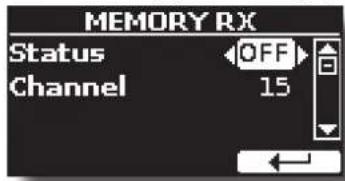
| Memory | ||
| Parameter Setting | Explanation | |
| Status | OFF, ONDefault: On | Select “On” to receive MIDI messages for the memories selection. |
| Channel | 1 ~ 16default: 15 | Allows you to assign a MIDI receive channel to the "Memory" part. |
TRANSMISSION
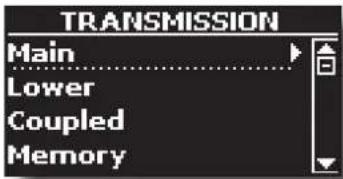
You can configure the MIDI transmission parameters of the Main, Coupled and Lower parts.
- Select the part you want to edit (Main Coupled and Lower).
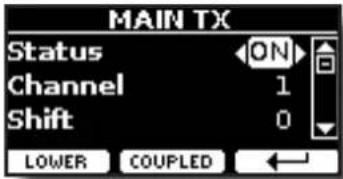
In the example above, we selected the Main part.
| Main, Coupled, Lower | ||
| Parameter Setting | Explanation | |
| Status | Off, OnDefault: On | Select "On" if you want the selected part to transmit MIDI data. |
| Channel | 1 ~ 16Default: 1 | Allows you to assign a MIDI transmit channel to the selected part. |
| Shift | -48~0~+48Default : 0 | This parameter lets you transpose the note messages before transmitting them to an external MIDI device. The maximum possible transposition is four octaves up (48) or down (-48). |
| Local | Off, OnDefault: On | You can disconnect the part from the internal sound source ("Off") – or re-establish that connection ("On"). |
| Modulation | Off, OnDefault: On | These filters allow you to specify whether (On) or not (Off) the messages in question should be transmitted. |
| Volume | ||
| Panpot | ||
| Expression | ||
| Reverb | ||
| Hold | ||
| Sostenuto | ||
| Soft | ||
| PG (Program Change) | ||
| PB (Pitch Bender) | ||
- If you selected the "Memory" part, the following page is shown:
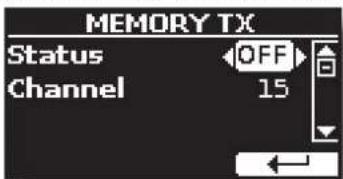
| Memory | ||
| Parameter Setting Explanation | ||
| Status | OFF, ONDefault: On | Select "On" to transmit MIDI messages when you recall a memory.See "Working with the Memories" (p. 53). |
| Channel | 1 ~ 16default: 15 | Allows you to assign a MIDI transmit channel to the "Memory" part. |
MIDI SET
MIDI Sets are memories for MIDI settings. The VIVO H10V provides four MIDI Set memories. The first memory, "Dexibell", is read-only and allows you to restore the MIDI factory setting. The other three memories allow us to memorize and recall your MIDI configuration.
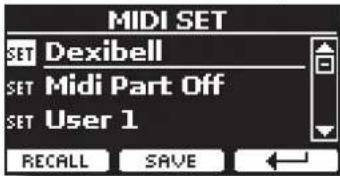
- Use the [▲][▼] to select the MIDI Set and press the "RECALL" Function button to load it.
- Press the "SAVE" Function button to jump into the SAVE MIDI SET page.
SAVE MIDI SET
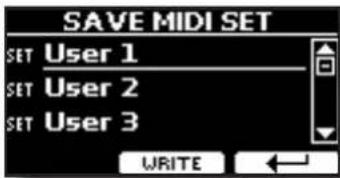
- Use the [▲][▼] to select the MIDI Set memory and press the "WRITE" Function button to save your configuration.
▶ EXPORT MIDI SET
You can save your MIDI SET in a USB Memory.
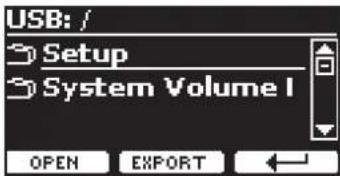
- Connect the USB Memory to which you wish to save the data. See "Connecting an USB Memory (commercially available)" (p. 21).
- Use the "OPEN" function button to select the folder where you to want save the data.
- Press the "EXPORT" function button to perform the export operation.
IMPORT MIDI SET
You can load your MIDI SET previously saved in a USB Memory.
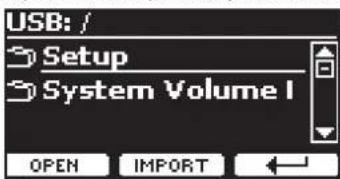
-
Connect a USB Memory containing the previously saved MIDI SET data. See "Connecting an USB Memory (commercially available)" (p. 21).
-
Use the "OPEN" function button to select the folder that contains the data.
- Press the "IMPORT" function button to perform the operation.
GLOBAL
[MENU] button → GLOBAL

These parameters allow you to adjust some global aspects of your piano. These parameters are automatically saved in the VIVO H10V global memory area.
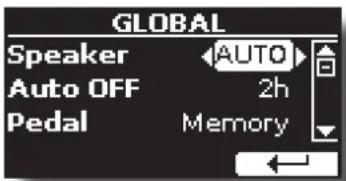
| Parameter Setting Explanation | ||
| Speaker OFF, ON, AUTO | OFF: When you use VIVO H10V for live performances and, therefore, connect it to an external amplification system, it may be convenient to switch off the internal speakers.ON: Choose this option to use VIVO H10V internal speakers. Connecting a pair of headphones, the internal speakers continue to produce sound.AUTO: Choose this option to use the VIVO H10V internal speakers. Connecting a pair of headphones mutes the internal speakers. | |
| Auto OFF | Off, 5 min, 10 min, 30 min, 2 hours, 4 hoursDefault: 2 hours | This parameter allows you to cause the VIVO H10V to switch itself off after the selected number of minutes has elapsed if you are not using it.Select “Off” if you prefer not to use this function. |
| Pedal Global, Memory | Global: Set this value if you want the pedal assignments to be saved in the global area. The pedal assignment does not depend on the recalled memory.Memory: Set this value if you want the pedal assignments to be saved in the Memories. The pedal assignment depends on the recalled memory. | |
| Auto On OFF, ON | ON: Set this value if you want the instrument to turn on automatically when it is powered. This can be useful in a shop when you turn on the electrical panel in the morning.OFF: Set this value if you don’t want the instrument to turn on automatically when it is powered. | |
| 4 Hands 4 Hands, Split+Layer | 4 Hands: Use this setting if you want to play in a duet (4 hands) by pressing the [ ####] and [ ####] buttons simultaneously.Split+Layer: Use this setting to play all parts (three tones)in layer or split mode pressing the [ ####] and [ ####] button simultaneously. | |
| Lid Sensor OFF, ON | OFF: The Lid Sensor is not operating (default).ON: Choose this option to exclude the amplification of the top speakers’ box when the top lid is closed. | |
SOUND LIBRARY
[MENU] button → SOUND LIBRARY
You can import the sounds library into the internal memory of VIVO H10V and use them in your performances. For details, see "Additional Sound (Sound Library)" (p. 38).
SOUND SETUP
[MENU] button → SOUND SETUP
This proper function allows you to prepare a sound set for a performance. For detail, see "Sound Setup (Export/Import)" (p. 41).
You can also download sound sets from the http://www.dexibell.com/website at your convenience.
SOUND LIST
[MENU] button → SOUND LIST
This function allows you to reorder the tone list. Please see "How to Reorder the Tone List" (p. 29).
FACTORY RESET
[MENU] button → FACTORY RESET
This function allows you to recall the VIVO H10V's original factory settings. Please see "Restoring the Factory Settings (Factory Reset)" (p. 36).
FACTORY SOUND
[MENU] button → FACTORY SOUND
This function allows you to restore all sound libraries as they came out of the factory. Please see "Restore the Factory Sounds" (p. 36).
BACKUP
[MENU] button → BACKUP
This function allows you to back up your data. See "How to Protect Your Settings, Contents and Sounds List (Backup)" (p. 37).
PANIC
[MENU] button → PANIC
Use this function if some operation from your VIVO H10V or an external sound generator (connected via a MIDI cable) causes strange sounds or some notes are stuck. See "Panic Function" (p. 37).
VERSION INFO
[MENU] button → VERSION INFO
This page shows you the version number of the VIVO H10V's operating system.
Effects Types and Parameters List
1: Thru
The effects processor is bypassed.
2: EP Tremolo
This effect cyclically modulates (Speed) the amplitude (Intensity) to add tremolo to the sound. It's the typical electric piano effect.
| Parameter Setting Explanation | |
| Speed 0.10 ~ 12.50 Hz Sets the speed of the tremolo effect. | |
| Intensity 0 ~ 100 Depth to which the effect is applied. | |
3: Equalizer
This is a four-band stereo equalizer (low, mid x 2, high).
| Parameter Setting Explanation | ||
| Low Freq 40 ~ | 400 Hz Selects the frequency of the low range. | |
| Low Gain -12 ~ | 0 ~ +12 Adjusts the gain of the low frequency. | |
| High Freq 400 | Hz ~ 8 KHz Selects the frequency of the high range. | |
| High Gain -12 ~ | 0 ~ +12 Adjusts the gain of the high frequency. | |
| Mid1 Freq | 100Hz ~ 4 KHz | Selects the frequency of the Mid1 range. |
| Mid1 Gain | -12 ~ 0 ~ +12 Adjusts the gain of the Mid1 frequency. | |
| Mid1 Q | 0.5 ~ 12.0 | Move this parameter to adjust the width of the area around the Middle 1 frequency that will be affected by the Gain setting.Higher values of Mid1 Q set the narrowest area. |
| Mid2 Freq | 100Hz ~ 4KHz | Selects the frequency of the Mid2 range. |
| Mid2 Gain | -12 ~ 0 ~ +12 Adjusts the gain of the Mid2 frequency. | |
| Mid2 Q | 0.5 ~ 12.0 | Move this parameter to adjust the width of the area around the Middle 2 frequency that will be affected by the Gain setting.Higher values of Mid2 Q set the narrowest area. |
4: Vibrato
Vibrato is a musical effect consisting of a regular, pulsating pitch change. It is used to add expression to instrumental music.
| Parameter Setting Explanation | ||
| Rate | 0.10 ~ 12.50 Hz Sets the speed of the vibrato effect. | |
| Intensity 0 ~ 100 Allows you to set the vibrato intensity. | ||
5: Flanger
This effect gives a significant swell and movement of pitch to the sound. It produces a metallic resonance effect.
| Parameter | Setting | Explanation |
| Rate | 0.10 ~ 12.50 Hz | Adjusts the modulation speed. |
| Intensity | 0 ~ 100 | It allows you to set the flanger intensity. |
| Parameter | Setting | Explanation |
| Feedback | -96 ~ +96 % | Adjusts the proportion of the flanger sound fed back into the effect.Negative (-) settings will invert the phase. |
| Balance 0 ~ 100 | Balance the Volume between the direct and the effect sound. | |
| PreDelay 0 ~ 100 ms | Adjusts the delay from the direct signal and when the flanger starts working. | |
| Phase | 0 ~ 180 deg | This sets the LFO phase difference between the left and right in steps of 10 degrees. It gives more spatial of the sound. |
6: Chorus
This effect adds thickness and warmth to the sound by modulating the delay time of the input signal. You can add spread to the sound by offsetting the phase of the left and right LFOs from each other.
| Parameter Setting | Explanation | |
| Rate | 0.10 ~ 12.50 Hz | Adjusts the modulation speed. |
| Intensity 0 ~ 100 | It allows you to set the chorus intensity. | |
| Feedback | -96 ~ +96 % | Adjusts the proportion of the chorus sound that is fed back into the effect.Negative (-) settings will invert the phase. |
| Balance | 0 ~ 100 | Balance the Volume between the direct and the effect sound. |
| PreDelay 0 ~ 100 ms | Adjusts the delay from the direct signal and when the chorus starts working. | |
| Phase | 0 ~ 180 deg | This sets the LFO phase difference between the left and right in steps of 10 degrees. |
7: Phaser
This effect creates a swell by shifting the phase. It is very effective on electric piano sounds. You can add spread to the sound by offsetting the phase of the left and right LFOs from each other.
| Parameter Setting Explanation | ||
| Rate | 0.10 ~ 12.50 Hz Adjusts the modulation speed. | |
| Intensity 0 ~ 100 It allows you to set the phaser intensity. | ||
| Feedback | -96 ~ +96 % | Adjusts the proportion of the phaser sound fed back into the effect.Negative (-) settings will invert the phase. |
| Phase | 0 ~ 180 deg | This sets the LFO phase difference between the left and right in steps of 10 degrees. |
8: Reverb
This effect adds reverberation to the sound, simulating an acoustic space as a room or an enormous hall or stadium.
| Parameter Setting | Explanation | |
| Level | 0 ~ 127 Set the quantity of the Reverb effect. | |
| Damping 0 ~ 127 | Adjusts the room's damping (Carpet, Wood, Brick, Concrete, Marble).Higher values increase the amount of high-frequency attenuation. | |
| Room Size 0 ~ 127 | It determines the size of the simulated room. | |
| Parameter Setting Explanation | ||
| Width 0 ~ 127 | Adjusts the stereo width of the Reverb effect.Higher values increase the stereo width. | |
| PreDelay 0 ~ 100 ms | Adjusts the delay from the direct signal and when the reverb starts working. This simulates the distance between the original signal and the reflective surfaces. | |
9: Delay
The delay effect is used to simulate echo (repetition).
| Parameter Setting Explanation | ||
| Delay L 0 ~ 750 ms Sets the delay time for the left channel. | ||
| Delay R 0 ~ 750 ms Sets the delay time for the right channel. | ||
| Feedback -96 ~ +96 % | Adjusts the proportion of the delay sound fed back into the effect.Negative (-) settings will invert the phase. | |
| Wet | 0 ~ 100 % | Adjusts the quantity of the delayed ("wet") signal. |
| Dry | 0 ~ 100 % | Adjusts the quantity of the unmodified ("dry") signal. |
10: Cross Delay
Cross Delay allows you to create advanced stereo delay.
Each echo can be sent to the opposite channel from the source signal (the echo of the left channel is heard on the right).
| Parameter | Setting | Explanation |
| Delay L 0 ~ | 750 ms Sets the delay time for the left channel. | |
| Delay R | 0 ~ 750 ms Sets the delay time for the right channel. | |
| Feedback | -96 ~ +96 % | Adjusts the proportion of the delay sound fed back into the effect.Negative (−) settings will invert the phase. |
| Wet | 0 ~ 100 % | Adjusts the quantity of the delayed ("wet") signal. |
| Dry | 0 ~ 100 % | Adjusts the quantity of the unmodified ("dry") signal. |
11: Triple Tap Delay
The Triple Tap Delay produces three delay sounds: center, left and right.
| Parameter | Setting | Explanation |
| Delay L | 0 ~ 750 ms | Sets the delay time for the left channel. |
| Delay R 0 ~ | 750 ms Sets the delay time for the right channel. | |
| Delay C 0 ~ | 750 ms Sets the delay time for the centre (L+R) channel. | |
| Feedback | -96 ~ +96 % | Adjusts the proportion of the delay sound fed back into the effect.Negative (-) settings will invert the phase. |
| Level L | 0 ~ 100 Adjust the volume of the left delay sound. | |
| Level R 0 ~ | 100 Adjust the volume of the right delay sound. | |
| Level C 0 ~ | 100 Adjust the volume of the centre delay sound. | |
| Wet | 0 ~ 100 % | Adjusts the quantity of the delayed ("wet") signal. |
| Dry | 0 ~ 100 % | Adjusts the quantity of the unmodified ("dry") signal. |
12: Rotary
The rotary is a typical effect generated by the rotation of the speakers, this rotation creates a Larsen effect. It gives spaciousness
to the sound.
| Parameter Setting | Explanation | |
| Speed | Slow, Fast | Switches the speaker rotation speed between slow and fast. |
| Brake OFF, ON | This parameter allows you to control the wheel brake manually.Off is the default; the tone wheels will turn usually.Changing this to On will make the tone wheels gradually slow down and stop. | |
| Vibrato Sw | OFF, ON | Disable and enable the vibrato effect. |
| Vibrato Type | V1, C1, V2, C2, V3, C3 | This selects one of the six classic Vibrato/Chorus presets."V" stands for Vibrato, and "C" stands for Chorus. |
13: Tremolo
This effect cyclically modulates (Speed) the amplitude (Intensity) to add tremolo to the sound.
| Parameter Setting Explanation | ||
| Speed | 0.10 ~ 12.50 Hz | Sets the speed of the tremolo effect. |
| Intensity | 0 ~ 100 | Depth to which the effect is applied. |
14: Tremolo Pan
This effect is similar to the Tremolo. It includes an extra parameter indicating the left or right channel phase.
| Parameter Setting Explanation | ||
| Speed | 0.10 ~ 12.50 Hz | Sets the speed of the tremolo effect. |
| Intensity | 0 ~ 100 | Depth to which the effect is applied. |
| Phase 0 ~ 180 deg | This sets the LFO phase difference between the left and right in steps of 10 degrees. | |
15: Overdrive
This effect is designed to work and sound like an old tube amp turned up loud. It is suitable for hard rock and similar musical genres.
| Parameter | Setting Explanation | |
| Drive | 1 ~ 100 | Higher Drive settings mean more distortion. |
| Tone | 100 Hz ~ 10.0 KHz | Use this parameter to accent or attenu-ate certain dominant or unwanted overtones. |
| Level | 0 ~ 100 | Increase or decrease the volume of the effect. |
| Low Freq | 80 ~ 400 | Selects the frequency of the low range. |
| Low Gain -12 ~ | 0 ~ +12 | Adjusts the gain of the low frequency. |
| High Freq | 800Hz ~ 8KHz | Selects the frequency of the high range. |
| High Gain -12 ~ | 0 ~ +12 | Adjusts the gain of the high frequency. |
16: Wah-Wah
It is a type of effect that alters the tone and frequencies of the input signal to create a unique sound, mimicking the human voice and taking the onomatopeic name "Wah-Wah".
| Parameter | Setting Explanation | |
| Mode | Auto, Manual,Envelope | Auto: The "Manual" parameter is automatically controlled by the internal LFO.Manual: The "Manual" parameter is controlled by the Central and Left pedal. See "CENTRAL PEDAL" (p. 65) and "LEFT PEDAL" (p. 65).Envelope: the effect is controlled by the envelope of the sound and, consequently, by the dynamics of the notes played on the keyboard. |
| Manual 0 ~ | 127 | Adjusts the centre frequency at which the effect is applied.This parameter is controlled by the Central and Left pedal. See "CENTRAL PEDAL" (p. 65) and "LEFT PEDAL" (p. 65). |
| Filter | Low Pass, High Pass,Band Pass, Peak | Low Pass: The wah effect will be applied over a low-frequency range.High Pass: The wah effect will be used over a high-frequency range.Band Pass: The wah effect will be spread over a narrow frequency range.Peak: The wah effect will be applied over a specific centre frequency. |
| Low Freq | 100Hz ~ 10.0KHz Selects | the frequency of the low range. |
| High Freq | 100Hz ~ 10.0KHz Selects | the frequency of the High range. |
| Low Q 0.5 ~ | 10.0 Move this parameter to adjust the width of the area around the Low or High frequency. | |
| Hi Q 0.5 ~ | 10.0 | |
| LFO Rate 0 | 1Hz ~ 12.50Hz Frequency of modulation. | |
| LFO Curve | Linear, Quadratic LFO curve trend. | |
| Balance 0 %~ 100% | Adjusts the balance between the original and the effect sound. | |
| Env Threshold | -40dB ~ 0dB | Adjusts the threshold of the envelope. |
| Env Attack | 0ms ~ 250ms | Adjusts the attack of the envelope. |
| Env Release | 0ms ~ 1000ms | Adjusts the release of the envelope. |
17: Cut Filter
This filter that attenuates ("cut") some frequency range.
| Parameter | Setting | Explanation |
| Manual | 0 ~ 127 | Adjusts the centre frequency at which the effect is applied.This parameter is controlled by the Central and Left pedal. See "CENTRAL PEDAL" (p. 65) and "LEFT PEDAL" (p. 65). |
| Slope | 12db/Ocatve, 24db/Ocatve | The slope of filter attenuation is usually quantified in decibels per octave. |
| Type | Low Pass, High Pass, Band Pass, Peak | Low Pass: Attenuating the frequencies above a cutoff frequency allows low frequencies to pass through the filter.High Pass: Attenuates the frequencies below a cutoff frequency, allowing high frequencies to pass through the filter.Band Pass: The filter is applied over a narrow frequency range.Peak: The filter is applied over a specific centre frequency. |
| Low Freq | 100Hz ~ 10.0KHz | Selects the frequency of the low range. |
| High Freq | 100Hz ~ 10.0KHz | Selects the frequency of the High range. |
| Low Q | 0.5 ~ 10.0 | Move this parameter to adjust the width of the area around the Low or High frequency. |
| Hi Q | 0.5 ~ 10.0 |
18: Compressor
This filter that attenuates ("cut") some frequency range.
| Parameter Setting | Explanation | |
| Threshold -40dB ~ 0dB | The compression is activated only when the input signal exceeds the threshold level. Input levels above the threshold will be compressed, and input levels below the threshold will not be compressed. | |
| Ratio | 1:1 ~ inf:1 | This parameter determines how strong is the compression.• At 1:1, the compressor has no effect.• For all other values, the output signal will be compressed according to the ratio value.• At Inf:1, the compressor becomes a brick-wall limiter; once the signal hits the Threshold, the output level will no longer increase, regardless of the input level. |
| Knee Width 0.0 ~1.0 | Increasing this value will produce a more soft volume change around the Threshold level. | |
| Attack Time | 0ms ~ 250ms | This parameter determines how quickly the compressor will take effect after the signal crosses above the threshold. |
| Release Time | 0ms ~ 1000ms | This parameter controls how quickly the compressor will stop reducing the volume level after the signal falls below the threshold. |
| Makeup | -24dB ~ -24dB | Allows you to boost the compressed signal. as compression often attenuates the signal significantly. |
| Stereo Link | Off, On | Set the parameter "On" to operate in stereo mode. |
VIVO H10V Tone List
| Num. Name PC CC00 (MSB) | |||
| MODERN | |||
| 0001 Italian Live PLT 1 71 | |||
| 0002 Italian PLT 1 70 | |||
| 0003 Italian Classic PLT 1 72 | |||
| 0004 Italian Bright PLT 1 73 | |||
| 0005 Italian Memory PLT 1 74 | |||
| 0006 VIVO Upright 1 2 | |||
| 0007 Elec.Grand 3 2 | |||
| 0008 E.Grand Trem 3 3 | |||
| 0009 Rock Piano 3 | |||
| CLASSIC | |||
| 0010 USA Live PLT 1 61 | |||
| 0011 USA PLT 1 60 | |||
| 0012 USA Classic PLT 1 62 | |||
| 0013 USA Bright PLT 1 63 | |||
| 0014 USA Memory PLT 1 64 | |||
| 0015 French Grand 1 80 | |||
| 0016 French Live 1 81 | |||
| 0017 French Classic 1 82 | |||
| 0018 French Bright 1 83 | |||
| 0019 French Memory 1 84 | |||
| 0020 Ragtime 40 | |||
| 0021 Harpsi 8' 70 | |||
| 0022 Harpsi 4' 71 | |||
| 0023 Coupled Hps. 7 2 | |||
| 0024 Harpsi Lute 74 | |||
| 0025 Ceesta 90 | |||
| E.PIANO | |||
| 0026 EP Bell Chorus PLT 5 07 | |||
| 0027 EP Bell Phaser PLT 5 08 | |||
| 0028 EP Bell Tremolo PLT 5 09 | |||
| 0029 EP Bell OD PLT 5 10 | |||
| 0030 EP Bell Phr + Trm PLT 5 111 | |||
| 0031 EP Bell Flanger PLT 5 13 | |||
| 0032 EP Bell HardOD PLT 5 14 | |||
| 0033 EP Bell Bri+Cho PLT 5 115 | |||
| 0034 EP Bell PLT 5 06 | |||
| 0035 70s EP Chorus PLT 5 01 | |||
| 0036 70s EP Phaser PLT 5 02 | |||
| 0037 70s EP Tremolo PLT 5 103 | |||
| 0038 70s EP OD PLT 5 104 | |||
| 0039 70s EP Phr + Trm PLT 5 105 | |||
| 0040 70s EP Bright PLT 5 116 | |||
| 0041 70s EP Bri+Cho PLT 5 17 | |||
| 0042 70s EP Bri+Pha PLT 5 18 | |||
| 0043 70s EP Bri+Tre PLT 5 19 | |||
| 0044 70s EP PLT 5 100 | |||
| 0045 Dirty EPBell PLT 5 12 | |||
| Num. | Name | PC | CC00 (MSB) | ||
| 0046 | Dyho Stage | 50 | |||
| 0047 | Dyho Trem | 57 | |||
| 0048 | Dyho Bell | 58 | |||
| 0049 | Sutcase | 51 | |||
| 0050 | Phuser EP | 52 | |||
| 0051 | Wurly | 55 | |||
| 0052 | Trem.Wurly | 56 | |||
| 0053 | Soft E.Piano | 53 | |||
| 0054 | Bright E.Piano | 54 | |||
| 0055 | FM Full Tines | 60 | |||
| 0056 | FM E.Piano | 61 | |||
| 0057 | Cool Clav | 80 | |||
| 0058 | Groovy Clav | 81 | |||
| 0059 | Doctor Clav | 82 | |||
| 0060 | Funky Clay 8 3 | ||||
| 0061 | Wah-Wah Clav | 84 | |||
| 0062 | Drive Clav | 85 | |||
| ORGAN | |||||
| 0063 | Jazz Organ 18 | 0 | |||
| 0064 | Po#b Organ 17 | 2 | |||
| 0065 | Blues Organ | 18 | 1 | ||
| 0066 | Reggae Organ | 170 | |||
| 0067 | R& Organ | 17 | 1 | ||
| 0068 | Rock Organ | 19 | 0 | ||
| 0069 | Gospel Organ | 19 | 1 | ||
| 0070 | 88888888 | 18 | 2 | ||
| 0071 | 883233211 | 18 | 3 | ||
| 0072 | 864200357 | 18 | 4 | ||
| 0073 | 686040000 | 18 | 5 | ||
| 0074 | 883604000 | 18 | 6 | ||
| 0075 | Principal | 20 | 0 | ||
| 0076 | Princip&Flute | 20 | 1 | ||
| 0077 | Church | 20 | 2 | ||
| 0078 | Mixture | 20 | 3 | ||
| ENSEMBLE | |||||
| 0079 | Large Strings 50 5 | ||||
| 0080 | Easy Strings | 50 | 10 | ||
| 0081 | FastOrchestra | 50 | 4 | ||
| 0082 | Attack Strings | 49 | 2 | ||
| 0083 | Chair Strings | 52 | 1 | ||
| 0084 | MellowStrings | 50 | 6 | ||
| 0085 | Soft Strings | 50 | 7 | ||
| 0086 | 5th Strings | 50 | 8 | ||
| 0087 | Slow Analog | 50 | 9 | ||
| 0088 | Orchestra | 49 | 1 | ||
| 0089 | Classic Choir | 53 | 1 | ||
| 0090 | Space Vox | 55 | 1 | ||
| 0091 | Mrnh Choir | 53 | 0 | ||
| Num. | Name | PC | CC00 (MSB) | ||
| 0092 | Choir Pad | 54 | 1 | ||
| 0093 | Synth Vox | 55 | 0 | ||
| 0094 | Warm Pad | 90 | 0 | ||
| 0095 | Organ Pad | 90 | 3 | ||
| 0096 | Square Pad | 90 | 2 | ||
| 0097 | Full Brass | 62 | 3 | ||
| 0098 | Trumpet Sect. | 57 | 3 | ||
| 0099 | Trumpet | 57 | 2 | ||
| 0100 | Tenor Sax | 67 | 0 | ||
| 0101 | Soprano Sax | 65 | 0 | ||
| 0102 | Alto Sax | 66 | 0 | ||
| 0103 | Horns | 61 | 0 | ||
| 0104 | Classic Trumpet | 57 | 0 | ||
| 0105 | Flugelhorn | 57 | 1 |

(MORE)
| 0106 Vibraphone | 12 | 0 | |
| 0107 Marimba | 13 | 0 | |
| 0108 Clarinet | 72 | 0 | |
| 0109 Flute | 74 | 0 | |
| 0110 Harmonica | 23 | 0 | |
| 0111 Obpe | 69 | 0 | |
| 0112 Viola | 42 | 0 | |
| 0113 Violin | 41 | 0 | |
| 0114 Nylon Guitar | 25 | 0 | |
| 0115 Steel Guitar | 26 | 0 | |
| 0116 Elec. Bass | 34 | 2 | |
| 0117 Soft Slap Bs | 37 | 0 | |
| 0118 Hard Slap Bs | 37 | 1 | |
| 0119 5 String Bass | 34 | 1 | |
| 0120 Picked Bs. | 35 | 0 | |
| 0121 Fingered Bs. | 34 | 0 | |
| 0122 Double Bass | 33 | 3 | |
| 0123 Double Bs&Ride | 33 | 4 | |
| 0124 Acoustic Bs. | 33 | 0 | |
| 0125 AcBass&Ride | 33 | 1 |
| Symptom Action Page | |||
| Power turns automatically off. | This is normal and due to the Auto Power Off function. If necessary, set the parameter of the Auto Power Off function.If you don't need the power to turn off automatically, turn the "AUTO OFF" setting "Disable". | 70 | |
| The instrument does not turn on. | Is the AC adaptor/power cord correctly connected to an AC outlet and to the VIVO H10V?NOTEDo not use any AC adaptor or power cord other than the ones included. Doing so will cause malfunctions. | 18 | |
| Could you have turned the power on again immediately after turning the power off?Allow an interval of at least five seconds before turning the power on again. | - | ||
| No sound from the VIVO H10V. | Did you switch the VIVO H10V on? 22 | ||
| Could the [VOLUME] knob be turned down? Select a higher setting. - | |||
| Could the part volume settings have been minimized?Check the "LEVEL" setting of each part. | 63 | ||
| The volume level of the instrument is too low when it is connected to an amplifier. | Could you be using a connection cable that contains a resistor?Use a connection cable that doesn't contain a resistor. | - | |
| The microphone level is too low. | Make sure that your microphone is connected correctly. 19 | ||
| Could the [VOLUME] knob be turned down? Select a higher setting. 46 | |||
| The keyboard volume is lower than the Song playback volume. | The volume level for the keyboard performance is set too low. Adjust the volume balance to increase the keyboard volume via the Song Control Menu. | 51 | |
| The pitch of the instrument is incorrect. | Is the "Tuning" or "Temperament" setting appropriate? Check the parameters. 66 | ||
| Did you transpose the instrument? 63 | |||
| A "buzz" is heard from the external amplifier. | Is the external amplifier or other device used with the VIVO H10V connected to a different AC power outlet?Connect the amplifier or other device to the same AC outlet as the VIVO H10V. | - | |
| The noise may be due to interference caused by the use of a mobile phone in close proximity to the instrument.Turn off the mobile phone, or use it further away from the instrument. | - | ||
| After connecting theVIVO H10V's USB COMPUTER port to your computer, the VIVO H10V doesn't receive MIDI messages. | The VIVO H10V may be receiving on a MIDI channel on which the MIDI controller doesn't transmit.Correct the MIDI controller's transmit channel. | 68 | |
| Unable to read from/write to USB Memory. | Check the format of your USB Memory. The VIVO H10V can use USB Memory that has been formatted as FAT. If your USB Memory was formatted using any other method, please re-format it as MS-DOS FAT. | - | |
| Can't save to USB Memory. | Could the USB Memory be write protected? - | ||
| Is there sufficient free space on the USB Memory? - | |||
| Audio recording won't start or stops unexpectedly. Is | there sufficient free space on the USB Memory? - | ||
| The songs won't play. | The file type of the song is not one of the file types that the VIVO H10V can play. 50 | ||
| It may be that the song data is damaged. - | |||
| This "dexi-piano-xx" model name does not appear in the Bluetooth device list of your mobile device. | Is the "Visible" parameter of VIVO H10V set "On". 59 | ||
| The music data played back by the mobile device cannot be heard through VIVO H10V. | It was initiated the pairing function between this unit and the mobile device?Delete the registration from the list of your mobile device and establish pairing once again. | 59 | |
| ITEMS | VIVO H10V | ||
| KEYBOARD TYPE | TP-400 W (Hybrid, Wood) 88 Keys - Weighted, Hammer action,Triple contactIvory & Ebony feelsEscapement | ||
| TECNOLOGY/CPU Quad Core Cortex @ 1.8 GHz 4GB memory | |||
| TONE GENERATOR T2L: Sampling and Modelling Technology | |||
| SAMPLING XXL wave size, holophonic recording up to 15 seconds on lower piano notes | |||
| SOUND WAVE FORMAT 24 bit linear - 48 KHz (Internal processing and DSP at 32 bit floating) | |||
| DIGITAL ANALOG CONVERTION (DAC) 24 bit linear - 48 KHz, Dynamic Range, S/N:106dB | |||
| MAXIMUM POLYPHONY Unlimited with 320 Oscillator | |||
| SOUNDS | 125 including 3 PLATINUM soundsUser downloadable from website (Sound Font Compatible), using "seamless changes" technology at sound recall | ||
| MEMORY | Preset: 80User: Unlimited loadable from USB Memory | ||
| WAVE MEMORY | 3.2 GB fully changable by the user with DEXIBELL and Sound Font format | ||
| KEYBOARD MODE Layers, Split, 4 Hands, Layer + Split, 3 parts Layer | |||
| TOUCH SENSITIVITY 7 Types + Fixed | |||
| REVERB 24 Types | |||
| EFFECTS | 6 independent DSP Effects x 17 types (2 x Main, 2 x Coupled, 2 x Lower) using "seamless changes" technology at effect recall | ||
| MIC IN EFFECTS REVERB 14 types, 3-band EQ, Compressor, Low Cut Filter, Delay 6 types | |||
| MASTER EQUALIZER 3-band Digital Equalizer | |||
| PLAYER AUDIO .wav, .alff, .mp3, in all format, frequency and bit rate | |||
| RECORDER AUDIO .wav (48 kHz, 32-bit floating) on USB Memory | |||
| MASTER TUNING | YES: 415,4Hz to 466,1 Hz (adjustable increments of 0,1 Hz) + 2 Preset (440 Hz, 442 Hz) | ||
| TEMPERAMENT | 9 Types | ||
| USER TEMPERAMENT | 3 User | ||
| RHYTHM PATTERNS | X MURE APP for i-Phone and i-Pad (FREE) with multitracks audio patterns | ||
| METRONOME | Yes with Tap Tempo + 13 Standard Tempo Preset | ||
| CONTROLS | VOLUME, MIC EFFECT, MIC LEVEL | ||
| MUSIC REST | Yes, reclinable | ||
| PEDALS | Progressive Damper Action Pedal with sympatetic resonance simulationProgressive Soft Pedal / Function assignableSostenuto Pedal / Function assignable | ||
| Keyboard Lid | Folding with soft closing and reclining blind | ||
| Wireless Connections | Audio and MIDI Bluetooth® (4.2 Low Energy)Wi-FiTM (ready for future software version) | ||
| DISPLAY | Graphic LCD 128 x 64 dots Organic LED, high contrast type | ||
| CONNECTORS | DC IN socket | for supplied AC adaptor | |
| MIC IN jack 1/4-inch unbalanced mono phone type | |||
| Output (L/Mono, R) jacks | 1/4-inch phone type x 2 | ||
| Phones jacks | 1 x Stereo miniature phone type1 x Stereo 1/4-inch phone type | ||
| USB COMPUTER port | Type B | ||
| USB MEMORY port | Type A | ||
| Pedals Connector | DIN connector:Left Pedal (Assignable), Center Pedal (Assignable), Right Pedal | ||
| SPEAKERS | 2 woofer x 8.9 cm(3.5 inches)2 x 3 near-field speakers x 3.2 cm (1.3 inches)3 middle-high range (binaural system) x 6.35 cm (2.5 inches) | ||
| RATED POWER OUTPUT | Triamp: 112 W max @ THD+N < 0.1% | ||
| DSP ON AMPLIFIER | Dynamic EQ - 3 Band Compressor | ||
| AUTO POWER-ON AFTER SHUT-DOWN | Yes, selectable | ||
| ITEMS | VIVO | H10V | ||
| VOLUME LEVEL SPL 113.6 dB max | |||
| POWER SUPPLY 24V DC 5A, supplied AC/DC adaptor | |||
| POWER CONSUMPTION | Stand By: < 0,2 WMaximum: 70 W"ErP" LEVEL VI for Echo efficiency on stand-by consumption | ||
| DIMENSIONS | 1444 (W) x 592 (D) x 1150 (H) mm56-7/8 (W) x 23-5/16 (D) x 45-5/16(H) inches | ||
| WEIGHT | 103 kg (excluding AC adaptor)227 lbs 2 oz (excluding AC adaptor) | ||
| PACKAGE 1 box | |||
| SUPPLIED ACCESSORIES | Quick Guide | ||
| AC adaptor (DEXIBELL DYS6150-2400500W) | |||
| OPTIONS (sold separately) | Headphone: DEXIBEL DX HF7Bench: DEXIBELL DX BENCH | ||
- Bluetooth® is registered trademarks of Bluetooth SIG, Inc.
- Wi-Fi ^TV is registered trademarks of Wi-Fi Alliance.
NOTE
In the interest of product, the specification and description are subject to change without notice.
Simboli
A
AC Adaptor 18
Adding a Library 39
AUTO OFF 23
B
Balance 30
Main and the Lower part 27
Bluetooth ^® 59
C
Computer
Connecting Your Computer 21
CONTROLS 64
COUPLED FX 64
COUPLED SETTING 63
Cursor 24
Cursor Operation 24
Moving the cursor 25
D
DAMPER PEDAL 64
DC IN jack 18
Demo 23
Display 24
E
Effect
Reverb Effect 31
EFFECTS 64
Export
Exporting the Internal Memory Set 56
Exporting a Sound Set 41
External Amplifier
Connecting an External Amplifier 19
F
Factory Sounds 36
File name
Assigning the Name You Specify 25
Four Hands 30,38
G
GLOBAL 70
H
Headphones 19
Listening Through Headphones 18
How to Format the USB Memory ..... 21
|
Import
Importing Memory Set 56
Importing a Sound Set 41
J
K
Keyboard Response (Key Touch)
Adjusting the Keyboard Response 34
KEYBOARD TOUCH 63
Key Touch
Adjusting the Keyboard Response 34
L
Layer
Playing Two Sounds Over the Entire keyboard (Layer) 27
LAYER MODE 64
LEFT PEDAL 65
Lid
Opening and Closing the Lid 19
Lid Sensor 70
Lower
Mute the Lower Part 28
LOWER FX 64
LOWER SETTING 63
M
MAIN FX 64
MAIN SETTING 63
MASTER EQ 64
MASTER TUNE 66
Memories
Exporting the Internal Memory Set in the USB Memory 56
Importing Memory Set from the USB Memory into Internal Memory. 56
Recalling your settings from an USB Memory 55
Recalling your settings from Internal Memory 53
Renaming a Memory 55
Saving Your Settings in the Internal Memory 53
Working with the Memories 53
MEMORY 67
MENU
MENU Options (Advanced Section) 62
Metronome
Metronome Settings 33
Practicing with the Metronome 32
Setting the Metronome Time Signature 34
METRONOME 66
Metronome Settings 33
Microphone 46
MIDDLE PEDAL 65
MIDI 68
Mute
Mute the Lower Part
28
N
0
P
Parameters
GLOBAL 70
passkey 59
PEDAL
DAMPER PEDAL 64
LEFT PEDAL 65
MIDDLE PEDAL 65
Pedal Cord
Connecting the Pedal Cord 18,19
Power On/Off 22
Turning the Power On/Off 22
Q
R
Record
Recording Your Performance 52
Renamie
Renaming a Memory 55
Reverb
Reverb Effect 31
REVERB 64
S
Save
Saving Your Settings in the Internal Memory
Saving Your Settings in the USB Memory 54
SETTING
SETTING Parameters Group 63
Song
Playing a Song 50
Practice with Song Player 46,50
Sounds
Personalizing Your Sounds 42
Sound Setup 41
Specifications 76
Split
Splitting the Keyboard Range and Playing Two Different Tones 27
SPLIT MODE 63
T
T2L EDITOR 64
T2L-Modelling 42
TAP
TEMPO/TAP 66
Tap Tempo
Use Tap Tempo Function to set the Tempo Value 34
TEMPERAMENT 66
Tempo
How to Adjust the Tempo Value 34
Use Tap Tempo Function to set the Tempo Value 34
TEMPO 65
TEMPO/TAP 66
Tones
Grand Piano Mode 26
Most Frequently Used Tones (Favorite Tone) 26
Selecting Tones 26
Transpose
Transposing the pitch of the keyboard or/ and song
32
TRANSPOSE 63
Troubleshooting 75
TUNE
MASTER TUNE 66
TUNING 66
U
USB FORMAT 21
USB host 21
USB Memory
Connecting an USB Memory 21
Exporting the Internal Memory Set in the USB Memory
56
Importing Memory Set from the USB Memory into Internal Memory. 56
Recalling your settings from an USB Memory
Saving Your Settings in the USB Memory 54
v
VOLUME knob 12
W
Wireless
Already Paired Mobile Device 60 Wireless Function 58,59
X
X MURE 58
Y
Z
MEMO
MEMO
MEMO
For Canada
NOTICE
This Class B digital apparatus meets all requirements of the Canadian Interference-Causing Equipment Regulations. The AC adapter of this unit compliance the "CAN ICES-003 (B) / NMB-003 (B)" specifications.
AVIS
IMPORTANT: THE WIRES IN THIS MAINS LEAD ARE COLOURED IN ACCORDANCE WITH THE FOLLOWING CODE.
BLUE: NEUTRAL
BROWN: LIVE
As the colours of the wires in the mains lead of this apparatus may not correspond with the coloured markings identifying the terminals in your plug, proceed as follows:
The wire which is coloured BLUE must be connected to the terminal which is marked with the letter N or coloured BLACK. The wire which is coloured BROWN must be connected to the terminal which is marked with the letter L or coloured RED. Under no circumstances must either of the above wires be connected to the earth terminal of a three pin plug.
European Community Declaration of Conformity
| English | Hereby, DEXIBELL, declares that this VIVO H10V is in compliance with the essential requirements and other relevant provisions of Directive 2014/53/EU. |
| Italiano [Italian] | Con la presente DEXIBELL dichiara che questo VIVO H10V è conforme ai requisiti essenziali ed alle altre disposizioni pertinenti stabilite dalla direttiva 2014/53/UE. |
| Français [French] | Par la présente DEXIBELL déclare que l'appareil VIVO H10V est conforme aux exigences essentielles et aux autres dispositions pertinentes de la directive 2014/53/UE. |
| Deutsch [German] | Hiermit erklärt DEXIBELL, dass sich das Gerät VIVO H10V in Übereinstimmung mit den grundlegenden Anforderungen und den übrigen einschlägigen Bestimmungen der Richtlinie 2014/53/EU befindet. |
| Nederlands [Dutch] | Hierbij verklaart DEXIBELL dat het toestel VIVO H10V in overeenstemming is met de essentiële eisen en de andere relevante bepalingen van richtlijn 2014/53/EU. |
| Español [Spanish] | Por medio de la presente DEXIBELL declara que el VIVO H10V cumple con los requisitos esenciales y cualesquiera otras disposiciones aplicables o exigibles de la Directiva 2014/53/UE. |
| Português [Portuguese] | DEXIBELL declara que este VIVO H10V está conforme com os requisitos essenciais e outras disposições da Directiva 2014/53/UE. |
| Български [Bulgarian] | С настоящото DEXIBELL декларира, че това устройство VIVO H10V е в съответствие със съществените изисквания и други приложими разпоредби на Директиви 2014/53/EC |
| Hrvatski [Croatian] | DEXIBELL ovim putem izjavljuje da je ovaj uređaj VIVO H10V sukladan osnovnim zahtjevima i ostalim bitnim odredbama Direktiva 2014/53/EU |
| Česky [Czech] | DEXIBELL tímto prohlašuje, že tento VIVO H10V je ve shodě se základními požadavky a dalšími příslušnými ustanoveními směrnice 2014/53/EU. |
| Dansk [Danish] | Undertegnede DEXIBELL erklærer herved, at følgende udstyr VIVO H10V overholder de væsentlige krav og øvrige relevante krav i direktiv 2014/53/EU. |
| Eesti [Estonian] | Käesolevaga kinnitab DEXIBELL seadme VIVO H10V vastavust direktiivi 2014/53/EL põhinõuetele ja nimetatud direktiivist tulenevatele teistele asjakohastele sätetele. |
| Ελληνική [Greek] | ΜΕ ΤΗΝ ΠΑΡΟΥΣΑ DEXIBELL ΔΗΛΩΝΕΙ ΟΤΙ VIVO ΣΥΜΜΟΡΦΩΝΕΤΑΙ ΠΡΟΣ ΤΙΣ ΟΥΣΙΩΔΕΙΣ ΑΠΑΙΤΗΣΕΙΣ ΚΑΙ ΤΙΣ ΛΟΙΠΕΣ ΣΧΕΤΙΚΕΣ ΔΙΑΤΑΞΕΙΣ ΤΗΣ ΟΔΗΓΙΑΣ 2014/53/EE. |
| Íslenska [Icelandic] | Hér, DEXIBELL, því yfir að þetta VIVO H10V tæki er í samræmi við grunnkröfur og önnur viðeigandi ákvæði tilskipana 2014/53/ ESB |
| Latviešu valoda [Latvian] | Aršo DEXIBELL deklare, ka VIVO H10V atbilstDirektivas 2014/53/ES bütiskajämprasibám un citiemar to saistitajiemnoteikumiem. |
| Lietuvių kalba [Lithuanian] | Šiuo DEXIBELL deklaruoja, kad šis VIVO H10V atitinka esminius reikalavimus ir kitas 2014/53/ES Direktyvos nuostatas. |
| Malti [Maltese] | Hawnhekk, DEXIBELL, jiddikjara li dan VIVO H10V jikkonforma mal-ħtigijiet essenzjali u ma provvedimenti ohrajn relevanti li hemm fid-Dirrettiva 2014/53/UE. |
| Magyar [Hungarian] | Alulirott, DEXIBELL nyilatkozom, hogy a VIVO H10V megfelel a vonatkozó alapvető követelményeknek és az 2014/53/EU irányely egyéb előírásainak. |
| Norsk [Norwegian] | Herved DEXIBELL, erklærer at denne VIVO H10V enheten, er i samsvar med de grunnleggende kravene og andre relevante bestemmelser i direktivene 2014/53/EU |
| Polski [Polish] | Niniejszym DEXIBELL oświadcza, že VIVO H10V jest zgodny z zasadniczymi wymogami oraz pozostałymi stosownymi postanowieniami Dyrektywy 2014/53/UE. |
| Română [Romanian] | Prin prezenta, DEXIBELL declară că acest dispozitiv VIVO H10V este în conformitate cu cerințele esențiale și alte prevederi relevante ale Directivelor 2014/53/UE |
| Slovenščina [Slovenian] | DEXIBELL izjavlja, da je ta VIVO H10V v skladu z bistvenimi zahtevami in ostalimi relevantnimi določili direktive 2014/53/EU. |
| Slovenčina [Slovak] | DEXIBELL týmtovyhlasuje, že VIVO H10V spĺňazákladnépožiadavky a všetkypríslušnéustanovenia Smernice 2014/53/EU. |
| Suomi [Finnish] | DEXIBELL vakuuttaa täten että VIVO H10V tyyppinen laite on direktiivin 2014/53/EU oleellisten vaatimusten ja sită koskevien direktiivin muiden ehtojen mukainen. |
| Svenska [Swedish] | Härmed intygar DEXIBELL att denna VIVO H10V står I överensstämmelse med de väsentliga egenskapskrav och övriga relevanta bestämmelser som framgår av direktiv 2014/53/EU. |
DEXIBELL
DEXIBELL
is a brand of
PROEL SPA
(Worldwide Headquarters)