DHP-346AV - Powerline Adapter D-LINK - Free user manual and instructions
Find the device manual for free DHP-346AV D-LINK in PDF.


User questions about DHP-346AV D-LINK
0 question about this device. Answer the ones you know or ask your own.
Ask a new question about this device
Download the instructions for your Powerline Adapter in PDF format for free! Find your manual DHP-346AV - D-LINK and take your electronic device back in hand. On this page are published all the documents necessary for the use of your device. DHP-346AV by D-LINK.
USER MANUAL DHP-346AV D-LINK
natural_image
White D-Link router with six green power and connection icons (no text or symbols on body)User Manual
PowerLine AV 4-Port Switch
DHP-346AV
Table of Contents
Product Overview 3
Package Contents 3
System Requirements 3
Introduction 4
Features 4
Hardware Overview ....5
LEDs 5
Connection 6
Ethernet Port Traffic Priority 7
Hardware Installation 8
Push Button Security 9
Using the Setup Wizard ....10
Configuration 11
Security 13
Troubleshooting 15
Technical Specifications ....16
Package Contents

One D-Link DHP-346AV PowerLine AV 4-Port Switch
One CAT5 Ethernet Cable
CD-ROM with Software and User Manual
Power Cord
Quick Install Guide
System Requirements
- Windows ^ 7, Windows Vista, XP (with Service Pack 3)
• PC with 233MHz Processor, 64MB Memory
• Ethernet Adapter (100Mbps)
Introduction
D-Link announces the PowerLine AV 4-Port Switch which uses the electrical wiring that's already in your house to provide fast, reliable speeds of up to 200Mbps* to any room in the house. Simply connect one adapter into an existing power outlet, connect it to your home network router, and plug another adapter into any other room in your house to get instant shared network connections. With 4 Ports, you can connect more devices per room and get blazing speeds in each room without tripping over tangled, messy wires. It's cable management at its best.
Features
- Provides Ethernet to PowerLine Connection
- Fast Data Transfer Rate of up to 200Mbps*
• Four 10/100Mbps Ethernet ports - Plug & Play, Easy Installation
- Easy to use Management Utility
• Firmware Upgrade Support - Push Button Security
- Power Saving mode
* Maximum throughput based on theoretical transmission PHY rate. Actual data throughput will vary. Network conditions and environmental factors, including volume of traffic and network overhead, may lower actual data throughput rate. Interference from devices that emit electrical noise, such as vacuum cleaners and hair dryers, may adversely affect the performance of this product. This product may interfere with devices such as lighting systems that have a dimmer switch, short wave radios, or other PowerLine devices that do not follow the HomePlug AV standard.
Hardware Overview
LEDs

text_image
D-Link 1 2 3| 1 | Power LED | Solid - Indicates that the device is receiving electrical power.Blinking - Indicates that the device is setting itself up after reset or Simple Connect Button was pressed or power saving mode enabled.Off - The device is not receiving electrical power. |
| 2 | PowerLine LED | Solid - The device is connected to a PowerLine network.Blinking - The device is transmitting data.Off - The device has not found any other compatible PowerLine devices using the same encryption key.The color indicates the PowerLine link rate:Green - The PowerLine link rate is faster than 80 Mbps.Amber - The PowerLine link rate is between 50 Mbps and 80 Mbps.Red - The PowerLine link rate is less than 50 Mbps. |
| 3 | LAN LEDs (1-4) | Solid - The Ethernet port is linked but there is no data traffic.Blinking - The device is transmitting data.Off - There is no Ethernet connection. |
Hardware Overview Connection
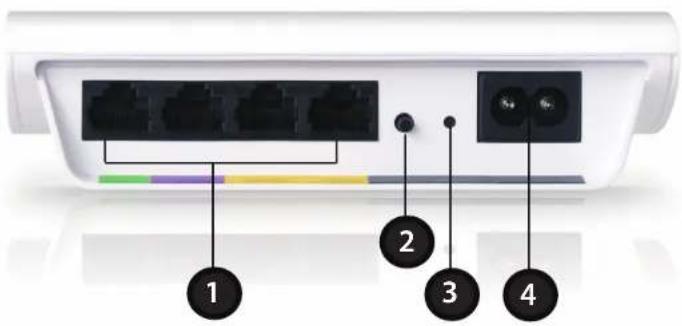
text_image
1 2 3 4| 1 | Ethernet Ports (1-4) | Connect the CAT5 Ethernet cable to the selected Ethernet port in accordance to priority. |
| 2 | Simple Connect Button | Press to secure your network. Refer to page 9 for more information. |
| 3 | Reset Button | Press and hold the button for 1 second to reset to factory default. |
| 4 | Power Receptor Receptor for | the supplied power cord |
Ethernet Port Traffic Priority
When connecting devices to your ethernet ports, be aware of the Quality of Service (QoS) priorities assigned to each port.

text_image
4 3 2 1| Port Color Description | ||
| 1 & 2 | Yellow | Both ports have medium priority and are best for networking data devices such as printers. |
| 3 | Purple | Has a high priority. You can connect devices such as game consoles to this port. |
| 4 Light Green | Has the highest priority and gives uninterrupted service to the connected devices, media players or Internet TV. | |
Hardware Installation
Step 1
Connect the supplied power cord into the power receptor located on the back of the PowerLine AV 4-Port Switch.
Note: Power source is confirmed when the green LED Power Indicator on the PowerLine AV 4- Port Switch is illuminated.
Step 2
Connect the included Ethernet cable to the network cable connector located on the PowerLine AV 4-Port Switch and attach the other end of the Ethernet cable to the game console, media player, Internet TV or Computer.
Note: Network Connectivity is confirmed when the PowerLine and Ethernet LED indicators on the PowerLine AV 4-Port Switch are illuminated.
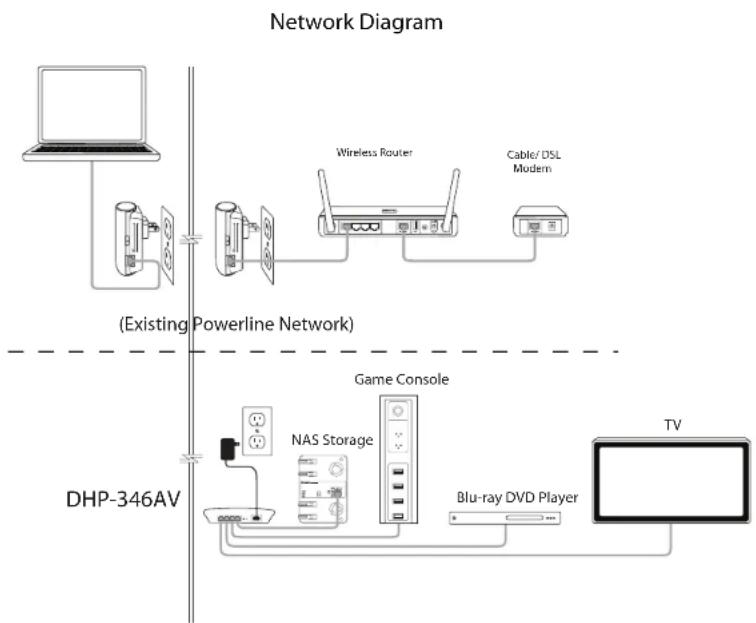
flowchart
graph TD
    A["Laptop"] --> B["Wireless Router"]
    B --> C["Cable/DSL Modem"]
    D["DHP-346AV"] --> E["Game Console"]
    E --> F["NAS Storage"]
    E --> G["Blu-ray DVD Player"]
    E --> H["TV"]
Push Button Security
Understanding PowerLine AV Network Security
The PowerLine AV 4-Port Switch must use an identical encryption key as the network. The default encryption key for each PowerLine AV 4-Port Switch is the HomePlugAV. All PowerLine AV 4-Port Switch with a default encryption key can communicate with each other.
It is recommended to create a private encryption key for network security purpose. The private encryption key allows you to protect your network from unauthorized access via the PowerLine network. To create a private encryption key instead of the default encryption key, please follow below steps:
1. PowerLine AV 4-Port Switch
Press the Simple Connect Button located on the back of the PowerLine AV 4-Port Switch for no more than two seconds. The Power LED will start blinking after you release the button. The adapter will create a private, randomly generated encryption key that each PowerLine AV 4-Port Switch will use.
2. Additional Adapters in your existing PowerLine Network
Within two minutes of pushing the Simple Connect Button of the PowerLine AV adapter, press the Simple Connect Button on any additional adapters in your PowerLine Network for no more than two seconds. The Power LED will start blinking after you release the button.
Note: Both Simple Connect Buttons must be pressed within two minutes.
3. PowerLine Network
After the above network security setup steps, your PowerLine Network will be securely configured with the same network encryption key. The 4-Port Switch will memorize the security settings even if they are unplugged.
Note: To change the private encryption key, please reset the adapter back to its default value by pressing the Reset button for 1 seconds and then follow the security setup procedure above.

natural_image
Two views of a white electronic device front panel and its internal circuit box (no text or symbols visible)Using the Setup Wizard
Follow the simple steps below to run the Setup Wizard to guide you quickly through the installation process. Insert the D-Link DHP-346AV CD into your CD-ROM drive. If the CD Autorun function does not automatically start on your computer, click Start > Run. In the Run command box type "D:\autorun.exe", where D: represents the drive letter of your CD-ROM. If it does start, proceed to the next screen.
Click on Install to begin.
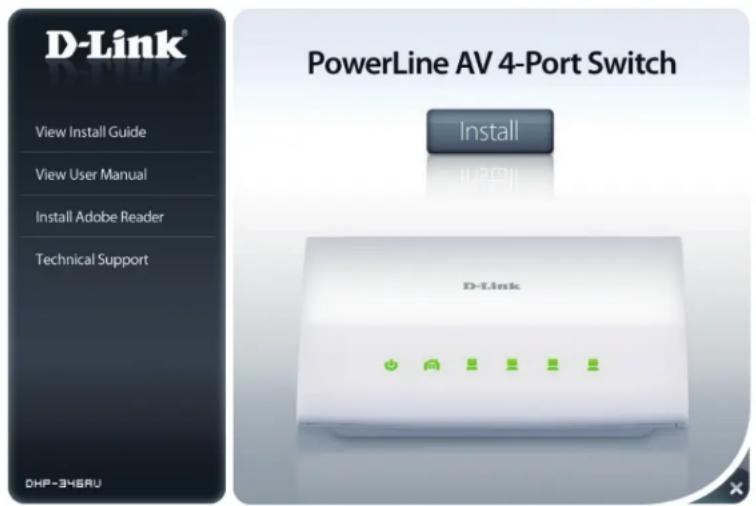
text_image
D-Link® PowerLine AV 4-Port Switch Install LPGII D-Link View Install Guide View User Manual Install Adobe Reader Technical Support DHP-346RUConfiguration
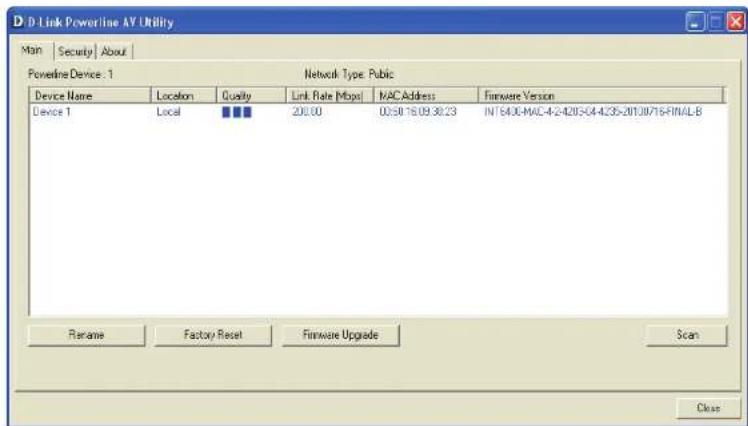
After you have completed the D-Link PowerLine AV Utility installation wizard, double-click the D-Link PowerLine AV Utility icon on your desktop to start the configuration of the DHP-346AV.
Double-click the D-Link PowerLine AV Utility icon
The D-Link PowerLine AV Utility provides you the option of setting your own PowerLine network and the network information of connected PowerLine devices.

text_image
D Link Powerline AV Utility Main | Security | About | Powerline Devices 2 Network Type: Public Device Name Location Quality Link Rate (Mbps) NAC Address Firmware Version Device 1 Local 200.30 03:60:16:05:30:23(INT5400-MAC-4-2-4203-04-4235-2010C716-FINAL-B Device 2 Remde 128.30 1CAF.F7:75:E013(INT5400-MAC-4-2-4203-00-4211-2010C311-FINAL-B Rename Factory Reset Firmware Upgrade Scan CloseSection 3 - Configuration
Device Name: Shows the name of the devices that have been discovered. The device's name is initially set by the utility itself.
Location: Shows if the device is local or remote.
Quality: Shows the network connection quality of the connected device.
- Three squares - Suitable for HD video stream connection.
- Two squares - Suitable for SD video stream connection.
- One square - Suitable for data and Internet activity connection.
Link Rate: Shows the link rate of the connected to the PowerLine device.
MAC Address: Shows the MAC address of the connected PowerLine device.
Firmware Version: Shows the firmware version of the connected PowerLine device.
text_image
D-Link Powerline AV Utility Main | Security | About | Powerline Device: 1 Network Type: Public Device Name Location Quality Link Rate [Mbps] MAC Address Firmware Version Device 1 Local ■■■ 206.00 00:30:15 09:30:23 INT640E-MAC-4-2-4205-04-4235-2013/07/15-FINAL-B Rename Factory Reset Firmware Upgrade Scan CloseSecurity
Understanding the Encryption Key setting:
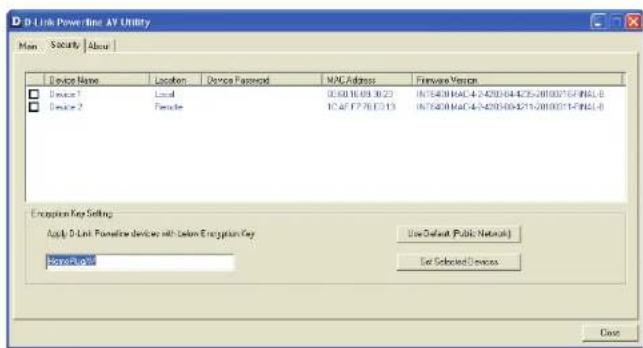
The PowerLine devices on the same network must use an identical encryption key. The default encryption key for each PowerLine device is HomePlugAV. All devices with a default encryption key can communicate with each other. It is recommended to create a private encryption key for network security purpose. The private encryption key allows you to protect your network from unauthorized access via the PowerLine network.
Setting your private Encryption Key
-
Enter the device's password before changing the encryption key:
-
Local Device: You do not need to enter the device's password before changing the encryption key.
- Remote Device: You must enter the device's password before changing the encryption key.
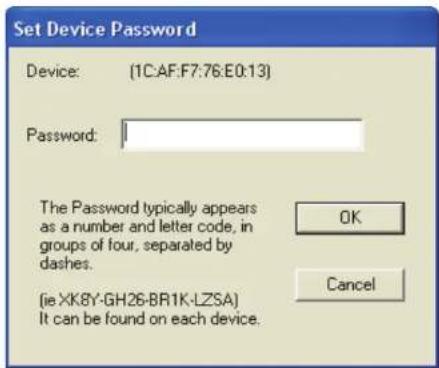
Note: Each device has a unique device password on the device label.
text_image
D-Link PowerLine AV Utility Main Security About Device Name Location Device Password MNC Address Firmware Version Device 1 Local 05:00 16:09:30:23 0575408 MAC-4-2400-64-425-20100216-PNSL-8 Device 2 Female 10:47 F7:76 E3:13 0575408 MAC-4-2400-64-425-20100216-PNSL-8 Encryption Key Setting Apply D-Link Promotion devices with Custom Encryption Key Use Default Public Network Application Path Get Selected Devices Done- Select the remote device and then enter the device's password into the Set Device Password window. Then click OK.
- Select the PowerLine devices that you would like to apply the encryption key setting. Then, type your private encryption key into the Encryption Key Setting field and click Set Selected Devices. The utility will show a message once the setting has been completed.
text_image
Set Device Password Device: (1C:AF:F7:76:E0:13) Password: The Password typically appears as a number and letter code, in groups of four, separated by dashes. (jie XK8Y-GH26-BR1K-LZSA) It can be found on each device.Adding a Device to your PowerLine Network
If you use the default encryption key within the existing PowerLine Network and the new device retains the default encryption key, you can just plug the new device into a power outlet. Then all the devices will be able to communicate with each other.
If the encryption key within the existing PowerLine network has been customized, you have two ways to add the new device to your PowerLine Network.
- You can use the PowerLine AV Utility to apply the customized encryption key in your record to the new device. Then all devices can communicate with each other by using the customized encryption key.
- You can use PowerLine AV Utility to set all devices within the existing PowerLine Network and the new device back to the first default encryption key. Then follow the 1 to 4 steps of "Setting your private Encryption Key". Your PowerLine network will be securely configured with a customized encryption key and all devices will be able to communicate with each other after your setting.
Troubleshooting
• PowerLine AV utility does not start correctly:
Reinstall the utility.
• PowerLine AV utility does not detect the PowerLine AV 4-Port Switch :
Please make sure your PowerLine AV 4-Port Switch is correctly plugged and connected to the computer or network device.
- I can't configure any parameter of the PowerLine AV 4-Port Switch, an error is shown when I try to configure it:
Please make sure you have not unplugged the PowerLine AV 4-Port Switch while configuring it.
- I changed the connection cable to another Network adapter and now the utility does not work correctly:
Please restart the utility each time you disconnect the connection cable.
- I'm having a lot of problems configuring my network:
If you are having problems configuring your network with two or more PowerLine devices, please reset all of the PowerLine devices and start configuring the adapters again.
Technical Specifications
Network Ports
• Four 10/100Mbps Ethernet ports
EMC
• FCC Part 15 Class B
- CE Class B
• C-Tick
AC Input
• 100 \~ 240VAC, 50/60Hz
Safety
• UL, CE LVD
Power Consumption Compliance
• EuP (Energy Using Product Directive)
- CoC (Code of Conduct on Energy Consumption of Broadband Equipment)
Encryption
- 128 bit AES
Operation Temperature
• 0^ C \~ 40^ C
Storage Temperature
-10°C\~70°C
Humidity
• Operation: 10% \~ 90% RH
• Storage: 5% \~ 95% RH
