VC120 - Vidéo conférence Yealink - Free user manual and instructions
Find the device manual for free VC120 Yealink in PDF.


| Product Type | Video Conferencing System |
| Model | VC120 |
| Brand | Yealink |
| Dimensions (WxDxH) | 300 mm x 200 mm x 150 mm |
| Weight | 2.5 kg |
| Power Supply | 12V DC, 2A |
| Main Functions | High-definition video conferencing, 1080p resolution, built-in microphone array, speaker, supports dual display, content sharing |
| Cleaning | Use soft dry cloth; avoid liquid cleaners |
| Safety | UL/CE certified, operating temperature 0-40°C |
| Spare Parts | Replacement camera, remote control, cables |
| General Information | Compatible with major conferencing platforms, supports Wi-Fi and Ethernet |
Frequently Asked Questions - VC120 Yealink
User questions about VC120 Yealink
0 question about this device. Answer the ones you know or ask your own.
Ask a new question about this device
Download the instructions for your Vidéo conférence in PDF format for free! Find your manual VC120 - Yealink and take your electronic device back in hand. On this page are published all the documents necessary for the use of your device. VC120 by Yealink.
USER MANUAL VC120 Yealink
natural_image
Business meeting scene with participants seated at a table, video screens displaying business photos and charts in the background (no readable text or symbols)VC120 Video Conferencing System User Guide
Version 30.20
Aug.2017
Copyright
Copyright © 2017 YEALINK (XIAMEN) NETWORK TECHNOLOGY
Copyright © 2017 Yealink (Xiamen) Network Technology CO., LTD. All rights reserved. No parts of this publication may be reproduced or transmitted in any form or by any means, electronic or mechanical, photocopying, recording, or otherwise, for any purpose, without the express written permission of Yealink (Xiamen) Network Technology CO., LTD. Under the law, reproducing includes translating into another language or format.
When this publication is made available on media, Yealink (Xiamen) Network Technology CO., LTD. gives its consent to downloading and printing copies of the content provided in this file only for private use but not for redistribution. No parts of this publication may be subject to alteration, modification or commercial use. Yealink (Xiamen) Network Technology CO., LTD. will not be liable for any damages arising from use of an illegally modified or altered publication.
Trademarks
Yealink®, the logo and the name and marks is trademark of Yealink (Xiamen) Network Technology CO., LTD, which are registered legally in China, the United States, EU (European Union) and other countries.
All other trademarks belong to their respective owners. Without Yealink's express written permission, recipient shall not reproduce or transmit any portion hereof in any form or by any means, with any purpose other than personal use.
Warranty
(1) Warranty
THE SPECIFICATIONS AND INFORMATION REGARDING THE PRODUCTS IN THIS GUIDE ARE SUBJECT TO CHANGE WITHOUT NOTICE. ALL STATEMENTS, INFORMATION, AND RECOMMENDATIONS IN THIS GUIDE ARE BELIEVED TO BE ACCURATE AND PRESENTED WITHOUT WARRANTY OF ANY KIND, EXPRESS OR IMPLIED. USERS MUST TAKE FULL RESPONSIBILITY FOR THEIR APPLICATION OF PRODUCTS.
(2) Disclaimer
YEALINK (XIAMEN) NETWORK TECHNOLOGY CO., LTD. MAKES NO WARRANTY OF ANY KIND WITH REGARD TO THIS GUIDE, INCLUDING, BUT NOT LIMITED TO, THE IMPLIED WARRANTIES OF MERCHANTABILITY AND FITNESS FOR A PARTICULAR PURPOSE. Yealink (Xiamen) Network Technology CO., LTD. shall not be liable for errors contained herein nor for incidental or consequential damages in connection with the furnishing, performance, or use of this guide.
(3) Limitation of Liability
Yealink and/or its respective suppliers are not responsible for the suitability of the information contained in this document for any reason. The information is provided "as is", and Yealink does not provide any warranty and is subject to change without notice. All risks other than risks caused by use of the information are borne by the recipient. In no event, even if Yealink has been suggested the occurrence of damages that are direct, consequential, incidental, special, punitive or whatsoever (Including but not limited to loss of business profit, business interruption or loss of business information), shall not be liable for these damages.
End User License Agreement
This End User License Agreement ("EULA") is a legal agreement between you and Yealink. By installing, copying or otherwise using the Products, you: (1) agree to be bounded by the terms of this EULA, (2) you are the owner or an authorized user of the device, and (3) you represent and warrant that you have the right, authority and capacity to enter into this agreement and to abide by all its terms and conditions, just as if you had signed it. The EULA for this product is available on the Yealink Support page for the product.
Patent Information
China, the United States, EU (European Union) and other countries are protecting one or more patents of accompanying products and/or patents being applied by Yealink.
Customer Feedback
We are striving to improve our documentation quality and we appreciate your feedback. Email your opinions and comments to DocsFeedback@yealink.com.
Technical Support
Visit Yealink WIKI (http://support.yealink.com) for the latest firmware, guides, FAQ, Product documents, and more. For better service, we sincerely recommend you to use Yealink Ticketing system (https://ticket.yealink.com) to submit all your technical issues.
GNU GPL INFORMATION
Yealink VC120 video conferencing system firmware contains third-party software under the GNU General Public License (GPL). Yealink uses software under the specific terms of the GPL. Please refer to the GPL for the exact terms and conditions of the license.
The original GPL license, source code of components licensed under GPL and used in Yealink products can be downloaded online:
http://www.yealink.com/GPLOpenSource.aspx?BaseInfoCateId=293&NewsCateId=293&CateId=293.
About This Guide
Thank you for choosing the Yealink VC120 full HD video conferencing system. It supports 1080P-full HD video conferencing and includes outstanding features such as good compatibility, easy deployment and intelligent network adaptability. This makes it the best choice for SME.
The Yealink VC120 full-HD video conferencing system is designed to help enterprises organize video conferences easily and efficiently. Users can expect to enjoy the high-quality video conferencing experience very cost-effectively.
This guide provides everything you need to start using your new video conferencing system quickly. First, verify with your system administrator that the IP network is ready for system configuration. Also be sure to read the Overview and Getting Started sections in this guide before you set up and use the VC120 video conferencing system.
See the Yealink Products Regulatory Notices Guide for all regulatory and safety guidance.
Chapters in This Guide
Topics provided in this guide include:
• Chapter 1 Overview
• Chapter 2 Getting Started
• Chapter 3 Customizing the VC120 Video Conferencing System
• Chapter 4 Using the VC120 Video Conferencing System
• Chapter 5 Using Cloud Platform
• Chapter 6 Using VCP41 with the PC or Mobile Device
• Chapter 7 Using the VCM30 Video Conferencing Microphone Array
• Chapter 8 Troubleshooting
Documentations
The following table shows documentations available for the VC120 video conferencing system.
| Name | Contents | Where found | Language |
| Yealink VC120 Video conferencing System Quick Start Guide | System installation and network configuration | On the website/ In the package | English/Chinese |
| Yealink VC120 Video Conferencing System User Guide | System/Web user interface settings Customizing and using the system | On the website | English/Chinese |
| Yealink VC400 & VC120 Video Conference Room Deployment Solution | Conference room layout, environmental requirements and installation recommendations for the system | On the website | English/Chinese |
| Yealink VC Series Video Conferencing System Network Deployment Solution | Network deployment for the VCS under various scenarios | On the website | English/Chinese |
| Yealink VC400 & VC120 Video Conferencing System Administrator Guide | Functionality and configuration of the Yealink VCS | On the website | English/Chinese |
Note
You can also download the latest documentations online:
http://support.yealink.com/documentFront/forwardToDocumentFrontDisplayPage.
Typographic Conventions
Yealink documentations contain a few typographic conventions.
You need to know the following basic typographic conventions to distinguish types of in-text information:
| Convention | Description |
| Bold | Highlights the web/phone user interface items such as menus, menu selections, soft keys, or directory names when they are involved in a procedure or user action (e.g., Click on Setting ->General). Also used to emphasize text |
| Blue Text | Used for cross references to other sections within this documentation (e.g., refer to Troubleshooting). |
| Blue Text in Italics | Used for hyperlinks to Yealink resources outside of this documentation such as the Yealink documentations (e.g., For more information, refer to Yealink VC400 & VC120 Video Conferencing System Administrator Guide). |
You also need to know the following writing conventions to distinguish conditional information:
| Convention | Description |
| -> | Indicates that you need to select an item from a menu. For example, Settings->Basic Settings indicates that you need to select Basic Settings from the Settings menu. |
Terms
As you read this guide, you'll notice that the same terms are used repeatedly. Make sure you familiarize yourself with these terms.
Cloud platform: This term refers to Yealink VC Cloud Management Service, Yealink Meeting Server, Zoom, BlueJeans, Pexip, Mind and Custom platform.
Cloud account: This term refers to Yealink Cloud, YMS, BlueJeans, Pexip, Mind and Custom account.
Cloud contact: This term refers to Yealink Cloud contact and YMS contact.
Summary of Changes
This section describes the changes to this guide for each release and guide version.
Changes for Release 23, Guide Version 23.20
The following section is new for this version:
• Using the Yealink Meeting Server on page 126
Changes for Release 23, Guide Version 23.6
The following section is new for this version:
• Using the Yealink Meeting Server on page 126
Major updates have occurred to the following section:
- Placing a Call via Web User Interface on page 90
- Configuring Camera Presets on page 110
Changes for Release 22, Guide Version 22.15
The following section is new for this version:
• Account Polling on page 83
• Using the StarLeaf Cloud Platform on page 137
Major update has occurred to the following section:
• Changing Video Input Source on page 108
Changes for Release 22, Guide Version 22.5
The following sections are new for this version:
• Virtual Remote Control on page 41
• Meeting Blacklist on page 56
• USB Configuration on page 57
• Using Cloud Platform on page 125
Major updates have occurred to the following sections:
• Icon Instructions on page 17
• Setup Wizard on page 28
• Registration on page 33
• Idle Screen Display on page 34
• Call History Management on page 68
- Configuring Camera Presets on page 110
• Video Recording on page 112
• Screenshot on page 117
• Camera Issues on page 154
Changes for Release 21, Guide Version 21.20
The following sections are new for this version:
• Keyboard Input Method on page 36
Major updates have occurred to the following sections:
• Icon Instructions on page 17
• Setup Wizard on page 28
• Directory on page 58
• Bandwidth Settings on page 75
- Placing a Call Using the Remote Control on page 89
Changes for Release 21, Guide Version 21.15
The following sections are new for this version:
• VCP41 Video Conferencing Phone on page 12
• Website Snapshot on page 50
• Hiding Icons in a Call on page 57
Chairman-Mode Conference on page 92
• 8-way MCU on page 85
• Auto Recording on page 116
• Using VCP41 with the PC or Mobile Device on page 145
Major updates have occurred to the following sections:
• Packaging Contents on page 1
• Icon Instructions on page 17
• Setup Wizard on page 28
• Installing the VC120 Video Conferencing System on page 24
- Placing Multiple Calls on page 91
Changes for Release 20, Guide Version 20.6
The following sections are new for this version:
• Remote Control Battery Safety Information on page 28
• Meeting Password on page 53
• Meeting Whitelist on page 55
• Using the VCM30 Video Conferencing Microphone Array on page 147
Major updates have occurred to the following sections:
• VCC18/VCC20 HD Camera on page 7
• VCR10 Remote Control on page 15
• Installing the VC120 Video Conferencing System on page 24
• Audio Settings on page 77
• Far-end Camera Control on page 80
• Call Mute on page 106
• Video Recording on page 112
• Screenshot on page 117
Table of Contents
About This Guide ...... v
Chapters in This Guide....v
Documentations ......vi
Typographic Conventions......vii
Terms ......vii
Summary of Changes....vii
Changes for Release 23, Guide Version 23.15......viii
Changes for Release 23, Guide Version 23.6......viii
Changes for Release 22, Guide Version 22.15......viii
Changes for Release 22, Guide Version 22.5......viii
Changes for Release 21, Guide Version 21.20 ix
Changes for Release 21, Guide Version 21.15 ix
Changes for Release 20, Guide Version 20.6 ....x
Table of Contents....xi
Overview....1
Packaging Contents ....1
VC120 Package ....1
VCP40 Package 3
VCP41 Package 4
VCM30 Package....5
System Component Instructions....5
VC120 Codec 5
VCC18/VCC20 HD Camera....7
Video Conferencing Phone....10
CPE80 Expansion Microphone....12
VCM30 Video Conferencing Microphone Array 14
VCR10 Remote Control.... 15
Icon Instructions....17
Icons on Display Device 17
Icons on Video Conferencing Phone 19
LED Instructions....20
User Interfaces....21
Web User Interface....21
Remote Control 22
Getting Started....23
System Installation 23
Installing the VC120 Video Conferencing System 24
Installing the Camera 25
Installing Batteries for the Remote Control....27
Powering the System On or Off 28
Setup Wizard 28
Controlling the Camera 32
Controlling Local Cameras 32
Controlling Dual Cameras 33
Registration 33
Idle Screen Display 34
Navigating Menus on the Display Device 36
Keyboard Input Method 36
Entering Data and Editing Fields....37
System Status 38
Customizing the VC120 Video Conferencing System......41
General Settings 41
Virtual Remote Control....41
Automatic Sleep Time....42
Backlight 43
Site Name 44
Language 45
Time & Date 46
Key Tone....49
Website Snapshot....50
Volume Settings 51
Meeting Password 53
Meeting Whitelist....55
Meeting Blacklist 56
Hiding Icons in a Call....57
USB Configuration 57
Directory 58
Adding Local Contacts....59
Placing Calls to Contacts....60
Editing Local Contacts....61
Deleting Local Contacts....62
Searching for Contacts 63
Search Source List in Dialing 64
Importing/Exporting Local Contact Lists 66
Call History Management....68
Viewing Call History 69
Placing a Call from the Call History List....70
Deleting an Entry from the Call History List....71
Adding a Local Contact from the Call History List....73
Call Protocol....74
Bandwidth Settings 75
Audio Settings....77
Audio Output Device....77
Audio Input Device....78
Far-end Camera Control....80
Controlling Far-end Camera 81
Using the VC120 Video Conferencing System......83
Account Polling 83
8-way MCU 85
Placing Calls 88
Placing a Call Using the Remote Control 89
Placing a Call Using the Video Conferencing Phone 90
Placing a Call via Web User Interface 90
Placing Multiple Calls 91
Chairman-Mode Conference....92
Answering or Rejecting Calls....101
Auto Answer....102
Do Not Disturb (DND)....103
Ending Calls....105
Call Management....106
Call Mute 106
Call Statistics....107
Changing Video Input Source....108
Presentation 109
Configuring Camera Presets....110
Video Recording....112
Screenshot 117
Video Layout....119
Using Cloud Platform 125
Using the Yealink VC Cloud Management Service Platform 125
Dialing Yealink Cloud Accounts 125
Using the Yealink Meeting Server 126
Dialing YMS Accounts....127
YMS Video Conference....127
Using the StarLeaf Cloud Platform....137
Dialing StarLeaf Cloud Numbers....137
Joining the StarLeaf Meeting 138
Using the Zoom Cloud Platform....139
Joining the Zoom Meeting....139
Using the BlueJeans Cloud Platform 140
Joining the BlueJeans Meeting....140
Using the Pexip Platform 141
Dialing Pexip Alias 141
Joining the Pexip Meeting....142
Using the Mind Platform....143
Joining the Mind Meeting....143
Using the Custom Platform....144
Using VCP41 with the PC or Mobile Device ....145
Connecting a PC or Mobile Device to the VCP41....145
Adjusting the Volume of the PC or Mobile Audio....146
Removing the PC or Mobile Audio....146
Using the VCM30 Video Conferencing Microphone Array ....147
Placing the VCM30....147
Muting or Unmuting the VCM30....147
Viewing VCM30 Information....148
Troubleshooting....151
System Diagnostics 151
General Issues....152
Camera Issues....154
Display Issues....155
Video & Audio Issues 155
System Maintenance 156
Regulatory Notices ....165
Service Agreements 165
Limitations of Liability 165
Safety Instructions 165
Restriction of Hazardous Substances....167
Appendix A - Time Zones......169
Index....173
Overview
This chapter provides an overview of the VC120 video conferencing system. Topics include:
- Packaging Contents
• System Component Instructions - Icon Instructions
- LED Instructions
- User Interfaces
- Documentations
If you require additional information or assistance with your new system, contact your system administrator.
Packaging Contents
The VC120 video conferencing system can work with the VCP40 video conferencing phone, VCP41 video conferencing phone or VCM30 video conferencing microphone array. You can purchase any combination according to your needs:
Note
We recommend that you use the accessories provided or approved by Yealink. The use of unapproved third-party accessories may result in reduced performance.
VC120 Package
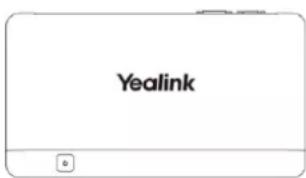
- VC120 Codec
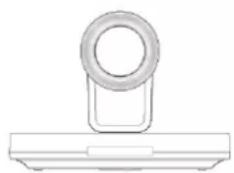
- HD Camera
natural_image
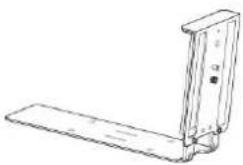
Simple line drawing of a mechanical component with a circular top and rectangular base (no text or symbols)• L-Bracket (for installing the camera)
natural_image
Technical line drawing of a metal L-shaped bracket with mounting holes (no text or symbols)• Velcro×2 (one Velcro is on the bracket)

• Camera Mounting Accessories
Expansion bolts
× 4
Screws(Specificaiton: T4 ×30)
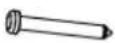
× 4
Screws(Specificaiton: M3×8)

× 2
• VCR10 Remote Control
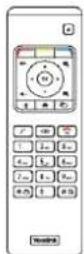
• AAA Batteries×2

- Power Adapter
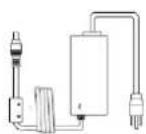
• Cables
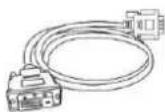
DVI Cable
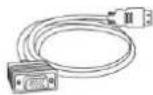
HDMI-VGA Direct Cable
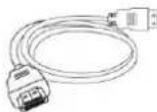
HDMI Cable × 2
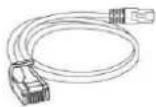
Ethernet Cable (2m)
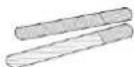
- Cable Ties×5
- Quick Start Guide

VCP40 Package
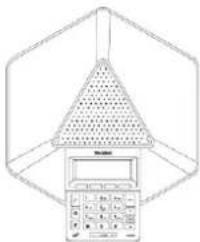
• VCP40 Video Conferencing Phone
natural_image
Simple line drawing of a triangular pyramid placed above a digital oscilloscope (no text or symbols)- Ethernet Cable (7.5m)
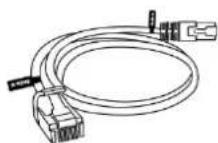
Locate the Audio In port on the VC120 Codec, and connect it to the Audio Out port of the VCP40 video conferencing phone with the 7.5m Ethernet cable. VCP40 video conferencing phone can work as an audio device for the VC120 video conferencing system. You can also place calls, answer calls or view directory and history on the VCP40 video conferencing phone.
VCP41 Package
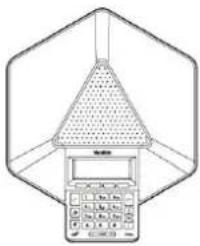
• VCP41 Video Conferencing Phone
natural_image
Line drawing of a triangular device with a digital display and control panel, enclosed in a hexagonal frame (no text or symbols)- Expansion Microphone CPE80×2
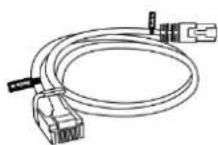
- Ethernet Cable (7.5m)
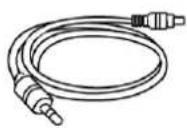
• 3.5mm Audio Cable (for connecting a PC/Mobile device to the VCP41)
Locate the Audio In port on the VC120 Codec, and connect it to the Audio Out port of the VCP41 video conferencing phone with the 7.5m Ethernet cable. VCP41 Video conferencing phone can work as an audio device for the VC120 video conferencing system. You can also place calls, answer calls or view directory and history on the VCP41 video conferencing phone.
VCM30 Package
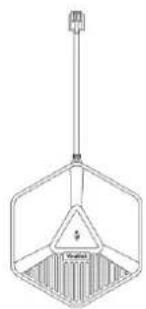
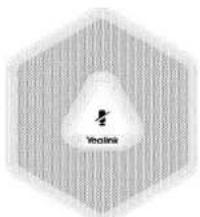
• VCM30 Video Conferencing Microphone Array
natural_image
Hexagonal graphic with a central white triangle containing a small black figure and the text 'Veolin' at its center (no other readable text or symbols)- Ethernet Cable (7.5m)
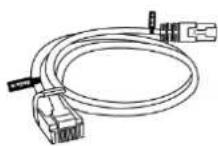
Locate the Audio In port of on the 120 Codec, and connect it to the Audio Out port of the VCM30 with the 7.5m Ethernet cable. VCM30 video conferencing microphone array can work as the audio input device for the VC120 video conferencing system. For more information, refer to Audio Input Device on page 78.
Note
Check the list before installation. If you find anything missing, contact your system administrator.
System Component Instructions
Before installing and using the VC120 video conferencing system, you need to be familiar with the following system components:
- VC120 Codec
• VCC18/VCC20 HD Camera
• Video Conferencing Phone
• CPE80 Expansion Microphone
• VCM30 Video Conferencing Microphone Array
• VCR10 Remote Control
VC120 Codec
VC120 Codec compresses outgoing video and audio data, transmits this information to the far end, and decompresses incoming data. It supports 16:9 and 4:3 aspect ratios. It can be compatible with different audio output devices, and can adapt to the display devices
automatically.
You do not need to change the VC120 Codec once it has been installed properly in your environment.
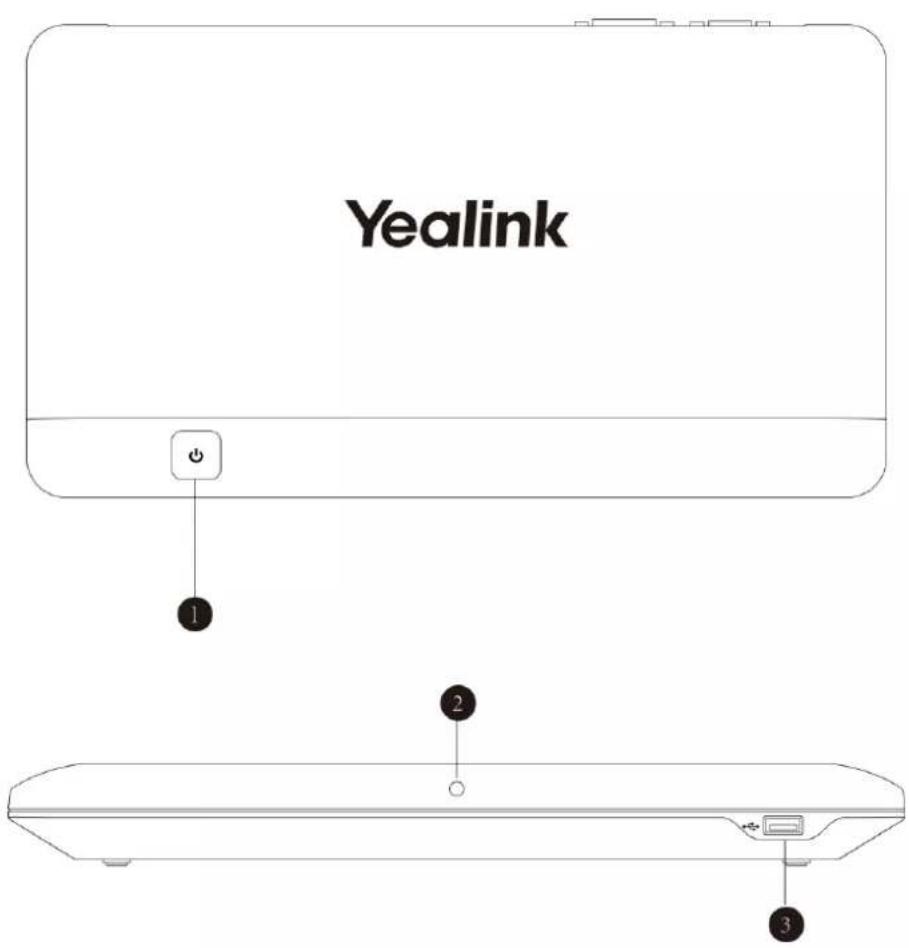
VC120 Codec front panel
VC120 Codec back panel
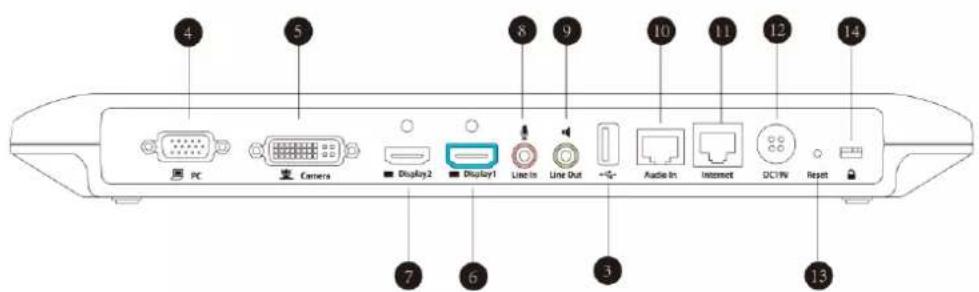
| Port Name | Description | |
| 1 | Power Button | Powers the system on or off. |
| 2 | LED Indicator | Indicates different system statuses. For more information, refer to LED Instructions on page 20. |
| 3 | USB | Inserts a USB flash drive to one of the two USB port for storing screenshots, recording videos or capturing packets.Note: If two USB flash drives are connected, only the latter one can be identified. |
| 4 | PC | Connects to a PC for sharing documents or videos during a call. |
| 5 | Camera | Connects to a camera.You can also connect two VCC20 cameras to the VC120 Codec using the VC Dual-camera Box VCB20. |
| 6 | Display1 | Connects to a display device for displaying video images.When connecting to only one display device, Display1 port on the VC120 Codec is the only available port. |
| 7 | Display2 | Connects to secondary display device for displaying video images. |
| 8 | Line In | Connects to an audio input device using an audio cable (3.5mm). |
| 9 | Line Out | Connects to an audio output device using an audio cable (3.5mm). |
| 10 | Audio In | Connects to the video conferencing phone or the VCM30 video conferencing microphone array. |
| 11 | Internet | Connects to the network device. |
| 12 | DC19V | Connects to the power source via a power adapter. |
| 13 | Reset Key | Resets the system to factory defaults. |
| 14 | Security Slot | Allows you to connect a universal security cable to VC120 Codec, so you can lock it down. The system cannot be removed when locked. |
VCC18/VCC20 HD Camera
The VCC18 HD camera supports 18x optical zoom, white balance and automatic gain. The VCC20 HD camera supports 12x optical zoom, white balance and automatic gain. You can place the camera on the table or mount it on a wall.
The following takes VCC20 HD camera as an example to introduce camera performance.
The front of the HD camera
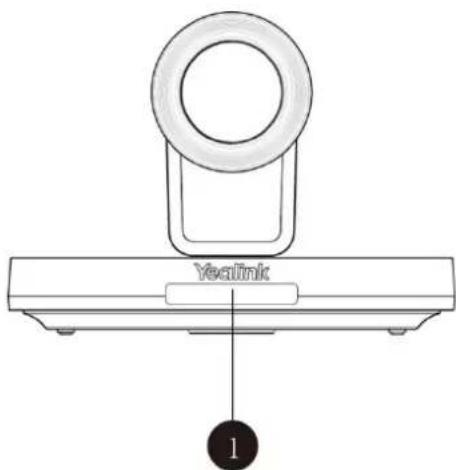
| Port Name | Description | |
| 1 | LED Indicator | Indicates different system statuses. For more information, refer to LED Instructions on page 20. |
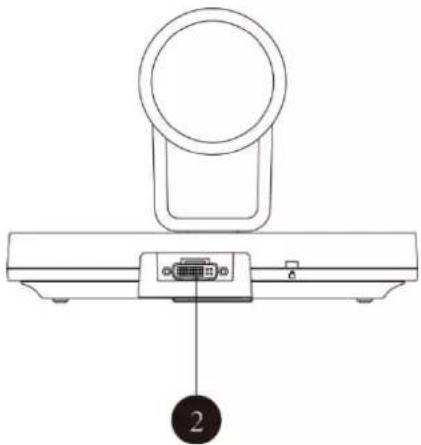
The back of the HD camera
natural_image
Line drawing of a device with a circular top component and labeled pin (no text or symbols beyond the number 2)| Port Name | Description | |
| 2 | Camera | Connects to the Camera port on the VC120 Codec using a DVI cable. |
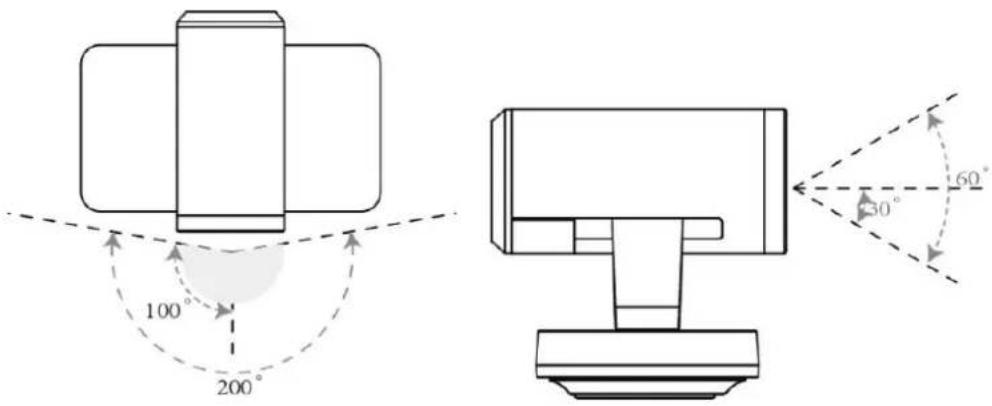
You can use the remote control to adjust the position or focus of the camera. The camera can be panned ( ± 100 degrees range), tilted ( ± 30 degrees range).
Infrared Sensor
The infrared sensor is located within the Yealink logo. Aim the remote control at the camera IR sensor to operate the unit.
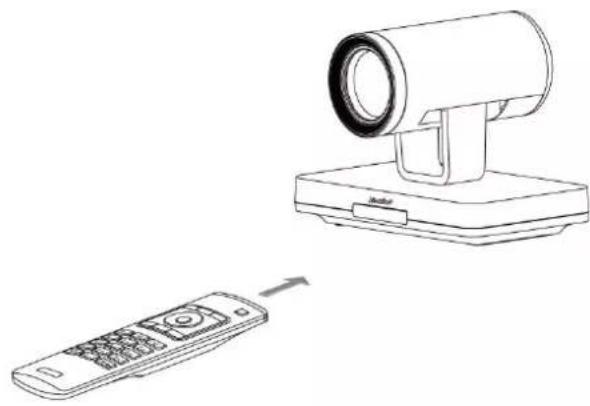
natural_image
Line drawing of a remote control device with a scroll wheel and a remote control device (no text or symbols)Note
Avoid physically turn camera while system is powered on to prevent permanent damaging the camera. Always use the remote control to pan and tilt the camera head.
Video Conferencing Phone
VCP40 Video Conferencing Phone
The VCP40 video conferencing phone supports 360-degree audio pickup to achieve ultra-HD voice.
Connect the VCP40 phone to the VC120 Codec. It can work as an audio device for the system. You can also place calls, answer calls or view directory and history on the VCP40 phone.
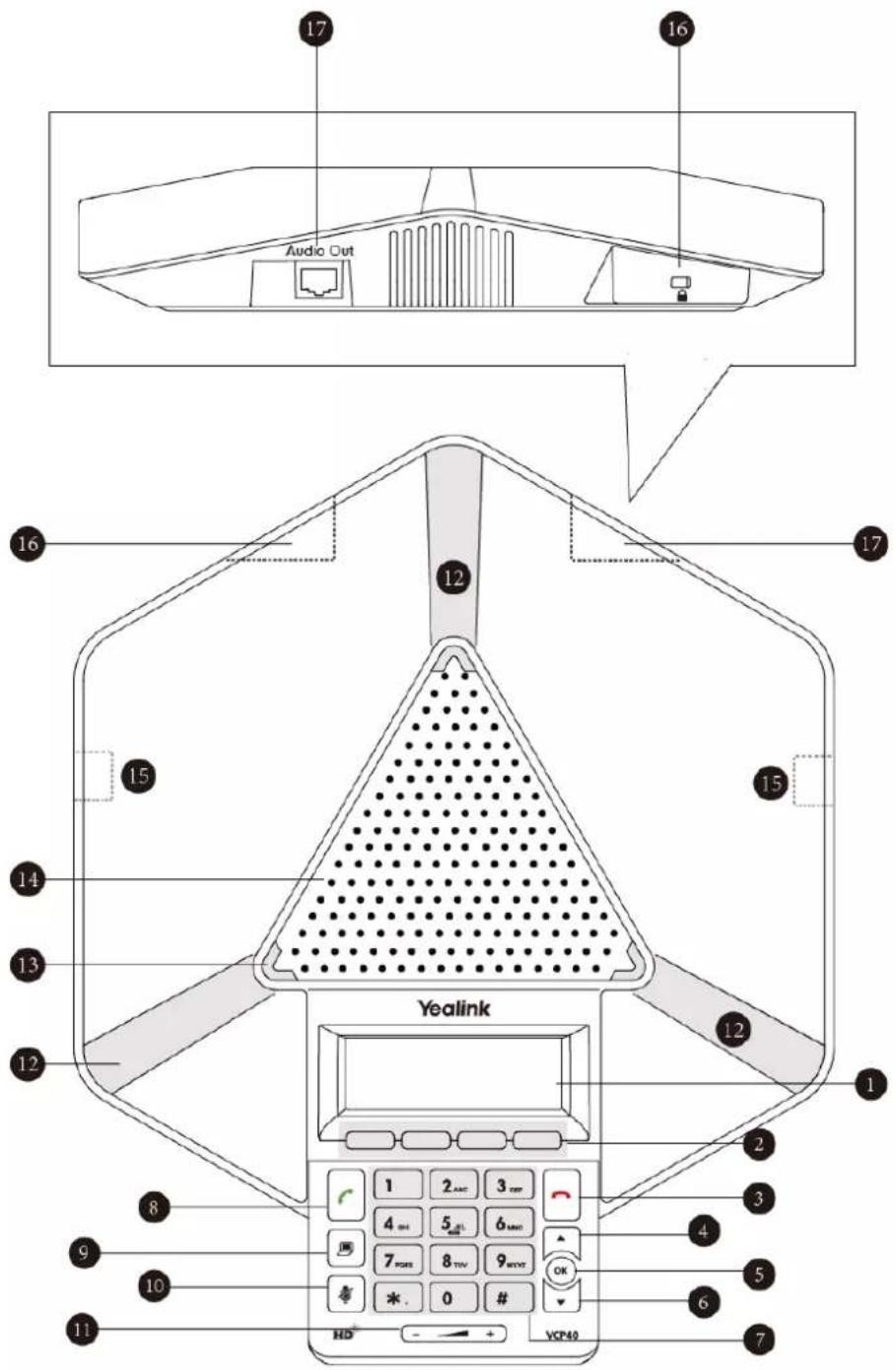
System component instructions of the VCP40 phone are:
| Item | Description | |
| 1 | LCD Screen | Shows information about calls, messages, soft keys, time, date and other relevant data:Call information-call durationIcons (for example,Missed call informationTime and date |
| 2 | Soft Keys | Label automatically to identity their context-sensitive features. |
| 3 | On-hook Key | Rejects or ends a call or returns to the previous screen. |
| 4 | Scrolls upwards through the displayed information. | |
| 5 | Enters list or answers incoming calls. | |
| 6 | Scrolls downwards through the displayed information. | |
| 7 | Keypad | Generates the digits and special characters "." "##". |
| 8 | Off-hook Key | Initiates a call or answers a call. |
| 9 | Presentation Key | Enables or disables presentation. |
| 10 | Mute Key | Toggles the mute feature. |
| 11 | Volume Key | Adjusts the volume of the speakerphone and ringer. |
| 12 | Microphone | Picks up voice. |
| 13 | LED Indicators | Indicate phone and call statuses. |
| 14 | Speakerphone | Provides ringer and hands-free (speakerphone) audio output. |
| 15 | MIC Port | Connects a CPE80 expansion microphone to one of two MIC ports. |
| 16 | Security Slot | Allows you to connect a universal security cable to lock down your phone. The phone cannot be removed when locked. |
| 17 | Audio Out Port | Connects to the video conferencing phone using the 7.5m Ethernet cable labeled Audio in.Provides the power supply for the video conferencing phone. |
VCP41 Video Conferencing Phone
The features of VCP41 video conference phone are similar to VCP40. For more information, refer to VCP40 Video Conferencing Phone on page 10. The only difference is that the back of VCP41 has a PC/Mobile port, which allows you to connect to an optional PC or Mobile Device, so that you can listen to the PC or mobile audio using your VCP41 video conferencing phone.
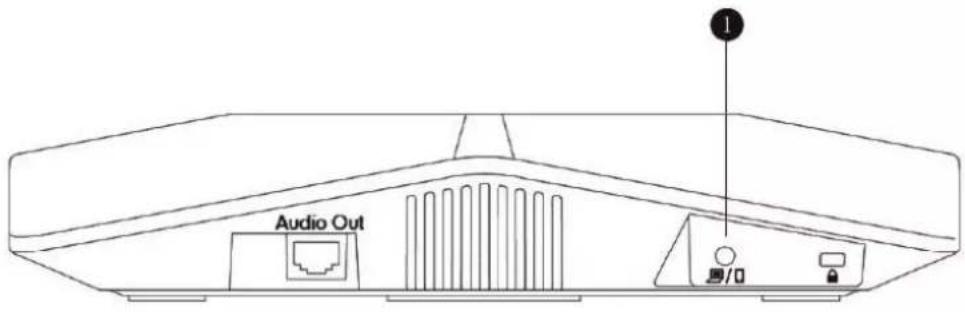
| Item | Description | |
| 1 | PC/Mobile Port | Allows you to connect an optional PC or Mobile Device to your phone so that you can listen to the PC or mobile audio using your VCP41 video conferencing phone. |
For more information on how to use VCP41 with the PC or mobile device, refer to Using VCP41 with the PC or Mobile Device on page 145.
CPE80 Expansion Microphone
If your video conferencing room is large, you can add extra CPE80 expansion microphones to the MIC ports on the video conferencing phone to expand the audio range.
Video conferencing phone has two MIC ports. Up to two expansion microphones can be connected to a video conferencing phone. CPE80 is a directional microphone. Its coverage range is a 120 degree. Always ensure that the speaker faces the expansion microphone.
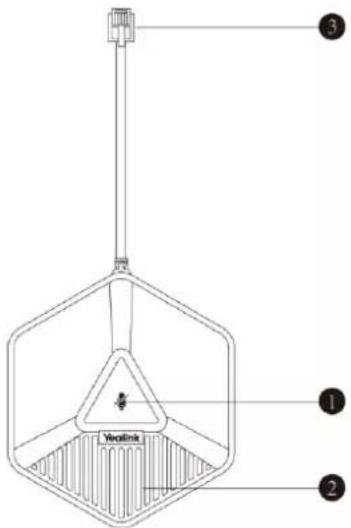
| Item | Description | |
| 1 | Mute Indicator LED | Toggles and indicates mute feature. |
| 2 | Microphone | Transmits sound to other phones. |
| 3 | MIC Connector | Allows you to connect to the MIC port on the video conferencing phone. |
VCM30 Video Conferencing Microphone Array
The VCM30 is a video conferencing microphone array which can work as the audio input device for VC120 video conferencing system. It has 3 built-in microphones which support 360-degree audio pickup at a radius of up to 3 meters. There is a mute button on its top. You can mute or unmute the VCM30 by tapping the mute button during a call.
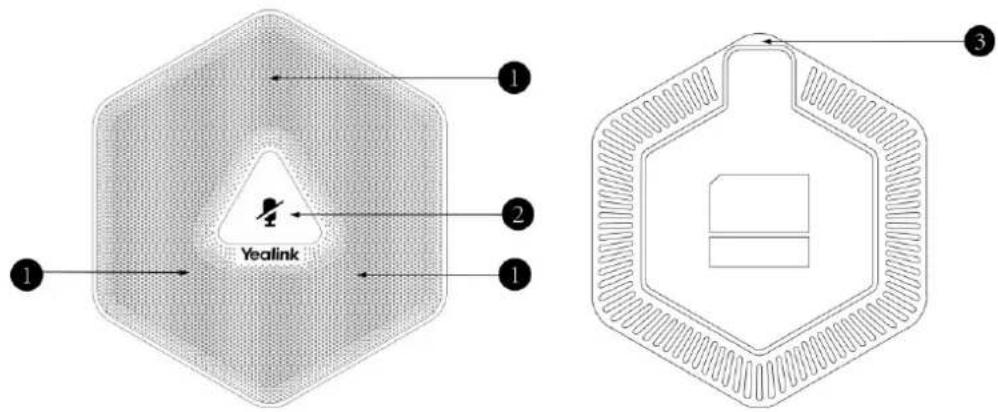
| Name | Description | |
| 1 | Built-in Microphones | Support 360-degree audio pickup at a radius of up to 3 meters. |
| 2 | Mute Button | Mutes or unmutes the VCM30. For more information on the mute indicator LED, refer toLED Instructionson page 20. |
| 3 | Audio Out Port | Connects to the Audio In port of VC120 Codec using the 7.5m Ethernet cable labeled Audio In.Provides the power supply for the VCM30. |
For more information on how to use VCM30 video conferencing microphone array, refer to Using the VCM30 Video Conferencing Microphone Array on page 147.
VCR10 Remote Control
The VCR10 remote control provides 3 shortcut keys. It can help users to organize conference easily with intuitive and efficient operation in all screens.
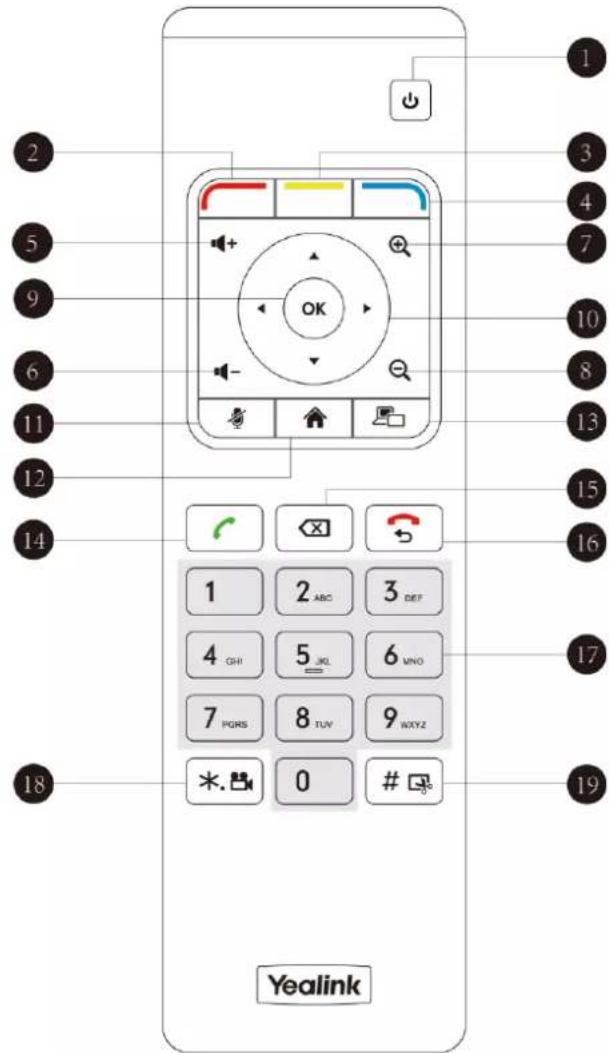
Hardware components of the remote control:
| Item | Description | |
| 1 | Sleep Key | Puts the system to sleep or wakes the system up. |
| 2 | Red Shortcut Key | Located at the bottom left of the screen. Label automatically identifies context-sensitive features.In the idle screen, this is used to enter main menu screen, corresponds to the Menu soft key. |
| 3 | Yellow Shortcut Key | Located at the bottom center of the screen. Label automatically identifies context-sensitive features.In the idle screen, this is used to enter the pre-dialing screen, and corresponds to the Call soft key. |
| 4 | Blue Shortcut Key | Located at the bottom right of the screen. Label identifies context-sensitive features.In the idle screen, this is used to save and check the camera preset position, and corresponds to the Preset soft key. |
| 5 | Vol+ | Increases the system volume. |
| 6 | Vol- | Decreases the system volume. |
| 7 | Zoom in Key | Increases the camera zoom or the captured image magnifications.Behaves as page up in a multiple page list. |
| 8 | Zoom out Key | Decreases the camera zoom or the captured image magnifications.Behaves as page down in a multiple page list. |
| 9 | OK Key | Confirms actions or answers incoming calls. |
| 10 | Navigation Key | In the menu screen, pressorto switch menus, pressorto select items.In the idle screen, pan and tilt the camera to adjust the viewing angle. |
| 11 | Mute Key | Toggles the mute feature. |
| 12 | Home Key | Returns to the idle screen when in the menu screen.Enters the pre-dialing screen during a call. |
| 13 | Video Source Key | Switches the input source between Camera, Camera-PC, or PC. |
| 14 | Off-hook Key | Enters the pre-dialing screen.Places a call.Answers a call. |
| 15 | Delete key | Deletes one character at a time.Long press to delete all characters in the input field.Long press it for 2 seconds to start capturing packets and long press it for 2 seconds again to stop capturing packets. |
| 16 | On-hook Key | Ends a call or exits from a conference call.Returns to the previous screen when not in a call. |
| 17 | Keypad | Enters digits.Long press 0 to generate a special character "@" in the input field.Enters the pre-dialing screen.Stores the preset position of the camera. |
| 18 | Video Recording Key | Generates a special characters "."Starts/Stops recording video. |
| 19 | Snapshot Key | Generates a pound key (#).Captures the image from the camera. |
Icon Instructions
Icons on Display Device
Icons appearing on the display device are described in the following table:
| Icon | Description |
 (flashing) (flashing) | Network is disconnected |
 | Network is available |
 | Packet loss |
 (flashing) (flashing) | Video conferencing phone is not connected |
 (flashing) (flashing) | Camera is not connected |
 | SIP account is registered |
 | H.323 account is registered |
 | Log into the Yealink VC Cloud Management Service/Yealink Meeting Server |
 | Log into the StarLeaf/Zoom/Pexip/BlueJeans/ Mind platform |
 | Auto answer |
 | Missed calls (this icon displays on the status bar) |
 | Volume is 0 |
 | Do not disturb |
 | Do not disturb during a call |
 | Dual screen mode |
 | Dual video sources (when a PC is connected to the PC port on the VC120 Codec) |
 | A USB flash drive is inserted to the USB port on the VC120 Codec |
 | VPN is enabled |
| [0Y2X] | PC/Mobile mode (when a PC or mobile device is connected to the VCP41) |
 | Call mute |
| [3ZXG] | Call encryption |
 | Call Hold |
 | Output volume is 0 during a call |
 | Camera that being controlled |
 | Indicates the content displayed on the second display device |
 | Camera position |
 | Record a video |
 | Dialed calls (H.323 account/SIP account/IP Call) |
 | Dialed calls (Cloud platform) |
 | Received calls (H.323 account/SIP account/IP Call) |
[X3D7] | Received calls (Cloud platform)Missed calls (H.323 account/SIP account/IP Call) |
 | Missed calls (Cloud platform) |
 | Local contact |
 | Conference contact |
 | Yealink Cloud contact or YMS contact |
 | Permanent Virtual Meeting Room |
Icons on Video Conferencing Phone
Icons appearing on the video conferencing phone are described in the following table:
| Icon | Description | |
 | (Flashing) | Network is unavailable |
 | SIP account is registered (the icon flashes when it is not registered successfully) | |
 | H.323 account is registered (the icon flashes when it is not registered successfully) | |
 | Log into the Yealink VC Cloud Management Service/Yealink Meeting Server | |
 | Log into the StarLeaf/Zoom/Pexip/BlueJeans/Mind platform | |
 | Auto answer | |
 | Do not disturb | |
 | Call is muted | |
 | Volume is 0 | |
 | A USB flash drive is inserted to the port on the VC120 Codec | |
 | Record a video | |
 | Local contact | |
 | Yealink Cloud contact or YMS contact | |
 | Conference call | |
| V | Permanent Virtual Meeting Room | |
 | Dialed calls (H.323 account/SIP account/IP Call) | |
 | Dialed calls (Cloud platform) | |
 | Received calls (H.323 account/SIP account/IP Call) | |
 | Received calls (Cloud platform) | |
 | Missed calls (H.323 account/SIP account/IP Call) | |
 | Missed calls (Cloud platform) | |
 | PC/Mobile mode (when a PC or mobile device is connected to the VCP41) | |
LED Instructions
Indicator LED on the VC120 Codec:
| LED Status | Description |
| Solid green | The VC120 Codec is powered on.The VC120 Codec is upgrading firmware. |
| Solid red | The VC120 Codec is in sleep mode. |
| Solid orange | System exception (e.g., network unavailable, update failure). |
| Off | The VC120 Codec is powered off, or is not connect to the power adapter. |
Indicator LED on the camera:
| LED Status | Description |
| Solid green | The camera is properly connected to the VC120 Codec, and the VC120 Codec is powered on. |
| Solid red | The VC120 Codec is in sleep mode. |
| Flashing green | Press the key on the remote control. |
| Off | The camera is not connected properly to the VC120 Codec, or the VC120 Codec is powered off. |
Indicator LED on the video conferencing phone:
| LED Status | Description |
| Solid red | The phone is initializing.The call is muted. |
| Flashing red | The phone is ringing. |
| Solid green | The phone is placing a call.There is an active call on the phone. |
| Off | The phone is idle. |
Mute Indicator LED on the VCM30 video conferencing microphone array:
| LED Status | Description |
| Solid red | The VCM30 is muted when the VC120 is during a call. |
| Flashing red | The VC120 is ringing. |
| Solid green | The VCM30 is connected to the VC120 Codec within the first 5 seconds.The VC120 is placing a call.The VCM30 is unmuted when the VC120 is during a call. |
| Off | The VCM30 is not connected to the VC120 Codec.The VCM30 is idle. |
User Interfaces
There are two ways to customize the configurations of your VC120 video conferencing system:
- Web User Interface
- Remote Control
Note
The display device and remote control constitute the system user interface. This allows the user to execute all call operation tasks and basic configuration changes directly. Detailed operational steps will be explained in the feature section.
Web User Interface
You can customize your system via web user interface. To access the web user interface, you need to know the IP address of your new system.
To obtain the IP address, do one of the following:
• The IP address of the system is shown on the top right corner of the display device.
- Press (Menu soft key) on your remote control and select Status ->Network.
The display device shows network information about the system.
- Press OK on the video conferencing phone when the phone is idle and select Network. The LCD screen of the phone displays the network information of the system.
Log into the web user interface:
-
Enter the IP address (e.g., http://192.168.0.10 or 192.168.0.10) in the address bar of a web browser on your PC, and then press the Enter key.
-
Enter the administrator user name and password.
The default user name is "admin" (case-sensitive), and the default password is "0000".
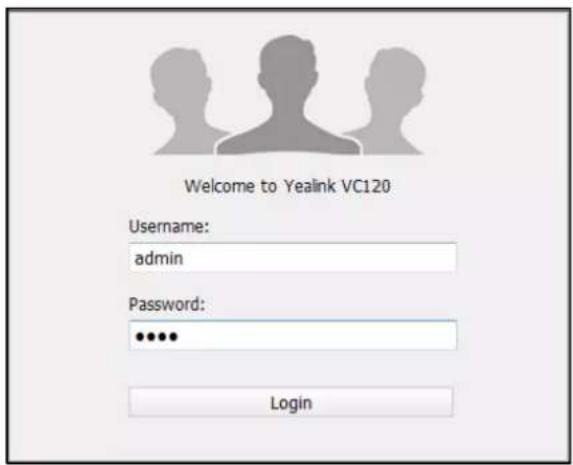
3. Click Login.
After you log into the web user interface successfully, you can click Logout on the top right corner of the web interface to log out.
Remote Control
You can use the remote control and display device to configure and use the VC120 video conferencing system. The Advanced option is only accessible to the administrator. The default administrator password is "0000".
- For more information on the function of each key on the remote control, refer to VCR10 Remote Control on page 15.
- For more information on how to view menu settings on the display device, refer to Navigating Menus on the Display Device on page 36
- For more information on how to enter and edit the menu settings on the display device, refer to Entering Data and Editing Fields on page 37.
- You can also use virtual remote control on the web user interface to configure the VC120 video conferencing system. For more information, refer to Virtual Remote Control on page 41.
Getting Started
This chapter provides the following basic installation instructions and information for achieving the best performance from your VC120 video conferencing system. Topics include:
- System Installation
• Powering the System On or Off - Setup Wizard
- Registration
- Idle Screen Display
• Navigating Menus on the Display Device - Keyboard Input Method
- Entering Data and Editing Fields
- System Status
If you require additional information, or assistance to help you use your new phone, contact your system administrator.
System Installation
This section introduces the following:
• Installing the VC120 video conferencing system
- Installing the camera
• Installing batteries for the remote control
Note
Up to two display devices can be connected to the VC120 codec. Because the display device is not included in the package, you need to purchase it separately if required. Ensure that the purchased display device supports HDMI input.
When connecting only one display device to the VC120 codec, Display1 port is the only available port. If dual screen mode is required, you can connect another display device to the Display2 port.
Because DVI cable is tailor-made, please use the Yealink-supplied DVI cable.
To prevent shock, do not connect the power adapter and turn on the power before connecting all system components.
Installing the VC120 Video Conferencing System
Do the following:
-
Connect the Internet port of the VC120 Codec to a switch/hub device port with the supplied 2m Ethernet cable.
-
Locate the Camera port on the back of the VC120 Codec, and connect it to the Camera port on a camera with the supplied DVI cable.
(Optional) If you purchase VC Dual-camera Box VCB20 separately, you can connect two VCC20 cameras to the VC120 Codec.
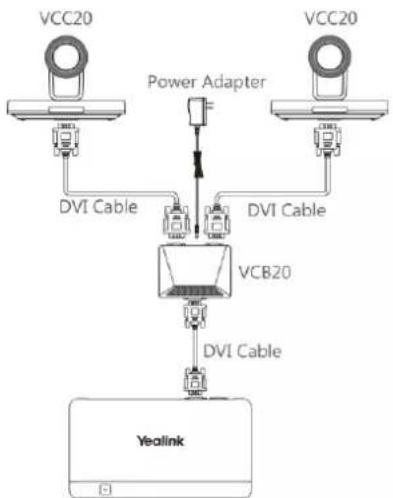
flowchart
graph TD
    A["VCC20"] --> B["DVI Cable"]
    C["VCC20"] --> D["DVI Cable"]
    B --> E["Power Adapter"]
    D --> E
    E --> F["VCB20"]
    F --> G["DVI Cable"]
    G --> H["Vealink"]
- (Optional.) Locate the Audio In port of the VC120 Codec, do one of the following:
- Connect it to the Audio Out port on the video conferencing phone with the 7.5m Ethernet cable that labeled Audio In, and then connect the free end of the expansion microphone cables to MIC ports on the video conferencing phone.
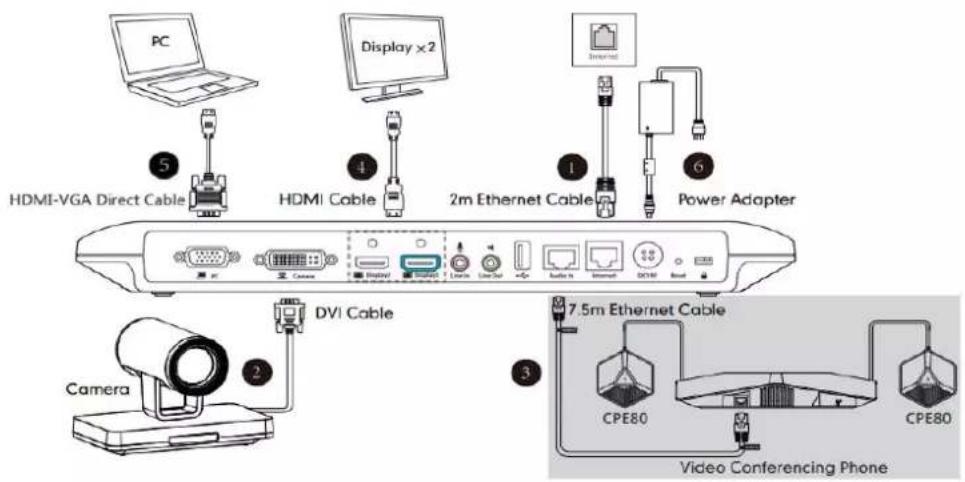
- Connect it to the Audio Out port on the VCM30 video conferencing microphone array with the 7.5m Ethernet cable that labeled Audio In.
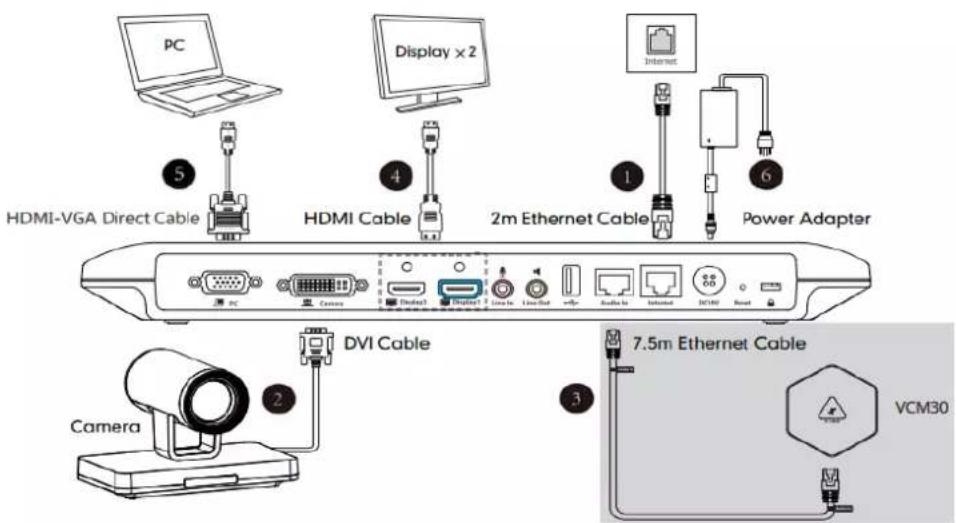
- Locate the Display1 port on the VC120 Codec, and connect it to the HDMI port on the display device with the supplied HDMI cable (Make sure the display device is powered on)
- (Optional.) Locate the PC port of the VC120 Codec and connect it to the HDMI port on the PC with the supplied HDMI-VGA direct cable for sharing content.
- Connect the DC19V port on the VC120 Codec to an AC power outlet with the supplied power adapter and power cord.
Note
The VC120 video conferencing system should be used with Yealink original power adapter (19V/3.42A) only. The use of the third-party power adapter may cause the damage to the system.
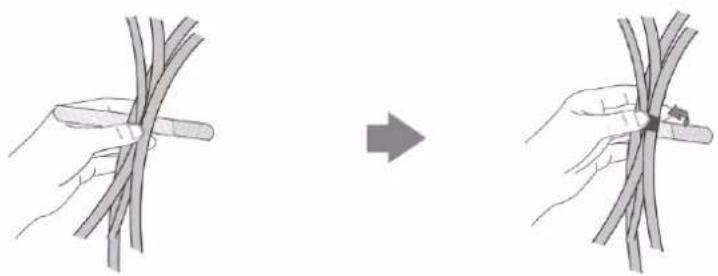
You can fasten all cables with cable ties after all devices are connected.
natural_image
Illustration showing two hands holding a bundle of fibers, one being cut with a pencil (no text or symbols present)Installing the Camera
You can choose to mount the camera on your TV or a wall, depending on your actual needs.
a) Mounting the camera on a TV
When the thickness of your TV is between 35-120 mm, you can mount the camera on your TV.
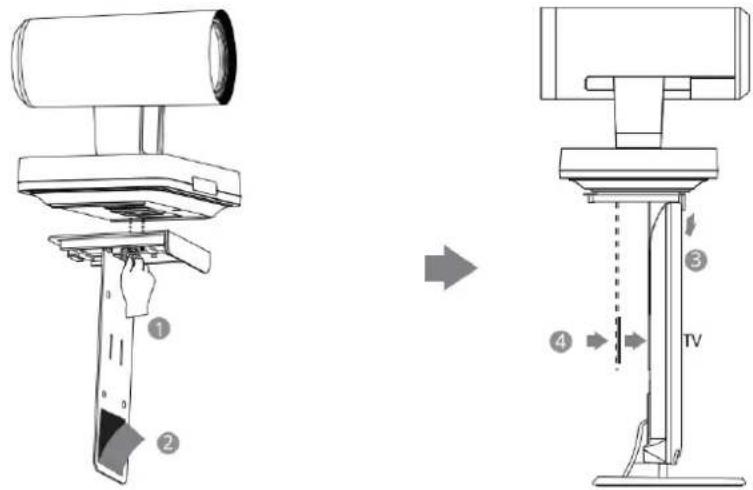
Do the following:
-
Lock the camera to the L-bracket.
-
Remove one Velcro.
-
Put the L-bracket on the top of the TV.
-
Stick a Velcro onto the back of the TV, and make sure that the bracket and the back of the TV are tightly positioned against each other.
b) Mounting the camera on a wall
You can also decide to mount the camera on a wall. The recommended height for camera positioning is 1.5m-1.8m above the ground.
Do the following:
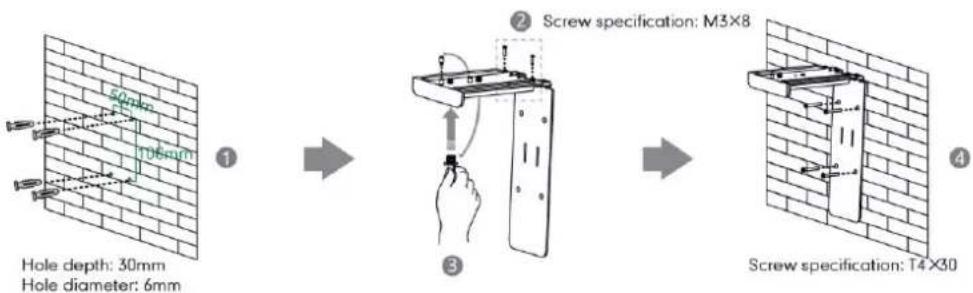
-
Punch holes into the wall and then insert the expansion bolts. Installation location for the expansion bolts and punching requirement are shown above.
-
Lock the L-bracket with the M3×8 screws.
-
Move the setscrews on the L-bracket to the left holes.
-
Lock the L-bracket to the wall with T4×30 screws.
-
Connect one end of the DVI cable to the camera and put the other end of the cable
through the L-bracket.
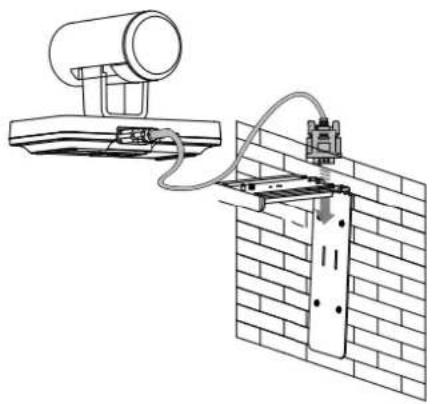
natural_image
Diagram of a surveillance camera mounted on a wall-mounted device, showing wiring and a vertical panel (no text or symbols present)- Lock the camera to the L-bracket, and then connect the other end of the DVI cable to the VC120 Codec.
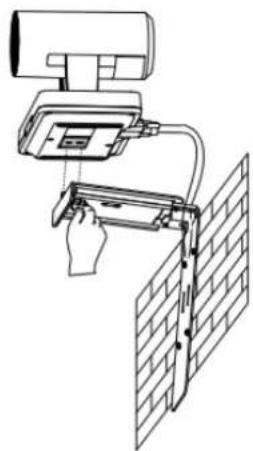
natural_image
Line drawing of a surveillance camera mounted on a wall-mounted device, no text or symbols presentInstalling Batteries for the Remote Control
Do the following:
- Open the battery cover on the back of the remote control.
- Insert the batteries with the correct polarity.
- Replace the battery cover.
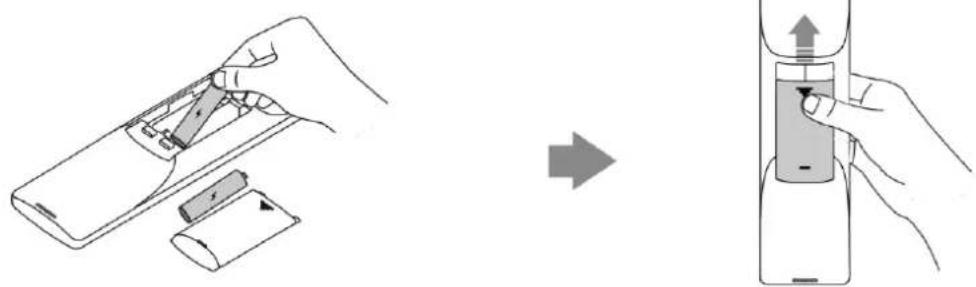
natural_image
Illustration showing a hand holding a remote control panel and a battery being inserted into a device (no text or symbols present)Remote Control Battery Safety Information
- Never make wrong polarity connection when charging and discharging battery packs.
- Avoid crushing, puncturing, or putting a high degree of pressure on any battery, as this can cause an internal short-circuit, resulting in overheating.
- Remove the batteries if they are not in use for long period of time. Battery leakage and corrosion can damage the remote control, dispose batteries safely.
- Do not dispose used batteries in domestic waste. Dispose batteries at special collection points or return to stores if applies.
- Do not dispose batteries in a fire.
Powering the System On or Off
Note
Caution! To avoid corrupting the system, you should always power off the system using the power button on the VC120 codec. After turning the power off in this way, wait at least 15 seconds before you unplug the system from its power source. This helps to ensure that the system powers off correctly.
To power on the system:
After all components are connected, press ⏻ on the VC120 Codec. The indicator LED on the VC120 Codec then illuminates solid green.
To power off the system:
Do one of the following:
- Long press ⏻ on the VC120 Codec.
- Short press ⏻, the display device will prompt "Press the power button to turn off the system. Press any button on remote control to cancel".
Press 📍 again to power off the system or press any button on the remote control to cancel.
Setup Wizard
When you first start up or reset the system, the display device will display the setup wizard.
To configure the setup wizard via the remote control:
- Set the language displayed on the display device.
The default language is English.
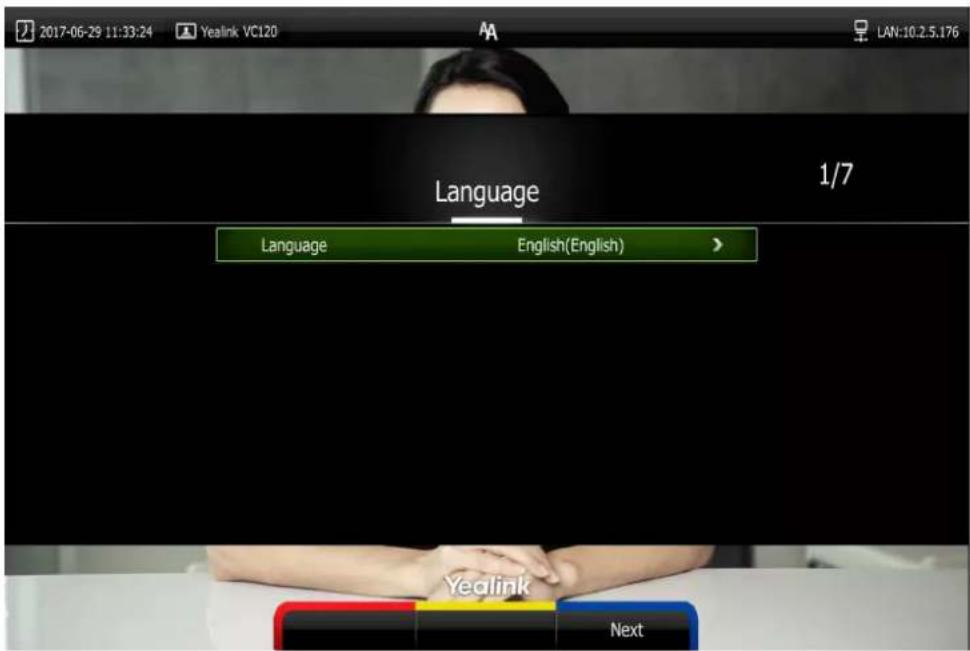
-
Press (Next soft key) to continue.
-
Set the date and time.
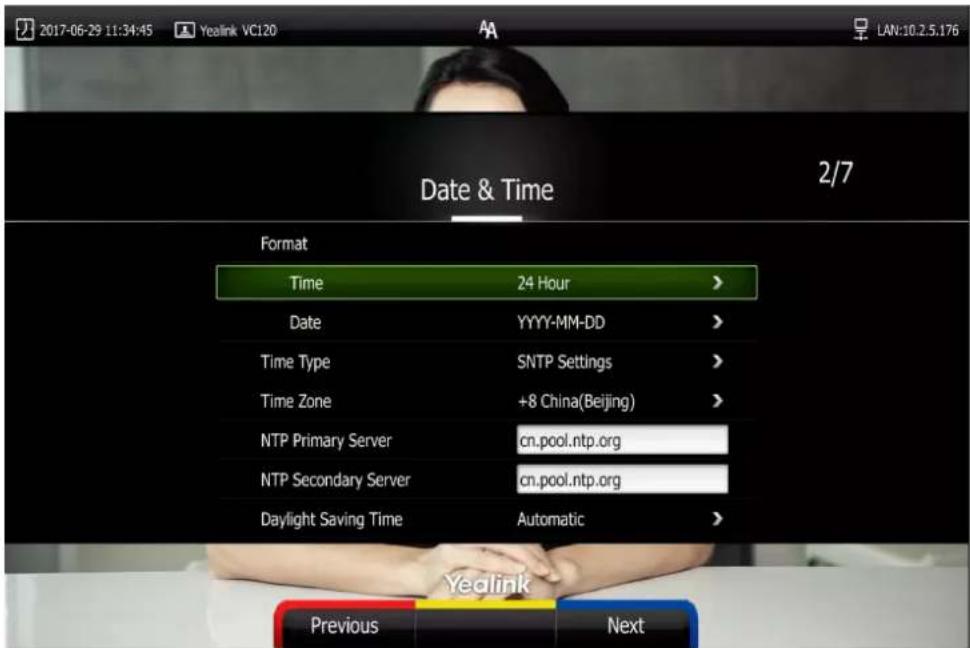
-
Press (Next soft key) to continue or press (Previous soft key) to return to the previous screen.
-
Edit the site name.
The default site name is "Yealink VC120".
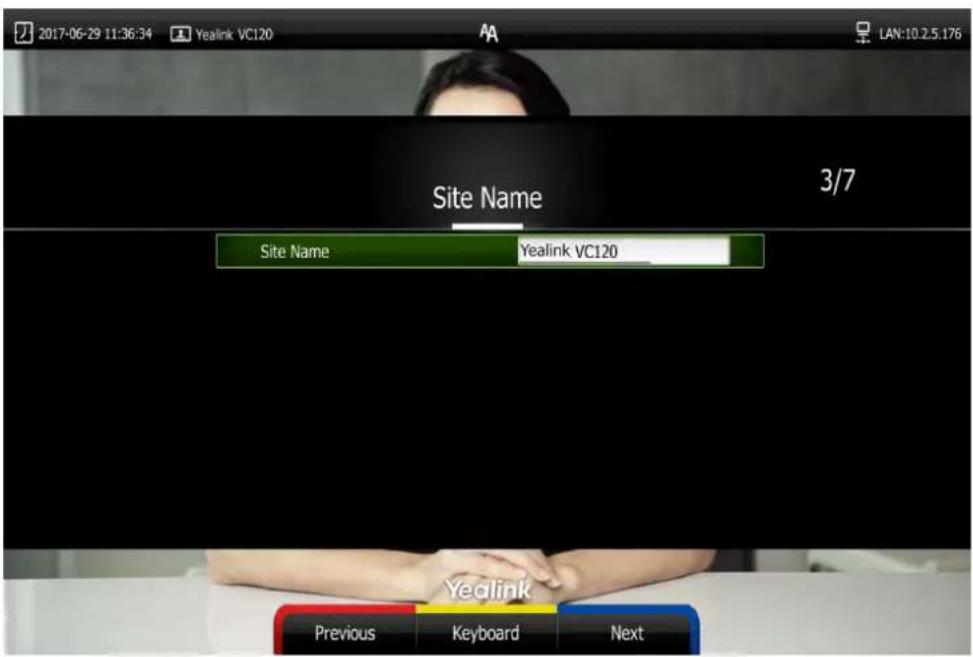
-
Press (Next soft key) to continue or press (Previous soft key) to return to the previous screen.
-
Change the administrator password.
The default administrator password is "0000".
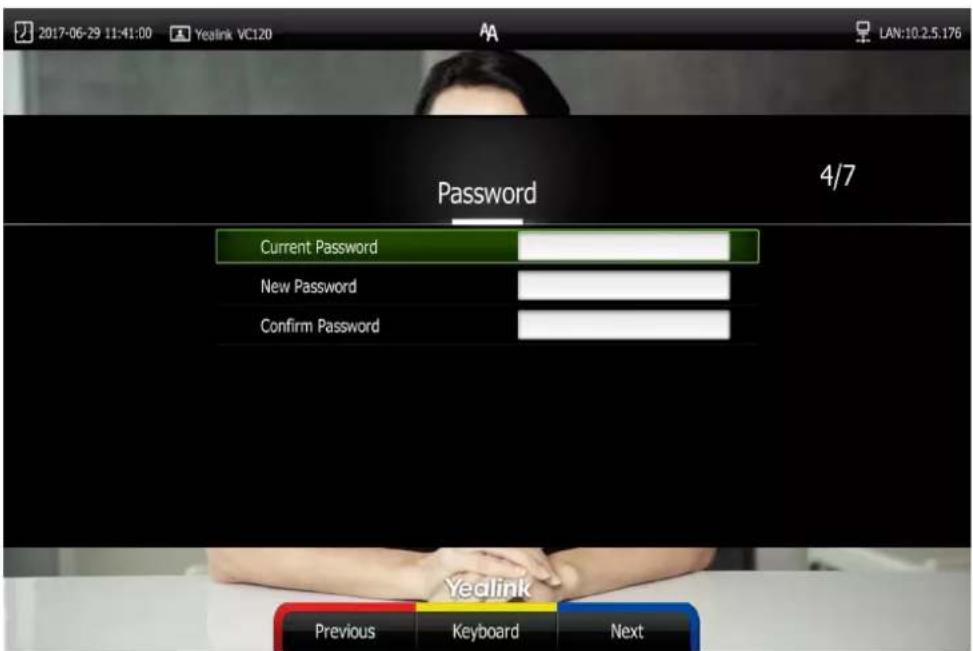
Note
Do remember the new administrator password or keep a copy of the password in a safe place. If you forget the password, you will need to reset the system to the factory settings, and then reset the password or use the default password "0000".
- Press (Next soft key) to continue or press (Previous soft key) to return to the previous screen.
The display device shows firewall port mapping information.
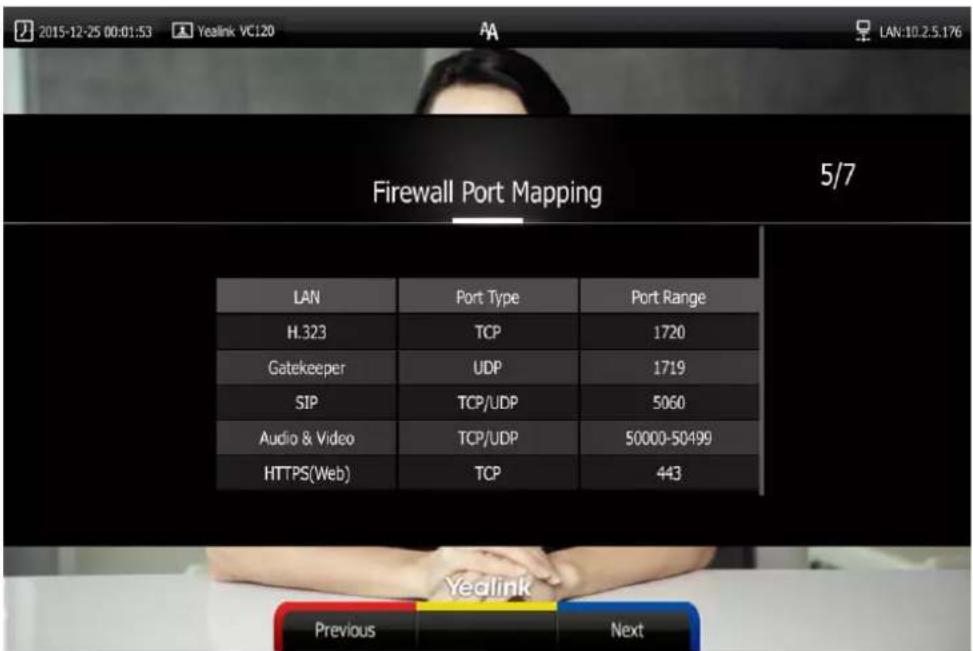
-
Press (Next soft key) to continue or press (Previous soft key) to return to the previous screen.
-
Configure network settings.
The phone will try to contact a DHCP server in your network to obtain network parameters by default. If you uncheck the DHCP checkbox, you will need to configure IPv4 or IPv6 network manually.
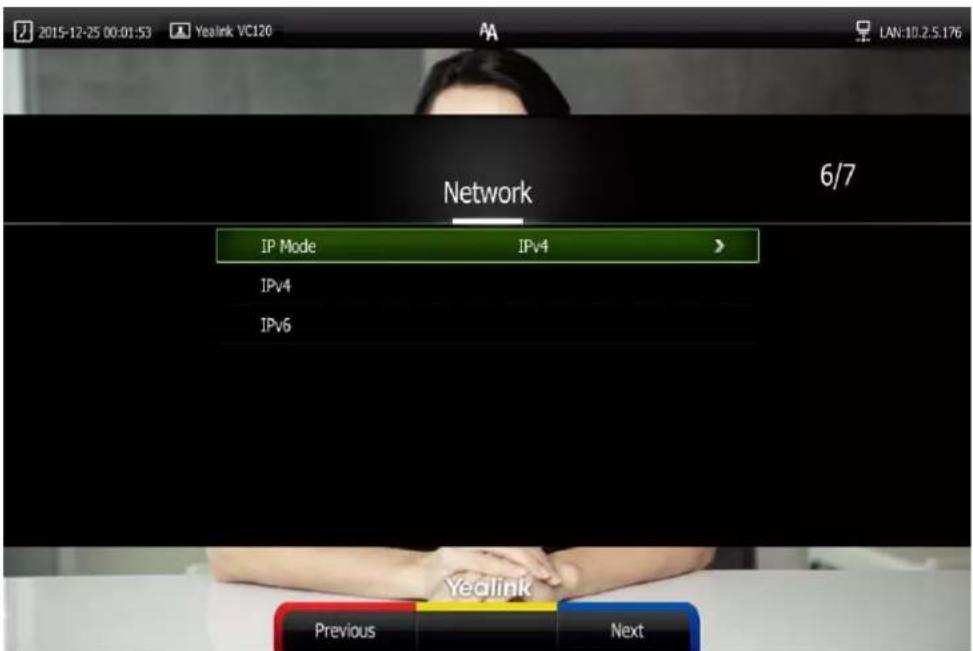
- Press (Next soft key) to continue or press (Previous soft key) to return to the
previous screen.
- (Optional) Log into the Cloud platform.
Yealink video conferencing system supports Yealink VC Cloud Management Service/Yealink Meeting Server/StarLeaf/Zoom /Pexip/BlueJeans/Mind/Custom platform. For more information, refer to Yealink VC400 & VC120 Video Conferencing System Administrator Guide.
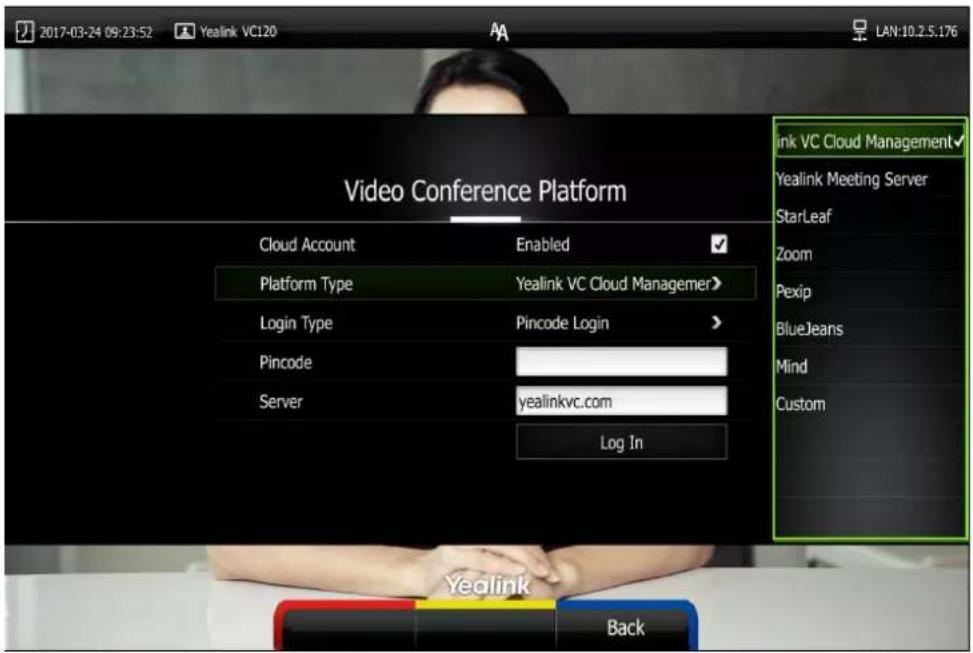
- Press (Complete soft key) to complete the setup wizard.
For more information on how to configure system features using the remote control, refer to Navigating Menus on the Display Device on page 36 and Entering Data and Editing Fields on page 37. For more information on how to configure language, time and date, refer to Customizing the VC120 Video Conferencing System on page 41.
Note
Wrong network settings may result in the inaccessibility of your system. They may also have an impact on your network performance. For more information on these parameters, contact your system administrator.
Controlling the Camera
You need to be familiar with how to adjust the angle and focus of the camera.
Controlling Local Cameras
Avoid physically adjusting the camera to prevent damaging it. Always use the remote control to control the camera.
To control local camera via the remote control:
- Press the navigation key to adjust the angle of the camera.
- Long press or to adjust the focus of the camera.
Controlling Dual Cameras
You can connect two VCC20 cameras to the VC120 Codec using the VC Dual-camera Box VCB20. You should purchase it separately if necessary. For more information, refer to Installing the VC120 Video Conferencing System on page 24.
You can switch the images between these two cameras freely according to your need. For more information, refer to Changing Video Input Source on page 108.
When controlling dual cameras, you need to know the following:
- The display device displays the image captured from the camera 1 by default.
- The display device will display the image captured from the camera 2 once you unplug the camera 1. When you are using camera 1, unplug the camera 2 will not affect the current image.
- Camera Preset are assigned to Camera 1 or Camera 2 separately. They don't impact each other.
Registration
You can register the H.323 account, SIP account and log into Cloud platform (Yealink VC Cloud Management Service/Yealink Meeting Server/StarLeaf/Zoom/Pexip/BlueJeans/Mind/Custom platform). Generally, your system administrator will configure the account beforehand, so that after you start up the system, the system will already be registered and ready for use. If your system is not registered, you may have to register it. For more information on how to register an account for the system, refer to Yealink VC400 & VC120 Video Conferencing System Administrator Guide.
Idle Screen Display
Idle screen of the display device
If the system starts up, the idle screen will be shown. The following figure is an example of the idle LCD screen:
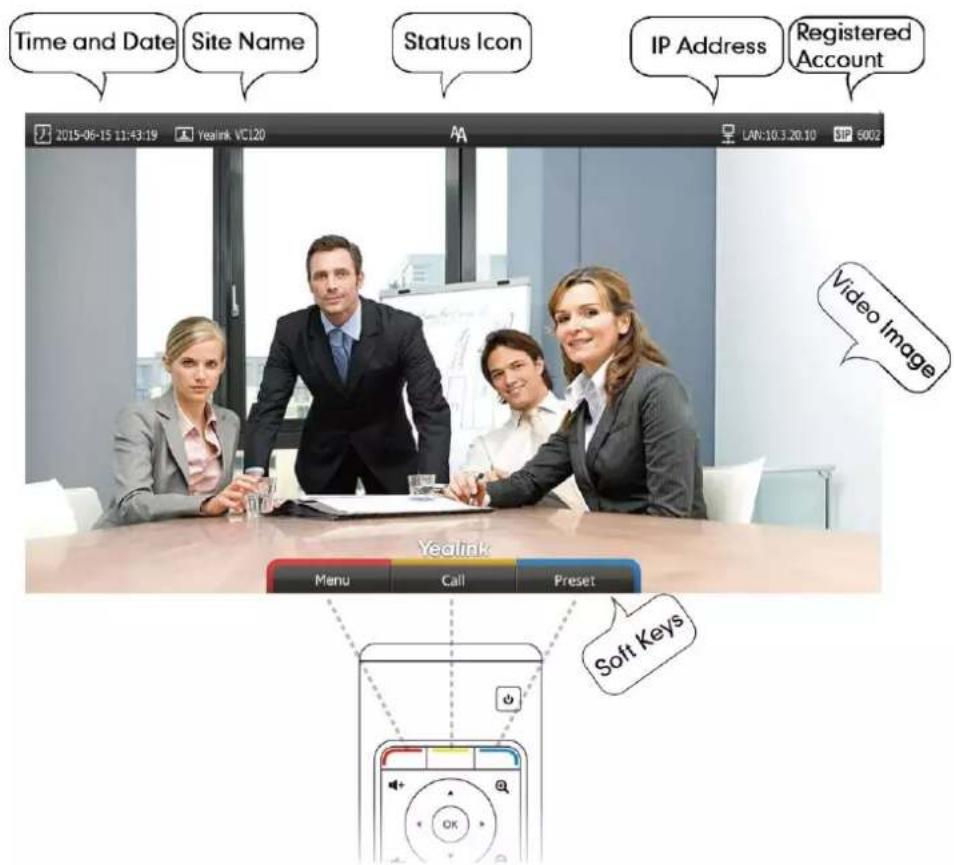
| Name | Description |
| Time and Date | The time and date are displayed on the left of the status bar. |
| Site name | The site name of the system.For more information on how to change the site name, refer to Site Name on page 44. |
| Status icon | Status icons are displayed in the center of the status bar. For more information on the status icon, refer to Icons on Display Device on page 17. |
| IP address | LAN: X.X.X.X: Indicates the system has obtained an IP address.Network disconnected: Indicates the system does not connect to an Ethernet cable. Please check the Ethernet cable.255.255.255.255: Indicates the system fails to obtain an IP address. Check the connection between the system and the DHCP server, or you can configure a static IP address for the system. For more information on how to configure a static IP address, refer to Setup Wizard on page 28. |
| Registered account | When the VC120 system is registered with the SIP server, the account icon isSIP . For more information, refer to Yealink VC400 & VC120 Video Conferencing System Administrator Guide. |
| When the VC120 system is registered with an H.323 gatekeeper, the account icon isH323 . For more information, refer to Yealink VC400 & VC120 Video Conferencing System Administrator Guide. | |
| When the VC120 system logs into Yealink VC Cloud Management Service/Yealink Meeting Server, the icon isVC .When the VC120 system logs into a StarLeaf/Zoom/Pexip/BlueJeans/Mind platform, the icon is [IMAGE] . For more information, refer to Yealink VC400 & VC120 Video Conferencing System Administrator Guide. | |
| Video image | Video image is displayed. |
| Soft keys | The display device shows the names of shortcut keys, and users can press these shortcut keys on the remote control to execute corresponding action. |
Idle screen of the video conferencing phone
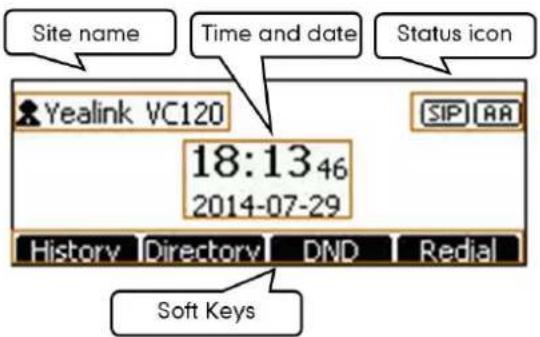
| Name | Description |
| Status icon | Displays the phone's status icon. |
| Soft Keys | Displays four soft keys.History: Enters the History screenDirectory: Enters the Directory screenDND: Enables or disables the Do Not Disturb modeRedial: Redials the last dialed number |
| Site name | Displays the site name. |
| Time and Date | Displays the time and date. |
Navigating Menus on the Display Device
You can use the remote control to enter the main menu screen, and view the items on the display device.
Note
The system will automatically return to the idle screen after 60 seconds of inactivity.
To navigate menus and fields, you can:
| If you want to | You can |
| Enter the main menu. | Press [IMAGE] (Menu soft key). |
| Return to the idle screen. | Press [IMAGE]. |
| Go back to the previous menu. | Press [IMAGE] (Back soft key) or [IMAGE]. |
| Navigate through menus. | Press ◀ or ▶ to select a menu.Press ▲ or ▼ to select an item. |
| Expand pull-down list. | Press OK or ▶ to expand a pull-down list. |
| Select an option from the pull-down list. | From the pull-down list, Press ▲ or ▼ to scroll to the setting and then press OK. |
| Enable or disable features. | Press OK. |
Keyboard Input Method
The on-screen keyboard supports English and Russian input methods.
You can enter characters using the input method only when the input method is enabled. Changing keyboard input method is configurable via web user interface only.
To configure keyboard input method via web user interface:
-
Click on Setting->General.
-
In the Keyboard IME block, select the desired list from the Disabled column and click → .
The selected input method appears in the Enabled column.
- Repeat step 2 to add more input methods to the Enabled column.
- (Optional.) To remove a list from the Enabled column, select the desired list and then click ← .
- To adjust the display order of the enabled input methods, select the desired list, and click or ↓.
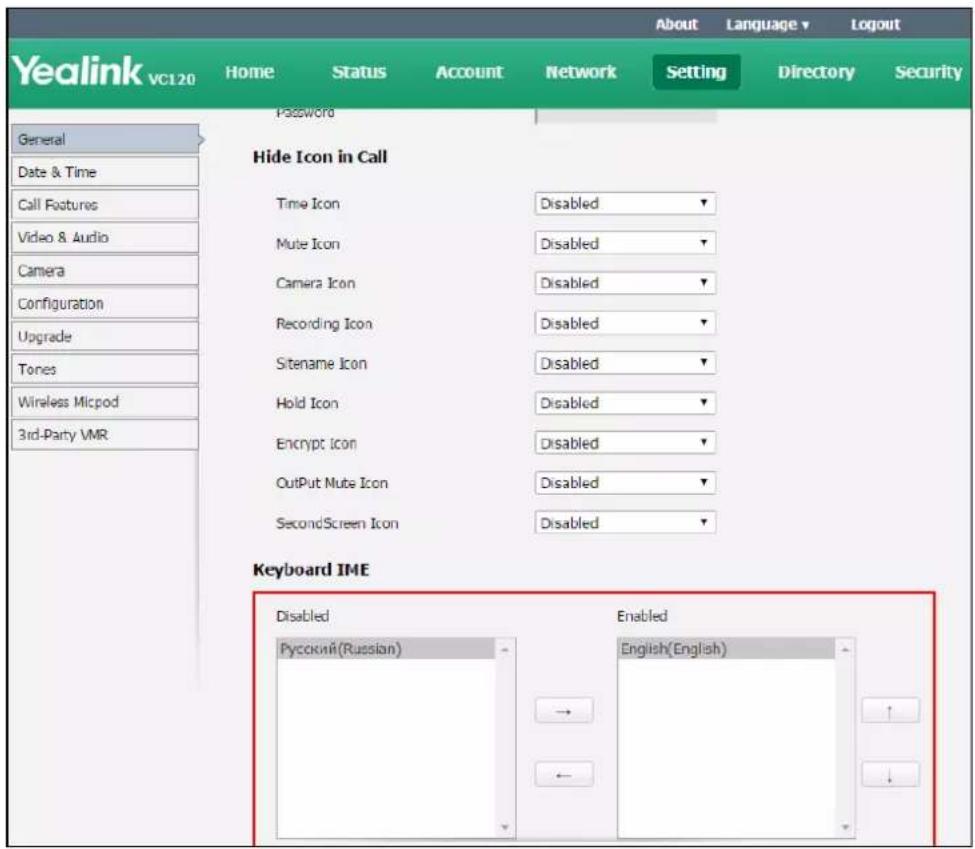
- Click Confirm to accept the change.
To change keyboard input method via the remote control:
-
In the editing field, press □ (Keyboard soft key) or □ (Keyboard soft key).
The display device displays the on-screen keyboard. -
Press (abc soft key) to change the input method.
Entering Data and Editing Fields
You can enter data and edit fields using the keypad on the remote control or the on-screen keyboard on the display device:
To enter or edit data:
- Select the field.
- Do one of the following:
| If you want to | You can |
| Entering numbers. | Press the digit keys on the remote control. |
| Entering letters. | 1. Press (Keyboard soft key) to open the on-screen keyboard. If the system is in the dialing screen, press (Keyboard soft key) to open the on-screen keyboard.2. Press the navigation keys on the remote control to select desired letters.3. Press (abc soft key) to switch input method.4. Press OK.5. Press (Exit Keyboard soft key) to exit from the on-screen keyboard. |
| Entering special characters. | 1. Press (Keyboard soft key) to open the on-screen keyboard. If the system is in the dialing screen, press (Keyboard soft key) to open the on-screen keyboard.2. Press (abc soft key) to switch the input method to @#%.3. Press the navigation keys on the remote control to select desired characters.4. Press OK.5. Press (Exit Keyboard soft key) to exit from the on-screen keyboard. |
| Delete text you entered. | • Press to delete one character at a time.• Long press for 2 seconds to delete the entire field of text. |
- Press to save.
System Status
When the system is idle, you can view its status via the remote control, video conferencing phone or web user interface.
Available system status information includes:
• System information (device model, firmware, hardware version and product ID)
- Network status (LAN type, IP address, MAC, subnet mask, gateway and DNS server, public IP address can also be viewed if the static NAT is enabled)
• Account status (register status of Cloud platform, SIP account and H.323 account)
- Camera (status, device model, SPEC and hardware version)
• Audio (the active audio input and output devices)
• VCS Phone (status, device model, hardware version and serial number)
- Wired Micpod (status, model, hardware, serial number)
• License (8-way MCU license installation status)
To view the system status via the remote control:
1. Press (Menu soft key).
The display device shows the Status menu.
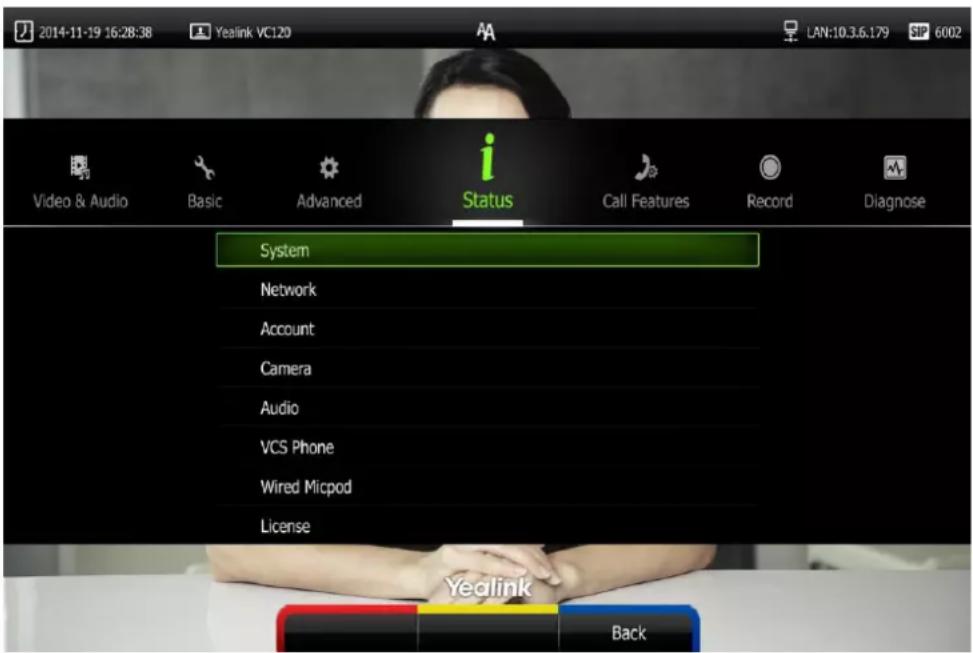
-
Press ▲ or ▼ to select the desired list.
-
Press OK to view the specific information.
To view the system status via web user interface:
- Click Status.
The system status is displayed on the web user interface.
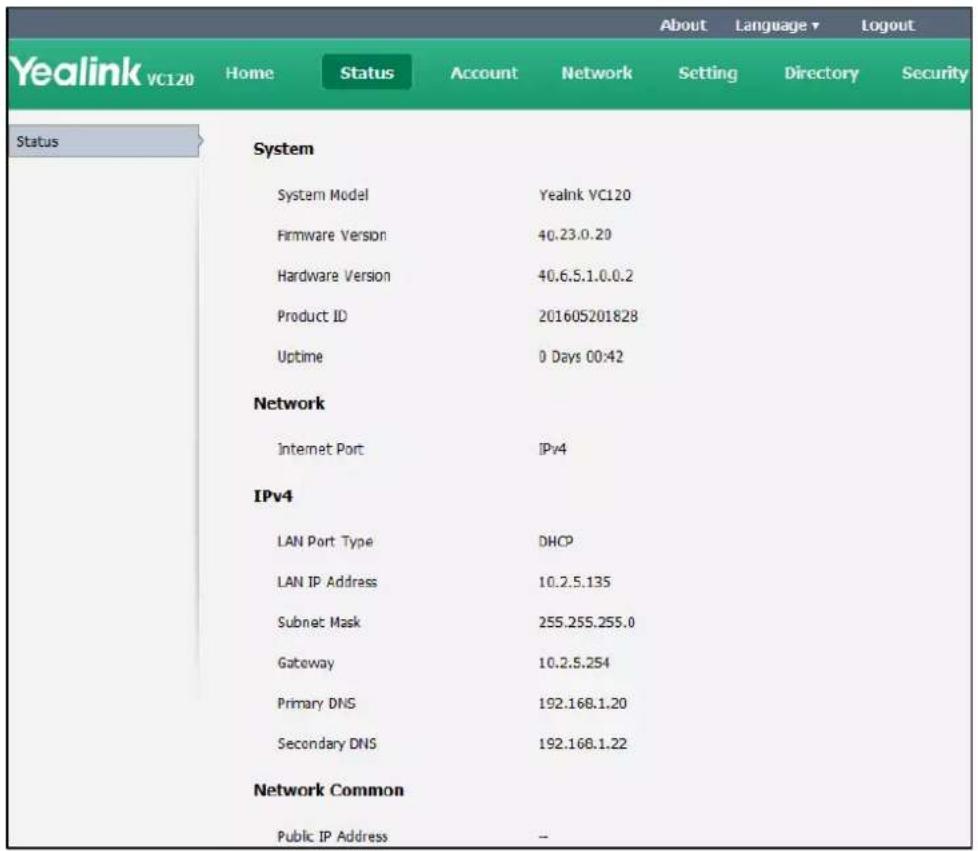
To view the system status via phone user interface:
- Press OK.
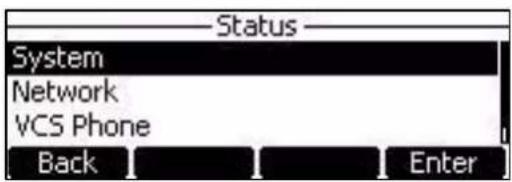
- Press ▲ or ▼ to select the desired list.
- Press OK or the Enter soft key to view the specific information.
Customizing the VC120 Video Conferencing
System
You can customize your VC120 video conferencing system by personally configuring certain settings, for example, site name, time & date and language. You can add contacts to the local directory manually or from the call history.
This chapter provides basic operating instructions for customizing your system. Topics include:
- General Settings
- Directory
- Call History Management
- Call Protocol
- Bandwidth Settings
- Audio Settings
• Far-end Camera Control
If you require additional information or assistance with your new system, contact your system administrator.
General Settings
Virtual Remote Control
In addition to using the remote control, you can also control the VC120 video conferencing system via virtual remote control.
To control VC120 video conferencing system via the virtual remote control:
- Click Home->Remote Control when the system is idle or during a call.
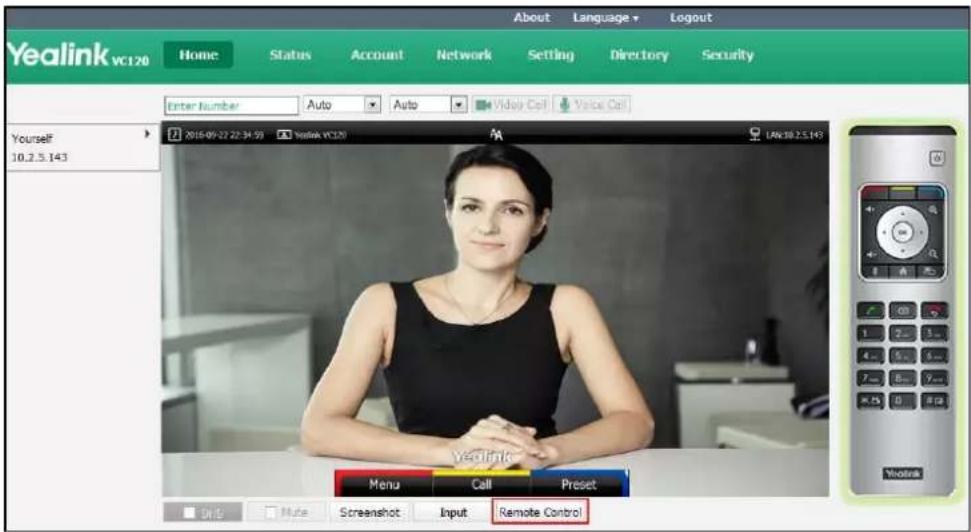
-
Click the keys on the virtual remote control to control the VC120 video conferencing system.
-
Click Remote Control to hide the virtual remote control.
Automatic Sleep Time
The system will enter the sleep mode automatically when it has been inactive for a period of time (the default period is 10 minutes).
When the system is in sleep mode, it will still accept incoming calls. The display device will prompt "No Signal", and the video conferencing phone LCD screen prompts "Sleeping Press any key to resume". You can press any key on the remote control or video conferencing phone to wake the system up. When receiving a call, the system will be woken up automatically.
You can change the automatic sleep time via the remote control or web user interface. You can also press the sleep key on the remote control to make the system sleep immediately.
To configure the automatic sleep time via the remote control:
-
Press (Menu soft key) to enter main menu.
-
Press ◀ or ▶ to select the Basic menu.
-
Press ▲ or ▼ to scroll to Automatic Sleep Time, and then press OK
-
Select desired time from the pull-down list of Automatic Sleep Time.
If Always On is selected, the system will not enter the sleep mode automatically.
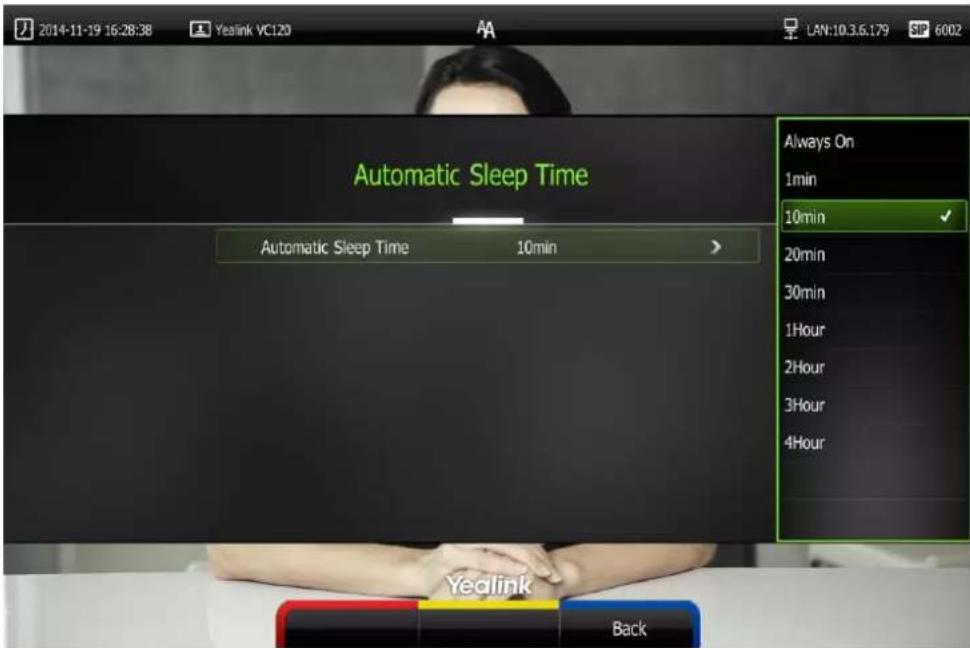
- Press (Save soft key) to accept the change.
Automatic sleep time is configurable via web user interface at the path
Setting->General->Automatic Sleep Time.
Backlight
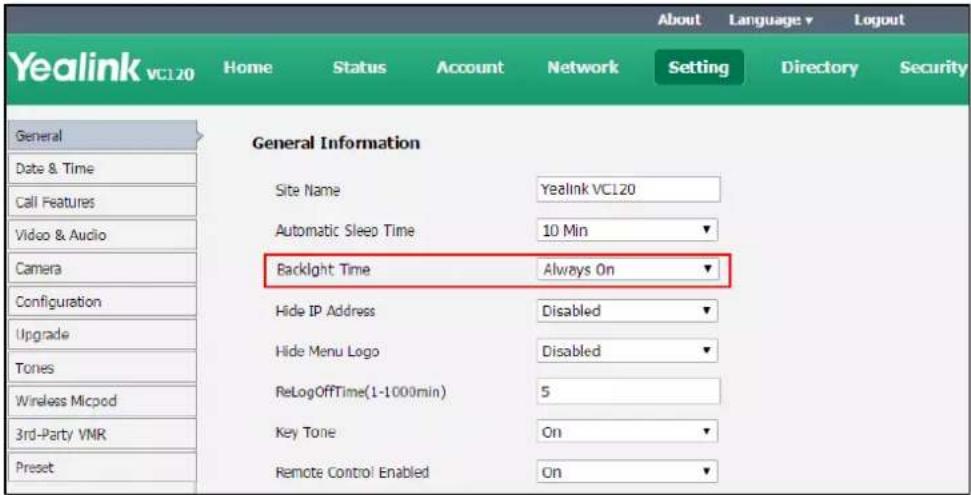
The backlight of the video conferencing phone is always on by default. You can configure backlight time for the video conferencing phone's LCD screen via web user interface.
You can configure the LCD screen's backlight time in the following formats:
• Always On: Backlight is on permanently.
- 15s, 30s, 1Min, 2 Min, 5 Min, 10 Min, 30 Min: Backlight goes out when the phone has been inactive for the time you set.
To configure the backlight via web user interface:
-
Click on Setting->General.
-
Select the desired value from the pull-down list of Backlight Time.
- Click Confirm to accept the change.
Site Name
Site name is displayed on the status bar of the display device and video conferencing phone. You can make an IP address call to the other party, the system site name will be displayed on the remote display device. Site names can consist of letters, numbers or special characters.
Site name is configurable via the remote control or web user interface.
To configure the site name via the remote control:
- Press (Menu soft key) to enter main menu.
- Press ◀ or ▶ to select the Basic menu.
- Press ▲ or ▼ to scroll to Site Name.
4. Edit the site name.
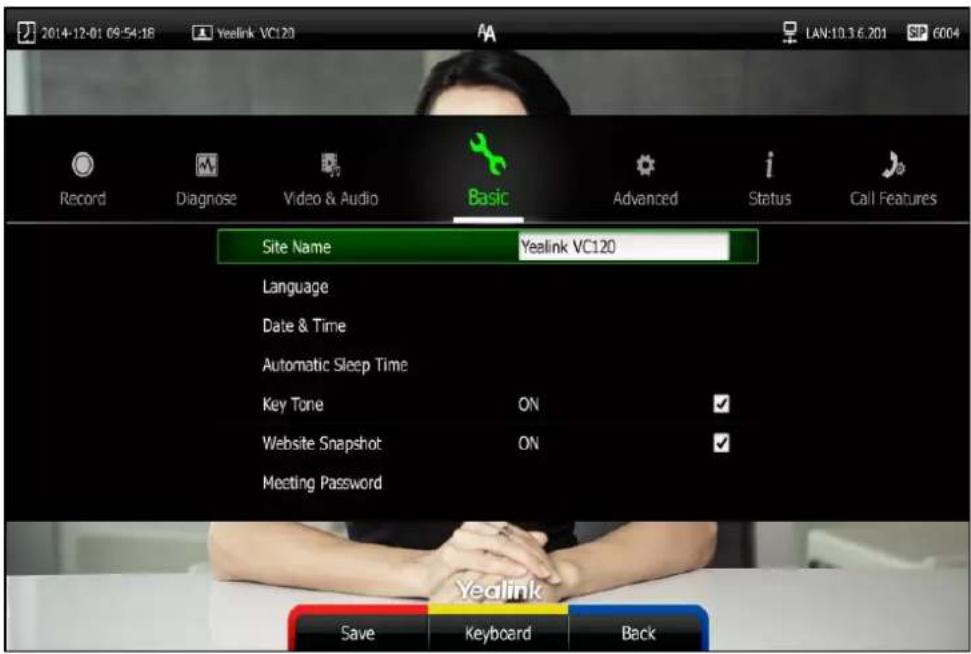
- Press (Save soft key) to accept the change.
Site name is configurable via web user interface at the path Setting->General->Site Name.
Language
The default language of the display device is English, and you can change it via the remote control. The video conferencing phone will detect and use the same language as which of the display device.
The default language of the web user interface is English. You can change the web user interface language for web user interface. The available languages for the system are English, Chinese Simplified, Chinese Traditional, French, German, Italian, Polish, Portuguese, Spanish, Turkish, Russian and Czech.
To change the language for the display device via the remote control:
- Press (Menu soft key) to enter main menu.
- Press ◀ or ▶ to select the Basic menu.
-
Press ▲ or ▼ to scroll to Language, and then press OK.
-
Select the desired language from the pull-down list of Language.
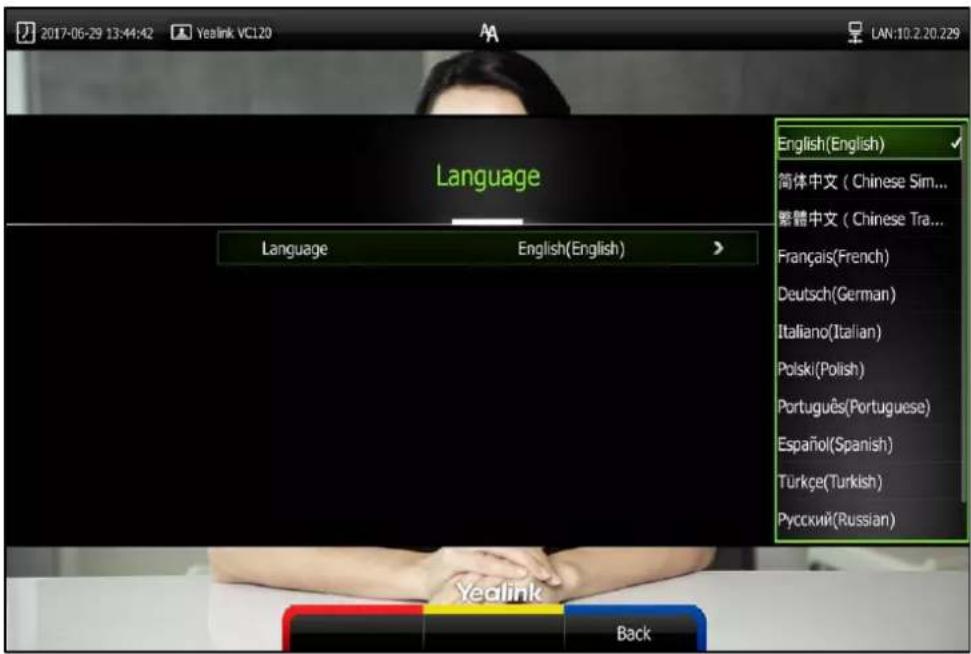
- Press (Save soft key) to accept the change.
Text displayed on the display device and LCD screen of video conferencing phone will change to the selected language.
To change the language for the web user interface:
- Click on Language at the top right corner of the web page.
- Select the desired language from the pull-down list of Language.
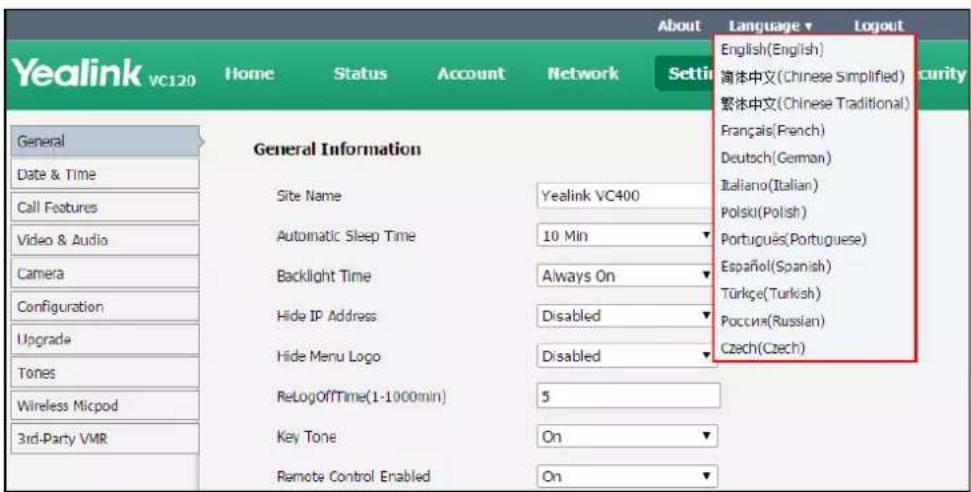
Text displayed on the web user interface will change to the selected language.
Time & Date
The time and date are displayed on the LCD screen of the video conferencing phone and display
device. You can configure the system to obtain the time and date from the SNTP (Simple
Network Time Protocol) server automatically. The SNTP allows the system to synchronize time to a main server. This keeps all network machine clocks on the same time. Enter the NTP Server name that you want to follow.
If the system cannot obtain the time and date from the SNTP server, you can configure the time and date manually, or contact your system administrator for more information.
There are 7 available date formats. For example, for the date format "WWW DD MMM", "WWW" represents the abbreviation of week. "DD" represents the two-digit day, and "MMM" represents the first three letters of the month.
The available date formats you need to know are:
| Date Format | Example (2017-5-23) |
| WWW MMM DD | Tue May 23 |
| DD-MMM-YY | 23-May-17 |
| YYYY-MM-DD | 2017-05-23 |
| DD/MM/YYYY | 23/05/2017 |
| MM/DD/YY | 05/23/17 |
| DD MM YYYY | 23 May 2017 |
| WWW DD MMM | Tue 23 May |
To configure the NTP server and date & time format via the remote control:
- Press (Menu soft key) to enter main menu.
- Press ◀ or ▶ to select the Basic menu.
- Press ▲ or ▼ to scroll to Date & Time, and then press OK.
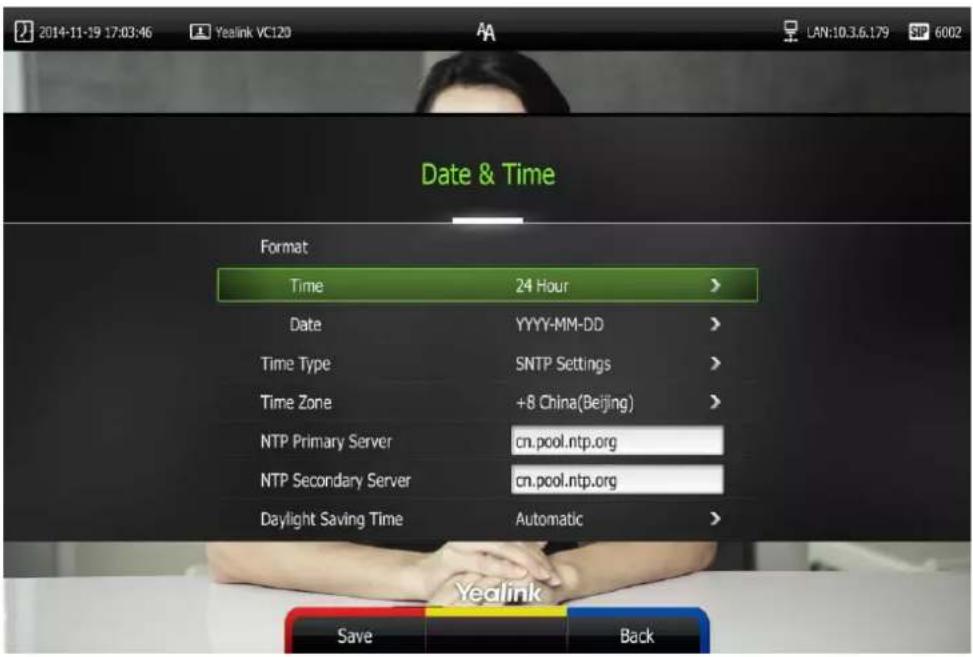
- Select the desired time format from the pull-down list of Time.
- Select the desired date format from the pull-down list of Date.
- Select SNTP Settings from the pull-down list of Time Type.
- Select the time zone that applies to your area from the pull-down list of Time Zone. The default time zone is "+8 China(Beijing)".
- Enter the domain names or IP addresses in the NTP Primary Server and NTP Secondary Server fields respectively.
- Select the desired value from the Daylight Saving Time field.
When Automatic is selected, the system will use daylight saving time corresponding to the selected time zone.
- Press (Save soft key) to accept the change.
Note
Please refer to Appendix A - Time Zones for the list of available time zones on the system.
To configure the time and date manually via the remote control:
- Press (Menu soft key) to enter main menu.
- Press ◀ or ▶ to select the Basic menu.
- Press ▲ or ▼ to scroll to Date & Time, and then press OK.
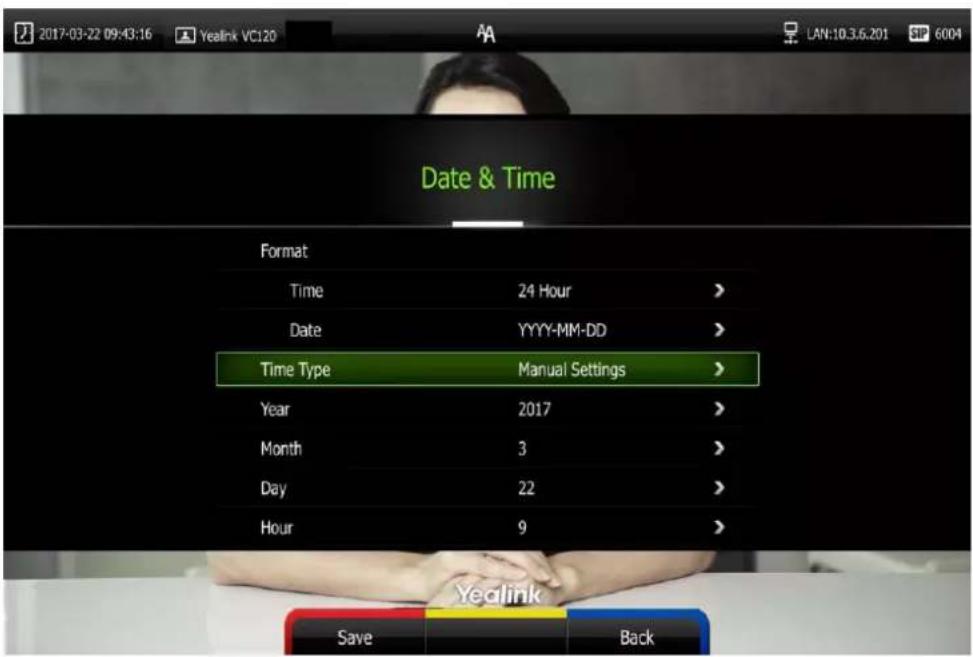
- Select the Manual Settings from the pull-down list of Time Type.
- Select the desired year from the pull-down list of Year.
- Select the desired month from the pull-down list of Month.
- Select the desired day from the pull-down list of Day.
- Select the desired hour from the pull-down list of Hour.
- Select the desired minute from the pull-down list of Minute.
10. Select the desired second from the pull-down list of Second.
11. Press (Save soft key) to accept the change.
Time and date is configurable via web user interface at the path Setting->Date&Time.
Key Tone
You can enable the key tone feature to play a key tone when you press any key on the remote control.
Key tone is configurable via the remote control or web user interface. Key tone feature is enabled by default.
Note
If ringer volume is adjusted to 0, you cannot hear the key tone. For more information on how to adjust the ringer volume, refer to Volume Settings on page 51.
To configure the key tone via the remote control:
-
Press (Menu soft key) to enter main menu.
-
Press ◀ or ▶ to select the Basic menu.
-
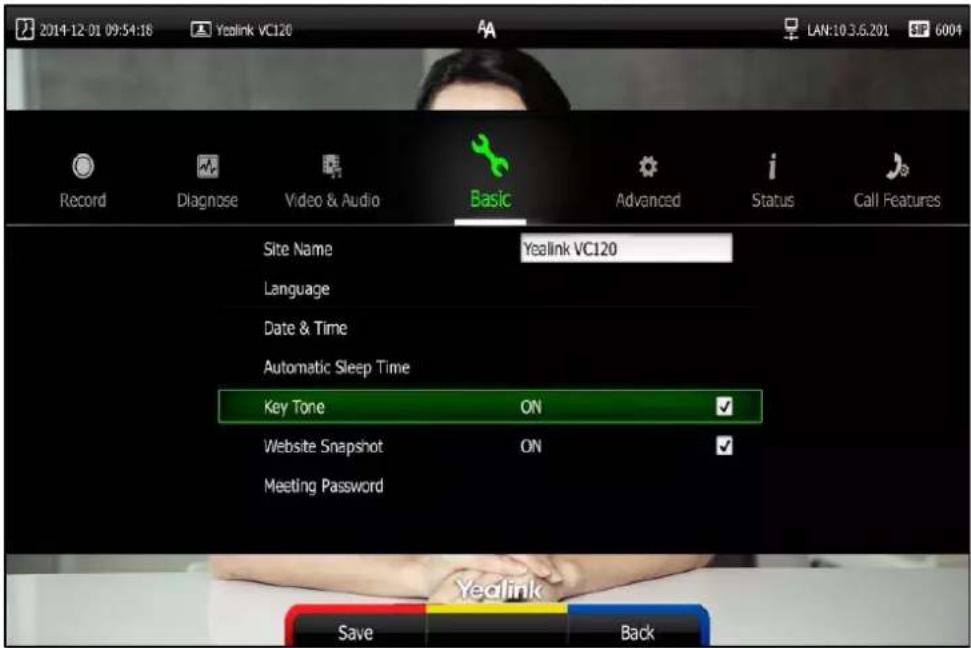
Press ▲ or ▼ to scroll to Key Tone, and then press OK to enable or disable this feature.
- Press (Save soft key) to accept the change.
Key tone is configurable via web user interface at the path Setting->General->Key Tone.
Website Snapshot
You can enable the website snapshot feature to allow the user to watch video images captured by local camera on the web user interface.
Website snapshot is configurable via the remote control only and it is enabled by default.
To configure the website snapshot via the remote control:
-
Press (Menu soft key) to enter main menu.
-
Press◀ or ▶ to select the Basic menu.
-
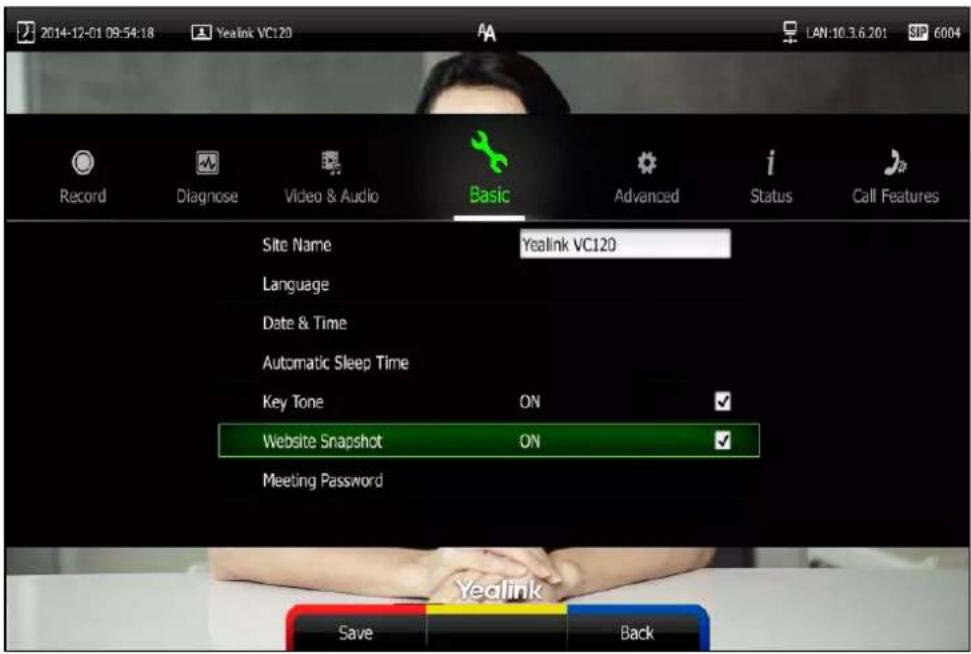
Press ▲ or ▼ to scroll to Website Snapshot, and then press OK to enable or disable this feature.
- Press (Save soft key) to accept the change.
To watch video images via the web user interface at the path Home.
Volume Settings
You can use the remote control or video conferencing phone to adjust the ringer volume of the system when it is idle or ringing. You can also adjust the receiver volume of engaged audio devices when the system is in use.
To adjust the volume when the system is idle or ringing:
Do one of the following:
- Press 🏠-or 🏠+on the remote control to adjust the ringer volume of the system.
The current ringer volume of the system is displayed on the left of the display device.
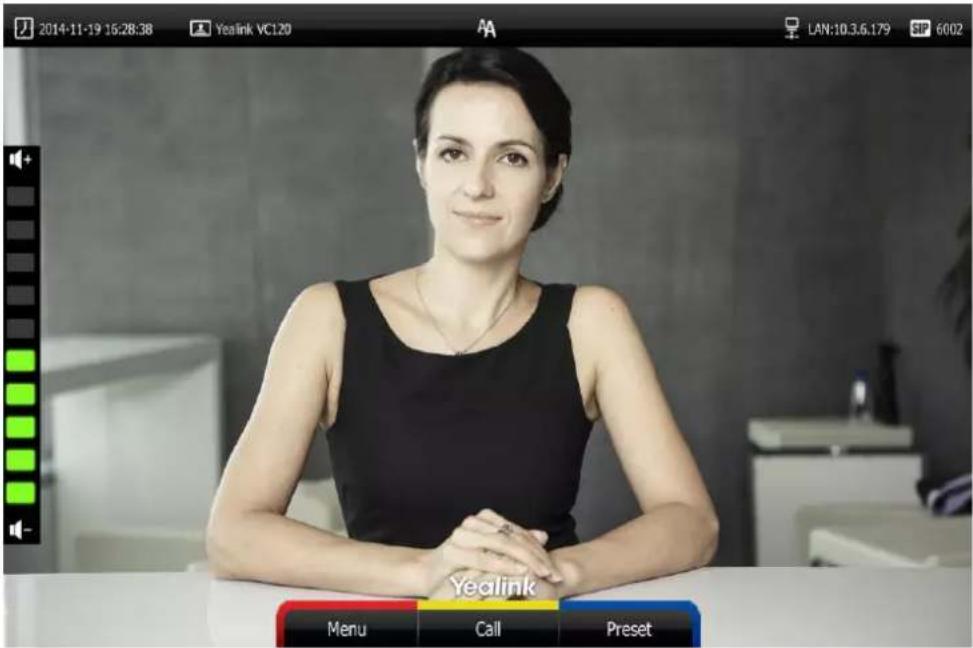
- Press ☐ on the video conferencing phone to adjust the ringer volume. The LCD screen of the video conferencing phone displays the current ringer volume.
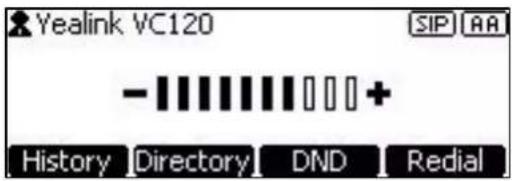
The display device will display the ringer volume simultaneously.
Note
If ringer volume is adjusted to 0, the icon will appear on the display device. The icon will appear on the LCD screen of the video conferencing phone.
To adjust the volume when the system during a call:
- Press 📋-or 📋+ on the remote control to adjust the receiver volume of the system.
The current receiver volume of the system is displayed on the left of the display device.
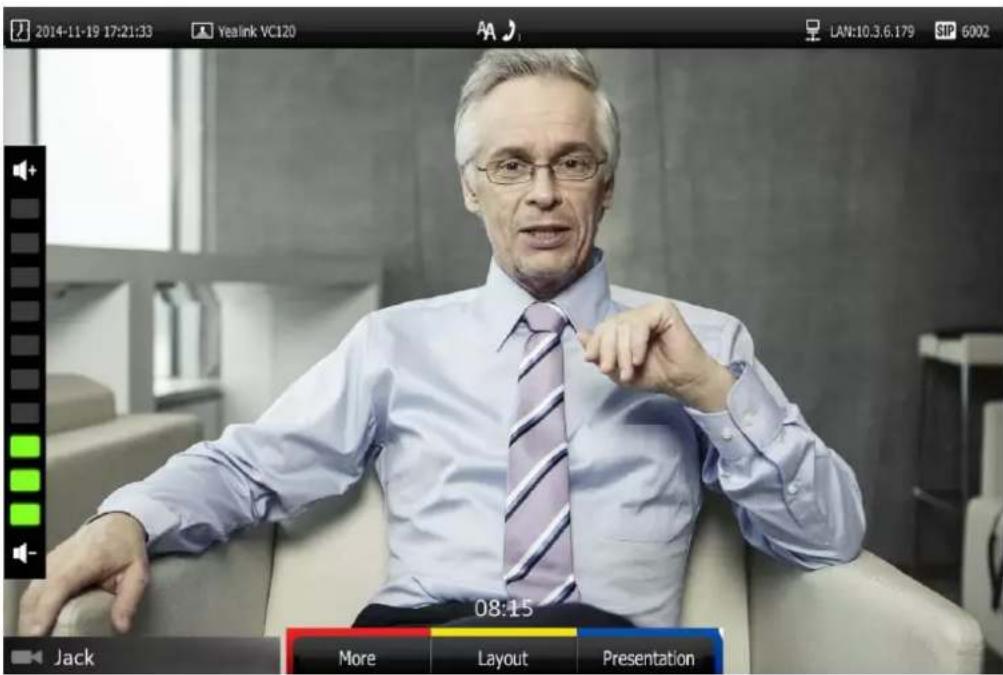
- Press ☐ to adjust the receiver volume.
The LCD screen of the video conferencing phone displays the current receiver volume.
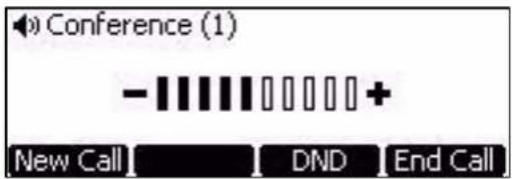
The display device will display the receiver volume simultaneously.
Note
If the video conferencing phone is not the active audio device of the system, you can still use it to adjust the system volume.
Meeting Password
If an 8-way conference license is imported to your VC120 video conference system, you can use meeting password to manage the incoming calls. For more information on how to import an 8-way conference license, refer to 8-way MCU on page 85.
If you enable this feature, only the people who know the meeting password can dial your system. If your system is idle, meeting password can prevent people from dialing your system. If your system is during a call or conducting a conference call, meeting password can prevent unauthorized people from joining.
Note
You can add specified users to the meeting whitelist. Users in the whitelist can dial your system directly without meeting password. For more information on meeting whitelist, refer to Meeting Whitelist on page 55.
To configure the meeting password via the remote control:
- Press (Menu soft key) to enter main menu.
- Press ◀ or ▶ to select the Basic menu.
- Press ▲ or ▼ to scroll to Meeting Password, and then press OK.
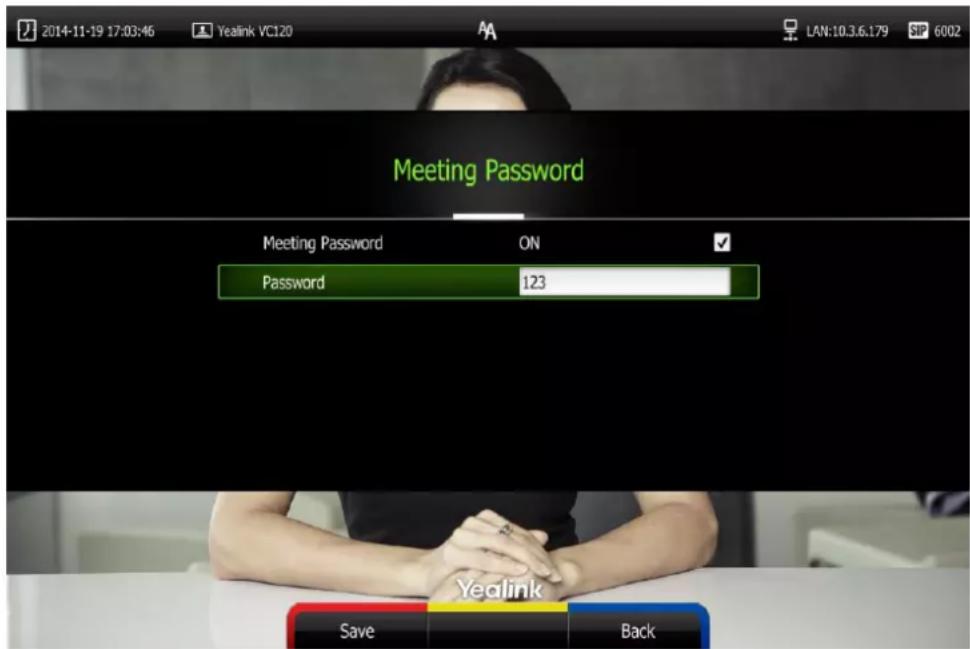
-
Check the Meeting Password checkbox.
-
Enter the meeting password in the Password field.
-
Press (Save soft key) to accept the change.
Meeting password is configurable via web user interface at the path
Settings->General->Meeting Password.
People can press IP##meeting password or meeting password@IP to dial your system or join your conference call. For example: your IP address is 10.3.6.179 and you set 123 as your meeting password. People should press 10.3.6.179##123 or 123@10.3.6.179 to dial your system or join your conference call. If people call you without a meeting password or with a wrong meeting password, the call will fail.
Meeting Whitelist
If an 8-way conference license is imported to your VC120 video conference system, you can add the IP address, account or domain name of the remote system to the meeting whitelist. Users in the whitelist can dial your system or join your conference call directly without meeting password even if you have enabled the meeting password feature. VC120 video conferencing system supports up to 100 whitelist records. Meeting whitelist is configurable via web user interface only. For more information on how to import an 8-way conference license, refer to 8-way MCU on page 85.
To add the meeting whitelist numbers via web user interface:
- Click on Directory->Meeting Whitelist.
- Enter the user's IP, account or domain name in the Meeting Whitelist Number field.
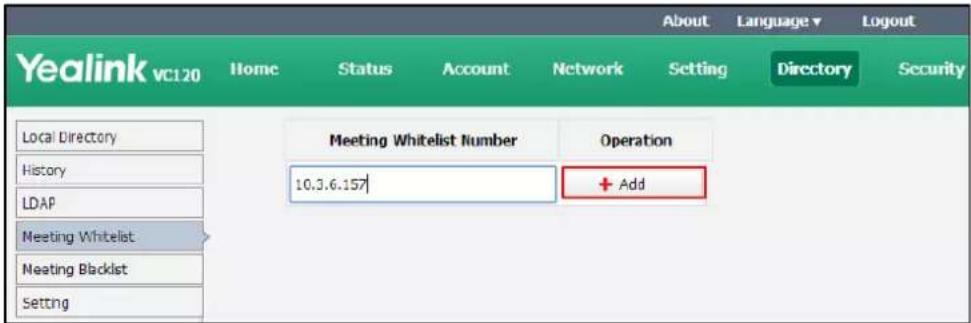
- Click Add.
- Repeat step 2-3 to add more numbers to the whitelist.
To delete the meeting whitelist numbers via web user interface:
- Click on Directory->Meeting Whitelist.
- Click Delete beside the numbers that you want to delete.
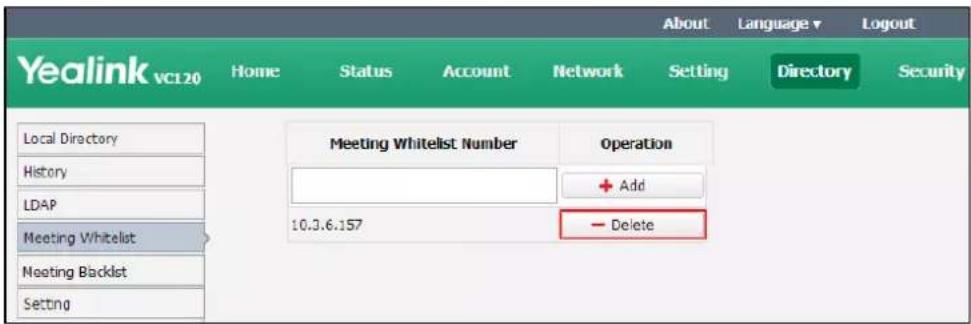
The web user interface prompts the message "Warning: Are you sure delete the white number?".
- Click Confirm.
Meeting Blacklist
You can add the IP address, account or domain name of the remote system to the meeting blacklist. VC120 will refuse incoming calls from the blacklist automatically. If the user is in both meeting whitelist and meeting blacklist, the blacklist has higher priority. VC120 will still refuse incoming calls from this user. VC120 will not remind incoming calls and save call history from blacklist.
VC120 supports up to 100 blacklist records. Blacklist is configurable via web user interface only.
To add the blacklist numbers via web user interface:
- Click on Directory->Meeting Blacklist.
- Enter the user's IP address, account or domain name in the Meeting Blacklist Number field.
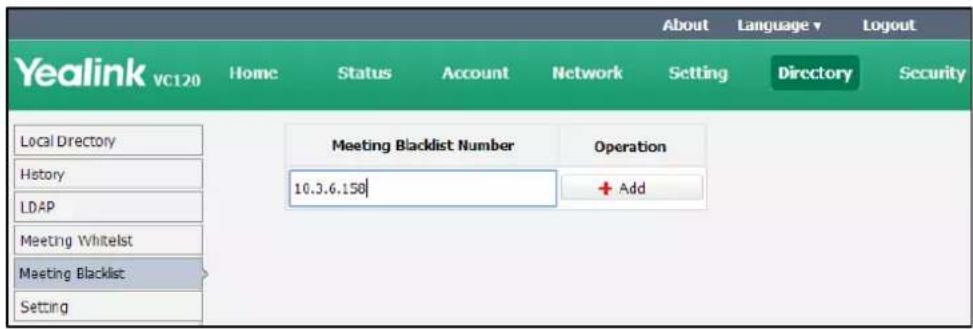
- Click Add.
- Repeat step 2-3 to add more numbers to the meeting blacklist.
To delete the blacklist numbers via web user interface:
- Click on Directory->Meeting Blacklist.
- Click Delete beside the numbers that you want to delete.
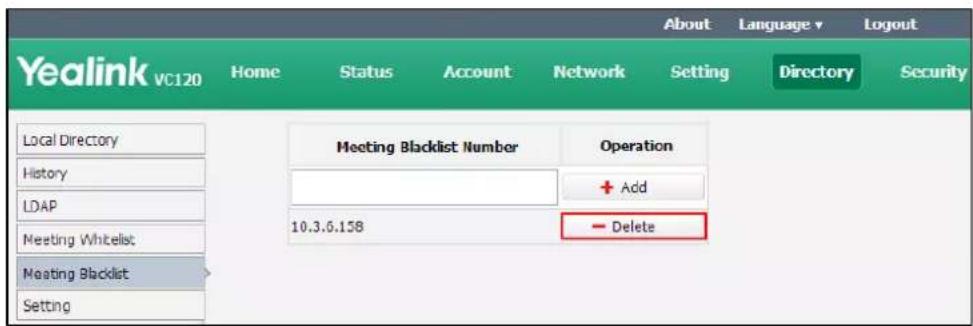
The web user interface prompts the message "Warning: Are you sure delete the black number?".
- Click Confirm.
Hiding Icons in a Call
During a call, the display device displays some icons to indicate the call status. You can hide these icons as needed to achieve the best video effects. Hiding icons in a call feature is configurable via web user interface only.
To hide icons in a call via web user interface:
- Click on Setting->General.
-
Select the desired values from the pull-down lists of Time Icon, Mute Icon, Camera Icon, Recording Icon, Sitename Icon, Hold Icon, Encrypt Icon, OutPut Mute Icon, and SecondScreen Icon.
-
If you select Disabled, the system displays corresponding icons during a call.
- If you select Hide with UI, the system displays corresponding icons during a call, but the icons will disappear when the operation menu is hidden automatically.
- If you select Enabled, the system does not display corresponding icons during a call.
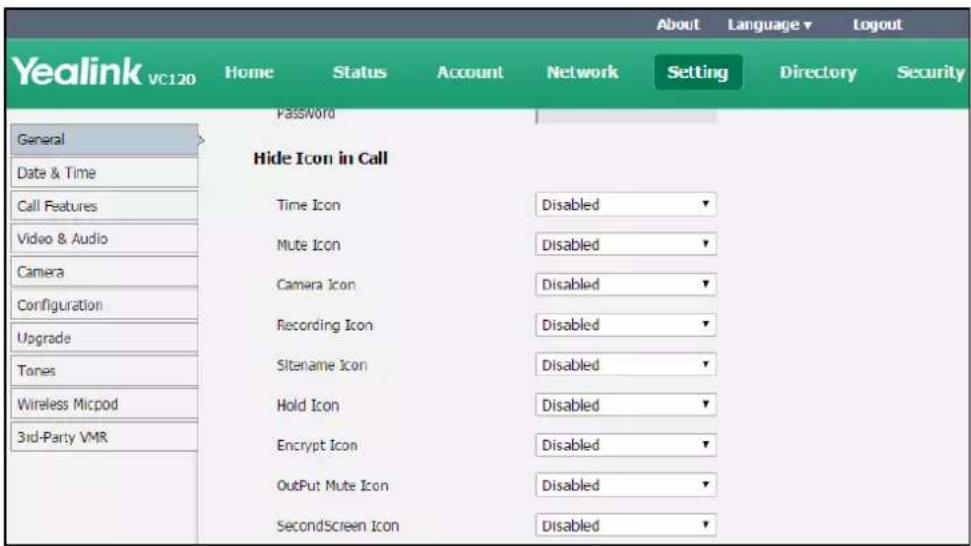
- Click Confirm to accept the change.
USB Configuration
If you have high requirement for data security, you can disable the USB feature. If you disable the USB feature, you cannot view the videos and screenshots stored in the USB flash driver via the remote control, and cannot record video or capture screenshots too.
To configure USB configuration via web user interface:
- Click on Setting->Video & Audio.
2. Select the desired value from the pull-down list of USB Enable.
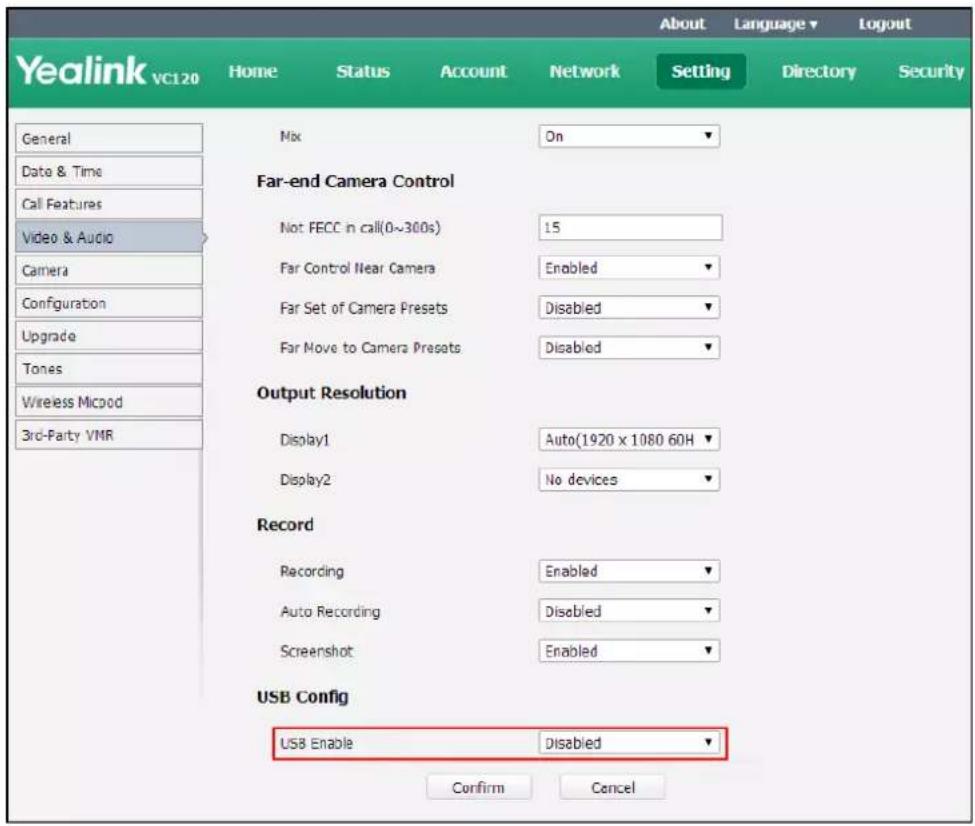
3. Click Confirm to accept the change.
Directory
VC120 system can display: local contacts, Yealink Cloud contacts and YMS contacts.
- Local contacts: VC120 system can store up to 500 local contacts. You can import or export local contact list to different systems to share the local directory. The system only supports the XML and CSV format contact lists. You can view local directory via web user interface, remote control and the video conferencing phone. But you can edit or delete the local directory via web user interface and remote control.
- Yealink Cloud contacts: If you log into the Yealink VC Cloud Management Service platform, Yealink Cloud contacts which are created by your administrator, appear in your directory. Note that only the administrator can add, edit and delete Yealink Cloud contacts on the Yealink VC Cloud management service. On your VC120, you can only search for and place calls to the Yealink Cloud contacts. For more information on Yealink VC Cloud management service, refer to Yealink VC Cloud Management Service Administrator Guide.
- YMS contacts: If you log into the Yealink Meeting Server, enterprise directory which is created by your administrator, appears in your directory. Note that only the administrator can add, edit and delete the YMS contacts and permanent VMR on the Yealink Meeting Server (YMS). The administrator can also determine whether synchronize the permanent
VMR to the VC120. On your VC120, you can only search for and place calls to the YMS contacts and permanent VMR. For more information on Yealink Meeting Server, refer to Yealink Meeting Server Administrator Guide.
Note
Starleaf/Zoom/BlueJeans/Pexip/Mind platform does not provide Cloud contacts for video conferencing System.
This chapter provides operating instructions for the directory. Topics include:
- Adding Local Contacts
- Placing Calls to Contacts
• Editing Local Contacts - Deleting Local Contacts
- Searching for Contacts
• Search Source List in Dialing - Importing/Exporting Local Contact Lists
Adding Local Contacts
You can add local contacts to the system via the remote control or web user interface.
To add a local contact via the remote control:
- Press (Call soft key).
- Press ◀ or ▶ to select the Directory menu.
- Press □ (New Contact soft key).
- Enter contact name in the Name field.
- Enter contact number or IP address in the Number field.
- Press ▲ or ▼ to scroll to Add New Number, and then press OK to add more numbers. Up to 3 numbers can be added to a local contact.
- Enter the second number of the local contact in the Number 2 field.
You can repeat step 6 to add the third number to the local contact, and enter the third number in the Number 3 field. - Select the desired contact bandwidth from the pull-down list of Bandwidth.
The default contact bandwidth is Auto. The system will select the appropriate bandwidth automatically.
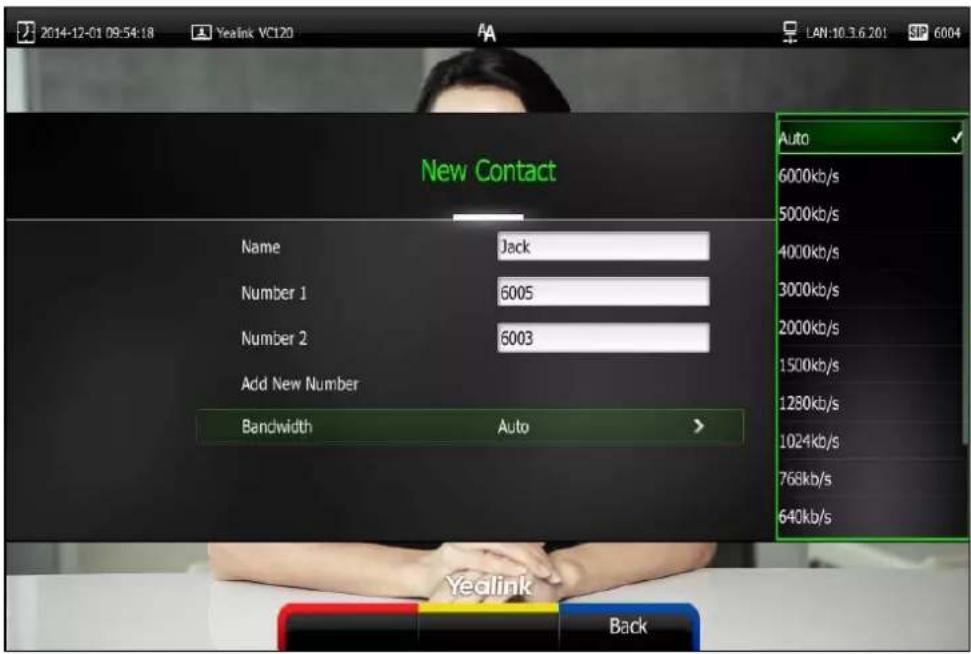
- Press (Save soft key) to save the local contact.
Note
If the contact already exists in the directory, the display device will prompt "Contact already exists!".
You can also add local contacts via web user interface at the path Directory->Local Directory.
Placing Calls to Contacts
You can place calls to local contacts via the remote control, video conferencing phone or web user interface. If you log into the Yealink VC Cloud Management Service Platform, you can also place calls to Cloud contacts.
To place a call to a contact via the remote control:
- Press □ (Call soft key).
- Press ◀ or ▶ to select the Directory menu.
- Select the desired contact type from the pull-down list of the All Contacts first.
- Press ▲ or ▼ to select the desired contact.
- Press OK.
- If only one number is stored for the contact, the contact number will be dialed out directly.
- If multiple numbers are stored for the contact, press ▲ or ▼ to highlight the desired number, and then press OK or 📁 to dial out the number.
To place a call to a contact via the video conferencing phone:
-
Press the Directory soft key to enter the Directory list.
-
Press ▲ or ▼ to select the desired directory list.
-
Press the Enter soft key or OK to view the contacts in the selected directory.
-
Press ▲ or ▼ to select the desired contact.
You can press the ◀ or ▶ soft key to switch the directory list.
- Do one of the following:
- If only one number is stored for the contact, press the Send soft key, OK or to call the contact.
- If multiple numbers are stored for the contact, press the Enter soft key or OK to view the contact numbers.
Press ▲ or ▼ to highlight the desired number.
Press the Send soft key, OK or to call the contact.
You can also place calls to local contacts via the web user interface at the path
Directory->Local Directory.
Editing Local Contacts
You can only edit local contacts via the remote control or web user interface:
To edit a local contact via the remote control:
-
Press □ (Call soft key).
-
Press ◀or ▶to select the Directory menu.
-
Press ▲ or ▼ to select the desired local contact.
-
Press (Detail soft key).
-
Edit contact information.
You can select Add New Number to add new numbers for the local contact.
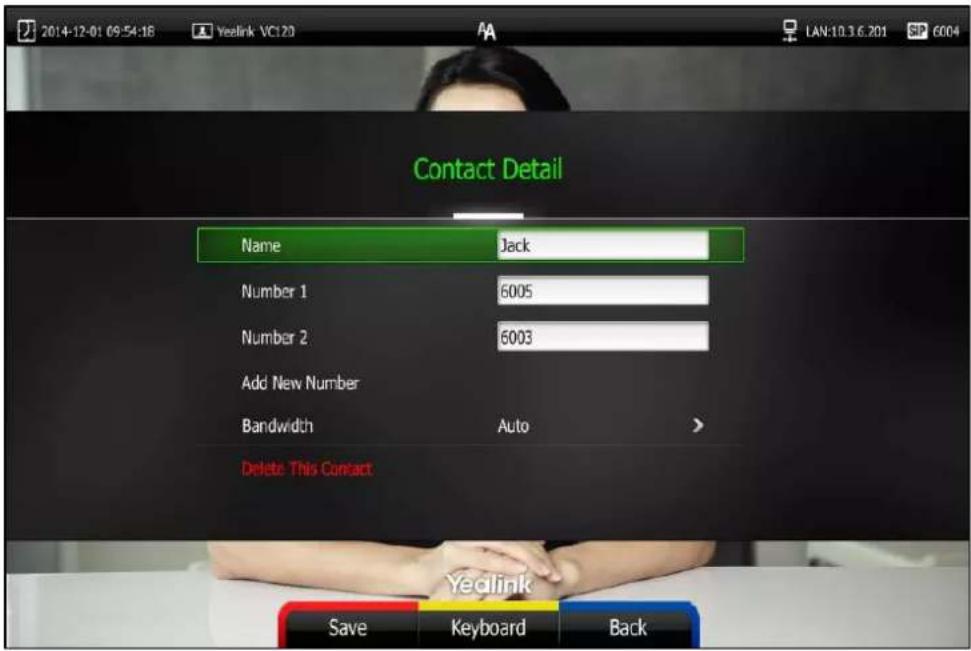
- Press (Save soft key) to accept the change or press (Back soft key) to cancel.
You can also edit local contacts via the web user interface at the path Directory->Local Directory.
Deleting Local Contacts
You can only delete local contacts via the remote control or web user interface.
To delete a local contact via the remote control:
- Press □ (Call soft key).
- Press ◀ or ▶ to select the Directory menu.
- Press ▲ or ▼ to select the desired local contact.
- Press (Detail soft key).
- Press ▲ or ▼ to highlight the Delete This Contact, and then press OK.
The display device prompts "Delete this contact?"
6. Press ▲ or ▼ to highlight OK.
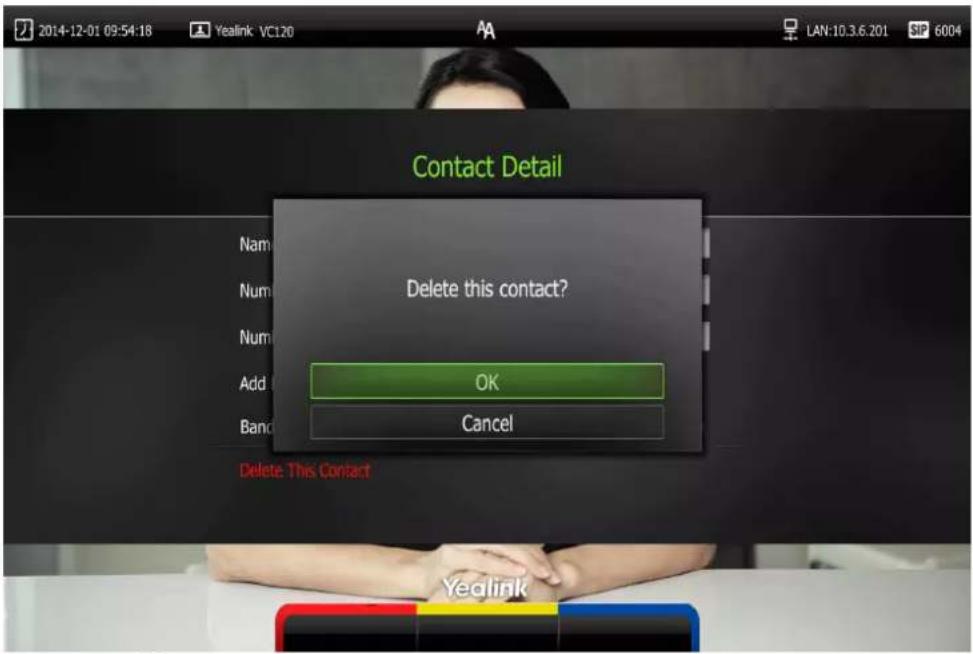
7. Press OK to delete the local contact.
You can also delete local contacts via the web user interface at the path Directory->Local Directory.
Searching for Contacts
You can search for local contacts via the remote control, video conferencing phone or web user interface.
If you log into the Yealink VC Cloud Management Service Platform or Yealink Meeting Server, you can also search for Yealink Cloud contacts or YMS contacts via the remote control or video conferencing phone.
To search for contacts via the remote control:
-
Press □ (Call soft key).
-
Press ◀ or ▶ to select the Directory menu.
-
Press ▲ or ▼ to select the searching box.
You can select the desired contact type from the pull-down list of the All Contacts first.
- Enter a few or all characters of the contact name or numbers.
The contacts whose names or phone numbers matches the characters entered will appear on the display device.
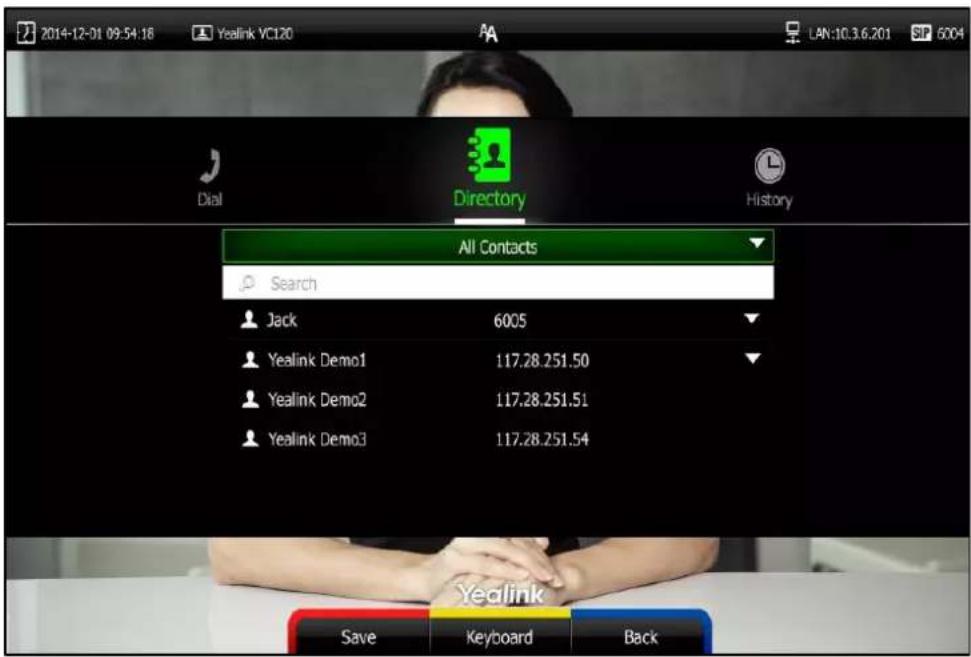
- You can press ▲ or ▼ to select the desired contact, and then call or edit the contact.
Search Source List in Dialing
You can search for a contact from the desired lists when the phone is in the pre-dialing screen. The lists can be History, Local Directory, Cloud Contacts (including your Yealink Cloud contacts and YMS contacts) and LDAP.
In the pre-dialing screen, when you enter a few characters, the system will search for the matched contacts from the enabled search source lists, and display the result in the dialing screen.
If you want to match the LADP list, make sure LDAP is configured already. For more information on how to configure LDAP, contact your system administrator.
To configure search source list in dialing via web user interface:
- Click on Directory->Setting.
- In the Search Source List In Dialing block, select the desired list from the Disabled column and click →.
The selected list appears in the Enabled column. - Repeat step 2 to add more lists to the Enabled column.
-
(Optional.) To remove a list from the Enabled column, select the desired list and then click ← .
-
To adjust the display order of the enabled list, select the desired list, and click or ↓.
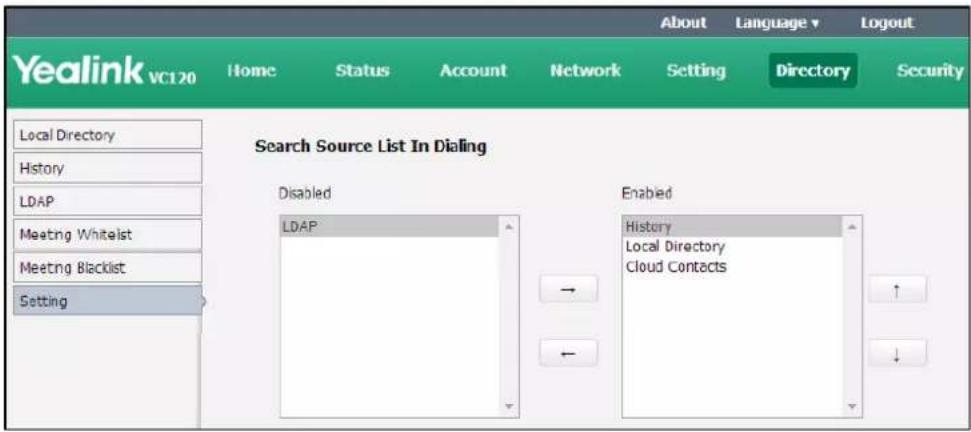
- Click Confirm to accept the change.
Note
Search source list in dialing is only configurable via web user interface.
To place a call via search source lists:
-
Press □ (Call soft key).
-
Enter a few or all characters of the contact name or numbers.
The contacts whose names or phone numbers matches the characters entered will appear on the display device.
- Press ▲ or ▼ to select the desired contact, and then press √ or OK to call the contact.
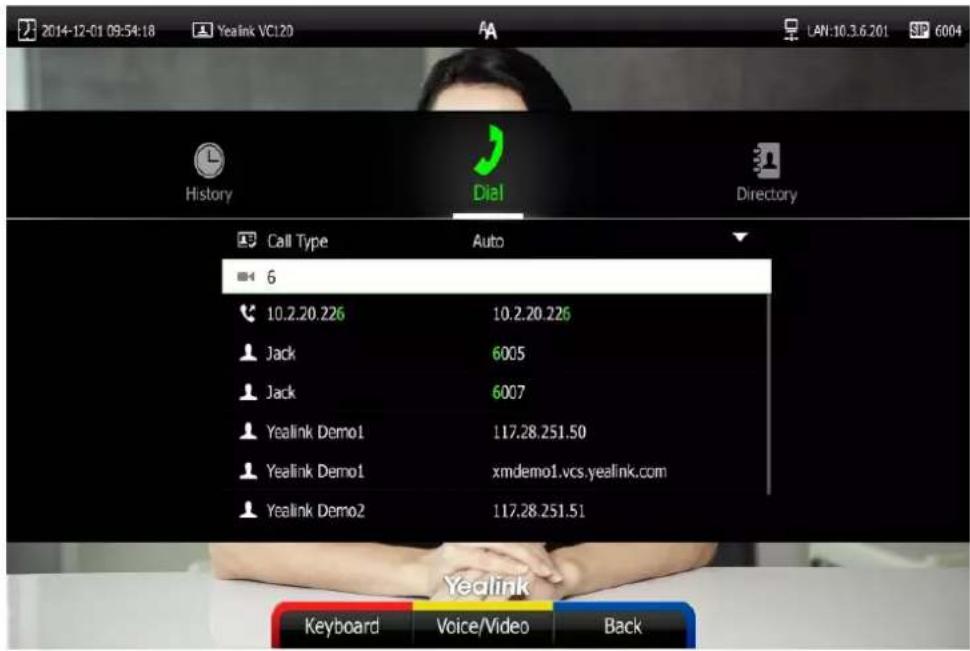
Importing/Exporting Local Contact Lists
You can import or export the local contact list to share local contacts between different systems or between system and application software (e.g., Outlook).
The VC120 video conferencing system only supports the XML and CSV format local contact lists. You can only import or export the local contact list via the web user interface.
To import an XML file of the local contact lists via the web user interface:
- Click on Directory->Local Directory.
- Select Import from the pull-down list of Import/Export.
- Click Browse to locate a local contact list file (file format must be *.xml) from your local system.
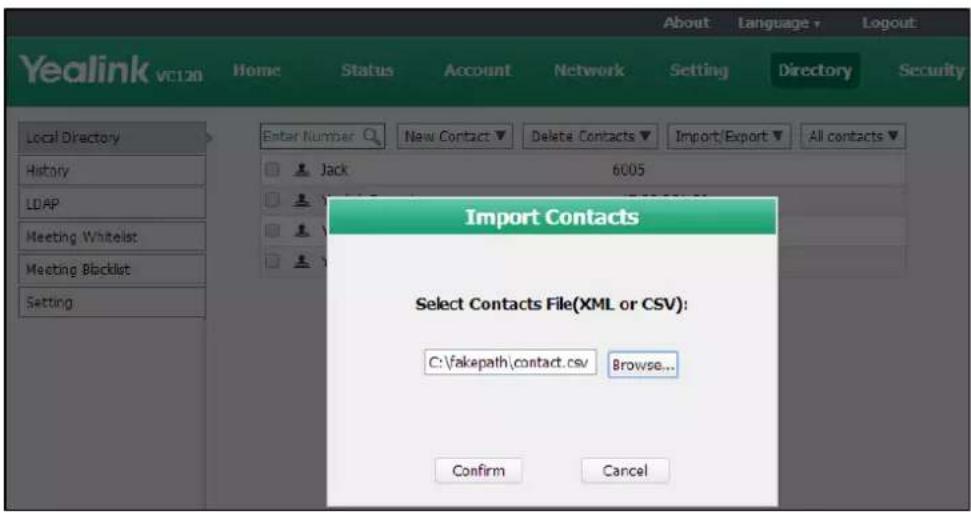
-
Click Confirm to import the local contact list.
The web user interface prompts "The original contact will be covered, continue?". -
Click Confirm to complete importing the contact list.
The web user interface prompts "Contacts imported successfully!".
To import a CSV file of local contact lists via web user interface:
- Click on Directory->Local.
- Select Import from the pull-down list of Import/Export.
- Click Browse to locate a local contact list file (file format must be *.csv) from your local system.
4. Click Confirm.
The web user interface is shown as below:
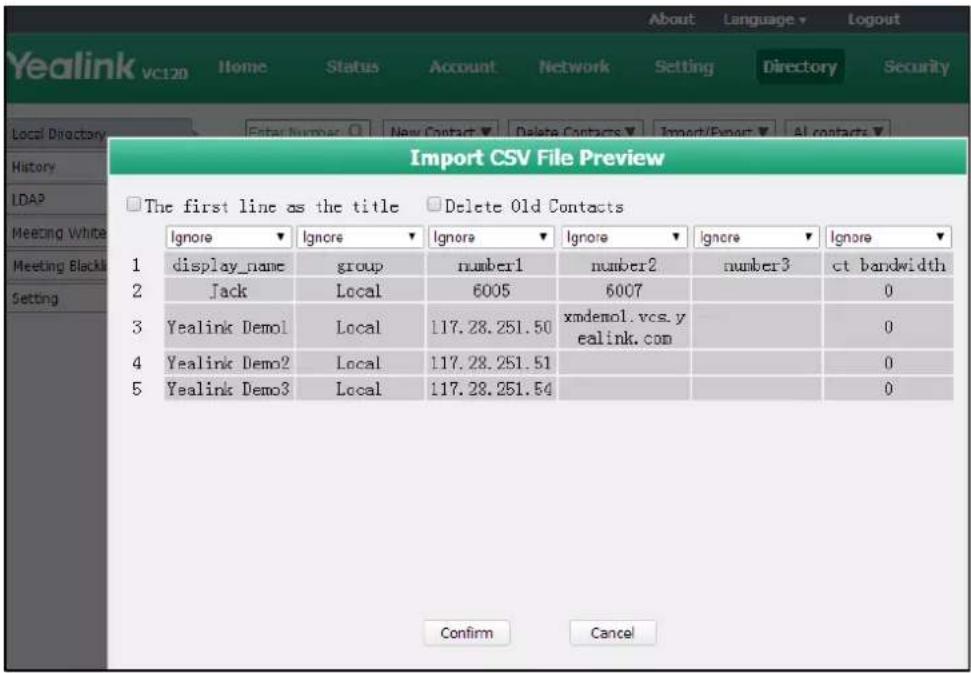
5. (Optional.) Check the The first line as the title checkbox.
It will prevent importing the title of the local contact information which is located in the first line of the CSV file.
6. (Optional.) Check the Delete Old Contacts checkbox.
It will delete all existing local contacts while importing the local contact list.
7. Select the desired value from the pull-down list.
- If Ignore is selected, this column will not be imported to the system.
- If Display Name is selected, this column will be imported to the system as the local contact's name.
- If number is selected, this column will be imported to the system as the contact's number.
- If Bandwidth is selected, this column will be imported to the system as the contact's bandwidth.
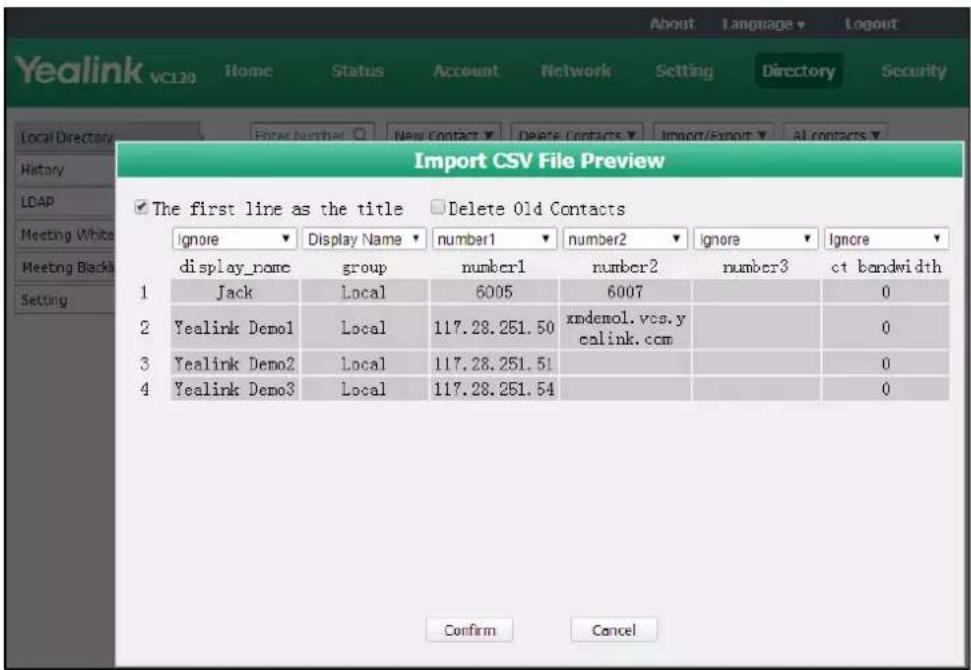
- Click Confirm to complete importing the local contact list.
The web user interface prompts "Contacts imported successfully!".
Note
The display name must be imported to the system. If not, the CSV file cannot be imported.
To export a XML/CSV file of the local contact list via web user interface:
- Click on Directory->Local Directory.
- Select Export XML or Export CSV from the pull-down list of Import/Export.
The local contact list is saved to your local system.
Call History Management
The VC120 video conferencing system maintains call history lists of All Calls, Missed Calls, Placed Calls and Received Calls. The system supports up to 100 history entries, including local history entries and Cloud history entries. You can view the call history, place a call or delete an entry from the call history list.
To save call history on the system, you need to enable the history record feature in advance. The history record feature is enabled by default, and you can configure it via the remote control or web user interface.
To configure history record feature via the remote control:
-
Press (Menu soft key) to enter main menu.
-
Press ◀ or ▶ to select the Call Features menu.
-
Press ▲ or ▼ to scroll to History record, and then press OK to enable or disable this feature.
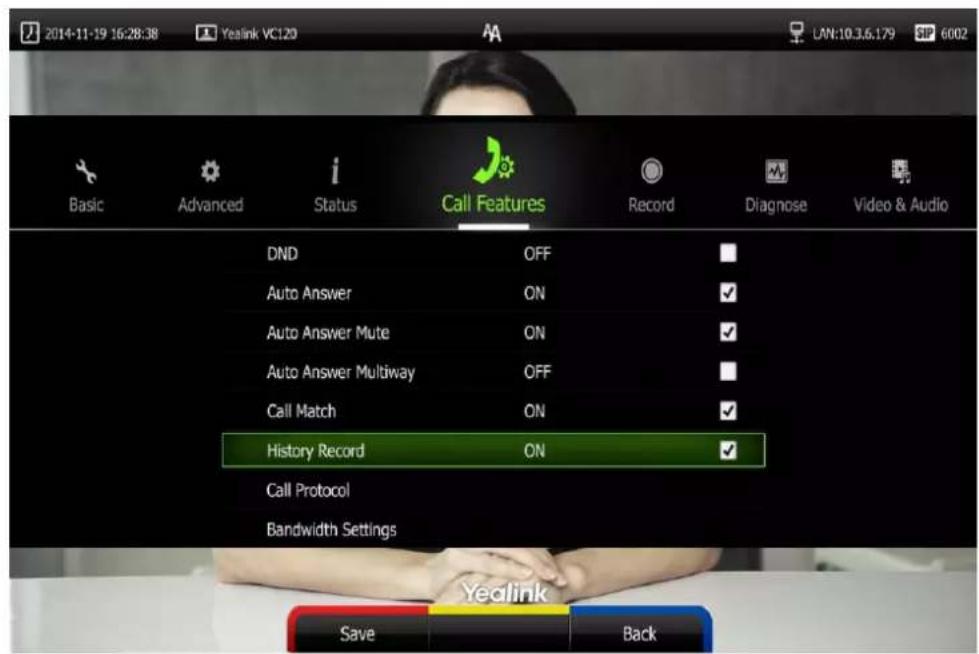
- Press (Save soft key) to accept the change.
The history record feature is configurable via web user interface at the path Setting->Call Features->History Record.
Viewing Call History
You can view call history via the remote control, video conferencing phone or web user interface.
To view call history via the remote control:
-
Press □ (Call soft key).
-
Press ◀ or ▶ to select the History menu.
The display device shows recent call history.
-
Press OK to expand the pull-down list of All Calls.
-
Press ▲ or ▼ to select the desired call history list, and then press OK.
-
Press ▲ or ▼ to view the desired call history.
If the call history is more than one page, you can press ✅ or ⬇ to turn pages.
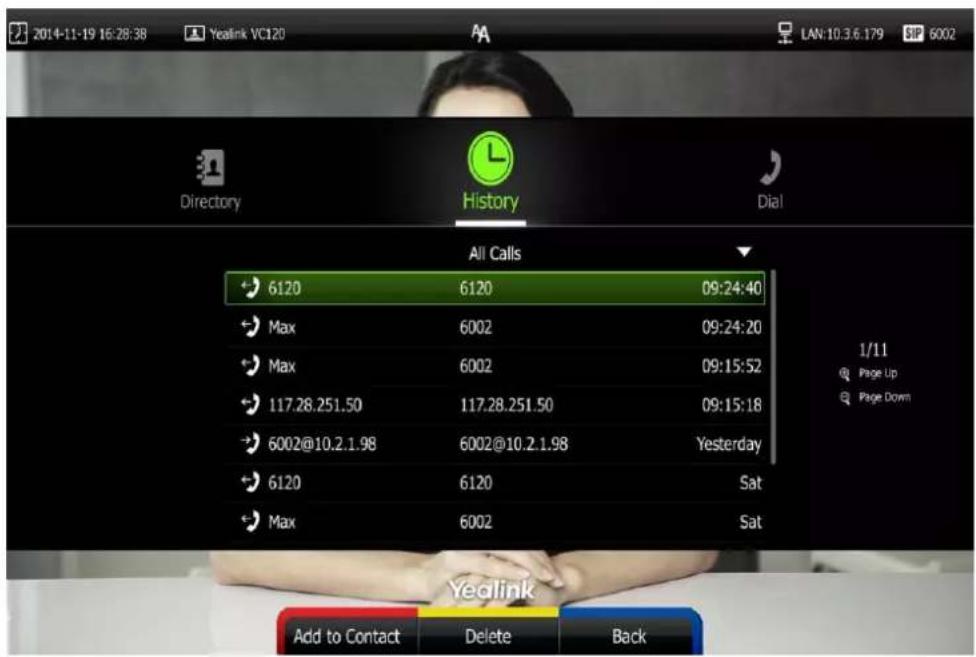
To view call history via the video conferencing phone:
- Press the History soft key.
The LCD screen of video conferencing phone displays all call records.
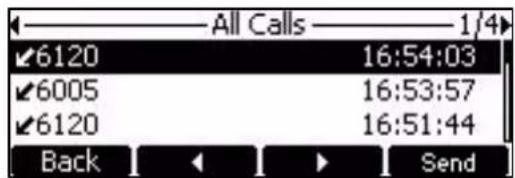
- Press ◀ or ▶ soft key to switch between All Calls, Missed Calls, Placed Calls, and Received Calls list.
- Press ▲ or ▼ to view the desired call history.
Call history can be viewed via the web user interface at the path Directory->History.
Placing a Call from the Call History List
You can place a call from the call history list via the remote control, video conferencing phone or web user interface.
To place a call from the call history list via the remote control:
- Press □ (Call soft key).
- Press ◀ or ▶ to select the History menu.
The display device shows recent call history.
- Select the desired call history list from the pull-down list of All Calls, and then press

- Press ▲ or ▼ to select the desired call history.
If the call history is more than one page, you can press + or - to turn pages.
- Press OK or
To place a call from the call history list via the video conferencing phone:
- Press the History soft key.
The video conferencing phone's LCD screen displays all call records.
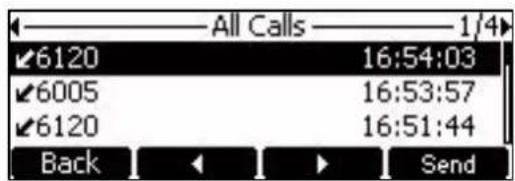
-
Press ◀ or ▶ soft key to switch between All Calls, Missed Calls, Placed Calls, and Received Calls list.
-
Press 📋 or 🖼 to select the desired call history.
-
Press the Send soft key, ok or
Deleting an Entry from the Call History List
You can delete an entry from the call history list via the remote control or web user interface.
To delete an entry from the call history list via the remote control:
-
Press □ (Call soft key).
-
Press ◀ or ▶ to select the History menu.
The display device shows recent call history.
- Press ▲ or ▼ to select the desired call history.
If the call history is more than one page, you can press ⚠ or ⏰ to turn pages.
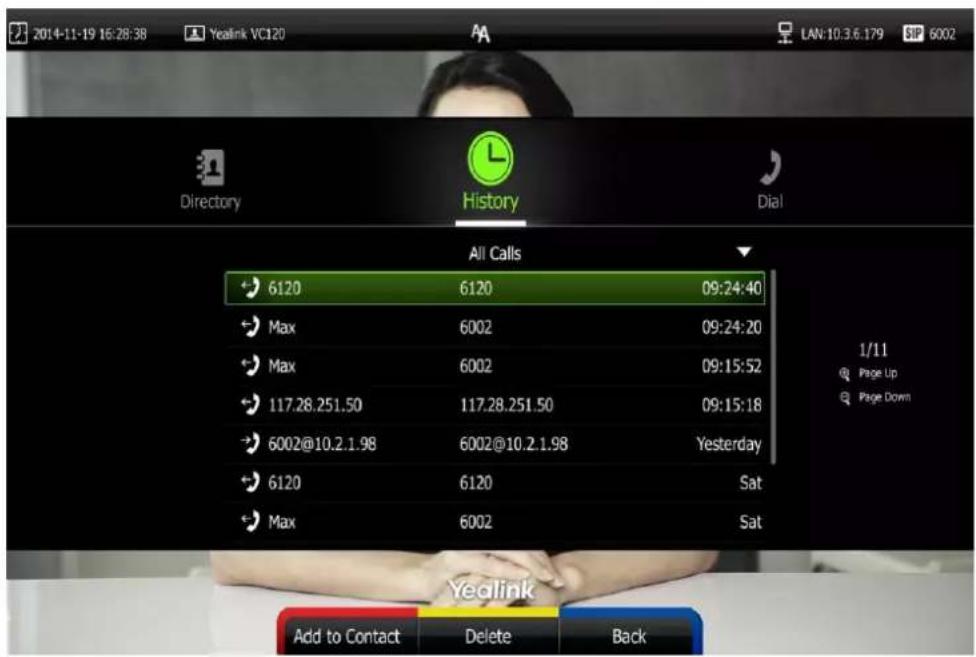
- Press □ (Delete soft key) to delete the entry.
To clear call history via the remote control:
- Press □ (Call soft key).
- Press ◀ or ▶ to select the History menu.
The display device shows recent history records.
- Press (Clear soft key) to clear all history records.
You can also select the call history list you want to clear from the pull-down list of All Calls, and then press (Clear soft key) to clear the selected list.
The display device prompt "Delete all records?".
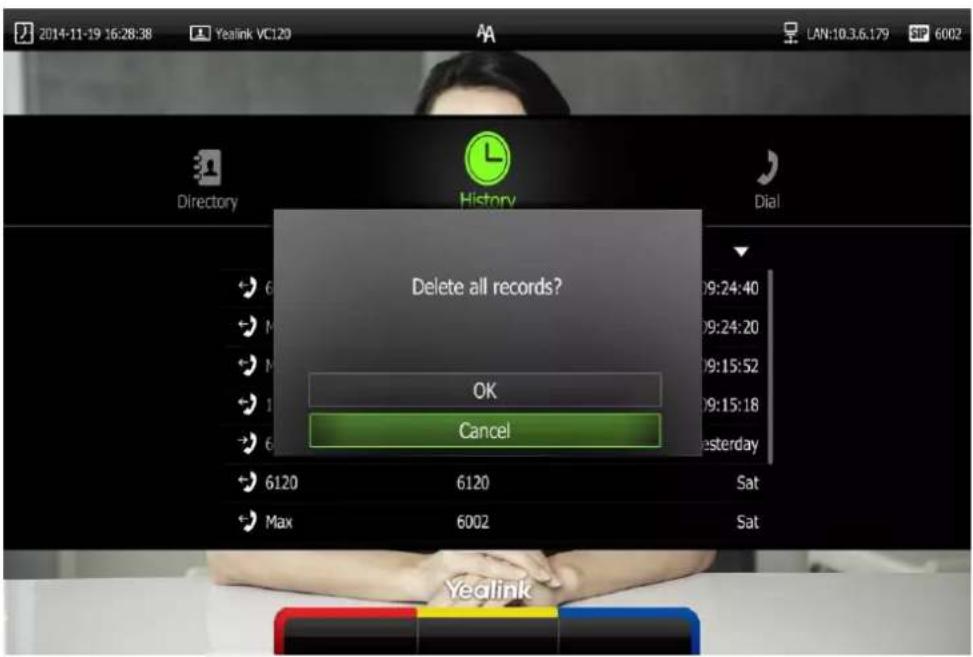
- Press ▲ or ▼ to select OK.
- Press OK to clear the history records.
Adding a Local Contact from the Call History List
To add a local contact from the call history list via the remote control:
- Press □ (Call soft key).
- Press ◀ or ▶ to select the History menu.
The display device shows recent call history.
- Press ▲ or ▼ to select the desired call history.
If the call history is more than one page, you can press ⭕ or ⬇ to turn pages.
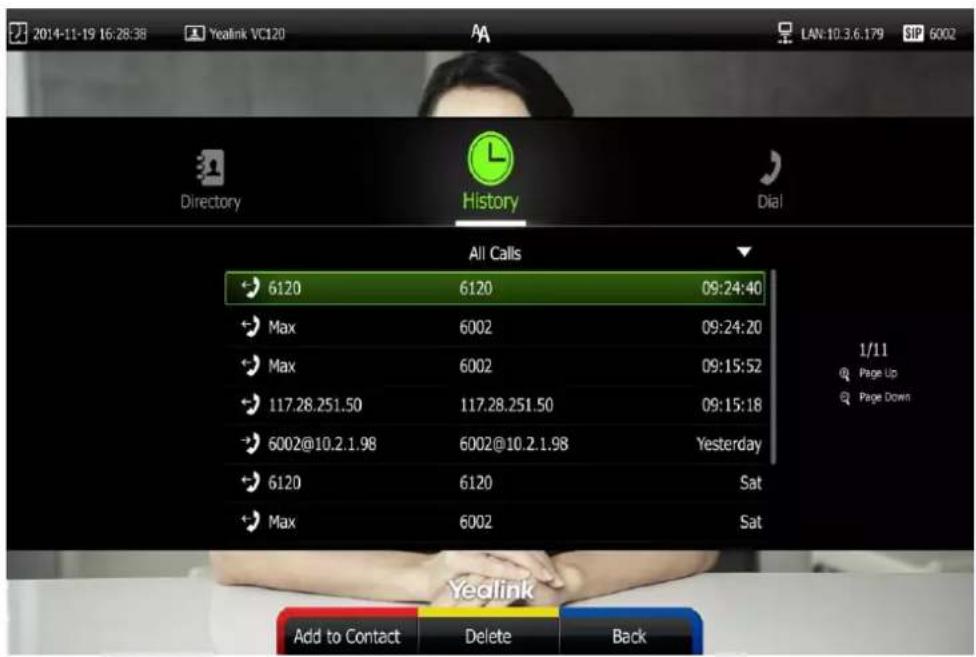
-
Press (Add to Contact soft key).
-
Enter contact name in the Name field.
You can add more than one number for the local contact. For more information, refer to Adding Local Contacts on page 59.
- Press (Save soft key) to save the contact.
Call history management feature is configurable via web user interface at the path
Directory->History.
Call Protocol
The VC120 video conferencing system supports SIP and H.323 call protocols. H.323 is commonly used to communicate to other video conferencing systems. SIP is commonly used to communicate with other VoIP devices. You can configure which protocol is to be used when the system is making calls. When the Auto call protocol is used, the system preferentially uses the H.323 protocol to place calls. If there is no available H.323 account on the system, the system will switch to the SIP protocol. You can also specify the desired protocol for the system to place calls via the remote control or web user interface.
Note
Before configuring call protocol, ensure the remote system supports the call protocol too. For more information, contact your system administrator.
To configure the call protocol via the remote control:
-
Press (Menu soft key) to enter main menu.
-
Press ◀ or ▶ to select the Call Features menu.
-
Press ▲ or ▼ to scroll to Call Protocol, and then press OK.
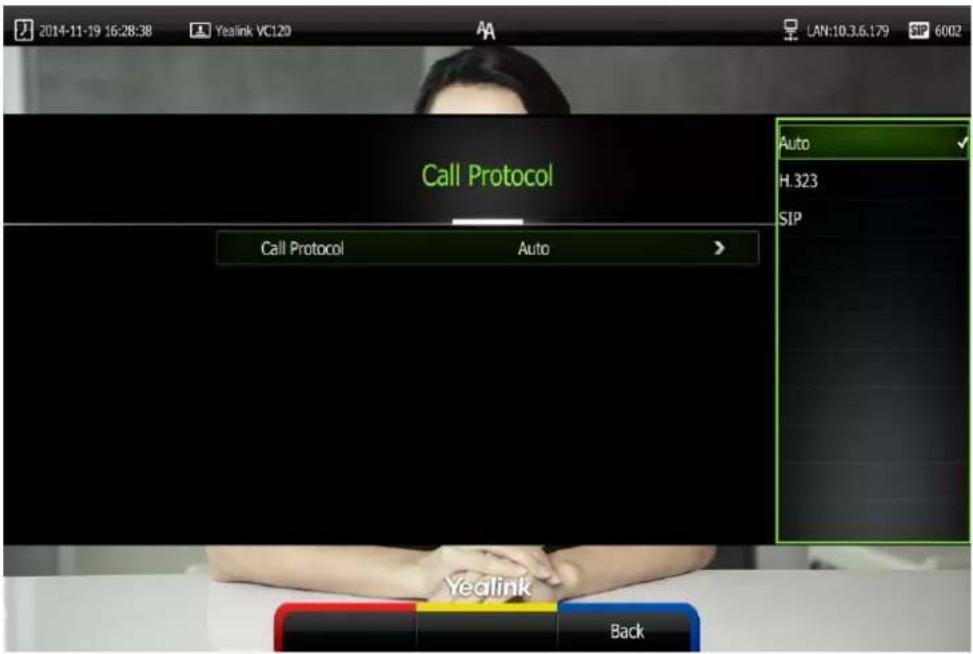
-
Select desired type or Auto from the pull-down list of Call Protocol.
-
Press (Save soft key) to accept the change.
Call protocol is configurable via web user interface at the path Setting->Call Features->Call Protocol.
Bandwidth Settings
By default, the system automatically detects the available bandwidth and uses this connection speed. The VC120 supports connecting to other devices with different bandwidth. If a device with lower bandwidth joins a call, the video quality will stay the same or will not reduce a lot.
You can specify the uplink and downlink bandwidths for the system to achieve the best result. The uplink bandwidth refers to the max bandwidth of outgoing calls. The downlink bandwidth refers to the max bandwidth of incoming calls.
Available bandwidths for the system are: Auto, 256kb/s, 384kb/s, 512 kb/s, 640 kb/s, 768 kb/s, 1024kb/s, 1280kb/s, 1500kb/s, 2000kb/s, 3000kb/s, 4000kb/s, 5000kb/s, 6000kb/s.
You can configure the uplink and downlink bandwidth of the system via the remote control or web user interface.
Note
The actual bandwidth depends on the performance of the remote system, and is affected by the quality of the communication channel.
To configure the uplink and downlink bandwidth via the remote control:
-
Press (Menu soft key) to enter main menu.
-
Press ◀ or ▶ to select the Call Features menu.
-
Press ▲ or ▼ to scroll to Bandwidth Settings, and then press OK.
- Select desired bandwidth from the pull-down list of Uplink Bandwidth.
If Auto is selected, the system will select the appropriate bandwidth automatically.
- Select desired bandwidth from the pull-down list of Downlink Bandwidth.
If Auto is selected, the system will select the appropriate bandwidth automatically.
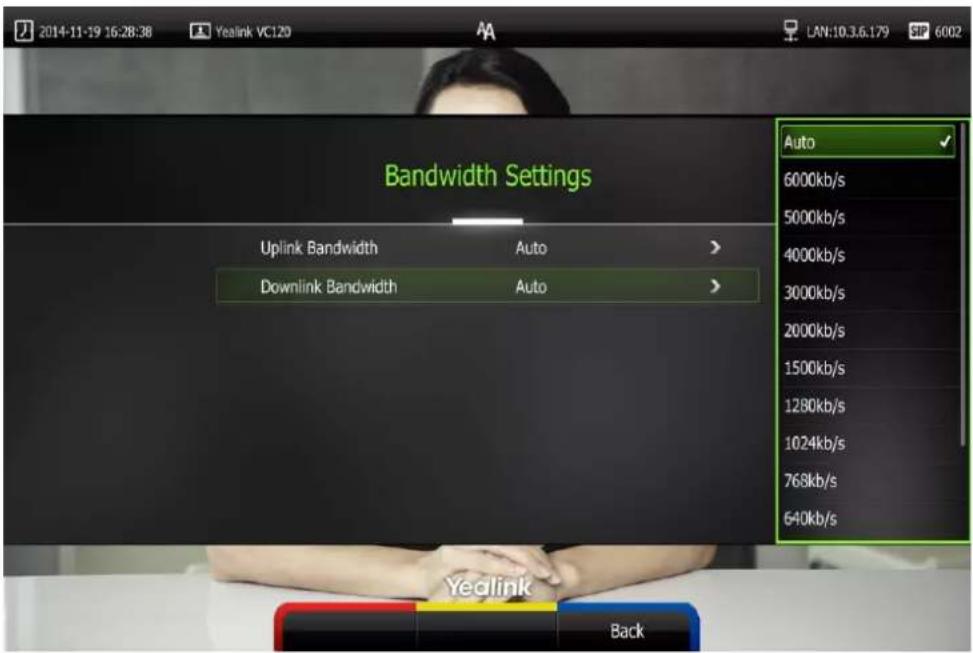
- Press (Save soft key) to accept the change.
Note
The priority of bandwidth is as follows: System bandwidth>Contact bandwidth (refer to Adding Local Contacts).
For example: the system bandwidth is 512kbps, if contact bandwidth is set to a value greater than 512bps, then the actual contact bandwidth will be 512bps. If contact bandwidth is set to a value less than 512bps, then the actual contact bandwidth will be the value set by user.
Bandwidth is configurable via web user interface at the path Setting->Call Features->Uplink Bandwidth/Downlink Bandwidth.
Audio Settings
Audio Output Device
The system supports the following audio output devices:
• Auto (audio output device with the highest priority is selected automatically)
• VCS Phone (video conferencing phone)
• HDMI (built-in speakerphone of the display device)
• Line Output (speakerphone connected to the Line Out port of the VC120 Codec)
By default, the system automatically selects the audio output devices with the highest priority. The priority is: VCS Phone> HDMI>Line Output. If the audio output device with the highest priority is removed from the VC120, the VC120 will select the next highest priority device.
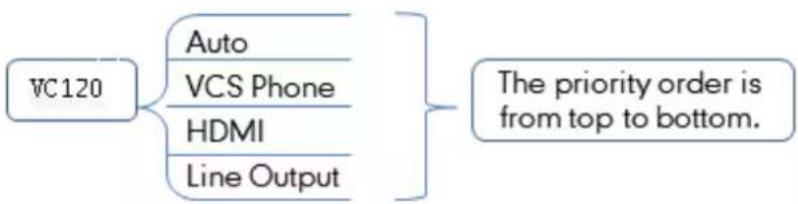
flowchart
graph TD
    A["VC120"] --> B["Auto"]
    A --> C["VCS Phone"]
    A --> D["HDMI"]
    A --> E["Line Output"]
    F["The priority order is from top to bottom."] --> F
You can also specify the desired audio output device via the remote control or the web user interface.
To configure the audio output device via the remote control:
- Press (Menu soft key) to enter main menu.
- Press◀ or ▶ to select the Video & Audio menu.
- Press ▲ or ▼ to scroll to Audio Settings, and then press OK.
4. Select desired audio output device from the pull-down list of Audio Output.
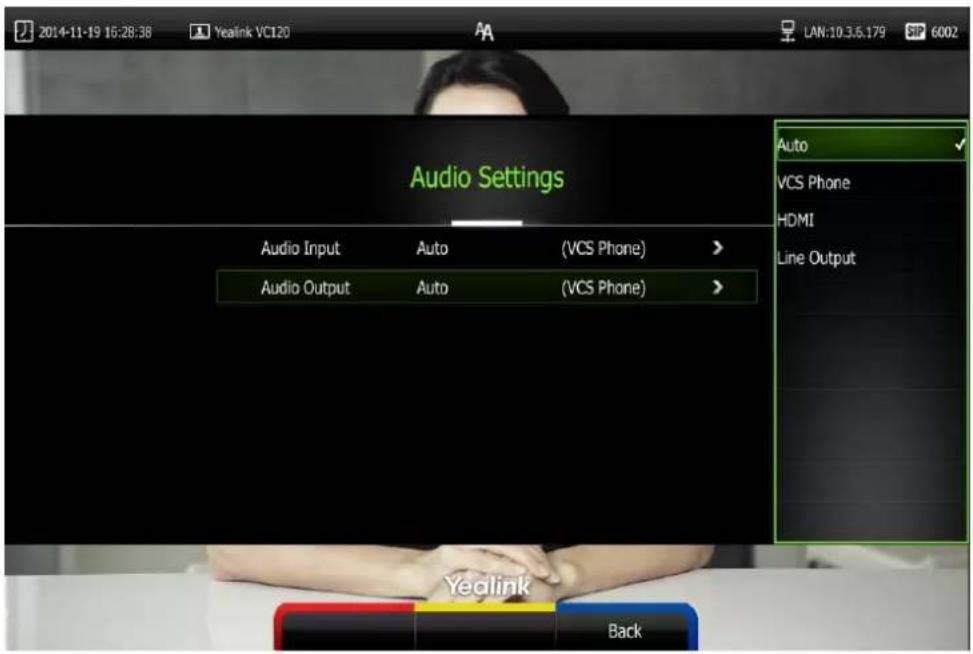
5. Press (Save soft key) to accept the change.
Audio output device is configurable via web user interface at the path Setting->Video & Audio->Audio Output.
Audio Input Device
The system supports the following audio input devices:
• Auto (select the audio input device with the highest priority)
• VCS Phone (video conferencing phone)
- Wired Micpod (VCM30)
• Line Input (microphone connected to the Line In port on the VC120 Codec)
• Line In + VCS Phone
• Line In + Wired Micpod
• Line In + Wireless Micpod
The priority of audio input device is:

flowchart
graph TD
    A["VC120"] --> B["Auto"]
    A --> C["VCS Phone (Line In + VCS Phone)"]
    A --> D["Wired Micpod (Line In + Wired Micpod)"]
    A --> E["Wireless Micpod (Line In + Wireless Micpod)"]
    A --> F["Line Input"]
    G["The priority order is from top to bottom."] --> H
Note
For more information on the wireless micpod, please contact Yealink agents.
By default, the VC120 automatically selects the audio input devices with the highest priority. If you select "Line In + device" option, the VC120 will use microphone connected to the Line In port and the corresponding device to pick up audio at the same time.
You can also specify the desired audio input device via the remote control or the web user interface.
To configure the audio input device via the remote control:
- Press (Menu soft key) to enter main menu.
- Press ◀ or ▶ to select the Video & Audio menu.
- Press ▲ or ▼ to scroll to Audio Setting, and then press OK.
-
Select desired audio input device from the pull-down list of Audio Input.
-
If VCS Phone is selected as the audio output device manually or automatically, the audio input device must be VCS Phone or Line Input +VCS Phone.
- If Line Input is selected as the audio input device, the near-end audio output device will not play sound from the Line Input device.
- If "Line In + device" is selected as the audio input device, the near-end audio output device will play sound from the Line Input device.
During a video training for main office and branch office, both offices need to hear the video sound, you can select this option.
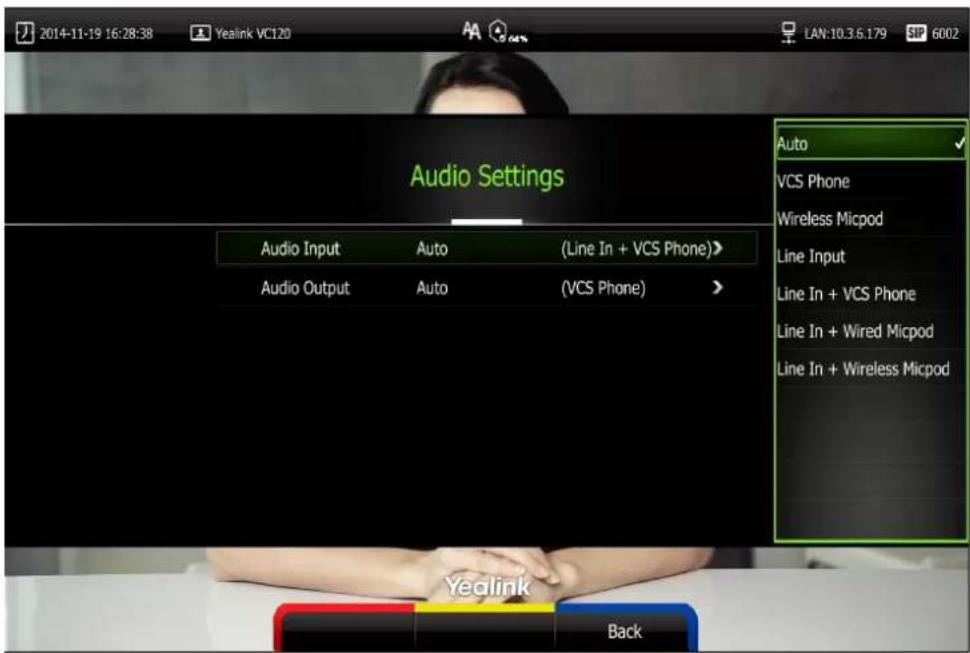
- Press (Save soft key) to accept the change.
Audio input device is configurable via web user interface at the path Setting->Video & Audio->Audio Input.
Far-end Camera Control
Local video is displayed on the display device of the far site during a call. For the best view, you can enable the Far Control of Camera feature to allow the far site to control the focus and angle of the local camera. You can also specify whether the far site is allowed to store and use the local camera presets.
You can configure the far-end camera control feature via the remote control or web user interface.
Far-end camera control features you need to know:
| Parameters | Description |
| Far Control of Camera | Allows the far-end to control the local camera. |
| Far Set of Camera Presets | Allows the far-end to create presets for the local camera |
| Far Move to Camera Presets | Allows the far-end to point local camera at pre-defined locations. |
To configure Far-end Camera Control via the remote control:
-
Press (Menu soft key) to enter main menu.
-
Press ◀ or ▶ to select the Video & Audio menu.
-
Press ▲ or ▼ to scroll to Far-end Camera Control, and then press (ok).
-
Press ▲ or ▼ to scroll to Far Control of Camera, and then press OK to enable or disable this feature.
-
Press ▲ or ▼ to scroll to Far Set of Camera Presets, and then press OK to enable or disable this feature.
-
Press ▲ or ▼ to scroll to Far Move to Near Camera Presets, and then press OK to enable or disable this feature.
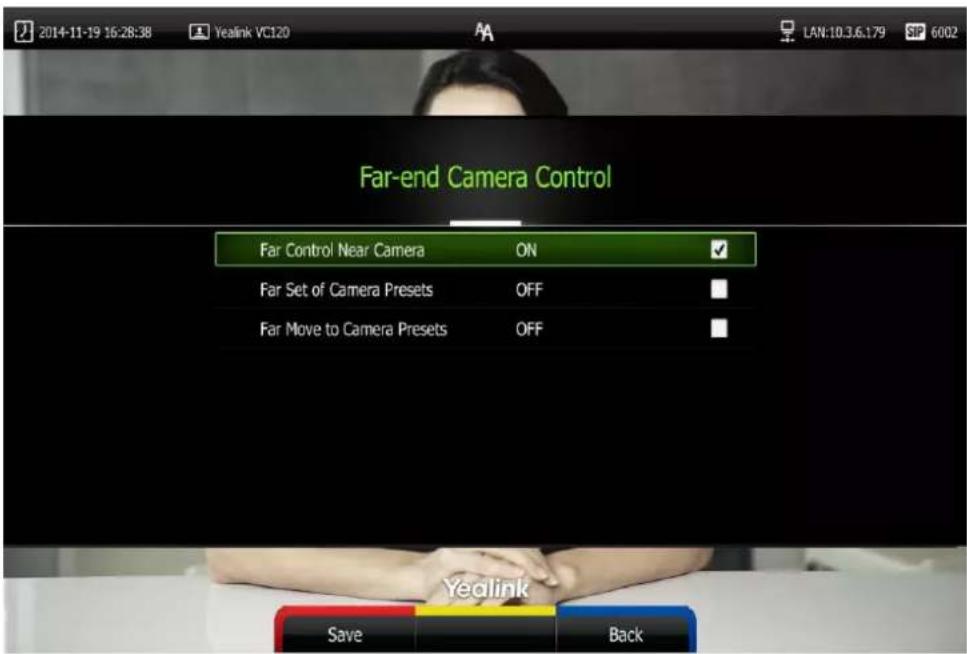
- Press (Save soft key) to accept the change.
Far-end Camera Control is configurable via web user interface at the path Setting->Video & Audio-> Far Control Near Camera/ Far Set of Camera Presets/ Far Move to Camera Presets.
Controlling Far-end Camera
To control far-end camera via the remote control during a video call:
- Press (More soft key) during an active call.
- Press ▲ or ▼ to scroll to Near/Far Camera, and then press OK.
- Select the remote video, and then press OK.
- Press the navigation key to adjust the angle of the camera.
- Long press 🔒 or ⬆ to adjust the focus of the camera.
Note
If you want to configure presets for the far-end, refer to Configuring Camera Presets on page 110.
Using the VC120 Video Conferencing System
The VC120 video conferencing system can be used to place calls, answer calls, or conduct a conference call. You can switch layout, record videos or capture screenshots during a call.
This chapter provides basic operating instructions for the VC120 video conferencing system. Topics include:
- Account Polling
- 8-way MCU
- Placing Calls
- Answering or Rejecting Calls
- Ending Calls
- Call Management
If you require additional information or assistance with your new phone, contact your system administrator.
Account Polling
When you dial account numbers of other system, account polling feature enables your system to use different call types according to this priority: Cloud platform>H.323 account>SIP account. If you cannot call other systems using all your registered accounts, then this call fails.
Account polling is disabled by default. When you register multiple accounts (2 or more) for your system, you can enable account polling feature. You can configure account polling feature via web user interface only.
To configure account polling via web user interface:
- Click on Setting->Call Features.
- Select the desired value from the pull-down list of Account Polling.
- If you select Disabled, the system can only call other systems using the call type with the highest priority.
- If you select Enabled, the system will attempt to call other system using different call types according the priority.
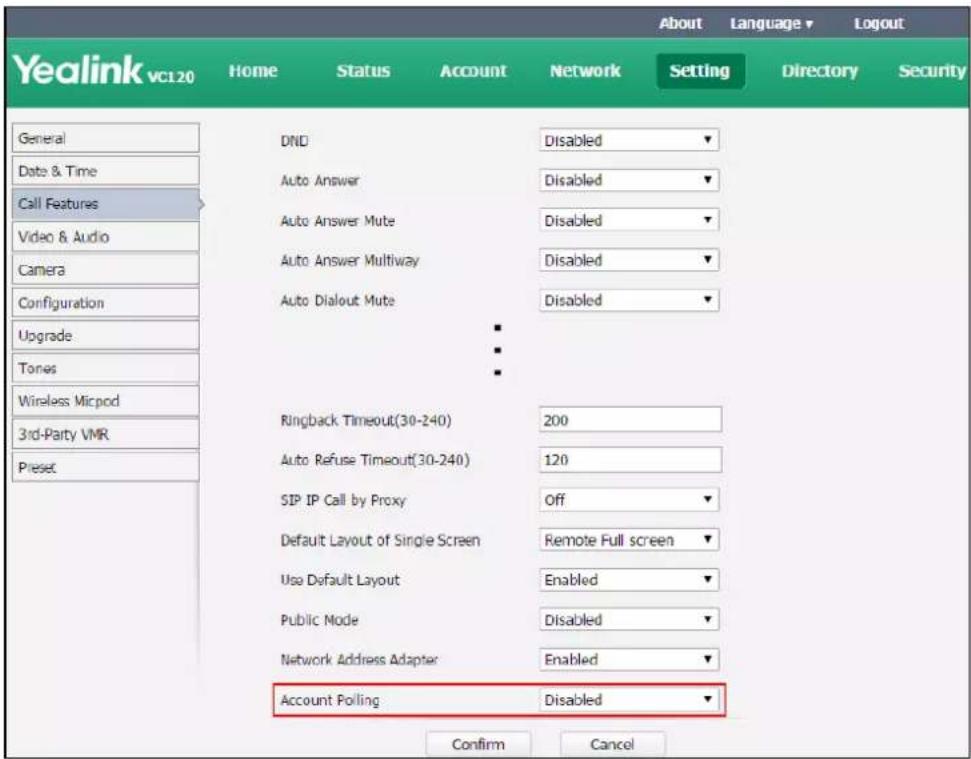
- Click Confirm to accept the change.
The following example shows the way calls are placed when account polling is enabled or disabled.
Scenario:
-
System A is registered with a Yealink Cloud account and a SIP account.
-
On system A, select Auto from the pull-down list of Call Type before calling.
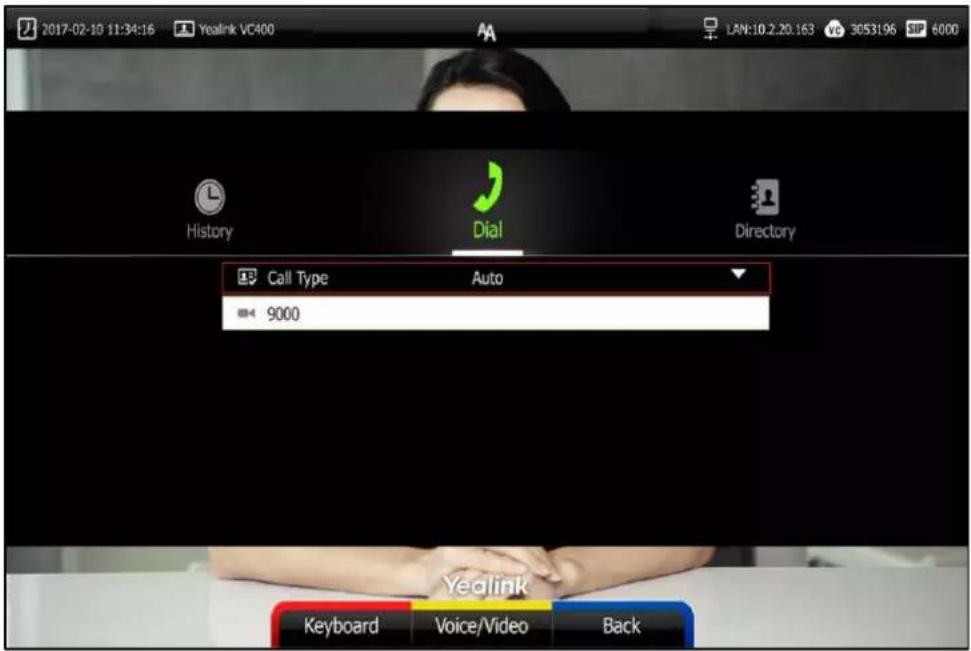
- On system A, dial the account numbers of system B.
Result:
- If account polling is disabled, system A can only use its Cloud account (highest priority) to call system B.
- If account polling is enabled, system A will use its Cloud account (highest priority) to call system B first. If this call fails, system A continues to use its SIP account (next priority) to call system B.
8-way MCU
To initiate a multipoint conference, you must use an MCU.
Without 8-way MCU, the VC120 video conferencing system supports one video calls and an additional voice call (an original caller and two other sites). You can import an 8-way MCU to extend the VC120 to support 8-way video calls and an additional voice call (an original caller and eight other sites). 8-way MCU is configurable via web user interface only.
VC120 video conferencing system supports a permanent version of the 8-way MCU and a trial version of the 8-way MCU. They have the same feature.
- Permanent version of the 8-way MCU: each VC120 has a unique MCU license. The MCU license cannot be used for other systems. You need to contact Yealink resellers to purchase it, please provide the MAC address of your VC120 when purchasing.
- Trial version of the 8-way MCU: VC120 models can share this MCU license. You can download a 30-day trial from Yealink website.
To import the 8-way MCU via web user interface:
- Click on Security ->License.
- Click Browse to locate the MCU license (the file format must be *.dat) from your local system.
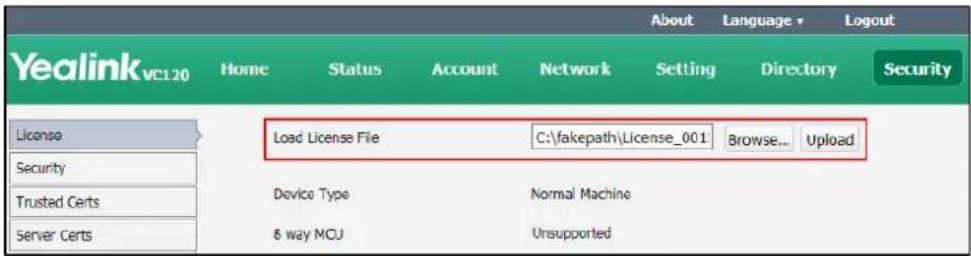
- Click Upload to complete importing the MCU license.
To view 8-way MCU status via the remote control:
- Press (Menu soft key) to enter main menu.
- Press ◀ or ▶ to select the Status menu.
- Press ▲ or ▼ to scroll to License, and then press OK.
- If the 8 way MCU displays Unsupported, it means you have not imported an 8-way MCU. So the system supports one video call and one voice call.
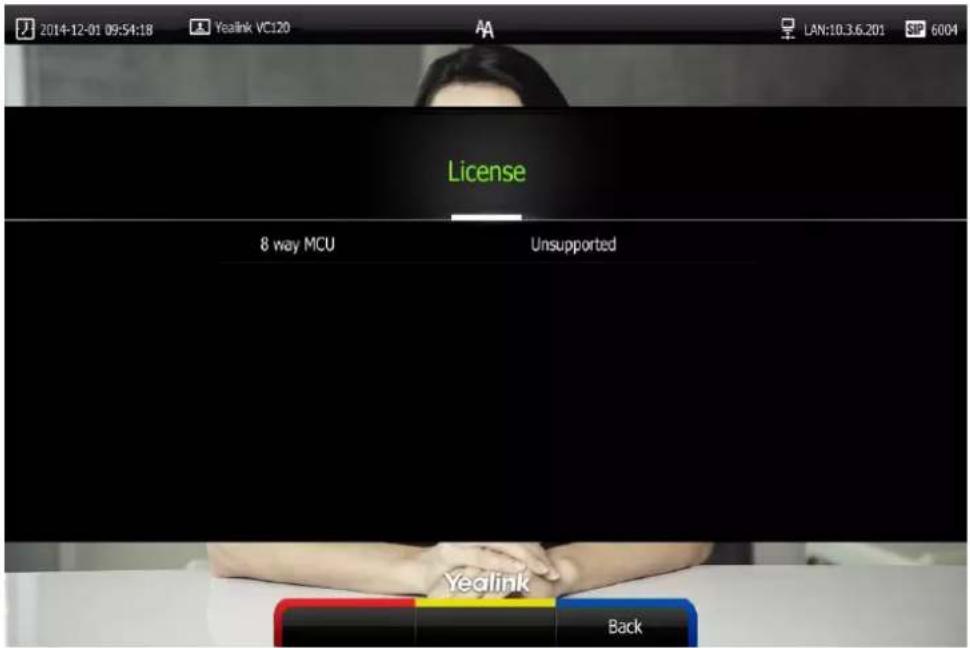
- If the 8 way MCU displays X\~Y Available, it means you have imported a trail version of 8-way MCU. So the system supports up to 8-way video calls and an additional voice call (an original caller and eight other sites) in X\~Y period. When the trial license expires, your system supports one video call and one voice call.
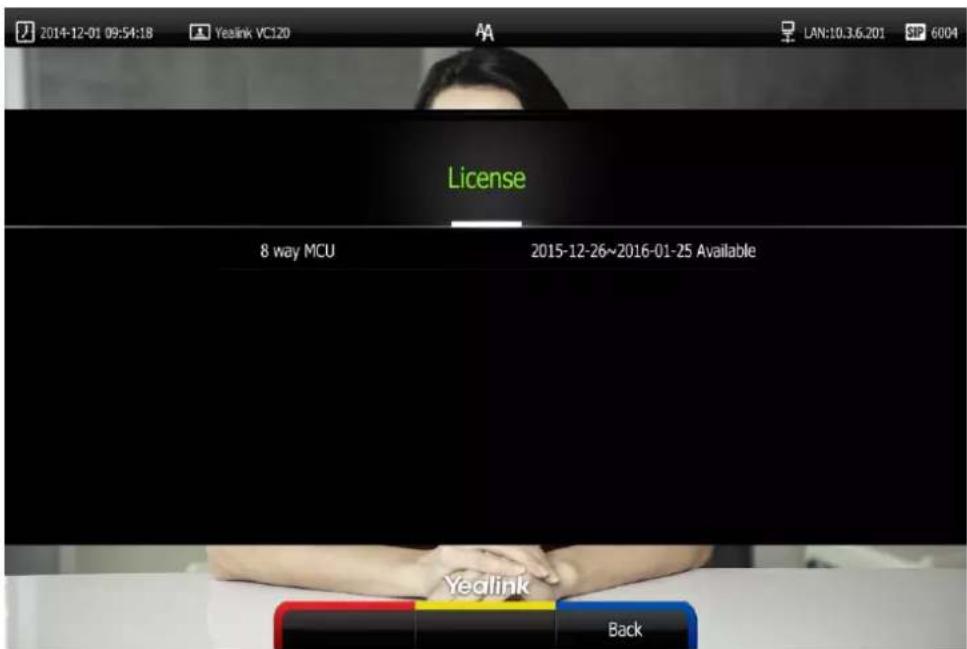
- If the 8 way MCU displays Eternal, it means you have imported a permanent version of the 8-way MCU. So the system supports up to 8-way video calls and an additional voice call (an original caller and eight other sites) permanently.
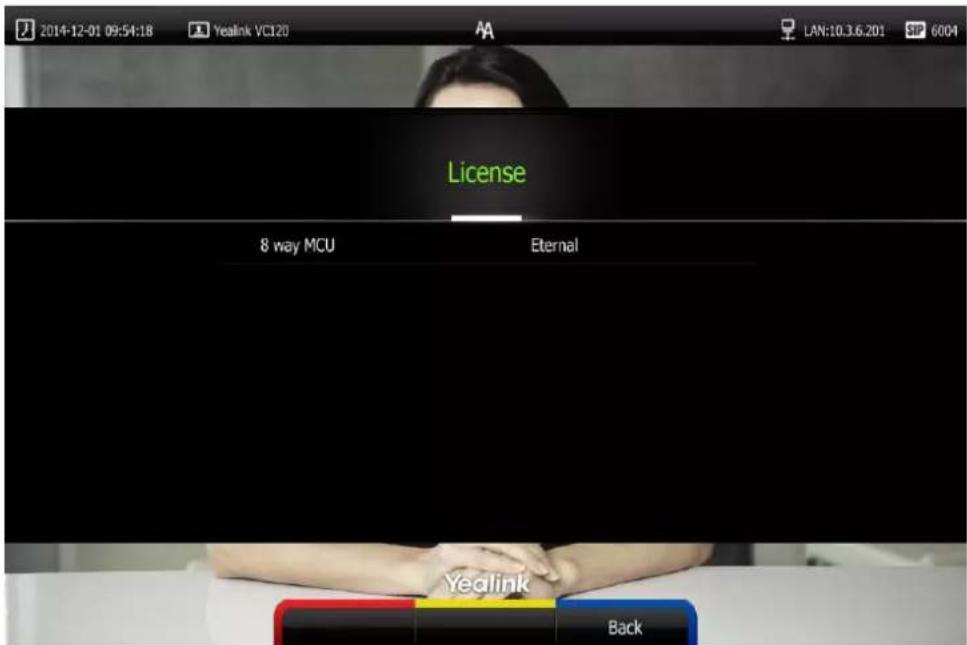
8-way MCU status can be viewed via web user interface at the path Status->License.
Note
Upgrading the system or performing a factory reset will not affect the imported 8-way MCU.
If the system has been imported a trial version of the 8-way MCU and the license has not expired, and you import a permanent version to the system, the permanent version will overwrite the trial version.
If the system has been imported a permanent version of the 8-way MCU, and you import a trial version to the system, the permanent version will not be overwritten.
Placing Calls
You can place a call in three ways using your VC120 video conferencing system:
• Using the remote control
• Using the video conferencing phone
- Via web user interface
The VC120 video conferencing system supports two call modes:
- Voice Call
- Video Call
Note
The system supports placing calls using contact numbers, SIP URI, IP address, H. 323 account or extension. SIP URI and IP addresses can be up to 32 characters. For example: SIP URI:2210@sip.com, IP: 192.168.1.15.
For more information, contact your system administrator.
You can search and dial a contact from the call history or local directory. For more information, refer to Directory on page 58 and Call History Management on page 68.
If the system fails to call, you can troubleshoot the problems according to the following prompts:
| Prompts | Description |
| Call Failed Busy Here | Remote system rejects your SIP call.Remote system does not answer your SIP call.Remote system has reached maximum sessions when you place a SIP call. |
| Call Failed Remote endpoint refused call | Remote system rejects your H.323 callRemote system does not answer your H.323 call.Remote system has reached maximum sessions when you place an H.323 call. |
| Network disconnected | Local network is disconnected. |
| Call Failed Request Time Out | Remote system network anomalyRemote system is powered off. |
| Maximum number of sessions reached | Local system has reached maximum sessions. |
During a video call, the call duration and video of remote system are displayed on the display device.
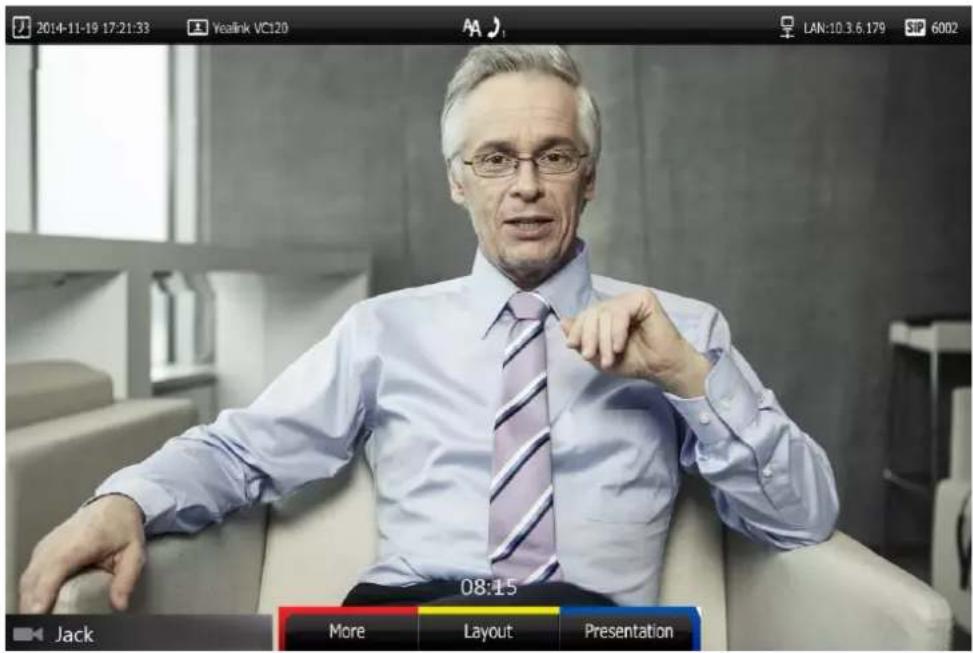
Placing a Call Using the Remote Control
To place a call using the remote control:
-
Press □ (Call soft key), √ or any numeric key to enter the dialing screen.
-
Select the desired account type from the pull-down list of Call Type before calling.
If you select Auto, the system will select the desired account type according to the priority.
If you dial an account, the priority is: Cloud platform>H.323 account>SIP account. For more information, refer to on page.
If you dial an IP address, the priority is: H.323 IP Call>SIP IP Call.
- Enter the desired number using the keypad or the on-screen keyboard.
You can also select the desired record from the recent call history.
- Press (Voice/Video soft key) to switch call mode.
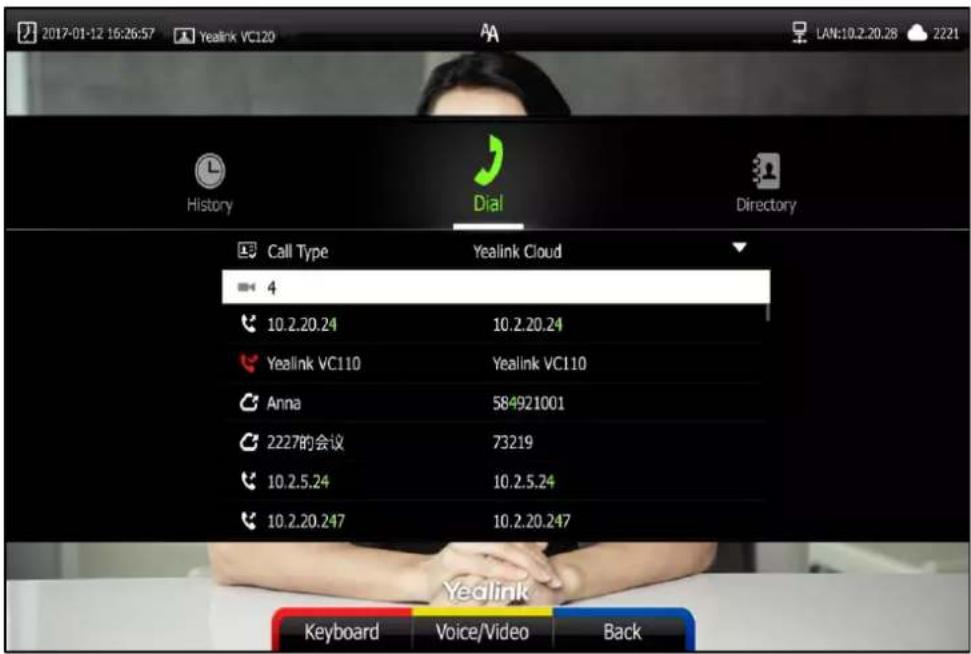
- Press OK or
Placing a Call Using the Video Conferencing Phone
To place a call using the video conferencing phone:
- Enter the desired number using the keypad.
- Press OK, or the Send soft key.
Placing a Call via Web User Interface
To place a call via web user interface:
- Click Home.
- Enter the desired number in the Enter Number field.
- (Optional.) Select the desired account type.
If you select Auto, the system will select the desired account type according to the priority.
If you dial an account, the priority is: Cloud platform>H.323 account>SIP account. For more information, refer to on page.
If you dial an IP address, the priority is: H.323 IP Call>SIP IP Call.
- (Optional.) Select the desired bandwidth from the pull-down list of Auto.
If you select Auto, the system will select the appropriate bandwidth automatically.
5. Click Video Call or Voice Call.

Placing Multiple Calls
You can use the remote control, video conferencing phone or web user interface to place multiple calls.
To place multiple calls via the remote control:
-
Place a call to the first party.
-
When the first party answers the call, press (More soft key) to open More screen.
-
Press ▲ or ▼ to scroll to Dial, and then press (ok) to place a new call.
-
Enter the number of the secondary party, and then press OK or √.
When the secondary party answers the call, you have created a three-way conference.
- Repeat the steps 2 to 4 to invite more parties to join the conference.
Note
You can press 🙏 or 🍻 to enter the pre-dialing screen during a call.
If you try to invite a new party when the maximum number has been reached, the system will prompt "Maximum number of sessions reached!".
To place multiple calls via the VCP40 phone:
- Enter the desired number using the keypad.
- When the first party answers the call, press Dial, soft key to place a new call.
- Enter the number of the secondary party, and then press OK, or the Send soft key. When the secondary party answers the call, you have created a three-way conference.
- Repeat the steps 2 to 3 to invite more parties to join the conference.
To place multiple calls via web user interface:
- Click Home.
- Enter the desired number in the Enter Number field.
- (Optional.) Select the desired account type.
If you select Auto, the system will select the desired account type according to the priority.
If you dial an account, the priority is: Cloud platform>H.323 account>SIP account. For more information, refer to on page.
If you dial an IP address, the priority is: H.323 IP Call>SIP IP Call.
- (Optional.) Select the desired bandwidth from the pull-down list of Auto.
If you select Auto, the system will select the appropriate bandwidth automatically.
5. Click Video Call or Voice Call.
When the first party answers the call, the call is established.

- Repeat the steps 3 to 6 to invite more parties to join the conference.
Chairman-Mode Conference
When the number of participants is greater than or equal to 5 in a multi-point video conference, the conference will be a chairman-mode conference. The conference organizer will act as the conference chairman who can manage the conference.
Conference Mode
Chairman-mode conference supports Single Speaker, Multi Speaker and Free Discuss three conference modes.
Single Speaker
Conference organizer authorizes a single member to speak, and all the other members are muted.
The conference organizer authorizes a single member to speak via the remote control:
- Press (Preside soft key) during a chairman-mode conference.
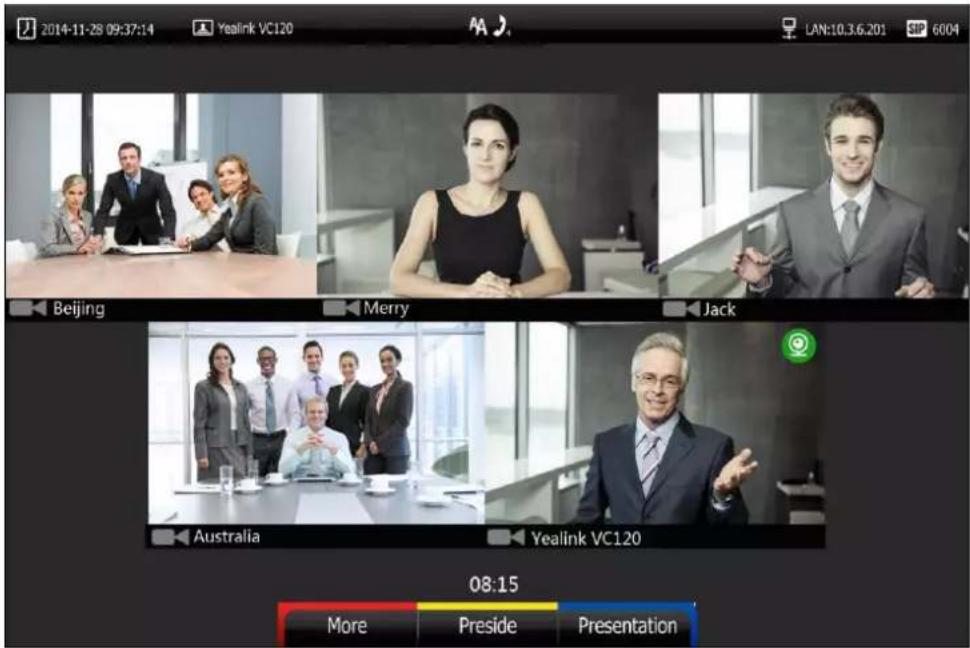
- Press◀ or ▶ to select Single Speaker, and then press OK .
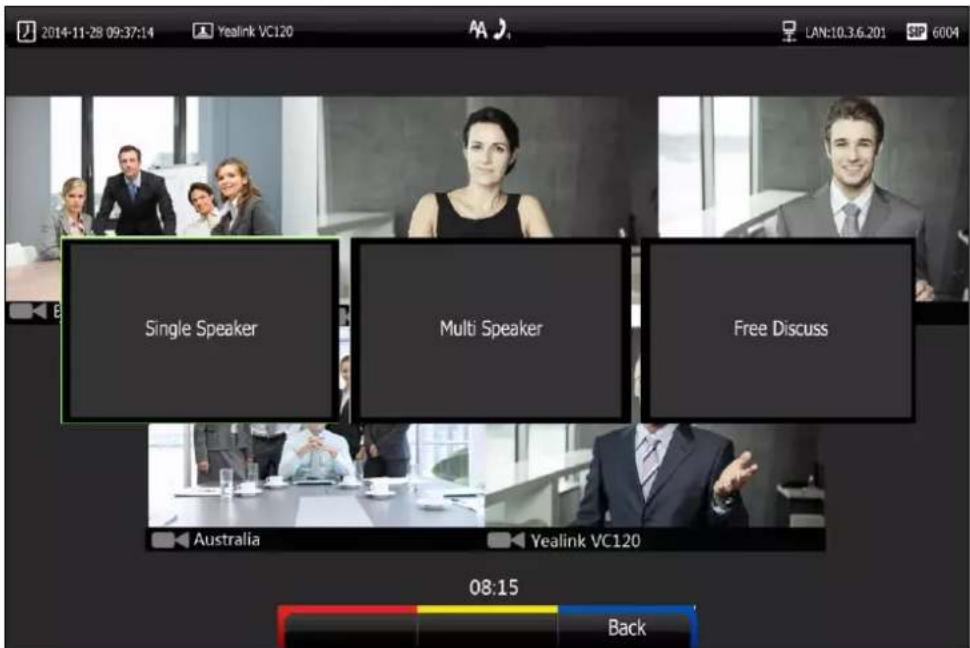
The display device shows all conference members.
3. Press the navigation key to select the desired member.
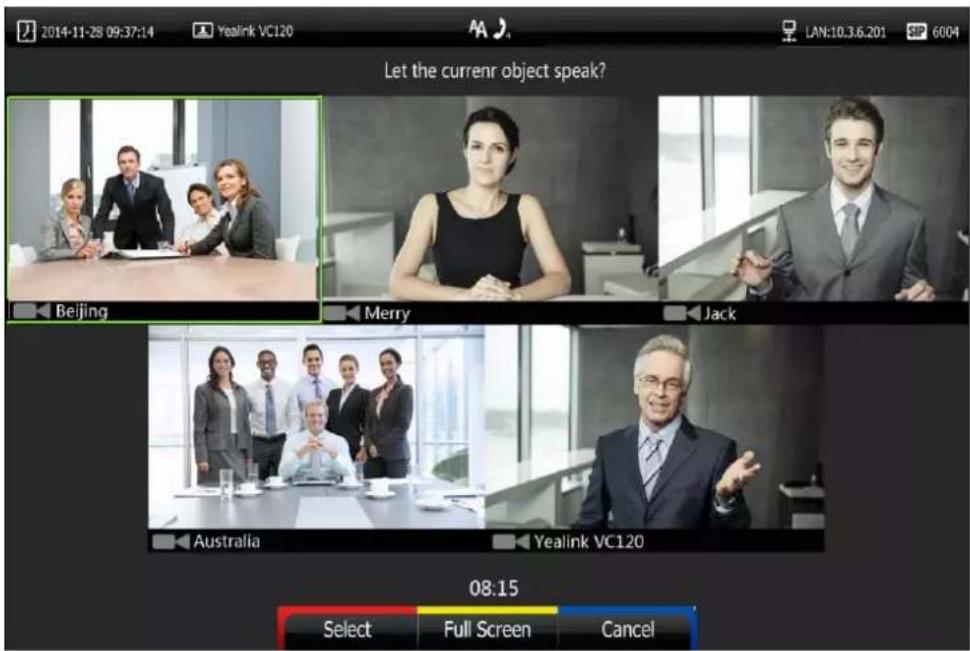
4. Do one of the following:
- Press (Select soft key) to authorize the member to speak.
All the other members are muted and the mute icon appears on their video images. The authorized video image is shown in a big size format, and other video images are shown in small sizes.
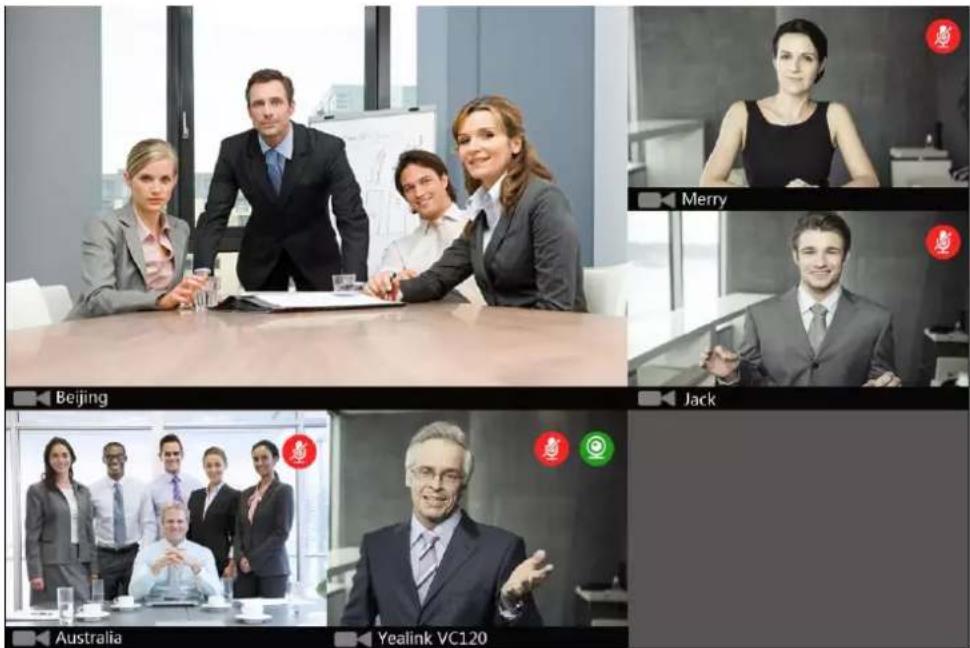
- Press (Full Screen soft key) to authorize the member to speak.
All the other members are muted. The authorized video image is shown in full size.

natural_image
Four business professionals in a modern office meeting, seated at a table with water bottles and documents (no visible text or symbols)- Press Cancel soft key) to cancel.
Multi Speaker
Conference organizer authorizes multiple members to speak, and all the other members are muted.
The conference organizer authorizes multiples members to speak via the remote control:
- Press □ (Preside soft key) during a chairman-mode conference.
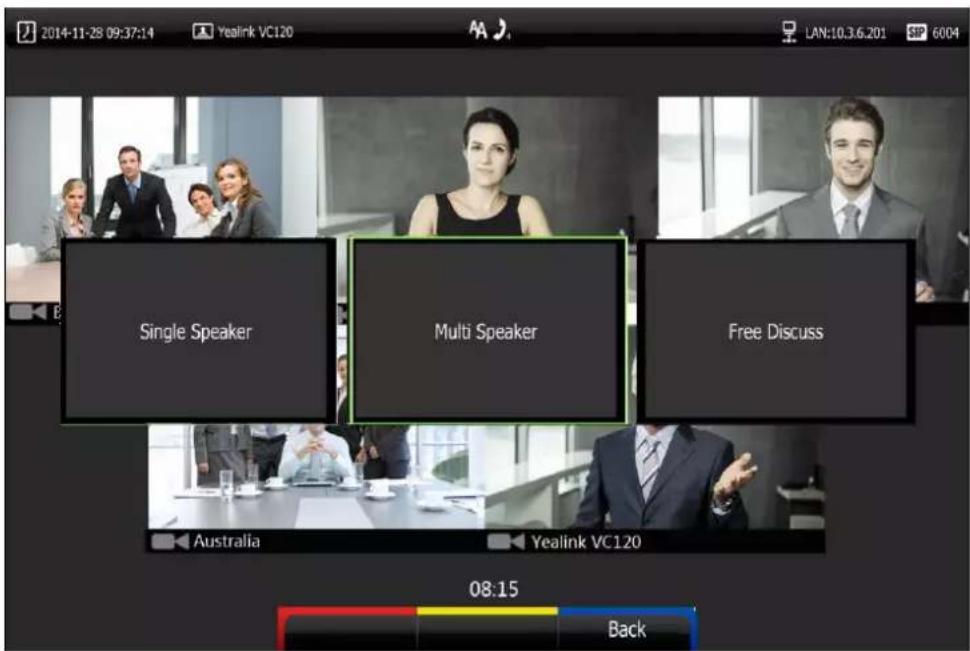
- Press ◀ or ▶ to select Multi Speaker, and then press OK
The display device shows all conference members.
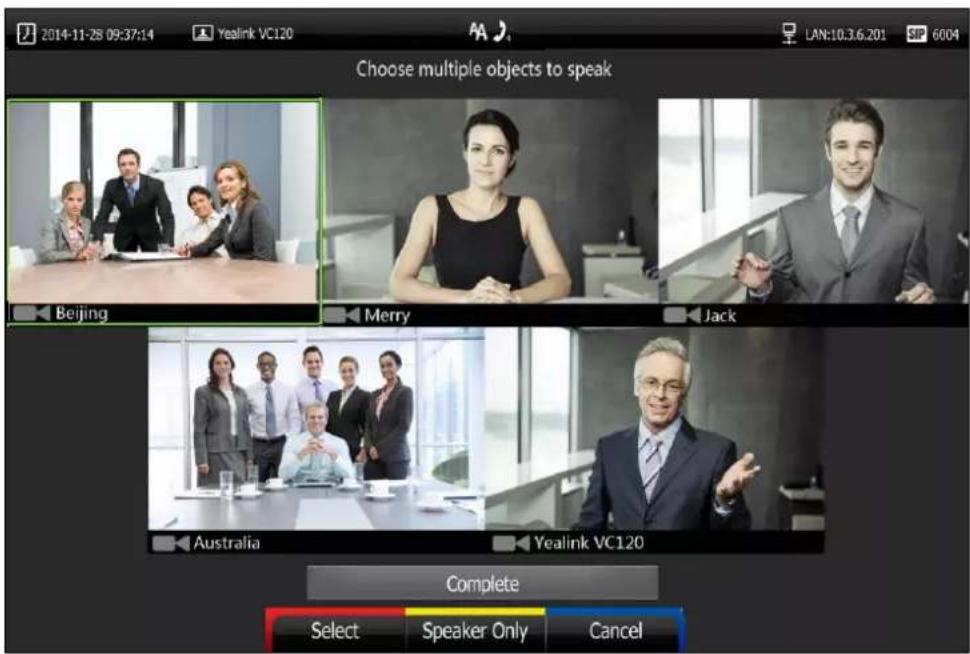
-
Press the navigation key to select the desired member, and then press OK.
-
Repeat step 3 to select more members.
The √ icon appears on the selected video images.
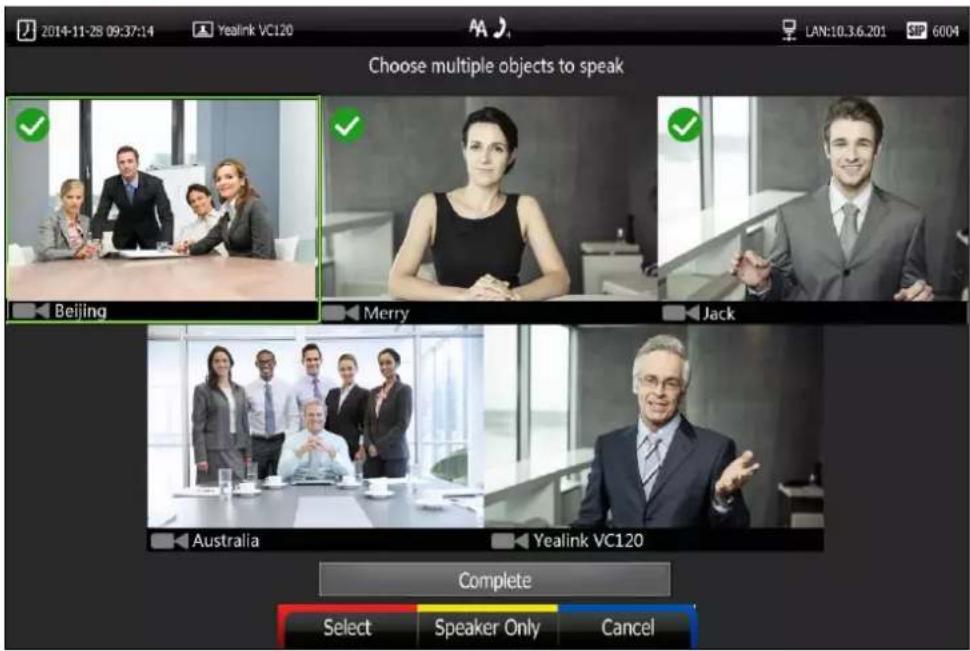
- Do one of the following:
- Press ▲ or ▼ to scroll to Complete, and then press OK to authorize the selected members to speak.
When two conference members are authorized, the authorized video images are
shown in big sizes, and other video images are shown in small sizes.
When more than two conference members are authorized, the authorized video images are shown in same sizes.
All the other members are muted and the mute icon appears on their video images.
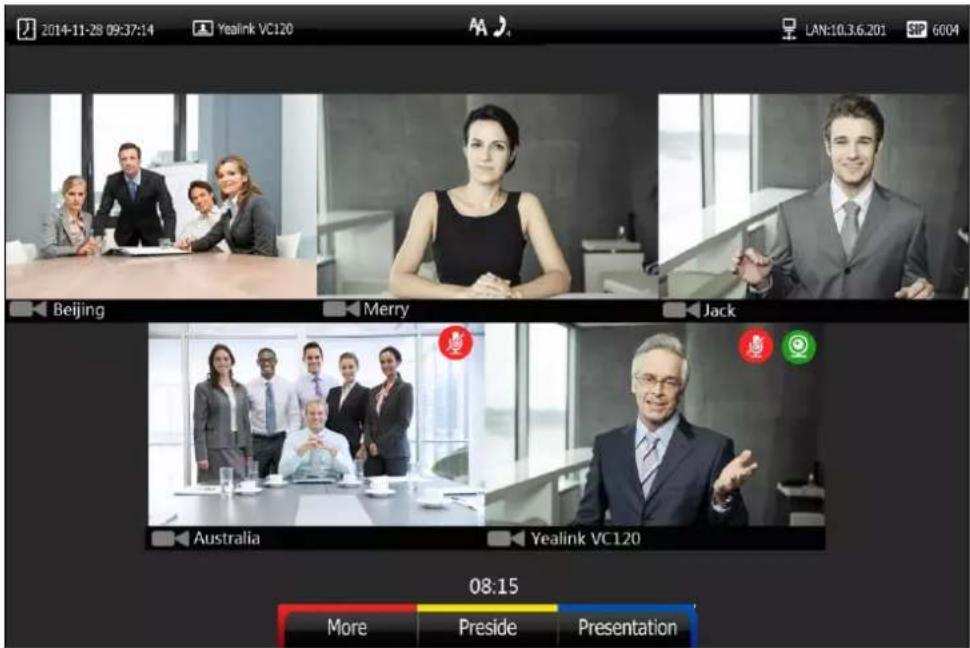
- Press (Speaker Only soft key) to authorize the selected members to speak. All the other members are muted. The organizer's display device only displays the authorized video images.
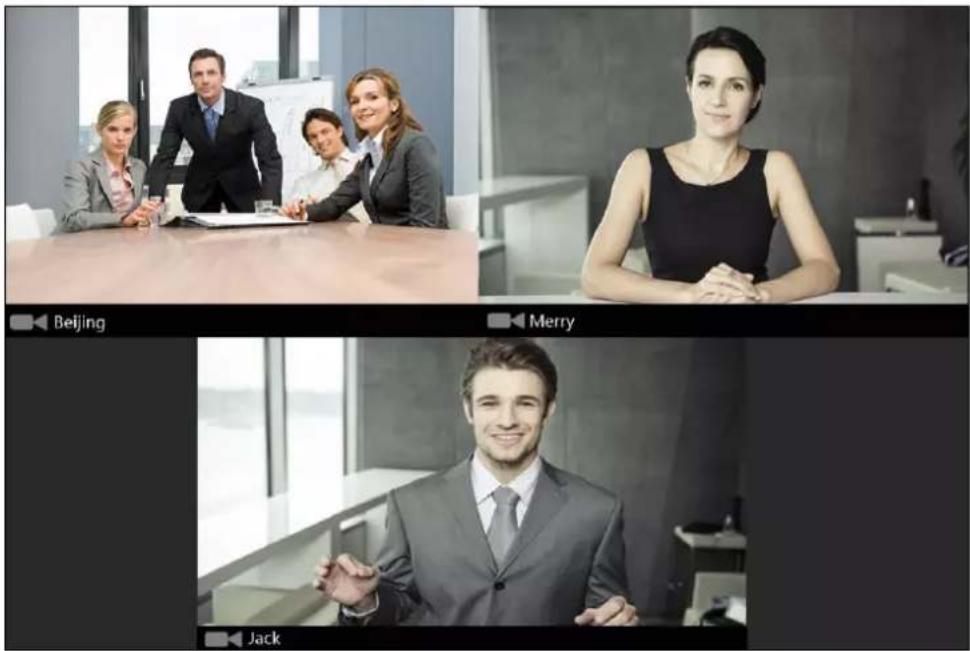
- Press Cancel soft key) to cancel.
Free Discuss
Conference organizer authorizes all conference members to speak.
The conference organizer authorizes all members to speak via the remote control:
- Press (Preside soft key) during a chairman-mode conference.
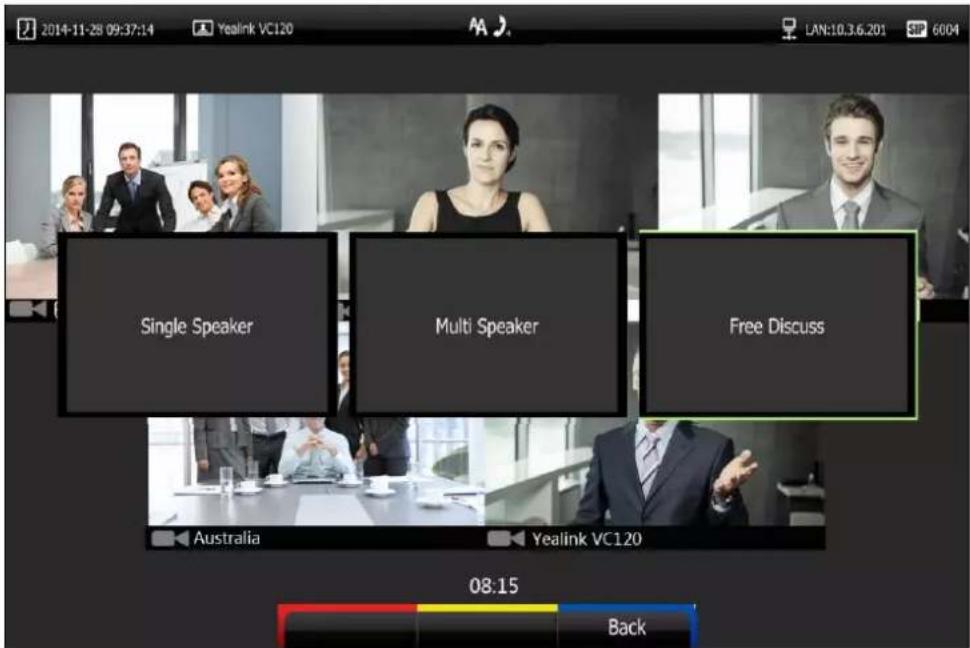
- Press ◀ or ▶ to select Free Discuss, and then press OK.
All video images are shown in the same size.
Requesting to speak
Only authorized conference members can speak, and other conference members are muted. Muted member can request to speak.
The muted members request to speak:
- Press ☐ on the remote control or press ☐ on the video conferencing phone or tap on the VCM30.
The applicant's display device prompts "Request to speak" and the icon appears on the applicant's video image.
The organizer's display device prompts "XXX Applying to speak" (XXX represents the phone number of the applicant).
2. The organizer can do one of the following:
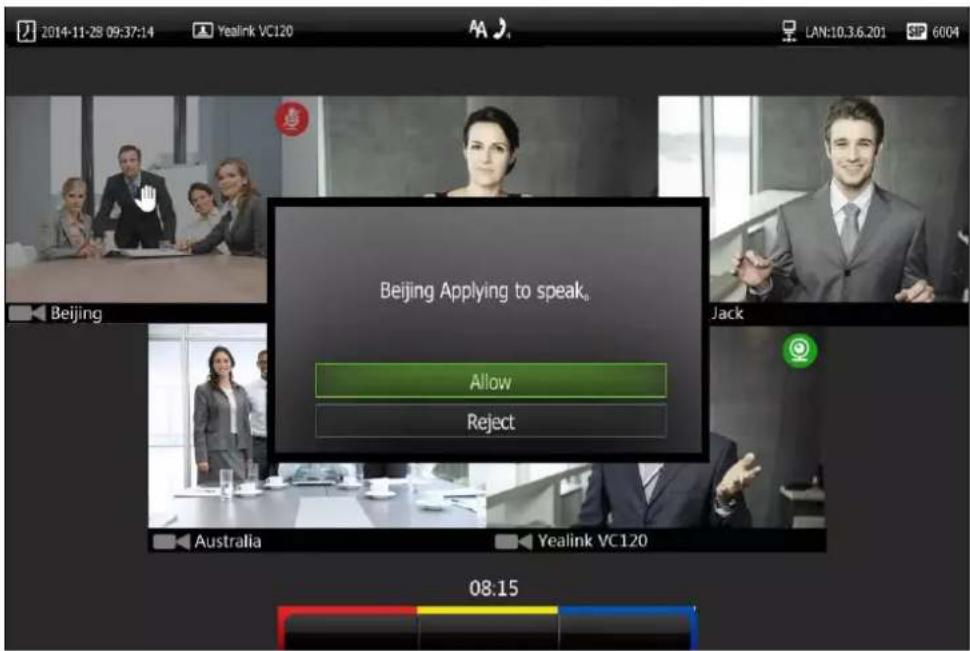
- Press ▲ or ▼ to scroll to Allow, and then press ok to authorize the member to speak. The mute icon disappears from the applicant's video image.
- Press ▲or ▼to scroll to Reject, and then press OK to reject the request. The applicant's display device prompts "Refused to speak!" and the 🔊 icon will not disappear.
- Do nothing to ignore the request, the applicant will stay muted and the 🔊 icon will not disappear. Subsequently, the conference organizer can authorize this conference member to speak by changing conference mode.
Presentation during a Chairman-Mode Conference
During a chairman-mode conference, connect a PC to the PC port on the VC120 Codec with the supplied HDMI-VGA direct cable, the system will start a presentation automatically. The presentation will be shown in big size, and other video images will be shown in small sizes.
To display presentation in full screen via the remote control:
- Press (Preside soft key) during a chairman-mode conference.
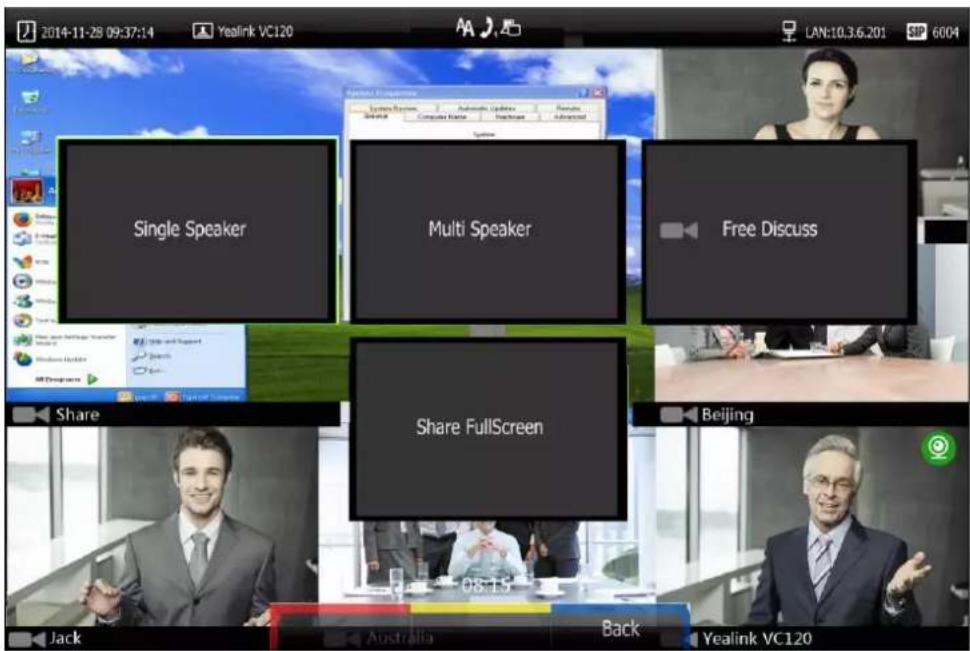
- Press ▲ or ▼ to select Share FullScreen, and then press OK.
The presentation is shown in full size.
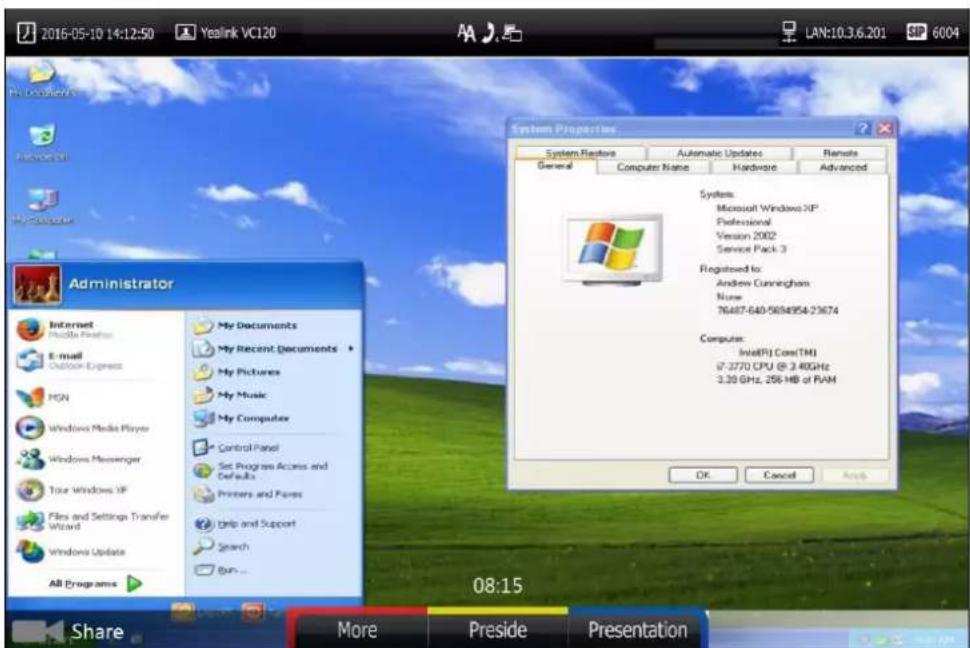
To exit full screen via the remote control:
- Press (Preside soft key) during a chairman-mode conference.
- Press ▲ or ▼ to select Exit FullScreen, and then press OK.
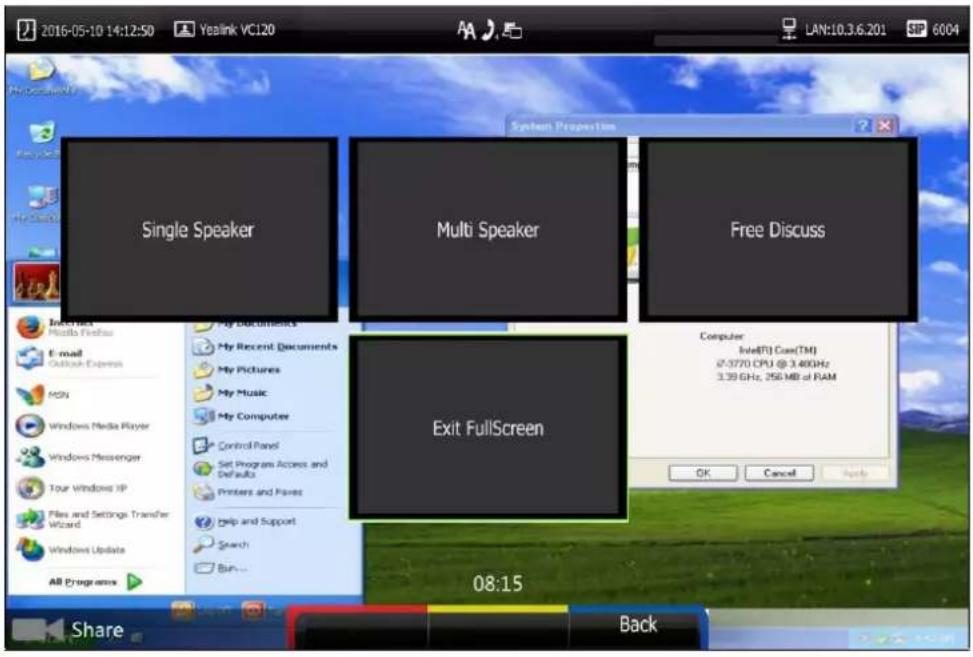
Answering or Rejecting Calls
When the system is receiving a call, you can answer or reject the call in the following ways:
• Using the remote control
• Using the video conferencing phone
If the system accepts multiple calls, a conference call will be established.
To answer a call:
Do one of the following:

To reject a call:
Do one of the following:
- Press 📋 or select Reject first, and then press OK on the remote control.
- Press 📞 or the Reject soft key on the video conferencing phone.
Auto Answer
You can enable the auto answer feature for the system to automatically answer the first incoming call.
Auto answer features you need to know:
| Parameters | Description |
| Auto Answer | Enables or disables the system to automatically answer the incoming call. |
| Auto Answer Mute | Enables or disables the system to turn off the microphone when an incoming call is answered automatically. The auto answer mute feature can be enabled only when the auto answer feature is enabled. |
| Auto Answer Multiway | Enables or disables the system to answer a new incoming call automatically during an active call. The auto answer multiway feature is available only when the auto answer is enabled. |
Auto answer is configurable via the remote control or web user interface.
To configure auto answer via the remote control:
-
Press (Menu soft key) to enter main menu.
-
Press ◀ or ▶ to select the Call Features menu.
-
Press ▲ or ▼ to scroll to Auto Answer, and then press OK to enable or disable this feature.
-
Press ▲ or ▼ to scroll to Auto Answer Mute, and then press OK to enable or disable this feature.
If you disable the auto answer feature, the system will disable the auto answer mute feature automatically.
- Press ▲ or ▼ to scroll to Auto Answer Multiway, and then press OK to enable or disable this feature.
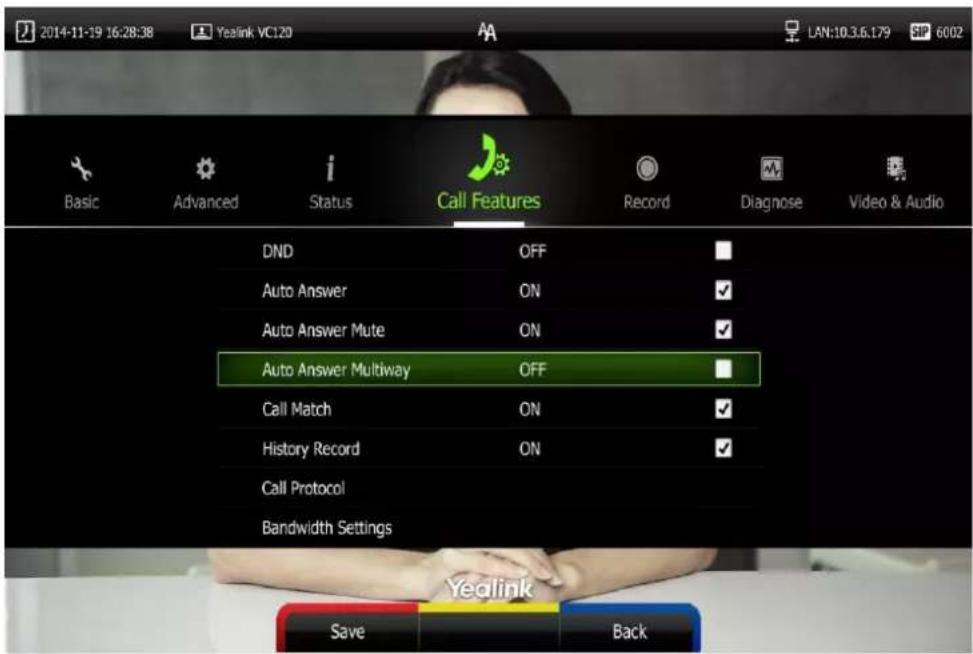
- Press (Save soft key) to accept the change.
If the auto answer feature is enabled, the AA icon will appear on the status bar of the display device. The AA icon will appear on the LCD screen of the video conferencing phone.
Auto answer is configurable via web user interface at the path Setting-> Call Features-> Auto Answer/Auto Answer Mute/Auto Answer Multiway.
Do Not Disturb (DND)
You can use DND to reject incoming calls automatically on the system. Callers will receive a busy message.
You can enable/disable DND for the system via the remote control, video conferencing phone or web user interface. You can also enable DND for the system to reject incoming call automatically during an active call.
To enable the DND mode via the remote control:
-
Press (Menu soft key) to enter main menu.
-
Press ◀ or ▶ to select the Call Features menu.
-
Press ▲ or ▼ to scroll to DND, and then press OK to enable this feature.
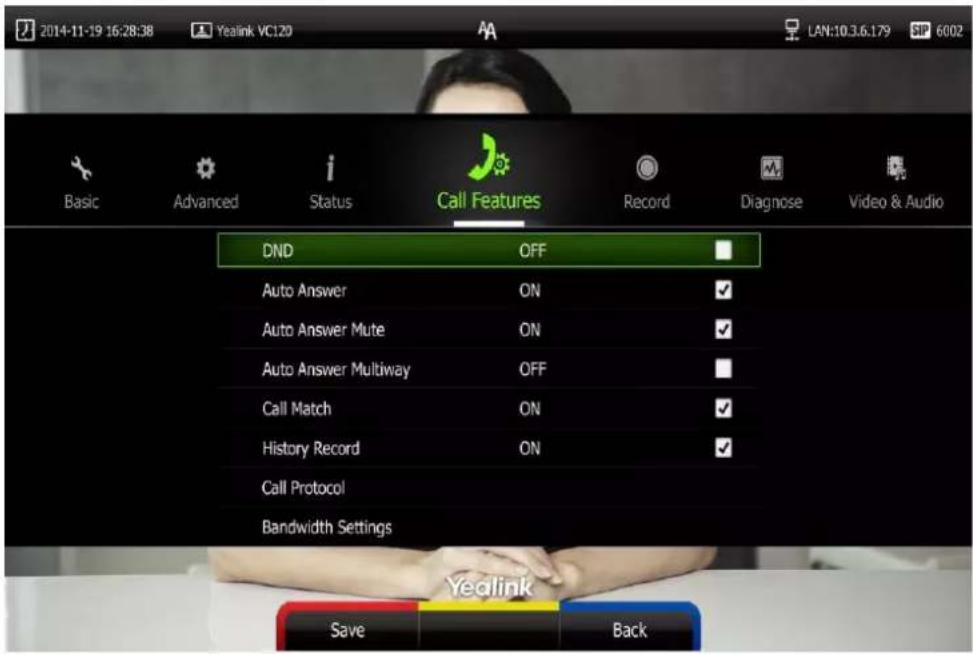
- Press (Save soft key) to accept the change.
The icon will appear on the status bar of display device, and "DND ON!" will be prompted at intervals. The DND icon will appear on the LCD screen of the video conferencing phone.
The system will reject all incoming calls automatically, and the icon and numbers of missed calls are displayed on the status bar of the display device. If the system places a call, after the call is established, the DND mode will be disabled automatically.
When video conferencing phone is idle, you can also press the DND soft key to enable or disable this feature.
DND is configurable via web user interface at the path Setting->Call Features->DND.
DND during an active call
You can use the DND mode to reject incoming calls automatically during an active call.
You can enable/disable the DND mode for the system via the remote control, video conferencing phone or web user interface. The DND mode will be disabled after the call.
To enable the DND mode during an active call via the remote control:
-
Press (More soft key) during an active call.
-
Press ▲ or ▼ to scroll to DND, and then press (ok) to enable this feature.
The icon will appear on the status bar of display device, the DND icon will appear on the LCD screen of the video conferencing phone.
3. Press (Back soft key) to return.
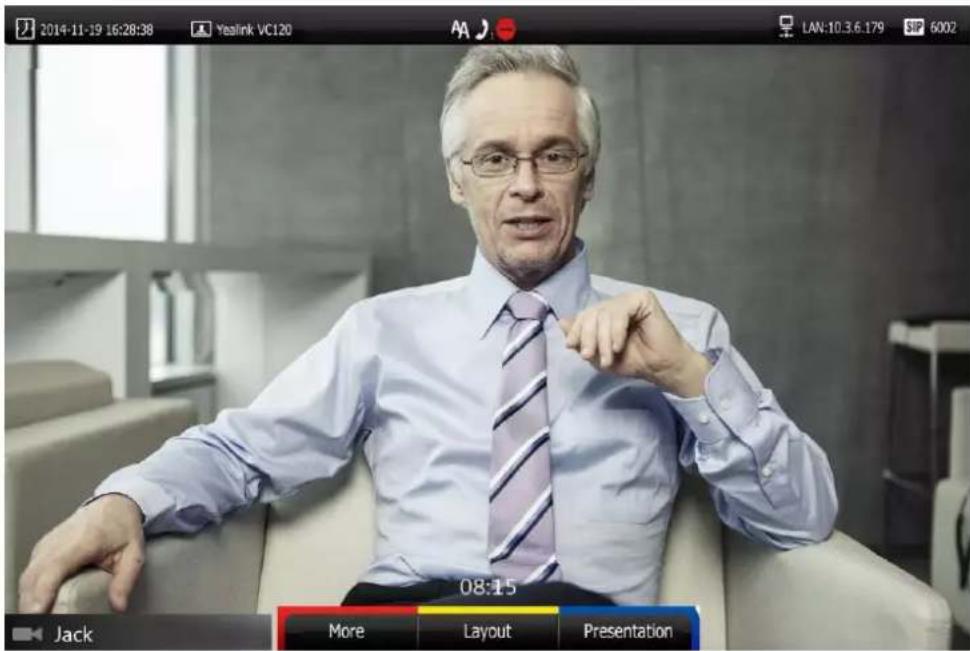
You can also press the DND soft key on the video conferencing phone to enable or disable the DND feature during an active all.
DND during an active all feature is configurable via web user interface at the path
Home->DND.
Ending Calls
During a two-way call, do one of the following to end the call.
- Press 📞 on the remote control.
- Press 📋 or the End Call soft key on the video conferencing phone.
- Click Hang Up All button on the web user interface.
The interface prompts "Hang up?"
Click Confirm to end the call.
During a multi-way call, do one of the following to end the call.
- Press 📞 on the remote control.
The display device prompts "End all active calls?"
Select Yes, and then press OK.
- Press □ or the End Call soft key on the video conferencing phone.
The LCD screen of the video conferencing phone prompts "End All Active Calls?"
Press OK or the Yes sort key to end all calls.
- Click Hang Up All button on the web user interface.
The interface prompts "Hang up?"
Click Confirm to end the call.
During a multi-way call, you can remove any party via the remote control or web user interface.
To remove any party via the remote control:
- Press (More soft key) during a multi-way call.
- Press ▲ or ▼ to scroll to Remove, and then press OK.
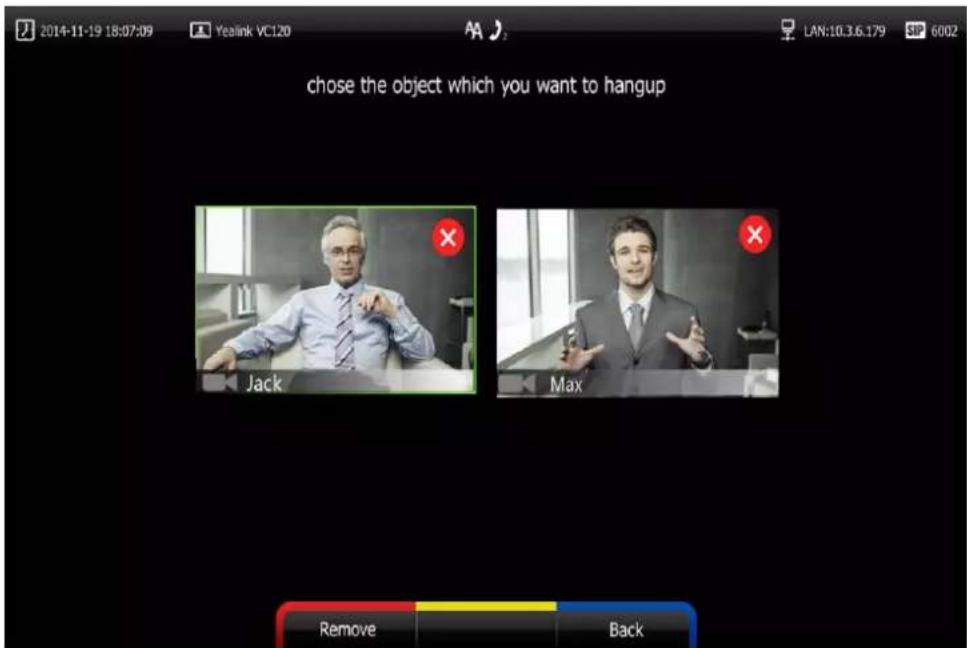
- Select the party you want to remove, and then press OK.
- Press (Remove soft key).
To remove any party from a multi-way call via web user interface, go to the path Home (Hover your cursor over of the number of remote system, and then click 📄).
Call Management
You can enable mute mode, record video, control the video and change video layout during an active call.
Call Mute
You can enable mute mode to mute the microphone of the active audio device during an active call, and then the other party cannot hear you.
Do one of the following:
- Press on the remote control.
- If VCM30 is connected to the Audio In port of VC120 Codec.
You can tap 📋 on the top of the VCM30 to mute the call. The mute indicator LED will illuminate solid red.
- If video conferencing phone is connected to the Audio In port of VC120 Codec:
You can press 📁 on the video conferencing phone to mute the call. If CPE80 expansion microphones are connected to the video conferencing phone, you can also tap 🌐 on the CPE80 expansion microphones to mute the call.
Mute Indicator LEDs on the video conferencing phone and CPE80 will illuminate solid red.
And the LCD screen of the video conferencing phone is shown as below:
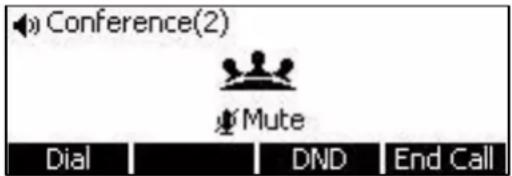
- Log into the web user interface, check the Mute checkbox.
If video conferencing system is muted, the icon will appear on the local video.
Call Statistics
If voice quality is poor during a call, you can enter the Call Statistics screen to view the current status of the call to find out why.
Codec, bandwidth, total packet lost and other parameters about presentation are included in the call statistics. For example, when a delay occurs or the video has a 'mosaic' look, you can view the total packet loss to check whether the packet has been lost.
Call statistics is configurable via the remote control or web user interface.
To view call statistics via the remote control:
-
Press (More soft key) during an active call.
-
Press ▲ or ▼ to scroll to Call Statistics, and then press OK to enter the Call Statistics screen.
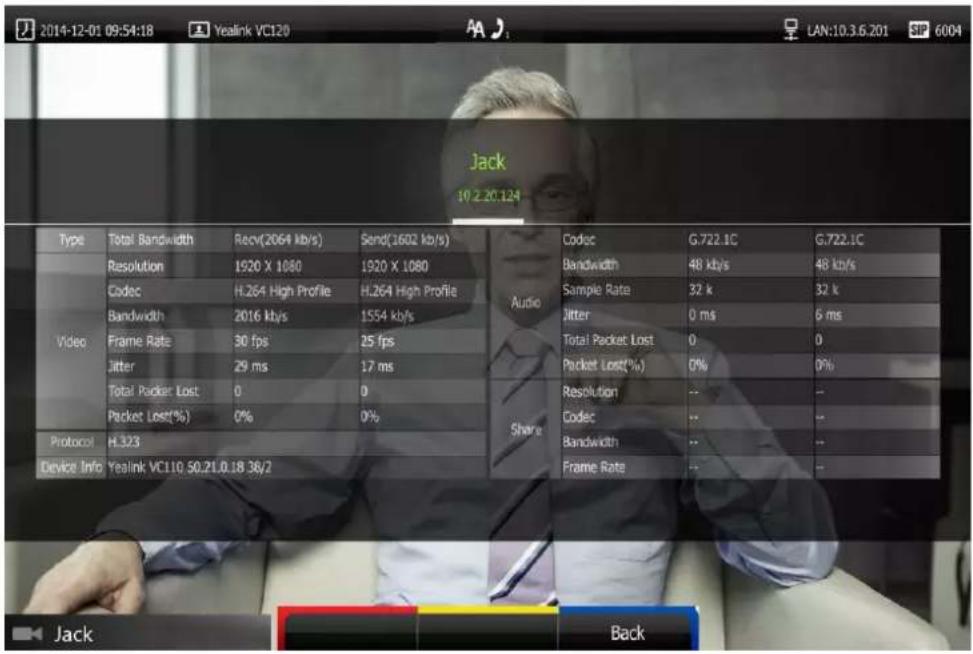
-
During multi-way call, press ◀ or ▶ to see call statistic for every participant.
-
Press (More soft key) to return.
To view call statistics via web user interface, go to the path Home (Hover your cursor over the other party on the left side of the screen, and then click [0]).
Changing Video Input Source
VC120 video conferencing system supports these video input sources: camera and PC.
When the camera and PC are connected to the VC120 Codec, the display device displays the presentation on the connected PC.
If two VCC20 cameras are connected to the VC120 Codec, you can switch the images between these two cameras freely.
If two display devices are connected to the VC120 Codec, the video image is shown on the main display device, and the presentation is shown on the secondary display device.
During a call, the display device will display differently depending on whether it has been connected to a secondary display device and the video input source you select. You can change the video input source via the remote control and web user interface.
To change video input when the system is idle via the remote control:
- Press
The display device shows Camera and PC input sources.
- Press ◀ or ▶ to select the desired input source, and then press OK. The display device shows the selected source.
To change video input during a call:
1. Press
The display device shows Camera, Camera and PC and PC input sources.
- If you select PC, the remote video image is shown in full screen.
- If you select Camera and PC or PC, the PC presentation is shown in big size, and other video images along the right side of the screen are shown in small size.
- If you select Camera, the remote video image is shown in full screen.
2. Press ◀or ▶to select the desired input source, and then press(OK).
The display device shows the selected source.
Video input is configurable via web user interface at the path Home->Input.
Presentation
The system supports sharing video and documents on a PC while simultaneously displaying the main video. We recommend using dual display devices for sharing contents. During a call, if a PC is connected to the VC120 Codec, the system will start a presentation automatically. Both local and remote display devices will share contents.
You can also start/stop presentation during a call via the remote control or video conferencing phone (ensure a PC is connected to the VC120 Codec). If you disconnect the PC, the presentation will end automatically.
Only one presentation can be shared at a time. A presentation started later will replace the previous presentation.
To start/stop presentation manually during a call:
Do one of the following:
- Press (Presentation soft key) on the remote control to start or stop a presentation.
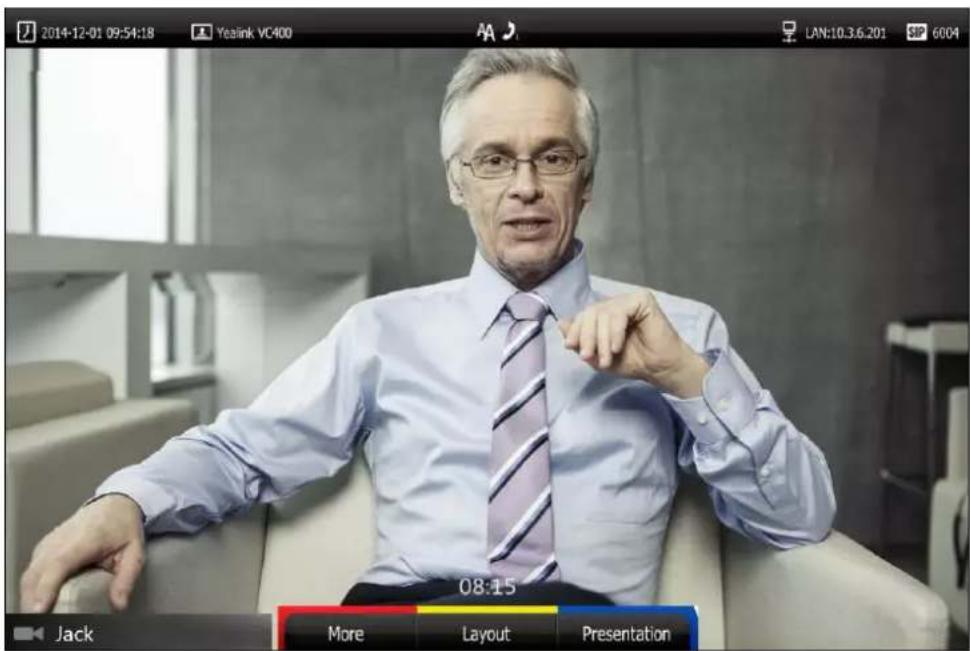
- Press ☐ on the VCP40 phone to start or stop a presentation.
Configuring Camera Presets
You can store the preset to a numeric key via the remote control or web user interface. Each camera preset stores the camera pan, tilt, and zoom settings. This means that you can point a camera at pre-defined locations by pressing stored keys.
You can store up to 10 preset camera positions using the remote control. If you want to store more than 10 preset camera positions, you can enable the multiple preset feature. For more information, refer to Yealink VC400 & VC120 Video Conferencing System Administrator Guide.
Storing a Local Camera Preset
To store a local camera preset when the system is idle:
-
Press (Preset soft key).
-
Press the navigation key to adjust the angle of the camera or press ⊕ or ⊖ to adjust the focus of the camera.
-
Long press any number key (0-9) on the remote control until the screen prompts "Preset Key 'X' successfully saved" ("X" stands for the saved key).
Current camera position and focus are stored to the numeric key.
- Press (Exit soft key) to return to the idle screen.
To store a local camera preset during a call:
-
Press (More soft key) during an active call.
-
Press ▲ or ▼ to scroll to Camera Preset, and then press OK.
-
Press the navigation key to adjust the angle of the camera or press ⊕ or ⊖ to adjust the focus of the camera.
-
Long press any number key (0-9) on the remote control until the screen prompts "Preset Key 'X' successfully saved" ("X" stands for the saved key).
Current camera position and focus are stored to the numeric key.
- Press (Exit soft key) to return to the idle screen.
Moving Local Camera to a Preset Position
To move the local camera to a preset position when the system is idle:
-
Press (Preset soft key).
-
Press the numeric key that is already associated with a preset.
The local camera will adjust to the preset.
- Press (Exit soft key) to return to the idle screen.
To move the local camera to a preset position during a call:
-
Press (More soft key) during an active call.
-
Press ▲ or ▼ to scroll to Camera Preset, and then press OK.
-
Press the numeric key that is already associated with a preset.
The local camera will adjust to the preset.
- Press (Exit soft key) to return to the idle screen.
To move local camera to a preset position via web user interface, go to the path Home (Hover your cursor over your number, and then click 🔒 and click a numeric key that is already associated with a preset).
Storing a Far-end Camera Preset
If the far-end camera enables the far-end camera control feature (For more information, refer to Far-end Camera Control on page 80) and corresponding camera control protocol is enabled (For more information, refer to your system administrator), you can configure camera preset for the far-end camera during the video call.
To store a far-end camera preset during a call:
-
Press (More soft key) during an active call.
-
Press ▲ or ▼ to scroll to Near/Far Camera, and then press OK.
-
Select the remote video, and then press OK.
-
Press the navigation key to adjust the angle of the far-end camera or press + or - to adjust the focus of the far-end camera.
-
Press (More soft key).
-
Press ▲ or ▼ to scroll to Camera Preset, and then press OK.
-
Long press any number key (0-9) on the remote control, far-end camera position and focus are stored to the numeric key.
-
Press (Exit soft key).
Moving Far-end Camera to a Preset Position
To move the far-end camera to a preset position during a call:
-
Press (More soft key) during an active call.
-
Press ▲ or ▼ to scroll to Near/Far Camera, and then press OK.
-
Select the remote video, and then press OK.
-
Press (More soft key).
-
Press ▲ or ▼ to scroll to Camera Preset, and then press OK.
-
Press the numeric key that is already associated with a preset. The far-end camera will adjust to the preset.
-
Press (Exit soft key).
Clearing the Local Camera Presets
To clear the stored local camera presets via remote control:
-
Press (Menu soft key) to enter main menu.
-
Press ◀ or ▶ to select the Video & Audio menu.
-
Press ▲ or ▼ to scroll to Camera General Settings, and then press OK.
-
Press ▲ or ▼ to scroll to Clear Preset Position, and then press (ok).
-
Select Ok, and then press (ok) to delete all presets.
Video Recording
When the system is idle, you can record local video via the remote control. During a call, the video and presentation which are shown on the display device can be recorded via the remote control and video conferencing phone.
Before recording video, you need to insert a USB flash drive into the USB port on the VC120 Codec to store recorded video and make sure the USB feature is enabled. For more information, please refer to USB Configuration on page 57. The recorded video will be saved in .mkv format and named as the recorded time and date. Video can be played on either the system itself or on a computer using an application capable of playing .wav files.
Note
The system supports FAT32 and NTFS format USB flash drive or removable hard drive. When using the NTFS format, only the first partition is supported.
After the USB flash drive is inserted to the USB port on the VC120 Codec and the USB feature is enabled, the display device will prompt "USB device available now".
The icon will appear on the status bar of the display device, and the USB icon will appear on the LCD screen of the VCP40 phone.
Before recording video, you need to know the following:
- When recording video, it is not allowed to play or delete the video from the menu.
- When recording video, it is not allowed to capture screenshots, buy you can view and delete screenshots.
- When playing video recording, it is not allowed to record again. But when the video is paused, you can press *.to record again.
- When receiving or making a call, it is not allowed to record.
- When there is an incoming call during recording, the system will quit recording.
- When recording during a video call, the record will be finished automatically after the call ends.
- When playing or recording video, it is unavailable to press 🔗 to return to the idle screen.
- When playing, recording or pausing video, the system will not go to sleep automatically.
- If you remove the working USB flash drive or insert another USB flash drive during recording, the recording will be stopped.
To configure video recording via web user interface:
- Click on Setting->Video & Audio.
2. Select the Enabled from the pull-down list of Recording.
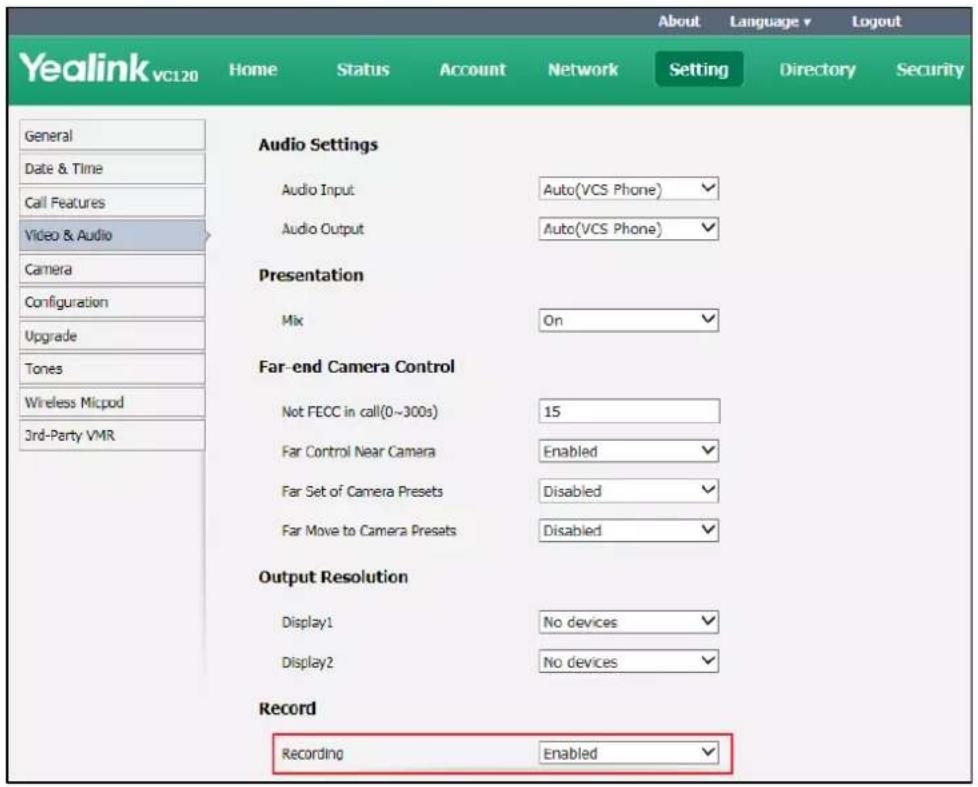
3. Click Confirm to accept the change.
To record video when the system is idle via the remote control:
- Press *.B to start recording and press *.B again to stop recording.
To record video during a call via the remote control:
- Do one of the following:
- Long press *.昌 to start recording and long press *.昌 again to stop recording.
- Press (More soft key) to open More screen. Press ▲ or ▼ to scroll to USB Recording, and then press OK to start recording. Open the More screen, scroll to USB Recording again, and then press OK to stop recording.
To record video during a call via the video conferencing phone:
- Press the Start REC soft key to start recording and press the Stop REC soft key again to stop recording.
When you start recording, the display device will show 🙏 and the recording time. When you stop recording, the recording icon disappears from the screen. The display device prompts "Successfully video recording!"
Note
If you start recording during a call, both your display device and remote display devices will show the icon on your video image.
To view recorded video via the remote control:
Insert the USB flash drive with the recorded video to the VC120 Codec.
-
Press (Menu soft key) to enter main menu.
-
Press ◀ or ▶ to select the Record menu.
-
Press ▲ or ▼ to scroll to Videos, and then press OK.
-
Press ▲ or ▼ to select the desired Video.
-
Press OK or (Play soft key).
You can do the following:
- To pause the video, press ☐ (Pause soft key). The ☐ (Play soft key) appears on the LCD TV screen.
Press □(Play soft key) to continue playing video.
- To skip forward the video, press ▶. Press once to skip forward 8 seconds.
- To rewind the video, press .Press once to rewind 8 seconds.
- To adjust the volume of the speakerphone, press 📄 – or 📄 +.
- To stop the video, press (Stop soft key).
When receiving an incoming call while you are playing video, the system will stop playing video automatically.
To delete recorded video via the remote control:
-
Press (Menu soft key) to enter main menu.
-
Press ◀ or ▶ to select the Record menu.
-
Press ▲ or ▼ to scroll to Videos, and then press OK.
-
Press ▲ or ▼ to select the desired Video.
-
Press (Delete soft key).
The display device prompts "Delete this video?"
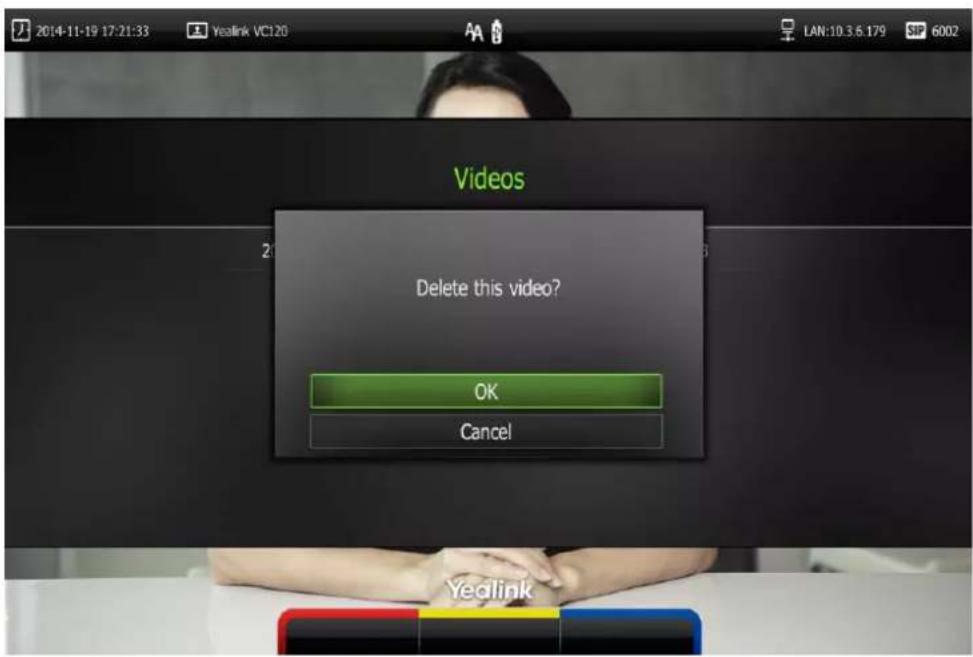
- Select OK, and then press OK to delete the video.
Auto Recording
Auto recording feature is available only when the recording feature is enabled. If it is enabled, the system will start recording automatically once a call is established. Make sure a USB flash drive has been inserted to the USB port on the VC120 Codec and the USB feature is enabled. You can configure auto recording feature via web user interface only.
To configure auto recording feature via web user interface:
- Click on Setting->Video & Audio.
2. Select the desired value from the pull-down list of Auto Recording.
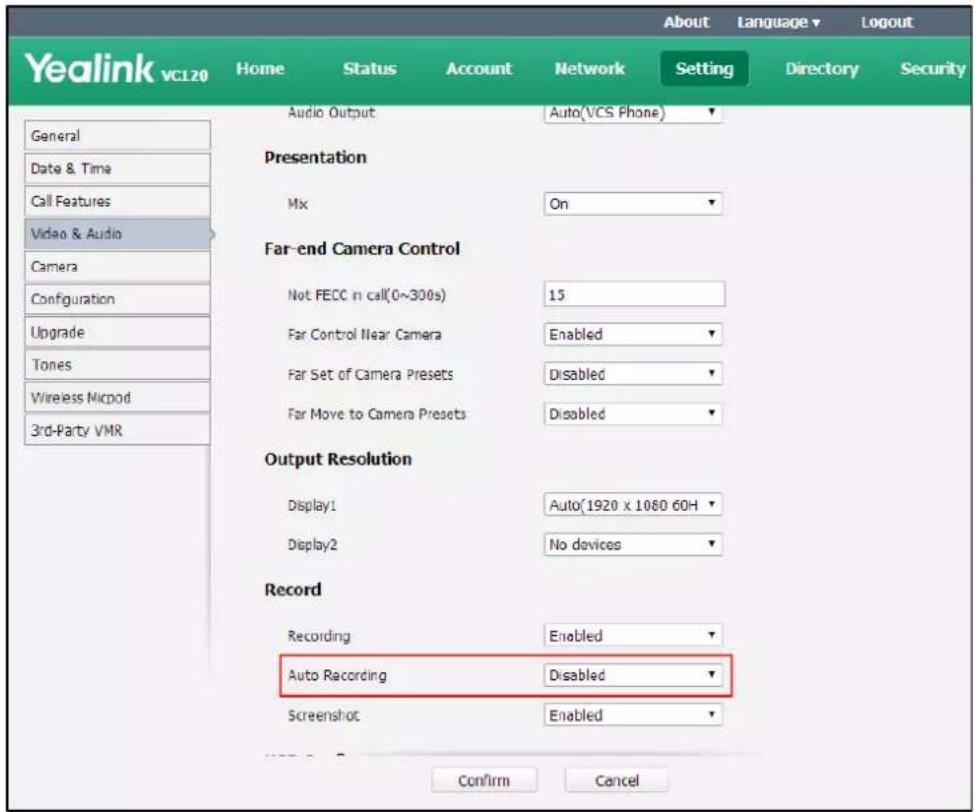
3. Click Confirm to accept the change.
Screenshot
You can capture the screenshot from the camera via the remote control or web user interface. You need to insert a USB flash drive to the USB port on the VC120 Codec to store screenshots when you are using remote control and make sure the USB feature is enabled. For more information, please refer to USB Configuration on page 57.
You can view, delete or scale the screenshots via the remote control.
When you capture a screenshot via web user interface, you can save the screenshots to the computer. The stored screenshot will be saved in .jpg format and named as the captured time and date. You can view the screenshot using an application capable of viewing .jpg pictures.
Note
The system supports FAT32 and NTFS format USB flash drive or removable hard drive. When using the NTFS format, only the first partition is supported.
After the USB flash drive is inserted to the USB port on the VC120 Codec and the USB feature is enabled, the display device will prompt "USB device available now".
The icon will appear on the status bar of the display device, and the USB icon will appear on the LCD screen of the VCP40 phone.
Before capturing screenshots, you need to know the following:
- When receiving or making a call, it is not allowed to capture screenshots.
- When recording video, it is not allowed to capture screenshots.
- If two USB flash drives are connected, and you remove the working USB flash drive, the remained one can continue to work seamlessly.
To capture screenshots when the system is idle via the remote control:
- Press #
To capture screenshots during a call via the remote control:
-
Press #
-
Long press #
- Press (Menu soft key) to open More screen.
Press ▲ or ▼ to scroll to Screenshot, and then press OK to capture screenshots.
The icon at the status bar of the display device shows "+1" animated effects.
To view screenshots via the remote control:
- Press (Menu soft key) to enter main menu.
- Press ◀ or ▶ to select the Record menu.
- Press ▲ or ▼ to scroll to Screenshots, and then press OK.
- Press ▲ or ▼ to select desired screenshots.
- Press OK or (View soft key).
You can do one of the following:
- Press ◀ or ▶ to view previous or next screenshot.
- Press + or - to zoom screenshot in/out.
- Press (Original size soft key) to view the original size of the screenshot.
To delete screenshots via the remote control:
- Press (Menu soft key) to enter main menu.
- Press ◀ or ▶ to select the Record menu.
- Press ▲ or ▼ to scroll to Screenshots, and then press OK.
- Press ▲ or ▼ to select desired screenshots.
- Press (Delete soft key).
The display device prompts "Delete this screenshot?"
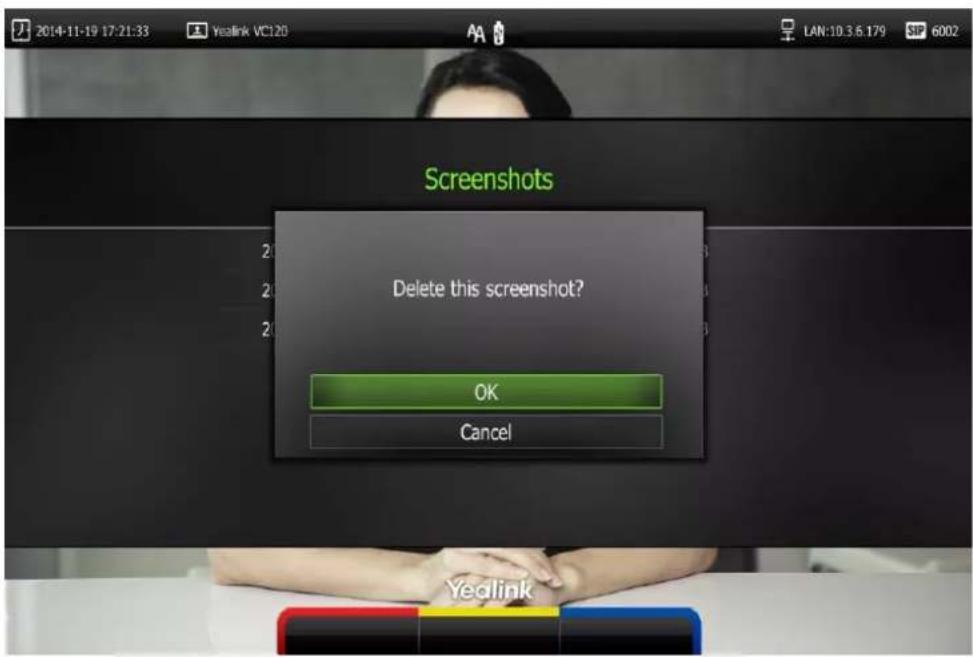
- Select OK, and then press OK to delete the screenshot.
Screenshot is configurable via the web user interface at the path Setting->Video & Audio->Screenshot.
Capture the screenshot via web user interface at the path Home->Screenshot.
Video Layout
The total number of available screen layouts depends on the number of connected callers, whether a single display or a dual display is used, and whether a presentation is being viewed.
Screen layouts appear as one of the following types:
- One big, other small ☐): The selected video image is shown in a big size, the other video images along the right side of the screen are shown in small sizes.
• Full screen ): The selected video image is shown in full size.
• Same size (☐): All video images are shown in the same size.
Changing Video Layout
To change screen layout via the remote control:
- Press □ (Layout soft key) during an active call.
- Press ◀ or ▶ to select a video.
- Press the desired layout soft key.
The selected video will be shown in the selected layout.
For example, if you select 📊 during a two-way calls, the video layout will be shown as
below.
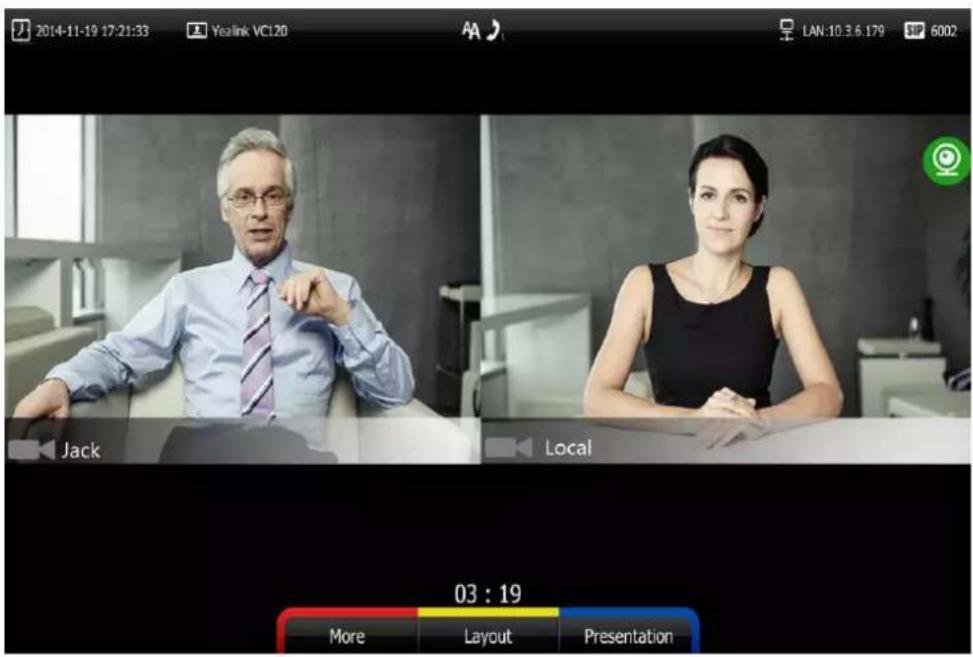
Single Display Screen Layouts
Two-way Video Calls
The far-end video image is shown in full size by default.
Two-way Video Call with Presentation
Presentation is shown in a big size. The other video images along the right side of the screen are shown in small sizes.
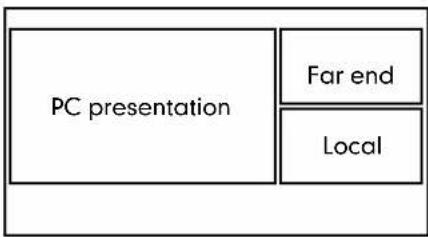
flowchart
graph TD
    A["PC presentation"] --> B["Far end"]
    A --> C["Local"]
Multi-way Video Calls
Take four-way video calls as an example. All video images are shown in same sizes.
| Far end 1 | Far end 2 |
| Far end 3 | Local |
Multi-way Video Call with Presentation
Take four-way video calls as an example. Presentation is shown in a big size. The other video images are shown in same sizes.
| PC presentation | Far end 1 | |
| Far end 2 | ||
| Far end 3 | Local | |
Dual Display Screen Layouts
The VC120 has two display ports. When connecting only one display device to the VC120 Codec, Display1 port is the only available port. To make it easier for users to view video images, users can connect two display devices to Display1 and Display2 ports respectively. When two display devices are connected to the VC120 Codec, the status bar of the primary display device will display icon.
Two-way Video Calls
In the primary display device, the remote video image is shown in full size. In the secondary display device, the local video image is shown in full size.
| Far end | Local |
Primary display device
Secondary display device
Two-way Video Call with Presentation
In the primary display device, the remote video image is shown in big size, and the local video image along the right side of the screen is shown in small size.
In the secondary display device, the presentation is shown in full size.
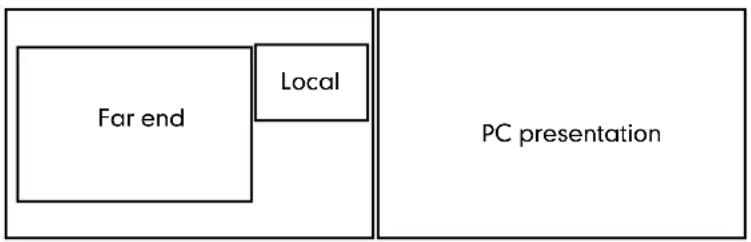
Primary display device
Secondary display device
Multi-way Video Calls
In the primary display device, all video images are shown in the same size.
In the secondary display device, the local video image is shown in full size.
| Far end 1 | Far end 2 | Local |
| Far end 3 | Far end 4 |
Primary display device
Secondary display device
Multi-way Video Call with Presentation
In the primary display device, all video images are shown in the same size. In the secondary display device, the presentation is shown in full size.
| Far end 1 | Far end 2 | PC presentation |
| Far end 3 | Far end 4 |
Primary display device
Secondary display device
Specifying the Content on the Second Screen
To specify the content to be displayed on the secondary display device via the remote control:
- Press (More soft key) during an active call.
- Select Focus (Display2), and then press OK.
- Press ◀ or ▶ to select the desired content, and then press OK.
The secondary display device displays the selected content. The icon is displayed on the focus content.
After reassigning the display content on the secondary display device, the presentation will automatically be displayed on the primary display device.
After reassigning the content displayed on the secondary display device, the presentation will automatically be displayed on the primary display device.
Using Cloud Platform
Yealink video conferencing system can log into the Yealink VC Cloud Management
Service/Yealink Meeting Server/StarLeaf/Zoom/Pexip/BlueJeans/Mind/Custom platform.
Users can access VMR using the VC120 video conferencing system, whilst benefiting from both the features provided by Yealink, such as 1080p HD video and audio, and features provided by StarLeaf/Zoom/Pexip/BlueJeans/Mind, including high end customization & interoperability.
If you don't log into Cloud platform or you only log into the Yealink VC Cloud Management
Service platform/Yealink Meeting Server, you can configure the address of the third-party platform in advance, the platform names will appear on your display device at the path
Call->Dial->Call Type. Even if you don't log into the third-party platform, you can also select the desired third-party platform to call corresponding VMRs quickly. For more information, refer to Yealink VC400 & VC120 Video Conferencing System Administrator Guide.
This chapter provides the information about using the Cloud platform. Topics include:
• Using the Yealink VC Cloud Management Service Platform
• Using the Yealink Meeting Server
• Using the StarLeaf Cloud Platform
• Using the Zoom Cloud Platform
• Using the BlueJeans Cloud Platform
• Using the Pexip Platform
• Using the Mind Platform
• Using the Custom Platform
Using the Yealink VC Cloud Management Service Platform
You can log into the Yealink VC Cloud Management Service platform, and dial other Yealink Cloud accounts to establish calls.
Dialing Yealink Cloud Accounts
To dial Yeaink Cloud numbers via the remote control:
- Press □ (Call soft key) or √ to enter the dialing screen.
-
Select Yealink VC Cloud Management Service from the pull-down list of Call Type before calling.
-
Enter the desired Yealink Cloud account using the keypad or the on-screen keyboard.
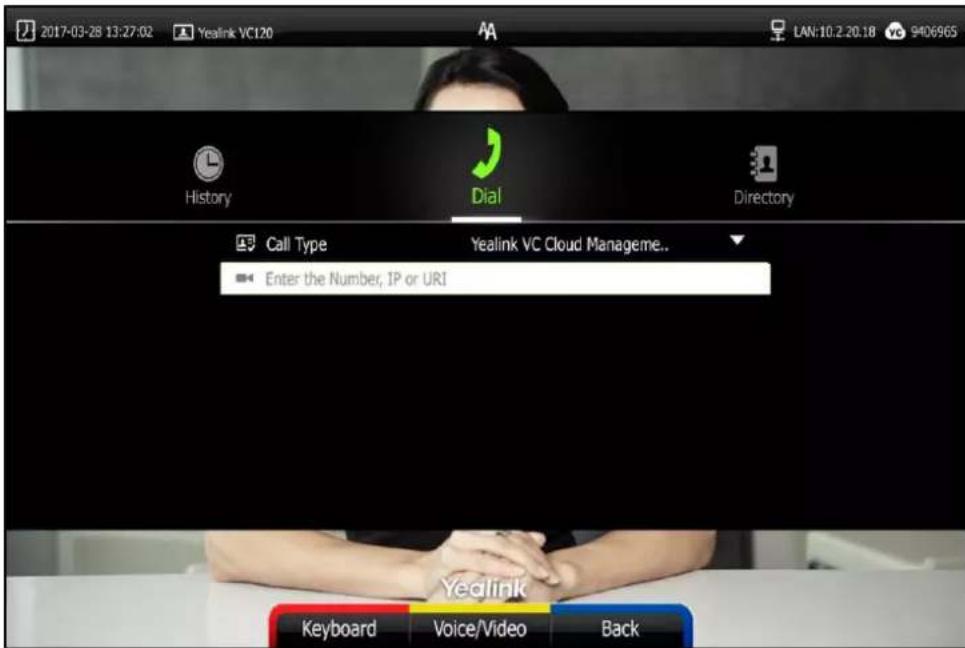
-
Press ☐ (Voice/Video soft key) to change call mode.
-
Press OK or √.
Note
If you want to place a call to a Yealink Cloud contact who is in the same Yealink Cloud directory as you, you can enter the 9-digit Cloud number or the extension (the last four Cloud number) to place a call. If you want to place a call to a Cloud contact who is in different Yealink Cloud directory from you, you should enter the 9-digit Cloud number to place a call.
If you log into Yealink VC Cloud Management Service platform using the built-in Cloud number, your directory will not include the Yealink Cloud contacts, but you can dial other Yealink Cloud accounts.
Cloud call is encrypted by default. You will see an encryption icon during a Cloud call.
Using the Yealink Meeting Server
You can register a YMS account.
When you are using the YMS account, you can:
- Dial the other YMS accounts to establish a conversation.
• View or join the scheduled conferences. - Enter the permanent VMR.
Dialing YMS Accounts
To dial a YMS account using the remote control:
- Press □ (Call soft key) or □ to enter the dialing screen.
- Select Yealink Meeting Server from the pull-down list of Call Type.
- Enter a YMS account using the keypad or the on-screen keyboard.
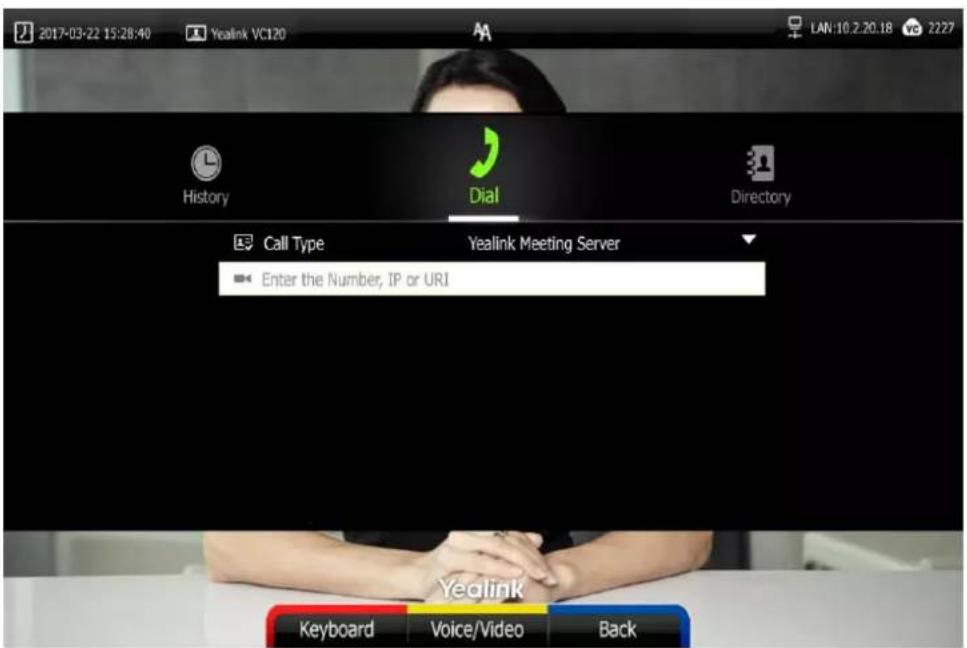
- Press (Voice/Video soft key) to change call mode.
- Press OK or
YMS Video Conference
When you register a YMS account, you can use YMS video conference feature.
There are two types of YMS video conference:
- Scheduled conference: You should schedule the conference using the Yealink Meeting Server or Microsoft Outlook software.
- Permanent Virtual Meeting Room: The permanent VMR is created by your administrator. You can join the permanent VMR at any time without a reservation.
Note
If more than one system registered the same YMS account join the same conference, the former system which joined the conference will leave the conference automatically. The conference only allows one of them to participant.
Scheduled Conference
You can schedule a conference using the Yealink Meeting Server or Microsoft Outlook software. After you schedule the conference, the scheduled conference will be added to all invitees' video conferencing system. And invitee whose YMS account is associated with an email address, will receive an email about how to join the scheduled conference.
For more information on how to schedule a conference using the Yealink Meeting Server or Microsoft Outlook software, refer to Yealink Meeting Server User Guide. You can only view or join the scheduled conference via your VC120 video conferencing system.
Viewing Conference Schedules
When you schedule a conference or receive an invitation to a conference, the conference details will appear on the idle screen and the menu.
If the conference organizer edits the conference content (e.g., time and participants) or cancel the conference via Yealink Meeting Server or Microsoft Outlook software after you have sent the invitation, the conference schedule will update in real time. Expired conferences will not be displayed on your video conferencing system.
To view your conference schedules on the idle screen:
The idle screen displays the latest conference schedule (your upcoming or ongoing conference).
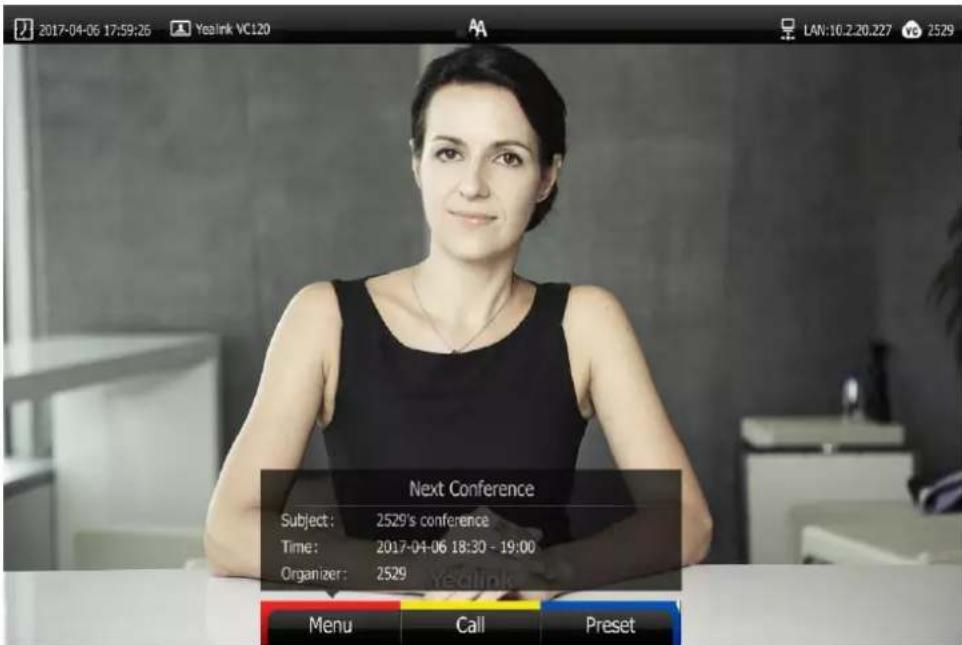
To view your conference schedules on the idle screen when you are sharing contents:
The idle screen will display the latest conference schedule (your upcoming or ongoing conference). And the conference schedule will be hidden in 5 seconds.
The conference schedule will appear again 30 minutes before the conference starts, and then be hidden automatically. And it will appear every 10 minutes until the conference starts. The conference schedule shows the conference details, as below:
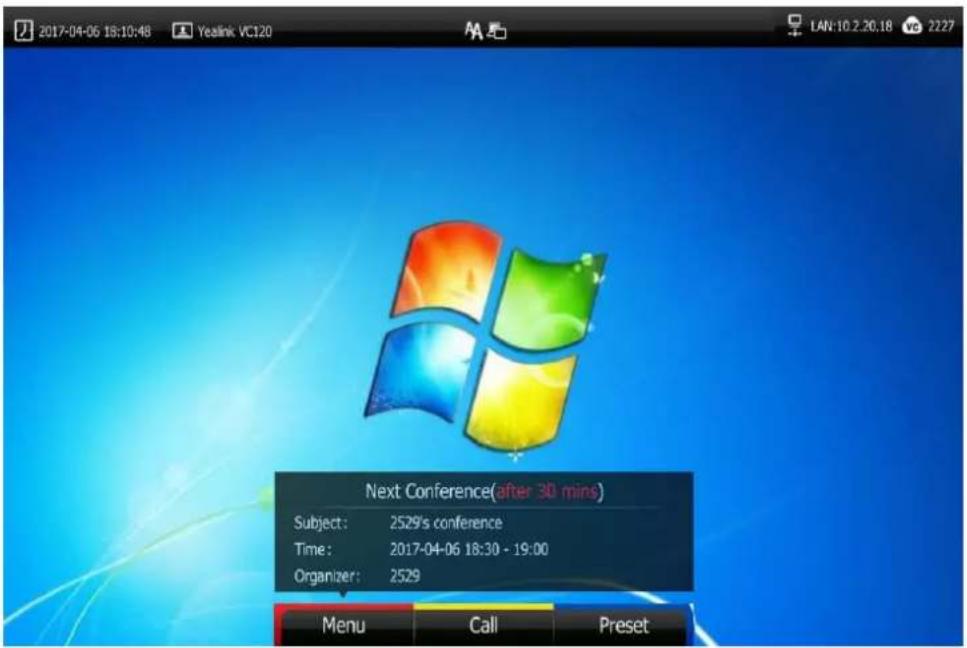
Note
Once you operate the VC120 video conferencing system, the hidden conference schedule will appear.
To view conference schedules in the menu:
- Press (Menu soft key) to enter main menu.
- Press ◀ or ▶ to select the Schedule menu.
Your ongoing conferences and upcoming conferences are listed for the latest month.
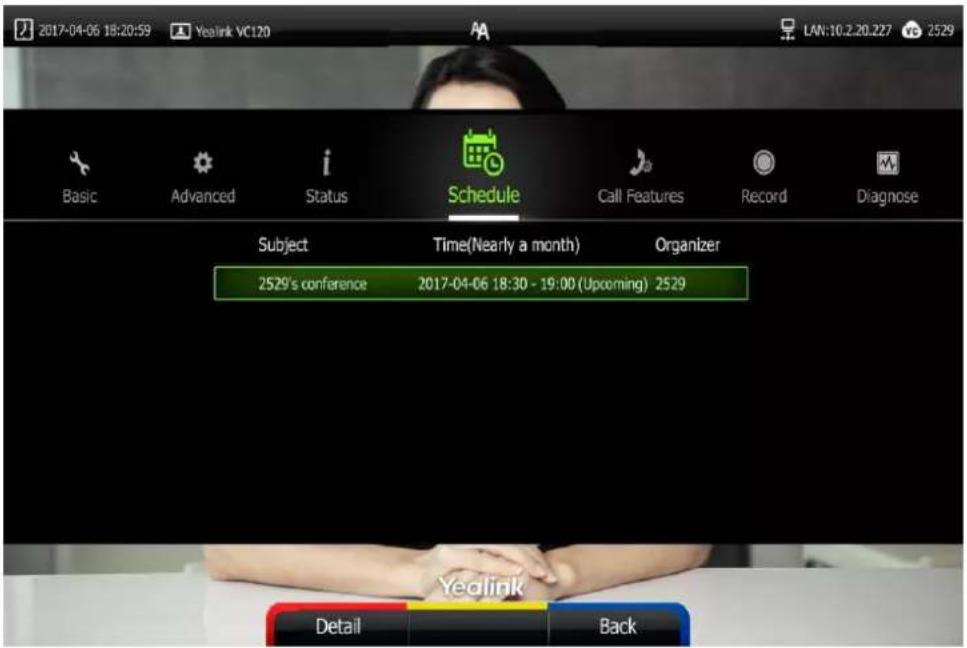
-
Press ▲r ▼ to scroll to the desired conference.
-
Press (Detail soft key) to view the detail.
Joining a Scheduled Conference
You can join a scheduled conference in following ways:
- Joining a scheduled conference from a conference reminder
- Joining a scheduled from a conference invitation
- Joining a scheduled conference from the conference schedule
• Dialing to join a scheduled conference
Note
By default, you can join a scheduled conference that is about to take place in 5 minutes or less. The administrator can configure when participants can join the scheduled conference. For more information, please contact your administrator.
Joining a Scheduled Conference from a Conference Reminder
A reminder pop-up is displayed 5 minutes before the conference starts. The reminder shows the main information of the schedule, including subject, date & time and organizer.
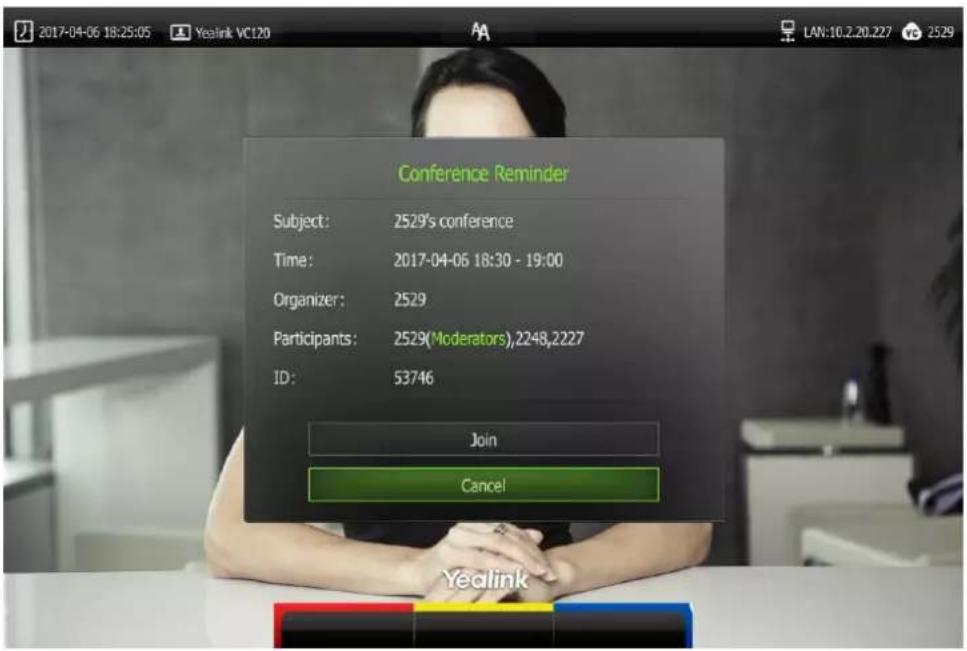
If you receive a conference reminder, you can do one of the following:
- Press ▲ or ▼ to scroll to Join, and press (ok).
- Press ▲ or ▼ to scroll to Cancel, and press (OK) to remove the reminder from the screen and stop all future reminders for this schedule.
Note
When the system is in a call, the conference reminder will not pop up. After the call ends and the scheduled conference is still ongoing, the reminder will pop up. But if the scheduled conference ends, the reminder will not pop up.
Joining a scheduled Conference from a Conference Invitation
The administrator can configure the conference invitation feature on the Yealink Meeting Server, When the scheduled conference begins, the VC120 system will receive a call that invites you to join the scheduled conference. For more information on how to configure the conference invitation feature, refer to YMS_Administrator Guide.
When the scheduled conference begins, the system receives a conference invitation:
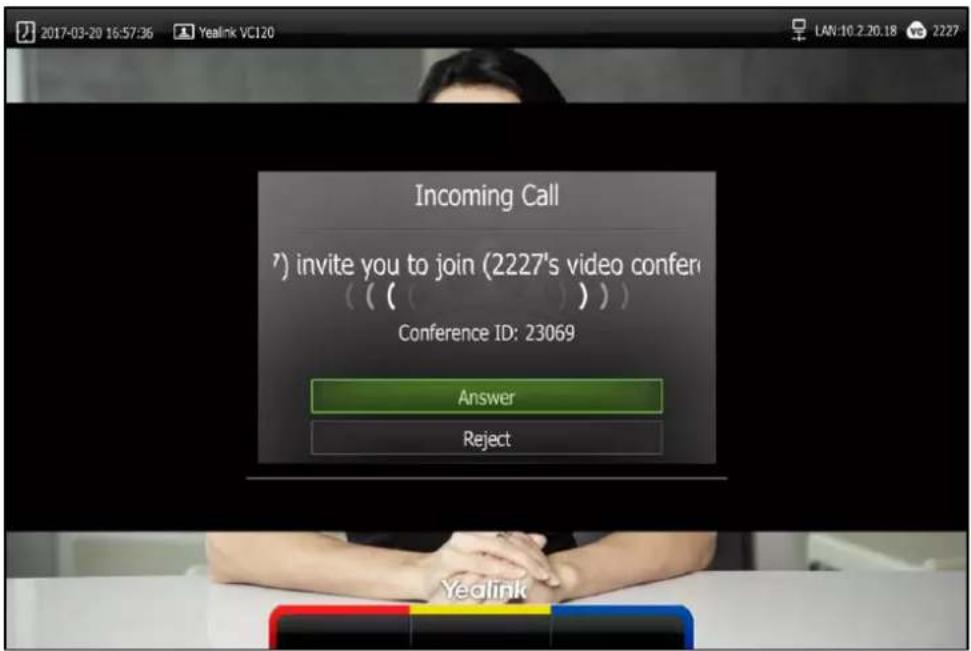
If you receive a conference invitation, you can do one of the following:
- Press ▲ or ▼ to scroll to Answer, and press OK to join the scheduled conference.
- Press ▲ or ▼ to scroll to Reject, and press Ⓞ to remove the invitation.
Note
If you enable the auto answer feature, the system will join the scheduled conference automatically once it receives a conference invitation.
Joining a Scheduled Conference from Conference Schedules
You can join a scheduled conference from the conference schedules before the conference ends.
To join a scheduled conference from conference schedules:
-
Press (Menu soft key) to enter main menu.
-
Press ◀ or ▶ to select the Schedule menu.
Your ongoing conferences and upcoming conferences are listed for the latest month.
- Press ▲ or ▼ to scroll to the desired conference.
When the conference is about to take place in 5 minutes or less, a (Join soft key) appears by default.
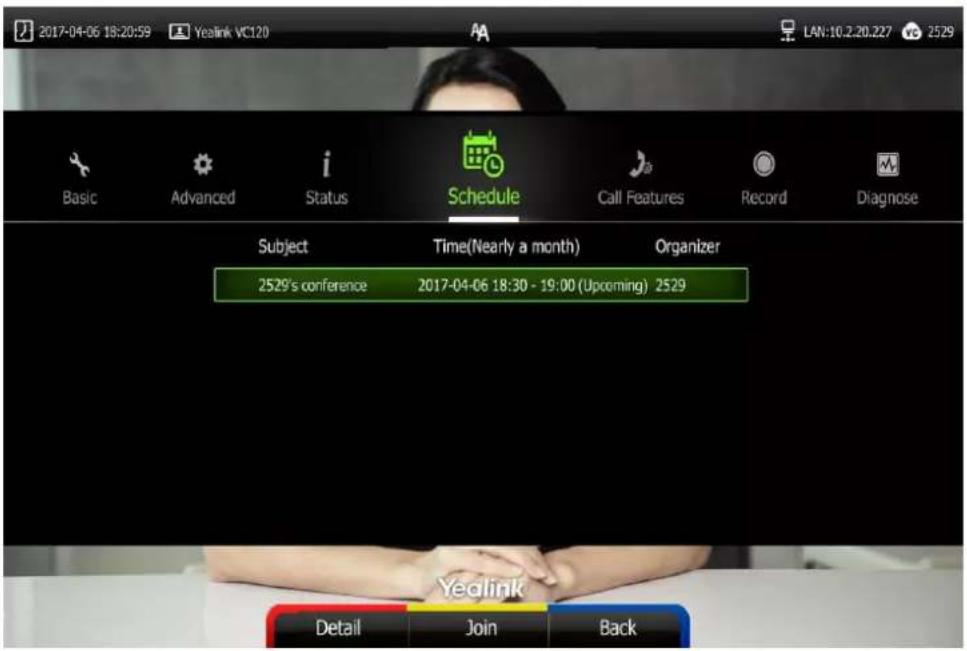
- Do one of the following to join the conference:
- Press (Join soft key).
- Press (Detail soft key) to view the detail, and then press (Join soft key).
Dialing into a Scheduled Conference
If you schedule a conference or you are invited to a scheduled conference, you can obtain the conference information in following ways:
- Invitee will receive an email, which includes the IP address, conference ID and conference password and the way of joining a scheduled conference..
| Hello,2529 invites you to join video conference! |
| Subject: VC800 Product TrainingTime: 2017-06-08 09:30:00 ~ 2017-06-08 10:00:00 (UTC+08:00)Location : 234234ID: 61089Password: 749396 |
| The way to join conference:1) One-button to join conference from Yealink VC device which receives conference reminder;2) The device which has registered YMS account, please follow the voice prompt to enter conference ID 61089 & password 749396 , and end with # key;3) The device which hasn't registered YMS account, please dial 10.2.62.200 first, then follow the voice prompt to enter conference ID 61089 & password 749396, and end with # key;4) To join from a SIP device, please dial 61089**749396@10.2.62.200 and join the conference.5 ) To join from a H.323 device, please dial 10.2.62.200##61089**749396 and join the conference. |
| Description:Do not be late |
- VC120 video conferencing system will display conference information, which includes the conference ID and conference password. For more information, refer to_Viewing Conference Schedules_on page 128.
- Contact the conference participants.
To dial into the scheduled conference, do one of the following:
- If you have registered a YMS account and you are invited to join the scheduled conference, you can dial the conference ID to join the conference.
Obtain the conference information from your VC120 video conferencing system or your email address.
- If you have registered a YMS account but you are not invited to join the scheduled conference, you can dial the conference ID, and then follow the voice prompt to enter the conference password to join the conference.
Obtain the conference information from the other conference participants.
- If you do not register a YMS account, you can dial IP address of the server first, and then follow the voice prompt to enter the conference ID and conference password to join the conference.
Obtain the conference information from the other conference participants.
- To join from a SIP device, please dial conference ID** conference password@IP address of the server to join the conference.
Obtain the conference information from your email address or other conference participants.
• To join from a H.323 device, please dial IP address of the server##conference
ID**conference password to join the conference.
Obtain the conference information from your email address or other conference participants.
Note
If the system fails to join the scheduled conference, please refer to General Issues on page 152.
Permanent Virtual Meeting Room
The administrator can configure the permanent VMR via the Yealink Meeting Server. You can join the permanent VMR at any time, without a reservation.
You can enter a permanent VMR in following ways:
• Dialing from the Yealink Enterprise Directory
• Dialing to enter a permanent VMR
Join a Permanent VMR from the Yealink Enterprise Directory
The administrator can determine whether synchronize the permanent VMR to the VC120. It is enabled by default.
To place a call to a permanent VMR via the remote control:
- Press □ (Call soft key).
- Press ◀ or ▶ to select the Directory menu.
- Select Enterprise directory from the pull-down list of the All Contacts.
- Select the desired permanent VMR.
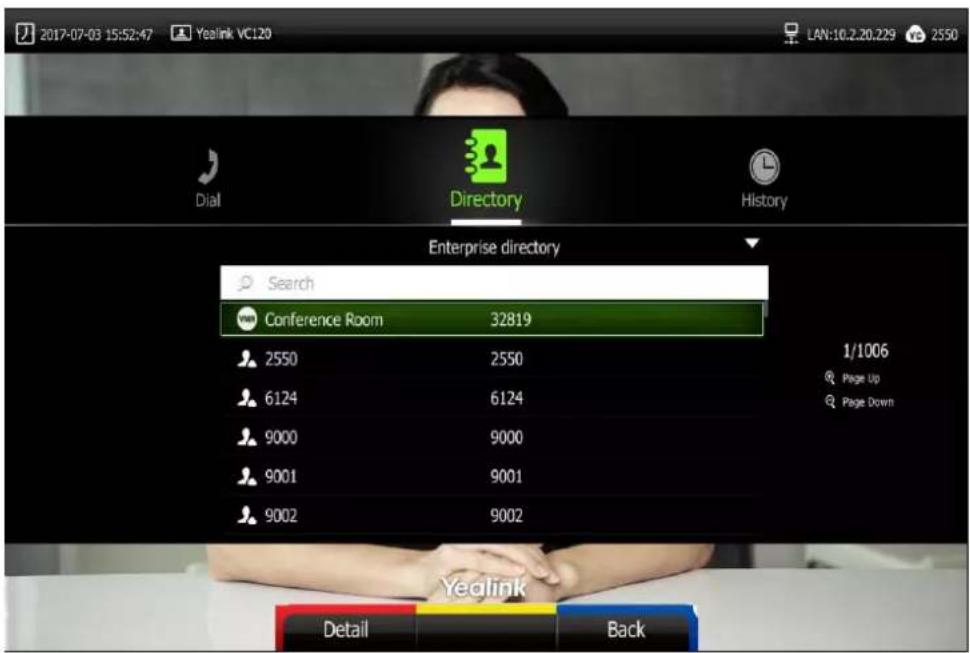
- Press ok or
To place a call to a permanent VMR via the VCP40 phone:
-
Press the Directory soft key to enter the Directory list.
-
Press ▲ or ▼ to select Enterprise directory.
-
Press the Enter soft key or (OK) to view the contacts in the selected directory.
-
Press ▲ or ▼ to select the desired permanent VMR.
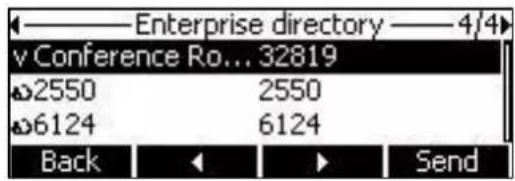
- Press the Send soft key, or ok to call the contact.
Dialing to Join a Permanent Virtual Meeting Room
Do one of the following to enter a permanent VMR.
a) If you register a YMS account, dial the conference ID to join the permanent VMR.
b) If you do not register a YMS account and the permanent VMR requires no password:
- Dial conference ID**@IP address of the server to join the permanent VMR.
- Dial IP address of the server ##conference ID** to join the permanent VMR.
c) If you do not register a YMS account and the permanent VMR requires a password:
- Dial conference ID**conference password@IP address of the server to join the permanent VMR.
- Dial IP address of the server ##conference ID**conference password to join the permanent VMR.
Applying for Speaking
There are two modes for scheduled conference and permanent VMR: Discussion mode and Training mode.
In Discussion mode, participants can speak freely. In Training mode, all guests are muted automatically except the moderator (or the organizer). Guests need to wait for the moderator to appoint lecturers. If guests want to speak, they should apply for speaking. Only when the moderator allows the request, can they speak freely.
Note
The conference mode can be configured by administrator on the Yealink Meeting Server only.
To apply for speaking:
When enter the Training mode conference, muted participants' display device prompts: "Please press 🤒 to apply for speaking" in first 30 seconds.
- Press ☐ on the remote control or press ☐ on the video conferencing phone.
The applicant's display device prompts " Apply for speaking".
The moderator will deal with the application on the Yealink Meeting Server. For more information, refer to Yealink Meeting Server User Guide.
Leaving the Conference
All participants can leave the conference at any moment.
To leave the conference via the remote control:
- Press
Other participants remain connected.
Using the StarLeaf Cloud Platform
You can log into the StarLeaf Cloud platform.
When you place a call using the StarLeaf Cloud account, you can:
- Call the other StarLeaf Cloud account to establish a point to point call.
- Call the meeting ID to join the Virtual Meeting Rooms.
- Call between StarLeaf Cloud account and Microsoft Skype for Business/Lync account.
Dialing StarLeaf Cloud Numbers
To dial StarLeaf Cloud numbers via the remote control:
-
Press □ (Call soft key) or □ to enter the dialing screen.
-
Select the registered StarLeaf Cloud number from the pull-down list of Call Type.
-
Enter a StarLeaf Cloud number using the keypad or the on-screen keyboard.
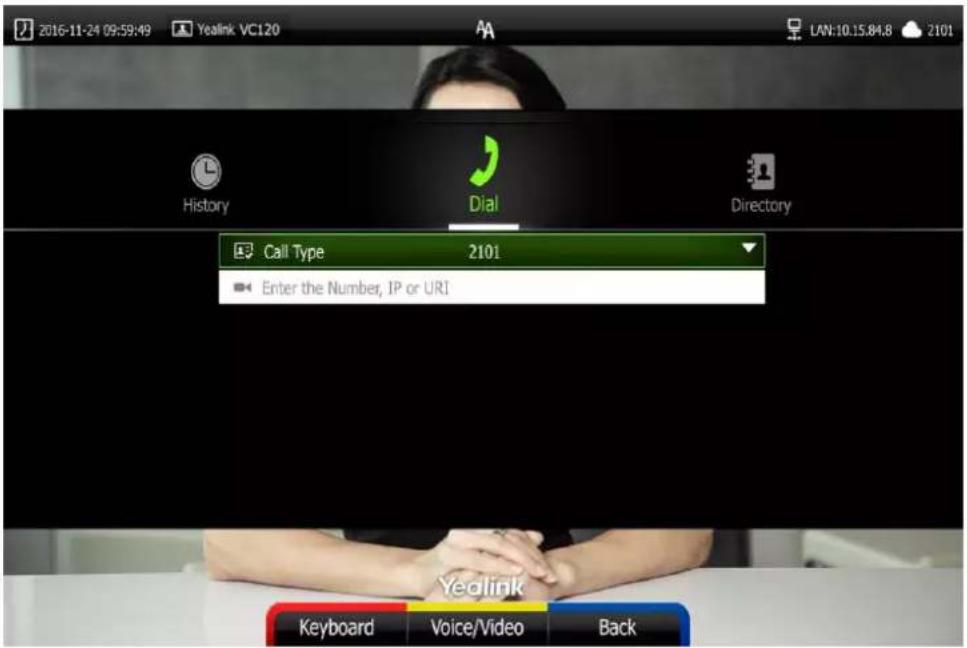
-
Press (Voice/Video soft key) to change call mode.
-
Press OK or √.
Joining the StarLeaf Meeting
To join the StarLeaf meeting via the remote control:
-
Press □ (Call soft key) or √ to enter the dialing screen.
-
Select the registered StarLeaf Cloud number from the pull-down list of Call Type.
-
Enter the meeting ID using the keypad or the on-screen keyboard.
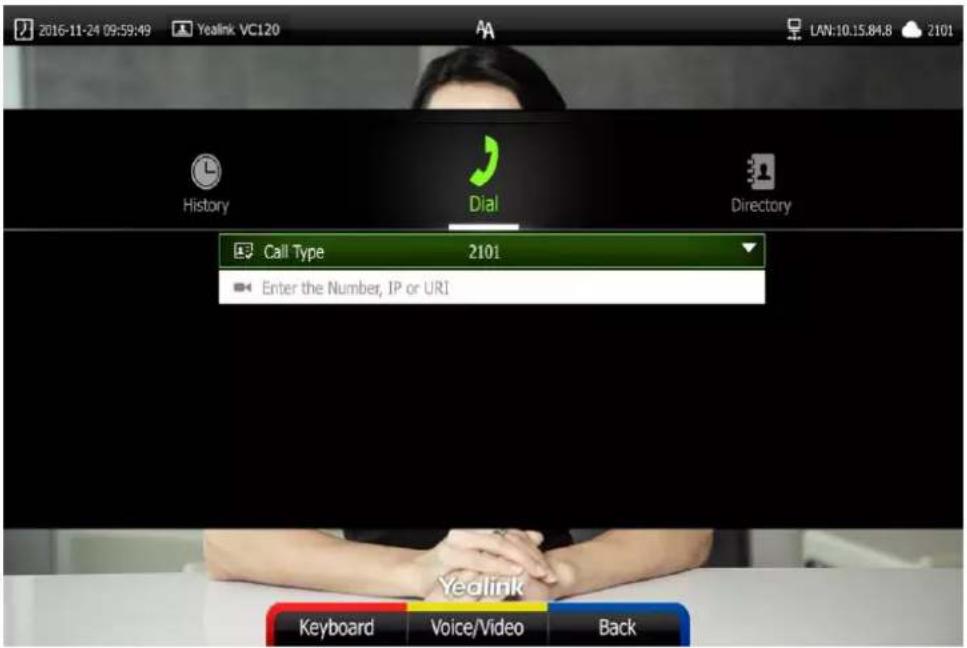
-
Press (Voice/Video soft key) to change call mode.
-
Press ok or to join the StarLeaf meeting.
Using the Zoom Cloud Platform
You can log into the Zoom Cloud platform, and join the Zoom meeting.
Joining the Zoom Meeting
To join the Zoom meeting:
-
Press □ (Call soft key) or □ to enter the dialing screen.
-
Select Zoom from the pull-down list of Call Type before calling.
-
Enter the meeting ID using the keypad or the on-screen keyboard.
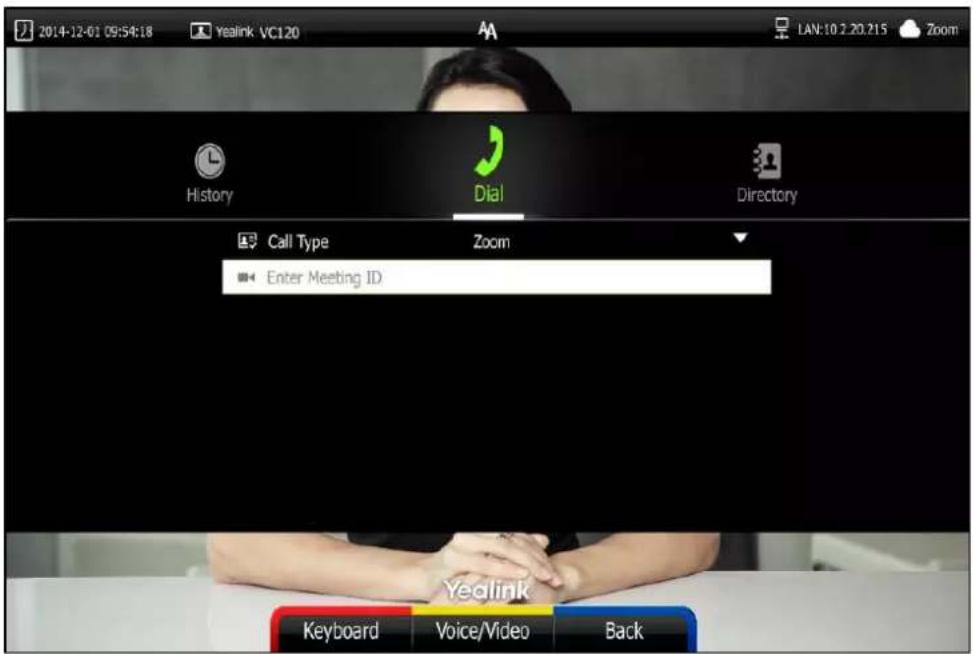
- Press (Voice/Video soft key) to change call mode.
- Press OK or √
You will enter the Zoom welcome screen.
- Follow the voice prompt to join the Zoom meeting.
Note
If you enter nothing or enter wrong information, you can still be sent to the Zoom welcome screen.
Using the BlueJeans Cloud Platform
You can log into the BlueJeans Cloud platform, and join the BlueJeans meeting.
Joining the BlueJeans Meeting
To join the BlueJeans meeting:
- Press □ (Call soft key) or □ to enter the dialing screen.
-
Select BlueJeans from the pull-down list of Call Type before calling.
-
Enter the meeting ID using the keypad or the on-screen keyboard.
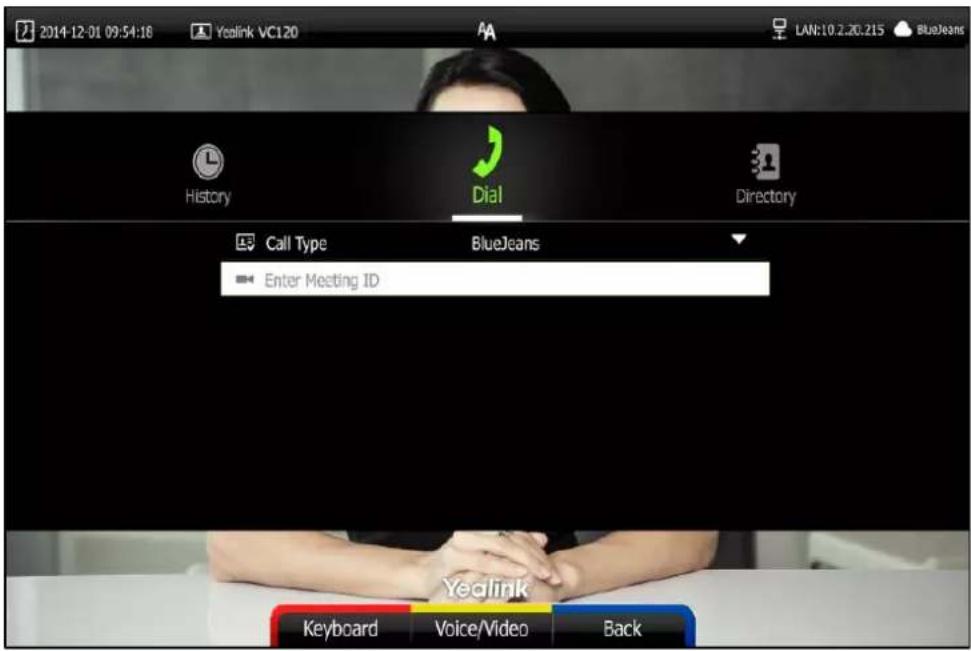
-
Press (Voice/Video soft key) to change call mode.
-
Press OK or √
You will enter the BlueJeans welcome screen.
- Follow the voice prompt to join the BlueJeans meeting.
Note
If you enter nothing or enter wrong information, you can still be sent to the BlueJeans welcome screen.
Using the Pexip Platform
You can register the Pexip account.
When you place a call using the Pexip account, you can:
- Call the device alias to establish a point to point call.
- Call the aliases to join the Virtual Meeting Rooms, Virtual Auditoriums or Virtual Receptions.
- Call between Pexip account and Microsoft Skype for Business/Lync account.
Dialing Pexip Alias
To dial Pexip alias using the remote control:
-
Press □ (Call soft key) or ▼ to enter the dialing screen.
-
Select the registered alias.
-
Enter the device alias or URI using the keypad or the on-screen keyboard.
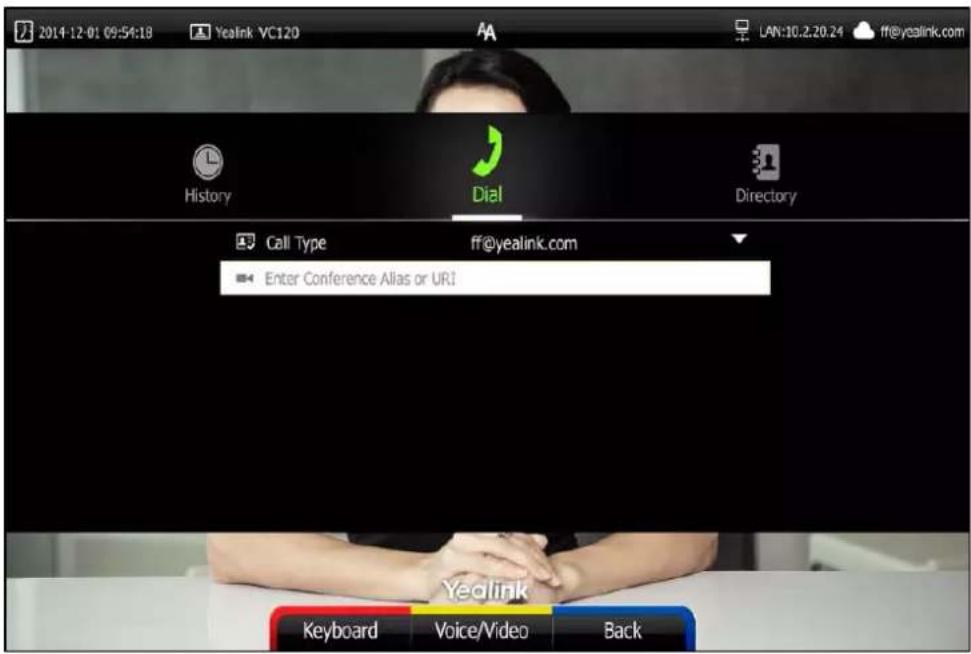
-
Press □ (Voice/Video soft key) to change call mode.
-
Press OK or
Joining the Pexip Meeting
To join the Pexip meeting:
-
Press □ (Call soft key) or √ to enter the dialing screen.
-
Select the registered alias.
-
Enter the conference alias or URI using the keypad or the on-screen keyboard.
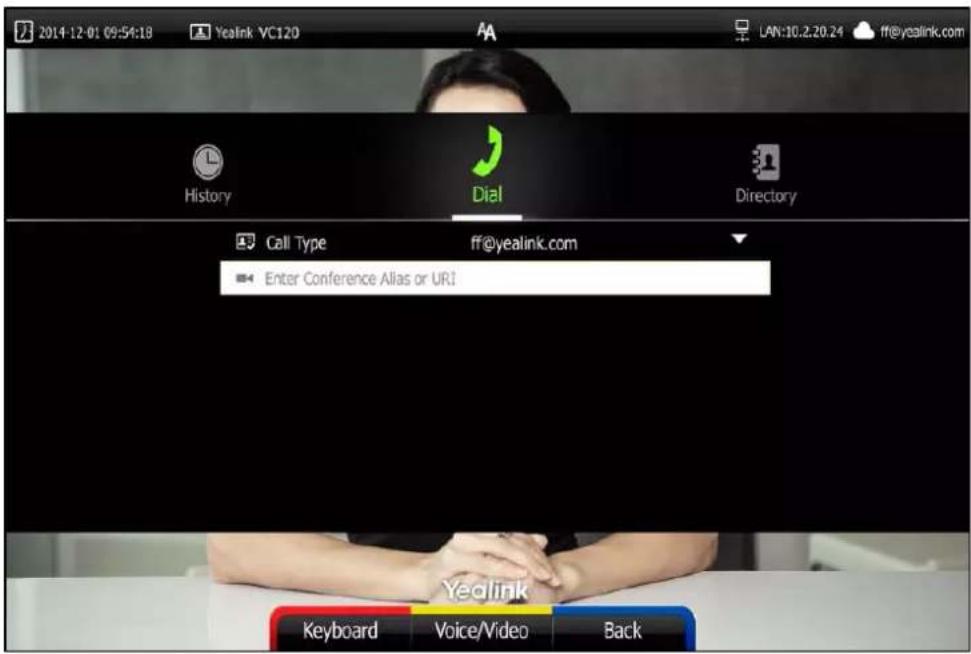
-
Press (Voice/Video soft key) to change call mode.
-
Press OK or
-
Follow the voice prompt to join the Pexip meeting.
Using the Mind Platform
You can log into the Mind platform, and join the Mind meeting.
Joining the Mind Meeting
To join the Mind meeting:
-
Press □ (Call soft key) or ⬇ to enter the dialing screen.
-
Select Mind from the pull-down list of Call Type before calling.
-
Enter the meeting ID using the keypad or the on-screen keyboard.
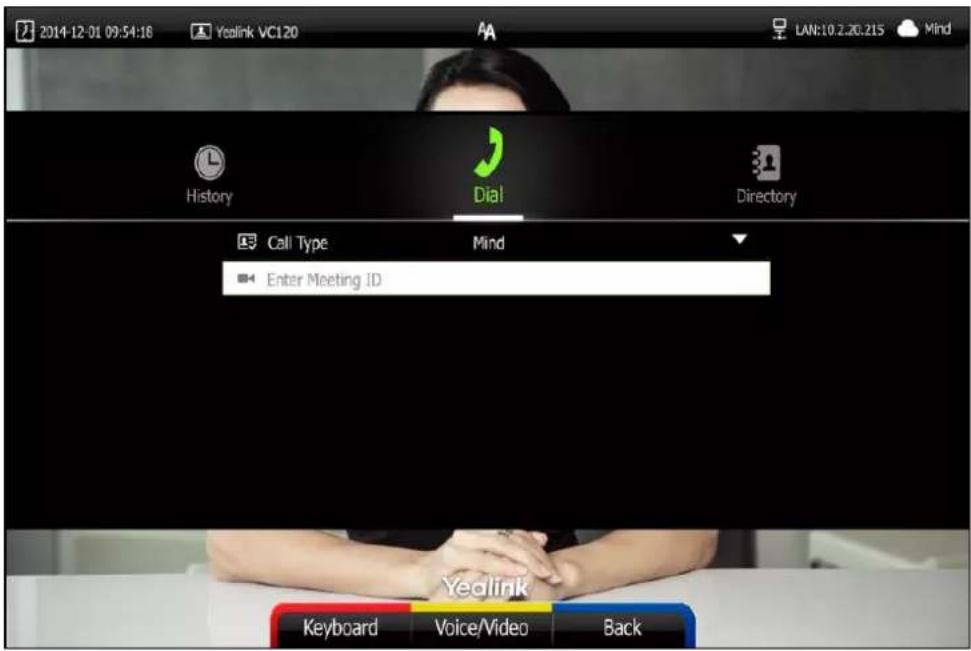
-
Press (Voice/Video soft key) to change call mode.
-
Press OK or
-
Follow the voice prompt to join the Mind meeting.
Using the Custom Platform
When you register a custom account, you can use the corresponding platform feature.
Using VCP41 with the PC or Mobile Device
You connect a PC or mobile device to your VCP41 video conferencing phone, so that the VCP41 can work as the audio input/output device of your PC or mobile device.
Connecting a PC or Mobile Device to the VCP41
You can connect a PC or mobile device to the VCP41 when your VC120 video conferencing system is idle, is placing a call or during a call.
To connect a PC or mobile device to your VCP41:
- Connect one end of the 3.5mm audio cable to the PC/mobile port on the VCP41 phone, and connect the other end to the headset jack on the mobile device or the AUX/MIC jack on the PC.
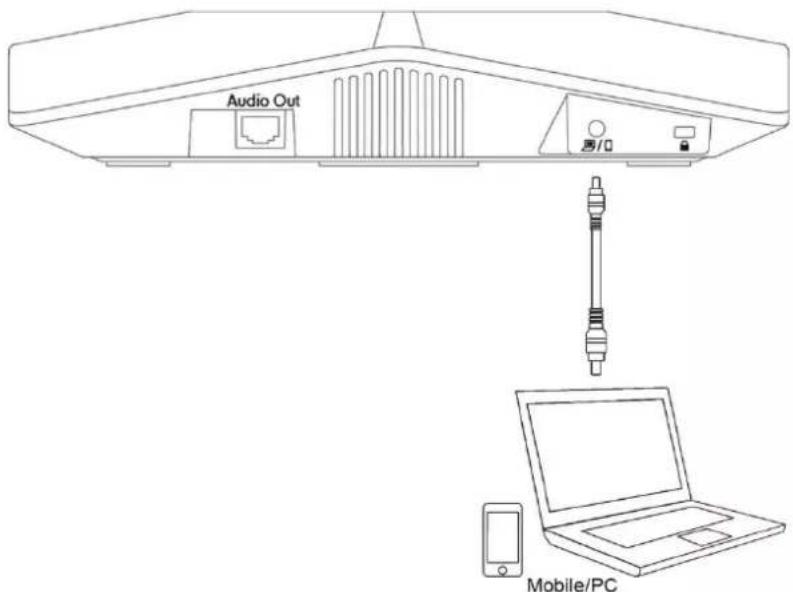
The icon will appear on the display device, and the icon will appear on the video conferencing phone.
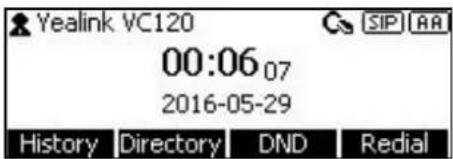
As a result, VCP41 will work as the audio input/output device of your PC or mobile device. For example, when the PC or mobile device is playing a video or music, you can listen to the audio on your VCP41. If your PC or mobile device receives an incoming call, you can use VCP41 to listen and speak.
Adjusting the Volume of the PC or Mobile Audio
When your PC or mobile device is during a call, you can adjust the output volume of the PC/mobile device via your VCP41.
To adjust the volume of the PC or mobile device:
- When your PC or mobile device is during a call, press on the VCP41 to adjust the volume.
Removing the PC or Mobile Audio
To remove the PC or mobile device, disconnect the 3.5mm audio cable from the VCP41.
Using the VCM30 Video Conferencing
Microphone Array
This chapter provides basic operating instructions for the VCM30 video conferencing microphone array. Topics include:
- Placing the VCM30
- Muting or Unmuting the VCM30
• Viewing VCM30 Information
If you require additional information or assistance with your new phone, contact your system administrator.
Placing the VCM30
The VCM30 has a rubber pads on its base to prevent it from sliding. You can place the VCM30 on a stable surface and keep it away from obstacles so that it can effectively pick up sounds.
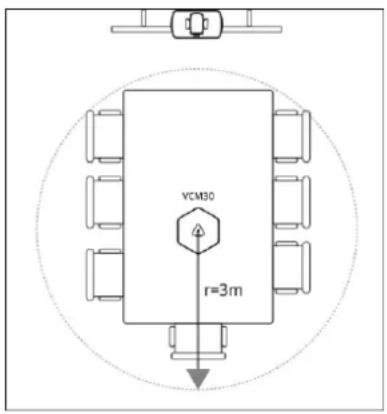
Muting or Unmuting the VCM30
There is a mute button on the top of the VCM30. You can mute or unmute it in the following scenarios:
- If you do not want to have your voice broadcast during a call, you can tap the mute button to mute the VCM30.
- If you want to speak again during a call, you can tap mute button to unmute the VCM30.
To mute the VCM30 during a call:
- Tap ♩ to mute the call.
The mute indicator LED illuminates solid red. And the mute icon appears on the local video image.
To unmute the VCM30 during a call:
- Tap again to unmute the call.
The mute indicator LED illuminates solid green. And the mute icon disappears from the local video image.
Viewing VCM30 Information
When the VCM30 is connected to the Audio In port of VC120 Codec, you can view VCM30 status via the remote control or web user interface.
Available information of VCM30 includes:
- Status
- Model
- Hardware
- Serial Number
To view the VCM30 information via the remote control:
- Press (Menu soft key) to enter main menu.
- Press ◀ or ▶ to select the Status menu.
- Press ▲or ▼ to scroll to select the Wired Micpod, and then press OK.
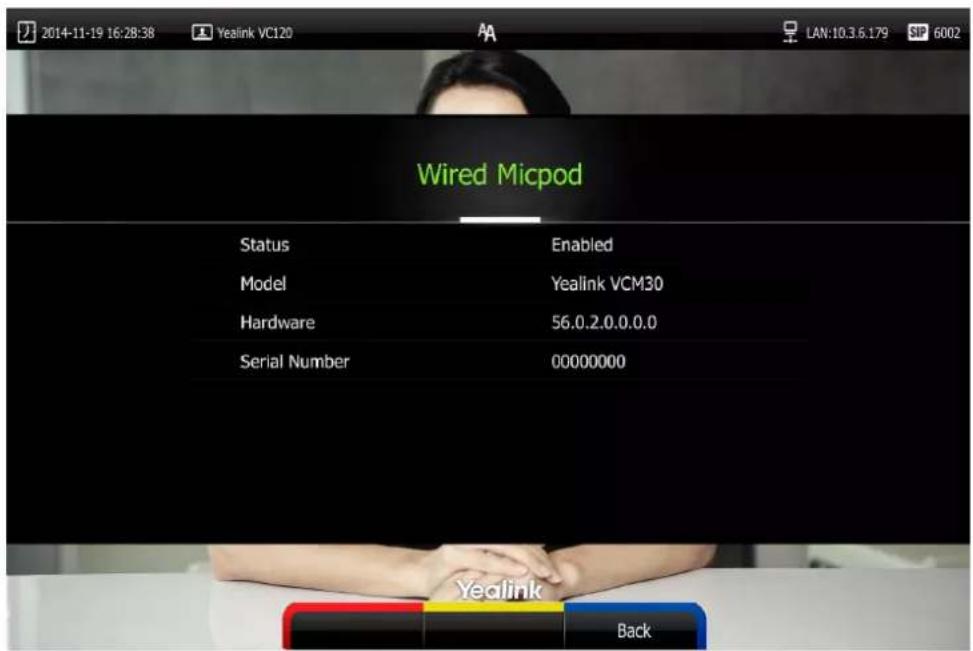
VCM30 information can be viewed via web user interface at the path Status->Wired Micpod.
Troubleshooting
This chapter provides general troubleshooting information to help you solve problems you might encounter when using your VC120 system. If you require additional information or assistance with your new phone, contact your system administrator.
Ensure the system has not been physically damaged when experiencing a problem. Check whether the cables are loose and the connections are correct and secure. These are common causes of problems.
System Diagnostics
Diagnostic menus include:
- Audio Diagnose: Check whether the audio output device can pick up voice and play audio normally.
- Camera Diagnose: Check whether the camera can pan and change focus normally.
- Ping: Check whether the network between the local and the remote system is connected.
- Trace Route: Display the route (path) and measure transit delays of packets across an Internet Protocol (IP) network.
Audio Diagnose:
- Press (Menu soft key) to enter main menu.
- Press ◀ or ▶ to select the Diagnose menu.
- Press ▲or ▼to scroll to Audio Diagnose, and then press OK.
- Speak into the microphone.
- Check whether the microphone can pick up audio normally.
If the microphone picks up audio and plays back audio normally, it means that the audio works well.
- Press OK to stop audio diagnostics.
Camera Diagnose:
- Press (Menu soft key) to enter main menu.
- Press ◀ or ▶ to select the Diagnose menu.
- Press ▲ or ▼ to scroll to Camera Diagnose, and then press OK.
- Press ▲ or ▼ to adjust the camera position.
- Press ☑ or ⬆ to adjust the focus.
If the camera can move and zoom normally, it means that the camera is working well.
- Press (Back soft key) to stop camera diagnostics.
Network diagnosis:
-
Press (Menu soft key) to enter main menu.
-
Press ◀ or ▶ to select the Diagnose menu.
-
Press ▲or ▼to scroll to Ping, and then press OK.
-
Press ▲ or ▼ to select Start, and then press OK.
-
You can also enter any IP address (for example, the IP address of the remote system) in the Ping field.
It measures the round-trip time from transmission to reception and reports errors and packet loss. The results of the test include a statistical summary of the response packets received, including the minimum, maximum, and the mean round-trip times.
- Press (Back soft key) to return to Diagnose menu.
Trace Route:
-
Press (Menu soft key) to enter main menu.
-
Press ◀ or ▶ to select the Diagnose menu.
-
Press ▲ or ▼ to scroll to Trace Route, and then press OK.
-
Press ▲ or ▼ to select Start, and then press OK
-
You can also enter any IP address (for example, the IP address of the remote system) in the Trace Route field.
If the test is successful, the VC120 system lists the hops between the system and the IP address you entered. You can check whether congestion happens via the time cost between hops.
- Press (Back soft key) to return to Diagnose menu.
General Issues
Why can't the system place a call?
- Check the network is available.
- When making a call using an account, check that the account is registered.
- Ensure the remote system supports the same call protocol as the local system. If you want to place a call using another protocol, refer to Call Protocol on page 74.
Why can't the system receive calls?
- Check the network is available.
- When receiving a call using an account, check that the account is registered.
- Check that DND (Do Not Disturb) mode is deactivated on your system. Refer to Do Not Disturb (DND) on page 103.
If the system fails to join the scheduled conference, you need to:
- Check if the conference is expired.
- Check if you enter the wrong conference information.
- Check if the current time is more than 5 minutes before the scheduled start time.
Why does the system leave the scheduled conference automatically when the conference is ongoing?
Checks whether more than one system registered the same YMS account join the same conference. The conference only allows one of them to join the conference, the former system which joined the conference will leave the conference automatically.
Why doesn't the display device display the time and date correctly?
Check whether you have configured the system to obtain the time and date from the SNTP server automatically. If the system fails to connect to the SNTP server, contact your system administrator for more information. You can also configure the time and date manually. For more information, refer to Time & Date on page 46.
How to obtain the IP address of the system?
Three are three ways to obtain the IP address of the system:
- The IP address of the system is shown on the top right corner of the display device.
- Press (Menu soft key) on your remote control and select Network.
The display device shows the network information about the system.
- Press (OK) on the video conferencing phone when the phone is idle and select Network.
The LCD screen of the phone displays the network information about the system.
Why does the system fail to call the far site?
- Check whether the network of the local site is available.
- Check whether the network of the far site is available.
- Check whether the far site enables the DND feature.
- Check whether the accounts have been registered correctly, and the system uses the appropriate account to call the far site.
- Check whether the local system can ping the IP address of the remote system successfully.
- Ensure that the entered call information is correct.
- Ensure that the called party is powered on.
- Check whether the far site rejects your call.
- Check whether the firewall blocks the inbound traffics from the other site.
-
Check whether the far site has already up to maximum call-in limitation.
-
If the local site is forced to use encryption, ensure that the far site enables encryption too.
- Ensure that the far site supports the same call protocol as the local site.
Why does the system fail to call the far site via IP address?
- Ensure that the network is connected correctly.
- Ping the IP address of the far site. Contact your system administrator if it fails.
Camera Issues
How to adjust room lighting?
You can alter the environmental lighting and background colors of your environment to obtain the best video quality. If light levels are too low you may consider adding artificial lighting. Reflected light from pale walls often produces excellent results.
Avoid the following situations:
- Direct sunlight on the display device, the background, or the camera lens which creates harsh contrasts.
- Colored lighting.
Why can't I adjust the camera angle and focus?
- You can adjust the camera when the system is idle or during a call. The camera cannot be adjusted when the system is in the menu screen.
- Ensure that the batteries in the remote control are in good working condition, and installed correctly.
- Aim the remote control at the sensor when you perform a task.
- Ensure that no objects are obstructing the sensor on the front of the camera.
- Ensure that the LED on the front of the camera flashes green when you use the remote control to perform a task.
- Ensure that what you are controlling is the local camera.
- Reboot the system.
- If the above suggestions cannot solve your problem, perhaps the remote control is broken. You can contact your system administrator for help.
Why is the video quality bad?
- Ensure that the display device has suitable resolution.
- Check whether the packet has been lost. For more information on packet loss, refer to Call Statistics on page 107.
- Contact your administrator to adjust the camera brightness and white balance.
Display Issues
Why is there no video on the display device?
- Ensure that the display device is turned on.
- Ensure that the display device is properly connected to the VC120 Codec.
- Ensure that the VC120 Codec is turned on.
- Ensure that you have selected the correct video input source.
Why can't the display device share a presentation?
- Ensure that the PC is properly connected to the VC120 Codec.
- Ensure that the VC120 Codec is turned on.
- Contact your administrator for help.
Video & Audio Issues
Why can't I hear the audio during a call?
- Ensure that the system has selected an available audio output device.
- If you select VCS Phone as the audio output device, ensure that the video conferencing phone is connected to the VC120 Codec, and LED indicators on the phone illuminate solid green.
- Ensure the proper volume level on the system.
- Ensure that the microphone on the remote system is not muted.
Why can't I hear a ring tone when receiving a call?
- Ensure that the system has selected an available audio output device.
- If you select VCS Phone as the audio output device, ensure that the video conferencing phone is connected to the VC120 Codec, and LED indicators on the phone illuminate solid green.
- Ensure that the ring volume is not set to 0. If it is, the icon will appear on the status bar of display device, and the icon will appear on the LCD screen of the video conferencing phone.
- Adjust the ring volume when the system is idle via the remote control or video conferencing phone. For more information, refer to Volume Settings on page 51.
- Ensure that the microphone of the remote system is not muted.
Why can't I view the menu on the display device?
- Check whether the Display1 port of VC120 Codec is connected to the HDMI port on the display device.
Why can't I hear the other site clearly during a call?
- Ensure that the speaker volume of the far site is not set too low.
- Muffled audio reception from the far side may be caused by highly reverberant rooms. Speak in close proximity to the phone.
- Adjust the priority order for your audio codec if you have chosen a low-bandwidth audio codec to be first.
- For best results, ensure that the caller is using a Yealink video conferencing system. Audio quality from your video conferencing system will vary when calling a non-Yealink system.
- Dust and debris may cause audio quality. Do not use any kind of liquid or aerosol cleaner on the phone. A soft, slightly damp cloth should be sufficient to clean the top surface of the phone if necessary.
Why is the voice quality poor?
Users may receive poor voice quality during a call, such as intermittent voice, low volume, echo or other noise. It is difficulty to diagnosis the root causes of the voice anomalies. The possible reasons are:
- Users sit too far from or near to the microphone.
- The audio pickup device is moved frequently.
- Intermittent voice is probably caused by voice packet loss or jitter. Voice packet loss may occur due to network congestion. Jitter may occur due to information reorganization of the transmission or receiving equipment, such as, delay processing, retransmission mechanism or buffer overflow.
- Noise devices, such as computers or fans, may make it difficult to hear each other's voices clearly.
- Wires may also cause this problem. Replace the old with the new cables, and then reconnect to check whether the new cables provide better connectivity.
System Maintenance
How to reboot the phone?
- Press (Menu soft key) to enter main menu.
- Press ◀ or ▶ to scroll to the Advanced menu.
- Enter admin password (default password: 0000) in the Admin Password field.
-
Press OK or press Enter soft key).
-
Press ▲ or ▼ to scroll to Reboot & Reset, and then press OK.
-
Press▲ or ▼ to scroll to Reboot, and then press OK.
The display device prompts "Reboot the system?".
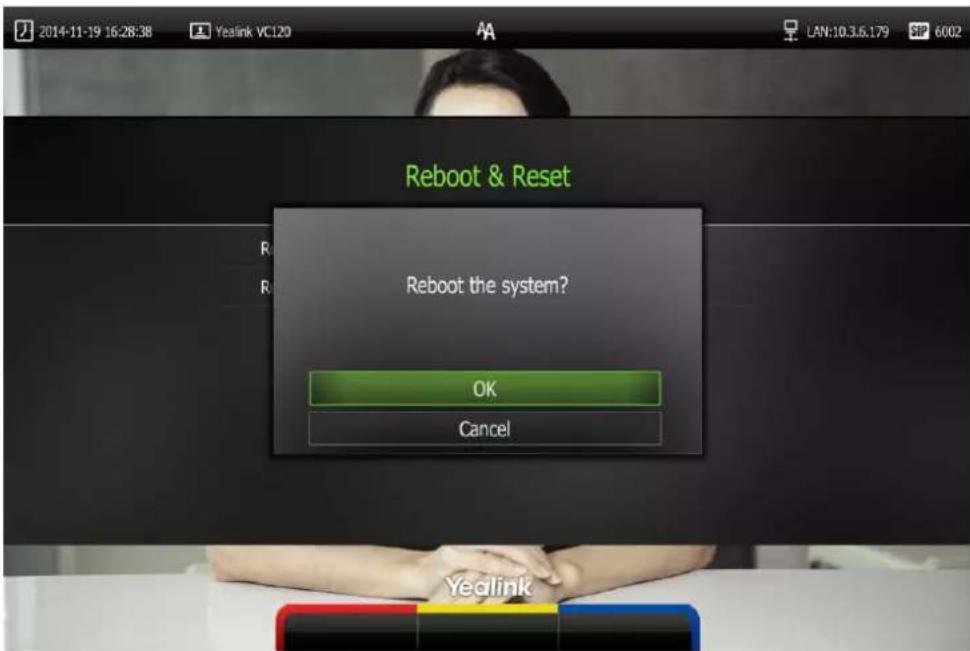
- Select OK, and then press OK.
You can reboot the system via web user interface at the path Setting->Upgrade->Reboot.
How to export PCAP trace?
We may need you to provide a PCAP trace to help analyze your problem. Exporting PCAP trace is configurable via web user interface and remote control.
To export a PCAP trace via web user interface:
-
Click on Settings->Configuration.
-
Click Start to begin capturing signal traffic.
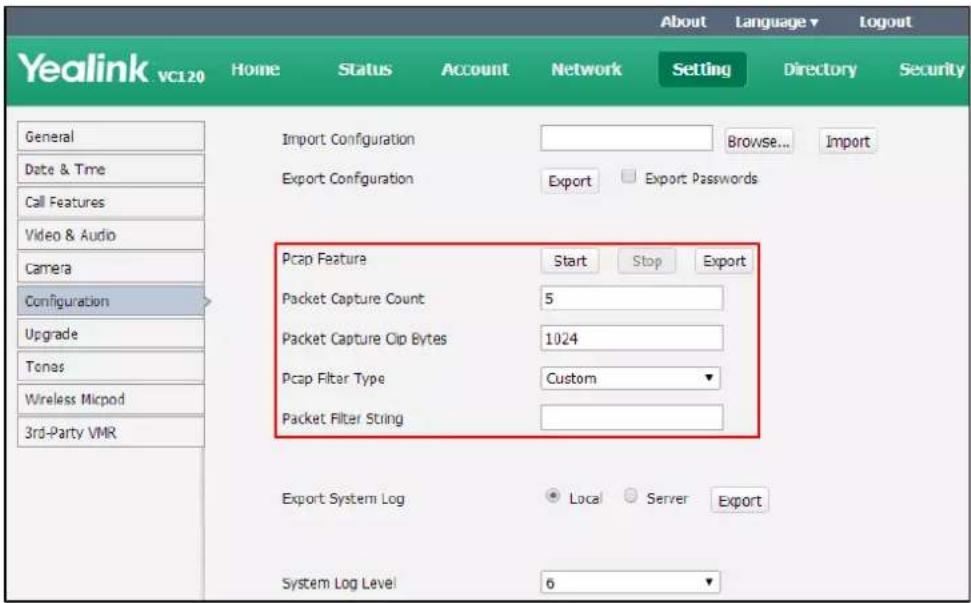
- Recreate the error to be documented in the trace.
- Click Stop to stop the capture.
- Click Export to open the file download window, and then save the file to your local system. You can also configure the count, bytes and filter type of the packet before exporting PCAP trace. For more information, contact your system administrator.
To export a PCAP trace via the remote control:
Before capturing packets, you need to insert a USB flash drive to the USB port on the VC120 Codec to store packets. Make sure the USB feature is enabled.
- Long press when the system is idle or during a call.
The display device prompts "Onekey-capture is running, press the Backspace key for 2s to turn off it?".
- Long press ◇ for 2 seconds to stop capturing packets.
The packets are saved in the yealink.debug folder on your USB flash driver.
How to export system log?
We may need you to provide your phone configurations to help analyze your problems. You can export the system log to a PC or designated log server.
To export the system log to a PC via web user interface:
- Click on Settings->Configuration.
- Mark the Local radio box in the Export System Log field.
- Select 6 from the pull-down list of System Log Level.
The default system log level is 6.
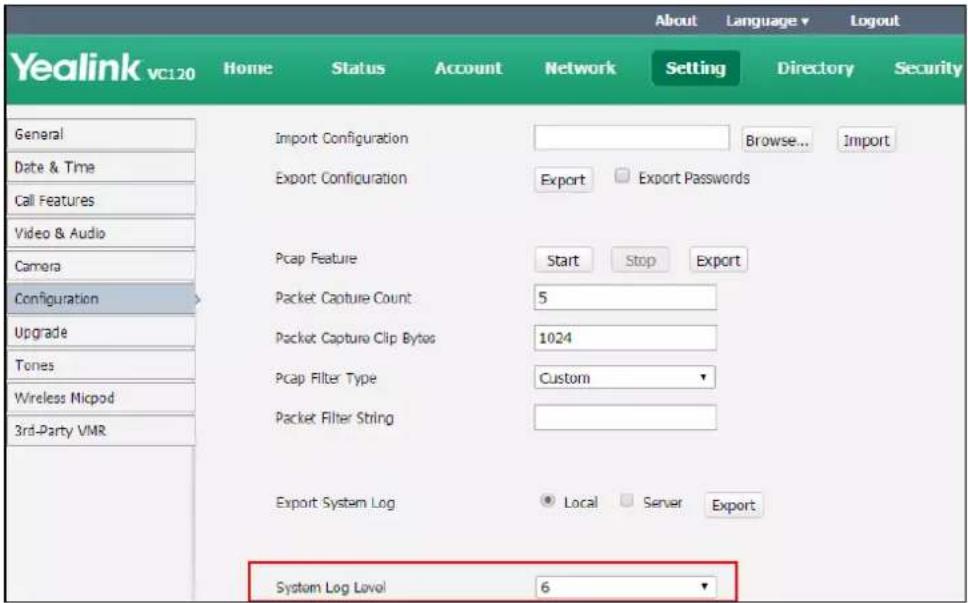
- Click Confirm to accept the change.
The web user interface prompts "Operating...Please wait...".
Export the system log referring to the following steps.
- Recreate the error to be documented in the trace.
- Click Export to save the file to your local system.
How to export/import the system configurations?
We may need you to provide your system configurations to help analyze problems. In some instance, you may need to import configurations to your system.
To export the system configurations via web user interface:
- Click on Setting->Configuration.
- Check or uncheck the Export Passwords checkbox according to actual demand.
- Click Export.
If you check the Export Passwords checkbox, the web user interface is shown as below:
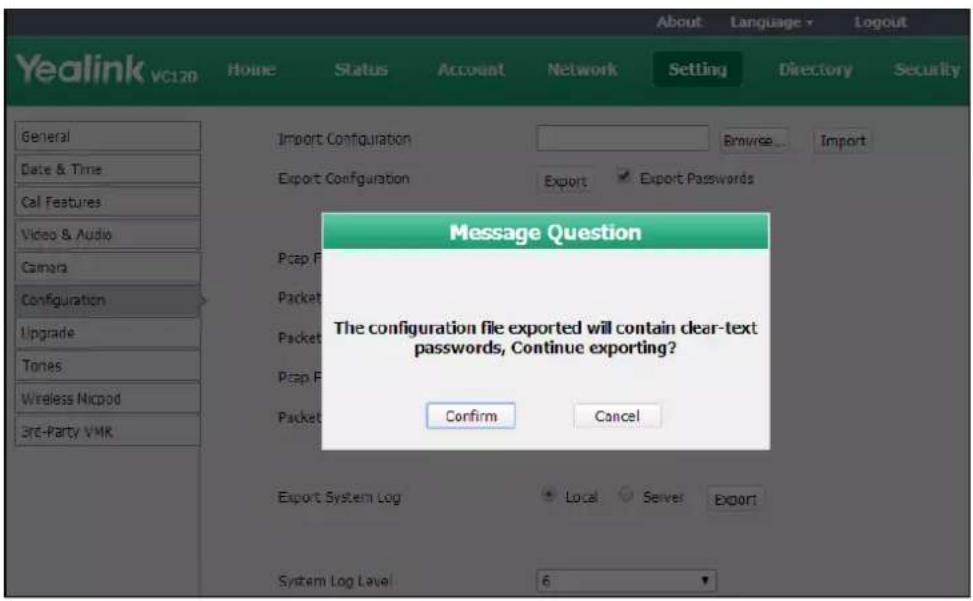
- Click Confirm to export the configurations.
To import the system configurations via web user interface:
- Click on Setting->Configuration.
- Click Browse to locate a configuration file from your local system.
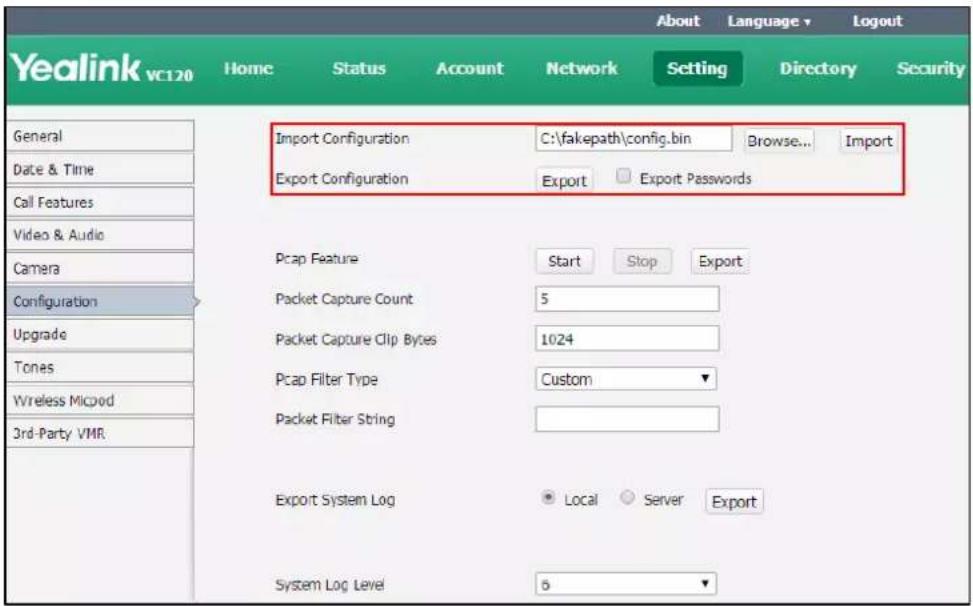
- Click Import to import the configuration file.
Note
The file format of configuration file must be *.bin.
How to upgrade firmware?
To upgrade firmware via web user interface:
- Click on Setting->Upgrade.
- Click Browse to locate the firmware from your local system.
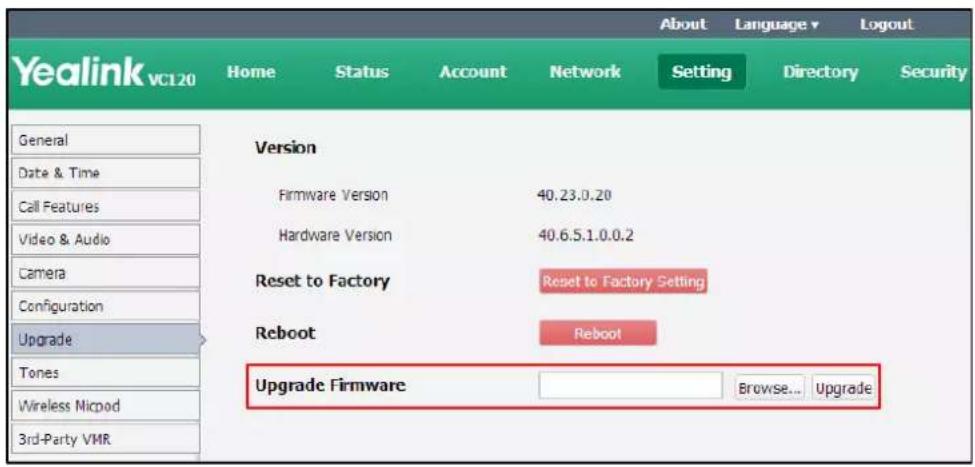
- Click Upgrade to upgrade the firmware.
The browser pops up the dialog box "Firmware will be updated. It will take 5 minutes to complete. Please don't power off!".
- Click Confirm to confirm upgrading.
How to upgrade VCC20 Camera firmware?
Camera firmware is included in the system firmware. The VCC20 camera will upgrade automatically in one the following situations:
- The VCC20 camera has been connected to the VC120 Codec. When you upgrade the VC120 video conferencing system, the VCC20 camera will upgrade automatically.
- After you upgrade the VC120 video conferencing system, and then you connect the VCC20 camera to the VC120 Codec with the supplied DVI cable. The VCC20 will detect the new firmware, and upgrade automatically.
When the VCC20 is updating, the display device prompts "The camera is updating, do not plug out the camera, please waiting..."
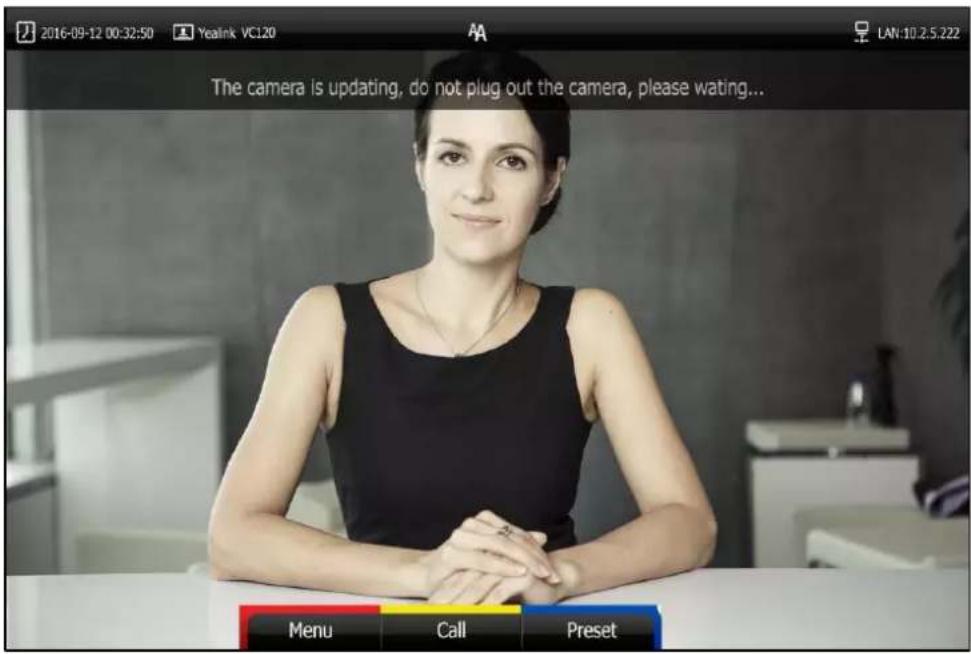
Note
If you connect two VCC20 cameras to the VC120 Codec using the VC Dual-camera Box VCB20 (You should purchase it separately if necessary), the firmware of Camera 1 will be upgraded automatically by default. Only when you change video input resource to Camera 2, will the Camera 2 be upgraded.
How to reset the system?
Reset the system to factory configurations after you have tried all appropriate troubleshooting suggestions but have still not solved the problem. You need to note that all customized settings will be overwritten after reset. You can reset the system via the remote control or web user interface.
To reset the system via the remote control:
- Press (Menu soft key) to enter main menu.
- Press ◀ or ▶ to scroll to the Advanced menu.
- Enter admin password (default password: 0000) in the Admin Password field.
- Press OK or Press (Enter soft key).
- Press ▲ or ▼ to scroll to Reboot & Reset, and then press OK.
- Press ▲ or ▼ to scroll to Reset, and then press OK.
The display device prompts "Reset to Factory?".
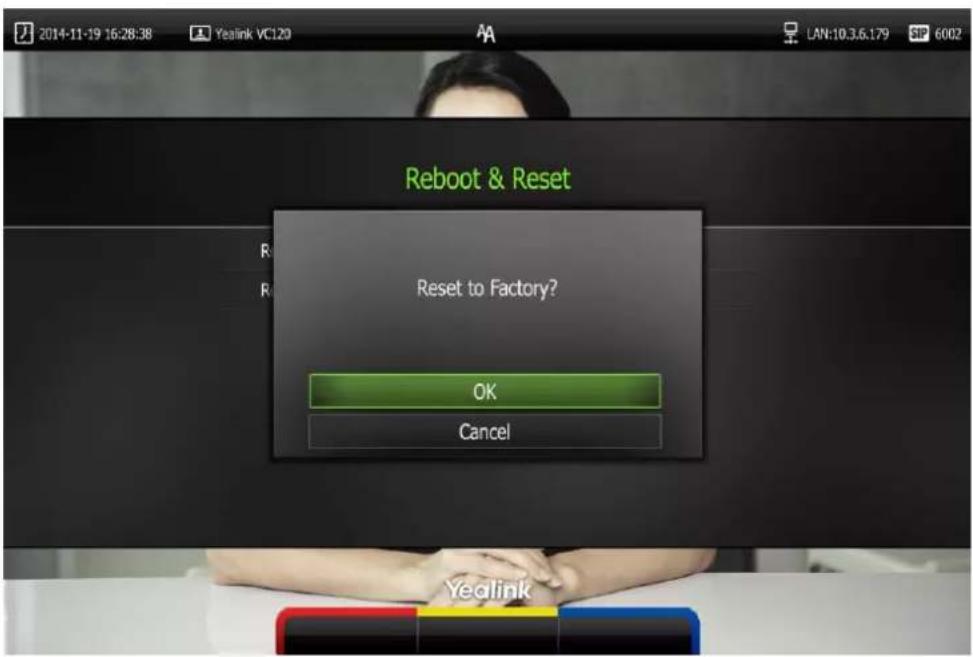
7. Select OK, and then press OK.
The system reboots automatically, the LCD screen of the video conferencing phone prompts "Rebooting Please wait...". The phone will be reset to factory successfully after startup.
Note
Reset of the system may take a few minutes. Do not power off until the phone starts up successfully.
Resetting the system is configurable via web user interface at the path
Setting->Upgrade->Reset to Factory.
Regulatory Notices
Service Agreements
Contact your Yealink Authorized Reseller for information about service agreements applicable to your product.
Limitations of Liability
TO THE FULL EXTENT ALLOWED BY LAW, YEALINK EXCLUDES FOR ITSELF AND ITS SUPPLIERS ANY LIABILITY, WHETHER BASED IN CONTRACT OR TORT (INCLUDING NEGLIGENCE), FOR INCIDENTAL, CONSEQUENTIAL, INDIRECT, SPECIAL, OR PUNITIVE DAMAGES OF ANY KIND, OR FOR LOSS OF REVENUE OR PROFITS, LOSS OF BUSINESS, LOSS OF INFORMATION OR DATA, OR OTHER FINANCIAL LOSS ARISING OUT OF OR IN CONNECTION WITH THE SALE, INSTALLATION, MAINTENANCE, USE, PERFORMANCE, FAILURE, OR INTERRUPTION OF ITS PRODUCTS, EVEN IF YEALINK OR ITS AUTHORIZED RESELLER HAS BEEN ADVISED OF THE POSSIBILITY OF SUCH DAMAGES, AND LIMITS ITS LIABILITY TO REPAIR, REPLACEMENT, OR REFUND OF THE PURCHASE PRICE PAID, AT YEALINK'S OPTION. THIS DISCLAIMER OF LIABILITY FOR DAMAGES WILL NOT BE AFFECTED IF ANY REMEDY PROVIDED HEREIN SHALL FAIL OF ITS ESSENTIAL PURPOSE.
Safety Instructions
Save these instructions. Read these safety instructions before use!
The following basic safety precautions should always be followed to reduce risk of fire, electrical shock, and other personal injury.

General Requirements
- Before you install and use the device, read the safety instructions carefully and monitor the situation during operation.
- During the process of storage, transportation, and operation, please always keep the device dry and clean.
- During the process of storage, transportation, and operation, please avoid collision and an impact to the device.
- Pleasedo not attempt to dismantle the device by yourself. In case of any discrepancy, please contact the appointed maintenance center for repair.
- Without prior written consent, no organization or individual is permitted to make any change to the structure or the safety design of the device. Yealink is under no circumstance liable to consequences or legal issues caused by such changes.
- Please refer to the relevant laws and statutes while using the device. The legal rights of others should be respected as well.

Environmental Requirements
- Place the device in a well-ventilated place. Do not expose the device under direct sunlight.
- Keep the device dry and free of dust.
- Place the device on a stable and level platform.
- Please do not place any heavy objects on the device in case of damage and deformation caused by the heavy load.
- Keep at least 10 cm between the device and the closest object for heat dissipation.
- Do not place the device on or near any inflammable or fire-vulnerable object, such as rubber-made materials.
- Keep the device away from any heat source or bare fire, such as a candle or an electric heater.
- Keep the device away from any household appliance with a strong magnetic field or electromagnetic field, such as a microwave oven or a refrigerator.

Operating Requirements
• Do not let a child operate the device without guidance.
- Do not let a child play with the device or any accessory in case of accidental swallowing.
- Please only use accessories provided or authorized by the manufacturer.
- The power supply of the device shall meet the requirements of the input voltage of the device. Please only use the surge protection power socket provided.
- Before plugging or unplugging any cable, ensure that your hands are completely dry.
- Do not spill liquid of any kind on the product or use the equipment near water, for example, near a bathtub, washbowl, kitchen sink, wet basement or near a swimming pool.
- Do not tread on, pull, or over-bend any cable in case of malfunction of the device.
- During a thunderstorm, stop using the device and disconnect it from the power supply. Unplug the power plug and the Asymmetric Digital Subscriber Line (ADSL) twisted pair (the radio frequency cable) to avoid lightning strike.
- If the device is left unused for a rather long time, disconnect it from the power supply and unplug the power plug.
- When smoke or an abnormal noise or smell is emitted from the device, disconnect the device from the power supply, and unplug the power plug immediately. Contact the specified maintenance center for repair.
- Do not insert any object into equipment slots that is not part of the product or auxiliary product.
- Before connecting a cable, connect the grounding cable of the device first. Do not disconnect the grounding cable until you disconnect all other cables.

Cleaning Requirements
• Before cleaning the device, stop using it and disconnect it from the power supply.
• Use a piece of soft, dry and anti-static cloth to clean the device.
- Keep the power plug clean and dry. Using a dirty or wet power plug may lead to electric shock or other perils.
Restriction of Hazardous Substances
Restriction of Hazardous Substances (RoHS) is a Chinese government regulation which aims to restrict certain dangerous substances commonly used in electronic and electronic equipment.
The following table lists the names and content of the toxic and hazardous substances or elements probably contained in the products:
| Parts Name | Toxic or Hazardous Substance and Elements | |||||
| Lead (Pb) | Mercury (Hg) | Cadmium (Cd) | Hexavalent Chromium ( Cr^+6 ) | Polybrominated Biphenyls (PBB) | Polybrominated Diphenyl Ethers (PDBE) | |
| Plastic and Polymeric Parts | O | O | O | O | O | O |
| Metal Parts | X | O | O | O | O | O |
| PCBA | X | O | O | O | O | O |
| Cables and Cable Assemblies | O | O | O | O | O | O |
| LCD Screen | O | O | O | O | O | O |
| Batteries | O | O | O | O | O | O |
| Packing Material | O | O | O | O | O | O |
O: Indicates that toxic substances contained in all homogeneous materials in this product are below the limit requirement in GB/T26572-2011 standard.
X: Indicates that toxic substances contained in all homogeneous materials in this product are above the limit requirement in GB/T26572-2011 standard.
This table lists the toxic and hazardous substances contained in the machine. Based on the material type, the data is provided by the supplier and has already been validated by Yealink company.
Some harmful substances contained in the material cannot be replaced according to the current technology. We constantly strive to improve our products.
Appendix A - Time Zones
| Time Zone | Time Zone Name |
| -11:00 | Samoa |
| -10:00 | United States-Hawaii-Aleutian |
| -10:00 | United States-Alaska-Aleutian |
| -09:30 | French Polynesia |
| -09:00 | United States-Alaska Time |
| -08:00 | Canada(Vancouver, Whitehorse) |
| -08:00 | Mexico(Tijuana, Mexicali) |
| -08:00 | United States-Pacific Time |
| -07:00 | Canada(Edmonton, Calgary) |
| -07:00 | Mexico(Mazatlan, Chihuahua) |
| -07:00 | United States-Mountain Time |
| -07:00 | United States-MST no DST |
| -06:00 | Canada-Manitoba(Winnipeg) |
| -06:00 | Chile(Easter Islands) |
| -06:00 | Mexico(Mexico City, Acapulco) |
| -06:00 | United States-Central Time |
| -05:00 | Bahamas(Nassau) |
| -05:00 | Canada(Montreal, Ottawa, Quebec) |
| -05:00 | Cuba(Havana) |
| -05:00 | United States-Eastern Time |
| -04:30 | Venezuela(Caracas) |
| -04:00 | Canada(Halifax, Saint John) |
| -04:00 | Chile(Santiago) |
| -04:00 | Paraguay(Asuncion) |
| -04:00 | United Kingdom-Bermuda(Bermuda) |
| -04:00 | United Kingdom(Falkland Islands) |
| -04:00 | Trinidad&Tobago |
| -03:30 | Canada-New Foundland(St.Johns) |
| -03:00 | Denmark-Greenland(Nuuk) |
| -03:00 | Argentina(Buenos Aires) |
| -03:00 | Brazil(no DST) |
| -03:00 | Brazil(DST) |
| -02:30 | Newfoundland and Labrador |
| -02:00 | Brazil(no DST) |
| -01:00 | Portugal(Azores) |
| 0 | GMT |
| 0 | Greenland |
| 0 | Denmark-Faroe Islands(Torshavn) |
| 0 | Ireland(Dublin) |
| 0 | Portugal(Lisboa, Porto, Funchal) |
| 0 | Spain-Canary Islands(Las Palmas) |
| 0 | United Kingdom(London) |
| 0 | Morocco |
| +01:00 | Albania(Tirane) |
| +01:00 | Austria(Vienna) |
| +01:00 | Belgium(Brussels) |
| +01:00 | Caicos |
| +01:00 | Chad |
| +01:00 | Spain(Madrid) |
| +01:00 | Croatia(Zagreb) |
| +01:00 | Czech Republic(Prague) |
| +01:00 | Denmark(Kopenhagen) |
| +01:00 | France(Paris) |
| +01:00 | Germany(Berlin) |
| +01:00 | Hungary(Budapest) |
| +01:00 | Italy(Rome) |
| +01:00 | Luxembourg(Luxembourg) |
| +01:00 | Macedonia(Skopje) |
| +01:00 | Netherlands(Amsterdam) |
| +01:00 | Namibia(Windhoek) |
| +01:00 | Poland (Warsaw) |
| +02:00 | Estonia(Tallinn) |
| +02:00 | Finland(Helsinki) |
| +02:00 | Gaza Strip(Gaza) |
| +02:00 | Greece(Athens) |
| +02:00 | Israel(Tel Aviv) |
| +02:00 | Jordan(Amman) |
| +02:00 | Latvia(Riga) |
| +02:00 | Lebanon(Beirut) |
| +02:00 | Moldova(Kishinev) |
| +02:00 | Russia(Kaliningrad) |
| +02:00 | Romania(Bucharest) |
| +02:00 | Syria(Damascus) |
| +02:00 | Turkey(Ankara) |
| +02:00 | Ukraine(Kyiv, Odessa) |
| +03:00 | East Africa Time |
| +03:00 | Iraq(Baghdad) |
| +03:00 | Russia(Moscow) |
| +03:30 | Iran(Teheran) |
| +04:00 | Armenia(Yerevan) |
| +04:00 | Azerbaijan(Baku) |
| +04:00 | Georgia(Tbilisi) |
| +04:00 | Kazakhstan(Aktau) |
| +04:00 | Russia(Samara) |
| +04:30 | Afghanistan(Kabul) |
| +05:00 | Kazakhstan(Aqtobe) |
| +05:00 | Kyrgyzstan(Bishkek) |
| +05:00 | Pakistan(Islamabad) |
| +05:00 | Russia(Chelyabinsk) |
| +05:30 | India(Calcutta) |
| +05:45 | Nepal(Katmandu) |
| +06:00 | Kazakhstan(Astana, Almaty) |
| +06:00 | Russia(Novosibirsk, Omsk) |
| +06:30 | Myanmar(Naypyitaw) |
| +07:00 | Russia(Krasnoyarsk) |
| +07:00 | Thailand(Bangkok) |
| +08:00 | China(Beijing) |
| +08:00 | Singapore(Singapore) |
| +08:00 | Australia(Perth) |
| +08:00 | Russia(Irkutsk, Ulan-Ude) |
| +08:45 | Eucla |
| +09:00 | Korea(Seoul) |
| +09:00 | Japan(Tokyo) |
| +09:00 | Russia(Yakutsk, Chita) |
| +09:30 | Australia(Adelaide) |
| +09:30 | Australia(Darwin) |
| +10:00 | Australia(Sydney, Melbourne, Canberra) |
| +10:00 | Australia(Brisbane) |
| +10:00 | Australia(Hobart) |
| +10:00 | Russia(Vladivostok) |
| +10:30 | Australia(Lord Howe Islands) |
| +11:00 | New Caledonia(Noumea) |
| +11:00 | Russia(Srednekolymsk Time) |
| +11:30 | Norfolk Island |
| +12:00 | New Zealand(Wellington, Auckland) |
| +12:00 | Russia(Kamchatka Time) |
| +12:45 | New Zealand(Chatham Islands) |
| +13:00 | Tonga(Nukualofa) |
| +13:30 | Chatham Islands |
| +14:00 | Kiribati |
Index
8
8-way MCU 85
A
About This Guide v
Adding a Local Contact from the Call History
List 73
Adding Local Contacts 59
Answering or Rejecting Calls 101
Appendix A - Time Zones 169
Audio Input Device 78
Audio Output Device 77
Audio Settings 77
Auto Answer 102
Automatic Sleep Time 42
B
Backlight 43
Bandwidth Settings 75
C
Call History Management 68
Call Management 106
Call Mute 106
Call Protocol 74
Call Statistics 107
Camera Issues 154
Chairman-Mode Conference 92
Changing Video Layout 119
Changing Video Input Source 108
Chapters in This Guide v
Configuring Camera Presets 110
Controlling Far-end Camera 81
Controlling the Camera 32
Customizing VC120 Video conferencing system 41
D
Deleting an Entry from the Call History List 71
Deleting Local Contacts 62
Directory 58
Display Issues 155
Dialing Pexip Alias 141
Dialing StarLeaf Cloud Numbers 137
Dialing Yealink Cloud Accounts 125
Documentations vi
Do Not Disturb (DND) 103
E
Ending Calls 105
System Component Instructions 5
System Diagnostics 151
System Installation 23
Editing Local Contacts 61
System Maintenance 156
System Status 38
Entering Data and Editing Fields 37
F
Far-end Camera Control 80
G
General Issues 152
General Settings 41
Getting Started 23
H
Hiding Icons in a Call 57
I
Icon Instructions 17
Idle Screen Display 34
Importing/Exporting Local Contact Lists 66 Installing Batteries for the Remote Control 27 Installing the Camera 25 Installing the VC120 Video conferencing system 24
J
Joining a Scheduled Conference 130
Joining the BlueJeans Meeting 140
Joining the Mind Meeting 143
Joining the Pexip Meeting 142
Joining the StarLeaf Meeting 138
Joining the Zoom Meeting 139
K
Keyboard Input Method 36 Key Tone 49
L
Language 45 LED Instructions 20 Limitation of Liability 165
M
Meeting Blacklist 56 Meeting Password 53 Meeting Whitelist 55 Muting or Unmuting the VCM30 147
N
Navigating Menus on the Display Device 36
P
Packaging Contents 1 Placing a Call from the Call History List 70 Placing a Call Using the Remote Control 89 Placing a Call Using the Video Conferencing Phone 90 Placing a Call via Web User Interface 90 Placing Calls 88 Placing Multiple Calls 91
Placing the VCM30 147 Powering the System On or Off 28 Presentation 109
0
Overview 1
R
Registration 33 Regulatory Notices 165 Remote Control 22 Remote Control Battery Safety Information 28 Restriction of Hazardous Substances 167
s
Safety Instructions 165 Screenshot 117 Searching for Contacts 63 Search Source List in Dialing 64 Service Agreements 165 Setup Wizard 28 Site Name 44 Summary of Changes vii
T
Table of Contents xi Terms vii Time & Date 46 Troubleshooting 151 Typographic Conventions vii
U
USB Configuration 57 User Interfaces 21 Using the BlueJeans Cloud Platform 140 Using the Custom Platform 144 Using the Mind Platform 143 Using the Pexip Platform 141 Using the StarLeaf Cloud Platform 137 Using the VCM30 Video Conferencing Microphone Array 147
Using VC120 Video Conferencing System 83
Using VCP41 with the PC or Mobile Device 145
Using the Yealink VC Cloud Management
Service Platform 125
Using the Yealink Meeting Server 126
Using the Zoom Cloud Platform 139
v
VC120 Codec 5
VCC18/VCC20 HD Camera 7
VCM30 Video Conferencing Microphone Array 147
VCR10 Remote Control 15
Video Conferencing Phone 10
Video & Audio Issues 155
Video Layout 119
Video Recording 112
Viewing Call History 69
Viewing VCM30 Information 148
Virtual Remote Control 41
Volume Settings 51
W
Website Snapshot 50
Web User Interface 21