TreatView CP510 - Pet Supplies Closer Pets - Free user manual and instructions
Find the device manual for free TreatView CP510 Closer Pets in PDF.


User questions about TreatView CP510 Closer Pets
0 question about this device. Answer the ones you know or ask your own.
Ask a new question about this device
Download the instructions for your Pet Supplies in PDF format for free! Find your manual TreatView CP510 - Closer Pets and take your electronic device back in hand. On this page are published all the documents necessary for the use of your device. TreatView CP510 by Closer Pets.
USER MANUAL TreatView CP510 Closer Pets
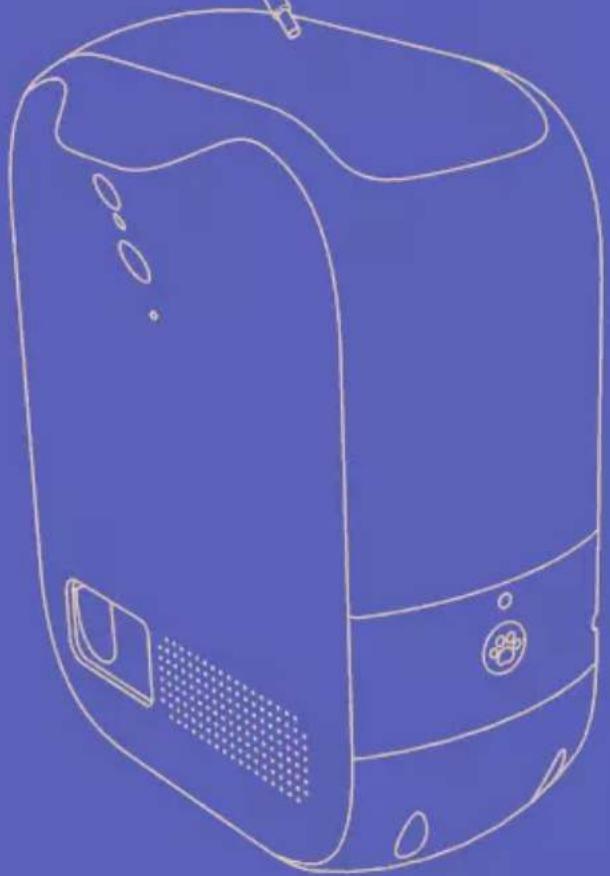
A TreatView dispenser
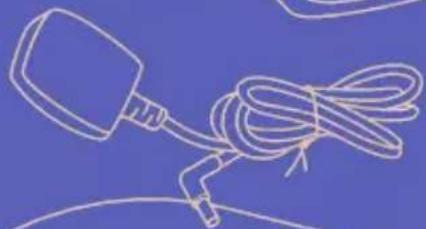
B Power adapter
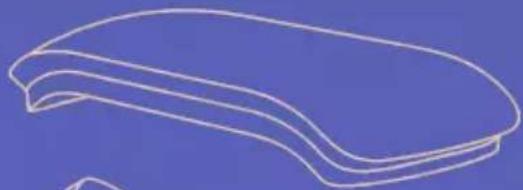
C Silicone cover
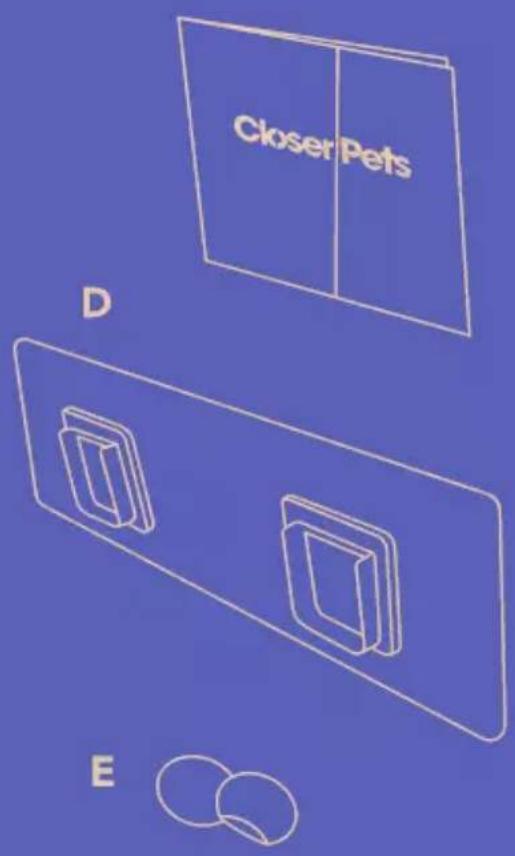
D Wall mounting bracket
E Stickers – see Tips section
C
natural_image
Simple line drawing of a curved, elongated object on a solid blue background (no text or symbols)B
natural_image
Simple line drawing of a medical device with a bulb and cord (no text or symbols)A
natural_image
Line drawing of a blue electronic device casing with buttons and ventilation slots (no text or symbols)Connecting to power
1
natural_image
Simple line drawing of a portable device with a cable and a separate package, no text or symbols present.2
natural_image
Simple line drawing of a device with a cable and plug, connected to a door panel (no text or symbols)3
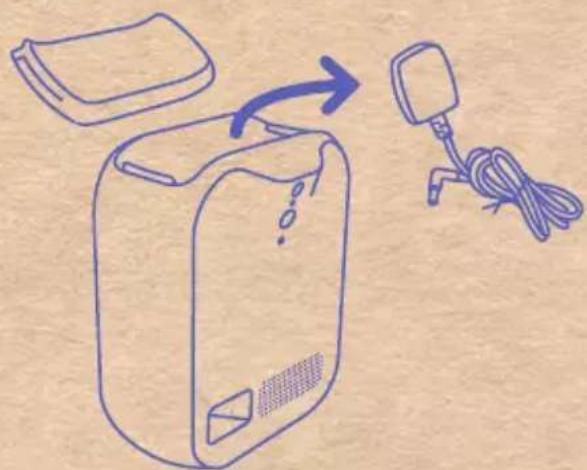
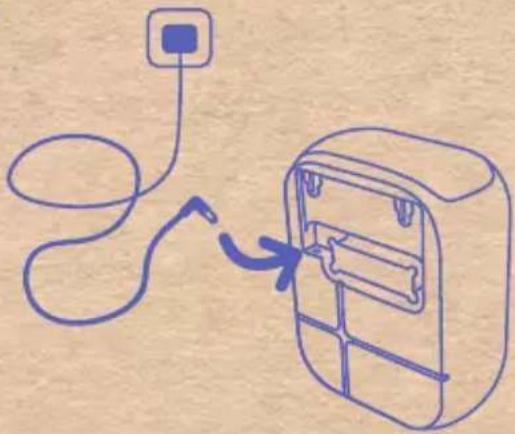
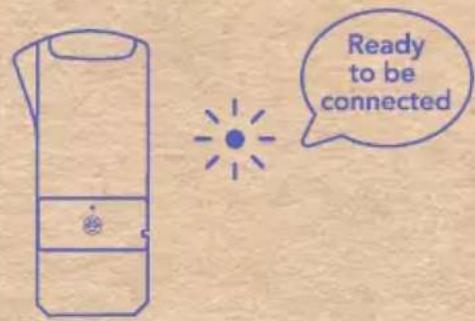
When plugged in the indicator light will come on. After 30 seconds the light will start flashing and you'll hear the voice prompt.
natural_image
Pure technical line drawing of a mechanical component with no text or symbols
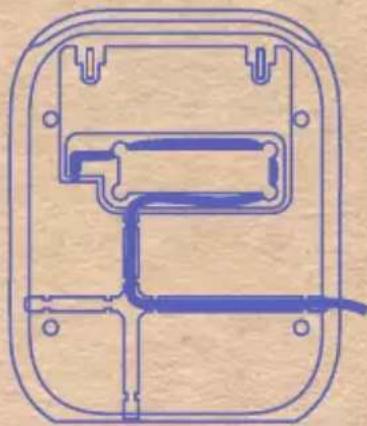
Keep the cord tidy and secure by using the cable management grooves in the back of your TreatView.
Setting-up TreatView in your home
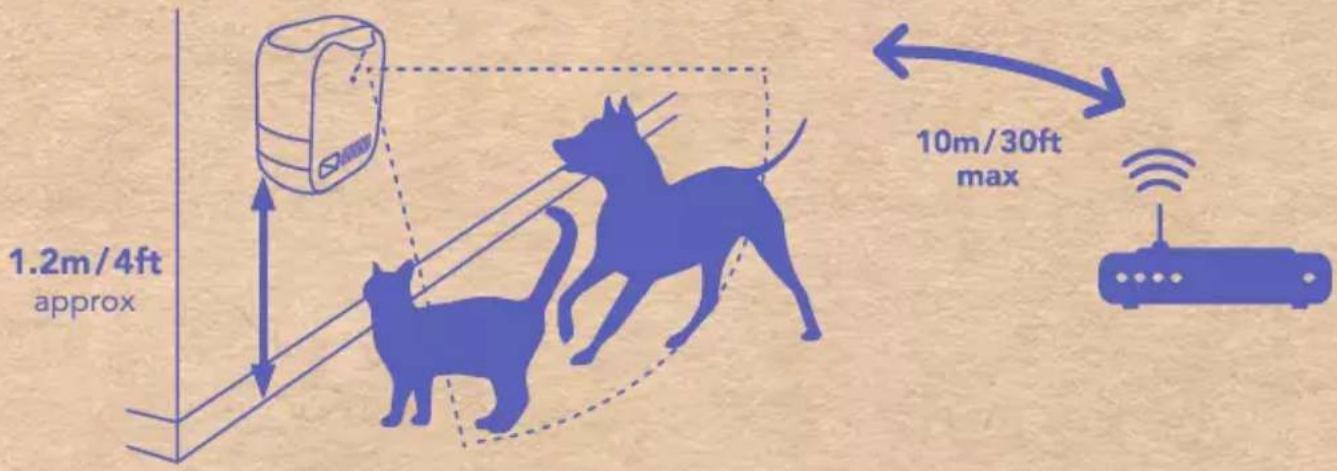
Recommended wall mounting
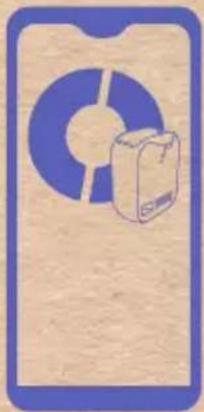
TreatView App
Scan the QR code to download the dedicated TreatView App.
natural_image
Illustration of a blue donut with a paper bag beside it, enclosed in a purple border (no text or symbols)
The TreatView App will take you step by step through setting-up.
Important safety instructions
- Read all the instructions before installing or using your TreatView.
- Register your purchase online at closerpets.com (see Guarantee).
- Do not allow your children to play with your TreatView unsupervised.
- Inspect your TreatView regularly for correct operation and damage – if in doubt do not use.
- TreatView has been designed for use with pets only, as described in this manual.
- Ensure that your pets do not chew or pull on the cables by securing them to a skirting board or within cable management grooves when installing your TreatView.
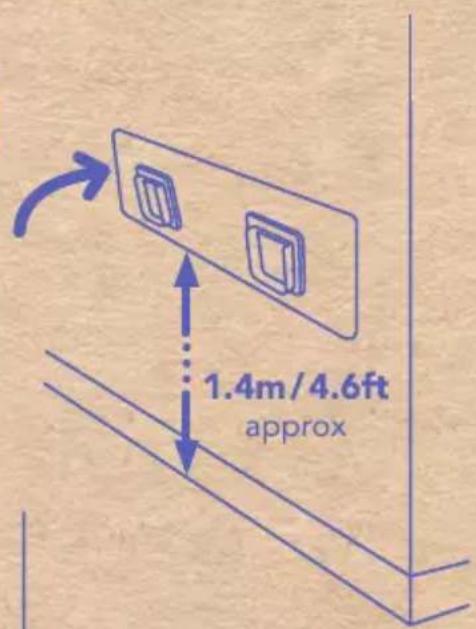
- It is recommended to install 1.2m/4ft high on the wall to prevent your pet from damaging your TreatView.
• Do not insert fingers into the treat flipping mechanism. - Dispose of all packaging material responsibly. NOTE: Plastic bags could cause suffocation – keep away from children and animals.
- Please note that attempted disassembly of your TreatView will void the warranty.
- Ensure that your TreatView is disconnected from mains power during cleaning.
SAVE THESE INSTRUCTIONS
Fitting your TreatView to the wall
1
natural_image
Simple line drawing of a folded paper airplane viewed from above, with no text or symbols present.2
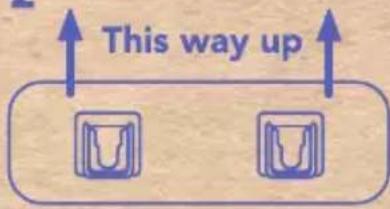
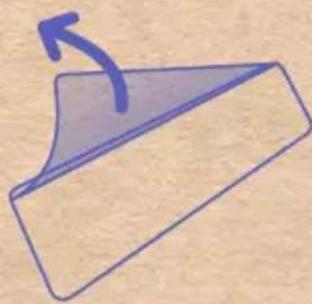
Make sure the wall mounting bracket is the right way up before sticking it to the wall
3
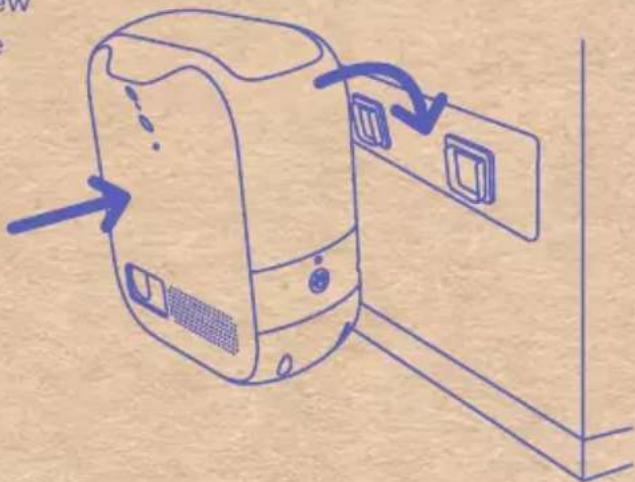
Push the TreatView firmly against the wall and down
natural_image
Line drawing of a computer monitor with an attached wall-mounted device (no text or symbols)
Make sure surfaces are clean and free of dirt and the wall mounting bracket is the right way up before applying to the wall.
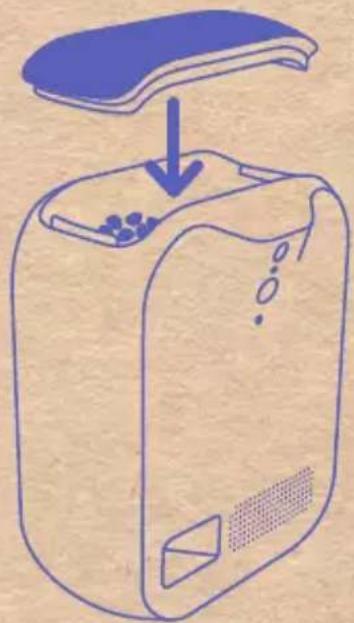
Filling your TreatView with treats
1
natural_image
Line drawing of a portable device with granular contents and a lid, showing particle dispersion (no text or symbols)2
natural_image
Line drawing of a device with a blue lid and arrow indicating process (no text or symbols)Recommended treat size
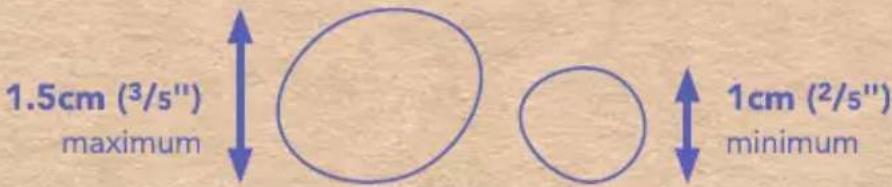

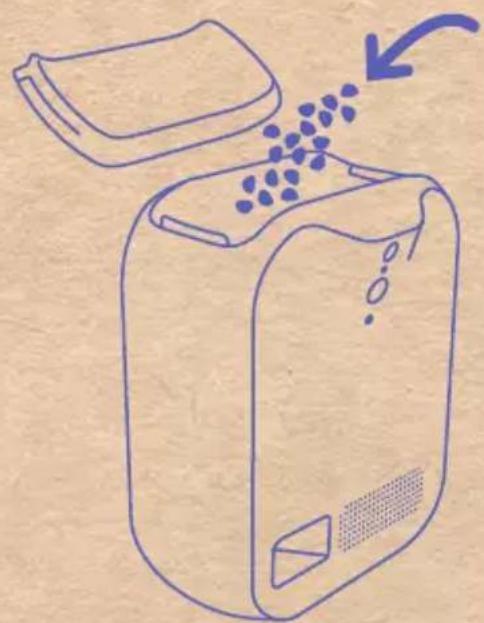
Larger treats than recommended may cause your TreatView to block.
TreatView App - quick start guide
To add your product to your account, press + on the Home screen.
There are two ways to add to your account:
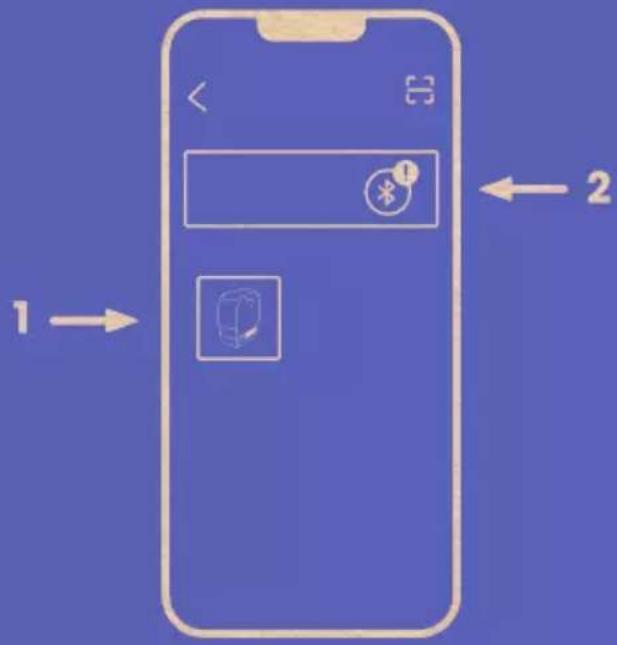
1 Manual mode: go through the steps to pair your TreatView
2 Bluetooth pairing: make sure you've enabled Bluetooth and allowed 'Nearby Devices' in your phone settings before pairing
Control Panel functions
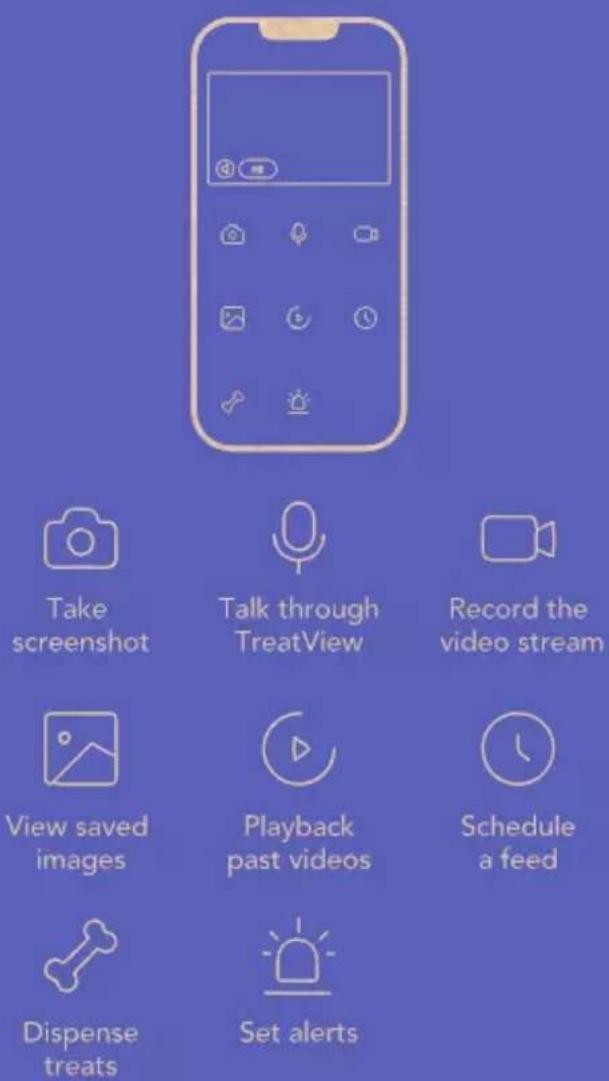
Controls
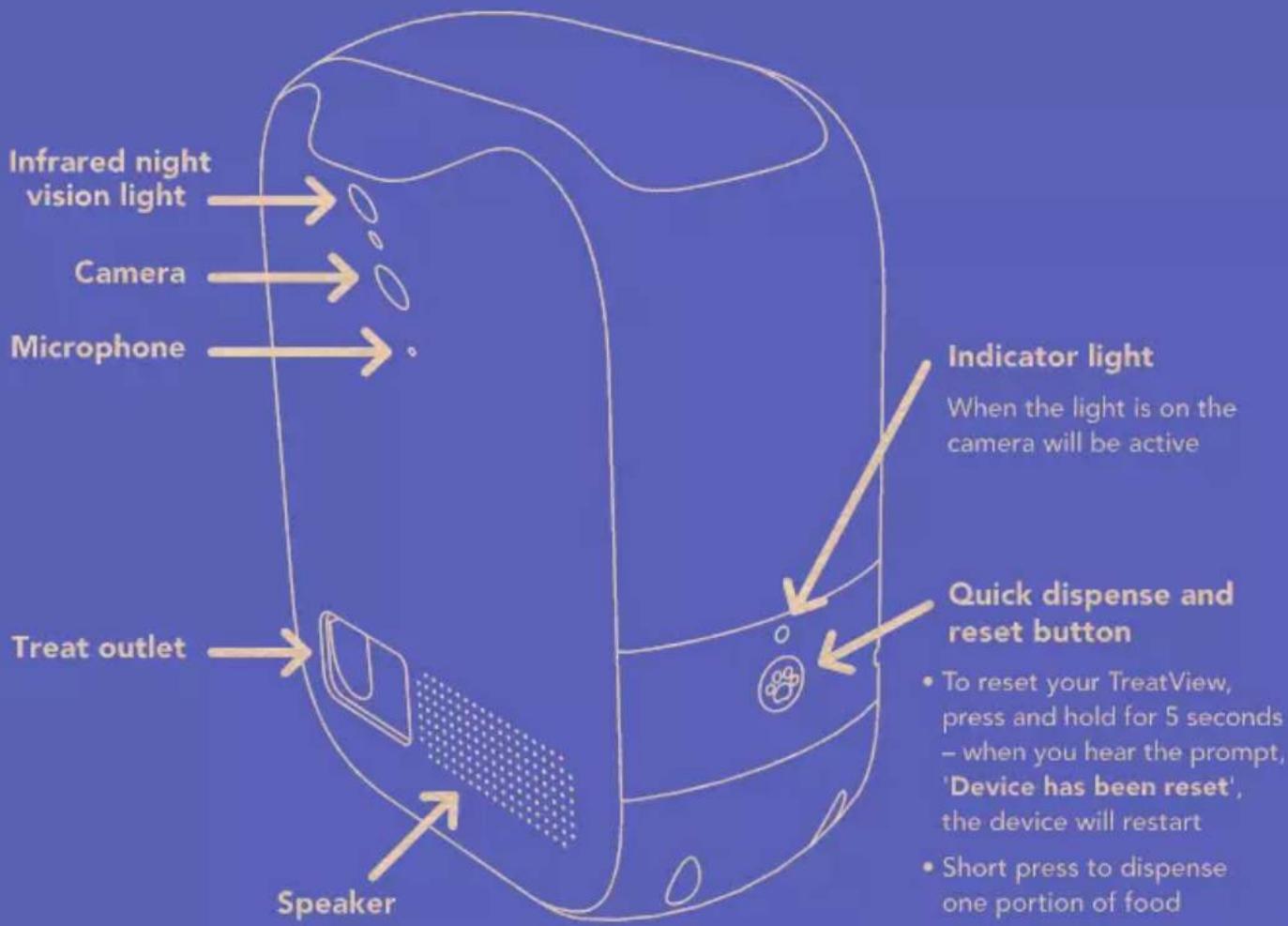

The indicator light will illuminate while your TreatView is switched on and will flash when it's ready to be connected to the app.
Tips
Using your TreatView
- When installing your TreatView on a wall with the supplied wall bracket, ensure the wall is flat and level, surfaces are clean and free of dirt and the bracket adheres to the wall
- Your TreatView is not suitable for wet or sticky food – these will cause jamming or damage
- Lightly clean your TreatView with non-abrasive cleaning products to prolong the shiny appearance
- Do not spray or soak your TreatView with liquid cleaning products or water – use a damp cloth only
- If you are not using your TreatView for an extended period of time we advise you empty treats from the unit, clean the inside with a damp cloth, and store in a dry place
• If the indicator light is too bright, it can be covered with the sticker provided
Technical info
• Only use the power adapter provided with your TreatView
- Ensure your TreatView is not plugged into mains power during installation, maintenance or cleaning
- The operation of your TreatView is reliant on mains power and a stable internet connection. If your internet service provider has outages, this will affect function and operation of the unit.
• We advise that you use your TreatView in combination with other sources of food for your pet to achieve a balanced diet
- To reset your TreatView press and hold the Reset button until you hear 'Device has been reset'
FAQ
For questions related to using the App refer to the FAQs within 'Devices' in the app settings
If the following Troubleshooting Section doesn't solve your issue or you would like to get in touch and share a picture of your pet having a treat, please contact our Product Support Team on appsupport@closerpets.com
Alternatively, you can also check our website for a more comprehensive list of updated FAQs at closerpets.com/pages/faqs or by following the QR Code
My TreatView is not responding
Check the connection of the Power Adapter to the rear of unit and ensure the wall socket is plugged in and switched on.
My TreatView has jammed and isn't working properly
First unplug your TreatView, then turn upside down and shake to pour out any jammed treats. We advise you don't push any treats down as this may damage the mechanism.
Ensure that the size of the treats you are using are between 1 - 1.5cm (2/s" - 3/s").
The app keeps crashing and/or I'm struggling setting it up
Check you are on the latest version of the app by checking for updates from the Google Play Store or Apple Store.
You may need to reset your TreatView to try again – see below for details on how to reset.
I want to remove all current settings
To reset your TreatView, press and hold the reset button for 5 seconds. When you hear the prompt 'Device has been reset' the TreatView will restart.
After the system restarts, you will hear 'Ready to be connected'. You may then connect your TreatView to a new Wi-Fi network using the App.
natural_image
Simple line drawing of a paw print inside a circle (no text or symbols)Reset button
Further information
The manufacturer (Pet Mate Ltd) is not responsible for any radio or TV interference caused by unauthorised modifications to this device (TreatView). Any modifications could void the user's authority to operate the device.
FCC compliance
This device complies with Part 15 of the FCC Rules.
Operation is subject to the following two conditions:
(1) This device may not cause harmful interference, and
(2) This device must accept any interference received, including interference that may cause undesired operation.
Changes or modifications not expressly approved by the party responsible for compliance could void the user's authority to operate the device.
natural_image
Blue silhouette of a cat standing upright on a textured beige background (no text or symbols)Guarantee
We offer a 1-year standard warranty. However, if you register your TreatView at closerpets.com/pages/product-registration within 14 days of your purchase you will receive an additional 2-year warranty and Pet Mate Ltd will guarantee your product for a period of 3 years from the date of purchase.
If you do not have access to a computer, please send details of your purchase with a copy of the receipt along with your name and address to our Customer Services team using the address below and they will be happy to help process this for you.
Please get in touch with Closer Pets Customer Services if you have a problem with your purchase. The guarantee is here to protect you if any defect arises due to faulty materials or manufacture. Any defective items will be repaired or replaced free of charge by Pet Mate Ltd, provided the defect has not been caused by neglect, misuse or normal wear and tear. Your statutory rights are not affected.
To get started, register now by scanning the QR code or by following this link: closerpets.com/pages/product-registration
UK CA CE
Hereby, Pet Mate Ltd declares that this product is in compliance with the essential requirements and other relevant provisions of EU and UK Directives. All Declarations of Conformity (DoC) may be viewed at closerpets.com/pages/eu-doc.

IMPORTANT: Dispose of damaged / faulty / end-of-life products in accordance with locally applicable regulations for your country. UK/EU: Refer to Terms and Conditions section EU Waste Electrical and Electronic Equipment (WEEE) Directive on closerpets.com for more information.

Designed and Manufactured by Pet Mate Ltd, Lyon Road, Hersham, Surrey KT12 3PU, UK Imported to the EU by Closer Pets BV, Newtonlaan 115, 3584 BH Utrecht, The Netherlands Imported to North America by Ani Mate, 104A Longview Street, Conroe, TX 77301, USA
Register
your TreatView
Additional 2 years warranty

closerpets.com

help@closerpets.com
51005/01