
PFS3210-8ET2GF-96 - Network switch Dahua Technology - Free user manual and instructions
Find the device manual for free PFS3210-8ET2GF-96 Dahua Technology in PDF.


| Product Type | Managed Gigabit PoE+ Switch |
| Model | PFS3210-8ET2GF-96 |
| Ports | 8 x 10/100/1000BASE-T PoE+ (RJ-45), 2 x 1000BASE-X SFP |
| PoE Budget | 96W (max 30W per port) |
| Switching Capacity | 20 Gbps |
| Forwarding Rate | 14.88 Mpps |
| MAC Address Table | 8K entries |
| VLAN Support | 802.1Q VLAN (up to 4096 VLANs) |
| Management | Web GUI, CLI (Telnet/SSH), SNMP v1/v2c/v3, RMON |
| Dimensions (W x D x H) | 280 x 180 x 44 mm |
| Weight | 1.5 kg |
| Power Supply | AC 100-240V, 50/60Hz, internal (max 96W) |
| Power Consumption | ≤ 120W (with PoE load) |
| Cooling | Fanless, silent operation |
| Operating Temperature | 0°C to 40°C |
| Storage Temperature | -40°C to 70°C |
| Humidity | 5% to 95% non-condensing |
| Safety | Overload protection, surge protection, grounding recommended |
| Maintenance | Clean with dry cloth; do not use liquids or solvents |
| Spare Parts | Power adapter (if external) or internal module; contact support |
| Repairability | Not user-serviceable; refer to qualified technician |
Frequently Asked Questions - PFS3210-8ET2GF-96 Dahua Technology
User questions about PFS3210-8ET2GF-96 Dahua Technology
0 question about this device. Answer the ones you know or ask your own.
Ask a new question about this device
Download the instructions for your Network switch in PDF format for free! Find your manual PFS3210-8ET2GF-96 - Dahua Technology and take your electronic device back in hand. On this page are published all the documents necessary for the use of your device. PFS3210-8ET2GF-96 by Dahua Technology.
USER MANUAL PFS3210-8ET2GF-96 Dahua Technology
Dahua Ethernet Switch (4&8-port Unmanaged Desktop Switch)
Quick Start Guide

natural_image
Abstract geometric composition with gray and red shapes (no text or symbols)Foreword
General
This manual introduces the installation, functions and operations of the 4&8-port unmanaged desktop switch (hereinafter referred to as "the Switch"). Read carefully before using the Switch, and keep the manual safe for future reference.
Safety Instructions
The following signal words might appear in the manual.
| Signal Words Meaning | |
 DANGER DANGER | Indicates a high potential hazard which, if not avoided, will result in death or serious injury. |
 WARNING WARNING | Indicates a medium or low potential hazard which, if not avoided, could result in slight or moderate injury. |
 CAUTION CAUTION | Indicates a potential risk which, if not avoided, could result in property damage, data loss, reductions in performance, or unpredictable results. |
 TIPS TIPS | Provides methods to help you solve a problem or save time. |
 NOTE NOTE | Provides additional information as a supplement to the text. |
Revision History
| Version | Revision Content | Release Time |
| V1.0.0 | First release. | March 2022 |
Privacy Protection Notice
As the device user or data controller, you might collect the personal data of others such as their face, fingerprints, and license plate number. You need to be in compliance with your local privacy protection laws and regulations to protect the legitimate rights and interests of other people by implementing measures which include but are not limited: Providing clear and visible identification to inform people of the existence of the surveillance area and provide required contact information.
About the Manual
- The manual is for reference only. Slight differences might be found between the manual and the product.
- We are not liable for losses incurred due to operating the product in ways that are not in compliance with the manual.
- The manual will be updated according to the latest laws and regulations of related jurisdictions. For detailed information, see the paper user's manual, use our CD-ROM, scan the QR code or visit our official website. The manual is for reference only. Slight differences might be found between the electronic version and the paper version.
- All designs and software are subject to change without prior written notice. Product updates
might result in some differences appearing between the actual product and the manual. Please contact customer service for the latest program and supplementary documentation.
- There might be errors in the print or deviations in the description of the functions, operations and technical data. If there is any doubt or dispute, we reserve the right of final explanation.
- Upgrade the reader software or try other mainstream reader software if the manual (in PDF format) cannot be opened.
- All trademarks, registered trademarks and company names in the manual are properties of their respective owners.
- Please visit our website, contact the supplier or customer service if any problems occur while using the device.
- If there is any uncertainty or controversy, we reserve the right of final explanation.
Important Safeguards and Warnings
This section introduces content covering the proper handling of the device, hazard prevention, and prevention of property damage. Read carefully before using the device, and comply with the guidelines when using it.
Transportation Requirements

Transport the device under allowed humidity and temperature conditions.
Storage Requirements

Store the device under allowed humidity and temperature conditions.
Installation Requirements

WARNING
- Do not connect the power adapter to the device while the adapter is powered on.
- Strictly comply with the local electrical safety code and standards. Make sure that the ambient voltage is stable and meets the power supply requirements of the device.
- Personnel working at heights must take all necessary measures to ensure personal safety including wearing a helmet and safety belts.

- Do not place the device in a place exposed to sunlight or near heat sources.
- Keep the device away from dampness, dust, and soot.
- Put the device in a well-ventilated place, and do not block its ventilation.
- Use an adapter or cabinet power supply provided by the manufacturer.
- The power supply must conform to the requirements of ES1 in IEC 62368-1 standard and be no higher than PS2. Please note that the power supply requirements are subject to the device label.
- Do not connect the device to two or more kinds of power supplies, to avoid damage to the device.
- The device is a class I electrical appliance. Make sure that the power supply of the device is connected to a power socket with protective earthing.
- The device must be grounded by a copper wire with a cross-sectional area of 2.5 mm^2 and a ground resistance no more than 4 .
- Voltage stabilizer and lightning surge protector are optional depending on the actual power supply on site and the ambient environment.
- To ensure heat dissipation, the gap between the device and the surrounding area should not be less than 10 cm on the sides and 10 cm on top of the device.
- When installing the device, make sure that the power plug and appliance coupler can be easily reached to cut off power.
Operation Requirements

WARNING
- Do not disassemble the device without professional instruction.
- Operate the device within the rated range of power input and output.
- Make sure that the power supply is correct before use.
- Make sure the device is powered off before disassembling wires to avoid personal injury.
- Do not unplug the power cord on the side of the device while the adapter is powered on.

- Use the device under allowed humidity and temperature conditions.
- Do not drop or splash liquid onto the device, and make sure that there is no object filled with liquid on the device to prevent liquid from flowing into it.
- Operating temperature: -10^ (+14°F) to +55^ (+131°F).
- This is a class A product. In a domestic environment this may cause radio interference in which case you may be required to take adequate measures.
- Do not block the ventilator of the device with objects, such as a newspaper, table cloth or curtain.
- Do not place an open flame on the device, such as a lit candle.
Maintenance Requirements

WARNING
• Power off the device before maintenance.
- Mark key components on the maintenance circuit diagram with warning signs.
Table of Contents
Foreword
Important Safeguards and Warnings....III
1 Overview....1
1.1 Introduction ...... 1
1.2 Features....1
2 Port and Indicator 2
2.1 Front Panel....2
2.2 Rear Panel 4
3 Installation....5
3.1 Preparation....5
3.2 Desktop Mount......5
3.3 Wall Mount......5
4 Wiring 6
4.1 Connecting GND....6
4.2 Connecting Power Cord....6
4.3 Connecting SFP Ethernet Port....6
4.4 Connecting Ethernet Port 8
4.5 Connecting PoE Port 8
Appendix 1 Cybersecurity Recommendations ...... 9
1 Overview
1.1 Introduction
The Switch is a layer-2 commercial switch. It has a high-performance switching engine and a large buffer memory to ensure smooth video stream transmission. With a full-metal and fanless design, the Switch features great heat dissipation capability on the shell surface, and is able to work in environments that range from -10 ^ (+14 ^ ) to +55 ^ (+131 ^ ). With its DIP design, it can provide a variety of working modes for different scenarios. The Switch also supports power consumption management, which can adapt to the fluctuation of power consumption of terminal device to ensure stable operation. The Switch is an unmanaged switch, so it does not need to be configured through web page, which simplifies installation.
The Switch is applicable for use in in a variety of scenarios, such as in the home and office, on server farms, and in small malls.
1.2 Features
- 4/8 × 100/1000 Mbps Ethernet port.
- Uplink Combo ports include electrical port and optical port.
- All ports support IEEE802.3af and IEEE802.3at. The red port also supports Hi-PoE and IEEE802.3bt.
- 250 m long-distance PoE transmission, which can be enabled by DIP switch.
- PoE watchdog.
- Power consumption management.
- Fanless.
• Supports desktop mount and wall mount.
2 Port and Indicator
2.1 Front Panel
The following figure is for reference only, and might differ from the actual product.
Figure 2-1 Front panel (without optical ports)
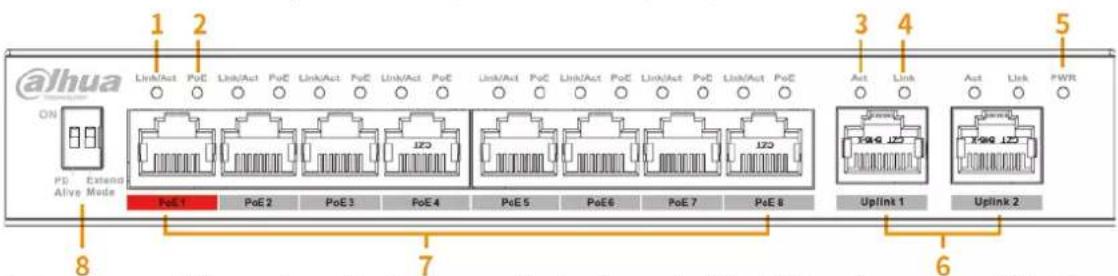
Following are all the ports and indicators on the front panel of the 4&8-port unmanaged desktop switch (without optical ports), and might differ from the actual product.
Table 2-1 Description of front panel (without optical ports)
| No. Description | |
| 1 | Single-port connection or data transmission status indicator (Link/Act).On: Connected to device.Off: Not connected to device.Flashes: Data transmission is in progress. |
| 2 | PoE port status indicator.On: Powered by PoE.Off: Not powered by PoE. |
| 3 | Single-port data transmission status indicator (Act).Flashes: Data transmission is in progress.Off: No data transmission. |
| 4 | Single-port connection status indicator (Link).On: Connected to device.Off: Not connected to device. |
| 5 | Power indicator.On: Power on.Off: Power off. |
| 6 | 10/100 Mbps or 10/100/1000 Mbps self-adaptive uplink port. |
| 7 | 10/100 Mbps or 10/100/1000 Mbps self-adaptive Ethernet ports. |
| 8 | DIP switch.PD Alive: When terminal device crash is detected, power down and restart the terminal device.Extend Mode: Extends the maximum transmission distance to 250 m, but reduces average transmission speed to 10 Mbps. |
 (Not included in the figure) (Not included in the figure) | Another DIP switch.Select Default or Extend Mode by dialing the DIP switch.Extend Mode: Extends the maximum transmission distance to 250 m, but reduces average transmission speed to 10 Mbps. |
| Speed(Not included in the figure) | Uplink port speed indicator.On: 100 Mbps/1000 Mbps.Off: 10 Mbps. |
Figure 2-1 Front panel (with optical ports)

Following are all the ports and indicators on the front panel of the 8-port unmanaged desktop switch (with optical ports), and might differ from the actual product.
Table 2-1 Description of front panel (with optical ports)
| No. Description | |
| 1 | PoE port status indicator.• On: Powered by PoE.• Off: Not powered by PoE. |
| 2 | Single-port connection or data transmission status indicator (Link/Act).• On: Connected to the Switch.• Off: Not connected to the Switch.• Flashes: Data transmission is in progress. |
| 3 | Uplink port data transmission status indicator (Up1/Up2).• Flashes: Data transmission is in progress.• Off: No data transmission. |
| 4 | Power indicator.• On: Power on.• Off: Power off. |
| 5 | Uplink port, 10/100/1000 Mbps self-adaptive electrical ports and 1000 Mbps optical ports. |
| 6 | 10/100 Mbps or 10/100/1000 Mbps self-adaptive Ethernet ports. |
| 7 | DIP switch.PD Alive: When terminal device crash is detected, power down and restart the terminal device.Extend Mode: Extends the maximum transmission distance to 250 m, but reduces average transmission speed to 10 Mbps. |
2.2 Rear Panel
The following figure is for reference only, and might differ from the actual product.
Figure 2-2 Rear panel
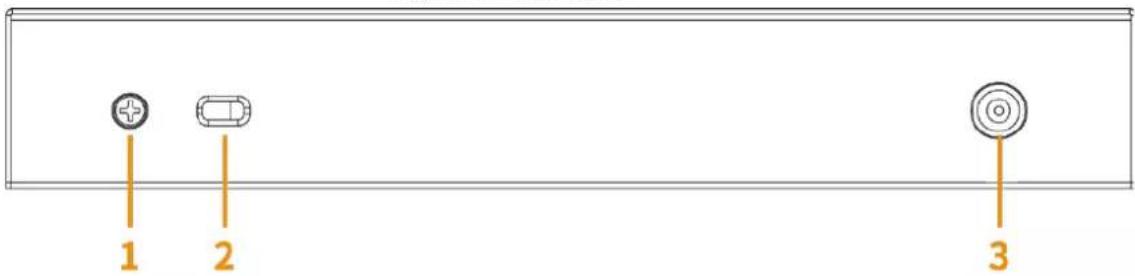
Table 2-2 Description of rear panel
| No. Description | |
| 1 | Ground terminal. Available for certain models. |
| 2 | Lock hole. Used to lock the Switch. Available for certain models. |
| 3 | Power port, supports 48–57 VDC. |
3 Installation
3.1 Preparation
- Select an appropriate installation method.
• Install the Switch on a solid and flat surface. - Leave around 10 cm of open space around the Switch for heat dissipation and to ensure good ventilation.
3.2 Desktop Mount
The Switch supports desktop mount. You can directly place it on a solid and flat desktop.
3.3 Wall Mount
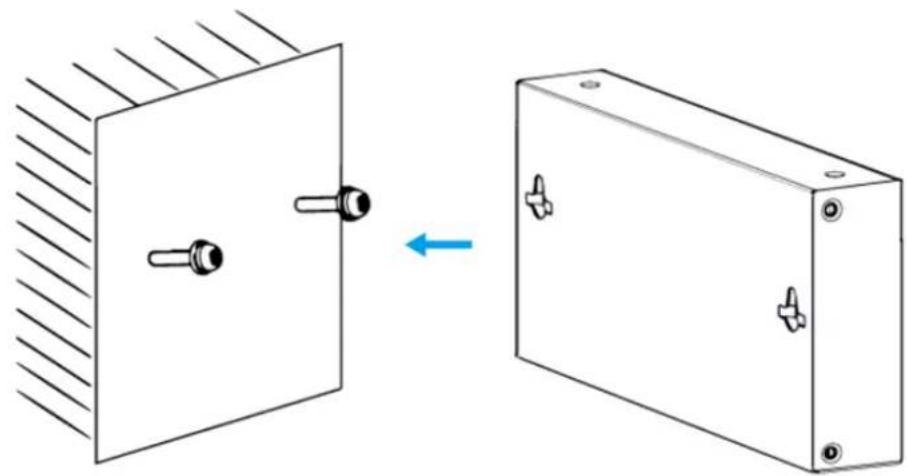
Step 1 Drill two M4 screws into the wall. The distance between the screws needs to match that of the wall-mount holes of the Switch.

- Screws do not come with the package. Purchase them as needed.
- Make sure that the distance between the screws is the same as the distance between the wall-mount holes (the distance of the 4-port unmanaged desktop switch is 77.8 mm (3.06 inch), the distance of the 8-port unmanaged desktop switch without optical ports is 128.4 mm (5.06 inch), and the distance of the 8-port unmanaged desktop switch with optical ports is 120 mm (4.72 inch)).
- Leave a space of at least 4 mm between the wall and the head of the screws.
Step 2 Align the wall-mount holes on the back cover of the Switch with the screws, and hang the Switch on the screws.
Figure 3-1 Wall mount
natural_image
Diagram showing a wall-mounted component being adjusted to a rectangular box, with no text or symbols present.4 Wiring
4.1 Connecting GND

GND cables do not come with the package of select models. Purchase them as needed.
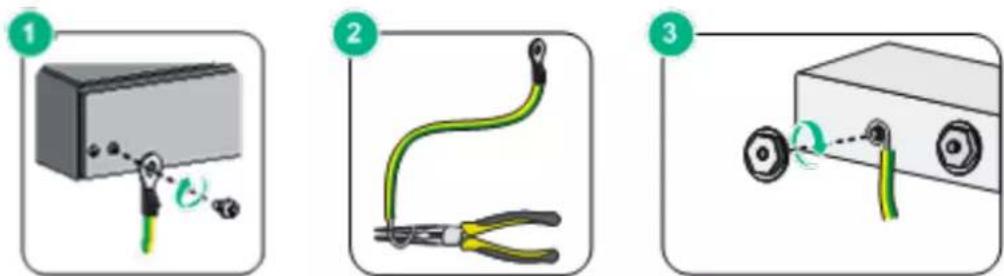
Grounding the Switch can protect it against lightning and interference. The steps for connecting the GND are as follows:
Step 1 Remove the ground screw from the Switch and pass the ground screw through the round hole of the OT terminal of the ground cable. Turn the ground screw clockwise with a cross screwdriver to fasten the OT terminal of the ground cable.
Step 2 Wind the other end of the ground cable into a circle with the needle-nose pliers.
Step 3 Connect the other end of the ground cable to the ground bar, then turn the hex nut clockwise with a wrench to fasten the other end of the ground cable to the ground terminal.
Figure 4-1 Connect GND
4.2 Connecting Power Cord
Before connecting the power cord, make sure that the Switch is securely grounded.
Step 1 Connect one end of the power cord to the power jack of the Switch.
Step 2 Connect the other end of the power cord to the external power socket.
4.3 Connecting SFP Ethernet Port
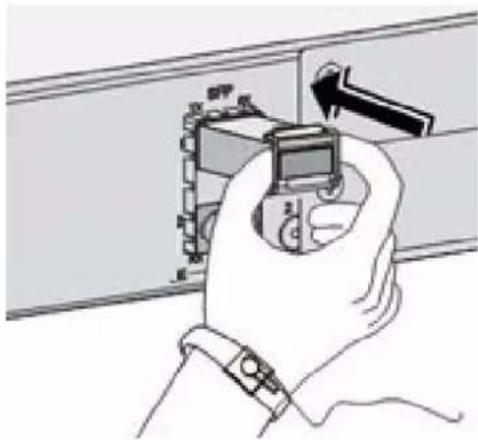
Step 1 We recommend wearing antistatic gloves, and then the anti-static wrist strap before installing SFP module. Make sure that the anti-static wrist strap and the antistatic gloves are in good contact.
Step 2 Lift the handle of the SFP module upward vertically, and stick it to the top hook. Hold the SFP module by both sides, and push it gently into the SFP slot till the SFP module is firmly connected to the slot (You can feel that both the top and bottom spring strip of the SFP module are firmly stuck with the SFP slot).

WARNING
The signal is transmitted through laser by optical fiber cable. The laser conforms to the requirements of Class 1 laser products. When the Switch is powered on, do not look directly at the optical port to avoid injury on eyes.

- Do not touch the gold finger part of the SFP module when installing the SFP optical module.
- We do not recommend extracting the dustproof plug of the SFP module before connecting to the optical fiber cable.
- We do not recommend directly inserting the SFP module into the slot. Unplug the optical fiber before installation.
Figure 4-2 SFP module structure
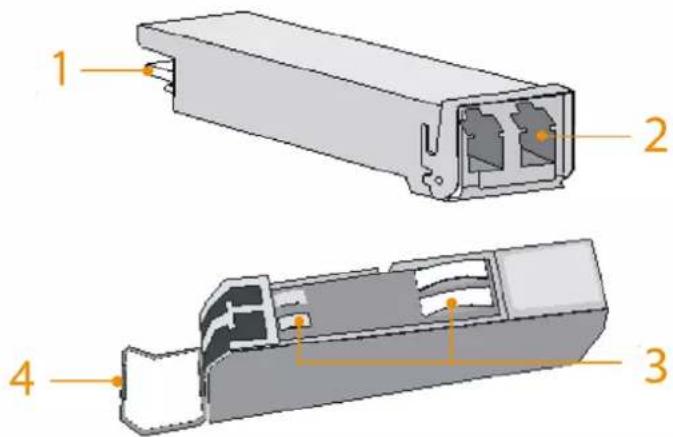
Table 4-1 Structure description
| No. Description | |
| 1 Gold finger | |
| 2 Optical fiber port | |
| 3 Spring strip | |
| 4 Handle |
Figure 4-3 Install SFP module
natural_image
Illustration of a hand inserting a device into a wall-mounted panel (no text or symbols visible)4.4 Connecting Ethernet Port
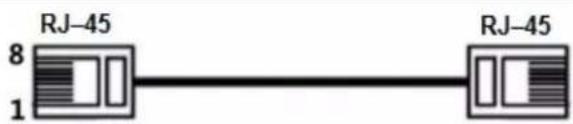
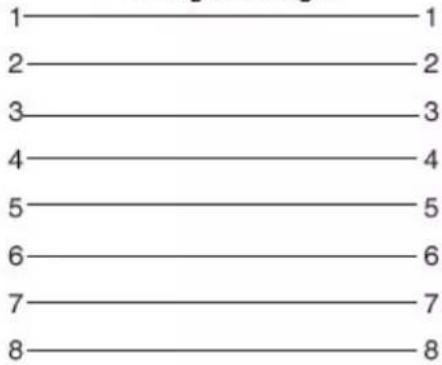
The Ethernet port is a standard RJ-45 port. With its self-adaptation function, it can be automatically configured to full duplex/half-duplex operation mode. It supports MDI/MDI-X self-recognition of the cable, allowing you to use a cross-over cable or straight-through cable to connect the terminal device to the network device.
Figure 4-4 Ethernet port pin number
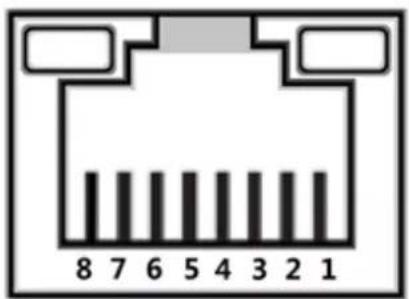
Figure 4-5 Pin description
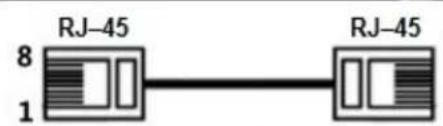
Straight-through

flowchart
graph TD
    A["1"] --> B["2"]
    A --> C["3"]
    A --> D["4"]
    A --> E["5"]
    A --> F["6"]
    A --> G["7"]
    A --> H["8"]
    I["1"] --> J["2"]
    I --> K["3"]
    I --> L["4"]
    I --> M["5"]
    I --> N["6"]
    I --> O["7"]
    I --> P["8"]
    Q["1"] --> R["2"]
    Q --> S["3"]
    Q --> T["4"]
    Q --> U["5"]
    Q --> V["6"]
    Q --> W["7"]
    Q --> X["8"]

The cable connection of RJ-45 connector conforms to the 568B standard (1-orange white, 2-orange, 3-green white, 4-blue, 5-blue white, 6-green, 7-brown white, 8-brown).
4.5 Connecting PoE Port
You can directly connect the Switch PoE Ethernet port to the device PoE Ethernet port through network cable to achieve synchronized network connection and power supply. With Extend Mode disabled, the maximum distance between the switch and the device is about 100 m.

When connecting to a non-PoE device, the device needs to be used with an isolated power supply.
Appendix 1 Cybersecurity Recommendations
Mandatory actions to be taken for basic device network security:
1. Use Strong Passwords
Please refer to the following suggestions to set passwords:
● The length should not be less than 8 characters.
- Include at least two types of characters; character types include upper and lower case letters, numbers and symbols.
- Do not contain the account name or the account name in reverse order.
- Do not use continuous characters, such as 123, abc, etc.
- Do not use overlapped characters, such as 111, aaa, etc.
2. Update Firmware and Client Software in Time
- According to the standard procedure in Tech-industry, we recommend to keep your device (such as NVR, DVR, IP camera, etc.) firmware up-to-date to ensure the system is equipped with the latest security patches and fixes. When the device is connected to the public network, it is recommended to enable the "auto-check for updates" function to obtain timely information of firmware updates released by the manufacturer.
- We suggest that you download and use the latest version of client software.
"Nice to have" recommendations to improve your device network security:
1. Physical Protection
We suggest that you perform physical protection to device, especially storage devices. For example, place the device in a special computer room and cabinet, and implement well-done access control permission and key management to prevent unauthorized personnel from carrying out physical contacts such as damaging hardware, unauthorized connection of removable device (such as USB flash disk, serial port), etc.
2. Change Passwords Regularly
We suggest that you change passwords regularly to reduce the risk of being guessed or cracked.
3. Set and Update Passwords Reset Information Timely
The device supports password reset function. Please set up related information for password reset in time, including the end user's mailbox and password protection questions. If the information changes, please modify it in time. When setting password protection questions, it is suggested not to use those that can be easily guessed.
4. Enable Account Lock
The account lock feature is enabled by default, and we recommend you to keep it on to guarantee the account security. If an attacker attempts to log in with the wrong password several times, the corresponding account and the source IP address will be locked.
5. Change Default HTTP and Other Service Ports
We suggest you to change default HTTP and other service ports into any set of numbers between 1024–65535, reducing the risk of outsiders being able to guess which ports you are using.
6. Enable HTTPS
We suggest you to enable HTTPS, so that you visit Web service through a secure communication channel.
7. MAC Address Binding
We recommend you to bind the IP and MAC address of the gateway to the device, thus reducing the risk of ARP spoofing.
8. Assign Accounts and Privileges Reasonably
According to business and management requirements, reasonably add users and assign a minimum set of permissions to them.
9. Disable Unnecessary Services and Choose Secure Modes
If not needed, it is recommended to turn off some services such as SNMP, SMTP, UPnP, etc., to reduce risks.
If necessary, it is highly recommended that you use safe modes, including but not limited to the following services:
- SNMP: Choose SNMP v3, and set up strong encryption passwords and authentication passwords.
- SMTP: Choose TLS to access mailbox server.
- FTP: Choose SFTP, and set up strong passwords.
● AP hotspot: Choose WPA2-PSK encryption mode, and set up strong passwords.
10. Audio and Video Encrypted Transmission
If your audio and video data contents are very important or sensitive, we recommend that you use encrypted transmission function, to reduce the risk of audio and video data being stolen during transmission.
Reminder: encrypted transmission will cause some loss in transmission efficiency.
11. Secure Auditing
- Check online users: we suggest that you check online users regularly to see if the device is logged in without authorization.
- Check device log: By viewing the logs, you can know the IP addresses that were used to log in to your devices and their key operations.
12. Network Log
Due to the limited storage capacity of the device, the stored log is limited. If you need to save the log for a long time, it is recommended that you enable the network log function to ensure that the critical logs are synchronized to the network log server for tracing.
13. Construct a Safe Network Environment
In order to better ensure the safety of device and reduce potential cyber risks, we recommend:
- Disable the port mapping function of the router to avoid direct access to the intranet devices from external network.
- The network should be partitioned and isolated according to the actual network needs. If there are no communication requirements between two sub networks, it is suggested to use VLAN, network GAP and other technologies to partition the network, so as to achieve the network isolation effect.
- Establish the 802.1x access authentication system to reduce the risk of unauthorized access to private networks.
- Enable IP/MAC address filtering function to limit the range of hosts allowed to access the device.
ENABLING A SAFER SOCIETY AND SMARTER LIVING
- Dahua Ethernet Switch (4&8-port Unmanaged Desktop Switch)
- Foreword
- General
- Safety Instructions
- Revision History
- Privacy Protection Notice
- About the Manual
- Important Safeguards and Warnings
- Transportation Requirements
- Storage Requirements
- Installation Requirements
- WARNING
- Operation Requirements
- Maintenance Requirements
- Table of Contents
- Important Safeguards and Warnings....III
- Overview....1
- Port and Indicator 2
- Installation....5
- Wiring 6
- Appendix 1 Cybersecurity Recommendations ...... 9
- Overview
- Introduction
- Features
- Port and Indicator
- Front Panel
- Rear Panel
- Installation
- Preparation
- Desktop Mount
- Wall Mount
- Wiring
- Connecting GND
- Connecting Power Cord
- Connecting SFP Ethernet Port
- Connecting Ethernet Port
- Connecting PoE Port
- Appendix 1 Cybersecurity Recommendations
- Mandatory actions to be taken for basic device network security:
- Use Strong Passwords
- Update Firmware and Client Software in Time
- "Nice to have" recommendations to improve your device network security:
- Physical Protection
- Change Passwords Regularly
- Set and Update Passwords Reset Information Timely
- Enable Account Lock
- Change Default HTTP and Other Service Ports
- Enable HTTPS
- MAC Address Binding
- Assign Accounts and Privileges Reasonably
- Disable Unnecessary Services and Choose Secure Modes
- Audio and Video Encrypted Transmission
- Secure Auditing
- Network Log
- Construct a Safe Network Environment
- ENABLING A SAFER SOCIETY AND SMARTER LIVING
Brand : Dahua Technology
Model : PFS3210-8ET2GF-96
Category : Network switch