LM-6810U - Customer display Posiflex - Free user manual and instructions
Find the device manual for free LM-6810U Posiflex in PDF.


| Product Type | Customer Display / POS Monitor |
| Brand | Posiflex |
| Model | LM-6810U |
| Screen Size | 10.0 inches |
| Display Type | TFT LCD |
| Resolution | 1024 x 768 pixels |
| Active Area | 196.61 (H) x 147.46 (V) mm |
| Pixel Pitch | 0.192 (H) x 0.192 (V) mm |
| Pixel Arrangement | RGB Vertical Stripe |
| Viewing Angle (U/D/L/R) | 70/70/70/60 degrees |
| Contrast Ratio | 500:1 |
| Response Time | 20 ms (Rising) / 20 ms (Falling) |
| Brightness | 270 cd/m² |
| Display Interface | USB |
| Power Supply | From standard USB port or 12VDC-IN power jack |
| Dimensions (H x W x D) | 195 mm x 245 mm x 79 mm |
| Mounting | Rear-mount for PS-3000 series terminal |
| Tilt Adjustment | 0° to 45° |
| Package Contents | Monitor with bracket, 4 self-tapping screws, USB cable |
| Operating Temperature | 0°C to +50°C |
| Storage Temperature | -10°C to +70°C |
| Operating Humidity | 20% to 85% (non-condensing) |
| Storage Humidity | 5% to 90% (non-condensing) |
| Certifications | FCC Part 15 Class A, CE Class A |
| Safety Notes | Do not open device; warranty voids. Not suitable where children are present. Do not press display area. |
| Cleaning | Clean with a soft, dry cloth. Do not use liquid cleaners. |
| Repair | Contact authorized service center. No user-serviceable parts. |
Frequently Asked Questions - LM-6810U Posiflex
User questions about LM-6810U Posiflex
0 question about this device. Answer the ones you know or ask your own.
Ask a new question about this device
Download the instructions for your Customer display in PDF format for free! Find your manual LM-6810U - Posiflex and take your electronic device back in hand. On this page are published all the documents necessary for the use of your device. LM-6810U by Posiflex.
USER MANUAL LM-6810U Posiflex
LM-6807U/6810U
Rear-Mount USB POS Monitor
User Manual
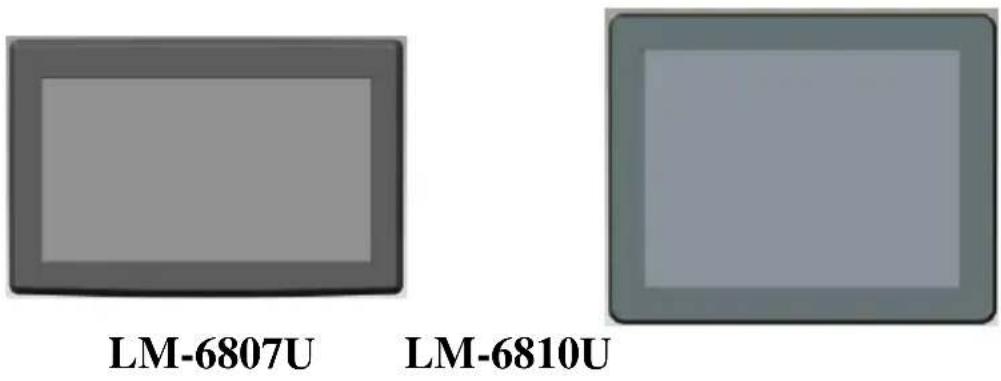
Package Contents
√ Rear-Mount USB POS Monitor with Bracket (x 1)
√ 3-10L Self-Tapping Screw (x 4)
√ USB Cable (x 1)
Product Features
- USB interface monitor for system without secondary display interface
- 7" TFT LCD panel for LM-6807U and 10" one for LM-6810U
- LCD resolution up to 800 x 480 for LM-6807U and 1024 x 768 for LM-6810U
- Rear-mount for PS-3000 series terminal
SOME IMPORTANT NOTES
FCC NOTES
This system meets industry & government requirements and applicable standards. This equipment generates, uses, and can radiate radio frequency energy and, if not installed and used in accordance with the instructions manual, may cause interference to radio communications. It has been tested and found to comply with limits for a Class A digital device pursuant to subpart B of Part 15 of FCC Rules, which are designed to provide reasonable protection against interference when operated in a commercial environment. Operation of this equipment in a residential area is likely to cause interference in which case the user at his own expense will be required to take whatever measures to correct the interference.
This device complies with part 15 of the FCC Rules. Operation is subject to the following two conditions: (1) This device may not cause harmful interference, and (2) this device must accept any interference received, including interference that may cause undesired operation.
CE CLASS A WARNING
This equipment is compliant with Class A of CISPR 32. In a residential environment this equipment may cause radio interference.
AVERTISSEMENT CE CLASSE A
Warranty will terminate automatically when the machine is opened by any person other than the authorized technicians. The user should consult his/her dealer for the problem happening. Warranty voids if the user does not follow the instructions in application of this merchandise. The manufacturer is by no means responsible for any damage or hazard caused by improper application.
LIMITES DE GARANTIE
This equipment is not suitable for use in locations where children are likely to be present.
CONSIGNES DE SÉCURITÉ
Views of the LM-6807U/6810U
Front View
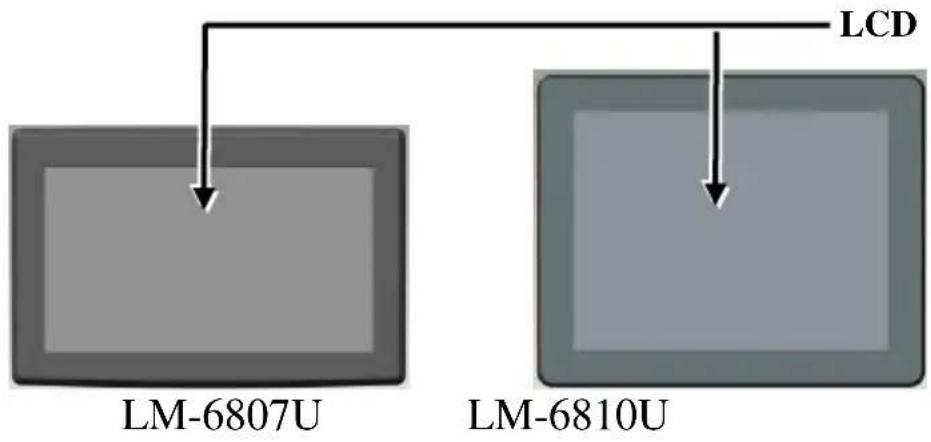
flowchart
graph TD
    A["LM-6807U"] --> B["LCD"]
    C["LM-6810U"] --> D["LCD"]
Rear View
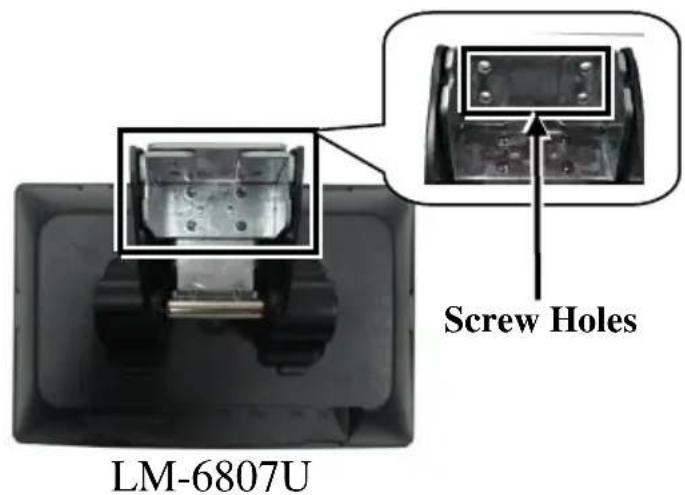
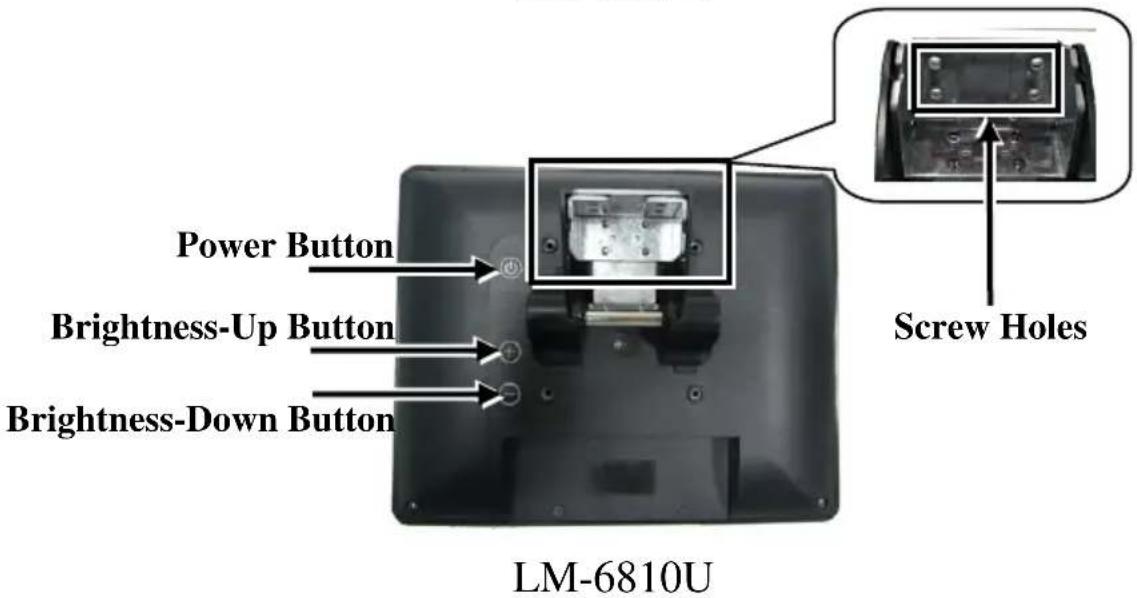
Bottom View
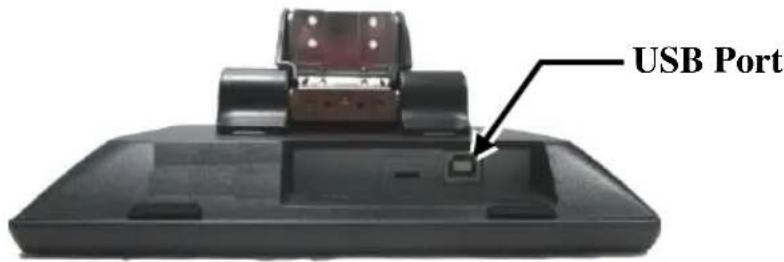
LM-6807U
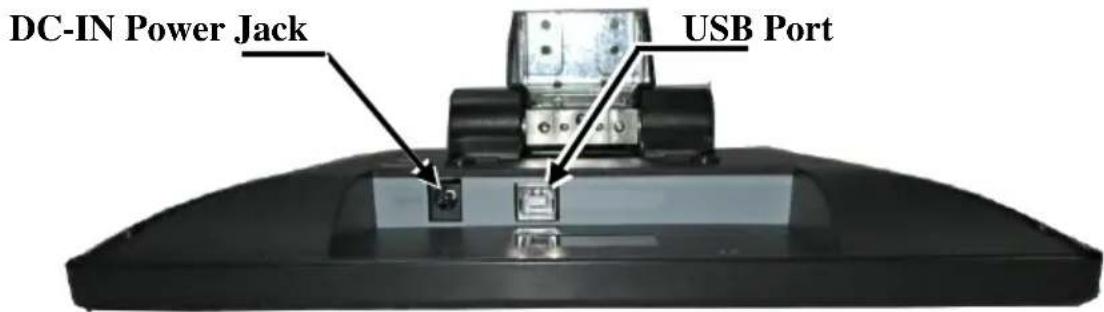
LM-6810U
Mounting the USB POS Monitor onto a POS Terminal
During Installation of the LM-6807U or LM-6810U USB POS monitor, do NOT power ON your POS terminal. To mount the monitor onto your PS-3000 series POS terminal, please apply 4 screws that are packed together with the USB POS monitor. Before mounting the monitor, carefully read the following step-by-step instruction on the display installation.
- Remove the rear I/O cover of your PS-3000 series POS terminal.
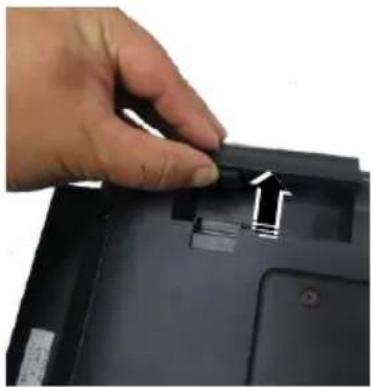
natural_image
Close-up of a hand pressing down on a black laptop cover with an arrow indicating the button (no text or symbols visible)- Take the monitor out of the LM-6807U/6810U package box. Here, LM-6807U is taken for example of installation. Align the A type connector of a USB cable with the USB port of your terminal.
- Align the four screw holes formed on the bracket of the monitor with the four screws holes formed on the rear side of the POS terminal.
- Turn the four screws to the right to tighten them.
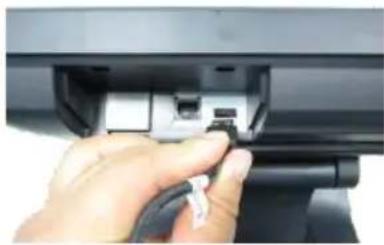
- Connect the B type connector of USB cable to the USB port of the POS monitor.
- Tilt the POS monitor to a degree for next steps of installation
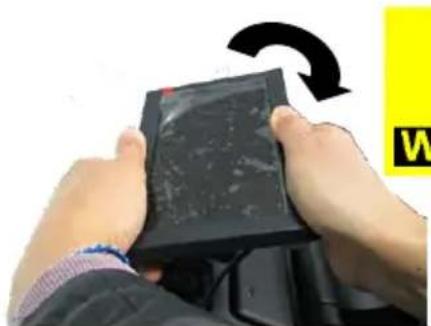
natural_image
Close-up of hands holding a digital tablet device with a black arrow indicating rotation (no text or symbols visible)
Do NOT press the displaying area of panel!
natural_image
Close-up of a hand inserting a USB into a device component (no visible text or symbols)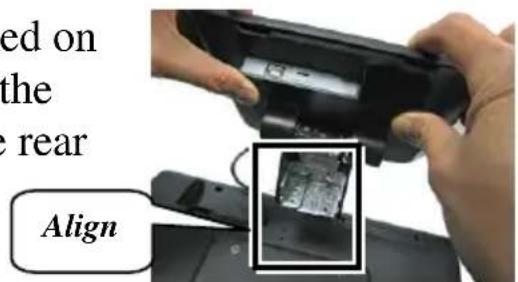
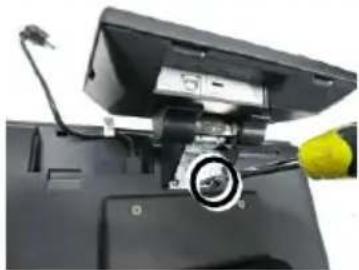
natural_image
Close-up of a computer monitor with a yellow cable and a circular lens, no visible text or symbols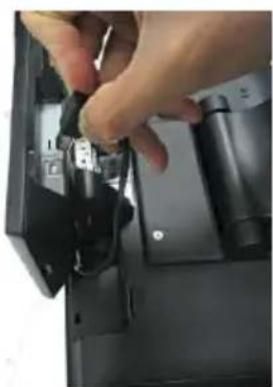
natural_image
Close-up of a hand inserting a small electronic component into a black computer case (no visible text or symbols)- By using a diagonal cutting nipper, cut the cable-exit shield off the rear I/O cover you removed from the POS terminal at step 1.
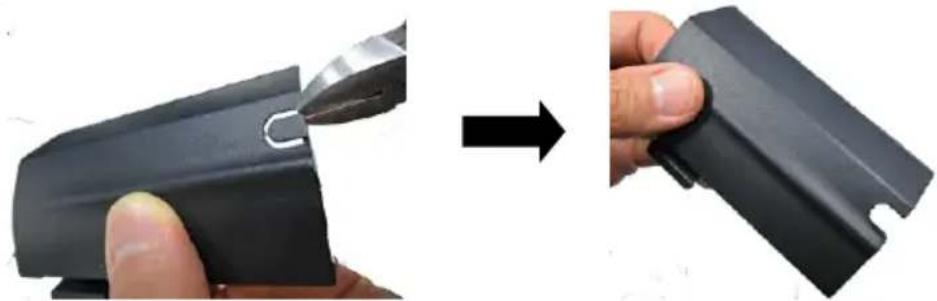
natural_image
Close-up of a hand holding a black plastic clip, before and after being cut (no text or symbols visible)- Arrange the USB cable.
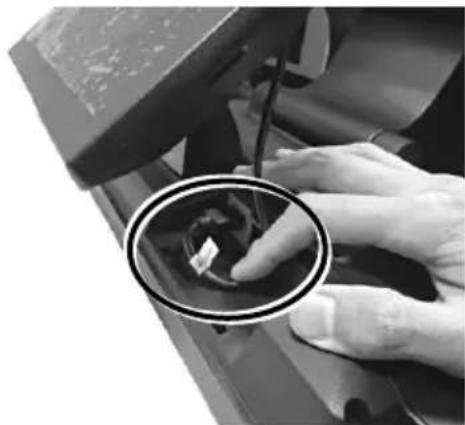
natural_image
Close-up of hands holding a small electronic component with a circular inset showing a small white object (no visible text or symbols)- To arrange the USB cable of the display, make the cable go through the cable exit of the rear I/O cover.
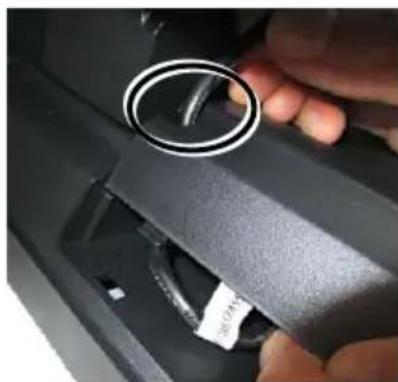
natural_image
Close-up of a hand holding a black car intake manifold with a circular dial indicator (no text or symbols visible)-
Align the two wedge tabs of the rear I/O cover with the two wedged portion of the rear plate of the terminal, and then make the two wedge tabs wedge respectively into the two wedged portion of the rear plate of the terminal.
-
Lever down the hook of the cover to cover the rear I/O interface.
-
Determine that the USB POS monitor is well mounted onto the POS terminal.
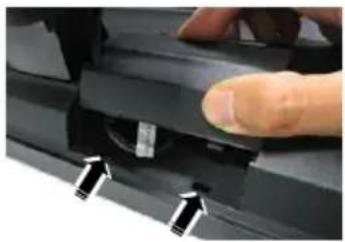
natural_image
Close-up of a finger pressing down on a black mechanical component with arrows pointing to the base (no text or symbols visible)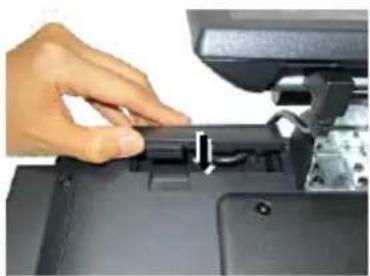
natural_image
Close-up of a hand pressing down on a laptop keyboard (no visible text or symbols)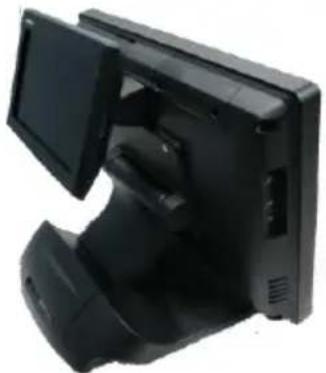
natural_image
Black electronic device with multiple monitors and a side-mounted tower (no visible text or symbols)- For an optimal viewing angle, you can adjust the USB POS monitor up and down around the directions A and B at the angle of tilt from 0^ to 45^ .
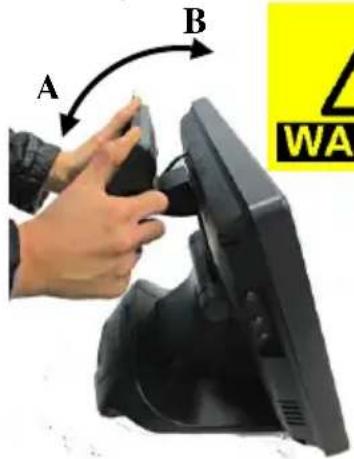

Do NOT press the displaying area of panel!
Installing the USB Driver for LM-6807U/6810U
Refer to the following step-by-step instruction for the driver installation.
- Connect the USB POS monitor to your POS terminal by using a USB cable.
- Locate the "Drivers" folder in the Local Disk (C:) of your POS terminal, and double click it.
- You will find the "SA_PD_LM" folder and double click it.
- Then double click the "LM_USBMonitor" folder.
- Double click the execution file named DisplayLink_7.6M0 to start step-by-step installation.
Drivers
SA PD LM
LM_USBMonitor
DisplayLink_7.6M0
Installs DisplayLink Software
DisplayLink Corp


Specifications
| LM-6807U | LM-6810U | |
| LCD Panel | 7" TFT LCD | 10" TFT LCD |
| Resolution | 800 (H) x 480 (V) | 1024 (H) x 768 (V) |
| Active Area | 154.08 (H) x 85.92 (V) | 196.61 (H) x 147.46 (V) |
| Pixel Pitch | 0.1926 (H) x 0.1790 (V) | 0.192 (H) x 0.192 (V) |
| Pixel Arrangement | RGB Vertical Stripe | LVDS |
| Viewing Angle | 60/70/70/70 degree (U/D/L/R) | 70/70/70/60 degree (U/D/L/R) |
| Contrast Ratio | 500 : 1 | |
| Response Time | 25 ms (Raising) / 25 ms (Falling) | 20 ms (Raising) / 20 ms (Falling) |
| Brightness | 250 cd/m2 | 270 cd/m2 |
| Display Interface | USB | |
| Power Supply | Powered by standard USB port | Powered from standard USB port or 12VDC-IN power jack |
| Dimensions | 124 mm (H) x 188 mm (W) x 80 mm (D) | 195 mm (H) x 245 mm (W) x 79 mm (D) |
| Environmental | Operation temperature: 0°C ~ +50°COperating humidity: 20% to 85%, non-condensingStorage temperature: -10°C ~ +70°CStorage humidity: 5% to 90%, non-condensing | |
※ The product information and specifications are subject to change without prior notice.
Brand : Posiflex
Model : LM-6810U
Category : Customer display