
IE600 - Headphones DELL - Free user manual and instructions
Find the device manual for free IE600 DELL in PDF.


| Product Type | Wired Headset |
| Model | IE600 (Dell) |
| Weight | 11 g (without packaging) |
| Cable Length | 1.3 m (port to headset) |
| Connector | 3.5 mm 4-pole |
| Compatible Operating Systems | Windows 7, 8, 8.1, 10; Android |
| Operating Temperature | 0°C to +45°C |
| Storage Temperature | -25°C to 70°C |
| Operating Humidity | <85% relative humidity |
| Warranty | 1-year limited hardware warranty |
| Package Contents | Headset, 2 Ear cushions, Travel pouch, Documents |
| Control Button Function | Answer/End call (requires Dell Audio on PC) |
| Microphone | Integrated microphone |
| Ear Cushions | Replaceable ear cushions included |
| Cleaning | General cleaning with damp cloth (do not wash) |
| Regulatory Compliance | FCC Part 15 Class B; CE |
Frequently Asked Questions - IE600 DELL
User questions about IE600 DELL
0 question about this device. Answer the ones you know or ask your own.
Ask a new question about this device
Download the instructions for your Headphones in PDF format for free! Find your manual IE600 - DELL and take your electronic device back in hand. On this page are published all the documents necessary for the use of your device. IE600 by DELL.
USER MANUAL IE600 DELL
NOTE: A NOTE indicates important information that helps you make better use of your computer.
△ CAUTION: A CAUTION indicates potential damage to hardware or loss of data if instructions are not followed.
⚠ WARNING: A WARNING indicates a potential for property damage, personal injury, or death.
Restrictions and Disclaimers
The information contained in this document, including all instructions, cautions, and regulatory approvals and certifications, is provided by the supplier and has not been independently verified or tested by Dell. Dell cannot be responsible for damage caused as a result of either following or failing to follow these instructions.
All statements or claims regarding the properties, capabilities, speeds or qualifications of the part referenced in this document are made by the supplier and not by Dell. Dell specifically disclaims knowledge of the accuracy, completeness or substantiation for any such statements. All questions or comments relating to such statements or claims should be directed to the supplier.
Export Regulations
Customer acknowledges that these products, which may include technology and software, are subject to the customs and export control laws and regulations of the United States ("U.S.") and may also be subject to the customs and export laws and regulations of the country in which the products are manufactured and/or received. Customer agrees to abide by those laws and regulations. Further, under U.S. law, the products may not be sold, leased or otherwise transferred to restricted end-users or to restricted countries. In addition, the products may not be sold, leased or otherwise transferred to, or utilized by an end-user engaged in activities related to weapons of mass destruction, including without limitation, activities related to the Dell - Critical Handling - Confidential 3 design, development, production or use of nuclear weapons, materials, or facilities, missiles or the support of missile projects, and chemical or biological weapons.
Copyright © 2015 Dell Inc. All rights reserved.
This product is protected by U.S. and international copyright and intellectual property laws. Dell™ and the DELL logo are trademarks of Dell Inc. in the United States and/or other jurisdictions. All other marks and names mentioned herein may be trademarks of their respective companies.
Contents
Package contents .... 5
Identifying parts and controls 6
Headset 6
Connecting your headset to a computer....7
Enabling auto pop-up 8
Dell audio....10
Using the headset. 10
Configuration for Microsoft Lync or other softphone ..... 10
Configuration to listen to music ..... 10
Answering/ending a call .11
Answer/end an incoming call on the computer . . . . . . . . . 11
Answer/end an incoming call on the smart phone ..... 11
Troubleshooting 12
Common symptoms 12
Specifications 15
General 15
Physical characteristics 15
Environmental. 15
Statutory information....16
Warranty 16
Limited warranty and return policies 16
For U.S. customers: 16
For European, Middle Eastern and African customers: ..... 16
For non-U.S. customers: 16
Regulatory....17
FCC notices (U.S. only) and other regulatory information 17
Package contents
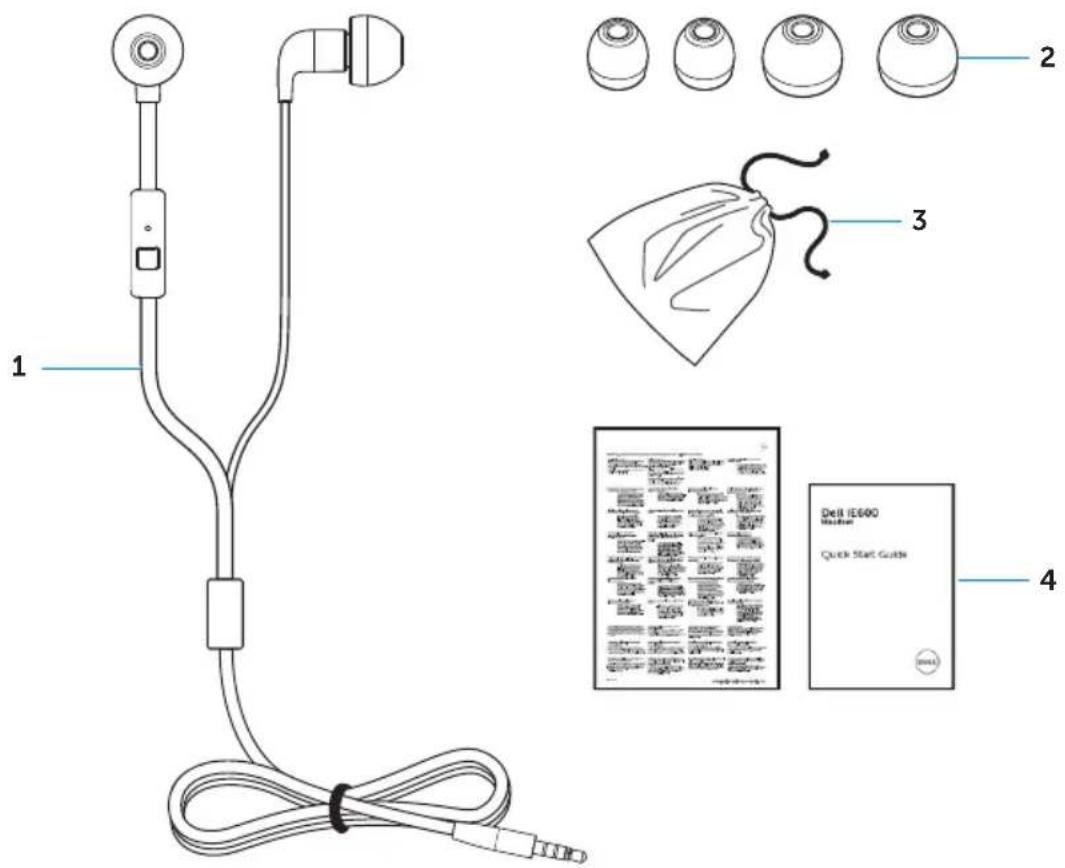
1 Headset 2 Ear cushions
3 Travel pouch 4 Documents
Identifying parts and controls
Headset
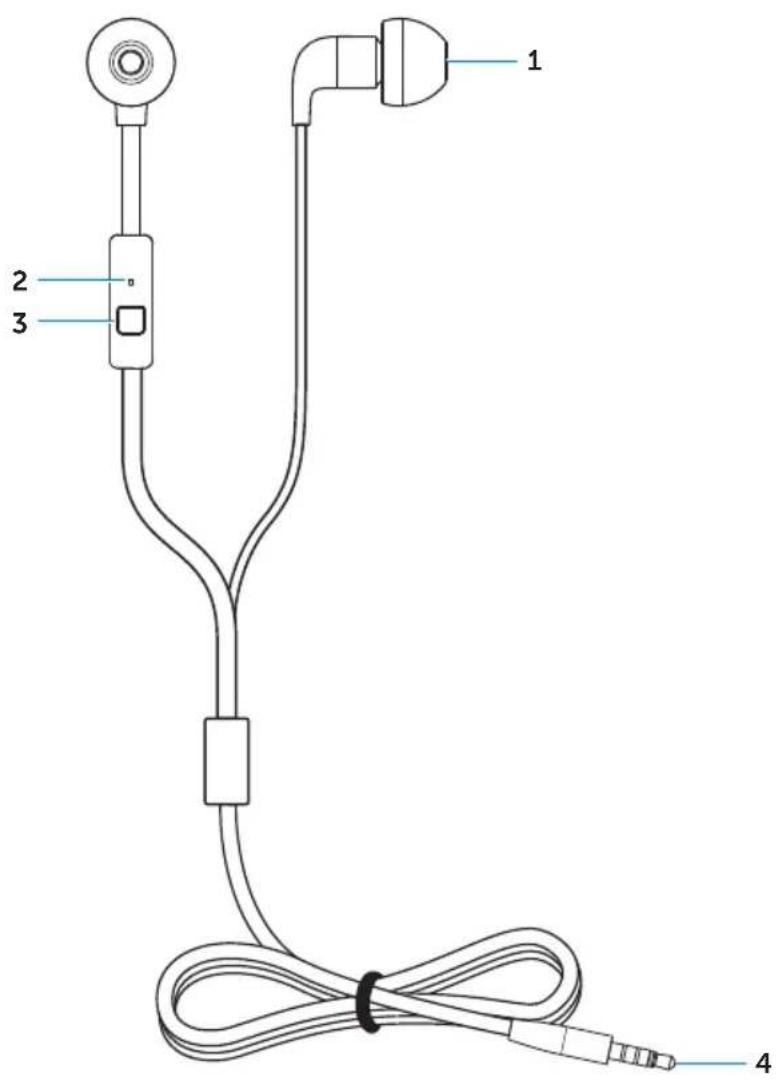
1 Ear cushions 3 Control button

Answer/End call
2 Microphone 4 3.5 mm connector
Connecting your headset to a computer

NOTE: The steps below are only applicable when using a Dell computer.
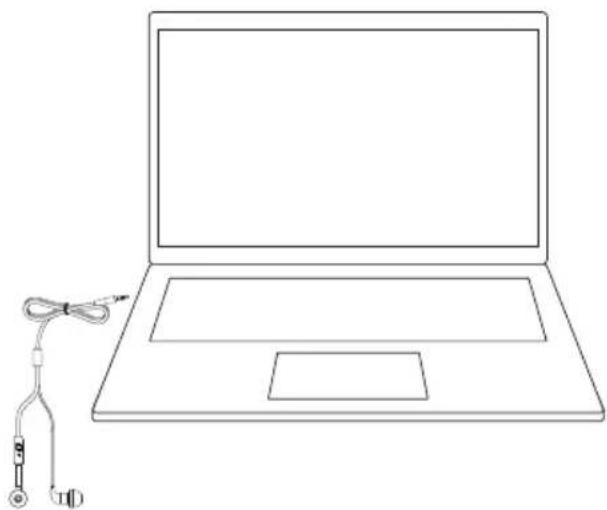
- Plug the headset to your computer.
natural_image
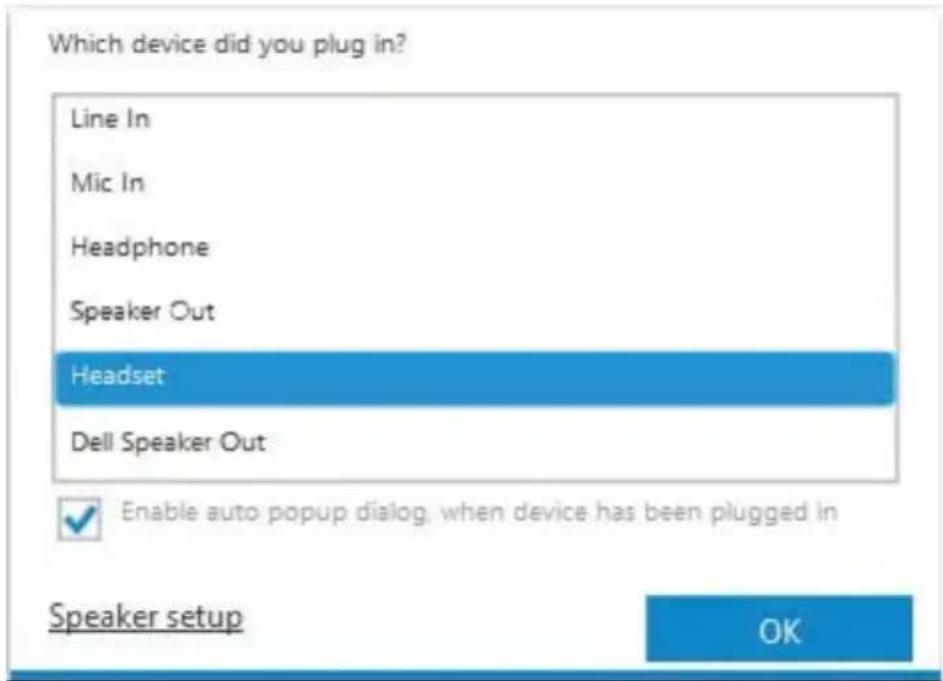
Line drawing of a laptop with a cable and connector attached to its side (no text or symbols)- In the device-selection window, select Headset and click OK.

NOTE: If the device-selection window is not displayed, see "Enabling auto pop-up".
Enabling auto pop-up
-
Disconnect the headset.
-
In Windows search, type Dell Audio. From the list that appears click Dell Audio 📋.
NOTE: Dell audio is required for the headset control button to work with your computer. For more information, see "Dell audio".
- Click Advanced.
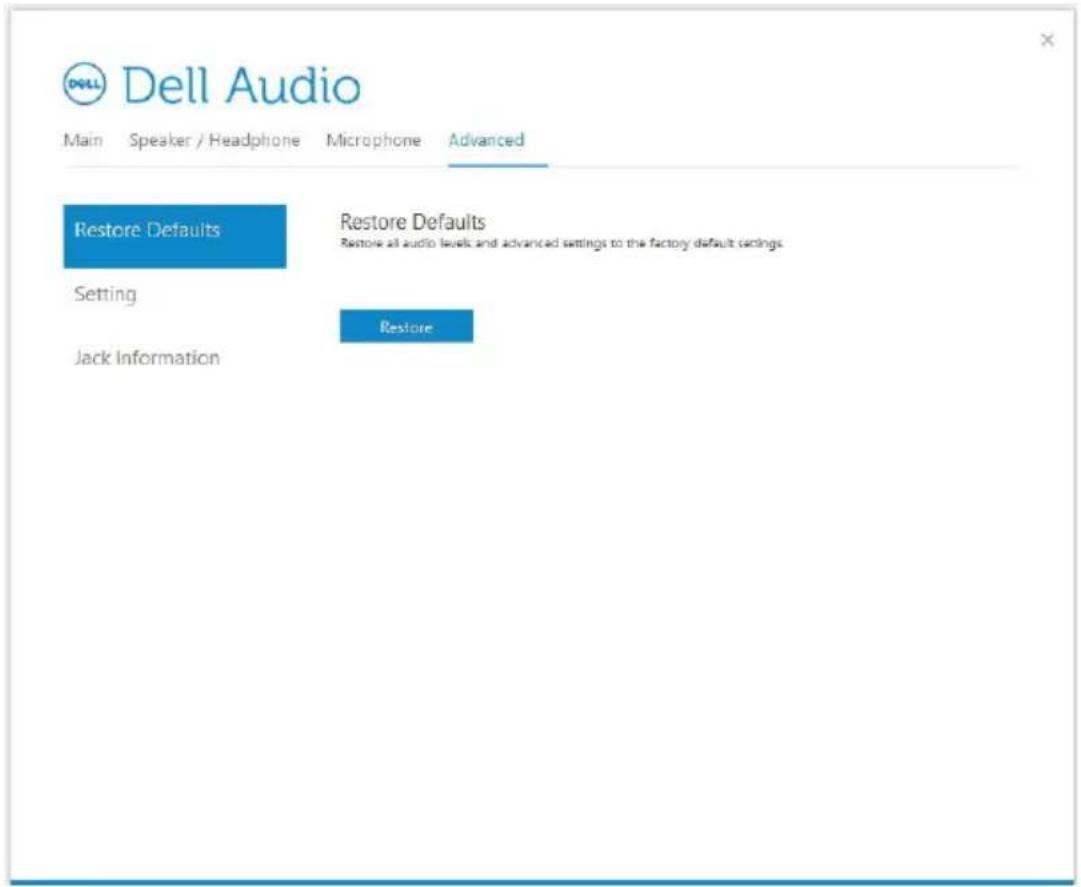
- Click Jack Information. Enable the auto pop-up dialog.
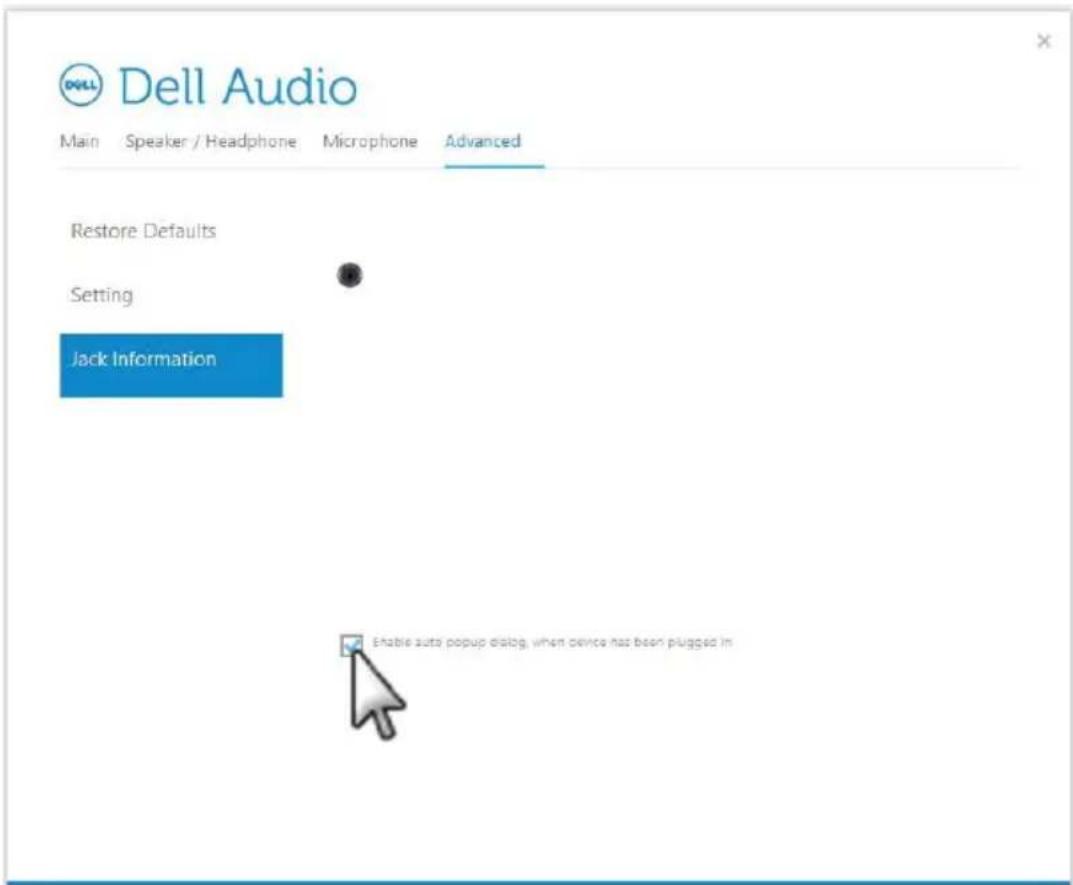
- Plug in the headset.
- In the device-selection window, select Headset and click OK.
Dell audio must be installed on your computer for the headset control button to work.
NOTE: Dell audio may not be supported on all Dell computers.
Using the headset
Configuration for Microsoft Lync or other softphone
Follow the steps in "Connecting your headset to a computer". If Dell audio is installed on your computer, use the button on your headset to answer or end calls.
If Dell audio is not installed or supported on your computer, use the controls in the softphone to answer or end calls.
Configuration to listen to music
Connect the headset to the 3.5 mm audio port on your phone or tablet.
To use your headset to listen to music from your computer, the headset must be selected as the default playback device. Follow the steps in "Connecting your headset to a computer". If your system has the Dell audio application, the headset is ready to use.
If your computer does not have Dell Audio, use the controls in the music application to perform media-control functions.
Answering/ending a call
Answer/end an incoming call on the computer
- Accept/end the call on the softphone.
- Press the control button once on the headset.
NOTE: Dell audio is required for the headset control button to work with your computer. For more information, see "Dell audio".
Answer/end an incoming call on the smart phone
Ringtone could be heard on the headset on an incoming call from the smart phone. Answer/end the call by doing one of the following:
- Accept/end the call on the smartphone.
- Single press the control button on the headset.
Common symptoms
The following table contains information about common symptoms you might encounter and the possible solutions.
Common symptoms Possible solutions
| Control button on the headset is not working when connected to your computer | ·Ensure that Dell Audio is installed in your computer. Dell Audio is required for the headset control button to work with your computer. For more information, see “Dell audio”. ·If your computer does not have the Dell Audio application, use the controls on the your computer to answer/end call and to play next track/play/pause music. |
| Computer cannot detect the headset | ·Ensure that the computer is powered up. ·Ensure that the headset is plugged into the computer through the headset port. ·Try using the headset on another computer. |
| No audio in the headset when using softphone on the computer | ·Ensure that the headset is connected properly. ·Ensure that the speaker volume is appropriately set on the computer. ·Ensure that the speaker is not muted on the softphone and volume is set to the appropriate level. |
| No audio in the headset when using a media player on the computer | ·Ensure that the caller has not muted his/her microphone. ·Ensure that the audio is routed to the headset from the Softphone and verify the audio settings on the Softphone. ·Ensure that the headset is correctly set up in Windows audio settings.·Ensure that the headset is connected to the computer.·Ensure that the speaker volume on the computer is set to an appropriate level. |
| ·Ensure that the speaker on the media player is not muted and volume is set to an appropriate level.·Ensure that the headset is correctly set up in Windows audio settings. | |
| Audio is not clear in the headset | ·Ensure that the speaker volume is set to an appropriate level on the Windows, Softphone and media player audio settings.·Ensure that the person on the other end has set the transmit volume to the appropriate level.·Ensure that the person on the other end, if using a headset, has positioned his/her microphone properly (close enough to the mouth - approximately 2 cm/less than 1 inch). |
| No microphone audio from headset when using softphone on the computer | ·Ensure that the headset is connected properly.·Ensure that the microphone is not muted, and the transmit volume is set to the appropriate level, both on the softphone and headset.·Ensure that the headset is correctly set up in Windows audio settings.·Ensure that the caller has not muted his/her speaker and that it is set to an appropriate level. |
| No microphone audio from headset when using voice/recording application on the computer | ·Ensure that the headset is connected to the computer.·Ensure that the Microphone on the headset is not muted.·Ensure that the headset is correctly set up in Windows audio settings. |
| Microphone audio is not clear from the headset | ·Ensure that the microphone volume is set to the appropriate level in the Softphone audio settings.·Ensure that the microphone volume is set to the appropriate level in the Windows audio settings.·Ensure that the microphone is close enough to the mouth - approximately 2 cm/less than 1 inch.·Ensure that the person on the other end has set the speaker (receive) volume on computer / desk phone and headset to the appropriate level. |
| Cannot pause Windows Media Player while on an incoming/outgoing call | ·Ensure that "Pause Windows Media Player when a call is initiated" is selected. |
Specifications
General
Model number IE600
Supported operating systems Windows 7, Windows 8, Windows 8.1, and Windows 10 Android
Physical characteristics
Weight 11 g without packaging
Dimension Cable 3.0 mm x 1.1 mm
Plug 3.5 mm 4-pole
Cord length Port to headset 1.3 m
Washable item None (general cleaning with damp cloth)
Environmental
Operating temperature 0^ C to +45^ C
Operating humidity <85% relative humidity
Storage temperature 25^ C to 70^ C
Warranty
Limited warranty and return policies
Dell-branded products carry a 1-year limited hardware warranty. If purchased together with a Dell system, it will follow the system warranty.
For U.S. customers:
This purchase and your use of this product are subject to Dell's end user agreement, which you can find at http://www.dell.com/terms. This document contains a binding arbitration clause.
For European, Middle Eastern and African customers:
Dell-branded products that are sold and used are subject to applicable national consumer legal rights, the terms of any retailer sale agreement that you have entered into (which will apply between you and the retailer) and Dell's end user contract terms.
Dell may also provide an additional hardware warranty – full details of the Dell end user contract and warranty terms can be found by going to http://www.dell.com, selecting your country from the list at the bottom of the "home" page and then clicking the "terms and conditions" link for the end user terms or the "support" link for the warranty terms.
For non-U.S. customers:
Dell-branded products that are sold and used are subject to applicable national consumer legal rights, the terms of any retailer sale agreement that you have entered into (which will apply between you and the retailer) and Dell's warranty terms. Dell may also provide an additional hardware warranty – full details of Dell's warranty terms can be found by going to http://www.dell.com, selecting your country from the list at the bottom of the "home" page and then clicking the "terms and conditions" link or the "support" link for the warranty terms.
Dell Headset Model: IE600
FCC notices (U.S. only) and other regulatory information
For FCC notices and other regulatory information, see the regulatory compliance website located at www.dell.com/regulatory_compliance.
This device complies with Part 15 of the FCC Rules. Operation is subject to the following two conditions:
- This device may not cause harmful interference.
- This device must accept any interference received including interference that may cause undesired operation.
Caution: Changes or modifications on this unit that are not expressly approved by the party responsible for compliance which could void the user's authority to operate the equipment.
This equipment has been tested and found to comply with the limits for a class B digital device, pursuant to part 15 of the FCC Rules. These limits are designed to provide reasonable protection against harmful interference in a residential installation. This equipment generates, uses and can radiate radio frequency energy and if not installed and used in accordance with the instructions, may cause harmful interference to radio communications. However, there is no guarantee that interference will not occur in a particular installation. If this equipment does cause harmful interference to radio or television reception, which can be determined by turning the equipment off and on, the user is encouraged to try to correct the interference by one or more of the following measures:
- Reorient or relocate the receiving antenna.
- Increase the separation between the equipment and receiver.
- Connect the equipment into an outlet on a circuit different from that to which the receiver is connected.
- Consult the dealer or an experienced radio/TV technician for help.
Shielded cables must be used with this unit to ensure compliance with the Class B FCC limits.

- Restrictions and Disclaimers
- Export Regulations
- Copyright © 2015 Dell Inc. All rights reserved.
- Contents
- Regulatory....17
- Package contents
- Identifying parts and controls
- Headset
- Connecting your headset to a computer
- Enabling auto pop-up
- Using the headset
- Configuration for Microsoft Lync or other softphone
- Configuration to listen to music
- Answering/ending a call
- Answer/end an incoming call on the computer
- Answer/end an incoming call on the smart phone
- Common symptoms
- Specifications
- General
- Physical characteristics
- Environmental
- Warranty
- Limited warranty and return policies
- For U.S. customers:
- For European, Middle Eastern and African customers:
- For non-U.S. customers:
- FCC notices (U.S. only) and other regulatory information
Brand : DELL
Model : IE600
Category : Headphones