
Viola² - Flash Luxli - Free user manual and instructions
Find the device manual for free Viola² Luxli in PDF.


| Product Type | Studio Flash |
| Brand | Luxli |
| Model | Viola² |
| Power Output | 300 Ws |
| Guide Number | 50 (ISO 100, 1m) |
| Recycle Time | 1.5 seconds |
| Flash Duration | 1/2000 second (t0.5) |
| Modeling Lamp | 150W LED, dimmable |
| Color Temperature | 5600K ± 200K |
| Power Adjustment Range | 1/1 to 1/32 in 0.3 EV steps |
| Sync Modes | Sync cable, slave optical, wireless remote |
| Wireless Sync | 2.4 GHz, up to 100m |
| Dimensions (with head) | 200 x 150 x 130 mm |
| Weight | 1.2 kg |
| Power Supply | AC 100-240V, 50/60Hz |
| Power Consumption | 300W max |
| Mount | Bowens S-type |
| Fan Cooling | Yes, temperature-controlled |
| Maintenance | Clean with dry cloth; keep dry; avoid dust |
| Safety | Do not open housing; use only supplied cable |
| Spare Parts | Contact authorized service center for replacement |
| Warranty | 1 year limited |
Frequently Asked Questions - Viola² Luxli
User questions about Viola² Luxli
0 question about this device. Answer the ones you know or ask your own.
Ask a new question about this device
Download the instructions for your Flash in PDF format for free! Find your manual Viola² - Luxli and take your electronic device back in hand. On this page are published all the documents necessary for the use of your device. Viola² by Luxli.
USER MANUAL Viola² Luxli
Conduct an orchestra of lights.
The Luxli Orchestra series can produce a dazzling symphony of light. Synchronize LED light units of all sizes, choose from millions of possible colors, apply lighting effects from four selectable modes, and control them instantly with the powerful Conductor mobile app.
The Viola ^2 five-inch multicolor LED light features a highly accurate and remarkably versatile RGBAW LED panel. The light is equipped with Bluetooth 4.0 LE that pairs with your tablet or smartphone the moment you open Luxli's Conductor mobile app. Whether controlled via the app or the intuitive interface on the unit itself, the Viola ^2 will illuminate your creative vision with endless possibility.
For the latest version of the Conductor mobile app, firmware updates, and a .pdf of the full user manual, as well as videos and ideas for creative uses for the Viola ^2 , visit luxilight.com.
Precautions
- Please read and follow these instructions, and keep this manual in a safe place.
- Keep this product away from water and flammable gases or liquids.
- Use only the correct, recommended voltage.
- Use only batteries supplied with the Viola ^2 or batteries recommended by Luxli. Other batteries may behave differently and affect the performance of the unit.
- Do not attempt to disassemble or repair this product.
- Clean this product with only a soft, dry cloth.
- To avoid damage to this product, be careful not to overtighten or improperly thread any of the threaded fittings.
- All images are for illustrative purposes only.
Overview
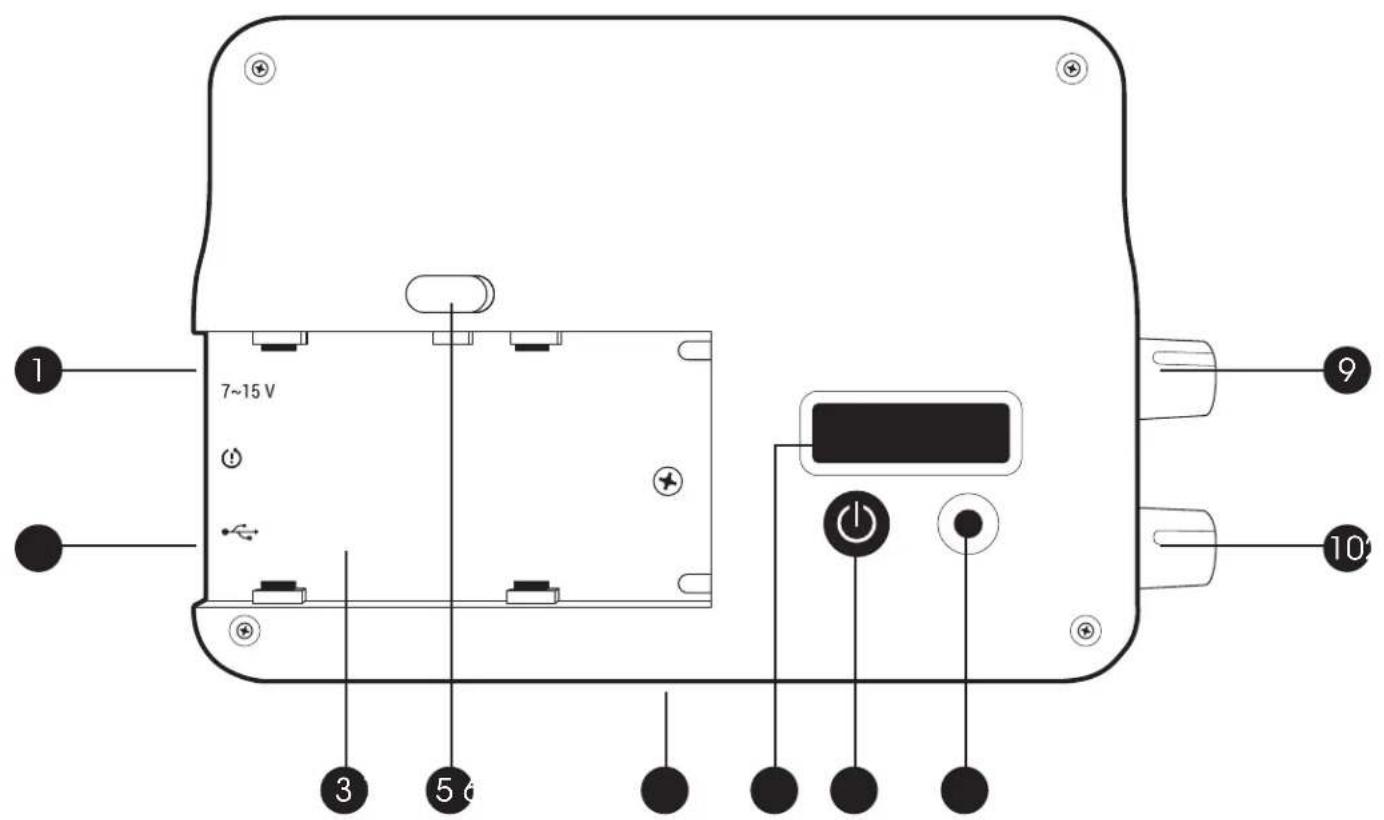
- 2.1 mm DC input
- Micro-USB port for firmware updates (visit luxilight.com for details)
- Battery slot
- Battery release
-
1/4-20 socket
-
LCD panel
- Power button
- Mode button
- Brightness dial
- ⚙Adjustment dial
Also Included
- Shoe-mount ball head
- NP-F550 battery
- Battery charger
User Interface
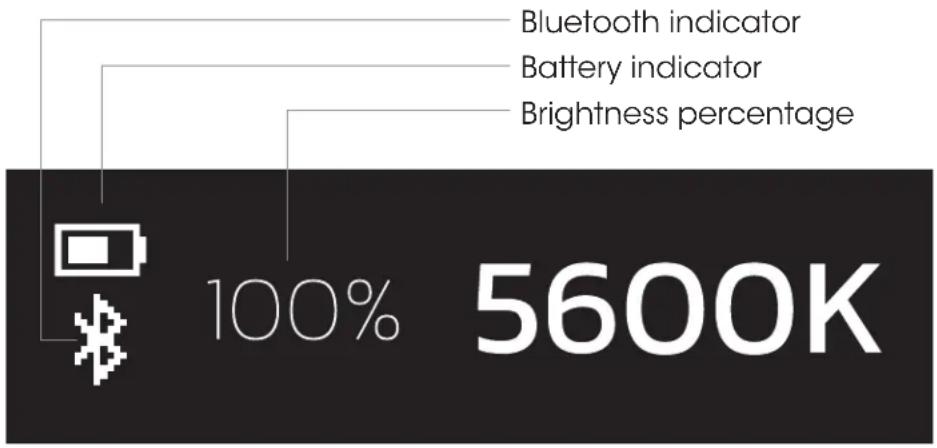
bar_stacked
| Category | Value | | --------------------- | ------- | | Bluetooth indicator | 100% | | Battery indicator | 100% | | Brightness percentage | 100% | | Total | 5600K |Brightness dial
- Scroll: Adjusts the brightness from 100% to 0%.
- Press: Turns off the LED panel without powering down.
CCT Mode
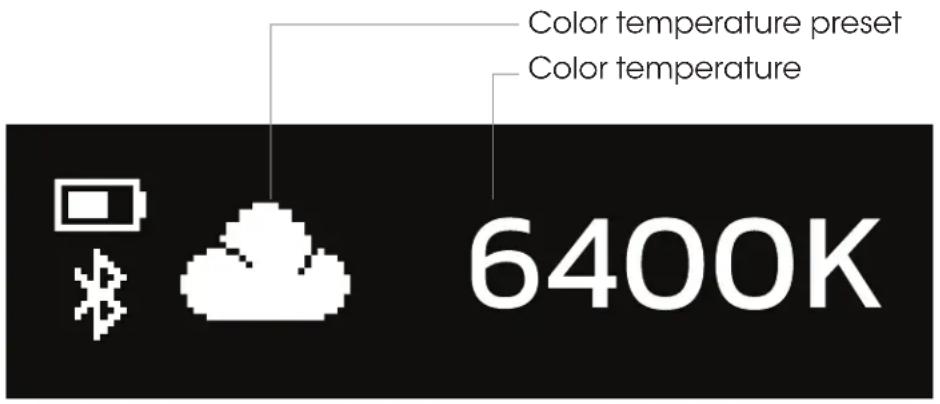
Correlated color temperature (CCT) mode allows you to accurately adjust the color temperature from 3000 to 10,000K. CCT mode is effective for color matching the Viola to almost any light source.
The color temperature and brightness can also be adjusted from the Controller app.
Brightness dial
- Scroll: Adjusts the brightness from 100% to 0%.
- Press: Turns off the LED panel without powering down.
Adjustment dial
- Scroll: Adjusts the color temperature in 50K increments
- Press: Switches between tungsten balance (3200K) and daylight balance (5600K).
Color Temperature Preset Indicators
As you scroll through the color temperature, the icons that appear on the LCD screen light up to indicate industry-standard color temperature settings.

Tungsten bulb (3200K)

Fluorescent bulb (4300K)

Daylight (5600K)

Overcast sky (6400K)

Daytime shade (7200K)

Clear blue sky (10,000K)
Color Wheel Mode
Color wheel mode lets you dial up every color of the visible spectrum by scrolling through the entire color wheel.
In color wheel mode, you can create accent lighting as well as dramatic lighting effects for photography and video.
Color wheel mode is also available on the Conductor app.
The LCD panel displays the position on the color wheel in degrees.

Brightness dial
- Scroll: Adjusts the brightness from 100% to 0%.
- Press: Turns off the LED panel without powering down.
Adjustment dial
- Scroll: Scrolls through the color spectrum in 1^ increments.
- Press: No function.
Hue Preset Indicators
As you scroll through the color temperature, the icons that appear on the LCD screen light up to indicate industry-standard color temperature settings.
Red (0°)
Cyan (180°)
Yellow (60°)
B Blue (240°)
G Green (120°)
Magenta (300°)
Filter Mode
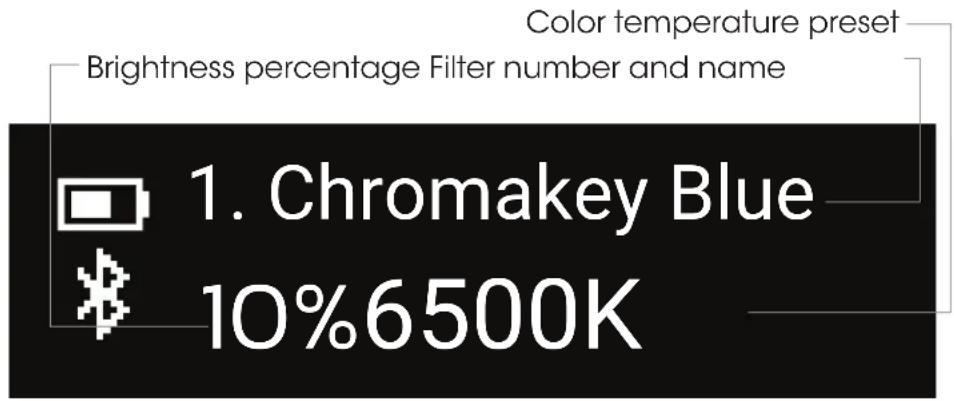
Filter mode allows you to apply colored gels to your current CCT setting.
This mode allows you to match the color temperature of your other lights and then add a gel for a touch of color to the light. The Viola uses the setting from CCT mode to calculate the precise color temperature of the gel as it would appear on the actual light.
Applying a filter to a preset white-balance color temperature is available on the Conductor app in CCT mode.
Each numbered gel has a descriptive title and the exact color temperature.
Brightness dial
- Scroll: Adjusts the brightness from 100% to 0%.
- Press: Turns off the LED panel without powering down.
Adjustment dial
- Scroll: Scrolls through available gels.
- Press: Switches between 3200, 5600, and 6500K white-balance color temperatures.
Setting the White-Balance Color Temperature
If you need a white-balance color temperature other than the presets, the Viola can be adjusted to a specific color temperature for filter mode.
A specific white-balance color temperature can also be set with the Conductor app.
To adjust the color temperature setting of filter mode, follow these steps:
- Press the mode select button repeatedly until CCT mode appears on the LCD display.
- Use the adjustment dial to scroll to the desired color temperature.
- Press the mode select button repeatedly to return to filter mode.
Effects Mode
The Viola ^2 is preset with 10 animated special effects. Each effect can be edited in the Conductor app so you can control the variable settings of the selected effect.
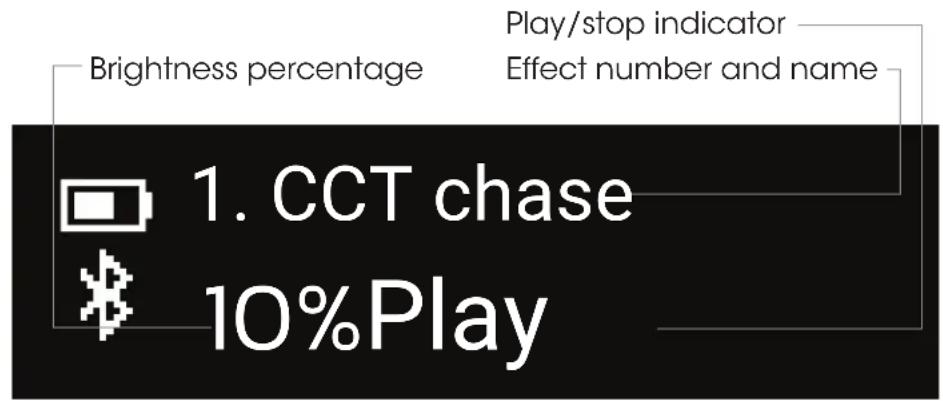
Brightness dial
- Scroll: Adjusts the brightness from 100% to 0%.
- Press: No function.
Adjustment dial
- Scroll: Scrolls through available effects.
- Press: Runs and stops the effect.
Description of the Special Effects
The settings for each effect listed below are editable only in the Conductor app.
Go to www.luxlilight.com to download the conductor app to your mobile device.
CCT Chase
A continuous loop that changes between two preset color temperatures. Good for simulating a sunrise, sunset, or a change from cloudy to sunny weather in real time. Since the sequence loops, you can shoot multiple takes without reprogramming the light.
CCT Start: Selects the color temperature at the beginning of the sequence (3000 to 10,000K).
CCT Stop: Selects the final color temperature of the sequence (3000 to 10,000K).
+/- Green: Sets the green/magenta (tint) saturation level in 1% increments from +100% (green) to -100% (magenta).
Time Unit: Select seconds or minutes for the time loop.
Time/Loop: Select how many seconds or minutes the loop will last (1 to 160).
Color Chase
A continuous loop that moves through the color wheel between two selected colors. Since the sequence loops, you can shoot multiple takes without reprogramming the light.
Hue Start: Selects the color at the beginning of the sequence ( 0^ to 360^ ).
Hue Stop: Selects the final color of the sequence ( 1^ to 360^ ).
Saturation: Determines the color intensity from 100% (full color) to 0% (white light).
Time Unit: Select seconds or minutes for the time loop.
Time/Loop: Select the duration in seconds or minutes for each loop (1 to 160).
Explosion
Simulates the light from explosions. The Timpani generates random-length pulses and strobes within a range of the red to amber section of the color wheel.
Explosions/Minute: Sets how many separate explosions occur each minute.
Duration (%): Set the percentage of time the light is illuminated for each pulse or strobe (5% to 95%).
Hue Min/Hue Max: Selects the range of color for each explosion ( 0^ to 360^ ).
Fire
Simulates the light of a candle, camp fire, or bonfire in various wind conditions.
Fire Type: Select candle, campfire, or bonfire.
Wind Type: Select no wind, breeze, windy, or storm.
Fireworks
Simulates the light from fireworks. Colors and timing of each flash are random.
Explosions/Minute: Sets how many flashes will occur per minute (1 to 50).
Duration (%): Determines the percentage of time the light is illuminated in each cycle. Select from a range of 5% (shortest duration) to 95% (longest duration).
Lightning
Simulates lightning by creating random short and long bursts.
CCT: Selects the color temperature of the lightning flashes (3000 to 10,000K) in 50K increments.
Interval(s): Sets the interval of seconds between lightning flashes (1 to 60).
Paparazzi
Simulates the random firing of multiple camera flashes.
Intensity: Higher intensity increases the number of random flashes per second (0 to 100).
Bulb Type: Determines the length of each flash. Slow is the longest duration. Modern is the shortest duration. Choose from Slow, Medium, Fast, and Modern.
CCT: Sets the color temperature of the flashes from 2800 to 10,000K
+/- Green: Sets the green/magenta (tint) saturation level in 1% increments from +100% (green) to -100% (magenta).
Pulse
Offers a steady pulse at a programmable rate. Similar to the Strobe special effect (below), but the light fades on and off.
Hue: Selects the light color (0° to 360°).
Saturation: Determines the color intensity from 100% (full color) to 0% (white light).
Pulses/Minute: Sets how many times the light will pulse each minute (1 to 200).
Siren
Simulates the flashing lights of a police car or emergency vehicle.
Colors: Select the color combination of flashing lights. Choose red, blue, and white; red and blue; red and white; blue and white; blue; red; or SAE Amber.
Flash/Cycle: Set the number of times each individual color will flash within the cycle. Choose from 1 to 4 times per cycle.
Cycles/Minute: Determines how many repetitions of the cycle will occur each minute. Choose from 10 to 360.
Duration (%): Determines the percentage of time the light is illuminated in each cycle. Select from a range of 10% (shortest duration) to 90% (longest duration).
Strobe
Offers a steady, flashing light at a programmable rate.
Hue: Selects the light color (0° to 360°).
Saturation: Determines the color intensity from 100% (full color) to 0% (white light).
Frequency: Changes the number of flashes per second (1 to 25).
Duration (%): Determines the percentage of time the light is illuminated in each cycle. Select from a range of 10% (shortest duration) to 90% (longest duration).
Bluetooth Status Indicators
Bluetooth Status Indicators

Disabled

Connected
The Viola ^2 starts up in Bluetooth search mode until it is paired with a Bluetooth device. Once the device is disconnected, the Viola ^2 returns to search mode.
To disable Bluetooth, press and hold the mode select button for 3 seconds until you see the Bluetooth disabled icon.
Press and hold the mode select button for 3 seconds to enable Bluetooth and start search mode.
Connecting to the Conductor App
-
Enable Bluetooth on your device. Then open the Conductor app on your device.
-
Power on the Viola ^2 .
-
The app will prompt you to connect the Viola ^2 to the app. Once you do, the light is connected and ready to use with the app.
To disconnect, exit the app.
Updating the Firmware
Visit www.luxlilight.com for the latest firmware for the Viola.
Follow the firmware update instructions that are in the folder with the latest firmware version.
Specifications
Light Fixture
| Beam Angle | 72° |
| Color Temperature | 3000 to 10,000K |
| Color Accuracy Standard | CRI 97 at 3200KCRI 96 at 4300KCRI 96 at 5600KCRI 96 at 6400KCRI 95 at 7200KCRI 94 at 10,000K |
| Cooling System | Passive |
| Dimming | Yes, 0% to 100% (continuous) |
| Display | LCD |
| Light Panel | RGBAW LED |
| Housing Material | Plastic |
| Lumens | 840 |
| Photometrics | 65 fc700 lx @ 1 m |
| Number of LEDs | 88 |
| Expected Lamp Life | 50,000 hr. |
| Rectangular Panel Size (W × H) | 4.4 × 3.2 in. (11.2 × 8.1 cm) |
| Fixture Dimensions (W × H × D) | 5.2 × 0.96 × 3.7 in. (13.2 × 2.4 × 9.4 cm) |
| Fixture Weight | 0.38 lb. (172 g) |
Connectors
| Battery Plate | Sony L-series style |
| Power Connector | 2.1 mm × 5.5 mm DC barrel |
| Service Connector | Micro-USB |
Mounting
| Fixture Mount | 1/4-20 socket |
Remote Operation
| Remote Control Type | Bluetooth 4.0 LE |
| Wireless Range | 30 ft. (9.1 m) |
Power
| DC Input Power | 7–15 V, 2 A |
| Power Source | AC adapter, external battery |
| Max Power Consumption | 17 W |
Troubleshooting
- If you encounter any problems, first try turning the device off and then on.
- If the problem persists, remove the battery for 5 seconds, and then restart.
FCC Compliance Statement
This device complies with part 15 of the FCC rules. Operation is subject to the following two conditions:
- This device may not cause harmful interference
- This device must accept any interference received, including interference that may cause undesired operation.
Note: This equipment has been tested and found to comply with the limits for a Class B digital device, pursuant to part 15 of the FCC Rules. These limits are designed to provide reasonable protection against harmful interference in a residential installation. This equipment generates, uses, and can radiate radio frequency energy and, if not installed and used in accordance with the instructions, may cause harmful interference to radio communications. However, there is no guarantee that interference will not occur in a particular installation. If this equipment does cause harmful interference to radio or television reception, which can be determined by turning the equipment off and on, the user is encouraged to try to correct the interference by one or more of the following measures:
• Reorient or relocate the receiving antenna.
- Increase the separation between the equipment and receiver.
- Consult the dealer or an experienced radio/TV technician for help.
- Connect the equipment to an outlet on a circuit different from that to which the receiver is connected.
Important: Changes or modifications to this product not authorized by Gradus Group could void the electromagnetic compatibility (EMC) and wireless compliance and negate your authority to operate the product. This product has demonstrated EMC compliance under conditions that included the use of compliant peripheral devices and shielded cables between system components. It is important that you use compliant peripheral devices and shielded cables between system components to reduce the possibility of causing interference to radios, televisions, and other electronic devices.
One-Year Limited Warranty
This Luxli product is warranted to the original purchaser to be free from defects in materials and workmanship under normal consumer use for a period of one (1) year from the original purchase date or thirty (30) days after replacement, whichever occurs later. The warranty provider's responsibility with respect to this limited warranty shall be limited solely to repair or replacement, at the provider's discretion, of any product that fails during normal use of this product in its intended manner and in its intended environment. Inoperability of the product or part(s) shall be determined by the warranty provider. If the product has been discontinued, the warranty provider reserves the right to replace it with a model of equivalent quality and function.
This warranty does not cover damage or defect caused by misuse, neglect, accident, alteration, abuse, improper installation or maintenance. EXCEPT AS PROVIDED HEREIN, THE WARRANTY PROVIDER MAKES NEITHER ANY EXPRESS WARRANTIES NOR ANY IMPLIED WARRANTIES, INCLUDING BUT NOT LIMITED TO ANY IMPLIED WARRANTY OF MERCHANTABILITY OR FITNESS FOR A PARTICULAR PURPOSE. This warranty provides you with specific legal rights, and you may also have additional rights that vary from state to state.
To obtain warranty coverage, contact the Luxli Customer Service Department to obtain a return merchandise authorization ("RMA") number, and return the defective product to Luxli along with the RMA number and proof of purchase. Shipment of the defective product is at the purchaser's own risk and expense.
For more information or to arrange service, visit www.luxlilight.com or call Customer Service at 212-594-2353.
Product warranty provided by the Gradus Group.
www.gradusgroup.com
LUXLI is a registered trademark of the Gradus Group.
© 2019 Gradus Group LLC. All Rights Reserved.

LUXLI®
A Gradus Group Brand

ORCHESTRA
MULTICOLOR LED SERIES
www.luxlilight.com


- Conduct an orchestra of lights.
- Precautions
- Overview
- Also Included
- User Interface
- Brightness dial
- CCT Mode
- Adjustment dial
- Color Temperature Preset Indicators
- Color Wheel Mode
- Hue Preset Indicators
- Filter Mode
- Setting the White-Balance Color Temperature
- Effects Mode
- Description of the Special Effects
- CCT Chase
- Color Chase
- Explosion
- Fire
- Fireworks
- Lightning
- Paparazzi
- Pulse
- Siren
- Strobe
- Bluetooth Status Indicators
- Connecting to the Conductor App
- Updating the Firmware
- Specifications
- Troubleshooting
- FCC Compliance Statement
- One-Year Limited Warranty
- ORCHESTRA
- MULTICOLOR LED SERIES
Brand : Luxli
Model : Viola²
Category : Flash