
DVC-55 - Camcorder Praktica - Free user manual and instructions
Find the device manual for free DVC-55 Praktica in PDF.


| Product Type | HD Digital Camcorder |
| Brand | Praktica |
| Model | DVC-55 |
| Imaging Sensor | 1/2.5" CMOS 5.0 Megapixel |
| Effective Pixels | 5.0 Megapixel |
| Lens | 5X Optical Zoom, f=6.26mm (Wide) to 30.75mm (Tele) |
| Digital Zoom | 4X (not available at 1080P video) |
| Focus Range | Normal: 45cm to infinity; Macro: 5cm (Tele) to 45cm (Wide) |
| Video Resolution | QVGA (30fps), WVGA (60fps), 720P (30fps), 1080P (30fps) |
| Video Format | H.264 (AVI) |
| Still Image Resolution | 3M, 5M, 12M (interpolated) |
| Image Format | JPEG (EXIF 2.2), DPOF, DCF |
| Display | 3.0" TFT (960 x 240 pixels), 16:9 |
| White Balance | Auto, Sunny, Cloudy, Tungsten, Fluorescent |
| Exposure Compensation | -2.0 EV to +2.0 EV (0.5 EV steps) |
| Shutter Speed | 1/2 to 1/2000 sec |
| Self-Timer | Off, 5 sec, 10 sec |
| Power Supply | Li-ion Battery NP-120 |
| Dimensions | 57 (W) x 70 (H) x 129 (D) mm |
| Weight | Approx. 292g (without batteries) |
| Storage Media | Internal 128MB (approx. 98MB available); SD Card up to SDHC 16GB Class 6 |
| Interfaces | USB 2.0 (High Speed), HDMI, AV out |
| TV Output | NTSC / PAL |
| LED Light | Effective Range: 0.5m to 1m; On/Off |
| Flash | Range: 1m to 1.5m; Modes: Auto, Off, Force |
| Color Effects | Color, B&W, Sepia |
| Night Mode | Available for video and photo |
| Stabilizer | Available for QVGA, WVGA (30fps), 720P (30fps) |
Frequently Asked Questions - DVC-55 Praktica
User questions about DVC-55 Praktica
0 question about this device. Answer the ones you know or ask your own.
Ask a new question about this device
Download the instructions for your Camcorder in PDF format for free! Find your manual DVC-55 - Praktica and take your electronic device back in hand. On this page are published all the documents necessary for the use of your device. DVC-55 by Praktica.
USER MANUAL DVC-55 Praktica
natural_image
Line drawing of a digital camera with lens and handle (no text or symbols)User's Manual

natural_image
Abstract gray curved shape with white lines, no text or symbols presentTable of Contents
About this manual....v
Copyright......v
Precautions ...... vi
Before You Start......viii
1 Introducing the camcorder...... 1
1.1 System requirements....1
1.2 Features....1
1.3 Unpacking the camcorder......2
1.4 About the camcorder....3
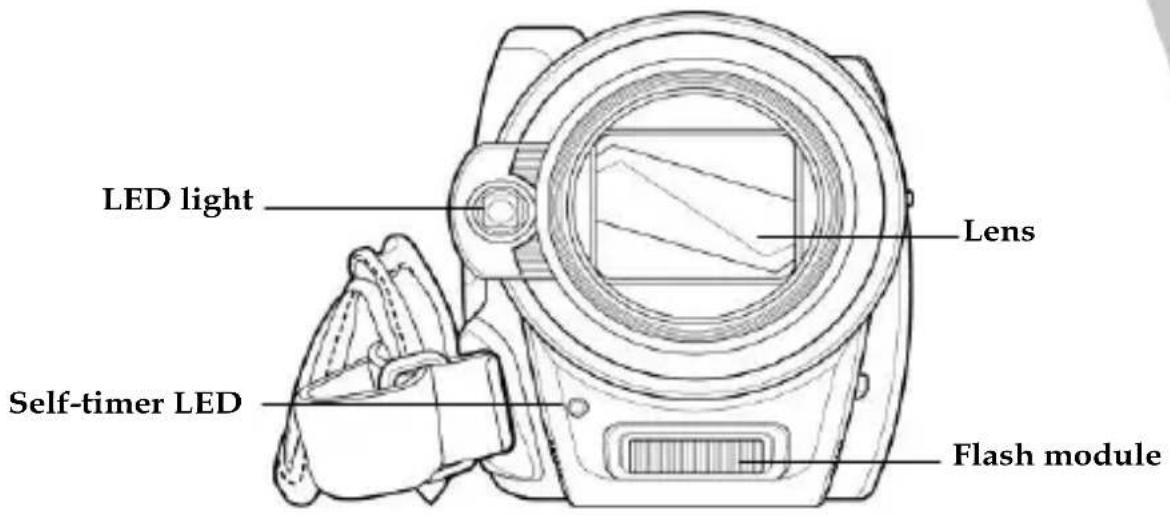
1.4.1 Front view....3
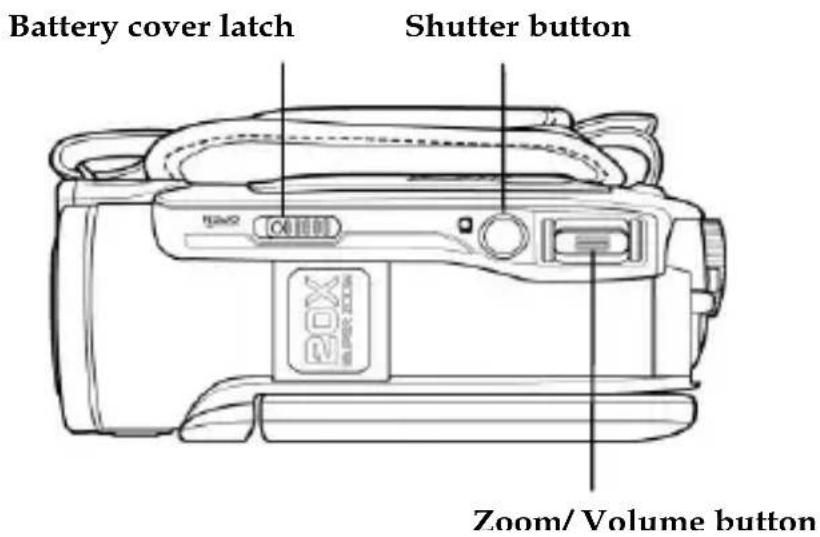
1.4.2 Top view....3
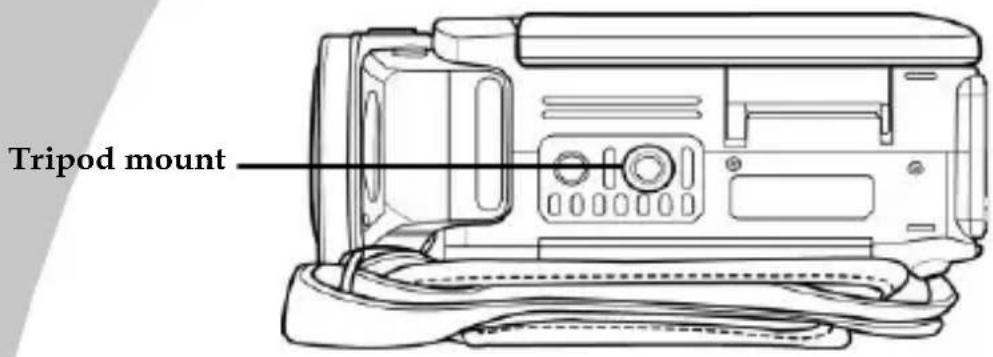
1.4.3 Bottom view 4
1.4.4 Right view....4
1.4.5 Left view 5
1.4.6 Back view....5
1.4.7 Adjusting the LCD display....6
1.4.8 About the LEDs....10
2 Getting started....11
2.1 Inserting an SD card....11
2.2 Inserting the battery....13
2.3 Charging the battery....15
2.4 Turning on/ off the camcorder....15
2.5 Changing modes....16
2.6 Before you start 16
2.6.1 Setting the date and time....16
2.6.2 Setting the language....18
2.6.3 Setting the beep....19
2.7 Shoot/Playback video 20
2.7.1 Shooting a video clip....20
2.7.2 Playing the video clip....22
2.8 Taking/viewing pictures....23
2.8.1 Taking a still picture....23
2.8.2 Viewing images....24
2.9 Connecting to a computer....25
2.10 Connecting to a standard TV....25
2.11 Connecting to an HDTV....26
3 Using the camcorder 27
3.1 Camcorder and voice recorder mode .....27
3.1.1 Camcorder and voice recorder mode....27
3.1.2 Using the macro function .....29
3.1.3 Using the AF Lock....29
3.1.4 Using the Manual Focus 30
3.1.5 Using the zoom function....31
3.1.6 Using the LED light....31
3.1.7 Using the Flash module....31
3.1.8 Using the Stabilizer function....31
3.1.9 Quick access controls 31
3.2 Camera mode....32
3.2.1 Camera mode icons....32
3.2.2 Using the macro function .....33
3.2.3 Using the AF Lock 33
3.2.4 Using the Manual Focus 33
3.2.5 Using the zoom function....33
3.2.6 Using the LED light module....33
3.2.7 Using the flash module 33
3.2.8 Using the Stabilizer function....34
3.2.9 Quick access controls 34
3.3 Camcorder Playback mode....35
3.3.1 Camcorder Playback mode icons .....35
3.4 Camera Playback mode....38
3.4.1 Camera Playback mode icons ....38
3.5 Thumbnail mode 39
4 Using the menus 40
4.1 Camcorder menu....40
4.1.1. White balance....40
4.1.2. Video resolution......41
4.1.3. Quality....42
4.1.4. Color effect....43
4.1.5. Night mode....44
4.1.6. Stabilizer 45
4.1.7. Capture mode....46
4.2 Camcorder playback menu....47
4.2.1 Delete....47
4.2.2 Protect 49
4.2.3 Autoplay 50
4.3 Camera menu....51
4.3.1 White balance....51
4.3.2 Resolution....52
4.3.3 Color effect....53
4.3.4 Night mode....54
4.3.5 Self timer....55
4.4 Camera playback menu....56
4.4.1 Delete....56
4.4.2 Protect 58
4.4.3 Autoplay....59
4.4.4 DPOF....60
4.5 System menu....61
4.5.1 Setting the beep....61
4.5.2 Auto power off....61
4.5.3 TV standard....62
4.5.4 Format....63
4.5.5 Default....64
4.5.6 Language 64
4.5.7 Frequency 65
4.5.8 Date/time 65
Appendix 66
Specifications....66
Troubleshooting....69
Preface
Congratulations on your purchase of this advanced camcorder. Ensure that you read this manual carefully and keep it in a safe place for future reference.
About this manual
Every effort has been made to ensure that the contents of this manual are correct and up to date. However, no guarantee is made regarding the accuracy of the contents. If the contents of this manual do not tally with the camera, please take the camera as a criterion, and our company reserves the right to change the contents or technical rules without notice in advance. Also, the manufacturer reserves the right to change the technical specification in advance without notice.
If the accessories do not tally with the actual package, please take the actual package as a criterion.
Copyright
© Copyright 2010.
All rights reserved. No part of this publication may be reproduced, transmitted, transcribed, stored in a retrieval system or translated into any language or computer language, in any form or by any means, electronic, mechanical, magnetic, optical, manual or otherwise, without the prior written permission of the manufacturer.
Precautions
General precautions
- Do not use or store the product in dusty, dirty, or sandy areas, as its components may be damaged.
- Do not store the product in a hot environment. High temperatures can shorten the life of electronic devices, damage batteries and warp or melt certain plastics.
- Do not store the product in cold areas. When the product warms up to its normal temperature, moisture can form inside, which may damage the electronic circuits.
- Do not attempt to open the casing or attempt your own repairs. High-voltage internal components create the risk of electric shock when exposed.
- Do not drop or knock the product. Rough handling may damage the internal components.
- Do not use harsh chemicals, cleaning solvents or strong detergents to clean the product. Wipe the product with a slightly damp soft cloth.
- Do not fire the flash while it is too close to the subject's eyes. Intense light from the flash can cause eye damage if it is fired too close to the eyes. When using the flash, the camera should be at least one meter from the eyes of the subject.
- Do not open battery cover while an image is being recorded. Doing so will not only make storage of the current image impossible, it can also corrupt other image data already stored in file.
- If the product or any of its accessories are not working properly, take them to your nearest qualified service center. The personnel there will assist you and if necessary, arrange for the product to be repaired.
• Test for proper operation before using the camera.
Notes on the LCD Screen
Be very careful to ensure the fluid contained in the LCD screen does not escape if the screen becomes cracked or damaged. If this occurs, follow these steps:
- If the fluids make contact with skin, wipe it with a clean cloth then rinse with a large amount of water.
- If the fluid makes contact with eyes, wash eyes with clean water for at least 15 minutes and go to the hospital as soon as possible.
- If the fluid is swallowed, first rinse mouth with water, then drink a large amount of water and induce vomiting. Go to the hospital as soon as possible.
Operation conditions
- This camera is designed for use in temperatures ranging from 0^ to 40^ (32°F to 104°F).
- Do not use or keep the camera in the following areas:
- In areas subject to direct sunlight
- In areas subject to high humidity or dust
- Near air conditioners, heaters, or other areas subject to temperature extremes
- Inside of a closed vehicle, especially one parked in the sun.
- In areas subject to strong vibration
Power supply
- Use only the type of battery that came with your camera.
Using any other type of battery may damage the equipment and invalidate the warranty. -
Ensure the battery is inserted correctly. Inserting the battery incorrectly can cause damage to the product and possibly start a fire.
-
Remove the battery to avoid the fluid leakage if the camera is not going to be used for a long time.
- If the battery is crushed or damaged, remove it immediately to avoid the battery fluid leakage and abnormal expansion.
Before You Start
Take some test shots before performing a formal recording.
Before taking pictures with this DV camera in any important occasion (such as a wedding ceremony or an overseas trip), do test the DV camera beforehand to ensure that it functions properly. Any additional loss caused by the malfunction of this product (such as costs of photography or any loss of benefit generated by the photography) is not the responsibility of the manufacturer and no compensation will be given for it.
Copyright information
Take care to observe "No Photography" notices in certain locations. In these cases, you cannot record any live performance, improvisation or exhibits, even for personal purposes. Any transfer of pictures or memory card data must be conducted under the constraints of copyright law.
1 Introducing the camcorder
Read this section to learn about the features and functions of the camcorder. This chapter also covers system requirements, package contents, and descriptions of the hardware components.
1.1 System requirements
The camcorder requires a PC with the following specifications:
- Operating System : Windows XP SP2 32/64bit, Vista 32/64bit and Windows7 32/64bit
• CPU: Intel/AMD Dual-Core or above
• Memory: At least 1GB or above - Graphic Card: DirectX 9 is must, DirectX 10 is recommendation
• Interface: Standard USB 1.1 Port or Higher - Hard Disk: At least 2GB of Available Disk Space
1.2 Features
The camcorder offers a variety of features and functions including:
• HD Digital camcorder
• Digital camera - (max. 12 Megapixels)
- Voice recorder
- USB mass storage
• 5x optical zoom, 4x digital (1080P without Digital Zoom)
- SD card reader
1.3 Unpacking the camcorder
The following items should be present in the package. If any item is missing or appears damaged, contact your dealer immediately.
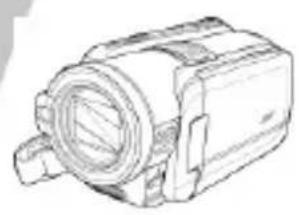
natural_image
Line drawing of a mechanical device with no visible text or symbolsCamcorder
natural_image
Line drawing of a mailbox with handle and spout (no text or symbols)Pouch

User manual
HDMI cable (Optional)
USB cable
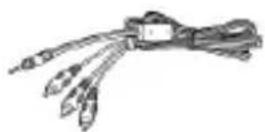
AV cable
natural_image
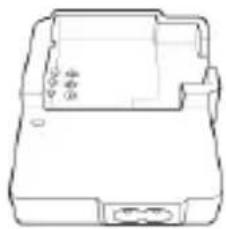
Line drawing of a printer or printer outline with no visible text or symbolsBattery charger
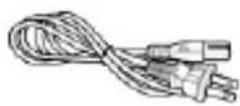
Power cord
natural_image
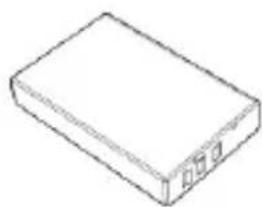
Simple line drawing of a rectangular electronic device with ports and connectors (no text or symbols)Li-ion battery NP-120
natural_image
Simple concentric circle diagram with no text or symbolsCD-ROM (Application software)
1.4 About the camcorder
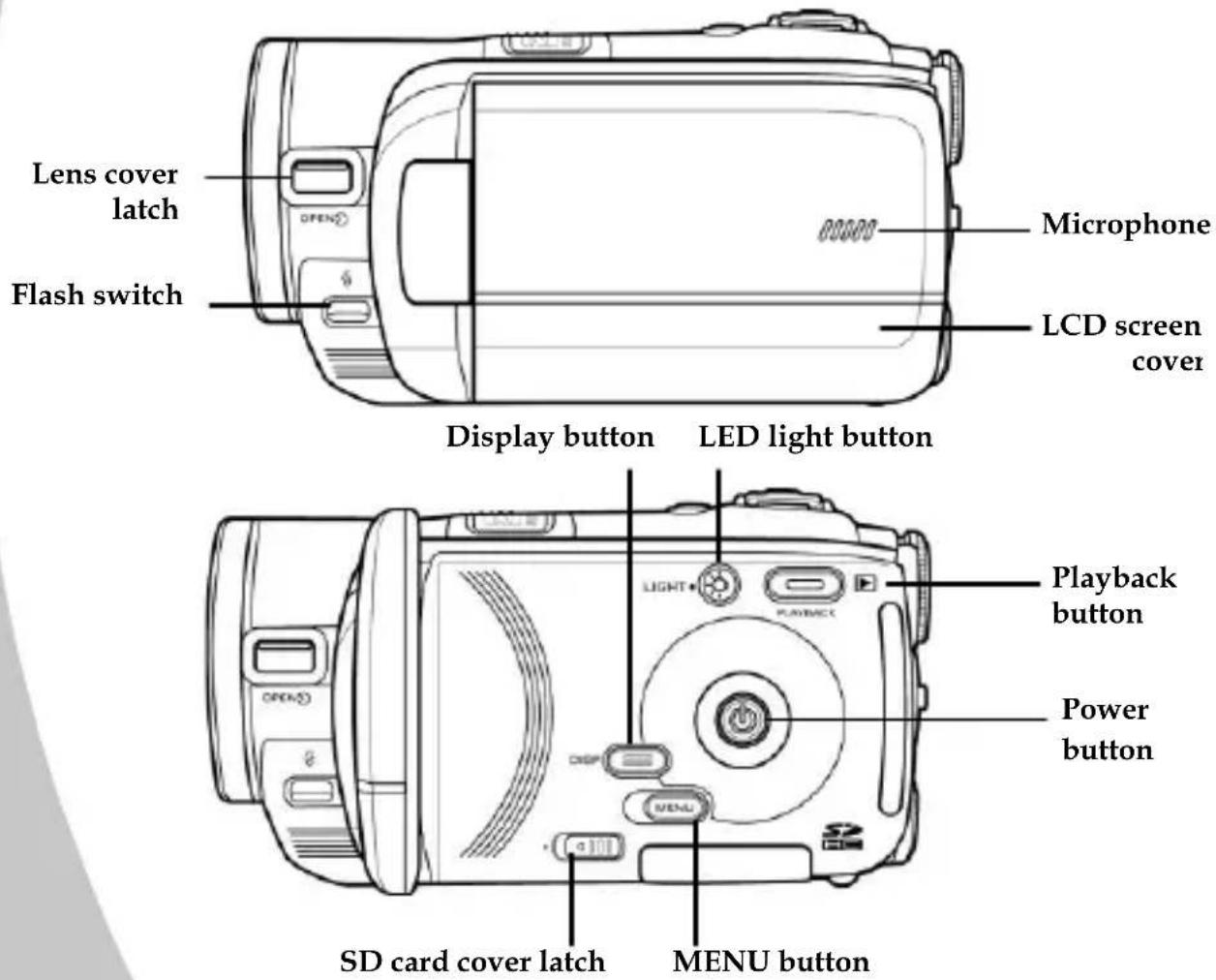
Refer to the following illustrations to familiarize yourself with the buttons and controls of this camcorder.
1.4.1 Front view
1.4.2 Top view
1.4.3 Bottom view
1.4.4 Right view
1.4.5 Left view
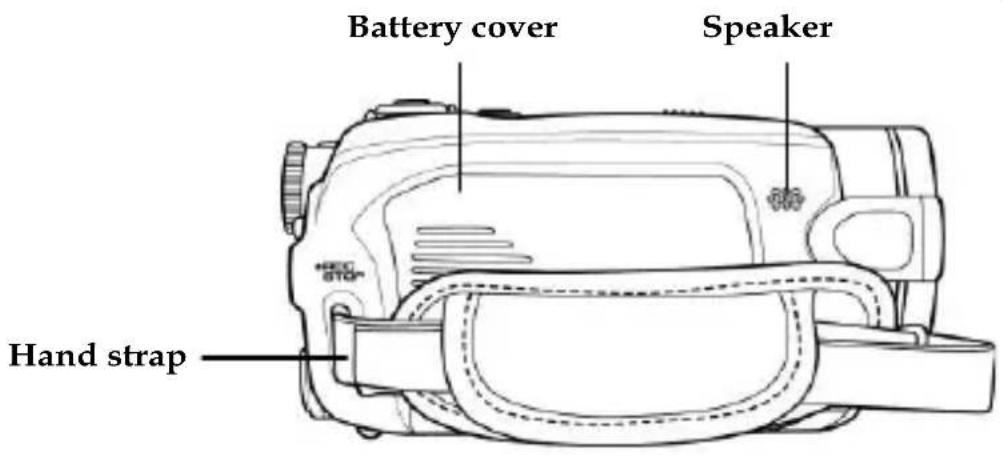
1.4.6 Back view
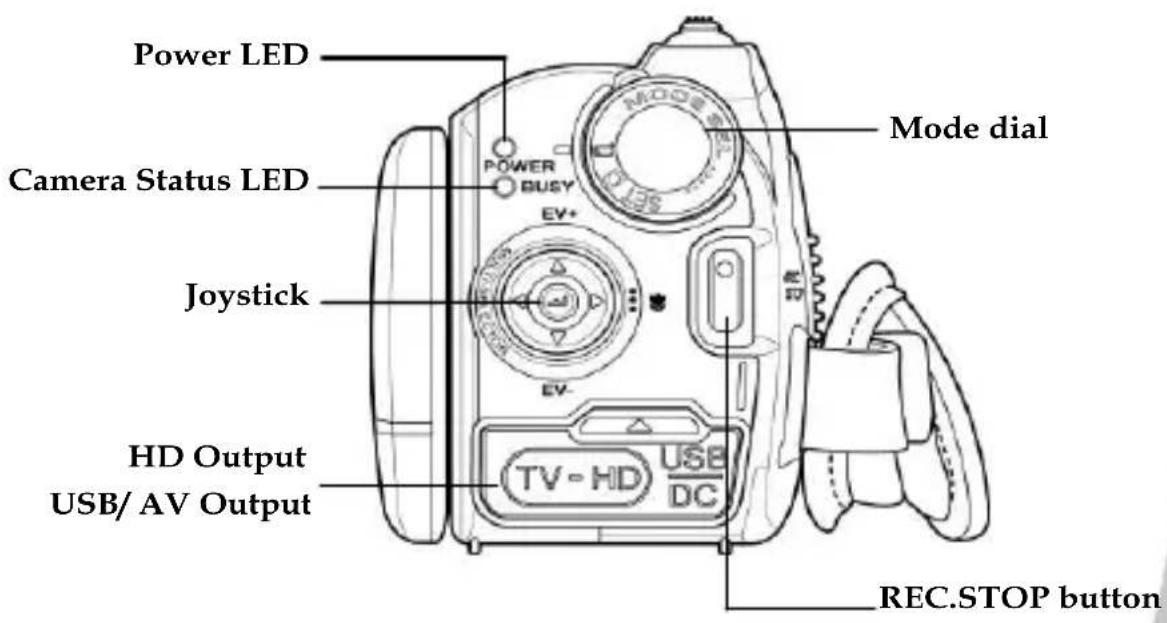
1.4.7 Adjusting the LCD display
Flip and twist the LCD screen as shown while capturing a still image or recording a video clip.
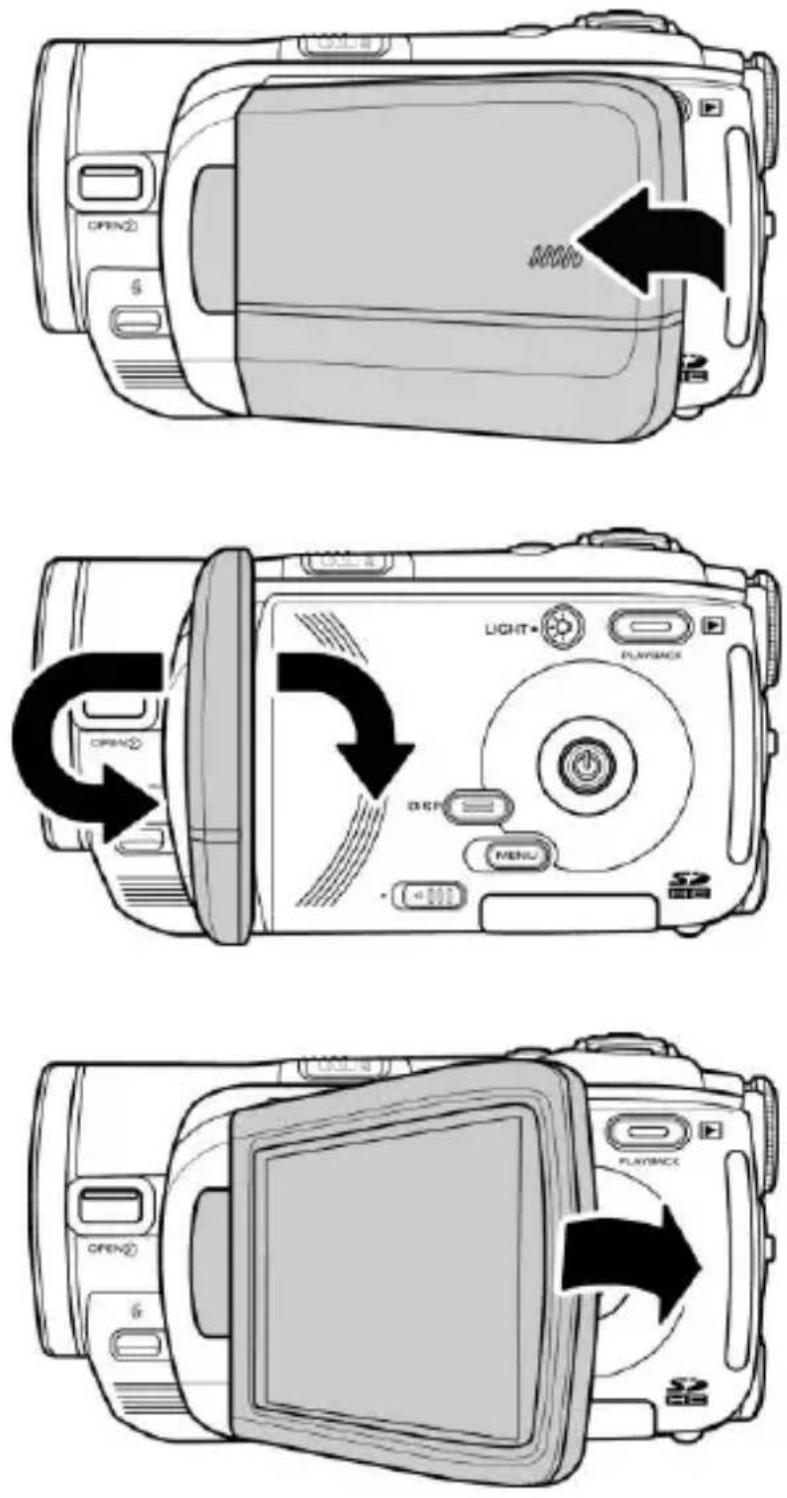
See the table below for a description of each button's function.
| Button | Name | Function |
 | Power button | Press and hold to turn power on/off. |
 | Menu button | Press to display main OSD menus. |
 | Mode dial | Use to turn Camcorder, Camera, and SET modes. In Camcorder mode, press the REC.STOP button to start and stop recording. In Camcorder Playback mode, press the REC.STOP to pause/restart playing. |
 | Joystick | ● In Camcorder and Camera mode:1. Move up/ down to adjust the exposure settings.2. Press the joystick inwards to enable AF Lock. The AF Lock icon appears on the screen.3. Press the joystick right repeatedly to switch to the MF mode. The MF icon appears on the screen when in MF mode.4. Move right to enable the macro function. Aicon appears on the LCD screen when enabled.5. Move left to adjust the white |
balance settings.
● In Camera Playback mode:
- Move right and left to view the stored images.
- When the image is zoomed in, the LCD screen shows up/down/left/right direction keys. You may press the joystick to move the image.
- Move Joystick button up to show all stored files in a 3x2 matrix thumbnail view.
- In the Thumbnail mode, move up, down, left, right to select the thumbnail images and then press the center joystick button to view the image in full screen mode.
● In Camcorder Playback mode:
- Press right and left to view the stored video clips and press the center joystick button to play/stop the video clips.
- In Playing mode, move right to fast-forward a video clip and move left to rewind a video clip.
- Move joystick button up to show all stored files in a 3x2 matrix thumbnail view.
- In the Thumbnail mode, move up, down, left, right to select a
| desired video clip and then press the center joystick button to show the video clip.● In SET mode, press up and down to highlight menu items and press the center joystick button to confirm. | ||
 | Shutter button | ● In Camera mode, press to take a photo.● In Camcorder mode, you can also press to take a photo before recording a video clip. |
 | Playback button | In Camcorder and Camera mode, press to enter playback mode. |
 | Display button | Press once to turn off all OSD icons and press again to display all OSD icons off. |
 | Zoom button | ● In Camcorder and Camera modes, press right/ left to zoom in and out.● In Camera Playback mode: In a 3x2 matrix thumbnail view, move zoom button to right to exit the view.● In Camcorder Playback mode: 1. Press left/ right to increase or decrease the volume of thevideo clip.2. In a 3x2 matrix thumbnail view, move zoom button to right to exit the view. |
LIGHT•  | LED light button | ● In Camcorder and Camera modes, press the button to turn on/ off the increase light. |
| • | SD card cover latch | ● Slide the latch to open the SD card cover when you insert the SD card. |
1.4.8 About the LEDs
The following table describes the camera LEDs:
| LED | Color | Definition |
| Power / Busy | Green | Power-on |
| Red Blinking | Recording | |
| Camera Status | Red | Camera busy |
| Red Blinking | Self-timer is activated and flash in charge. | |
| Red Blinking Rapidly | 2 seconds self-timer remaining. | |
| Self-timer | Red Blinking | Self-timer is activated. |
| Red Blinking Rapidly | 2 seconds self-timer remaining. |
2 Getting started
Read this section to learn how to start using the camcorder. This section covers basic functions such as switching on, inserting the battery and memory cards, and configuring preliminary settings. See later chapters for advanced functions.
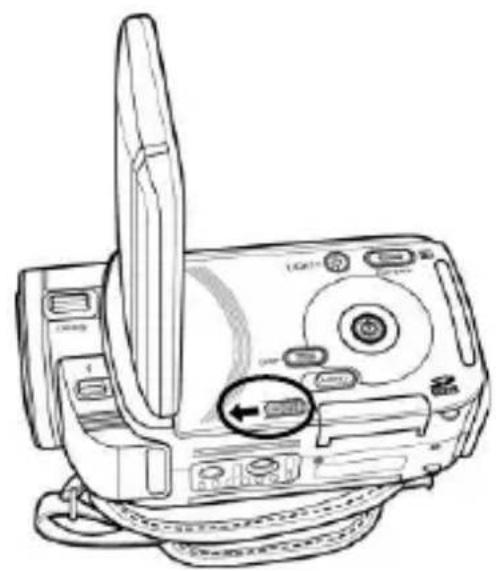
2.1 Inserting an SD card
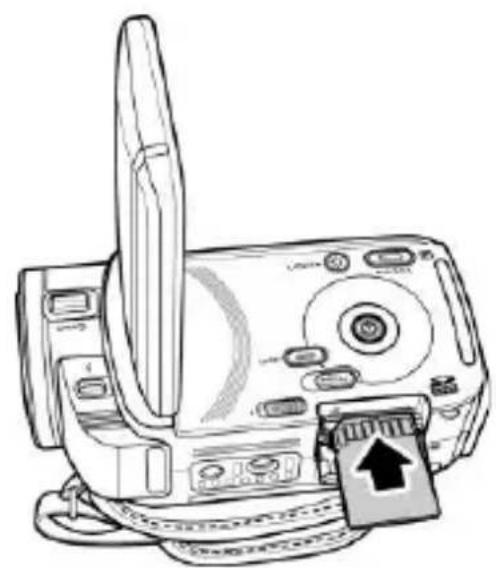
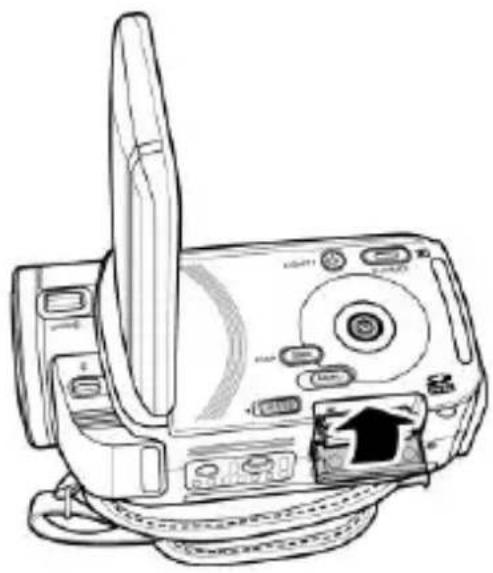
An SD card can be installed in the camcorder to provide additional storage space for still images, video clips, or other files.
- Open the LCD screen cover and move the SD card cover latch in the direction of the arrow to open the SD card compartment cover.
natural_image
Line drawing of a vintage camera with a screen and control panel, no text or symbols present- Insert an SD card, making sure the contacts are facing upwards.
natural_image
Line drawing of a vintage digital camera with a scroll wheel and attached device (no text or symbols)- Close the SD card compartment cover.
natural_image
Line drawing of a vintage camera with a mounted screen and control buttons (no text or symbols)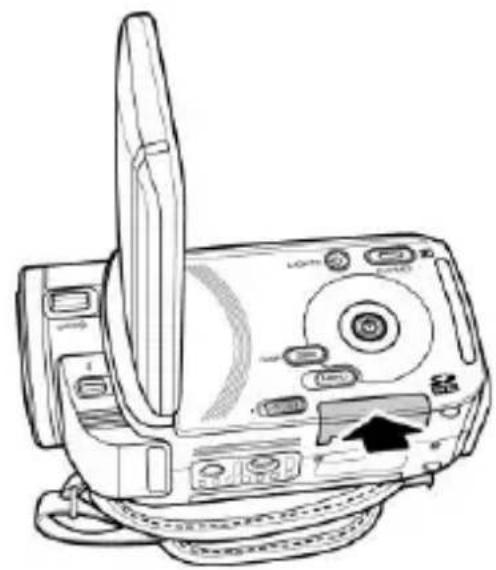
natural_image
Line drawing of a vintage camera with a screen and antenna, showing no text or symbols2.2 Inserting the battery
This camcorder is designed to use a rechargeable Li-ion battery. Only use the batteries supplied or similar batteries recommended by the manufacturer or your dealer.
- Note:
Install the battery exactly as described here. Installing the battery incorrectly could cause damage to the camcorder and possibly start a fire.
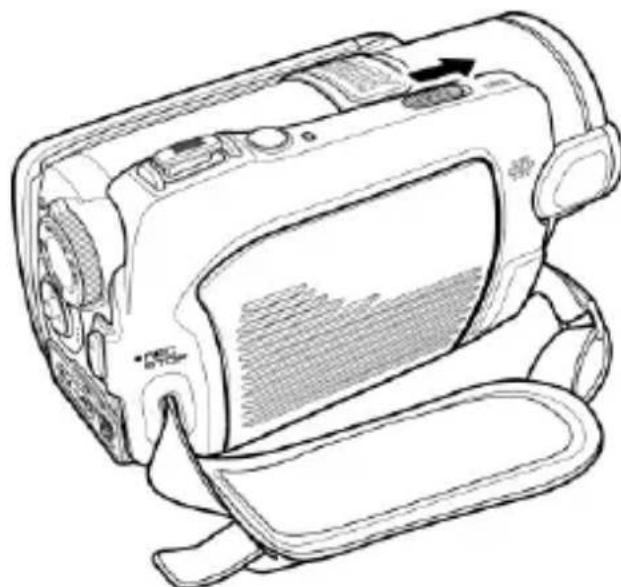
- Slide the battery cover latch as shown and then the battery cover opens automatically.
natural_image
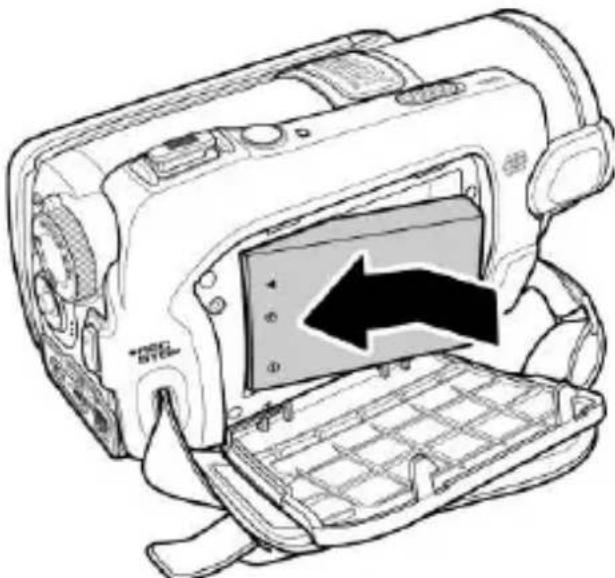
Line drawing of a digital camera with visible lens, buttons, and grip (no text or symbols)- Insert the battery as shown.
natural_image
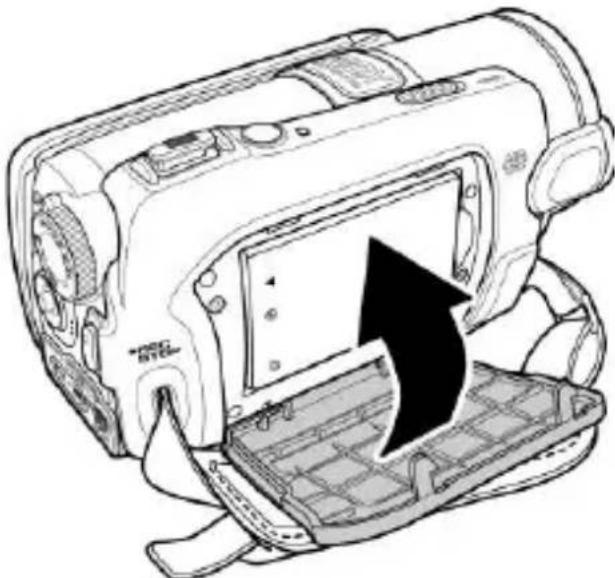
Line drawing of a vintage digital camera with an open screen and keyboard, showing a black arrow pointing to the screen (no text or symbols present)- Close the battery cover as shown.
natural_image
Line drawing of a digital camera with an arrow indicating the internal mechanism (no text or symbols present)2.3 Charging the battery
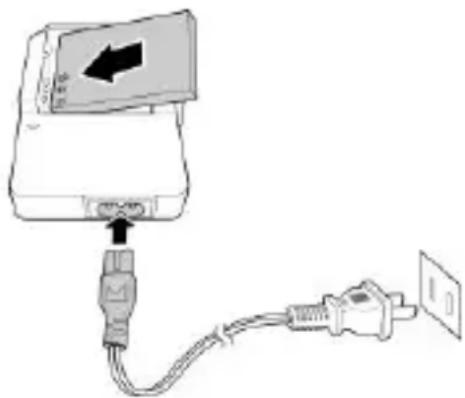
You can charge the battery with the charging unit provided. Follow the below steps to charge your battery.
- Insert the Li-ion battery into the charging bay. Connect one end of the power cord to the charging unit and then plug the other end to the wall outlet as shown.
- The orange LED will light up for proper charging.
- After full charge, the LED turns to green.
- It takes about 290 minutes to achieve full charge. Actual charging time depends on current battery capacity and charging conditions.
natural_image
Diagram of a device with an attached plug and cable, showing no text or symbols2.4 Turning on/ off the camcorder
Press and hold the power button to turn the camcorder on/off.
Notes:
Closing and opening the LCD screen can power on/off the camera.
2.5 Changing modes
The camcorder can operate in three modes, Camcorder, Camera, and SET. Move the mode dial to toggle different modes.
2.6 Before you start
Before you start using the camcorder, some basic settings such as date and time, languages and beep function need to be configured.
2.6.1 Setting the date and time
- Turn on the camcorder, and move the mode dial to SET. Move the joystick up and down to highlight Date / Time. Press the center joystick button to confirm.
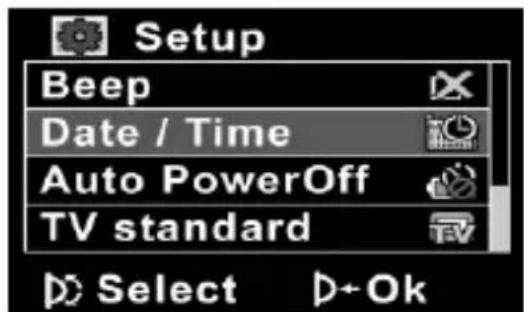
- Move the joystick up and down to highlight each field and press the center joystick button to select a field.
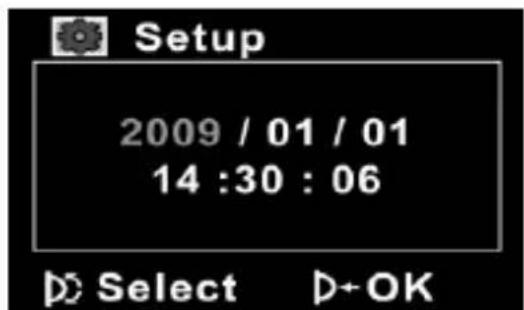
- Adjust each value by moving the joystick up, down, left, or right. Press the center joystick button to save your changes.
2.6.2 Setting the language
- Turn on the camcorder, and move the mode dial to SET. Move the joystick up and down to highlight Language. Press the center joystick button to select it.
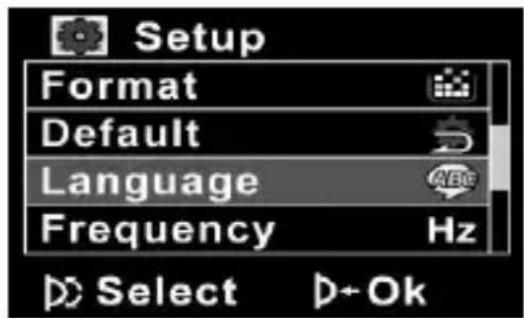
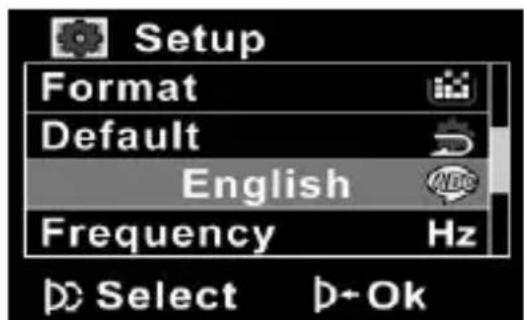
- Move the joystick left and right to select the following languages: English, Traditional Chinese, Simplified Chinese, German, Italian, Spanish, French, Turkish, Portuguese, Dutch, Japanese, Russian, Korean, and Arabic. After the language is selected, press the center joystick button to confirm.
2.6.3 Setting the beep
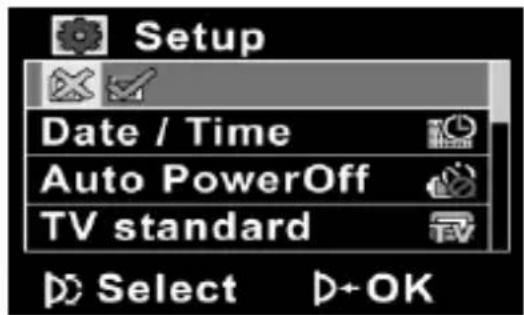
- Turn on the camcorder, and move the mode dial to SET. Move the joystick up and down to highlight Beep. Press the center joystick button to select it.
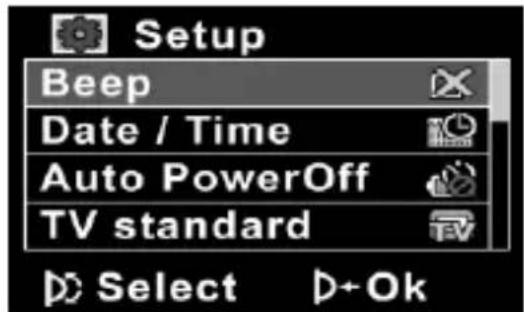
- Move the joystick left and right to select X (Beep Off) or √ (Beep On) and press the center joystick button to confirm.
2.7 Shoot/Playback video
2.7.1 Shooting a video clip
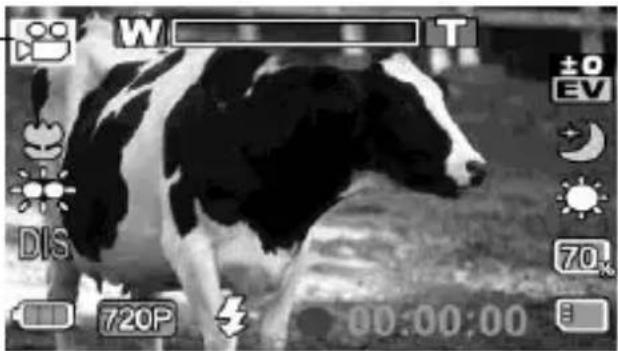
- Turn on the camcorder and move the mode dial to Camcorder mode.
Camcorder mode
natural_image
Black and white cow standing in a grassy field, captured in a camera interface (no readable text or symbols on the cow itself)-
Use the LCD screen to frame the video.
-
Press the REC.STOP button to start recording.
-
Press the REC.STOP button again to stop recording.
-
The video clip is automatically saved with a unique file name.
Notes:
- The maximum length of each video recording file is approximately 3.66 GB.
-
The high-resolution settings result in larger files, and therefore shorter length.
-
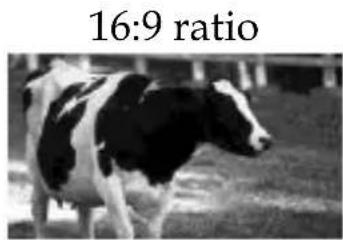
The LCD preview and the ratio of a still-image capture can vary depending on the different video resolution settings. See the following table:
Video resolution
Preview
Taking pictures and focusing
WVGA
720P
1080P
QVGA
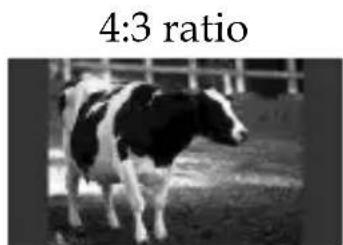
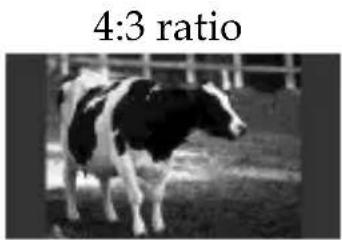
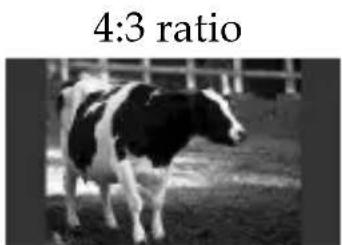
- Before shooting a video clip, you can still take a photo in Camcorder mode.
2.7.2 Playing the video clip
- In Camcorder mode, press the Playback button. The last played clip displays on the LCD screen.
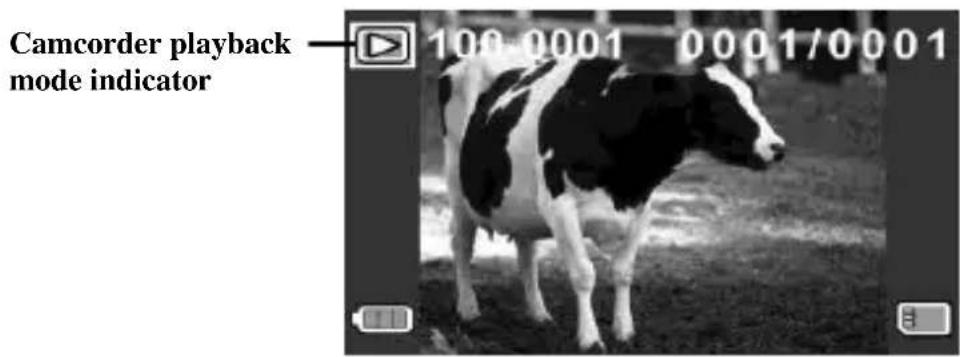
-
Move the joystick right and left to select a desired video clip and press the center joystick button. The video clip starts playing.
-
Move the joystick left to rewind the video clip and move the joystick right to fast forward.
-
Press the REC. STOP button to pause the video playback. Press the center joystick button to resume the video playback.
-
When viewing the video clip, move the Zoom button left or right to adjust the volume.
-
Press the center joystick button to stop playing.
-
Press the Playback button again to return to Camcorder mode.
2.8 Taking/viewing pictures
2.8.1 Taking a still picture
- Turn on the camcorder and move the Mode Dial to Camera mode.
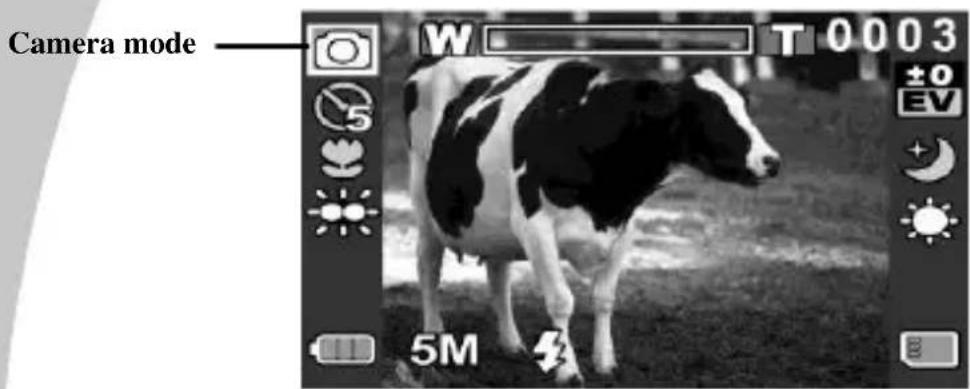
-
Use the LCD screen to frame the picture.
-
Press the Shutter button to capture the image.
-
The picture is automatically saved with an unique file name.
2.8.2 Viewing images
- In Camera mode, press the Playback button. The most recent image displays on the LCD screen.
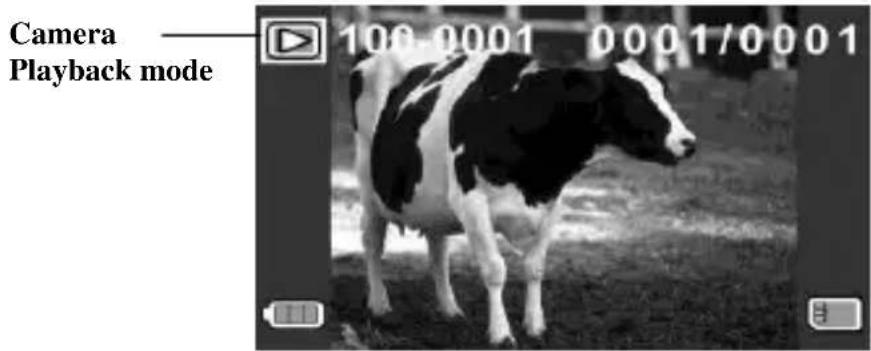
-
Press the joystick right and left to scroll through the images.
-
Move the Zoom button right to zoom in the picture. There are two direction keys appears on the LCD screen. You may press the center joystick button to switch between the panning directions (up/down left/right).
-
Move Joystick button up fully to view the thumbnails of all stored images and then press the joystick up/down and left/right.
-
Press the center joystick button to view the image in full screen mode.
-
Press the Playback button again to return to Camera mode.
2.9 Connecting to a computer
Read this section to learn how to transfer files to a PC, show the video clips or photos on a TV.
Connect the camcorder to a computer with the USB cable provided.
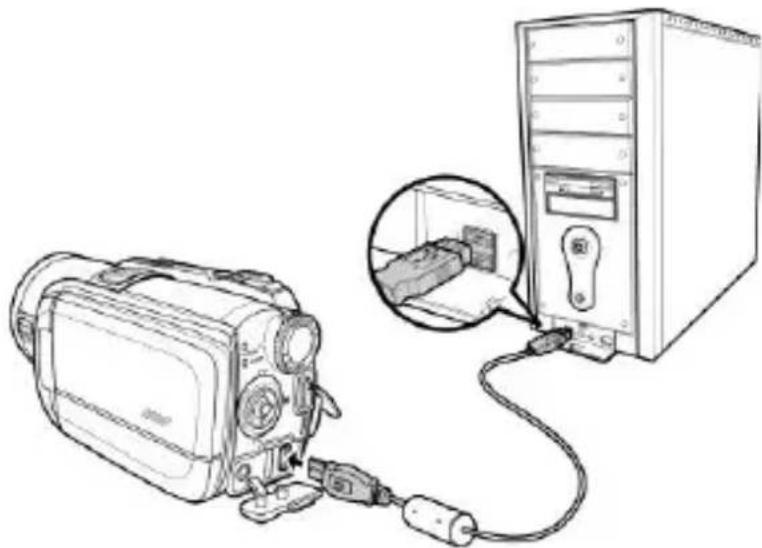
natural_image
Line drawing of a vintage camera connected to a desktop computer tower, with an inset showing a cable being inserted (no text or symbols present)2.10 Connecting to a standard TV
Connect the camcorder to a standard TV as shown with the AV cable provided.
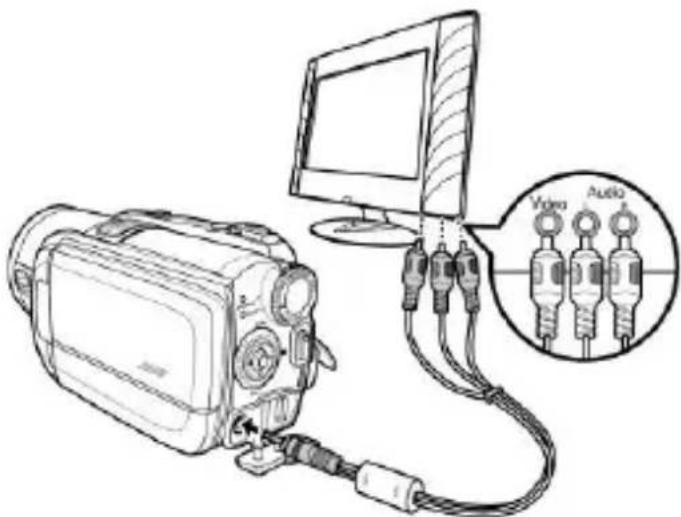
natural_image
Line drawing of a video camera connected to a computer monitor, with an inset showing three audio jack cables (no text or symbols present)2.11 Connecting to an HDTV
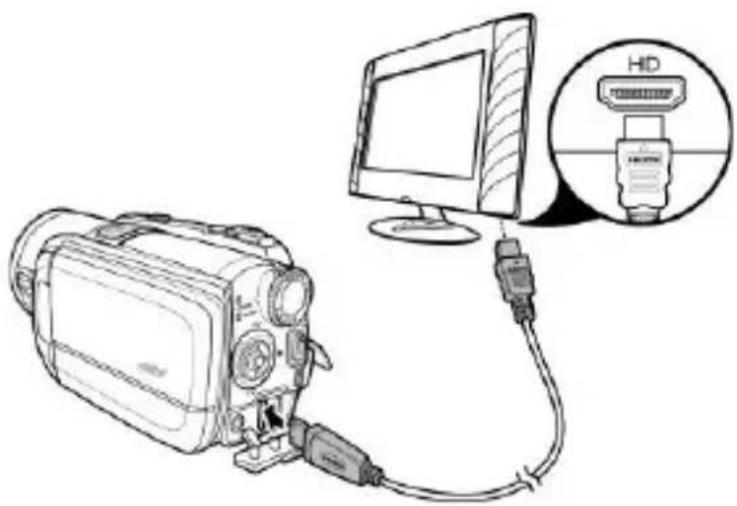
Read this section to learn how to show the video clips or photos on an HDTV. Connecting to an HDTV offers the high resolution for displaying the video clips or photos.
Connect the camcorder to an HDTV with an HDMI cable as shown.
natural_image
Line drawing of a vintage camera connected to a computer monitor, with an inset showing HD connector (no text or symbols on device)- Note:
Photo capturing, camcorder, and voice recording are not support when connected to an HDTV and TV.
3 Using the camcorder
Read this section to learn how to use the camcorder.
3.1 Camcorder and voice recorder mode
Use this mode to capture video clips or record voice and store them on an SD card.
3.1.1 Camcorder and voice recorder mode
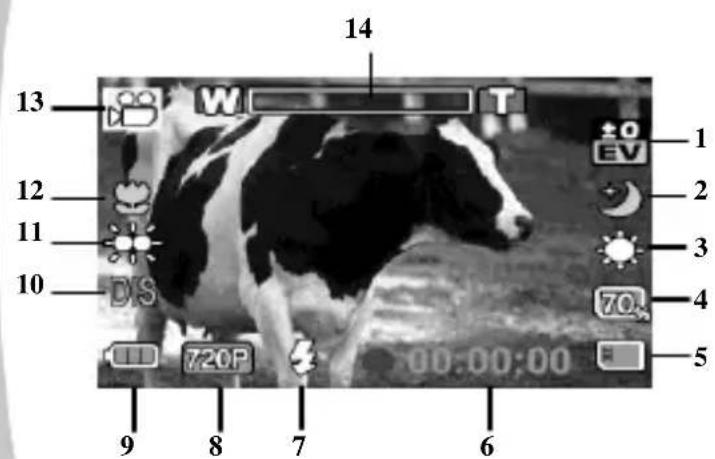
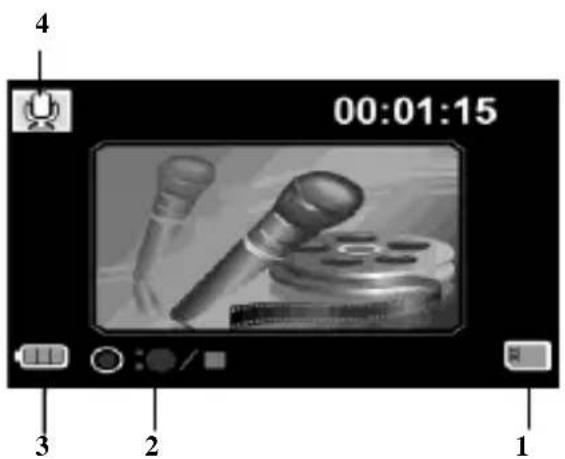
Use the following picture to familiarize yourself with the Camcorder and voice recorder mode icons and symbols.
Camcorder mode
Voice recorder mode
Camcorder mode:
See the table below for a description of each icon and symbol.
| 1 |  | EV compensation indicator |
| 2 |  | Night mode indicator |
| 3 |  | White balance indicator |
| 4 |  | Memory space indicator |
| 5 |  | Memory status indicator : No SD card : No SD card : SD card in : SD card in |
| 6 | 00:00:00 | Recording time indicator |
| 7 |  | Forced flash indicator |
 | Auto flash indicator | |
| 8 | 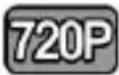 | Resolution and frame rate indicator |
| 9 |  | Battery indicator |
| 10 |  | Stabilizer indicator |
| 11 |  | LED light indicator |
| 12 |  | Macro indicator |
 | Auto Focus (AF) lock indicator | |
 | Manual Focus (MF) indicator | |
| 13 |  | Camcorder mode indicator |
| 14 |  | Zoom indicator |
Voice recorder mode:
See the table below for a description of each icon and symbol.
| 1 |  | Memory status indicatorB: SD card inM: No SD card |
| 2 |  | Indicates: press to record or stop |
| 3 |  | Battery indicator |
| 4 |  | Voice recorder mode indicator |
3.1.2 Using the macro function
This function can capture subjects close to the lens. In macro mode, subjects can be as close as 5 cm.
While in Camera and Camcorder modes, move the joystick right to activate the macro function, and an 📊 icon displays on the LCD screen.
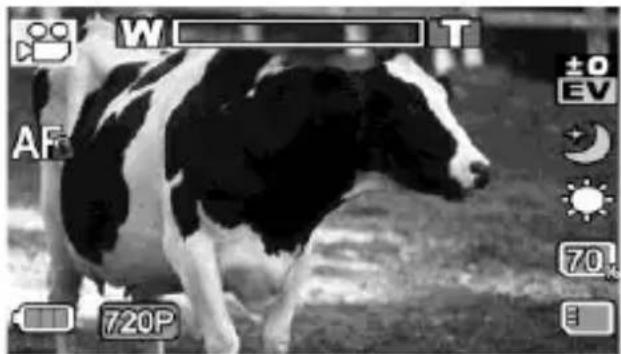
3.1.3 Using the AF Lock
The Auto Focus (AF) Lock function is used to lock focus on a desired image.
- Press the joystick inwards to enable AF Lock. The AF Lock icon appears on the screen.
natural_image
Black-and-white photo of a cow standing outdoors, captured in a camera interface (no readable text or symbols on the cow itself)-
Aim the camera on your desired subject.
-
Press the REC button to record videos or the shutter button to capture images.
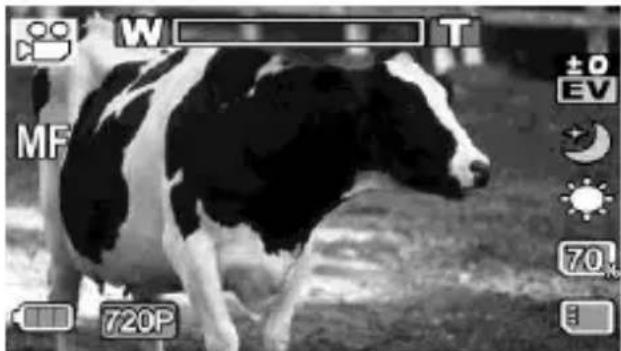
3.1.4 Using the Manual Focus
The Manual Focus (MF) function is used to manually set the focus.
- Press the joystick right repeatedly until the MF icon is displayed on the screen.
natural_image
Black-and-white photo of a cow standing on grass, no visible text or symbols-
Aim the camera on your desired subject.
-
Move the zoom buttons left or right to manually adjust focus.
- Note:
To zoom in or out the image, press and hold the Display button, then move the zoom buttons left or right.
- Press the REC button to record videos or the shutter button to capture images.
3.1.5 Using the zoom function
The camcorder is equipped with 5x optical zoom and 4X digital zoom.
Move the Zoom button right to get closer to a subject.
Move the Zoom button left to move away from a subject.
3.1.6 Using the LED light
Use the LED light to illuminate subjects in dark environments.
Press the Light button to switch on the light and press again to switch it off.
3.1.7 Using the Flash module
Use the flash module to illuminate subjects in dark environments when pressing the shutter button.
Three different flash modes are available: Auto Flash, Forced Flash, and None. You can toggle different flash modes by pressing the Flash switch. The Auto Flash icon 📄 or Forced Flash icon 🔒 is displayed on the screen when activated.
3.1.8 Using the Stabilizer function
Use the Stabilizer function to reduce vibration caused by camcorder shanks during a video shoot.
See section 4.1.6 "Stabilizer".
3.1.9 Quick access controls
You can also make adjustments to exposure by pressing the joystick up and down.
In Camcorder and Camera modes, press the joystick up and down to adjust the EV compensation settings. Press the joystick left to choose white balance settings.
3.2 Camera mode
Use Camera mode to capture still pictures and store them in the on an SD card.
3.2.1 Camera mode icons
Use the following picture to familiarize yourself with the Camera mode icons and symbols.
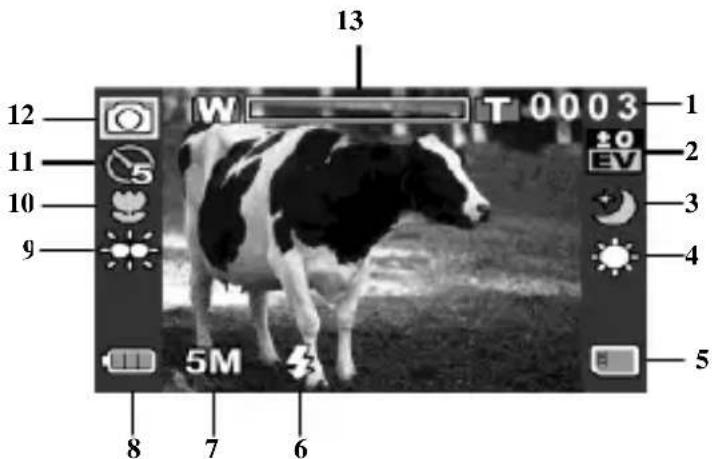
See the table below for a description of each icon and symbol.
| 1 | 0003 | Remaining number of photos |
| 2 |  | EV compensation indicator |
| 3 |  | Night mode indicator |
| 4 |  | White balance indicator |
| 5 |  | Memory status indicator: SD card indicator: No SD card |
| 6 |  | Forced flash indicator |
 | Auto flash indicator | |
| 7 |  | File size indicator |
| 8 |  | Battery indicator |
| 9 |  | LED light indicator |
| 10 |  | Macro indicator |
 | Auto Focus (AF) lock indicator | |
 | Manual Focus (MF) indicator | |
| 11 |  | Self timer indicator |
| 12 |  | Camera mode indicator |
| 13 |  | Zoom indicator |
3.2.2 Using the macro function
See section 3.1.2 "Using the macro function".
3.2.3 Using the AF Lock
See section 3.1.3 "Using the AF Lock".
3.2.4 Using the Manual Focus
See section 3.1.4 "Using the Manual Focus".
3.2.5 Using the zoom function
See section 3.1.5 "Using the zoom function".
3.2.6 Using the LED light module
See section 3.1.6 "Using the LED light".
3.2.7 Using the flash module
See section 3.1.7 "Using the Flash module".
3.2.8 Using the Stabilizer function
See section 3.1.8 "Using the Stabilizer function".
3.2.9 Quick access controls
See section 3.1.9 "Quick access controls".
3.3 Camcorder Playback mode
Use Camcorder Playback mode to review all the movie files stored on the SD card.
3.3.1 Camcorder Playback mode icons
Refer to the following picture to familiarize yourself with the Camcorder Playback mode icons and symbols.
Camcorder playback mode
Voice playback mode
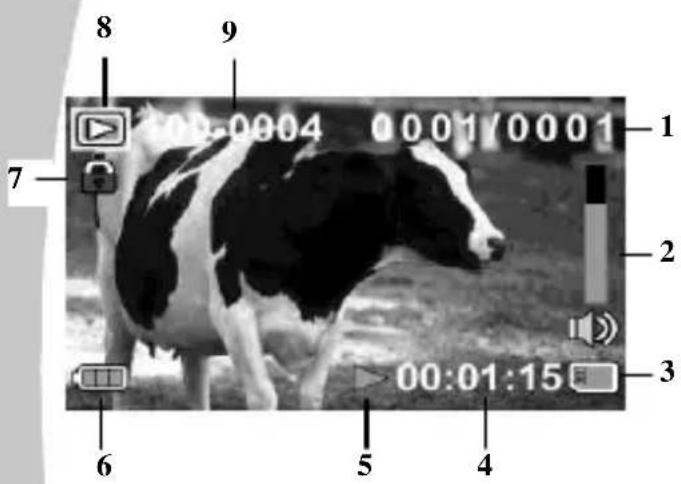
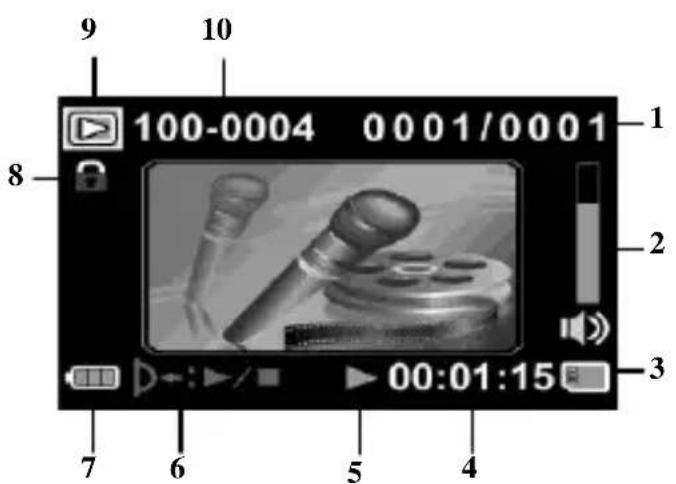
Camcorder mode:
See the table below for a description of each icon and symbol.
| 1 | 0001/0001 | Displays the number of current camcorder / total number of recorded video clips |
| 2 |  | Volume level |
| 3 |  | Memory status indicator: SD card in: No SD card |
| 4 | 00:00:00 | The length of every video clip |
| 5 |  | Play indicator |
| 6 |  | Battery status indicator |
| 7 |  | File protect indicator |
| 8 |  | Camcorder playback mode icon |
| 9 | 100-0001 | Displays the file number of the video clip |
Voice Recorder mode:
See the table below for a description of each icon and symbol.
| 1 | 0001/0001 | Displays the number of current audio/total number of recorded audio clips |
| 2 | [7Y22] | Volume level |
| 3 |  | Memory status indicator: SD card in: No SD card |
| 4 | 00:00:00 | The length of every audio clip |
| 5 |  | Play indicator |
| 6 |  | Indicates: press to Play/ Stop |
| 7 |  | Battery status indicator |
| 8 |  | File protect indicator |
| 9 |  | Voice playback mode |
| 10 | 100-0001 | Displays the file number of the audio clip |
3.4 Camera Playback mode
Use Camera Playback mode to review all the image files stored in the camcorder.
3.4.1 Camera Playback mode icons
Refer to the following picture to familiarize yourself with the Camera Playback mode icons and symbols.
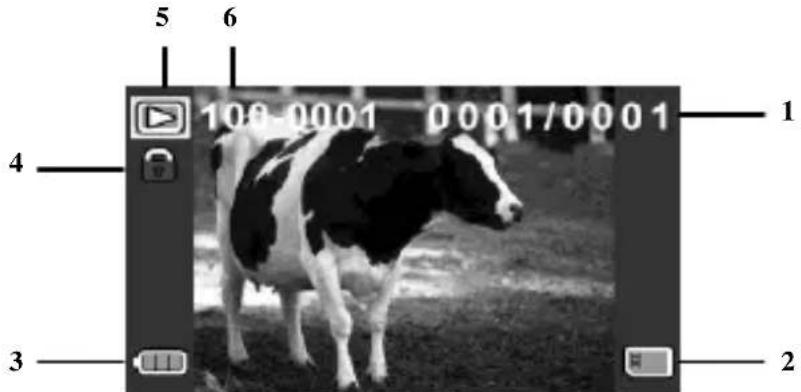
See the table below for a description of each icon and symbol.
| 1 | 0001/0001 | Displays the number of current image / the total number of saved images |
| 2 |  | Memory status indicator: SD card in: No SD card |
| 3 |  | Battery status indicator |
| 4 |  | File protect indicator |
| 5 |  | Playback mode icon |
| 6 | 100-0001 | Displays the file number of the photo |
3.5 Thumbnail mode
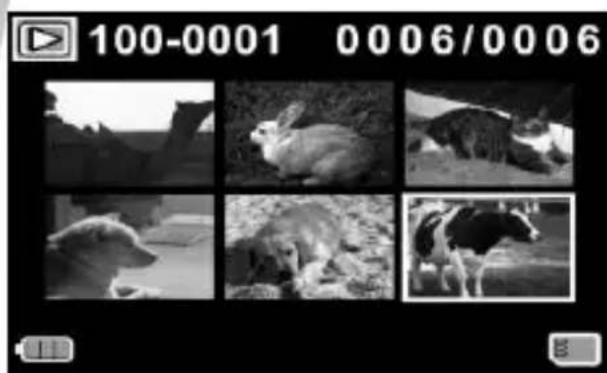
When in Camera Playback or Camcorder Playback modes, move Joystick button up to show images as thumbnails.
-
Turn on the camcorder and make sure it is in Camera Playback or Camcorder Playback mode.
-
The last played image /video clip displays on the screen. Move Joystick button up to view six thumbnail images /video clips on the LCD screen.
natural_image
Grid of six black-and-white photos showing animals in natural settings, no visible text or symbols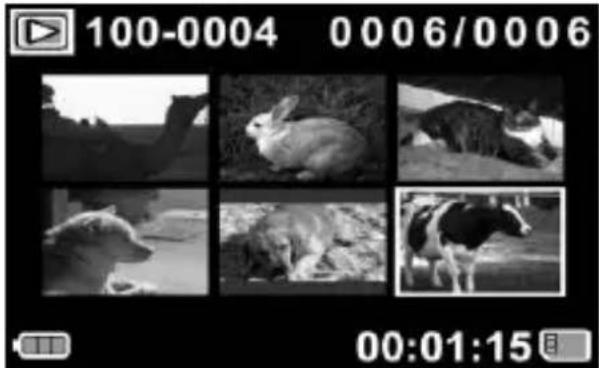
natural_image
Black-and-white photo grid showing six animals in natural settings, no visible text or symbols-
Move the joystick up/down and left/right to highlight an image, or a video clip, and press the center joystick button to view the image or playback the video clip or voice file in full screen mode.
-
Move joystick button up to return to thumbnail view.
4 Using the menus
Read this section to learn how to configure the camcorder settings and use the advanced features.
4.1 Camcorder menu
When in Camcorder mode, press the Menu button to show the camcorder options menu.
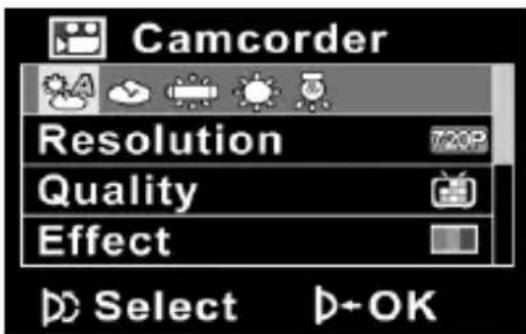
4.1.1. White balance
Use this option to correct color difference for different lighting conditions. When white balance is set to Auto, the camcorder automatically compensates for different lighting conditions.
- Turn the camcorder on and ensure it is in Camcorder mode.
- Press the Menu button and move the joystick up and down to highlight the White Balance option. Press the center joystick button to display the submenu.
- Move the joystick left and right to select Auto, Sunny, Cloudy, Tungsten, or Fluorescent. Press the center joystick button to confirm.
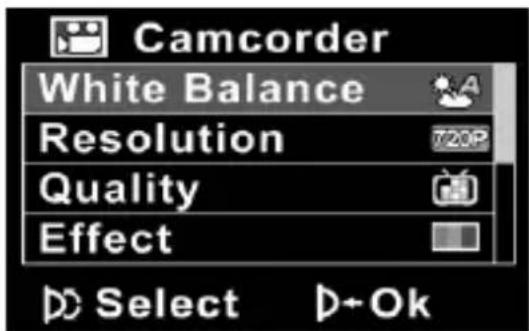
- Press the Menu button again to exit the menu.
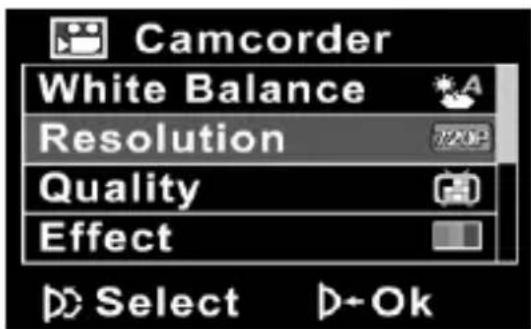
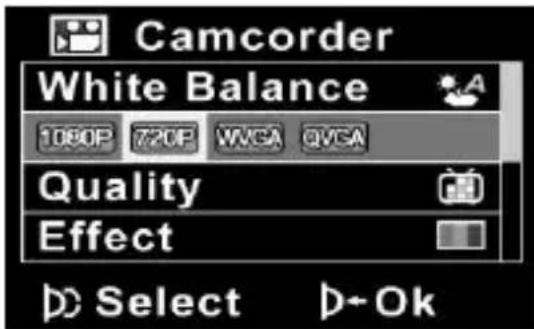
4.1.2. Video resolution
Use the resolution option to determine the resolution of the captured video. The larger screen size requires more memory storage space.
-
Turn the camcorder on and ensure it is in Camcorder mode.
-
Press the Menu button and move the joystick up and down to highlight the Resolution option. Press the center joystick button to display the submenu.
-
Press the joystick left and right to select QVGA, WVGA, 720P, 1080P. Press the center joystick button to confirm.
- Press the Menu button again to exit the menu.
- Notes:
-
The LCD displays the 16:9 ratio while setting as WVGA, 720P, 1080P video resolution.
-
The LCD displays the 4:3 ratio while setting as OVGA video resolution.
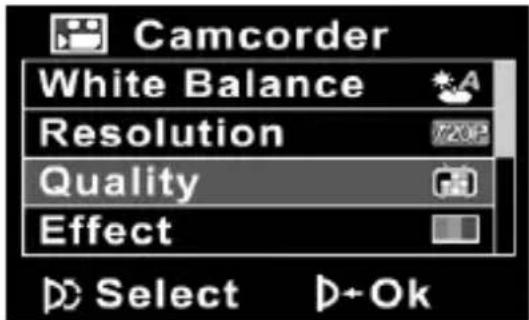
4.1.3. Quality
There are two different levels of video quality. Higher quality video needs more memory storage space and higher speed SD card.
- Turn the camcorder on and ensure it is in Camcorder mode.
- Press the Menu button and move the joystick up and down to highlight the Quality option. Press the center joystick button to display the submenu.
- Move the joystick left and right to select Fine or Normal. Press the center joystick button to confirm.
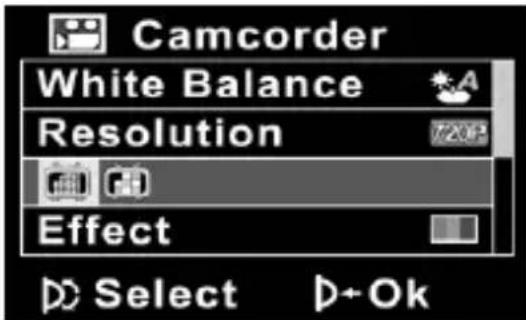
- Press the Menu button again to exit the menu.
4.1.4. Color effect
The camcorder can capture standard color images, black and white images, or sepia tone to give an old-fashioned look.
- Turn the camcorder on and ensure it is in Camcorder mode.
- Press the Menu button and move the joystick up and down to highlight the Effect option. Press the center joystick button to display the submenu.
- Move the joystick left and right to select Color, B&W or Sepia. Press the center joystick button to confirm.
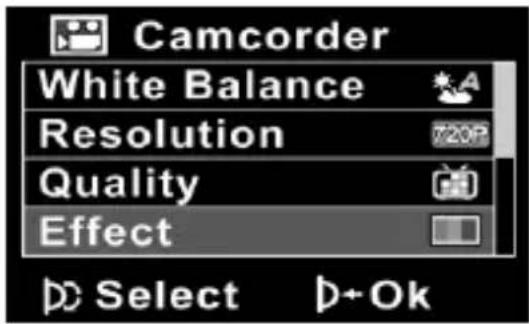
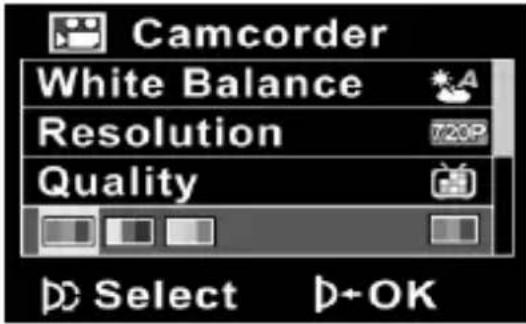
- Press the Menu button again to exit the menu.
4.1.5. Night mode
Use this function to shoot a better video clip quality in dark environments.
- Turn the camcorder on and ensure it is in Camcorder mode.
- Press the Menu button and move the joystick up and down to highlight the Night Mode option. Press the center joystick button to display the submenu.
- Move the joystick left and right to select Off or Night mode options. Press the center joystick button to confirm.
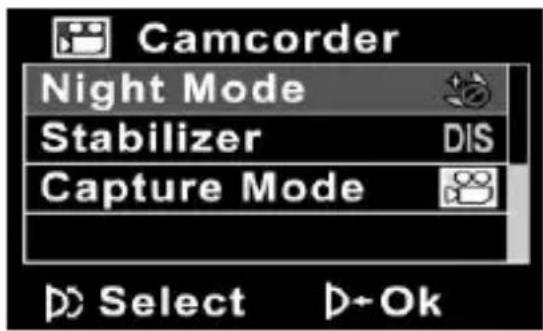
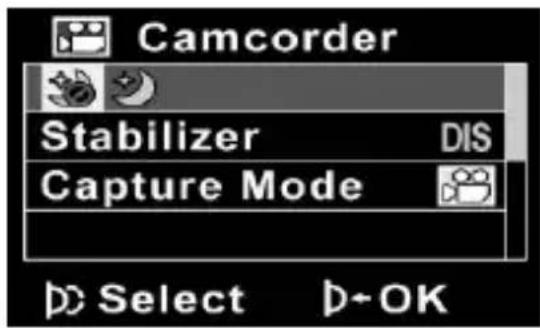
- Press the Menu button again to exit the menu.
4.1.6. Stabilizer
Use this function to reduce vibration caused by camcorder shakes during a video shoot.
- Turn the camcorder on and ensure it is in Camcorder mode.
- Press the Menu button and move the joystick up and down to highlight the Stabilizer option. Press the center joystick button to display the submenu.
- Move the joystick left and right to select Off or Stabilizer options. Press the center joystick button to confirm.
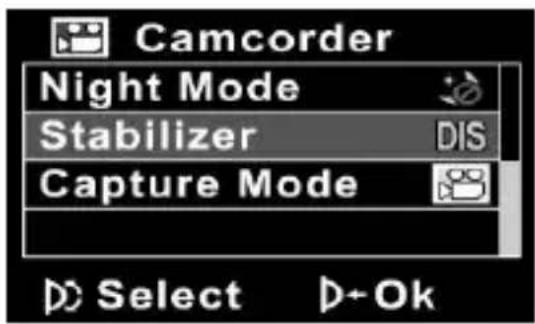
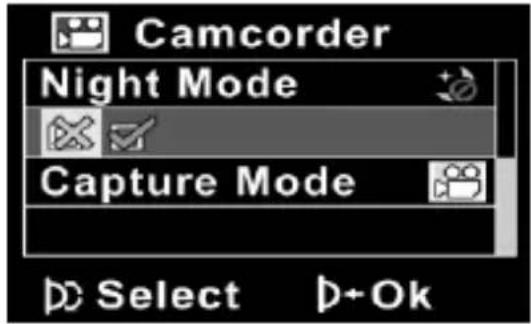
- Press the Menu button again to exit the menu.
- An icon DIS displays on the screen.
- Note:
Stabilizer function is available in video resolution QVGA, WVGA(30fps), and 720P(30fps) only.
4.1.7. Capture mode
Use this function to record sound or image.
- Turn the camcorder on and ensure it is in Camcorder mode.
- Press the Menu button and move the joystick up and down to highlight the Capture Mode option. Press the center joystick button to display the submenu.
- Move the joystick left and right to select Voice recorder or Video options. Press the center joystick button to confirm.
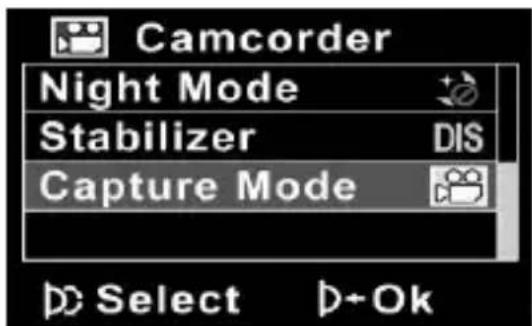
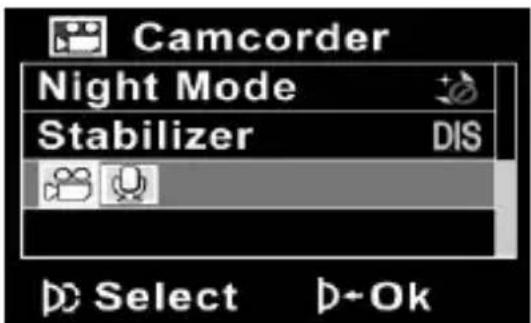
- Press the Menu button again to exit the menu.
4.2 Camcorder playback menu
Use the playback menu to manage the files stored on the SD card.
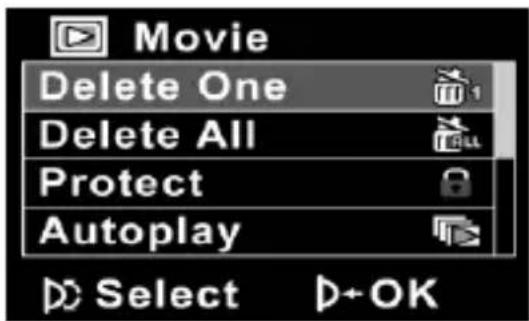
4.2.1 Delete
Use this function to delete files.
- Turn the camcorder on and ensure it is in Camcorder mode. Press the Playback button and then press the Menu button to display the Camcorder Playback menu.
- Move the joystick up and down to select Delete One or Delete All options.
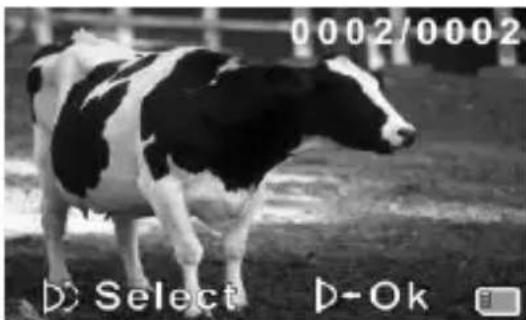
If you select Delete One, the playback screen appears again. Move the joystick right and left to locate the file you want to delete and press the center joystick button to confirm.
natural_image
Black and white cow standing in a fenced enclosure (no visible text or symbols)If you select Delete All, press the center joystick button to display the submenu.
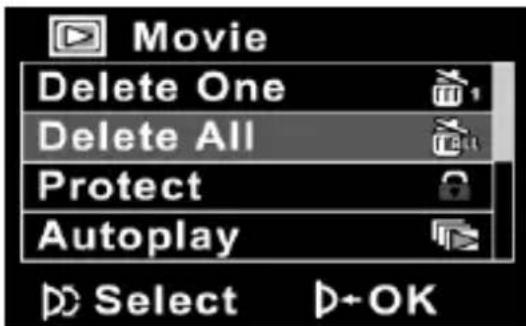
- Move the joystick left and right to select X or and press the center joystick button to delete.
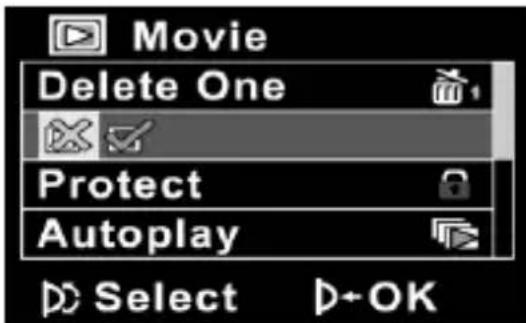
- Press the Menu button again to exit the menu.
- Note:
Once deleted, files cannot be recovered so make sure you have a backup before you delete. Files that have been protected will not be deleted. You have to unlock the files first before deleting them.
4.2.2 Protect
Use this function to lock files to prevent accidental deletion.
- Turn the camcorder on and ensure it is in Camcorder mode. Press the Playback button and then press the Menu button to display Camcorder Playback menu.
- Move the joystick up and down to select the Protect option. Then playback screen appears again. Move the joystick to locate the file you want to protect and press the center joystick button to confirm. A lock 📄con is displayed to show that the file is protected.
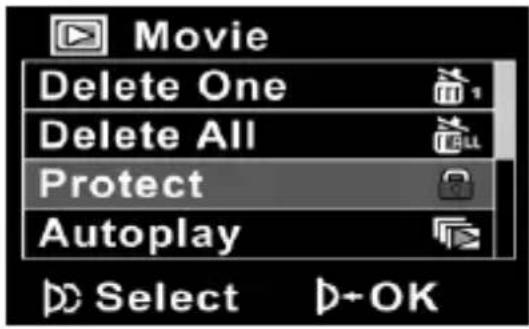
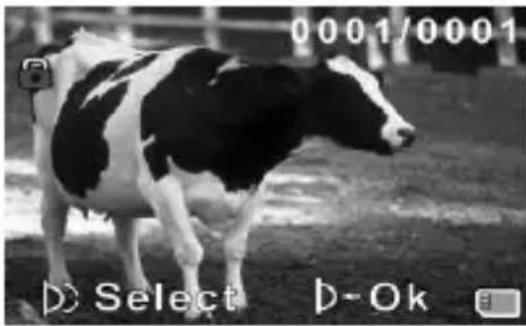
- Press the Menu button again to exit the menu.
- Note:
To unlock a file, repeat the above steps. The lock icon disappears when the file is unlocked.
4.2.3 Autoplay
Use this function to repeatedly play all movie clips stored in the internal memory or on the SD card.
- Turn the camcorder on and ensure it is in Movie mode. Press the Playback button and then press the Menu button to display the Movie Playback menu.
- Move the joystick up and down to select the Autoplay option and press the joystick inwards to confirm.
- Move the joystick left/right to select √. The camcorder returns to the Movie Playback mode automatically.
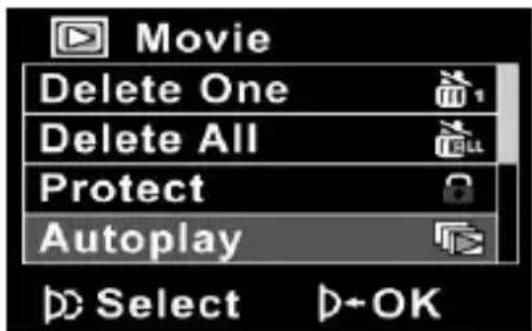
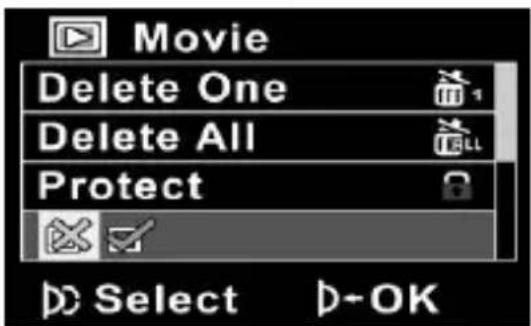
- Press the joystick inwards to play all movie clips repeatedly.
4.3 Camera menu
In Camera mode, press the Menu button to show the Camera Options menu.
4.3.1 White balance
Use this option to correct color difference due to lighting conditions.
- Turn the camcorder on and ensure it is in Camera mode.
- Press the Menu button and move the joystick up and down to highlight the White Balance option. Press the center joystick button to display the submenu.
- Move the joystick left and right to select Auto, Sunny, Cloudy, Tungsten, or Fluorescent. Press the center joystick button to confirm.
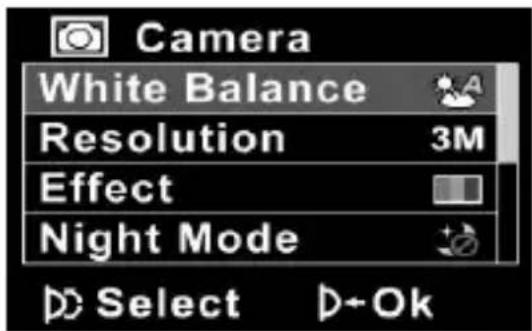
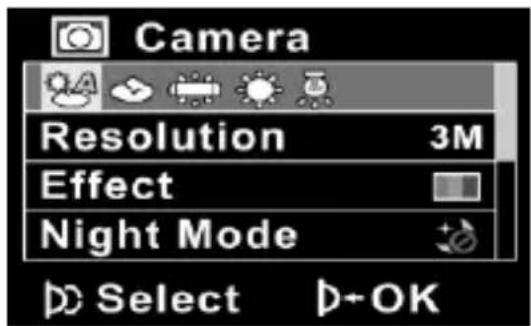
- Press the Menu button again to exit the menu.
4.3.2 Resolution
Use this option to set the size of the captured image. Larger images contain more detail and therefore use more memory space.
- Turn the camcorder on and ensure it is in Camera mode.
- Press the Menu button and move the joystick up and down to highlight the Resolution option. Press the center joystick button to display the submenu.
- Move the joystick left and right to select from 3M, 5Mor 12M. Press the center joystick button to confirm.
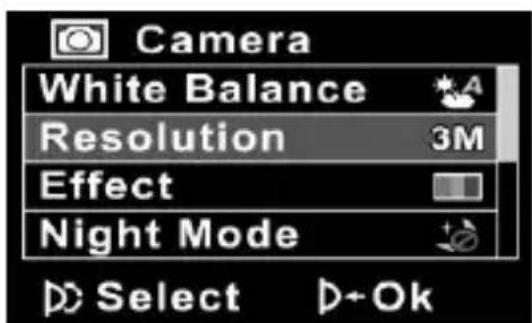
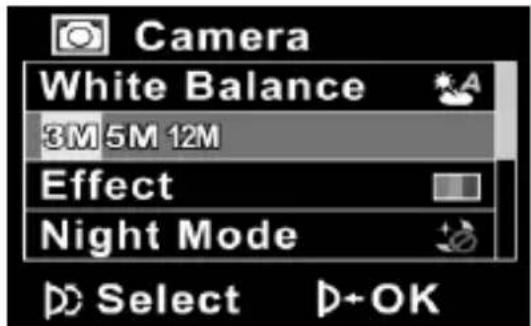
- Press the Menu button again to exit the menu.
4.3.3 Color effect
The camcorder can capture standard color images, black and white images, or sepia tone to give an old-fashioned look.
- Turn the camcorder on and ensure it is in Camera mode.
- Press the Menu button and move the joystick up and down to highlight the Effect option. Press the center joystick button to display the submenu.
- Move the joystick left and right to select Color, B & W, or Sepia. Press the center joystick button to confirm.
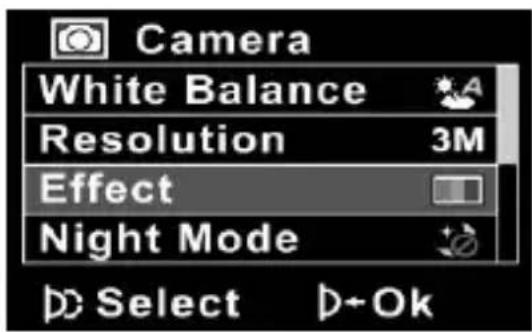
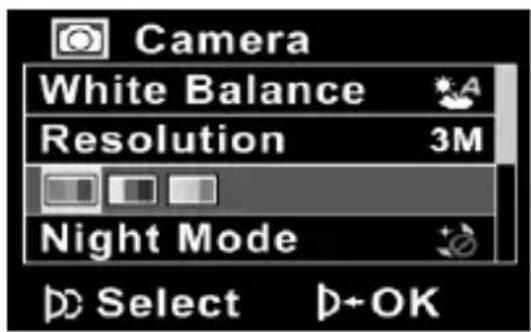
- Press the Menu button again to exit the menu.
4.3.4 Night mode
Use this function to shoot a better photo quality in dark environments.
- Turn the camcorder on and ensure it is in Camera mode.
-
Press the Menu button and move the joystick up and down to highlight the Night Mode option. Press the center joystick button to display the submenu.
-
Move the joystick left and right to select Off or Night mode option. Press the center joystick button to confirm.
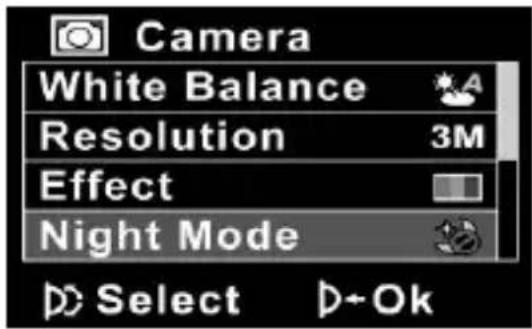
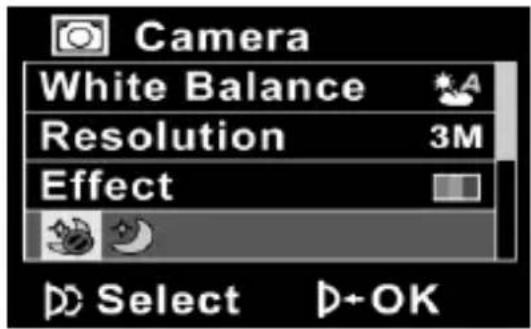
- Press the Menu button again to exit the menu.
4.3.5 Self timer
Use the self timer function to take a photo of yourself.
-
Turn the camcorder on and ensure it is in Camera mode.
-
Press the Menu button and move the joystick up and down to highlight the Selftimer option. Press the center joystick button to display the submenu.
-
Move the joystick left and right to select Off, 5 seconds, or 10 seconds options. Press the center joystick button to confirm.
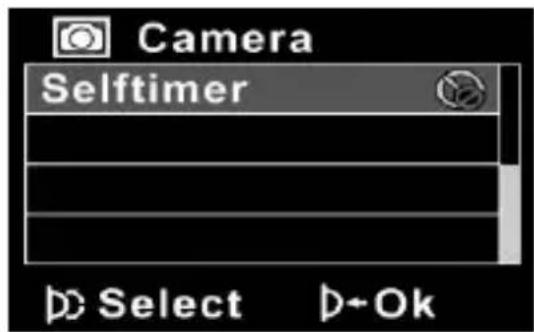
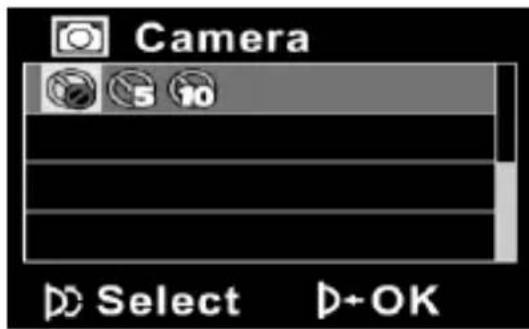
- Press the Menu button again to exit the menu.
4.4 Camera playback menu
4.4.1 Delete
Use this function to delete files.
- Turn the camcorder on and ensure it is in Camera mode. Press the Playback button and then press the Menu button to display the Camera Playback menu.
- Move the joystick up and down to select the Delete One or Delete All options.
If you select Delete One, the playback screen appears again. Move the joystick left and right to locate the file you want to delete and press the center joystick button to confirm.
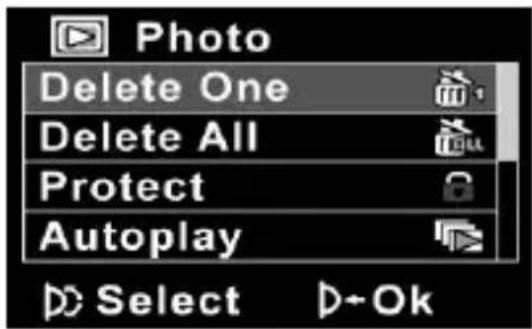
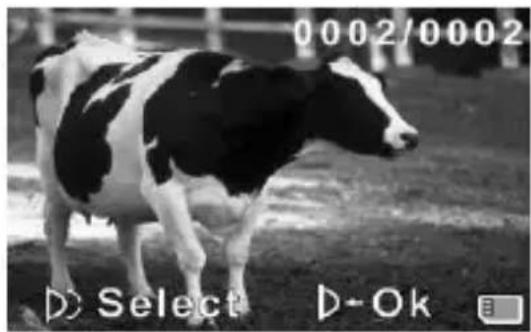
If you select Delete All, press the center joystick button to display the submenu.
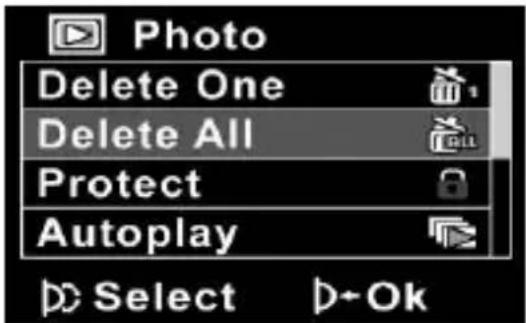
- Move the joystick left and right to select X or and then press the center joystick button to delete.
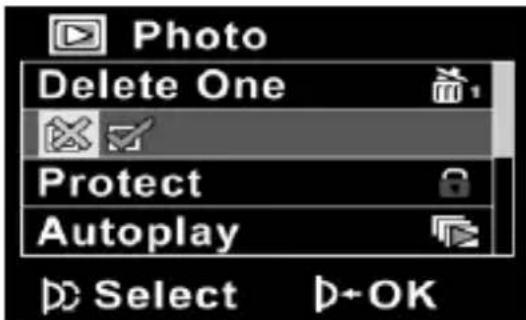
- Press the Menu button again to exit the menu.
- Note:
Once deleted, files cannot be recovered so make sure you have a backup before you delete. Files that have been protected will not be deleted. You have to unlock the files first before deleting them.
4.4.2 Protect
Use this function to protect files.
- Turn the camcorder on and ensure it is in Camera mode. Press the Playback button and then press the Menu button to display the Camera Playback menu.
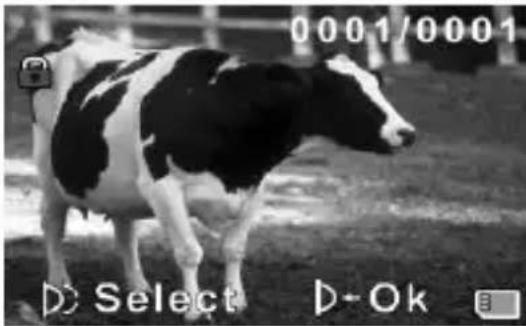
- Move the joystick up and down to select the Protect option. Then playback screen appears again. Press the joystick up and down to locate the file you want to protect and press the center joystick button to confirm. A lock 📄con is displayed to show that the file is protected.
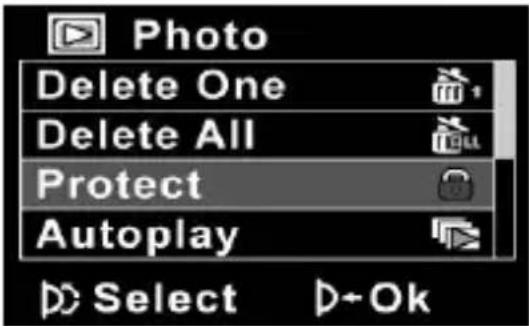
- Press the Menu button again to exit the menu.
- Note:
To unlock a file, repeat the above steps. The lock icon disappears when the file is unlocked.
4.4.3 Autoplay
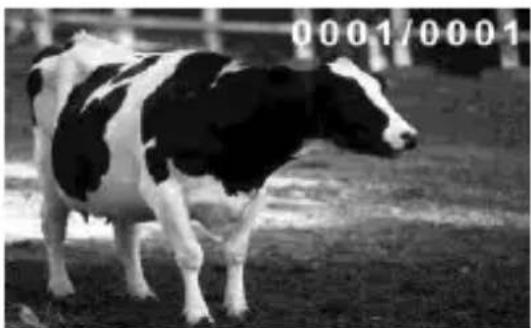
The camcorder includes a slide show function, which repeatedly displays each image in turn with a regular interval.
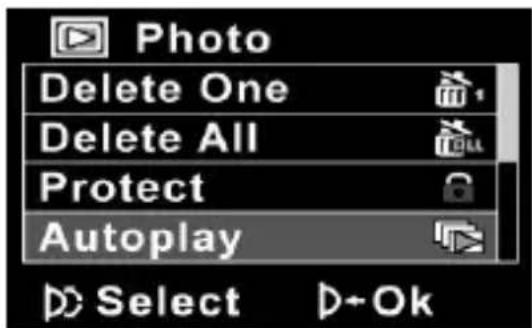
- Turn the camcorder on and ensure it is in Camera mode. Press the Playback button and then press the Menu button to display the Camera Playback menu.
- Move the joystick up/down to select the Autoplay option and press the joystick inwards to confirm. The camcorder returns to the Camera Playback mode automatically.
natural_image
Black and white cow standing in a grassy field with fence in background (no text or symbols on cow)- Press the joystick inwards to play all pictures repeatedly.
4.4.4 DPOF
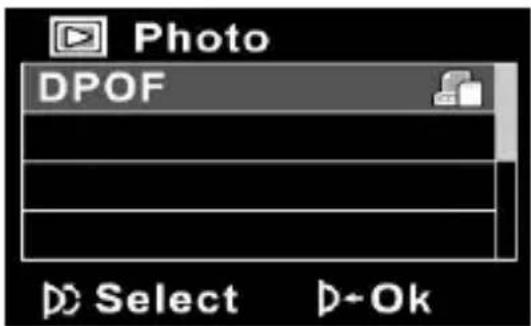
Use the DPOF (Digital Print Order Format) function to tag pictures stored in the memory card with print information.
-
Turn the camcorder on and ensure it is in Camera mode. Press the Playback button and then press the Menu button to display the Camera Playback menu.
-
Move the joystick up and down to highlight the DPOF option. Press the center joystick button to display the submenu.
- Press the Menu button again to exit the menu.
Notes:
- A memory card is required for DPOF function.
- If DPOF is set, all photos are ordered to print.
4.5 System menu
The system menu is used to configure miscellaneous camera functions.
4.5.1 Setting the beep
See section 2.6.3 "Setting the Beep".
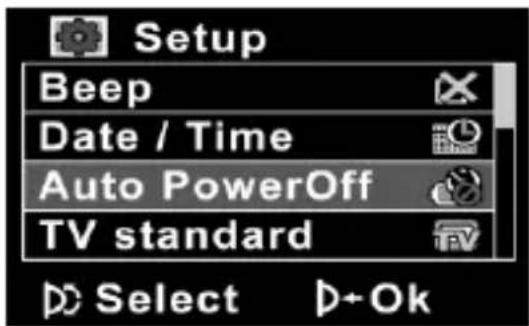
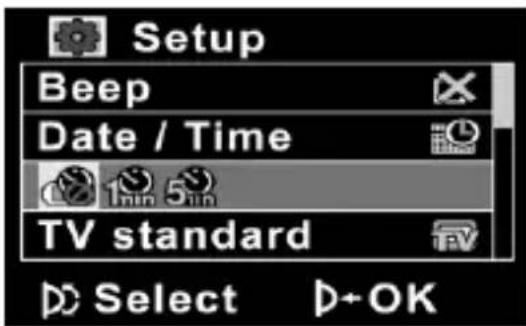
4.5.2 Auto power off
Use this function to switch the camcorder off automatically after a period of inactivity for power saving.
- Turn on the camcorder and switch to SET mode.
-
Move the joystick up and down to highlight the Auto Power Off option. Press the center joystick button to display the submenu.
-
Move the joystick left and right to select Off, 1 minute, or 5 minutes. Press the center joystick button to confirm.
4.5.3 TV standard
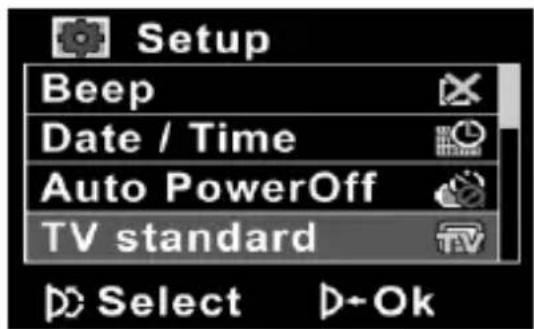
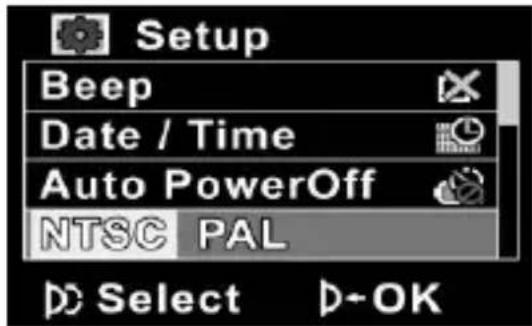
Use the TV option to set the TV system for the area.
- Turn on the camcorder and switch to SET mode.
-
Move the joystick up and down to highlight the TV standard option. Press the center joystick button to display the submenu.
-
Move the joystick left and right to select NTSC or PAL, and press the center joystick button to confirm.
4.5.4 Format
Use this function to format the current storage media. This format action will delete everything on the media.
- Turn on the camcorder and switch to SET mode.
- Move the joystick up and down to highlight the Format option. Press the center joystick button to display the submenu.
- Move the joystick left and right to select X or , and press the center joystick button to confirm.
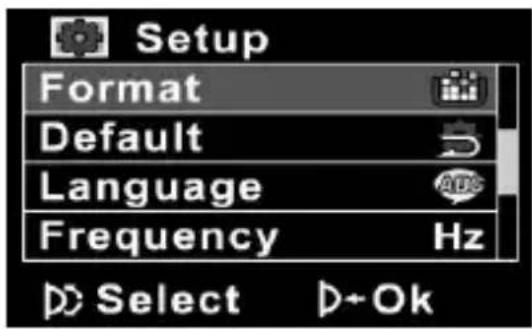
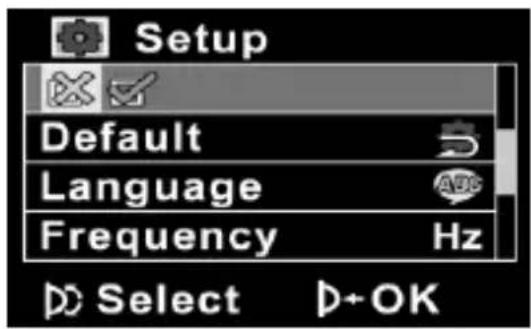
- The current media (memory card) is formatted.
4.5.5 Default
Use this option to reset all settings to the default settings.
- Turn on the camcorder and switch to SET mode.
- Move the joystick up and down to highlight the Default option. Press the center joystick button to display the submenu.
- Move the joystick left and right to select X or , and press the center joystick button to confirm.
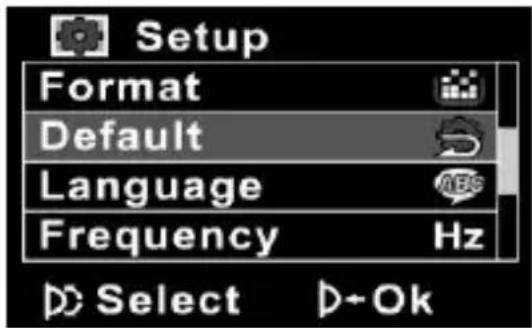
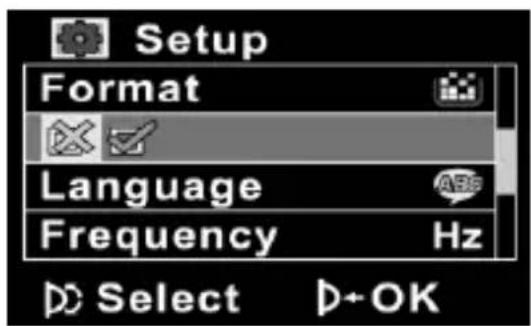
4.5.6 Language
See section 2.6.2 "Setting the language".
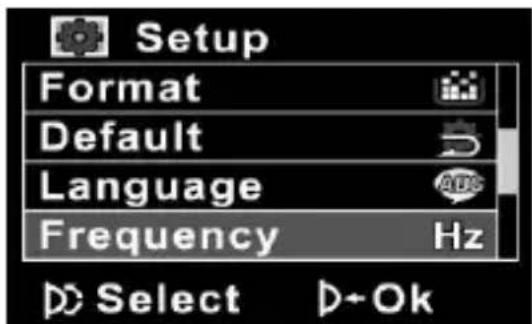
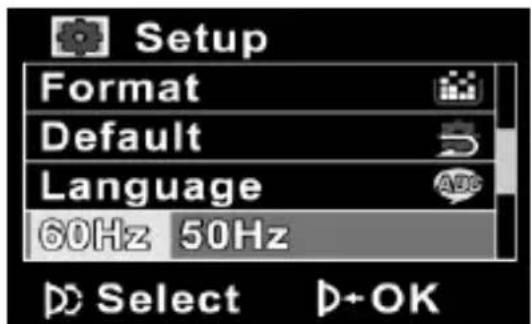
4.5.7 Frequency
Use the Frequency option to set the frequency system for your area. To set the frequency:
- Turn on the camcorder and switch to SET mode.
- Move the joystick up and down to highlight the Frequency option. Press the center joystick button to display the submenu.
- Move the joystick left and right to select 50 Hz or 60 Hz. Press the center joystick button to confirm.
4.5.8 Date/time
See section 2.6.1 "Setting the date and time".
Appendix Specifications
| General | |
| Imaging sensor | 1/2.5" CMOS 5.0 Megapixel sensor |
| Active pixels | 5.0 Megapixel |
| Storage media | Internal: Built-in 128MB (available about 98MB) Nand flash memoryExternal: SD Card (Up to SDHC 16GB Class6) |
| Sensor sensitivity | Auto |
| Color effects | Color/B&W/Sepia |
| Lens | 5X Optical zoom lensWide: F/3.2, f=6.26mmTele: F/6.8, f=30.75mm |
| Focus range | Normal: 45cm ~ inf.Macro: Wide 20 ~ 45 cm Middle 10 ~ 45cmTele 5 ~ 45cm |
| Video clips | Format: H.264 (AVI)Resolution: QVGA(30fps), WVGA(60fps), 720P(30fps), 1080P(30fps)DIS Function WVGA(30fps), 720p(30fps), QVGA(30fps) |
| Still image | Formats: JPEG (EXIF2.2), DPOF, DCFResolution: 3M, 5M, 12M |
| Zoom | Camcorder: 5X Optical Zoom, 4X Digital Zoom (1080P without Digital Zoom)Camera: 5X Optical zoom, 4X Digital ZoomPlayback: Digital Zoom Max. 8X |
| Audio Video | Yes |
| TFT Monitor | 3.0" TFT (960 x 240 pixels) (16:9) |
| LED light | Effective Range: 0.5m ~ 1mMode: On / Off |
| Strobe(Camera) | Effective Range: 1m ~ 1.5mMode: Auto / Off / Force |
| White balance | Auto/Sunny/Cloudy/Tungsten/Fluorescent |
| EVcompensation | -2.0 EV~+2.0 EV (0.5EV per step) |
| Self-timer | 5 seconds, 10 seconds, Off |
| PC interface | USB 2.0 (high speed) |
| TV out format | NTSC/PAL/ HDMI |
| Shutter | 1/2 ~ 1/ 2000 sec. |
| Auto power off | Off, 1 min., 5 min. |
| Power supply | Li-Ion battery NP-120 |
| Dimension | 57 (W) x 70 (H) x 129 (D) mm |
| Weight | Approx. 292+-5g (without batteries) |
Troubleshooting
| Problem | Possible Cause | Solution |
| Cannot turn on the camcorder. | The batteries are not inserted correctly.The batteries have no power. | Insert the batteries correctly. (See 2.2 Inserting the batter.)Please charge the battery. (See 2.3 Charging the battery.) |
| The camera suddenly turns off. | The auto power off function was enabled.The camera is running out of battery power. | Turn the power on again.Please charge the battery. (See 2.3 Charging the battery.) |
| The captured image is not stored in memory. | Before the image is saved the power has been cut off. | When battery indicator turns empty (without green bars), replace the battery immediately. |
| The camera turns off when capturing image using self-timer. | The camera is running out of battery power. | ·Please charge the battery. (see 2.3 Charging the battery) |
| The image is out of focus. | The subject is beyond focus range. | ·Please take a picture within the available focus range and choose normal or macro mode. (See 3.2.2 Using the macro function). |
| Memory card cannot be used. | The memory card is protected. The memory card contains non-DCF images taken by other cameras. | ·Unlock the memory card. Format the memory card. (See 4.5.4 Format.) Before formatting the card, ensure you back up the files. |
| All buttons are | Short circuit occurred when | ·Remove the batteries from |
| inactive. | connecting the camera with other devices. | the camera and insert again. |

natural_image
Abstract grayscale gradient background with concentric white rings on a dark bottom (no text or symbols)- Table of Contents
- Introducing the camcorder...... 1
- Getting started....11
- Before you start 16
- Shoot/Playback video 20
- Taking/viewing pictures....23
- Connecting to a computer....25
- Using the camcorder 27
- Camcorder and voice recorder mode .....27
- Camera mode....32
- Using the menus 40
- Camera menu....51
- Camera playback menu....56
- System menu....61
- Appendix 66
- Specifications....66
- Troubleshooting....69
- Preface
- About this manual
- Copyright
- Precautions
- General precautions
- Notes on the LCD Screen
- Operation conditions
- Power supply
- Before You Start
- Copyright information
- Introducing the camcorder
- System requirements
- Features
- Unpacking the camcorder
- About the camcorder
- Front view
- Top view
- Bottom view
- Right view
- Left view
- Back view
- Adjusting the LCD display
- ● In Camera Playback mode:
- ● In Camcorder Playback mode:
- About the LEDs
- Getting started
- Inserting an SD card
- Inserting the battery
- - Note:
- Charging the battery
- Turning on/ off the camcorder
- Notes:
- Changing modes
- Before you start
- Setting the date and time
- Setting the language
- Setting the beep
- Shoot/Playback video
- Shooting a video clip
- WVGA
- Playing the video clip
- Taking/viewing pictures
- Taking a still picture
- Viewing images
- Connecting to a computer
- Connecting to a standard TV
- Connecting to an HDTV
- Using the camcorder
- Camcorder and voice recorder mode
- Camcorder and voice recorder mode
- Camcorder mode:
- Voice recorder mode:
- Using the macro function
- Using the AF Lock
- Using the Manual Focus
- Using the zoom function
- Using the LED light
- Using the Flash module
- Using the Stabilizer function
- Quick access controls
- Camera mode
- Camera mode icons
- Using the macro function
- Using the AF Lock
- Using the Manual Focus
- Using the zoom function
- Using the LED light module
- Using the flash module
- Using the Stabilizer function
- Quick access controls
- Camcorder Playback mode
- Camcorder Playback mode icons
- Camera Playback mode
- Camera Playback mode icons
- Thumbnail mode
- Using the menus
- Camcorder menu
- White balance
- Video resolution
- - Notes:
- Quality
- Color effect
- Night mode
- Stabilizer
- Capture mode
- Camcorder playback menu
- Delete
- Protect
- Autoplay
- Camera menu
- White balance
- Resolution
- Color effect
- Night mode
- Self timer
- Camera playback menu
- Delete
- Protect
- Autoplay
- DPOF
- System menu
- Setting the beep
- Auto power off
- TV standard
- Format
- Default
- Language
- Frequency
- Date/time
- Appendix Specifications
Brand : Praktica
Model : DVC-55
Category : Camcorder