BHM XR+ - Camera FLIR - Free user manual and instructions
Find the device manual for free BHM XR+ FLIR in PDF.


| Product Type | Handheld Thermal Monocular |
| Brand | FLIR |
| Model | BHM XR+ |
| Thermal Sensor Resolution | 320 × 240 pixels |
| Refresh Rate | 9 Hz |
| Magnification | 2× to 8× (digital zoom) |
| Field of View | 24° × 18° |
| Detection Range | Up to 2000 m (for human-sized target) |
| Display | OLED 640 × 480 |
| Battery Type | CR123A (2×) or rechargeable Li-Ion |
| Battery Life | Up to 5 hours continuous use |
| Weight | 1.2 lbs (approx. 544 g) including batteries |
| Dimensions | 7.2 × 2.8 × 2.5 in (183 × 71 × 64 mm) |
| Housing Material | Ruggedized ABS plastic |
| Water Resistance | IP67 rated (submersible up to 1 m for 30 min) |
| Operating Temperature | -20°C to +50°C |
| Storage Temperature | -30°C to +60°C |
| Primary Functions | Thermal imaging, spot temperature measurement, image/video recording |
| Image Capture | JPEG stills, MPEG-4 video with audio |
| Internal Memory | 16 GB (expandable via microSD up to 256 GB) |
| Connectivity | Micro USB for data transfer, video output via composite cable |
| Maintenance & Cleaning | Clean lens with soft, dry cloth; avoid solvents; store in a dry place |
| Safety | Do not stare directly into laser (if equipped); avoid extreme temperatures |
| Spare Parts & Repairability | Batteries and lens caps available; service by authorized FLIR centers |
| Warranty | 2 years limited warranty |
Frequently Asked Questions - BHM XR+ FLIR
User questions about BHM XR+ FLIR
0 question about this device. Answer the ones you know or ask your own.
Ask a new question about this device
Download the instructions for your Camera in PDF format for free! Find your manual BHM XR+ - FLIR and take your electronic device back in hand. On this page are published all the documents necessary for the use of your device. BHM XR+ by FLIR.
USER MANUAL BHM XR+ FLIR
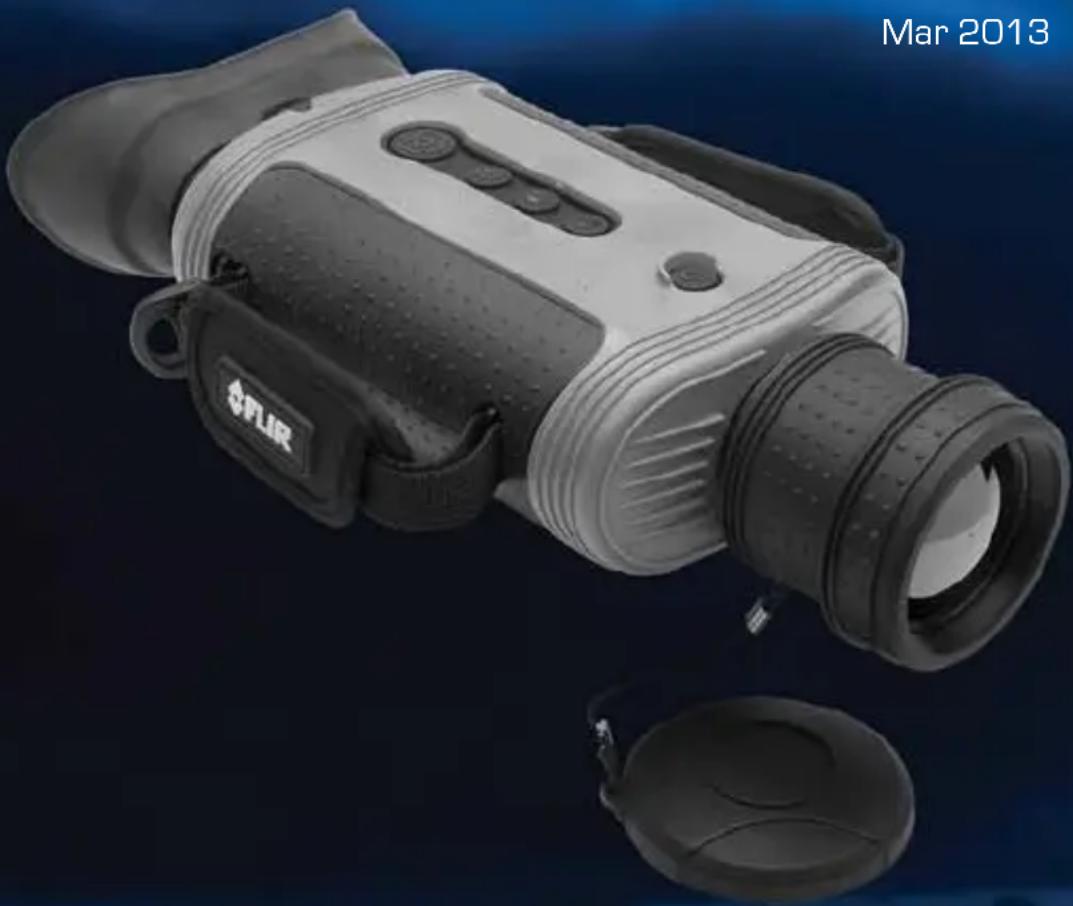
BHM-Series Bi-Ocular
Thermal Night Vision Camera
Document Number: 432-BHMO-15-10
Revision: 110
Mar 2013
natural_image
Black and white photo of a FLIR (Medical Sensor) device with visible lens and grip, against a dark blue background (no text or symbols on the device itself)© 2013 FLIR Commercial Systems, Inc. All rights reserved worldwide. No parts of this manual, in whole or in part, may be copied, photocopied, translated, or transmitted to any electronic medium or machine readable form without the prior written permission of FLIR Commercial Systems, Inc.
Names and marks appearing on the products herein are either registered trademarks or trademarks of FLIR Commercial Systems, Inc. and/or its subsidiaries. All other trademarks, trade names, or company names referenced herein are used for identification only and are the property of their respective owners.
This product is protected by patents, design patents, patents pending, or design patents pending.
If you have questions that are not covered in this manual, or need service, contact FLIR Commercial Vision Systems, Inc. customer support at 805.964.9797 for additional information prior to returning a camera.
The contents of this document are subject to change. For additional information visit www.flir.com or write to FLIR Commercial Systems, Inc., 70 Castilian Drive, Goleta CA 93117.
Proper Disposal of Electrical and Electronic Equipment (EEE)

The European Union (EU) has enacted Waste Electrical and Electronic Equipment Directive 2002/96/EC (WEEE), which aims to prevent EEE waste from arising; to encourage reuse, recycling, and recovery of EEE waste; and to promote environmental responsibility.
In accordance with these regulations, all EEE products labeled with the “crossed out wheeled bin” either on the product itself or in the product literature must not be disposed of in regular rubbish bins,
mixed with regular household or other commercial waste, or by other regular municipal waste collection means. Instead, and in order to prevent possible harm to the environment or human health, all EEE products (including any cables that came with the product) should be responsibly discarded or recycled.
To identify a responsible disposal method where you live, please contact your local waste collection or recycling service, your original place of purchase or product supplier, or the responsible government authority in your area. Business users should contact their supplier or refer to their purchase contract.
This document is controlled to FLIR Technology Level 1. The information contained in this document pertains to a defense article controlled for export by the International Traffic in Arms Regulations (ITAR). FLIR trade secrets contained herein are subject to disclosure restrictions as a matter of law. Diversion contrary to US law is prohibited. US Government authorization for public release has been obtained from the Office of Security Review, authorization No. 13-S-0993. Additional US Department of State authorization is not required prior to export or transfer to foreign persons or parties, unless otherwise prohibited.
Table 1: Document History
| Revision Date Comment | |
| 100 Jan 2013 Initial revision | |
| 110 Mar 2013 Authorized for public release | |
FLIR Commercial Systems, Inc.
70 Castilian Drive
Goleta, CA 93117
Phone: 888.747.FLIR (888.747.3547)
International: +1.805.964.9797
www.flir.com

Table of Contents
Introduction....1
BHM-Series Bi-Ocular Camera Features 2
Cautions 3
Getting Started 5
BHM-Series Bi-Ocular Camera Accessories .....6
Lens Options 7
BH-Series Software 8
Operating Your Camera....9
Camera Features and Controls ....9
Installing the SD Card 10
Installing the Batteries 11
Charging the Camera 12
BHM-Series Bi-Ocular Power Management. 13
Buttons and Controls 15
Batteries.... 19
SD Card 20
Auto-Standby Operation 22
The Hot Shoe....23
Bayonet Lens Mounting System 24
Installing Software Upgrades. 25
Technical Data 27
BHM-Series Bi-Ocular Camera Model Features 27
Power 27
Environmental 27
Physical 28
Additional Features 28
Field of View 28
Range Detection 29

1 Introduction
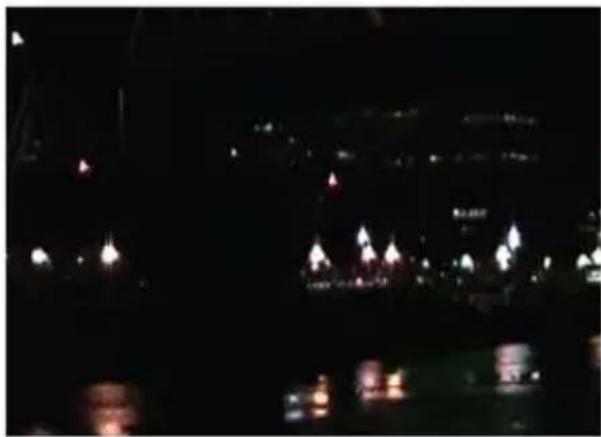
The BHM-Series Bi-Ocular handheld thermal imaging camera gives every mariner the power to see at night like never before.
The BHM-Series Bi-Ocular camera gives you the power to see more—and to see farther—than every other night vision technology around:
- When you have the BHM-Series Bi-Ocular camera on deck, at night in dark anchorages you will be able to see your surroundings, even when it is cloudy and there is no moonlight or starlight.
• See clearly in total darkness—unlike other night vision systems, BHM-Series Bi-Ocular cameras require no light at all
• See logs, rocks, land, and other hazards that radar can miss - Boat with confidence at night knowing that you can see harbor entrances and navigation channels in total darkness
- See with FLIR's award-winning maritime thermal night vision technology in the palm of your hand
natural_image
Nighttime outdoor scene with illuminated lights and reflections, no visible text or symbols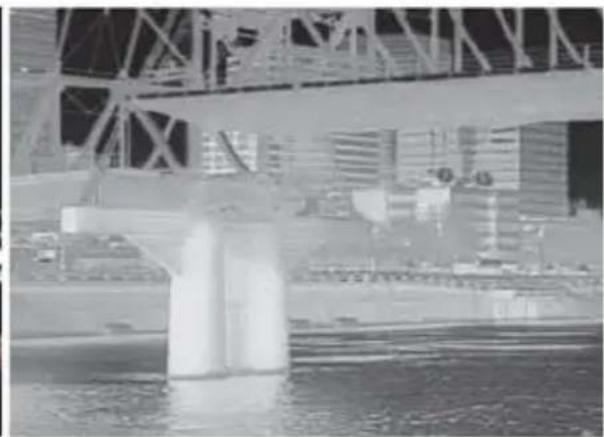
natural_image
Black-and-white photo of a steel truss bridge over water with urban buildings in the background (no visible text or symbols)BHM-Series Bi-Ocular Camera Image\
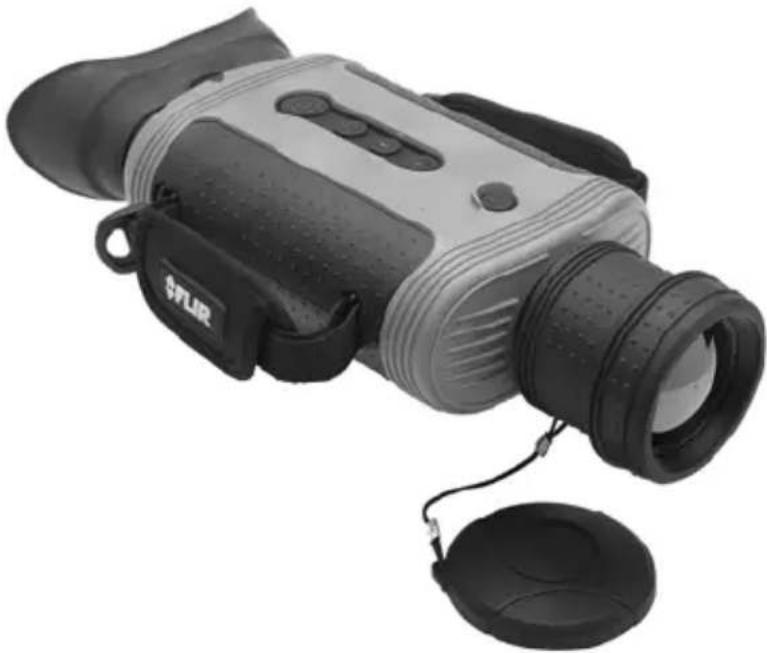
1-1 BHM-Series Bi-Ocular Camera Features
natural_image
Black and white photo of a Starlight (SPUR) digital surveillance camera with lens and clip, shown without any text or symbols on the device itself.- Micro bolometer sensor for excellent image quality and clarity
- Quick Connect Hot Shoe—Provides convenient power input and video output.
- Choose from interchangeable 35 mm, 65 mm, or 100 mm quick-disconnect lenses (purchased separately).
- Two-sided Hand Strap—Accommodates both left-handed and right-handed users.
- SD Card Slot—Allows for storing captured still images and video on the removable SD card.
- Software upgrades using SD card in the field.
- USB 2.0 Connection—Rapid transfer of still images and video files from the camera to a PC.
- Four rechargeable AA NiMH batteries—Provides up to 5 hours of camera operation on a single charge.
- Battery charging AC adapter is included.
- Rugged design—Built to withstand the demands of outdoor use.
- Hard Carrying Case—Provides protected storage for your BHM-Series Bi-Ocular camera, lenses, and all accessories.
1-2 Cautions
Do not disassemble the camera enclosure. Disassembly can cause permanent damage and will void the warranty.
Keep the compartment covers closed to avoid exposing the cameras electronics to water or debris.
Do not point the camera directly at extremely high-intensity radiation sources, such as the sun, lasers, arc welders, etc.
Use only the supplied adapters to power or recharge the camera.
Be careful not to leave fingerprints on the camera's optics.
Caution!
Always keep the camera window covered. A lens or the lens cover should always be installed on the camera to protect the window.

2 Getting Started
The BHM-Series Bi-Ocular camera with accessories is shown packed in its Hard Carrying Case. The available lenses are shown in “Lens Options” on page 7. Refer to the packing list enclosed with your camera shipment to determine the actual contents of your camera package and lens or lenses you have purchased.
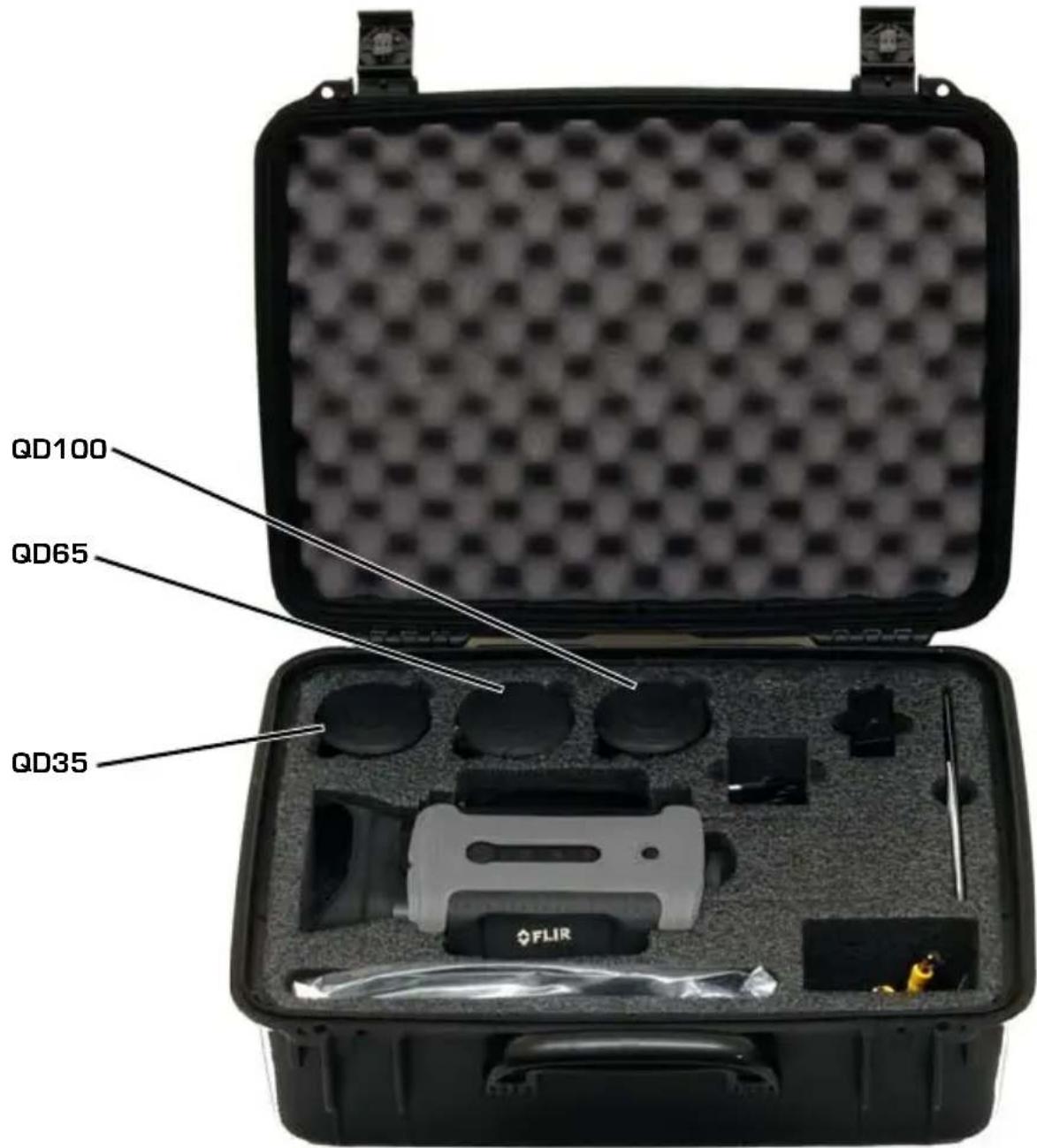
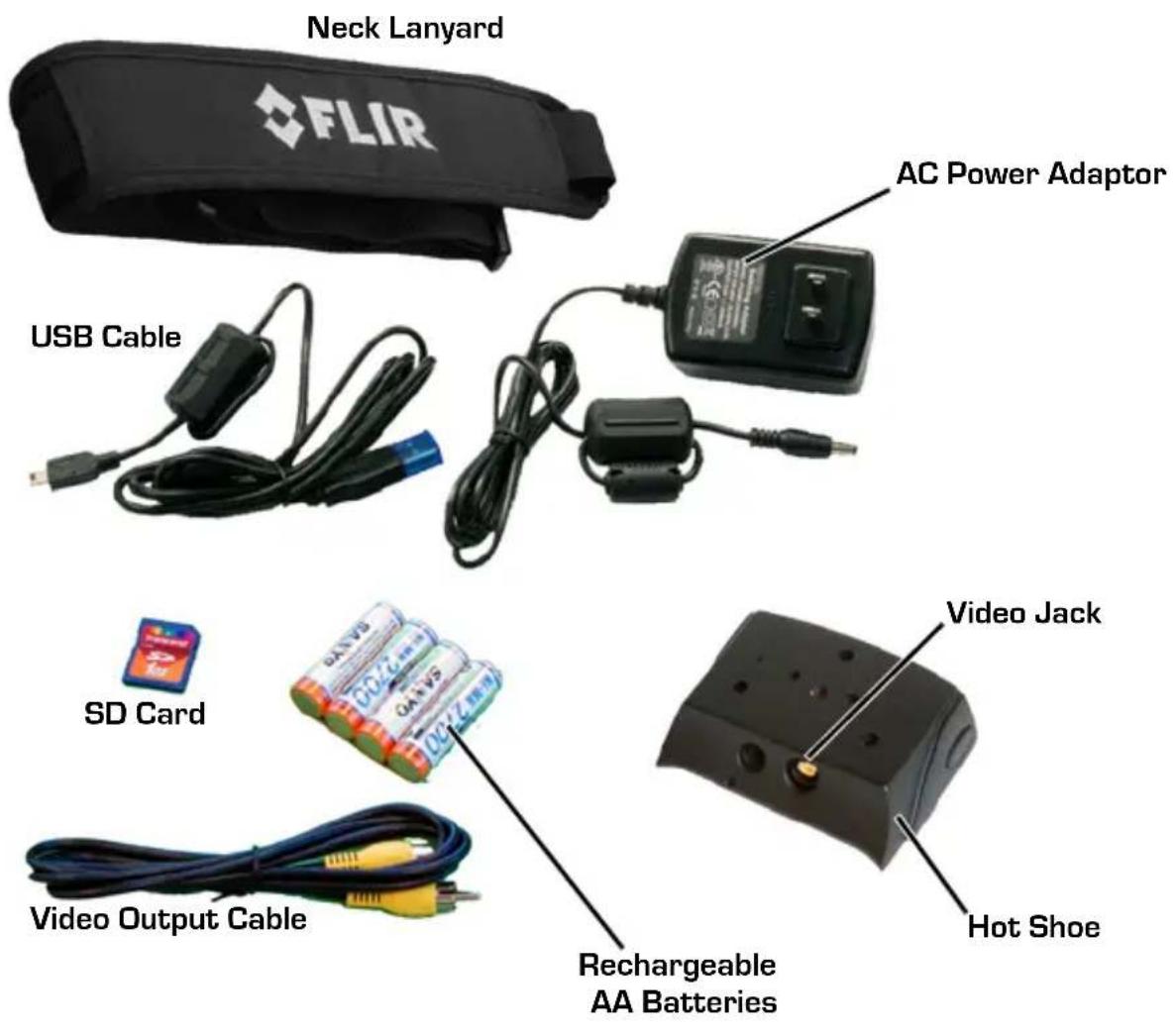
2-1 BHM-Series Bi-Ocular Camera Accessories
In addition to the camera and Hard Carrying Case, Quick Start card, Operator's manual, and Documentation/Software CD, the following items are included in the camera package:
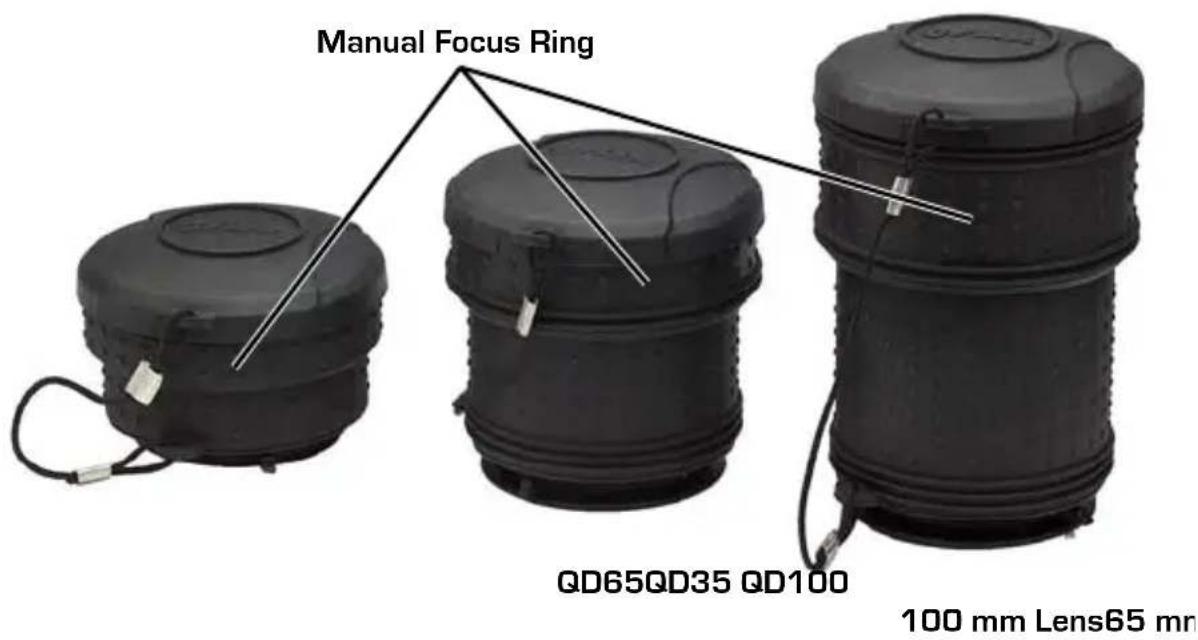
2-2 Lens Options
The QD35, QD65, or QD100 Lenses (as selected at purchase) include a lens cap, rear lens cover, and lens cloth. Each lens has a dedicated storage location in the Hard Carrying Case, or the case can be adjusted to store the lens attached to the camera. Refer to “Field of View” on page 28 for field of view details and “Range Detection” on page 29 for a comparative description of camera performance using the different lens options with the two different models, BHM-3X+ and BHM-6XR+.
2-3 BH-Series Software
The BH-Series Configurator software (also known as the Badger GUI) is included with each BHM-Series Bi-Ocular camera. It can be used with the following FLIR handheld thermal imaging cameras:
- First Mate BHM-Series
- Scout BTS-Series
• B H F - S e r i e s
• B H S - S e r i e s
These cameras are similar in design and are referred to generally as "Badger" cameras.
The software allows a user to obtain information from the camera, or make minor configuration changes to one of these cameras, depending on the specific model. For example, the user can obtain and display the camera serial number and firmware version numbers. This information may be useful if it is necessary to contact FLIR for support. If the camera model is one that has a real time clock display, a user can set the system date and time. In some cases a user can enable or disable certain features on the camera.
Refer to the Documentation/Software CD for software installation instructions. In order to use the software, it is first necessary to install the USB drivers, connect the camera to a PC with a USB cable, and install the BH-Series Configurator software.
Note, the BH-Series Configurator should only be used with the FLIR Biocular Thermal Cameras listed above.
3 Operating Your Camera
3-1 Camera Features and Controls
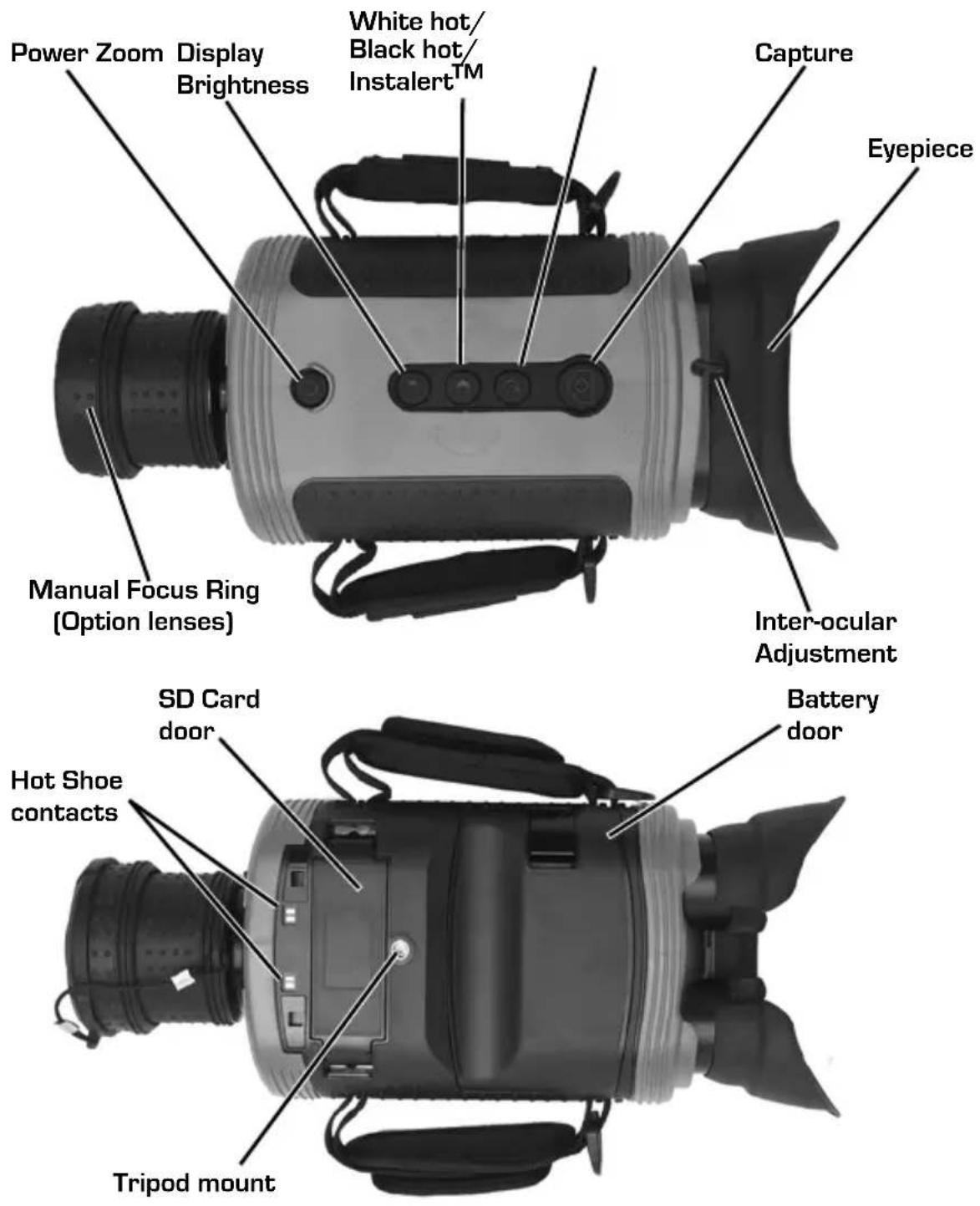
432-BHMO-15-10, Revision 110 9
3—Operating Your Camera BHM-Series Bi-Ocular Operator's Manual
3-2 Installing the SD Card
Install the SD card included with your camera package as follows:
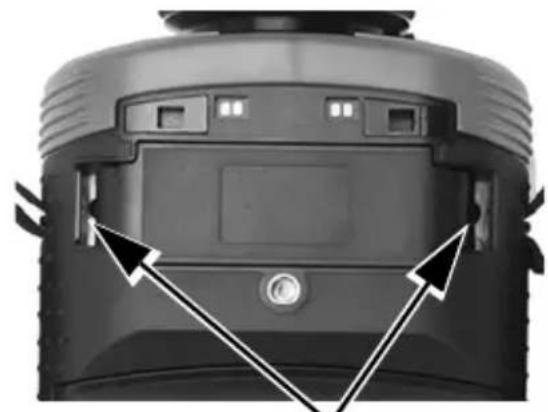
- Remove the small SD card door. No tools are required.
natural_image
Top-down view of a black cylindrical device with mounting brackets and a central button (no visible text or symbols)Grasp spring loaded buttons on SD card door edges and pull
-
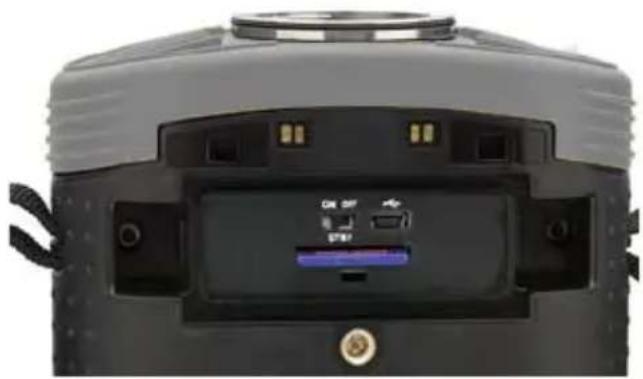
Install the SD card into card slot with label facing the front of the camera.
-
Snap the SD card door back into place, ensuring that the rubber lanyard retracts into the camera.
natural_image
Front view of a robotic device with control panel and sensor ports (no visible text or symbols)3-3 Installing the Batteries
The batteries must be installed and charged before using your camera.
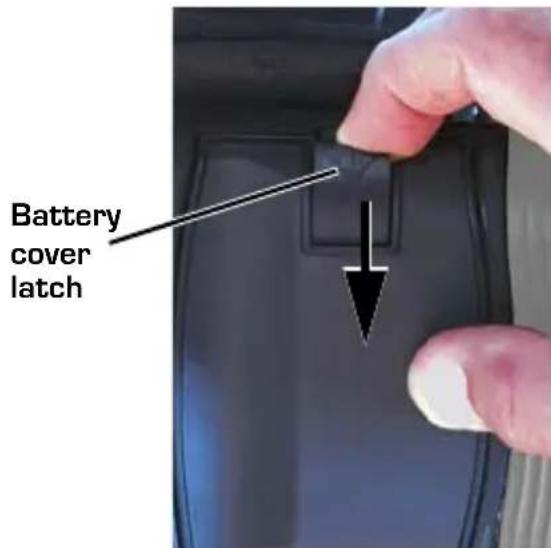
- Pull off the battery cover by lifting the latch as shown at the right.
-
Install the batteries paying attention to the positive and negative markings, as shown at the right.
-
Re-install the battery cover by engaging the hinge and snapping the latch back in place.
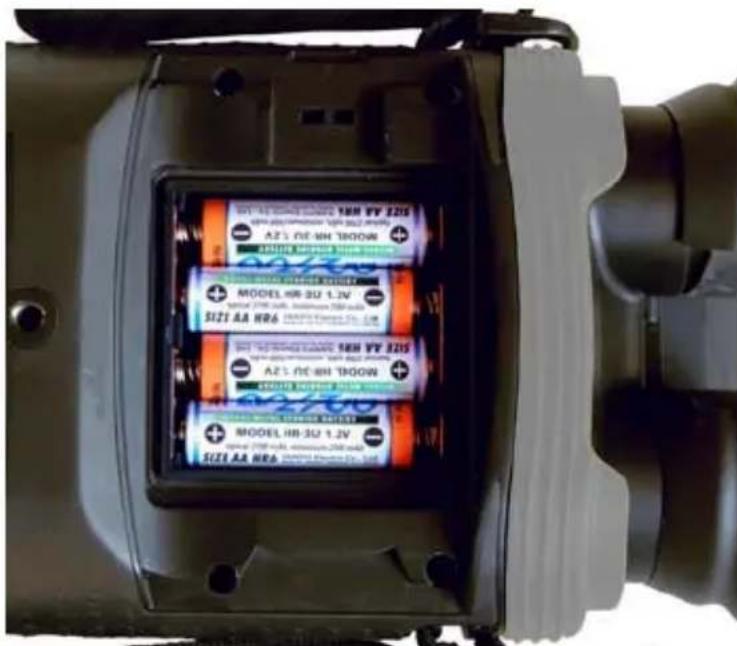
If you have installed rechargeable batteries, they must be charged before using the camera. Regular AA batteries may be used but will only provide about one and a half hours of camera use.
3—Operating Your Camera BHM-Series Bi-Ocular Operator's Manual
3-4 Charging the Camera
The batteries in the camera must be fully charged prior to use. If not fully charged or if the recommended batteries are not installed, the battery status indicator may not accurately reflect the remaining battery life.
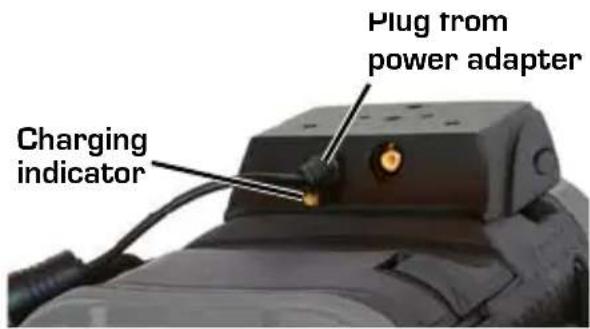
- Connect the Hot Shoe to your camera.
-
Plug the power adapter provided with the camera into its power source and also into the Hot Shoe.
-
Ensure that the plug is fully seated in the Hot Shoe.
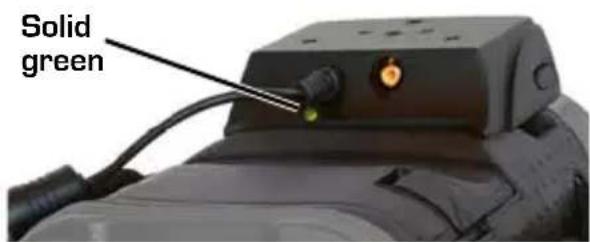
When charging correctly, the charging indicator will be lit yellow and will blink green for one second within about 35 seconds.
The charging indicator will continue to blink at decreasing intervals until the batteries are fully charged.
When fully charged, the charging indicator will be lit solid green. The initial charge time is approximately 4 hours.
Note
The charging indicator will be lit solid green when the Hot Shoe is not connected to the camera or the recommended batteries are not installed. Ensure the batteries are charging by verifying the green blinking indicator described above.
3-5 BHM-Series Bi-Ocular Power Management
Your BHM-Series Bi-Ocular camera is equipped with a power management system that provides up to five hours of continuous operation and up to five days of standby time between battery charges. To make the best use of the camera and to assure it is always ready when you need it, it is important to understand the basic power states of the camera.
The BHM-Series Bi-Ocular camera is designed to operate much like your cell phone:
- It is rarely turned off unless you do not plan to use it for a few days or more.
- When near a power source (AC power or a car cigarette lighter) or when not in use, it is recommended that you keep a charger plugged into the camera.
- When the camera is turned on from the Off state, it takes about 90 seconds to become operational.
- In Standby, it is always ready to go. Press the Power button and the camera will come on in about two seconds.
- It will automatically put itself in Standby to conserve the battery.
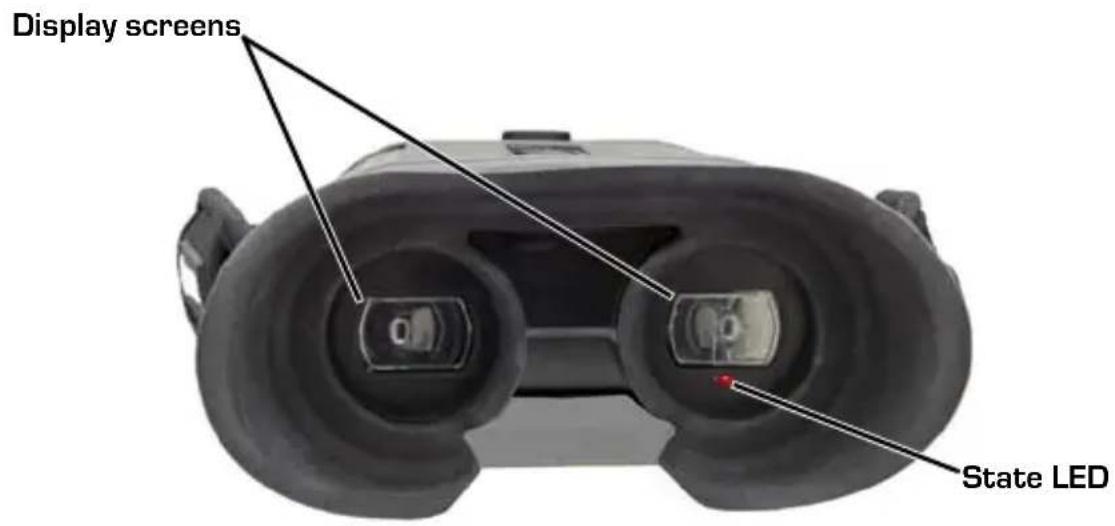
A red state LED located under the right-eye display, as shown in the photograph below, indicates the current power state.
3—Operating Your Camera BHM-Series Bi-Ocular Operator's Manual
Power States
• There are three power states: Off, On, and Standby
- The initial power-on Bootup process between the Off state and the On state takes about 90 seconds (fast flashing red state LED). During the Bootup process, pressing the Power button again will turn the camera off. After the camera finishes its power-on Bootup process, it is in the On state (state LED is off). After the camera is On, pressing the Power button will toggle the camera between On and Standby (state LED is flashing slowly).
- When battery powered, if Auto-Standby is enabled (see "Auto-Standby Operation" on page 22), the camera goes to Standby after three minutes if no buttons are pushed. A warning is shown in the display.
- From the Standby state, the camera comes back on within about two seconds when the Power button is pushed.
- The Auto-Standby function is disabled if the camera is powered with auxiliary power.
During most use scenarios you will cycle between Standby and On. Only at the end of a shift or when not needed on multi-day field missions might you consider putting the camera into the OFF state.
| Camera State | Indication |
| Off The display and the state LED are off | |
| On | Power-on Bootup—Color bars on the display and the state LED is flashing quickly |
| There is a thermal image on the display and the state LED is off | |
| Standby The display is off and the state LED is flashing slowly | |
3-6 Buttons and Controls
Power Button
Changing between the Off, On, and Standby power states is controlled by the Power button. The table below describes how the camera moves between states.
| From State | To State | Method |
| Off On Press the Power button for 1 second. (This will put the camera in power-on bootup for about 90 seconds before going to On.) | ||
| On Standby Momentarily press the Power button | ||
| Standby On Momentarily press the Power button | ||
| On Off Press and hold the Power button for 8 seconds | ||
| Standby Off Press and hold the Power button for 8 seconds | ||
To shut off the camera completely press and hold the Power button for eight seconds.
After holding the Power button for three seconds this message will be shown in the display and the camera will enter the Off state if the countdown finishes.
Shutdown in 5 Seconds
Release the Power button at any time during this countdown to terminate Shutdown and resume normal operation.
ESD Recovery Sequence
In the unlikely event of a large Electrostatic Discharge (ESD) to the camera it is possible for the camera system to lose video or become frozen. If this occurs, the following recovery sequence should restore the video:
- Hold down the power button for fifteen seconds and then release.
- Wait for five to ten seconds.
- Press the power button again. The camera should begin its bootup sequence.
3—Operating Your Camera BHM-Series Bi-Ocular Operator's Manual
Capture Button

Use this button to capture snapshots (in JPEG format) or video clips (in AVI format). The files are stored on the integrated SD card. AVI files are viewable via the FLIR Viewer Utility included on the BHM-Series Bi-Ocular resource CD.
- Momentarily pressing the button captures a single snapshot.
- Pressing and holding the capture button for three seconds puts the camera in video record state. The video record icon should be displayed. The button may now be released and the camera will continue to record until the capture button is pressed again. The video file is then written to the SD card in AVI format.
Twenty-five seconds of video requires about one megabyte (MB) of storage on the SD card. The image and video files must be transferred to a computer for viewing.
Note
The images must be transferred to a computer via the USB cable, or the SD card can be temporarily removed from the camera and inserted in a card reader.
- If the camera is not licensed for this feature, this message will be shown in the display.
- If an SD card is not installed, this message will be shown in the display and no image will be stored.
- If the SD card is full, a warning will be shown in the display and the image will not be stored.
Note
The stored image will include the thermal image, time and date information, and the FLIR logo. Other icons seen in the display are not stored on the saved image.
Feature Not Enabled
SD Card Not Installed
Still Frame Capture and Store—To capture and store a single still image of what is currently being shown in the display, momentarily press the Capture button. The thermal image will momentarily freeze and the following icons will appear in the display:


The SD Card Memory Gauge indicates how much memory is left on the SD card. The camera icon with the green lens indicates that a single frame was successfully stored to the SD card. Still images are stored in the JPEG file format at 320 × 240 pixel resolution. Still images are approximately 90Kb in size.
Video Capture and Store—To capture and store a video sequence of what is currently being shown in the display, press and hold the Capture button for 3 seconds. Video capture will begin immediately and continue until the Capture button is pressed again.
During the video store process, real-time video will be shown and these icons will appear in the display:
The lens on the camera icon will flash red/green during recording.

Zoom Button
Use this button to switch the camera between no zoom (full resolution) and 2× zoom. The central part of the image is magnified twice its normal size when 2× is selected.
Zoom Indicator—When zoom has been selected the icon is continuously shown in the display:

3—Operating Your Camera BHM-Series Bi-Ocular Operator's Manual
White/Black Hot/Instalert™ Button

Use this button to toggle between the two video and the four Instalert modes. In the default White Hot mode, hotter objects appear as white or light grey. In the Black Hot mode, hotter objects appear as black or dark grey. In the Instalert™ modes the hottest objects in the scene are highlighted in red to simplify detection of animals, people, and objects. There are four pre-set levels of Instalert that you can select based on the specific scene being viewed. All of the Instalert modes are based on the white hot video mode.
While white hot is the most commonly used and visually intuitive method of viewing thermal imagery; black hot can often enhance contrast of certain objects or provide better visual perspective in some conditions.
When switching between modes, the appropriate icon is displayed for approximately 3 seconds.
Black hotWhite hot Instalert 1 - 4

Display Brightness Button
Use this button to cycle through the five levels of display brightness. Each press of the button advances to the next level of brightness.
When the highest brightness level is reached, subsequent button presses advance to the next lower brightness levels. When the lowest brightness level is reached, subsequent button presses advance to the next higher brightness levels. One of the following icons is
displayed for approximately 3 seconds after the button is pressed indicating the current brightness level:
HighestLowe:

natural_image
Five green semicircular icons arranged horizontally, no text or symbols presentInter-ocular Adjustment
The inter-ocular adjustment lever allows the distance between the two eyepiece displays to be adjusted for the most comfortable viewing.
3-7 Batteries
Your BHM-Series Bi-Ocular camera is equipped with a sophisticated power system that accommodates a wide variety of AA battery types. This includes rechargeable and non-rechargeable batteries.
The camera is optimized for operation with the 2700 mAh rechargeable NiMh batteries that were supplied with your camera. It is recommended that you use these batteries in all but emergency situations.
Note
Replacement batteries are available online from FLIR Commercial Systems, Inc.
Battery Status Indicator-While the camera is On, a battery status indicator is always shown in the corner of the display image. This indicator provides an estimation of the remaining battery charge.

full charge

half charge
no charge

charging
3—Operating Your Camera BHM-Series Bi-Ocular Operator's Manual
Note
If non-rechargeable batteries are installed the battery indication may not be accurate.
Using Non-Rechargeable Batteries – The BHM-Series Bi-Ocular camera allows Alkaline non-rechargeable batteries to be used. When non-rechargeable batteries are installed, connecting the Hot Shoe to a power source will power the camera from the power source and the battery charging circuitry will be disabled.
Note
When using Alkaline batteries, operating battery life is reduced to approximately 1.5 hours.
Low Battery Auto-Shutdown – When the batteries are almost fully depleted the camera will automatically initiate a shutdown process.
3-8 SD Card
The SD Card slot is located on the bottom of the camera in front of the battery compartment. The SD card, the USB connector, and the Auto-Standby Enable switch are located under the cover.
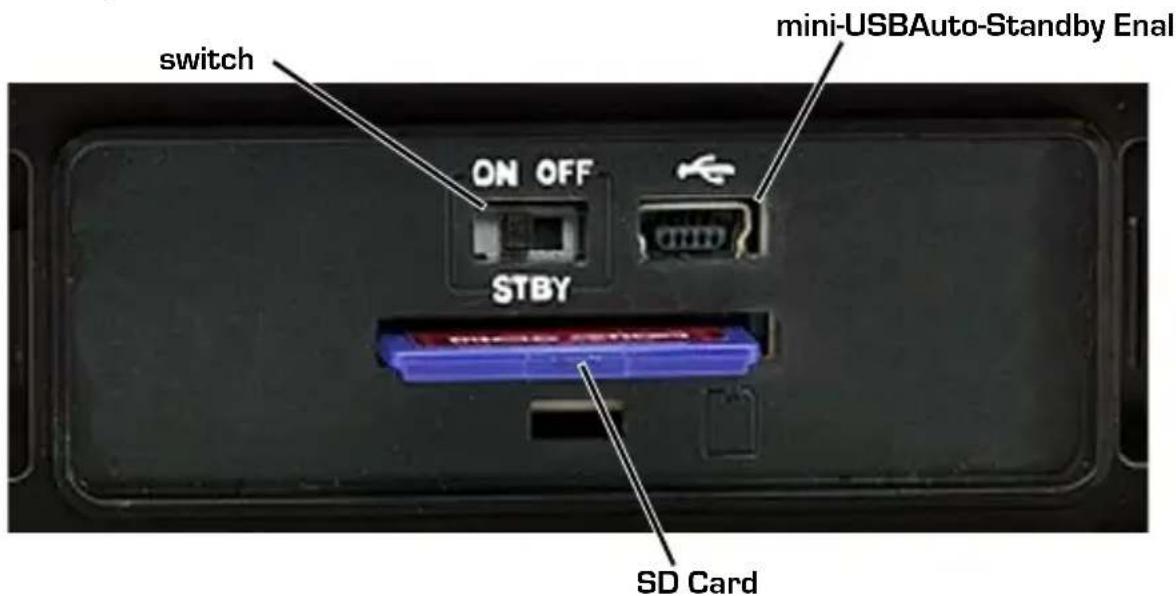
Note
The Hot Shoe must be removed to access the SD Card slot.
To access the SD Card, grasp the two edges of the cover with your thumb and finger and pull straight up.
Caution!
Do not stretch or break the rubber lanyard that keeps the door captive to the camera when opened.
To close the SD Card cover, slide the lanyard strap back into the camera, position the cover in place, and then firmly press in the middle until it is fully seated.

SD Card Capacity and Type
The BHM-Series Bi-Ocular camera supports storing images and video on standard 1-Gb and 2-Gb SD cards or up to 32-Gb on SDHC cards.
SD Card Installation and Removal
To install an SD card, insert the card into the slot and press on the SD card until its edge is nearly flush with the surface and release. To remove an SD card, use this same motion.
Downloading Stored Files via USB
The BHM-Series Bi-Ocular camera also supports downloading stored images and video via the USB port. With the camera on, plug the USB cable into the USB connector on the camera and a USB port on your computer. Allow up to two minutes for the USB connection to be recognized by the computer's operating system.
3-9 Auto-Standby Operation
Auto-Standby is a feature of the BHM-Series Bi-Ocular camera that helps to guard against draining the batteries prematurely by inadvertently leaving the camera on. Auto-Standby puts the camera into the Standby state if the following three conditions are met:
• The camera is in the On state.
• The Auto-St and by switch
- No buttons have been pressed for three minutes.
Once these conditions are met you will see the following message in the display and the camera will enter the Standby state after the countdown is finished:

Press any button during this countdown to terminate Auto-Standby and resume normal operation.
Note
Pressing any button during an Auto-Standby countdown will only terminate the countdown and abort the Auto-Standby. The normal function of the button will not occur.
Auto-Standby Switch
Unattended operation of the camera requires disabling Auto-Standby.
Select OFF to turn off Auto-Standby.
Select ON to turn on Auto-Standby.
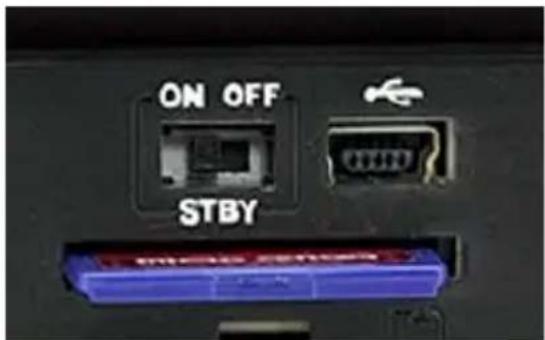

If Auto-Standby is off, a reminder message will appear in the display each time the camera enters the On state.
3-10 The Hot Shoe
Note
The Hot Shoe is not waterproof and should not be used in wet environments.
The Hot Shoe provides the connections to power the camera for continuous operation or charging the batteries; and for accessing the analog video output. The Hot Shoe attaches to the bottom of the camera and is secured by two latches.
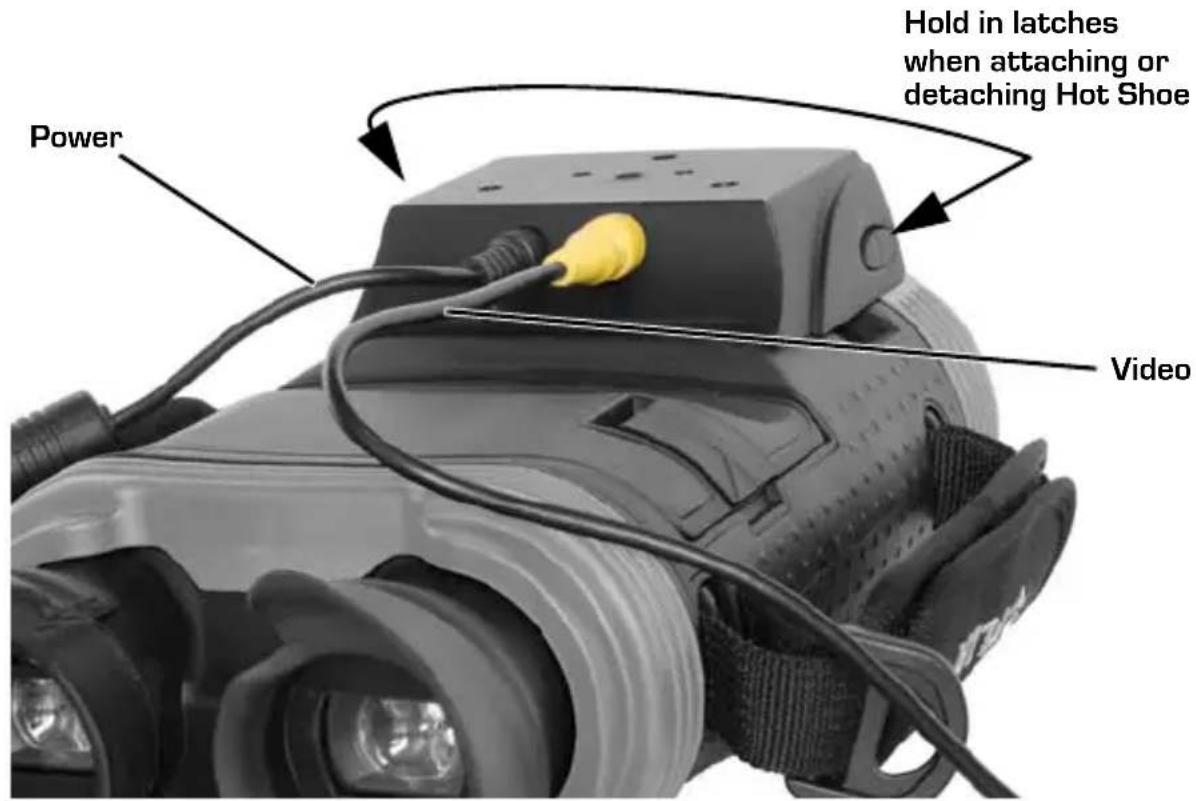
The following steps are recommended for quick and easy attachment of the Hot Shoe.
- With the camera positioned bottom-side up, squeeze the two latches on each side of the Hot Shoe with your thumb and finger and push the Hot Shoe into position.
- Release the latches and check that the Hot Shoe is secure.
- To remove the Hot Shoe, simply squeeze the two latches and pull.
3-11 Bayonet Lens Mounting System
The BHM-Series Bi-Ocular camera is equipped with a robust bayonet mounting system to allow for field-interchangeable optics options and future accessories. As shipped, the BHM-Series Bi-Ocular camera comes with a lens-cover assembly mounted on the bayonet mount.
Caution!
Always keep the camera window covered. A lens or the lens cover should always be installed on the camera to protect the window.
Removing and Installing Lenses
- Remove the lens-cover assembly by rotating it clockwise (approximately 45°) and pulling straight off
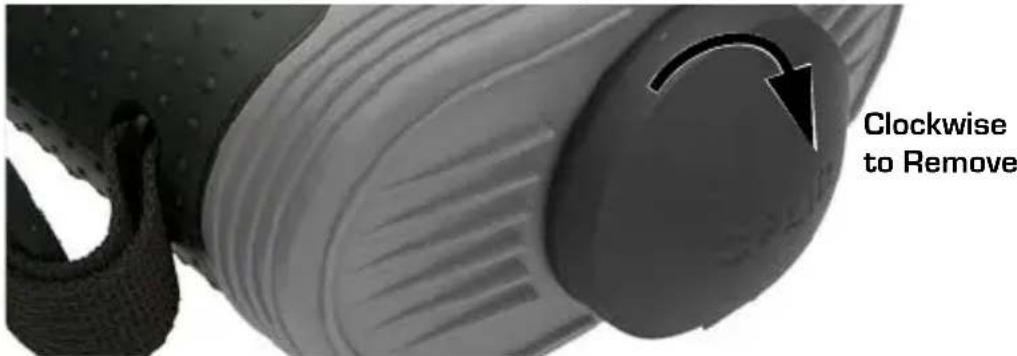
- Install lens by inserting and rotating it counter-clockwise.
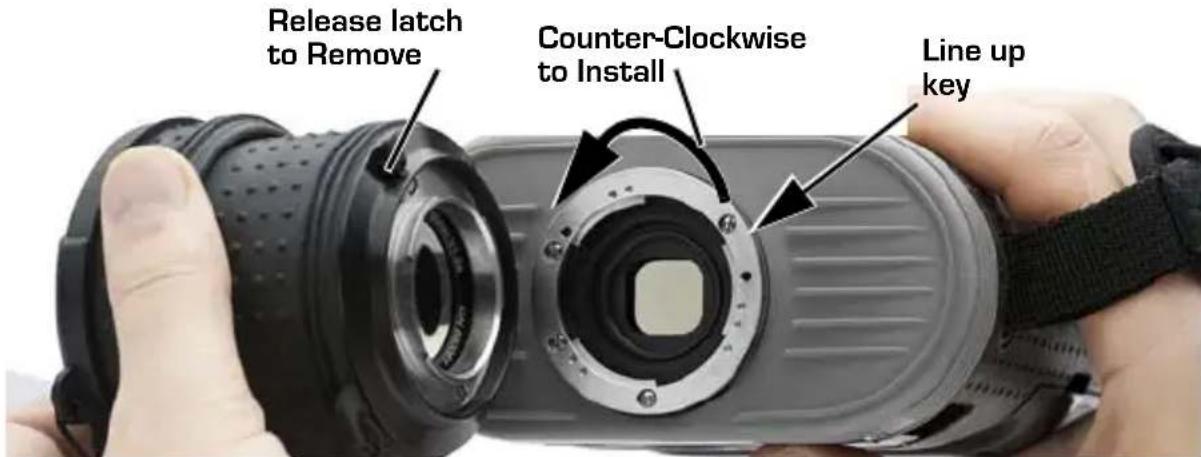
- Remove lens by releasing latch and rotating lens clockwise (approximately 45^ ) and pulling straight off.
3-12 Installing Software Upgrades
Your BHM-Series Bi-Ocular camera may require software upgrades during its lifetime. The upgrade process requires an SD card loaded with the upgrade file. After receiving the upgrade file from FLIR Commercial Systems, Inc., load it onto your SD card.
Caution!
During a software installation, the camera must remain powered on. Turning off the camera, or losing power for any reason, may damage the system files and require that the camera be returned to the factory for repair.
Use the following procedure to install the upgrade:
- Ensure that the camera battery is fully charged. (The software installation will not start if the battery charge is less than 50%.)
- With the camera off, install the SD card loaded with the upgrade file. Refer to "SD Card" on page 20.
- Install the Hot Shoe and connect to a power source. Refer to "The Hot Shoe" on page 23.
- Turn on the camera. During its Bootup process, the camera will check the SD card for a valid upgrade file.
-
Watch the display. When a valid file is found, a message will be shown for about ten seconds directing you to "Press and hold Capture button for 2 seconds to initiate update." If you ignore the message, the camera will resume normal operation and enter the On state.
-
While the message is displayed, press and hold the Capture button for two seconds. The software upgrade takes about
four minutes. When finished you will see this prompt to restart the camera. SW Upgraded: Please Shutdown & Restart now

3—Operating Your Camera BHM-Series Bi-Ocular Operator's Manual
- To check the current installed version of software, place the camera in standby, then turn on while looking in the upper right corner of the display for the software version number, as shown below.

4 Technical Data
4-1 BHM-Series Bi-Ocular Camera Model Features
| BHM-3X+ BHM-Series | Bi-Ocular Handheld Thermal Camera (with choice of lenses) and accessory kit.Includes the image save function, video save function with real-time stamp, USB2 port, and hard carrying case. |
| BHM-6XR+ | |
| Accessory Kit Hot Shoe | Charging & Video Output Attachment, four Rechargeable AA Batteries, AC Power Adapter/Charger, Neck Lanyard, SD card, USB Cable, and Video Output Cable. |
| Start up from stand-by | <1.5 seconds |
| Thermal Sensitivity, Wave-band | <50 mK @ f/1.0, 7.5 - 13.5 μm |
| Detector Type VOx Microbolometer | |
| Image Processing FLIR Proprietary Digital Detail Enhancement | |
| Focus, Zoom | Manual focus with option lenses; 2× electronic zoom (2×, 4× electronic zoom with the BHM-6XR+ camera) |
| Video Output NTSC or PAL composite video; RCA jack | |
4-2 Power
| Battery Types 4 AA Batteries; NiMH or Alkaline | |
| Battery Life Operating (Stand-By) | >Approximately 5 Hours on NiMH batteries at 25°C, (120 hours on NiMH batteries) |
4-3 Environmental
| Ratings [with lens attached only] IP-6 | 6, 1 meter drop |
| Operational Temp. -4°F – 140°F (-20°C – 60°C) | |
4—Technical Data BHM-Series Bi-Ocular Operator's Manual
Storage Temp. -40°F - 167°F (-40°C - 75°C)
4-4 Physical
| Weight (without lens) 2.20 lb. (1 kg) with batteries | |
| Size (L × W × H) | 11.0" × 6.5" × 2.63" (28 × 16.5 × 6.7 cm) |
4-5 Additional Features
| Still Image Storage, Format | SD, SDHC card, JPEG |
| Video Storage, Format | SD, SDHC card, AVI |
4-6 Field of View
| QD35 | |
| Field of View (FoV) BHM-3X+ | 13^ × 10^ |
| FoV BHM-6XR+ | 18^ × 13^ |
| Minimum Focus Distance 3 meters | |
| QD65 | |
| FoV BHM-3X+ | 7^ × 5^ |
| FoV BHM-6XR+ | 10^ × 8^ |
| Minimum Focus Distance 3 meters | |
| QD100 | |
| FoV BHM-3X+ | 5^ × 3^ |
| FoV BHM-6XR+ | 6^ × 4^ |
| Minimum Focus Distance 4 meters | |
4-7 Range Detection
Actual range may vary depending on camera set-up, environmental conditions, and user experience.
| QD35 | FoV 13^ × 10^ 18^ × 13^ | |
| Detect Man(1.8 m × 0.5 m) | 2,559' (780 m) BHM-3X+ | |
| 3,740' (1140 m) BHM-6XR+ | ||
| RecognizeMan | 623' (190 m) BHM-3X+ | |
| 919' (280 m) BHM-6XR+ | ||
| Detect Vehicle(2.3 m × 2.3 m) | 7,054' (2150 m) BHM-3X+ | |
| 8,366' (2550 m) BHM-6XR+ | ||
| RecognizeVehicle | 1,837' (560 m) BHM-3X+ | |
| 2,231' (680 m) BHM-6XR+ | ||
| QD65 | FoV 7^ × 5^ 10^ × 8^ | |
| Detect Man(1.8 m × 0.5 m) | 4,757' (1450 m) BHM-3X+ | |
| 6,234' (1900 m) BHM-6XR+ | ||
| RecognizeMan | 1,214' (370 m) BHM-3X+ | |
| 1,608' (490 m) BHM-6XR+ | ||
| Detect Vehicle(2.3 m × 2.3 m) | 2.42 miles (3900 m) BHM-3X+ | |
| 2.98 miles (4800 m) BHM-6XR+ | ||
| RecognizeVehicle | 3,412' (1040 m) BHM-3X+ | |
| 4,429' (1350 m) BHM-6XR+ | ||
| QD100 | FoV 5^ × 3^ 6^ × 4^ | |
| Detect Man(1.8 m × 0.5 m) | 6,808' (2075 m) BHM-3X+ | |
| 8038' (2450 m) BHM-6XR+ | ||
| RecognizeMan | 1,772' (540 m) BHM-3X+ | |
| 2,133' (650 m) BHM-6XR+ | ||
| Detect Vehicle(2.3 m × 2.3 m) | 3.29 miles (5300 m) BHM-3X+ | |
| 3.73 miles (6000 m) BHM-6XR+ | ||
| RecognizeVehicle | 4,921' (1500 m) BHM-3X+ | |
| 5,742' (1750 m) BHM-6XR+ | ||

Santa Barbara Portland
FLIR Commercial S
World Headquarters
FLIR Systems, Inc.
70 Castilian Dr.
Goleta, CA 93117
USA
PH: +1.888.747.FLIR
(+1.888.747.3547)
Europ
Europ
Europ
Europ
CVS Eurasian Headquarters
FLIR Commercial Systems B.V.
Charles Petitweg 21
4847 NW Teteringen - Breda
The Netherlands
PH: + 31 [0] 765 79 41 94
FX: + 31 (0) 765 79 41 99
flir@flir.com
m = 311
m = 311
X
m = 311
m = 311
m = 311
[Non-Text]
[Non-Text]
[Non-Text]
[Non-Text]
m = 311
m = 311
X
m = 311
m = 311
m = 311
X
m = 311
m = 311
[Non-Text]
[Non-Text]
[Non-Text]
[Non-Text]
[Non-Text]
[Non-Text]
[Non-Text]
[Non-Text]
[Non-Text]