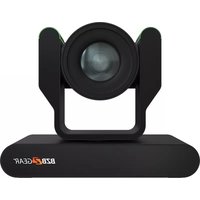
BG-ADAMO-4K - Security Camera BZBGear - Free user manual and instructions
Find the device manual for free BG-ADAMO-4K BZBGear in PDF.


| Product Type | Security Camera |
| Brand | BZBGear |
| Model | BG-ADAMO-4K |
| Resolution | 4K (3840x2160) |
| Lens | 3.6mm fixed lens |
| Night Vision | IR LEDs up to 30m |
| Field of View | 90° diagonal |
| Audio | Two-way audio with built-in microphone and speaker |
| Power Supply | DC 12V, 1A (adapter included) |
| Power Consumption | ≤ 8W |
| Connectivity | Wi-Fi (2.4GHz, 802.11 b/g/n), Ethernet (RJ45) |
| Storage | MicroSD slot (max 128GB), cloud storage support |
| Weather Rating | IP65 (outdoor use) |
| Motion Detection | Yes, with customizable zones |
| Dimensions (LxWxH) | 70 x 70 x 120 mm |
| Weight | 500 g |
| Operating Temperature | -20°C to 50°C |
| Mounting | Wall or ceiling mount (bracket included) |
| App Compatibility | iOS and Android (BZBGear app) |
| Cleaning | Wipe with a soft, dry cloth. Do not use harsh chemicals. |
| Safety | Do not expose to extreme temperatures or moisture. Use only the supplied adapter. |
| Spare Parts | Power adapter, mounting bracket, screws available from BZBGear support. |
| Repairability | Contact authorized service center for repairs. No user-serviceable parts inside. |
Frequently Asked Questions - BG-ADAMO-4K BZBGear
User questions about BG-ADAMO-4K BZBGear
0 question about this device. Answer the ones you know or ask your own.
Ask a new question about this device
Download the instructions for your Security Camera in PDF format for free! Find your manual BG-ADAMO-4K - BZBGear and take your electronic device back in hand. On this page are published all the documents necessary for the use of your device. BG-ADAMO-4K by BZBGear.
USER MANUAL BG-ADAMO-4K BZBGear
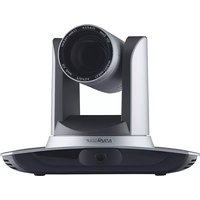
BZBGEAR is proud to announce the next generation of PTZ cameras: the BG-ADAMO. Brilliantly designed with exclusive features and a unique form factor, the BG-ADAMO is unrivaled in its class on the live stream broadcasting market.
4K@60Hz: Just the Beginning
The BG-ADAMO-4K is loaded with features including a full interface of video connections, and immaculate 4K@60Hz resolution. The 12G-SDI connection enables long distance cable runs without compromising image quality. Compose shots ahead of time utilizing the up to 255 programable presets, with 10 conveniently accessible using the IR remote. Capable of storing 1 TB of video footage with the Micro SD Card writer, start recording on the fly when other connections are inaccessible.
The lens is designed with an advanced auto-focusing algorithm that promptly snaps into focus with dependable accuracy and stability. The 3D noise reduction technology combined with the low-noise CMOS sensor ensures impeccable image clarity. Choose between the 12x optical zoom lens with an 80.4° wide-angle, the 25x optical zoom lens with a 59.2° wide-angle, or the 31x optical zoom lens with a 59° wide-angle.
Packed with an array of video connections including USB 2.0, USB 3.0, LAN, HDMI, and 12G-SDI, the BG-ADAMO-4K boasts unparalleled functionality with sophistication and style. The dual stream USB facilitates concurrent main-stream and sub-stream outputs. While the HDMI, SDI, and USB 2.0 connections are capable of transmitting 4K video and audio signals simultaneously.
Innovative Design
Available in either classic white or black finishes, the chassis of the BG-ADAMO is designed to be as functional and attractive as its formidable feature set. The high-stability substructure provides a solid foundation for the precision lens delivering 4K resolution video at 60fps. Eliminating the need for bulky external accessories, the control arms feature distinctive built-in tally lights that illuminate either green or red with 360-degree visibility.
Package Contents
1 x BG-UPTZ-ND 1 x RS232 Control Cable
1 x 12V/1.5A Power Supply 1 x IR Remote Control
1 x User Manual

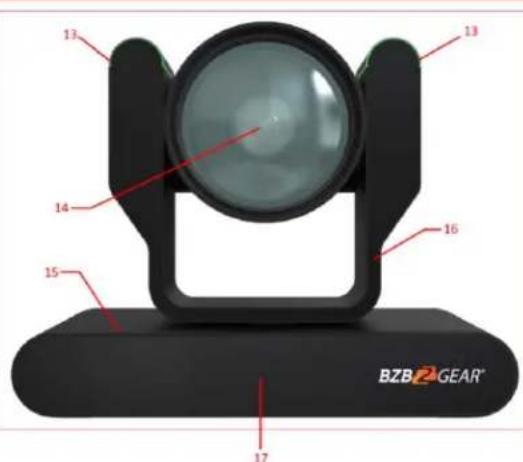
- 12G-SDI output
- HDMI 2.0 output
- USB 3.0 Type-B output
- USB 2.0 Type-A output
- MicroSD reader
- 3.5mm audio input
- RS422/RS485 control interface
- RS232 control input
-
RS232 cascade output
-
LAN connection
- 12V DC power connection
- Power ON/OFF switch
- Tally lights
- Camera lens
- Camera body
- Camera head
- IR indicator
Mounting Instructions
1) Wall Mounting:


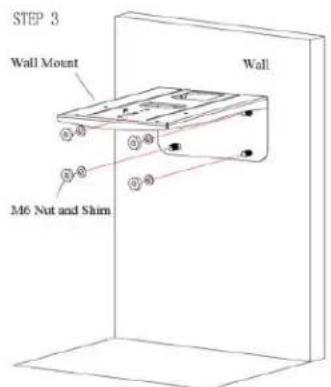

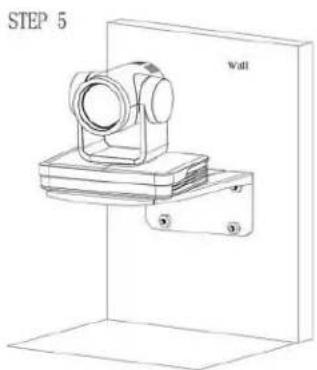
2) Ceiling Mounting
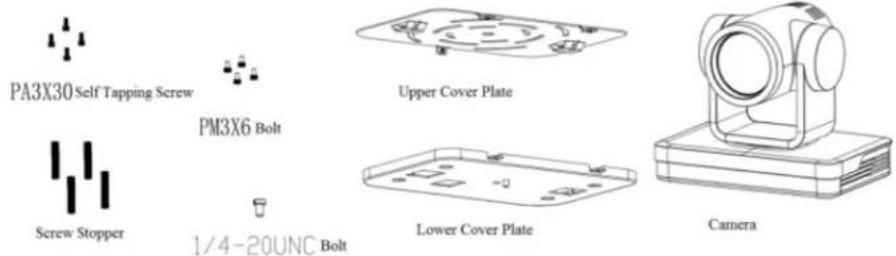
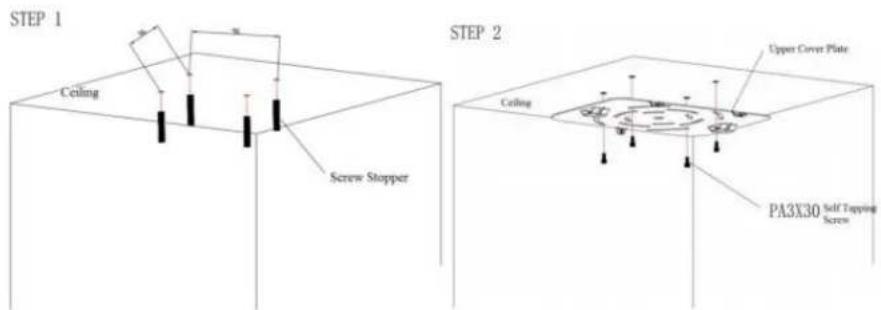

RS-232 Interface
1) RS-232 Interface Definition

Connection to PC or Camera Controller
![graph TD A["Camera"] --> B["1.DTR"] A --> C["2.DSR"] A --> D["3.TXD"] A --> E["4.GND"] A --> F["5.RXD"] A --> G["6.GND"] A --> H["7.IR OUT"] A --> I["8.NC"] J["WindowsDB-9"] --> K["1.DCD"] J --> L["2.RXD"] J --> M["3.TXD"] J --> N["4.DTR"] J --> O["5.GND"] J --> P["6.DSR"] J --> Q["7.RTS"] J --> R["…](/content/2026/05/1059321/images/ec44a87c39b86f9da361424929352d484bec0c73916b05acf3559ad844557561.jpg)

2) RS232 Mini-DIN 8-pin: Port Definition

| NO. | Port | Definition |
| 1 | DTR | Data Terminal Ready |
| 2 | DSR | Data Set Ready |
| 3 | TXD | Transmit Data |
| 4 | GND | Signal Ground |
| 5 | RXD | Receive Data |
| 6 | GND | Signal Ground |
| 7 | IR OUT | IR Commander Signal |
| 8 | NC | No Connection |
WebGUI
The BG-ADAMO camera includes a built-in WebGUI allowing for control and management of advanced features. Use the following instructions to access the WebGUI.
- Launch a web browser and enter the IP address of the unit (default 192.168.5.163).
- The BZBGEAR login page will appear.
- Enter your login information (by default Username = admin Password = admin).
- Select the Login button.
Problems connecting to your camera?
Check out our Knowledge Base at https://bzbgear.com/knowledge-base/ for more information and step-by-step guide.
| My camera has no picture | Power switch is off, bad connection, incompatible resolution, camera lens is obstructed | ·Check the power switch on the back of the camera·Check connections/replace cables with new ones·Use IR remote or WebGUI to change to a resolution that is compatible with your display·Check computer and program settings to ensure USB is discovered |
| My IR remote control doesn’t work | The camera’s IR sensor is blocked, batteries are dead, sunlight is interfering with the IR signal | ·Ensure you have a clear line of sight from the remote to the front of the camera base·Replace the batteries·Ensure the camera is out of direct sunlight |
| I cannot access the camera’s WebGUI | The camera is not connected to the network | ·Check connections·Verify your camera’s IP address using an IP scanning tool·Ensure your computer is connected to the same network as the camera |
| I have no image from my USB connection | Your USB device is not being discovered | ·Make sure you’re using a USB 3.0 cable·Replace the cable with a shorter one (6 feet or less)·Try a different USB port on your computer |
Brand : BZBGear
Model : BG-ADAMO-4K
Category : Security Camera