LC42FHZ55 - Television Viore - Free user manual and instructions
Find the device manual for free LC42FHZ55 Viore in PDF.


| Product Type | Television |
| Brand | Viore |
| Model | LC42FHZ55 |
| Screen Size | 42 inches (diagonal) |
| Display Resolution | 1920 x 1080 (Full HD) |
| Aspect Ratio | 16:9 |
| Dimensions (without stand) | Approx. 37.4 x 22.8 x 3.1 inches (W x H x D) |
| Weight (without stand) | Approx. 22.0 lb |
| Power Supply | AC 100-240V, 50/60Hz |
| Power Consumption | Typical 80W, Standby <0.5W |
| Connectivity | 2x HDMI, 1x USB, 1x Composite (AV), 1x RF, 1x VGA (PC), 1x Audio Out |
| Tuner | ATSC (Digital) / NTSC (Analog) |
| Remote Control | Included (batteries not included) |
| Mounting | VESA 200 x 200 mm |
| Sound | 2 x 8W speakers |
| Features | Digital Noise Reduction, Sleep Timer, Parental Control, Closed Captioning |
| Cleaning | Wipe with a soft, dry cloth. Do not use harsh chemicals. |
| Safety | Do not block ventilation openings. Use only on stable surface. |
| Spare Parts / Repairability | Contact Viore customer service or authorized service centers. |
Frequently Asked Questions - LC42FHZ55 Viore
User questions about LC42FHZ55 Viore
0 question about this device. Answer the ones you know or ask your own.
Ask a new question about this device
Download the instructions for your Television in PDF format for free! Find your manual LC42FHZ55 - Viore and take your electronic device back in hand. On this page are published all the documents necessary for the use of your device. LC42FHZ55 by Viore.
USER MANUAL LC42FHZ55 Viore
natural_image
Black VIORE TV monitor with a blank screen and stand (no visible text or symbols on the device body)Contents
Safety and warnings.... 2-4
Introduction....5
Installation.... 6-9
Remote Control....10
Operation....11-14
Trouble Shooting.... 15
IMPORTANT SAFETY INSTRUCTION
-
Read these safety instructions.
-
Keep these safety instructions.
-
Heed all warnings.
-
Follow all safety instructions.
5.Do not use this apparatus near water.
-
Clean only with dry cloth.
-
Do not block any ventilation openings. Install in accordance with the manufacturers instructions.
-
Do not install near any heat sources such as radiators, stoves, or other apparatus (including amplifiers) that produce heat.
-
Protect the power cord from being walked on or pinched particularly at power outlets, and the point where they exit from the apparatus.
-
Only use attachments/accessories specified by the manufacturer.
-
Unplug this apparatus during lightning storms or when unused for long periods of time.
-
Refer all servicing to qualified service personnel. Servicing is required when the apparatus has been damaged in any way, such as the power-supply cord or plug is damaged, liquid has been spilled or objects have fallen into the apparatus, the apparatus has been exposed to rain or moisture, does not operate normally, or has been dropped.
-
Apparatus must not be exposed to dripping or splashing and no objects filled with liquids, such as vases, should be placed on the apparatus.
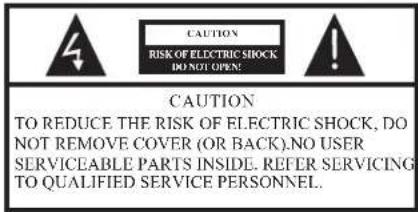
The symbol indicates that dangerous voltages constituting a risk of electric shock are present within this unit.
The symbol indicates that there are important operating and maintenance instructions in the literature accompanying this unit.
WARNING:
To prevent fire or shock hazard, do not expose this appliance to rain or moisture.

High voltages are used in the operation of this television receiver. Do not remove the cabinet back from your set. Refer servicing to qualified service personnel.

To prevent fire or electrical shock hazard, do not expose the television receiver to rain or moisture.
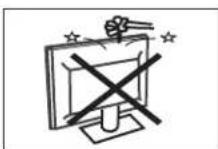
Do not drop or push objects into the television cabinet slots or openings. Never spill any kind of liquid on the television receiver.

Do not block the ventilation holes in the back cover. Adequate ventilation is essential to prevent failure of electrical components.

Do not trap the power supply cord under the television receiver.

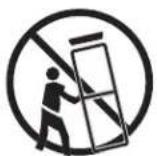
Never stand on, lean on, or suddenly push the television or its stand. You should pay special attention to children. Serious injury may result if it falls.

Do not place your television on an unstable cart, stand, shelf or table. Serious injury to an individual, and damage to the television, may result if it falls.
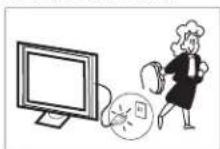
When the television receiver is not used for an extended period of time, it is advisable to disconnect the AC power cord from the AC outlet.

Avoid exposing the television receiver to direct sunlight and other sources of heat. Do not stand the television receiver directly on other products which give off heat, e.g. video cassette players and audio amplifiers. Do not place naked flame sources, such as lighted candles on the television.

If the television is to be built into a compartment or similar enclosure, the minimum distances must be maintained. Heat build-up can reduce the service life of your television, and can also be dangerous.
SAFETYANDWARNINGS
Thank you very much for purchasing this TV. To enjoy your product from the very beginning, read this manual carefully and keep it handy for easy reference.

INSTALLATION
- Locate the TV in the room where light does not strike the screen directly
- Total darkness or a reflection on the picture screen can cause cycstrain. Soft and indirect lighting is recommended for comfortable viewing.
- Allow enough space between the TV and the wall to permit ventilation.
- Avoid extremely warm locations to prevent possible damage to the cabinet or premature component failure.
- This TV can be connected to AC 100-240 Volts. 50/60 Hz. Never connect to a DC supply or any other power supply.
- Do not cover the ventilation openings when using the TV.
CAUTION
Never tamper with any components inside the TV, or any other adjustment controls not mentioned in this manual. All LCD-TVs are high voltage instruments. When you clean up dust or water drops on the LCD PANEL or CABINET, the power cord should be pulled out from the receptacle, then wipe the TV with a dry soft cloth. During thunder and lighting, unplug the power cord and antenna cord to prevent damage to your TV. All repairs to this TV should only be performed by qualified TV service personnel.
Earthing connection--- The apparatus shall be connected to MAINS socket outlet with a protective carthing connection. MAINS plug or appliance coupler of the apparatus is used as disconnect device, it should remains readily operable
Warning: Change or modifications to this unit not expressly by the part responsible for compliance could void the user's authority to operate the Equipment.
NOTE:
This equipment has been tested and found to comply with the limits for a Class B digital device, pursuant to Part 15 of the FCC Rules. These limits are designed to provide reasonable protection against harmful interference in a residential installation. This equipment generates, uses, and can radiate radio frequency energy and, if not installed and used in accordance with the instructions, may cause harmful interference will not occur in a particular installation. If this equipment does cause harmful interference to radio or
television reception, which can be determined by turning the equipment off and on, the user is encouraged to try to correct the interference by one or more of the following measures:
- Reorient or relocate the receiving antenna.
- Increase the separation between the equipment and receiver.
- Connect the equipment into an outlet on a circuit different from that to which the receiver is connected.
-Consult the dealer or an experienced radio TV technician for help.
Shield cables must be used with this unit to ensure compliance with the Class B FCC limits.
Main features
| 1 Used as Television, display terminal,PC display ; | AC Power Cord...... | 1 |
| 2 High luminance,wide viewing angle ; | Infrared Remote Control...... | 1 |
| 3 B T :S C | User's Manual ...... | 1 |
| 4 ATSC digital signals and NTSC analog signals TV. | Battery(AAA)...... | 2 |
Main parameter
| Viewing Picture Size(diagonal) | 42inch |
| Resolution: 1920x1080 | |
| Aspect Ratio: 16:9 | |
| TV System: | ATSC Digital system and NTSC Analog system |
| Video Signal System: | NTSC/PAL/SFCAM |
| Receiving Channel: | Cable :1-135/ Air: 2-69(ATV&DTV) |
| Power consumption: 300W | |
| Input Power Voltage: | AC 100V-240V 50/60Hz |
| Audio Output Power(THD 7%): 2x8W | |
| Rear High-Definition Multimedia Interface(HDMI) Input x 2 | |
| Rear S-Video Input | x 1 |
| YCb(Pb)Cr(Pr) Input | x 1 |
| Side S-Video Input | x 1 |
| Analog Audio Output x 1 | |
| Rear Couxial SPDIF Output | x 1 |
| Analog RGB(VGA) Input x 1 | |
| Rear Composite Video Input | x 1 |
| Rear Audio Input | x 3 |
| Side Composite Video Input | x 1 |
| Side HEAD PHONE Output | x 1 |
| Rear Composite Video Output | x 1 |
| Horizontal definition(TV line) | Composite Video Input >-350Video Input >-400YCb(Pb)Cr(Pr) >-400 |
Front panel


1: Remote control sensor.
2: Indicator LED: GREEN POWER ON.
RED STANDBY.
3: Key board
4: Power: Press this button to turn the unit
ON from STANDBY mode.
Press it again to turn the set back to
STANDBY.
KEYBOARD

1.SOURCE :
Display the input source menu.
- M E : N U
Display main MENU.
3.CH+/CH-
In TV mode press CH+ or CH- to change
the channel up and down.
In MENU mode, press "CH+or CH- to select
items
In standby mode, topress CH+ of"CH-"to "
on the TV.
- V O L + / V O L -
Adjust sound level.
In MENU mode, press VOL+ or "VOL- to "
adjust the item that you selected.
REAR AV Connection

I. HDMI INPUT
2. HDMI2 INPUT
3. VGA INPUT
4. AV1 INPUT
5. S-VIDEO1 INPUT
- YPbPr INPUT
- PC AUDIO INPUT
- YPbPr AUDIO INPUT
- AV1/S-VIDEO1 AUDIO INPUT
-
VIDEO OUTPUT
-
SPDIF OUTPUT
- AUDIO OUTPUT
- ANT
- AC POWER INPUT
Note:
1.AV1 and S-VIDEO1 share one audio channel.
-
When HDMI port get DVI signal, the "PC Audio" channel will change to receive the audio from HDMI port
-
When HDMI2 port get DVI signal, the "YPbPr Audio" channel will change to receive the audio from HDMI2 port.
4.AV OUTPUT
When the source are AV1,AV2(side) S-VIDEO1,S-VIDEO2(side),ATV,the AV OUTPUT Channel reproduce the input
signals accordingly
PC
STEPS:
Be sure both the TV and computer are set to Power off.
- Connect VGA and audio cable.
- Connect the power cord.
- Power on the TV, switch to VGA mode.
- Power on the VGA.
This sequence is very important.

PRESET MODE
| RESOLUTION | V.Freq.(Hz) H.Freq.(KHz) | ||
| 1 | 720*400 | 70 | 31.47 |
| 2 | 640*480 | 60 | 31.47 |
| 3 | 640*480 | 72 | 37.86 |
| 4 | 640*480 | 75 | 37.50 |
| 5 | 800*600 | 56 | 35.156 |
| 6 | 800*600 | 60 | 37.88 |
| 7 | 800*600 | 72 | 48.08 |
| 8 | 800*600 | 75 | 46.88 |
| 9 | 1024*768 | 60 | 48.36 |
| 10 | 1024*768 | 70 | 56.48 |
| 11 | 1024*768 | 75 | 60.02 |
| 12 | 1280*1024 | 60 | 63.98 |
| 13 | 1280*1024 | 75 | 80.00 |
ANTENNA

Note:
Aerial connections: IEC(female).
Input impedance:75Ωnbalanced.
AV EQUIPMENT
This TV provides two groups of AV, two S-Video, one group of YPbPr for convenient connection to VCR, DVD or other video equipment, three group of HDMI for HD signal input Please refer to the owner's manual of the equipment to be connected as well.
You can use the input terminals on TV set rear as follows.

flowchart
graph TD
    A[" HDMI "] --> B[" Video EQUIPMENT "]
    B --> C[" To audio Output "]
    C --> D[" Video Equipment "]
    D --> E[" With VIDEO terminal "]
    D --> F[" With VIDEO Input Terminal "]
    D --> G[" To audio Input "]
    B --> H[" Video Equipment with YPLPr "]
    H --> I[" Video EQUIPMENT with YPLPr "]
    I --> J[" To audio outputs "]
    J --> K[" Video RECORDER "]
    K --> L[" with SPDIF Input terminal "]
    K --> M[" With VIDEO Input Terminal "]
    style A fill:#f9f,stroke:#333
    style B fill:#ccf,stroke:#333
    style D fill:#cfc,stroke:#333
    style E fill:#fcc,stroke:#333
    style F fill:#cff,stroke:#333
    style G fill:#ffc,stroke:#333
    style H fill:#cfc,stroke:#333
    style I fill:#fcc,stroke:#333
    style J fill:#cfc,stroke:#333
    style K fill:#fcc,stroke:#333
    style L fill:#cfc,stroke:#333
    style M fill:#fcc,stroke:#333
It can be connected to the following appliances: VCR, multi disc player, DVD, camcorder, video game or stereo system, etc.....
YPbPr can support these video fomats:480i,576i,480p,576p,720p,1080i,1080p.
NOTE:
AV2 and S-VIDEO2 share the audio input channel.

Insert Batteries Into the Remote Control

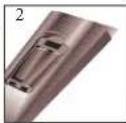

- Remove the battery cover.
- Inserting the 2 AAA 1.5V batteries making sure the polarity (+ or -) of the batteries matches the polarity marks inside the unit.
- Mount the battery cover. Replace with new batteries when the TV set begins to show the following symptoms: Operation is unsteady or erratic. Sometimes the TV set does not function with Remote Control Unit.
Remark:
1) Alkaline Battery Recommended.
2) Remove batteries when they are exhausted or if the remote control is not to be used for long time.
1:POWER
To set the TV standby or on.
2:NUMBER KEY:
For direct access to program.
3:MENU
To display TV menu or to return to the previous menu.
4: CURSOR
To move within the menu.
5: EXIT
Used to exit menu.
6: VOL+/-
To adjust sound level.
7: P.M
To switch picture mode.
8:MTS/SAP
Switch the sound stereo, SAP and mono.
9: SLEEP
Set time to turn off the TV.
10:P.G
Setting the Parental Control level control.
11:MUTE
To disable or enable the sound.
12: RECALL
To access the previously viewed program.
13: SOURCE
To display or exit TV input source menu.
14: ENTER
Confirms selection.
15: TV DISPLAY
Displays/removes the program Information
16: S.M
To switch sound mode.
17: CH+/CH-
To access the next or previous Program.
18: ASPECT
To change picture aspect.
19: CC
Enable or disable the CC function.
20:CH LIST:
Usedtodisplaythechannellist
21:FAV
Used to access your favourite channels in digital TV mode.
22:EPG
Display all the information of DTV programs.
23.HDMI:
Hot key directly go to HDMI source.
24:VIDEO:
Hot key directly go to SVIDEO source.
25:TV:
Hot key directly go to TV source.
26:AV:
Hot key directly go to AV source.
27: YPbPr:
Hot key directly go to YPbPr source.
28: VGA
Hot key directly go to VGA source.
29: PAGE DOWN/PAGE UP
In EPG mode, use this key to page up/down the EPG information.
30.COLOR KEYS: Reserved keys
1. PICTURE MENU
The first item of the MENU is PICTURE MENU. You can adjust picture effect here, such as contrast, brightness, etc.
Press to select, press to adjust press MENU to exit.
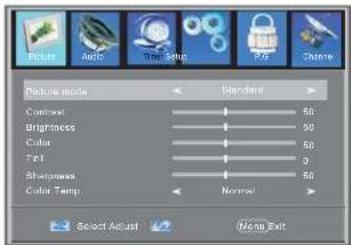
Note:
If you want to adjust contrast, brightness, color, and sharpness, the picture mode must return to "personal" status.
2. AUDIO menu
The second item of the MENU is AUDIO MENU. You can adjust sound here.
Press ▶ ▶ elect, press to adjust ▶ press MENU to exit.

Note:
The item of Audio language is available in ATSC program.
3.TIMER MENU
The third item of the MENU is TIMER MENU. You can adjust time here. Press ▼ elect, press to adjust ▶ press MENU to exit.

1). Sleep Timer: adjust this item, you can set the sleep timer.
Note:
The item of Time zone, the item of Daylight Saving Time and the item of Clock are available in ATSC program
4. SETUP MENU
The forth item of the MENU is SETUP MENU.
You can setup system here.
Press ▼ ▲ elect, press to adjust ▶ press MENU to exit.
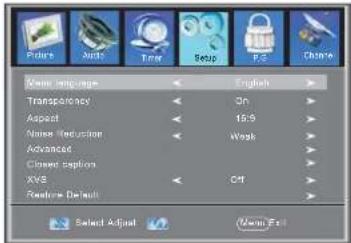
Note:
Restore Default: Reset all the settings to default value.
1). Advanced: In PC Mode is available.
Press button to select Advanced item, Press button, the screen will display as follow:


(1). H-Pos: Adjust the horizontal position of the screen.
(2). V-Pos: Adjust the vertical position of the screen.
(3).Clock: Fine tune the screen width.
(4). Phase: Fine tune the phase of the screen. Usually don't adjust this item.
(5). Auto: Auto adjust to fit the screen.
2). Closed Caption: switch close caption mode.
Press button to select Closed Caption item, Press button, the screen will display as follow:

(1): Advanced Selection: only ATSC program is available.
(2):Option:Used to edit CC font.
Press button, the screen will display as follow:
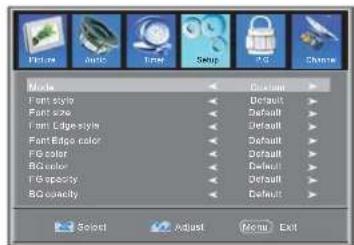
NOTE: Only ATSC program is available.
5. P.G MENU
The fifth item of the MENU is P.G MENU.
You can setup Parental Control here.
Press ▼▲ to select, press ◀▶ to adjust, press MENU to exit.
Parent Control: input the password, it will go into Parental Control menu. Factory default password is 6666.

5.1, Input the correct password, the screen will display as follow:

1). Change Password: Press▶ button, the screen will display as follow:

1). New Password: Input the new password
2). Confirm Password: Input the new password again
5.2 P.Gwitch:
When the Periodals Contrude below options can be adjusted.
5.3 US: Press button, the screen will display as follow:

1): TV: Press button, the screen will display as follow:

| Rating Content | Content | |||||
| PV (Fantasy violence) | V (Violence) | S (Sexual situation) | L (Adult language) | D (Sexually suggestive dialog) | ||
| Suggested age | TV-Y(All children) | |||||
| TV-Y?(Direct to order children) | X | |||||
| TV-G(General guidance) | ||||||
| TV-Po(Parental Guidance suggested) | X | X | X | X | ||
| TV-14(Parents strongly cautioned) | X | X | X | X | ||
| TV-MA(Mature and once only) | X | X | X | |||
And use ENTER key to switch lock/unlock Parental Control feature.
2). MPAA: switch the movie-rating control level: N/A, G, PG, PG-13, R, NC-17, X.
| Rating | Description | |
| Age | G | General audiences. All Ages admitted |
| PG | Parental Guidance suggested. Some material may not be Suitable for children. | |
| PG-13 | Parents strongly cautioned. Some material , may be Inappropriate for children under 13. | |
| R | Restrict. Under 17 requires accompanying parent or adult guardian(age varies in some jurisdictions) | |
| NC-17 | No one 17 and under admitted. | |
| X | X is an order rating that is unified with NC-17 but may be encoded in the data of order movies. | |
5.4 Canada: Press ▶ button, the screen will be displayed as follow:

1): Canada English: switch the english rating control level: E, C, C8+, G, PG, 14+, 18+.
| Rating | Description | |
| Age | E | Exempt: Includes news, sports, documents and other information programming; talk shows, music videos, and variety programming. |
| C | Children: Intended for younger children under the age of 8 years. Pays careful attention to themes that could threaten their sense of security and well-being. | |
| C8+ | Children over 8 years old: Contains no portrayal of violence as the preferred, acceptable, or only way to resolve conflict; not encourage children to imitate dangerous acts which they may see on the screen. | |
| G | General: Considered acceptable for all age groups. Appropriate viewing for the entire family, contains very little violence, physical, verbal or emotional. | |
| PG | Parental Guidance: Intended for a general audience, but may not be suitable for younger children (under the age of 8) because it could contain controversial themes or issues. | |
| 14+ | Over 14 Years: Could contain themes where violence is one of the dominant elements of the storyline but it must be integral to the development of plot or character. Language usage could be profound and nudity present within the context of theme. | |
| 18+ | Adults: Intended for viewers 18 years and older and might contain depictions of violence, which while related to the development of plot, character or themes, are intended for adult viewing. Could contain graphic language and portrayals of secretary and nudity. | |
2). Canada French: switch the French-rating control level: E, G, 8ANS+, 13 ANS+, 16ANS+, 18ANS+.
| Rating | Description | |
| Age | E Except programming | |
| G General: All ages and children, contains minimal direct violence,but may be integrated into the plot in a humorous or unrealisticmanner. | ||
| 8ans- General but unadvisable for young children: May be viewed by awide public audience, but could contain scenes disturbing tochildren under 8 who cannot distinguish between imaginary andreal situations. Recommended for viewing with parent. | ||
| 13ans- Over 13 years: Could contain scenes of frequent violent scenesand in tense violence. | ||
| 16ans- Over 16 years: Could contain frequent violent scenes and violence. | ||
| 18ans- Over 18 years: Only for adult viewing. Could contain frequentviolent scenes and extreme violence. | ||
5.5 RRT Setting: in ATSC digital TV mode, it could be adjusted
5.6 Reset RRT: Press button, the screen will be displayed as follow:
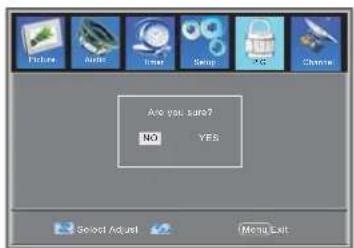
6. Channel MENU
The sixth item of the MENU is CHANNEL MENU. You can adjust digital and analoge TV channel here. Press ▼▲ to move, press ◀▶ to adjust.

1). Air/Cable: select air TV signal or cable TV signal. 2). Auto Scan: If it's the first time using the TV, it should scan all the TV channels first, press the ▶ button to confirm, you will see below menu :

A: Start to Scan: press the ▶ button to confirm, you will see below menu which indicates auto search is in process.

3). Favorite: Press ◀ button to choose/delete the favorite channel.
4). Show/Hide: Press ◀ button to display or hide currently channel.
5). Channel NO.: Display the currently channel number.
6). Channel Lable: Press ▲▼ button to edit currently channel name.
7). DTV Signal: Display DTV signal intension. It can't be selected and adjusted.
Trouble shooting
| Trouble phenomenon Symptom | Inspection Check | |||
| Picture Audio | ||||
 | Snow Noise |  | antenna position, direction or connection | |
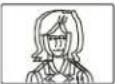 | Ghost |  | Normal audio | antenna position, direction or connection |
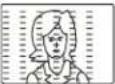 | Interference | 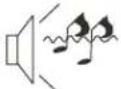 | Noise | electronic equipment, car/ motorcycle, fluorescent light |
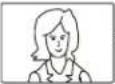 | Normal Picture |  | Mute | Volume(check if mute is activated or if the audio system connections are not correct) |
 | No picture Mut |  | Power cord is not inserted Power switch is not opened Contrast and brightness/volume setup Press standby key on the remote control for inspecting | |
 | No colour Norr |  | ur control | |
 | Picture breaking up |  | Normal audio or weak | retune channel |
 | No colour |  | Noise | TVsystem |
The LCDTV panel is built with very high precision technology giving you fine picture details in vibrant color. Occasionally, a few non-active pixels may appear on the screen as a fixed point of red, green, blue, black or white. Please note this does not affect the performance of the product.

This symbol on the product or in the instructions means that your electrical and electronic equipment should be disposed at the end of life separately from your household waste. There are separate collection systems for recycling in the EU. For more information, please contact the local authority or your retailer where you purchased the product.

Brand : Viore
Model : LC42FHZ55
Category : Television