AC-EX100TT - Audio/video converter AVPro Edge - Free user manual and instructions
Find the device manual for free AC-EX100TT AVPro Edge in PDF.


User questions about AC-EX100TT AVPro Edge
0 question about this device. Answer the ones you know or ask your own.
Ask a new question about this device
Download the instructions for your Audio/video converter in PDF format for free! Find your manual AC-EX100TT - AVPro Edge and take your electronic device back in hand. On this page are published all the documents necessary for the use of your device. AC-EX100TT by AVPro Edge.
USER MANUAL AC-EX100TT AVPro Edge
2222 E 52nd St N \~ Sioux Falls, SD 57104
1-877-886-5112 \~ 605-274-6055
support@avproedge.com
Introduction
The AC-EX100TT-UHD-T is a 100m HDBaseT Tx with the ability to be powered by the Rx. It features RS-232 & IR Pass-through inputs along with its auto sensing HDMI and VGA ports.
Key benefits of using AC-EX100TT-UHD:
1) ULTRA HIGH DEFINITION: Our AC-EX100TT-UHD supports 4K up to 70M (230FT) & HD up to 100M (330FT) with crystal clear 4K Resolution. NOTE: High quality CAT6a shielded required for maximum performance.
2) DISTANCE: By using AC-EX100TT-UHD-T, the transmission distance for HD 1080P is up to 100 meters (330') and with 4K it is up to 4K up to 70M (230')
3) AUTO SENSING: This Table-Top/Under Table Transmitter is designed to be a "set it & forget it" piece of hardware. When the user plugs their devices in (BYOD), the transmitter will automatically sense the signal and make it active. If both inputs are in use, there is a simple button on the front to toggle inputs.
4) CONTROL: IR & RS-232 allow control of a rack or standalone projector/display.
5) POWER: No local power is required when you use the AC-EX100-UHD-R2. Power is provided by ultra-stable PoE technology. Optionally, you can power it locally for use with any HDBaseT receiver.
Applications:
This unit is designed to work flawlessly with all PC, VESA and traditional resolutions up to and including 4K 60Hz 4:2:0 8-bit & HDR 4K 30 4:2:2 12-bit. VGA supports DCI 2K, 1080P, 1920x1200x60. In addition to its compact and robust design, The AC-EX100TT-UHD-T transmits digital signals up to 100 meters (328') giving you ultimate flexibility, especially in large rooms like libraries or auditorium style rooms/classrooms. For a complete solution pair the table-top transmitter (AC-EX100TT-UHD-T) with the AC-EX100-UHD-R2 HDBaseT Receiver to power the table-top transmitter from afar using PoE, thus eliminating the need for a power supply unit near the wall plate.
FRONT
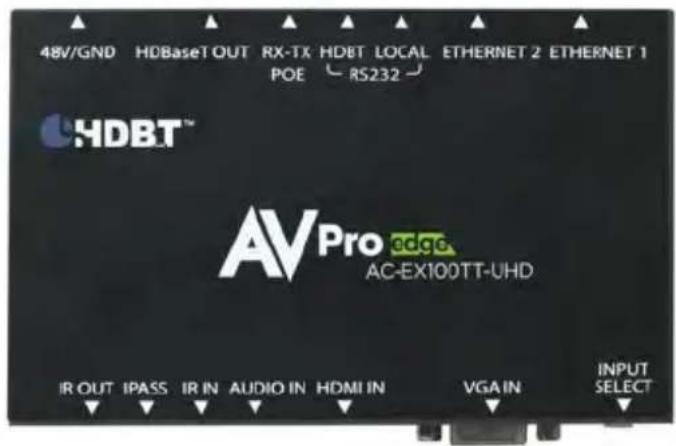
text_image
48V/GND HDBaseT OUT RX-TX HDBT LOCAL ETHERNET 2 ETHERNET 1 POE RS232 HDBT™ AVPro edge AC-EX100TT-UHD IR OUT IPASS IR IN AUDIO IN HDMI IN VGA IN INPUT SELECTTOP

text_image
LOCAL HDBT ETHERNET 1 ETHERNET 2 RS232 TX RX POE HDBaseT POWERBOTTOM

text_image
CE IR IN 3-20V AUDIO IN HDMI IN VGA IN INPUT IR OUT IPASS IR IN SELECTAC-EX100WPP-UHD-T Indicator lights
There are only 3 Indication lights on the AC-EX100WPP-UHD-T Wall-Plate. 2 near the HDBaseT RJ45 Jack and 1 on the front labeled "Input Select"
| Port/Location | Color | Visual | State | Meaning |
| HDBaseT | Green | Flashing (Steady) | Power is present (PoE or local power) | |
| HDBaseT | Amber | Solid | Indicates that Tx & Rx are communicating properly | |
| "Input Select" Light | Green | Solid | Indicates VGA port is the active source (w/ 3.5mm Audio) | |
| "Input Select" Light | Amber | Solid | Indicates HDMI port is the active source |
Table-top/under-table HDBaseT Transmitter
■ Features
• HDMI 2.0 & VGA Inputs
• 4K 30 4:4:4, 4K60 4:2:0 HDMI Support
• HDR 4:2:2 12 Bit Support
• DCI 2K, 1080P, 1920x1080x60 VGA Support
• HDCP 2.2 & Earlier Supported
• 100M (330ft) On 1080P, Up to 70m (230ft) on 4K (Cat6a)
- No Local Power Necessary (Powered by AC-EX100-UHD-R2)
• Rugged, long-life chassis
- Plug & Play auto input sensing
- Select-able input (If both are plugged in)
- Designed for the conference/classroom room so your customer can focus on their meetings, not their video system.
• 3.5mm Input for audio (with VGA input only)
- Single UTP/STP LAN cable (CAT-5E/6A) for all signals
- ESD protection circuitry (Inputs / Outputs) till 7KV.
- Transfer IR & RS-232 signals from Tx to Rx (From Control Processor)
- I-Pass Feature for control system IR "pass-through"
• 3-20v protection circuit built in for safe IR transport
- Compatible with HDBaseT displays, projectors, AVR's
• Supports uncompressed PCM 2-Ch., 5.1, 7.1, Dolby Digital, DTS, Dolby TrueHD, DTS HD-Master Audio, Atmos.
- Can Cascade for ultra-long distance

text_image
AVPro edge AC-EX100TT-UHD-TTABLE TOP HDBASET TX CONNECTION

flowchart
graph LR
    A["4K SOURCE"] -->|HDMI| B["AV Pro"]
    C["COMPUTER"] -->|VGA| B
    B -->|CAT 5/6/7| D["AV Pro"]
    D -->|HDMI| E["4K DISPLAY"]
    B -->|POWER| F["Power Supply"]
    D -->|HDBASET Rx SOLD SEPERATELY| G["HDBASET Rx SOLD SEPERATELY"]
Notice
AVProEdge reserves the right to make changes to the hardware, packaging and any accompanying documentation without prior written notice.
Warning
To reduce the risk of fire, electric shock or product damage:
Basic

- Do not expose this device to rain, moisture, dripping or splashing and ensure that no objects filled with liquids are placed on or near the device.

- Clean this device with a dry cloth only.

- Do not install or place this unit in a bookcase, built-in cabinet or in another confined space. Ensure the unit is well ventilated.

- Unplug this device during lightning storms or when unused for long periods of time.

- To prevent risk of electric shock or fire hazard due to overheating, do not obstruct the unit's ventilation openings with newspapers, tablecloths, curtains, and similar items.

- Protect the power cord from being walked on or pinched particularly at plugs.

- Do not install near any heat sources such as radiators, heat registers, stoves, or other apparatus (including amplifiers) that produce heat.

- Only use attachments / accessories specified by the manufacturer.

- Do not place sources of naked flames, such as lighted candles, on the unit.

- Refer all servicing to qualified service personnel.
■ What's In The Box? Two ways to purchase:
AC-EX100TT-UHD-KIT (Includes AC-EX100-UHD-R2 Receiver)
• AC-EX100TT-UHD-T (Transmitter)
• AC-EX100-UHD-R2 (Receiver)
• 2 - 3 pin terminal block
• 2 - 5 pin terminal block
• 2 - IR Emitter
• 1 - IR Receiver
• 1 - 48v Power Supply
AC-EX100TT-UHD-T (Tx Only for HDBaseT TV's & Projectors)
• AC-EX100TT-UHD-T (Transmitter)
• 1 - 3 pin terminal block
• 1 - 5 pin terminal block
• 1 - IR Emitter
• 1 - 48v Power Supply
■ Specifications
| Video: | |
| Video Resolutions | Up to 4K 60Hz 4:2:0 &4K 30Hz 4:4:4 |
| VESA Resolutions | Up to 2560x2048 (QSXGA) |
| HDR Formats/Resolutions | 4K24 4:2:2 12 bit, 4K24 4:2:0 10 bit |
| Color Space | YUV (Component), RGB(CSC: Rec. 601, Rec. 709, BT2020, DCI, P3 D6500) |
| Chroma Subsampeling | 4:4:4, 4:2:2, 4:2:0 Supported |
| Deep Color | Up to 16 bit (1080), Up to 12 bit (4K) |
| Audio: | |
| Audio Formats Supported HDMI | PCM 2.0 Ch, LPCM 5.1 & 7.1, Dolby Digital, DTS 5.1, Dolby Digital Plus, Dolby TrueHD, DTS-HD Master Audio, DTS-X, Dolby Atmos |
| Audio Formats Supported Extracted (2CH Port) | PCM 2 CH (No Downmix) |
| Distance: | |
| HDBaseT (CAT) Distance (4K) | 70M (230 Feet) |
| HDBaseT (CAT) Distance (Full HD) | 100M (330 Feet) |
| HDMI Lead In/Out | Up to 50 Feet (using Bullet Train HDMI) |
| HDMI Lead In/Out (w/ AOC Cable) | Up to 130 Feet (using Bullet Train AOC) |
| Other: | |
| Bandwidth | 10.2 Gbps |
| HDCP | HDCP 2.2 and earlier |
| Ports: | |
| HDMI | Type A |
| Audio (Input, w/ VGA ONLY) | 3.5mm Stereo (unbalanced) |
| IR OUT | 3.5mm Mono (2 Conductor for Emitter) |
| IR IN | 3.5mm Mono (2 Conductor for Control System Direct ONLY) |
| RS232 (Device Control & Pass Through) | 2x 3.5mm Stereo (3 conductor) |
| Power | 2 pin terminal block each |
| Ethernet (Tx & Rx) | 2x RJ45 connections each (10/100) |
| Environmental: | |
| Operating Temperature | 23 to 125°F (-5 to 51°C) |
| Storage Temperature | -4 to 140°F (-20 to 60°C) |
| Humidity Range | 5-90% RH (No Condensation) |
| Power: | |
| Power Consumption (Total) | 9 Watts Max Pair |
| Power Supply | Input: AC 100-240V ~ 50/60HzOutput: DC 48V .5A (Wall Version) |
| Dimensions: | |
| Dimensions (Single Unit Only, Tx or Rx are same)(Length/Width/Height) (Tx or Rx each alone) | mm: 138 x 85 x 25inch: 5.43 x 3.35 x 1 |
| Dimensions (Packaged Length/Width/Height) | mm: 203 x 165 x 91inch: 8 x 6.5 x 3.6 |
| Weight (Unit) | .3 lbs (.13Kg) |
| Weight (Packaged) | 1 lbs (.90Kg) |
| *Specifications subject to change without notice. Mass & dimensions are approximate | |
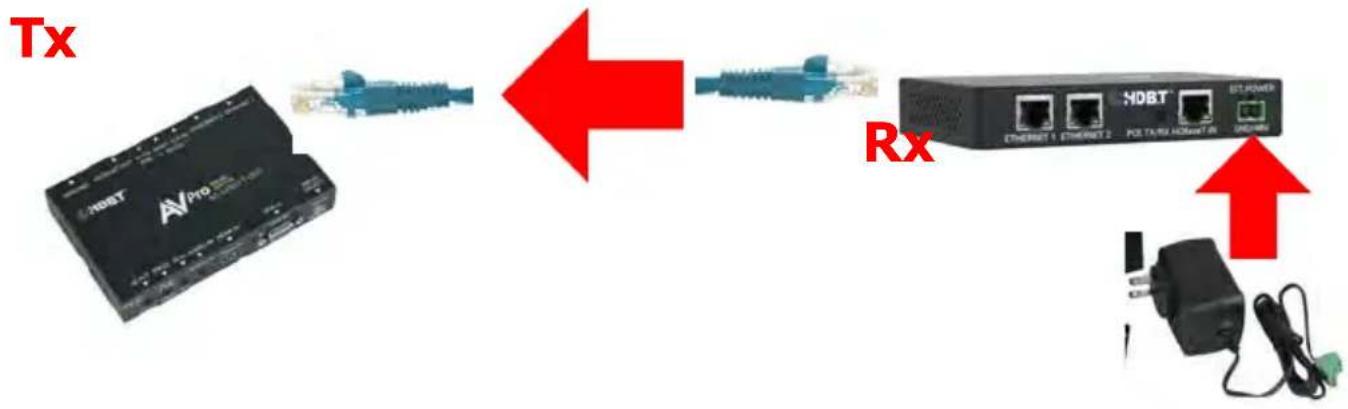
■ Powering the AC-EX100TT-UHD-T
There are 2 ways to power the unit:
- Use a HDBaseT Receiver that provides up stream power. We recommend using the AC-FX100-UHD-R2.
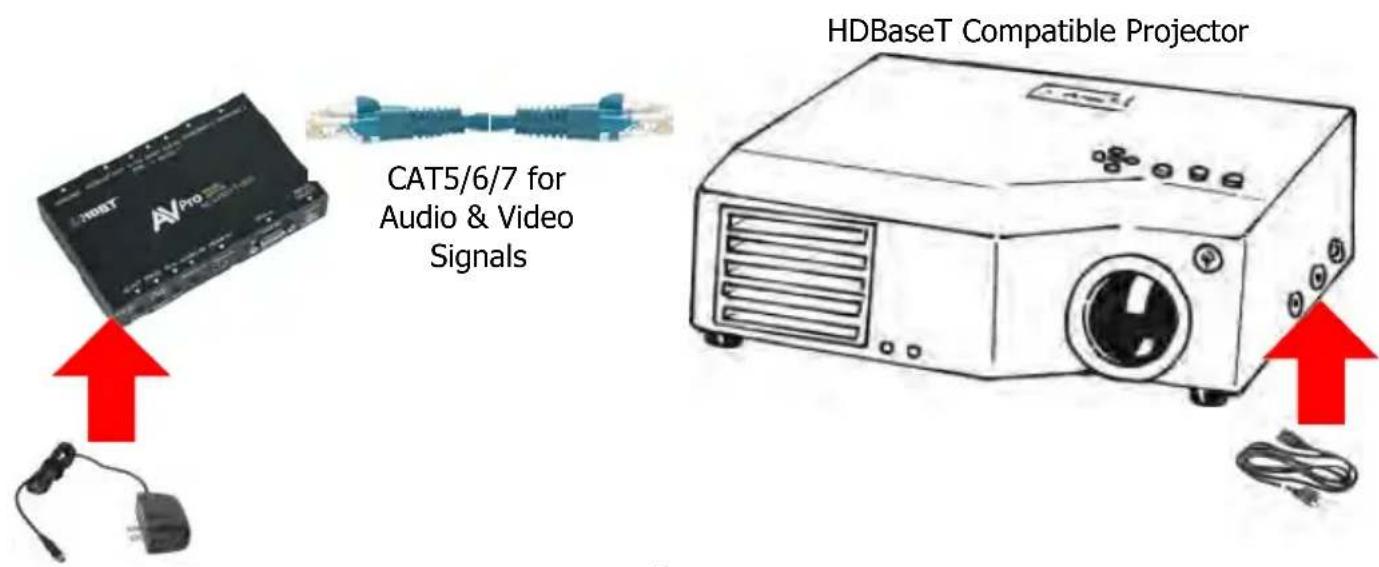
- If you will be using the unit directly into a NON PoE provider (AVR, projector, display, or other HDBaseT receiver), you can power it using a 48v, .5A - 2 pin type power supply.
NOTE: In these diagrams, arrows indicate the flow of POWER, not other signals.
OPTION 1: PoE From Receiver (AC-EX100-UHD-R2)
flowchart
graph LR
    A["Host AVPro"] -->|Red Arrow| B["HDBT"]
    B --> C["Rx"]
    C --> D["Switch"]
OPTION 2: Local power to work with other HDBaseT devices
flowchart
graph LR
    A["ACAT5/6/7 for Audio & Video Signals"] --> B["HDBaseT Compatible Projector"]
    B --> C["Output"]
    style A fill:#f9f,stroke:#333
    style B fill:#ccf,stroke:#333
■ Using Bi-Directional Power w/ AC-EX100-UHD-R2
Using the bi-directional PoE feature is fairly easy to do. Even though the AC-EX100-UHD System is designed to handle "hot" changes. We strongly recommend you switch directional power while the units are completely unplugged from Power, HDMI or CAT Cable.
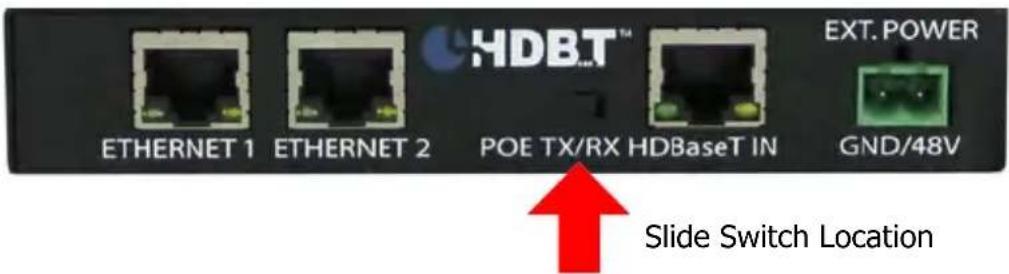
- PoE direction is set by the dip switch on the Tx and Rx. You are setting the PoE behavior for the unit. You are selecting whether you want the unit to RECEIVE PoE or SEND PoE.
- Here are the two possible modes.
EX1. To Power from transmitter, PoE setting should be as follows: HDBT Tx -- The PoE slide switch should be set to Tx.
HDBT Rx -- The PoE slide switch should be set to Rx.
EX2. To Power from the receiver, PoE setting should be as follows: HDBT Tx -- The PoE slide switch should be set to Rx.
HDBT Rx -- The PoE slide switch should be set to Tx.
- Be sure you have the power supply plugged in on the newly selected PoE origination side.
- Continue normal operation.
AC-EX100TT-UHD-T (Tx)

Slide Switch Location

text_image
LOCAL HDBT TX RX POE HDBaseT + - ETHERNET 1 ETHERNET 2 RS232 POWERAC-EX100-UHD-R2 (Rx)
text_image
HDB.T™ ETHERNET 1 ETHERNET 2 POE TX/RX HDBaseT IN EXT. POWER GND/48V Slide Switch Location■ IR Configuration
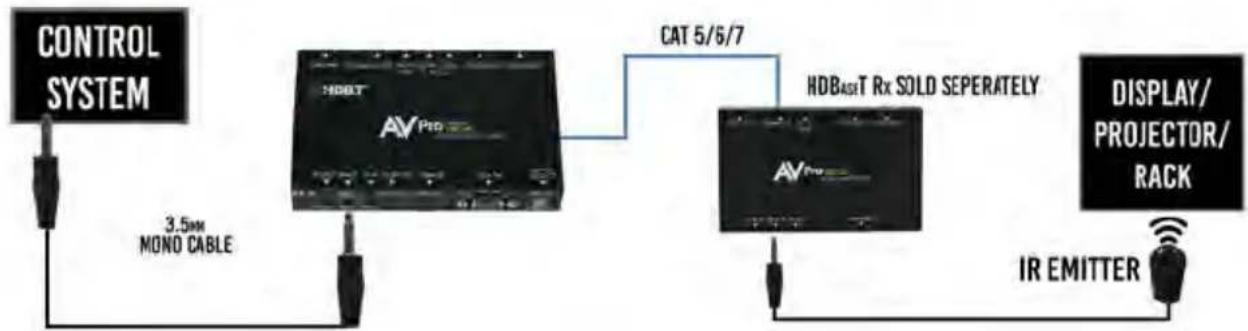
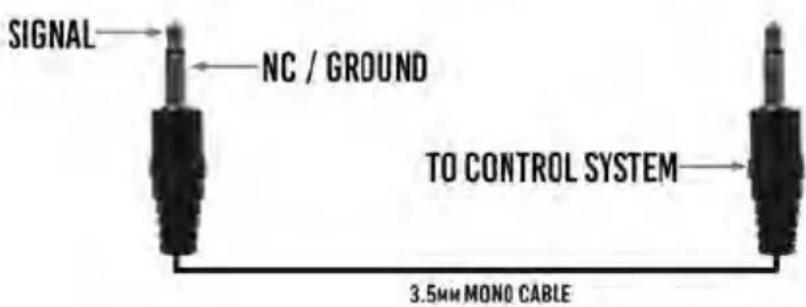
The AC-EX100TT-UHD-T has an IR input designed to work when connected directly to control processors, or other IR signal generators like Global Cache, On Controls, etc... IR signals are routed through the entire HDBaseT link to the Rx (AC-EX100-UHD-R2).
This allows you to send control signals to:
- The "Rack" to control and amplifier, matrix, AVR or similar for more advanced systems.
- Control power, volume, etc... of the remote projector/display connected to the receiver.
AVPro edge AC-EX100TT-UHD-T
TABLE TOP HDBASET TX IR CONTROL
flowchart
graph LR
    A["CONTROL SYSTEM"] -->|3.5mm MONO CABLE| B["AV Pro"]
    B -->|CAT 5/6/7| C["HDBASET Rx SOLD SEPERATELY"]
    C --> D["AV Pro"]
    D --> E["IR EMITTER"]
    E --> F["DISPLAY/PROJECTOR/RACK"]
IR IN FOR AC-EX100WPP-UHD (WALLPLATE)
text_image
SIGNAL NC / GROUND TO CONTROL SYSTEM 3.5mm MONO CABLE■ RS-232 Configuration

text_image
On 3.5 mm Tip: Tx Ring: Rx Sleeve: Ground 9 pin RS232 plug (female) soldering side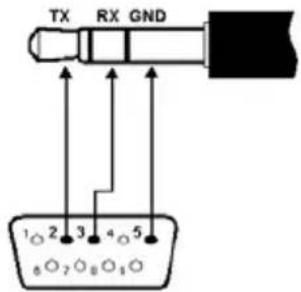
text_image
TX RX GND 1 2 3 4 5 8 7 8 9 10■ RS-232 Pass-Through
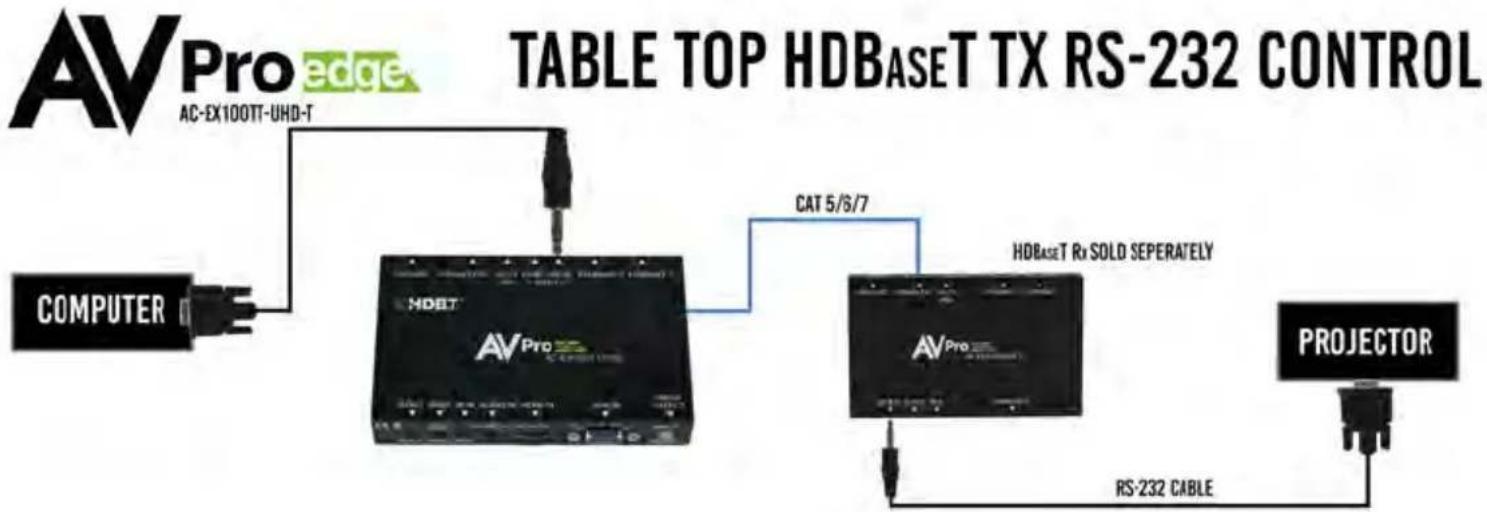
The AC-EX100TT-UHD-T has a bi-directional RS-232. RS-232 signals are routed through the entire HDBaseT Link to the Rx (AC-EX100-UHD-R2). You must plug into the "HDBT" RS232 port - This will pass unaltered commands to the Rx. This is the port for pass-through:

- The "Rack" to control an amplifier, matrix, AVR something or similar for more advanced systems
- Control power, volume, etc... of the projector connected to the Receiver.
NOTE: In larger systems, RS-232 is the recommended control method for maximum performance and longevity.
Pre-made 3.5mm to DB9 cables can be purchased from AVProStore.
flowchart
graph LR
    A["COMPUTER"] --> B["HDBT"]
    B --> C["AVPro"]
    C --> D["AVPro Rx SOLD SEPERATELY"]
    D --> E["PROJECTOR"]
    F["RS-232 CABLE"] --> D
    G["AC-EX100TT-UHD-T"] --> B
    H["CAT 5/6/7"] --> C
RS232 Commands for local control on next page...
■ RS-232 Local Control & Commands
Additionally, the transmitter RS-232 command bridge detects and scans commands from both the local RS-232 port and the HDBaseT stream. As soon as a properly formatted command is detected, the command is executed inside of the AC-EX100TT-UHD-T. This means you can control/switch ports from a distance or from local RS-232 with proper commands. Commands that are not listed below, get forwarded to the RS-232 port at the remote Rx.
To control locally, Use this port:
RS232 Settings:
Baud Rate - 115200
Checksum - None
Bit Num - 8
Stop Bit - 1
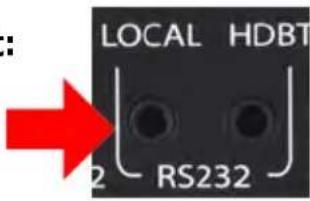
Same for Local and HDBT
Tip - Tx (transmit data out)
Ring - Rx (receive data in)
Sleeve - GND (ground)
RS232 Commands:
| Command | Action |
| @help | Shows Help File |
| @ver | Shows Firmware Version |
| @insel vga | Set Input Selection to VGA |
| @insel hdmi | Set Input Selection to HDMI |
| @insel status | Input Selection Status |
| @autosw on | Enable Auto Switch |
| @autosw off | Disable Auto Switch |
| @autosw status | View Autoswitch Status |
| @edid sink | Reads Downstream EDID |
| @default | Sets to standard EDID (4K) |
| @status | Shows Status of Current EDID Selection |
■ RS-232 Local Control & Commands cont.
The RS-232 port is also connected to the HDBT extender, and available on the remote end. We allow a control system to communicate both with the device on the other end as well as the AC-EX100TT-UHD-T directly.
To do this, the commands above must be prefixed with either @ex100tt or @
NOTE: XXXX= Device Serial Number, the device serial number is found ....
Response Structure:
<@hostname>
<@hostname> = indicates the device initiating the response
For example:
@ex100tt insel vga
@ex100tt-0000 insel vga
■ Using Ethernet (as a HUB):
Ethernet usage is very straight-forward. It is used for driving network communication over the HDbaseT link. This of these ports as a "Hub", if you plug one port into a router all the other ports on both the Tx & Rx now have access to the network.
Usage Examples:
- Supplying a hardwire Ethernet connection to video zones for on-device streaming and/or local gaming devices and players.
• Supplying server based content from a server to a remote display.
• Supplying a zone with a hardwired Ethernet connection for a Wi-Fi access-point in remote zones.
Usage is plug-&-play - the ports are always active and as long as ONE of the FOUR combined ports between the Tx and Rx is connected to the network the other three also have access.
Ethernet Indicator Lights:
- AMBER - This indicates an Ethernet connection is made, and the connection is stable. This should be SOLID.
- GREEN - This indicates that there is activity on the line. This light flashes randomly as data is transmitted. If this light is steady OFF there is no data coming through or you may need to reset the Ethernet router.
Usage Diagram:
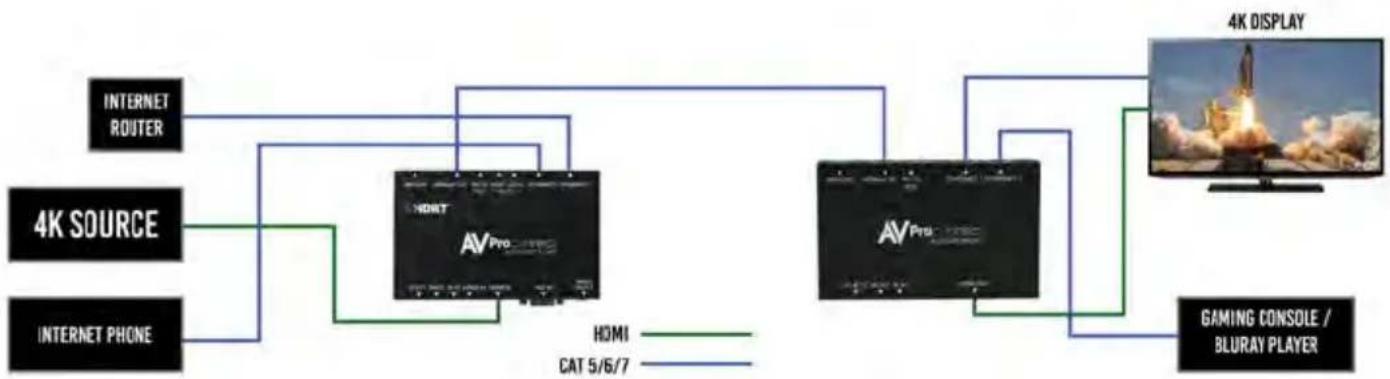
flowchart
graph LR
    A["4K SOURCE"] --> B["INTERNET ROUTER"]
    C["INTERNET PHONE"] --> D["INTERNET ROUTER"]
    B --> E["AV Pro"]
    D --> E
    E --> F["4K DISPLAY"]
    G["GAMING CONSOLE / BLURAY PLAYER"] --> F
    H["HDMI"] --> I["CAT 5/6/7"]
    I --> E
■ Ethernet (IP/LAN) Control
The unit can be controlled with LAN and the Ethernet is extended as well so you can actually send commands and pull up the internal WebOS page from the remote Rx and control it using IP.
IP Defaults (Static IP):
- Host IP (WebOS Access) - 192.168.1.239
- Subnet Mask - 255.255.255.000
• Gateway IP: 192.168.1.254
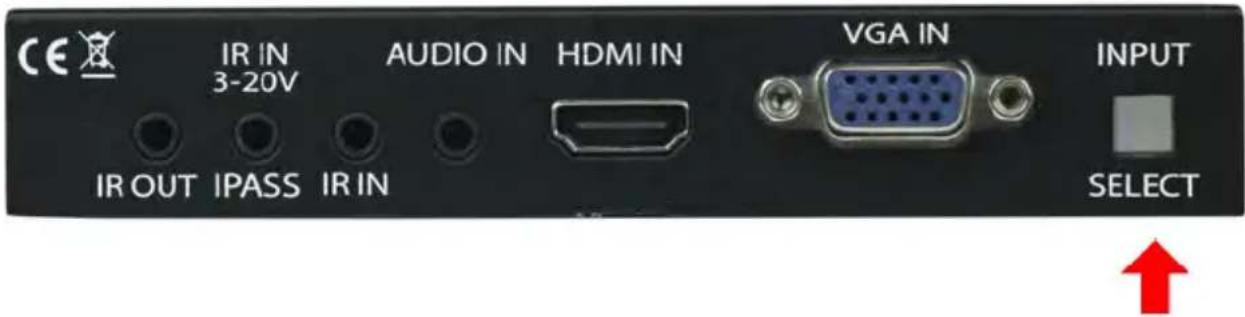
By default the unit is reached by using the STATIC IP above. You can toggle DHCP on/off as well by pressing and holding the input select button for 5 SECONDS as you power up the AC-EX100TT-UHD-T.
text_image
CE IR IN 3-20V AUDIO IN HDMI IN VGA IN INPUT IR OUT IPASS IR IN SELECTPress and hold to toggle DHCP
Using DHCP/Host Alias - The Host Alias is an alternate way to access & control the unit. It works off of DHCP protocol, so this means you will not have to change your PC's IP no matter what network you are on, so long as your PC is on the same network you will have access.
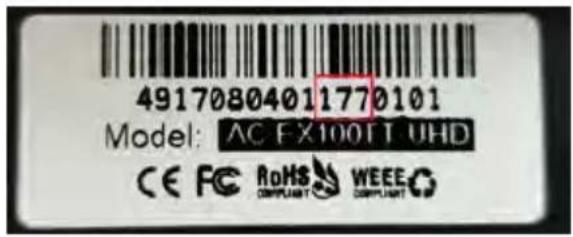
Default Host Alias: ex100tt-xxxx (xxxx=the serial ID, this can be found by looking at the serial number on the bottom of the unit. Find the number as pictured below and add a ZERO to the front of it:
In this image you can see the device serial number is 177, so the Host Alias ID is http://ex100tt-0177/
text_image
49170804011770101 Model: AC FX100FT UHD CE FC RoHS WEEE COMPLIANT COMPLIANTType into PC browser page: http://ex100tt-xxxx/
Type into MAC browser page: http://ex100tt-xxxx.local
To Use IP Control - you can send the commands below directly to the unit OR To access the WebOS for the first time you can type the static IP above or the Host Alias. The next page has an example of the WebOS in use.
■ Ethernet (IP/LAN) Control cont. (Commands)
| IP Commands for AV-EX100TT-UHD-T | |
| Command | Action |
| help | Shows Help File |
| ver | Shows Firmware Version |
| insel vga | Set Input Selection to VGA |
| insel hdmi | Set Input Selection to HDMI |
| insel status | Input Selection Status |
| autosw on | Enable Auto Switch |
| autosw off | Disable Auto Switch |
| autosw status | View Autoswitch Status |
| edid sink | Reads Downstream EDID |
| default | Sets tostandard EDID (4K) |
| status | Shows Status of Current EDID Selection |
■ Ethernet (IP/LAN) WebOS Example Page

text_image
AC-EX100TT-UHD Device Name:ex100tt-0001 INPUT HDMI VGA ✓ Autoswitch when source plugged in Refresh EDID Management For custom VGA EDID table control: EDID table 1080p 2ch Audio Upload custom EDID file (ex100tt.edid) Choose Files No file chosen Upload EDID ADMINISTRATION Serial:171510000001 Main Firmware:1.00 IP Address:192.168.1.137 DNS Hostname:ex100tt-0001 mDNS Hostname:ex100tt-0001.local Hostname:ex100tt-0001 Change Name Factory Reset Choose Files No file chosen Upload Firmware Reset EX100TT Install Update STATIC IP CONFIG □ Use static IP address Static IP 192.168.1.239 Netmask 255.255.255.0 Gateway 192.168.1.254 Save Static IP NOTES Notes Save Notes■ Selecting the source
The Input is automatically set based on proprietary Auto-Sensing Technology. The source displayed will be from the LAST device plugged in. The auto-sensing is based on the detection of +5V present in VGA / HDMI inputs. If this signal is missing or the source is in standby the auto-detection cannot work.
You also have the ability to select a source if VGA and HDMI are both occupied. Selecting the source is a single press on the "Input Select" button on the front of the AC-EX100TT-UHD-T. There are only 2 possible states:
- When the light is ORANGE/AMBER the HDMI source is active.
- When the light is GREEN the VGA source is active.
Continuing to press the button will toggle between both sources.

text_image
CE IR IN 3-20V AUDIO IN HDMI IN VGA IN INPUT IR OUT IPASS IR IN SELECT Input Select Button/Indicator LightIndicator Colors:

VGA Active

HDMI Active
■ Mounting Options
While the AC-EX100TT-UHD-T can be mounted any way or anywhere you see fit with the supplied mounting ears, there are three common BYOD end user configurations:
-
In a "Table-Top" configuration: The unit is out on a top of a table for the user to plug into.
-
In "Under-Table" configuration: The signal is coming from a presenter location like a podium.
-
In a "Rack-Room" configuration to utilize remote control and auto sensing"
- Maintenance
To ensure reliable operation of this product as well as protecting the safety of any person using or handling this device while powered, please observe the following instructions.
- Use the power supplies provided. If an alternate supply is required, check voltage, polarity and that it has sufficient power to supply the device it is connected to.
- Do not operate these products outside the specified temperature and humidity range given in the above specifications.
- Ensure there is adequate ventilation to allow this product to operate efficiently.
- Repair of the equipment should only be carried out by qualified professionals as these products contain sensitive components that may be damaged by any mistreatment.
- Only use this product in a dry environment. Do not allow any liquids or harmful chemicals to come into contact with these products.
- Clean this unit with a soft, dry cloth. Never use alcohol, paint thinner or benzene to clean this unit.
- Damage Requiring Service
The unit should be serviced by qualified service personnel if:
• The DC power supply cord or AC adaptor has been damaged
- Objects or liquids have gotten into the unit
• The unit has been exposed to rain
- The unit does not operate normally or exhibits a marked change in performance
• The unit has been dropped or the housing damaged
■ Support
Should you experience any problems while using this product, first, refer to the Troubleshooting section of this manual before contacting Technical Support. When calling, the following information should be provided:
• Product name and model number
• Product serial number
- Details of the issue and any conditions under which the issue is occurring
- Warranty
If your product does not work properly because of a defect in materials or workmanship, AVProEdge (referred to as “the warrantor”) will, for the length of the period indicated as below, (Parts/Labor (10) Years), which starts with the date of original purchase (“Limited Warranty period”), at its option either (a) repair your product with new or refurbished parts, or (b) replace it with a new or a refurbished product. The decision to repair or replace will be made by the warrantor. During the “Labor” Limited Warranty period there will be no charge for labor. During the “Parts” warranty period, there will be no charge for parts. You must mail-in your product during the warranty period. This Limited Warranty is extended only to the original purchaser and only covers product purchased as new. A purchase receipt or other proof of original purchase date is required for Limited Warranty service.
This warranty extends to products purchased directly from AVPro or an authorized dealer. AVPro is not liable to honor this warranty if the product has been used in any application other than that for which it was intended, has been subjected to misuse, accidental damage, modification or improper installation procedures, unauthorized repairs or is outside of the warranty period. Please direct any questions or issues you may have to your local dealer before contacting AVPro.
Thank you for choosing AVProEdge!
Please contact us with any questions. We are happy to be of service!
AVPro edge
CE


AVProEdge
2222 E 52nd St N \~ Sioux Falls, SD 57104
1-877-886-5112 \~ 605-274-6055
support@avproedge.com