
DP 8016P - Multifunction Printer PANASONIC - Free user manual and instructions
Find the device manual for free DP 8016P PANASONIC in PDF.


| Product Type | Laser Multifunction Printer |
| Brand | Panasonic |
| Model | DP 8016P |
| Dimensions (W × D × H) | 420 × 395 × 280 mm |
| Weight | 8.5 kg |
| Power Supply | 220-240 V, 50/60 Hz |
| Main Functions | Print, copy, scan |
| Print Resolution | 1200 × 600 dpi |
| Paper Size | A4, A5, letter, legal |
| Tray Capacity | 250 sheets |
| Maintenance and Cleaning | Clean the rollers with a lint-free cloth |
| Safety | Invisible class 3B laser radiation - do not open |
| Spare Parts and Repairability | Toner cartridges and drum available |
| General Information | Office use, monthly duty cycle up to 2000 pages |
Frequently Asked Questions - DP 8016P PANASONIC
User questions about DP 8016P PANASONIC
0 question about this device. Answer the ones you know or ask your own.
Ask a new question about this device
Download the instructions for your Multifunction Printer in PDF format for free! Find your manual DP 8016P - PANASONIC and take your electronic device back in hand. On this page are published all the documents necessary for the use of your device. DP 8016P by PANASONIC.
USER MANUAL DP 8016P PANASONIC
natural_image
Line drawing of a multi-tiered printer with control panel and drive mechanism (no text or symbols)Panasonic®
Operating Instructions
(For Copy & Network Scan Functions)
Digital Imaging Systems
Model No. DP-8020E / 8020P / 8016P



natural_image
Abstract graphic with a white stylized number '6' and a partial circular icon (no text or symbols)Facsimile
Internet Fax
WORKIO™
Before operating this machine, please carefully read this manual, and keep this documentation in a safe place for future reference.
(Illustration shows optional accessories that may not be installed on your machine.)
English
Copy
- Copy up to Ledger size originals.
- Capable of copying text/photos/halftone originals.
Fax/Email
- Plain Paper High-speed Super G3 compatible Fax with JBIG compression when optional Fax Communication Board (DA-FG180) is installed. (For DP-8020E/8020P* only)
- Quick-Scan
- Quick Memory Transmission
- Email Function capability.
Scan/File
- Monochrome scanner capability. (For DP-8020E/8020P* only)
- Scanning resolution up to: 600 dpi
- Printer controller standard, printer resolution 300 or 600 dpi.
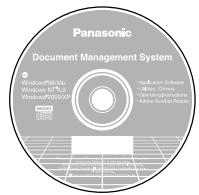
Application Software
- Quick Image Navigator
• Network Scanner - Utilities (Network Status Monitor, Address Book Editor, Network Configuration Editor)
- Panafax Desktop when optional Fax Communication Board is installed.
\* DP-8020P is not available for USA and Canada.
■ The following operating instruction manuals are included on the CD for this machine, please use the correct manual when an operator intervention is necessary.
For example: How to make copies, add paper, replace the toner bottle, etc.
Multi-Tasking Job Table
| Current Job2nd Job | Copy | Network Scanning Internet Fax | GDI/PCL/PS Printing | Facsimile (Sending) | Facsimile (Receiving) | |||||
| Storing Document | Transmission | Receiving Data | Printing Received Data | Storing Document | Memory Transmission | Memory Receiving | Printing Received Memory Data | |||
| Copy | ||||||||||
| Copy | — | — | ● | ● | △ | — | ● | ● | △ | |
| Network Scanning, Internet Fax | ||||||||||
| Storing Document | — | — | ● | ● | ● | — | ● | ● | ● | |
| GDI/PCL/PS Printing | ||||||||||
| Receiving Data | ● | ● | ● | ●* | ● | ● | ● | ● | ● | |
| Printing Receive Document | ☆ | ● | ● | ● | ☆ | ● | ● | ● | ☆ | |
| Facsimile (Sending) | ||||||||||
| Storing Document | — | — | ● | ● | ● | — | ● | ● | ● | |
| Memory Transmission | ● | ● | ● | ● | ● | ● | — | — | ● | |
| Facsimile (Receiving) | ||||||||||
| Memory Receiving | ● | ● | ● | ● | ● | ● | — | — | ● | |
| Printing Received Memory Data | ☆ | ● | ● | ● | ☆ | ● | ● | ● | ☆ | |
●: Accepts and executes the 2nd Job.
△: Accepts and executes the 2nd Job (Copy) only if the Current Job is interrupted.
☆: Accepts the 2nd Job and executes the 2nd Job after the Current Job is completed.
- : Not applicable.
NOTE
*: HDD (DA-HD18) and additional 16MB (minimum) Image memory are required.
Operating Instructions Outline
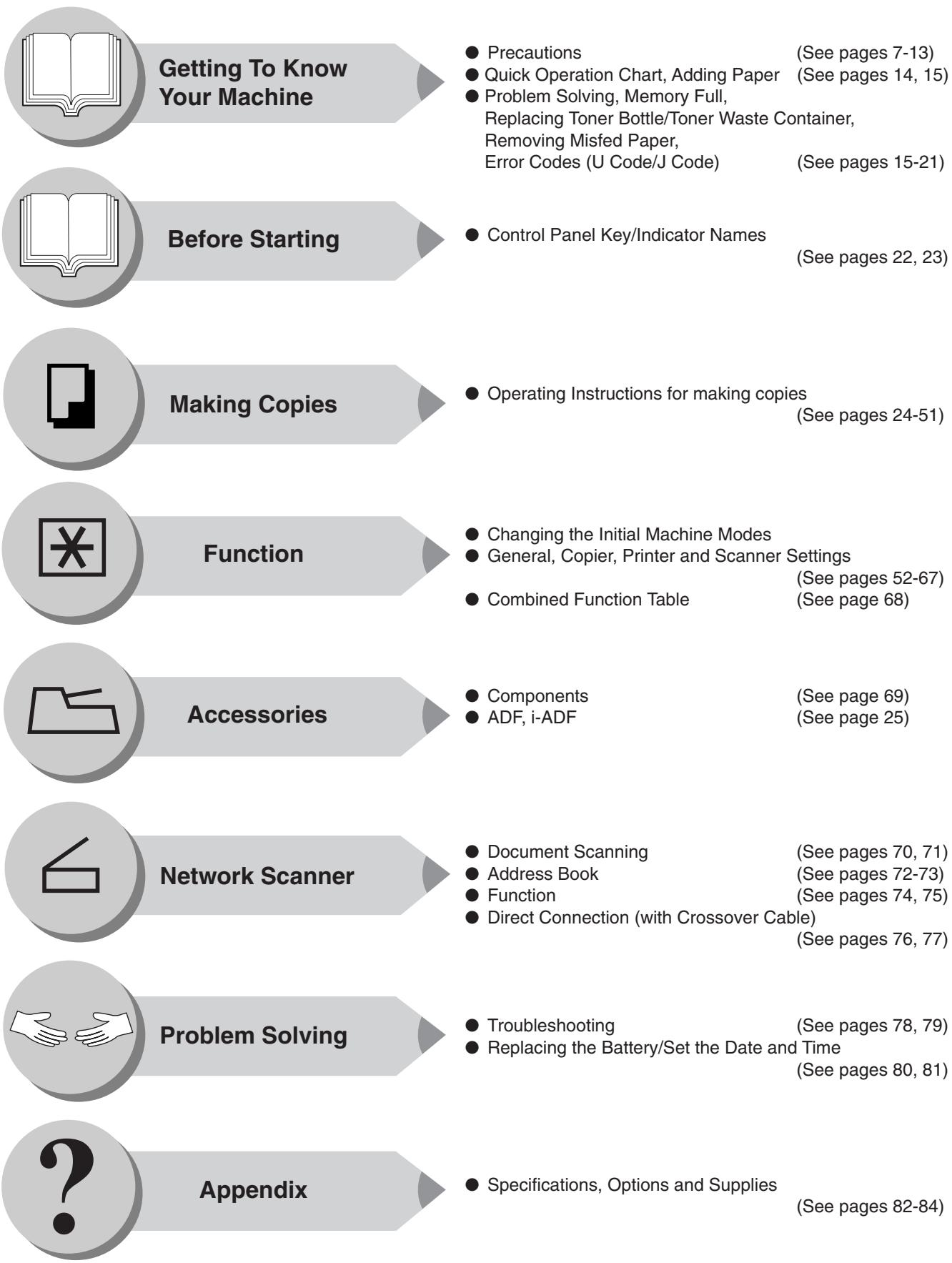
● Precautions (See pages 7-13)
● Quick Operation Chart, Adding Paper (See pages 14, 15)
- Problem Solving, Memory Full,
Replacing Toner Bottle/Toner Waste Container,
Removing Misfed Paper,
Error Codes (U Code/J Code) (See pages 15-21)
● Control Panel Key/Indicator Names (See pages 22, 23)
● Operating Instructions for making copies (See pages 24-51)
● Changing the Initial Machine Modes
- General, Copier, Printer and Scanner Settings
(See pages 52-67)
- Combined Function Table (See page 68)
● Components (See page 69)
● ADF, i-ADF (See page 25)
● Document Scanning (See pages 70, 71)
● Address Book (See pages 72-73)
● Function (See pages 74, 75)
- Direct Connection (with Crossover Cable)
(See pages 76, 77)
● Troubleshooting (See pages 78, 79)
● Replacing the Battery/Set the Date and Time
(See pages 80, 81)
● Specifications, Options and Supplies (See pages 82-84)
The following Symbols/Icons are used throughout this operating instructions manual.
Place original(s) on the ADF/i-ADF
Place original on the Platen (Book)
Place original on the Platen (Sheet)

Press any Hard Key on the Control Panel
Press Hard Key
Input numbers
● Number of Copies, etc.
Input text with a Keyboard (Option)
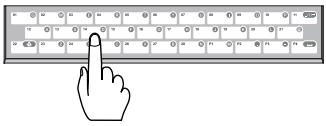

Go to next step
Go to next step (below)

natural_image
Icon of an open book inside a circular frame (no text or symbols)Getting to know your machine Before starting

natural_image
Abstract geometric icon with overlapping rectangles inside a gray circle (no text or symbols)When making copies

natural_image
Simple gray circular icon with a black asterisk symbol in the center (no text or numbers)When setting the machine modes

natural_image
Simple icon of a folder with a handle, no text or symbols presentAccessories

natural_image
Simple 3D icon of a rectangular box with an open lid, no text or symbols presentWhen scanning document(s)

natural_image
Illustration of two hands facing each other, enclosed in a circular frame (no text or symbols)Problem solving

natural_image
Gray circular icon with a black question mark symbol (no text or numbers)Appendix
Getting to Know Your Machine
Useful Office Functions/Operating Instructions 2
Multi-Tasking Job Table 2
Operating Instructions Outline .... 3
Symbols/Icons 4
Safety Information....7
Precautions.... 11
Operation Chart 14
■ Quick Operation Chart .... 14
- Adding Paper 14
■ Problem Solving 15
● Toner Level Check Operation 15
● Memory Full 15
● Replacing Toner Bottle/Toner Waste Container 16
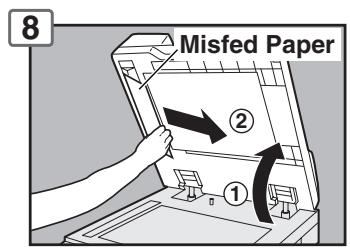
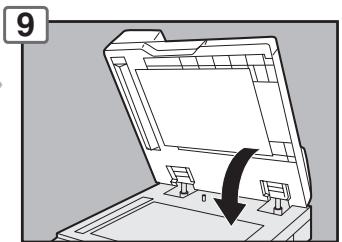
● Removing Misfed Paper 16
- User Error Codes (U Code) 20
- Jam Error Codes (J Code) 21
Before Starting
Control Panel 22
Making Copies
Basic Copy ■ Copying the Same Size Originals (1:1) 24
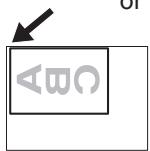
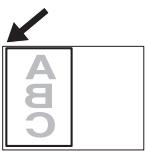
■ Position of the Original(s) 24
■ Copying with Preset or Variable Zoom Ratios 24
■ Using the ADF/i-ADF (Option) 25
Creative Features ■ 1 → 2 Copy, 2 → 2 Copy, 2 → 1 Copy (DP-8020E with optional i-ADF) ...... 26
■ 2 → 2 Copy (DP-8020E with optional ADF)
2 → 1 Copy (DP-8020E/8020P*/8016P with optional ADF) ...... 28
■ Book → 2 Copy (DP-8020E only) .... 30
■ N in 1 .... 32
■ 2 Page Copy .... 34
■ Double Exposure 36
■ Erase (Margin/Edge) 38
■ Erase (Book) 38
■ Effects (Centering/Image Repeat) 40
■ Sort....42
Other Features ■ Skyshot Mode (Digital/Manual Skyshot Mode) 44
■ Job Build and SADF Mode 46
■ Concurrent Copying 46
■ Interrupt Mode 48
■ Energy Saver (Power Saver Mode, Sleep/Shutdown Mode) 48
■ Job Memory 48
■ Completion Notice .... 50
Table of Contents
Function
■ Using Function Modes to Change the Initial Machine Modes .... 52
■ Procedure 52
■ General Settings 54
■ General Settings (For Key Operator) 54
■ Copier Settings 57
■ Copier Settings (For Key Operator) 58
■ Printer Settings 59
■ Printer Settings (For Key Operator) 60
■ Scanner Settings (Scan Parameters) 61
For Example....62
■ Changing the Paper Size (Paper Tray) 62
■ Department Counter 64
■ Network Settings 66
Combined Function Table 68
Accessories
Components 69
Network Scanner
Document Scanning 70
■ Document Scanning 70
Address Book 72
■ Adding your PC's IP Address 72
Function 74
■ Scan Parameters (Scanner Settings) 74
■ Select Mode 74
Direct Connection (with Crossover Cable) 76
■ Direct Connection (with Crossover Cable) 76
Problem Solving
Troubleshooting 78
Replacing the Battery/Set the Date and Time 80
Appendix
Specifications 82
■ DP-8020E/8020P/8016P (For Copier) 82
■ Network Scanner (DP-8020E/8020P Only) 83
■ ADF (DA-AS181) Optiion/i-ADF (DA-AR202) (DP-8020E Only) 83
■ 2nd/4th Paper Tray (DA-DS184), 3rd Paper Tray (DA-DS185) (Option) (3rd, and 4th Paper Tray for DP-8020E/8020P only) .... 83
Options and Supplies 84
■ Options 84
■ Supplies 84
For Your Safety
To prevent severe injury and loss of life, read this section carefully before using the Panasonic DP-8020E/8020P/8016P to ensure proper, and safe operation of your machine.
■ This section explains the Warnings and Cautions used in this Operating Instructions manual.
| ! WARNING Denotes a potential hazard that could result in serious injury or death. |
| ! CAUTION Denotes hazards that could result in minor injury or damage to the machine. |
■ This section also explains the graphic symbols used in this Operating Instructions manual.
| These symbols are used to alert operators to a specific operating procedure that must not be performed. | |
| These symbols are used to alert operators to a specific operating procedure that must be emphasized in order to operate the machine safely. | |
| This symbol is used to alert operators to a heated surface that may cause burns and requires close attention. |
WARNING
Power and Ground Connection Cautions

Ensure that the plug connection is free of dust. In a damp environment, a contaminated connector can draw a significant amount of current that can generate heat, and eventually cause fire if left unattended over an extended period of time.

Always use the power cord provided with your machine. When an extension power cord is required, always use a properly rated cord.
120 V/12 A
If you use a cord with an unspecified current rating, the machine, or plug may emit smoke, or become hot to the touch.

Do not attempt to repair, pull, bend, chafe, or otherwise damage the power cord. Do not place a heavy object on the cord. A damaged cord can cause fire, or electric shocks.

Never touch a power cord with wet hands. Danger of electric shock exists.

If the power cord is damaged, or insulated wires are exposed, contact your authorized Panasonic dealer for a replacement. Using a damaged cord can cause fire, or electric shocks.

Stop operation immediately if your machine emits smoke, excessive heat, unusual noise or smell, or if water is spilt onto the machine. These conditions can cause fire. Immediately switch Off and unplug the machine, and contact your authorized Panasonic dealer.

Do not disconnect, or reconnect the machine while the power switch is in the On position. Disconnecting a live connector can cause arcing, consequently deforming the plug and cause fire.

When disconnecting the machine, grasp the plug instead of the cord. Pulling on a cord forcibly can damage it, and cause fire, or an electric shock.

When the machine is not used over an extended period of time, switch it Off and unplug it. If an unused machine is left connected to a power source for a long period, degraded insulation can cause electric shocks, current leakage or fire.

Be sure to switch Off, and unplug the machine before accessing the interior of the machine for cleaning, maintenance or fault clearance. Access to a live machine's interior can cause an electric shock.

Once a month, unplug the machine and check the power cord for the following. If you notice any unusual condition, contact your authorized Panasonic dealer.
● The power cord is plugged firmly into the receptacle.
● The plug is not excessively heated, rusted, or bent.
● The plug and receptacle are free of dust.
● The cord is not cracked or frayed.
Operating Safeguards

Do not touch areas where these caution labels are attached to, the surface may be very hot and may cause severe burns.

Do not place any liquid container such as a vase, or coffee cup on the machine. Spilt water can cause fire or shock hazard.

Do not place any metal parts such as staples or clips on the machine. If metal and flammable parts get into the machine, they can short-circuit internal components, and cause fire or electric shocks.

If debris (metal or liquid) gets into the machine, switch Off and unplug the machine immediately. Contact your authorized Panasonic dealer. Operating a debris-contaminated machine can cause fire or electric shock.

Never open or remove machine covers that are secured with screws unless specifically instructed in the “Operating Instructions”. A high voltage component can cause electric shocks.

Do not try to alter the machine configuration or modify any parts. An unauthorized modification can cause smoke or fire.
Consumable Safeguards

Never dispose of toner, toner bottles, or a toner waste container into an open flame. Toner remaining in the cartridge/bottle can cause an explosion, burns and/or injuries.

Keep button batteries/stamp out of the reach of children. If a button battery/stamp is swallowed accidentally, get medical treatment immediately.

CAUTION
Installation and Relocation Cautions

Do not place the machine near heaters or volatile, flammable, or combustible materials such as curtains that may catch fire.

Do not place the machine in a hot, humid, dusty or poorly ventilated environment. Prolonged exposure to these adverse conditions can cause fire or electric shocks.

Place the machine on a level and sturdy surface that can withstand a weight of 95 lb (43.3 kg) (DP-8020E) / 93 lb (42.3 kg) (DP-8020P/8016P). If tilted, the machine may tip-over and cause injuries.

When relocating the machine, contact your authorized Panasonic dealer.

When moving the machine, be sure to unplug the power cord from the outlet. If the machine is moved with the power cord attached, it can cause damage to the cord which could result in fire or electric shock.
Operating Safeguards

Do not place a magnet near the safety switch of the machine. A magnet can activate the machine accidentally, resulting in injuries.

Do not use a highly flammable spray or solvent near the machine. It can cause fire.

When copying a thick original, do not use excessive force to press it against the platen glass. The glass may break and cause injuries.

Never touch a labelled area found on or near the heat roller. You can get burnt. If a sheet of paper is wrapped around the heat roller, do not try to remove it yourself to avoid injuries or burns. Switch Off the machine immediately, and contact your authorized Panasonic dealer.

Do not use conductive paper, e.x.: folding paper, carbonic paper and coated paper. When a misfed paper jam occurs, they can cause a short-circuit and fire.

Do not place any heavy objects on the machine. An off-balance machine can tip-over or the heavy object can fall, causing damage and/or injuries.

Keep the room ventilated when using the machine for an extended period of time to minimize the ozone density in the air.

When copying with the platen cover open, do not look directly at the exposure lamp. Direct eye exposure can cause eye fatigue or eye injury.

Pull out paper trays slowly to prevent injuries.

When removing misfed paper, make sure that no pieces of torn paper are left in the machine. A piece of paper remaining in the machine can cause fire. If a sheet of paper is wrapped around the heat roller, or when clearing a misfed paper that is difficult or impossible to see, do not try to remove it by yourself. Doing so can cause injuries or burns. Switch Off the machine immediately, and contact your authorized Panasonic dealer.

If accessing the inner components of the machine to clear misfed paper, etc., exercise care not to touch heated areas, or you may get burned.
Others
■ When clearing a paper jam or other fault, follow the appropriate procedure given in the Operating Instructions.
For Your Safety

CAUTION
Consumable Safeguards

Be sure to use the specified type of batteries only.

Ensure that batteries are installed with correct polarity. Incorrectly installed batteries can burst or leak, resulting in spillage or injuries.
Others
The machine has a built-in circuit for protection against lightning-induced surge current. If lightning strikes in your neighborhood, maintain ample distance from the machine, and do not touch the machine until the lightning has stopped.
If you notice flickering or distorted images or noises on your audio-visual units, your machine may be causing radio interference. Switch it Off and if the interference disappears, the machine is the cause of the radio interference. Perform the following procedure until the interference is corrected.
- Move the machine and the TV and/or radio away from each other.
- Reposition or reorient the machine and the TV and/or radio.
- Unplug the machine, TV and/or radio, and replug them into outlets that operate on different circuits.
- Reorient the TV and/or radio antennas and cables until the interference stops. For an outdoor antenna, ask your local electrician for support.
- Use a coaxial cable antenna.

CAUTION
Denotes hazards that could result in minor injury or damage to the machine.
- TO REDUCE THE RISK OF SHOCK OR FIRE, USE ONLY NO. 26 AWG OR LARGER TELEPHONE LINE CABLE.
- DISCONNECT ALL POWER TO THE MACHINE BEFORE COVER(S) ARE OPENED. CLOSE THE COVER(S) BEFORE THE MACHINE IS RE-ENERGIZED.

IMPORTANT SAFETY INSTRUCTIONS
When using your telephone equipment, basic safety precautions should always be followed to reduce the risk of fire, electric shock and injury to persons, including the following:
DO NOT USE THIS PRODUCT NEAR WATER, FOR EXAMPLE, NEAR A BATH TUB, WASH BOWL, KITCHEN SINK OR LAUNDRY TUB, IN A WET BASEMENT OR NEAR A SWIMMING POOL.
● AVOID USING A TELEPHONE (OTHER THAN A CORDLESS TYPE) DURING AN ELECTRICAL STORM. THERE MAY BE A REMOTE RISK OF ELECTRIC SHOCK FROM LIGHTNING.
● DO NOT USE THE TELEPHONE TO REPORT A GAS LEAK IN THE VICINITY OF THE LEAK.
SAVE THESE INSTRUCTIONS.

Precautions
■ Laser Safety
LASER SAFETY
This unit employs a laser. Only qualified service personnel should attempt to service this device due to possible eye injury.
CAUTION:
USE OF CONTROLS, ADJUSTMENTS OR PERFORMANCE PROCEDURES OTHER THAN THOSE SPECIFIED HEREIN MAY RESULT IN HAZARDOUS RADIATION EXPOSURE.
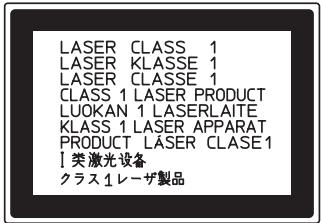
■ Caution Label
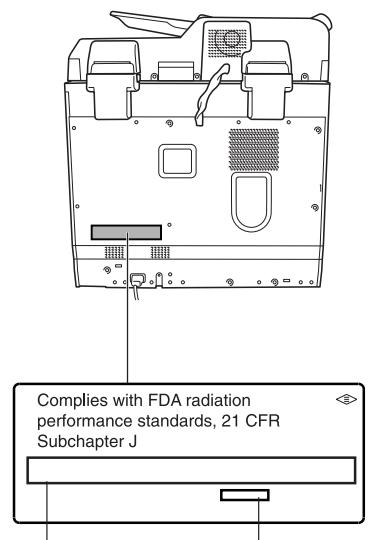
Manufacturer's Name Factory ID and Address
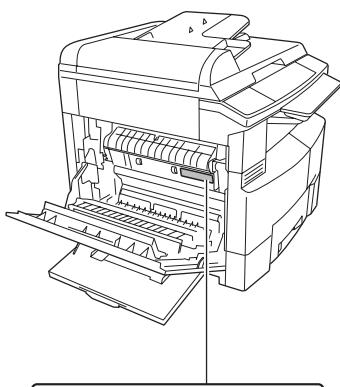
natural_image
Line drawing of a printer with internal components and paper feeding (no text or symbols)
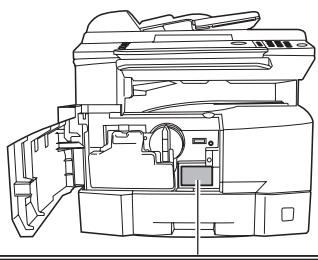
- ATTENTION:Hot Surface - ATTENTION:Zone chauffée - ACHTUNG :Heiße Oberfläche - ATENCION :Superficie caliente - 高温注意 • 고온주의 FDA1992
natural_image
Technical line drawing of a printer internal structure with no visible text or symbolsCAUTION: CLASS 3B INVISIBLE LASER RADIATION WHEN OPEN AND INTERLOCKS DEFEATED. AVOID EXPOSURE TO THE BEAM.
This product has a fluorescent lamp that contains a small amount of mercury. It also contains lead in some components.
Disposal of these materials may be regulated in your community due to environmental considerations.
For disposal or recycling information please contact your local authorities, or the Electronics Industries Alliance:
Installation
■ The maximum power consumption is 1.3 kW.
A properly wired (grounded), dedicated, 12 A, 120 V AC outlet is required. Do not use an extension cord.
The power cord on this machine must be used to disconnect the main power.
Please ensure that the machine is installed near a wall outlet and is easily accessible.
Supplies
■ Store the Toner and paper in cool areas with low humidity.
- Use high quality 16 - 24 lb (60 - 90 g/m²) (Sheet Bypass: 15 - 34 lb (55 - 133 g/m²)) paper.
- For optimum performance, it is recommended that only Panasonic Brand supplies are used in the machine.
Certain types of transparency film may not be compatible and may damage your machine. Consult with an authorized Panasonic dealer for advice regarding non-standard paper types. (Panasonic has tested “3M PP2500” transparency film and found it to be compatible.)
Panasonic recommends using high quality 16 - 24 lb (60 - 90 g/m²) paper, using an inferior paper may cause excessive paper curl, requiring you to empty out the Output Tray more often to avoid paper jams.
■ Use of other than genuine Panasonic supplies can damage the machine. This may void the warranty of the machine and supplies. Be sure to use only genuine Panasonic Toner designed for the machine.
■ The machine should not be installed in areas with the following conditions:
- Extremely high or low temperature and humidity.
The machine should be installed under the following ambient conditions:
Temperature: 50-86 °F (10 - 30 °C)
Relative humidity: 30-80 %
- In areas with chemical fume concentration.
- With unstable or uneven conditions (floors, etc.).
- Direct exposure to sunlight or fluorescent light.
- In areas of high dust concentration.
- Directly in the air conditioning flow.
- In areas of poor ventilation.
- In areas with extreme vibration.
Illegal Copies
It is unlawful to make copies of certain documents.
Copying certain documents may be illegal in your country. Penalties of fines and/or imprisonment may be imposed on those found guilty. The following are examples of items that may be illegal to copy in your country.
Currency
- Bank notes and checks
● Bank and government bonds and securities
● Passports and identification cards
● Copyright material or trademarks without the consent of the owner
- Postage stamps and other negotiable instruments
This list is not inclusive and no liability is assumed for either its completeness or accuracy. In case of doubt, contact your legal counsel.
Notice:
Install your machine near a supervised area to prevent illegal copies from being made.
Others
Panasonic is not responsible for data loss and any consequence caused by computer virus infection or external shocks.
Handling
■ Do not turn the Power Switch Off, or open the Front Cover during copying/printing.
■ Sleep/Shutdown Mode Notice
- The following functions will not work if the Sleep/Off Mode setting is set to the Shutdown mode. When using any of the following functions, we recommend that you leave the Sleep/Off Mode in the initial factory default setting (Sleep mode).
- Turn OFF the Power Switch on the Right Side of the machine.
- Printer Function (Local Parallel Port and Network Connections)
- Internet Fax/Email Function
- Facsimile Function (Option)
When the LAN cable is not connected and DHCP Default is "Yes"
■ Key Operator Password
- The Initial Machine Modes can be checked or changed with the Function Modes, however, these modes require the Key Operator Password.
■ User Authentication
The User Authentication works for this machine under the management of the Windows Server. As a result, users must be authenticated before they can use the functions of the machine (copying, faxing, scanning, and printing). The supported authentication protocol is NTLM v2.
Users
- Users login to this machine using their Windows account (user name and password).
System Administrator
- The system administrator can manage user account by using Windows Server.
- User authentication can be set independently for each function (copying, faxing, scanning, and printing).
■ Dept. (Departmental) Code
When the Department Counter function is set up, the Dept. (Department) Code input screen is displayed on the LCD Display. A registered Department Code (1 to 8-digit) is required to gain access to each secured function, or the secured Copy/Fax/Scanner function(s) cannot be used. Please consult with the Key Operator regarding the Department Code(s) for the desired function.
Procedures :
① Input a registered department code (1 to 8-digit).
② Press the SET or START key.
■ Maximum Copies Limitation
After setting the maximum allowed number of copies for each department, consult with your Key Operator when the total copy count reaches the designated limit and the “DEPT.MAXIMUM COPIES HAS BEEN REACHED” message appears on the LCD.
Power Switch
If you are not going to use the copier for long periods of time, turn OFF the Power Switch on the Right Side of the machine.
If the Hard Disk Drive Unit (DA-HD18) is installed, to prevent a Scan Disk Function from being performed (similar to Windows OS when the power is abruptly interrupted), it is important to follow the step sequence below when turning OFF the Power Switch on the machine.
- If the machine is in the “ENERGY SAVER (Shutdown Mode)” you may turn the Power Switch on the Right Side of the machine to the OFF position. If it is not in the “ENERGY SAVER (Shutdown Mode)”, continue to step 2 below.
- Press "FUNCTION" and "ENERGY SAVER" keys simultaneously first. The Energy Saver Key will light.
- Turn the Power Switch on the Right Side of the machine to the OFF position.
■ Auto Reset Time
As the initial setting for Auto Reset Time is 1 minute, the selected operation mode goes back to default operation mode after 1 minute. If you wish to change the Auto Reset Time, consult with your Key Operator.
■ Quick Operation Chart

From
ADF/i-ADF
(Option)
From Platen
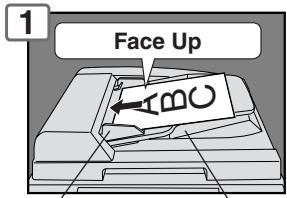
Original Guides* Tray
Adjust to the
original's width
(Max. 50 Letter
size originals)
* Hold the guides by the center when adjusting the width
Original Guides
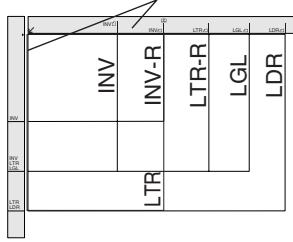
INV: Invoice, LTR: Letter LGL: Legal, LDR: Ledger
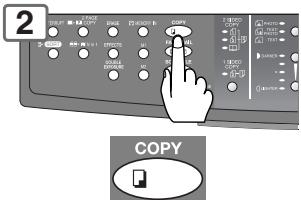
If set to other function mode (DP-8020E/8020P only)
Face Down
- If the original is not positioned properly, a portion of the original may not be copied.
- For originals smaller than Invoice size, position the original within the Invoice area and select Invoice.
● Adding Paper (Paper Tray)
The following steps are for Paper Tray-1, use the same procedures for other optional Paper Trays.
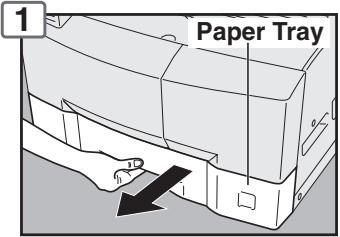
NOTE:
To change the paper size, refer to page 62.
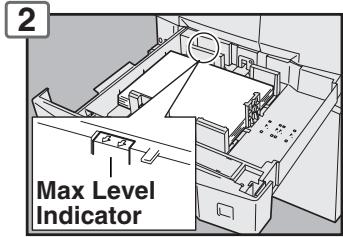
Load Paper: Face Up
Paper Weight: 16 - 24 lb (60 - 90 g/m²)
Paper Capacity: 550 Sheets (20 lb (80 g/m ^4 ))
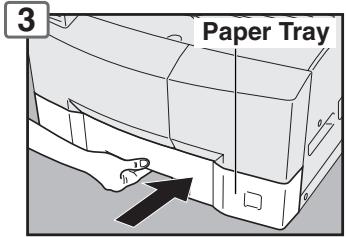
NOTE:
Load the paper properly, and ensure that it does not exceed the Max. Level indicator.
● Adding Paper (Sheet Bypass)
Copying on Special Paper, etc.
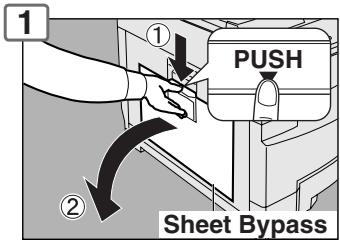
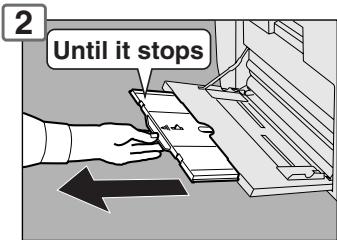
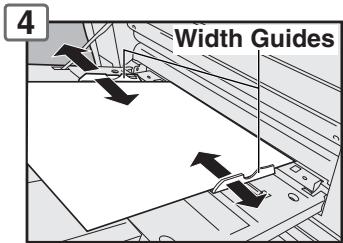
Adjust the width guides. Incorrect adjustment may cause the paper to wrinkle, misfed, or skew.
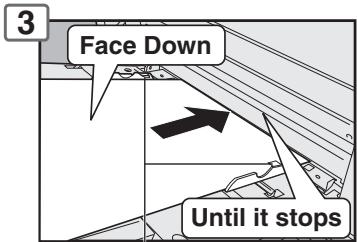
Upper Limit Guides
Load Paper
(Do not exceed limit guides)
Paper Weight: 15-34 lb (55 - 133 g/m ^2 ) Paper Capacity: 50 sheets/20 lb (80 g/m ^2 ) To add paper to the Sheet Bypass, remove the leftover paper from the tray, and align it with the additional paper, then load them together onto the tray.
■ Problem Solving

Adding Paper
Replacing Toner Bottle/Toner Waste Container
(See page 16)
Checking Toner
(See below)
| Removing Misfed Paper | (See page 16) |
| U## (User Error Code) | (See page 20) |
| J## (Jam Error Code) | (See page 21) |
| E## (Machine Error Code) | (Call your Service provider) |
| REPLACE DRUM UNIT | (Call your Service provider) |
● Toner Level Check Operation
When "CHECKING TONER PLEASE WAIT" message appears, the machine is checking the toner level, and no operation through control panel is accepted.
● Memory Full
If the memory overflows while scanning originals, the message "MEMORY FULL CONTINUE? 1:YES 2:NO" will appear on the LCD. If this occurs, follow the instructions on the LCD.
If this occurs frequently, adding optional memory is recommended, consult with an authorized Panasonic dealer.
■ Problem Solving
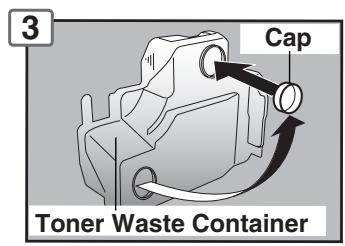
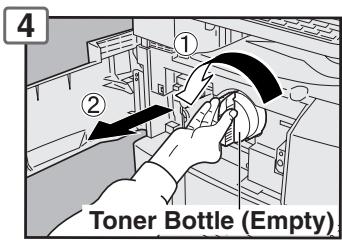
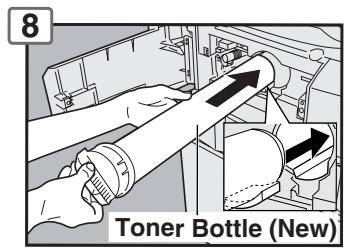
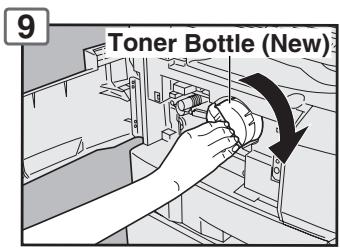
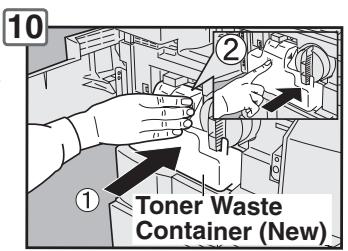
● Replacing Toner Bottle/Toner Waste Container
ATTENTION
- For optimum copy quality use the recommended Panasonic Toner. Store Toner Bottle in a cool dark place. Do not unseal the Toner Bottle unless you are ready to use it.
NOTE:
Do not reuse the toner from the Toner Waste Container.
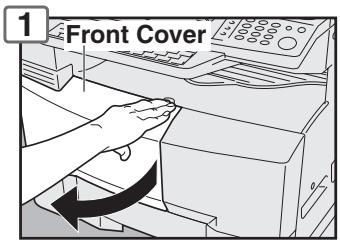
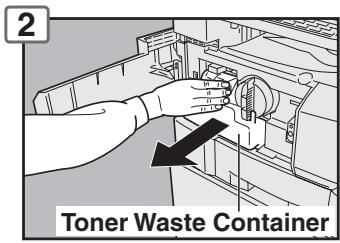
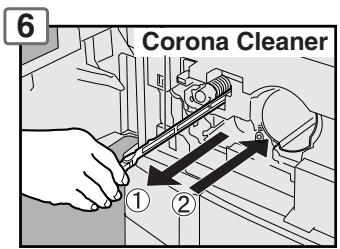
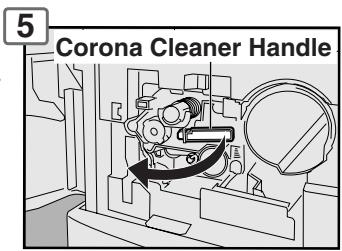
Slide the Corona Cleaner in and out, 3 or 4 times slowly, then return the Corona Cleaner Handle to the original position.
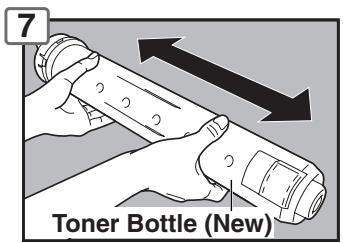
Shake it well
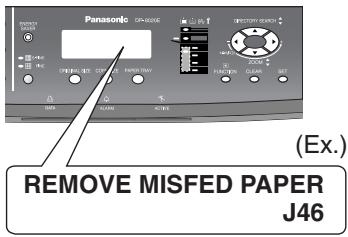
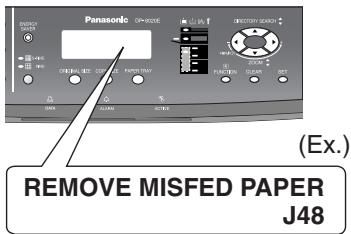
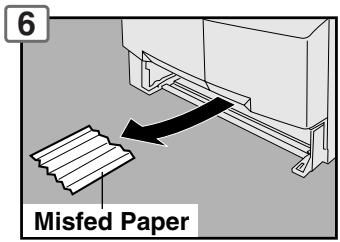
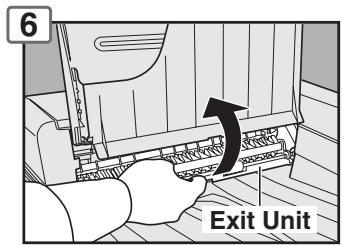
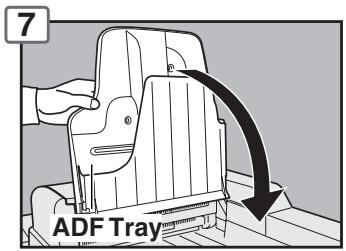
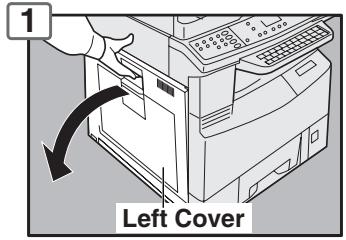
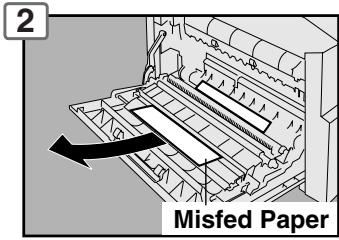
● Removing Misfed Paper (Paper Exit Area) (J46)
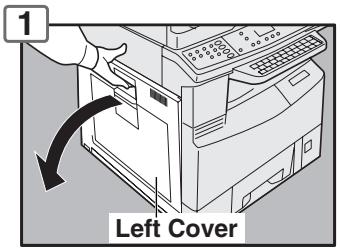
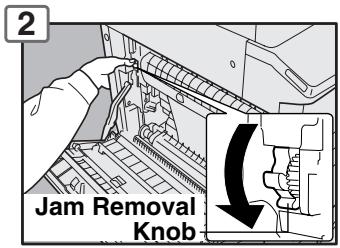
● Removing Misfed Paper (Paper Transport/Fusing Area) (J01, J30, J31, J33, J45, J48, J95)
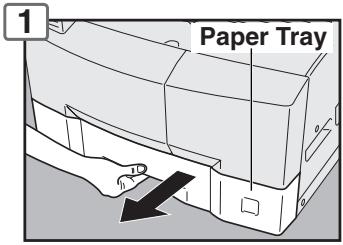
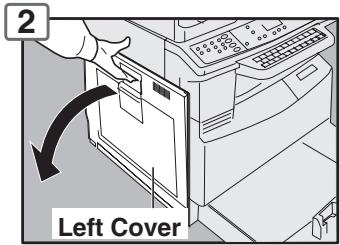
ATTENTION
- Do not scratch or touch the surface of the OPC Drum (Green) with bare hands. The OPC Drum is sensitive to light. To prevent optical exposure problems, do not expose the OPC Drum to direct sunlight or bright light.
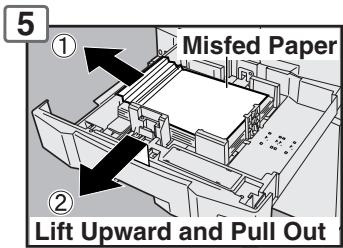
6
Close the Front Cover.
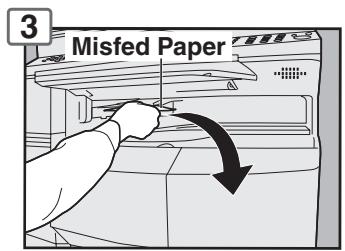
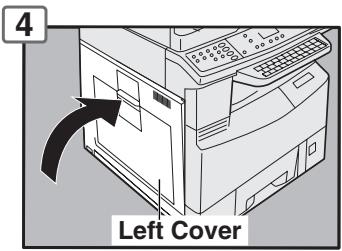
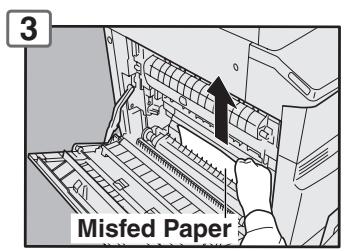
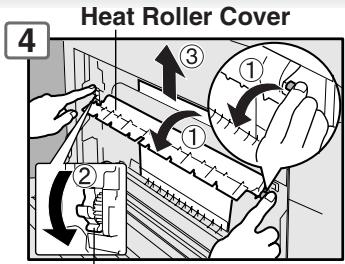

- ATTENTION: Hot Surface
- ATTENTION: Zone chauffée
• ACHTUNG : Heiße Oberfläche - ATENCION : Superficie caliente
- 高温注意 · 고온주의
5
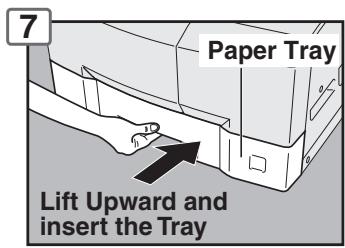
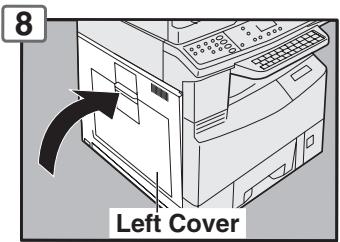

natural_image
Icon of an open book inside a circular frame (no text or symbols)Getting To Know Your Machine
Operation Chart
■ Problem Solving
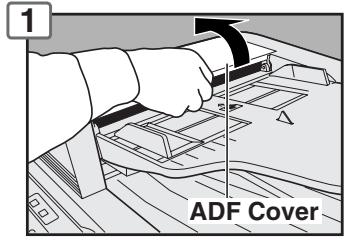
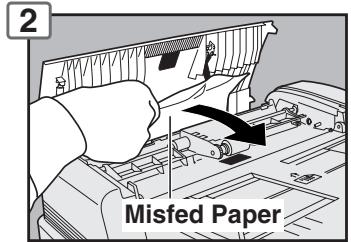
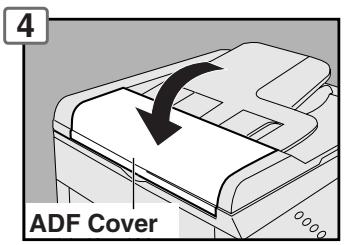
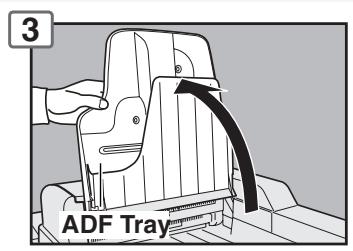
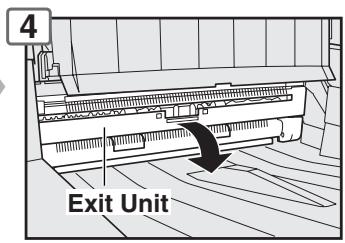
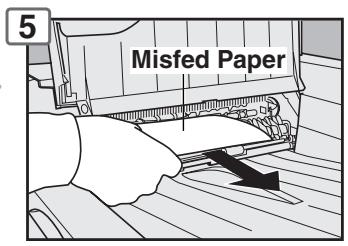
● Removing Misfed Paper (ADF: Option for DP-8020E/8020P/8016P) (J70, J71, J79, J92, J93)
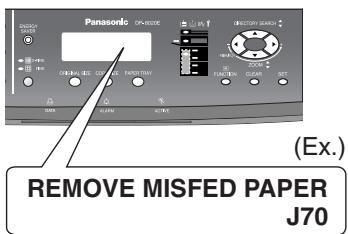
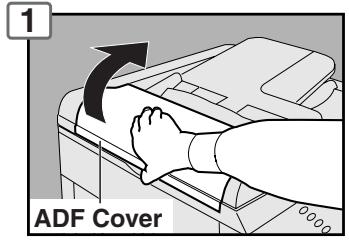
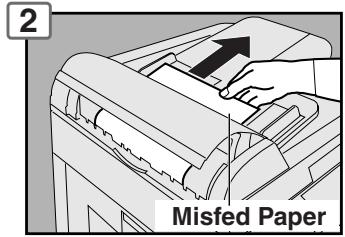
- Removing Misfed Paper (i-ADF: Option for DP-8020E) (J70, J71, J72, J73, J76, J78, J79, J92, J93)
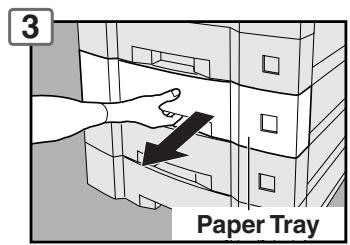
● Removing Misfed Paper (2nd/3rd/4th Paper Tray: Option) (J02, J03, J04, J07, J08, J09, J12, J13, J14, J22, J23, J24)
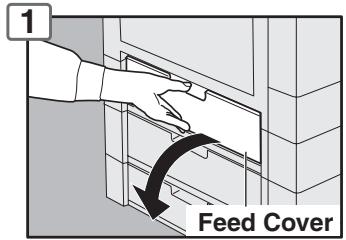
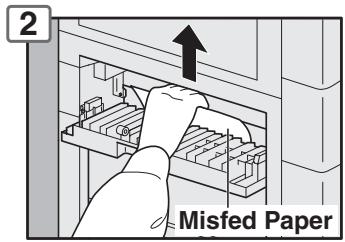
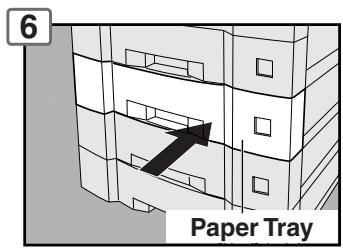
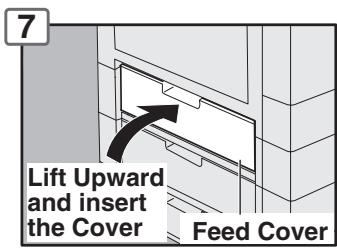
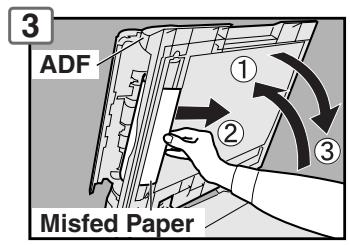
natural_image
Diagram of a mechanical device with an arrow indicating rotation or movement (no text or symbols present)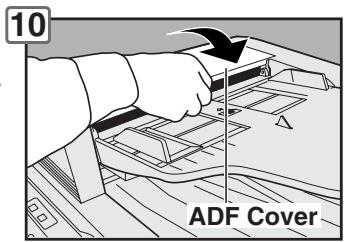
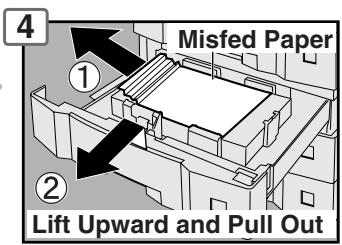
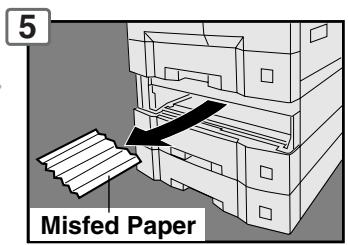
■ Problem Solving
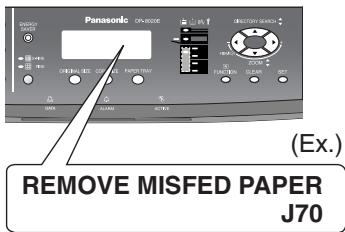
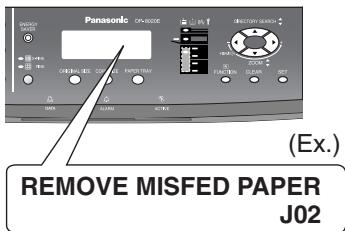
● Removing Misfed Paper (J19, J32, J82, J85, J87: ADU for DP-8020E only)
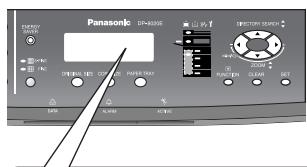
EX.
REMOVE MISFED PAPER
J82
● User Error Codes (U Code)
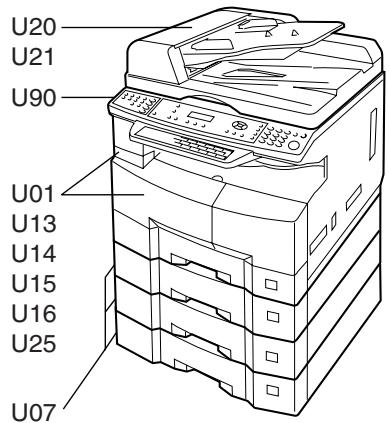
| Code | Check Points | Code | Check Points |
| U01 | Front and/or Left Cover is open. | U20 | ADF Cover is open. |
| U07 | Feed Cover is open. (See page 18) | ||
| U13 | Low Toner, or Out of Toner. | U21 | ADF/i-ADF was opened while scanning from ADF/i-ADF. |
| U14 | Toner Waste Container is full. | ||
| U15 | Toner Waste Container is incorrectly installed. | U25 | Toner hardened inside the Toner Bottle. Remove the Toner Bottle, and shake it well. |
| U16 | Developer Unit is incorrectly installed. Call your Service Provider. | ||
| U90 | Battery requires replacement. (See page 80) |
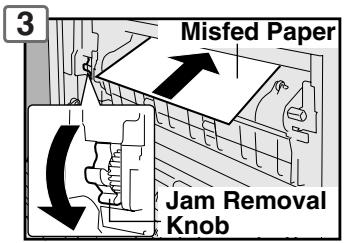
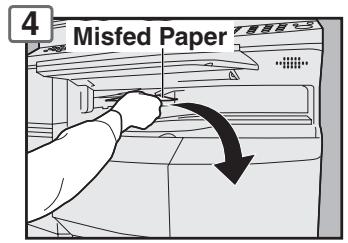
Note: • Do not pull Misfed Paper from the front, it may cause damage.
● Jam Error Codes (J Code)
| Code | Check Points | Code | Check Points |
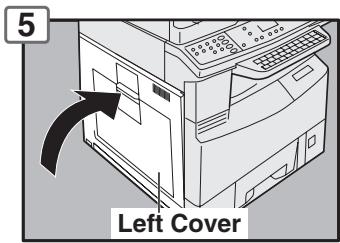
| J00 | 1 Remove paper from the Sheet Bypass.2 Open, and close the Left Cover (as illustrated in Steps 1 and 5 above). | J30,J31,J33,J45,J46,J48,J95* | Remove misfed Paper.(See page 16)*J95: Check the paper size in the paper tray.(See page 62) |
| J01 | Pull the paper tray out, and remove the jammed paper from the standard paper tray (Tray-1)(See page 16) | ||
| J02,J03,J04 | Pull the paper tray out, and remove the jammed paper from the optional paper trays (Tray-2 to 4)(See page 18) | J19,J32,J82,J85,J87 | Removing misfed Paper.(See page 20) |
| J07,J08,J09,J12,J13,J14,J22,J23,J24 | Remove misfed paper.(See page 18) | J70,J71,J72,J73,J76,J78,J79,J92,J93 | Removing misfed Paper(See page 18) |
| *Cause with 2nd/3rd/4th Paper Tray. |
NOTE: ● The J## Code indicates the most probable Jam location. If the jam message reappears after the jam is cleared, paper is most likely jammed at other location(s). Check the Jam Error Codes Table above for other check points, and remove all misfed paper.
● Make sure that the Jam Error Code, and Misfed Indicator disappears after removing the misfed paper.
● The Jam Error Code, and Misfed Indicator will not disappear if the paper is still jammed in the machine. Check again, and remove all misfed paper.
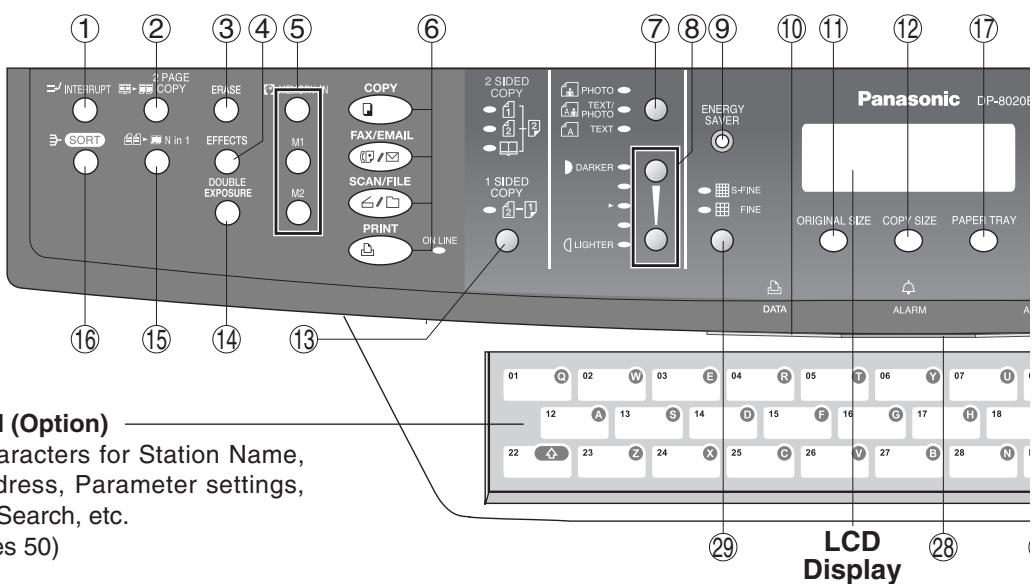
Keyboard (Option)
Inputs characters for Station Name, Email Address, Parameter settings, Directory Search, etc.
(See pages 50)
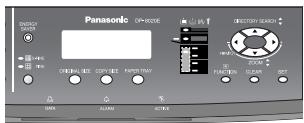
| No. | Icon | Contents | No. | Icon | Contents |
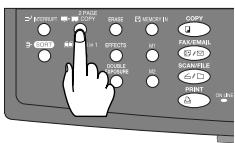
| 1 |  | INTERRUPT KeyInterrupts other copy job while making copies.(See page 48) | 2 | 2 PAGE COPY KeySelects 2 Page Copy mode.(See page 34) | |
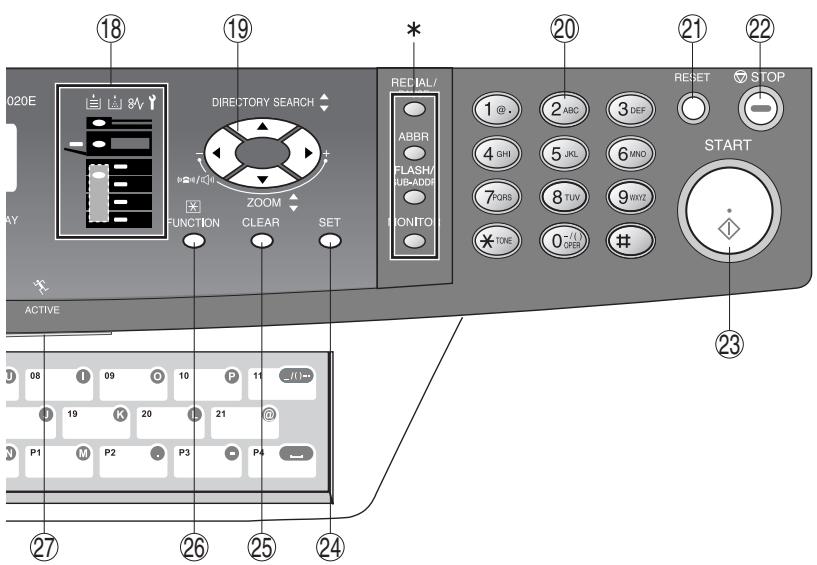
| 3 |  | ERASE KeySelects Edge, Book or Margin mode. (See page 39) | 6 | COPY KeyTo use the unit as a photocopier. | |
| 4 |  | EFFECTS KeySelects Image Repeat or Centering mode.(See page 40) | FAX/EMAIL KeyUsed to select the FAX/EMAIL communication. | ||
| 5 |  | MEMORY KeysSelects Job Memory mode.(See pages 48, 49) | SCAN/FILE KeyTo use the Scan/File function(See pages 70-75) | ||
 | PRINT KeyTo use the unit as a Printer. | ||||
| 7 | 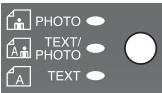 | Original Mode SelectKeys/IndicatorsSelects original mode.(See pages 25 and 70) | 8 | LIGHTER/DARKER Key/IndicatorsTo adjust the Manual Exposure.(See pages 25 and 70) | |
| 9 |  | Energy Saver KeySaves power while the machine is not in use.(See page 48) | 10 | PRINT DATA Icon / LEDThe LED Flashes/ light in GREEN when receiving/printing data. | |
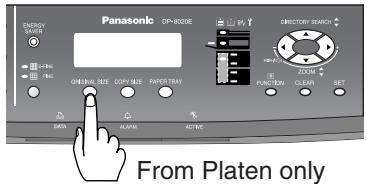
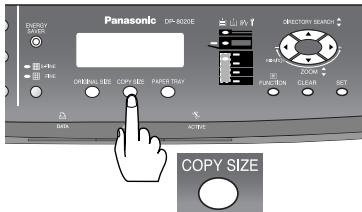
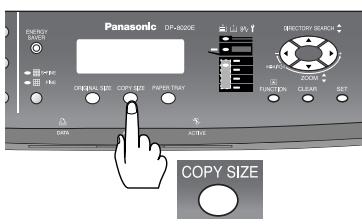
| 11 |  | ORIGINAL SIZE KeyTo select an original size. | 12 | COPY SIZE KeyTo select a copy size. | |
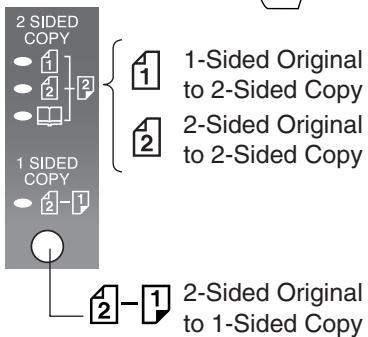
| 13 |  | DUPLEX KeySelects a 2-Sided or 1-Sided copy. (See pages 27-31)2-Sided Copy: DP-8020E only | 14 | DOUBLE EXPOSURE KeySelects Double Exposure mode. (See page 37) | |
| 15 |  | N in 1 KeySelects N in 1 copy mode.(See page 33) | 16 | SORT KeySelects Electric Sort mode.(See page 42) |
LCD Display (Copy Function)
![LTR □ ->LTR□ C [LTR□] ZOOM:100% COPIES:001 a b c d e f](/content/2020/11/105903/images/beda011b7b6c9619e9f436479a7b232ed64e5543a4170728373b959cae50243c.jpg)
a Original Size
b Copy Size
© Rotating Paper Size
(d) Paper Size in Paper Tray
© Zoom Ratio
f Number of Copies
* Used for Fax, Internet Fax, and Email Functions. (except for the ABBR Key, see page 50.)
| No. | Icon | Contents | No. | Icon | Contents |
| 17 |  | PAPER TRAY Key Selects the paper tray. | 18 | [IMAGE] | Warning IndicationsWhen unit is used as a photocopier. [IMAGE]: Add Paper (See page 14)[IMAGE]: Replace Toner Bottle (See page 16)8V: Remove misfed paper (See pages 16-21)Y: Call Service(For DP-8016P), [IMAGE]: Add Paper (See page 14)[IMAGE]: Replace Toner Bottle (See page 16)8V: Remove misfed paper (See pages 16-21)Y: Call Service(For DP-8016P), |
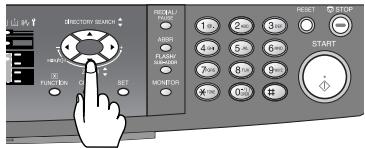
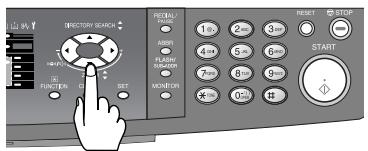
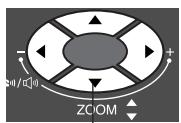
| 19 | 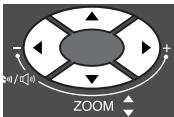 | Cursor KeyTo select the zoom ratio, etc. | |||
| 20 | 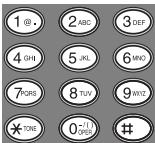 | KeypadSets copy quantities, etc. | |||
| 21 |  | RESET KeyResets all features to the initial power-on state of the active function. | 22 |  | STOP KeyStops the jobs.(Copy, Scan, etc.) |
| 23 |  | START KeyStarts the jobs.(Copy, Scan, etc.) | 24 |  | SET KeySets the parameter(s) of Function settings. |
| 25 |  | CLEAR KeyClears the copy quantities, etc. | 26 |  | FUNCTION KeyUsed for changing the paper size,initial function values (default values) and key operator settings. |
| 27 |  | ACTIVE LED (GREEN)Flashes when machine is in operation. | 28 |  | ALARM LED (RED)Lights/Flashes when trouble occurs. |
| 29 |  | Sets scanning resolution.(See page 70) |
Lights:
Flashes:
NOTE:
To adjust the brightness of the LCD display, press and while holding down the CLEAR Key, keep pressing the ORIGINAL SIZE or COPY SIZE Key until the desired brightness is achieved.
ORIGINAL SIZE : Dimmer
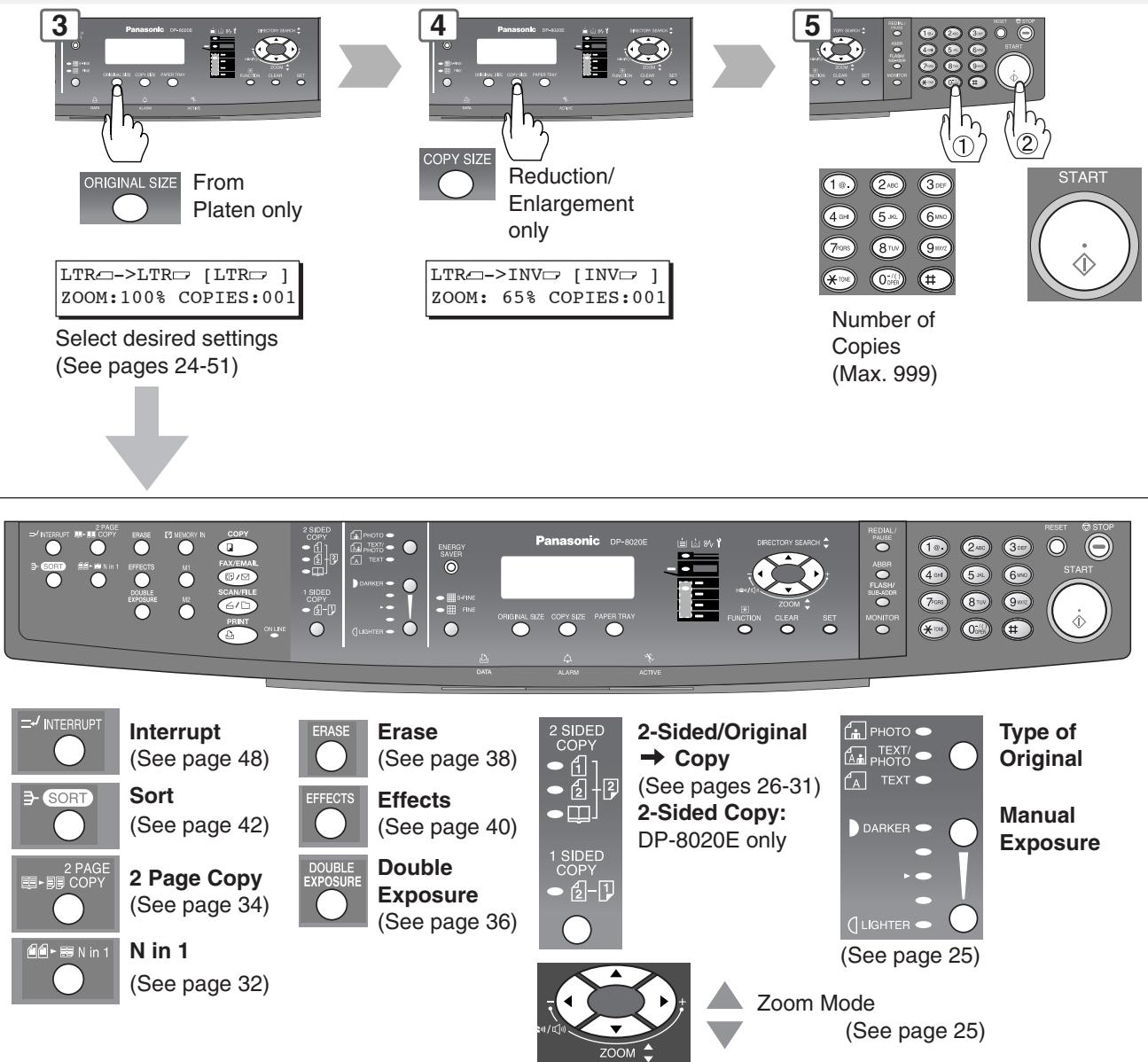
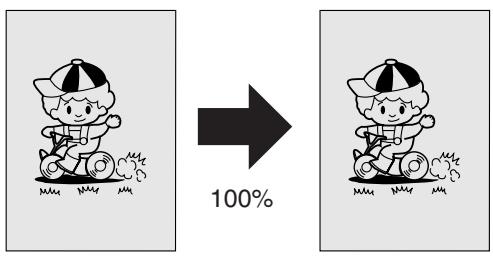
■ Copying the Same Size Originals (1:1)
Copy size is automatically selected.
1
For ADF
For i-ADF
or
flowchart
graph TD
    A["Document Icon"] --> B["Arrow"]
    C["Letter Icon"] --> D["Arrow"]
2

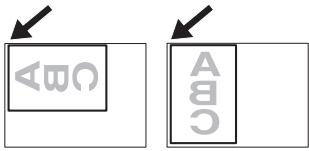
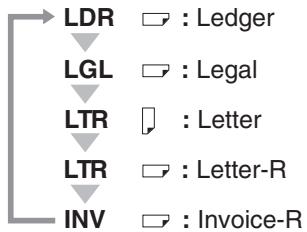
LDR : Ledger
LGL : Legal
LTR : Letter
LTR : Letter-R
INV : Invoice
INV : Invoice-R
■ Position of the Original(s)
For ADF/i-ADF* (Face Up)
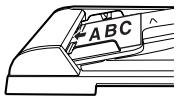
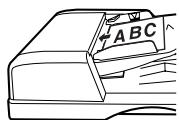
- Feeds originals automatically Up to 50 Letter/Invoice size (20 lb (80 g/m ^2 )) (Up to 30 Legal/Ledger size)
* ADF for DP-8020E/8020P/8016P i-ADF for DP-8020E only
For Platen (Face Down)
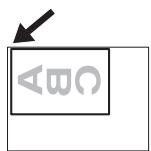
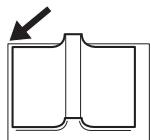
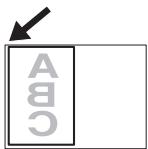
- When copying a thick Booklet, do not close the ADF/i-ADF.
Original Guides
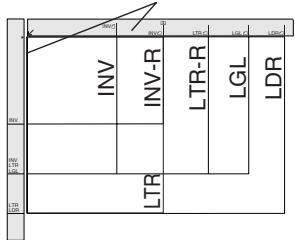
INV: Invoice, LTR: Letter LGL: Legal, LDR: Ledger
■ Copying with Preset or Variable Zoom Ratios
Preset Ratios (ex: Enlargement)
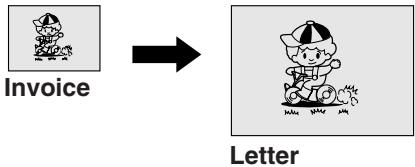
flowchart
graph LR
    A["Invoice"] --> B["Letter"]
Variable Zoom Ratios
Copies with variable zoom ratios from 50 % to 200 % in 1 % increments.
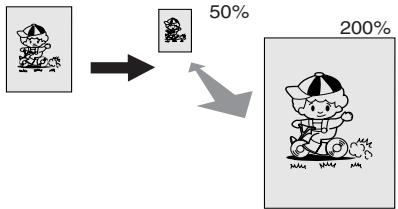
flowchart
graph TD
    A["Cartoon character"] --> B["Child"]
    B --> C["50%"]
    B --> D["200%"]
1
For ADF
For i-ADF
or
2

LDR : Ledger
LGL : Legal
LTR : Letter
LTR : Letter-R
INV : Invoice
INV : Invoice-R
3

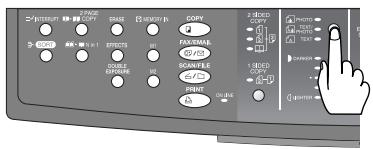
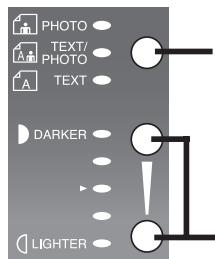
Select type of Original(s)
PHOTO : Mainly Photo
TEXT/PHOTO: Text and Photo combined
TEXT : Mainly Text
Adjust the Contrast
Press DARKER or LIGHTER
Key (5 levels)
4

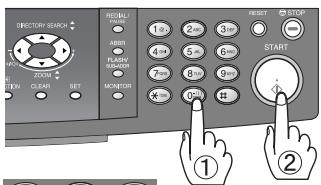
Number of
Copies
(Max. 999)
■ Using the ADF/i-ADF (Option)
Originals that cannot be used
● Post Cards, Drawing Papers, Labelling Papers, Heavyweight Papers, Thin Art Papers, Film Thermal Papers
Inappropriate Originals
● Paper with a smooth surface such as glossy and coated papers
● Transparencies
● Originals with a Lead Edge that is ripped, creased, folded, punched, or glued.
● Mixed width size Originals (except a combination of Ledger and Letter)
- Paste-ups
● Pressure sensitive or carbon backed papers
● Paper with excessive curl
● Stapled originals
● Freshly printed copies from a laser printer
● Originals with fresh White-Out (Liquid paper correction fluid)
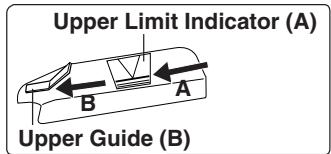
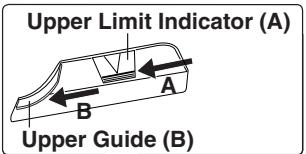
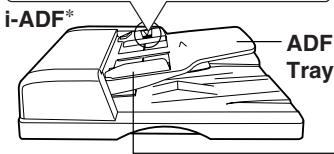
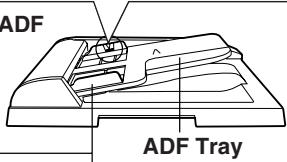
Set the originals up to the Upper Limit Indicator (A)
Original Guides
Adjust to the original's width
* ADF for DP-8020E/8020P/8016P i-ADF for DP-8020E only
3
For Preset Ratios

For Variable Zoom Ratios
4

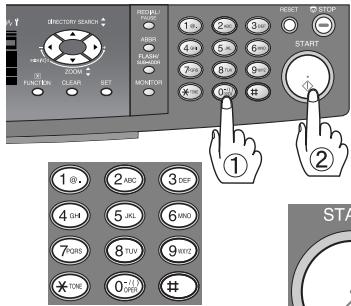
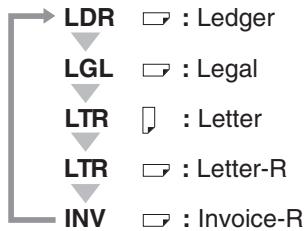
flowchart
graph TD
    A["LDR"] --> B["LGL"]
    B --> C["LTR"]
    C --> D["LTR"]
    D --> E["INV"]
    style A fill:#f9f,stroke:#333
    style B fill:#f9f,stroke:#333
    style C fill:#f9f,stroke:#333
    style D fill:#f9f,stroke:#333
    style E fill:#f9f,stroke:#333

Number of Copies
(Max. 999)
■ 1 → 2 Copy, 2 → 2 Copy, 2 → 1 Copy (DP-8020E with optional i-ADF)
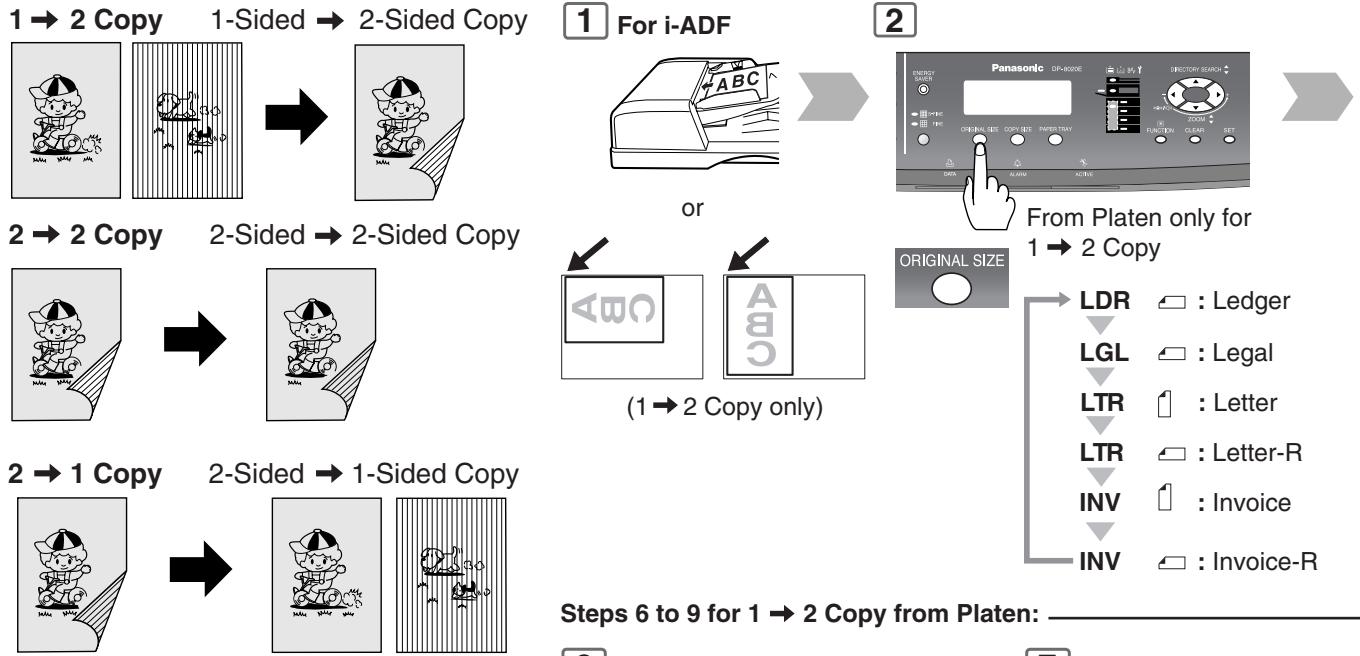
flowchart
graph TD
    A["1 → 2 Copy"] --> B["1-Sided → 2-Sided Copy"]
    B --> C["2 → 2 Copy"]
    C --> D["2-Sided → 2-Sided Copy"]
    D --> E["2 → 1 Copy"]
    E --> F["2-Sided → 1-Sided Copy"]
    F --> G[Step 6 to 9 for 1 → 2 Copy from Platen: ____
    For i-ADF
    or
    (1 → 2 Copy only)
    Original Size
    Panasonic
    LDR : Ledger
    LGL : Legal
    LTR : Letter
    LTR : Letter-R
    INV : Invoice
    INV : Invoice-R
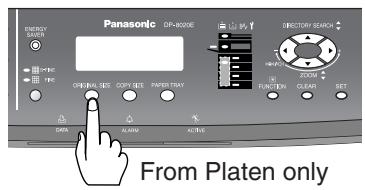
    From Platen only for
    Original Size
6
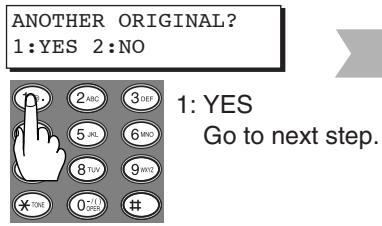
NOTE: If "2: NO" is selected, the machine will start copying only one side of the original(s).
7 Next Original
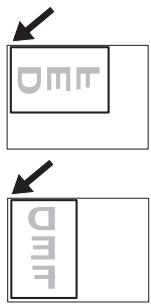
flowchart
graph TD
    A["DMR"] --> B["DEF"]
3

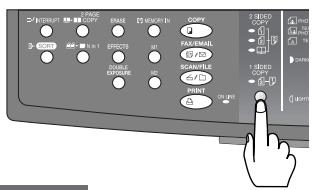
4
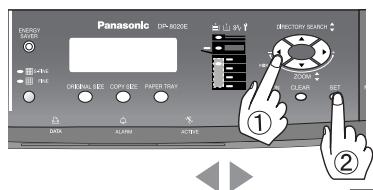
5
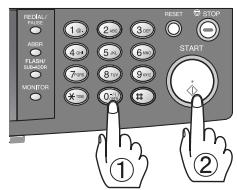


From Platen only.
Bind Position (Select within 10 sec.) (For 1 → 2 Copy, 2 → 1 Copy)
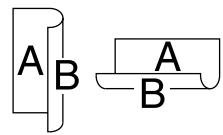
Long Edge

Short Edge

8

9
The following steps, illustrate how to make multiple copies when the Sort Mode is selected. (See page 42)
ANOTHER ORIGINAL? 1: YES 2: NO
1: YES → Continues to copy another original, repeat steps 1 and 5-② to step 8.
2: NO → Starts making copies.
10
Exits this mode.

■ 2 → 2 Copy (DP-8020E with optional ADF)
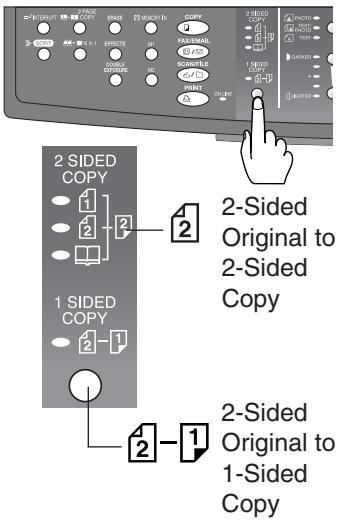
2 → 1 Copy (DP-8020E/8020P\*/8016P with optional ADF)
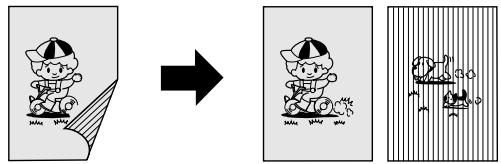
Copying 2 → 2 or 2 → 1 Copy with optional ADF (not i-ADF)
2 → 2 Copy 2-Sided → 2-Sided Copy
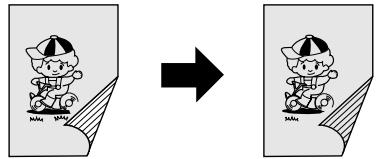
2 → 1 Copy 2-Sided → 1-Sided Copy
NOTE: If the memory overflows while scanning originals, all scanned data will be cancelled. If this occurs, restart from Step 1.
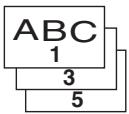
1 For ADF only
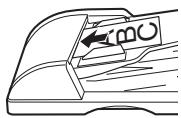
Odd Number Pages
Long Edge
Originals
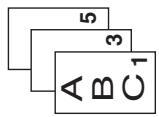
Short Edge
Originals
2
5 SET ORIGINAL ON ADF
INSERT SECOND SIDE ORIENTATION AS IS
Place the reverse side of the original(s) of step 1 in the order and direction of ejection.

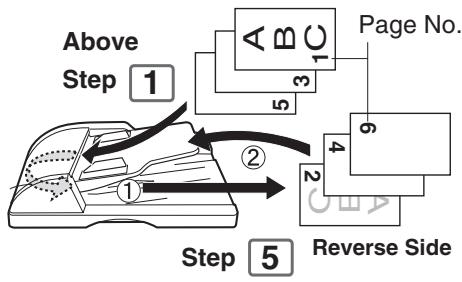
flowchart
graph TD
    A["Step 1"] --> B["Step 2"]
    B --> C["Step 3"]
    C --> D["Page No. 1"]
    D --> E["Step 4"]
    E --> F["Page No. 6"]
    F --> G["Step 5"]
    G --> H["Reverse Side"]
Even Number Pages
Long Edge Originals
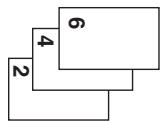
NOTE: If the page count for the Back side does not match the page count for the Front side (i.e. page double-fed) of the 2-Sided originals, a "TOTAL PAGE MISMATCH" will be displayed and all scanned data will be cancelled. If this occurs, restart from Step 1 and Step 4-② to Step 6.
8
Exits this mode.

■ Book → 2 Copy (DP-8020E only)
Book → 2-Sided Copy
The book format and page order can be set in the Copier Settings, Parameter No.
14 (BOOK → 2 DEFAULT). (See page 58)
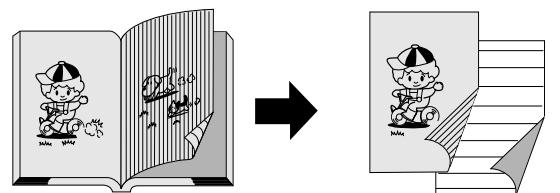
(Book Format: Flipping)
(Page Order: L → R)
For Book Format is Flipping:
1
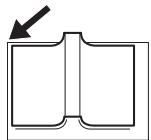
Original Size: Ledger, Letter-R
2
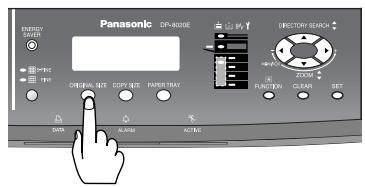
Select Ledger or Letter-R size*
5
The following steps, illustrate how to make multiple copies when the Sort Mode is selected.
(See page 42)
ANOTHER ORIGINAL? 1: YES 2: NO
1: YES
→ Continues to copy another original, repeat steps 1 and 4-②.
2: NO
→ Starts making copies.
(Page Order: L → R)
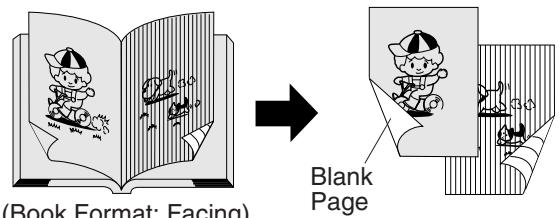
For Book Format is Facing:
1
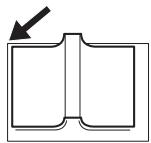
Original Size: Ledger, Letter-R
2
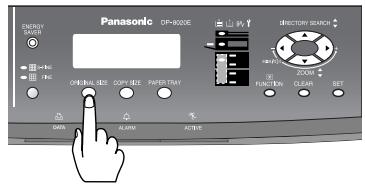

Select Ledger or Letter-R size*
NOTE: * If the selected original size is not corrected, book original will not be copied correctly as sample images.
- If the memory overflows while scanning originals, this machine will indicate the error message and stop.
6
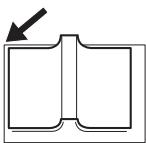
Next Original (page)
7
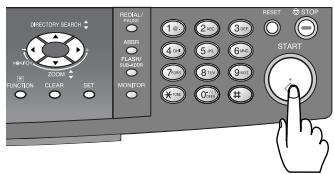
3


Select Book Original to 2-Sided Copy*

4
Number of Copies (Max. 999)

5
For Sort
Mode only
6

Exits this mode.

NOTE: * The copy size will be automatically selected.
If the selected paper size is not set into the paper tray(s), set paper on the Sheet Bypass (see page 14) or select another copy size with COPY SIZE Key (See page 25).
3

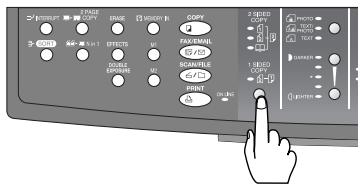

Select Book Original to 2-Sided Copy*
4
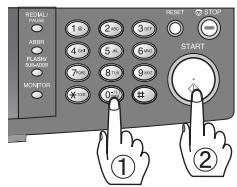

Number of Copies (Max. 999)
5
ANOTHER ORIGINAL?
1: YES 2: NO


1: YES
Continues to Copy
another page, proceed
to step 6
2: NO
Starts making copies


8

The following steps, illustrate how to make multiple copies when the Sort Mode is selected. (See page 42)
ANOTHER ORIGINAL?
1: YES 2: NO

1: YES → Continues to copy another original, repeat steps 1 and 4-② to step 8.
2: NO → Starts making copies.
9
Exits this mode.

N in 1
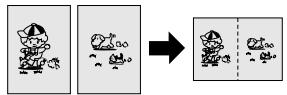
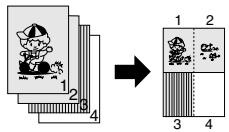
From two/four 1-Sided originals, side by side, to 1-Sided pages.
● 2 in 1 Copy
● 4 in 1 Copy
NOTE:
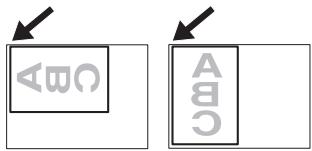
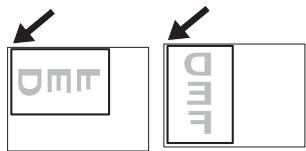
If the original's Orientation is incorrect when N in 1 copy mode is used, the copy sequence may not reproduce properly. If this occurs, change the N in 1 default Orientation in the Copier Settings, Parameter No. 05 (N in 1 DEF.) (See page 57)

Portrait
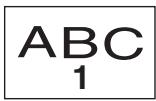
Landscape
1 For ADF
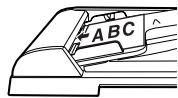
For i-ADF
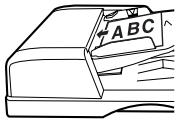
or
flowchart
graph TD
    A["◀ABC"] --> B["ABC"]
2
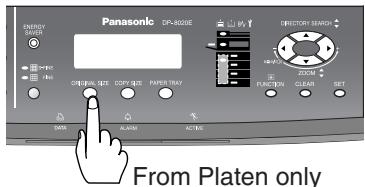
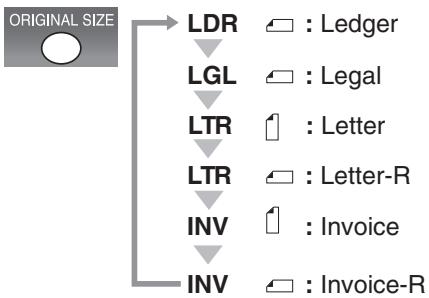
flowchart
graph TD
    A["ORIGINAL SIZE"] --> B["LDR"]
    A --> C["LGL"]
    A --> D["LTR"]
    A --> E["LTR"]
    A --> F["INV"]
    A --> G["INV"]
    B --> H[": Ledger"]
    C --> I[": Legal"]
    D --> J[": Letter"]
    E --> K[": Letter-R"]
    F --> L[": Invoice"]
    G --> M[": Invoice-R"]
5
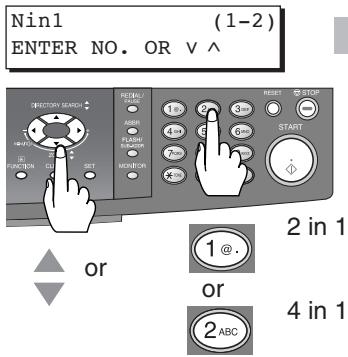
2 in 1
1:2in1?
PRESS SET TO SELECT
2:4in1?
PRESS SET TO SELECT
or
4 in 1
8
Next Original
9
PRESS START TO
CONTINUE
Combination for N in 1 copy operation.
| Mode | 2 in 1 | ||||||
| Originals |  |  |  |  |  |  |  |
| Layout |  |  |  | ||||
3 For Preset Ratios

flowchart
graph TD
    A["LDR"] --> B["LGL"]
    B --> C["LTR"]
    C --> D["LTR"]
    D --> E["INV"]
    style A fill:#f9f,stroke:#333
    style B fill:#f9f,stroke:#333
    style C fill:#f9f,stroke:#333
    style D fill:#f9f,stroke:#333
    style E fill:#f9f,stroke:#333
For Variable Zoom Ratios
Up to 200% in 1%
Down to 50% in 1%
4


7 Step 7 to 11 for Platen only
ANOTHER ORIGINAL?
1: YES 2: NO

1: YES
Go to next step.

8
NOTE: If "2: NO" is selected, the machine will start copying one side of the scanned original.
ANOTHER ORIGINAL?
1: YES 2: NO
10 For 4 in 1 Copy
① Select "1: YES".
② Repeat steps 8 and 9.
③ Select "1: YES".
④ Repeat steps 8 and 9.
11
ANOTHER ORIGINAL? 1: YES 2: NO
1: YES → Continues to copy another original, repeat steps 1 and 6-② to step 9 (10: 4 in 1).
2: NO → Starts making copies.
12
Exits this mode.

| Mode | 4 in 1 | ||||||||||||||||||||||||||||||||||||||||||||||||||||||||||||||||||||||||||||||||||||||||||||||||||||||||||||||||||||||||||||||||||||||||||||||||||||||||||||||||||||||||||||||||||||||||||||||||||||||||||||||||||||||||||||||||||||||||||||||||||||||||||||||||||||||||||||||||||||||||||||||||||||||||||||||||||||||||||||||||||||||||||||||||||||||||||||||||||||||||||||||||||||||||||||||||||||||||||||||||||||||||||||||||||||||||||||||||||||||||||||||||||||||||||||||||||||||||||||||||||||||||||||||||||||||||||||||||||||||||||||||||||||||||||||||||||||||||||||||||||||||||||||||||||||||||||||||||||||||||||||||||||||||||||||||||||||||||||||||||||||||||||||||||||||||||||||||||||||||||||||||||||||||||||||||||||||||||||||||||||||||||||||||||||||||||||||||||||||||||||||||||||||||||||||||||||||||||||||||||||||||||||||||||||||||||||||||||||||||||||||||||||||||||||||||||||||||||||||||||||||||||||||||||||||||||||||||||||||||||||||||||||||||||||||||||||||||||||||||||||||||||||||||||||||||||||||||||||||||
| Originals | 1 | 2 | 3 | 4 | |||||||||||||||||||||||||||||||||||||||||||||||||||||||||||||||||||||||||||||||||||||||||||||||||||||||||||||||||||||||||||||||||||||||||||||||||||||||||||||||||||||||||||||||||||||||||||||||||||||||||||||||||||||||||||||||||||||||||||||||||||||||||||||||||||||||||||||||||||||||||||||||||||||||||||||||||||||||||||||||||||||||||||||||||||||||||||||||||||||||||||||||||||||||||||||||||||||||||||||||||||||||||||||||||||||||||||||||||||||||||||||||||||||||||||||||||||||||||||||||||||||||||||||||||||||||||||||||||||||||||||||||||||||||||||||||||||||||||||||||||||||||||||||||||||||||||||||||||||||||||||||||||||||||||||||||||||||||||||||||||||||||||||||||||||||||||||||||||||||||||||||||||||||||||||||||||||||||||||||||||||||||||||||||||||||||||||||||||||||||||||||||||||||||||||||||||||||||||||||||||||||||||||||||||||||||||||||||||||||||||||||||||||||||||||||||||||||||||||||||||||||||||||||||||||||||||||||||||||||||||||||||||||||||||||||||||||||||||||||||||||||||||||||||||||||||||||||||||||
| Layout | 1 | 2 | 1 | 3 | 2 | 1 | 3 | 1 | 3 | 4 | 2 | 4 | 4 | 3 | 4 | 2 | 4 | 4 | 3 | 4 | 2 | 4 | 4 | 3 | 4 | 2 | 4 | 4 | 3 | 4 | 2 | 4 | 4 | 3 | 4 | 2 | 4 | 4 | 3 | 4 | 2 | 4 | 4 | 3 | 4 | 2 | 4 | 4 | 3 | 4 | 2 | 4 | 4 | 3 | 4 | 2 | 4 | 4 | 3 | 4 | 2 | 4 | 5 | 6 | 7 | 8 | 9 | 10 | 11 | 12 | 13 | 14 | 15 | 16 | 17 | 18 | 19 | 20 | 21 | 22 | 23 | 24 | 25 | 26 | 27 | 28 | 29 | 30 | 31 | 32 | 33 | 34 | 35 | 36 | 37 | 38 | 39 | 40 | 41 | 42 | 43 | 44 | 45 | 46 | 47 | 48 | 49 | 50 | 51 | 52 | 53 | 54 | 55 | 56 | 57 | 58 | 59 | 60 | 61 | 62 | 63 | 64 | 65 | 66 | 67 | 68 | 69 | 70 | 71 | 72 | 73 | 74 | 75 | 76 | 77 | 78 | 79 | 80 | 81 | 82 | 83 | 84 | 85 | 86 | 87 | 88 | 89 | 90 | 91 | 92 | 93 | 94 | 95 | 96 | 97 | 98 | 99 | 100 | 101 | 102 | 103 | 104 | 105 | 106 | 107 | 108 | 109 | 110 | 111 | 112 | 113 | 114 | 115 | 116 | 117 | 118 | 119 | 120 | 121 | 122 | 123 | 124 | 125 | 126 | 127 | 128 | 129 | 130 | 131 | 132 | 133 | 134 | 135 | 136 | 137 | 138 | 139 | 140 | 141 | 142 | 143 | 144 | 145 | 146 | 147 | 148 | 149 | 150 | 151 | 152 | 153 | 154 | 155 | 156 | 157 | 158 | 159 | 160 | 161 | 162 | 163 | 164 | 165 | 166 | 167 | 168 | 169 | 170 | 171 | 172 | 173 | 174 | 175 | 176 | 177 | 178 | 179 | 180 | 181 | 182 | 183 | 184 | 185 | 186 | 187 | 188 | 189 | 190 | 191 | 192 | 193 | 194 | 195 | 196 | 197 | 198 | 199 | 200 | 201 | 202 | 203 | 204 | 205 | 206 | 207 | 208 | 209 | 210 | 211 | 212 | 213 | 214 | 215 | 216 | 217 | 218 | 219 | 220 | 221 | 222 | 223 | 224 | 225 | 226 | 227 | 228 | 229 | 230 | 231 | 232 | 233 | 234 | 235 | 236 | 237 | 238 | 239 | 240 | 241 | 242 | 243 | 244 | 245 | 246 | 247 | 248 | 249 | 250 | 251 | 252 | 253 | 254 | 255 | 256 | 257 | 258 | 259 | 260 | 261 | 262 | 263 | 264 | 265 | 266 | 267 | 268 | 269 | 270 | 271 | 272 | 273 | 274 | 275 | 276 | 277 | 278 | 279 | 280 | 281 | 282 | 283 | 284 | 285 | 286 | 287 | 288 | 289 | 290 | 291 | 292 | 293 | 294 | 295 | 296 | 297 | 298 | 299 | 300 | 301 | 302 | 303 | 304 | 305 | 306 | 307 | 308 | 309 | 310 | 311 | 312 | 313 | 314 | 315 | 316 | 317 | 318 | 319 | 320 | 321 | 322 | 323 | 324 | 325 | 326 | 327 | 328 | 329 | 330 | 331 | 332 | 333 | 334 | 335 | 336 | 337 | 338 | 339 | 340 | 341 | 342 | 343 | 344 | 345 | 346 | 347 | 348 | 349 | 350 | 351 | 352 | 353 | 354 | 355 | 356 | 357 | 358 | 359 | 360 | 361 | 362 | 363 | 364 | 365 | 366 | 367 | 368 | 369 | 370 | 371 | 372 | 373 | 374 | 375 | 376 | 377 | 378 | 379 | 380 | 381 | 382 | 383 | 384 | 385 | 386 | 387 | 388 | 389 | 390 | 391 | 392 | 393 | 394 | 395 | 396 | 397 | 398 | 399 | 400 | 401 | 402 | 403 | 404 | 405 | 406 | 407 | 408 | 409 | 410 | 411 | 412 | 413 | 414 | 415 | 416 | 417 | 418 | 419 | 420 | 421 | 422 | 423 | 424 | 425 | 426 | 427 | 428 | 429 | 430 | 431 | 432 | 433 | 434 | 435 | 436 | 437 | 438 | 439 | 440 | 441 | 442 | 443 | 444 | 445 | 446 | 447 | 448 | 449 | 450 | 451 | 452 | 453 | 454 | 455 | 456 | 457 | 458 | 459 | 460 | 461 | 462 | 463 | 464 | 465 | 466 | 467 | 468 | 469 | 470 | 471 | 472 | 473 | 474 | 475 | 476 | 477 | 478 | 479 | 480 | 481 | 482 | 483 | 484 | 485 | 486 | 487 | 488 | 489 | 490 | 491 | 492 | 493 | 494 | 495 | 496 | 497 | 498 | 499 | 500 | 501 | 502 | 503 | 504 | 505 | 506 | 507 | 508 | 509 | 510 | 511 | 512 | 513 | 514 | 515 | 516 | 517 | 518 | 519 | 520 | 521 | 522 | 523 | 524 | 525 | 526 | 527 | 528 | 529 | 530 | 531 | 532 | 533 | 534 | 535 | 536 | 537 | 538 | 539 | 540 | 541 | 542 | 543 | 544 | 545 | 546 | 547 | 548 | 549 | 550 | 551 | 552 | 553 | 554 | 555 | 556 | 557 | 558 | 559 | 560 | 561 | 562 | 563 | 564 | 565 | 566 | 567 | 568 | 569 | 570 | 571 | 572 | 573 | 574 | 575 | 576 | 577 | 578 | 579 | 580 | 581 | 582 | 583 | 584 | 585 | 586 | 587 | 588 | 589 | 590 | 591 | 592 | 593 | 594 | 595 | 596 | 597 | 598 | 599 | 600 | 601 | 602 | 603 | 604 | 605 | 606 | 607 | 608 | 609 | 610 | 611 | 612 | 613 | 614 | 615 | 616 | 617 | 618 | 619 | 620 | 621 | 622 | 623 | 624 | 625 | 626 | 627 | 628 | 629 | 630 | 631 | 632 | 633 | 634 | 635 | 636 | 637 | 638 | 639 | 640 | 641 | 642 | 643 | 644 | 645 | 646 | 647 | 648 | 649 | 650 | 651 | 652 | 653 | 654 | 655 | 656 | 657 | 658 | 659 | 660 | 661 | 662 | 663 | 664 | 665 | 666 | 667 | 668 | 669 | 670 | 671 | 672 | 673 | 674 | 675 | 676 | 677 | 678 | 679 | 680 | 681 | 682 | 683 | 684 | 685 | 686 | 687 | 688 | 689 | 690 | 691 | 692 | 693 | 694 | 695 | 696 | 697 | 698 | 699 | 700 | 701 | 702 | 703 | 704 | 705 | 706 | 707 | 708 | 709 | 710 | 711 | 712 | 713 | 714 | 715 | 716 | 717 | 718 | 719 | 720 | 721 | 722 | 723 | 724 | 725 | 726 | 727 | 728 | 729 | 730 | 731 | 732 | 733 | 734 | 735 | 736 | 737 | 738 | 739 | 740 | 741 | 742 | 743 | 744 | 745 | 746 | 747 | 748 | 749 | 750 | 751 | 752 | 753 | 754 | 755 | 756 | 757 | 758 | 759 | 760 | 761 | 762 | 763 | 764 | 765 | 766 | 767 | 768 | 769 | 770 | 771 | 772 | 773 | 774 | 775 | 776 | 777 | 778 | 779 | 780 | 781 | 782 | 783 | 784 | 785 | 786 | 787 | 788 | 789 | 790 | 791 | 792 | 793 | 794 | 795 | 796 | 797 | 798 | 799 | 800 | 801 | 802 | 803 | 804 | 805 | 806 | 807 | 808 | 809 | 810 | 811 | 812 | 813 | 814 | 815 | 816 | 817 | 818 | 819 | 820 | 821 | 822 | 823 | 824 | 825 | 826 | 827 | 828 | 829 | 830 | 831 | 832 | 833 | 834 | 835 | 836 | 837 | 838 | 839 | 840 | 841 | 842 | 843 | 844 | 845 | 846 | 847 | 848 | 849 | 850 | 851 | 852 | 853 | 854 | 855 | 856 | 857 | 858 | 859 | 860 | 861 | 862 | 863 | 864 | 865 | 866 | 867 | 868 | 869 | 870 | 871 | 872 | 873 | 874 | 875 | 876 | 877 | 878 | 879 | 880 | 881 | 882 | 883 | 884 | 885 | 886 | 887 | 888 | 889 | 890 | 891 | 892 | 893 | 894 | 895 | 896 | 897 | 898 | 899 | 900 | 901 | 902 | 903 | 904 | 905 | 906 | 907 | 908 | 909 | 910 | 911 | 912 | 913 | 914 | 915 | 916 | 917 | 918 | 919 | 920 | 921 | 922 | 923 | 924 | 925 | 926 | 927 | 928 | 929 | 930 | 931 | 932 | 933 | 934 | 935 | 936 | 937 | 938 | 939 | 940 | 941 | 942 | 943 | 944 | 945 | 946 | 947 | 948 | 949 | 950 | 951 | 952 | 953 | 954 | 955 | 956 | 957 | 958 | 959 | 960 | 961 | 962 | 963 | 964 | 965 | 966 | 967 | 968 | 969 | 970 | 971 | 972 | 973 | 974 | 975 | 976 | 977 | 978 | 979 | 980 | 981 | 982 | 983 | 984 | 985 | 986 | 987 | 988 | 989 | 990 | 991 | 992 | 993 | 994 | 995 | 996 | 997 | 998 | 999 | 1000 |
■ 2 Page Copy
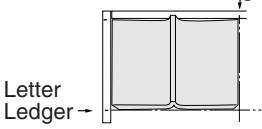
Copying two facing pages or a Ledger size original on two separate Letter size sheets.
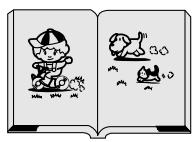

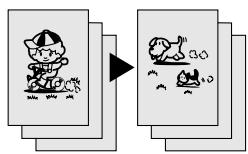
Page Order: L→R Starts copying from the Left page
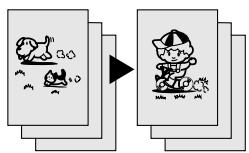
Page Order: R→L Starts copying from the Right page
NOTE:
The page order can be set in the Copier Settings, Parameter No. 16 (2 PAGE MODE DEF.)
(See page 58)
Default Page Order: L→R
1
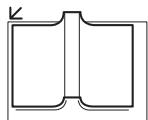
Platen
Example: Ledger size original
Ledger
2
6
The following steps, illustrate how to make multiple copies when the Sort Mode is selected. (See page 42)
ANOTHER ORIGINAL? 1: YES 2: NO
1: YES → Continues to copy another original, repeat steps 1 and 5-②.
2: NO → Starts making copies.
3

4
5

Number of Copies (Max. 999)
7

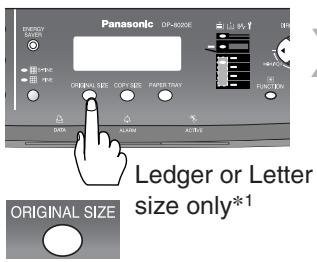
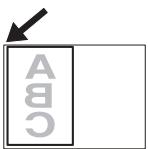
NOTE: *1 If the selected original size is not corrected, the book original image will not be copied correctly.
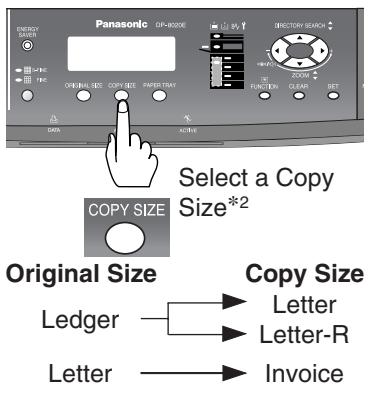
*2 A copy size will be automatically selected. If the selected copy size paper is not set into the paper tray(s), set paper on the Sheet Bypass (see page 14) or select another copy size using the COPY SIZE Key (see page 25).
■ Double Exposure
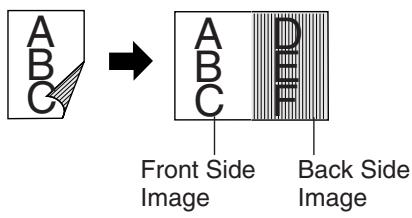
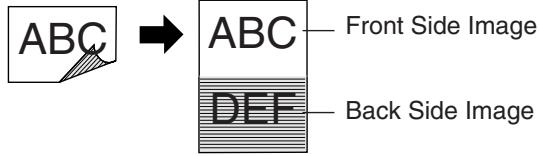
From 2-Sided originals to 1-Sided copies (side-by-side image).
Original Size:
Letter or Invoice
Copy Size:
Letter-R
ex. Invoice
NOTE:
When copying portrait original, set the Portrait in the Copier settings, "1:ORIENTATION of Parameter No. 05 N in 1 DEF." (See page 57)
ex. Invoice-R
NOTE:
When opening the Platen Cover or optional ADF/i-ADF
● An incorrect position detection of the original may occur when a strong light shines on the glass during this mode.
● An incorrect exposure may occur when there is a black line at the edge of the original or an image which the machine interprets as a black pattern in this mode.
● The final copy may be affected if colored background original(s) do not have a white edge or if it is less than 2 mm wide.
The default setting of Digital Skyshot Mode should be set to "OFF" in the Copier Settings, Parameter No. 07 (DIGITAL SKYSHOT).
1
Front Side of Original
Original Size:
Letter or Invoice size only
5
ANOTHER ORIGINAL?
1: YES 2: NO

1: YES
NOTE
If “2: NO” is selected, the machine will start copying only scanned original.
9
Exits this mode.

2

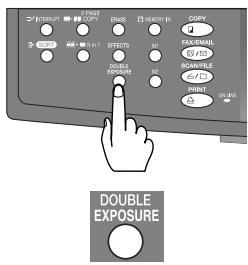

3

4
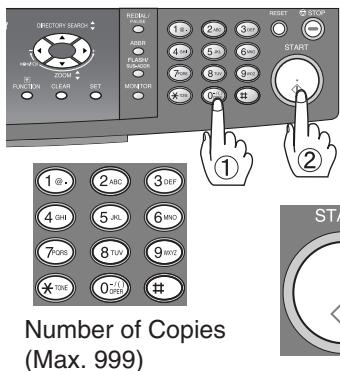

5

6

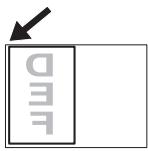
Back Side of Original
7


8
The following steps, illustrate how to make multiple copies when the Sort Mode is selected. (See page 42)
ANOTHER ORIGINAL? 1: YES 2: NO

9
1: YES → Continues to copy another original, repeat steps 1 and 4-② to step 7. 2: NO → Starts making copies.
■ Erase (Margin/Edge)
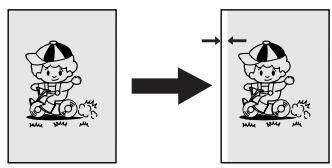
Margin
Shifts image to left, right, top or bottom.*
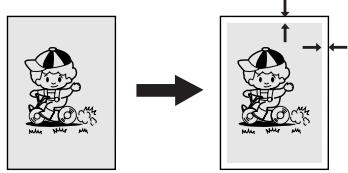
Edge
Creates a blank edge.*
NOTE:
* Shift position of Margin and blank edge value can be changed with Copier Setting Mode. (See page 57)
1 For ADF
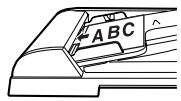
For i-ADF
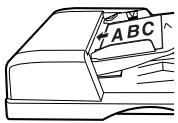
or
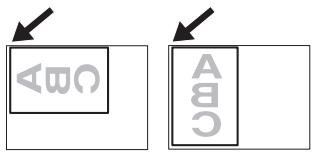
flowchart
graph TD
    A["LDR"] --> B["LGL"]
    B --> C["LTR"]
    C --> D["LTR"]
    D --> E["INV"]
    E --> F["INV"]
    style A fill:#f9f,stroke:#333
    style B fill:#f9f,stroke:#333
    style C fill:#f9f,stroke:#333
    style D fill:#f9f,stroke:#333
    style E fill:#f9f,stroke:#333
    style F fill:#f9f,stroke:#333
■ Erase (Book)
Book
Eliminates dark inner binding shadows.  1  2   flowchart
graph TD
    A["LDR"] --> B["LGL"]
    B --> C["LTR"]
    C --> D["LTR"]
    D --> E["INV"]
    E --> F["INV"]
    style A fill:#f9f,stroke:#333
    style B fill:#f9f,stroke:#333
    style C fill:#f9f,stroke:#333
    style D fill:#f9f,stroke:#333
    style E fill:#f9f,stroke:#333
    style F fill:#f9f,stroke:#333
■ Effects (Centering/Image Repeat)
Centering
Copy image can be centred automatically on selected paper. flowchart
graph LR
    A["Child jumping"] --> B["Child running"]
Image Repeat
Creates continuous copy image on one sheet. Minimum original size: 20 x 20 mm. flowchart
graph TD
    A["Square with circles"] --> B["Grid of squares"]
    C["Square with circles"] --> B["Grid of squares"]
NOTE:
● The final copy may be affected if colored background original(s) do not have a white edge or if it is less than 2 mm wide. The default setting of Digital Skyshot Mode should be set to "OFF" in the Copier Settings, Parameter No. 07 (DIGITAL SKYSHOT). \- Remove the originals from the ADF before selecting the Centering, and Image Repeat mode. An incorrect position detection of the original may occur when a strong light shines onto the glass during the Centering, and Image Repeat mode. Also an image which the copier interprets as a black pattern in the Centering, and Image Repeat modes. 6   3      or  : Centering  : Image Repeat 4  or   5   6     TRAY-1 TRAY-2 TRAY-3 TRAY-4 BYPASS NOTE: Tray-2, 3 and 4 are options. (See page 69) 7   Exits this mode. Sort
Sort
Multiple copy sets are sorted automatically. Rotate-Sort
Multiple copy sets are sorted automatically and are stored on the Output Tray in alternate direction (rotate). Initial Sort-Rotate Mode is "1:OFF", this setting can be selected within the Copier's General Settings. (See page 54)  (Available Letter size paper only)Non-Sort
Copy is stored on the Output Tray.NOTE
Initial Sort Mode settings can be selected within the Copier Settings, Parameter No. 10 (SORT PRIORITY ADF) or Parameter No. 11 (SORT PRIOR. GLASS). (See pages 57 and 58)Initial Sort Priority Setting:
For ADF: 2:Sort; For Platen: 1:Non-Sort 1 For ADF  For i-ADF  or  Lights
Sort mode is selected.Steps 5 to 8 from Platen only
5    1: YES Go to next stepNOTE
If "2: NO" is selected, the machine will start copying one side of the original(s). 6   Next Original 3    4   5\~8 From Platen only 7  PRESS START TO CONTINUE   8 ANOTHER ORIGINAL? 1: YES 2: NO   : YES Continues to copy another original, repeat steps 1 and 4-② to step 7.  : NO Starts making copies.■ Skyshot Mode
Skyshot allows copying a manuscript without generating dark borders even if the Platen Cover or ADF is opened. Two types of Skyshot modes can be selected; Digital Skyshot Mode : The scanning area (size) is not pre-determined. Manual Skyshot Mode: The scanning area (size) is pre-registered into memory (M1 and M2) in advance.■ Digital Skyshot Mode
The default setting of Digital Skyshot Mode is “NORMAL”. This default setting can be changed in the Copier Settings. (See page 57)NOTE
The default setting of Digital Skyshot Mode is “NORMAL”. In this setting, the unit scans once. If there are black areas around the borders in the copies, set the Digital Skyshot Mode to “QUALITY” to soften the dark borders. In this setting, the unit scans twice. OFF : NONE NORMAL : Default setting (usually select this mode). QUALITY : For better definition, select the Quality mode. \- The final copy may be affected if colored background original(s) do not have a white edge or if it is less than 2 mm wide. The default setting of Digital Skyshot Mode should be set to "OFF" in the Copier Settings, Parameter No. 07 (DIGITAL SKYSHOT). 1  Open the ADF more than 45 degrees wide.■ Manual Skyshot Mode
Enable the Copier Settings, Parameter No. 08 (MANUAL SKYSHOT) first. (See page 57)NOTE
● Other jobs requiring memory cannot be performed, while M1 and M2 buttons are being used for the Skyshot mode. 1 From Platen    2     flowchart
graph TD
    A["LDR"] --> B["LGL"]
    B --> C["LTR"]
    C --> D["LTR"]
    D --> E["INV"]
    E --> F["INV"]
    style A fill:#f9f,stroke:#333
    style B fill:#f9f,stroke:#333
    style C fill:#f9f,stroke:#333
    style D fill:#f9f,stroke:#333
    style E fill:#f9f,stroke:#333
    style F fill:#f9f,stroke:#333
NOTE
● An incorrect position detection of the original may occur when a strong light shines onto the glass during digital skyshot mode. ● An incorrect exposure may occur when there is a black line at the edge of the original or an image which the machine interprets as a black pattern in the digital skyshot mode. 2   Custom size\*  or  \* Default M1/M2 size can be changed by Function mode. (See page 58) 3   Number of Copies (Max. 999) ■ Job Build and SADF Mode
Special originals (like thin paper, etc.) can be fed from the ADF Tray and copied continuously using the Job Build and SADF Mode. NOTE: Set the Copier Settings, Parameter No. 12 (SADF DEFAULT) to "OFF" position in advance. (See page 59) Thin paper: minimum 15 lb (55 g/m²) 1 For ADF  For i-ADF  2  Select desired settings Example: To make 5 sets of sorted copies of 80 sheets of originals. (Letter size) flowchart
graph TD
    A["Originals: 50 sheets <1st scan>"] --> B["1st and 2nd Scanned Data are combined into one job."]
    C["Originals: Remaining 30 sheets <2nd scan>"] --> B
    D["5 sets of 80 sheets sorted copies are printed"] --> B
■ Concurrent Copying
The next copy job can be reserved even if the current copy job is not completed. (Requires the optional Hard Disk Drive and Image Memory (See page 69) to be installed) flowchart
graph TD
    A["1st job"] --> B["Copy"]
    C["2nd job"] --> D["Reserve"]
    B --> E["1st job"]
    D --> F["2nd job"]
Interrupt Mode
This mode interrupts the current running copy job and allows other copy jobs to be processed. 1  2 Other Job For ADF  For i-ADF    (See pages 24-43)■ Energy Saver (Power Saver Mode, Sleep/Shutdown Mode)
These modes save power while the machine is not in use.Power Saver Mode
To enter  or Automatically enters the Power Saver Mode after 10 minutes from the last job.\*   Flashes : Power Saver Mode To exit   or Any Key Sleep/Shutdown Mode
Automatically enters the Sleep/Shutdown Mode after 10 minutes from the last job.\*NOTE
\* To adjust the default Sleep/Shutdown Mode timer, see page 54.   Lights : Sleep/Shutdown Mode To exit  ■ Job Memory
Two Copy Jobs can be stored in Memory (M1 to M2) for recall at a later time. Set up the copy job to be stored. (See pages 24-43)To store a job in memory
1  2  NOTE - JOB MEMORY mode will not be deleted even if the power switch is turned Off. - When using the manual skyshot mode, the M1 and/or M2 are turned On and other job requiring memory cannot be used. 3   4 Other Job is completed  5  6  | Modes | Power Consumption | Warm Up Time | Unavailable Functions |
| Standby | Approx. 120 W | — | —— |
| Power Saver | Approx. 19.5 W | Approx. 30 sec. | —— |
| Sleep | Approx. 8.5 W | Approx. 30 sec. | —— |
| Shutdown | Approx. 1.6 W | Approx. 30 sec. | Printer Function(Local USB and Network Connection)Internet Fax/Email FunctionFacsimile Function(If the LAN Cable is not connected, and the "DHCP DEFAULT" is set to "VALID", while in this mode (Shutdown), the machine will not answer an incoming Fax call) (See page 55) |
To recall a job stored in memory
1  2   When the original size is not shown on the LCD display after selected M1 or M2, select original size with the Original Size Key. 3  ■ Completion Notice
If Completion Notice is set, you will be notified on your computer when copying is completed. Before using this function, install the Panasonic Document Management System (Communications Utility), and the Printer Driver (with Job Status Utility) on your computer, and then configure each software referring to Setting up the Scanner Configuration using the Communications Utility, and Setting up the Completion Notice. (See Page 72)  1  Job Status Utility Icon Confirm that the Communications Utility, and the Job Status Utility icons are displayed on the task bar of your PC. \- If they are not, click Start button, and then select [All Programs] -> [Panasonic] -> [Panasonic Document Management System] -> Communications Utility to activate the Communications Utility icon, and/or select [All Programs] -> [Panasonic] -> [Job Status Utility] -> [Job Status Utility] to activate the Job Status Utility icon. Select a Station (PC's Address) flowchart
graph TD
    A["ABBR"] --> B["4-1"]
    B --> C["ABBR"]
    C --> D["ABBR [_"]]
    D --> E["ENTER ABBR No."]
    F["DIRECTORY SEARCH"] --> G["4-1"]
    G --> H["DIRECTORY SEARCH"]
    H --> I["ENTER LETTER(S)"]
    J["ONE-TOUCH"] --> K["4-1"]
    K --> L["Keyboard (Option)"]
    L --> M["<10>PANA 10.74.252.63"]
flowchart
graph TD
    A["ENTER LETTER(S)\nSA_"] --> B["[06"]SALES 3\n1["05"]SALES 2\n1["01"]SALES\n10.74.252.66]
    B --> C["③"]
flowchart
graph TD
    A["General Settings"] --> C["Input Key Operator Password (See page 13)"]
    B["Copier Settings"] --> C
    D["Printer Settings"] --> C
    E["Scanner* Settings"] --> C
    F["Fax/Email* Settings"] --> C
    C --> G["General Settings for Key Operator"]
    C --> H["Copier Settings for Key Operator"]
    C --> I["Printer Settings for Key Operator"]
    style C stroke:#000,stroke-width:2px
    note right of C
        * DP-8020E/8020P only
    end
    note right of C
        Option -.-> D
    end
General Settings:
Changing the Initial Machine Modes ● Power On Default Mode, Key Operator Mode, etc. (See page 54) For Key Operator: Paper Size, Department Counter, Network TCP/IP settings, etc. (See pages 54 - 56) Procedure 1  2 Select a desired setting by pressing keys.  COPY : General/Copier Settings FAX/EMAIL : Fax/Email Settings SCAN/FILE : Scanner Settings PRINT : Printer SettingsNOTE:
COPY, FAX/EMAIL and SCAN/FILE function selection keys are available only on DP-8020E/8020P.   : General Settings   : Copier Settings   : Printer Settings Scanner Settings (Scan Parameters) (See page 74) Fax/Email Settings Refer to Operating Instructions (For Facsimile and Internet Fax/Email)NOTE
- Please refer to the appropriate operating instructions manual for function settings on options. ● Function setting is accessible only when the machine is in Ready Mode. ● Fax/Email Settings are only available when optional Fax Communication Board is installed. (See page 69)Copier Settings:
Changing the Initial Copier Modes ● Default function of each copy mode. (See pages 57 and 58) For Key Operator: Original mode, Contrast, etc. (See pages 58 and 59)Printer Settings:
Changing the Initial Printer Modes ● Default function of each print mode. (See page 59) For Key Operator: Job completion time, Page protection, Error page print, Spool function, PS configuration, Font list print, Mailbox data handling, etc. (See page 60) ● Normally, you do not need to set the Printer Settings. Special Printer Settings may be required when printing text data directly to the printer from the MS-DOS command prompt.Scanner Settings:
Changing the Initial Scanner Modes ● Original mode, Compression mode, Resolution, etc. (See page 61)Fax/Email Settings:
Changing the Initial Fax/Email Modes Refer to Operating Instructions (For Facsimile & Internet Fax/Email).3
Select a mode with the Cursor Key or Keypad  or  When selecting the Key Operator Mode: (Ex: General Settings) 4
   Input the Key Operator Password (3-digit) (See page 13)4
Setting the desired Function Parameter(s). ① Select a setting with the Keypad. ② Confirm a setting with the SET Key. ① Select a setting with the Keypad. ② Confirm a setting with the SET Key.  5
  Exits this Function Mode5
Set the desired Function Parameter(s).    ① Select a mode with the Cursor Key or Keypad. ② Select a setting with the Keypad. ③ Confirm a setting with the SET Key.6
  Exits this Function Mode ■ General Settings| No. | Modes | Function | Initial Setting |
| 00 | POWER ON DEFAULT | Selects the default operation mode.1:COPY / 2:FAX / 3:PRINTER / 4:SCANNER(Fax is option, see page 69) | 1: COPY |
| 01 | SORT MEMORY USAGE | Selects whether to display the amount of sort memory used on the control panel.1:OFF / 2:DISPLAY | 1: OFF |
| 02 | DEPT. COUNTER | Displays the Total Copy usage and copy limit of the selected department. | Consult your authorized Panasonic dealer |
| 03 | SORT-ROTATE | Selects the rotate-sort mode.1:OFF / 2:ON (Available for Letter size paper only) | 1:OFF |
| 07 | MANUAL ADD TONER | Adds toner manually.PRESS SET TO SELECT | |
| 09 | KEY OPERATOR MODE | Inputs the key operator password.ENTER PASSWORD = [IMAGE] |
| No. | Modes | Function | Initial Setting |
| 00 | GENERAL LIST | Prints the general settings list, and meter count readings.PRESS SET TO PRINT | |
| 01 | PAPER SIZE | Selects the Paper Tray and sets the Paper Size.(See page 62)1:TRAY-1 / 2:TRAY-2 / 3:TRAY-3 / 4:TRAY-4(TRAY-2 to 4 are option)LETTER → LETTER → INVOICE →A3 → B4 → A4 → A4 → B5 →B5 → A5 → A5 → FLS1 →FLS2 → LEDGER → LEGAL → | |
| 03 | AUTO RESET TIME | Selects the Control Panel reset time.1:OFF / 2:30 sec / 3:1 min. / 4:2 min. / 5:3 min. /6:4 min. | 3:1 min. |
| 04 | ENERGY SAVER MODE | Sets the Energy Saver mode and time.1:INVALID / 2:POWER SAVER / 3:SLEEP /4:SHUTDOWNPower Saver mode timer: 1-240 min.Sleep/Shutdown mode timer: 1-240 min. | 3:SLEEP10 min. |
| 05 | ENERGY SAVER TIME | Sets the Energy Saver Timer (Sleep or Shutdown mode).Start (ON) : 00:00 End (OFF) : 00:00Input the Start and End time with Cursor Keys and Keypad. Once you set the above timer, the set timer repeats everyday. | Start00:00End00:00 |
| 06 | LANGUAGE DEFAULT | Selects the default message language for the display.1:A-ENGLISH / 2:C-FRENCH / 3:SPANISH | 1:A-ENGLISH |
| 07 | SPECIAL TRAY 1 | Selects the paper tray to use for special paper.1:NONE / 2:TRAY-1 / 3:TRAY-2 / 4:TRAY-3 /5:TRAY-4 / 6:BYPASS(Only available when optional TRAY-2 and 3/4 are installed. see page 69) | 1:NONE |
| 08 | SPECIAL TRAY 2 | Selects the paper tray to use for special paper.1:NONE / 2:TRAY-1 / 3:TRAY-2 / 4:TRAY-3 /5:TRAY-4 / 6:BYPASS(Only available when optional TRAY-2 and 3/4 are installed. see page 69) | 1:NONE |
| 09 | KEY/TOUCH BEEP | Selects the default key sound level.1:OFF / 2:SOFT / 3:LOUD | 2:SOFT |
| 10 | BYPASS SET BEEP | Selects whether to sound a Beep when paper is set on the Sheet Bypass.1:INVALID / 2:VALID | 1:INVALID |
| 11 | ORIG.SET BEEP ADF | Selects whether to sound a Beep when paper is placed on the ADF.1:INVALID / 2:VALID | 2:VALID |
| 12 | PAPER OUT ROTATE | Machine will automatically rotate the image to accommodate the orientation of the paper in another Tray and print when the selected Tray is empty.1:OFF / 2:ON | 1:OFF |
| 13 | DEPT. COUNTER MODE | Monitors the copy usage of each department.1:TOTAL COUNTER2:DEPT. COUNTER3:DEPARTMENT LIST | Consult your authorized Panasonic dealer |
| 16 | LANGUAGE PRIORITY | Selects whether to enable the language selection menu to display when the machine comes out of the Energy Saver Mode, or when the RESET button is pressed once.1:OFF / 2:ON | 1:OFF |
| 17 | DATE & TIME | Sets the date and time.(Month, Day, Year, Time)Input the date and time with Cursor Keys and Keypad. | |
| 18 | DAYLIGHT TIME | Set Daylight Time according to your local regulation.1: OFF : Daylight Time is not applied2: MAR 2nd : From 2 a.m. on the 2nd Sunday of March to 2 a.m. on the 1st Sunday of NovemberThe date setting shown above reflects the New Regulation starting in 2007. In 2006, the Daylight Time will end on the Last Sunday of October.3: APR 1st : From 2 a.m. on the 1st Sunday of April to 2 a.m. on the Last Sunday of October | 2: MAR 2nd |
| 19 | IP ADDRESS (DHCP)* _1,*2 | Displays the IP Address which was reserved by DHCP server. | |
| 20 | SUBNET MASK(DHCP)* _1,*2 | Displays the Subnet Mask Address which was reserved by DHCP server. | |
| 21 | DEF. G/W IP(DHCP)* _1,*2 | Displays the Gateway IP Address which was reserved by DHCP server. | |
| 22 | DHCP DEFAULT* ^3 | Selects whether to enable the DHCP.1:INVALID / 2:VALID | 2:VALID |
NOTE
\*1 When setting other than DHCP server Network settings, Parameter No. 22 (DHCP DEFAULT) should be set to "INVALID" first, then setup Parameters No.19 to 21. \*2 When Parameters No. 19 to 23 (except 22) are set, cycle the power by turning the Power Switch on the Right Side of the machine OFF and ON. \*3 When not connecting to LAN, the setting of DHCP should be on INVALID. When the setting of DHCP is on VALID, and the machine is in Shutdown Mode, the machine will not answer an incoming Fax call. ■ General Settings (For Key Operator) (Continued)| No. | Modes | Function | Initial Setting |
| 23 | DNS SERVER ADDR.* ^2 | Selects whether to enable the DNS Server, and sets its settings for Internet Fax/Email Function.1:INVALID2:VALID1:HOST NAME / 2:DOMAIN NAME /3:PRI. DNS SERVER (IP ADDRESS1) /4:SEC. DNS SERVER (IP ADDRESS2) | 2:VALID |
| 24 | MAC ADDRESS | Indicates the MAC address. | |
| 25 | HARD DISK FORMAT* ^4 | Formats the hard disk.PRESS SET TO START | |
| 26 | HARD DISK ERR CHK* ^4 | Selects the provision for the hard disk error check.PRESS SET TO START | |
| 27 | ABBR GROUP ID | Inputs the Group ID for the address book.0-99 | 0 |
| 28 | COMMUNITY NAME(1)* ^5 | Selects whether to change the Community Name(1) SNMP.Enable read only | public |
| 29 | COMMUNITY NAME(2)* ^5 | Selects whether to change the Community Name(2) SNMP.Enable read/write | public |
| 30 | DEVICE NAME* ^5 | Inputs the device name when required.(For Status Monitor/EtherTalk Machine Name) | |
| 31 | DEVICE LOCATION* ^5 | Inputs the device location when required.(For Status Monitor) | |
| 33 | USER AUTH* ^6 | Set the User Authentication Mode.COPY1:INVALID / 2:VALIDFAX1:INVALID / 2:VALIDPRINTER1:INVALID / 2:VALIDSCANNER1:INVALID / 2:VALID | INVALIDINVALIDINVALIDINVALID |
| 34 | AUTH DOMAIN | Inputs the Authentication Domain NameDomain Name: Up to 15 characters.DNS Domain Name: Up to 60 characters. |
| No. | Modes | Function | Initial Setting |
| 00 | MARGIN DEFAULT | Selects the margin shift value.1:POSITION / 2:VALUE1:LEFT / 2:RIGHT / 3:TOP / 4:BOTTOMProcedure:Select "1:POSITION" and select a Margin position then, select "2:VALUE" and input a shift value with Keypad. | 1:LEFT10 mm |
| 01 | EDGE DEFAULT | Selects the edge width.1:EQUAL RATE (X & Y) / 2:INDIVIDUALProcedure:Select "1:EQUAL RATE (X & Y) " or "2:INDIVIDUAL" then, input a edge value with Keypad.EQUAL RATE (X & Y): same edge value INDIVIDUAL: different edge values (X and Y) | 1:EQUAL RATE (X & Y)5 mm |
| 02 | BOOK MARGIN DEF. | Selects the book void width.5 - 99 mm | 20 mm |
| 03 | FRAME MARGIN | Select whether to set the frame margin.1:INVALID / 2:VALID | 1:INVALID |
| 04 | 2-SIDED MODE DEF. | Selects the default duplex priority mode.1:OFF / 2:1→2 / 3:2→2 / 4:BOOK→2 | 1:OFF |
| 05 | N in 1 DEF. | Selects the N in 1 default mode.Procedure:Select a Function (ex: ORIENTATION) then, select a Sub-Function (ex: PORTRAIT)1:ORIENTATIONSelect from the following original sizes:Ledger (∠), Legal (∠), Letter (□),Letter-R (□), Invoice (□) or Invoice-R (□).1:PORTRAIT / 2:L-SCAPE2:LAYOUT1:2 in 1 / 2:4 in 11:L→R / 2:R→L1:1 2/2:1 3/3:2 1/4:3 13 42 44 34 2 | 1:ORIENTATIONFor Ledger/Letter-R/Invoice2:L-SCAPEFor Legal/Letter1:PORTRAIT2:LAYOUT1:2 in 11:L->R |
| 06 | N in 1 WITH FRAME | Selects whether to enable the edge deletion.1:INVALID / 2:VALID | 1:INVALID |
| 07 | DIGITAL SKYSHOT | Selects the default digital skyshot mode.1:OFF / 2:NORMAL / 3:QUALITY | 2:NORMAL |
| 08 | MANUAL SKYSHOT | Selects whether to enable the Manual Skyshot.1:OFF / 2:M1 ON / 3:M2 ON / 4:M1,M2 ON | 1:OFF |
| 09 | AUTO EXPOSURE | Selects whether the auto exposure is enabled.1:INVALID / 2:VALID | 2:VALID |
| 10 | SORT PRIORITY ADF | Selects the sort priority when using the ADF.1:NON-SORT / 2:SORT | 2:SORT |
| 11 | SORT PRIOR. GLASS | Selects the sort priority when using the Platen. 1:NON-SORT / 2:SORT | 1:NON-SORT |
| 12 | 1→2 BINDING DEF. | Selects the binding location for 1→2 Copy. 1:LONG EDGE / 2:SHORT EDGE | 1:LONG EDGE |
| 13 | 2→1 BINDING DEF. | Selects the binding location for 2→1 Copy. 1:LONG EDGE / 2:SHORT EDGE | 1:LONG EDGE |
| 14 | BOOK → 2 DEFAULT | Selects the page layout of the Book→2 copy. 1:BOOK FORMAT1:FACING / 2:FLIPPING2:PAGE ORDER1:L→R / 2:R→L | 1:BOOK FORMAT2:FLIPPING2:PAGE ORDER1:L→R |
| 15 | IMAG. REPEAT DOT. | Selects whether to print the dotted line. 1:NONE / 2:PRINT | 2:PRINT |
| 16 | 2 PAGE MODE DEF. | Selects the page order of 2 page copy. 1:L→R / 2:R→L | 1:L→R |
| 19 | KEY OPERATOR MODE | Inputs the key operator password. ENTER PASSWORD = [IMAGE] |
The following Parameter Settings require the input of the Key Operator Password:
■ Copier Settings (For Key Operator)| No. | Modes | Function | Initial Setting |
| 00 | COPY SETTING LIST | Prints the copier settings list.PRESS SET TO PRINT | |
| 01 | ORIGINAL (HOME) | Selects the halftone default setting.1:TEXT / 2:TEXT/PHOTO / 3:PHOTO | 2:TEXT/PHOTO |
| 02 | TEXT CONTRAST | Selects the default contrast setting for the Text mode.1-5 | 3 |
| 03 | T/P CONTRAST | Selects the default contrast setting for the Text/Photo mode.1-5 | 3 |
| 04 | PHOTO CONTRAST | Selects the default contrast setting for the Photo mode.1-5 | 3 |
| 05 | MAX. COPY SETTING | Select the maximum number of copies allowed per job.1-999 | 999 |
| 06 | M1,SIZE | Inputs the frequently used size in job memory 1.Procedure:Input X size (5 - 432) and press SET Key then, input Y size (5 - 297) with Keypad. | 70 x 160 mm |
| 07 | M2,SIZE | Inputs the frequently used size in job memory 2.Procedure:Input X size (5 - 432) and press SET Key then, input Y size (5 - 297) with Keypad. | 95 x 220 mm |
| 08 | MEM. FULL ACTION | Selects the action to take during memory full condition.1:PRINT / 2:CANCEL | 1:PRINT |
| 09 | TONER SAVE (TEXT) | Selects the Toner Save Level to use for the Text mode.1:NONE / 2:LEVEL1 / 3:LEVEL2 | 1:NONE |
| 10 | TONER SAVE (T/P) | Selects the Toner Save Level to use for the Text/Photo mode.1:NONE / 2:LEVEL1 / 3:LEVEL2 | 1:NONE |
| 11 | TONER SAVE (PHOTO) | Selects the Toner Save Level to use for the Photo mode.1:NONE / 2:LEVEL1 / 3:LEVEL2 | 1:NONE |
| 12 | SADF DEFAULT | Selects whether the Job Build and SADF Mode is enabled.1:OFF / 2:ON | 1:OFF |
| No. | Modes | Function | Initial Setting |
| 00 | NUMBER OF PRINTS | Sets the default number of prints.1-999 | 1 |
| 01 | PAPER SIZE | Sets the default paper size setting.LETTER / INVOICE / FLS1 / FLS2 / A3 / B4 /A4 / B5 / A5 / LEDGER / LEGAL | LETTER |
| 02 | PAPER TRAY | Sets the default Paper Tray selection.AUTO / BYPASS / TRAY-1 / TRAY-2 / TRAY-3 / TRAY-4 | Auto |
| 03 | PRINT DIRECTION | Sets the default print orientation setting.1:PORTRAIT / 2:L-SCAPE | 1:PORTRAIT |
| 04 | PRINT DATA | Determines the provision of the print data.PRESS SET TO PRINT | |
| 05 | 2-SIDED PRINT | Selects whether the 2-Sided print setting is enabled.1:OFF / 2:ON | 1:OFF |
| 06 | BIND POSITION | Sets the default bind position.1:LONG EDGE / 2:SHORT EDGE | 1:LONG EDGE |
| 07 | RESOLUTION | Sets the default resolution setting.1:300dpi / 2:600dpi / 3:1200dpi | 2:600dpi |
| 08 | FONT (PCL)* ^1 | Sets the default PCL font.0-99 | 0 |
| 09 | SYMBOL TABLE (PCL)* ^1 | Sets the default PCL symbol table.0-35 | 11 |
| 10 | PITCH (PCL)* ^1 | Sets the default PCL pitch.0.44-99.99 | 10.00 |
| 11 | POINT SIZE (PCL)* ^1 | Sets the default PCL point size.4.00-999.75 | 12.00 |
| 12 | LINES/PAGE (PCL)* ^1 | Sets the default PCL lines/page.5-128 | 60 |
| 13 | RETURN CHARACTER (PCL)* ^1 | Sets the default PCL return character.1:CR / 2:CR+LF | 1:CR |
| 14 | MUTUAL A4/LETTER | Selects whether the mutual size A4/LETTER is enabled.1:OFF / 2:ON | 1:OFF |
| 15 | MAILBOX MEMORY* ^2 | Indicates the mailbox memory status.PRESS SET TO SELECT | |
| 19 | KEY OPERATOR MODE | Inputs the key operator password.ENTER PASSWORD = [IMAGE] |
The following Parameter Settings require the input of the Key Operator Password:
■ Printer Settings (For Key Operator)
| No. | Modes | Function | Initial Setting |
| 00 | PRINTER SETTINGS | Prints the printer settings.PRESS SET TO PRINT | |
| 01 | COMPLETION TIME | Sets the job completion time setting.1-999SEC | 180SEC |
| 02 | PAGE PROTECTION | Selects whether to enable automatic compression when the received data exceeds the page memory capacity.(This is accomplished by reducing resolution, and/or deleting pixels to fit the data onto the available page memory, then print it out.)When the setting is in the "OFF" position, upon exceeding the page memory capacity, the print job is deleted and an Error message is displayed.1:OFF / 2:ON | 1:OFF |
| 03 | ERROR PAGE PRINT | Selects whether to print the error page.1:OFF / 2:ON | 2:ON |
| 04 | SPOOL FUNCTION | Selects whether to enable the spool function.1:OFF / 2:ON | 2:ON |
| 05 | TEXT PRINT | Selects whether to print the text page only.1:OFF / 2:ON | 2:ON |
| 06 | PS CONFIGURATION*1 | Prints the PS configuration page.PRESS SET TO PRINT | |
| 07 | FONT LIST PRINT (PCL)*2 | Prints the PCL font list.PRESS SET TO PRINT | |
| 08 | FONT LIST PRINT (PS)*1 | Prints the PS font list.PRESS SET TO PRINT | |
| 09 | MAILBOX DATA HOLD*3 | Selects the automatic holding time frame for the mailbox dataInfinity / 1 DAY / 2 DAYS / 3 DAYS / 4 DAYS / 5 DAYS / 6 DAYS / 7 DAYS | 7 DAYS |
| 10 | DELETE MAILBOX*3 | Selects whether to delete All the mailbox data or only the data Before the time frame selected in the "09 Mailbox Data Hold" setting.1:ALL / 2:BEFORE | |
| 11 | PRINT QUEUE DEL | Selects whether to disable the Key Operator's Password (authorization) requirement to delete the print queue.1:FREE / 2:KEY OP. (Operator) | 2:KEY OP. |
| 12 | APPLETALK ZONE*1 | Inputs a AppleTalk zone name. |
| No. | Modes | Function | Initial Setting |
| 00 | SCANNER SETTINGS | Prints the scanner settings.PRESS SET TO PRINT | |
| 01 | ORIGINAL MODE | Selects the default Halftone setting for the originals. 2:TEXT/PHOTO1:TEXT / 2:TEXT/PHOTO / 3:PHOTO | |
| 02 | COMPRESSION MODE | Selects the default compression mode setting. 4:JBIG1:MH / 2:MR / 3:MMR / 4:JBIG | |
| 03 | RESOLUTION | Sets the default resolution setting. 3:S-FINE1:STANDARD / 2:FINE / 3:S-FINE | |
| 04 | BIND POSITION | Selects the default bind position of 2-Sided original.*1 (See below)1:LONG EDGE / 2:SHORT EDGE | 1:LONG EDGE |
| 05 | FILE TYPE/NAME | Selects the default File Type format. 1:TIFF / 2:PDF | 1:TIFF |
| 06 | CHANGE KEYBOARD | Selects the Keyboard Type when One Touch Sheet is changed on the Keyboard*21:QWERTY / 2:QWERTZ / 3:AZERTY | 1:QWERTY |
■ Changing the Paper Size (Paper Tray)
The Paper Trays are designed to accommodate Invoice, Letter, and Legal Size paper. 1  2  3  6  7  8  NOTE: TRAY-2, 3, 4 are options (See page 69) 12  ex. Paper Tray-1 13  14 NOTE
It is recommended that the paper guide B is fixed in place with a screw, consult your authorized Panasonic dealer for details on how to fasten the guide. 4   5   6 9   Select a Paper Size  10  When setting another Paper Tray, repeat steps 7 to 9  11   12 flowchart
graph TD
    A["LETTER"] --> B["LETTER"]
    B --> C["INVOICE"]
    C --> D["A3"]
    C --> E["B4"]
    D --> F["A4"]
    E --> G["B5"]
    F --> H["A5"]
    G --> I["A5"]
    H --> J["FLS1"]
    I --> K["FLS2"]
    J --> L["LEDGER"]
    K --> M["LEGAL"]
■ Department Counter
The Department Counter feature can limit the number of copies, administer counters and Identification Code numbers for each department. (Maximum Number of Departments: 300) Contact your authorized Panasonic dealer to enable the Department Counter feature. 1  2  3  1: General Settings 6    13 (DEPT. COUNTER MODE) 7 13 DEPT. COUNTER MODE 1: TOTAL COUNTER  10 flowchart
graph TD
    A["DEPT. COUNTER\n001 123450"] -->|SET| B["MAX COPIES\n001 123456"]
    B -->|SET| C["ID CODE\n001 0123"]
    C -->|SET| D["DEPT. COOUNTER\n002 123500"]
    D -->|SET| E["MAX COPIES\n002 125000"]
    E -->|SET| F["ID CODE\n002 45678"]
    F -->|SET| A
■ Network Settings
When the Parameter No. 22 (DHCP DEFAULT) is set to "INVALID", the Key Operator must administer the Network settings manually. Enter these required Network Setting: Parameter No. 19 (TCP/IP ADDRESS), 20 (TCP/IP SUBNET MSK) and 21 (TCP/IP G/W ADDR.), in the same manner as shown in the following example. 1  2 Same procedure as steps 2 to 5 above.  6   10 Turn the Power Switch on the Right Side of the machine OFF and ON. 3    or  22 (DHCP DEFAULT) 4   :INVALID  5 Select 19 (TCP/IP ADDRESS)   (4 times)  6 7   Input the Subnet Mask same procedure as in step 6.  8  Input the Gateway Address same procedure as in step 6.  9    10| First Selections\Next Selections | 1↑2 | 2↑1 | 2↑2 | Book 2 | 2 Page | N in 1 | Sort/Rotate-Sort | Non-Sort | Zoom | Edge | Book | Margin | Image Repeat | Centering | Interrupt* | Manual Skyshot | Digital Skyshot | Double Exposure |
| 1→2 | A | A | A | A | A | ○ | ○ | ○ | ○ | ○ | ○ | ○ | A | ○ | A | A | ○ | A |
| 2→1* | A | A | A | A | A | A | ○ | ○ | ○ | ○ | ○ | ○ | × | × | A | A | × | × |
| 2→2* | A | A | A | A | A | A | ○ | ○ | ○ | ○ | ○ | ○ | × | × | A | A | × | × |
| Book→2 | A | A | A | A | A | A | ○ | ○ | ○ | ○ | ○ | ○ | × | × | A | A | ○ | × |
| 2 Page | A | A | A | A | A | A | ○ | ○ | ○ | ○ | ○ | ○ | × | × | A | A | ○ | × |
| N in 1 | ○ | A | A | A | A | A | ○ | ○ | ○ | ○ | ○ | ○ | × | × | A | A | ○ | × |
| Sort/Rotate-Sort | ○ | ○ | ○ | ○ | ○ | ○ | A | A | ○ | ○ | ○ | ○ | ○ | ○ | A | A | ○ | ○ |
| Non-Sort | ○ | ○ | ○ | ○ | ○ | ○ | A | A | ○ | ○ | ○ | ○ | ○ | ○ | A | A | ○ | ○ |
| Zoom | ○ | A | A | A | ○ | ○ | ○ | ○ | A | ○ | ○ | ○ | ○ | ○ | A | A | ○ | ○ |
| Edge | ○ | ○ | ○ | ○ | ○ | ○ | ○ | ○ | ○ | A | ○ | ○ | A | × | A | A | ○ | ○ |
| Book | ○ | ○ | ○ | ○ | ○ | ○ | ○ | ○ | ○ | ○ | A | ○ | A | × | A | A | ○ | ○ |
| Margin | ○ | ○ | ○ | ○ | ○ | ○ | ○ | ○ | ○ | ○ | ○ | A | A | × | A | A | ○ | ○ |
| Image Repeat | A | A | A | A | A | A | ○ | ○ | ○ | × | × | × | A | A | A | A | ○ | A |
| Centering | ○ | A | A | A | A | A | ○ | ○ | ○ | × | × | × | A | A | A | A | ○ | A |
| Interrupt | ○ | ○ | ○ | ○ | ○ | ○ | / | / | ○ | ○ | ○ | ○ | ○ | ○ | R | × | ○ | ○ |
| Manual Skyshot | × | × | × | × | × | × | / | / | ○ | ○ | ○ | ○ | × | × | ○ | × | × | A |
| Digital Skyshot | ○ | × | × | ○ | ○ | ○ | ○ | ○ | ○ | ○ | ○ | ○ | ○ | ○ | ○ | A | / | A |
| Double Exposure | × | × | × | × | × | × | ○ | ○ | ○ | ○ | ○ | ○ | × | × | ○ | A | × | A |
Options
ADF
(DA-AS181)i-ADF
(DA-AR202) - Duplexing ● For DP-8020E onlyKeyboard
(DA-KB180) ● For Fax/E-Mail, Network Scanner Function (For DP-8020E/8020P only)2nd/4th Paper
Tray
(DA-DS184) 4th: For DP-8020E/8020P only3rd Paper Tray
(DA-DS185) (For DP-8020E/ 8020P only) natural_image
Line drawing of a multi-tiered printer with control panel and drive slots (no text or symbols)Fax Communication Board
(DA-FG180) (For DP-8020E/8020P only)Image Memory
(DA-SM16B/64B/28B) ● 16/64/128 MB ● To increase the memory capacity for electronic sorting.Hard Disk Drive (HDD) Unit
(DA-HD18) ● This option also requires at least 16 MB of optional Sorting Image Memory (DA-SM16B) ● For PS Printing (for Fonts), Security Print/Mailbox, Account Management For DP-8020E/8020P only: For Concurrent Copy, Electronic Sorting Memory, PS/PCL Print Job SpoolingExpansion Board
(DA-EM600) ● Expansion F-ROM (8 MB)Printer Controller Module
(DA-PC820) ● Printer Controller for PCL6\*Multi Page Description Language
Controller Module
(DA-MC820) (For DP-8020E/8020P only) ● Printer Controller for PS\*/PCL6Supplies
| Part Name | Part No. | Remarks |
| Toner | DQ-TUJ10K | Toner |
| Verification Stamp | DZHT000027 | X-Stamp for Fax Option |
NOTE
\* PCL6 is a Page Description Language of the Hewlett-Packard Company. PS is a Page Description Language of the Adobe Cooperation. - Contact your authorized Panasonic dealer for details on options combination.■ Document Scanning
When Panasonic Document Management System is installed and configured on your PC, document(s) can be scanned from the machine to your PC.Direct Connection
(with Crossover Cable, see page 76)
\- Document Scanning directly from the Machine to your PC using Windows “My Network Places” or “Network Neighborhood”.NOTE:
USB Port is used for printing only, and is not available for local scanning.NOTE
If the PC's address (IP Address) is not shown on the LCD of the machine, register the PC's address with the Communications Utility software. (See page 72) \- When entering letter(s), use either of the following methods.With Keypad
ex. SALES  ex. ABC  - To delete a Character / Symbol, press [CLEAR]. - To enter a space, press [MONITOR].With Keyboard
When optional Keyboard (DA-KB180) is installed:  1 For ADF  For i-ADF\*1  or  Original Size (From Platen only) flowchart
graph TD
    A["LDR"] --> B["LGL"]
    B --> C["LTR"]
    C --> D["LTR"]
    D --> E["INV"]
    E --> F["INV"]
    style A fill:#f9f,stroke:#333
    style B fill:#f9f,stroke:#333
    style C fill:#f9f,stroke:#333
    style D fill:#f9f,stroke:#333
    style E fill:#f9f,stroke:#333
    style F fill:#f9f,stroke:#333
Select a Station (PC's Address)
ABBR
3-1  3-2  3-3  4 DIRECTORY SEARCH
 [01]SALES 10.74.252.66 3-1  3-2  3-3  4  ENTER LETTER(S) — flowchart
graph TD
    A["① Enter letter(s)\nENTER LETTER(S)\nSA_"] --> B["[06"]SALES 3\n1["05"]SALES 2\n1["01"]SALES\n10.74.252.66]
    B --> C["③"]
    C --> D["③"]
ONE- TOUCH\*
3-1  3-2 NOTE
"ONE-TOUCH" is available when the optional Keyboard (DA-KB180) is installed.  4 <10>PANA 10.74.252.63  5  6  7 ANOTHER ORIGINAL? 1: YES 2: NO 8 DATA IS BEING TRANSFERRED TO PC   1:YES
Continues to scan another original(s), repeat steps 5 and 6.2:NO
No next original.  TRANSFER COMPLETED■ Adding your PC's IP Address
If the Scanner Configuration is not set with the Communications Utility of Panasonic Document Management System software, setup the Communications Utility software by following the steps below. 1  Right-Click "Panasonic Communications Utility" icon on the Task Bar, and then select "Scanner Configuration...". 2  You can change the Name, and Key Name in this window. Check "Auto Registration", and then enter the Name and Key Name to be saved into the machine. (Max. 15 characters)3
  Click "OK".  Click "Add Device" if your PC address information is registered on the machines located on a different subnet. ■ Scan Parameters (Scanner Settings)
1  2  3   1: SET MODE 7   Refer to Function settings on page 61. ● Prints Scanner Settings List, Sets Original Mode, Sets Compression Mode, Sets Resolution, Sets Bind Position, Sets File Type/NameSelect Mode
When adding a file name or selecting a compression format before scanning document(s). 1  2  3   2: SELECT MODEFor Scan File Name
6  7  8  ① Enter a File Name (See page 70)  4   5  6    7 4    5   6 For Compression 6   7 ■ Direct Connection (with Crossover Cable)
1 Turn OFF\* the Power Switch (Machine and the PC). 2 Connect a Crossover LAN Cable between your machine and the PC.  (Right Side of Machine) NOTE: Do not use Standard LAN Cable.  (Rear Side of PC) 5 Turn OFF\* and ON the Power Switch (Machine and the PC). 6  Input your PC's IP Address into the Address Book in the machine (see page 72) or into the Panasonic Document Management System software (refer to the enclosed CD). 7  Scan the document(s) to your PC. (See page 70)NOTE:
\* If the Hard Disk Drive Unit (DA-HD18) is installed, see page 13.3
Turn On the Power Switch (Machine and the PC).4
Input the Network Address (Machine and your PC). ● IP and Gateway Address\* IP: 192.168.0.1 (Machine) 192.168.0.2 (Your PC) Subnet Mask: 255.255.255.0 (Machine & the PC) ● How to input the network address: For your Machine: See page 66 For your PC: See below 5
NOTE:
\* If you use the DHCP server, select to disable the DHCP server. Machine: See page 55 Your PC: Consult your System Administrator. For more detailed information, refer to Windows OS operating instructions manual. For Windows 2000  ① Right click "My Network Places" and select "Properties".  ② Right click "Local Area Connection" and select "Properties".  ③ Select "Internet Protocol (TCP/IP)". ④ Click "Properties". ⑦ Click "OK".  ⑤ Select "Use the following IP address" then, Input IP Address and the Subnet Mask. ⑥ Click "OK". For Windows XP  ① Open the Control Panel.  ② Select "Switch to Classic View", if using the Category View Mode.  ④ Right click "Local Area Connection Enabled ......" and select "Properties".   ⑤ Select the "Internet Protocol (TCP/IP)". ⑥ Click "Properties". ⑨ Click "CLOSE".  ⑦ Select "Use the following IP address" then, Input IP Address and the Subnet Mask. ⑧ Click "OK". "OK" will be changed to "CLOSE".Check
Action
Unit Does Not Operate
Does the display light? Does the Energy Saver key flash (or light) and the display is turned OFF? (See page 48) Does any of the U## codes and messages appear on the display? (U01, U07, U13, U14....etc.) Does the Add Paper indicator and message appear on the display? Does the Misfed Paper indicator, message and J## codes appear on the display? Does E#-## codes and messages appear on the display? The machine would not accept the next job during operation, instructed job would not be accepted for a long time period or job would not be completed.  Check if the Power Switch (Main Power Switch on the Right Side of the machine) is turned ON and if the power cord is plugged into the AC outlet.  Press Energy Saver key on the control panel.  Perform actions in accordance with each message.  Add paper. (See page 14)  Remove the misfed paper. (See pages 16 - 21)  Turn the Power Switch on the Right Side of the machine to the OFF and ON position. If the error code does not clear, call your Service provider.  Turn the Power Switch on the Right Side of the machine to the OFF and ON position.Light Copies
Does the exposure indicator say "LIGHTER"? Does the Add Toner indicator and message appear on the display?  Press the "DARKER" button.  Replace the Toner Bottle. (See pages 16, 17)Check
Action
Marked Copies
Is the machine's Platen Glass or Platen Sheet dirty? Is the original an OHP film or a dark original? If a dark vertical line of 0.8-1.2 inch (2-3 cm) in width is printed.  Clean the Platen Glass or Sheet.  Cover the original with a sheet of white paper before copying or lighten the exposure setting.  ① Clean the Corona Wire of the Drum Unit. (See page 16) ② Check the copies. If a dark vertical line is remained, repeat above step to clean the Corona Wire became dark vertical line is erased. ■ If the measures outlined above do not solve the problem, call your Service provider.Adjusting the Double Feed Switch (For DA-AS181)
■ When original(s) do not feed correctly, adjust the position of the Double Feed Switch as follows: Position of Switch  Double Feed Switch Normal Operation   Original does not feed.   Several originals are fed at one time  Machine Care
■ As a rule, clean weekly. Platen Sheet natural_image
Illustration of a hand using a desktop computer to press or<|rotate_right|> (no text or symbols visible)| REPLACE BATTERYU90 |
1
Turn the Power Switch on the Right Side of the machine to the OFF position. If the Hard Disk Drive Unit (DA-HD18) is installed, see page 13.2
  ① Remove 1 Screw. ② Remove the Battery Holder.Set the Date and Time continues steps 6 to 13.
6
10
11
■ Notice: California only:
This product contains a CR Coin Cell Lithium Battery which contains Perchlorate Material - special handling may apply. See www.dtsc.ca.gov/hazardouswaste/perchlorateNOTE
● The service life of the battery is approximately 1 year under normal use. 3  “+” side of battery should be facing upwards. (Observe the polarity, see CAUTION! below) 4  ① Reinstall the Battery Holder. ② Install 1 Screw. Turn the Power Switch on the Right Side of the machine to the ON position. FUNCTION MODE (1-2) ENTER NO. OR v ^ 5 6 7  or  1: General Settings 8  9 GENERAL PARAM. (0-9) ENTER NO. ■ OR ∨ ∧  or  10 9 (09 "KEY OPERATOR MODE") 12  Move the cursor (\_) under the Month/Date/Year/Time that you wish to change, then input the new data using the Keypad. 13  CAUTION
denotes hazards that could result in minor injury or damage to the machine. \- THIS PRODUCT CONTAINS A LITHIUM BATTERY. REPLACE ONLY WITH THE SAME OR EQUIVALENT TYPE. "IMPROPER USE OR REPLACEMENT MAY CAUSE OVERHEATING, RUPTURE OR EXPLOSION RESULTING IN INJURY OR FIRE. DISPOSE OF USED BATTERIES ACCORDING TO THE INSTRUCTIONS OF YOUR LOCAL SOLID WASTE OFFICIALS AND LOCAL REGULATIONS" ■ DP-8020E/8020P/8016P (For Copier)| Type | Desk Top |
| Platen Type | Fixed |
| Acceptable Originals | Sheets, Books (max. Ledger size) |
| Copying Method | Laser Indirect Electro Static |
| Fusing Method | Heat Roller, and Pressure Roller |
| Imaging Method | Dry-Type Dual Components Imaging |
| Resolution | Max. 600 dpi |
| Operation Panel | LCD Display |
| Copy Size | Ledger - Invoice via Paper Tray and Bypass |
| Void Area | Max. 0.2" (5 mm) |
| Warm Up Time | Approx. 30 seconds (68°F/20°C) |
| First Copy Time | Less than 6.9 seconds (Letter, from 1st Tray) |
| Multi-Copy Speed | DP-8020E/8020P*: 20 cpm (Letter size)DP-8016P : 16 cpm (Letter size) (From 1st Tray) |
| Enlargement Ratios | Preset: 121%, 129%, 155%, 200%Variable: from 101% to 200% in 1% increments |
| Reduction Ratios | Preset: 79%, 77%, 65%, 61%, 50%Variable: from 99% to 50% in 1% increments |
| Paper Feed | Standard Paper Tray (550 sheets) + Sheet Bypass (50 Sheets)Optional Paper Trays (550 sheets x 3 )(3rd and 4th Paper Trays are for DP-8020E/8020P* only) |
| Paper Weight | Paper Tray: 16 - 24 lb (60 - 90 g/m2)Bypass: 15 - 34 lb (55 - 133 g/m2)ADU: 17 - 24 lb (64 - 90 g/m2) (DP-8020E) |
| Quantity Selector | Max. 999 sheets (Output Tray capacity is 250 sheets/Letter size) |
| Electrical Consumption | AC 120V, 60Hz, 12A |
| Power Consumption | Max. 1.3 kW |
| Dimensions (W)(D)(H) | 22.0 x 21.9 x 18.1 in (558 x 557 x 460 mm) |
| Mass (Weight) | DP-8020E : 95 lb (43.3 kg)DP-8020P*/8016P : 93 lb (42.3 kg) |
| Operating Environment | Temperature: 50 - 86 °F (10 - 30 °C); Relative Humidity: 30 - 80 %(However, the humidity should be 70 % or less at a temperature of 86 °F (30 °C), and the temperature should be 80 °F (27 °C) or less at a humidity level of 80 %.) |
| Scanning Type | CCD Image Sensor (ADF/Platen) |
| Scanning Speed (w/o Transmission Time) | 19 sheets/minute (Letter) |
| Resolution (dpi/Monochrome) | Standard (150x150) / Fine (300x300) / SuperFine (600x600) |
| Max Scanning Area (Platen) | 11 x 17 in |
| Max Scanning Area (ADF) | 11 x 17 in |
| Duplex Scan | No |
| Scanning Mode | Text, Text/Photo, Photo |
| Scale | Bi-level / 256-level Gray Scale |
| Compression Format | MH, MR, MMR, JBIG |
| File Format | Multi-page TIFF, PDF |
| Send to Station (PC) | Yes (Single Address only) |
| Send to Station (FTP) | Yes (Single Address only) |
| Send to Station (Printer) | N/A |
| Pop up Notification | Yes |
| Protocol | LPR, TCP/IP |
| Applicable OS | Windows 98 / Me / NT 4.0 / 2000 / XP |
| Tray Capacity | Letter, Invoice : 50 sheets (20 lb)Ledger, Legal : 30 sheets (20 lb) |
| Original Size | Invoice/Letter/Legal/Ledger |
| Paper Weight | 14 – 28 lb (50 - 110 g/m2) |
| Electrical Requirements | Supplied from the machine |
| Dimensions (W)(D)(H) | DA-AS181: 22.0 x 19.7 x 4.4 in (558 x 501 x 112 mm)DA-AR202: 21.7 x 21.7 x 5.3 in (552 x 520 x 135 mm) |
| Mass (Weight) | DA-AS181: 11.0 lb (5.0 kg)DA-AR202: 20.5 lb (9.3 kg) |
| Paper Size | Invoice/Letter/Legal/Ledger |
| Paper Weight | 16 – 24 lb (60 - 90 g/m2) |
| Electrical Requirements | Supplied by the machine |
| Dimensions (W)(D)(H) | 22.0 x 21.2 x 5.0 in (558 x 538 x 128 mm) |
| Mass (Weight) | DA-DS184 : 19.8 lb (9.0kg)DA-DS185 : 20.7 lb (9.4kg) |
| Part Name | Part No. | Remarks |
| Automatic Document Feeder | DA-AS181 | Also referred as ADF |
| Inverting Automatic Document Feeder | DA-AR202 | Also referred as i-ADF(For DP-8020E only) |
| 2nd/4th Paper Tray | DA-DS184 | 4th Paper Tray (For DP-8020E/8020P* only) |
| 3rd Paper Tray | DA-DS185 | 3rd Paper Tray (For DP-8020E/8020P* only) |
| Plain Stand | DA1D18A | For Standard 1 Tray Configuration |
| Plain Stand | DA1D18B | For 2 Paper Tray Configuration |
| Plain Stand | DA1D18C | For 3 & 4 Paper Trays Configuration |
| Platen Cover | DA-UC200 | |
| Image Memory (16 MB) | DA-SM16B | For Electronic Sorting |
| Image Memory (64 MB) | DA-SM64B | For Electronic Sorting |
| Image Memory (128 MB) | DA-SM28B | For Electronic Sorting |
| Expansion Flash Memory Card, 4 MB | UE-410047 | Additional Page Memory for Fax Communication Board (DP-8020E/8020P* only) |
| Expansion Flash Memory Card, 8 MB | UE-410048 | Additional Page Memory for Fax Communication Board (DP-8020E/8020P* only) |
| 8 MB Expansion Board | DA-EM600 | Additional Expansion for PCL and PS printing |
| Printer Controller Module | DA-PC820 | Printer Controller for PCL6 |
| Multi Page Description Language Controller Module | DA-MC820 | Printer Controller for PCL6/PS3(For DP-8020E/8020P* only) |
| Hard Disk Drive Unit | DA-HD18 | |
| Keyboard | DA-KB180 | For Fax/Internet Fax/Scanning (DP-8020E/8020P* only) |
| Fax Communication Board | DA-FG180 | G3 Fax/Tel Communication (DP-8020E/8020P* only) |
| Accounting Software | DA-WA10 | For Accounting function |
| Part Name | Part No. | Remarks |
| Toner | DQ-TUJ10K | Toner |
| Verification Stamp | DZHT000027 | X-Stamp for Fax Option |
IMPORTANT INFORMATION
When requesting information, supplies or service always refer to the model and serial number of your machine. The model and serial number plate (Main Name Plate) is located on the rear side of machine. For your convenience, space is provided below to record information you may need in the future. Model No. Serial No. Date of Purchase Dealer Address Telephone Number ( ) Supplies Telephone Number ( ) Service Telephone Number ( ) The following trademarks and registered trademarks are used throughout this manual: Microsoft, Windows, Windows NT, Windows Server, Outlook & Windows logo are either registered trademarks or trademarks of Microsoft Corporation in the USA and other countries. Adobe, Acrobat Reader & Adobe logo are either registered trademarks or trademarks of Adobe Systems Incorporated. All other trademarks identified herein are the property of their respective owners. PEERLESSPage™ is a trademark of the PEERLESS Systems Corporation; and, PEERLESSPrint® and Memory Reduction Technology® are registered trademarks of PEERLESS Systems Corporation; and, COPYRIGHT © 2002 PEERLESS Systems Corporation. Universal Font Scaling Technology (UFST) and all typefaces have been licensed from Monotype Imaging. Agfa ^® and the Agfa rhombus are registered trademarks of Agfa-Gevaert N.V. registered in the U.S. Patent and Trademark Office and may be registered in other jurisdictions. Monotype ^® is a registered trademark of AMT registered in the U.S. Patent and Trademark Office and may be registered in other jurisdictions. ColorTune ^® is a registered trademark of Agfa-Gevaert N.V. registered in the U.S. Patent and Trademark Office and may be registered in other jurisdictions. Profile Tool KitTM, Profile StudioTM and Profile OptimizerTM are trademarks of AMT and may be registered in certain jurisdictions. Copyright © 2005 Monotype Imaging Inc. All rights reserved. Novell and NetWare are registered trademarks of Novell, Inc. in the United States and other countries. PCL is either trademark or registered trademark of Hewlett-Packard Company and/or its subsidiaries. Adobe, PostScript and PostScript 3 are either registered trademarks or trademark of Adobe Systems Incorporated in the United States and/or other countries. This equipment contains a number of programs licensed under the terms of the GNU General Public License/GNU Lesser General Public License and other open software. For more details and applicable license terms thereof, please refer to the relevant information in the CD attached herewith.  As an ENERGY STAR® Partner, Panasonic has determined that this product meets the ENERGY STAR® guidelines for energy efficiency. This voluntary program specifies certain energy consumption and usage standards. This product will automatically “power down” after a specified period of non-use. The use of this ENERGY STAR® compliant product will reduce energy consumption and ultimately benefit the environment. The default functions can be adjusted depending on your office requirements. Please ask your authorized Panasonic dealer for more details.WARRANTY
PANASONIC DIGITAL DOCUMENT COMPANY MAKES NO WARRANTIES, GUARANTEES OR REPRESENTATIONS, EXPRESSED OR IMPLIED, TO CUSTOMER WITH RESPECT TO THIS PANASONIC MACHINE, INCLUDING BUT NOT LIMITED TO, ANY IMPLIED WARRANTY OF MERCHANTABILITY OR FITNESS FOR A PARTICULAR PURPOSE. PANASONIC DIGITAL DOCUMENT COMPANY ASSUMES NO RISK AND SHALL NOT BE SUBJECT TO LIABILITY FOR ANY DAMAGE, INCLUDING, BUT NOT LIMITED TO DIRECT, INDIRECT, SPECIAL, INCIDENTAL OR CONSEQUENTIAL DAMAGES OR LOSS OF PROFITS SUSTAINED BY THE CUSTOMER IN CONNECTION WITH THE USE OR APPLICATION OF THIS PANASONIC MACHINE. SEE YOUR DEALER FOR DETAILS OF DEALER'S WARRANTY.■ Notice: California only:
This product contains a CR Coin Cell Lithium Battery which contains Perchlorate Material - special handling may apply. See www.dtsc.ca.gov/hazardouswaste/perchlorate For Service, Call: Panasonic Digital Document Company Unit of Panasonic Corporation of North America One Panasonic Way Secaucus, New Jersey 07094 http://panasonic.co.jp/pcc/en/ Panasonic Canada Inc. 5770 Ambler Drive Mississauga, Ontario L4W 2T3 http://www.panasonic.ca K0906-1906 (01) PJQMC0703ZB September 2006 Published in Japan- Panasonic®
- Operating Instructions
- (For Copy & Network Scan Functions)
- Digital Imaging Systems
- WORKIO™
- Copy
- Fax/Email
- Scan/File
- Application Software
- \* DP-8020P is not available for USA and Canada.
- Operating Instructions Outline
- Getting to Know Your Machine
- Before Starting
- Making Copies
- Table of Contents
- Function
- Accessories
- Network Scanner
- Problem Solving
- Appendix
- For Your Safety
- WARNING
- Power and Ground Connection Cautions
- Operating Safeguards
- Consumable Safeguards
- CAUTION
- Installation and Relocation Cautions
- Others
- IMPORTANT SAFETY INSTRUCTIONS
- Precautions
- ■ Laser Safety
- LASER SAFETY
- CAUTION:
- ■ Caution Label
- Installation
- Supplies
- Illegal Copies
- Notice:
- Handling
- Users
- System Administrator
- Procedures :
- Face Down
- ● Adding Paper (Paper Tray)
- ● Adding Paper (Sheet Bypass)
- Load Paper
- (Do not exceed limit guides)
- ■ Problem Solving
- ● Toner Level Check Operation
- ● Memory Full
- ● Replacing Toner Bottle/Toner Waste Container
- ATTENTION
- NOTE:
- ● Removing Misfed Paper (Paper Exit Area) (J46)
- ● Removing Misfed Paper (Paper Transport/Fusing Area) (J01, J30, J31, J33, J45, J48, J95)
- Operation Chart
- Keyboard (Option)
- Lights:
- Flashes:
- ■ Copying the Same Size Originals (1:1)
- ■ Position of the Original(s)
- ■ Copying with Preset or Variable Zoom Ratios
- ■ Using the ADF/i-ADF (Option)
- Originals that cannot be used
- Inappropriate Originals
- ■ 2 → 2 Copy (DP-8020E with optional ADF)
- → 1 Copy (DP-8020E/8020P\*/8016P with optional ADF)
- ■ Book → 2 Copy (DP-8020E only)
- For Book Format is Flipping:
- For Book Format is Facing:
- N in 1
- ■ 2 Page Copy
- ■ Double Exposure
- ■ Erase (Margin/Edge)
- Margin
- Edge
- ■ Erase (Book)
- Book
- ■ Effects (Centering/Image Repeat)
- Centering
- Image Repeat
- Sort
- Rotate-Sort
- Non-Sort
- NOTE
- Initial Sort Priority Setting:
- Lights
- Steps 5 to 8 from Platen only
- ■ Skyshot Mode
- ■ Digital Skyshot Mode
- ■ Manual Skyshot Mode
- ■ Job Build and SADF Mode
- ■ Concurrent Copying
- Interrupt Mode
- ■ Energy Saver (Power Saver Mode, Sleep/Shutdown Mode)
- Power Saver Mode
- Sleep/Shutdown Mode
- ■ Job Memory
- To store a job in memory
- To recall a job stored in memory
- ■ Completion Notice
- General Settings:
- Copier Settings:
- Printer Settings:
- Scanner Settings:
- Fax/Email Settings:
- 3
- 4
- 5
- 6
- The following Parameter Settings require the input of the Key Operator Password:
- ■ Printer Settings (For Key Operator)
- ■ Changing the Paper Size (Paper Tray)
- ■ Department Counter
- ■ Network Settings
- Options
- ADF
- i-ADF
- Keyboard
- 2nd/4th Paper
- Tray
- 3rd Paper Tray
- Fax Communication Board
- Image Memory
- Hard Disk Drive (HDD) Unit
- Expansion Board
- Printer Controller Module
- Multi Page Description Language
- Controller Module
- ■ Document Scanning
- Direct Connection
- (with Crossover Cable, see page 76)
- With Keypad
- With Keyboard
- Select a Station (PC's Address)
- ABBR
- DIRECTORY SEARCH
- ONE- TOUCH\*
- 1:YES
- 2:NO
- ■ Adding your PC's IP Address
- ■ Scan Parameters (Scanner Settings)
- Select Mode
- For Scan File Name
- ■ Direct Connection (with Crossover Cable)
- Check
- Action
- Unit Does Not Operate
- Light Copies
- Marked Copies
- Adjusting the Double Feed Switch (For DA-AS181)
- Machine Care
- 1
- 2
- Set the Date and Time continues steps 6 to 13.
- 10
- 11
- ■ Notice: California only:
- IMPORTANT INFORMATION
- WARRANTY
Brand : PANASONIC
Model : DP 8016P
Category : Multifunction Printer