
ACPTY-05W - Smartphone CRUX - Free user manual and instructions
Find the device manual for free ACPTY-05W CRUX in PDF.


| Product Type | Smartphone |
| Brand | CRUX |
| Model | ACPTY-05W |
| Dimensions | 165 x 76 x 8.5 mm (approx.) |
| Weight | 185 g (approx.) |
| Display Size | 6.5 inches (approx.) |
| Display Resolution | HD+ (1600 x 720 pixels) |
| Processor | Quad-core 1.6 GHz (approx.) |
| RAM | 2 GB (approx.) |
| Storage Capacity | 32 GB (approx.), expandable via microSD |
| Battery Type | Li-Ion 3000 mAh (removable, typical) |
| Power Supply | 5V/1A charger (included) |
| Operating System | Android 10 (Go edition, typical) |
| Camera (Rear) | 8 MP with LED flash (approx.) |
| Camera (Front) | 5 MP (approx.) |
| Connectivity | 4G LTE, Wi-Fi 802.11 b/g/n, Bluetooth 4.2, GPS |
| Sensors | Accelerometer, proximity, light sensor |
| Main Functions | Voice calling, texting, internet browsing, media playback, camera |
| Care and Cleaning | Wipe with soft dry cloth; avoid liquids and abrasives |
| Safety Information | Do not disassemble; avoid extreme temperatures; use only approved chargers |
| Spare Parts and Repairability | Battery and back cover replaceable; contact authorized service center |
| Warranty | 1 year limited manufacturer warranty (typical) |
Frequently Asked Questions - ACPTY-05W CRUX
User questions about ACPTY-05W CRUX
0 question about this device. Answer the ones you know or ask your own.
Ask a new question about this device
Download the instructions for your Smartphone in PDF format for free! Find your manual ACPTY-05W - CRUX and take your electronic device back in hand. On this page are published all the documents necessary for the use of your device. ACPTY-05W by CRUX.
USER MANUAL ACPTY-05W CRUX
- Smart-Play Integration system allows connection of Android and other phones to the Toyota infotainment system.
- Integrates Wired/ Wireless Android Auto and CarPlay.
- Retains functionality of the OEM backup camera if present.
- Utilizes the factory microphone for voice controls.
- Uses the factory touch screen for Smart-Play controls.
- Retains functionality of the factory Bluetooth handsfree system.
- Optional Wired Smart-Play connection for smartphone charging.
NOTE: Video image quality is limited to the factory Toyota screen resolution which is not HD quality.
PARTS INCLUDED:

natural_image
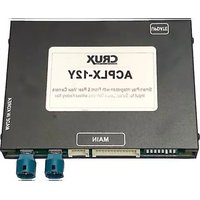
Exterior view of a black USB device with two Ethernet ports and a label (no readable text or symbols beyond branding)ACPTY-05W Module

natural_image
Coiled black cable with yellow connectors and connector (no visible text or symbols)USB Cable & Front Camera connector

natural_image
Close-up of a black flexible electronic connector with visible multicolored wires and connectors (no text or symbols)Power Harnesses
DIP SWITCH SETTINGS:
Model DIP # 1 2 3 4 5 6 7 8
Unplug the main harness on the module after changing the DIP switch settings.
WIRING DIAGRAM:

flowchart
graph TD
    A["WiFi"] --> B["CRUX® ACPTY-05W Smart-Play / Android Auto Integration for Toyota Vehicles"]
    B --> C["USB VIDEO POWER CAN"]
    B --> D["WiFi Antenna"]
    D --> E["10 Pin"]
    D --> F["24 Pin"]
    D --> G["28 Pin"]
    E --> H["TO 10 PIN FACTORY RADIO"]
    F --> I["TO 24 PIN FACTORY RADIO"]
    G --> J["TO 28 PIN FACTORY RADIO"]
    K["Ground"] --> L["CAMERA POWER SUPPLY"]
    M["FORWARD LOOKING INPUT"] --> N["USB CABLE"]
    O["Original Smartphone Cable Optional (Not Included)"] --> P["To Smartphone"]
AUDIO INPUT TO VEHICLE:
The Smart-Play audio will use the vehicle's auxiliary input via the factory radio connector. Change the factory radio "Audio Source" to "AUX" in order for the Smart-Play audio to be heard on the factory audio system. Note that the factory aux input cannot be used cannot be used while in Smart-Play mode.
To retain use of the factory bluetooth handsfree function, pair the phone to the radio. Use the steering wheel control to pickup and hang up phone calls. Use the touch screen for Smart-Play Controls.
NOTE: Answer phone calls from steering wheel control.
For Android mirroring, bluetooth must be on to have audio.

Select AUX or AV for Audio source on the factory radio.
SMART-PLAY ACTIVATION:
| MODEL | RADIO MANUFACTURER | ACTIVATION |
| PRIUS | PANASONIC | DOUBLE CLICK (HALF SECOND INTERVAL) THE POWER BUTTON DOUBLE CLICK AGAIN TO RETURN TO OEM SCREEN |
| CAMRY | PIONEER | |
| SIENNA | PIONEER | |
| 4RUNNER | PANASONIC | |
| HIGHLANDER | PANASONIC | |
| TACOMA | PANASONIC / JBL | |
| COROLLA | PANASONIC | |
| RAV-4 | FUJITSU TEN | DOUBLE CLICK (HALF SECOND INTERVAL) THE POWER BUTTON PRESS “AUDIO” BUTTON ONCE TO RETURN TO OEM SCREEN  |
| COROLLA | FUJISTU TEN | |
| RAV-4 | FUJITSU TEN | |
| PRIUS C | FUJITSU TEN |
SMART-PLAY ACTIVATION: (Continued)
NOTE: If the double-click does not switch into the CarPlay/Android Auto Video source, then:

Then long press the Voice Control Button on steering wheel for 2 seconds to enter Smart Play video source.

Use Mode Button If Voice Control Button is not available.
In the OEM car screen select the "FM" icon and then click on the "AUX" icon to enter CarPlay/Android Auto


WIRELESS CARPLAY/ WIRELESS ANDROID AUTO CONNECTION SETTINGS
Android Auto Wireless connection
Wired Connection Method:
Connect the phone cable with the original car, and then click "Allow" in the pop up window.

Step 1
Select the "Bluetooth"

Step 2
Check the Bluetooth name starting with "CAR-BT-xxx" in the Bluetooth interface

Step 3
Click on the Bluetooth name beginning with the link "CAR-BT-xxx", a pairing request will pop up, just click Pairing; after the Bluetooth pairing is successful, the phone will pop up a request to enable the carplay option, just confirm it.

Step 4
Click the Bluetooth name at the beginning of the link "CAR-BT-xxx" and click pairing. Turn on the Android auto app on the mobile phone, and the system will connect automatically.
Apple Carplay Wireless Connection
Wired Connection Method:
Connect the phone cable with the original car, and then Click "Use CarPlay" in the pop up window.

Step 1
Select "Bluetooth"

Step 2
Check the Bluetooth Device name as "CAR-BT-xxxx"

Step 3
Turn on WiFi and keep it on, then back to Bluetooth to connect CarPlay

Step 4
Select Bluetooth Device name as "CAR-BT-XXX"-Pair-Use CarPlay while that pop up a request window
NOTE: If experiencing connection issues, allow vehicle to go to sleep and disconnect the module.

4 of 7
rev.03172023
SMARTPHONE MIRRORING CONNECTION
Smartphone Mirroring Connection for Iphones

Step 1

Step 2

Step 3

Step 4
Select "Airplay"
Turn on the phone, select the "Wireless LAN" option, the search bar will show the "CAR-WIFI-XXX" and click the link, the password is 66668888
After the carplay wifi connection is successful, return to the main interface of phone, open the shortcut menu page, select "Screen Mirroring" and turn on
After the mobile phone "Screen Mirroring" is turned on, select "Airplay" to complete the wireless Screen Mirroring
NOTE: Bluetooth must be OFF to connect to AirPlay on iPhone.
Smartphone Mirroring Connection for Androids

Step 1

Step 2
Android phone scan and download the Auto Link by using the Browser.
Switch the WifiAutoLink to "ON" in the Settings page.

Step 3

Step 4
The touch reverse control and the media sound can be realized after the Auto Link connection, media sound needs to connect with Bluetooth.
Open the Auto link software you downloaded, search "WiFiAutolink-xxx" and connect, then click the "START NOW" on the phone prompt box.
VEHICLE APPLICATIONS:
Compatible with Toyota vehicles with touch screen.
Toyota
| 2014-2019 | 4Runner (Only fits Panasonic and Fujitsu radios, Pioneer radios are not compatible) |
| 2015-2018 | Avalon |
| 2014-2017 | Camry |
| 2014-2018 | Corolla (Not compatible with 86140-02540 Fujitsu with 7" display) |
| 2014-2019 | Highlander (not compatible with models with 360 bird's eye view system) |
| 2014-2019 | |
| 2015-2019 | Prius (models with JBL system will have a lower image resolution due to screen limitation)(not compatible with Prius Prime with 11.6" screen) |
| 2016-2019 | Prius c |
| 2016-2017 | Prius v |
| 2014-2018 | RAV4 |
| 2014-2019 | Sequoia |
| 2015-2017 | Sienna (models with JBL system will have a lower image resolution due to screen limitation) |
| 2016-2019 | Tacoma (models with JBL system will have a lower image resolution due to screen limitation) |
| 2014-2019 | Tundra |
| 2014-2018 | Yaris |
| 2017-2019 | 86 |
NOTE: If the Smart-Play system is removed from the vehicle and the factory backup camera does not work, unplug the radio power connector for 5 to 10 minutes to reset the backup camera system. Some vehicles voice dial and text message function from the unit does not work.


Camera selection:
Select OEM Camera and Aftermarket Camera
Default regular resolution: 670*470
Left and right display incomplete selection: Senna L/R not full 709*470
RAV4 Corolla display leftward selection: RAV4 6" Left offset 670*470


Steps: Settings-Audio-AEC Delay, then click the button "Start Auto AEC"
Call Echo Cancellation: If there is an echo, please click this button for echo correction.
When correcting the echo, we must :
- Keep quiet in the car;
- Turn the volume to a moderate position, and then click "start" to cancel echo.
TROUBLESHOOTING
*If your call audio does not use car's bluetooth, manually change it on the phone to select the vehicle during the call, then the phone should remember the last used setting


Changing the call audio routing setting to "BLUETOOTH HEADSET"
Go to Settings - Accessibility - Touch - Call Audio Routing. Keep it at "Automatic"
- IF the screen is black & not showing factory infotainment screen or the CarPlay/Android Auto Screen
- Confirm secure connection of cables to the back of radio.
- Confirm connectors are not damaged, pinched, kinked or bent.
- Switching from Smart-Phone Mirroring to CarPlay/Android Auto or general issues.
- If device is unresponsive or glitching, turn vehicle off and allow module to sleep then try again.
- PARTS INCLUDED:
- DIP SWITCH SETTINGS:
- WIRING DIAGRAM:
- AUDIO INPUT TO VEHICLE:
- SMART-PLAY ACTIVATION: (Continued)
- WIRELESS CARPLAY/ WIRELESS ANDROID AUTO CONNECTION SETTINGS
- Android Auto Wireless connection
- Apple Carplay Wireless Connection
- SMARTPHONE MIRRORING CONNECTION
- Smartphone Mirroring Connection for Iphones
- Smartphone Mirroring Connection for Androids
- VEHICLE APPLICATIONS:
- Camera selection:
- TROUBLESHOOTING
Brand : CRUX
Model : ACPTY-05W
Category : Smartphone