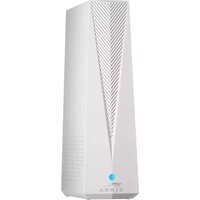
SURFboard W6U - Network card / adapter Arris - Free user manual and instructions
Find the device manual for free SURFboard W6U Arris in PDF.


| Product Type | Wireless Network Adapter |
| Model | SURFboard W6U |
| Brand | Arris |
| Interface | USB 3.0 |
| Wireless Standards | IEEE 802.11ac/a/b/g/n |
| Frequency Band | Dual-band 2.4 GHz and 5 GHz |
| Maximum Data Rate | Up to 1200 Mbps (300 Mbps 2.4 GHz + 866 Mbps 5 GHz) |
| Dimensions (W x D x H) | 0.9 x 0.5 x 0.2 inches (23 x 13 x 5 mm) |
| Weight | 0.3 oz (8.5 g) |
| Power Source | USB bus-powered |
| Power Consumption | 2.5 W (typical) |
| Operating Temperature | 32°F to 104°F (0°C to 40°C) |
| Storage Temperature | -4°F to 140°F (-20°C to 60°C) |
| Operating Humidity | 10% to 90% non-condensing |
| LED Indicators | Power and Link/Activity |
| Antenna Type | Internal dual-band antenna |
| Security | WPA/WPA2, WEP 64/128-bit |
| Compatibility | Windows 7/8/10, macOS, Linux |
| Maintenance | Keep clean from dust; avoid liquids; update drivers periodically |
| Spare Parts | Not available; device is non-serviceable |
Frequently Asked Questions - SURFboard W6U Arris
User questions about SURFboard W6U Arris
0 question about this device. Answer the ones you know or ask your own.
Ask a new question about this device
Download the instructions for your Network card / adapter in PDF format for free! Find your manual SURFboard W6U - Arris and take your electronic device back in hand. On this page are published all the documents necessary for the use of your device. SURFboard W6U by Arris.
USER MANUAL SURFboard W6U Arris
natural_image
Three people collaborating around a laptop in an office setting (no visible text or symbols)ARRIS SURFboard® Wi-Fi 6E Network Upgrade Adapter W6U
User Guide, STANDARD Revision x.1
P/N 365-095-37011
CommScope copyrights and trademarks
© 2022 CommScope, Inc. All rights reserved. All trademarks identified by ^TM or ^® are trademarks or registered trademarks in the US and may be registered in other countries. All product names, trademarks and registered trademarks are property of their respective owners.
Wi-Fi Alliance ^® , Wi-Fi ^® , the Wi-Fi logo, the Wi-Fi CERTIFIED logo, Wi-Fi protected access ^® (WPA), the Wi-Fi Protected Setup logo, and WMM ^® are registered trademarks of Wi-Fi Alliance. Wi-Fi Protected Setup ^™ , Wi-Fi Multimedia ^™ , and WPA2 ^™ are trademarks of Wi-Fi Alliance.
CommScope provides this guide without warranty of any kind, implied or expressed, including, but not limited to, the implied warranties of merchantability and fitness for a particular purpose. ARRIS may make improvements or changes in the product(s) described in this manual at any time.
The capabilities, system requirements and/or compatibility with third-party products described herein are subject to change without notice.
Safety and regulatory information
Read all safety and regulatory information before installing your device and setting up your home network connection.
Important safety instructions
Read this before you begin — When using your equipment, basic safety precautions should always be followed to reduce the risk of fire, electric shock, and injury to persons, including the following:
- Read all the instructions listed here and/or in the user manual before you operate this device. Give attention to all safety precautions. Retain the instructions for future reference.
This device must be installed and used in strict accordance with manufacturer's instructions, as described in the user documentation that is included with the device.
■ Comply with all warning and caution statements in the instructions. Observe all warning and caution symbols that are affixed to this device.
■ To prevent fire or shock hazard, do not expose this device to rain or moisture. The device must not be exposed to dripping or splashing. Do not place objects filled with liquids, such as vases, on the device.
This device was qualified under test conditions that included the use of the supplied cables between system components. To ensure regulatory and safety compliance, use only the provided power and interface cables and install them properly.
■ Different types of cord sets may be used for connections to the main POWER supply circuit. Use only a main line cord that complies with all applicable device safety requirements of the country of use.
■ Installation of this device must be in accordance with national wiring codes and conform to local regulations. - Operate this device only from the type of power source indicated on the device's marking label. If you are not sure of the type of power supplied to your home, consult your dealer or local power company.
- Do not overload outlets or extension cords, as this can result in a risk of fire or electric shock. Overloaded AC outlets, extension cords, frayed power cords, damaged or cracked wire insulation, and broken plugs are dangerous. They may result in a shock or fire hazard.
-
Route power supply cords so that they are not likely to be walked on or pinched by items placed upon or against them. Pay attention to cords where they are attached to plugs and convenience receptacles; and examine the point where they exit from the device.
■ Place this device in a location that is close enough to an electrical outlet to accommodate the length of the power cord.
■ Place the device to allow for easy access when disconnecting the power cord of the device from the AC wall outlet. -
Do not connect the plug into an extension cord, receptacle, or other outlet unless the plug can be fully inserted with no part of the blades exposed.
■ Place this device on a stable surface.
■ Installation of an AC surge protector in the AC outlet to which this device is connected is recommended. This is to avoid damaging the device by local lightning strikes and other electrical surges.
■ Postpone installation until there is no risk of thunderstorm or lightning activity in the area. - Avoid using a telephone (other than a cordless type) during an electrical storm. There is a remote risk of electric shock from lightning. For added protection, unplug the device from the wall outlet and disconnect the cables to avoid damage to this device from lightning and power surges.
- Do not use this product near water. For example, near a bathtub, washbowl, kitchen sink, laundry tub, swimming pool, or in a wet basement.
- Do not cover the device or block the airflow to the device with any other objects. Keep the device away from excessive heat and humidity and keep the device free from vibration and dust.
■ Wipe the device with a clean, dry cloth. Never use cleaning fluid or similar chemicals. Do not spray cleaners directly on the device or use forced air to remove dust.
■ For added protection, unplug the device from the wall outlet and disconnect the cables to avoid damage to this device during lightning activity or power surges.
CAUTION: To reduce the risk of fire, use only No. 26 AWG or larger (e.g., 24 AWG) UL Listed or CSA Certified Telecommunication Line Cord, or national equivalent.
■ Upon completion of any service or repairs to this device, ask the service technician to perform safety checks to determine that the device is in safe operating condition. - Do not open the device. Do not perform any servicing other than that contained in the installation and troubleshooting instructions. Refer all servicing to qualified service personnel.
■ This device should not be used in an environment that exceeds 104^ F ( 40^ C).

SAVE THESE INSTRUCTIONS

Note: To CATV system installer — This reminder is provided to call the CATV system installer's attention to Section 820.93 of the National electric code, which provides guidelines for proper grounding and, in particular, specifies that the coaxial cable shield must be connected to the grounding system of the building, as close to the point of cable entry as practical.
FCC Interference statement
This equipment has been tested and found to comply with the limits for a Class B digital device, pursuant to part 15 of the FCC Rules. These limits are designed to provide reasonable protection against harmful interference in a residential environment. This equipment generates, uses, and can radiate radio frequency energy and, if not installed and used in accordance with the instructions, may cause harmful interference to radio communications. However, there is no guarantee that interference will not occur in a particular installation. If this equipment does cause harmful interference to radio or television reception, which can be determined by turning the device off and on, the user is encouraged to try to correct the interference by one or more of the following measures:
■ Increase the separation between the device and receiver.
■ Connect the equipment into an outlet on a circuit different from that to which the receiver is connected.
■ Consult the dealer or an experienced radio/TV technician for help.
This device complies with Part 15 of the FCC Rules. Operation is subject to the following two conditions: (1) This device may not cause harmful interference, and (2) This device must accept any interference received, including interference that may cause undesired operation.

CAUTION: Any changes or modifications not expressly approved by CommScope for compliance could void the user's authority to operate the equipment.
FCC Declaration of Conformity
CommScope, Inc, 3871 Lakefield Drive, Suwanee, GA 30024, declares that the SURFboard device complies with 47 CFR Parts 2 and 15 of the FCC rules as a Class B digital device.
FCC Radiation Exposure statement
This equipment complies with FCC radiation exposure limits set forth for an uncontrolled environment. To comply with the FCC RF exposure compliance requirements, the separation distance between the antenna and any person's body (including hands, wrists, feet and ankles) must be at least 8 inches (20.3 centimeters).
This transmitter must not be co-located or operating in conjunction with any other antenna or transmitter except those already approved in this filing.
The availability of some specific channels and/or operational frequency bands are country dependent and are firmware programmed at the factory to match the intended destinations. The firmware setting is not accessible by the end user.

Note: This applies to devices that provide Wi-Fi capability.
This device is a wireless network product that uses Direct Sequence Spread Spectrum (DSSS) and Orthogonal Frequency-Division Multiple Access (OFDMA) radio technologies. The device is designed to be interoperable with any other wireless DSSS and OFDMA products that comply with:
■ The IEEE 802.11 Standard on Wireless LANs (Revision AC, Revision B, Revision G, and Revision N), as defined and approved by the Institute of electrical electronics engineers.
■ The wireless fidelity (Wi-Fi) certification as defined by the Wireless Ethernet Compatibility Alliance (WECA).


Restrictions on the use of wireless devices
In some situations, or environments, the use of wireless devices may be restricted by the proprietor of the building or responsible representatives of the organization. For example, using wireless equipment in any environment where the risk of interference to other devices or services is perceived or identified as harmful.
If you are uncertain of the applicable policy for the use of wireless equipment in a specific organization or environment, you are encouraged to ask for authorization to use the device prior to turning on the equipment.
The manufacturer is not responsible for any radio or television interference caused by unauthorized modification of the devices included with this product, or the substitution or attachment of connecting cables and equipment other than specified by the manufacturer. Correction of the interference caused by such unauthorized modification, substitution, or attachment is the responsibility of the user.
The manufacturer and its authorized resellers or distributors are not liable for any damage or violation of government regulations that may arise from failing to comply with these guidelines.
The operation of this device is prohibited on oil platforms, cars, trains, boats, and aircraft, except that operation of this device is permitted in large aircraft while flying above 10,000 feet. Operation of transmitters in the 5.925-7.125GHz band is prohibited for control of or communications with unmanned aircraft systems.

Note: The use of 5150-5250 and 5925-7125 MHz frequency band is restricted to indoor use only.

Warning: This device allows you to create a wireless network. Wireless network connections may be accessible by unauthorized users. For more information on how to protect your network, refer to the relevant chapters in this document or visit our Consumer Support website at http://www.arris.com/selfhelp.
Caring for the environment by recycling your ARRIS equipment

Please do not dispose of this product with your residential or commercial waste. Contact your local authorities for information about practices established for your region. If collection systems are not available, call ARRIS Technical Support at 1-877-466-8646 for assistance.
Table of contents
Chapter 1: Introduction......10
In the box....10
System requirements.... 10
Supported devices.... 11
Contact information....11
Front panel and LED behavior....12
Rear panel and LED behaviour....13
Unit label.... 14
Mobile app help....15
Chapter 2: Getting started....16
Get the ARRIS SURFboard Central mobile app.... 16
Launch the ARRIS SURFboard Central mobile app....17
Create your SURFboard account.... 17
Set up your W6U using the Surfboard Central mobile app....18
Chapter 3: SURFboard Central mobile app features.... 20
Home....20
Device details.... 21
GUI Access Help....22
Network status.... 24
Wireless settings....25
Administration....26
Reboot or restart your device....26
Firmware update.... 27
LED settings.... 28
Time settings.... 29
WPS settings....29
Side menu....30
Add or remove devices....31
Account Details....32
Visit www.SURFboard.com 32
Support Details.... 32
About....32
Help.... 32
Introduction
The ARRIS SURFboard ^® Wi-Fi 6E Network Upgrade Adapter W6U allows you to upgrade your Wi-Fi network to the latest Wi-Fi 6E standard without losing the existing network or replacing any of your existing equipment.
The ARRIS SURFboard® Central mobile application steps you through configuring your Gaming Bridge or Extender (see Supported devices (page 11)) using your iOS or Android mobile device (smartphone, tablet). With this mobile app, you can set up and monitor Wi-Fi access, Parental Controls, and security protection on all the connected devices (e.g., smartphones, tablets, computers, Smart TVs, gaming consoles, etc.) on your Wi-Fi home network. The mobile app is available online as a free download for your mobile device (see Get the ARRIS SURFboard Central mobile app (page 16)):
■ Apple App Store (for iOS devices)
■ Google Play (for Android devices)
In the box
Check that the items listed below are included in your W6U product box. If any items are missing, please call ARRIS technical support at 1-877-466-8646 for assistance.
■ A W6U unit
■ An Ethernet cables
■ An AC power adaptor
System requirements
■ High-speed Internet access account
■ Web browser access – Internet Explorer, Google Chrome, Firefox, or Safari
■ Compatible operating systems:
- Windows ^® 10
- Windows 8
- Windows 8.1
● Windows 7 service pack 1 (SP1)

Note: Although older versions of Microsoft Windows operating systems are no longer specifically supported, they should still function with your W6U (Network Upgrade Kit).
- Mac ^® 10.4 or higher
- UNIX ®
- Linux ®
Supported devices
The retail SURFboard device W6U supports all versions of the ARRIS SURFboard Central mobile app. Please note that the full features and functionality of the mobile app may be dependent on the version of your managed SURFboard device.
Contact information
For technical support and additional ARRIS product information:
■ Visit the ARRIS Support website: www.arris.com/selfhelp
■ Call ARRIS Technical Support: 1-877-466-8646
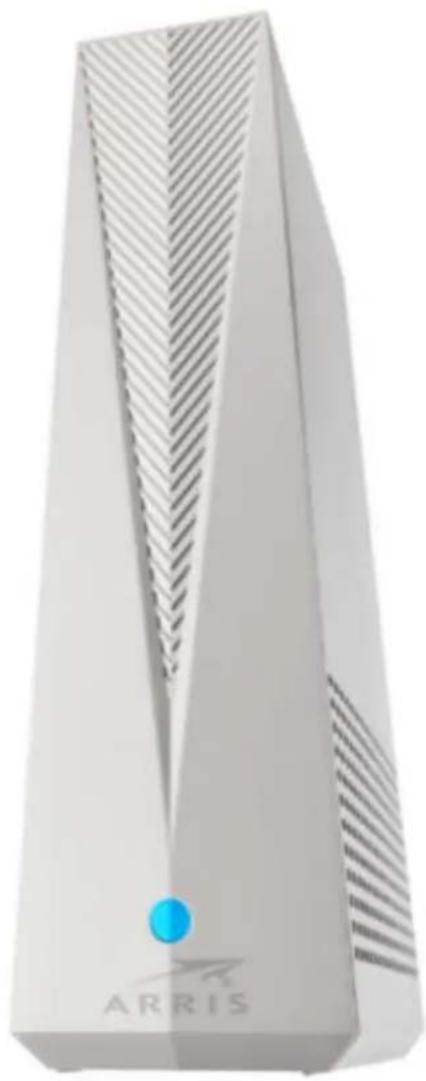
Front panel and LED behavior
natural_image
Exterior view of a modern office building (no signage)Figure 1: Front view of W6U unit
LED behavior
| LED behavior | LED description in the W6U unit |
| Orange (Blinking) The unit is powering on | |
| White (Solid) The unit has successfully powered on | |
| Blue (Solid) The unit is connected to Internet |
LED behavior LED description in the W6U unit
Red (Solid) The unit has no Internet connection
Rear panel and LED behaviour

Rear panel and connections
| Port name | Description |
| Reset button | Reset button is located on the rear panel of your device can be used to either reboot your device or reset your device configuration settings.To reboot (or restart) your device:1. Insert the end of a paper clip or other small object with a narrow tip into the Reset port on the rear panel of your device.2. Press and hold the Reset button for three to four seconds only.3. Remove the paper clip or small object from the Reset port.To reset your device's configuration changes to factory default settings: |
| Port name Description | |
| 1. Insert the end of a paper clip or other small object with a narrow tip into the Reset port on the rear panel of your device.2. Press and hold the Reset button for ten seconds.3. Remove the paper clip or small object from the Reset port.Warning: Resetting your device configuration settings to factory default settings will also delete your custom device configuration settings including your user password setting and other configuration settings. | |
| Sync buttonPress the SYNC button to connect | any clientdevice that supports WPS. |
| Ethernet To connect the Ethernet cable to your home router. | |
| Power To connect the power cable to the power outlet | |
| LED behavior LED description in the Ethernet port | |
| Green (Solid) Ethernet network link is working | |
| Green (Flashing) There is network traffic | |
| OffThere is no network link | |
Unit label
SURFboard ^® Model:W6U
P/N:WR00ZAXW6UAX
Need Help www.arris.com/consumer
US Pat. www.arns.com/legal Other patents
pending. ©ARRIS 2021-2022.
ALL rights reserved
S/N:YMD5 45## ##XX XXX

MAC ID:XX XX XX XX XX XX
ARRIS
FCC ID:UIDW6
Made in xxxxxxxx

cULUS
LISTED
LTE.
E214476
Sample unit label

Note: The image shown above is a sample label. You can find the label on the base of your W6U unit. Ensure to scan the QR code on the label found on the base of the unit.
The label is located on the bottom of your respective W6U unit. The label contains information you will need to activate your W6U or information to report during any technical issues.
The following information are listed on the W6U label:
■ Model name
■ Serial number (SN)
■ MAC address
Mobile app help
Some of the SURFboard Central mobile app screens offer textual help. Tap the ? if you require more information or assistance with something on that screen.
FAQ is also available on the Side menu, accessed from the Collapsed menu icon ☐ on the mobile app Home screen. Here, you can read our Frequently Asked Questions, get contact information for ARRIS support, tap to navigate to our self-help site, or get answers quickly with our Live chat feature.
If you require more assistance, call ARRIS Technical Support: 1-877-466-8646.
Getting started
This product is for indoor use only. Do not route the Ethernet cable(s) outside of the building. Exposure of the cables to lightning could create a safety hazard and damage the product.
Before installing your device, check with your service provider (or local cable company) to ensure broadband cable service is available in your area.
Some screenshots throughout this chapter may contain images of a model different that you own, these are simply examples and the app on your mobile device should represent the model you are configuring.
To set up your W6U using the SURFboard Central app:
- Get the ARRIS SURFboard Central mobile app (page 16)
- Launch the ARRIS SURFboard Central mobile app (page 17)
- Create your SURFboard account (page 17)
- Set up your W6U using the Surfboard Central mobile app (page 18)
Get the ARRIS SURFboard Central mobile app
The ARRIS SURFboard Central mobile app is a quick and easy-to-use option to set up and activate your device and register for warranty using your iOS or Android mobile device.
- Ensure that you have Internet connection on your mobile device and scan the QR code available on your device (you may refer to the Quick Start Card or see the bottom of your device for label details).
The SURFboard Central mobile app screen displays.
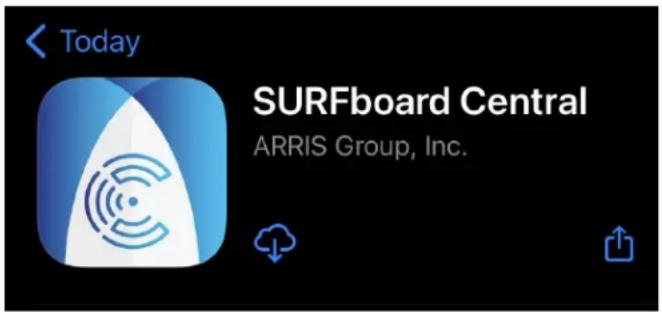
Figure 6: SURFboard Central mobile app download screen
- Download the SURFboard Central mobile app on your mobile device.

Note: After the download is finished, the ARRIS SURFboard Central mobile app shortcut will be added to your mobile device Home or Apps screen.
Launch the ARRIS SURFboard Central mobile app
■ Once you have the SURFboard Central mobile app installed, tap the shortcut on your mobile device to launch it.

Create your SURFboard account
- On the LET'S GET YOU STARTED WITH YOUR NEW SURFBOARD DEVICE! screen, tap GET STARTED to begin the setup process..
- Tap CONTINUE after granting the required permissions. The app may need to request permissions to improve the app experience during setup.
- On the second SELECT YOUR DEVICE BELOW screen, select 6GHz Enabled Devices and then tap NEXT.
- On the SELECT YOUR DEVICE BELOW screen, select the Gaming Bridge or Extender device group and tap NEXT.
- In the WELCOME screen, provide an email for your account and tap to SIGN UP (if you do not yet have a registered account) or SIGN IN to your registered account. You will receive a verification code at this email address to activate your account. This will be the account that manages your home network. If you have an existing account, it will be recognized and you will not be prompted for additional information.
- If this is a new account, you will be prompted for account information. Complete the information requested on the LET'S CREATE YOUR ACCOUNT screen. Tap the check box to agree to the Terms and Conditions and SIGN UP to continue.
- Shortly, you will receive a verification code at the email address you provided. This code is only valid for 24 hours. Enter the code on the ENTER VERIFICATION CODE screen.
- When verification is complete, the ACCOUNT VERIFIED screen will display. Tap NEXT.

Set up your W6U using the Surfboard Central mobile app
- On SCAN LABEL TO CONTINUE screen, you can choose to perform one of the following:

2.
- Tap SCAN to scan the QR code (available on the label located on the base of your W6U or the Quick Start Card) and tap OK to allow access to camera.
- Tap ENTER MANUALLY to enter the Main Access Point S/N and Main Access Point MAC, details located on the label and tap NEXT
Your device W6U registers successfully.
-
In the 6GHz NETWORK UPGRADE KIT screen, tap NEXT.
-
The GETTING CONNECTED screen appears twice indicating to make the connections as specified and look for the LED indications and then tap NEXT.
-
The YOU'RE GOOD TO GO screen appears indicating that your devices are connected and you are good to proceed.
■ Tap DONE if you have no other changes to the device settings and proceed.
■ Tap ADVANCED SETTINGS if you want to set your preferred operating channel and configure SSID to connect to any of your 6GHz clients. To change the settings:
The YOUR 6GHZ NETWORK HAS BEEN SET UP! screen appears indicating that your devices are connected and ready to support your gaming needs.
- Tap CONTINUE.
SURFboard Central mobile app features
The main navigational features of the SURFboard Central mobile app are the Home, User Guide, and FAQ screens - all accessible by tapping the corresponding icon at the bottom of the SURFboard Central mobile app - and a Side menu, accessed by tapping the Collapsed menu icon at the top, left-hand corner of the Home screen.
The Home screen gives you device details, specifications, and access to GUI help.
The User Guide screen gives you access to the detailed User Guide for this device.
The FAQ screen allows you to browse through the list of topics that range from simple to complex.
The Side menu, accessed by tapping the Collapsed menu icon at the top, left-hand corner of the Home screen, has eight buttons from which you can perform a Add Device, Remove Device, Support Details, Visit www.SURFboard.com, get Account Details, learn more About your device versions and the licensing, and view your User Guide, and User FAQ.

Note: Some screenshots throughout this chapter may contain images of a model different that your own, these are simply examples and the app on your mobile device should represent the model you are configuring.
Home
Tap the Home icon at the bottom of the SURFboard Central mobile app to return to the Home screen from anywhere in the SURFboard Central mobile app.
These are the main features on the Home screen.
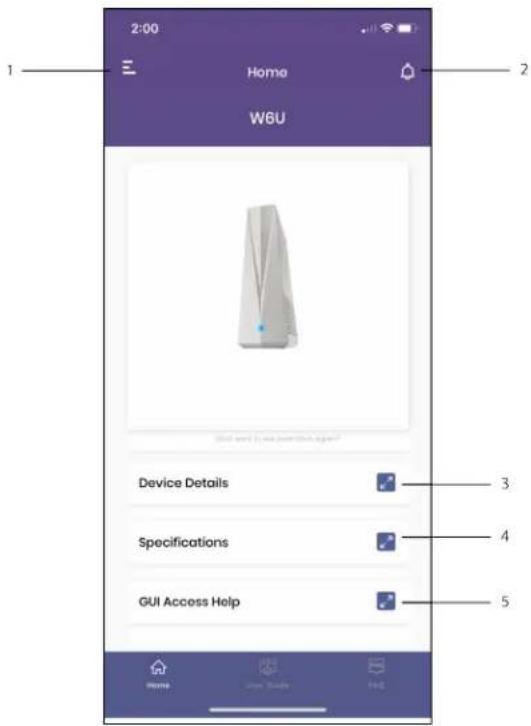
1 Collapsed menu icon. Tap to access the Side menu.
2 Notifications: Tap the Notification bell to display firmware updates, incidents of new devices connecting to your network, unsuccessful device responses, and more.
3 Device Details: Tap to view details about your device that you are connected to.
4 Specifications: Tap to view the User Guide of your device.
5 GUI Access Help: Tap to access the advance settings allowing you to connect to your gaming bridge.
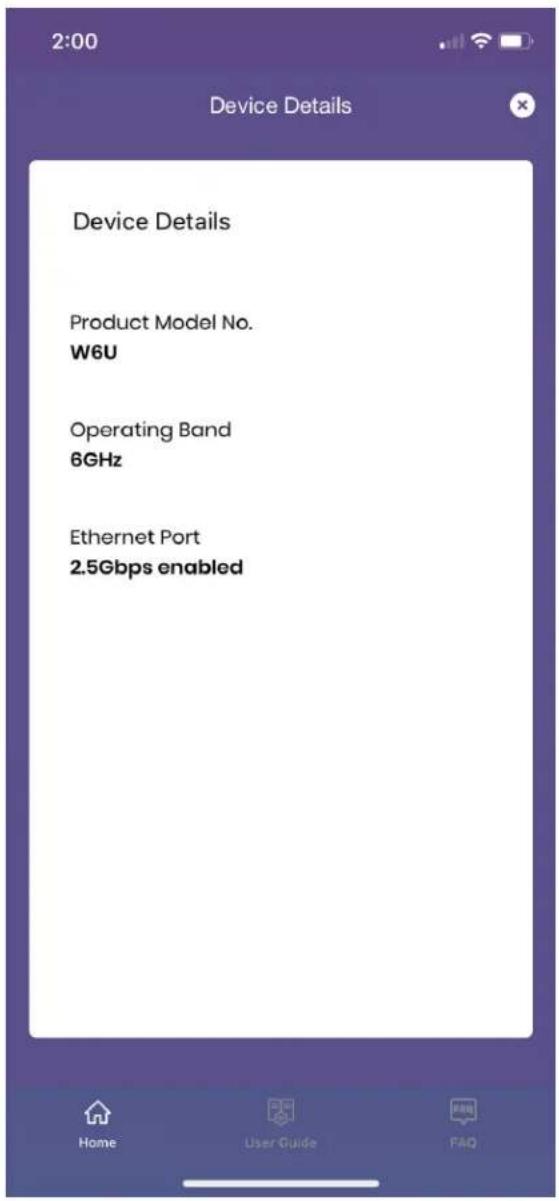
Device details
To access information about your device, On the Home screen tap Device Details to display details.
You can view your device model number, operating band and if your Ethernet port is enabled at 2.5Gbps.
GUI Access Help
To access information about your device, on the Home screen, tap GUI Access Help and at the bottom of the SURFboard Central mobile app to display the details about advanced settings.

You have two options to connect to your gaming bridge:
■ Option 1: Tap LAUNCH BROWSER if you prefer to access the settings while connected to your home network and launch your mobile browser.
■ Option 2: Connect your W6U unit with Ethernet cable and launch web browser to navigate to https://w6u.local.

Note: You will need to create your login credentials when you login to the web browser for the first time. Remember to note the credentials as you will need to enter them when you need to access the GUI Access help to change the settings for your unit.
As part of advanced settings, you can change the following settings for the unit in the web browser.
| Network Status | |
| Wireless Settings | |
| Administration | System Status |
| System & Reboot | Network Status offline |
| Firmware Upgrade | Firmware Version V1.0.0.13-diag |
| LED Settings | Current Time 2022/03/22 04:07:58 |
| Time Settings | |
| WP5 Settings | LAN Status |
| Logout | MAC Address 24.0B:88.05.6E.FA |
| IP Address 192.168.7.90 | |
| Subnet Mask 255.255.255.0 | |
| Radio Status | |
■ Network Status: You can view the network status of your W6U unit.
■ Wireless Settings: You can view and change the Radio and SSID settings of your W6U unit.
■ Administration: You can change your login credentials (user name and password) to keep your W6U device secure.
■ System and Reboot: You can restore and restart your W6U device.
■ Firmware Upgrade: You can check online and ensure to upgrade your firmware.
■ LED Status: You can change your LED settings as per your requirement.
■ Time Settings: You can change the time based on your time zone and automatically adjust your also daylight saving time.
■ WPS Settings: You can enable or disable the WPS settings allowing your Wi-Fi client devices to connect through WPS.
■ Logout: To logout from the web browser page.
Network status
You can view the network status based of your device. You can view system status, LAN status, SSID status, list of client devices connected to your W6U unit.
Tap Refresh under Client Lists to view the list of devices connected.
| Network Status | |
| Wireless Settings | |
| Administration | System Status |
| System & Reboot | Network Status offline |
| Firmware Upgrade | Firmware Version V1.0.0.13-diag |
| LED Settings | Current Time 2022/03/22 04:07:58 |
| Time Settings | |
| WPS Settings | LAN Status |
| Logout | MAC Address 24.0B:88.05.6E.FA |
| IP Address 192.168.7.90 | |
| Subnet Mask 255.255.255.0 | |
| Radio Status | |
Wireless settings
You can change the wireless settings.
To change the wireless settings:
- On the Wireless Settings page, under Radio Settings, you can specify the following:

■ Channel: The device will be operating in the wireless channel. To ensure best compatibility, choose a channel that is marked PSC (Primary Scan Channel).
■ Allow non Preferred Scanning Channels: Tap to select this option if you prefer to enable all the 6GHz channels. It may take longer duration for the clients to discover a device on a non-PSC, and few devices will not be able to connect at all.
■ Channel Width: This allows you to set the maximum width of the channel from 20MHz to 160MHz.
- Under SSID Settings, you can perform the following:
■ Index: Setup a Guest Network allowing your guest to access Internet without compromising your devices on your Main Network. Select Main Network or Guest Network to configure the settings for the respective network.
■ SSID Name: Specify the name for your wireless network.
■ Security Mode: WPA3-Personal is the only security type allowed for Wi-Fi 6E.
■ Password: Enter the password between 8 and 63 characters.
- Tap Submit to save the changes.
Administration
As part of administration, it allows you to secure your device and connections.
To change the login credentials:
- On the Administration page of the Main AP device, enter the Old username and Old password fields.

- Enter the new Username, Password, and Confirm password fields.
- Tap Submit to save the changes.
Reboot or restart your device
To reboot your device
■ On the System & Reboot page, tap Factory Defaults to restore your device to factory default settings.

To restart your device

Warning: This action will not delete any of your configuration settings and allow you to restore the default (original) configuration.
- On the System & Reboot page, tap Restart to restart your device. This action is required if your device does not intend to work as expected.

Firmware update
As part of firmware update, you can check and ensure that the firmware of your devices are up-to-date.
■ On the Firmware update page of the Main AP device or Satellite device, tap Check Online to check for the new firmware if available.


Note: The Last check time field indicates the time of the latest firmware update. The device checks on a everyday basis for the latest firmware updates. The Current Firmware Versionfield indicates the current firmware version that is installed on the device
LED settings
To change your LED settings
- On the LED Settings page, under the Select LED mode drop-down menu, choose any of the below options as per your requirement.

■ ON: Indicates the LED is turned on at all times.
■ OFF: Indicates the LED is turned off at all times.
■ OFF with Alerts: Indicates LED is turned off except when an alert appears.
- Tap Submit to save the changes.
Time settings
To change your Time zone
- On the Time Settings page, under the Time Zone drop-down menu, choose your time zone.


Note: If you choose to automatically adjust the daylight saving time, then tap to select the Automatically adjust for daylight saving time checkbox.
- Tap Submit to save the changes.
WPS settings
To connect your client device using the WPS button
- Press the WPS button on your Wi-Fi client device. For more details to locate the WPS button on your device, refer to your client device's user guide.
- Within a couple of minutes, press the button labelled SYNC on your device or on the WPS Settings page, tap to enable to WPS Status drop-down menu to choose Enabled.

Side menu
Access the Side menu by tapping the Collapsed menu icon at the top, left-hand corner of the Home screen.

The Side menu has eight buttons, which you can tap to Add Device or Remove Device; view Support Details; visit www.SURFboard.com to your network; view Account Details; learn About licensing and purchase information; get help User Guide; and view FAQ.
Add or remove devices
You can add a new device such as SURFboard Max, Gateway, cable modem or remove an existing connected device.
To add a new device:
On the Home screen, tap the side menu and then tap Add Device. Tap to select your device type and tap Next. Follow the on-screen instructions. For more details, refer to the respective SURFboard Quick Start Guide or the SURFboard User Guide.
To remove an existing connected device:
- On the Home screen, tap the side menu and then tap Remove Device.
- Tap to select your device type and tap Next.
- Follow the on-screen instructions. For more details, refer to the respective SURFboard Quick Start Guide or the SURFboard User Guide.
Account Details
The Account Details screen shows you the account information associated with your SURFboard account including your Name and Email address. If this account information is not accurate or you want to switch to another account, simply tap SIGN OUT and you will be brought back to the Welcome screen where you can either switch accounts or sign up for a new one.
Visit www.SURFboard.com
You can visit the http://www.SURFboard.com to understand various other SURFboard products that are available and related documentation.
■ On the Side menu, tap www.SURFboard.com.
The SURFboard website appears.
Support Details
We are here to help! Choose your preferred method to contact us for assistance from the options below. You can access this information from the Side menu > Support Details.
■ Browse ARRIS Consumer Support by tapping www.arris.com/selfhelp.
■ Tap Chat with us to connect with one of our helpful, live tech support people.
■ Service Provider Contact Details: Tap the link to connect with your service provider.
About
The About screen displays the following information on your device:
■ Model name: This is the model name of your device (W6U).
■ App Version: This is the current version of the SURFboard Central app you are using.
■ VIEW EULA button provides relevant safety and regulatory information of your device.
Help
We are here to help! Choose your preferred method to contact us for assistance from the options below. You can access this information from the Side menu > FAQ.
■ Frequently Asked Questions: Tap to browse the list of topics that range from the simple to the complex.
■ Call us at 1-877-466-8646.
■ Browse ARRIS Consumer Support by tapping www.arris.com/selfhelp.
■ Tap Live chat to connect with one of our helpful, live tech support people.
CommScope, Inc. ("ARRIS")
Retail Purchasers
If you purchased this Product directly from ARRIS or from an authorized ARRIS retail reseller, ARRIS warrants to you, the original end user customer, that (A) the Product, excluding Software, will be free from defects in materials and workmanship under normal use, and (B) with respect to Software, (i) the media on which the Software is provided will be free from defects in material and workmanship under normal use, and (ii) the Software will perform substantially as described in its documentation. This Limited Warranty to you, the original end user customer, continues (A) for Software and the media upon which it is provided, for a period of ninety (90) days from the date of purchase from ARRIS or an authorized ARRIS reseller, and (B) for the Product (excluding Software), for a period of one (1) year from the date of purchase from ARRIS or from an authorized ARRIS reseller. To take advantage of this Limited Warranty or to obtain technical support, you must call the ARRIS toll-free phone number: 1-877-466-8646. ARRIS' sole and exclusive obligation under this Limited Warranty for retail sales shall be to repair or replace any Product or Software that does not meet this Limited Warranty. All warranty claims must be made within the applicable Warranty Period.
Cable Operator or Service Provider Arrangements
If you did not purchase this Product directly from ARRIS or from a ARRIS authorized retail reseller, ARRIS does not warrant this Product to you, the end-user. A limited warranty for this Product (including Software) may have been provided to your cable operator or Internet Service Provider ("Service Provider") from whom you obtained the Product. Please contact your Service Provider if you experience problems with this Product.
General Information
The warranties described in this Section shall not apply: (i) to any Product subjected to accident, misuse, neglect, alteration, Acts of God, improper handling, improper transport, improper storage, improper use or application, improper installation, improper testing, or unauthorized repair; or (ii) to cosmetic problems or defects which result from normal wear and tear under ordinary use, and do not affect the performance or use of the Product. ARRIS' warranties apply only to a Product that is manufactured by ARRIS and identified by ARRIS owned trademark, trade name or product identification logos affixed to the Product. ARRIS does not warrant to you, the end user, or to anyone else that the Software will perform error free or without bugs.
ARRIS IS NOT RESPONSIBLE FOR, AND PROVIDES "AS IS" ANY SOFTWARE SUPPLIED BY 3RD PARTIES. EXCEPT AS EXPRESSLY STATED IN THIS SECTION ("WARRANTY INFORMATION"), THERE ARE NO WARRANTIES OF ANY KIND RELATING TO THE PRODUCT, EXPRESS, IMPLIED OR STATUTORY, INCLUDING BUT NOT LIMITED TO IMPLIED WARRANTIES OF MERCHANTABILITY, FITNESS FOR A PARTICULAR PURPOSE, OR THE WARRANTY AGAINST
INFRINGEMENT PROVIDED IN THE UNIFORM COMMERCIAL CODE. Some states do not allow for the exclusion of implied warranties, so the above exclusion may not apply to you.
What additional provisions should I be aware of? Because it is impossible for ARRIS to know the purposes for which you acquired this Product or the uses to which you will put this Product, you assume full responsibility for the selection of the Product for its installation and use. While every reasonable effort has been made to ensure that you will receive a Product that you can use and enjoy, ARRIS does not warrant that the functions of the Product will meet your requirements or that the operation of the Product will be uninterrupted or error-free.
ARRIS IS NOT RESPONSIBLE FOR PROBLEMS OR DAMAGE CAUSED BY THE INTERACTION OF THE PRODUCT WITH ANY OTHER SOFTWARE OR HARDWARE. ALL WARRANTIES ARE VOID IF THE PRODUCT IS OPENED, ALTERED, AND/OR DAMAGED.
THESE ARE YOUR SOLE AND EXCLUSIVE REMEDIES for any and all claims that you may have arising out of or in connection with this Product, whether made or suffered by you or another person and whether based in contract or tort.
IN NO EVENT SHALL ARRIS BE LIABLE TO YOU OR ANY OTHER PARTY FOR ANY DIRECT, INDIRECT, GENERAL, SPECIAL, INCIDENTAL, CONSEQUENTIAL, EXEMPLARY OR OTHER DAMAGES ARISING OUT OF THE USE OR INABILITY TO USE THE PRODUCT (INCLUDING, WITHOUT LIMITATION, DAMAGES FOR LOSS OF BUSINESS PROFITS, BUSINESS INTERRUPTION, LOSS OF INFORMATION OR ANY OTHER PECUNIARY LOSS), OR FROM ANY BREACH OF WARRANTY, EVEN IF ARRIS HAS BEEN ADVISED OF THE POSSIBILITY OF SUCH DAMAGES. IN NO CASE SHALL ARRIS' LIABILITY EXCEED THE AMOUNT YOU PAID FOR THE PRODUCT.
These matters are governed by the laws of the Commonwealth of Pennsylvania, without regard to conflict of laws principles and excluding the provisions of the United Nations Convention on Contracts for the International Sale of Goods.
Retail Purchasers Only
If you purchased this Product directly from ARRIS or from an ARRIS authorized retail reseller, please call the ARRIS toll-free phone number, 1-877-466-8646, for warranty service or technical support.
Cable Operator or Service Provider Arrangements
If you did not purchase this Product directly from ARRIS or from an ARRIS authorized retail reseller, please contact your Service Provider for technical support.
Corporate Headquarters
CommScope · Hickory · North Carolina · 28602 · USA
T: 1-828-324-2200
www.commscope.com
- ARRIS SURFboard® Wi-Fi 6E Network Upgrade Adapter W6U
- CommScope copyrights and trademarks
- Safety and regulatory information
- Important safety instructions
- SAVE THESE INSTRUCTIONS
- FCC Interference statement
- FCC Declaration of Conformity
- FCC Radiation Exposure statement
- Restrictions on the use of wireless devices
- Caring for the environment by recycling your ARRIS equipment
- Table of contents
- Chapter 1: Introduction......10
- Chapter 2: Getting started....16
- Chapter 3: SURFboard Central mobile app features.... 20
- Introduction
- In the box
- System requirements
- Supported devices
- Contact information
- Front panel and LED behavior
- Rear panel and LED behaviour
- Unit label
- Sample unit label
- Mobile app help
- Getting started
- Get the ARRIS SURFboard Central mobile app
- Launch the ARRIS SURFboard Central mobile app
- Create your SURFboard account
- Set up your W6U using the Surfboard Central mobile app
- SURFboard Central mobile app features
- Home
- Device details
- GUI Access Help
- Network status
- Wireless settings
- To change the wireless settings:
- Administration
- To change the login credentials:
- Reboot or restart your device
- To reboot your device
- To restart your device
- Firmware update
- LED settings
- To change your LED settings
- Time settings
- To change your Time zone
- WPS settings
- To connect your client device using the WPS button
- Side menu
- Add or remove devices
- Account Details
- Visit www.SURFboard.com
- Support Details
- About
- Help
- Retail Purchasers
- Cable Operator or Service Provider Arrangements
- General Information
- Retail Purchasers Only
Brand : Arris
Model : SURFboard W6U
Category : Network card / adapter