J7-LED-Pico - Video projector FAVI - Free user manual and instructions
Find the device manual for free J7-LED-Pico FAVI in PDF.


| Product Type | Mini LED Video Projector |
| Brand | FAVI |
| Model | J7-LED-Pico |
| Display Technology | LED (LCD panel) |
| Native Resolution | 854 x 480 (WVGA) |
| Brightness | 80 ANSI lumens |
| Contrast Ratio | 1000:1 |
| Projection Size | 20 - 80 inches |
| Throw Ratio | 1.4:1 |
| Lamp Life | 30,000 hours |
| Dimensions (W x D x H) | 120 x 90 x 45 mm |
| Weight | 0.3 kg |
| Power Supply | DC 5V / 2A (USB powered) |
| Power Consumption | 10 W |
| Connectivity | HDMI, USB, AV, Micro SD, 3.5mm audio out |
| Supported Video Formats | MP4, AVI, MKV, RMVB |
| Speaker | Built-in 1W |
| Focus Type | Manual |
| Keystone Correction | ±15° (manual) |
| Package Contents | Projector, remote control, USB cable, AV cable, manual |
| Care Instructions | Wipe lens with soft cloth; keep vents clean; avoid liquids |
Frequently Asked Questions - J7-LED-Pico FAVI
User questions about J7-LED-Pico FAVI
0 question about this device. Answer the ones you know or ask your own.
Ask a new question about this device
Download the instructions for your Video projector in PDF format for free! Find your manual J7-LED-Pico - FAVI and take your electronic device back in hand. On this page are published all the documents necessary for the use of your device. J7-LED-Pico by FAVI.
USER MANUAL J7-LED-Pico FAVI
natural_image
Black rectangular electronic device with pixelated display and control panel (no visible text or symbols)FAVI ENTERTAINMENT®
technology + design
Product specification and user manual is subject to change without prior notice due to engineering improvement. Color and appearance of product and icons in user manual may vary from that of actual product.
TABLE OF CONTENTS
Product Registration ____
Warranties 2
Important Safety Notes
What's In theBox
Power Projector....
Projector Overview
Top & Bottom.... €
Back & Front
Left & Right
Image Size
Settings 10
Wi-Fi Setup
Image Display 11
Volume Adjustment
Web Browser 12
Connect 13
Apps 13
USB/Micro SD Card
Computer 14
Troubleshooting 15
Specification 16
PRODUCT REGISTRATION
Thank you for purchasing FAVI J7-LED-PICO.
To better serve you in the future, please take a moment to register your product at:
www.favientertainment.com/register
Product Registration allows us to send you important updates, service information and helpful hints. It will also make it easier should you ever need to call in for Technical Support. FAVI values your privacy and will never share your information with other companies.
WARRANTIES
Your J7-LED-PICO projector is warranted to be free of defects in material and workmanship for a period of 1 year from the date of receipt. Should your projector develop an issue requiring it to be repaired within this time frame, we will repair or exchange any defective unit at no cost to you.
FAVI Entertainment will pay round trip shipping for warranty claims within the USA. Excludes: HI, AK, APO, USA Territories, and international orders.
Our parts warranty is valid up to one year from the date of receipt. We will bill you a flat rate for repair and shipping costs before accepting the unit back for repair. You will not be billed for the cost of replacement parts. The above warranties will be considered null and void in the event of damage caused by misuse, neglect, improper handling, or improper installation.
FAQ's, and other support information can be found at http://www.favientertainment.com/help.asp
For technical support, you may contact us at: techsupport@favientertainment.com
IMPORTANT SAFETY NOTES
Before you use this projector, please read this manual carefully.
SAFETY
- Do not stare directly into the light of projector's lens.
- Do not expose projector to water or other sources of moisture to avoid electrical shock.
- Do not use projector in areas where flammable gases or fumes are present.
- Do not expose projector to extreme temperatures.
- Do not block air ventilation with any materials or objects, this may cause projector to overheat.
MAINTENANCE
- Use only the supplied power cable to power projector. Using other adapter may damage the projector.
- When cleaning projector, remove power cable and use a damp cloth.
- When not using projector, store projector in carrying case to keep dirt and dust from projector and lens.
- Place projector on stable surfaces.
- Unplug projector when not in use for long periods of time.
- Do not attempt to disassemble projector. Doing so will void your warranty.
WHAT'S IN THE BOX
1x J7-LED-PICO
1x Carrying Case
1x Projector Sleeve
1x Micro USB Cable
1x AV Cable
1x Power Adapter
1x User Manual
POWER PROJECTOR
Powering your projector:
Step 1: Connect one end of the AC adapter to the Projector 12V port and plug the other end into an electrical outlet.
Step 2: Slide the Power button to the right to turn on the projector.
Step 3: Wait for the Favi Pico+ start screen to appear.
Note: Manually adjust the focus by sliding up or down on the focus adjustment wheel to your preference.
Charging projector:
Step 1: Use the included AC Adapter to charge projector when:
• Using the projector for the first time.
- Projector has not been use for a long period of time.
- A low battery icon appears on the screen or shuts off due to low battery.
Step 2: Connect the AC Adapter to the projector and wall outlet.
Indicator Light:
- Red = Charging
- Blue = Fully Charged
Note: It takes approximately 3 to 5 hours to fully charge the projector. Fully charged projector lasts up to 2 hours.
PROJECTOR OVERVIEW
The following diagrams point out the features of your projector:
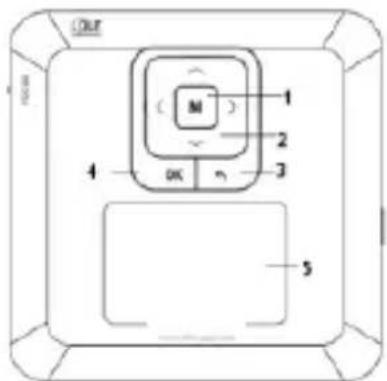
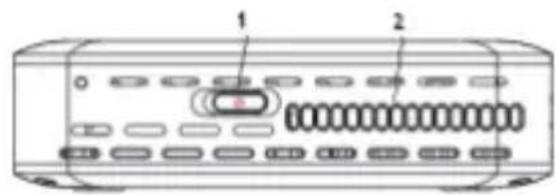
TOP
- Menu
- Directional Keys
- Return / Back
- OK / Select
- Touchpad
tip: Double tap and hold to swipe and drag items
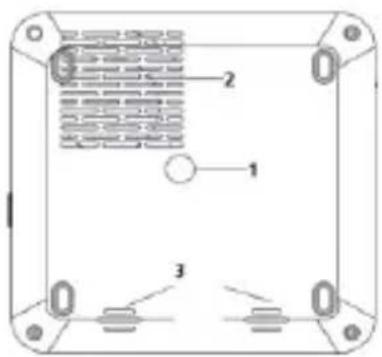
BOTTOM
- Tripod Dock
- Air Ventilation
- Speaker
PROJECTOR OVERVIEW
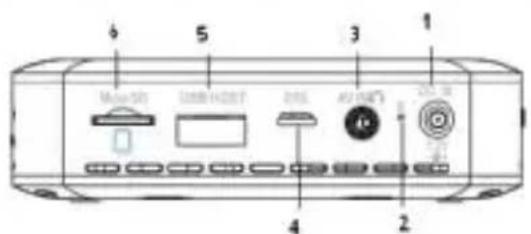
natural_image
Technical line drawing of a rectangular electronic device with internal components and a labeled part (7), no text or symbols present.BACK & FRONT
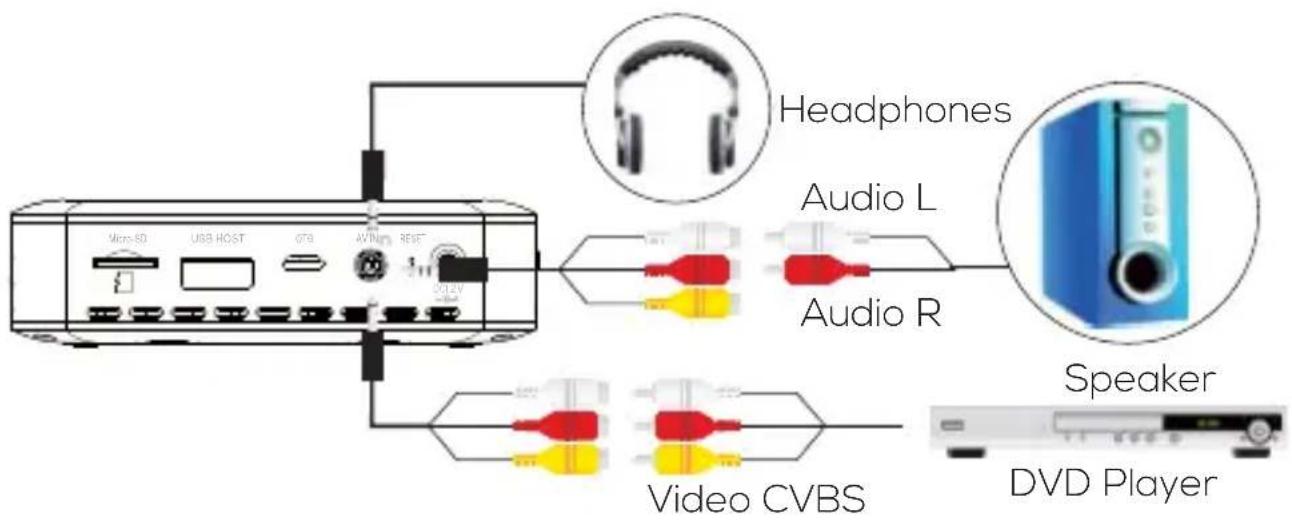
- DC In 12V
- Rest Button
- AV IN / Audio Out
(see diagram below) - OTG
- USB
- Micro SD Card Slot
Connecting Audio and Video via AV IN / Audio Out
PROJECTOR OVERVIEW
natural_image
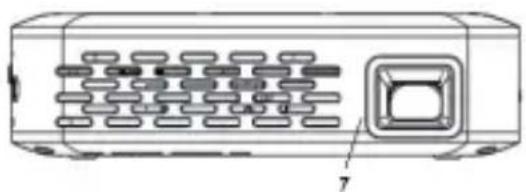
Diagram of a cylindrical device with internal grid structure and labeled component (no text or symbols)RIGHT & LEFT
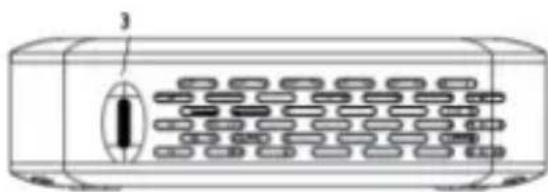
- Power Switch
- Air Ventilation
- Focus Adjustment
Turning Projector ON/OFF
Switch Power Switch to the RIGHT to turn projector ON. Switch Power Switch to the LEFT to turn projector OFF.
Focusing Images
Turn Focus Adjustment up or down until picture is clear.
IMAGE SIZE
Image Size
Image sizes are measured diagonally and are approximate.
| Projected image size | Distance from screen |
| 40" | 55.9" |
| 60" | 83.9" |
| 80" | 111.8" |
| 100" | 139.8" |
Image Adjustment
For best image results, the projector should be directly facing the screen. Adjustment to the focus dial will help to improve the picture. Please see the diagram below for examples of correct and incorrect setup.
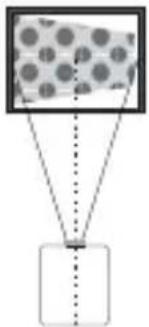 | 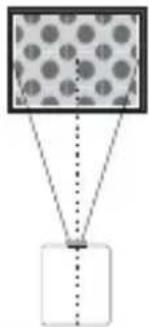 | 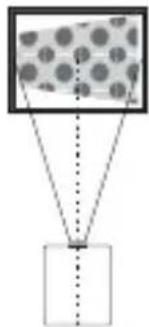 |
| The projector is angled too far to the left. | The projector is set up correctly. | The projector is angled too far to the right. |
SETTINGS
WI-FI Setup
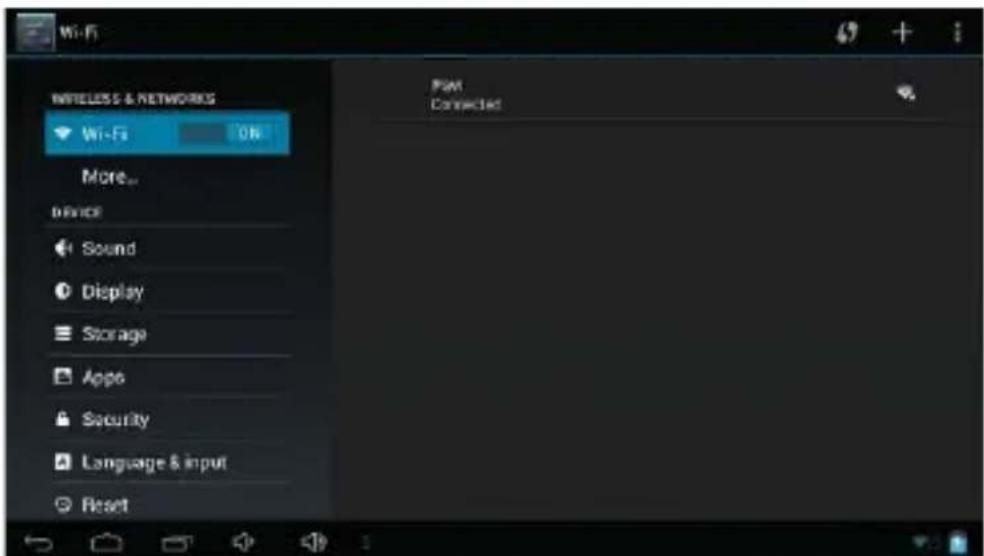
From the main screen, select the Device Setting Icon and locate Wireless & Networks.

If Wi-Fi is not already ON, switch Wi-Fi ON. Projector will automatically scan for available wireless networks.
Choose your wireless network and enter your password to connect.
SETTINGS
Settings
From the main screen, select the Device Setting Icon

Image Display
From the main screen, select the Device Setting Icon and then Display

Rotate Screen
Select this option to flip the display vertically. Use this option for ceiling mount applications.
Brightness
Select this option to adjust the brightness of the projected image
Hide Status Bar
Select this option to hide the black status bar located along the bottom of the projected image.
Volume Adjustment
Press the Right or Left arrow on projector to adjust volume. note: local video and music playback only
Click the Volume Icons in the status bar located along the bottom of the projected image to increase and decrease the volume level.

WEB BROWSER
Launch Web Browser
From the main screen, select the Web Browser Icon
Note: Web Browser will typically open on the last web page visited.

Set Web Browser Homepage
- From the main screen, select the Web Browser Icon

- Press the Menu Icon to open the Browser Menu options. Note: Menu icon is located in upper right corner of web browser.
- Select Settings then Set homepage.
- Select "Other" and input desired homepage url. Select Ok.
- Browser will now open to the homepage of your choice when launched.
CONNECT
Apps
From the main screen select All Apps Icon 88 to access your apps
Download new apps:
- From the main screen select the App Store Icon
- Search for desired app. select app, and click "Install."
- All downloaded apps will appear on the All App page.

Note: Although there are many free apps available on the Google Play Store, some apps require an additional fee or subscription to download or use.
Local Media Playback (USB / Micro SD Card)
Insert USB or Micro SD Card into the projector.
Video:
From the main screen, select Local Video Icon

Video Format:
RM, RMVB, MPEG, MKV, AVI, MP4,
MOV, FLV, H.264, 3GP, DAT, VOB, TS, WMV

Image:
From the main screen, select Local Image Icon
Image Format:
JPG, PNG, GIF, BMP

Multimedia Files:
From the main screen, select Local Files Icon
Audio Format:
MP3, WMA, OGG, AAC, AMR, MIDI
File Format:
PDF, EPUD, TXT, POB
CONNECT
PC Computer
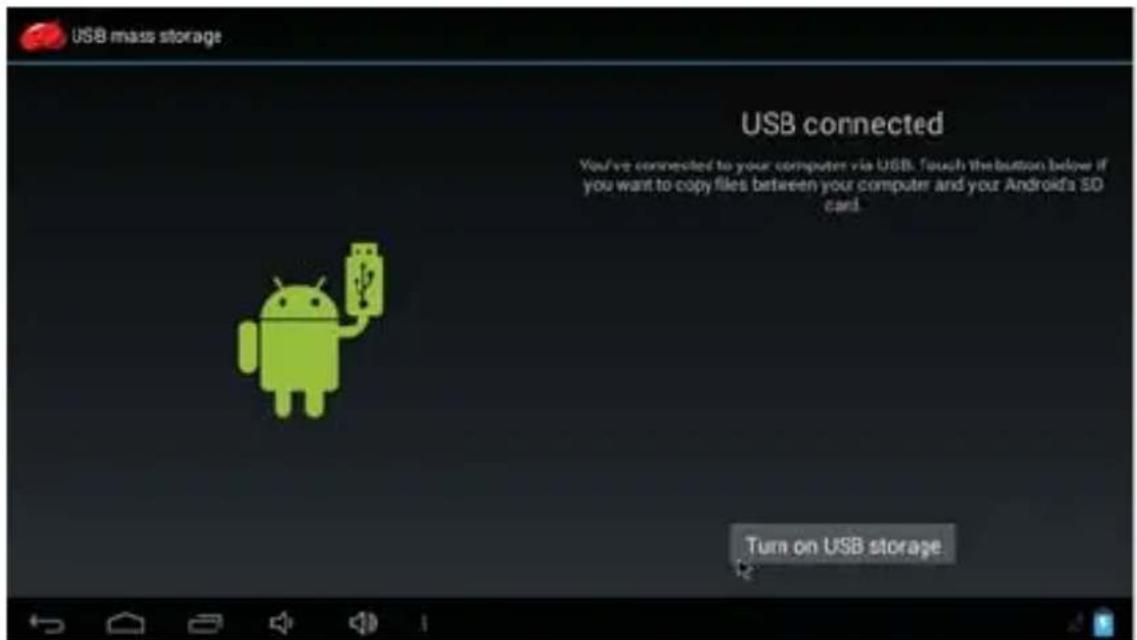
Transfer files between your computer and the SD card in your projector.
- Connect projector (OTG) to computer (USB) using micro USB provided.
- Follow the on screen instructions.
TROUBLESHOOTING
If you have any issues with using your J7-LED-PICO, please refer to the following solutions below:
| Problem | Solution |
| Projector will not power on | Check the power cord and power outlet.Restart projector.Reset the projector by long pressing reset button. |
| Cannot charge battery | Make sure adapter is connected properly. |
| No sound from speaker | Check if the sound is low or is on MUTE.If using headphone or other AV cables, make sure they are connected properly.Make sure audio decoder is supported by projector.Remove AV Cable from projector when when not in use. |
| Cannot detect USB or Micro SD Card | Check that USB or Micro SD Card is connected properly. |
| Blurry Image | Use the Focus Adjustment to adjust image quality. |
Additional suppprt: techsupport@favientertainment.com
TECHNICAL SPECIFICATION
| Native Resolution | 854 x 480 (WVGA), Max 1080p |
| Display Technology | 0.3" DMD, TI DLP |
| LED Brightness | 100 ANSI Lumens |
| LED Lamp Life | Approximately 30,000 hours |
| Image Size | 120" |
| Color Gamut | 100% of NTSC |
| Projection Offset | 100% offset |
| Contrast Ratio | 1000:1 |
| Screen Aspect Ratio | 16:9 |
| Uniformity | 85% |
| Throw Ratio | 1.6:1 |
| Speaker | 2x 1W Speakers |
| Power | 7.4V 2000mAh Rechargeable Battery |
| Battery Life | 2 Hours (fully charged) |
| DC IN | 12V/1.5A |
| Dimension | 3.9 x 3.9 x 1.06 inches |