
VS2124 - Security Camera QUANTUM - Free user manual and instructions
Find the device manual for free VS2124 QUANTUM in PDF.


| Product Type | Security Camera |
| Brand | Quantum |
| Model | VS2124 |
| Dimensions | Approx. 70 x 70 x 120 mm |
| Weight | Approx. 250 g |
| Power Supply | DC 12V, 1A (adapter included) |
| Video Resolution | 1080p Full HD (1920x1080) |
| Field of View | 90° diagonal |
| Night Vision | Up to 10m with IR LEDs |
| Connectivity | Wi-Fi 2.4 GHz |
| Audio | Built-in microphone and speaker (two-way audio) |
| Storage | MicroSD card up to 128GB (not included) |
| Weather Resistance | IP65 rated (indoor/outdoor) |
| Main Functions | Motion detection, push notifications, live view, remote access via app |
| Mounting | Wall or ceiling mount included |
| Maintenance | Clean lens with soft dry cloth; avoid moisture |
| Safety | Use only provided adapter; do not expose to extreme temperatures |
| Spare Parts & Repairability | Contact Quantum support for spare parts; not user-serviceable |
| General Information | Compatible with Android and iOS; requires stable Wi-Fi |
Frequently Asked Questions - VS2124 QUANTUM
User questions about VS2124 QUANTUM
0 question about this device. Answer the ones you know or ask your own.
Ask a new question about this device
Download the instructions for your Security Camera in PDF format for free! Find your manual VS2124 - QUANTUM and take your electronic device back in hand. On this page are published all the documents necessary for the use of your device. VS2124 by QUANTUM.
USER MANUAL VS2124 QUANTUM
The Quantum VS2124 is an efficient, flexible platform designed for video surveillance applications. It enables you to efficiently record and store surveillance footage and run an entire security infrastructure on a single cloud-like platform. For complete documentation, refer to the VS2124 Documentation Center (www.quantum.com/VS2124docs).
Activate your warranty and register your product with Quantum: www.quantum.com/startup
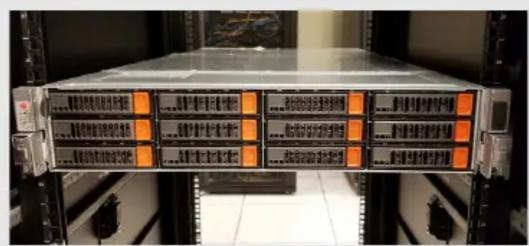
Hardware Overview
For front and rear views of the system, descriptions of the components, and explanations of what the various LEDs indicate, refer to Operate > Hardware Overview.


Bezel Removed and Internal Drives Shown All Drives Ship Installed
Installing the VS2124
A summary of the steps is below. For details, refer to Install > VS2124 Installation.
Safety Information: See Resources > VS2124 Safety Information
Step 1 Choose a location that meets the requirements.
Step 2 Prepare for the installation.
Step 3 Unpack the VS2124.
Step 4 Install the VS2124 system in the rack.
Step 5 Install the cable management arm.
Step 6 Connect the power cords and power on.

Configuring the VS2124
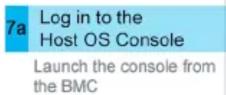
Step 7 Perform the initial configuration.
Step 8 Identify Network Connections and Configure CameraNet Interfaces.
Step 9 Install the video surveillance software.

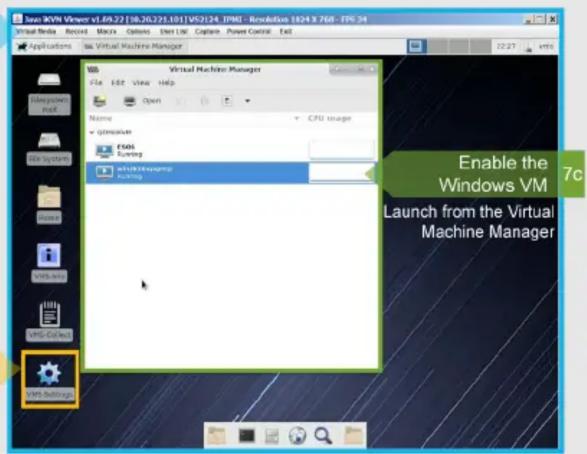
Operating and Maintaining the VS2124
Display IP Addresses
For instructions on how to use the VMS-Info icon to display your system's existing IP address settings, refer to Operate > Display IP Addresses.

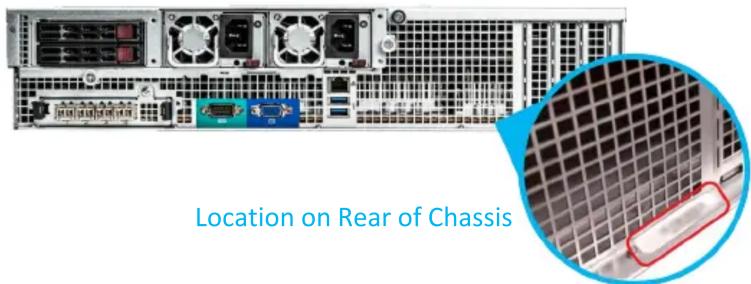
Locate the System Serial Number
For details on locating the system serial number and chassis part number, refer to Operate > Locate the System Serial Number. You will need this if you contact Quantum Technical Support or order a replacement part.

Generate Data Collect Logs
For details on using the VMS-Collect icon or the VMS-Settings Menu to create a zip file that contains the diagnostic logs for all of the system components, refer to Operate > Generate Data Collect Logs.

Brand : QUANTUM
Model : VS2124
Category : Security Camera