
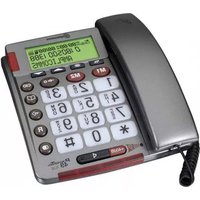
PowerTel 725 - Telephone Amplicom - Free user manual and instructions
Find the device manual for free PowerTel 725 Amplicom in PDF.


| Product Type | Amplified Cordless Phone with Answering Machine and Wrist Shaker |
| Model | PowerTel 725 (Reliant+) |
| Brand | Amplicom |
| Power Supply (Base) | Input: 100-240V~50/60Hz 0.15A; Output: 6VDC 800mA |
| Battery Type | Rechargeable NiMH 3.6V 750mAh (3x AAA) |
| Range (Outdoor) | Up to 325 yards (300 m) |
| Range (Indoor) | Up to 53 yards (50 m) |
| Standby Time | Up to 100 hours |
| Talk Time | Up to 10 hours |
| Phone Book Capacity | Up to 200 names and numbers |
| Caller ID Memory | Up to 30 incoming calls |
| Redial Memory | Last 10 numbers |
| Volume Boost | Enable via handset button (red LED indicator) |
| Equalizer Settings | Low, Mid, High (adjustable during calls) |
| Answering Machine | Digital with remote access, PIN code, up to 2 min outgoing message |
| Wrist Shaker (included) | Vibrating pager with strap, rechargeable, range up to 53 yards indoors |
| Hearing Aid Compatible | Yes (TIA-1083 compliant) |
| Dialing Modes | Tone (DTMF) and Pulse |
| Regulatory Approvals | FCC Part 15 and 68, ETL Listed |
| Warranty | 24 months from date of purchase |
| Maintenance | Clean with soft, lint-free cloth; no solvents |
Frequently Asked Questions - PowerTel 725 Amplicom
User questions about PowerTel 725 Amplicom
0 question about this device. Answer the ones you know or ask your own.
Ask a new question about this device
Download the instructions for your Telephone in PDF format for free! Find your manual PowerTel 725 - Amplicom and take your electronic device back in hand. On this page are published all the documents necessary for the use of your device. PowerTel 725 by Amplicom.
USER MANUAL PowerTel 725 Amplicom
natural_image
Black and silver portable phone with keypad and control buttons (no visible text or symbols)7 SERIES
PowerTel 720 Assure + Twin

natural_image
Two vintage telephones on black bases, one displaying a keypad and the other with a display (no visible text or symbols)PowerTel 725 Reliant +
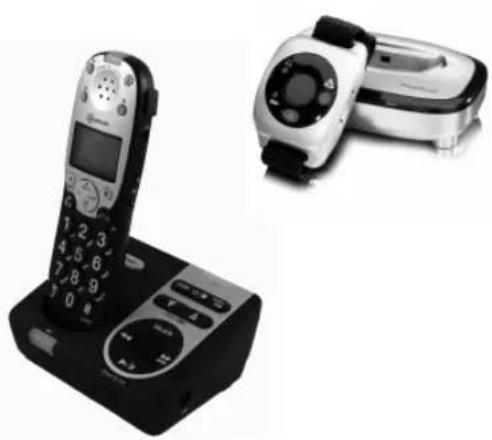
natural_image
Black and white photo of a vintage mobile phone with keypad and control panel, next to a silver handheld device (no visible text or symbols)
CONTENTS
Important Safety Instructions....4
Getting Started....6
Base Phone Guide....7
Cordless Handset and Charger Base 8
Cordless Phone Handset Display Icons ......9
Set Up....10
Phone Menu and Display Guide....11
Using the Answering Machine....12
Use on a Private Branch Exchange....21
Calling Functions....24
Adding a Handset....29
Making Calls from a Handset....31
Menu Options – Cordless Phone ....34
Phone Book – Cordless Phone....39
Caller List – Cordless Phone......43
Wrist Shaker....45
Using the Wrist Shaker....50
Help and Support....51
Troubleshooting Guide....51
Technical Details....54
Default Settings ....55
Maintenance And Warranty....56
Index....58
2 Instructions available in other languages at www.amplicomusa.com.
FCC Compliance
The FCC requires that you will be advised of certain requirements involving the use of this telephone.
-
This equipment complies with Part 68 of the FCC rules. A label on the base unit of this equipment contains, among other information, the ACTA Registration Number (US:AAAEQ##TXXXX) and the Ringer Equivalence Number (REN) for this equipment. You must, upon request, provide this information to your telephone company.
-
An applicable certification jacks Universal Service Order Codes (USOC) for the equipment is provided (i.e., RJ11C) in the packaging with each piece of approved terminal equipment.
-
A plug and jack used to connect this equipment to the premises wiring and telephone network must comply with the applicable FCC Part 68 rules and requirements adopted by the ACTA. A compliant telephone cord and modular plug is provided with this product. It is designed to be connected to a compatible modular jack that is also compliant. See installation instructions for details.
-
The REN is useful to determine the quantity of devices you may connect to your telephone line and still have all of those devices ring when your number is called. In most, but not all areas, the sum of the REN of all devices should not exceed five (5.0). To be certain of the number of devices you may connect to your line, as determined by the REN, you should call your local telephone company to determine the maximum REN for your calling area.
NOTICE: If your home has specially wired alarm equipment connected to the telephone line, ensure the installation of this equipment does not disable your alarm equipment. If you have questions about what will disable alarm equipment, consult your telephone company or a qualified installer.
-
If your telephone causes harm to the telephone network, the telephone company may discontinue your service temporarily. If possible, they will notify you in advance. But if advance notice is not practical, you will be notified as soon as possible. You will be advised of your right to file a complaint with the FCC.
-
Your telephone company may make changes to its facilities, equipment, operations or procedures that could affect the proper operation of your equipment. If they do, you will be given advance notice so as to give you an opportunity to maintain uninterrupted service.
-
If you experience trouble with the telephone, please contact the Amplicom Service Center at 1-866-AMPLICOM (267-5426) for repair/warranty information. The telephone company may ask you to disconnect this equipment from the network until the problem have been corrected or you are sure that the equipment is not malfunctioning.
-
This equipment may not be used on coin service provided by the telephone company. Connection to party lines is subject to state tariffs. (Contact your state public utility commission or corporation commission for information.)
This device complies with Part 15 of the FCC Rules. Operation is subject to the following two conditions: (1) This device may not cause harmful interference, and (2) this device must accept any interference received, including interference that may cause undesired operation. Privacy of communications may not be ensured when using this phone. Changes or modifications not expressly approved in writing by Amplicom may void the user's authority to operate this equipment.
Some cordless phones operate at frequencies that may cause interference to nearby TVs and VCRs; to minimize or prevent such interference, the base of the cordless phone should not be placed near or on top of a TV or VCR; and, if interference is experienced, moving the cordless telephone farther away from the TV or VCR will often reduce or eliminate the interference.
-
This product is equipped with a cordless handset, it is hearing aid compatible.
-
Connection to party line service is subject to state tariffs. Contact the state public utility commission, public service commission or corporation commission for information.
FCC RF Radiation Exposure Statement:
This equipment complies with FCC RF radiation exposure limits set forth for an uncontrolled environment. for Handset unit it has been tested and meets the FCC RF exposure Guidelines,
For base unit it should be installed and operated with a minimum distance of 20 centimeters between the radiator and your body.

Important Safety Instructions
When using your telephone equipment, basic safety precautions should always be followed to reduce the risk of fire, electric shock and injury to persons, including the following:
- Do not use this product near water, for example, near a bath tub, wash bowl, kitchen sink or laundry tub, in a wet basement or near a swimming pool.
- Do not use the telephone to report a gas leak in the vicinity of the leak.
- Use only the power cord and batteries indicated in this manual. Do not dispose of batteries in a fire. They may explode. Check with local codes for possible special disposal instructions. Save these instructions for future use.
SAVE THESE INSTRUCTIONS
Avoid using a Telephone(other than a cordless type) during an electrical storm. There may be a remote risk of electrical shock from lightning.
Intended use
This phone is suitable for use on a public telephone network. Any other use is considered unintended use. Unauthorized modification or reconstruction is not permitted. Do not open the device and attempt any repair work yourself.
Phone location
Locate the base, corded phone, and wrist-shaker base:
- On a dry, flat and stable surface
-
Where the power cable will not be a trip hazard
-
Where it is not obstructed by furniture
- At least three feet from other electrical appliances
- Away from smoke, dust, vibration, chemicals, moisture, heat or direct sunlight.
Power failure – What to do
Power failure can affect your phone and equipment. Only the corded phone will work if there is a power failure.
Medical equipment
Do not use the phone near emergency or intensive care medical equipment, or during an electrical storm. If you have a pacemaker check with a medical expert before using this product.
Hearing aid compatibility
This phone works with most popular hearing aids. However, given the wide range of hearing aids available, the phone may not function fully with every hearing aid.
Telephones identified with this logo have reduced noise and interference when used with most T-coil equipped hearing aids and cochlear implants. The TIA-1083 Compliant Logo is a trademark of the Telecommunications Industry Association. Used under license.
The charger unit is charging only for handset PowerTel 700 Assure, PowerTel 701 Extender, PowerTel 711 Extender Voice, PowerTel 720 Assure +, PowerTel 730 Assure Voice +, PowerTel 780 Assure, PowerTel 785 Assure Responder, and so on.
Handset unit: Use only the supplied adapter.
Caution: The phone will produce high volume when Boost is switched on.

GETTING STARTED
Getting Started — Included Equipment
PowerTel 720 Assure + - Amplified Cordless Phone with Answering Machine
- 1 base unit with integrated Answering Machine)
- 1 cordless handset
• 1 rechargeable battery pack 3AAA 3.6V NiMH - 1 power adapter
- 1 telephone cable
PowerTel 725 Reliant + - Amplified Cordless Phone with Answering Machine and Wrist Shaker
As PowerTel 720 Assure + and includes:
• 1 Wrist Shaker with Strap
- 1 Charger unit for Wrist Shaker (with Power Adapter Plug attached)
PowerTel 720 Assure + Twin - Amplified Cordless Phone with Answering Machine, and Additional Cordless Accessory Handset
- 1 base unit with integrated Answering Machine
• 2 cordless Handsets
• 2 Rechargeable Battery Packs & 3 AAA 3.6V NiMH - 1 charger base for cordless handset( with Power Adapter Plug Attached)
- 1 power adapter
- 1 telephone cable
PowerTel 720 Assure + Phone Base
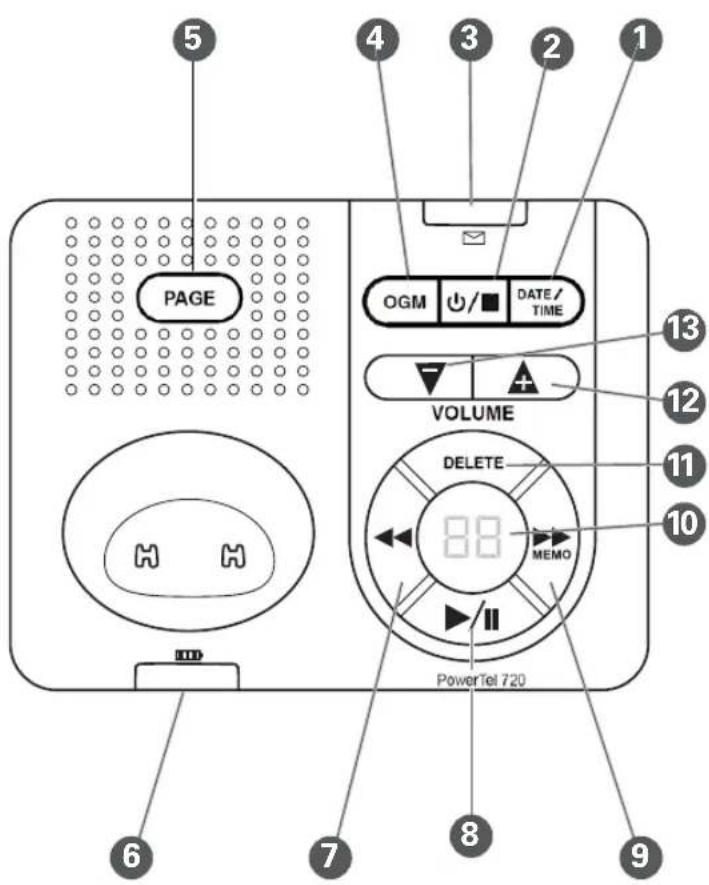
1 Date/Time
2 Answer on/off/Stop/Answer mode
3 Indicator light for new answer machine messages received
4 Outgoing message
5 Find handset/Registration
6 Incoming call/Charging/Line in use
7 Rewind/Set language
8 Play/Pause/OK
9 Fast forward/Memo
10 Answer machine message counter/Status display
11 Delete
12 Volume up
13 Volume down

ANDSET AND CHARGER BASE
PowerTel 701 Extender Handset and Charger Base
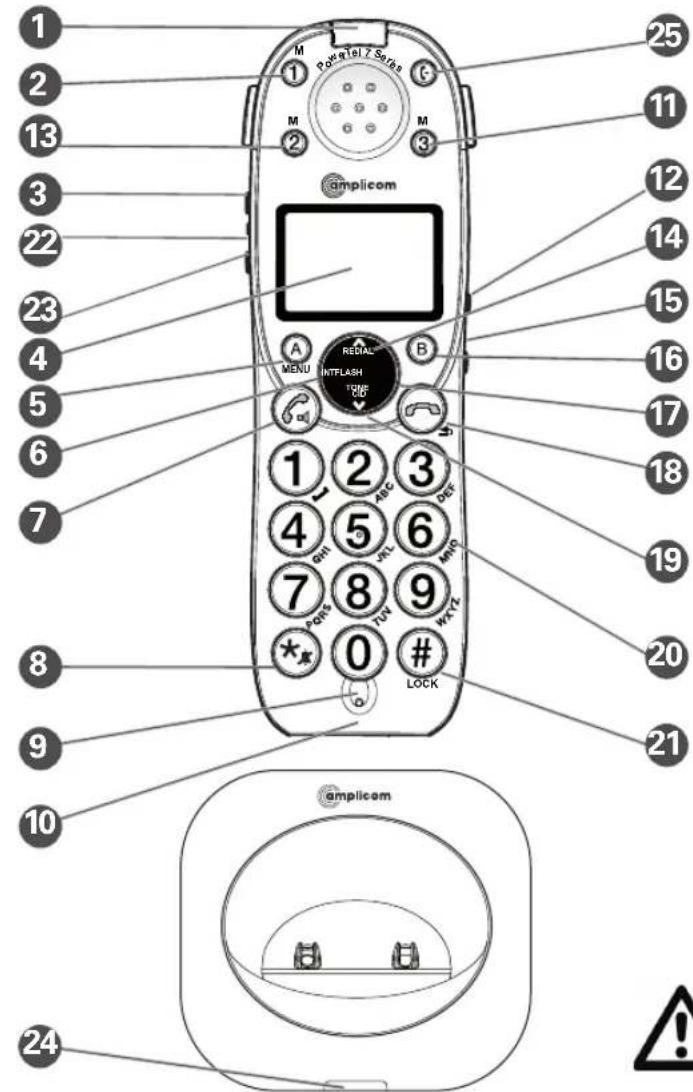
Optional (May not be included)
1 Incoming call
② Memory 1
3 Boost
4 Display
5 Enter Menu/Mute/Delete
6 Internal call
7 External call/ Handsfree
8 *Ringer on/off
9 Pause
(long press 0)
10 Microphone
11 Memory 3
12 Volume up/down
13 Memory 2
Warning: This Handset has been specially designed for individuals who are hard of hearing and has a normal volume which is louder than a standard phone. Use of the Boost feature can cause hearing damage to individuals who are not experiencing hearing loss.
14 Up/Redial
15 Headset socket (Headset not included)
16 Phone book/Save/OK
17 Recall
18 End call
19 Down/Calls list/Equalizer
20 Keypad
21 #/Keylock
22 Red Light Boost Indicator
23 Select Profile (P)
24 Charging
25 Transfer call
Cordless Phone Handset Display Icons
The following icons can appear in the LCD display:

Phone book mode

More information to view up

More information to view down

Battery status

Ringer off

Keylock is on

Handsfree mode

Call in progress

Internal call in progress (if additional handsets are installed)

Play messages fast forward

Boost receiver volume is on
(Icon will flash)

Mute handset microphone

New calls

Answering machine is on

Answering machine is off

When steady— handset is in range

When flashing — handset out of range

SET UP
Set Up
Note: The Amplicom customer service toll free number has been pre-installed in the phone book of every telephone and cannot be edited or removed.
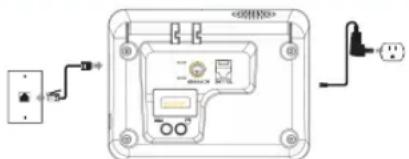
1. Connect the base
i. Plug the power adapter into the base unit and the other end into a wall socket. The unit should power on and the display will light up.
ii. Plug the telephone cable into the base unit
WARNING: Do not connect phone line to the phone socket yet.
natural_image
Diagram of an electrical enclosure with wiring and components, no visible text or symbols2. Connect the cordless phone charger base (Optional if included)
Plug the other power adapter that is already attached to charger base into the wall socket and switch the power on.
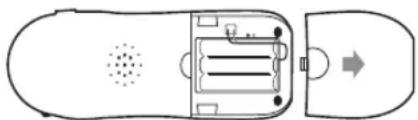
3. Install the battery pack
Insert the rechargeable battery pack into the handset as shown.
Dispose of battery pack properly. Do not allow battery pack to come into contact with fire or water.
natural_image
Top-down schematic of a vehicle interior with no visible text or symbols4. Charge the handset
Place the handset on its base to charge for a minimum of 16 hours before use.
5. Connect telephone cable
After initial charge, plug the telephone cable into the telephone wall socket.
The phone menu display allows access to the full phone functionality.
Open main menu: Press
Browse sub menu: Open the main menu and then press REDIAL or .TONE CID
Select sub menu item: Scroll using is REDIAL or until the menu item desired highlighted and press B or OK.
Browse a function: Open the sub menu and press REDIAL or .TONE CID
Select a function: Scroll using REDIAL or TONE until the required function is highlighted and press B or OK.
Enter digits or letters: Use the keypad.
Confirm or save an entry or action: Press Ⓑ or SAVE .
Cancel and return to standby: press 📞.
Note: After 20 seconds, the phone will go into standby mode unless a button is pressed.

ANSWERING MACHINE
Using the answering machine
After setting up the phone system, use the following steps to set up and use the answering machine.
Switch answering machine on or off
Press to turn the answering machine off and on.
The current answer mode will be announced.
When new messages are received, the message counter on the base and the base indicator light flash. The message counter also indicates the number of messages.
Set the language
Choose the answering machine voice prompt language: English, Spanish or French.
-
Press and hold on the base for 10 seconds until two letters appear in the message counter display: En = English, Fr = French and Sp = Spanish.
-
Repeat the above procedure until the desired language code is displayed.
Adjust the base loudspeaker volume
Increase or decrease the base loudspeaker volume using (an) ▲ ▲ ▲. The volume level is displayed on the base message counter, e.g. LI-5.
Set the answer mode
Choose the answer mode: Answer & Record, Answer only or Answer off. With the machine in Answer only mode callers will not be able to leave a message.
- Press ①/■ to switch the answering machine on.
- To change the mode between Answer & Record, Answer Only or Answer Off, press and hold Ⓕ/■ for two seconds.
Check the outgoing message
Press to wear the current outgoing message.
Record an outgoing message
The outgoing message must be less than two minutes long. To change the default answering message:
- Press and hold OGM on the base for two seconds. Record the new message after the beep. The base message counter will display during recording.
- To stop recording, press Ⓞ/■. The new message will be played back, and the base message counter will display o!
outgoing message is playing.

while the Note: t

ANSWERING MACHINE
Set the answer delay
Choose the number of times the phone will ring before the answering machine answers an incoming call. Or, choose Time Saver, if no one will be available to answer the phone. Time Saver is useful if someone will be calling in from a different phone to listen to messages: if the machine answers after 2 rings, there are new messages to listen to. If it answers after 5 rings, there are no new messages. This feature gives the option of hanging up after 3 rings (because there are no new messages) to save time and avoid being charged for the call.
-
Press and hold 🔒 (located underneath the base) for two seconds. The current ring delay setting will be announced and will also be displayed on the message counter e.g. -2-9 or \$for Time Saver).
-
Use and to select either the number of rings (2 - 9) or Time Saver. Press ▶/II to confirm.
Set the day and time
-
Press and hold DATE/TIME for two seconds.
-
Choose a day of the week using or . Press to confirm.
-
Choose the hour using (or ▶) The digits will also appear on the base message counter. Press ▶/II to confirm.
-
Choose the minutes using the (or buttons), the digits will also be shown
on the base message counter. Press ▶/□ to confi rm.
Check the day and time
- Press DATE/TIME. The current day and time are announced.
Record a memo
Memo messages can be played back like normal messages.
-
Press and hold 📋 for two seconds.
-
After the beep, record the memo. The message counter will show - while recording.
-
Press Ⓞ/■ to stop recording. The base indicator light and the message counter will flash, and the counter will increase by one digit, e.g. 01.

ANSWERING MACHINE
Listen to messages or memos using the base buttons
Messages and memos are played in reverse order, with newer messages played first. The time and date of each message or memo is announced before playback.
Use the following buttons to control message playback:
- To play or pause, press
- To stop, press Ⓞ/■
- To rewind, press
- To fast forward, press


Delete a single message or memo
- Press to play a message or memo.
- To delete it, press and hold DELETE for two seconds while the message or memo is playing. The message counter will display while deletion is taking place.
Delete all messages and memos
- Press and hold for two seconds when no messages are being played.
- Press DELETE again, to confirm the deletions. The message counter will show dL to indicate that deletion is taking place.
Memory full
When the memory is full, the answering machine announces that fact, automatically stops taking more messages, and switches to Answer Only mode. Some existing messages or memos must be deleted before any new messages can be recorded.
Access the answering machine from a remote location
Messages on the answering machine can be listened to from other phones, including mobile phones.
A PIN (Personal Identification Number) code is required to access the answering machine. The default code is 000. Change the PIN code to keep messages secure.

ANSWERING MACHINE
Change PIN
- Press and hold PIN located underneath the base) for two seconds. The current 3 digit PIN will be announced and the first new digit requested. Enter a digit between 0 and 9.
- Select the new first digit using or, the digits will also be shown on the base message counter. Press to confirm.
- Repeat the above procedure for the 2nd and 3rd new digits.
- After the 3rd digit has been confirmed, the new PIN will be announced.
Press ⏻/■ at any time to exit the Change PIN code mode and return to standby. The PIN code will remain unchanged.
Call in to check messages
- Dial the system's phone number from a remote phone and wait until the answering machine picks up the call.
- Press ⭐ twice, then enter the 3 digit PIN after the voice prompt.
- Refer to the next section, "Manage messages from another phone" for additional instructions.
Manage messages using another phone
Use these numbers to manage messages from a remote location.
Press...
1 to Rewind
2 to Play or Pause your messages
3 to Fast Forward through your messages
4 to Hear the outgoing message
5 to Record outgoing message (6 to stop recording)
6 to Stop messages
7 to Delete current message 8 to Turn OFF answering machine
8 to Tum OFF answering machine
9 to Turn ON answering machine
to Record a memo (6 to stop recording)
Use the cordless handset
- Open the answering machine menu by pressing A or MENU.
- When Ans Machine is displayed, press B or OK.
- Scroll using REDIAL or TONE CID to display desired function
Play Msgs, Ans On/Off, Record Memo, Outgoing Msg, Ans Settings, then press
B or OK.

ANSWERING MACHINE
If Play msg you will be given further choice to Play New Msgs or Play All Msgs. Ans On/Off turns Answering Machine ON or OFF. Outgoing Msg will give you the option to either Record Message or Play Message. Ans Settings will give you the option to setup your Answering Machine. AnswerMode - Answer Only or Answer and record, Answer Delay - (2-15 rings) or Time Saver, Security Code - option to set a new pin code is for remote access Language - English French or Spanish.
- Press to return to standby.3. The display will confirm action.
- Using the keypad, enter a name for this stored number and press .
- Edit the number for this name, if needed, and press.
- Scroll using REDIAL or TONE CID to choose the ringer for this entry and press B
Use on a Private Branch Exchange
If the phone is on an exchange (e.g. dial 9 to get an outside line), calls can be transferred or called back by using the FLASH button. Check with the system administrator for system set-up and instructions. Private exchanges are normally used in a business-setting.
Set the recall time using the cordless handset
- Open the menu by pressing A or MENU, then scroll using REDIAL or FLASH until Base settings is highlighted and press B or OK.
- Scroll using REDIAL or FLASH until Recall is highlighted and press B or OK.
- The current recall timing setting (e.g. Short) will be displayed.

SE ON A PRIVATE BRANCH EXCHANGE
- Choose the desired recall timing setting (Short or Long) using REDIAL or FLASH and press B or SAVE.
Insert a dialing pause
Insert a pause before the dial tone if the system requires an outside line which takes awhile to connect.
To insert a dialling pause using your cordless handset, enter the number to reach the outside line and then press 0 for two seconds. A P on the display will show dialing pause is active.
Note: A dialing pause can be used with a phone number in the phone book.
Set the dial mode
There is a choice of two dialing modes: tone and pulse. The default setting is TONE and this is the correct setting for use within the United States.
Change the dial mode using the cordless handset
- Open the menu by pressing A or MENU, scroll using REDIAL or TONE until Base settings is highlighted and press B or OK.
- Scroll using REDIAL or TONE CID until Dial Mode is highlighted and press B or OK.
- The current dial mode setting (e.g. Tone) is displayed.
- Choose the dial mode setting required (Tone or Pulse) using REDIAL or TONE CID and press B or Save.
Reset to default settings
Important: Resetting to default will NOT delete phone book entries.
Reset to default settings on the cordless handset
-
Press FLASH> for 10 seconds.
-
Confirm or cancel the reset to default settings by pressing B or OK or A or NO.

CALLING FUNCTIONS
Calling Functions
Make a call using the cordless phone
- Enter the phone number.
- Press A or DEL to delete a mistaken entry.
- Dial the number by pressing .
End a call

on the cordless handset.
Answer a call
For the cordless handset, press 📞 and then speak into the phone.
Redial a number using the cordless handset
The phone stores the last 10 numbers dialed.
Note: Each phone number will be announced from the redial list provided the Read Number feature is enabled.
- Open the redial list by pressing REDIAL.
- Scroll through the redial list using REDIAL or TONE CID until the desired number is highlighted and then press to dial the number.
Call back a previous caller
The phone stores the last 30 incoming phone numbers.
- Open the incoming calls list by pressing
- Scroll to find the desired number using
, to dial press



on the cordless handset.
Dial a number in the phone book
- Open the phone book by pressing.
- Scroll to find the desired number using
press 📞 on the cordless handset.


Dial a number using the speed dial buttons
- Choose a speed dial number by pressing


on the cordless handset.
- 📋 on the cordless handset to dial the number.
Adjust the handset earpiece volume
Note: The handset earpiece volume is louder than a standard phone.
To adjust the volume during a call, push the button on the side of the handset


CALLING FUNCTIONS
Boost the handset earpiece volume
To boost the handset earpiece volume during a call, press 📋 and boost button will light red (cordless phone). An image of an ear will flash in the display the red boost indicator will light on the left side of the handset will be lit to show that boost is on.
Handsfree feature
Use the handsfree feature to talk to the caller without holding the handset or to let other people in the room listen to the conversation.
Cordless Phone:
1.

key a second Switch
time.
-
Exit handsfree mode by pressing 📷.
-
To adjust the handsfree volume, use the

on right side of handset.
Note: Boost volume using

is not available during handsfree calling.
Use a headset (not included) with the cordless phone
Plug your headset into the headset socket marked ⏻ on the right side of the handset.
Mute the phone
Muting the phone during a call will silence the mouthpiece on the phone so it does not transmit any noise to parties on the other end of the line.
Cordless Phone:
To switch off the mouthpiece, press A or MUTE. Mute On will be displayed. To switch it on again, press A or MUTE. The display will show Off.
Switch the cordless handset ringer on and off
To switch the ringer on and off, press and hold *or five seconds.

CALLING FUNCTIONS
Lock and unlock the cordless handset keypad
Calls can still be answered as usual when the keypad is locked.
- To lock the keypad, press and hold # for 2 seconds. The ☐on will be displayed.
- To unlock, press and release A or MENU then immediately, press and hold # until unlock confirmed.
Find a handset
A missing handset can be located from the base.
-
Press PAGE on the base. The handset(s) will beep.
-
Press any button on the handset to stop the handset(s) beeping.
Answer call waiting on cordless handsets
-
When incoming call beep is heard, another call is incoming.
-
To answer call waiting Press FLASH.
-
To go back simply repeat step 1 and 2.
PowerTel 701 Cordless handset and charger base Adding a Handset – Cordless Phone
Register a handset
Only register a handset if it has become de-registered from the base or if it was purchased separately.
Important: make sure any handset is fully charged before registering.
At the handset:
- Press and hold MENU for approx 10 seconds until the display shows Press and hold Page key.
At the base:
- Press and hold Ⓜ for at least 10 seconds until the display shows Register.
De-register a handset
De-register a handset if too many are currently registered on the phone system.
- Open the menu by pressing MENU, then scroll using REDIAL or TONE CID until Handset is highlighted and press B or OK.

Adding a Handset
- Scroll using or until Registration is highlighted and press B. Then scroll to highlight De-register and press B.
- Enter the PIN code (default PIN 0000) and press B.
- Enter the handset's internal number (e.g. 1) and press B to confirm.
Change a handset name
- Open the menu by pressing MENU, then scroll using REDIAL or TONE until Handset is highlighted and press B.
- Scroll using REDIAL or TONE until Handset name is highlighted and press B.
- Edit or delete current name by pressing A to Delete or pressing INT or Flash to move cursor then press B or OK to save.
Transfer an external call internally
- During an external call, press and hold INT until a short beep is heard, then enter the internal call number of the name and number (1, 2, 3, or 4) to transfer the call to.
- To accept the call on the receiving handset, press 📞 or simply lift the handset off the base of the unit or press the Talk button on the handset.
Note: If no one picks up the call being transferred, re-answer the call at the current phone by pressing OGM.
Making Calls from a Handset
Note: One external line conference call can be made with multiple handsets internally by pressing twice or simply lifting the base handset.
Make an internal call
If two or more handsets are registered to the base internal calls between handsets can be made. Each handset will have been allocated a handset number when registered, e.g. HS1, HS2 etc. These calls are free of charge.
- Press and hold INT. The display will show Handset? Enter the internal call number of the handset desired. The corded base unit is always 0
- To accept the call on the receiving handset, press .
- End the call by pressing .
Make a conference call
- During an external call, press and hold INT until a short beep is heard, then enter the internal call number of the handset to transfer to.
- To accept the call on the receiving handset, press .
- Once the call has been received on the other handset, activate the conference call by pressing and releasing the B or Conf. button.
- Place the external call on hold by pressing INT (if necessary).
- The conference call will end when is pressed.

MAKING CALLS FROM A HANDSET
Copy phone book entries to another registered handset
Note: Phone books can only be copied to another handset if that handset is registered on the same phone system.
• A single entry (Copy entry)
- Entries not already on the handset being copying to (Copy append)
- All entries (Copy all)
Important: When “copy all” is selected, all existing entries on the handset being copied to will be deleted. To prevent this from happening use “Copy append.”
- Open the phone book by pressing B.
- Scroll using REDIAL or TONE CID to find the entry or entries to copy and press B.
- Scroll TONE to either Copy entry, Copy append, or Copy all and press B.
- Scroll ^INT or^FLASH to highlight the handset number and or base to copy to and press B.
- Pick up the handset where copying entries to and press B or PB. The display will confirm Phone book entry received..
Copy a profile
- Open the menu by pressing MENU, then scroll using REDIAL or TONE until Profile is highlighted and press B.
- Scroll using REDIAL or TONE CID until Profile 1, 2, or 3 is highlighted and press B.
- Scroll using REDIAL or TONE CID until Copy is highlighted and press B.
- Scroll using INT or FLASH until the handset (e.g. 2, 3 or 4) to copy the profile to is highlighted, and press B.
- On the copy-to handset, press B to confirm or MENU to cancel.
Setting or changing the System PIN code
- Open the menu by pressing MENU, then scroll using REDIAL or TONE until Base settings is highlighted and press B.
- Scroll using REDIAL or TONE CID until System PIN is highlighted and press B.
- Enter the old PIN code (default PIN is 0000) and press B.
- The phone will prompt for a new 4 digit PIN code (entered twice), press B.
Important: Do not change or reset the PIN code unless instructed by customer service.

MENU OPTIONS - CORDLESS PHONE
Menu Options - Cordless Phone
Priority/Default setting
Any changed settings in the menu will be saved as default. The phone also allows for 2 separate user profiles.
User profiles
The phone can store 2 different user profiles with different settings for the Volume, Boost, and Equalizer features. Each Profile can be given a personalized name.
Add or edit a profile name
- Open the menu by pressing A or MENU, scroll using REDIAL or TONE CID until Profile is highlighted and press B or OK.
- Scroll using REDIAL or TONE CID until Profile 1 or 2 is highlighted and press B or OK.
- Scroll using REDIAL or TONE CID until Name is highlighted and press B or OK.
- Delete the current name by pressing A or MENU.
- Enter a new name (up to ten letters) and press B or OK.
Change a profile's handset volume or equalizer
- Open the menu by pressing MENU, then scroll using REDIAL or TONE CID until you highlight Profile and press B or OK.
- Scroll using REDIAL or _until Profile 1 or 2 is highlighted, press B or OK.
- Scroll using REDIAL or TONE until the desired setting is highlighted, press B or OK.
- The current setting will be displayed.
- Change the appropriate setting using REDIAL or TONE CID and press B or OK.
Note: Press 📞 to exit the menu and return the handset to standby.
Choose a profile to use
Note: Handset must be used to choose a profile for a call – a profile cannot be chosen using handsfree.
- Before or after answering an incoming call, press the PROFILE button on the left side of the handset to select either profile M1 or M2 or Profile OFF.
- The display will confirm your choice.

MENU OPTIONS - CORDLESS PHONE
Note: Once a profile has been selected to use when making a call, the phone will return to the default settings after 30 seconds.
Changing Menu Settings
Handset ringer melody — There are ten ringer melodies. Default setting is 7.
Handset ringer volume — There are five volume levels plus OFF.
Tone ("Equalizer") setting — There are three tone settings, LOW/MID/
HIGH. Default is MID.
Note: To adjust tone while making a call, press the access the equalizer setting, press the ^ or

setting. One can also use + VOL or - VOL on right side of handset to reach preferred equalizer / TONE setting.
button to button to adjust the
Switch keypad beep on or off — Turns on or off the keypad beep.
Change contrast — There are five normal (BLACK ON AMBER) screen contrast levels and five negative (AMBER ON BLACK).
Switch "auto talk" on or off — The phone will automatically answer a call when the handset is removed from its base when Auto Talk is ON. This is the default setting. If Auto talk is OFF, press the 📞 button to answer any calls.
Change backlight timer — Choose between 10, 20, 30 or 40 seconds until the backlight timer switches off.
Switch confirmation beep on or off — There is a beep confirmation when a setting is changed. This can be switched on or off.
Change language — There are three display languages available on the handset: English, French, and Spanish.
- Open the menu by pressing MENU, then scroll REDIAL or TONE until Handset is highlighted and press B or OK.
- Scroll until the desired menu setting (see options above) is highlighted and press B or OK.
- The current setting will be displayed.
- Change the setting using or and press B or OK.
Changing Clock Settings
Change date/time — Enter the Date and Time settings.
Change clock to 12- or 24-hour format — Choose between a standard 12-hour format clock or a 24-hour format (military time). The default setting is 12 hour clock.

MENU OPTIONS - CORDLESS PHONE
Set alarm — Set an alarm date, time, melody, and reoccurrence or off.
- Open the menu by pressing MENU, then scroll REDIAL or TONE CID until TIME, Select SET ALARM by pressing B AGAIN is highlighted and press B or OK.
- Scroll ✅ to set reoccurrence (Once, Every Day, Mon to Fri, or OFF) and B or OK.
- The current setting will be displayed.
- Enter the desired date and/or time setting required (the handset has a 24-hour clock) B or OK.
- Select the desired alarm melody and confirm by pressing B. The display will show the alarm has been set.
Changing Base Settings
Change base ringer melody — There are ten base ringer melodies.
- Open the menu by pressing MENU, then scroll REDIAL or TONE CID until Base settings is highlighted and B or OK.
- Ring tone is highlighted, B or OK.
- The ringer melody setting (e.g. 8) will be displayed.
PHONE BOOK - CORDLESS PHONE
- Change the ringer melody using REDIAL or TONE CID and B or OK.
Change base ringer volume — There are five volume levels plus Off.
- Open the menu by pressing MENU, then scroll using REDIAL or TONE CID until Base settings is highlighted and B or OK.
- Scroll TONE CID until Ringer volume is highlighted and B or OK.
- The current base ringer volume level (e.g. 5) will be displayed.
- Change the base ringer volume using or and B or OK.
Phone Book - Cordless Phone
Up to 200 names with phone numbers can be alphabetically stored in the phone book. To quickly find a phone book entry, simply enter the first letter of the stored name.
Note: The Amplicom customer service toll free number has been pre-installed in the phone book of every telephone and cannot be edited or removed.
Note: Each phone book entry allows for up to 16 letters for any name and up to 24 digits for any phone number.
Important: Enter the area code for each phone number stored.

PHONE BOOK - CORDLESS PHONE
Keypad use for phone book
The keypad contains alpha-numeric keys. Pressing one key multiple times will scroll through the available letters and numbers which that key represents.
Other useful keys:
- press 1 for a space
- press MENU to delete a number or letter entered
- press to change from upper case (e.g. ABC) to lower case (e.g. abc)
Note: To enter the same letter twice, enter the letter and then pause until the cursor moves to the next space before entering it again.
Enter a new name and number in the phone book
- Open the phone book by pressing B.
- Press B. The display will offer you the choice to edit entry, or you can scroll


to choose new entry, press B again.
- Enter the name to store and press B.
- Enter the phone number to store and press B.
- Scroll using REDIAL or TONE CID to choose a ringer for this entry and press B.
Show details, copy entry, copy append, or copy all for a phone book entry
- Open the phone book by pressing B.
- Scroll using REDIAL or TONE CID to find the entry to show details, copy entry, copy append, or copy all and press B.
- Scroll to display Show details, copy entry, copy append, or copy all and press B.
- Press MENU to delete characters, use the keypad to enter new ones, press B.
- Press MENU to delete digits, use the keypad to enter new ones, press B.
- Scroll using REDIAL or TONE CID to choose a ringer for this entry and press B.
Delete a phone book entry or all entries
- Open your phone book by pressing B.
- Scroll using REDIAL or TONE CID to find the entry to delete or highlight any entry to delete all entries.
- Press TONE CID to display either Delete entry or Delete all and press B.
- Press B to confirm or ^MENU to cancel.

PHONE BOOK - CORDLESS PHONE
Using speed dial memory buttons
One name (max. 16 characters) and one telephone number (max. 24 digits) can be stored under each of the quick dial memory buttons: ①, ②, and ③
- Press the 1 , 2 , or 3 speed dial button.
- Press B. The display will show New entry, press B again.
- Enter the name to store using the keypad and press B.
- Enter the phone number to store and press B. Saved will be displayed.
Edit a speed dial entry
- Choose the speed dial entry to edit by pressing either ①, ②, or ③
- Press B. The display will show Edit entry, press B again.
- Press MENU to delete characters, use the keypad to enter new ones, press B.
- Press MENU to delete digits, use the keypad to enter new ones, then press B. The display will show Saved.
Delete a speed dial entry
- Choose the speed dial entry to delete by pressing either ①, ②, or ③ TONE
- Press B. Scroll to Delete entry and press B.
- Display will show Delete entry? Press B to confirm or MENU to cancel.
Incoming Calls - Cordless Phone
Note: You must subscribe to your phone service provider's Caller Display/Caller ID service for this feature to work.
Incoming call telephone numbers will appear in the calls list. If the caller's number is stored in the phone book, the name will be displayed instead. A total of 30 incoming calls can be stored in the calls list (16 letters per name and 24 digits per number). The number of new calls received will be shown in the display with the flashing 📞 icon. If the number does not appear, this is because the caller's identification (Call Line ID) has been withheld by the caller. Open the calls list by pressing the TONE CID button. Scroll through the calls list by pressing REDIAL or TONE CID. To display more information including the date and time of the call, press FLASH. Other displayed information:
- WITHHELD NUMBER – withheld number, or ID information isn't available
• INTERNATIONAL – call is from another country or using an internet service - PAYPHONE – caller is calling from a public payphone
Store numbers from the calls list to the phone book
-
Press to open the calls list at the most recent entry. Scroll until you reach the desires number you wish to add then press B or Options.
-
Scroll using REDIAL or TONE CID to save a number, save to M1, save to M2, or save to

M3. You must confirm to store by pressing B or OK.
- The display will confirm action.
- Using the keypad, enter a name for this stored number and press B.
- Edit the number for this name, if needed, and press B.
- Scroll using REDIAL or TONE CID to choose the ringer for this entry and press B.
Delete a single entry
- Press √ ^TONE CID to open the calls list at the most recent entry. Scroll until you reach the desires number you wish to add then press B or Options.
- Scroll using REDIAL or TONE CID to find the listed to Delete and press B.
- Scroll ^ETON until Delete is highlighted and press B.
Delete all call list entries
- Press to open the calls list and at the most recent entry press B.
- Scroll until Delete all is highlighted and press B.
- The display will show Delete all Calls? Press B.to confirm or MENU to cancel.
Wrist Shaker

1 Stop Vibration / Page
2 Battery charging red light
③ Power on/off
4 Wrist strap
5 Registration mode/
Out of range/Low battery
2 color green or red light
6 Charging contacts
7 Charging unit
8 Incoming call green light

WRIST SHAKER
Connect and charge wrist shaker (Optional and may be included)
Important: Use only the power adapter supplied, otherwise wrist shaker may not work.
1. Plug in the charger unit
Plug the charger unit into the wall socket.
2. Place the wrist shaker in the charger unit
Place wrist shaker on its charger unit, with
the two connection points facing down. A red light on the wrist shaker indicates it is charging properly. Charge the wrist shaker for 10 hours before use.

natural_image
Diagram showing a power outlet connected to a device with a switch and control panel (no text or symbols)Note: When fully charged, the wrist shaker's battery will last five days. The larger red light will flash slowly when the battery is low and needs to charge for 10 hours.
3. Switch wrist shaker on/off
Press and hold Ⓗ for five seconds, until the green light with the warning triangle comes on.
Note: The light flashes green then red if the wrist shaker is not registered or is out of range. Bring it closer to the PowerTel telephone to ensure it is within range. If the light still flashes, see page 49 for registration instructions.
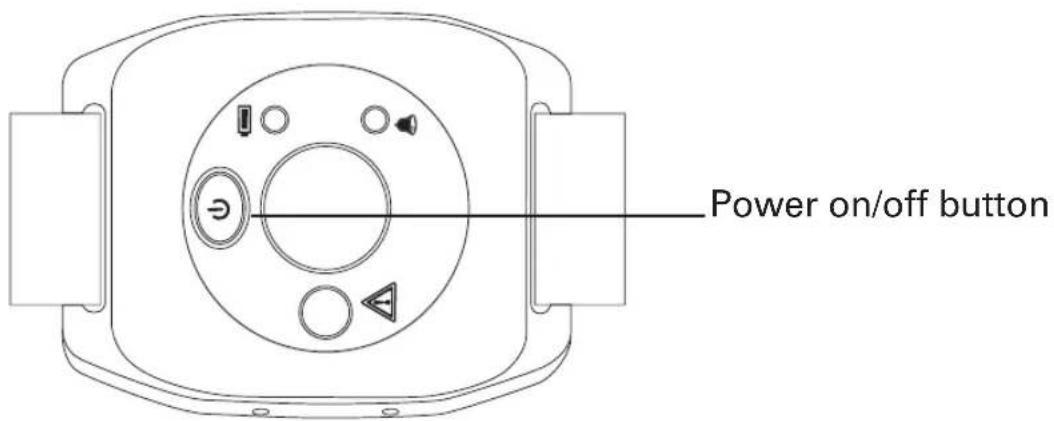
Off: Press and hold ④for about five seconds, until the green light goes off.
4. Turn on SOS Motor feature
The SOS Motor feature causes the wrist shaker to vibrate when a call comes in.
i. At the corded phone base: Press MENU (under the display).
ii. Use REDIAL/P to scroll to SOS Motor. Press MENU again.
iii. Use /P or /FLASH to scroll to On. Press MENU again. Saved is displayed.

WRIST SHAKER
Attach the wrist strap
The wrist strap allows the wrist shaker to be worn like a watch. To attach or adjust the wrist strap:
- Thread it from the back through one of the slots.
- Slide the strap across the back of the wrist shaker.
-
Thread it back to front through the other slot.
-
Place the strap around the wrist and connect the velcro fasteners.
The telephones and wrist shaker are now ready for use!
Register the wrist shaker
Important: It is necessary to register the wrist shaker if it has become de-registered from the telephone or if a new wrist shaker needs to be registered.
At the wrist shaker:
- Turn on the wrist shaker by pressing and holding for about five seconds.
- After the wrist shaker is On, press and hold again for about 12 seconds, until the registration light flashes green. The wrist shaker will be in registration for about 1 minute.
At the corded phone base:
- Press and hold PAGE for at least 10 seconds, until Register is displayed (for about 10 seconds).
Note: To located the registration key Ⓞ, see the At a Glance section for the corded phone base at the beginning of this guide.
- The registration light unit glows a steady green when the wrist shaker is registered (i.e. it isn't flashing).
Note: The registration light will flash green and red if the wrist shaker either isn't registered or is out of range.

WRIST SHAKER
Using the Wrist Shaker
Switch on
Press and hold for five seconds. The green light with the warning triangle will come on.
Switch off
Press and hold (for five seconds, until the green light goes off.
Incoming calls
When you receive an incoming call, the green light will flash and the wrist shaker will vibrate.
Paging
You are able to page the wearer of the wrist strap by pressing Ⓞ. To stop the alert press the ● (red center button).
Help and Support
Some issues may simply be resolved by disconnecting the power to the unit. In such instances the power to the main base station should be switched off and battery pack in the handset should also be removed for about 20 minutes. After 20 minutes, replace the battery pack and reconnect everything to determine if this has resolved the issue.
Troubleshooting Guide
I can't make phone calls
- Make sure the phone cable is connected properly. Make sure you are using the phone cable that came with your phone.
- Make sure the base is plugged in, switched on and working.
- If you're using the cordless handset, make sure you are not located too far from the base (the phone should work up to 325 yards outdoors and up to 53 yards indoors).
- Test the phone line and socket by using another phone.
I keep losing my connection on the cordless handset
- Make sure you aren't too far from the base (in ideal conditions, it should work up to 325 yards outdoors and up to 53 yards indoors).
- The base may not be in an ideal location – see Safety Information.

HELP AND SUPPORT
My handset keeps switching off
- It may need recharging. So it can charge fully, place your handset on its charger base for at least 15 hours with the charger base plugged in and working.
- Replace the rechargeable battery pack. Any replacement battery packs should be the same type as those provided.
The phone system isn't responding
You may need to reset to default settings. Please see page 39.
Answering machine won't record messages or memos
- Check that the answering machine is connected and switched on.
- Answering memory may be full. See page 32.
Caller's identification (Call Line ID) isn't working
- Check you have this service on your phone line. Please call your network provider.
- The caller may have withheld their phone number.
My handset or base doesn't ring
Check that the ringer is on.
I've got a buzzing noise on my radio, TV, or computer
We suggest you use your cordless handset at least 3 feet away from electrical equipment and mobile phones.
There is interference in the earpiece and/or the internet connection is very slow when using the phone
You must plug the phone into the wall socket via an ADSL filter if you have broadband internet on your phone line.
The white light on the base is constantly flashing
You have new answering machine message(s). Press ▶/□ to listen to them and the flashing will stop. My answering machine won't record messages or memos
- Check that your answering machine is connected and switched on.
- Answering memory may be full. See page 17.
My remote access isn't working
- Check you're using the correct PIN. See page 17 and 18.
- Make sure you're using a touchtone phone.

ENERAL INFORMATION
Energy efficient power adapter
The included power adapter meets the eco-design requirements of the European Union (Directive 2005/32/EG).

Disposal
The symbol on this product indicates that electrical and electronic apparatus and battery pack must be disposed of separately from domestic waste at suitable collection points provided by the public waste authorities.
Technical Details
Standard DECT ^1 GAP ^2
Power supply (base station) Input: 100-240V \~50/60Hz 0.15A
Output: 6VDC 800mA
Range Outdoors Approx 325 yards/300m
Indoors Approx 53 yards/50m
Standby Up to 100hrs
Maximum Talk Time Up to 10hrs
Rechargeable battery pack AAA 3.6V 750mAh NiMH in handset unit.
Dialling mode Tone (DTMF)
Pulse
Optimum ambient temperature 32°F to 113°F (0°C to 45°C)
Optimum relative humidity 20% to 80%
Recall 300, 600 ms
1 DECT: Digital Enhanced Cordless Telecommunication
^2 GAP: Generic Access Profile = standard for the operation of handsets and base stations from different manufacturers.
Default Settings
Cordless handset
Language English
Handset name PowerTel
Handset ringing melody (external) 7
Handset ringing melody (internal) 9
Handset ringing volume 5
Base ringing melody 8
Base ringing volume 5
Keypad beep On
Auto talk On
Contrast 3
Backlight time 10s
Boost memory Off
Recall time 600ms
Dialing mode Tone
PIN code 0000
Telephone answering machine
Language English
Answer mode Answer and record
PIN code for remote access 000
Answer delay 3
Time format 12 hour

GENERAL INFORMATION
Maintenance and Warranty
Maintenance
- Please clean your equipment's surfaces with a soft, lint-free cloth.
- Never use cleaning agents or solvents.
Warranty
AMPLICOM equipment is produced and tested according to the latest production methods. The implementation of carefully chosen materials and highly developed technologies ensure trouble free functioning and a long service life. The terms of the warranty do not apply where the cause of the equipment malfunction is the fault of the telephone network operator or any interposed private branch extension system. The terms of the warranty do not apply to the rechargeable battery pack or power packs used in the products. The period of warranty is 24 months from the date of purchase.
All deficiencies resulting from material of production faults which occur during the period of warranty will be eliminated free of charge. Rights to claims under the terms of warranty are annulled following intervention by the purchaser or third parties. Damage caused as a result of improper handling or operation, incorrect positioning or storing, improper connection or installation, Acts of God or other external influence are not covered by the terms of warranty.
In the case of complaints, we reserve the right to repair or replace defect parts or provide a replacement device. Replacement parts or devices become
our property.
Rights to compensation in the case of damage are excluded where there is no evidence of intent or gross negligence by the manufacturer.
If your equipment shows signs of defect during the period of warranty, please return to the sales outlet in which you purchased the AMPLICOM equipment together with the purchase receipt. All rights to claims under the terms of warranty in accordance with this agreement must be asserted exclusively with regard to your sales outlet.
Two years after the purchase of our products, claims under the terms of warranty can no longer be asserted.
Declaration of conformity
The ETL Listed Mark is an alternative to the CSA and UL marks. ETL Testing Laboratories owned by Intertek Testing Services (ITS) is recognized by OSHA as a Nationally Recognized Testing Laboratory (NRTL). ITS tests products according to nearly 200 safety and performance standards. The ETL Listed Mark is accepted throughout the United States when denoting compliance with nationally recognized standards such as ANSI, IEC, UL, and CSA.

This certification mark indicates that the product has been tested to and has met the minimum requirements of a widely recognized (consensus) U.S. product safety standard, that the manufacturing site has been audited, and that the applicant has agreed to a program of periodic factory follow-up inspections to verify continued conformance.

A
Adjusting the handsfree volume 26
Adjusting the earpiece volume 25
Alarm 38
Answering machine 12
Auto talk 36
B
Backlight timer 36
Base ringer melody 38
Base ringer volume 39
Base settings 38
Boosting the earpiece volume 26
C
Changing the system's PIN code 33
Change case 40
Charging the battery pack 10
Checking messages 13, 16
Conference calls 31
Connecting the base and charger 10
Contrast 36
D
Date/time 14, 37
Default settings 55
De-register a handset 29
Dial mode 22
Dialing pause 22
Dialing from the phone book 25
Dialing from a speed dial button 25
Display icons 9
E
Earpiece volume 24
End a call 24
Entering names in the phone book 40
Equalizer 36
F
Find a handset 28
INDEX
H
Handset name 30
Handset ringer melody 36
Handset ringer on/off 27
Handset ringer volume 36
Handsfree 26
Headset use 27
|
Internal calls 31
K
Keypad lock 28
Keypad beep on/off 36
L
Language 12,37
M
Making a call 24
Making internal calls 31
Memory full 17
Mute 27
P
Phone book 39,43
R
Record outgoing message 13,19
Redial 24
Register a handset 29
Remotely checking messages 18
Reset to default settings 23
S
Speed dial 25
T
Tone control 35,36
U
Using a headset 27
Using the menu 11
This page intentionally left blank.
- SERIES
- CONTENTS
- FCC Compliance
- Important Safety Instructions
- SAVE THESE INSTRUCTIONS
- Intended use
- Phone location
- Power failure – What to do
- Medical equipment
- Hearing aid compatibility
- GETTING STARTED
- Getting Started — Included Equipment
- PowerTel 725 Reliant + - Amplified Cordless Phone with Answering Machine and Wrist Shaker
- PowerTel 720 Assure + Twin - Amplified Cordless Phone with Answering Machine, and Additional Cordless Accessory Handset
- PowerTel 720 Assure + Phone Base
- ANDSET AND CHARGER BASE
- PowerTel 701 Extender Handset and Charger Base
- Cordless Phone Handset Display Icons
- SET UP
- Connect the base
- Connect the cordless phone charger base (Optional if included)
- Install the battery pack
- Charge the handset
- Connect telephone cable
- ANSWERING MACHINE
- Using the answering machine
- Switch answering machine on or off
- Set the language
- Adjust the base loudspeaker volume
- Set the answer mode
- Check the outgoing message
- Record an outgoing message
- Set the answer delay
- Set the day and time
- Check the day and time
- Record a memo
- Listen to messages or memos using the base buttons
- Delete a single message or memo
- Delete all messages and memos
- Memory full
- Access the answering machine from a remote location
- Change PIN
- Call in to check messages
- Manage messages using another phone
- Press...
- to Record a memo (6 to stop recording)
- Use the cordless handset
- Use on a Private Branch Exchange
- Set the recall time using the cordless handset
- SE ON A PRIVATE BRANCH EXCHANGE
- Insert a dialing pause
- Set the dial mode
- Change the dial mode using the cordless handset
- Reset to default settings
- Reset to default settings on the cordless handset
- CALLING FUNCTIONS
- Make a call using the cordless phone
- End a call
- Answer a call
- Redial a number using the cordless handset
- Note: Each phone number will be announced from the redial list provided the Read Number feature is enabled.
- Call back a previous caller
- Dial a number in the phone book
- Dial a number using the speed dial buttons
- Adjust the handset earpiece volume
- Boost the handset earpiece volume
- Handsfree feature
- Cordless Phone:
- Use a headset (not included) with the cordless phone
- Mute the phone
- Switch the cordless handset ringer on and off
- Lock and unlock the cordless handset keypad
- Find a handset
- Answer call waiting on cordless handsets
- PowerTel 701 Cordless handset and charger base Adding a Handset – Cordless Phone
- Register a handset
- At the handset:
- De-register a handset
- Adding a Handset
- Change a handset name
- Transfer an external call internally
- Making Calls from a Handset
- Make an internal call
- Make a conference call
- Copy phone book entries to another registered handset
- Copy a profile
- Setting or changing the System PIN code
- MENU OPTIONS - CORDLESS PHONE
- Priority/Default setting
- User profiles
- Add or edit a profile name
- Change a profile's handset volume or equalizer
- Choose a profile to use
- Changing Menu Settings
- Changing Clock Settings
- Changing Base Settings
- PHONE BOOK - CORDLESS PHONE
- Change base ringer volume — There are five volume levels plus Off.
- Keypad use for phone book
- Enter a new name and number in the phone book
- Show details, copy entry, copy append, or copy all for a phone book entry
- Delete a phone book entry or all entries
- Using speed dial memory buttons
- Edit a speed dial entry
- Delete a speed dial entry
- Incoming Calls - Cordless Phone
- Store numbers from the calls list to the phone book
- Delete a single entry
- Delete all call list entries
- Wrist Shaker
- Connect and charge wrist shaker (Optional and may be included)
- Plug in the charger unit
- Place the wrist shaker in the charger unit
- Switch wrist shaker on/off
- Turn on SOS Motor feature
- Attach the wrist strap
- The telephones and wrist shaker are now ready for use!
- Register the wrist shaker
- At the wrist shaker:
- At the corded phone base:
- Using the Wrist Shaker
- Switch on
- Switch off
- Incoming calls
- Paging
- Help and Support
- Troubleshooting Guide
- I can't make phone calls
- I keep losing my connection on the cordless handset
- My handset keeps switching off
- The phone system isn't responding
- Answering machine won't record messages or memos
- Caller's identification (Call Line ID) isn't working
- My handset or base doesn't ring
- I've got a buzzing noise on my radio, TV, or computer
- There is interference in the earpiece and/or the internet connection is very slow when using the phone
- The white light on the base is constantly flashing
- My remote access isn't working
- ENERAL INFORMATION
- Energy efficient power adapter
- Disposal
- Technical Details
- Default Settings
- Cordless handset
- Telephone answering machine
- GENERAL INFORMATION
- Maintenance and Warranty
- Maintenance
- Warranty
- Declaration of conformity
- A
- B
- C
- D
- E
- F
- H
- |
- K
- L
- M
- P
- R
- S
- T
- U
Brand : Amplicom
Model : PowerTel 725
Category : Telephone