
X Power K220DSZ - Mobile Phone LG - Free user manual and instructions
Find the device manual for free X Power K220DSZ LG in PDF.


| Product Type | Smartphone |
| Model | X Power K220DSZ |
| Brand | LG |
| Dimensions | 148.7 x 74.1 x 8.1 mm |
| Weight | 135 g |
| Battery Capacity | 4100 mAh (non-removable) |
| Processor | Quad-core 1.5 GHz |
| RAM | 2 GB |
| Internal Storage | 16 GB (expandable via microSD) |
| Display | 5.3 inches IPS LCD, 720 x 1280 pixels |
| Operating System | Android 6.0.1 (Marshmallow) |
| Rear Camera | 13 MP, f/2.2, autofocus, LED flash |
| Front Camera | 5 MP, f/2.2 |
| Connectivity | 4G LTE, Wi-Fi 802.11 b/g/n, Bluetooth 4.2, GPS |
| SIM | Dual SIM (Micro-SIM, dual standby) |
| Sensors | Accelerometer, proximity, compass |
| Security | No fingerprint sensor |
| Maintenance | Clean with a soft, dry cloth. Avoid liquids. |
| Spare Parts & Repairability | Battery replacement requires professional service. Screen and back cover are replaceable. |
| General Information | Released 2016, available in black, gold, silver |
Frequently Asked Questions - X Power K220DSZ LG
User questions about X Power K220DSZ LG
0 question about this device. Answer the ones you know or ask your own.
Ask a new question about this device
Download the instructions for your Mobile Phone in PDF format for free! Find your manual X Power K220DSZ - LG and take your electronic device back in hand. On this page are published all the documents necessary for the use of your device. X Power K220DSZ by LG.
USER MANUAL X Power K220DSZ LG
natural_image
Illustration of a hand pointing at a touchscreen interface with icons, set against a rural landscape background (no text or symbols on the main image)
Quick备忘录+
Quick备忘录+ 概览
natural_image
Line drawing of a smartphone with a magnified inset showing a finger pointing to the screen (no text or symbols present)2 拉出卡托盘。
natural_image
Diagram of a smartphone with a magnified inset showing a mechanical component (no text or symbols)natural_image
Illustration of a smartphone with a magnified inset showing two electronic components (no text or symbols present)4 将卡托盘插回卡槽中。

natural_image
Diagram of a smartphone with an inset showing a close-up of its internal components (no text or symbols present)

natural_image
Hand pointing at a circular button on a plain background (no text or symbols)点点住
点住几秒钟以运行隐藏的功能。
natural_image
Hand pressing a red circular button on a gray background (no text or symbols)双双击
快速点击两次以放大或缩小网页或地图。
natural_image
Hand pointing at a circular button with a red highlight (no text or symbols)滑动
natural_image
Hand pointing at a button with bidirectional arrows (no text or symbols)轻轻拂
natural_image
Hand pressing a button with a red upward arrow (no text or symbols)捏捏合与张开
natural_image
Illustration of a hand pointing to a finger with red arrows indicating movement (no text or symbols)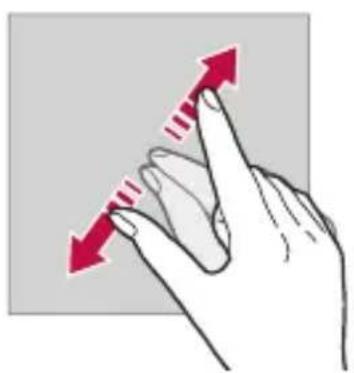
natural_image
Hand pointing upward with red arrows indicating movement (no text or symbols)
状态图标
natural_image
Two-panel image showing sunflowers in a field under a cloudy sky, with a red double-headed arrow indicating bidirectional movement (no text or symbols)编编辑室屏幕
在在主屏幕中移动应用程序
移动光标

选选择横向键盘模式
您可以从几个选项中选择横向键盘模式。
单手操作模式
natural_image
Hand pressing a button on a grid-patterned interface (no text or symbols visible)使使用语音输入文字
在键盘中,点住,然后选择。

natural_image
Hand pointing at a smartphone screen displaying a scenic landscape with trees and hills (no text or symbols visible)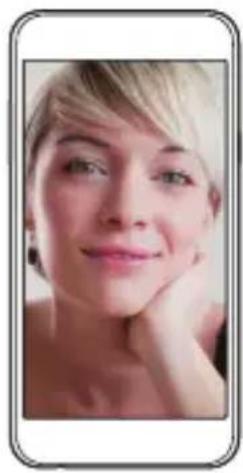
natural_image
Portrait of a woman with short blonde hair, resting her chin on her hand (no text or symbols visible)
natural_image
Smartphone displaying a snowy mountain landscape at dusk with starry sky and sunset, shown in two open panels (no text or symbols on screen)急速连拍
您可以连续拍摄照片以制作活动图像。
在自动模式下,点住 📷。
- 按住 📷 的同时快速连续拍摄。

- 最多可连续拍摄 30 张照片。
自自定義摄像头选项

natural_image
Four-panel photo sequence of a smiling girl holding a drink and straw, outdoors on grass (no text or symbols visible)人脸自拍
natural_image
Portrait of a smiling young girl with long hair, wearing a light blue top (no visible text or symbols)

QuickMemo+
GambarankeseluruhanQuickMemo+
natural_image
Line drawing of a smartphone with a magnified inset showing a key inserted into the screen (no text or symbols)natural_image
Line drawing of a smartphone with a magnified inset showing a mechanical component (no text or symbols)natural_image
Illustration of a smartphone with a magnified inset showing two electronic components (no text or symbols present)natural_image
Illustration of a smartphone with a close-up view of its internal components (no text or symbols)natural_image
Diagram showing a USB cable being inserted into a smartphone, with an inset close-up highlighting the cable connector (no text or symbols present)
natural_image
Hand pointing at a red circular button on a gray background (no text or symbols)natural_image
Hand pointing at a circular button with a red square (no text or symbols)Menyeret
natural_image
Hand pointing at a button with bidirectional arrows (no text or symbols)Meleret
Mencubitdanmeregang
natural_image
Illustration of a hand holding a finger with red arrows indicating movement or force direction (no text or symbols)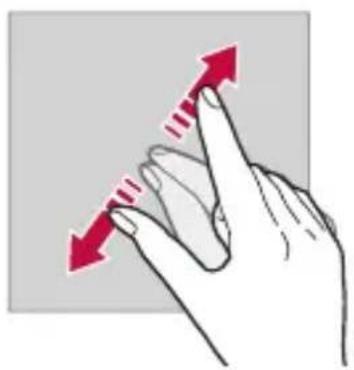
natural_image
Hand pointing upward with a red arrow indicating force or movement (no text or symbols)

Ikon status
natural_image
Two-panel image showing sunflowers in a field under a cloudy sky, with a red double-headed arrow indicating the direction (no text or symbols)MengeditskrinUtama
Menggerakkan cursor
Mengubah tataletak QWERTY

natural_image
Hand pressing a button on a keyboard with red arrows indicating upward and downward movement (no text or symbols)Memilih mod papan kekunci landskap

natural_image
Illustration of a hand pressing a button on a grid-patterned interface (no text or symbols)natural_image
Hand pointing at a smartphone screen displaying a scenic landscape with trees and hills (no text or symbols visible)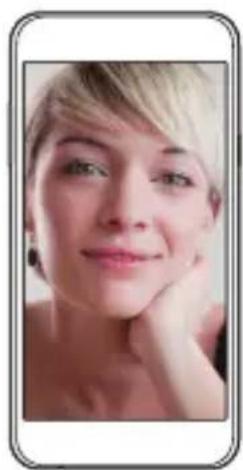
natural_image
Portrait of a woman with short blonde hair and green eyes, resting her chin on her hand (no text or symbols visible)
natural_image
Smartphone displaying a snowy landscape at dusk with starry sky and distant lights (no text or symbols visible)Tangkapan pecah

natural_image
Four-panel photo sequence showing a smiling girl holding a glass jar and straw, outdoors on grass (no text or symbols)Tangkap auto
natural_image
Selfie of a smiling young girl with long hair, wearing a light blue top (no visible text or symbols)Galeri
natural_image
Field of sunflowers under a cloudy sky, no text or symbols visibleAbout this user guide
Thank you for choosing this LG product. Please carefully read this user guide before using the device for the first time to ensure safe and proper use.
• Always use genuine LG accessories. The supplied items are designed only for this device and may not be compatible with other devices.
- This device is not suitable for people who have a visual impairment due to the touchscreen keyboard.
• Descriptions are based on the device default settings.
- Default apps on the device are subject to updates, and support for these apps may be withdrawn without prior notice. If you have any questions about an app provided with the device, please contact a LG Service Centre. For user-installed apps, please contact the relevant service provider.
- Modifying the device's operating system or installing software from unofficial sources may damage the device and lead to data corruption or data loss. Such actions will violate your LG licence agreement and void your warranty.
- Some content and illustrations may differ from your device, depending on the region, service provider, software version, or OS version, and are subject to change without prior notice.
- Software, audio, wallpaper, images, and other media supplied with your device are licenced for limited use. If you extract and use these materials for commercial or other purposes, you may be infringing copyright laws. As a user, you are fully responsible for the illegal use of media.
• Additional charges may incur for data services, such as messaging, uploading, downloading, auto-syncing and location services. To void additional charges, select a data plan suitable to your needs. Contact your service provider to obtain additional details.
Instructional notices

WARNING: Situations that could cause injury to the user and third parties.

CAUTION: Situations that may cause minor injury or damage to the device.

NOTE: Notices or additional information.
Table of contents
5 Guidelines for safe and efficient use
01
Custom-designed Features
13 Quick Share
14 QuickMemo+
16 QSlide
17 Do not disturb
17 Ringtone ID
02
Basic Functions
19 Product components and accessories
20 Parts overview
22 Turning on or off the power
23 Installing the SIM card
25 Inserting the memory card
26 Removing the memory card
26 Charging the battery
27 Using the battery efficiently
28 Touch screen
31 Home screen
38 Screen lock
41 Device encryption
42 Memory card encryption
43 Taking screenshots
44 Entering text
03
Useful Apps
51 Installing and uninstalling apps
52 Uninstalled apps
53 Device
56 Messaging
57 Camera
63 Gallery
65 File Manager
65 Weather
66 Clock
67 Calculator
67 Tasks
68 Voice Recorder
68 FM Radio
68 Downloads
69 E-mail
71 Music
72 Contacts
74 SmartWorld
75 Calendar
76 LG Backup
77 RemoteCall Service
77 Google apps
04
Device Settings
81 Settings
81 Networks
89 Sound & notification
90 Display
91 General
05
Appendix
99 LG Language Settings
99 LG Bridge
100 Device software update
102 FAQ
105 Anti-Theft Guide
106 More information
Guidelines for safe and efficient use
Please read these simple guidelines. Not following these guidelines may be dangerous or illegal.
Should a fault occur, a software tool is built into your device that will gather a fault log. This tool gathers only data specific to the fault, such as signal strength, cell ID position in sudden call drop and applications loaded. The log is used only to help determine the cause of the fault. These logs are encrypted and can only be accessed by an authorised LG Repair centre should you need to return your device for repair.
Important information about the device
- Device apps and services are subject to change or cancellation without notice, depending on the provider's situation and the software version.
- When the device is turned on for the first time, an initial configuration takes place. The first booting time may be longer than usual.
Read before use
- To purchase optional items, contact the LG Customer Information Centre for available dealers.
- The appearance and specifications of the device are subject to change without notice.
- Do not use LG products for other purposes than those originally intended. Using non-certified apps or software may damage the device and this is not covered by warranty.
Exposure to radio frequency energy
Radio wave exposure and Specific Absorption Rate (SAR) information.
This device has been designed to comply with applicable safety requirements for exposure to radio waves. These requirements are based on scientific guidelines that include safety margins designed to assure the safety of all persons, regardless of age and health.
- The radio wave exposure guidelines employ a unit of measurement known as the Specific Absorption Rate, or SAR. Tests for SAR are conducted using standardised methods with the device transmitting at its highest certified power level in all used frequency bands.
- While there may be differences between the SAR levels of various LG device models, they are all designed to meet the relevant guidelines for exposure to radio waves.
- The SAR limit recommended by the International Commission on Non-Ionizing Radiation Protection (ICNIRP) is 2 W/kg averaged over 10 g of tissue.
- The highest SAR value for this model tested for use at the ear is 0.768 W/kg (10 g) and when worn on the body is 1.400 W/Kg (10 g).
- This device meets RF exposure guidelines when used either in the normal use position against the ear or when positioned at least 5 mm away from the body. When a carry case, belt clip or holder is used for body-worn operation, it should not contain metal and should position the product at least 5 mm away from your body. In order to transmit data files or messages, this device requires a quality connection to the network. In some cases, transmission of data files or messages may be delayed until such a connection is available. Ensure the above separation distance instructions are followed until the transmission is completed.
Product care and maintenance
- Always use genuine LG batteries, chargers and accessories approved for use with this particular device model. The use of any other types may invalidate any approval or warranty applying to the device and may be dangerous.
- Some contents and illustrations may differ from your device without prior notice.
-
Do not disassemble this unit. Take it to a qualified service technician when repair work is required.
-
Repairs under warranty, at LG's discretion, may include replacement parts or boards that are either new or reconditioned, provided that they have functionality equal to that of the parts being replaced.
- Keep away from electrical appliances such as TVs, radios and personal computers.
- The unit should be kept away from heat sources such as radiators or cookers.
- Do not drop.
• Do not subject this unit to mechanical vibration or shock. - Switch off the device in any area where you are required to by special regulations. For example, do not use your device in hospitals as it may affect sensitive medical equipment.
- Do not handle the device with wet hands while it is being charged. It may cause an electric shock and can seriously damage your device.
- Do not charge a handset near flammable material as the handset can become hot and create a fire hazard.
- Use a dry cloth to clean the exterior of the unit (do not use solvents such as benzene, thinner or alcohol).
- Do not charge the device when it is on soft furnishings.
• The device should be charged in a well ventilated area.
• Do not subject this unit to excessive smoke or dust. - Do not keep the device next to credit cards or transport tickets; it can affect the information on the magnetic strips.
- Do not tap the screen with a sharp object as it may damage the device.
• Do not expose the device to liquid or moisture. - Use accessories like earphones cautiously. Do not touch the antenna unnecessarily.
- Do not use, touch or attempt to remove or fix broken, chipped or cracked glass. Damage to the glass display due to abuse or misuse is not covered under the warranty.
- Your device is an electronic device that generates heat during normal operation. Extremely prolonged, direct skin contact in the absence of adequate ventilation may result in discomfort or minor burns. Therefore, use care when handling your device during or immediately after operation.
- If your device gets wet, immediately unplug it to dry off completely. Do not attempt to accelerate the drying process with an external heating source, such as an oven, microwave or hair dryer.
- The liquid in your wet device, changes the colour of the product label inside your device. Damage to your device as a result of exposure to liquid is not covered under your warranty.
Efficient device operation
Electronics devices
All devices may receive interference, which could affect performance.
- Do not use your device near medical equipment without requesting permission. Avoid placing the device over pacemakers, for example, in your breast pocket.
• Some hearing aids might be disturbed by devices.
• Minor interference may affect TVs, radios, PCs etc.
- Use your device in temperatures between 0 °C and 40 °C, if possible. Exposing your device to extremely low or high temperatures may result in damage, malfunction, or even explosion.
Road safety
Check the laws and regulations on the use of devices in the area when you drive.
• Do not use a hand-held device while driving.
• Give full attention to driving.
- Pull off the road and park before making or answering a call if driving conditions so require.
- RF energy may affect some electronic systems in your vehicle such as car stereos and safety equipment.
- When your vehicle is equipped with an air bag, do not obstruct with installed or portable wireless equipment. It can cause the air bag to fail or cause serious injury due to improper performance.
- If you are listening to music whilst out and about, please ensure that the volume is at a reasonable level so that you are aware of your surroundings. This is of particular importance when near roads.
Avoid damage to your hearing

To prevent possible hearing damage, do not listen at high volume levels for long periods.
Damage to your hearing can occur if you are exposed to loud sound for long periods of time. Make sure that you do not turn on or off the handset close to your ear. Also, make sure that music and call volumes are set to a reasonable level.
- When using headphones, turn the volume down if you cannot hear the people speaking near you, or if the person sitting next to you can hear what you are listening to.

- Excessive sound pressure from earphones and headphones can cause hearing loss.
Glass Parts
Some parts of your device are made of glass. This glass could break if your device is dropped on a hard surface or receives a substantial impact. If the glass breaks, do not touch or attempt to remove it. Stop using your device until the glass is replaced by an authorised service provider.
Blasting area
Do not use the device where blasting is in progress. Observe restrictions and follow any regulations or rules.
Potentially explosive atmospheres
• Do not use your device at a refueling point.
• Do not use near fuel or chemicals.
- Do not transport or store flammable gas, liquid or explosives in the same compartment of your vehicle as your device or accessories.
In aircraft
Wireless devices can cause interference in aircraft.
• Turn your device off before boarding any aircraft.
• Do not use it on the ground without permission from the crew.
Children
Keep the device in a safe place out of the reach of small children. It includes small parts which may cause a choking hazard if detached.
Emergency calls
Emergency calls may not be available on all mobile networks. Therefore you should never depend solely on your device for emergency calls. Check with your local service provider.
Battery information and care
- You do not need to completely discharge the battery before recharging. Unlike other battery systems, there is no memory effect that could compromise the battery's performance.
- Use only LG batteries and chargers. LG chargers are designed to maximise the battery life.
- Do not disassemble or short-circuit the battery.
- Replace the battery when it no longer provides acceptable performance. The battery pack may be recharged hundreds of times before it needs replacing.
- Recharge the battery if it has not been used for a long time to maximise usability.
- Do not expose the battery charger to direct sunlight or use it in high humidity, such as in the bathroom.
- Do not leave the battery in hot or cold places, as this may deteriorate battery performance.
- Risk of explosion if battery is replaced by an incorrect type. Dispose of used batteries according to the instructions.
• Always unplug the charger from the wall socket after the device is fully charged to save unnecessary power consumption of the charger.
- Actual battery life will depend on network configuration, product settings, usage patterns, battery and environmental conditions.
- Make sure that no sharp-edged items such as animal's teeth or nails, come into contact with the battery. This could cause a fire.
Precautions when using SIM cards
- Do not insert the SIM card into the device with the label or seal attached. This may cause damage.
- Do not remove the SIM card while using the device. This may damage the SIM card or the system.
- Take extra care to ensure that the SIM card is not scratched, bent, or damaged by magnet. This may delete files saved on the SIM card or cause device malfunctions.
Precautions when using memory cards
• Make sure that the orientation is correct when inserting the memory card. Inserting using the wrong orientation may damage the card.
Fast charging adapter information
• A charging adapter that supports fast charging is included with the product.
- The fast charging feature may not work if a fast charging adapter other than the genuine adapter provided with the product is used.

Notice for Battery replacement
- For your safety, do not remove the battery incorporated in the product. If you need to replace the battery, take it to the nearest authorised LG Electronics service point or dealer for assistance.
• Li-Ion Battery is a hazardous component which can cause injury. - Battery replacement by non-qualified professional can cause damage to your device.
01
Custom-designed Features
Quick Share
You can share a photo or video to the app you want immediately after taking them.
1 Tap ○ then take a photo or record a video.
2 Drag the Quick Share icon that appears after taking a picture or recording a video, and select an app to share it.
Alternatively, tap and hold the Preview icon that appears after taking a picture or recording a video, and drag it to the Quick Share icon.

- The app displayed by the Quick Share icon may vary, depending on the type and frequency of access of the apps installed on the device.

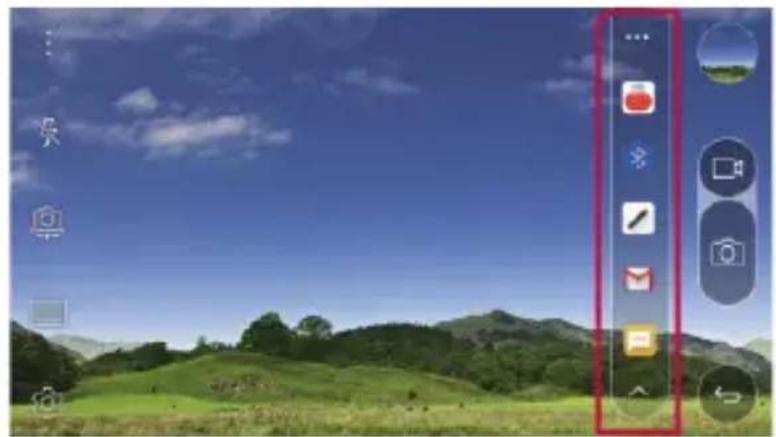
QuickMemo+
QuickMemo+overview
You can make creative notes by using a variety options on this advanced feature of notepad, such as image management and screenshots, which are not supported by the conventional notepad.
Creatinganote
1 Tap QuickMemo+.
2 Tap to create a note.
- ✓: Save a note.
• ←: Undo the last action.
• →: Redo the last action you undid.
• T : Enter a note by using the keypad.
• : Write notes by hand.
• : Erase handwritten notes. - ☐: Zoom in or out, rotate or erase the parts of a handwritten note.
• : Access additional options, including sharing and locking notes, changing the note pad style and inserting content.
3 Tap to save the note.
Writing notes on a photo
1 Tap QuickMemo+.
2 Tap to take a photo, then tap OK.
• The photo is automatically attached into the notepad.
3 Freely write notes on the photo.
4 Tap to save the note.
Writing notes on a screenshot
1 While viewing the screen you want to capture, drag the status bar downwards and then tap Capture+.
- The screenshot appears as the notepad background theme. Memo tools appear at the top of the screen.
2 Take notes on the captured screen.
• To crop and save a portion of the screen, tap and specify a portion with the crop tool.
• To attach a screenshot to the notepad, tap.
3 Tap and save the notes to the location you want.
- Saved notes can be viewed in either QuickMemo+ or Gallery.
- To save notes in the same location all the time, select the Use as default app checkbox and select an app.
Managingfolders
You can view notes grouped by the type of the notes.
1 Tap ○ QuickMemo+.
2 At the top of the screen, tap and select a menu item:
- All memos: View all notes saved in QuickMemo+.
• My memos: View notes created by QuickMemo+.
• Capture+: View notes created by Capture+.
• Photo memos: View notes created by - Trash: View deleted notes.
• New category: Add categories.
• 🎨: Rearrange, add or delete categories. To change the name of a category, tap the category.

- Some folders do not appear when launching QuickMemo+ for the first time. Disabled folders are enabled and appear when they contain at least one related note.
QSlide
You can start apps by using QSlide to use them while other apps are running. For example, use the calculator or calendar when a video is playing.
When an app is running, tap: >QSlide.

• This feature may not be supported by some apps.
- [ ]: Turn off the QSlide mode to switch to full-screen mode.
- -○ : Adjust the opacity of the QSlide window. If the QSlide window is transparent, it will not respond to touch inputs.
• X : Close the QSlide window.
• ▲: Adjust the size of the QSlide window.
Do not disturb
You can limit or mute notifications to avoid disturbances for a specific period of time.
1 Tap ○> Settings > Sound & notification > Do not disturb and then drag ○ to activate it.
2 Tap Sounds and vibrations and select the mode you want:
- Priority onlyReceive sound or vibrate notifications for the selected apps. Even when Priority only is turned on, alarms still sound.
• Total silence: Disable both the sound and vibration.
RingtonelD
You can set the device so that it plays an automatically composed ringtone for each incoming call from the selected contacts. This function is useful because you can know who are calling you by only hearing the ringtone.
1 Tap ○> Settings > Sound & notification > Ringtone ID and then drag ○ to activate it.
2 Tap Compose ringtones for and select the desired option.

- The default ringtone plays for incoming calls from contacts except for the selected contact.
02
Basic Functions
Product components and accessories
Make sure that none of the following items are missing:
- Device
- Ejection pin
-
Stereo headset
-
USB cable
- Fast charger
- Quick Start Guide

• The items described above may be optional.
- The items supplied with the device and any available accessories may vary depending on the area and service provider.
- Always use genuine LG Electronics accessories. Using accessories made by other manufacturers may affect your device's call performance or cause malfunctions. This may not be covered by LG's repair service.

• If any of these basic items are missing, contact the dealer from which you purchased your device.
- To purchase additional basic items, contact the LG Customer Service Centre.
- To purchase optional items, contact the LG Customer Service Centre for available dealers.
• Some items in the product box are subject to change without notice.
- The appearance and specifications of your device are subject to change without notice.
Parts overview
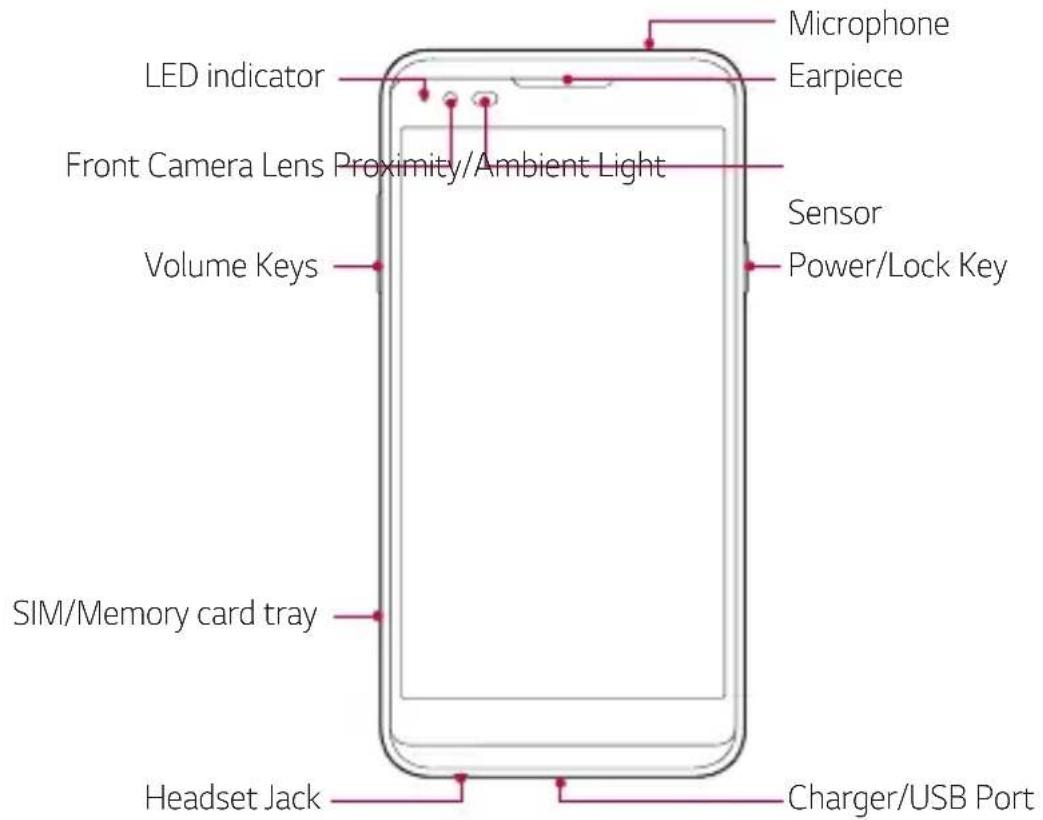
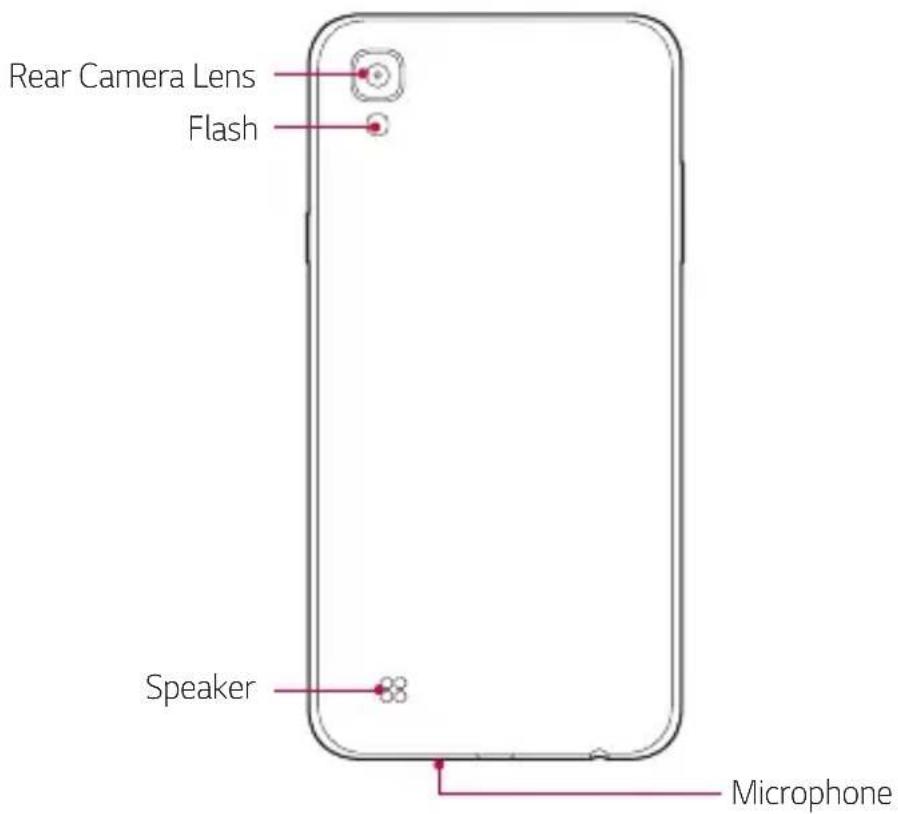
• Proximity/Ambient Light Sensor
- Proximity sensor: The proximity sensor turns off the screen and disables touch functionality when the device is in close proximity to the human body. It turns the screen back on and enables touch functionality when the device is outside a specific range.
- Ambient light sensor: The ambient light sensor analyses the ambient light intensity when the auto-brightness control mode is turned on.
• Volume Keys
- Adjust the Volume for ringtones, calls or notifications.
- Gently press a Volume key to take a photo. To take continuous shots of photos, press and hold the Volume key.
- Press the Volume Down (-) key twice to launch the Camera app when the screen is locked or turned off. Press the Volume Up (+) key twice to launch Capture+.
• Power/Lock Key
- Briefly press the key when you want to turn the screen on or off.
- Press and hold the key when you want to select a power control option.

- Some functions may be restricted for access, depending on the device specifications.
- Do not put heavy objects on the device or sit on it, as this may damage the screen.
- Screen-protective film or accessories may interfere with the proximity sensor.
- If your device is wet or is being used in a humid place, the touch sensor or buttons may not function properly.
Turning on or off the power
Turning on the power
When the power is turned off, press and hold the Power/Lock Key.

- When the device is turned on for the first time, initial configuration takes place. The first booting time for the smart device may be longer than usual.
Turning off the power
Press and hold the Power/Lock Key, then select Power off.
Power control options
Tap and hold the Power/Lock Key, then select an option.
• Power off: Turn off the device.
• Power off and restart: Restart the device.
- Turn on Airplane mode: Block telecommunication-related functions, including making device calls, messaging and browsing the Internet. Other functions remain available.

- If the screen freezes or the device does not respond when you try to operate it, press and hold the Power/Lock Key and Volume Down (-) key for about 10 seconds to restart your device.
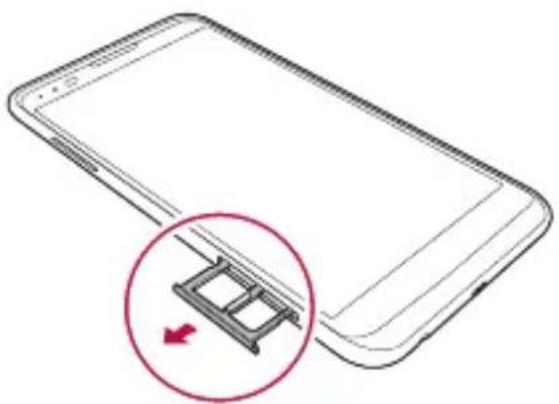
Installing the SIM card
Properly use the SIM (Subscriber Identity Module) card provided by your service provider.
1 Insert the ejection pin into the hole on the card tray.

natural_image
Diagram of a smartphone with a magnified inset showing a key inserted into the screen (no text or symbols present)2 Pull out the card tray.

natural_image
Line drawing of a smartphone with a magnified inset showing a mechanical component (no text or symbols)3 Put the SIM card on the card tray with the gold-coloured contacts facing downwards.
Put the primary SIM card on the SIM card tray 1 and the secondary SIM card on the SIM card tray 2.

- The SIM card tray 2 also serves as the memory card tray. However, you cannot put both the SIM card and the memory card (optional) at the same time.

natural_image
Illustration of a smartphone with a magnified inset showing two electronic components (no text or symbols present)4 Insert the card tray back into the slot.

natural_image
Illustration of a smartphone with a close-up view of its internal components (no text or symbols)
- Of several types of SIM cards, only the Nano-SIM cards work with the device.
- For problem-free performance, it is recommended to use the device with the correct type of SIM card. Always use a factory-made SIM card supplied by the operator.
Precautions when using SIM card
- Do not lose your SIM card. LG is not responsible for damage and other issues caused by loss or transfer of a SIM card.
- Be careful not to damage the SIM card when you insert or remove it.
Inserting the memory card
The device supports up to a 2 TB microSD. Some memory cards may not be compatible with your device, depending on the memory card manufacturer and type.

- Some memory cards may not be fully compatible with the device. If you use an incompatible card, it may damage the device or the memory card, or corrupt the data stored in it.
1 Insert the ejection pin into the hole on the card tray.
2 Pull out the card tray.
3 Put the memory card on the card tray with the gold-coloured contacts facing downwards.

4 Insert the card tray back into the slot.

• The memory card is an optional item.
- Frequent writing and erasing data may shorten the lifespan of memory cards.
Removing the memory card
Unmount the memory card before removing it for safety.
1 Tap ○> Settings > General > Storage & USB > △.
2 Insert the ejection pin into the hole on the card tray.
3 Pull out the card tray and remove the memory card.

- Do not remove the memory card while the device is transferring or accessing information. This may cause data to be lost or corrupted, or may damage the memory card or the device. LG is not responsible for losses that result from the abuse or improper use of memory cards, including the loss of data.
Chargingthebattery
Before using the device, fully charge the battery.
Connect one end of the charging cable to the charger, insert the other end of the cable into the cable port, and then plug the charger into a power socket.
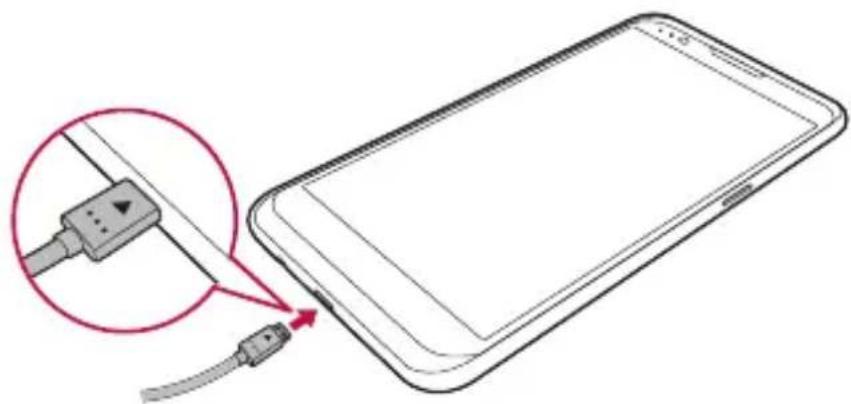
natural_image
Diagram of a smartphone connected to a cable, showing a close-up of the cable being inserted (no text or symbols present)
• Make sure to use the USB cable provided as a basic accessory.
- When connecting a USB cable, make sure that the icon on the cable faces up. Connecting the cable in the wrong way may damage the device.
- Make sure to use an LG-approved charger, battery and charging cable. Charging the battery with a third-party charger may cause the battery to explode or may damage the device.
• Using the device when it is charging may cause electric shock. To use the device, stop charging.
- A charging adapter that supports fast charging is included with the product. The fast charging feature may not function if a fast charging adapter other than the genuine adaptor provided with the product is used.

- Remove the charger from the power socket after the device is fully charged. This prevents unnecessary power consumption.
- Another way to charge the battery is by connecting a USB cable between the device and a desktop or laptop computer. This may take a longer time than charging the battery in the common way.
- Do not charge the battery by using a USB hub that is unable to maintain the rated voltage. Charging may fail or unintentionally stop.
Using the battery efficiently
Battery lifespan may decrease if you keep many apps and functions running simultaneously and continuously.
Cancel background operations to increase battery life.
To minimise battery consumption, follow these tips:
- Turn off the Bluetooth® or Wi-Fi network function when not using them.
- Set the screen timeout to as short a time as possible.
- Minimise the screen brightness.
- Set a screen lock when the device is not used.
• To use a downloaded app, check the battery level.
Touch screen
You can familiarise yourself with how to control your device by using touch screen gestures.
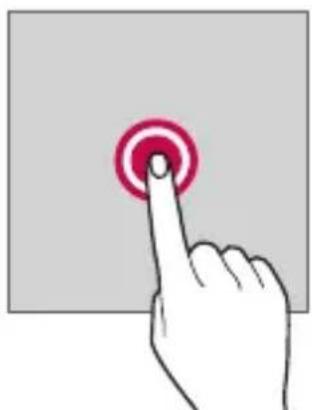
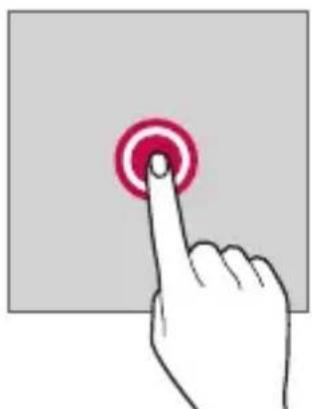
Tapping
Lightly tap with your fingertip to select or run an app or option.

natural_image
Hand pressing a red circular button on a gray background (no text or symbols)Tapping and holding
Tap and hold for several seconds to run a hidden function.
natural_image
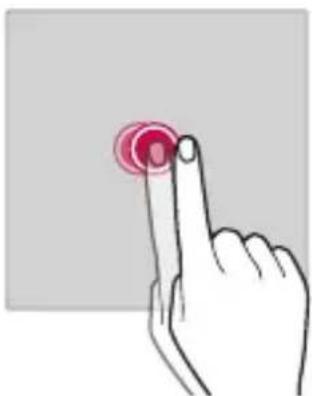
Hand pressing a red circular button on a gray background (no text or symbols)Double-tapping
Tap twice quickly to zoom in or out on a photo or map.
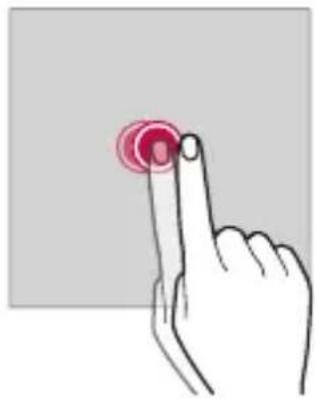
natural_image
Hand pointing at a circular button with a red highlight (no text or symbols)Swiping
Tap and hold an item, such as an app or widget, then swipe it to another location. You can use this gesture to move an item.
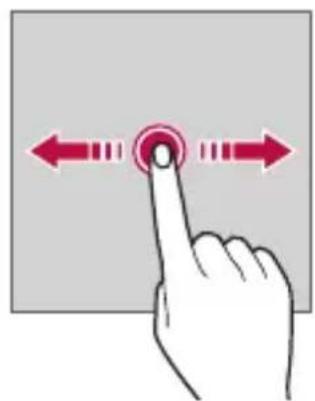
natural_image
Hand pointing at a button with bidirectional arrows (no text or symbols)Flicking
Gently tap and hold on the screen, then flick left or right to quickly move to another panel.

natural_image
Hand pointing at a circular button with an arrow, no text or symbols presentPinchingandspreading
Pinch two fingers to zoom out such as on a photo or map. To zoom in, spread your fingers apart.

natural_image
Illustration of a hand holding a finger with red arrows indicating movement or force direction (no text or symbols)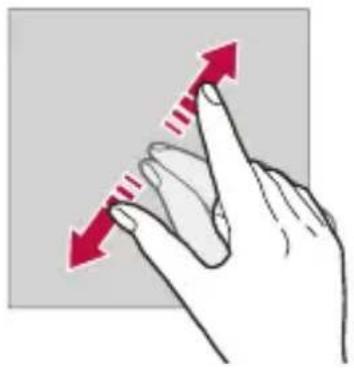
natural_image
Hand pointing upward with red arrows indicating movement (no text or symbols)
- Do not expose the touch screen to excessive physical shock. You might damage the touch sensor.

- A touch screen failure may occur if you use the device near a magnetic, metallic or conductive material.
- If you use the device under bright lights, such as direct sunlight, the screen may not be visible, depending on your position. Use the device in a shady location or a location with an ambient light that is not too bright and bright enough to read books.
• Do not press the screen with excessive force.
• Gently tap with your fingertip on the option you want.
- Touch control may not work properly if you tap while wearing a glove or by using the tip of your fingernail.
- Touch control may not work properly if the screen is moist or wet.
- The touch screen may not function properly if a screen-protective film or accessory is attached to the device.
Home screen
Home screen overview
The Home screen is the starting point for accessing various functions and apps on your device. Tap ○ on any screen to directly go to the Home screen.
You can manage all apps and widgets on the Home screen. Swipe the screen left or right to view all installed apps at a glance.
To search for an app, use Google search.
Home screen layout
You can view all apps and organise widgets and folders on the Home screen.
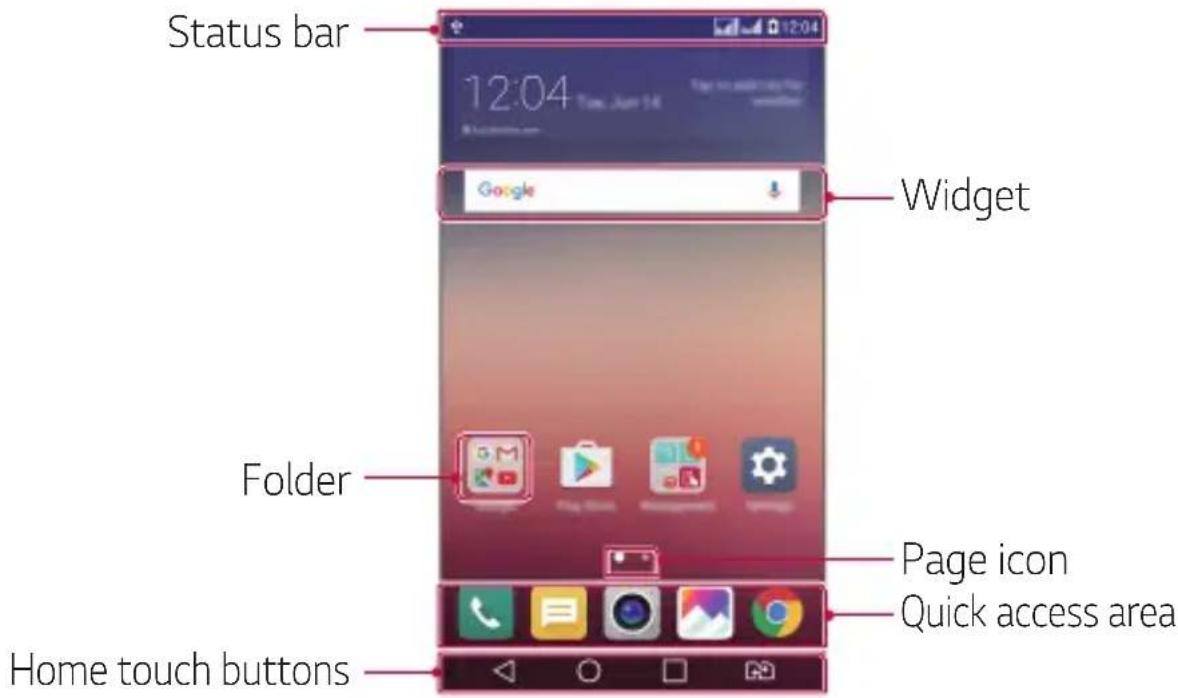

- The Home screen may vary, depending on the service provider or software version.
• Status bar: View status icons, the time and the battery level.
- Widget: Add widgets to the Home screen to quickly access necessary information without bothering to run apps one by one.
• Folder: Create folders to group apps by your preferences.
• Page icon: View the total number of Home screen canvases and the currently displayed canvas which is highlighted.
- Quick access area: Fix main apps at the bottom of the screen so that they can be accessed from any Home screen canvas.
• Hometouchbuttons
- ◀: Return to the previous screen. Close the keypad or pop-up windows.
- ○: Tap to go to the Home screen. To launch Google, tap and hold.
- ☐: View a list of recently used apps or run an app from the list. Use the Clear all option to delete all recently used apps. In some apps, tapping and holding the button will access additional options.
- Choose which SIM card you're going to use. Touch and hold to go to Dual SIM card settings.
Editing Home touch buttons
You can rearrange Home touch buttons or add frequently used functions to Home touch buttons.
Tap ○ > Settings > Display > Home touch button combination and customise settings.
- Several functions, including QSlide, Notification panel or Capture+, are provided. A maximum of five items can be added.

Status icons
When there is a notification for an unread message, calendar event or alarm, the status bar displays the corresponding notification icon. Check your device's status by viewing notification icons displayed on the status bar.
• * : No signal
- Alarm is set
• :Vibrate mode is on
- Bluetooth is on
• ⚠: Connected to a computer via USB
- :Battery level
• ♣: Flight mode is on
• :Missed calls
- Wi-Fi is on
• :Mute mode is on
• : GPS is on
• (1): Hotspot is on
- : No SIM card

- Some of these icons may appear differently or may not appear at all, depending on the device's status. Refer to the icons according to the actual environment in which you are using the device.
• Displayed icons may vary, depending on the area or service providers.
Notifications panel
You can open the notifications panel by dragging the status bar downwards.
Use quick access icons in the notifications panel to easily and quickly turn a function on or off.
Drag left or right on the list of quick access icons to select the function icon you want.
- If you tap and hold the icon, the settings screen for the corresponding function appears.

Notification panel settings
You can select items to display on the notification panel.
Tap 📋 on the notification panel.
• To rearrange quick access icons, tap and hold an icon, then drag it to another position.
• Select icons you want to display on the list.
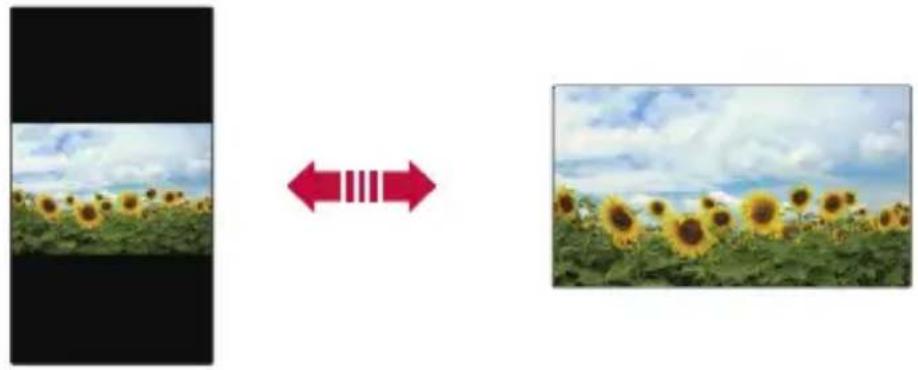
Switching the screen orientation
You can set the screen orientation to automatically switch, according to the device's orientation.
On the notification panel, tap Rotation from the quick access icon list.
Alternatively, tap ○ > Settings > Display and activate Auto-rotate screen.
natural_image
Two-panel image showing sunflowers in a field with a red double-headed arrow between them, no text or symbols present.Editing the Home screen
On the Home screen, tap and hold on an empty space, then start the desired function.
• To rearrange the Home screen canvases, tap and hold on a canvas, then drag it to another location.
• To add widgets to the Home screen, tap Widgets and drag a widget to the Home screen.
- To change Home screen settings, tap Home screen settings and customise options. See Home screen settings for details.
- To view or reinstall the uninstalled apps, tap Uninstalled apps. See Uninstalled apps for details.
Viewing the background theme
You can view only the background image by hiding apps and widgets on the Home screen.
Spread two fingers apart while holding down on the Home screen.
• To return to the original screen which displays apps and widgets, pinch your fingers on the Home screen or tap ◀.

Moving apps on the Home screen
On the Home screen, tap and hold an app, then drag it to another location.
• To keep frequently used apps at the bottom of the Home screen, tap and hold an app, then drag it to the quick access area at the bottom.
• To remove an icon from the quick access area, drag the icon to the Home screen.
Using folders from the Home screen
Creatingfolders
On the Home screen, tap and hold an app, then drag it over another app.
• A new folder is created and the apps are added to the folder.
Editingfolders
On the Home screen, tap a folder and then run the desired function.
• To edit the folder name and colour, tap the folder name.
• To add or remove apps from the list of apps, tap.
- To remove an app from the folder, tap and hold the app and drag it to outside the folder. If only one app is left in the folder, the folder disappears automatically.
Home screen settings
You can customise Home screen settings.
1 Tap ○ > Settings > Display > Home screen.
2 Customise settings:
- Select Home: Select a Home screen mode.
• Wallpaper: Change the Home screen background theme.
- Screen swipe effect: Select an effect to apply when the Home screen canvas switches.
• Theme: Select the screen theme to apply.
- Sort apps by: Set how apps are sorted on the Home screen.
• Grid: Change the app arrangement mode for the Home screen.
- Hide apps: Select or deselect apps to hide from the Home screen.
Screen lock
Screen lock overview
Your device's screen turns off and locks itself if you press the Power/Lock Key. This also happens after the device is left idle for a specified period of time.
If you press the Power/Lock Key when a screen lock is not set, the Home screen appears immediately.
To ensure security and prevent unwanted access to your device, set a screen lock.

- Screen lock prevents unnecessary touch input on the device screen and reduces battery consumption. We recommend that you activate the screen lock while not using the device.
Configuring screen lock settings
There are several options available for configuring the screen lock settings.
1 Tap ○ > Settings > Display > Lock screen > Select screen lock and then select the method you prefer.
2 Customise lock settings:
• None: Deactivate the screen lock function.
- Swipe: Slide on the screen to unlock the screen.
- Knock Code: Tap the spaces of the screen in accordance with a pattern to unlock the screen.
- Pattern: Draw a pattern to unlock the screen.
• PIN: Enter a numeric password to unlock the screen.
- Password: Enter an alphanumeric password to unlock the screen.

- If you enter an incorrect pattern more than a specified number of times consecutively, you can unlock the screen by using your backup PIN.
- If screen lock is set using a Knock code, Pattern, PIN or Password and you enter an incorrect pin or pattern more than a specified number of times, password entry is blocked for 30 seconds.
Lockscreensettings
You can customise the following lock screen settings.
1 Tap ○ > Settings > Display > Lock screen.
2 Customisesettings:
- Select screen lock: Select a screen lock method.
- Smart Lock: Select trusted items so that if one of them occurs, the device is automatically unlocked.
• Wallpaper: Change the lock screen background image. - Shortcuts: Add an app shortcut and directly access the app from the lock screen by dragging the app outside the large circle. This option appears if the screen lock method is set to Swipe.
- Contact info for lost phone: Display contact information on the lock screen.
- Lock timer: Set the amount of idle time after which the device automatically locks.
• Power key instantly locks: Instantly lock the screen when the Power/Lock Key is pressed.

• Available setting items may vary, depending on the selected screen lock method.
KnockON
You can turn the screen on or off by double-tapping the screen.

- This option is available only on the Home screen provided by LG. It may not function properly on a custom launcher or on the Home screen installed by the user.
- When tapping the screen, use your fingertip. Do not use a fingernail.
- To use the KnockON feature, make sure that the proximity/light sensor is not blocked by a sticker or any other foreign substance.
Turning on the screen
Double-tap the middle of the screen.
- Tapping the top or bottom of the screen may decrease the recognition rate.
Turning off the screen
Double-tap the status bar, an empty area on the Home screen or the Lock screen.
Knock Code
You can unlock the screen by creating your own Knock Code. When the screen is locked, you can directly access the Home screen by tapping the screen in a specified sequence.

• You can use your Knock Code, together with the KnockOn feature.
- If you enter an incorrect Knock Code more than a specified number of times consecutively, unlock by using your backup PIN.
• Make sure to use your fingertip when tapping the screen.
Creating a Knock Code
1 Tap ○ > Settings > Display > Lock screen > Select screen lock > Knock Code.
2 Tap the squares in a pattern of your choice to create a Knock Code and tap NEXT.
3 Input the created Knock Code again for verification, then tap CONFIRM.
4 Set a backup PIN to use when the Knock Code is forgotten.
Unlocking the screen with a Knock Code
Unlock the screen by inputting the Knock Code you have created.
Input your knock Code on the touch screen when the screen is turned off.
• It is also possible to enter a Knock Code when the screen is turned on.
Device encryption
Encryptingyourdevice
By default, data is encrypted before saving on the device to protect the data. It is possible to read, write and copy data even when device encryption is set. It is also possible to display a user confirmation prompt when the power is turned on by using lock settings while in lock screen mode.
Precautions for device encryption
You can use Secure start-up to increase your device's protection level.

- If Secure start-up is turned on and an incorrect password is entered more than a specified number of times, the device will automatically initialise.
• If you forget your decryption password, you must initialise the device to use it again. Initialisation will delete all data saved before initialisation. - Encryption takes place when the device boots for the first time after a factory reset. Stopping encryption before it is complete may damage data.
Memory card encryption
You can encrypt and protect data saved on the memory card. The encrypted data in the memory card cannot be accessed from another device.
1 Tap ○> Settings > General > Security > Encrypt SD card.
2 Read the on-screen overview of memory card encryption and then tap CONTINUE to continue.
3 Select an option and tap ENCRYPT NOW:
- New data encryption: Encrypt only data that is saved on the memory card after encryption.
• Full encryption: Encrypt all the data currently saved on the memory card. - Exclude media files: Encrypt all files, except for media files such as music, photos and videos.

- To encrypt the memory card, make sure that a screen lock is set using a PIN or password.
• Once memory card encryption starts, some functions are not available. - If the device is turned off while encryption is underway, the encryption process will fail, and some data may be damaged. Therefore, be sure to check whether the battery level is sufficient before starting encryption.
- Encrypted files are accessible only from the device where the files were encrypted.
- The encrypted memory card cannot be used on another LG device. To use the encrypted memory card on another mobile device, initialise the card.
- You can activate memory card encryption even when no memory card is installed into the device. Any memory card that is installed after encryption will automatically be encrypted.
Takingscreenshots
You can take screenshots of the current screen you are viewing.
Viaashortcut
Press and hold the Power/Lock Key and the Volume Down (-) key at the same time for at least two seconds.
- Screenshots can be viewed from the Screenshots folder in the Gallery.
ViaCapture+
On the screen where you want to take a screenshot, drag the status bar downwards, then tap Capture+.

- When the screen is turned off or locked, you can access Capture+ by pressing the Volume Up (+) key twice. First, tap ○>Settings > General and then turn on Shortcut keys.
• See Writing notes on a screenshot for details.
Entering text
Using Smart keyboard
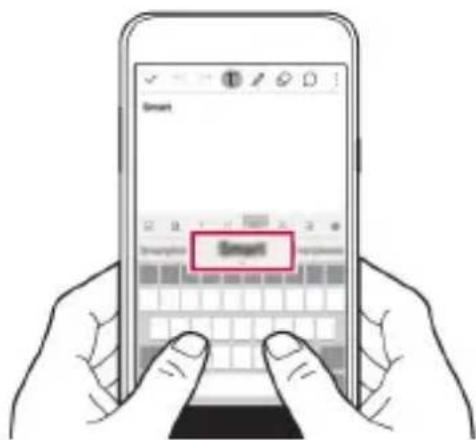
You can use Smart keyboard to enter and edit text.
With Smart keyboard, you can view text as you type without bothering to alternate between the screen and a conventional keyboard. This allows you to easily find and correct errors when typing.
Moving the cursor
With Smart keyboard, you can move the cursor to the exact position you want. When typing text, tap and hold on the space bar and then drag left or right until the cursor moves to the position you want in the text.


• This option is available only on the QWERTY keyboard.
Suggesting words
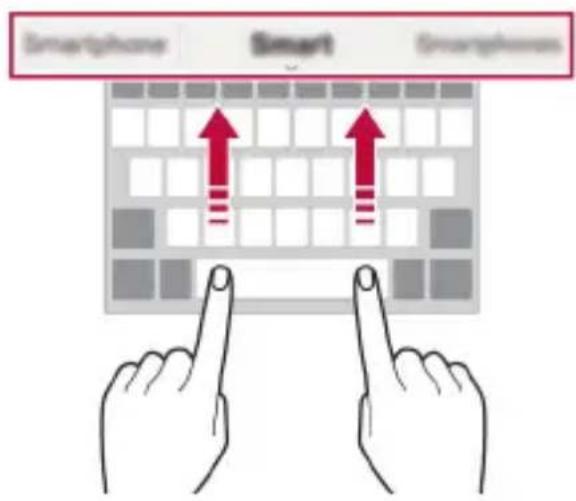
Smart keyboard automatically analyses your usage patterns to suggest frequently used words as you type. The longer you use your device, the more precise the suggestions are.
Enter text, then tap a suggested word or gently drag the left or right side of keyboard upwards.
• The selected word is automatically entered. You do not need to manually type every letter of the word.
Changing the QWERTY layout
You can add, delete or rearrange keys on the bottom row of the keyboard.
1 Tap ○> Settings > General > Language & keyboard > LG Keyboard > Keyboard height and layout > QWERTY keyboard layout.
Alternatively, tap ⚙️ on the keyboard and tap Keyboard height and layout > QWERTY keyboard layout.
2 Tap a key on the bottom row, then drag it to another position.


• This option is available on the QWERTY, QWERTZ and AZERTY keyboards.
• This function may not be supported for some languages.
Customising the keyboard height
You can customise the keyboard height to maximise hand comfort when typing.
1 Tap ○> Settings > General > Language & keyboard > LG Keyboard > Keyboard height and layout > Keyboard height.
Alternatively, tap ⚙️ on the keyboard and tap Keyboard height and layout > Keyboard height.
2 Adjust the keyboard height.

Selecting a landscape keyboard mode
You can select a landscape keyboard mode from several choices.
1 Tap ○> Settings > General > Language & keyboard > LG Keyboard > Keyboard height and layout > Keyboard type in landscape.
Alternatively, tap ⚙️ on the keyboard and tap Keyboard height and layout > Keyboard type in landscape.
2 Select a keyboard mode.
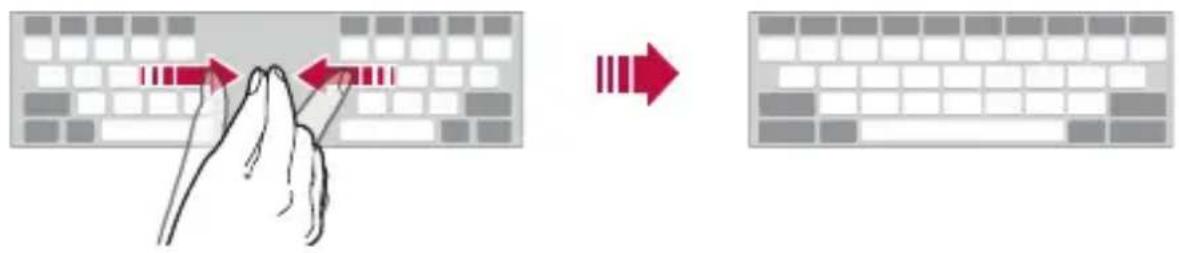
Splittingthekeyboard
You can split the keyboard in half and place each piece on either side of the screen when the screen is in landscape mode.
Tap ○ > Settings > General > Language & keyboard > LG Keyboard > Keyboard height and layout > Split keyboard.
Alternatively, tap ⚙️ on the keyboard and tap Keyboard height and layout > Split keyboard.

- Rotate the device to landscape mode to split the keyboard to both sides. To merge or split the keyboard, pinch together or spread apart your fingers on the keyboard.
One-handed operation mode
You can move the keyboard to one side of the screen so that you can use the keyboard with one hand.
1 Tap ○ > Settings > General > Language & keyboard > LG Keyboard > Keyboard height and layout > One-handed operation.
Alternatively, tap ⚙️ on the keyboard and tap Keyboard height and layout > One-handed operation.
2 Press the arrow displayed next to the keyboard to move the keyboard in the direction you want.

natural_image
Hand pointing at a grid-based interface with a red circular button (no text or symbols)Entering text by using voice
On the keyboard, tap and hold and then select .

• To maximise the voice command recognition, speak clearly with the correct pronunciation and accent.
• To enter text with your voice, make sure that your device is connected to a network.
Changingthekeyboard
You can change the input language and the keyboard type for each language.
1 Tap ○ > Settings > General > Language & keyboard > LG Keyboard > Select languages.
2 Select a language and customise the keyboard type.
CopyandPaste
You can cut or copy text from an app, and then paste the text into the same app. Or, you can run other apps and paste the text into them.
1 Tap and hold around the text you want to copy or cut.
2 Drag / to specify the area to copy or cut.
3 SelecteitherCUT or COPY.
• Cut or copied text is automatically added to the clip tray.
4 Tap and hold the text input window, then select PASTE.

- If there is no item that has been copied or cut, the PASTE option will not appear.
Clip Tray
If you copy or cut an image or text, it is automatically saved to the clip tray and can be pasted to any space at any time.
1 On the keyboard, tap and hold and select
Alternatively, tap and hold the text input window, then select CLIP TRAY.
2 Select and paste an item from the clip tray.
- Tap to lock saved items in order not to delete them, even when the maximum quantity is exceeded. A maximum of ten items can be locked. To delete locked items, unlock them first.
- Tap to delete the items saved to the clip tray.

- The clip tray may not be supported by some apps downloaded by the user.
03
Useful Apps
Installing and uninstalling apps
Installing apps
Access an app store to search and download apps.
- You can use SmartWorld, Play Store or the app store provided by your service provider.

• Some app stores may require you to create an account and sign in.
• Some apps may charge fees.
- If you use mobile data, you may be charged for data usage, depending on your pricing plan.
- SmartWorld may not be supported depending on the area or service provider.
Uninstalling apps
Uninstall apps that you no longer use from your device.

• Some apps cannot be uninstalled by users.
Uninstalling with the tap and hold gesture
- On the Home screen, tap and hold the app to uninstall, then drag it over Uninstall at the top of the screen.
- On the Home screen, you can also tap and hold and then release the app you want to uninstall to enter the Uninstall mode. Tap ✗ that appears on the top of the app that can be uninstalled and then select UNINSTALL.
- If apps were uninstalled within 24 hours from now, you can reinstall them. See Uninstalled apps for details.
Uninstalling by using the settings menu
Tap ○ > Settings > General > Apps, select an app, then tap Uninstall.
Uninstalling apps from the Play Store
To uninstall an app, access the Play Store from which you download the app and uninstall it.
Uninstalledapps
You can view the uninstalled apps on the Home screen. You can also reinstall apps which were uninstalled within 24 hours from now.
1 Tap ○ Uninstalled apps.
2 Activate the desired function:
• Reinstall: Reinstall the selected app.
- Remove the uninstalled apps permanently from the device.

- Uninstalled apps are automatically removed from the device 24 hours after they were uninstalled. If you want to reinstall the uninstalled apps, you must download them again from the app store.
- This feature is activated on the default Home screen only. If you uninstall apps while using the EasyHome screen or other launcher, they are immediately and permanently removed from the device.
Device
Voice call
Make a device call by using one of the available methods, such as manually entering a device number or making a call from the contact list or the list of recent calls.
Making a call from the keypad
1 Tap Dial.>
2 Make a call by using a method of your choice:
• Enter a device number and tap.
• Tap and hold a speed-dial number.
- Search for a contact by tapping the initial letter of a contact name in the contact list, and then tap 📞.

• To enter "+" when making an international call, tap and hold number 0.
• See Adding contacts to the speed dial list for details on how to add device numbers to the speed dial list.
Making a call from the contact list
1 Tap ○ Contacts.
2 From the contact list, select a contact and tap.
Answeringacall
To answer a call, drag to the outside of the circle on the incoming call screen.
- When the stereo headset is connected, you can receive calls by using the call/end button on the headset.
- To end a call simply by pressing the Power/Lock Key, tap >Settings >Networks >Call >Common >Answer and end calls, then turn on End calls with the Power key.
Rejectingacall
To reject an incoming call, drag to the outside of the circle on the incoming call screen.
• To send a rejection message, drag to the outside of the circle.
• To add or edit a rejection message, tap >Settings >Networks >Call >Common >Decline and reject calls >Decline with message.
- When a call is coming in, you can press the Power/Lock Key or the volume key to switch to mute mode.
Viewingmissedcalls
If there is a missed call, the status bar at the top of the screen displays

To view missed call details, drag the status bar downwards. Alternatively, tap ○ > Call logs.
Functions accessible during a call
During a call, you can access a variety of functions by tapping on-screen buttons:
- Contacts: View the contact list during a call.
• End: End a call.
• Dialpad: Display or hide the dial pad.
• Speaker: Turn on the speakerphone function. - Mute: Mute your voice so that your voice cannot be heard by the other party.
- Bluetooth: Switch the call to a Bluetooth device that is paired and connected.
• : Access many call options.

• Available settings items may vary depending on the area or service provider.
Making a three-way calling
You can make a call to another contact during a call.
1 During a call, tap: >Add call.
2 Enter a device number and tap.
- The two calls are displayed on the screen at the same time, and the first call is put on hold.
3 To switch to another call, tap another number on the screen.
To start a conference call, tap.

• You may be charged a fee for each call.
Viewingcallrecords
To view recent call records, tap > Call logs. Then, you can use the following functions:
• To view detailed call records, select a contact. To make a call to the selected contact, tap 📋.
• To delete call records, tap>Delete.

- The displayed call duration may differ from the call charge. Consult with your service provider for more information.
Configuringcalloptions
You can configure various call options.
1 Tap ○ Dial or Call logs.
2 Tap :Call settings and then configure the options to suit your preferences.
Messaging
Sendingamessage
You can create and send messages to your selected contacts or all of your contacts using the Messaging app.

- Sending messages abroad may incur additional charges. Consult with your service provider for more information.
1 TapO>
2 Tap.
3 Specify a recipient and create a message.
• To attach files, tap.
• To access optional menu items, tap
4 TapSend to send the message.
Readingamessage
You can view exchanged messages organised by contact.
1 Tap◯>
2 Select a contact from the message list.
Configuringmessagingsettings
You can change messaging settings to suit your preferences.
1 TapO>
2 Tap : Settings from the message list.
Camera
Startingthecamera
You can take a photo or record a video to keep the memorable moments.
Tap >

- Before taking a photo, wipe the camera lens with a microfibre cloth. If your finger touches the camera lens, you may get blurry photos.
- If the battery level is lower than 5%, charge the battery before using the camera.
- Images included in this user guide may be different from the actual device.
• Photos and videos can be viewed or edited from Gallery. See Gallery overview for details.
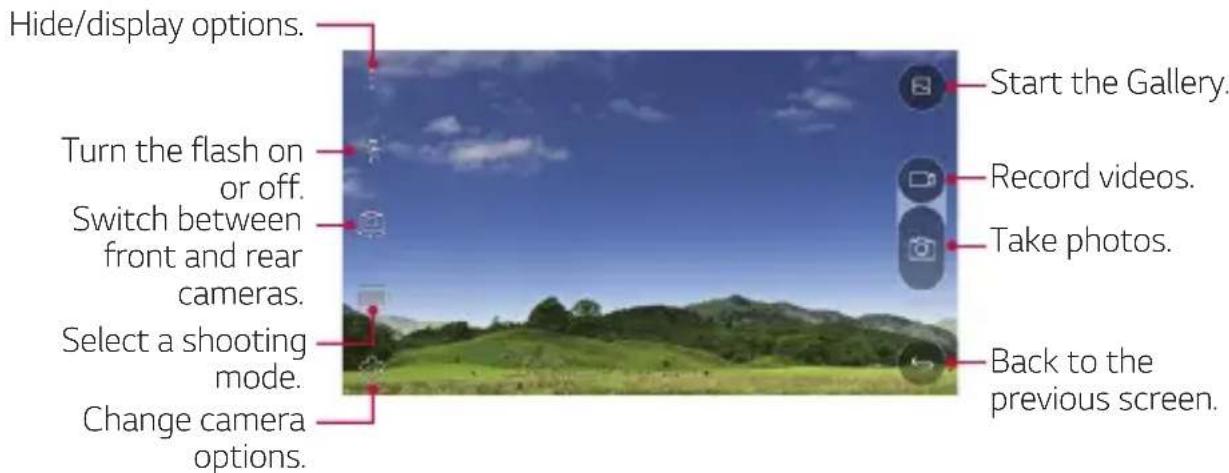
Switching between cameras
You can switch between the front and rear cameras to suit your shooting environment.
On the camera screen, tap 📋 or drag the screen either up or down or left or right to switch between the front and rear cameras.

natural_image
Hand pointing at a smartphone screen displaying a scenic landscape with trees and hills (no text or symbols visible)
natural_image
Portrait of a woman with blonde hair and green eyes, resting her chin on her hand (no text or symbols visible)
• Use the front camera to take selfies. See Taking selfies for details.
Zoom in or out
You can use zoom in or out on the camera screen while taking a picture or recording a video.
On the camera screen, pinch or spread two fingers to zoom in or out.
Takingaphoto
1 Select a shooting mode, and tap the subject to focus the camera on.
2 Tap to take a photo.
Alternatively, press a volume key.

- When the screen is turned off or locked, start the camera by pressing the Volume Down (-) key twice. To activate this function, tap > Settings > General and turn on Shortcut keys.
Recordingavideo
1 Select a shooting mode, and tap the subject to focus the camera on.
2 Tap.
• To take a photo while recording a video, tap.
• To pause the video recording, tapTo resume the video recording, tap ●.
3 Tap to end the video recording.
Panorama
You can create a panoramic photo by moving the camera in one direction to photograph and stitch continuous shots of for a wide view.
1 In the Auto mode, tap MODE >
2 Tap and then slowly move the camera in one direction.
- Move the device by following the direction of the arrow in the guideline.
3 Tap to end shooting.

natural_image
Smartphone displaying a snowy landscape at dusk with starry sky and distant lights (no text or symbols visible)Burst shot
You can take continuous shots of photos to create moving pictures. In the Auto mode, tap and hold
• Continuous shots are taken at a fast speed while is held down.

• Up to thirty (30) continuous photos can be taken.
Customising camera options
You can customise a variety of camera options to suit your preferences. In the Auto mode, tap 🙏

• Available options vary depending on the selected camera (front or rear camera) and the selected shooting mode.
 | Select an aspect ratio for photos or quality for videos. |
 | Apply film effects to photos. |
 | Set the timer to automatically take photos after a specified period of time. |
 | Take photos with voice commands.(Available choices: Cheese, Smile, Whisky, Kimchi or LG) |
 | Display guide grids so that you can take photos or record videos based on the horizontal and vertical reference lines. |
 | Set the locations where you want to save photos and videos. These options appear when an external memory card is inserted. · :Save to the internal storage. · :Save to the external memory card. |
 | Customise Auto shot settings. These options appear when using the front camera. · [IMAGE] : Shoot using the Gesture shot feature. · [IMAGE] : Shoot when the camera detects a face. |
 | Flip images. These options appear when using the front camera. · [IMAGE] : Do not flip the image. · [IMAGE] : Flip the image horizontally. |
Applyingfilmeffects
You can apply filters of various colours to photos.
1 In the Auto mode, tap 🎨>
2 Select the desired film effect.
Takingselfies
You can use the front camera to view your face on the screen and take selfies.

- When using the front camera, you can change in camera options how selfies are taken. See Customising camera options for details.
Gestureshot
You can take selfies by using gestures.
Show your palm to the front camera and then clench your fist.
• In three seconds, a photo is taken.
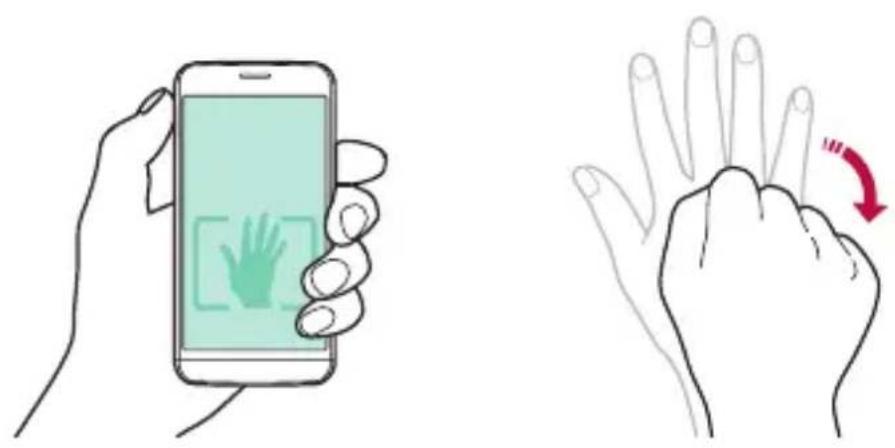

• To use this function, make sure that [O] is selected in camera options.
- An alternative way to take gesture shots is to clench your fist and then open it towards the front camera.
• Make sure that your palm and fist are within the reference line so that the camera can detect them.
Interval shot
You can take continuous selfies.
While using the front camera, tap and hold 📷. You can also show your palm to the camera, then clench your fist twice quickly.
• Four photos are taken at three second interval.

natural_image
Four-panel photo sequence showing a smiling girl holding a glass jar and straw, outdoors in green (no text or symbols)Auto shot
You can use the face detection feature to take selfies easily and conveniently. You can set the device so that, when you look at the screen, the front camera detects your face and takes a selfie automatically.
- When the front camera detects your face, the frame turns white. Then if you stop moving, the frame turns blue and the front camera takes a photo.

natural_image
Selfie of a smiling young girl with long hair, wearing a light blue top (no visible text or symbols)
- Tap ⚙, then tap [☐] until [☐] appears to activate the Auto shot function.
Gallery
Galleryoverview
You can view and manage photos and videos saved on your device.
1 Tap>
• Saved photos and videos are displayed by the folder.
2 Tap a folder and select a file.
• View the selected file in full-screen mode.
- Swipe left or right on the displayed photo or video screen to view the previous or next file.

• Some file formats may not be supported, depending on the installed software.
• Some files may not be opened due to encoding.
- Files that exceed the size limit may cause an error.
Viewingphotos

Editing photos
1 While viewing a photo, tap
2 Use a variety of effects and tools to edit the photo.
3 Tap to apply changes.
4 TapSAVE to save changes.
• The changes are overwritten to the original file.
• To save the edited photo as another file, tap>Save copy.
Playingavideo


• To adjust the sound volume, drag the right side of the video screen up or down.
• To adjust the screen brightness, drag the left side of the video screen up or down.
Deletingfiles
You can delete files by using one of the following options:
- Tap and hold a file from the file list, then tap Delete.
- Tapj from the file list, then select files.
Sharingfiles
You can share files by using one of the following options:
- While viewing a photo or video, tap to share the file by using the method you want.
- Tap from the file list to select files and share them using the method you want.
File Manager
You can view and manage files saved on your device.
1 Tap ○ > Tools > File Manager.
2 Tap and select the desired storage location.
Weather
You can view the weather information for a particular area.
1 Tap ○ > Tools > Weather.
2 Tap and add the city you want.
- On the detailed weather screen, tap / > or swipe the screen left or right to view the weather for other cities.
Clock
Alarm
You can set an alarm to trigger it at a specified time.
1 Tap ○ > Tools > Clock > Alarm.
2 Tap to add a new alarm.
3 Configure the alarm settings and tap SAVE.

• If you select a previously set alarm, you can edit the alarm.
- To delete an alarm, tap at the top of the screen. Alternatively, tap and hold the alarm.
World clock
You can view the current time in cities around the world.
1 Tap ○> Tools > Clock > World clock.
2 Tap and add a city.
Timer
You can set the timer to trigger an alarm after a specified period of time.
1 Tap ○> Tools > Clock > Timer.
2 Set the time and tap Start.
• To suspend the timer, tap Stop. To resume the timer, tap Resume.
• To reset the timer settings, tap Reset.
3 Tap Stop to stop the timer alarm.
Stopwatch
You can use the stopwatch to record a lap time.
1 Tap ○> Tools > Clock > Stopwatch.
2 TapStart to initiate the stopwatch.
• To record a lap time, tap Lap.
3 Tap Stop to suspend the stopwatch.
• To resume the stopwatch, tap Resume.
• To delete all the stopwatch records, tap Reset.
Calculator
You can use two types of calculators: the basic calculator and the scientific calculator.
1 Tap ○> Tools > Calculator.
2 Use the keypad to make a calculation.
• To use the scientific calculator, tap>Scientific calculator.
• To view calculation history, tap>Calculation history.
Tasks
You can register tasks to your device to easily manage schedules.
1 Tap ○>Tools>Tasks.
2 Tap to add a task.
3 Enter task details and then tap SAVE.
Voice Recorder
You can record and save your voice or others' voices from important events. Recorded voice files can be played back or shared.
1 Tap ○> Tools > Voice Recorder.
2 Tap.
• To pause recording, tap.
3 Tap to end recording.
• The file is saved automatically and the pre-listen screen appears.
4 Tap to play the recorded voice.

• To save the location details of recording, tap Location.
- Ifyoutap ≡, recorded voice files appear. You can play a recorded voice file from the list.
FM Radio
You can listen to FM radio.
Tap ○ >FM Radio.

• To use this app, first connect a headset to the device. The headset becomes the radio antenna.
• This option may not be supported, depending on the area.
Downloads
You can view, delete or share files downloaded via the Internet or apps.
Tap ○>Tools >Downloads.
E-mail overview
You can register an email account to your device and then you can check and send emails from your device.

- If you use mobile data, you may be charged for data usage fee depending on your pricing plan. Consult with your service provider for more information.
Registeringemailaccounts
When you use the email app for the first time, register your email account.
1 Tap E-mail.
2 Select an email service provider.
3 Enter your email address and password and then tap NEXT to register your account
• To manually register an email account, tap MANUAL SETUP.
Managingemailaccounts
To view or edit your email account settings, tap: >Settings.
• To add an account, tap Add account.
• To delete an account, tap Remove account.
Opening another email account
If several email accounts are registered and you want to view another account, tap ≡ and select another one from the account list.
Checking email
1 Tap and select a mail box.
2 Select an email from the email list.
• The email message appears.
Sending email
1 Tap.
2 Enter the email address of a recipient.
3 Enter a subject and message.
• To attach files, tap
• To access optional menu items, tap.
4 Tap▶to send the email.
Music
You can play and manage music files saved on your device.
1 Tap ○> Tools > Music.
2 Selectacategory.
3 Select a music file.


- Some file formats may not be supported, depending on the installed software.
- Files that exceed the size limit may cause an error.
- Music files may be protected by international copyright owners or copyright laws. You may have to obtain legal permission before copying a music file. To download or copy a music file, first check the copyright law for the relevant country.
Contacts
Contacts overview
You can save and manage contacts.
Tap ○ >Contacts.
Addingcontacts
Addingnewcontacts
1 On the contact list screen, tap+.
2 Enter contact details and tap SAVE.
Importingcontacts
You can import contacts from another storage device.
1 On the contact list screen, tap : > More > Manage contacts > Import.
2 Select the source and target locations of the contact you want to import, and then tap OK.
3 Select contacts and tap IMPORT.
Adding contacts to the speed dial list
1 On the contact list screen, tap: >Speed dial.
2 TapAdd contact from a speed-dial number.
3 Selectacontact.
Searchingforcontacts
You can search for contacts by using one of the following options:
• On the contact list screen, enter a contact name in the search box.
• Scroll the contact list up or down.
• From the index of the contact list screen, tap the initial letter of a contact.
Contactslist
Editingcontacts
1 On the contact list screen, select a contact.
2 On the contact detail screen, tap and edit details.
3 TapSAVE to save changes.
Deletingcontacts
1 On the contact list screen, tap and hold a contact.
2 TapDelete contact.
Addingfavourites
You can register frequently used contacts as favourites.
1 On the contact list screen, select a contact.
2 On the contact detail screen, tap☆
Creatinggroups
1 On the contact list screen, tap Groups > : > New group.
2 Enter a new group name.
3 Tap Add members, select contacts, then tap ADD.
4 TapSAVE to save the new group.
SmartWorld
You can download a variety of games, audio content, apps and fonts provided by LG Electronics. Customise your device to suit your preferences by using Home themes, keyboard themes and fonts.

• If you use mobile data, you may be charged for data usage fee depending on your pricing plan.
- This feature may not be supported depending on the area or service provider.
1 Tap SmartWorld.
2 Enter your ID and password, then sign in.
3 Select and download content items.
DownloadingSmartWorldapp
If SmartWorld app is not installed, follow these steps to download it.
1 Tap ○> Settings > General > About phone > Common > Update Center > App Updates.
2 From the list, select SmartWorld and tap Download.
Calendar
Calendar overview
You can use the calendar to manage events and tasks.
Addingevents
1 Tap Calendar.
2 Select a date and then tap+.
3 Enter event details and tap SAVE.
- If you tap a date from the calendar and the date contains events, a pop-up window appears showing a list of the events. Tap an event from the pop-up window to view the event details.
Syncingevents
Tap : >Calendars to display > : >Calendars to sync.

- When your events are saved from the device to your Google account, they are automatically synced with the Google calendar, too. Then, you can sync other devices with the Google calendar in order to make those devices have the same events that your device has and to manage your events on those devices.
Event pocket
You can use the event pocket to create events.
Tap 📋 to open the event pocket and then drag content to a date in the calendar.
- Manage images, text, notes and temporarily saved events. You can also share text, images and notes from another app and save them to the event box. If you tap when creating an event, the event is temporarily saved to the event pocket.
- ☑: Manage tasks that have no deadline, such as events.
LGBackup
You can back up, restore and move the data saved on your device.
1 Tap Management LG Backup.
Alternatively,tap ○>Settings >General >Backup & reset >LG Backup.
2 Follow the on-screen instructions to select whether to back up data in the preset backup folder on the device or to copy data to other devices.

- Initialising your device may delete backup files saved in internal storage. To minimise data loss, copy important backup files from the LG Backup folder in the internal storage to a computer or external storage.

- Data in a Google account will not be backed up. When you synchronise your Google account, Google apps, Google contacts, Google calendar, Google memo app data and apps downloaded from Play store are stored on the Drive app automatically.
- Backup files are saved with the file extension *.lbf under the LG Backup folder on the memory card or internal storage.
• Fully charge the battery before backing up or restoring data to avoid unintentional powering off during the process.
RemoteCall Service
Your device can be remotely diagnosed for resolving issues. First, make a Device call to the LG Customer Service Centre as follows:

• To use this function, first you must agree to usage of the function.
• If you use mobile data, you may be charged for data usage depending on your pricing plan.
1 Tap Management RemoteCall Service.
2 Connect a call to an LG Customer Service Centre.
3 After the call connects, follow the service associate's instructions to enter a six-digit access number.
- Your device is remotely connected and remote support service starts.
Googleapps
You can use Google apps by setting a Google account. The Google account registration window appears automatically when you use a Google app for the first time. If you do not have a Google account, create one from your device. For details on how to use an app, see the Help in the app.

• Some apps may not work depending on the area or service provider.
Chrome
Sign in to Chrome and import opened tabs, bookmarks and address bar data from a computer to your device.
Use search function provided by Google to search web sites and files stored on your device by entering keywords or via voice.
Gmail
Register your Google email account to your device to check or send email.
Maps
Find your location or the location of a place on the map. View geographical information.
YouTube
Search and play videos. Upload videos on YouTube to share them with people around the world.
Drive
Upload, save, open, share and organise files from your device. Files accessible from apps can be accessed from anywhere, including online and offline environments.
Play Movies & TV
Use your Google account to rent or purchase movies. Purchase content and play it anywhere.
Hangouts
Exchange messages. Make a video call with an individual or a group.
Photos
View or share photos or albums saved on your device.
Docs
Create documents or edit documents created online or from another device. Share and edit documents together with others.
Sheets
Create spreadsheets or edit spreadsheets created online or from another device. Share and edit spreadsheets together with others.
Slides
Create presentation material or edit presentation material created online or from another device. Share and edit presentation material together with others.
04
Device Settings
Settings
You can customise the device settings in accordance with your preferences.
Tap ○>Settings.

- Tap Q and enter a keyword in the search box to access a setting item.
- Tap to change the view mode. This user guide assumes that you are using the Tab view.
Networks
Dual SIM Card
You can configure Dual SIM settings.
1 On the settings screen, tap Networks > Dual SIM Card.
2 Customise the following functions:
• SIM card 1: Change the name and icon of the SIM card 1.
• Activate slot 1: Activate or deactivate the SIM card slot 1.
• SIM card 2: Change the name and icon of the SIM card 2.
• Activate slot 2: Activate or deactivate the SIM card slot 2.
• SIM card colour theme: Change the colour themes for the SIM cards.
- Cost save mode: Activate or deactivate the cost save mode. In the cost save mode, if you make a call to a contact to which a specific SIM is assigned, this SIM is used for the call even if the other SIM is active, for example, it is using mobile data.
- Mobile data: Select a SIM card you want to use for mobile data service. You can also turn off this function.
- Data roaming: Select this option to enable the device to use mobile data when you are roaming.
Wi-Fi
You can connect to nearby devices over a Wi-Fi network.
Connecting to a Wi-Fi network
1 On the settings screen, tap Networks> Wi-Fi.
2 Drag to activate it.
• Available Wi-Fi networks appear automatically.
3 Selectanetwork.
• You may need to enter the network's Wi-Fi password.
- The device skips this process for previously accessed Wi-Fi networks. If you do not want to automatically connect to a certain Wi-Fi network, tap and hold the network and then tap Forget network.
Wi-Finetworksettings
On the settings screen, tap Networks> Wi-Fi.
- Switch to mobile data: If the mobile data connection function is activated but the device cannot connect to the Internet via Wi-Fi connection, the device automatically connects to the Internet via the mobile data connection.
• :Customise Wi-Fi network settings.
Wi-Fi Direct
You can connect your device to other devices that support Wi-Fi Direct to share data directly with them. You do not need an access point. You can connect with more than two devices by using Wi-Fi Direct.
1 On the settings screen, tap Networks > Wi-Fi > : > Advanced Wi-Fi > Wi-Fi Direct.
• Nearby devices that support Wi-Fi Direct automatically appear.
2 Selectadevice.
- Connection occurs when the device accepts the connection request.
Device Settings 82
Bluetooth
You can connect your device to nearby devices that support Bluetooth to exchange data with them. Connect your device to a Bluetooth headset and a keyboard. This makes it easier to control the device.
Pairing with another device
1 On the settings screen, tap Networks Bluetooth.
2 Drag to activate it.
• Available devices appear automatically.
• To refresh the device list, tap SEARCH.

• Only devices with the searching option enabled are displayed on the list.
3 Select a device from the list.
4 Follow the on-screen instructions to perform authentication.

• This step is skipped for previously accessed devices.
Sending data via Bluetooth
1 Selectafile.
• You can send multimedia files or contacts.
2 Tap Bluetooth.
3 Select a target device for the file.
• The file is sent as soon as the target device accepts it.

• File sharing processes may differ depending on the file.
Mobile data
You can turn on or off mobile data. You can also manage mobile data usage.
Turning on mobile data
1 On the settings screen, tap Networks> Mobile data.
2 Drag to activate it.
Customising mobile data settings
1 On the settings screen, tap Networks> Mobile data.
2 Customise the following settings:
• Mobile data: Set to use data connections on mobile networks.
- Limit mobile data usage: Set a limit for mobile data usage to block mobile data if the limit is reached.
• :Customise mobile data settings.
Call
You can customise call settings, such as voice call and international call options.

- Some features may not be supported depending on the area or service provider. See Device for details.
1 On the settings screen, tap Networks Call.
2 Customisethesettings.
USB tethering
You can connect the device to another device via USB and share mobile data.
1 Connect your device and other devices via USB cable.
2 On the settings screen, tap Networks > Tethering > USB tethering and then drag ☐ to activate it.

- This option uses mobile data and may incur data usage fees, depending on your pricing plan. Consult with your service provider for more information.
- When connecting to a computer, download the USB driver from www.lg.com and install it on the computer.
- You cannot send or receive files between your device and a computer while USB tethering is turned on. Turn off USB tethering to send or receive files.
- Operating systems that support tethering are Window XP or higher, or Linux.
Wi-Fi hotspot
You can set the device as a wireless router so that other devices can connect to the internet by using your device's mobile data.
1 On the settings screen, tap Networks > Tethering > Wi-Fi hotspot and then drag to activate it.
2 Tap Set up Wi-Fi hotspot, and enter the Wi-Fi name (SSID) and password.
3 Turn on Wi-Fi on the other device, and select the name of the device network on the Wi-Fi list.
4 Enter the network password.

- This option uses mobile data and may incur data usage fees, depending on your pricing plan. Consult with your service provider for more information.
• More information is available at this web site: http://www.android.com/tether#wifi
Bluetooth tethering
A Bluetooth-connected device can connect to the internet by using your device's mobile data.
1 On the settings screen, tap Networks > Tethering > Bluetooth tethering and then drag ☐ to activate it.
2 Turn on Bluetooth on both devices, and pair them.

- This option uses mobile data and may incur data usage fees, depending on your pricing plan. Consult with your service provider for more information.
• More information is available at this web site: http://www.android.com/tether#Bluetooth_tethering
Help
You can view help on using tethering and hotspots.
On the settings screen, tap Networks > Tethering > Help.
Airplanemode
You can turn off the call and mobile data functions. When this mode is on, functions that do not involve data, such as games and music playback, remain available.
1 On the settings screen, tap Networks > More > Airplane mode.
2 TapTURN ON in the confirmation screen.
Mobile networks
You can customise mobile data settings.
1 On the settings screen, tap Networks > More > Mobile networks.
2 Customise the following settings:
• Network mode: Select a network type.
- Access Point Names: View or change the access point for using mobile data services. To change the access point, select a choice from the access point list.
• Network operators: Search for network operators and connect automatically to a network.
VPN
You can connect to a safe virtual network, such as an IntraNet. You can also manage connected virtual private networks.
AddingVPN
1 On the settings screen, tap Networks > More > VPN.

- Be cautious that if the screen lock is unlocked, all VPN information saved on the device are erased.
2 TapAdd VPN network.

- If the screen is not locked, a notification screen appears. Tap SETTINGS from the notification screen and lock the screen. See Configuring screen lock settings for details.
3 Enter VPN details and tap SAVE.
ConfiguringVPNsettings
1 Tap a VPN from the VPNS list.
2 Enter the VPN user account details and tap CONNECT.
- To save the account details, select the Save account information checkbox.
Printing
You can connect your device to a wireless printer and print photos or documents saved on the device.
1 On the settings screen, tap Networks > More > Printing.

- If the desired printer is not in the list, install the printer driver from the app store.
2 Drag to activate it.
3 Select a printer from the printer list screen.
• To add a printer, tap Add printer.
• To search for a printer name, tap>Search.
- Tap >Settings from the printer list screen.
4 Select a file and tap : More Print.
• Thedocumentprints.

- If you do not have a Google account, tap ADD ACCOUNT to create an account.
Sound & notification
You can customise sound, vibrate and notification settings.
On the settings screen, tap Sound & notification and customise the following settings:
- Sound profile: Change the sound mode to Sound, Vibrate only, or Silent.
• Volume: Adjust the sound volume for various items.
- SIM1 ringtone/SIM2 ringtone: Select a ringtone for incoming calls. Add or delete ringtones.
- Ringtone ID: Set the device to automatically create a ringtone for an incoming call from a particular contact. See Ringtone ID for details.
- Sound with vibration: Set the device to vibrate and play a ringtone simultaneously.
- SIM1 vibration type/SIM2 vibration type: You can select a vibration type.
- Do not disturb: Set the time, range and app type to receive notification messages. Receive notification messages only on particular days of the week.
- Lock screen: Display or hide a notification message on the lock screen.
- Apps: Select the apps that can show their notification messages on the screen, and set the priorities of those apps in regard to notification messages.
• Notification LED: Indicate device status via LED.
- More SIM1 notification sound/SIM2 notification sound: Select a notification ringtone. Set music saved on the device as a notification ringtone.
- More Sound effects: Select a sound effect to play when you tap the dial pad, select an option, or lock or unlock the screen.
- More Message/call voice notifications: Set the device to read the caller information or message content via voice.
Display
You can customise detailed settings for each screen type.
On the settings screen, tap Display and customise the following settings:
• Home screen: Customise settings for the Home screen.
See Home screen settings for details.
- Lock screen: Customise lock screen settings.
See Lock screen settings for details.
• Home touch button combination: Rearrange Home touch buttons.
• Font type: Change the font face.
• Font size: Change the font size.
• Bold text: Bold the text on the screen.
- Brightness: Use the slide bar to change the device's screen brightness.
- Auto: Set the device so that the screen brightness is automatically adjusted in accordance with the surrounding light intensity.
- Reader mode: Set the device to reduce amount of blue light on screen to reduce eye strain.
- Auto-rotate screen: Automatically rotate the screen according to the device's orientation.
- Screen timeout: Automatically turn off the screen when the device is left idle for a specified period of time.
- More Daydream: Display a screen saver when the device is connected to the holder or charging. Select a screen saver type to display.
- More Motion sensor calibration: Correct the angle and speed of the motion sensor to improve the tilt accuracy and speed of the sensor.

- When correcting the motion sensor, make sure to place the device on a flat surface. Failure to do so may cause errors with the motion sensor functions, such as automatic screen rotation.
General
Language & keyboard
You can customise language and keyboard settings for your device.
1 On the settings screen, tap General > Language & keyboard.
2 Customise the following settings:
• Language: Select a language to apply for the device.
- Current keyboard: View the keyboard type currently in use. Select a keyboard to use when entering text.
• LG Keyboard: Customise LG keyboard settings.
- Google voice typing: Configure the options for text dictation by Google.
- Text-to-speech output: Configure the settings for text-to-speech output.
- Pointer speed: Adjust the pointer speed of a mouse or trackpad.
- Reverse buttons: Reverse the right mouse button to perform primary direct-manipulation actions.
Location
You can customise how your location information is used by particular apps.
1 On the settings screen, tap General > Location.
2 Customise the following settings:
• Mode: Select a method to provide your location information.
- RECENT LOCATION REQUEST: View apps that recently requested location information.
- Camera: Save location information when taking photos or recording videos.
- Google Location History: Configure the Google location history settings.
Accounts & sync
You can add or manage accounts, including a Google account. You can also sync particular apps or user information automatically.
1 On the settings screen, tap General > Accounts & sync.
2 Customise the following settings:
• Auto-sync data: Sync all the registered accounts automatically.
- ACCOUNTS: View a list of registered accounts. To view or change details of an account, tap the account.
• ADD ACCOUNT: Add accounts.
Accessibility
You can manage accessibility plug-ins installed on your device.
1 On the settings screen, tap General > Accessibility.
2 Customise the following settings:
- Vision TalkBack: Set the device to notify screen status or actions via voice.
- Vision Message/call voice notifications: Set the device to read the caller information or message content via voice.
• Vision Font size: Change the font size.
• Vision Bold text: Bold the text on the screen. -
Vision Touch zoom: Zoom in or out by tapping the screen three times.
• Vision Screen color inversion: Increase the display colour contrast for people with low vision.
• Vision Grayscale: Switch the screen to greyscale mode.
• Vision End calls with the Power key: End a call by pressing the Power/Lock Key.
• Hearing Captions: Turn on the subtitle service when playing videos for the hearing impaired.
• Hearing Notification LED: Indicate device status via LED. -
Hearing >Flash alerts: Set the device to notify you with a blinking light for incoming calls and notifications.
• Hearing Turn off all sounds: Mute all sounds and lower volume on receiver.
• Hearing Audio type: Select the audio type. - Hearing Sound balance: Adjust the audio output balance. Use the slide bar to change the balance.
- Motor & cognition Touch assistant: Turn on the touch board to make buttons and gestures easier to use.
- Motor & cognition Touch and hold delay: Adjust the touch input time.
• Motor & cognition Touch and hold for calls: Answer or decline calls by tapping and holding the call button instead of dragging it. - Motor & cognition Screen timeout: Turn off the screen automatically when the device is left idle for a specified period of time.
- Motor & cognition Touch control areas: Limit the touch area so that only a particular portion of the screen can be controlled by touch input.
- Accessibility features shortcut: Quickly access a frequently used function by tapping ○ three times.
- Auto-rotate screen: Automatically change the screen orientation according to the physical position of the device.
- Switch Access: Create key combinations to control your device.
Shortcut keys
You can use the volume keys to directly launch apps when the screen is turned off or locked.
1 On the settings screen, tap General > Shortcut keys.
2 Drag to activate it.
- Press the Volume Down (-) key twice to launch the Camera app when the screen is locked or turned off. Press the Volume Up (+) key twice to launch Capture+.
Google services
You can use Google settings to manage your Google apps and account settings.
On the settings screen, tap General > Google services.
Security
1 On the settings screen, tap General > Security.
2 Customise the following settings:
- Content lock: Set the method to lock files in QuickMemo+.
- Encrypt phone: Set the device password for privacy. Create a PIN or password to enter each time the device is turned on. See Encrypting your device for details.
- Encrypt SD card: Encrypt the memory card to prevent use on another device. See Memory card encryption for details.
- Secure start-up: Protect your device with a lock when it powers on. You need to unlock the device by using PIN to receive calls, messages, alarms and notifications.
- Set up SIM card lock: Lock or unlock the SIM card, or change the password (PIN).
• Password typing visible: Display a password as you enter it.
• Phone administrators: View or deactivate phone administrators. - Unknown sources: Allow the installation of apps from non-Play Store apps.
- Verify apps: Block the installation of harmful apps. Display a warning message when a harmful app is installed.
• Credential protection: Software only.
• Certificate management: Manage the security certificate saved on the device.
- Trust agents: View or deactivate Trust agents.
- Screen pin: Fix the app screen so that only the currently active app can be used.
• Usage access for apps: View details on usage of apps on the device.
Quick Cover View
With Quick Cover case, you can check incoming calls and stop the alarm/timer when the cover is closed.
On the settings screen, tap General > Quick Cover View.
Date & time
You can customise date and time settings for your device.
1 On the settings screen, tap General > Date & time.
2 Customisethesettings.
Storage & USB
You can view and manage internal storage on the device or storage space of the memory card.
1 On the settings screen, tap General > Storage & USB.
2 Customise the following settings:
- DEVICE STORAGE: View the total storage space and free space in the device's internal storage. View a list of apps in use and the storage capacity for each app.
- PORTABLE STORAGE: View the total storage space and free space in the memory card. This option appears only when a memory card is inserted. To unmount the memory card, tap △.
Battery & power saving
You can view the current battery information or turn on battery saver.
1 On the settings screen, tap General > Battery & power saving.
2 Customise the following settings:
- Battery usage: View the battery usage details. To view more details, select a specific item.
- Battery percentage on status bar: Display the remaining battery level as a percentage on the status bar.
- Battery saver: Reduce battery consumption by cutting down some device settings, such as the display brightness, speed and vibration intensity. The status bar displays 🏠 when battery saver is on.
Memory
You can view the average amount of memory usage over a certain period of time and the memory occupied by an app.
1 On the settings screen, tap General > Memory.
2 Tap to set a time slot to retrieve data.
Apps
You can view a list of installed apps. Force stop or Disable apps, if necessary.
1 On the settings screen, tap General> Apps.
2 Select an app and perform actions.
Backup & reset
You can back up data saved on your device to another device or account. Reset the device, if necessary.
1 On the settings screen, tap General > Backup & reset.
2 Customise the following settings:
- LG Backup: Back up and restore all data saved on the device. See LG Backup for details.
- Back up my data: Back up your app data, Wi-Fi password and other settings to the Google server.
• Backup account: View the current backup account in use.
• Automatic restore: Automatically restore backup settings and data when reinstalling an app.
• Network settings reset: Reset Wi-Fi, Bluetooth and Mobile data settings. - Factory data reset: Reset all settings for the device and delete data.

- Resetting your device deletes all data on it. Enter your device name, Google account and other initial information again.
About phone
You can view information about your device, such as the name, status, software details and legal information.
On the settings screen, tap General▶ About phone and view information.
Regulatory & Safety
You can view regulatory marks and related information on your device.
On the settings screen, tap General > Regulatory & Safety.
05
Appendix
LG Language Settings
Select a language to use on your device.
- Tap > Settings > General > Language & keyboard > Language, and select a language.
LG Bridge
LG Bridge overview
LG Bridge is an app that helps you manage the photos, songs, videos and documents saved on your LG smartphone from your computer conveniently. You can back up contacts, photos and more to the computer or update the device software.

• See LG Bridge help for details.
• The supported features may vary depending on the device.
• LG USB driver is a necessary program to connect your LG smartphone with the computer and is installed when you install LG Bridge.
LG Bridge functions
- Manage the files on the device from a computer via Wi-Fi connection or mobile data connection.
- Back up data from the device to a computer or restore data from a computer to the device via USB cable connection.
- Update the device software from a computer via USB cable connection.
Installing LG Bridge on a computer
1 Go to www.lg.com from your computer.
2 In the search bar, enter the name of your device.
3 Click PC Sync >LG BRIDGE, and download the setup file.
Device software update
LG Mobile device software update from the Internet
For more information about using this function, please visit http://www.lg.com/common/index.jsp, select your country and language.
This feature allows you to conveniently update the firmware on your device to a newer version from the Internet without needing to visit a service centre. This feature will only be available if and when LG makes a newer firmware version available for your device.
Because the mobile device firmware update requires the user's full attention for the duration of the update process, please make sure you check all instructions and notes that appear at each step before proceeding. Please note that removing the USB cable during the upgrade may seriously damage your mobile device.

• LG reserves the right to make firmware updates available only for selected models at its own discretion and does not guarantee the availability of the newer version of the firmware for all handset models.
LG Mobile device software update via Over-the-Air (OTA)
This feature allows you to conveniently update your device's software to a newer version via OTA, without connecting using a USB cable. This feature will only be available if and when LG makes a newer firmware version available for your device.
First check the software version on your mobile device:
Settings > General > About phone > Common > Update Center > Software Update > Check now for update.

- Your personal data from internal device storage—including information about your Google account and any other accounts, your system/application data and settings, any downloaded applications and your DRM licence—might be lost in the process of updating your device's software. Therefore, LG recommends that you backup your personal data before updating your device's software. LG does not take responsibility for any loss of personal data.
• This feature depends on the area or service provider.
FAQ
This chapter lists some problems you might encounter when using your device. Some problems require you to call your service provider, but most are easy to fix yourself.
| MessagePossible | lecausesPossiblecorrective | measures |
| SIMcarderror | There is no SIM card in the device or it is inserted incorrectly. | Make sure the SIM card is correctly inserted. |
| Nonetwork connection/Dropped network | Signal is weak or you are outside the carrier network. | Move toward a window or into an open area. Check the network operator coverage map. |
| Operatorappliednew services. | Check whether the SIM card is more than 6~12 months old. If so, change your SIM at your network provider's nearest branch. Contact your service provider. | |
| Codesdonot match | To change a security code, confirm the new code by re-entering it. | If you forget the code, contact your service provider. |
| The two codes you entered do not match | ||
| No applications can be set | Not supported by service provider or registration required. | Contact your service provider. |
| Downloaded application causes a lot of errors. | Removetheapplication. | 1.Tap >Settings.2.TaptheGeneral >Apps.3.Taptheapp >Uninstall. |
| Message Possible causes Possible corrective measures | ||
| Calls not available | Dialling error New network not authorised. | |
| New SIM card inserted. Check for new restrictions. | ||
| Pre-paid charge limit reached. | Contact service provider or reset limit with PIN2. | |
| Device cannot be turned on | On/Off key pressed too briefly. | Press the On/Off key for at least two seconds. |
| Battery is not charged. | Charge battery. Check the charging indicator on the display. | |
| Charging error | Battery is not charged. Charge battery. | |
| Outside temperature is too hot or cold. | Make sure device is charging at a normal temperature. | |
| Contact problem | Check the charger and its connection to the device. | |
| No voltage | Plug the charger into a different outlet. | |
| Charger defective Replace the charger | ||
| Wrong charger Use only original LG accessories. | ||
| Number not allowed. | The Fixed dialling numbers function is on. | Check the Settings menu and turn the function off. |
| Impossible to receive/ send SMS & photos | Memory full | Delete some data, such as applications or messages from your device to make more memory available. |
| Files do not open | Unsupported file format | Check the supported file formats. |
| The screen does not turn on when I receive a call. | Proximity sensor problem | If you use a protection tape or case, make sure it has not covered the area around the proximity sensor. Make sure that the area around the proximity sensor is clean. |
| No sound Vibration mode | Check the settings status in the sound menu to make sure you are not in vibration or Do not disturb mode. | |
| Hangs up or freezes | Intermittent software problem | Press and hold the Power/Lock Key + Volume Down Key for about 10 seconds to restart your device. |
Anti-Theft Guide
Set up your device to prevent other people from using it if it's been reset to factory settings without your permission. For example, if your device is lost, stolen, or wiped, only someone with your Google account or screen lock information can use the device.
All you need to make sure your device is protected is:
- Set a screen lock: If your device is lost or stolen but you have a screen lock set, the device can't be erased using the Settings menu unless your screen is unlocked.
- Add your Google account on your device: If your device is wiped but you have your Google account on it, the device can't finish the setup process until your Google account information is entered again.
After your device is protected, you'll need to either unlock your screen or enter your Google account password if you need to do a factory reset. This ensures that you or someone you trust is doing the reset.

- Do not forget your Google account and password you had added to your device prior to performing a factory reset. If you can't provide the account information during the setup process, you won't be able to use the device at all after performing the factory reset.
Moreinformation
Open Source Software Notice Information
To obtain the source code under GPL, LGPL, MPL, and other open source licenses, that is contained in this product, please visit http://opensource.lge.com.
In addition to the source code, all referred license terms, warranty disclaimers and copyright notices are available for download.
LG Electronics will also provide open source code to you on CD-ROM for a charge covering the cost of performing such distribution (such as the cost of media, shipping, and handling) upon email request to opensource@lge.com. This offer is valid for three (3) years from the date on which you purchased the product.
Regulatory information
For regulatory details, go to Settings >General >Regulatory & Safety on your device.
Trademarks
• Copyright ©2016 LG Electronics, Inc. All rights reserved. LG and the LG logo are registered trademarks of LG Group and its related entities.
- Google™, Google Maps™, Gmail™, YouTube™, Hangouts™ and Play Store™ are trademarks of Google, Inc.
- Bluetooth® is a registered trademark of Bluetooth SIG, Inc. worldwide.
- Wi-Fi® and the Wi-Fi logo are registered trademarks of the Wi-Fi Alliance.
• All other trademarks and copyrights are the property of their respective owners.
Declaration of conformity
Hereby, LG Electronics declares that this LG-K220dsZ product is in compliance with the essential requirements and other relevant provisions of Directive 1999/5/EC.
A copy of the Declaration of Conformity can be found at http://www.lg.com/global/declaration

LG
Life's Good
- Quick备忘录+
- Quick备忘录+ 概览
- 点点住
- 双双击
- 滑动
- 轻轻拂
- 捏捏合与张开
- 状态图标
- 编编辑室屏幕
- 在在主屏幕中移动应用程序
- 移动光标
- 选选择横向键盘模式
- 单手操作模式
- 使使用语音输入文字
- 急速连拍
- 自自定義摄像头选项
- 人脸自拍
- QuickMemo+
- GambarankeseluruhanQuickMemo+
- Menyeret
- Meleret
- Mencubitdanmeregang
- Ikon status
- MengeditskrinUtama
- Menggerakkan cursor
- Mengubah tataletak QWERTY
- Memilih mod papan kekunci landskap
- Tangkapan pecah
- Tangkap auto
- Galeri
- About this user guide
- Instructional notices
- Table of contents
- 01
- Custom-designed Features
- 02
- Basic Functions
- 03
- Useful Apps
- 04
- Device Settings
- 05
- Appendix
- Guidelines for safe and efficient use
- Important information about the device
- Read before use
- Exposure to radio frequency energy
- Product care and maintenance
- Efficient device operation
- Electronics devices
- Road safety
- Avoid damage to your hearing
- Glass Parts
- Blasting area
- Potentially explosive atmospheres
- In aircraft
- Children
- Emergency calls
- Battery information and care
- Precautions when using SIM cards
- Precautions when using memory cards
- Fast charging adapter information
- Notice for Battery replacement
- Quick Share
- QuickMemo+overview
- Creatinganote
- Writing notes on a photo
- Writing notes on a screenshot
- Managingfolders
- QSlide
- Do not disturb
- RingtonelD
- Product components and accessories
- Parts overview
- Turning on or off the power
- Turning on the power
- Turning off the power
- Power control options
- Installing the SIM card
- Precautions when using SIM card
- Inserting the memory card
- Removing the memory card
- Chargingthebattery
- Using the battery efficiently
- Touch screen
- Tapping
- Tapping and holding
- Double-tapping
- Swiping
- Flicking
- Pinchingandspreading
- Home screen
- Home screen overview
- Home screen layout
- Editing Home touch buttons
- Status icons
- Notifications panel
- Notification panel settings
- Switching the screen orientation
- Editing the Home screen
- Viewing the background theme
- Moving apps on the Home screen
- Using folders from the Home screen
- Creatingfolders
- Editingfolders
- Home screen settings
- Screen lock
- Screen lock overview
- Configuring screen lock settings
- Lockscreensettings
- KnockON
- Turning on the screen
- Turning off the screen
- Knock Code
- Creating a Knock Code
- Unlocking the screen with a Knock Code
- Device encryption
- Encryptingyourdevice
- Precautions for device encryption
- Memory card encryption
- Takingscreenshots
- Viaashortcut
- ViaCapture+
- Entering text
- Using Smart keyboard
- Moving the cursor
- Suggesting words
- Changing the QWERTY layout
- Customising the keyboard height
- Selecting a landscape keyboard mode
- Splittingthekeyboard
- One-handed operation mode
- Entering text by using voice
- Changingthekeyboard
- CopyandPaste
- Clip Tray
- Installing and uninstalling apps
- Installing apps
- Uninstalling apps
- Uninstalling with the tap and hold gesture
- Uninstalling by using the settings menu
- Uninstalling apps from the Play Store
- Uninstalledapps
- Tap ○ Uninstalled apps.
- Activate the desired function:
- Device
- Voice call
- Making a call from the keypad
- Making a call from the contact list
- Answeringacall
- Rejectingacall
- Viewingmissedcalls
- Functions accessible during a call
- Making a three-way calling
- Viewingcallrecords
- Configuringcalloptions
- Messaging
- Sendingamessage
- Readingamessage
- Configuringmessagingsettings
- Camera
- Startingthecamera
- Switching between cameras
- Zoom in or out
- Takingaphoto
- Recordingavideo
- Panorama
- Burst shot
- Customising camera options
- Applyingfilmeffects
- Takingselfies
- Gestureshot
- Interval shot
- Auto shot
- Gallery
- Galleryoverview
- Tap>
- Tap a folder and select a file.
- Viewingphotos
- Editing photos
- Playingavideo
- Deletingfiles
- Sharingfiles
- File Manager
- Weather
- Clock
- Alarm
- World clock
- Timer
- Stopwatch
- Calculator
- Tasks
- Voice Recorder
- FM Radio
- Downloads
- E-mail overview
- Registeringemailaccounts
- Managingemailaccounts
- Opening another email account
- Checking email
- Sending email
- Music
- Contacts
- Contacts overview
- Addingcontacts
- Addingnewcontacts
- Importingcontacts
- Adding contacts to the speed dial list
- Searchingforcontacts
- Contactslist
- Editingcontacts
- Deletingcontacts
- Addingfavourites
- Creatinggroups
- SmartWorld
- DownloadingSmartWorldapp
- Calendar
- Calendar overview
- Addingevents
- Syncingevents
- Event pocket
- LGBackup
- RemoteCall Service
- Googleapps
- Chrome
- Gmail
- Maps
- YouTube
- Drive
- Play Movies & TV
- Hangouts
- Photos
- Docs
- Sheets
- Slides
- Settings
- Networks
- Dual SIM Card
- Wi-Fi
- Connecting to a Wi-Fi network
- Wi-Finetworksettings
- Wi-Fi Direct
- Bluetooth
- Pairing with another device
- Sending data via Bluetooth
- Mobile data
- Turning on mobile data
- Customising mobile data settings
- Call
- USB tethering
- Wi-Fi hotspot
- Bluetooth tethering
- Help
- Airplanemode
- Mobile networks
- VPN
- AddingVPN
- ConfiguringVPNsettings
- Printing
- Sound & notification
- Display
- General
- Language & keyboard
- Location
- Accounts & sync
- Accessibility
- Shortcut keys
- Google services
- Security
- Quick Cover View
- Date & time
- Storage & USB
- Battery & power saving
- Memory
- Apps
- Backup & reset
- About phone
- Regulatory & Safety
- LG Language Settings
- LG Bridge
- LG Bridge overview
- LG Bridge functions
- Installing LG Bridge on a computer
- Device software update
- LG Mobile device software update from the Internet
- LG Mobile device software update via Over-the-Air (OTA)
- FAQ
- Anti-Theft Guide
- Moreinformation
- Open Source Software Notice Information
- Regulatory information
- Trademarks
- Declaration of conformity
- LG
Brand : LG
Model : X Power K220DSZ
Category : Mobile Phone