SuperChassis SC823 - PC Case Supermicro - Free user manual and instructions
Find the device manual for free SuperChassis SC823 Supermicro in PDF.


| Type | PC Case |
| Brand | Supermicro |
| Model | SuperChassis SC823 |
| Form Factor | 2U Rackmount |
| Dimensions (W x H x D) | 17.2 in x 3.5 in x 25.5 in |
| Net Weight | 20 lbs |
| Power Supply | 400W Redundant with PFC |
| Drive Bays | 8 x 3.5" Hot-swap SAS/SATA |
| Expansion Slots | 1 x Low Profile |
| Cooling | 3 x 80mm Hot-swap Fans |
| Front I/O | 2 x USB 2.0, Power Button, Reset Button |
| Motherboard Support | Proprietary Supermicro Form Factor |
| Chassis Type | Steel, Black Finish |
| Security | Lockable Front Bezel |
| Maintenance | Tool-less Access to Drives and Fans |
| Care Instructions | Clean with dry cloth; avoid liquids |
| Spare Parts | Fans, PSU, Drive Trays, Rails |
| Environmental | Operating Temp: 10°C to 35°C |
| Compliance | RoHS, UL, CE |
Frequently Asked Questions - SuperChassis SC823 Supermicro
User questions about SuperChassis SC823 Supermicro
0 question about this device. Answer the ones you know or ask your own.
Ask a new question about this device
Download the instructions for your PC Case in PDF format for free! Find your manual SuperChassis SC823 - Supermicro and take your electronic device back in hand. On this page are published all the documents necessary for the use of your device. SuperChassis SC823 by Supermicro.
USER MANUAL SuperChassis SC823 Supermicro
natural_image
Front view diagram of a server rack with multiple rack-mounted units and a control panel (no text or labels visible)(SC823T/SC823S)

text_image
Diagram of server rack front panel with labeled switches and ports(SC823i)
SC823 CHASSIS
USER'S GUIDE
The information in this User's Guide has been carefully reviewed and is believed to be accurate. The vendor assumes no responsibility for any inaccuracies that may be contained in this document, makes no commitment to update or to keep current the information in this manual, or to notify any person or organization of the updates. Please Note: For the most up-to-date version of this manual, please see our web site at www.supermicro.com.
SUPERMICRO COMPUTER reserves the right to make changes to the product described in this manual at any time and without notice. This product, including software, if any, and documentation may not, in whole or in part, be copied, photocopied, reproduced, translated or reduced to any medium or machine without prior written consent.
IN NO EVENT WILL SUPERMICRO COMPUTER BE LIABLE FOR DIRECT, INDIRECT, SPECIAL, INCIDENTAL, OR CONSEQUENTIAL DAMAGES ARISING FROM THE USE OR INABILITY TO USE THIS PRODUCT OR DOCUMENTATION, EVEN IF ADVISED OF THE POSSIBILITY OF SUCH DAMAGES. IN PARTICULAR, THE VENDOR SHALL NOT HAVE LIABILITY FOR ANY HARDWARE, SOFTWARE, OR DATA STORED OR USED WITH THE PRODUCT, INCLUDING THE COSTS OF REPAIRING, REPLACING, INTEGRATING, INSTALLING OR RECOVERING SUCH HARDWARE, SOFTWARE, OR DATA.
Any disputes arising between manufacturer and customer shall be governed by the laws of Santa Clara County in the State of California, USA. The State of California, County of Santa Clara shall be the exclusive venue for the resolution of any such disputes. Supermicro's total liability for all claims will not exceed the price paid for the hardware product.
Unless you request and receive written permission from SUPER MICRO COMPUTER, you may not copy any part of this document.
Information in this document is subject to change without notice. Other products and companies referred to herein are trademarks or registered trademarks of their respective companies or mark holders.
Copyright © 2004 by SUPER MICRO COMPUTER INC. All rights reserved. Printed in the United States of America
Table of Contents
Chapter I: Safety Information and Technical Specifications ..... 1-4
1-1. Electrical Safety Guidelines 1-4
1-2. General Safety Guidelines 1-5
1-3. ESD Safety Guidelines 1-6
1-4. Operation Safety Guidelines 1-6
1-5. Product Compliance Information 1-8
1-6. Packing List and the SC823 Specifications 1-9
Chapter 2: Chassis Description and Installation Procedures...... 2-1
2-1. Chassis Description 2-1
A. Contents of the Accessory Kit 2-1
B. Chassis Front View and the Front Control Panel 2-2
C. Chassis Rear View and the Back Panel 2-4
2-2. Chassis Installation 2-6
A. Important Safety Guidelines 2-6
B. Tools Needed 2-6
C. Removing the Top Cover of the Chassis.... 2-7
D1. Accessing the SCA/SATA Drive Tray and Installing a Hard Disk .. 2-8
D2. Accessing the IDE Drive Tray and Installing a Hard Disk 2-9
E. Accessing the Front Chassis Fans and Installing the Air Shroud .. 2-10
F. Accessing the Redundant Power Supply 2-11
G. Installing the Motherboard 2-12
H. Installing Chassis Rails 2-13
I. Rack Installation 2-15
Chapter 1-Safety Information and Technical Specifications
1-1 Electrical Safety Guidelines

Warning: To avoid electrical shock, check the power cords as follows:
Checking the Power Cords
- Use the exact type of power cords as required.
- Be sure to use power cord(s) that came with safety certifications.
●The power cord(s) must be compliant with the AC voltage requirements in your region.
●The power cord plug cap must have an electrical current rating that is at least 125% of the electrical current rating of this product.
●The power cord plug cap that plugs into the AC receptacle on the power supply must be an IEC 320, sheet C13, type female connector.
- Be sure to disconnect the power supply before accessing the SC823 chassis or its components.
- Plug the Power cord(s) into a socket that is properly grounded before turning on the power.

Warning: Follow the guidelines below to avoid possible damages to the system or injury to yourself:
General Electrical Safety Guidelines
- Be aware of the locations of the power switches on the chassis and in the room, so you can disconnect the power supply if an accident occurs.
● Take extra precautionary measures when working with high voltage components. It is not recommended to work alone.
- Before removing or installing main system components, be sure to disconnect the power first. Turn off the system before you disconnect the PS.
- Use only one hand when working with powered-on electrical equipment to avoid possible electrical shock.
- Use rubber mats specifically designed as electrical insulators when working with computer systems.
- The power supply or power cord must include a grounding plug and must be plugged into grounded outlets.
- Motherboard Battery: CAUTION -Make sure not to install the onboard battery upside down to avoid possible explosion. Make sure that the positive side should be facing up on the motherboard. This battery must be replaced only with the same or an equivalent type recommended by the manufacturer. Dispose of used batteries according to the manufacturer's instructions.
- CD-ROM Laser: CAUTION - Do not open the enclosures of power supplies or CD ROM to avoid injury.
1-2 General Safety Guidelines

Warning: Follow these rules to ensure general safety:
Keep the area around the SC823 chassis clean and free of clutter.
- To avoid injuries to the back, be sure to use your leg muscles, keep your back straight, and bend your knees, when lifting the system.
● After removing the components or chassis covers from the system, place them on a table for safeguard.
● Avoid wearing loose clothing to preventing it from coming into contact with - Be sure to remove any jewelry or metal objects before working on the chassis to avoid short circuits should these objects come into contact with power circuits.
● After accessing the interior of the chassis, be sure to close the chassis with chassis covers and secure the chassis to the racks with screws.
1-3 ESD Safety Guidelines

Electric Static Discharge (ESD) can damage electronic components. To prevent damage to your system board, it is important to handle it very carefully. The following measures are generally sufficient to protect your equipment from ESD.
● Use a grounded wrist strap designed to prevent static discharge.
- Keep all components and printed circuit boards (PCBs) in their antistatic bags until ready for use.
● Touch a grounded metal object before removing the board from the antistatic bag.
- Do not let components or PCBs come into contact with your clothing, which may retain a charge even if you are wearing a wrist strap.
- Touch a grounded metal object before removing the board from the antistatic bag.
● Handle a board by its edges only; do not touch its components, peripheral chips, memory modules or contacts.
- When handling chips or modules, avoid touching their pins.
- Put the motherboard and peripherals back into their antistatic bags when not in use.
- For grounding purposes, make sure your computer chassis provides excellent conductivity between the power supply, the case, the mounting fasteners and the motherboard.
1-4 Operation Safety Guidelines

Warning: For proper cooling, make sure to install all chassis covers before turning on the system. If this rule is not strictly followed, warranty may become void. Do not open the casing of a power supply. Power supplies can only be ed and serviced by a qualified technician of the manufacturer.

To avoid personal injury and property damage, please carefully follow all the safety steps listed below:
Before accessing the chassis:
- Turn off all peripheral devices connected to the SC823.
- Press the power button to power off the system.
- Unplug all power cords from the system or the wall outlets.
- Disconnect all the cables and label the cables for easy identification.
- Use a grounded wrist strap designed to prevent static discharge when handling components.
Removing the chassis covers:
After completing the above steps, you can remove the covers and install components/peripheral devices into the chassis as described in Chapter 2.
- Unlock and remove the screws and fasteners to remove the cover or components.
- Save all the screws and fasteners for later use. (If necessary, label these screws or fasteners for easy identification.)
- Follow the instruction given in Chapter 3 to remove the chassis covers.
Reinstalling the chassis covers:
To maintain proper system cooling and airflow, do not operate the system without installing all chassis covers back to the chassis. To reinstall the chassis covers, please follow the steps listed below:
- Make sure that all components and devices are securely fastened on the chassis and there are no loose parts/screws inside the chassis.
- Make sure that all cables are properly connected to the connectors and ports.
- Use the original screws or fasteners to install the covers to the chassis.
- Be sure to lock to the chassis or the system to prevent unauthorized access.
- For proper cooling, enclose the chassis with covers before operating the system.
Before installing the chassis into a rack:
- Make sure that the rack is securely anchored onto an unmovable surface or structure before installing the chassis into the rack.
- Unplug the power cord(s) of the rack before installing the chassis into the rack.
- Make sure that the system is adequately supported and that all the components are securely fastened to the chassis to prevent components from falling off from the chassis.
- Be sure to install an AC Power Disconnect for the entire rack assembly and this Power Disconnect must be clearly marked.
- The rack assembly shall be properly grounded to avoid electric shock.
- The rack assembly must provide sufficient airflow to the chassis for proper cooling.
1-5 Product Compliance Information
The SC823 Chassis is compliant with the following safety standards/requirements:
Product Safety
*Canada/USA--UL60 950-CSA60 950
*European Union--EN 60 950
*International--IEC 60 950
Electromagnetic Compatibility (EMC)-Emissions
*European Union--EN55022: 1994
*International--CISPR 22
*USA--Title 47 CFR, Part 15
Electromagnetic Compatibility-Immunity
*European Union--EN55024: 1998
*International--CISPR 24
Power Line Harmonics/Voltage Flicker
*European Union--EN61000-3-2/EN61000-3-3
*International--IEC61000-3-2
1-6 Packing List and the SC823 Specifications
A. The SC823 Series chassis contains the following:
●One (1) 1.44" floppy drive
●One (1) slim CD-ROM drive (*For 823S-R500LP, 823S-R500RC, 823T-R500RC, 823i-R500RC only)
●One (1) 5.25" drive bay
●One (1) I/O shield
- SCSI Accessories (*For SC823S only)
One (1) SCSI backplane
One (1) SCSI Ultra 320 Cable
Six (6) SCSI drive carriers
●SATA Accessories (*For SC823T only)
One (1) SATA backplane
One (1) SATA Activity LED cable
Six (6) SATA drive carriers
- IDE Accessories (*For SC823i only)
Two (2) IDE drive carriers
One (1) IDE cable
B. SC823 Specifications
For the SC823-IDE Models-(*823i-550LP/823i-R500RC)
| SC823-IDE | |||
| Component Part# | Qty | Notes | |
| IDE Drive Tray CSE-PT18 (B) | 2 | ||
| 8 cm Hot -Swap Chassis Fan Fan-0070 4 | |||
| 550W Power Supply PWS-0047 1 (*for 823i -550LP) | |||
| 500W Power Supply PWS-0049 2 (*for 823i -R500RC) | |||
| Floppy Drive | FPD-PNSC-02(01) | 1 | |
| Rackmount Hardware | CSE-PT 25 | 1 | |
| CD ROM | CDM-TEAL-24(B) | 1 | (*for 823i -R500RC) |
For the SC823-SCSI Models-(*823S-R500LP/-R500RC/-R550LP)
| SC823S-SCSI | |||
| Component | Part# | Qty | Notes |
| SCA Drive Tray | CSE-PT17 (B) | 6 | |
| 8 cm Hot -Swap Chassis Fan | Fan-0070 | 4 | |
| 550W Power Supply | PWS-0047 | 1 | (*for 823S-550LP) |
| 500W Power Supply | PWS-0049 | 2 | (*for 823S-R500RC/R500LP) |
| 6-port SCSI Backplane | CSE-SCA-822 | 1 | |
| SCSI Cable | CBL-033-U320 | 1 | |
| Floppy Drive | FPD-PNSC-02(01) | 1 | |
| CD ROM | CDM-TEAC-024(B) | 1 | (*for Redundant Chassis) |
| Rackmount Hardware | CSE-PT-25 1 | ||
For the SC823-SATA Models-(*823T-R550LP/823T-R500RC)
| SC823T | |||
| Component Part# | Qty | Notes | |
| SATA Drive Tray CSE-PT17 (B) 6 | |||
| 8 cm Hot -Swap Chassis Fan Fan-0070 4 | |||
| 500W Power Supply PWS-0049 2 (*for 823T-R500RC) | |||
| 550W Power Supply PWS-0047 1 (* for 823T-550LP) | |||
| 6-port SATA Backplane CSE-SATA-822 1 | |||
| SATA Activity LED Cable CBL-0077 1 | |||
| Floppy Drive | FPD-PNSC-02(01) | 1 | |
| CD ROM | CDM-TEAC-024(B) | 1 | (*for 823T-R500RC) |
| Rackmount Hardware | CSE-PT-25 | 1 | |
C. SC823 Power Supply Specifications
| Power supply spec | 500W | 550W |
| Mfr. Model# | SP502-2S | SP552-2C |
| Mfr. Part# | PWS-0049 | PWS-0047 |
| Rated AC input voltage | 100-240V AC | 100-240V AC |
| Rated input frequency | 50-60 Hz | 50-60 Hz |
| Rated input current | 10A (115V) 9A | (115V) |
| 5A (230V) | 3.5A (230V) | |
| Rated output power | 500W | 550W |
| Maximum rated BTU | 2630 BTUs/Hr | 2910 BTUs/Hr |
| Nominal DC output | ||
| +3.3V | 21A 30A | |
| +5V | 30A 35A | |
| +12V | 39A 34A | |
| -5V | N/A | 0.8A |
| -12V | 1A | 1A |
| +5Vsb | 2A | 2A |
D. Serial ATA Back Panel (\*SC823T only)
D-1 Jumper Settings and Pin Definitions
| Jumpers Default Settings Notes | |||
| JP18 Open | Buzzer Reset (*Note | Below) | |
| JP25 1-2 Overheat Temperature | at 50 ^ | ||
| JP26 Open | Common Act In and | Act#0-#5 In | |
D-2 Jumper Locations

text_image
JP25 JP18 SUPER SATA822 SATA4 SATA2 SATA0 JP26 SATA5 SATA3 SATA1 ACT1 ACT4 JF26 GND ACT3 ACT1 ACT2 ACT5 COMACT
text_image
LED3 LED4 LED5 LED0 LED1 LED2E. SCSI Back Panel (\*SC823S Only)
E-1 Jumper Settings and Pin Definitions
| Jumpers Default Settings Notes | |
| JP18 Closed Buzzer Unable/Disable (*Open: Disable, Closed: Enable) | |
E-2 Jumper Locations

Chapter 2: Chassis Description and Installation Instructions
2-1 Chassis Description
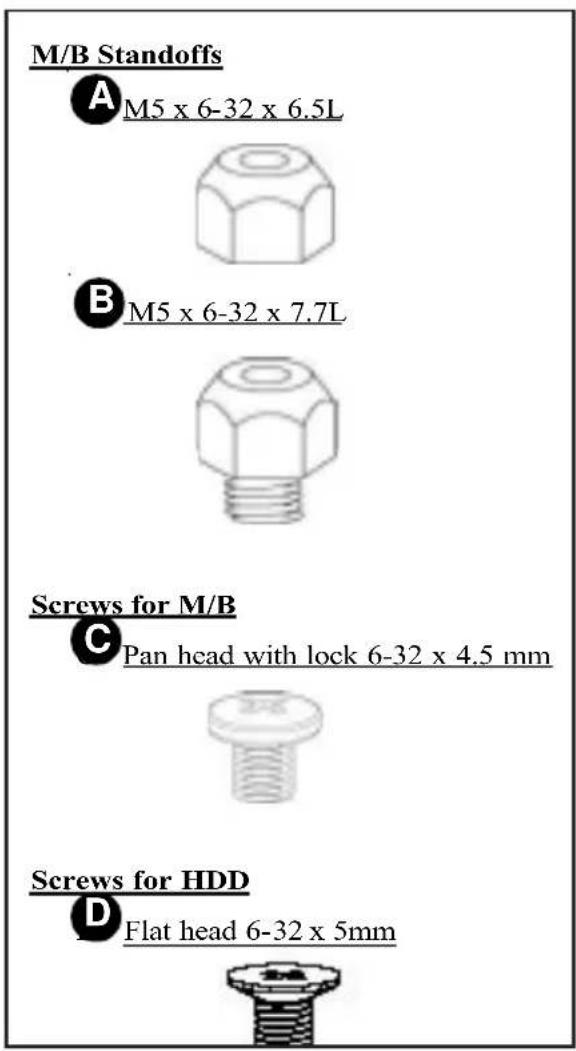
A. Contents of the Accessory Kit:
The following items are included in the Accessory Kit:
text_image
M/B Standoffs A M5 x 6-32 x 6.5L B M5 x 6-32 x 7.7L Screws for M/B C Pan head with lock 6-32 x 4.5 mm Screws for HDD D Flat head 6-32 x 5mm
text_image
Screws for Drives E Pan head 6-32 x 5m F Round head M2 x 3mm G Round head M3 x 5 mm H Pan head M3 x 5mm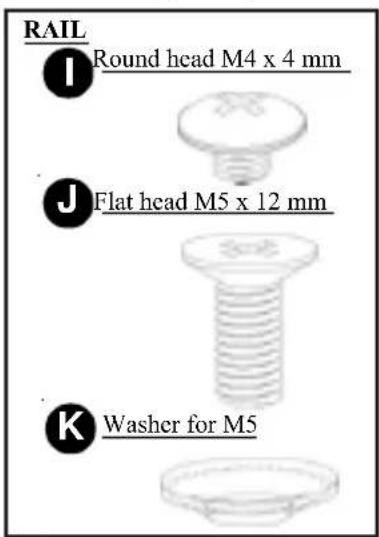
text_image
RAIL Round head M4 x 4 mm Flat head M5 x 12 mm Washer for M5B. Chassis Front View and the Front Control Panel
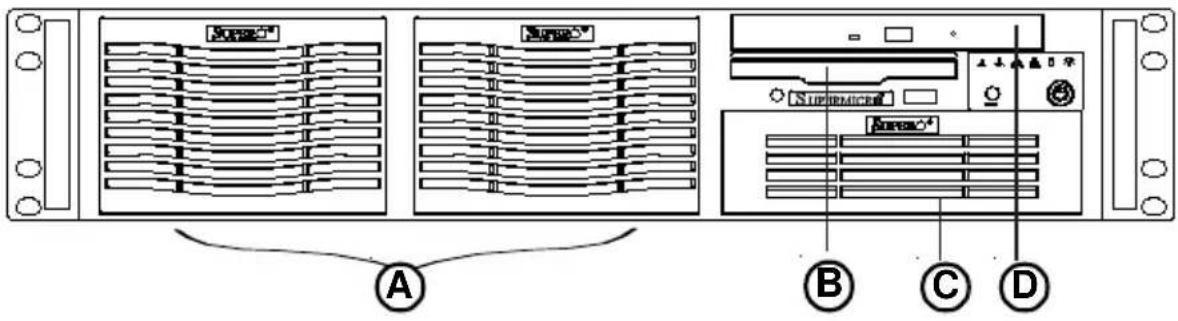
Chassis Front Panel
The SC823T/SC823S Series

text_image
A B C D SUPERMIKROFront Panel I/O Device Definitions (* for the SC823T/SC823S Series)
A. SCA Drive Trays(6)
C. 5.25" Drive Bay(1)
B. Floppy Disk(1)
D. CD ROM(1) (*Redundant Chassis only)
The SC823i Series
text_image
A B C DFront Panel I/O Device Definitions (* for the SC823i Series)
A. IDE Drive Trays(2)
C. 5.25" Drive Bay(1)
B. Floppy Disk(1)
D. CD ROM(*823i-R500RC only)
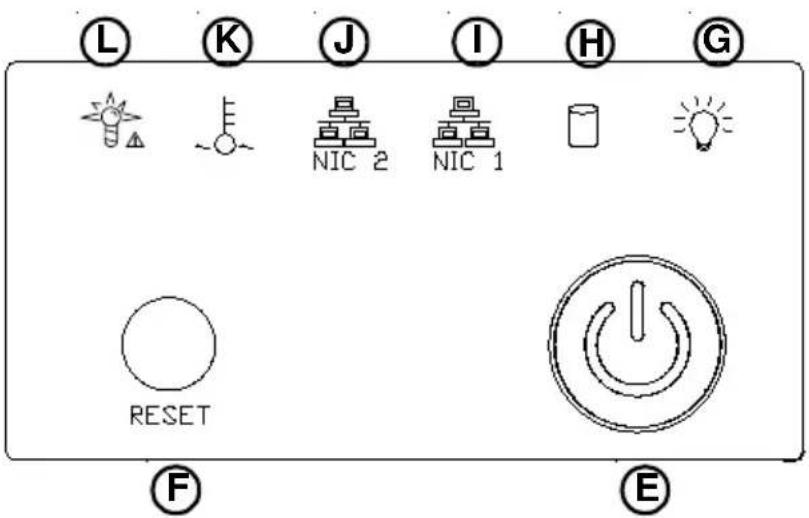
LED Panel
text_image
L K J I H G NIC 2 NIC 1 RESET F ELED and Button Definitions
E. Power Button
F. Reset Button
G. Power Indicator
H.HDD Activity
I. LAN1
J. LAN2
K. Overheat
L. System Alert/Power Failure
(*for Redundant PS only)
LED Button Descriptions
| LED Button Color Condition Description | ||
| Green On System On Power | ||
| Off System Off | ||
| Amber Blink HDD Activity HDD | ||
| Off No Activity | ||
| LAN1 & LAN2 | Green On Linked | |
| Blink LAN Activity | ||
| Off Disconnected | ||
| Red On System Overheat Overheat | ||
| Off System Normal | ||
| Power Failure | Red On 1 or more PWR modules failure System Alert/ | |
| Off System Normal | ||
C. Chassis Rear View and the Back Panel
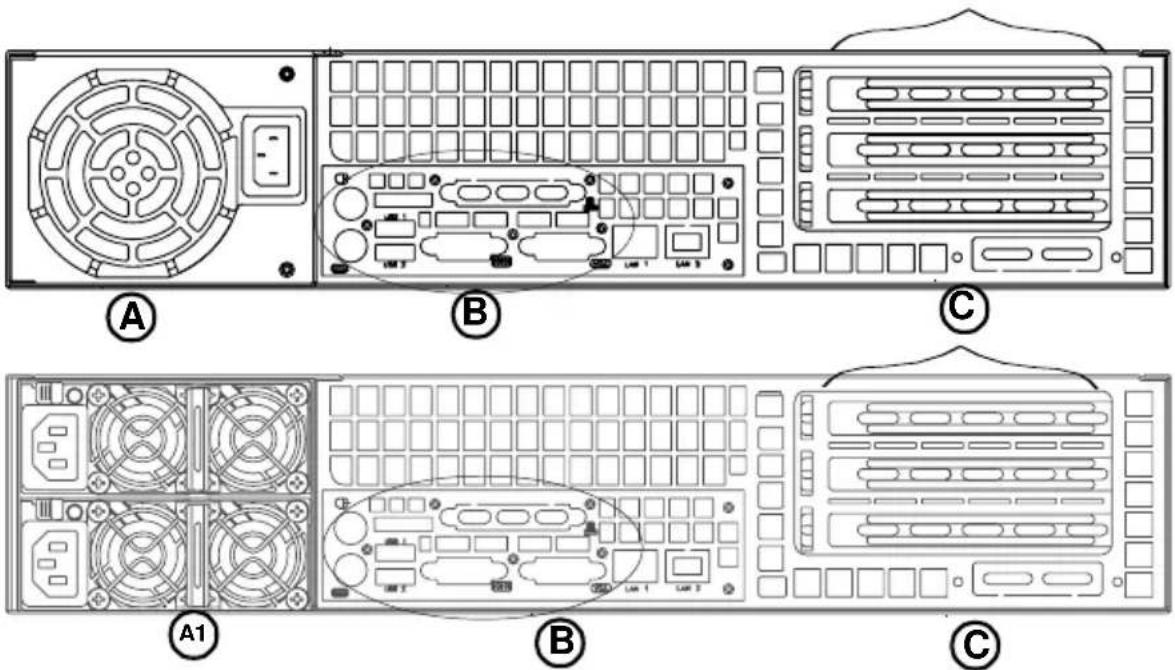
SC823 Chassis Rear View (*SC823T/823S/823i-LP Models)

text_image
Technical diagram of a computer rack with labeled components and internal layout viewsBack Panel Devices (\*P/N: CSE-PT21)
A. Power Supply A1. Redundant Power Supply
B. Back Panel I/O Ports
C. Low Profile Expansion Slots(7)
SC823 Chassis Rear View (*SC823T/823i-RC Models)
text_image
Technical diagram of a computer rack with labeled components and fan layoutsBack Panel Devices (\*P/N: CSE-PT22)
A. Power Supply A1. Redundant Power Supply
B. Back Panel I/O Ports
C. Full Size Riser-card Slots(3)
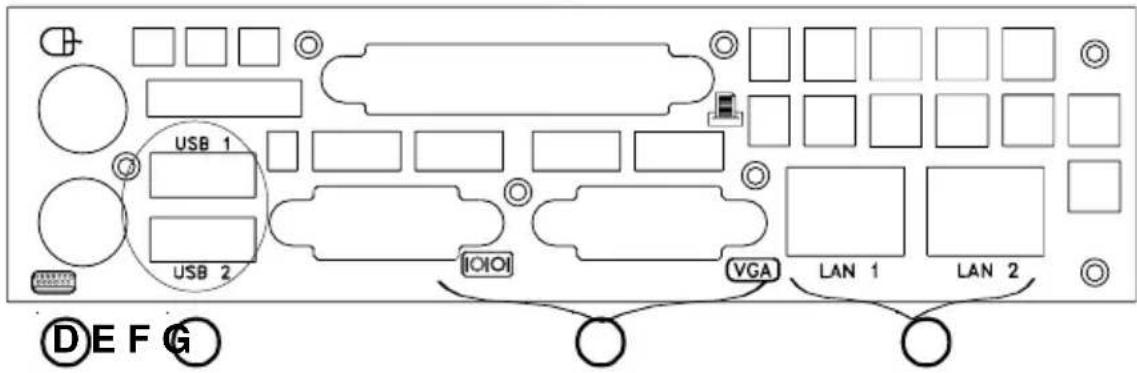
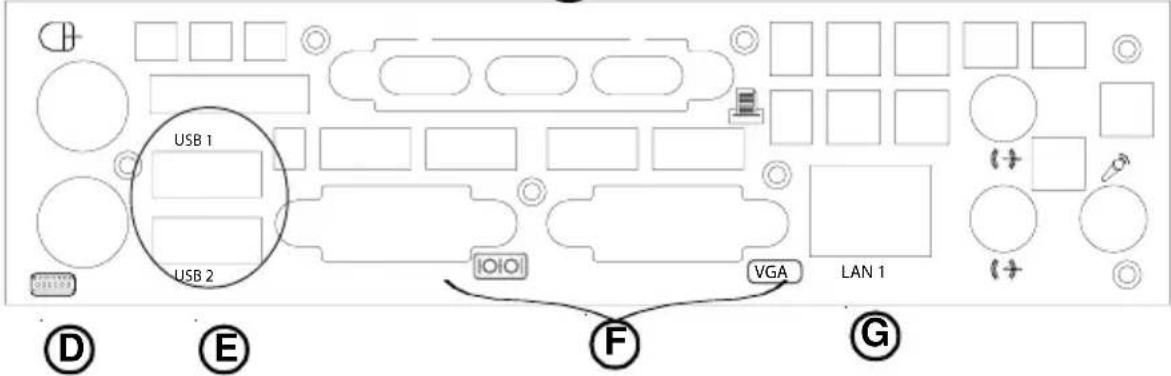
*I/O Back Panel (*installed on the back panel-See Page 2-4)
H
text_image
USB 1 USB 2 [IOIO] VGA LAN 1 LAN 2 DE F G*I/O Back Panel
H
text_image
USB 1 USB 2 IOIO VGA LAN 1 D E F GBack Panel I/O Port Definitions
D. Keyboard & Mouse
E. USB Ports
F. COM/Video Ports
G. LAN1 (& LAN2)
H. Parallel Port
(*Note: The actual I/O Configuration of your system might be different from the one shown above.)
Power Module LED Descriptions (*For Redundant Power Supply only)
| Power Module LED | Color Condition Description |
| Green Power Supply DC On | |
| Amber Power Supply Standby | |
| Off No AC Power to the system |
2-2 Chassis Installation
A. Important Safety Guidelines

This product shall only be accessed, assembled and serviced by technically qualified personnel or technicians.
To avoid personal injury and property damage, please read all the information provided in Chapter 1, and carefully follow all the Safety Guidelines listed before accessing or servicing the SC823 or its components. For your convenience, some Safety Steps are also listed below.
Safety Steps
Before accessing the chassis:
- Turn off all peripheral devices and turn off the power supply connected to the SC823.
- Unplug all power cords from the system or the wall outlets.
- Disconnect all the cables and label the cables for easy identification.
- Use a grounded wrist strap designed to prevent static discharge when handling components.
Removing the chassis covers:
After completing the above steps, you can remove the chassis covers and install components and devices into the chassis as described in this chapter.
- Press the tabs or the screws to loosen and remove the cover or the components from the chassis.
- Save all the screws and fasteners for later use. (If necessary, label these screws or fasteners for easy identification.)
- Follow the instructions given in this chapter to remove the chassis covers.
B. Tools needed
- Phillips Screw Driver
- Antistatic Strap
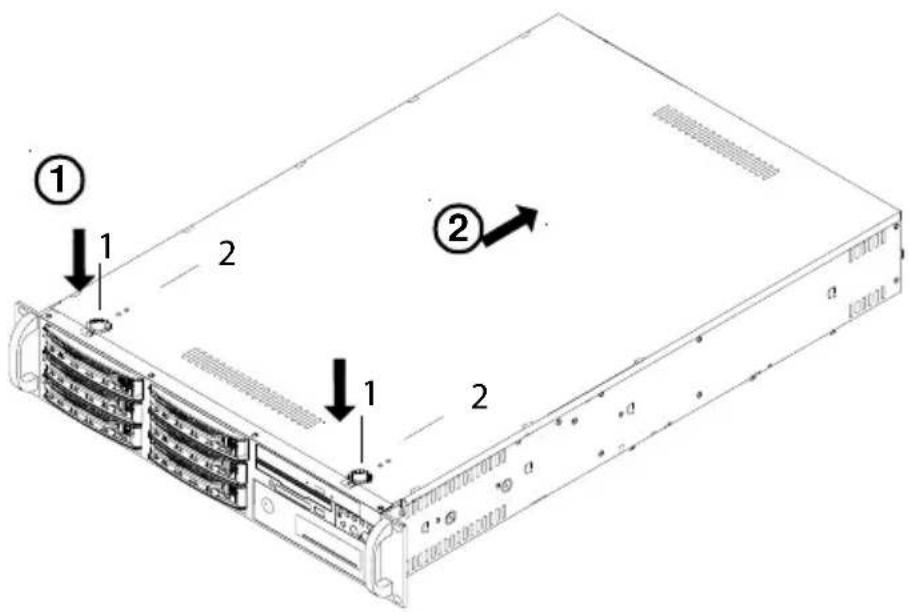
C. Removing the Top Cover of the SC823 Chassis
Before installing any components, replacing chassis fans or accessing the motherboard, you will first need to remove the top cover.
Procedures
- Press the release tabs to release the cover from its locking position.
text_image
Diagram of a server rack with labeled components and directional arrows indicating assembly or movement.- Once the top cover is released from its locking position, push the cover toward the rear side and slide it out from the chassis.
D1. Accessing the SCSI (or SATA) Drive Tray and Installing a Hard Disk(\*For the SC823S/823T series)
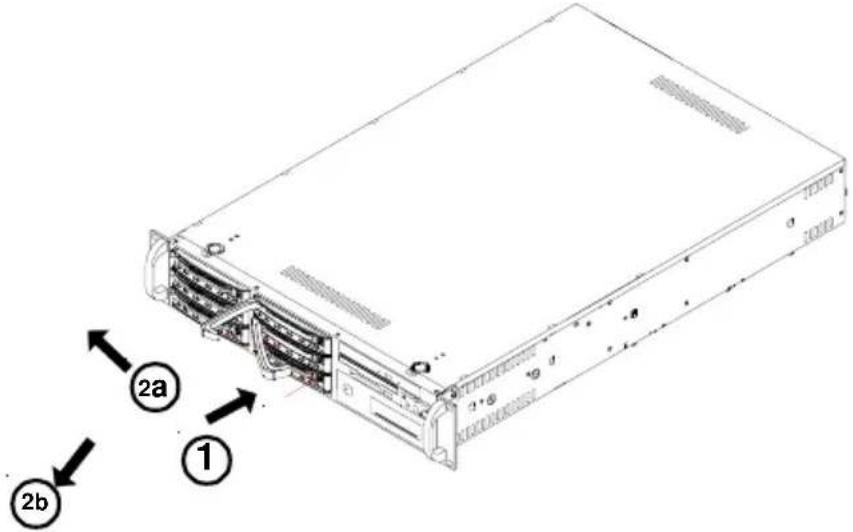
To install the SCA(SATA) drive into the chassis, you need to first remove the SCA(SATA) drive tray from the chassis.
Procedures
- Press the release tab located on the drive tray door to release the drive tray from its locking position as shown below.
- Pull the drive tray door upward and then pull the drive tray out from the chassis.
text_image
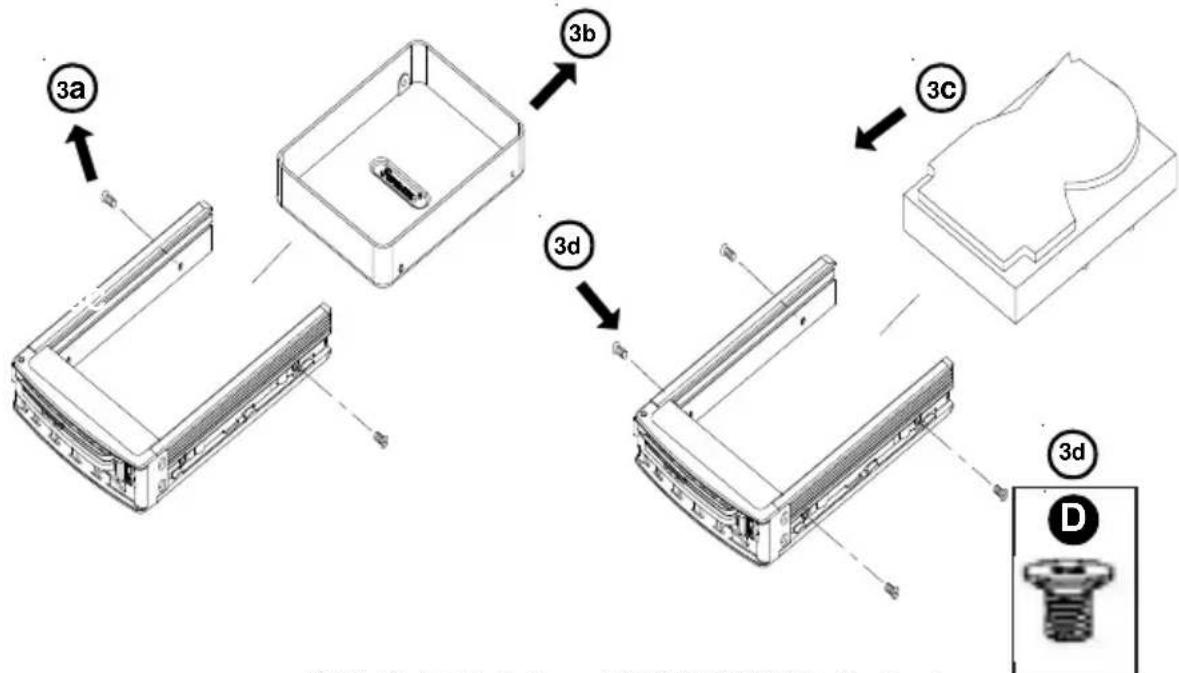
Diagram of a server rack with labeled components including 1, 2a, and 2b arrows pointing to internal ports.- Remove the screws to loosen the drive tray. Once loosened, pull it out from its housing. Then, mount a hard drive in the drive tray and secure it with screws as shown below.
text_image
3a 3b 3c 3d 3d DSCA (SATA) Drives (*SC823S/823T Series)
D2. Accessing the IDE Drive Tray and Installing a Hard Disk (\*For the SC823i Series)
To install the IDE drive into the chassis, first, you need to remove the top cover; then, you need to remove the IDE drive tray from the chassis.
Procedures
- Remove the screws from the top of the IDE drive as shown below.
- Once the top cover and the screws are removed, press on the back side of the IDE drive tray and push it out from the chassis.

text_image
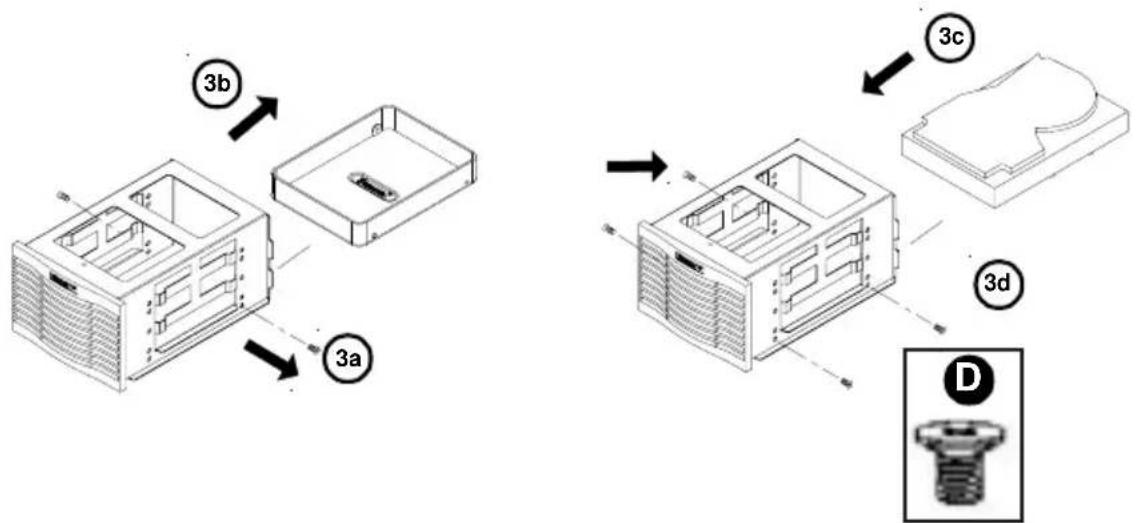
Technical diagram of a server rack with numbered components and directional arrows indicating assembly or movement.- Remove the screws to loosen the drive tray. Once loosened, pull it out from its housing. Then, mount a hard drive in the drive tray and secure it with screws as shown below.
text_image
3b 3a 3c 3dIDE Drives(*SC823i Series)
E. Accessing the Front Chassis Fans and Installing the Air Shroud
Procedures: Accessing Chassis Fans
-
Press the release tab located on the left side of the front chassis fan (when facing the front side of the fan) to release it from its locking position as shown in the picture below.
-
Once the front chassis fan is loosened, you can pull it out.

text_image
Technical diagram of a server rack with labeled components and an inset showing a close-up view of the internal structure.Procedures: Installing the Air Shroud
-
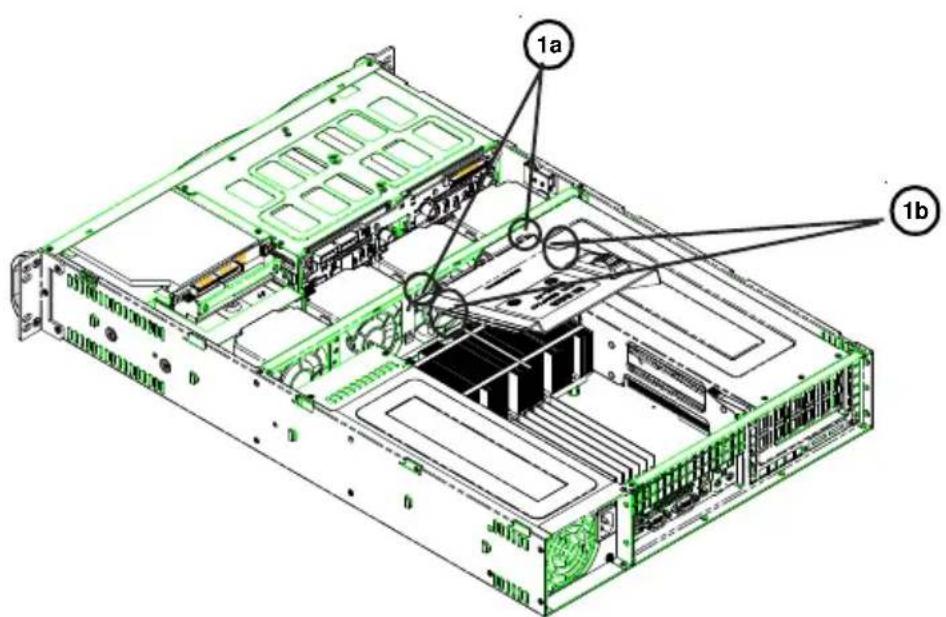
Locate the two holes in the chassis and two hooks in the air shroud as shown in the picture below.
-
Insert the two air shroud hooks into the two holes in the chassis.
-
Gently push the air shroud into the chassis to secure it.
text_image
Technical diagram of a server rack with labeled components 1a and 1b, showing internal hardware layout and mounting points.F. Accessing the Redundant Power Supply (\*For the 8S3S-R550RC/R500LP, 823T-R500RC, 823i-R500RC)
(Caution: Unplug the Power Cord before removing the Power Supply!!)
Procedures
- Locate the release tab on the left side of the power supply.
- Push the release tab to the right to release the power supply from its locking position as shown below.

text_image
Technical diagram showing a device interior with labeled components and directional arrows indicating flow or movement.- Once the power supply module is released from its locking position, remove it from the chassis.

Warning: Do not open the casing of a power supply. Power supplies can only be accessed and serviced by a qualified technician from the manufacturer.
G. Installing the Motherboard
Be sure to disconnect the power supply before accessing or installing the motherboard into the chassis. To install the motherboard to the chassis, first, you will need to install the correct type of standoffs at the proper locations before installing the motherboard into the chassis. (Refer to Chapter 1 for Safety Guidelines.)
Procedures
- Lay the chassis on a flat surface. Locate the mounting holes on the motherboard and locate the corresponding mounting holes on the chassis.

text_image
Power Supply ① A B-
On the chassis, install standoffs in the mounting holes that are corresponding to the mounting holes on the motherboard.
-
Lay the motherboard on the standoffs and secure it to the chassis with the correct types of screws at proper locations.
-
Secure the CPU(s) and heatsink(s) to the motherboard and the chassis as needed.
(For , please use Type . For ⊕, please use Type .)

Warning: For proper cooling, please make sure that all the chassis covers are installed before you operate the system. Out of warranty damage can occur if this rule is not strictly followed.
H. Installing Chassis Rails
Please make sure that the chassis covers and chassis rails are installed on the chassis before you install the chassis into the rack.

To avoid personal injury and property damage, please carefully follow all the safety steps listed below.
Before installing the Chassis rails:
- Enclose the chassis with chassis covers.
- Unplug the AC power cord(s).
- Remove all external devices and connectors.
Procedures to Install Chassis Rails
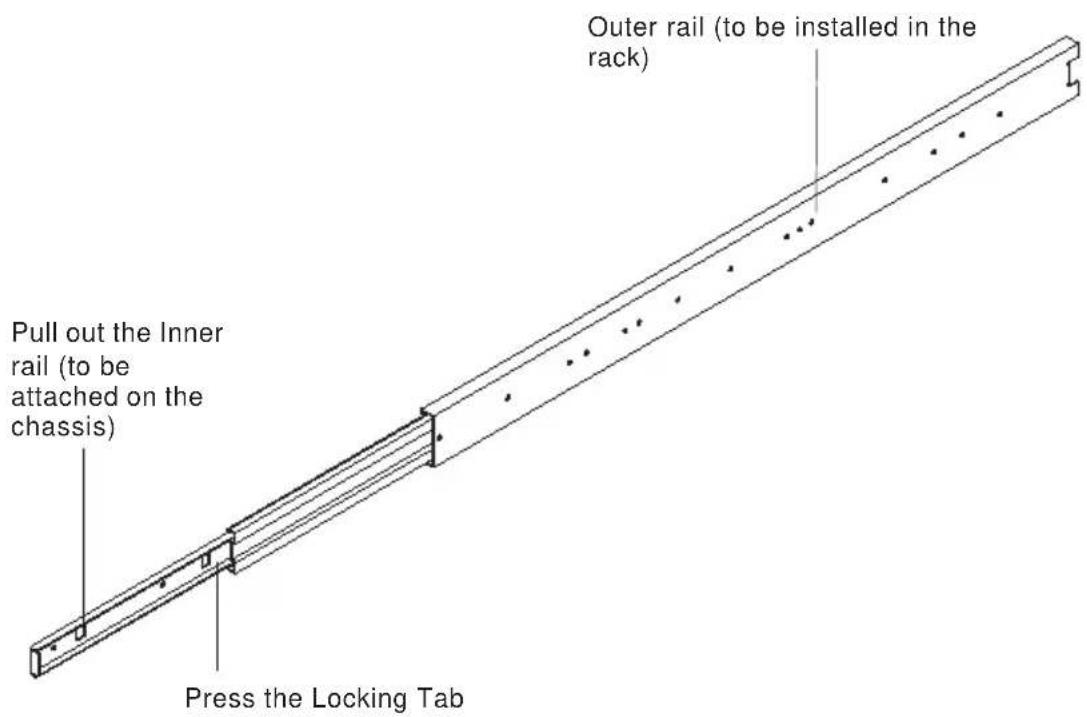
- Included in the shipping package are a pair of rail assemblies. In each rail assembly, locate the inner rail and the outer rail.
- Press the locking tab to release the inner rail from its locking position and pull out the inner rail from the rail assembly. (*The inner rails are to be attached to the chassis and the outer rails are to be installed in the rack.)
text_image
Outer rail (to be installed in the rack) Pull out the Inner rail (to be attached on the chassis) Press the Locking Tab-
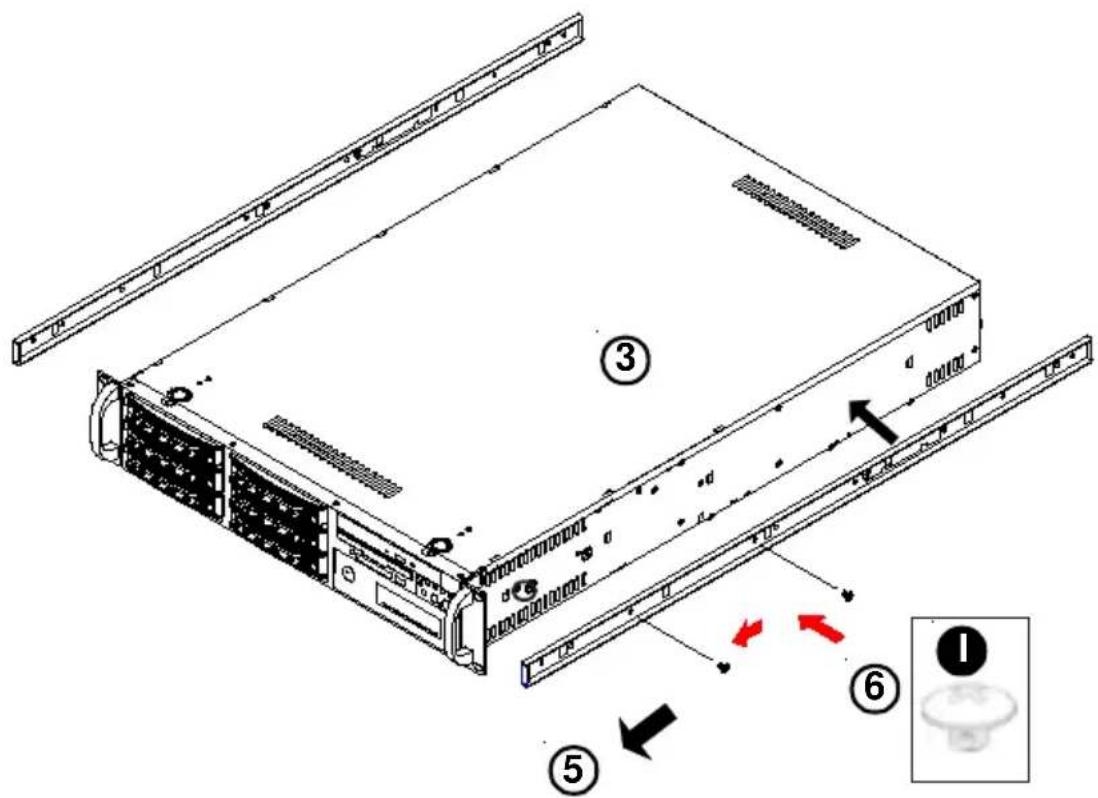
Locate the five rail hooks on each side of the chassis and the five corresponding holes on each of the inner rail.
-
Align the five holes on the rail against the corresponding hooks on the chassis. Once aligned, attach the inner rail to the chassis by pressing the holes into the corresponding hooks.
-
Once the rail is placed on the chassis, pull the rail forward until you hear the click.
-
Secure the rail to the chassis with a Type I screw (Refer to Page 2-1 for the Type I screw.) Repeat the above steps to install other rail on the chassis.
text_image
Diagram of a server rack with numbered components and directional arrows indicating assembly or statusI. Rack Installation
After you have installed the inner rails on the chassis, you are ready to install the outer rails of rail assemblies to the rack.
(* The rails are designed to fit in the racks with the depth of 28" to 33".)
Procedures
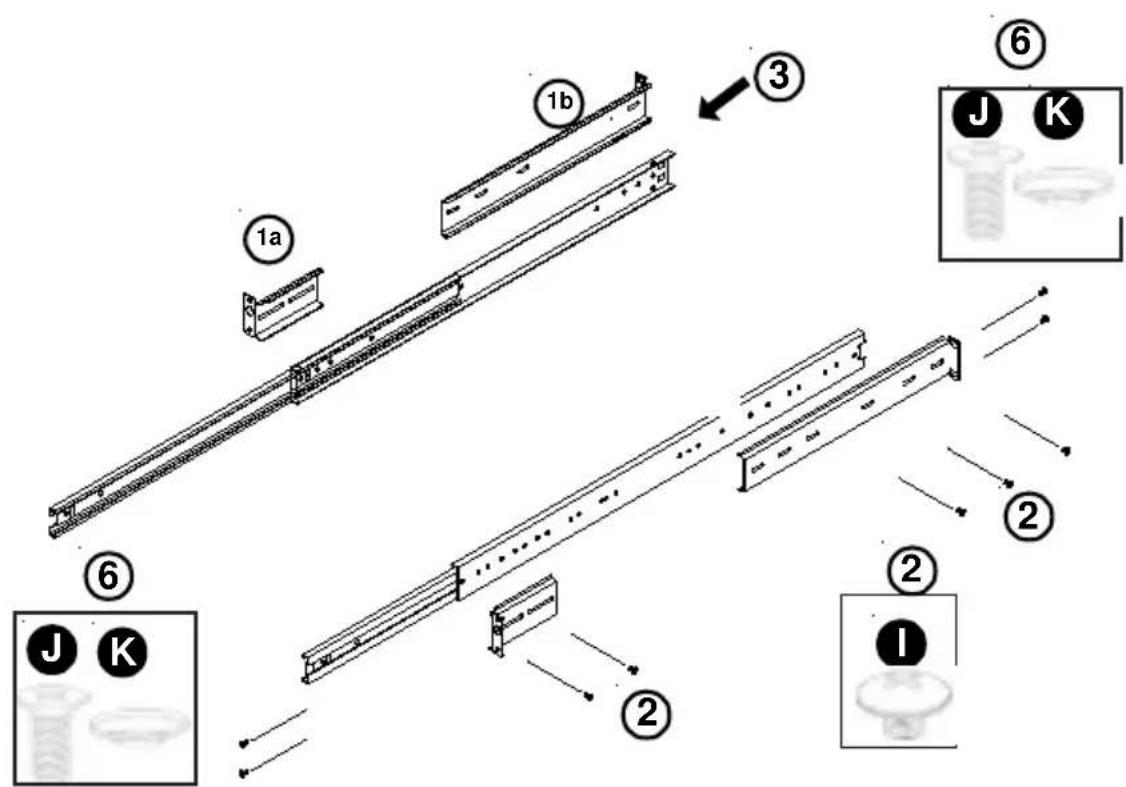
- In the package, locate a pair of front (-short) and rear (-long) brackets. Please note that the brackets are marked with Up/Front Arrows (-front) and Up/Rear arrows (-rear).
- Secure the front (-short) bracket (marked with the Up/Front arrows) to the outer rail with two Type I screws.
- Attach the rear (-long) bracket to the rail unit by sliding the rear rail into the rail unit. Insert the complete rail assembly into the chassis.
- Measure the depth of your rack and adjust the length of the rail assembly accordingly.
- Repeat the same steps to install the other rail assembly into the chassis.
- Secure both outer rail assemblies to the rack with Type J screws and Type K washers.
text_image
Technical diagram illustrating assembly steps of a mechanical device with labeled components and component callouts.- Slide the SC823 chassis into the rack until you hear the click.
(The SC823 chassis may not slide into the rack smoothly or easily when installed the first time. However, some adjustment to the slide assemblies might be needed for easy installation.)
- You will need to release the safety tabs on both sides of the chassis in order to completely remove the chassis out of the rack.
