Hi-Gain HW5AC - Wi-Fi repeater Hawking Technologies - Free user manual and instructions
Find the device manual for free Hi-Gain HW5AC Hawking Technologies in PDF.


| Product Type | Wi-Fi Repeater/Extender |
| Model | Hi-Gain HW5AC |
| Brand | Hawking Technologies |
| Wireless Standard | IEEE 802.11 a/b/g/n/ac |
| Frequency Bands | 2.4 GHz & 5 GHz |
| Max Data Rate | Up to 1200 Mbps (300 Mbps on 2.4 GHz + 867 Mbps on 5 GHz) |
| Interface | 1 x Gigabit Ethernet Port (10/100/1000) |
| Antenna | 2 x Detachable High-Gain External Antennas |
| Power Supply | 5V DC, 1A (via included adapter) |
| Dimensions | 130 x 80 x 30 mm (approx) |
| Weight | 200 g (approx) |
| Operating Modes | Repeater, Access Point, Bridge |
| Wireless Security | WEP, WPA/WPA2-PSK |
| LED Indicators | Power, WLAN, LAN, Signal Strength |
| Buttons | WPS/Reset, Power |
| Mounting | Wall-mountable with included bracket |
| Package Contents | Repeater, Power Adapter, Ethernet Cable, Quick Installation Guide |
| Certifications | FCC, CE |
| Operating Temperature | 0°C to 40°C |
| Humidity | 10% to 85% non-condensing |
| Maintenance & Cleaning | Wipe with dry cloth; do not use liquids or aerosols |
| Safety Precautions | Avoid moisture, heat sources, and physical damage |
| Spare Parts & Repairability | No user-serviceable parts; contact Hawking support for issues |
| General Information | Designed to extend Wi-Fi coverage in homes and offices with dual-band performance |
Frequently Asked Questions - Hi-Gain HW5AC Hawking Technologies
User questions about Hi-Gain HW5AC Hawking Technologies
0 question about this device. Answer the ones you know or ask your own.
Ask a new question about this device
Download the instructions for your Wi-Fi repeater in PDF format for free! Find your manual Hi-Gain HW5AC - Hawking Technologies and take your electronic device back in hand. On this page are published all the documents necessary for the use of your device. Hi-Gain HW5AC by Hawking Technologies.
USER MANUAL Hi-Gain HW5AC Hawking Technologies
Hi-Gain™ 5GHz Wireless-AC Network Upgrade :IW5AC
natural_image
Abstract wireframe diagram of concentric circular patterns on a dark background, no text or symbols presentCopyright ©2014 by Hawking Technologies. All rights reserved. No part of this publication may be reproduced, transmitted, transcribed, stored in a retrieval system, or translated into any language or computer language, in any form or by any means, electronic, mechanical, magnetic, optical, chemical, manual or otherwise, without the prior written permission of this company
Hawking Technologies makes no representations or warranties, either expressed or implied, with respect to the contents hereof and specifically disclaims any warranties, merchantability or fitness for any particular purpose. Any software described in this manual is sold or licensed "as is". Should the programs prove defective following their purchase, the buyer (and not Hawking Technologies, its distributor, or its dealer) assumes the entire cost of all necessary servicing, repair, and any incidental or consequential damages resulting from any defect in the software. Further, this company reserves the right to revise this publication and to make changes from time to time in the contents thereof without obligation to notify any person of such revision or changes.
Federal Communication Commission Interference Statement
FCC Part 15
This equipment has been tested and found to comply with the limits for a Class B digital device, pursuant to Part 15 of FCC Rules. These limits are designed to provide reasonable protection against harmful interference in a residential installation. This equipment generates, uses, and can radiate radio frequency energy and, if not installed and used in accordance with the instructions, may cause harmful interference to radio communications. However, there is no guarantee that interference will not occur in a particular installation. If this equipment does cause harmful interference to radio or television reception, which can be determined by turning the equipment off and on, the user is encouraged to try to correct the interference by one or more of the following measures:
- Reorient or relocate the receiving antenna.
- Increase the separation between the equipment and receiver.
- Connect the equipment into an outlet on a circuit different from that to which the receiver is connected.
- Consult the dealer or an experienced radio technician for help.
FCC Caution
This equipment must be installed and operated in accordance with provided instructions and a minimum 20 cm spacing must be provided between computer mounted antenna and person's body (excluding extremities of hands, wrist and feet) during wireless modes of operation.
This device complies with Part 15 of the FCC Rules. Operation is subject to the following two conditions: (1) this device may not cause harmful interference, and (2) this device must accept any interference received, including interference that may cause undesired operation.
Any changes or modifications not expressly approved by the party responsible for compliance could void the authority to operate equipment.
Federal Communication Commission (FCC) Radiation Exposure Statement
This equipment complies with FCC radiation exposure set forth for an uncontrolled environment. In order to avoid the possibility of exceeding the FCC radio frequency exposure limits, human proximity to the antenna shall not be less than 20cm (8 inches) during normal operation.
The antenna(s) used for this transmitter must not be co-located or operating in conjunction with any other antenna or transmitter.
R&TTE Compliance Statement
This equipment complies with all the requirements of DIRECTIVE 1999/5/EC OF THE EUROPEAN PARLIAMENT AND THE COUNCIL of March 9, 1999 on radio equipment and telecommunication terminal Equipment and the mutual recognition of their conformity (R&TTE).
The R&TTE Directive repeals and replaces in the directive 98/13/EEC
(Telecommunications Terminal Equipment and Satellite Earth Station Equipment) As of April 8, 2000.
Safety
This equipment is designed with the utmost care for the safety of those who install and use it. However, special attention must be paid to the dangers of electric shock and static electricity when working with electrical equipment. All guidelines of this and of the computer manufacture must therefore be allowed at all times to ensure the safe use of the equipment.
EU Countries Intended for Use
The ETSI version of this device is intended for home and office use in Austria, Belgium, Denmark, Finland, France, Germany, Greece, Ireland, Italy, Luxembourg, the Netherlands, Portugal, Spain, Sweden, and the United Kingdom.
The ETSI version of this device is also authorized for use in EFTA member states: Iceland, Liechtenstein, Norway, and Switzerland.
EU Countries Not intended for use
None.
Table of Contents
Chapter I: Product Information....6
1-1 Introduction and safety information 6
1-2 Safety Information....7
1-3 System Requirements 9
1-4 Package Contents.... 10
1-5 Product Overview....11
Chapter II: Quick Setup.... 13
2-1 Hardware Connection.... 13
2-2 Quick setup....13
Chapter III Web Interface 25
3-1 Quick Setup 25
3-1-1 Access Point mode 26
3-1-2 Client mode 30
3-2 Advanced Setup 33
3-3 WPS Setup 35
3-4 Status 35
Chapter IV: Appendix.... 38
4-1 Hardware Specification 38
4-2 Troubleshooting.... 39
4-3 Glossary 41
Chapter I: Product Information
1-1 Introduction and safety information
Thank you for purchasing the HW5AC Hi-Gain™ 5GHz Wireless-AC Network Upgrade. This cost-effective product is the best choice for Digital Home / Home Office users, allowing users to upgrade their 2.4GHz Wireless network to a 5GHz AC Wireless network.
This upgrade supports IEEE 802.11a/n/ac 5GHz wireless network capabilities. 5GHz wireless-enabled network devices (such as PDA, Smart phones, Game consoles, Tablets, TVs, etc) can connect to this upgrade without additional cabling, allowing speeds up to 433Mbps!
Other features of this band extender including:
• Supports 5GHz wireless LAN only.
- High wireless access throughput, up to 433Mbps (transfer data rate)!
• One RJ-45 LAN Fast Ethernet plug (10/100M).
- Provides IEEE 802.11a/n/ac wireless LAN capability.
• Support DHCP (Server/Client) for easy IP-address setup.
- Support multiple wireless modes like: Access Point, Client.
- Easy to use Web-based GUI for network configuration and management purposes.
1-2 Safety Information
In order to keep the safety of users and your properties, please follow the following safety instructions:
- The HW5AC is designed for indoor use only; DO NOT place this upgrade outdoors.
- DO NOT put the HW5AC near hot or humid places, like a kitchen or bathroom. Also, do not leave this upgrade in the car in the summer.
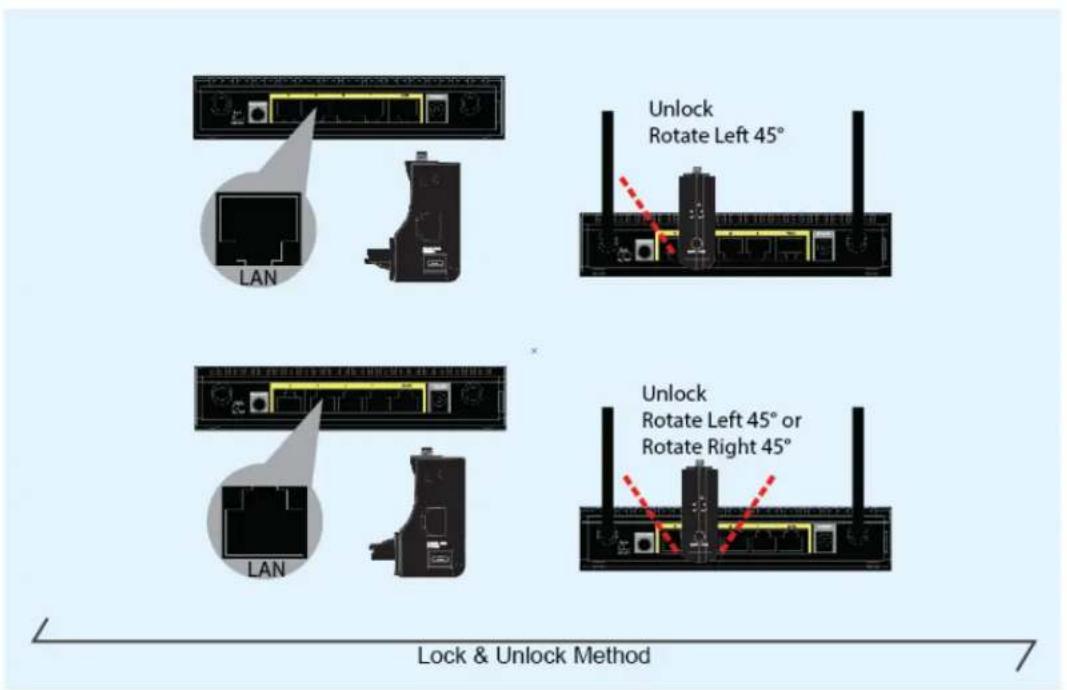
- DO NOT plug, unplug & rotation LAN port with force.
- If you want to place this HW5AC in high places or hang on the wall, please make sure the HW5AC is firmly secured. Falling from high places can damage the HW5AC and its accessories, and warranty will be void.
- Accessories of this HW5AC, like the antenna, cable and power supply, are a danger to small children under 3 years old. They may put the small parts in their nose or month and it could cause serious damage. KEEP THE HW5AC OUT OF THE REACH OF CHILDREN!
- The HW5AC can become hot when being used for long time (This is normal and is not a malfunction). DO NOT put the HW5AC on paper, cloth, or other flammable materials.
- There's no user-serviceable part inside the HW5AC. If you found that the product is not working properly, please contact your place of purchase or contact Hawking for help. DO NOT disassemble the product, warranty will be void.
- If the product falls into water when it's powered, DO NOT use your hand to pick it up. Switch the electrical power off before you do anything, or contact an experienced technician for help.
- If you smell something strange, or even see some smoke coming out from the product
or power supply, remove the power supply or switch the electrical power off immediately, and call dealer of purchase for help.
1-3 System Requirements
● Any networking device with a RJ-45 Ethernet port.
● Network devices with wired or 5G wireless network interface card.
- Web browser (Microsoft Internet Explorer, Google Chrome, Firefox or Safari web browser).
● An available USB Port or USB power adapter (Output: DC5V/0.6A)
1-4 Package Contents
Before you start to use the HW5AC, please check if there's anything missing in the package. Contact your place of purchase to claim missing items:
- HW5AC
- Antenna
- Micro USB power cable + Power Adapter
- Quick Installation Guide
- Setup CD
1-5 Product Overview
LED indication & Button Functions
![SMA Antenna Jack LED Indicators AP Mode [Orange]: Blinking, Wireless LAN activity Client Mode [Blue]: Blinking, Wireless LAN activity System Status (Purple): solid, WPS function is enabled. Blinking: reset is enabled RU-45 Ethernet Micro USB Power WPS/Reset Button](/content/2026/05/1055000/images/271a52f1cc98ae8888bde76aeca3ba6b8de2016954e739377266b27a8ba55a9a.jpg)
WPS/Reset Button
• WPS: Press and hold for 3 seconds and release to initiate WPS
- Reset to manufacturer settings: Press and hold down button for 10 seconds until LED starts blinking. Power off/on.
| LED Indication | Definition | Function | Definition |
| AP mode (Orange) | Blinking: Wireless LAN activity (transferring or receiving data) | RJ-45 Ethernet | AP mode: LAN PortClient mode: LAN Port |
| Client mode (Blue) | Blinking: Wireless LAN activity (transferring or receiving data) | Micro USB Connector | For the HW5AC power supply only. |
| System status | On Solid: Detect WPS button is pressed and hold for more 3 | WPS / Reset | WPS: Pressed and hold for 3 seconds to start WPS. |
| (Purple) | seconds, Wireless WPS function is enabled.Blinking: Detect Reset button is pressed and hold for more 10 seconds. (Restore all settings to factory defaults). | Reset: Pressed and hold for more 10 seconds, till LED is blinking to do restore all settings to factory defaults. |
Chapter II: Quick Setup
2-1 Hardware Connection
Please follow the following instructions to setup the HW5AC
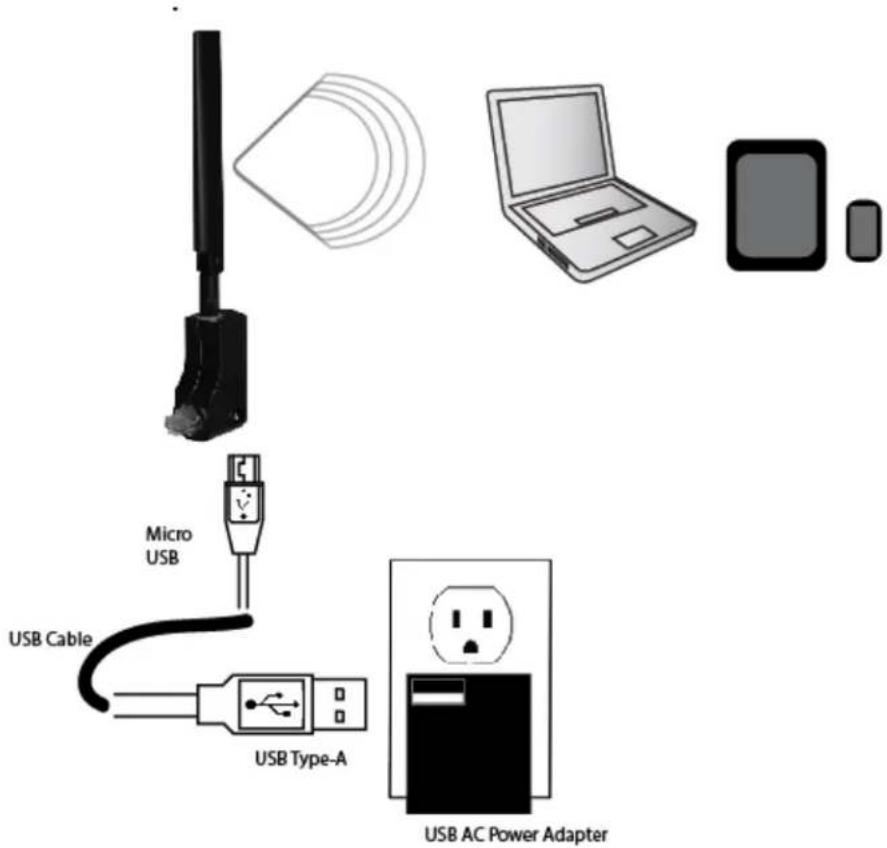
- Please connect the USB cable (Micro USB) to the HW5AC.
-
Please connect the USB cable (Type-A) to the provided AC power adapter. You can also use a Router, TV or computer USB Port to get power.
-
If setting up the HW5AC for the first time, do not plug it into a router's network port yet.
2-2 Quick setup
Please use the web browser to configure the HW5AC. A computer with Ethernet or a computer, tablet or smart phone with a 5GHz wireless connection is required for this first time configuration.
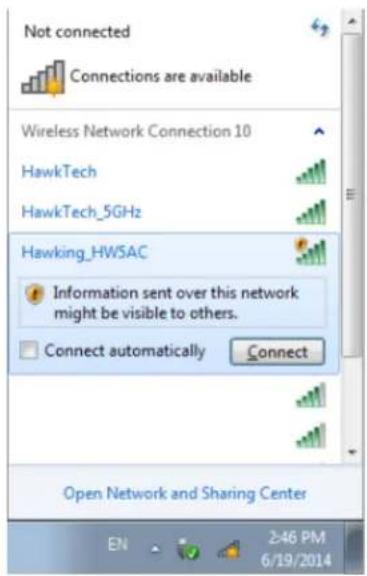
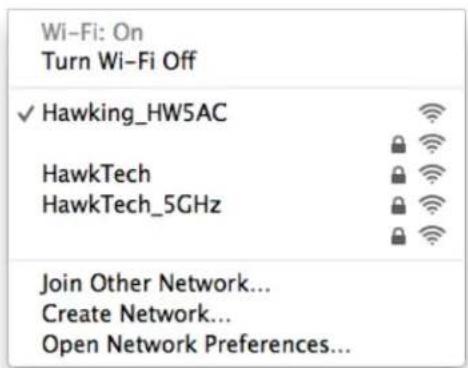
- Select your WiFi connection and choose the network called "Hawking_HW5AC"
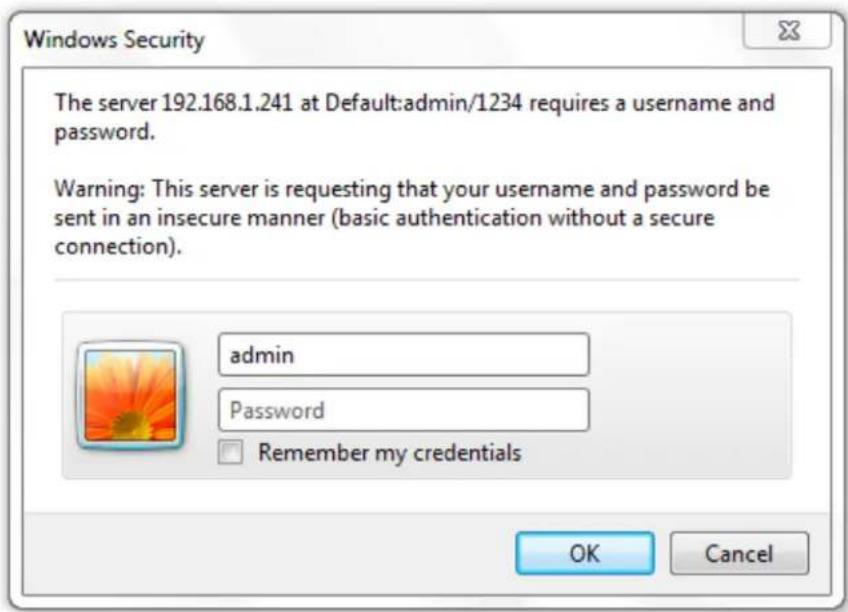
- Open the web browser and input the IP address of HW5AC in address bar, and the following message should be shown.
Default IP: 192.168.1.241

- Please input user name and password, then click 'OK' to access web management interface of HW5AC.
Default User name: admin
Default Password: 1234
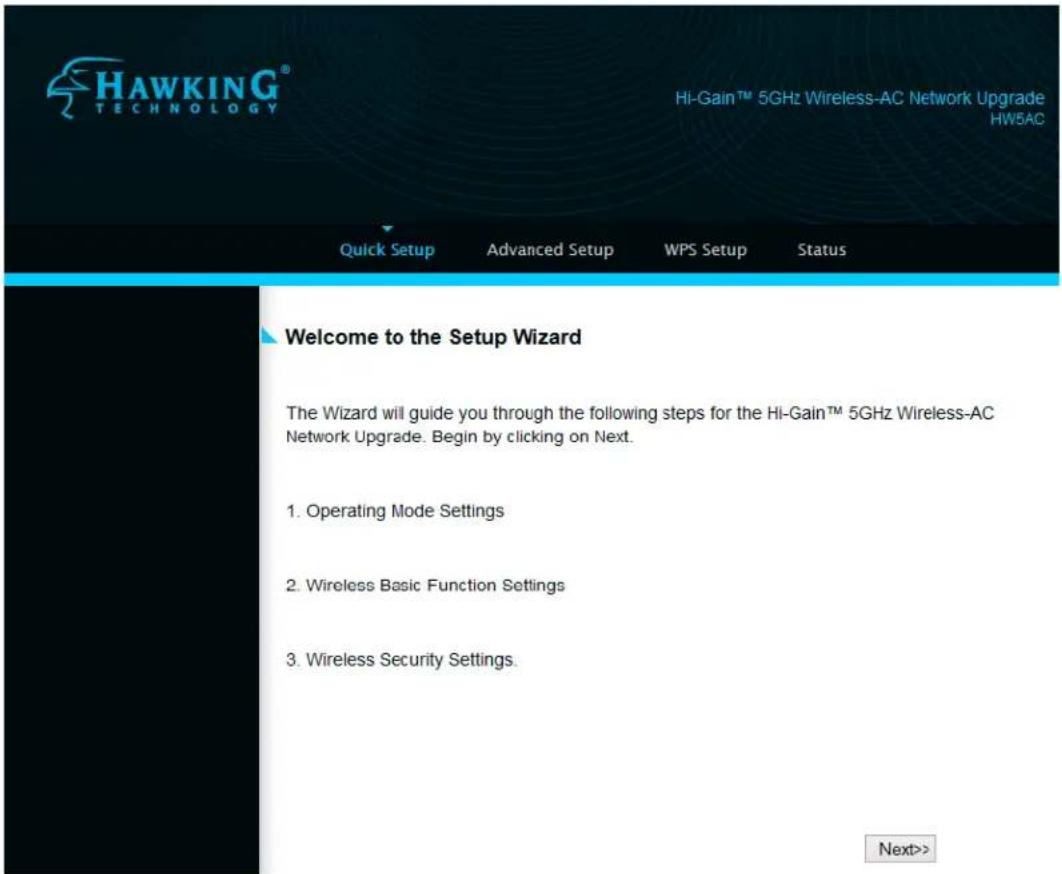
- The Hawking HW5AC quick setup page should now load. Click 'Next' to choose your mode.
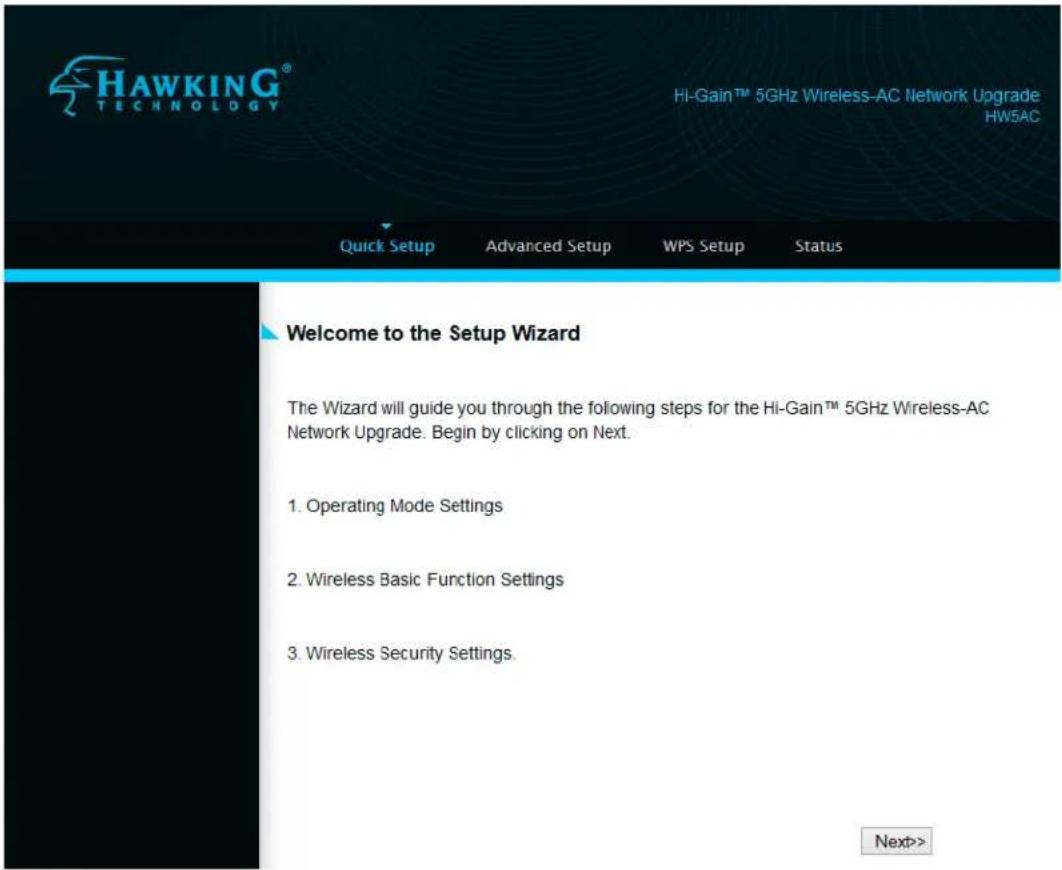
- Select operation mode: you can select Access Point mode or Client mode by your application environment, then click 'Next'.
(for example: Access Point mode)
- Access Point Mode:
natural_image
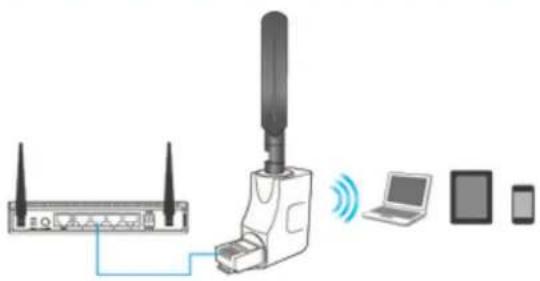
Diagram showing wireless network connection between a router, wireless device, laptop, and devices (no text or symbols)Select this mode if you have a traditional 2.4GHz single band WiFi router and you want to upgrade to an 11ac 5GHz wireless connection and share to multiple 5GHz/ac compatible devices such as smartphones, tablets, and laptops. After setup, you must connect the HW5AC to an available Ethernet port on your router or network.
○ Client Mode:
natural_image
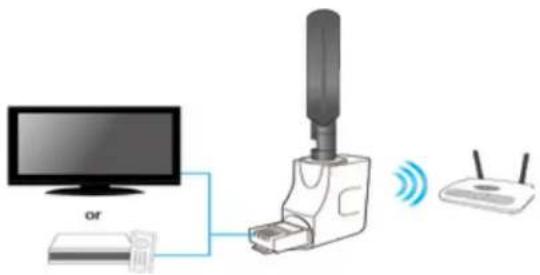
Diagram showing connections between a monitor, network device, and wireless router (no text or symbols present)Select this mode if you want your non-wireless networking device to have wireless capability; it will become your networking device's wireless network card. You can connect this device to the RJ-45 Ethernet port of your existing Internet TV, desktop PC or Game Console device. Note: This will only detect existing 5GHz WiFi signals.
- Wireless Basic Function Setting, You can make basic settings here. Click 'Next' when you finish.
Access Point Basic Settings
Wireless Band:
5 GHz (A+N+AC)
Wireless Network Name(SSID):
Hawking_HW5AC
Channel Width:
80MHz
Data Rate:
Auto
Channel Number:
Auto
Cancel
<<Back
Next>>
- Wireless Security Setting, click 'Finished' when you finish.
Wireless Security or Passphrase
Encryption: WPA2(AES)
Pre-Shared Key Format:
Passphrase
Pre-Shared Key:
卖卖卖卖卖卖
Cancel
<<Back
Finished
- Change Setting Successfully, please press ‘Reboot Now’ to restart the HW5AC to make the changes take effect.
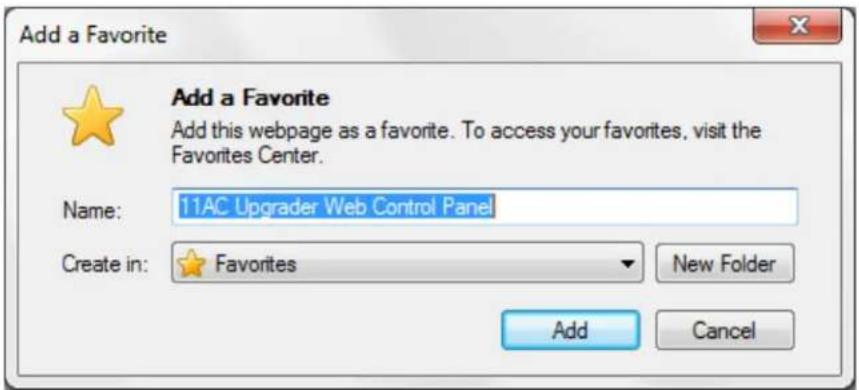
Add the URL to your bookmark (my favorite list) Default: "Save" (we recommend you save it for quick access to the settings page)
Welcome to the Setup Wizard
Setting saved successfully!
Your changes have been saved. The router must be rebooted for the changes to take effect. You can reboot now, or you can continue to make other changes and reboot later.
Add the URL to your bookmark(my favorite list) Save ▼
we recommend you to save it for quick access to the Web setting page next time
(Supports IE and Firefox only. Please add the access key to the bookmark manually if you use other browsers)
Reboot Now
Reboot Later
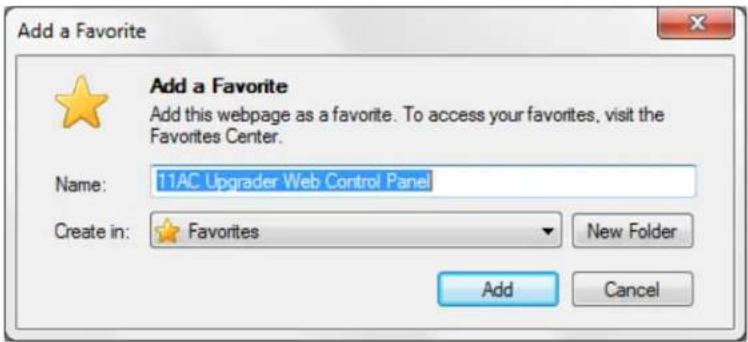
- When you need to reconfigure the HW5AC, go to your bookmarks on your web browser. Select "11AC Upgrader Web Control Panel" to renter the settings page.
- Please insert the HW5AC into an available LAN port of your traditional 2.4GHz WiFi router.
(** Do not use force to plug or unplug the 11ac band extender.)
Any computer with a 5GHz WiFi should now see the HW5AC and can connect to it and access the internet/network.
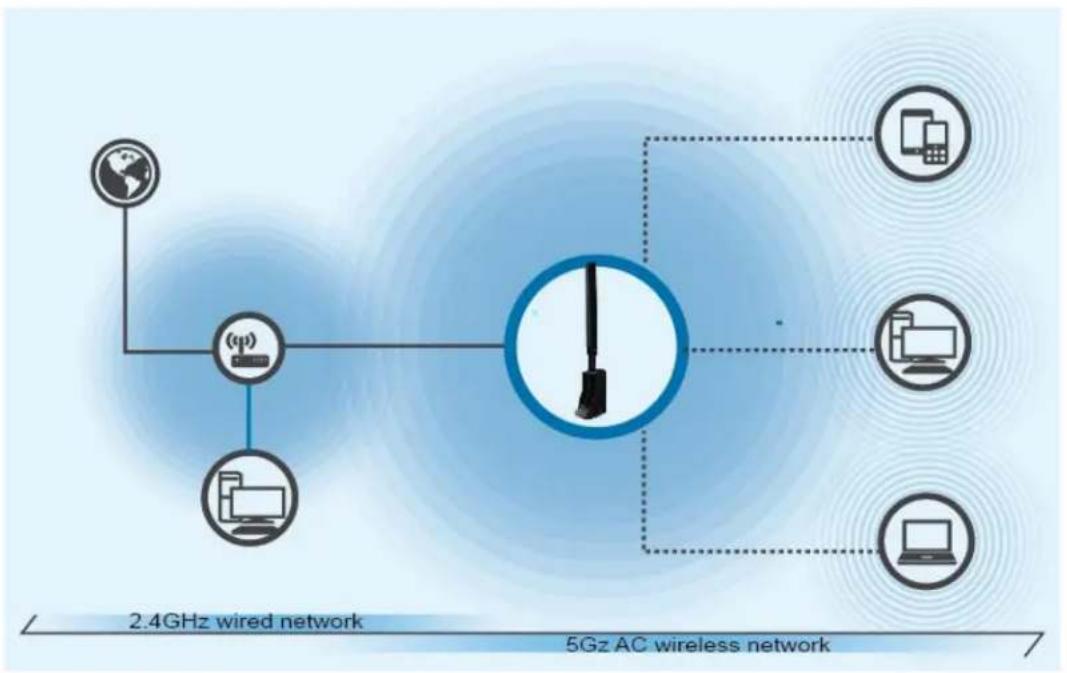
flowchart
graph TD
    A["2.4GHz wired network"] --> B["Satellite"]
    B --> C["Mobile Devices"]
    B --> D["Desktops"]
    C --> E["5Gz AC wireless network"]
    D --> E
    E --> F["Mobile Devices"]
    E --> G["Desktops"]
    E --> H["Computer"]
- Lock & Unlock method for the HW5AC. Depending on the orientation of the LAN port, please unlock as shown in the below diagram. Please do not use force to plug, unplug or rotate the HW5AC.
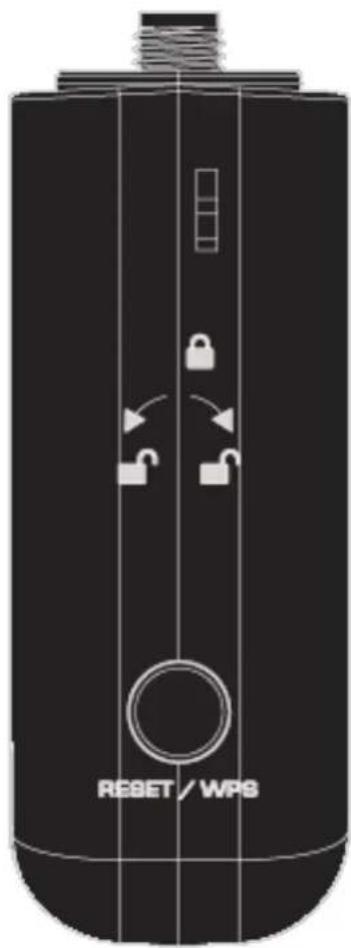
NOTE: If you can't see the web management interface, and you're being prompted to input user name and password again, it means you didn't input username and password correctly. Please retype user name and password again. If you're certain about the user name and password you type are correct, please go to '4-2 Troubleshooting' to perform a factory reset, to set the password back to default value.
Chapter III Web Interface
3-1 Quick Setup
The setup wizard will guide you to configure HW5AC for the first time. Please follow the setup wizard step by step.
Please click 'Next'.
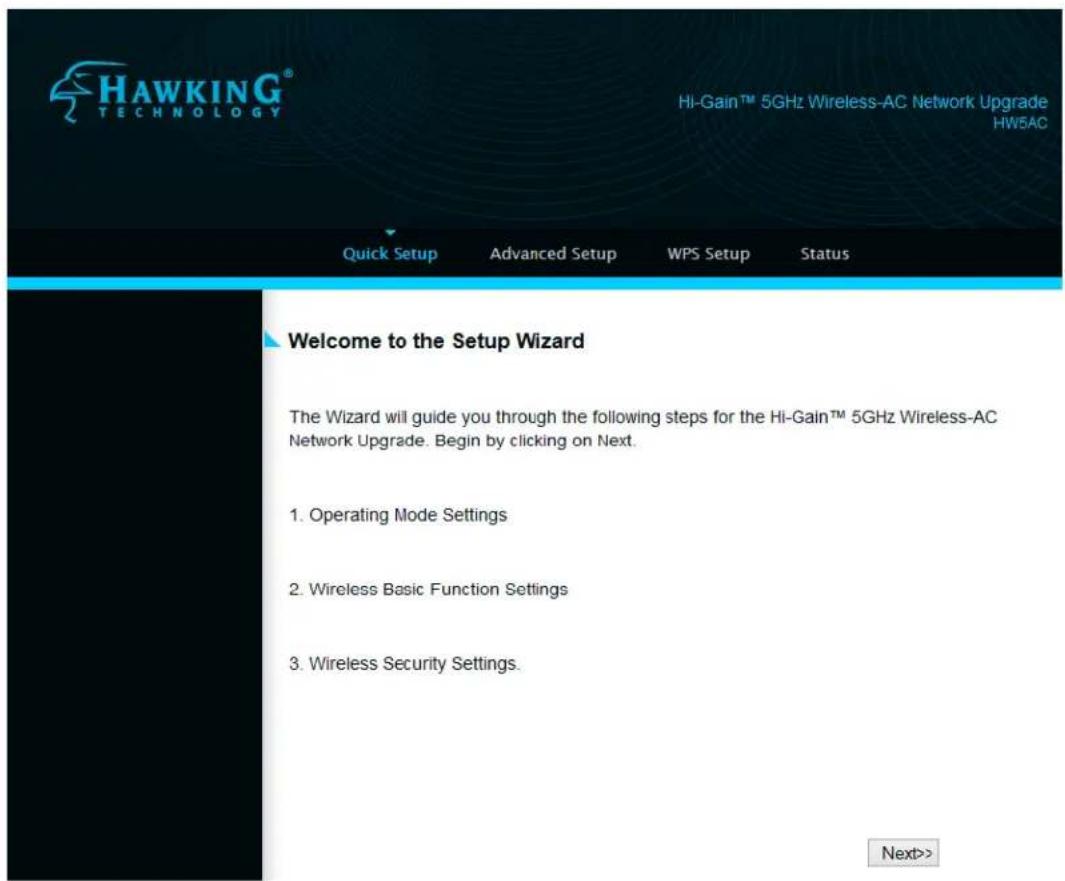
3-1-1 Access Point mode
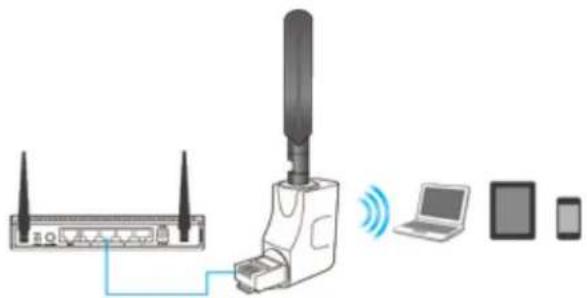
Select this mode if you have a traditional 2.4GHz single band Wi-Fi router and you want to upgrade it to 11ac 5GHz wireless connection and share to multiple 5GHz/ac compatible devices such as smartphones, tablets and laptops. After setup, you must connect the HW5AC to an available Ethernet port on your router or network.
Select operation mode: Please select "Access Point" mode, then click 'Next'.
- Access Point Mode:
natural_image
Diagram showing wireless network connection between a router, antenna, and device (no text or symbols)Select this mode if you have a traditional 2.4GHz single band WiFi router and you want to upgrade to an 11ac 5GHz wireless connection and share to multiple 5GHz/ac compatible devices such as smartphones, tablets, and laptops. After setup, you must connect the HW5AC to an available Ethernet port on your router or network.
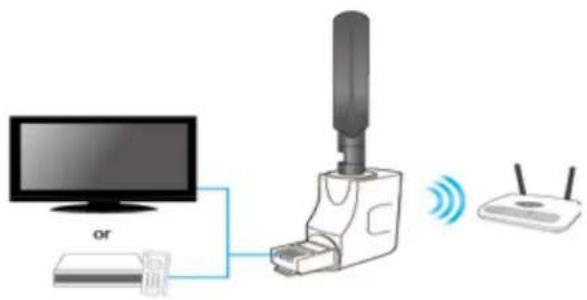
○ Client Mode:
natural_image
Diagram showing connections between a monitor, USB device, wireless router, and network switch (no text or symbols)Select this mode if you want your non-wireless networking device to have wireless capability; it will become your networking device's wireless network card. You can connect this device to the RJ-45 Ethernet port of your existing Internet TV, desktop PC or Game Console device. Note: This will only detect existing 5GHz WiFi signals.
Wireless Basic Function Setting: You can set the wireless band, wireless network name (SSID), channel width, data rate and channel number, then click 'Next' when you are finished.
Access Point Basic Settings
Wireless Band:
5 GHz (A+N+AC)
Wireless Network Name(SSID):
Hawking_HW5AC
Channel Width:
80MHz
Data Rate:
Auto
Channel Number:
Auto
Cancel <
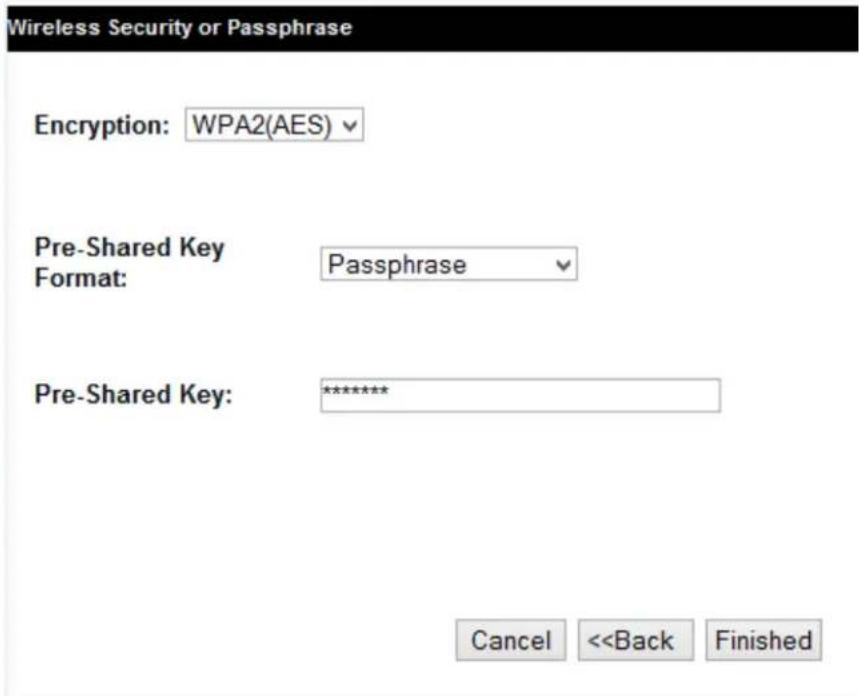
Wireless Security Setting: You can set encryption for the HW5AC, then click 'Finished' when you are done.
Wireless Security or Passphrase
Encryption: WPA2(AES)
Pre-Shared Key Format:
Passphrase
Pre-Shared Key:
★★★★★★
Cancel
<<Back
Finished
Change Setting Successfully: Please press ‘Reboot Now’ to restart the HW5AC to make the changes take effect.
Welcome to the Setup Wizard
Setting saved successfully!
Your changes have been saved. The router must be rebooted for the changes to take effect. You can reboot now, or you can continue to make other changes and reboot later.
Add the URL to your bookmark(my favorite list) Save we recommend you to save it for quick access to the Web setting page next time (Supports IE and Firefox only. Please add the access key to the bookmark manually if you use other browsers)
Reboot Now
Reboot Later
Add the URL to your bookmark (my favorite list) Default: "Save" (we recommend you to save it for quick access to the settings page)
(Supports IE and Firefox only. Please add the access key to the bookmark manually if you use other browsers)
3-1-2 Client mode
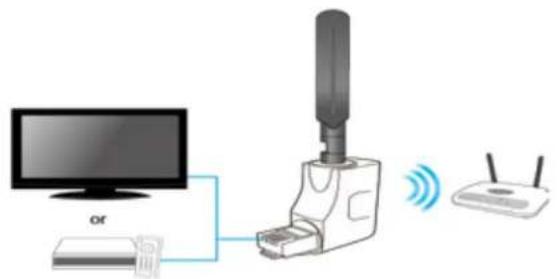
Select this mode if you want your non-wireless networking device to have wireless capability; it will become your networking device's wireless network card. You can connect this device to the RJ-45 Ethernet port of your existing Internet TV, desktop PC or Game console. Note: This will only detect existing 5GHz Wi-Fi signals.
Select operation mode: Please select "Client" mode, then click 'Next'.
○ Client Mode:
natural_image
Diagram showing connections between a monitor, router, and wireless device (no text or symbols present)Select this mode if you want your non-wireless networking device to have wireless capability; it will become your networking device's wireless network card. You can connect this device to the RJ-45 Ethernet port of your existing Internet TV, desktop PC or Game Console device. Note: This will only detect existing 5GHz WiFi signals.
Wireless Site Survey: Please click "Site Survey" button to find 5GHz wireless networks in your area.
Wireless Name
Site Survey: Select Site Survey
If any 5GHz is found, you can select it and then click 'Next'
Wireless Name
Site Survey: Select Site Survey
| SSID | BSSID | Channel | Type | Encrypt | Signal | Select |
| Hawking_HW7ACB_5GHz | 80:1f:02:75:eb:11 | 36(A+N+AC) | AP | WPA2-PSK | 50 | |
| HawkTech_5GHz | 80:1f:02:0d:ce:d2 | 36(A+N) | AP | WPA2-PSK | 47 |

Security Key: If your network uses security, please enter in your security key on the next page. Be sure to enter the same key/password as the network you are connecting to. Contact the network administrator if you do not know this key. Click 'Finished'
3-2 Advanced Setup
This page allows you change the Password and Firmware  Password Settings: You can change the User Name and Password. By default, the username is 'admin' and the password is '1234'. Passwords can contain 1 to 30 alphanumeric characters, and are case sensitive.  Firmware Upgrade: This tool allows you to upgrade the HW5AC system firmware. Enter the path and name of the upgrade file and then click the 'APPLY' button below. You will be prompted to confirm the upgrade. You can check for the latest firmware by going to Hawking's support page. HW5AC The system will automatically reboot after you finished the firmware upgrade process. Please note: Do not power off the device during the Firmware upgrade.  NOTE: Never interrupt the upgrade procedure by closing the web browser or physically disconnect your computer from HW5AC. If the firmware you uploaded is corrupt, the firmware upgrade will fail and the product may need to be replaced. (Warranty voids if you interrupted the upgrade procedure).3-3 WPS Setup
This page allows you to change the setting for WPS (Wi-Fi Protected Setup). WPS can help your wireless client automatically connect to the HW5AC. 3-4 Status
The HW5AC's status information provides the following information: Hardware/Firmware version and its current operating mode.  Local Network: View the current network settings of the HW5AC. Local NetworkLocal Network
View the current status of the Hi-Gain™ 5GHz Wireless-AC Network Upgrade.Wireless Network Configuration
Mode: Client Band: 5 GHz (A+N+AC) SSID: HawkTech\_5GHz Channel Number: 36 Encryption: WPA2 MAC Address: 80:1f:02:0d:ce:d2Local Network Configuration
IP Address: 10.1.1.133 Subnet Mask: 255.255.255.0 Default Gataway: 10.1.1.1 MAC Address: 80:1f:02:75:eb:e2Chapter IV: Appendix
4-1 Hardware Specification
CPU: REALTEK RTL8881AM RF: REALTEK RTL8881AM Flash: 2MB SDRAM RAM: 8MB (CPU Inside) LAN Port: 10/100M Port x 1 Antenna: External Dipole Antenna (5GHz) Power: DC 5V/0.5A USB port power or 5V/0.6A Switching Power Adapter Dimension: 60 (L) x 50 (W) x 23 (D) mm (without ANT) Temperature: Operating: 0\~40C Storage: -20\~60C Humidity: Operating: 10\~90% (Non-Condensing) Storage: Max.95% (Non-Condensing) Certification: FCC4-2 Troubleshooting
If you found the device is working improperly or stop responding to you, don't panic! Before you contact your place of purchase for help, please read this troubleshooting first. Some problems can be solved by you within very short time!| Scenario | Solution |
| Device is not responding to me when I want to access it by web browser | a. Please check the connection of power cord and network cable of this device. All cords and cables should be correctly and firmly inserted to the router.b. If all LEDs on this device are off, please check the status of A/C power adapter, and make sure it's correctly powered.c. You must use the same IP address section which router uses.d. Are you using MAC or IP address filter? Try to connect the device by another computer and see if it works; if not, please restore your device to factory default settings (pressing ‘reset’ button for over 10 seconds).e. Set your computer to obtain an IP address automatically (DHCP), and see if your computer can get an IP address.f. If you did a firmware upgrade and this happens, contact your dealer of purchase for help.g. If all above solutions don’t work, contact the dealer of purchase for help. |
| Device become hot | a. This is not a malfunction, if you can keep your hand on the device’s case.b. If you smell something wrong or see the smoke coming out from device or A/C power adapter, please disconnect the device and A/C poweradapter from utility power (make sure it’s safe before you’re doing this!), and call your dealer of purchase for help. |
4-3 Glossary
DHCP: Dynamic Host Configuration Protocol. This protocol automatically gives every computer on your home network an IP address. DNS Server IP Address: DNS stands for Domain Name System, which allows Internet servers to have a domain name (such as www.Broadbandrouter.com) and one or more IP addresses (such as 192.34.45.8). A DNS server keeps a database of Internet servers and their respective domain names and IP addresses, so that when a domain name is requested (as in typing "Broadbandrouter.com" into your Internet browser), the user is sent to the proper IP address. The DNS server IP address used by the computers on your home network is the location of the DNS server your ISP has assigned to you. Ethernet: A standard for computer networks. Ethernet networks are connected by special cables and hubs, and move data around at up to 10/100 million bits per second (Mbps). Idle Timeout: Idle Timeout is designed so that after there is no traffic to the Internet for a pre-configured amount of time, the connection will automatically be disconnected. IP Address and Network (Subnet) Mask: IP stands for Internet Protocol. An IP address consists of a series of four numbers separated by periods, which identifies a single, unique Internet computer host in an IP network. Example: 192.168.2.1. It consists of 2 portions: the IP network address, and the host identifier. The IP address is a 32-bit binary pattern, which can be represented as four cascaded decimal numbers separated by “.”: aaa.aaa.aaa.aaa, where each “aaa” can be anything from 000 to 255, or as four cascaded binary numbers separated by “.”: bbbbbbb.bbbbbbbb.bbbbbbbb.bbbbbbbb, where each "b" can either be 0 or 1. A network mask is also a 32-bit binary pattern, and consists of consecutive leading 1's followed by consecutive trailing 0's, such as 11111111.11111111.11111111.00000000. Therefore sometimes a network mask can also be described simply as "x" number of leading 1's. When both are represented side by side in their binary forms, all bits in the IP address that correspond to 1's in the network mask become part of the IP network address, and the remaining bits correspond to the host ID. For example, if the IP address for a device is, in its binary form, 11011001.10110000.10010000.00000111, and if its network mask is, 11111111.11111111.11110000.00000000 It means the device's network address is 11011001.10110000.10010000.00000000, and its host ID is, 00000000.00000000.00000000.00000111. This is a convenient and efficient method for routers to route IP packets to their destination. LAN: Local Area Network. A LAN is a group of computers and devices connected together in a relatively small area (such as a house or an office). Your home network is considered a LAN. MAC Address: MAC stands for Media Access Control. A MAC address is the hardware address of a device connected to a network. The MAC address is a unique identifier for a device with an Ethernet interface. It is comprised of two parts: 3 bytes of data that corresponds to the Manufacturer ID (unique for each manufacturer), plus 3 bytes that are often used as the product's serial number. NAT: Network Address Translation. This process allows all of the computers on your home network to use one IP address. Using the broadband router's NAT capability, you can access the Internet from any computer on your home network without having to purchase more IP addresses from your ISP. Port: Network Clients (LAN PC) uses port numbers to distinguish one network application/protocol over another. Below is a list of common applications and protocol/port numbers:| Application | Protocol | Port Number |
| Telnet | TCP | 23 |
| FTP | TCP | 21 |
| SMTP | TCP | 25 |
| POP3 | TCP | 110 |
| H.323 | TCP | 1720 |
| SNMP | UCP | 161 |
| SNMP Trap | UDP | 162 |
| HTTP | TCP | 80 |
| PPTP | TCP | 1723 |
| PC Anywhere | TCP | 5631 |
| PC Anywhere | UDP | 5632 |