HDZ30A - Security Camera HONEYWELL - Free user manual and instructions
Find the device manual for free HDZ30A HONEYWELL in PDF.


| Product Type | Indoor/Outdoor Dome Security Camera |
| Resolution | 1920 x 1080 (2 MP) |
| Lens | 2.8 mm fixed lens, 90° field of view |
| Night Vision | Up to 30 meters with IR LEDs |
| Dimensions | 130 mm (diameter) x 100 mm (height) |
| Weight | 0.8 kg |
| Power Supply | 12V DC or PoE (IEEE 802.3af) |
| Power Consumption | ≤ 8 W |
| Main Functions | Motion detection, day/night mode, H.265 compression, ONVIF compatible |
| Weatherproof Rating | IP66 |
| Operating Temperature | -30°C to 60°C |
| Storage | Micro SD card up to 128 GB |
| Video Output | CVBS over coax (optional) / IP (RJ45) |
| Audio | Built-in microphone (optional) |
| Maintenance | Clean lens with a soft, dry cloth. Check connections periodically. |
| Safety | Mount securely to a sturdy surface. Use only supplied accessories. |
| Spare Parts | Available from Honeywell authorized dealers (e.g., mounting bracket, power adapter) |
| Reparability | Repairs should be performed by qualified personnel. Contact Honeywell support. |
| Warranty | 3 years limited warranty |
Frequently Asked Questions - HDZ30A HONEYWELL
User questions about HDZ30A HONEYWELL
0 question about this device. Answer the ones you know or ask your own.
Ask a new question about this device
Download the instructions for your Security Camera in PDF format for free! Find your manual HDZ30A - HONEYWELL and take your electronic device back in hand. On this page are published all the documents necessary for the use of your device. HDZ30A by HONEYWELL.
USER MANUAL HDZ30A HONEYWELL
Find the latest version of this and other HDZ Series PTZ dome camera documents on the Honeywell Video website. Go to http://www.honeywellvideo.com/products/cameras/pt/index.html to find your camera and view/download the latest documentation.
Revisions
Issue Date Revisions
A 07/2014 New document.
Cautions and Warnings

CAUTION
RISK OF ELECTRIC SHOCK DO NOT OPEN

CAUTION: TO REDUCE THE RISK OF ELECTRIC SHOCK,
DO NOT REMOVE COVER (OR BACK).
NO USER SERVICEABLE PARTS INSIDE.
REFER SERVICING TO QUALIFIED SERVICE PERSONNEL.

WARNING Installation and servicing should be performed only by qualified and experienced technicians to conform to all local codes and to maintain your warranty.

WARNING To ensure compliance with electrical safety standards, CSA Certified/UL Listed Class 2 power adapters are required.
Regulatory Statements
FCC Compliance Statement
Information to the User: This equipment has been tested and found to comply with the limits for a Class A digital device, pursuant to part 15 of the FCC Rules. These limits are designed to provide reasonable protection against harmful interference when the equipment is operated in a commercial environment. This equipment generates, uses, and can radiate radio frequency energy and, if not installed and used in accordance with the instruction manual, may cause harmful interference to radio communications. Operation of this equipment in a residential area is likely to cause harmful interference, in which case the user will be required to correct the interference at his own expense.
Note Changes or modifications not expressly approved by the party responsible for compliance could void the user's authority to operate the equipment.
Canadian Compliance Statement
This Class A digital apparatus complies with Canadian ICES-003.
Manufacturer's Declaration of Conformance
The manufacturer declares that the equipment supplied with this guide is compliant with the European Parliament and Council Directive on the Restrictions of the use of certain Hazardous Substances in electrical and electronic equipment (2011/65/EU), General Product Safety Directive (2001/95/EC) and the essential requirements of the EMC Directive (2004/108/EC), conforming to the requirements of standards EN 55022 for emissions, EN 50130-4 for immunity, and EN 60950-1 for electrical equipment safety.
WARNING This is a Class A product. In a domestic environment this product may cause radio interference in which case the user may be required to take adequate measures.
WARNING To comply with EN50130-4 requirements, a UPS should be employed when powering the camera from 24 V AC.
Waste Electrical and Electronic Equipment (WEEE)
Correct Disposal of this Product (applicable in the European Union and other European countries with separate collection systems).
This product should be disposed of, at the end of its useful life, as per applicable local laws, regulations, and procedures.
Safety Instructions
Before installing or operating the unit, read and follow all instructions. After installation, retain the safety and operating instructions for future reference.
-
HEED WARNINGS - Adhere to all warnings on the unit and in the operating instructions.
-
INSTALLATION
-
Install in accordance with the manufacturer's instructions.
- Installation and servicing should be performed only by qualified and experienced technicians to conform to all local codes and to maintain your warranty.
- Do not install indoor-rated models in outdoor locations.
-
Any wall or ceiling mounting of the product should follow the manufacturer's instructions and use a mounting kit approved or recommended by the manufacturer.
-
POWER SOURCES - This product should be operated only from the type of power source indicated on the marking label.
- HEAT - Situate away from items that produce heat or are heat sources such as radiators, heat registers, stoves, or other products (including amplifiers).
- MOUNTING SYSTEM - Use only with a mounting system recommended by the manufacturer, or sold with the product.
- ATTACHMENTS - Do not use attachments not recommended by the product manufacturer as they may result in the risk of fire, electric shock, or injury to persons.
- ACCESSORIES - Only use accessories specified by the manufacturer.
- CLEANING - Do not use liquid cleaners or aerosol cleaners. Use a damp cloth for cleaning.
- SERVICING - Do not attempt to service this unit yourself as opening or removing covers may expose you to dangerous voltage or other hazards. Refer all servicing to qualified service personnel.
- REPLACEMENT PARTS - When replacement parts are required, be sure the service technician has used replacement parts specified by the manufacturer or have the same characteristics as the original part. Unauthorized substitutions may result in fire, electric shock or other hazards. Using replacement parts or accessories other than the original manufacturers may invalidate the warranty.
CAUTION Risk of explosion if Battery is replaced by an incorrect type. Dispose of used batteries in accordance with local laws.
Warranty and Service
Subject to the terms and conditions listed on the Product warranty, during the warranty period Honeywell will repair or replace, at its sole option, free of charge, any defective products returned prepaid.
In the event you have a problem with any Honeywell product, please call Customer Service at 1.800.323.4576 for assistance or to request a Return Merchandise Authorization (RMA) number.
Be sure to have the model number, serial number, and the nature of the problem available for the technical service representative.
Prior authorization must be obtained for all returns, exchanges, or credits. Items shipped to Honeywell without a clearly identified Return Merchandise Authorization (RMA) number may be refused.
Contents
About This Document.... 15
Overview of Contents. 15
Related Documents 16
Typographical Conventions 16
1 Introduction.... 17
Overview 17
Dimensions 18
Upgrading Analogue PTZ Dome Firmware 19
2 Installing the Camera 21
Before You Begin. 21
Accessories You Can Order Separately. 22
Installation Overview 22
Assembling the Camera 23
System Configuration 24
Dip Switches and Cable Connections 25
Setting Dip Switches. 26
ID Setting 26
Camera Control Protocol Setting 27
Connecting RS485. 28
Connecting Video 28
Connecting Power 29
Connecting Alarm Inputs/Outputs. 29
Mounting the Camera 30
Using Safety Cable During Installation 31
Installing a Ceiling Mount (Indoor Only). 32
Installing a Wall Mount. 33
Installing a Parapet/Flat Roof Mount 34
3 Understanding the OSD. 35
Pre-Configuration Checklist 35
Preparing to Configure the Dome 35
Accessing the Main Menu 36
Using the OSD Password to Login 36
Navigating OSD Menus 37
On-Screen Display Overview. 37
OSD Menu Tree 39
OSD Menu Structure 42
Basic Keyboard Controls....48
Sending the Dome to a Preset 48
Special Presets 48
Upgrading Analogue PTZ Firmware 49
4 Operation and Configuration 51
Main Menu Page 1 Settings 51
Setting the Language 52
Setting the Default Camera 52
Setting the Backlight Compensation 52
Setting the Focus Mode and Options 52
Auto Focus 52
Manual Focus. 53
Setting the Auto Exposure Mode Options. 53
Setting the Exposure Compensation.... 53
Setting the Auto Exposure Mode. 53
Exiting AE Mode Sub Menu 54
Setting the WBC Mode 54
Setting Auto WBC. 55
Setting Indoor WBC. 55
Setting Outdoor WBC. 55
Setting ATW (Auto Tracing White Balance) 55
Setting Manual WBC 55
Setup Menu Page 1 Settings....56
Setting the Zoom Speed. 56
Setting the Digital Zoom. 56
Setting the Slow Shutter. 57
Setting the Digital Noise Reduction 57
Enabling the Image Inverse 57
Enabling the Freeze Option 58
Setting the Sharpness 58
Enabling the Image Stabilizer 58
Exiting the Setup Menu 1 58
Setup Menu Page 2 Settings....59
Enabling the Image Flip Option 59
IMAGE (Digital Flip)....59
M.E. (Mechanical Flip) 60
OFF (No Image Flip) 60
Setting the Angle Adjuster. 60
Setting the PT Position 60
Setting PT Display 61
Setting Pan to Zero 61
Exiting the PT Position Menu 61
Setting the Speed By Zoom 61
Setting the Auto Calibration 61
Setting the Password 61
Using the OSD Password to Login 62
Setting the OSD to Close Automatically. 63
Resetting the System 63
System Reset 63
Default System 63
Setting the Maximum Pan Speed 63
Exiting the Setup Menu 2 63
Main Menu Page 2 Settings 63
Setting the ID Display 64
Setting Up the Zone Title Display 64
Enabling the Title Display. 64
Entering a Zone Title Name 64
Setting Up a Preset Position. 65
Programming a Preset 65
Running a Programmed Preset. 66
Naming a Preset 66
Deleting a Preset Title 67
Exiting the Preset Menu 67
Setting Up a Preset Tour 67
Selecting the Preset Tour Number 67
Selecting a Preset Number 67
Setting the Preset Position 68
Setting the Preset Tour Speed 68
Setting the Preset Tour Dwell Time. 68
Running a Preset Tour 68
Deleting a Preset Tour 69
Exiting the Preset Tour Menu. 69
Setting Up an Autopan Path. 69
Selecting an Autopan Line 69
Setting the Autopan Start and End Points 69
Setting the Autopan Direction 70
Setting the Autopan Speed. 70
Running an Autopan Path 70
Deleting an Autopan Path 70
Exiting the Autopan Menu 71
Setting Up a Mimic Tour. 71
Selecting a Mimic Tour 71
Recording a Mimic Tour 71
Running a Mimic Tour 72
Deleting a Mimic Tour 72
Exiting the Mimic Tour Menu 72
Configuring the Home Setting. 72
Enabling the Home Function 73
Selecting the Home Setting Mode 73
Setting the Return Time. 74
Executing Home Function (GO) 74
Exiting the Home Menu. 74
Main Menu Page 3 Settings 74
Setting the IR Function (Removable IR Cut Filter) 74
Setting Auto IR Function 75
Setting Manual IR Function. 75
Configuring the Alarm Setting. 75
Selecting an Alarm Pin 75
Enabling/Disabling the Alarm Switch. 76
Setting the Alarm Type 76
Selecting the Alarm Action 76
Setting the Dwell Time 77
Setting the Alarm Priority 77
Configuring the Alarm Output 78
Exiting the Alarm Setting Menu. 78
Setting the Motion Detect Function 78
Setting the Detect Switch. 78
Setting the Detect Mode 78
Setting the Block Mode. 78
Setting the Motion Frame. 79
Disabling a Frame 80
Setting the Threshold. 80
Exiting the Alarm Detect Menu 80
Setting the WDR Function 80
Enabling WDR 80
Disabling WDR 81
Setting Up Privacy Masks 81
Enabling Privacy Masks 81
Setting the Privacy Mask Transparency 81
Setting the Privacy Mask Color 81
Setting Up the Mask 82
Clearing a Mask. 82
Exiting the Privacy Mask Menu 83
Setting Up the Time 83
Enabling the Time Display 83
Setting the Year / Month / Day 83
Setting the Hour / Minute 83
Exiting the Time Setting Menu 83
Setting Up Schedules 83
Enabling/Disabling Schedules 84
Setting Schedule Points 84
Setting the Hour / Minute of a Schedule Point 84
Setting the Mode of a Schedule Point 84
Reseting a Schedule 85
Exiting the Schedule Menu 85
Exiting the On-Screen Display 85
Appendix A HDZ Camera Specifications 87
Appendix B Troubleshooting 93
Technical Support 93
Problem: Lens Out of Optical Focus 93
Problem: Communication Between Dome and Keyboard. 94
Recommended WDR and DNR Settings By Scene Type 94
Appendix C ID Settings 97
Appendix D In-Ceiling Bracket Installation. 105
Package Contents 106
Recommended 106
Installing the In-Ceiling Bracket 106
Index. 109
Figures
Figure 1-1 Indoor PTZ Dome Camera Dimensions 18
Figure 1-2 Outdoor PTZ Dome Camera Dimensions 19
Figure 2-1 HDZ Series System Configuration. 24
Figure 2-2 Camera Back Plate Layout 25
Figure 2-3 Dip Switch ON/OFF Positions 26
Figure 2-4 ID Setting Dip Switches 26
Figure 2-5 Camera Control Protocol Dip Switch Settings 27
Figure 2-6 RS485 Connector 28
Figure 2-7 Main Power Adapter Input (Detail). 29
Figure 2-8 Main Alarm Adapter Input (Detail) 29
Figure 2-9 Eyelet on Camera to Secure by Lanyard During Setup. 31
Figure 2-10 HDCM1 Ceiling Mount Installation. 32
Figure 2-11 HDXWM2 Wall Mount Installation 33
Figure 2-12 HDPRM2 Parapet/Flat Roof Mount Installation 34
Figure 3-1 Main Menu Screen. 36
Figure 3-2 Enter Password Screen 36
Figure 3-3 OSD Display Elements. 38
Figure 3-4 Main Page 1 OSD Menus 39
Figure 3-5 Main Page 2 OSD Menus 40
Figure 3-6 Main Page 3 OSD Menus 41
Figure 4-1 Main Menu Page 1. 51
Figure 4-2 Auto Focus Mode 52
Figure 4-3 Auto Exposure Mode Menu 54
Figure 4-4 Manual WBC Mode 55
Figure 4-5 Setup Menu Page 1 56
Figure 4-6 D.N.R. Submenu....57
Figure 4-7 Image Inverse Examples. 58
Figure 4-8 Setup Menu Page 2 59
Figure 4-9 Flip Setting Options 59
Figure 4-10 Angle Adjuster Options 60
Figure 4-11 PT Position Options 61
Figure 4-12 Password Sub Menu. 62
Figure 4-13 Enter Password Screen 62
Figure 4-14 Main Menu Page 2. 64
Figure 4-15 Camera Title Editing 65
Figure 4-16 Preset Menu 65
Figure 4-17 Preset Title Editing. 66
Figure 4-18 Preset Tour Menu 67
Figure 4-19 Autopan Menu 69
Figure 4-20 Pan Direction in Relation to Dome Movement 70
Figure 4-21 Mimic Tour Menu 71
Figure 4-22 Home Setting Menu 72
Figure 4-23 Main Menu Page 3. 74
Figure 4-24 Alarm Setting Menu 75
Figure 4-25 Examples of Alarm Types 76
Figure 4-26 Alarm Detect Menu 78
Figure 4-27 Frame Set Menu 79
Figure 4-28 Privacy Mask Menu 81
Figure 4-29 Set Mask Menu 82
Figure 4-30 Time Setting Menu. 83
Figure 4-31 Schedule Menu 84
Figure D-1 In-Ceiling Bracket Dimensions 105
Tables
Table 2-1 Orderable Accessories 22
Table 2-2 Camera Back Plate Connectors, Switches, and Buttons 25
Table 2-3 ID Switch Settings 26
Table 2-4 Camera Control Protocol Switch Settings 27
Table 2-5 RS485 Pin Definitions.... 28
Table 2-6 Power Input Pin Definitions....29
Table 2-7 Alarm Input Pin Definitions 30
Table 2-8 Honeywell Mounts and Adapters. 30
Table 3-1 OSD Item Descriptions 38
Table 3-2 OSD Menu Structure 42
Table 3-3 Special Presets 48
Table 4-1 Color Temperatures by Light Source. 54
Table A-1 HDZ30A(X) Series Camera Specifications 87
Table A-2 HDZ36AE(X) Series Camera Specifications 89
Table B-1 Recommended WDR and DNR Settings by Scene Type 94
Table C-1 ID Switch Settings 97
About This Document
This document provides instructions for installing, configuring, and operating the HDZ Series Analogue PTZ dome camera. This document is intended for system installers, administrators, and operators.
Overview of Contents
This document contains the following chapters and appendixes:
• Chapter 1, Introduction, provides an overview of the main features of the HDZ Series Analogue PTZ dome camera and lists the dimensions of the indoor and outdoor models.
- Chapter 2, Installing the Camera, describes how to assemble, connect, and mount the camera.
• Chapter 3, Understanding the OSD, gives an overview of the HDZ Series Analogue PTZ dome camera on screen display, including controls and menu structure.
- Chapter 4, Operation and Configuration, provides setup and configuration information for the HDZ Series camera.
- Appendix A, HDZ Camera Specifications, lists the specifications of the HDZ Series Analogue PTZ dome cameras.
- Appendix B, Troubleshooting, offers possible solutions to some common issues that can occur when installing or configuring the Analogue PTZ Dome.
- Appendix C, ID Settings, provides a complete list of ID settings that can be set for the HDZ Series Analogue Dome (for systems with numerous Analogue PTZ Domes).
- Appendix D, In-Ceiling Bracket Installation, describes the in-ceiling installation procedure.
- Index provides a searchable list of key terms.
Related Documents
For more information relating to topics covered in this guide, see the following documents:
Document Title Part Number
| In-Ceiling Bracket Quick Installation Guide 800-12513 |
| HDCM1 Ceiling Mount Installation Guide 900.0869 |
| HDXWM2 Wall Mount Installation Guide 800-04516 |
| HDPRM2 Parapet Mount Installation Guide 900.0877 |
Typographical Conventions
This document uses the following typographical conventions:
| Font What it represents Example | ||
| Helvetica Narrow Keys on the keyboard Press Ctrl+C | ||
| Lucida Values of editable fields that are mentioned in the body text of the document for reference purposes, but do not need to be entered as part of a procedure | The Time from field can be set to Hours:Minute:Seconds. | |
| Text strings displayed on the screen The message Unauthorized displays. | ||
| Swiss721 BT Bold Words or characters that you must type. The word “enter” is used if you must type text and then press the Enter or Return key. | Enter the password. | |
| Menu titles and other items you select | Double-click Open from the File menu. | |
| Buttons you click to perform actions | Click Exit to close the program. | |
| Italic | Placeholders: words that vary depending on the situation | Enter your user name. |
| Cross-reference to external source | Refer to the System Administrator Guide. | |
| Cross-reference within document | See Chapter 2, Installation. | |
Introduction
This chapter includes:
- Overview, page 17
- Dimensions, page 18
Overview
The Honeywell HDZ Series True Day/Night Analogue PTZ dome camera is a high resolution PTZ series camera designed for use in a wide range of video surveillance applications. This guide is intended for use with the following HDZ Series cameras:
• HDZ30A(X): HDZ Series Indoor Analogue PTZ dome, 30x zoom, NTSC/PAL.
• HDZ36AE(X): HDZ Series Outdoor Analogue PTZ dome, 36x zoom, NTSC/PAL.
Features of the HDZ Series Analogue PTZ dome camera include:
• Progressive image sensor: 1/4" Sony CCD
• Varifocal auto iris lens:
• HDZ30A(X): 3.4–102 mm lens
• HDZ36AE(X): 3.4–122.4 mm lens
- Optical zoom:
• HDZ30A(X): 30x optical zoom
• HDZ36AE(X): 36x optical zoom
- Preset position / preset tour / auto-pan / mimic tour
- Auto calibration
- Preset accuracy of 0.225^
- Preset speed up to 400^ / s
• Proportional pan and tilt speed - Multi-language OSD
• Multiple built-in protocols -
True Day/Night with removable IR cut filter (ICR). Minimum illumination 0.005 lux BW.
-
Wide dynamic range (WDR)
• Digital noise reduction (2DNR/3DNR) - Image inverse
- Backlight compensation
- Motion detection
- Up to 20 privacy masking zones (with motion detection OFF) or up to 16 privacy masking zones (with motion detection ON)
• 4 alarm inputs, 2 alarm outputs
• Electronic image stabilizer - Auto exposure
- Digital slow shutter
- Electronic shutter
Dimensions
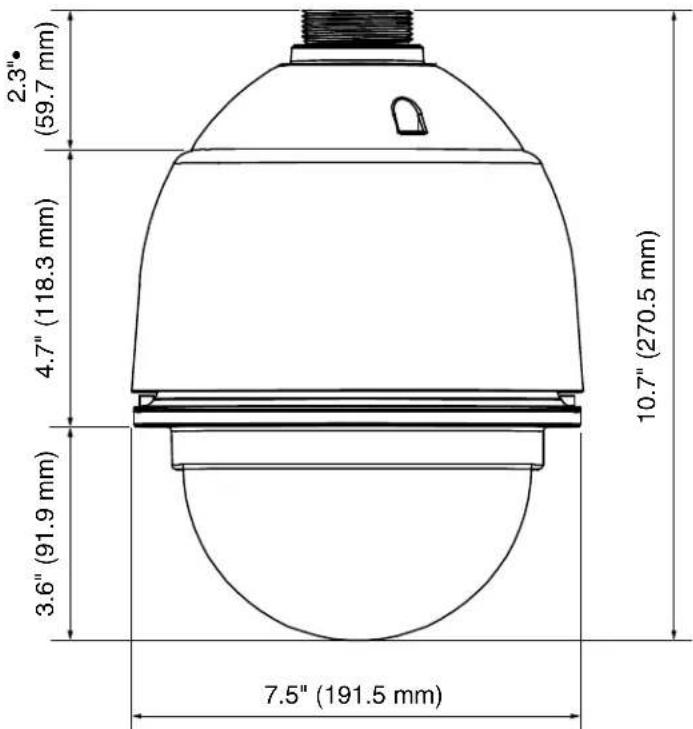
The indoor and outdoor HDZ Series cameras have the following dimensions:
Figure 1-1 Indoor PTZ Dome Camera Dimensions
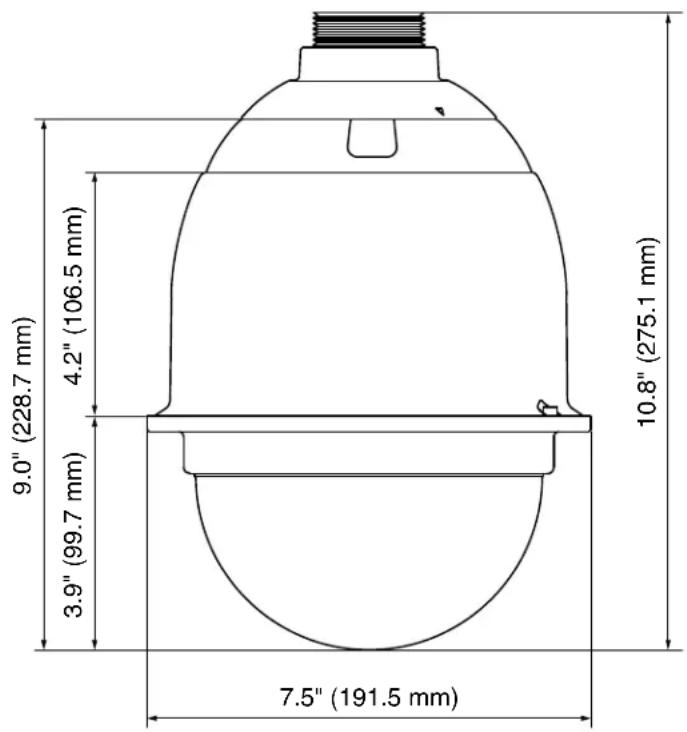
Figure 1-2 Outdoor PTZ Dome Camera Dimensions
See Appendix D, In-Ceiling Bracket Installation for the image and dimensions of the In-ceiling mounting bracket.
Upgrading Analogue PTZ Dome Firmware
Upgrading the firmware on the HDZ Series Analogue PTZ Dome is typically a complicated procedure. If a firmware upgrade for your camera at a site is needed, contact Honeywell technical support at 1.800.323.4576 (North America only). Refer to the back cover of this manual for international contact information.
Installing the Camera
This chapter includes:
• Before You Begin, page 21
• System Configuration, page 24
- Mounting the Camera, page 30
• Assembling the Camera, page 23
• Dip Switches and Cable Connections, page 25
Before You Begin
Before you begin, check that you have received all of the parts listed below. If any parts are missing or damaged, contact your dealer immediately.
HDZ Series
Indoor Dome
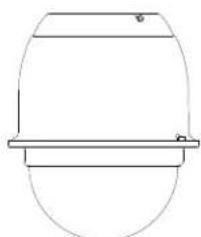
natural_image
Simple line drawing of a cylindrical object with a horizontal bar on top, no text or symbols present.PTZ Indoor dome camera and optical cover

Lubricant UTP Balun
accessory
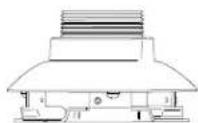
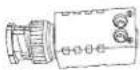
kit (top cap)
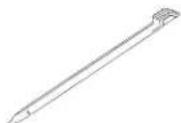
DIP Switch tool
Torx screwdriverIndoor mQuidingInstallation Guide

Honeywell logo label

M4 standard screws (x4)
Installation CD
HDZ Series
Outdoor Dome
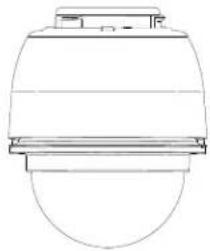
natural_image
Technical line drawing of a mechanical component or housing (no text or symbols)camera and optical cover

Lubricant
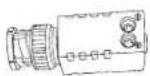
UTP Balun
accessory
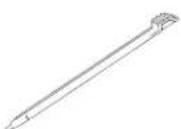
DIP Switch tool

Honeywell logo label
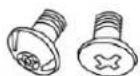
M3 and M5 standard and security screws (1 each)
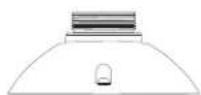
Outdoor mounting kit (top cap)
Torx screwdriverPTZ Outdoor Installation Guide
Installation CD
Accessories You Can Order Separately
There are a few accessories for your HDZ Series PTZ camera that can be ordered separately (see Table 2-1).
Table 2-1 Orderable Accessories
| Model Number |
| HDZVRSMKAC Smoked PC vandal proof acrylic dome cover for the HDZ series. |
| HDZVRCLRAC Clear PC vandal proof acrylic dome cover for the HDZ series. |
| Note This part is for repair purposes only. |
| 517082-7130 In-Ceiling PTZ support plate (for use with HDZINBKT in-ceiling mount). |
Installation Overview
Follow these general steps for installing the HDZ Series Analogue PTZ camera:
- Choose an installation location. Ensure the mounting surface can support the combined weight of the camera and mount before starting. The weight requirements of each mounting option are listed in the installation section for that mount (see Mounting the Camera on page 30).
- Assemble the camera (see Assembling the Camera on page 23).
- Prepare the cables that will be needed for installation. Each camera requires a power, video, and RS-485 connection (see Dip Switches and Cable Connections on page 25). The RS-485 connection is needed to connect to a keyboard/controller. Some installations may also require alarm input/output connections.
- Use the corresponding dip switches to set the camera ID for the PTZ dome (see ID Setting on page 26). This step is required if you have more than one PTZ dome in your surveillance system.
- Use the corresponding dip switches to set the camera control protocol for the PTZ dome (see Camera Control Protocol Setting on page 27).
- Start mounting the camera. Follow the instructions included for the specific mount being used in your installation (see Mounting the Camera on page 30). Make sure to secure the camera during installation by connecting a safety cable from a secure part of the mounting structure to the eyelet on the back of the camera (see Using Safety Cable During Installation on page 31).
- Route the cables through the mount and connect them to the camera and peripheral devices (see Dip Switches and Cable Connections on page 25).
- Finish mounting the camera (see Mounting the Camera on page 30).
- Configure the camera with the connected keyboard/controller (refer to Chapter 4, Operation and Configuration, page 51, for detailed instructions on configuring the camera settings).
Assembling the Camera
Camera assembly is quick and easy. To assemble the camera:
- Take the camera and all other components out of the packaging.
- Rotate and remove the protective cover bag from the camera body.
- Use the torx driver to remove the dome cover.
- Remove the foam and tape from inside the dome.
- Remove the lens cap from the camera lens.
- Use the torx driver to fasten the dome cover to the camera body.
Note Optional: Use the lubricant on the dome cover's rubber ring to make it easier to re-attach to the housing and seal the PTZ dome cover and housing without water coming in. Be careful not to get any lubricant on the dome as it may interfere with viewing PTZ images.
- Leave the protective film on the dome cover until installation is complete.
System Configuration
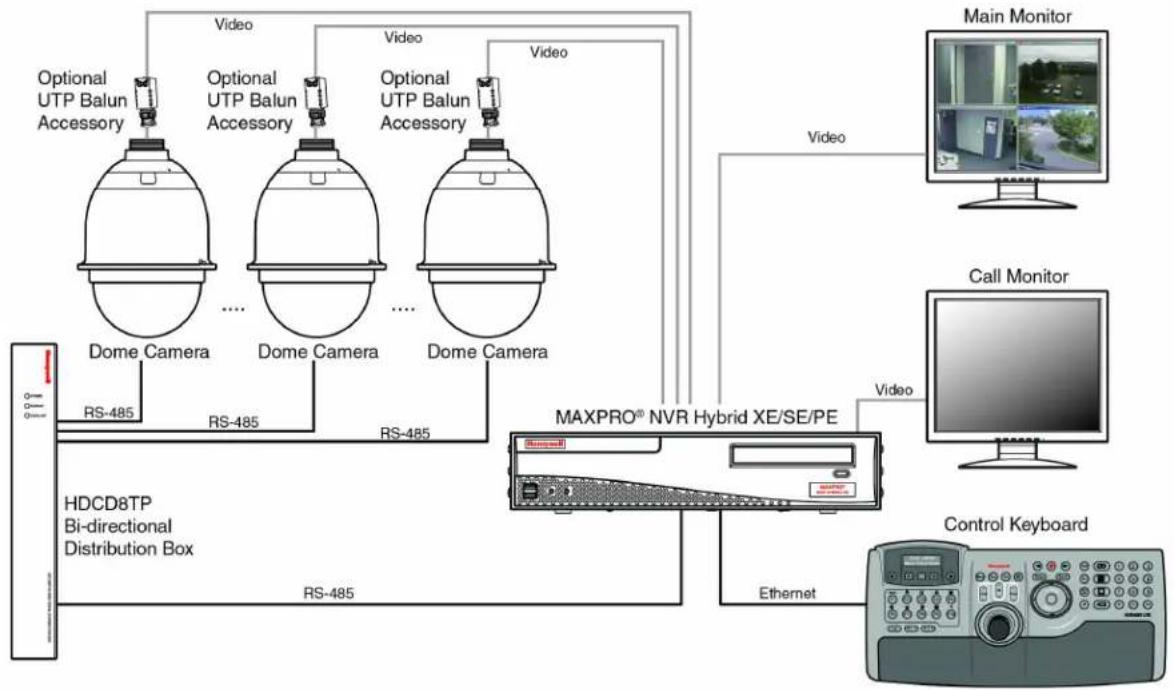
Connect the HDZ Series PTZ dome to the other devices in your system to complete the video surveillance solution. See Figure 2-1 below for an example of a system setup.
Figure 2-1 HDZ Series System Configuration
flowchart
graph TD
    A["Main Monitor"] -->|Video| B["Dome Camera"]
    A -->|Video| C["Dome Camera"]
    A -->|Video| D["Dome Camera"]
    B -->|RS-485| E["HDCD8TP Bi-directional Distribution Box"]
    C -->|RS-485| E
    D -->|RS-485| E
    E --> F["MaxPRO® NVR Hybrid XE/SE/PE"]
    F --> G["Ethernet"]
    G --> H["Control Keyboard"]
    H --> I["Main Monitor"]
    style A fill:#f9f,stroke:#333
    style I fill:#ccf,stroke:#333
Note To extend the network distance up to 1.2 km (4000 feet) and to protect the connected devices, it is highly recommended to place a repeater at the mid-point of the cable connections. However, a repeater may also be needed when the network distance is less than 1.2 km if the cables used are not CAT 5, 24-gauge cables.
Dip Switches and Cable Connections
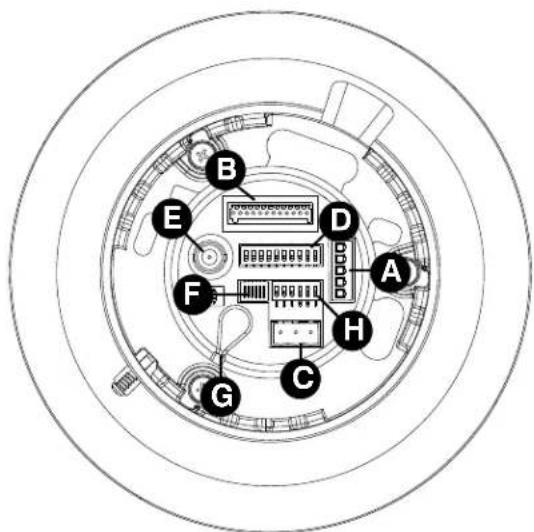
Before connecting the cables, take a minute to familiarize yourself with the camera's back plate connectors, switches, and buttons, as shown in Figure 2-2 and Table 2-2 below.
Figure 2-2 Camera Back Plate Layout
HDZ Indoor Dome Cameras
HDZ Outdoor Dome Cameras
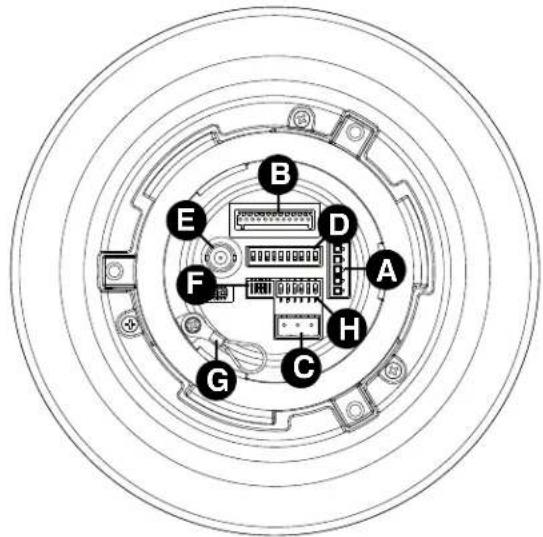
Table 2-2 Camera Back Plate Connectors, Switches, and Buttons
| A | RS485 connector (see Connecting RS485 on page 28 for more information) |
| B | Alarm Input/Output connector (see Connecting Alarm Inputs/Outputs on page 29 for more information) ^a |
| C | Power connector (see Connecting Power on page 29 for more information) ^a |
| D | ID setting dip switches (see ID Setting on page 26 for more information) |
| E | BNC video output connector (see Connecting Video on page 28 for more information) |
| F Reserved ^b | |
| G | Eyelet to secure camera to building with lanyard during camera setup |
| H | Camera control protocol dip switches (see Camera Control Protocol Setting on page 27 for more information) |
^a Alarm and Power connections are made with removable connectors.
b These reserved switches are for setting the camera's communication (the RS485 communication setting). The default RS485 setting is half-duplex. Please do not change the default setting without a qualified specialist or supplier's notice.
Setting Dip Switches
When setting the dip switches for either the ID setting (see ID Setting on page 26) or camera control protocol (see Camera Control Protocol Setting on page 27), see the following ON/OFF positions as a reference (see Figure 2-3). Use the dip switch tool included with your unit to change the dip switch position, as needed.
Figure 2-3 Dip Switch ON/OFF Positions
ON

Switch is set to ON.
ON
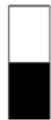
Switch is set to OFF.
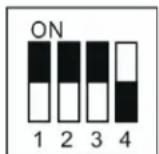
Means switches 1, 2, and 3 are set to ON, and switch 4 is set to OFF.
Configuring the camera's ID and control protocol are required before connecting the camera to other devices (see ID Setting, page 26, and Camera Control Protocol Setting on page 27). Additionally, the 22-pin connector for data cable connection and ISP connector for firmware upgrade kit connection are also set on the back plate (but not shown in Figure 2-2 or Table 2-2).
ID Setting
Assign an ID number to a HDZ Series PTZ dome camera if there is more than one camera in the same system. The camera's ID can be set by using the 10-bit ID dip switch (see Figure 2-4), which is located on the camera's back plate. If the camera's ID number is 6, for example, the ID switches SW2 and SW3 should be set to ON, and the rest should be set to OFF (see Table 2-3 for ID settings). ID numbers 0–10 are listed in Table 2-3. For a full list of possible ID numbers, refer to Appendix C, ID Settings on page 97.
Figure 2-4 ID Setting Dip Switches
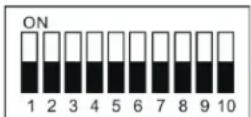
Note No two cameras in a network should be given the same camera ID. A communication conflict may occur.
Table 2-3 ID Switch Settings
Define the protocol you are going to use on the devices of your surveillance system, based on the devices and protocols available. It is recommended to use one protocol on all devices, even with devices provided by different manufacturers. Use the 6-bit camera control protocol switch (see Figure 2-5) to set your camera's control protocol and its baud rate. Refer to Table 2-4 and Figure 2-5 for the setting details for all supported protocols with their matching switch numbers and baud rates to help choose and select a protocol for your camera. The images in Figure 2-5, below, show the dip switch configurations for the supported protocols.
Figure 2-5 Camera Control Protocol Dip Switch Settings
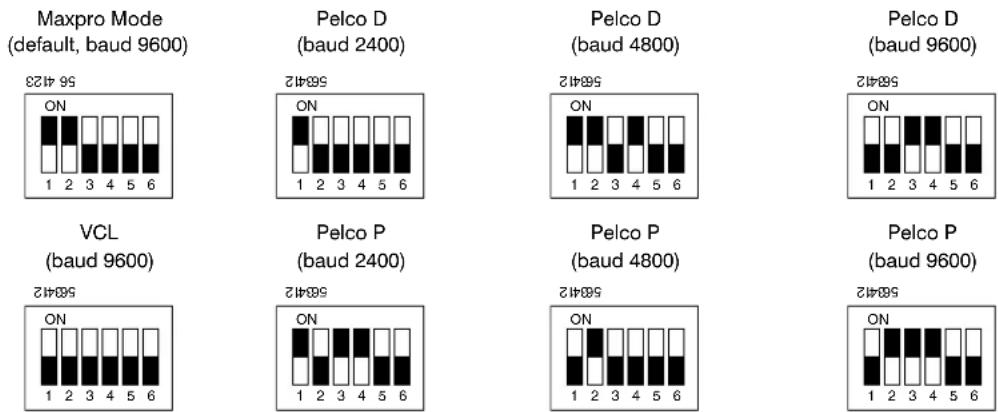
Table 2-4 Camera Control Protocol Switch Settings
| Switch No. | Protocol | Baud Rate | Parity | Switch Setting | |||||
| SW1 | SW2 | SW3 | SW4 | SW5 | SW6 | ||||
| 00 | VCL | 9600 | None | OFF | OFF | OFF | OFF | OFF | OFF |
| 01 | Pelco D | 2400 | None | ON | OFF | OFF | OFF | OFF | OFF |
| 02 | Pelco P | 4800 | None | OFF | ON | OFF | OFF | OFF | OFF |
| 03 | Maxpro Modea (default) | 9600 | Even | ON | ON | OFF | OFF | OFF | OFF |
| 11 | Pelco D | 4800 | None | ON | ON | OFF | ON | OFF | OFF |
Table 2-4 Camera Control Protocol Switch Settings (cont'd)
| Switch No. | Protocol | Baud Rate | Parity | Switch Setting | |||
| SW1 | SW2 | SW3 | SW4 | ||||
| 12 Pelco D 9600 None OFF ON ON OFF OFF | |||||||
| 13 Pelco P 2400 None ON OFF ON ON OFF OFF | |||||||
| 14 Pelco P 9600 None OFF ON ON ON OFF OFF | |||||||
12 Pelco D 9600 None OFF OFF ON ON OFF OFF
13 Pelco P 2400 None ON OFF ON ON OFF OFF
14 Pelco P 9600 None OFF ON ON ON OFF OFF
^a The Maxpro Mode protocol is also compatible with Diamond protocol.
Connecting RS485
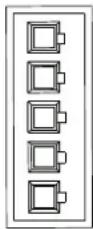
Refer to Figure 2-6 and Table 2-5 when connecting a keyboard/controller to your camera through the RS485 connection. Honeywell UltraKey Touch (HJC4000) is recommended for use with the HDZ Analogue PTZ dome.
Figure 2-6 RS485 Connector
1
2
3
4
5
Table 2-5 RS485 Pin Definitions
| Pin | Definition |
| 1 | R- (RS485-) |
| 2 | GND |
| 3 | R+ (RS485+) |
| 4 | T- |
| 5 | T+ |
Connecting Video
You have two options for connecting to the video output port on the camera. The option that you pick will depend on what type of cabling you are using for the installation:
- Coaxial cable (preferred method). Connect the coaxial cable to the camera's BNC video output port, and connect the other end of the cable to the video input port on your monitor/switch/quad/mux/DVR.
- Unshielded twisted pair cable (UTP, optional). Connect the camera's BNC video output port to the optional UTP (unshielded twisted pair) balun accessory provided with your unit. Connect one end of the unshielded twisted pair cable to the video input connection on your monitor/switch/quad/mux/DVR and the other end of the UTP cable to the UTP balun output connections.
The passive UTP balun included in the package is suitable for UTP transmission distances of up to 100 m (328 ft). Please use an active UTP balun (not included with camera) for transmission distances longer than 100 m (328 ft).
Connecting Power

WARNING To comply with EN50130-4 requirements, a UPS should be employed when powering the camera.
Refer to Figure 2-7 and Table 2-6 for the power connector definition before wiring power to the camera.
CAUTION Check the pin definition of the power connector listed here before connecting to the power source. The 24 V AC power source should be connected to the first and third pin. The unit could be damaged with an incorrect connection.
Figure 2-7 Main Power Adapter Input (Detail)
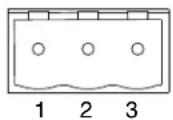
Table 2-6 Power Input Pin Definitions
| Pin Definition |
| 1 24 V AC - 1 |
| 2 GND |
| 3 24 V AC - 2 |
Connecting Alarm Inputs/Outputs
Refer to Figure 2-8 and Table 2-7 when making alarm connections to your camera through the main alarm adapter.
Figure 2-8 Main Alarm Adapter Input (Detail)
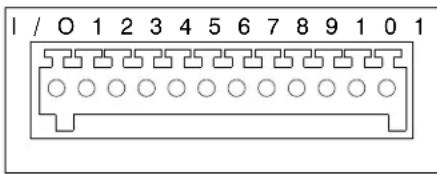
1 Inputs (x4) 5V, 4700 Ohms, pull up Outputs (x2) Relay output, 120 V AC/30 V DC
Table 2-7 Alarm Input Pin Definitions
| Pin Definition Pin Definition |
| 1 Alarm Out NO 1 7 Alarm Out COM 2 |
| 2 Alarm Out NC 1 8 GND |
| 3 Alarm Out COM 1 9 Alarm In 4 |
| 4 GND 10 Alarm In 3 |
| 5 Alarm Out NO 2 11 Alarm In 2 |
| 6 Alarm Out NC 2 12 Alarm In 1 |
Mounting the Camera
You can install the camera to a ceiling, wall, pole, parapet, or roof using one of the following Honeywell products:
Table 2-8 Honeywell Mounts and Adapters
| Model No. | Description | Indoor | Outdoor | |
| HDCM1 Ceiling Mount | X | |||
| HDXWM2 | Wall Mount | X | X | |
| HDPRM2 | Parapet/Flat Roof Mount | X | X | |
| HDZINBKT In-Ceiling mounting bracket for the HDZ series. | X | |||
| HDXCMA1 | Corner Mount Adapter for HDXWM2 | X | X | |
| HDXPMA2 | Pole Mount Adapter for HDXWM2 | X | X | |
Note An In-ceiling mounting bracket (HDZINBKT) is available. Check with your Honeywell supplier regarding In-ceiling mounting. See Appendix D, In-Ceiling Bracket Installation, for in-ceiling bracket mounting instructions.
For additional information, see Related Documents on page 16.
Using Safety Cable During Installation
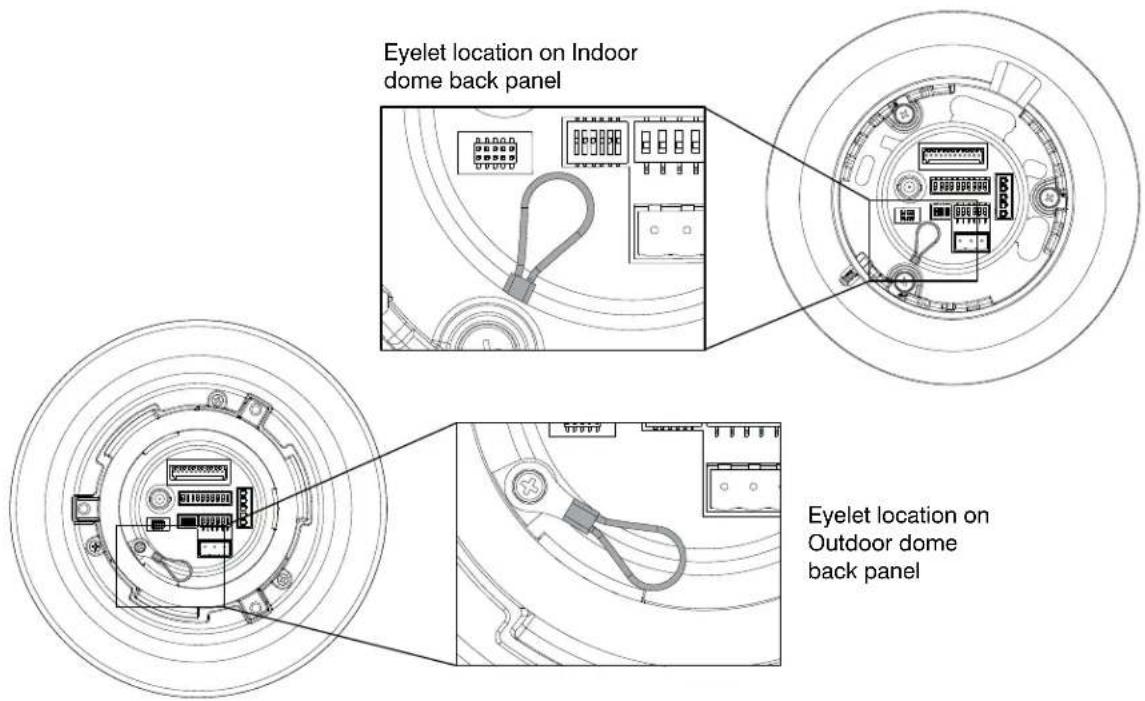
The HDZ Series PTZ camera includes an eyelet for attaching a safety cable to securely fix the camera to the mounting structure (see Figure 2-9). It is recommended that you install a safety cable (such as a 3/32-in. [2.4 mm] plastic coated aircraft cable) to secure the camera to the building structure. This will prevent the camera from falling during installation. The cable must be strong enough to support the weight of the camera (indoor model: 4.9 lb. [2.2 kg], outdoor model: 5.7 lb. [2.6 kg]).
Figure 2-9 Eyelet on Camera to Secure by Lanyard During Setup
Installing a Ceiling Mount (Indoor Only)
The HDCM1 ceiling mount weighs 4.0 lb. (1.8 kg) and can be installed directly to a load-bearing ceiling. The mount has a maximum load rating of 26.0 lb. (11.7 kg) and is for indoor use only. See the documentation included with the ceiling mount for more information on securing the mount to the mounting surface.
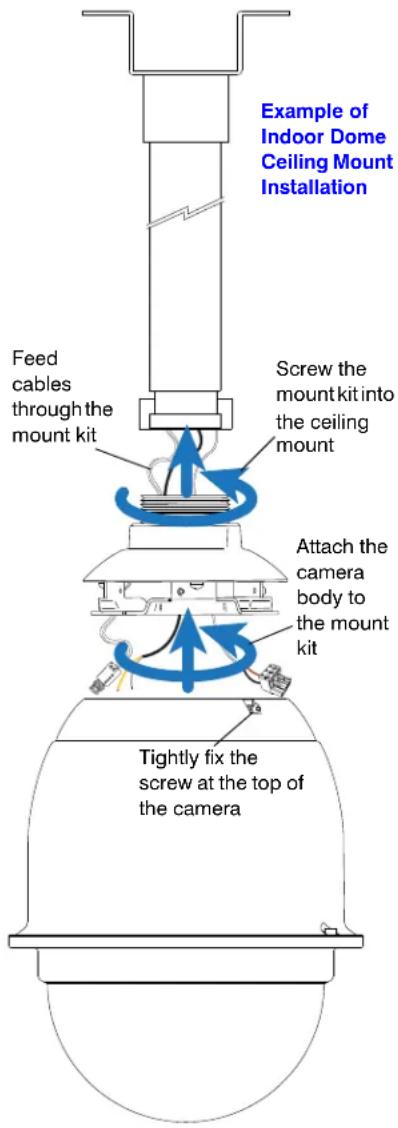
Figure 2-10 HDCM1 Ceiling Mount Installation
To install a ceiling mount:
- Ensure that the ceiling can support the combined weight of the camera and the mount (should support at least 8.8 lb. [4.0 kg]).
- Make a cable entry hole in the ceiling.
- Feed the cables through the mount, leaving approximately 1 ft (0.3 m) extending past the end of the mount (see Figure 2-10).
Note If you are using the recommended safety cable for additional security, feed it through the mount and attach one end to the camera eyelet and the other end to the building structure (see Figure 2-9).
-
Attach the mount to the ceiling using appropriate hardware.
-
Feed the cables through the indoor mount kit and screw the indoor mount kit onto the ceiling mount.
-
Connect the cables to the camera (see Dip Switches and Cable Connections on page 25). Connect the video output port either to a coaxial cable (with BNC connection) or with optional UTP balun accessory if unshielded twisted pair cabling is used.
Note Check that the eyelet safety cable connection is secure, and carrying all of the load of the camera after making all cable connections.
- Attach the camera to the mount kit and then tightly fix the security screw on the top of the camera.
Installing a Wall Mount
The HDXWM2 wall mount weighs 3.2 lb. (1.45 kg) and can be installed directly to a load-bearing wall, or to a corner or pole using an appropriate adapter. The mount has a maximum load rating of 25.8 lb. (11.7 kg) and can be installed indoors or outdoors. See the documentation included with the wall mount for more information on securing the mount to the mounting surface.
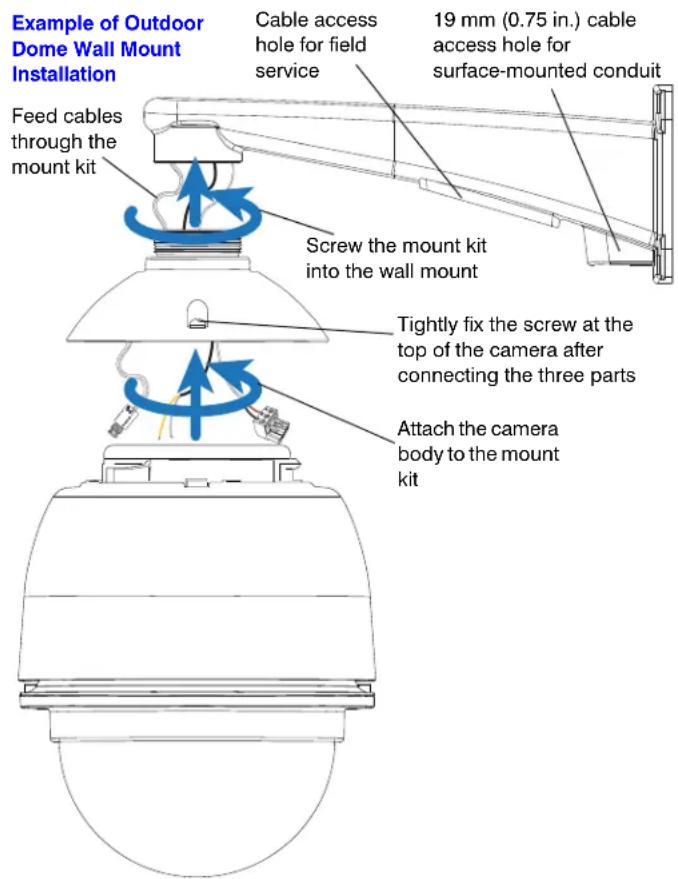
Figure 2-11 HDXWM2 Wall Mount Installation
To install a wall mount:
- Ensure that the mounting surface can support the combined weight of the camera and the mount (should support at least 8.9 lb. [4.05 kg]).
- If you are using a corner or pole adapter, feed the cables through the cable access hole of the adapter, and then attach the adapter to the mounting surface using appropriate mounting hardware.
- Feed the cables through the mount, leaving approximately 1 ft (0.3 m) extending past the end of the mount. Optionally, you can feed the cables through the 0.75 in. (19 mm) conduit hole at the base of the mount arm (see Figure 2-11).
Note If you are using the recommended safety cable for additional security, feed it through the mount and attach one end to the camera eyelet and the other end to the building structure (see Figure 2-9).
- Attach the mount to the wall or, if applicable, to the adapter using appropriate mounting hardware.
- For outdoor wall mount installations, apply sealant (not supplied) to any gaps between the mount and the mounting surface, and ensure that the conduit hole plug is in place when the conduit hole at the base of the mount arm is not in use.
- Feed the cables through the mount kit and screw the mount kit onto the wall mount.
- Connect the cables to the camera (see Dip Switches and Cable Connections on page 25). Connect the video output port either to a coaxial cable (with BNC connection) or with optional UTP balun accessory if unshielded twisted pair cabling is used.
Note Check that the eyelet safety cable connection is secure, and carrying all of the load of the camera after making all cable connections.
- Attach the camera to the mount kit and then tightly fix the security screw on the top of the camera.
Installing a Parapet/Flat Roof Mount
The HDPRM2 parapet/flat roof mount weighs 22.5 lb. (10.2 kg) and can be installed directly to a vertical (parapet) or horizontal (flat roof) load-bearing surface. The mount has a maximum load rating of 20.1 lb. (9.1 kg) and can be installed indoors or outdoors. The mount can withstand winds up to 75 mph (121 km/h) when properly fastened to a support structure. See the documentation included with the parapet mount for more information on securing the mount to the mounting surface.
Figure 2-12 HDPRM2 Parapet/Flat Roof Mount Installation
To install a roof mount:
- Ensure that the mounting surface can support the combined weight of the camera and the mount (should support at least 28.2 lb. [12.8 kg]).
- Feed the cables through the mount, leaving approximately 1 ft (0.3 m) extending past the end of the mount.
Note If you are using the recommended safety cable for additional security, feed it through the mount and attach one end to the camera eyelet and the other end to the building structure (see Figure 2-9).
-
Attach the mount to the mounting surface using as many of the mounting holes as possible (a minimum of five fasteners on each side of the mounting plate is recommended).
-
Apply sealant (not supplied) to the bottom of the vertical pipe and around the bolt holes to prevent water or other contaminants from entering the mount.
-
Feed the cables through the mount kit and screw the mount kit into the parapet/flat roof mount.
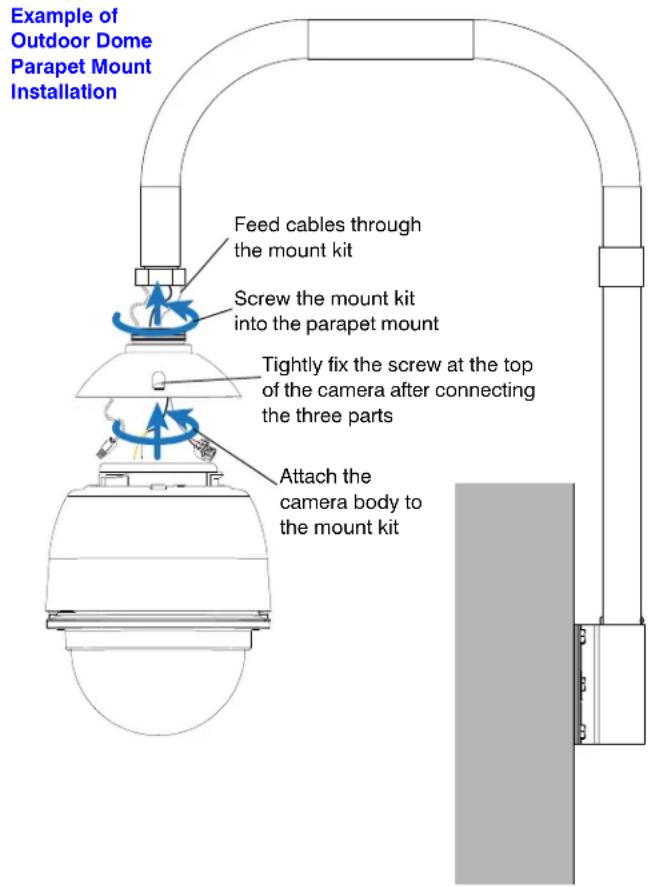
- Connect the cables to the camera (see Dip Switches and Cable Connections on page 25). Connect the video output port either to a coaxial cable (with BNC connection) or with optional UTP balun accessory if unshielded twisted pair cabling is used.
Note Check that the eyelet safety cable connection is secure, and carrying all of the load of the camera after making all cable connections.
- Attach the camera to the mount kit and then tightly fix the security screw on the top of the camera.
Understanding the OSD
Included in this chapter:
• Pre-Configuration Checklist, page 35
• Navigating OSD Menus, page 37
- OSD Menu Tree, page 39
• Basic Keyboard Controls, page 48
• Accessing the Main Menu, page 36
• On-Screen Display Overview, page 37
• OSD Menu Structure, page 42
• Upgrading Analogue PTZ Firmware, page 49
Pre-Configuration Checklist
After you have installed the PTZ dome, you are ready to begin configuring the dome settings from the OSD menu. You will need a keyboard controller and a monitor to do this.
The HDZ Series Analogue PTZ Dome is compatible with Honeywell controllers:
- UltraKey Touch (HJC4000)
The HDZ Series Analogue PTZ Dome is also compatible with third-party controllers using Pelco P or Pelco D control protocols.
Preparing to Configure the Dome
- Make sure the dome is assigned to the controller you are using. The dome address (for example, CAM 001) should appear on the controller LCD. See ID Setting on page 26 for more information on setting the PTZ dome's camera ID.
- Turn on the dome. See Connecting Power on page 29 for more information on powering the camera.
- Confirm that video is displayed on the monitor. See Connecting Video on page 28 for more information on connecting video to a monitor. A startup screen should appear after the dome boots up, showing the protocol, baud rate, camera type, camera ID, and firmware version of the dome.
The detailed functions and parameter settings of your HDZ Series dome can be set through the OSD (On Screen Display) menu with a control keyboard. The setup options in the OSD menu are described in Chapter 4, Operation and Configuration. See Accessing the Main Menu on page 36 for details on accessing the OSD menu for configuring the camera.
Accessing the Main Menu
To enter the OSD menu of the selected camera, use the PRESET 90 command on the control keyboard. The OSD menu will open (see Figure 3-1). Depending on the keyboard controller used, the buttons to press to input PRESET 90 will be different. See the following UltraKey example:
UltraKey Touch Press View ▶ 9 ▶ 0 ▶ Ent.
Figure 3-1 Main Menu Screen
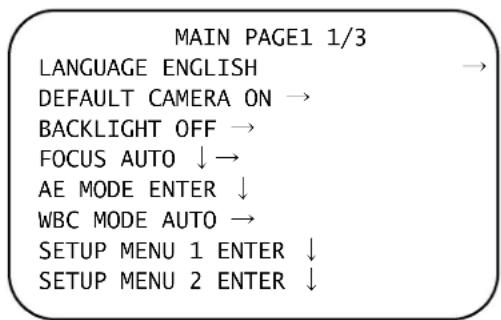
Note Because the HDZ Series Analogue PTZ Dome is designed to work with a wide variety of devices and protocols, all possible ways to perform a task are not given here. The instructions in this guide are intended to supplement the instructions provided in your controller's user guide.
Using the OSD Password to Login
If OSD Password function is enabled, when you press the CAMERA MENU key to enter the OSD menu, the password request message will be displayed as shown in Figure 3-2. Please enter the password, select ENTER and press IRIS+ to access the OSD main menu.
Figure 3-2 Enter Password Screen
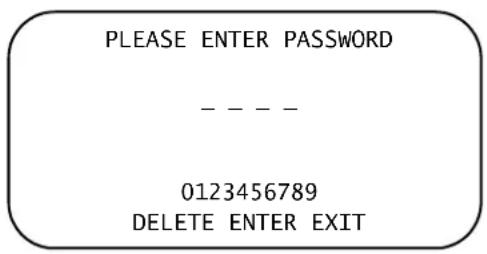
Note When first time turning the Password Function on, please enter the Master Password to setup the new password. Master Password: 9527.
Navigating OSD Menus
To select the setup item, use the joystick or direction keys on the keyboard to move the OSD cursor in the OSD menu.
To setup items, use the joystick or direction keys on the keyboard to move the OSD cursor to the item. For items with the symbol beside them, press right/left with the joystick or direction keys to select the function. For items with the symbol beside them, press the IRIS+ key on the control keyboard to open the sub menu for that item. For items with the symbols beside them, users can use the right/left joystick/direction keys to select the functions, and then press the IRIS+ key to open the sub menu for the selected item.
For more detailed information on PTZ operation and OSD menu navigation, refer to the user manual of your installed keyboard/control devices.
Note In the Camera OSD menu, the IRIS+ key functions as ENTER and the IRIS- key functions as back/EXIT.
During the HDZ Series PTZ dome camera's startup process, the OSD Start Page will display information including the camera ID number, protocol/baud rate and camera initializing message. Additionally, if some camera errors occur, the error message(s) will be shown on the screen at start-up. If the problem(s) cannot be immediately solved, please contact your supplier for assistance.
On-Screen Display Overview
The HDZ Series PTZ camera on-screen display (OSD) elements are described in Table 3-1 below. Figure 3-3 shows a monitor example with OSD elements numbered. Table 3-1 describes the elements shown in Figure 3-3.
Figure 3-3 OSD Display Elements
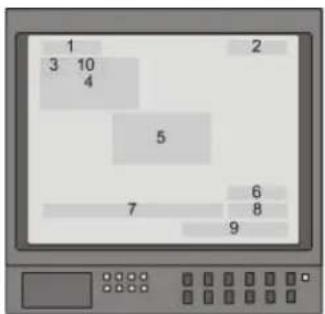
Table 3-1 OSD Item Descriptions
| No. Function OSD Display Description | |||
| 1 Motion MOTION Alarm Detect Message | |||
| 2 Alarm ALARM 1 Alarm Message | |||
| 3 | Focus Modes and Backlight | A Auto Focus Mode | |
| M Manual Focus Mode | |||
| X Backlight Compensation OFF | |||
| B Backlight Compensation ON | |||
| 4 | Booting Message | XX... (Dome Type); ID; 001 (Default) Maxpro Mode / 9600 (Default) INITIALIZING | Shows Dome Type, ID Address, Protocol and Baud Rate |
| 5 | Error Message | PAN ERROR TILT ERROR CAM MODULE ERROR | Shows system initializing error message |
| 6 Zoom Ratio | x1 | Shows the current zoom ratio (Optical zoom/Digital zoom) | |
| 7 | Title | Maximum 20 characters for each title.16 sets of titles are available. | |
| 8 | Camera ID | 001 | Show the camera ID |
| 9 | Time | XXXX / XX / XX XX : XX | Year / Month / Day Hour : Minute |
| 10 | Position Display | XX YYY / YY | XX: Facing direction of the PTZ including N, E, S, W, NE, NW, SE, SWYYY / YY: Angle of PTZ, 0 ~ 359 / 10 ~ -90 |
OSD Menu Tree
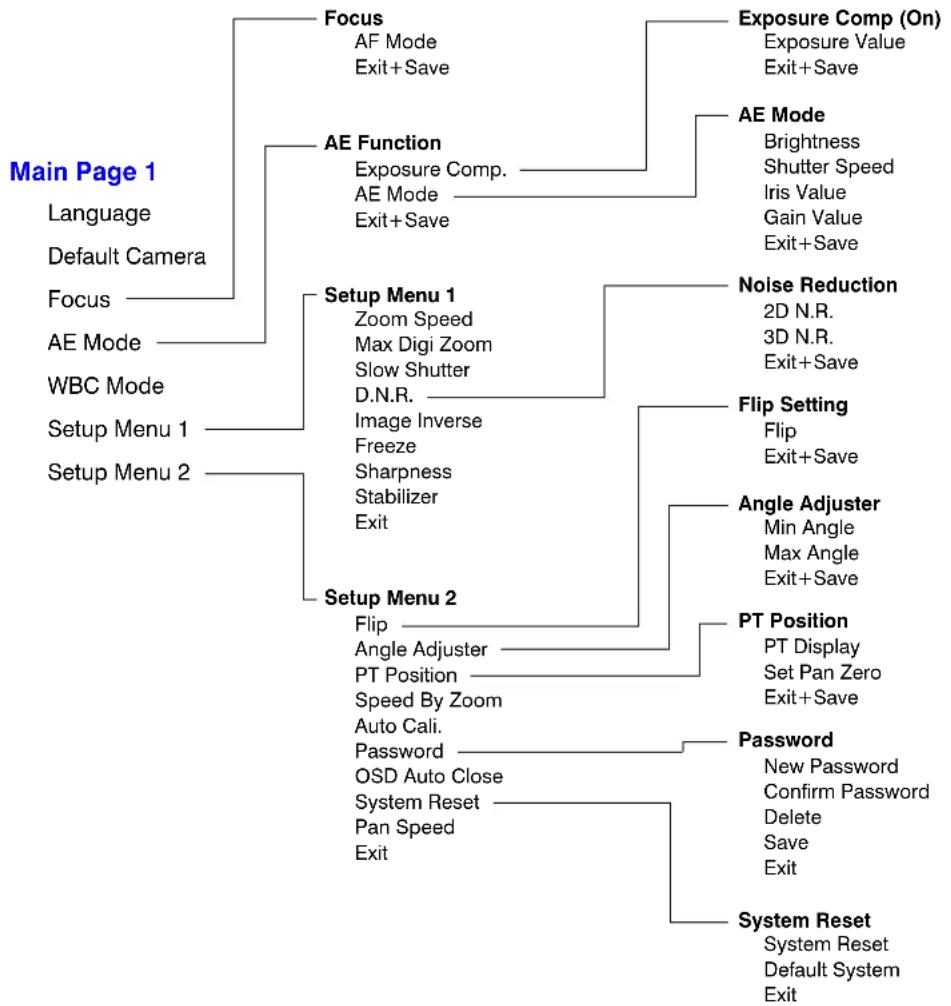
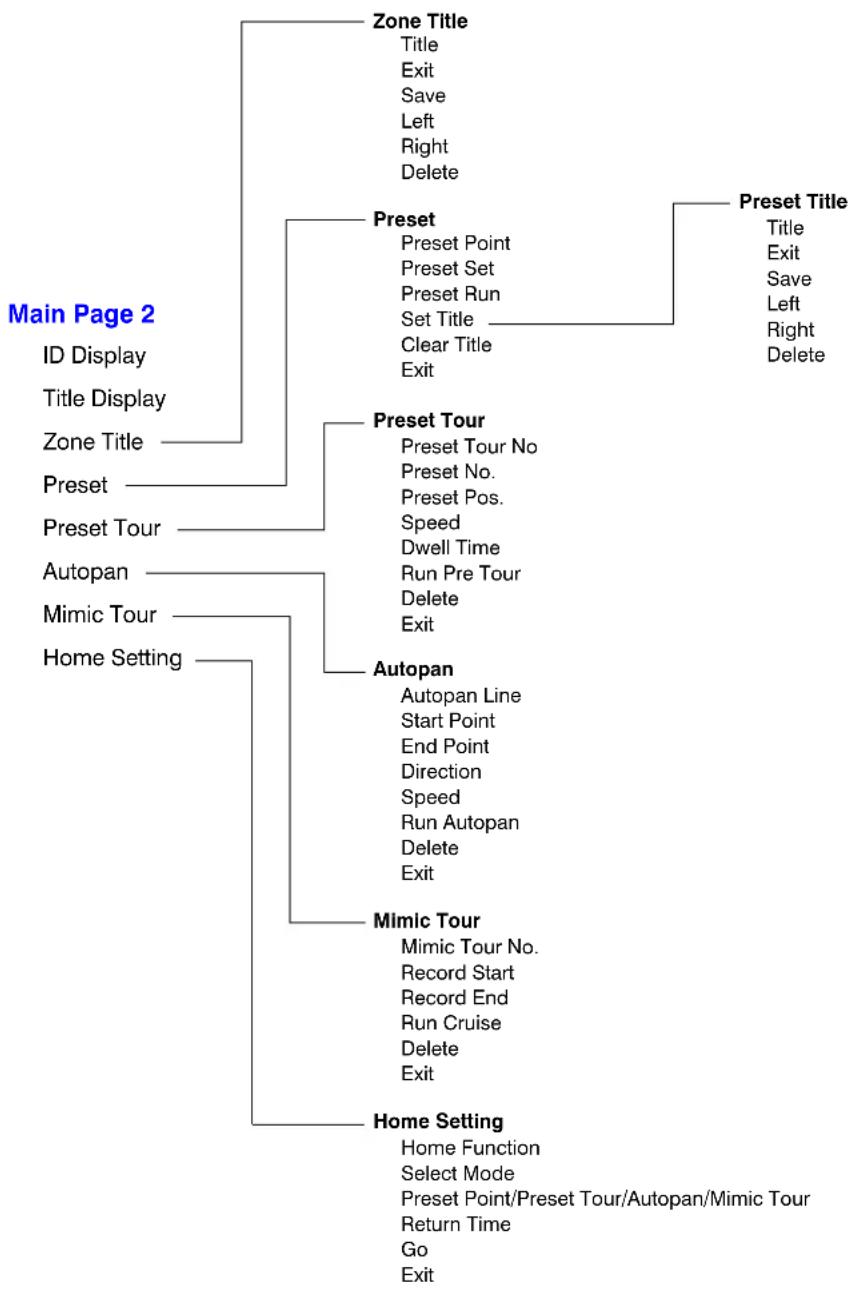
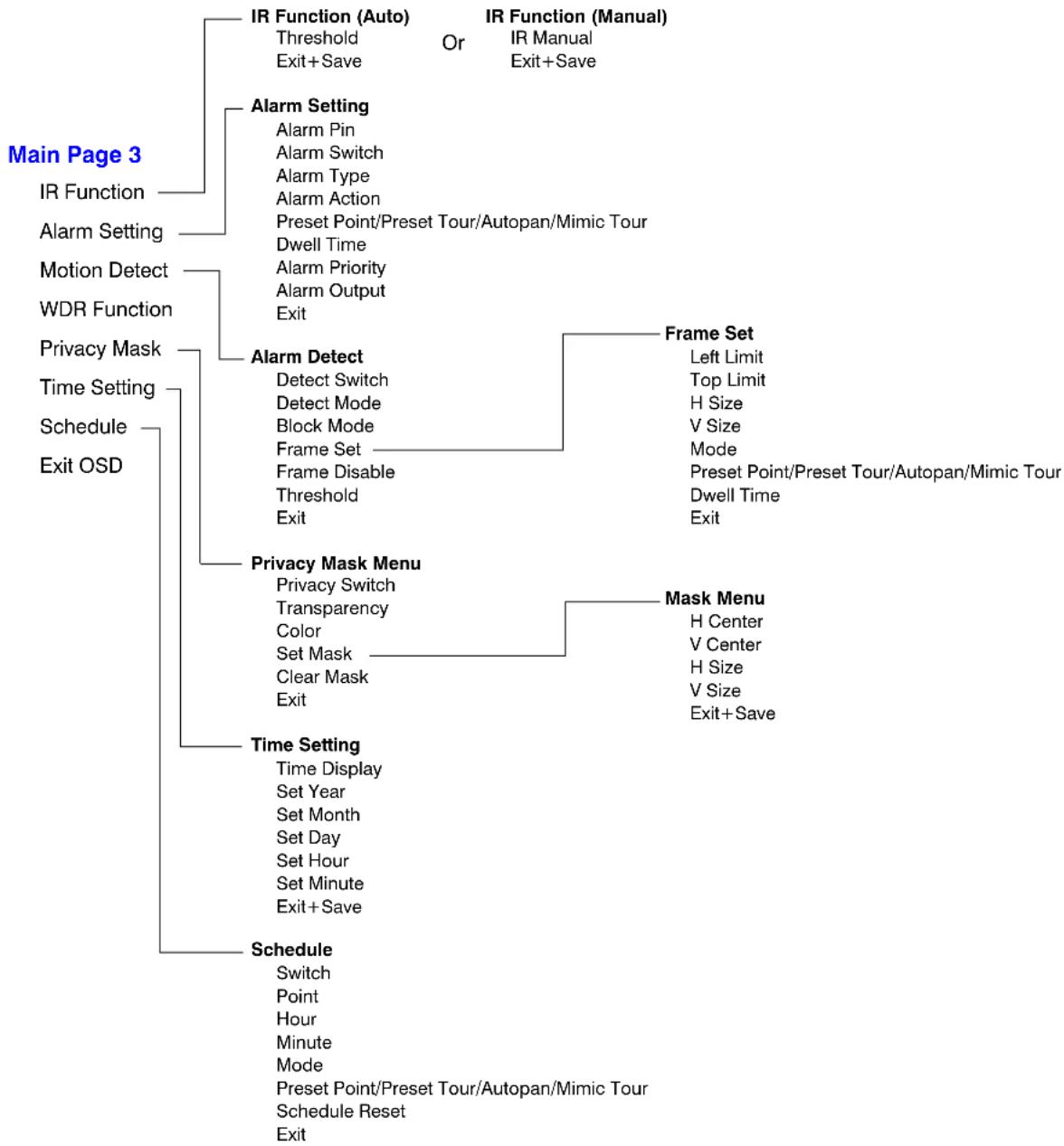
The HDZ Series Analogue PTZ camera has an OSD menu to be used for setting up the camera options and features (presets, privacy masks, and so on). The main OSD menu is split into 3 pages that you can scroll through after opening the OSD menu (see Accessing the Main Menu on page 36). Refer to:
• Figure 3-4, page 39, for a basic overview of the OSD Main Page 1 menus
• Figure 3-5, page 40, for a basic overview of the OSD Main Page 2 menus
• Figure 3-6, page 41, for a basic overview of the OSD Main Page 3 menus
• Table 3-2, page 42, for more details about the settings and options of the OSD menus
Figure 3-4 Main Page 1 OSD Menus
flowchart
graph TD
    A["Main Page 1"] --> B["Focus"]
    A --> C["AE Function"]
    A --> D["Setup Menu 1"]
    A --> E["Setup Menu 2"]

    B --> F["AF Mode"]
    B --> G["Exit+Save"]

    C --> H["Exposure Comp (On)"]
    H --> I["Exposure Value"]
    H --> J["Exit+Save"]

    C --> K["AE Mode"]
    K --> L["Brightness"]
    K --> M["Shutter Speed"]
    K --> N["Iris Value"]
    K --> O["Gain Value"]
    K --> P["Exit+Save"]

    D --> Q["Zoom Speed"]
    D --> R["Max Digi Zoom"]
    D --> S["Slow Shutter"]
    D --> T["D.N.R."]
    D --> U["Image Inverse"]
    D --> V["Freeze"]
    D --> W["Sharpness"]
    D --> X["Stabilizer"]
    D --> Y["Exit"]

    E --> Z["Noise Reduction"]
    Z --> AA["2D N.R."]
    Z --> AB["3D N.R."]
    Z --> AC["Exit+Save"]

    E --> AD["Flip Setting"]
    AD --> AE["Flip"]
    AD --> AF["Exit+Save"]

    E --> AG["Angle Adjuster"]
    AG --> AH["Min Angle"]
    AG --> AI["Max Angle"]
    AG --> AJ["Exit+Save"]

    E --> AK["PT Position"]
    AK --> AL["PT Display"]
    AK --> AM["Set Pan Zero"]
    AK --> AN["Exit+Save"]

    E --> AO["Password"]
    AO --> AP["New Password"]
    AO --> AQ["Confirm Password"]
    AO --> AR["Delete"]
    AO --> AS["Save"]
    AO --> AT["Exit"]

    E --> AU["System Reset"]
    AU --> AV["System Reset"]
    AU --> AW["Default System Exit"]
Figure 3-5 Main Page 2 OSD Menus
flowchart
graph TD
    A["Main Page 2"] --> B["Zone Title"]
    A --> C["Preset"]
    A --> D["Preset Tour"]
    A --> E["Autopan"]
    A --> F["Mimic Tour"]
    A --> G["Home Setting"]

    B --> H["Title"]
    B --> I["Exit"]
    B --> J["Save"]
    B --> K["Left"]
    B --> L["Right"]
    B --> M["Delete"]

    C --> N["Preset Point"]
    C --> O["Preset Set"]
    C --> P["Preset Run"]
    C --> Q["Set Title"]
    C --> R["Clear Title"]
    C --> S["Exit"]

    D --> T["Preset Tour No"]
    D --> U["Preset No."]
    D --> V["Preset Pos."]
    D --> W["Speed"]
    D --> X["Dwell Time"]
    D --> Y["Run Pre Tour"]
    D --> Z["Delete"]
    D --> AA["Exit"]

    E --> AB["Autopan Line"]
    E --> AC["Start Point"]
    E --> AD["End Point"]
    E --> AE["Direction"]
    E --> AF["Speed"]
    E --> AG["Run Autopan"]
    E --> AH["Delete"]
    E --> AI["Exit"]

    F --> AJ["Mimic Tour No."]
    F --> AK["Record Start"]
    F --> AL["Record End"]
    F --> AM["Run Cruise"]
    F --> AN["Delete"]
    F --> AO["Exit"]

    G --> AP["Home Function"]
    G --> AQ["Select Mode"]
    G --> AR["Preset Point/Preset Tour/Autopan/Mimic Tour"]
    G --> AS["Return Time"]
    G --> AT["Go"]
    G --> AU["Exit"]

    style A fill:#f9f,stroke:#333
    style B fill:#ccf,stroke:#333
    style C fill:#cfc,stroke:#333
    style D fill:#fcc,stroke:#333
    style E fill:#cff,stroke:#333
    style F fill:#ffc,stroke:#333
    style G fill:#fcf,stroke:#333
Figure 3-6 Main Page 3 OSD Menus
flowchart
graph TD
    A["Main Page 3"] --> B["IR Function"]
    A --> C["Alarm Setting"]
    A --> D["Motion Detect"]
    A --> E["WDR Function"]
    A --> F["Privacy Mask"]
    A --> G["Time Setting"]
    A --> H["Schedule"]
    A --> I["Exit OSD"]

    B --> J["IR Function (Auto)"]
    B --> K["IR Function (Manual)"]
    J --> L["Threshold"]
    J --> M["Exit+Save"]
    K --> N["Or"]
    K --> O["IR Manual"]
    K --> P["Exit+Save"]

    C --> Q["Alarm Setting"]
    C --> R["Alarm Pin"]
    C --> S["Alarm Switch"]
    C --> T["Alarm Type"]
    C --> U["Alarm Action"]
    C --> V["Preset Point/Preset Tour/Autopan/Mimic Tour"]
    C --> W["Dwell Time"]
    C --> X["Alarm Priority"]
    C --> Y["Alarm Output"]
    C --> Z["Exit"]

    D --> AA["Alarm Detect"]
    D --> AB["Privacy Mask Menu"]
    AA --> AC["Detect Switch"]
    AA --> AD["Detect Mode"]
    AA --> AE["Block Mode"]
    AA --> AF["Frame Set"]
    AA --> AG["Frame Disable"]
    AA --> AH["Threshold"]
    AA --> AI["Exit"]

    AB --> AJ["Frame Set"]
    AJ --> AK["Left Limit"]
    AJ --> AL["Top Limit"]
    AJ --> AM["H Size"]
    AJ --> AN["V Size"]
    AJ --> AO["Mode"]
    AJ --> AP["Preset Point/Preset Tour/Autopan/Mimic Tour"]
    AJ --> AQ["Dwell Time"]
    AJ --> AR["Exit"]

    F --> AS["Privacy Mask Menu"]
    AS --> AT["Privacy Switch"]
    AS --> AU["Transparency"]
    AS --> AV["Color"]
    AS --> AW["Set Mask"]
    AS --> AX["Clear Mask"]
    AS --> AY["Exit"]

    AS --> AZ["Mask Menu"]
    AZ --> BA["H Center"]
    AZ --> BB["V Center"]
    AZ --> BC["H Size"]
    AZ --> BD["V Size"]
    AZ --> BE["Exit+Save"]

    H --> BF["Time Setting"]
    H --> BG["Schedule"]

    B --> BH["IR Function (Auto)"]

    C --> BI["IR Function (Manual)"]

    J --> BJ["IR Function (Auto)"]

    K --> BK["IR Function (Manual)"]

    J --> BL["IR Function (Auto)"]

    K --> BM["IR Function (Manual)"]

    J --> BN["IR Function (Auto)"]

    K --> BO["IR Function (Manual)"]

    J --> BP["IR Function (Auto)"]

    K --> BQ["IR Function (Manual)"]

    J --> BR["IR Function (Auto)"]

    K --> BS["IR Function (Manual)"]

    J --> BT["IR Function (Auto)"]

    K --> BU["IR Function (Manual)"]

    J --> BV["IR Function (Auto)"]

    K --> BW["IR Function (Manual)"]

    J --> BX["IR Function (Auto)"]

    K --> BY["IR Function (Manual)"]

    J --> BZ["IR Function (Auto)"]

    K --> CA["IR Function (Manual)"]

    J --> CB["IR Function (Auto)"]

    K --> CC["IR Function (Manual)"]

    J --> CD["IR Function (Auto)"]

    K --> CE["IR Function (Manual)"]

    J --> CF["IR Function (Auto)"]

    K --> CG["IR Function (Manual)"]

    J --> CH["IR Function (Auto)"]

    K --> CI["IR Function (Manual)"]

    J --> CJ["IR Function (Auto)"]

    K --> CK["IR Function (Manual)"]

    J --> CL["IR Function (Auto)"]

    K --> CM["IR Function (Manual)"]

    J --> CN["IR Function (Auto)"]

    K --> CO["IR Function (Manual)"]

    J --> CP["IR Function (Auto)"]

    K --> CQ["IR Function (Manual)"]

    J --> CR["IR Function (Auto)"]

    K --> CS["IR Function (Manual)"]

    J --> CT["IR Function (Auto)"]

    K --> CU["IR Function (Manual)"]

    J --> DV["IR Function (Auto)"]

    K --> DW["IR Function (Manual)"]

    J --> DX["IR Function (Auto)"]

    K --> DXA["IR Function (Manual)"]

    J --> DXB["IR Function (Auto)"]

    K --> DXC["IR Function (Manual)"]

    J --> DXF["IR Function (Auto)"]

    K --> DXG["IR Function (Manual)"]

    J --> DXH["IR Function (Auto)"]

    K --> DXI["IR Function (Manual)"]

    J --> DXJ["IR Function (Auto)"]

    K --> DXK["IR Function (Manual)"]

    J --> DXL["IR Function (Auto)"]

    K --> DXM["IR Function (Manual)"]

    J --> DXN["IR Function (Auto)"]

    K --> DXO["IR Function (Manual)"]

    J --> DXP["IR Function (Auto)"]

    K --> DXQ["IR Function (Manual)"]

    J --> DXR["IR Function (Auto)"]

    K --> DXS["IR Function (Manual)"]

    J --> DXT["IR Function (Auto)"]

    K --> DXU["IR Function (Manual)"]

    J --> DXV["IR Function (Auto)"]

    K --> DXW["IR Function (Manual)"]

    J --> DXX["IR Function (Auto)"]

    K --> DXY["IR Function (Manual)"]

    J --> DXZ["IR Function (Auto)"]

    K --> DXW
OSD Menu Structure
Table 3-2 lists the OSD menu structure details. More information about making setting changes can be found in Chapter 4, Operation and Configuration. Default selections are indicated in the last column.
Table 3-2 OSD Menu Structure
| Item Layer 1 Layer 2 Layer 3 Default | ||||
| LANGUAGE | ENGLISH, JAPANESE, PORTUGUESE, SPANISH, FRENCH, GERMAN, ITALIAN, POLISH, RUSSIAN, TRADITIONAL CHINESE, SIMPLIFIED CHINESE, TURKISH, DUTCH, CZECH | ENGLISH | ||
| DEFAULT CAMERA ON, OFF ON | ||||
| BACKLIGHT ON, OFF OFF | ||||
| FOCUS | AUTO | AF MODE: NORMAL, Z. TRIG, PTZ TRIG. PTZ TRIG. | ||
| EXIT+SAVE | ||||
| MANUAL | ||||
| AE MODE | EXPOSURE COMP. | OFF | OFF | |
| ON | EXPOSURE VALUE: -10.5dB ~ 10.5dB | |||
| EXIT+SAVE: YES | ||||
| AE MODE | AUTO | BRIGHTNESS/SHUTTER SPEED/IRIS VALUE/GAIN VALUE: AUTO | AUTO | |
| EXIT+SAVE: YES | ||||
| SHUTTER | SHUTTER SPEEDPAL: 1/50 ~ 1/10000 SEC.NTSC: 1/60 ~ 1/10000 SEC. | |||
| EXIT+SAVE: YES | ||||
| IRIS | IRIS VALUE: F1.6 ~ F28 | |||
| EXIT+SAVE: YES | ||||
| MANUAL | BRIGHTNESS: AUTO | |||
| SHUTTER SPEEDPAL: 1/50 ~ 1/10000 SEC.NTSC: 1/60 ~ 1/10000 SEC. | ||||
| IRIS VALUE: F1.6 ~ F28 | ||||
| GAIN VALUE: -3dB ~ 28dB | ||||
| EXIT+SAVE: YES | ||||
| EXIT+SAVE YES | ||||
Table 3-2 OSD Menu Structure (cont'd)
| Item | Layer 1 | Layer 2 | Layer 3 | Default |
| WBC MODE | AUTO (Auto White Balance) | √ | ||
| INDOOR | ||||
| OUTDOOR | ||||
| ATW (Auto-tracing WBC) | ||||
| MANUAL | R GAIN 000 ~ 127 | |||
| B GAIN 000 ~ 127 | ||||
| EXIT+SAVE: YES | ||||
| SETUP MENU 1 | ZOOM SPEED 8 8 | |||
| MAX. DIGITAL ZOOM OFF, 2x ~ 12x OFF | ||||
| SLOW SHUTTER ON, OFF OFF | ||||
| D.N.R. | 2D N.R. ON, OFF ON | |||
| 3D N.R. OFF, 1, 2, 3, 4, 5 OFF | ||||
| EXIT+SAVE: YES | ||||
| IMAGE INVERSE ON, OFF OFF | ||||
| FREEZE ON, OFF ON | ||||
| SHARPNESS 01 ~ 16 7 | ||||
| STABILIZER ON, OFF OFF | ||||
| EXIT | YES | |||
Table 3-2 OSD Menu Structure (cont'd)
| Item | Layer 1 | Layer 2 | Layer 3 | Default |
| SETUP MENU 2 | FLIP | OFF, M.E., IMAGE IMAGE | ||
| EXIT+SET: YES | ||||
| ANGLE ADJUSTER | MIN ANGLE -10 ~ +10 DEG -10 DEG | |||
| MAX ANGLE 080 ~ 100 DEG 190 DEG | ||||
| EXIT+SET YES | ||||
| PT POSITION | PT DISPLAY ON, OFF OFF | |||
| SET PAN ZERO PT MOVE, TO SAVE | ||||
| EXIT+SET YES | ||||
| SPEED BY ZOOM ON, OFF ON | ||||
| AUTO CALI. ON, OFF OFF | ||||
| PASSWORD ON, OFF OFF | ||||
| OSD AUTO CLOSE OFF, 10 ~ 30 SEC. | 20 | |||
| SYSTEM RESET | SYSTEM RESET: YES | |||
| DEFAULT SYSTEM: YES | ||||
| EXIT: YES | ||||
| PAN SPEED | 50, 100, 200 | 200 | ||
| EXIT | YES | |||
| ID DISPLAY ON, OFF | OFF | |||
| TITLE DISPLAY ON, OFF | OFF | |||
| TITLE ZONE | 01 ~ 16 | Press ENTER to create a title for the zone | 01 | |
| PRESET | PRESET POINT | 001 ~ 256 | 001 | |
| PRESET SET | PT MOVE, TO SAVE | PT MOVE | ||
| PRESET RUN | ENTER | ENTER | ||
| SET TITLE | ENTER | ENTER | ||
| CLEAR TITLE | ENTER | ENTER | ||
| EXIT | YES | ENTER | ||
Table 3-2 OSD Menu Structure (cont'd)
| Item | Layer 1 | Layer 2 | Layer 3 | Default |
| PRESET TOUR | PRESET TOUR NO. 1 ~ 16 01 | |||
| PRESET NO. 01 ~ 32 01 | ||||
| PRESET POS. 001 ~ 255, END END | ||||
| SPEED 01 ~ 15 1 | ||||
| DWELL TIME 000 ~ 127 SEC. 0 | ||||
| RUN PRE TOUR ENTER | ||||
| DELETE ENTER | ||||
| EXIT YES | ||||
| AUTOPAN | AUTOPAN LINE 1 ~ 4 | 1 | ||
| START POINT | PT MOVE, TO SAVE | |||
| END POINT | PT MOVE, TO SAVE | |||
| DIRECTION | RIGHT, LEFT | RIGHT | ||
| SPEED 01 ~ 04 01 | ||||
| RUN AUTOPAN | ENTER | |||
| DELETE ENTER | ||||
| EXIT YES | ||||
| MIMIC TOUR | MIMIC TOUR NO. | 1 ~ 16 01 | ||
| RECORD START | PT MOVE, TO SAVE | PT MOVE | ||
| RECORD END | PT MOVE, TO SAVE | PT MOVE | ||
| RUN MIMIC | ENTER | |||
| DELETE ENTER | ||||
| EXIT YES | ||||
| HOME SETTING | HOME FUNCTION | ON, OFF | OFF | |
| SELECT MODE | PRESET, P. TOUR, AUTOPAN, M. TOUR | PRESET | ||
| PRESET POINT | 001 ~ 256 | 001 | ||
| PRESET TOUR | 1 ~ 16 001 | |||
| AUTOPAN | 1 ~ 4 | 001 | ||
| MIMIC TOUR | 1 ~ 16 001 | |||
| RETURN TIME | 1 ~ 128 MIN. | 001 | ||
| GO | ENTER | |||
| EXIT YES | ||||
Table 3-2 OSD Menu Structure (cont'd)
| Item | Layer 1 | Layer 2 | Layer 3 | Default |
| IR FUNCTION | AUTO | THRESHOLD MID, HI, LOW | LOW | |
| EXIT+SAVE YES | ||||
| MANUAL | IR MANUAL ON, OFF | |||
| EXIT+SAVE YES | ||||
| ALARM SETTING | ALARM PIN 1 ~ 4 1 | |||
| ALARM SWITCH ON, OFF OFF | ||||
| ALARM TYPE NO (Normal Open), NC (Normal Close) NC | ||||
| ALARM ACTION PRESET, P. TOUR, AUTOPAN, M. TOUR PRESET | ||||
| PRESET POINT 001 ~ 256 001 | ||||
| PRESET TOUR 1 ~ 16 | 001 | |||
| AUTOPAN | 1 ~ 4 001 | |||
| MIMC TOUR | 1 ~ 16 | 001 | ||
| DWELL TIME | ALWAYS, 001 ~ 127 SEC. (only for PRESET option) | 001 SEC | ||
| ALARM PRIORITY | 1 ~ 4 1 | |||
| ALARM OUTPUT | OFF, 1, 2, 1+2 | 1+2 | ||
| EXIT | YES | |||
| MOTION DETECT | DETECT SWITCH | ON, OFF OFF | ||
| DETECT MODE | MOTION | |||
| BLOCK MODE | MOTION: ON, OFF | OFF | ||
| FRAME SET | MOTION: 1 ~ 4 | FRAME SET 1-4 | ||
| FRAME DISABLE MOTION: 1 ~ 4 | ||||
| THRESHOLD | NONE, MOTION: 001 ~ 255 | |||
| EXIT | YES | |||
| WDR FUNCTION | ON, OFF | ON | ||
Table 3-2 OSD Menu Structure (cont'd)
| Item | Layer 1 | Layer 2 | Layer 3 | Default |
| PRIVACY MASK | PRIVACY SWITCH ON, OFF OFF | |||
| TRANSPARENCY ON, OFF OFF | ||||
| COLOR | BLACK, WHITE, RED, GREEN, BLUE, CYAN, YELLOW, MAGENTA, MOSAIC 1-3 | BLACK | ||
| SET MASK 01 ~ 20 | H CENTER: L/R | |||
| V CENTER: D/U | ||||
| H SIZE 000 ~ 080 000 | ||||
| V SIZE 000 ~ 060 000 | ||||
| EXIT+SAVE | ||||
| CLEAR MASK 01 ~ 20 1 | ||||
| EXIT YES | ||||
| TIME SETTING | TIME DISPLAY ON, OFF OFF | |||
| SET YEAR 00 ~ 99 | ||||
| SET MONTH 01 ~ 12 | ||||
| SET DAY 01 ~ 31 | ||||
| SET HOUR 00 ~ 23 | ||||
| SET MINUTE | 00 ~ 59 | |||
| EXIT+SAVE | YES | |||
| SCHEDULE | SWITCH | ON, OFF OFF | ||
| POINT | 01 ~ 32 01 | |||
| HOUR | 00 ~ 23 00 | |||
| MINUTE | 00 ~ 59 00 | |||
| MODE | NONE | NO FUNCTION | √ | |
| PRESET | PRESET POINT 001 ~ 256 | |||
| P. TOUR | PRESET TOUR 1 ~ 16 | |||
| AUTOPAN | AUTOPAN 1 ~ 4 | |||
| M. TOUR | MIMIC TOUR 1 ~ 16 | |||
| IR FUNC. | IR FUNCTION AUTO, ON, OFF | |||
| SCHEDULE RESET | YES | |||
| EXIT YES | ||||
| EXIT OSD | YES | |||
Basic Keyboard Controls
HDZ Series analogue PTZ dome is compatible with the UltraKey Touch (HJC4000). The control keyboards have some predefined commands to perform functions with the camera. See the following sections for more information on these commands.
The setup options in the OSD menu are described in Chapter 4, Operation and Configuration.
Sending the Dome to a Preset
A preset is a memorized PTZ position, showing a specific field of view, that can be recalled manually by the operator, or automatically moved to when triggered by an event, such as motion.
To go to a preset using the UltraKey controller (HJC4000), press View, then the preset number, and then Enter.
For example: Press View ▶ 1 ▶ 4 ▶ Ent to tell the camera to go to Preset 14.
Special Presets
Special presets 72 to 99 are reserved for controlling and programming the dome. Do not program preset positions for presets 72 to 99. See for a list of the special presets and their functions.
Table 3-3 Special Presets
| Preset Function Protocol | ||
| 72 Recover encrypted user login | Diamond, MAXPRO-mode, VCL, Pelco P, Pelco D | |
| 73 | Enable broadcast command receive mode (displays: Broadcast RX Mode ON) | |
| 74 | Disable broadcast command receive mode (displays: Broadcast RX Mode OFF) | |
| 75 | Opens Setup Menu 1 with the password field selected | |
| 76 Run mimic tour 1–16 | MAXPRO-mode, VCL, Pelco P, Pelco D | |
| 77 | Program mimic tour | |
| 78 Run preset tour 1–16 | ||
| 79 User default setting preset | Diamond, MAXPRO-mode, VCL, Pelco P, Pelco D | |
Table 3-3 Special Presets (cont'd)
| Preset Function Protocol | |
| 80, 81, 82 Run mimic tours 1, 2, and 3 | MAXPRO-mode, VCL, Pelco P, Pelco D |
| 83, 84, 85 Program mimic tours 1, 2, and 3 | |
| 86 End mimic tour programming mode | |
| 87, 88, 89 Start/run preset tours 1, 2, and 3 | |
| 90 Open setup menu (OSD menus) | |
| 91, 97, 99 Reserved | |
| 92 Toggle between auto exposure and iris priority | MAXPRO-mode, VCL, Pelco P, Pelco D |
| 93 Toggle backlight compensation on or off | |
| 94 Toggle between day mode and night mode | |
| 95 Toggle freeze function on or off | |
| 96 Run the flashback function (toggles between last two saved positions) | |
| 98 Camera reset (cycles power to the camera) | Diamond, MAXPRO-mode, VCL, Pelco P, Pelco D |
Upgrading Analogue PTZ Firmware
Upgrading the firmware on the HDZ Series Analogue PTZ Dome is typically a complicated procedure. If a firmware upgrade for your camera at a site is needed, contact Honeywell technical support at 1.800.323.4576 (North America only) for assistance. Refer to the back cover of this manual for international contact information.
Operation and Configuration
To operate and configure the HDZ Series Analogue PTZ dome camera, you will require a keyboard controller and monitor to connect to the PTZ dome. See System Configuration on page 24 for an overview of the devices to connect to the HDZ Series PTZ dome.
See Accessing the Main Menu on page 36 for information about opening the HDZ Series PTZ analogue dome OSD menus. See Navigating OSD Menus on page 37 for more information about navigating the OSD menus.
Included in this chapter:
• Main Menu Page 1 Settings, page 51
• Setup Menu Page 1 Settings, page 56
• Setup Menu Page 2 Settings, page 59
• Main Menu Page 2 Settings, page 63
• Main Menu Page 3 Settings, page 74
Main Menu Page 1 Settings
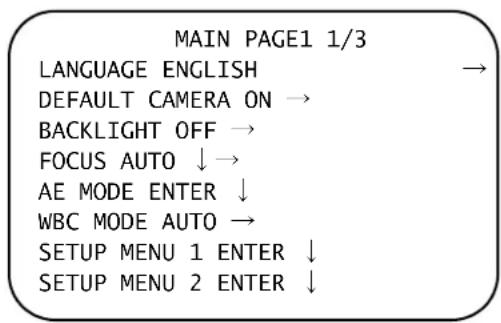
MAIN PAGE 1 is the first menu page that opens when you open the camera OSD menu. See the following sections for more information about changing settings in this menu.
Figure 4-1 Main Menu Page 1
Setting the Language
The HDZ Series camera supports multi-language OSD operation. The available languages include English, Japanese, Portuguese, Spanish, French, German, Italian, Polish, Russian, Traditional Chinese, Simplified Chinese, Turkish, Dutch, and Czech. You can set a language on the MAIN PAGE 1 (see Figure 4-1). Move the cursor to the LANGUAGE option and use the joystick or left/right arrow keys to select the language. The OSD will automatically change to the language you select. The default language is ENGLISH.
Setting the Default Camera
The DEFAULT CAMERA option (see Figure 4-1) is used to restore some camera settings back to their default setting. The settings that are affected by this option include: Backlight, Focus, AE, WBC, Image Inverse, Sharpness and Digital Zoom. Once any one of these items are modified from their default setting, the DEFAULT CAMERA option will become OFF automatically. Select ON for this item to revert to the default settings for the camera parameters listed above.
Setting the Backlight Compensation
The Backlight compensation function prevents the center object from being too dark in surroundings where excessive light is behind the object.
Move the cursor to the BACKLIGHT option and use the joystick or left/right arrow keys to select ON to activate the function (see Figure 4-1). The center object will be brightened in contrast to the edge of the picture (where a backlight would be most likely located).
After completing the Backlight setup, continue to set the focus and other relevant camera options.
Setting the Focus Mode and Options
The focus of the HDZ Series PTZ dome camera can be operated in two modes: Auto Focus mode and Manual Focus mode. See the following sections for more information about setting up the focus modes.
Auto Focus
There are three options available for the AF Mode, including NORMAL mode, Zoom Trigger (Z. TRIG.) mode and PTZ Trigger (PTZ TRIG) mode. The submenu of AF Mode is shown in Figure 4-2.
Figure 4-2 Auto Focus Mode
AF MODE NORMAL → EXIT+SAVE YES
Normal Mode
In this mode, the camera will keep in focus automatically and continuously in any condition.
Zoom Trigger Mode
In this mode, auto focusing is activated at the time when the zoom value is changed. The camera will still auto focus once at the beginning of pan/tilt movement (no auto focusing during pan/tilt movement or when pan/tilt movement stops).
PTZ Trigger Mode
In this mode, auto focusing is triggered when the camera is controlled to pan, tilt or zoom.
EXIT+SAVE
Press IRIS+ on this item to save the selected AF Mode.
Manual Focus
In this mode, users can adjust focus near/far by using the control keyboard's Focus Near/Far keys.
After completing focus setup, go back to the Main Page 1 (see Figure 4-1) and continue to set other relevant camera options.
Note The AF mode will be resumed after every boot.
Setting the Auto Exposure Mode Options
The exposure is the amount of light received by the image sensor and is determined by the width of the lens diaphragm opening (iris adjustment), the amount of exposure by the sensor (shutter speed) and other exposure parameters. With this item, users can define how the Auto Exposure (AE) function works for the camera.
Setting the Exposure Compensation
If set to ON, the exposure value rages from -10.5dB to 10.5dB. Select OFF to disable the function.
Setting the Auto Exposure Mode
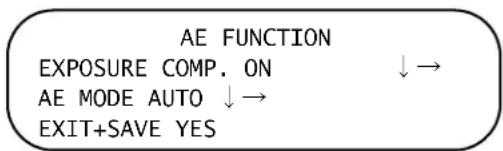
Select the auto exposure mode for the camera and press IRIS+ to adjust the settings for the selected mode (see Figure 4-3).
Figure 4-3 Auto Exposure Mode Menu
AUTO
In this mode, the camera's BRIGHTNESS, SHUTTER SPEED, IRIS VALUE and GAIN VALUE (Auto Gain Control) control circuits work together automatically to achieve a consistent video output level. With AUTO selected, all options are fixed to AUTO and cannot be edited.
SHUTTER
With this option, the SHUTTER SPEED takes main control of exposure, and both IRIS VALUE and GAIN VALUE will function automatically in cooperation with shutter speed to achieve a consistent exposure output. The shutter speed ranges from 1/10000 to 1/60 (1/50 for PAL cameras).
IRIS
In this mode, the IRIS function takes main control of exposure. SHUTTER speed and GAIN VALUE will function automatically in cooperating with IRIS to get a consistent exposure output. The IRIS value is set to f1.6 by default and can be adjusted from F1.6 to F28.
MANUAL
In the Manual mode, users can manually adjust the SHUTTER SPEED (1/10000 \~ 1/50 for PAL; 1/10000 \~ 1/60 for NTSC), IRIS VALUE (F1.6 \~ F28), and GAIN VALUE (-3dB \~ 28dB) for optimized video output.
Exiting AE Mode Sub Menu
Exit the AE MODE sub menu and go back to the Main Page 1 (see Figure 4-1) to continue to set the WBC MODE settings or other relevant camera options.
Setting the WBC Mode
A digital camera needs to find a reference color temperature, which is a way of measuring the quality of a light source, for calculating all of the other colors. The unit for measuring this ratio is in degree Kelvin (K). You can select one of the White Balance Control modes according to this condition. The following table shows the color temperature of some general light sources.
Table 4-1 Color Temperatures by Light Source
| Light Sources Color Temperature in K |
| Cloudy Sky 6,000 to 8,000 |
| Noon Sun and Clear Sky 6,500 |
Table 4-1 Color Temperatures by Light Source (cont'd)
| Light Sources Color Temperature in K |
| Household Lighting 2,500 to 3,000 |
| 75-watt Bulb 2,820 |
| Candle Flame 1,200 to 1,500 |
Setting Auto WBC
In this mode, white balance works within its color temperature range. This mode computes the white balance value output using color information from the entire screen. It outputs the proper value using the color temperature radiating from a black subject based on a range of values from 3,000 K to 7,500 K.
Setting Indoor WBC
This setting is the 3,200 K base mode, for indoor environments.
Setting Outdoor WBC
This setting is the 5,800 K base mode, for outdoor environments.
Setting ATW (Auto Tracing White Balance)
The HDZ Series PTZ dome camera takes out the signals in a screen in the range from 2,000 K to 10,000 K.
Setting Manual WBC
In this mode, users can change the White Balance value manually (see Figure 4-4). R gain and B gain are adjustable and range from 000 to 127.
Figure 4-4 Manual WBC Mode
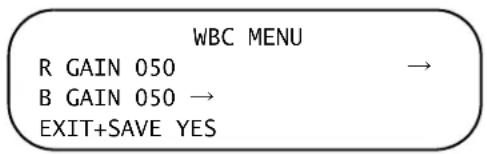
After completing WBC parameter settings, exit the WBC MODE menu and go back to the Main Page 1 to continue setting other relevant camera functions.
Setup Menu Page 1 Settings
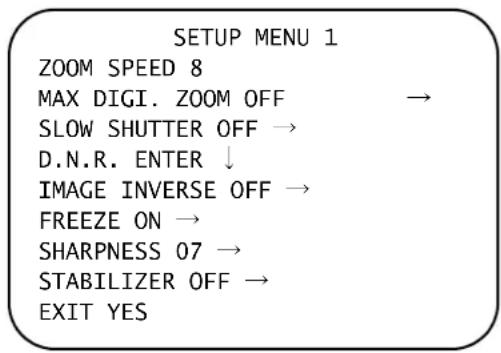
In Setup Menu 1 (see Figure 4-5), users can set the Zoom Speed and choose whether to activate optional functions, including Digital Zoom, Slow Shutter, Noise Reduction, Image Inverse and Image Freeze. Refer to the following sections for more information on each function.
Figure 4-5 Setup Menu Page 1
Setting the Zoom Speed
This function is used to set the zoom speed of the HDZ Series Analogue PTZ Dome. The Zoom speed is fixed at 8.
Setting the Digital Zoom
With this item, users can enable or disable the 12× Digital Zoom feature. If enabled, the Digital Zoom will be activated after the full Optical Zoom level has been reached.
Note The difference between optical and digital zoom is that optical zoom uses the lens within the camera to draw the image closer by zooming in or out to achieve the desired effect. Optical zoom retains the same quality and full resolution of the zoomed image. On the other hand, Digital zoom takes a portion of an image and expands the partial image to the full size of the original image; therefore, the image quality will be reduced.
The Digital Zoom ratio is adjustable from 2x to 12x. The default setting is OFF.
Setting the Slow Shutter
The shutter speed setting determines how long the image sensor is exposed to light. To see a clear image in a dark environment, it is recommended you enable the Digital Slow Shutter function and select a slower shutter speed. Slow Shutter is set to OFF by default.
If the Digital Slow Shutter function is enabled, the HDZ Series Analogue PTZ Dome will automatically adjust the shutter speed based on the light condition of the camera installation environment. Digital Slow Shutters enables users to see objects in a dark environment below 0.1 lux.
Setting the Digital Noise Reduction
With 2D / 3D Digital Noise Reduction (DNR), the camera processor analyzes pixel by pixel and frame by frame to eliminate environmental noise so that the highest quality image can be produced, even in low light conditions. In comparison with 2D-DNR, 3D-DNR eliminates more noise from the image.
Note See Recommended WDR and DNR Settings By Scene Type on page 94 for more information on the best scenes for enabling/disabling 2D/3D NR.
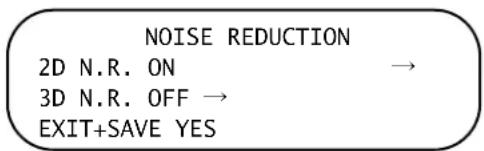
Select D.N.R. and press IRIS+ to open the Noise Reduction submenu (see Figure 4-6). From this menu to can set 2D noise reduction ON or OFF. You can also set the 3D noise reduction to a setting from 1–5, or OFF (default setting). Select EXIT+SAVE and press IRIS+ to return to the previous menu.
Note 3D noise reduction is strong in reducing noise around static objects, but may cause trails behind fast moving objects in the video under low light.
Figure 4-6 D.N.R. Submenu
Enabling the Image Inverse
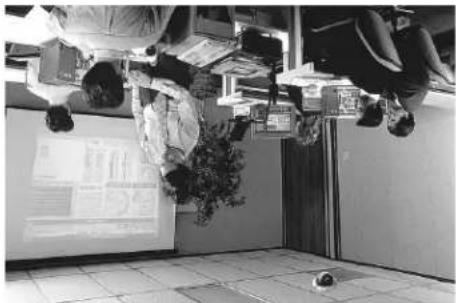
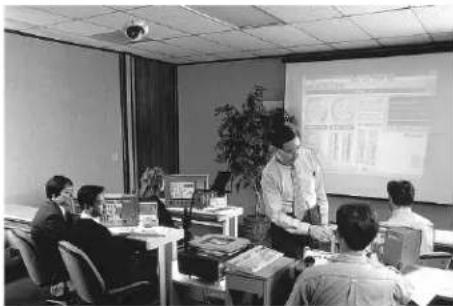
Users can select IMAGE INVERSE to ON to make the displayed image inversed vertically and horizontally (see Figure 4-7). Occasions to employ the function include conferences, demonstration, testing, etc. The default setting is OFF.
Application Users can see the displayed images, for example, when a dome is placed on a desktop in a conference room (as shown in Figure 4-7).
Figure 4-7 Image Inverse Examples
natural_image
Interior view of an office with people working near a large display board (no visible text or symbols)Image Inverse Off Image Inverse On
Enabling the Freeze Option
The Freeze function allows the camera to hold the current image while the camera is moving between preset positions such as in a PRESET (see Setting Up a Preset Position on page 65) or PRESET TOUR (see Setting Up a Preset Tour on page 67) function. For example, when the Analogue PTZ Dome is manipulated to run from point A to point B, and the Freeze function is enabled, the first view that users would see is point A. Then the next view would directly change to point B without displaying the moving path in between.
Setting the Sharpness
Under the Sharpness setup menu, users can adjust enhancement of the edges of objects in the picture.
There are 16 levels of sharpness adjustments. The options range from 01 to 16. The 01 setting represents no enhancement. When shooting text, this function could make it sharp.
Enabling the Image Stabilizer
With the Image Stabilizer Function, the HDZ Series Analogue PTZ Dome can capture images that would otherwise be blurred due to the vibration.
Select ON to turn on the Stabilizer. The default setting is OFF.
Note If the image stabilizer function is turned on, it will also set the WDR function to OFF, Digital Slow Shutter to no function and will limit the Digital Zoom capability.
Exiting the Setup Menu 1
Exit the SETUP MENU 1 and go back to the MAIN PAGE 1 to continue setting other camera functions.
Setup Menu Page 2 Settings
In Setup Menu 2 (see Figure 4-8), users can set the Flip, Angle Adjuster and PT Position settings, and choose whether to activate optional functions, including Speed by Zoom, Auto Calibration, Password, OSD Auto Closing and System Reset. Refer to the following sections for more information on each function.
Figure 4-8 Setup Menu Page 2
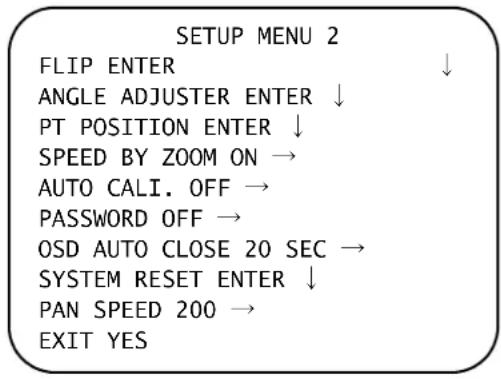
Enabling the Image Flip Option
Users can continuously track an object when it passes under the HDZ Series Analogue PTZ Dome by changing the FLIP setting to IMAGE (digital flip) or M.E. (mechanical flip).
Figure 4-9 Flip Setting Options
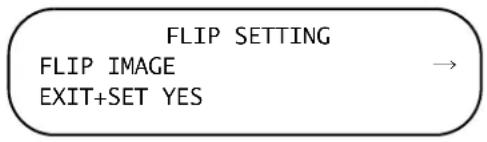
IMAGE (Digital Flip)
IMAGE represents a digital image flip, which enables users to keep tracking objects seamlessly. Under this mode, almost no delay occurs when the camera flips, as compared with the M.E. mode image flip.
Note The Privacy Mask function will be automatically disabled if the Image Flip function is enabled. The message, MASK WILL BE SET OFF, will be shown on the screen.
M.E. (Mechanical Flip)
M.E. is a standard mechanical PTZ operation. As the HDZ Series Camera tilts to the maximum angle, it will pan 180°, and then continue tilting to keep tracking objects.
Note Flip setting is manual-controlled only. If a Preset or a point for other function (ex. Preset Tour) is set in the position that can only be reached through FLIP motion, when Flip is off, the position cannot be reached anymore.
OFF (No Image Flip)
Select this item to disable the flip function.
Note To make the HDZ Series Analogue PTZ Dome tilt between a specific range, such as -10^ to +100^ or -10^ to +190^ , please go to the ANGLE ADJUSTER function (see Setting the Angle Adjuster on page 60) to set the angle range of tilt. The ANGLE ADJUSTER options will change depending on which Flip mode is selected. Otherwise, the dome will tilt up to 90^ as the default setting.
Setting the Angle Adjuster
The item is for adjusting the angle range of the tilt motion (see Figure 4-10). The Range of the tilt motion varies in different FLIP modes. The angle ranges from -10^ to +100^ in the M.E. FLIP and FLIP OFF modes, and from -10^ to +190^ in the IMAGE FLIP mode.
Figure 4-10 Angle Adjuster Options
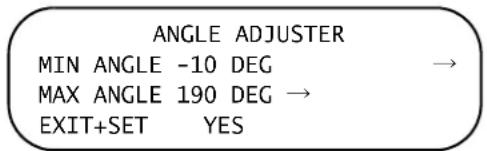
Setting the PT Position
PT Position can display the Pan/Tilt position of the Analogue PTZ Dome on the screen. See On-Screen Display Overview on page 37 for the on-screen location the PT position is displayed.
Figure 4-11 PT Position Options
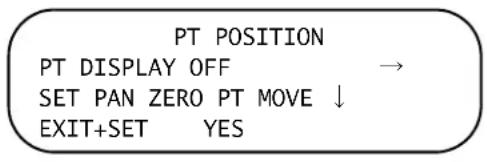
Setting PT Display
Turn this item to ON to display the pan/tilt position on the screen. The display format will be PXXX, TYY.
Setting Pan to Zero
By using the SET PAN ZERO function, users can set the north direction as coordinate zero.
The display will show eight different directions including N, E, S, W, NE, SE, SW, NW depending on the closest direction the Analogue PTZ Dome faces. The PAN range is from 0^ to 359^ , and the TILT range is from 10^ to -90^ . After lower than -90^ , the PAN degree will be automatically added 180^ .
Press TO SAVE to save the pan zero setting.
Exiting the PT Position Menu
Exit the PT POSITION and go back to SETUP MENU 2 and carry on setting other camera functions.
Setting the Speed By Zoom
If Speed By Zoom is set to ON, the pan/tilt speed will be automatically adjusted by an internal algorithm when zooming. A larger zoom ratio leads to a lower rotating speed.
Setting the Auto Calibration
There is one horizontal point and one vertical infrared rays check point in each dome. During installation or maintenance, the Analogue PTZ Dome's position may be moved. Therefore, the relative distance between the original set point and the check point might have changed. If the Auto Calibration function is enabled, the HDZ Series Camera will automatically detect the matter and reset the horizontal point back to its original position.
Setting the Password
The administrator can activate an OSD Password for security concerns. Once the function is enabled, users are required to enter the password every time they access the OSD menu. The Password setting menu is shown in Figure 4-12.
Figure 4-12 Password Sub Menu
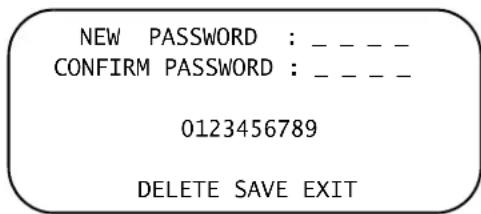
Use the following procedure to set the password:
- Choose a number for the password with direction keys and then press the IRIS+ key (ENTER) to input that number in the NEW PASSWORD field.
For example: 0 ▶ IRIS+ ▶ 1 ▶ IRIS+ ▶ 2 ▶ IRIS+ ▶ 3 ▶ IRIS+ gives you the password 0123.
-
In the CONFIRM PASSWORD line, enter the same password again to confirm the setting.
-
Move the cursor to SAVE and press IRIS+ to save the setting. This will log you out of the OSD menu.
Note If needed, move the cursor to EXIT and press IRIS+ to exit the password setting page without saving. To delete an entered password character, move the cursor to DELETE and press IRIS+ to delete the previously entered character.
Using the OSD Password to Login
If OSD Password function is enabled, when you enter the OSD menu, the password request message will be displayed as shown in Figure 4-13. Please enter the password, select ENTER, and press IRIS+ to access the OSD main menu.
Figure 4-13 Enter Password Screen
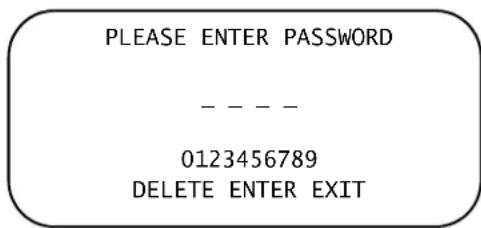
Note When the Password Function on, please enter the Master Passport if the manually entered password has been forgotten. Master Password: 9527.
Setting the OSD to Close Automatically
Users can specify the duration for OSD menu to stay open before automatically closing after a period of inactivity. Time selection ranges from 10 to 30 seconds. To keep the OSD menu on the screen until manually exited, set this option to OFF.
Resetting the System
Two types of system reset can be implemented under this option:
System Reset
Select this function to reboot the system. Press IRIS+ and the system reboot will start.
Default System
This function allows users to restore the camera to its factory default settings. Press IRIS+ and the reset will start.
Setting the Maximum Pan Speed
Users can specify the maximum pan speed for the camera with this option. Options are 200^/s , 100^/s , and 50^/s . The default setting is 200.
Exiting the Setup Menu 2
Exit the SETUP MENU 2 and go back to the MAIN PAGE 1. Go to the MAIN PAGE 2 to carry on setting other Analogue PTZ Dome functions.
Main Menu Page 2 Settings
MAIN PAGE 2 is the second menu page that opens when users scroll down from the MAIN PAGE 1. See the following sections for more information about changing settings in this menu.
Figure 4-14 Main Menu Page 2
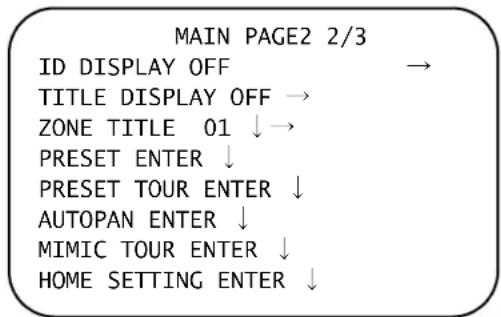
Setting the ID Display
If required, you can set the HDZ Series PTZ camera to display the ID number of the dome on the screen to aid in identifying domes when monitoring video.
- Press the direction key down to go from MAIN MENU page 1 to MAIN MENU page 2.
- The ID DISPLAY menu item will be shown at the top of the screen.
- Set ID DISPLAY to ON to enable the dome ID to display in the bottom right corner of the screen (see #8 in Figure 3-3). Set ID DISPLAY to OFF to disable the dome ID.
Setting Up the Zone Title Display
HDZ Series users have the option to name a viewing area (zone) viewed with the PTZ camera, so that the title will be displayed on-screen for easy recognition. Up to 16 zone titles can be set for different PTZ positions (zones).
The title display option must be enabled (see Enabling the Title Display, page 64), and at least one title to be displayed must be input (see Entering a Zone Title Name, page 64).
Enabling the Title Display
- Press the joystick or direction key down to go from MAIN MENU page 1 to MAIN MENU page 2.
- Set TITLE DISPLAY to ON to enable displaying the title on-screen when viewing video from the camera.
Set TITLE DISPLAY to OFF to disable the on-screen title display.
Entering a Zone Title Name
Up to 16 zone titles can be set. Each zone title has a maximum of 20 characters.
Follow the steps in this procedure to set a camera zone title:
- Use the pan, tilt and zoom controls to operate the camera and move it to view the area (zone) that you want to set the title for.
-
Turn on the OSD, and press the joystick or direction key down to go to MAIN PAGE 2.
-
Select the ZONE TITLE option.
- Select a number to represent the current viewing area (zone).
- Press the IRIS+ key (ENTER) on the keyboard to open the title editing page (see Figure 4-15)
Figure 4-15 Camera Title Editing
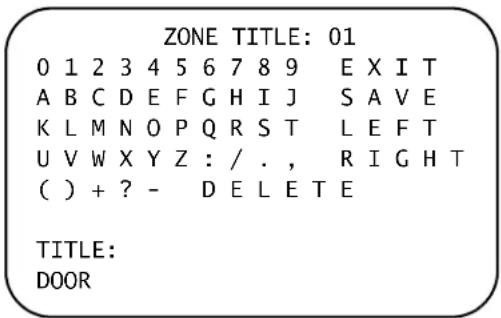
- Choose a character with the joystick or direction keys and then press the IRIS+ key (ENTER) to input the character. For example:
Select D ▶ IRIS+ ▶ 0 ▶ IRIS+ ▶ 0 ▶ IRIS+ ▶ R ▶ IRIS+ to enter the title DOOR.
- To delete a character, move the cursor to the LEFT or RIGHT command and press IRIS+ until you have selected a character in the entry field to be deleted. Select DELETE and press IRIS+ to delete the selected character.
- When the title is complete, move the cursor to SAVE and press IRIS+.
The new title will now display when viewing the zone it was set for (see #7 in Figure 3-3).
Setting Up a Preset Position
Programming a Preset
A total of 256 preset positions can be set for your HDZ Series Analogue PTZ Dome. Follow the steps below to program a preset position:
- Select PRESET in MAIN PAGE 2 and press IRIS+. The PRESET menu will open (see Figure 4-16).
Figure 4-16 Preset Menu
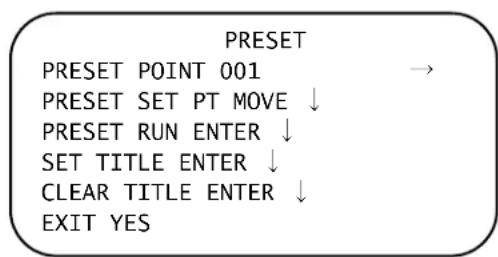
-
Use the joystick or press the right/left keys on the keyboard to select a preset number (001 represents preset point 1, 002 represents preset point 2, and so on).
-
Select PRESET SET and press the IRIS+ key (ENTER) on the keyboard and then move the HDZ Series PTZ camera to a targeted shooting area/preset position.
- Press the IRIS+ key again to save the defined preset position.
Note Once a preset position is set up, users can move the cursor to the next item to run the preset.
Running a Programmed Preset
Select PRESET RUN and press the IRIS+ key (ENTER). The camera will go to the appointed preset position. To run another defined preset, simply press the right/left keys on the keyboard or use the joystick to select the preset position that you want to go to in the PRESET POINT field. Then select PRESET RUN and press the IRIS+ key (ENTER) again.
Note Users can also go to Preset positions through a keyboard/controller. Please refer to the control keyboard's documentation for more information.
Naming a Preset
- Select the preset to name in the PRESET POINT field.
- Use the joystick or direction keys to move the cursor to SET TITLE and press IRIS+ to open the PRESET TITLE screen (see Figure 4-17).
Figure 4-17 Preset Title Editing
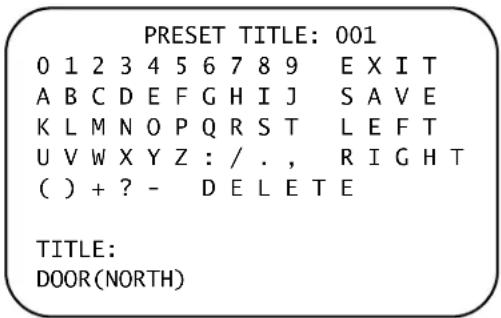
- Choose a character with the joystick or direction keys and then press the IRIS+ key (ENTER) to input the character. For example:
Select D > IRIS+ > 0 > IRIS+ > 0 > IRIS+ > R > IRIS+ > ( > IRIS+ > N > IRIS+ > 0 > IRIS+ > R > IRIS+ > T > IRIS+ > H > IRIS+ > ) > IRIS+ to enter the title DOOR(NORTH).
-
To delete a character, move the cursor to the LEFT or RIGHT command and press IRIS+ until you have selected a character in the entry field to be deleted. Select DELETE and press IRIS+ to delete the selected character.
-
When the title is complete, move the cursor to SAVE and press IRIS+.
- The new title will now display when viewing the preset it was set for.
Deleting a Preset Title
To delete the title for a preset point, select the preset to delete the title of in the PRESET POINT field, then move the cursor to CLEAR TITLE and press IRIS+.
Exiting the Preset Menu
Exit the PRESET menu and go back to the MAIN PAGE 2 to carry on setup of the camera.
Setting Up a Preset Tour
The preset tour feature executes a programmed path of the pan, tilt, zoom and focus functions for the camera in a certain sequence. Before setting up this function, users must have pre-defined at least two preset positions (see Setting Up a Preset Position on page 65).
Figure 4-18 Preset Tour Menu
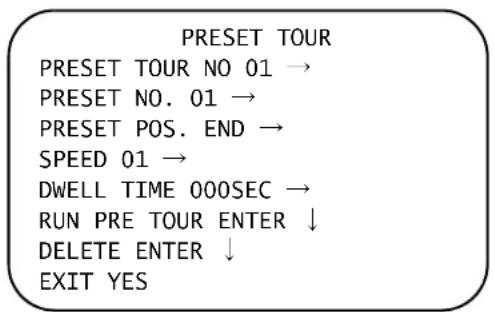
Selecting the Preset Tour Number
There are 16 sets of preset tours built in to the HDZ Series Analogue PTZ Dome. Use the joystick or LEFT/RIGHT direction keys to select a tour number first, before setting its preset numbers (see Figure 4-18).
Selecting a Preset Number
Up to 32 preset positions can be setup for each Preset Tour. The Preset Numbers represent the order of the preset positions that the HDZ Series Camera will automatically run through. The preset position programmed as preset number 1 will be the first position of the tour, followed by number 2, 3, and so on. Use the joystick or LEFT/RIGHT direction keys to select a Preset Number to program.
The next setup items, including PRESET POSITION, SPEED and DWELL TIME, will influence how the camera runs through each selected preset point.
Setting the Preset Position
Users can assign a specific preset position to the selected Preset Number with this item (see Figure 4-18). Use the joystick or LEFT/RIGHT direction keys to select a preset from 1\~255 or END. END is the selection used for the Preset Position following the last Preset Position you want programmed when the amount of preset numbers will be less than 32 (see Selecting a Preset Number on page 67).
Note If you are not using all 32 Preset Numbers in the tour, please set the point following the last required Preset Number as END (for PRESET POSITION) so that the preset tour can function properly. For example, if a user intends to set a Preset Tour with 5 Preset Positions, it is required to set the PRESET POSITION of Preset Number 06 as END.
Setting the Preset Tour Speed
Users can set the pan/tilt speed of the HDZ Series Analogue PTZ Dome Camera from the selected Preset Position to the next point in the tour. Users can set speeds that range from 1 (slowest) to 15 (fastest). Within this range, the PAN speed varies from 10 to 400 (degrees/sec.), and the TILT speed varies from 8 to 400 (degrees/sec.).
Setting the Preset Tour Dwell Time
The DWELL TIME is the duration of time that the Analogue PTZ Dome will stay at the Preset Position. The available dwell time range is from 000 to 127 seconds. The HDZ Series Camera will go to the next Preset Position after the dwell time expires. If the dwell time is set to 000, the HDZ Series Camera will stay at the current position for less than 1 second and then move to the next position.
Running a Preset Tour
Users can command the HDZ Series Analogue PTZ Dome to run the selected Preset Tour manually. Select the PRESET TOUR NO to run, move the cursor to RUN PRE TOUR and press the IRIS+ key (ENTER) to execute the selected Preset Tour (see Selecting the Preset Tour Number on page 67 for more information).
Note Users can also execute the Preset Tour function through a keyboard/controller. Please refer to the keyboard's documentation for more information about executing PTZ commands.
Deleting a Preset Tour
Users can command the HDZ Series Analogue PTZ Dome to delete the selected Preset Tour. Move the cursor to DELETE and press the IRIS+ key (ENTER) to delete the selected Preset Tour (see Selecting the Preset Tour Number on page 67 for more information on selecting the Preset Tour to be deleted).
Exiting the Preset Tour Menu
Select the EXIT item to exit the PRESET TOUR menu and go back to the MAIN PAGE 2 to carry on setup of the HDZ Series camera.
Setting Up an Autopan Path
An Autopan is the motion of scanning an area horizontally, panning back and forth between a start and end point so that the Analogue PTZ Dome can monitor a horizontal view. The parameters are listed in the following sections.
Figure 4-19 Autopan Menu
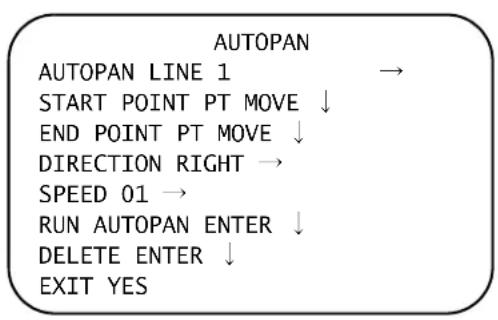
Selecting an Autopan Line
There are four sets of Autopan lines built in to the HDZ Series Analogue PTZ Dome. Users can choose an Autopan line to execute by pressing LEFT/RIGHT direction keys or using the joystick (see Figure 4-19).
Setting the Autopan Start and End Points
Follow the procedure below to set the starting position of the AUTOPAN path:
- Move the cursor to START POINT and press IRIS+ while PT MOVE is flashing. The item will automatically change to display TO SAVE.
- Move the dome to a desired starting position using the PTZ controls and press IRIS+ to save the position as the starting point. The cursor will automatically move to the END POINT line. The end point must be set to complete the autopan programming.
- Move the dome to a desired ending position using the PTZ controls and press IRIS+ to save the position as the ending point.
Note The tilt and zoom values of the start and end points will be recorded and fixed for the selected Autopan line.
Setting the Autopan Direction
The DIRECTION setting of the HDZ Series Camera sets the direction the camera will pan. The dome will start to pan clockwise from the start point to the end point if your selection is RIGHT, and then return to the start point. The dome will start to pan counter-clockwise from the start point to the end point if your selection is LEFT, and then return to the start point. Refer to Figure 4-20 below.
Figure 4-20 Pan Direction in Relation to Dome Movement
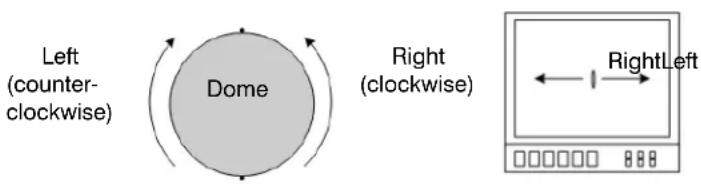
flowchart
graph LR
    A["Left (counter-clockwise)"] --> B["Dome"]
    B --> C["Right (clockwise)"]
    C --> D["Right Left"]
Setting the Autopan Speed
The SPEED option is used to define the rotation speed of the Analogue PTZ Dome while running an autopan path. The speed is adjustable from 1 to 4 (10 \~ 45 degree/sec.).
Running an Autopan Path
After all settings related to the Autopan path are completed, select RUN AUTOPAN to execute the selected Autopan. Press the IRIS+ key (ENTER) to run the selected Autopan line (see Selecting an Autopan Line on page 69 for more information about selecting the Autopan to run).
Note Users can also execute the Autopan path through a keyboard/controller. Please refer to the keyboard's documentation for more information about executing PTZ keyboard commands.
Deleting an Autopan Path
Users can command the HDZ Series Analogue PTZ Dome to delete the selected Autopan Line. Move the cursor to DELETE and press the IRIS+ key (ENTER) to delete the selected Autopan Line (see Selecting an Autopan Line on page 69 for more information on selecting the Autopan to be deleted).
Exiting the Autopan Menu
Exit the AUTOPAN setup menu and go back to the MAIN PAGE 2 to carry on setup of the camera.
Setting Up a Mimic Tour
A Mimic Tour is a route formulated by manual operation of the HDZ Series Analogue PTZ Dome. The user runs through a path by adjusting pan, tilt and zoom parameters, which will be stored by the camera and can be recalled to execute at any time.
Figure 4-21 Mimic Tour Menu
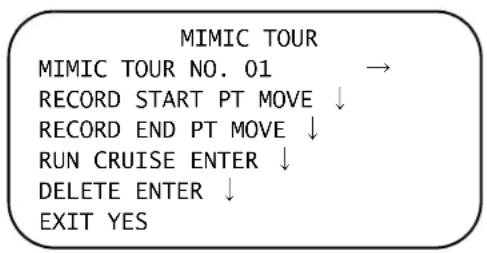
Selecting a Mimic Tour
Up to 16 sets of Mimic Tours can be created for an HDZ Series camera. Use the joystick or LEFT/RIGHT direction keys to select a Mimic Tour to program. Follow the steps in Recording a Mimic Tour, page 71, to start programming a Mimic Tour route.
Recording a Mimic Tour
Follow the procedure below to record the Mimic Tour path:
- Navigate to the MIMIC TOUR menu (see Figure 4-21), select the MIMIC TOUR NO to program (see Selecting a Mimic Tour, page 71), move the cursor to RECORD START and press IRIS+, then move the PTZ camera to the starting point for the tour and press IRIS+ again.
Note For some protocols, users may need to move the camera to the desired Mimic Tour starting point before entering the OSD menus.
- Use the joystick on the control device to start building the tour route. The percentage of the memory buffer used will be displayed on the screen.
Note Beware of the memory size percentage when building a Mimic Tour route. Once the buffer percentage reaches 100%, recording of the tour will stop.
- The cursor moves to RECORD END when you are building the tour route. When you have finished plotting the tour, press IRIS+ to save the tour.
Running a Mimic Tour
After tour setting is completed, press the IRIS+ key to run the selected Mimic Tour (see Selecting a Mimic Tour on page 71 for more information on selecting a tour to run).
Note Users can also execute the Mimic Tour through a keyboard/controller. Please refer to the keyboard's documentation for more information about executing PTZ commands.
Deleting a Mimic Tour
Users can command the HDZ Series Analogue PTZ Dome to delete the selected Mimic Tour. Move the cursor to DELETE and press the IRIS+ key (ENTER) to delete the selected Mimic Tour (see Selecting a Mimic Tour on page 71 for more information on selecting the Mimic Tour to be deleted).
Exiting the Mimic Tour Menu
Exit the MIMIC TOUR setup menu and go back to the MAIN PAGE 2 to carry on setup of the camera.
Configuring the Home Setting
Users are able to set a Home Setting operation mode to ensure constant monitoring. If the HDZ Series Camera idles for a set period of time, the selected function, called the HOME function, will be automatically activated. The HOME function allows constant and accurate monitoring to avoid the Analogue PTZ Dome idling or missing events.
Figure 4-22 Home Setting Menu
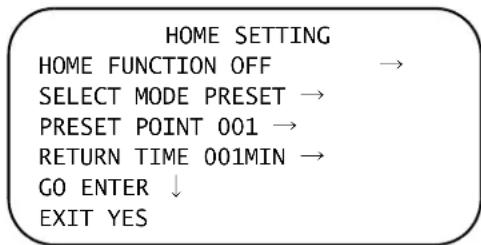
Enabling the Home Function
This option is used to enable or disable the HOME function. Use the joystick or LEFT/RIGHT direction keys to change the setting.
Selecting the Home Setting Mode
Select the type of action that the HDZ Series Analogue PTZ Dome should execute when the HOME function is enabled and the RETURN TIME expires. The mode options include AUTOPAN, PRESET TOUR, MIMIC TOUR and PRESET (default). Use the joystick or LEFT/RIGHT direction keys to change the setting, and the options below will change to correspond with your selection.
Selecting a Preset Point
PRESET must be selected as the SELECT MODE for this option to be available (see Selecting the Home Setting Mode on page 73). Select a preset point where the Analogue PTZ Dome should go after the RETURN TIME has elapsed (see Setting the Return Time on page 74 for more information on enabling and setting the RETURN TIME). The preset point(s) should be setup in the PRESET setup menu or through the keyboard prior to enabling the HOME function (see Setting Up a Preset Position on page 65 for more information on setting up preset points).
Selecting a Preset Tour
PRESET TOUR (P. TOUR) must be selected as the SELECT MODE for this option to be available (see Selecting the Home Setting Mode on page 73). Select a preset tour that the HDZ Series Analogue PTZ Dome should execute after the RETURN TIME has elapsed (see Setting the Return Time on page 74 for more information on enabling and setting the RETURN TIME). The preset tour(s) should be defined in the PRESET TOUR setup menu or through the keyboard prior to enabling the HOME function (see Setting Up a Preset Tour on page 67 for more information on setting up preset tours).
Selecting an Autopan Line
AUTOPAN must be selected as the SELECT MODE for this option to be available (see Selecting the Home Setting Mode on page 73). Select a autopan path that the HDZ Series Analogue PTZ Dome should execute after the RETURN TIME has elapsed (see Setting the Return Time on page 74 for more information on enabling and setting the RETURN TIME). The autopan path(s) should be defined in the AUTOPAN setup menu or through the keyboard prior to enabling the HOME function (see Setting Up an Autopan Path on page 69 for more information on setting up autopan paths).
Selecting a Mimic Tour
MIMIC TOUR (M. TOUR) must be selected as the SELECT MODE for this option to be available (see Selecting the Home Setting Mode on page 73). Select a mimic tour that the HDZ Series Analogue PTZ Dome should execute after the RETURN TIME has elapsed (see Setting the Return Time on page 74 for more information on enabling and setting the RETURN TIME). The mimic tour(s) should be defined in the MIMIC TOUR setup menu or through the keyboard prior to enabling the HOME function (see Setting Up a Mimic Tour on page 71 for more information on setting up a mimic tour).
Setting the Return Time
The HDZ Series Analogue PTZ Dome starts to count down the RETURN TIME when the dome idles, and then will execute the SELECT MODE function when the return time elapses. Select the RETURN TIME that is best for your dome installation (time ranges from 1 to 128 minutes).
Executing Home Function (GO)
If the HOME function is enabled and configured, users can execute the HOME function by selecting GO and pressing IRIS+.
Exiting the Home Menu
Exit the HOME setup menu and go to the MAIN PAGE 3 to carry on setup of the camera.
Main Menu Page 3 Settings
MAIN PAGE 3 is the third menu page (see Figure 4-23) that opens when users scroll down from the MAIN PAGE 2. See the following sections for more information about changing settings in this menu.
Figure 4-23 Main Menu Page 3
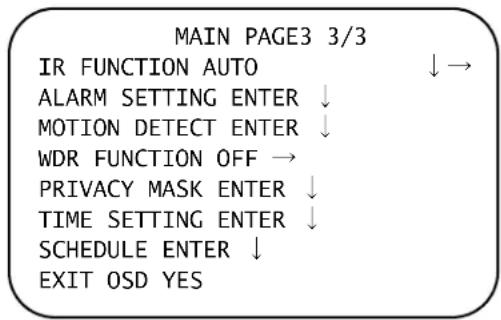
Setting the IR Function (Removable IR Cut Filter)
With the IR cut filter, the HDZ Series Dome Camera can capture clear images at night time or in low light conditions. During the day time, the IR cut filter will be on to block the infrared light for a clear image. During the night time, the IR cut filter will be removed to let the camera catch infrared light, and the displayed images will become black and white.
Setting Auto IR Function
With the Auto IR Function, the Internal circuit will automatically decide the occasion to remove the IR cut filter according to the value of light condition, as calculated by the internal light algorithm. The Auto THRESHOLD options include LOW, MID and HI. LOW indicates a higher sensitivity and can improve the reliability of the lens so that it is easier to switch to Day mode and relatively difficult to change into Night mode (that is, ambient lighting must be very low to switch to night mode). HI indicates that it is easier to switch to Night mode and difficult to change into Day mode (that is, ambient lighting must be very high to switch to day mode).
Setting Manual IR Function
IR MANUAL ON
Select IR MANUAL ON to remove the IR cut filter. The camera will be in B/W (Night) mode until it is manually changed.
IR MANUAL OFF
Select IR MANUAL OFF to attach the IR cut filter. The camera will be in Color (Day) mode, disabling the IR function, until it is manually changed.
Configuring the Alarm Setting
The HDZ Series Analogue PTZ Dome provides four alarm inputs and two alarm outputs (N.O. or N.C) to connect alarm devices. With this function, the Dome Camera can cooperate with the alarm system to capture event images. For wiring, please refer to the installation guide and/or qualified service personnel. Adjustable alarm parameters are described in the following sections.
Figure 4-24 Alarm Setting Menu
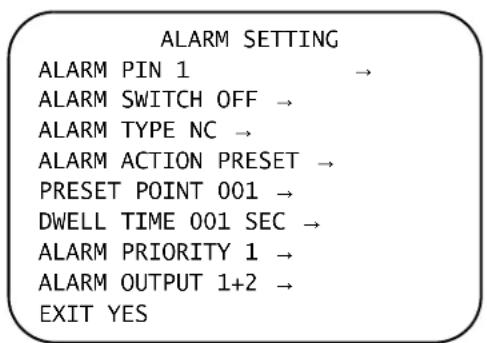
Selecting an Alarm Pin
The HDZ Series dome provides 4 alarm inputs and 2 output (N.O. or N.C.). Use the ALARM PIN field to select the alarm input which you want to set its alarm-related parameters. Set the selected alarm pin's alarm-related parameters in the Alarm Setting menu. For alarm pin definitions, refer to Connecting Alarm Inputs/Outputs on page 29.
Note If two or more alarm pins are triggered at the same time, the smaller alarm pin number will have higher priority and be handled while other alarms are ignored (see Setting the Alarm Priority on page 77). For example, if Alarm-1 and Alarm-3 are triggered simultaneously, only Alarm-1 will actually be handled.
Enabling/Disabling the Alarm Switch
The ALARM SWITCH field is used to enable or disable the selected alarm pin function. Use the joystick or left/right direction keys on the control keyboard to change this setting.
Setting the Alarm Type
There are two alarm types: Normally Open (NO) and Normally Close (NC), which are illustrated in Figure 4-25. Use the joystick or left/right direction keys to select an alarm type that corresponds with the alarm application you have connected.
Figure 4-25 Examples of Alarm Types
Normally Open Alarm Normally Close Alarm
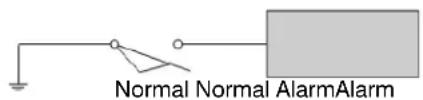
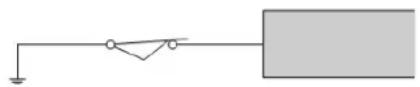
Selecting the Alarm Action
Select the type of action that the HDZ Series Analogue PTZ Dome should execute when the selected alarm is triggered. The mode options include AUTOPAN, PRESET TOUR, MIMIC TOUR and PRESET (default). Use the joystick or LEFT/RIGHT direction keys to change the setting, and the options below will change to correspond with your selection. Additionally, when an alarm is triggered, there will be a flash warning notice, ALARM, displayed in the upper right corner of the screen.
Note When dwell time (setting: 1\~127 seconds, or ALWAYS) has elapsed, the HDZ Series camera will go back to the previous status before the alarm was triggered.
Selecting a Preset Point
PRESET must be selected as the ALARM ACTION for this option to be available (see Selecting the Alarm Action on page 76). Select a preset point where the Analogue PTZ Dome should go after the selected alarm is triggered. The preset point(s) should be setup in the PRESET setup menu or through the keyboard prior to using with the Alarm function (see Setting Up a Preset Position on page 65 for more information on setting up preset points).
Selecting a Preset Tour
PRESET TOUR (P. TOUR) must be selected as the ALARM ACTION for this option to be available (see Selecting the Alarm Action on page 76). Select a preset tour that the Analogue PTZ Dome should execute when the selected alarm is triggered. The preset tour(s) should be defined in the Preset Tour setup menu or through the keyboard prior to using with the Alarm function (see Setting Up a Preset Tour on page 67).
Selecting an Autopan Line
AUTOPAN must be selected as the ALARM ACTION for this option to be available (see Selecting the Alarm Action on page 76). Select a autopan path that the HDZ Series Analogue PTZ Dome should execute when the selected alarm is triggered. The autopan path(s) should be defined in the Autopan setup menu or through the keyboard prior to using the Alarm function (see Setting Up an Autopan Path on page 69 for more information on setting up autopan paths).
Selecting a Mimic Tour
MIMIC TOUR (M. TOUR) must be selected as the ALARM ACTION for this option to be available (see Selecting the Alarm Action on page 76). Select a mimic tour that the HDZ Series Analogue PTZ Dome should execute when the selected alarm is triggered. The mimic tour(s) should be defined in the Mimic Tour setup menu or through the keyboard prior to using the Alarm function (see Setting Up a Mimic Tour on page 71 for more information on setting up a mimic tour).
Setting the Dwell Time
The DWELL TIME is the duration to be applied when executing the alarm action. If the PRESET mode is selected, the HDZ Series Analogue PTZ Dome will go to the selected preset position and stay there for a user-defined period of time (1\~127 seconds/Always) when alarm takes place, or until the alarm condition is released or users rotate the joystick to change the status of the Dome Camera.
If other modes (PRESET TOUR/AUTOPAN/MIMIC TOUR) have been selected, the camera will keep executing the selected mode (DWELL TIME is set to ALWAYS and cannot be changed) until the alarm condition is released or users rotate the joystick to change the status of the Dome Camera.
Note The dwell time is only adjustable when PRESET is selected as the alarm action. When the dwell time is up, the HDZ Series Dome Camera will go back to its trigger position and recheck the alarm pin status.
Setting the Alarm Priority
Set the alarm priority from 1 to 4 for each alarm pin. If two or more alarms are triggered at the same time, smaller alarm priority number will have higher priority of being handled. The default alarm priority is 1 for Alarm Pin 1, 2 for Alarm Pin 2, and so on.
Configuring the Alarm Output
There are two alarm outputs for the HDZ Series Camera. Users can set 1, 2, 1+2 or OFF to trigger the alarm output devices (such as a siren or flashing light) when the alarm is triggered.
Exiting the Alarm Setting Menu
Exit the ALARM SETTING menu and go back to the MAIN PAGE 3 to carry on setup of other relevant camera options.
Setting the Motion Detect Function
When the Motion Detect function is activated (see Figure 4-26), the camera will detect movement within a monitoring area and then automatically send an alarm signal if movement is detected. There will be a flashing warning notice, MOTION, displayed in the upper left corner of the screen.
Figure 4-26 Alarm Detect Menu
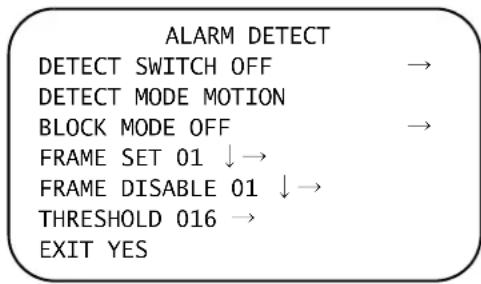
Setting the Detect Switch
Select ON or OFF in this field to enable or disable the MOTION DETECT function.
Setting the Detect Mode
MOTION is the only detect mode available to select with your HDZ Series Analogue camera. Motion Detection function allow detecting suspicious motion and triggering alarms when motion volume in the detected area reaches/exceeds the determined sensitivity threshold value. See Figure 4-26 for the fields of the Alarm Detect menu.
Setting the Block Mode
In Motion Detect mode, users can set Block Mode as ON or OFF. When BLOCK MODE is turned on, if there are any variations (caused by intrusion, for example) in the sections of the monitoring image, the affected parts will be dynamically highlighted.
Setting the Motion Frame
In a monitored field, users can define specific areas as motion detection target zones. Up to four frames can be set as motion detection target zones. Please refer to the instructions as follows to configure parameters for each motion detection zone, called a Frame. When motion is detected within a defined frame, a flash warning notice, MOTION, will display in the upper left corner of the screen. A set frame is independent of the pan/tilt/zoom coordinates (unlike privacy masks).
A total of four frames can be set. Select a frame using the right/left keys on the keyboard, and press the IRIS+ key to enter the frame's submenu, as shown in Figure 4-27, below.
Figure 4-27 Frame Set Menu
FRAME SET 1
LEFT LIMIT L/R
TOP LIMIT D/U
H SIZE -/+
V SIZE -/+
MODE PRESET →
PRESET POINT 001 →
DWELL TIME ALWAYS →
EXIT YES
LEFT LIMIT
Move the frame right/left using the joystick or right/left keys on the keyboard.
TOP LIMIT
Shift the frame up/down using the joystick or right/left keys on the keyboard.
H/V SIZE
Adjust the frame size by changing the H SIZE/V SIZE value using the right/left keys on the keyboard.
MODE
Assign a trigger action for a motion detection frame. Options include PRESET, PRESET TOUR, AUTOPAN and MIMIC TOUR. When motion is detected within a frame, the HDZ Series Dome Camera will execute the specific trigger action that has been assigned.
Note
After the user has selected the mode as one of PRESET, PRESET TOUR, AUTOPAN and MIMIC TOUR, the user will need to specify the specific Preset, Preset Tour, Autopan or Mimic Tour number to execute when triggered.
DWELL TIME
The DWELL TIME is the duration a triggered action will execute. If PRESET mode is selected, when motion is detected, the HDZ Series Camera will go to the selected Preset position and stay there for a user-defined DWELL TIME (1\~127 seconds/Always) or until alarm condition is released or users rotate the joystick to change the status of the Analogue PTZ Dome.
If other modes are selected (PRESET TOUR/AUTOPAN/MIMIC TOUR), the HDZ Series Camera will keep executing the selected mode (DWELL TIME is set to ALWAYS and cannot be changed) until the alarm condition is released or users rotate the joystick to change the status of the HDZ Series Camera.
EXIT
Exit the FRAME setting page and go back to the ALARM DETECT main page (see Figure 4-26).
Disabling a Frame
Select a frame to be canceled, and press IRIS+. The selected frame will then be removed from the monitored field.
Setting the Threshold
The Threshold range is adjustable from 1 to 255. The smaller the threshold value, the more sensitive the motion detection threshold is (1 is the highest sensitivity; at 255 the motion detection will not function).
Exiting the Alarm Detect Menu
Exit the ALARM DETECT menu and go back to the MAIN PAGE 3 to carry on setting up the other camera options.
Setting the WDR Function
The Wide Dynamic Range (WDR) function is especially effective in solving indoor and outdoor image contrast issues in order to enhance better image quality and video displayed. WDR enables the dome to catch detailed data from the dark part of an image (Indoor) without any saturation from the bright part of an image (Outdoor).
Note See Recommended WDR and DNR Settings By Scene Type on page 94 for more information on the best scenes for enabling/disabling the WDR function.
Enabling WDR
Activate the WDR function by selecting ON for this option. In this mode, the HDZ Series Analogue PTZ Dome will operate the WDR function automatically.
Disabling WDR
Deactivate the WDR function by selecting this OFF for this option.
Setting Up Privacy Masks
The Privacy Mask function aims to block any intrusive monitoring. Users can adjust the camera view position by moving the camera with the joystick, and adjust the mask size and area with the direction keys on the control keyboard. When setting a mask, it is suggested to set it at least twice as big (height and width) than the object you want to be masked. The HDZ Series Camera will assume the center of the selected view area as a starting point, and the joystick will be locked as users enter the SET MASK menu (see Setting Up the Mask on page 82). Refer to the following sections for setting privacy masks.
Note The Image Flip function and the Image Inverse function will be disabled automatically while the Privacy Mask function is enabled.
The available area for setting a privacy mask is restricted within a tilt angle of 70 degrees. A maximum of 20 masks can be displayed in one scene. All the settings are described in the following sections.
Figure 4-28 Privacy Mask Menu
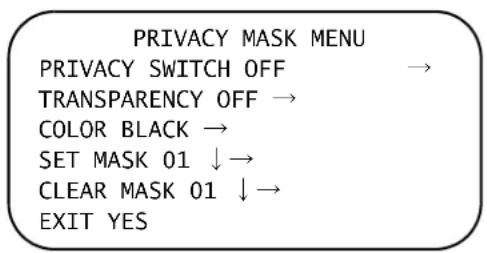
Enabling Privacy Masks
Users can enable or disable the Privacy Mask function with the PRIVACY SWITCH item (see Figure 4-28). Set this item to ON before configuring the mask zones.
Setting the Privacy Mask Transparency
The color of privacy masks can be set as transparent. Select ON in this field to display transparent privacy masks (see Figure 4-28). This setting is OFF by default.
Setting the Privacy Mask Color
The color of privacy mask can be set through the COLOR field (see Figure 4-28). The available colors are black, white, red, green, blue, cyan, yellow, magenta, and mosaic 1-3.
Setting Up the Mask
Use the control device to move the HDZ Series Camera to the area where you want to set a mask and return to the OSD menu. Select the mask number and press IRIS+ to enter the SET MASK menu (see Figure 4-29). The HDZ Series Analogue PTZ Dome will memorize the present position as a privacy mask position.
Figure 4-29 Set Mask Menu
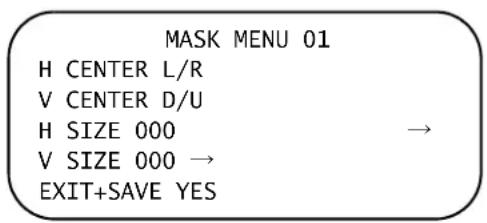
H CENTER
The original horizontal center of a mask zone is the center of the screen. Users are able to move a mask zone to another position by adjusting the horizontal value with the joystick or LEFT/RIGHT keys on the keyboard. The camera will pan right or left according to user's control.
V CENTER
The original vertical center of a mask zone is the center of the screen. Users are able to move a mask zone to another position by adjusting the vertical value with the joystick or LEFT/RIGHT keys on the keyboard. The camera will tilt up or down according to user's control.
H SIZE (00\~80)
Users can adjust the horizontal size of a privacy mask through the H SIZE setting. Setting the H and V size to 0 can also delete the selected mask.
V SIZE (00\~60)
Users can adjust the vertical size of a privacy mask through the V SIZE setting. Setting the H and V size to 0 can also delete the selected mask.
Exiting the Mask Menu
Exit the Mask Menu and go back to the Privacy Mask menu to continue setting the privacy mask options.
Clearing a Mask
Users can delete a preset mask zone with this option. Please follow the steps below:
- Select the mask zone that will be erased (01, for example).
- Press IRIS+ to confirm the selection.
Exiting the Privacy Mask Menu
Exit the PRIVACY MASK menu and go back to the MAIN PAGE 3 to carry on setting up other camera settings.
Setting Up the Time
The time setting menu (see Figure 4-30) is used to set the time related options for the HDZ Series Analogue PTZ dome. See the following sections for more information on each of the time related options.
Figure 4-30 Time Setting Menu
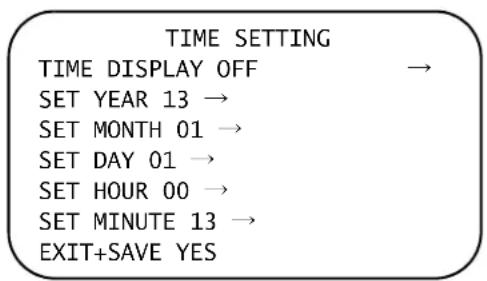
Enabling the Time Display
Set the TIME DISPLAY to ON to display the time and date information on the video screen. Select OFF to disable the TIME DISPLAY option.
Setting the Year / Month / Day
Use the SET YEAR / MONTH / DAY fields to set the system date. Use the joystick or direction keys to select the year/month/day for the camera.
Setting the Hour / Minute
Use the SET HOUR / MINUTE fields to set the system time. Use the joystick or direction keys to select the hour/minute for the camera.
Exiting the Time Setting Menu
Exit the TIME SETTING menu and go back to the MAIN PAGE 3 to carry on setting up other camera options.
Setting Up Schedules
The schedule function (see Figure 4-31) allows users to program a preset point or function (Preset Tour, Autopan or Mimic Tour) to automatically perform at a specific time period.
Figure 4-31 Schedule Menu
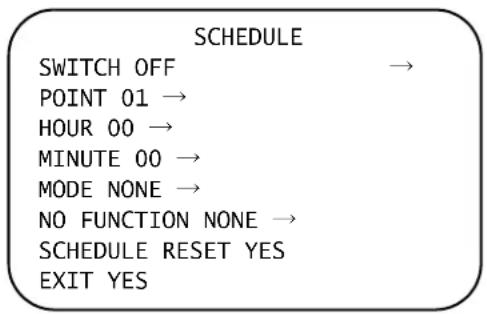
Enabling/Disabling Schedules
Select ON to enable or OFF to disable the schedule function.
Setting Schedule Points
Users are allowed to arrange 32 sets of schedule points. Each point that is set for a schedule can be assigned one kind of schedule modes.
Setting the Hour / Minute of a Schedule Point
The HOUR and MINUTE fields are used for setting up the time to execute each schedule point.
Setting the Mode of a Schedule Point
The MODE field is used for setting the schedule function of the selected schedule point. The mode options available are Preset, Preset Tour, Autopan, Mimic Tour, IR Function, and None. See the following sections for more information.
NONE
If selected, no action will be executed for the schedule point.
PRESET
Users can select PRESET mode to assign a preset to the schedule point. A preset number must also be selected when this mode is selected. The preset point must be previously configured to be available to select (see Setting Up a Preset Position on page 65).
PRESET TOUR
Users can select PRESET TOUR mode to assign a preset tour to the schedule point. A preset tour number must also be selected when this mode is selected. The preset tour must be previously configured to be available to select (see Setting Up a Preset Tour on page 67).
AUTOPAN
Users can select AUTOPAN mode to assign an autopan path to the schedule point. A autopan number must also be selected when this mode is selected. The autopan path must be previously configured to be available to select (see Setting Up an Autopan Path on page 69).
MIMIC TOUR
Users can select MIMIC TOUR mode to assign a mimic tour to the schedule point. A mimic tour number must also be selected when this mode is selected. The mimic tour must be previously configured to be available to select (see Setting Up a Mimic Tour on page 71).
IR FUNC. (IR Function)
If a user selects the IR function mode, the AUTO IR FUNCTION will be activated for the selected schedule point.
Reseting a Schedule
Users can reset the whole schedule by selecting this field.
Exiting the Schedule Menu
Exit the SCHEDULE menu and go back to the MAIN PAGE 3 to continue configuring camera settings.
Exiting the On-Screen Display
To exit the OSD setup menu, users can either select the EXIT OSD item on the bottom of MAIN PAGE 3 and press IRIS+. Alternatively, you can press the IRIS-key on the control keyboard from any position on MAIN PAGE 1, 2 or 3 to exit the OSD setup menu.
HDZ Camera Specifications
Table A-1 HDZ30A(X) Series Camera Specifications
| Specification Description | |
| Camera Specifications | |
| Scanning System NTSC / PAL | |
| Image Sensor 1/4" Sony 960H CCD | |
| Optical Zoom 30x | |
| Digital Zoom 1–12x variable | |
| Effective Pixels NTSC: 480K; PAL: 570K | |
| Horizontal Resolution 650 TVL | |
| Video Output 1.0 Vp-p @ 75 ohms (BNC) | |
| S/N Ratio >50 dB (AGC Off) | |
| Minimum Illumination 0.08 lux (color) / 0.005 lux (Black/White) @ F1.6, 30 IRE | |
| Focal Length 0.13 in. to 4.0 in. (3.4 mm to 102.0 mm) | |
| Focus Mode Auto (Continuous/PTZ Trigger/Zoom Trigger focus) / Manual | |
| White Balance | Auto / Indoor / Outdoor / ATW / Manual |
| Iris Control | Auto / Manual |
| Electronic Shutter | 1/1 ~ 1/10,000 sec |
| AGC Control | Auto / Manual |
| Backlight Compensation | On / Off |
| Operation Specifications | |
| Multi-Language GUI | English, French, German, Italian, Japanese, Polish, Portuguese, Russian, Spanish, Turkish, Dutch, Czech, S. Chinese, T. Chinese |
| Pan Travel | 360° endless |
| Tilt Travel -10° to 190° | |
| Manual Speed | 0.5° to 200°/s |
| Presets | 256 |
| Preset Accuracy | 0.225° |
Table A-1 HDZ30A(X) Series Camera Specifications (cont'd)
| Specification | Description |
| Operation Specifications (cont'd) | |
| Preset Speed 5° to 400°/s | |
| Preset Tour 16 tours with up to 32 presets per tour | |
| Auto Pan 4 | |
| Mimic Tour 16 tours with up to 100 seconds per tour | |
| Privacy Mask | 20 (without motion detection window)16 (with motion detection window) |
| Proportional Pan & Tilt On / Off (Pan and tilt speed proportional to zoom ratio) | |
| Resume after Power Loss Yes | |
| Home Function Preset, Preset Tour, Auto Pan, Mimic Tour | |
| Auto Flip Digital / Mechanical / Off | |
| Digital Slow Shutter On / Off | |
| Motion Detection On / Off | |
| Wide Dynamic Range On / Off | |
| Day / Night: IR Cut Filter On / Off | |
| Image Freeze On / Off | |
| Image Inverse | On / Off |
| Noise Reduction (2D) | On / Off |
| Noise Reduction (3D) | Off / 1-5 |
| Electronic Image Stabilizer | On / Off |
| Built-in Protocol | Maxpro Mode (Diamond), Pelco P, Pelco D, VCL |
| Zone Title 16 independent zones | |
| Alarm In | 4 sets / 5 V, 10,000 ohms pull up |
| Alarm Out | 2 sets / Relay output, max: 2 A @ 30 V DC / 0.5 A @ 125 V AC |
| Alarm Reaction | Preset, Preset Tour, Auto Pan, Mimic Tour |
| General Specifications | |
| Environment | Indoor |
| Dimension | Indoor: ø 7.5" x 10.8" (ø 191.5 mm x 275.1 mm) |
| Weight | 4.85 lb (2.2 kg)With in-ceiling bracket: 6.83 lb (3.1 kg) |
| Operating Temperature | 32°F to 122°F (0°C to 50°C)a |
| Relative Humidity | 10% to 90%, non-condensing |
| Power Source | 24 V AC ± 10% |
| Power Consumption | 20 W |
Table A-1 HDZ30A(X) Series Camera Specifications (cont'd)
| Specification Description | |
| Regulatory | |
| Emissions EN55022, FCC Part 15B | |
| Immunity EN50130-4 | |
| Safety | NA: UL/CSA 60950-1EU: EN60950-1 |
| RoHS EN50581 | |
^a Protecting the dome from direct sunlight in high temperature environments is advised.
Table A-2 HDZ36AE(X) Series Camera Specifications
| Specification Description | |
| Camera Specifications | |
| Scanning System NTSC / PAL | |
| Image Sensor 1/4" Sony 960H CCD | |
| Optical Zoom 36x | |
| Digital Zoom 1–12x variable | |
| Effective Pixels NTSC: 480K; PAL: 570K | |
| Horizontal Resolution 650 TVL | |
| Video Output 1.0 Vp-p @ 75 ohms (BNC) | |
| S/N Ratio >50 dB (AGC Off) | |
| Minimum Illumination | 0.08 lux (color) / 0.005 lux (Black/White) @ F1.6, 30 IRE |
| Focal Length | 0.13 in. to 4.8 in. (3.4 mm to 122.4 mm) |
| Focus Mode | Auto (Continuous/PTZ Trigger/Zoom Trigger focus) / Manual |
| White Balance | Auto / Indoor / Outdoor / ATW / Manual |
| Iris Control | Auto / Manual |
| Electronic Shutter | 1/1 ~ 1/10,000 sec |
| AGC Control | Auto / Manual |
| Backlight Compensation | On / Off |
| Operation Specifications | |
| Multi-Language GUI | English, French, German, Italian, Japanese, Polish, Portuguese, Russian, Spanish, Turkish, Dutch, Czech, S. Chinese, T. Chinese |
| Pan Travel | 360° endless |
| Tilt Travel -10° to 190° | |
| Manual Speed | 0.5° to 200°/s |
Table A-2 HDZ36AE(X) Series Camera Specifications (cont'd)
| Specification | Description |
| Operation Specifications (cont'd) | |
| Presets 256 | |
| Preset Accuracy 0.225° | |
| Preset Speed 5° to 400°/s | |
| Preset Tour 16 tours with up to 32 presets per tour | |
| Auto Pan 4 | |
| Mimic Tour 16 tours with up to 100 seconds per tour | |
| Privacy Mask | 20 (without motion detection window)16 (with motion detection window) |
| Proportional Pan & Tilt On / Off (Pan and tilt speed proportional to zoom ratio) | |
| Resume after Power Loss Yes | |
| Home Function Preset, Preset Tour, Auto Pan, Mimic Tour | |
| Auto Flip Digital / Mechanical / Off | |
| Digital Slow Shutter On / Off | |
| Motion Detection On / Off | |
| Wide Dynamic Range On / Off | |
| Day / Night: IR Cut Filter | On / Off |
| Image Freeze | On / Off |
| Image Inverse | On / Off |
| Noise Reduction (2D) | On / Off |
| Noise Reduction (3D) | Off / 1-5 |
| Electronic Image Stabilizer | On / Off |
| Built-in Protocol | Maxpro Mode (Diamond), Pelco P, Pelco D, VCL |
| Zone Title | 16 |
| Alarm In | 4 sets / 5 V, 10,000 ohms pull up |
| Alarm Out | 2 sets / Relay output, max: 2 A @ 30 V DC / 0.5 A @ 125 V AC |
| Alarm Reaction | Preset, Preset Tour, Auto Pan, Mimic Tour |
| General Specifications | |
| Environment | Outdoor |
| Dimension | Outdoor (with sunshield): ø 7.5" x 10.7" (ø 191.5 mm x 270.5 mm) |
| Weight | 5.73 lb (2.6 kg), with sunshield |
| Operating Temperature | -40°F to 122°F (-40°C to 50°C)a |
| Relative Humidity | 10% to 90%, non-condensing |
| Waterproof Standard | IP66 standard and NEMA 4X (HDZ Outdoor) |
Table A-2 HDZ36AE(X) Series Camera Specifications (cont'd)
| Specification Description | |
| General Specifications (con't) | |
| Power Source 24 V AC ± 10% | |
| Power Consumption 50 W (with Heater) | |
| Regulatory | |
| Emissions CE EN55022, FCC Part 15B | |
| Immunity CE EN50130-4 | |
| Safety | NA: UL/CSA 60950-1, UL/CSA 60950-22EU: EN60950-1, EN60950-22 |
| RoHS EN50581 | |
^a Protecting the dome from direct sunlight in high temperature environments is advised.
Troubleshooting
This appendix offers possible solutions to some common issues that can occur when installing or configuring the Analogue PTZ Dome.
Technical Support
Prior to calling Honeywell technical support, refer to the following topics for possible solutions to problems with your HDZ Series Analogue PTZ Dome. To contact the Honeywell Video Systems technical support team, call 1-800-323-4576 (North America only) or fill out the form at https://www.honeywellsystems.com/ss/techsupp/index.html to get a response from technical support.
Any equipment returned to Honeywell Video Systems for warranty or service repair must have a Return Merchandise Authorization (RMA) number. The RMA number must be clearly marked on all return packages and internal paperwork.
Problem: Lens Out of Optical Focus
Possible solutions:
- Verify that the lens cap has been removed from the camera.
- This can also be caused by dirt, oil, grease, and fingerprints, and so on, that have accumulated on the lens or bubble. Check the lens and dome bubble, then clean them, if needed.
CAUTION Use extreme caution when cleaning the lens and dome bubble so you do not scratch their optical surfaces. Prepare a washed-out cotton cloth or lens cleaning paper with alcohol or lens cleaning liquid. Clean by moving spirally from the lens center towards its rim. Repeat until the lens is completely clean.
Problem: Communication Between Dome and Keyboard
To control the PTZ dome, users will need to connect the dome to a keyboard/controller (such as Honeywell's HJC4000). If you are having problems with the communication between the dome and controller, check the following:
- Verify that the RS485 connection is made correctly between dome and controller (see Connecting RS485 on page 28 for more information).
- Check that both the HDZ PTZ dome and keyboard/controller have been set to the same communication protocol, baud rate, and parity. See Camera Control Protocol Setting on page 27 for more information.
- Check that both the HDZ PTZ dome and keyboard controller have been set for the same ID setting which gives the camera/dome a number that can then be identified by the connected keyboard/controller. See ID Setting on page 26 for more information on setting the ID for the PTZ dome.
Note RS485 connection and setting of communication protocol/baud rate/parity will vary depending on what keyboard controller is used. See the documentation included with your keyboard controller for more information on PTZ setup.
Recommended WDR and DNR Settings By Scene Type
Depending on the type of scene the HDZ Series Analogue PTZ Dome is viewing, certain WDR and DNR settings will be more effective than others. Refer to Table B-1 below for recommended WDR and DNR settings, depending on the type of scene.
Table B-1 Recommended WDR and DNR Settings by Scene Type
| Type of Scene | Day/Night Mode | Analogue HDZ Setting2D NR 3D NR WDR | Remark |
| (Default Settings) Color, B/W On Off On | |||
| Indoor daylight/normal lighting. Camera is NOT facing windows or open doors. | Color On Level 1 On | Turn off 3D NR if a trail is visible behind moving objects. | |
| Indoor daylight/normal lighting. Camera IS facing windows or open doors. | Color On Level 1 On | Turn off 3D NR if a trail is visible behind moving objects. | |
| Indoor lowlight Color, B/W On Off On (Default setting) | |||
| Outdoor daylight Color On Level 1 On | Turn off 3D NR if a trail is visible behind moving objects. | ||
Table B-1 Recommended WDR and DNR Settings by Scene Type (cont'd)
| Type of Scene | Day/Night Mode | Analogue HDZ Setting2D NR 3D NR WDR | Remark |
| Outdoor night time, with street lighting Color, B/W On Off On (Default setting) | |||
| Outdoor night time, with dim lighting B/W On Off Off | Turn on 3D NR for better static object identification in darkness, but a trail might be seen behind moving objects. | ||
| Outdoor night time, reading car license plates | B/W On Off On | (Default setting). WDR can keep the view clear between bright car headlights | |
ID Settings
This appendix covers all of the possible ID settings that can be set for the HDZ Series Analogue PTZ Dome (see Table C-1).
Table C-1 ID Switch Settings
In-Ceiling Bracket Installation
This document describes how to install an HDZ Series camera in a suspended ceiling using the HDZINBKT in-ceiling bracket.

CAUTION Installation and servicing should be performed only by qualified and experienced technicians to conform to all local codes and to maintain your warranty.

CAUTION Ensure that the installation area can safely support the weight of the camera.
Figure D-1 In-Ceiling Bracket Dimensions
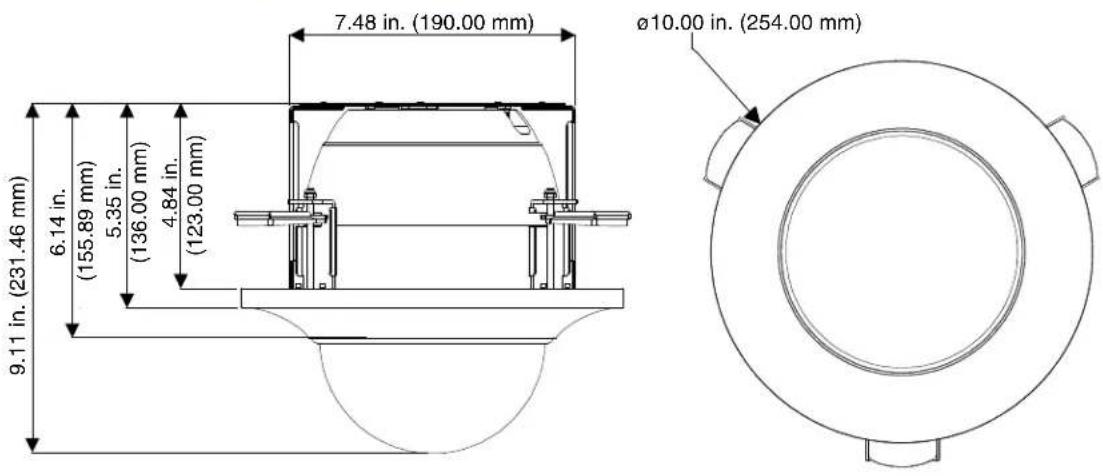
Package Contents
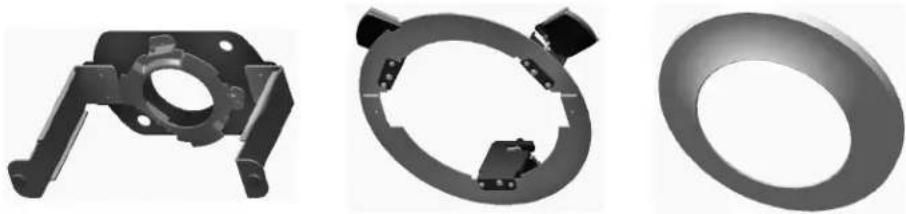
Bracket Frame Ceiling Support Ring Trim Ring
natural_image
Simple line drawing of a closed book or document (no text or symbols visible)
natural_image
Simple gray circle with a dashed outline and a plus sign at center (no text or symbols)Quick Installation Guide Ceiling Template
Recommended
Ceiling Support Plate, Honeywell Part Number 517082-7130 (not supplied)
Installing the In-Ceiling Bracket
It is recommended that you use a ceiling support plate (Honeywell part number 517082-7130) when installing the HDZINBKT in-ceiling bracket in a suspended ceiling.
Step 1: Cut a hole in the ceiling
-
Select the location where you want to install the camera. The installation area must be able to safely support the weight of the camera.
-
Do one of the following:
| Installation with Ceiling Support Plate | Installation without Ceiling Support Plate |
| a. Remove the ceiling tile at the selected location and fit the ceiling tile inside the ceiling support plate. If necessary, trim the edges of the tile so that it fits snugly inside the support plate.b. Cut a hole in the ceiling tile 197 mm (7.75 in.) in diameter matching the opening in the ceiling support plate.c. Replace the ceiling tile (with ceiling support plate attached) in the ceiling. | Place the supplied ceiling template on the ceiling at the selected location and cut around the template. |
- Attach a safety cable (not supplied) to a grid support or other structural support in the ceiling.
Step 2: Install the ceiling support ring
- Insert the ceiling support ring (with wing tabs turned inward) into the opening in the ceiling.
- Turn the wing tabs outward, and then tighten the three M4×70 screws located on the underside of the ceiling support ring to lower the wing tabs against the ceiling tile.
natural_image
Circular mechanical component with three black components and red circular markers (no text or symbols)A
natural_image
Circular mechanical component with red arrows indicating rotational direction (no text or symbols)B
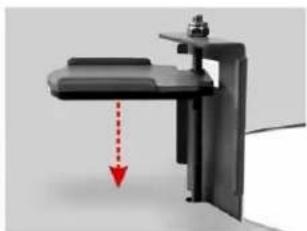
natural_image
Mechanical device with a red arrow indicating downward motion, no visible text or symbolsC
- Continue tightening the screws until the ceiling support ring is tight against the ceiling.
Step 3: Attach the camera to bracket frame
- Place the camera against the base of the bracket frame and twist it clockwise until it locks in place.
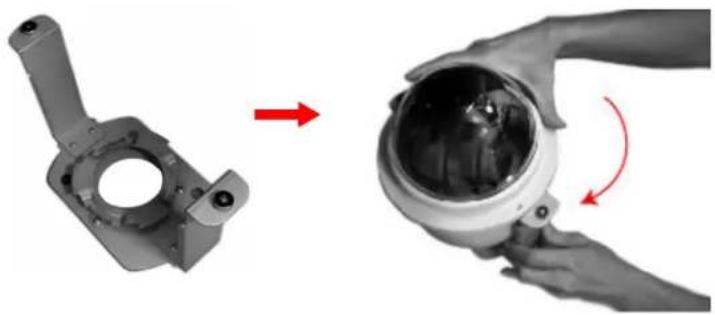
natural_image
Two views of a mechanical component with a red arrow indicating rotation, showing no text or symbols.- Tighten the pre-installed Torx screw on the camera housing to secure the camera to the bracket frame.
Step 4: Install the camera and bracket assembly
-
Pull the loose end of the safety cable through the opening in the ceiling and attach it to one of the eyelets on the bracket frame.
-
Pull the camera cable(s) through the opening in the ceiling and connect the cable(s) to the camera.
-
Insert the camera and bracket assembly into the opening in the ceiling and attach the camera and bracket assembly to the ceiling support ring using the two supplied thumb screws. Use a Phillips driver to tighten the screws.
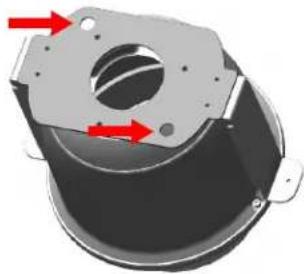
natural_image
Mechanical component with red arrows indicating direction of motion or force (no text or symbols)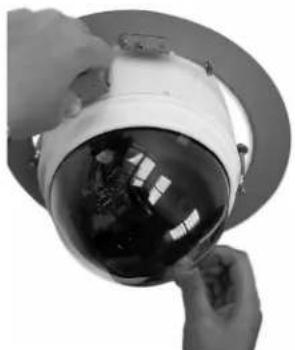
natural_image
Close-up of hands adjusting a white dome-shaped object with reflective surface (no visible text or symbols)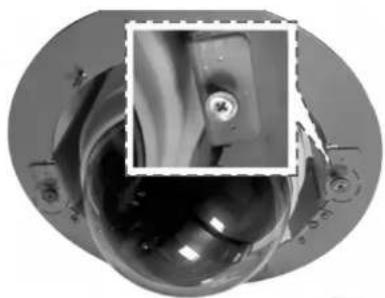
natural_image
Close-up of a mechanical component with a magnified inset showing a circular detail (no visible text or symbols)Step 5: Attach the trim ring
Attach the trim ring to the ceiling support ring by lining up the two magnets on the trim ring with the two thumb screws on the ceiling support ring.
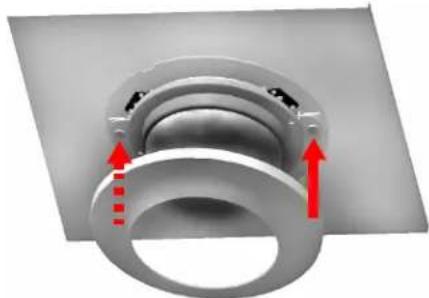
natural_image
3D mechanical assembly diagram showing a bearing housing with red arrows indicating force directions (no text or symbols)Note No screws are needed to attach the trim ring.
Index
A
alarm output 29
alarm settings 75
angle adjuster 60
aperture 58
auto calibration 61
auto exposure 53
auto focus 52
autopan 69
B
backlight compensation 52
C
cables
alarm 29
connections 25
camera specifications 87
cautions 3
ceiling mount 32
configuring
alarm settings 75
angle adjuster 60
aperture 58
auto calibration 61
auto exposure 53
autopan 69
backlight compensation 52
default camera 52
digital noise reduction 57
digital zoom 56
focus mode 52
freeze 58
home setting 72
ID display 64
image flip 59
image inverse 57
image stabilizer 58
IR function 74
language 52
mimic tour function 71
motion detect function 78
password 61
preset point 65
preset tour 67
privacy masks 81
PT position 60
schedules 83
slow shutter 57
speed by zoom 61
system reset 63
time settings 83
WBC mode 54
WDR function 80
zone title 64
zoom speed 56
connections 25
connectors
alarm 29
power 29
RS485 28
video 28
D
default camera 52
digital noise reduction 57
digital zoom 56
dimensions 18
dip switches 25
E
eyelet 31
F
firmware, upgrading 49
flat roof mount 34
focus mode 52
freeze 58
H
HDZ camera
assembling 23
connections 25
dimensions 18
features 17
mounting 30
parts list 21
specifications 87
home setting 72
|
ID display 64
image flip 59
image inverse 57
image stabilizer 58
in-ceiling bracket 105
IR function 74
K
keyboard
basic controls 48
sending to preset 48
special presets 48
L
language selection 52
lanyard 31
M
main menu page 1 51
main menu page 2 63
main menu page 3 74
menu of settings 42
mimic tour 71
motion detect 78
mounting
ceiling mount 32
flat roof mount 34
in-ceiling bracket 105
overview 30
parapet mount 34
wall mount 33
N
navigating the OSD menu 37
0
OSD
alarm setup 75
angle adjuster setup 60
aperture setup 58
auto calibration setup 61
auto close setup 63
auto exposure setup 53
autopan setup 69
backlight compensation setup 52
basic controls 37
default camera setup 52
digital zoom setup 56
DNR setup 57
exiting 85
focus mode setup 52
freeze setup 58
home setup 72
ID display setup 64
image flip setup 59
image inverse setup 57
image stabilizer setup 58
IR function setup 74
language setup 52
main menu page 3 74
menu 42
mimic tour setup 71
motion detect setup 78
navigating 37
overview 37
password setup 61
password 36
preset setup 65
preset tour setup 67
privacy masks setup 81
PT position setup 60
resetting 63
schedule setup 83
slow shutter setup 57
speed by zoom setup 61
time setup 83
title setup 64
WBC mode setup 54
WDR setup 80
zoom speed setup 56
P
parapet mount 34
parts list 21
password 36, 61
preset point 65
preset tour 67
preset, sending to with keyboard 48
presets, special keyboard commands 48
privacy masks 81
PT position 60
R
regulatory statements 3
related documents 16
resetting system 63
roof mount 34
S
safety instructions 4
schedules 83
securing camera 31
setup menu page 1 56
setup menu page 2 59
slow shutter 57
special presets 48
specifications 87
speed by zoom 61
T
technical support 93
time settings 83
title, zone 64
U
upgrading firmware 49
W
wall mount 33
warnings 3
warranty 5
white balance control 54
wide dynamic range 80
Z
zoom speed 56
Honeywell Security Products Americas (Head Office)
2700 Blankenbaker Pkwy, Suite 150
Louisville, KY 40299, USA
www.honeywell.com/security
+1 800 323 4576
Honeywell Security Northern Europe
Ampèrestraat 41
1446 TR Purmerend, The Netherlands
www.honeywell.com/security/nl
+31 (0) 299 410 200
Honeywell Security Europe/South Africa
Aston Fields Road, Whitehouse Industrial Estate
Runcorn, WA7 3DL, United Kingdom
www.honeywell.com/security/uk
+44 (0) 1928 754 028
D-72458 Albstadt, Germany
www.honeywell.com/security/de
+49 74 31 / 801-18 70
Honeywell Security Products Americas Caribbean/Latin America
9315 NW 112th Ave.
Miami, FL 33178, USA
www.honeywell.com/security/clar
+1 305 805 8188
Honeywell Security France
Immeuble Lavoisier
92160 Antony, France
www.honeywell.com/security/fr
+33 (0) 1 40 96 20 50
Honeywell Security Pacific
Level 3, 2 Richardson Place
North Ryde, NSW 2113, Australia
www.asia.security.honeywell.com
+61 2 9353 7000
Honeywell Security Italia SpA
www.honeywell.com/security/it
+39 (0) 2 4888 051
Honeywell Security Asia
35F Tower A, City Center, 100 Zun Yi Road
Shanghai 200051, China
www.asia.security.honeywell.com
+86 21 2219 6888
Honeywell Security España
Honeywell Security Middle East/N. Africa
Emaar Business Park, Sheikh Zayed Road
Building No. 2, Office No. 301
Post Office Box 232362
Dubai, United Arab Emirates
www.honeywell.com/security/me
+971 (0) 4 454 1719
Honeywell
www.honeywell.com/security
+1 800 323 4576 (North America only)
https://www.honeywellsystems.com/ss/techsupp/index.html
Document 800-16526 - Rev A - 07/2014
© 2014 Honeywell International Inc. All rights reserved. No part of this publication may be reproduced by any means without written permission from Honeywell. The information in this publication is believed to be accurate in all respects. However, Honeywell cannot assume responsibility for any consequences resulting from the use thereof. The information contained herein is subject to change without notice. Revisions or new editions to this publication may be issued to incorporate such changes.