
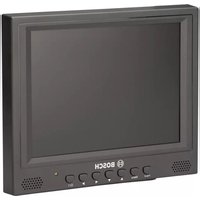
UML10290 - Monitor BOSCH - Free user manual and instructions
Find the device manual for free UML10290 BOSCH in PDF.


| Product Type | Small Size LCD/LED Monitor |
| Model Number | UML-102-90 |
| Display Size | 10.4 in. (diagonal) |
| Backlight Type | LED |
| Resolution | 800 x 600 (SVGA) |
| Pixel Pitch | 0.264 x 0.264 mm |
| Brightness | 400 cd/m² (typical) |
| Contrast Ratio | 700:1 (typical) |
| Response Time | 20 ms (typical) |
| Horizontal Frequency | 31 – 48 kHz |
| Vertical Frequency | 56 – 75 Hz |
| Video Inputs | 2 x BNC (composite, loop-through), 1 x S-Video (mini-DIN), 1 x VGA (D-Sub) |
| Audio Input | 1 x stereo audio (L/R) |
| Trigger Input | 1 x trigger (for alarm activation) |
| Other Connectors | RS-232 (firmware update), 12 VDC power input |
| Power Supply | 12 VDC, 2.5 A (external adapter, 100-240 VAC 50/60 Hz, <35 W) |
| Power Consumption | 35 W (on), 2 W (standby), 1 W (active off) |
| Weight (unit only) | 1.59 kg (3.51 lb) |
| Dimensions (packing) | 503 x 349 x 343 mm (19.8 x 13.7 x 13.5 in.) |
| Active Display Area | 211.2 x 158.4 mm |
| Mounting Options | Desktop (adjustable stand) or wall mount (75 mm VESA) |
| Built-in Speaker | Yes (mono audio output) |
| OSD Languages | Chinese, Dutch, English, French, German, Italian, Polish, Portuguese, Russian, Spanish |
| Compliance | FCC Class A, ICES-003, UL 60950-1, CE |
| Included Accessories | Power cords (US/Euro), VGA cable, trigger cable, installation manual (printed and CD) |
Frequently Asked Questions - UML10290 BOSCH
User questions about UML10290 BOSCH
0 question about this device. Answer the ones you know or ask your own.
Ask a new question about this device
Download the instructions for your Monitor in PDF format for free! Find your manual UML10290 - BOSCH and take your electronic device back in hand. On this page are published all the documents necessary for the use of your device. UML10290 by BOSCH.
USER MANUAL UML10290 BOSCH
Small Size LCD/LED Monitors
UML-080-90 | UML-082-90 | UML-100-90 | UML-102-90

BOSCH
en User Manual
Table of Contents
1 Safety
1.1 Important safety instructions 5 1.2 Safety precautions 8 1.3 Important notices 8 1.4 Customer Support and Service 15
2 Unpacking 17
2.1 Parts List 17
3 Exploded View 18
4 Description 21
4.1 Features 21 4.2 Power 22
5 Installing the Monitor 23
5.1 Ventilation 23 5.2 Mounting the Monitor 23 5.2.1 Desktop Installation 23 5.2.2 Wall Mount Installation 24 5.3 Connecting the Composite Video Signal to the Monitor 24 5.4 Connecting the Y/C (S-Video) Signal to the Monitor 25 5.5 Connecting Audio to the Monitor 25 5.6 Connecting the PC Signal to the Monitor 26 5.7 Single / Multiple Monitor Configuration 26
6 Navigating the Monitor 28
6.1 Navigating the Front Panel 28 6.2 Navigating the Monitor On-screen Display (OSD) 29 6.3 On-screen Display Menus 30 6.4 Custom Menu 30 6.5 Picture/Sound Menu 32
4 en | Table of Contents Small Size LCD/LED Monitors
6.6 Setup Menu 34
7 Power Management 36
7.1 Power Consumption 36
7.2 LED Indicator 36
8 Troubleshooting
9 Maintenance 38
10 Technical Specifications 39
10.1 UML-080-90/UML-100-90 39
10.2 UML-082-90/UML-102-90 40
1 Safety
1.1 Important safety instructions
Read, follow, and retain for future reference all of the following safety instructions. Heed all warnings on the unit and in the operating instructions before operating the unit.
- Cleaning - Unplug the unit from the outlet before cleaning. Follow any instructions provided with the unit. Generally, using a dry cloth for cleaning is sufficient, but a moist fluff-free cloth or leather shammy may also be used. Do not use liquid cleaners or aerosol cleaners.
- Heat Sources - Do not install the unit near any heat sources such as radiators, heaters, stoves, or other equipment (including amplifiers) that produce heat.
- Ventilation - Any openings in the unit enclosure are provided for ventilation to prevent overheating and ensure reliable operation. Do not block or cover these openings. Do not place the unit in an enclosure unless proper ventilation is provided, or the manufacturer's instructions have been adhered to.
- Water - Do not use this unit near water, for example near a bathtub, washbowl, sink, laundry basket, in a damp or wet basement, near a swimming pool, in an outdoor installation, or in any area classified as a wet location. To reduce the risk of fire or electrical shock, do not expose this unit to rain or moisture.
- Object and liquid entry - Never push objects of any kind into this unit through openings as they may touch dangerous voltage points or short-out parts that could result in a fire or electrical shock. Never spill liquid of any kind on the unit. Do not place objects filled with liquids, such as vases or cups, on the unit.
- Lightning - For added protection during a lightning storm, or when leaving this unit unattended and unused for long periods, unplug the unit from the wall outlet and
disconnect the cable system. This will prevent damage to the unit from lightning and power line surges.
- Controls adjustment - Adjust only those controls specified in the operating instructions. Improper adjustment of other controls may cause damage to the unit. Use of controls or adjustments, or performance of procedures other than those specified, may result in hazardous radiation exposure.
- Overloading - Do not overload outlets and extension cords. This can cause fire or electrical shock.
- Power cord and plug protection - Protect the plug and power cord from foot traffic, being pinched by items placed upon or against them at electrical outlets, and its exit from the unit.
- Power disconnect - Units have power supplied to the unit whenever the power cord is inserted into the power source. The power cord is the main power disconnect device for switching off the voltage for all units.
- Power sources - Operate the unit only from the type of power source indicated on the label. Before proceeding, be sure to disconnect the power from the cable to be installed into the unit.
- For battery powered units, refer to the operating instructions.
- For external power supplied units, use only the recommended or approved power supplies.
- For limited power source units, this power source must comply with EN60950. Substitutions may damage the unit or cause fire or shock.
- If unsure of the type of power supply to use, contact your dealer or local power company.
- Servicing - Do not attempt to service this unit yourself. Opening or removing covers may expose you to dangerous voltage or other hazards. Refer all servicing to qualified service personnel.
- Damage requiring service - Unplug the unit from the main AC power source and refer servicing to qualified service
personnel when any damage to the equipment has occurred, such as:
- the power supply cord or plug is damaged;
- exposure to moisture, water, and/or inclement weather (rain, snow, etc.); – liquid has been spilled in or on the equipment;
- an object has fallen into the unit;
- unit has been dropped or the unit cabinet is damaged;
- unit exhibits a distinct change in performance;
- unit does not operate normally when the user correctly follows the operating instructions.
- Replacement parts - Be sure the service technician uses replacement parts specified by the manufacturer, or that have the same characteristics as the original parts. Unauthorized substitutions may cause fire, electrical shock, or other hazards.
- Safety check - Safety checks should be performed upon completion of service or repairs to the unit to ensure proper operating condition.
- Installation - Install in accordance with the manufacturer's instructions and in accordance with applicable local codes.
- Attachments, changes or modifications - Only use attachments/accessories specified by the manufacturer. Any change or modification of the equipment, not expressly approved by Bosch, could void the warranty or, in the case of an authorization agreement, authority to operate the equipment.
1.2 Safety precautions
DANGER!
High risk: This symbol indicates an imminently hazardous situation such as “Dangerous Voltage” inside the product. If not avoided, this will result in an electrical shock, serious bodily injury, or death.

WARNING!
Medium risk: Indicates a potentially hazardous situation. If not avoided, this could result in minor or moderate bodily injury.

CAUTION!
Low risk: Indicates a potentially hazardous situation. If not avoided, this could result in property damage or risk of damage to the unit.
1.3 Important notices

Accessories - Do not place this unit on an unstable stand, tripod, bracket, or mount. The unit may fall, causing serious injury and/or serious damage to the unit. Use only with the cart, stand, tripod, bracket, or table specified by the manufacturer. When a cart is used, use caution and care when moving the cart/apparatus combination to avoid injury from tip-over. Quick stops, excessive force, or uneven surfaces may cause the cart/unit combination to overturn. Mount the unit per the manufacturer's instructions.
All-pole power switch - Incorporate an all-pole power switch, with a contact separation of at least 3 mm in each pole, into the electrical installation of the building. If it is needed to open the housing for servicing and/or other activities, use this all-pole switch as the main disconnect device for switching off the voltage to the unit.
Coax grounding:
- Ground the cable system if connecting an outside cable system to the unit.
- Connect outdoor equipment to the unit's inputs only after this unit has had its grounding plug connected to a grounded outlet or its ground terminal is properly connected to a ground source.
- Disconnect the unit's input connectors from outdoor equipment before disconnecting the grounding plug or grounding terminal.
- Follow proper safety precautions such as grounding for any outdoor device connected to this unit.
U.S.A. models only - Section 810 of the National Electrical Code, ANSI/NFPA No.70, provides information regarding proper grounding of the mount and supporting structure, grounding of the coax to a discharge unit, size of grounding conductors, location of discharge unit, connection to grounding electrodes, and requirements for the grounding electrode.
Disposal - Your Bosch product was developed and manufactured with high-quality material and components that can be recycled and reused. This symbol means that electronic and electrical appliances, which have reached the end of their working life, must be collected and disposed of separately from household waste material. Separate collecting systems are usually in place for disused electronic and electrical products. Please dispose of these units at an environmentally compatible recycling facility, per European Directive 2002/96/EC
Electronic Surveillance - This device is intended for use in public areas only. U.S. federal law strictly prohibits surreptitious recording of oral communications.
Environmental statement - Bosch has a strong commitment towards the environment. This unit has been designed to respect the environment as much as possible.
Electrostatic-sensitive device - Use proper CMOS/MOS-FET handling precautions to avoid electrostatic discharge.
NOTE: Wear required grounded wrist straps and observe proper ESD safety precautions when handling the electrostatic-sensitive printed circuit boards.
Fuse rating - For security protection of the device, the branch circuit protection must be secured with a maximum fuse rating of 16A. This must be in accordance with NEC800 (CEC Section 60).
Grounding and polarization - This unit may be equipped with a polarized alternating current line plug (a plug with one blade wider than the other blade). This safety feature allows the plug to fit into the power outlet in only one way. If unable to insert the plug fully into the outlet, contact a locally certified electrician to replace the obsolete outlet. Do not defeat the safety purpose of the polarized plug.
Alternately, this unit may be equipped with a 3-pole grounding plug (a plug with a third pin for earth grounding). This safety feature allows the plug to fit into a grounded power outlet only. If unable to insert the plug into the outlet, contact a locally certified electrician to replace the obsolete outlet. Do not defeat the safety purpose of the grounding plug.
Moving - Disconnect the power before moving the unit. Move the unit with care. Excessive force or shock may damage the unit and the hard disk drives.
Outdoor signals - The installation for outdoor signals, especially regarding clearance from power and lightning conductors and transient protection, must be in accordance with NEC725 and NEC800 (CEC Rule 16-224 and CEC Section 60).
Permanently connected equipment - Incorporate a readily accessible disconnect device in the building installation wiring.
Pluggable equipment - Install the socket outlet near the equipment so it is easily accessible.
Power resupply - If the unit is forced to power down due to exceeding the specified operating temperatures, disconnect the power cord, wait for at least 30 seconds, and then reconnect the power cord.
Power lines - Do not locate the display near overhead power lines, power circuits, or electrical lights, nor where it may contact such power lines, circuits, or lights.
Rack-mount
- Ventilation - Do not place this unit in a built-in installation or rack without proper ventilation or adhering to the manufacturer's instructions. The equipment must not exceed its maximum operating temperature requirements.
- Mechanical loading - Properly mount the equipment in a rack to prevent a hazardous condition due to uneven mechanical loading.
SELV
All the input/output ports are Safety Extra Low Voltage (SELV) circuits. SELV circuits should only be connected to other SELV circuits.
Because the ISDN circuits are treated like telephone-network voltage, avoid connecting the SELV circuit to the Telephone Network Voltage (TNV) circuits.
System ground/Safety ground
The system ground is only used to comply with safety standards or installation practices in certain countries. Bosch does not recommend connecting system ground to safety ground unless it is explicitly required. However, if the system ground and safety ground are connected and grounding loops are causing interference in the video signal, use an isolation transformer (available separately from Bosch).

CAUTION!
Connecting system ground to safety ground may result in ground loops that can disrupt the CCTV system.
Video loss - Video loss is inherent to digital video recording; therefore, Bosch Security Systems cannot be held liable for any damage that results from missing video information. To minimize the risk of lost digital information, Bosch Security Systems recommends multiple, redundant recording systems, and a procedure to back up all analog and digital information.

NOTICE!
This is a class A product. In a domestic environment this product may cause radio interference, in which case the user may be required to take adequate measures.
FCC & ICES Information
(U.S.A. and Canadian Models Only)
This device complies with part 15 of the FCC Rules. Operation is subject to the following conditions:
– this device may not cause harmful interference, and - this device must accept any interference received,
including interference that may cause undesired operation.
NOTE: This equipment has been tested and found to comply with the limits for a Class A digital device, pursuant to Part 15 of the FCC Rules and ICES-003 of Industry Canada. These limits are designed to provide reasonable protection against harmful interference when the equipment is operated in a commercial
environment. This equipment generates, uses, and radiates radio frequency energy and, if not installed and used in accordance with the instruction manual, may cause harmful interference to radio communications. Operation of this equipment in a residential area is likely to cause harmful interference, in which case the user will be required to correct the interference at his expense.
Intentional or unintentional modifications, not expressly approved by the party responsible for compliance, shall not be made. Any such modifications could void the user's authority to operate the equipment. If necessary, the user should consult the dealer or an experienced radio/television technician for corrective action.
The user may find the following booklet, prepared by the Federal Communications Commission, helpful: How to Identify and Resolve Radio-TV Interference Problems. This booklet is available from the U.S. Government Printing Office, Washington, DC 20402, Stock No. 004-000-00345-4.
Underwriter Laboratories Inc. (“UL”) has not tested the performance or reliability of the security or signaling aspects of this product. UL has only tested fire, shock and/or casualty hazards as outlined in UL's Standard(s) for Safety for Closed Circuit Television Equipment, UL 2044. UL Certification does not cover the performance or reliability of the security or signaling aspects of this product.
UL MAKES NO REPRESENTATIONS, WARRANTIES, OR CERTIFICATIONS WHATSOEVER REGARDING THE PERFORMANCE OR RELIABILITY OF ANY SECURITY OR SIGNALING RELATED FUNCTIONS OF THIS PRODUCT.
Disclaimer
Underwriter Laboratories Inc. (“UL”) has not tested the performance or reliability of the security or signaling aspects of this product. UL has only tested fire, shock and/or casualty hazards as outlined in UL's Standard(s) for Safety for Information Technology Equipment, UL 60950-1. UL Certification does not cover the performance or reliability of the security or signaling aspects of this product.
UL MAKES NO REPRESENTATIONS, WARRANTIES, OR CERTIFICATIONS WHATSOEVER REGARDING THE PERFORMANCE OR RELIABILITY OF ANY SECURITY OR SIGNALING-RELATED FUNCTIONS OF THIS PRODUCT.
Copyright
This manual is the intellectual property of Bosch Security Systems and is protected by copyright. All rights reserved.
Trademarks
All hardware and software product names used in this document are likely to be registered trademarks and must be treated accordingly.
NOTE!
This manual has been compiled with great care and the information it contains has been thoroughly verified. The text was complete and correct at the time of printing. The ongoing development of the products may mean that the content of the user guide can change without notice. Bosch Security Systems accepts no liability for damage resulting directly or indirectly from faults, incompleteness or discrepancies between the user guide and the product described.
1.4 Customer Support and Service
If this unit needs service, contact the nearest Bosch Security Systems Service Center for authorization to return and shipping instructions.
Service Centers
USA
Repair Center-
Telephone: 800-566-2283
Fax: 800-366-1329
E-mail: repair@us.bosch.com
Customer Service
Telephone: 888-289-0096
Fax: 585-223-9180
E-mail: security.sales@us.bosch.com
Technical Support
Telephone: 800-326-1450
Fax: 585-223-3508 or 717-735-6560
E-mail: technical.support@us.bosch.com
Canada
Telephone: 514-738-2434
Fax: 514-738-8480
Europe, Middle East, Africa Region
Repair Center
Telephone: 31 (0) 76-5721500
Fax: 31 (0) 76-5721413
E-mail: RMADesk.STService@nl.bosch.com
Asia Region
Repair Center
Telephone: 65 63522776
Fax: 65 63521776
E-mail: rmahelpdesk@sg.bosch.com
Customer Service
Telephone: 86 (0) 756 7633117 or
86 (0) 756 7633121
Fax: 86 (0) 756 7631710
E-mail: customer.service@cn.bosch.com
Warranty and more information
For additional information and warranty queries, please contact your Bosch Security Systems representative or visit our website at www.boschsecurity.com.
2 Unpacking
This equipment should be unpacked and handled with care. If an item appears to have been damaged in shipment, notify the shipper immediately.
Verify that all the parts listed in the Parts List below are included. If any items are missing, notify your Bosch Security Systems Sales or Customer Service Representative.
The original packing carton is the safest container in which to transport the unit and must be used if returning the unit for service. Save it for possible future use.
2.1 Parts List
| Quantity Description | |
| 1 Color LCD Flat Panel Monitor | |
| 1 Installation Manual (printed booklet, English version) | |
| 1 Installation manual (CD-ROM, multi-language version) | |
| 2 Power Cords, 3-wire with grounded plug 1.8 m (6 ft)long: one with a U.S plug type and one with a European Continental plug type | |
| 1 VGA to VGA (D-Sub) cable, 1.5 m (5 ft) | |
| 1 Trigger cable |
3 Exploded View
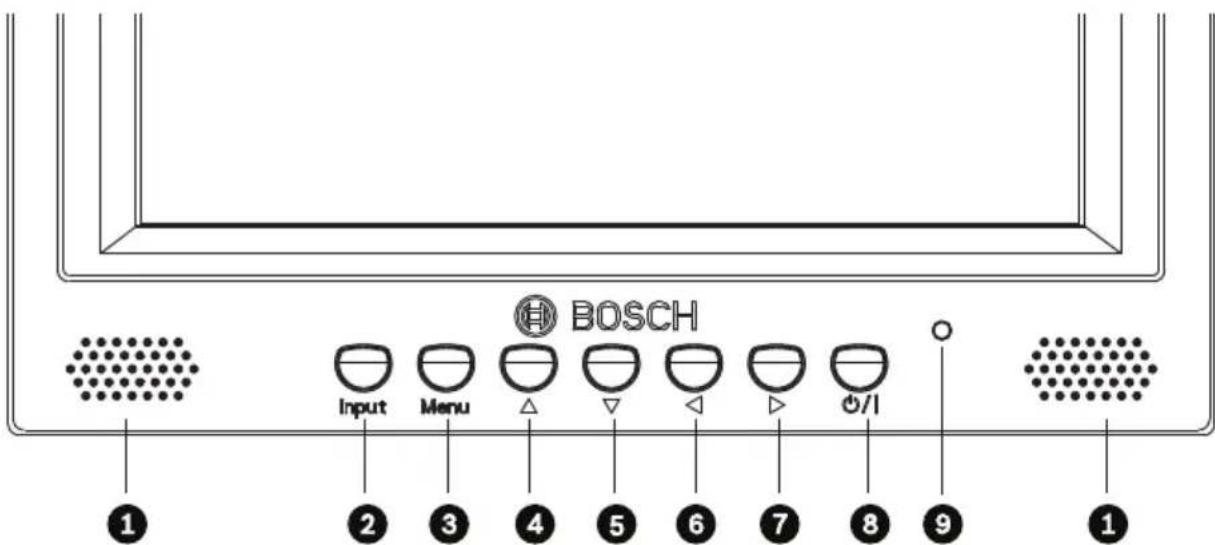
Figure 3.1 Front Panel
| Ref. | Button Description | tion | |
| 1 | Speaker Generate | sounds from the input audio signal. | |
| 2 | Input Selects the signal to be displayed.Serves as the “Enter” function for OSD menus. | ||
| 3 | Menu Selects the on-screen display (OSD). | ||
| 4 |  | Adjusts the value when in the OSD. | Scrolls up in the OSD. |
| 5 |  | Adjusts the value when in the OSD or auto adjusts when in PC mode. | Scrolls down in the OSD. |
| 6 |  | Decreases the value when in the OSD. | Scrolls left in the OSD. |
| 7 |  | Increases the value when in the OSD. | Scrolls right in the OSD. |
| 8 | Power Display Power (On/Off) | ||
| 9 | LED Indicator Power On (green)Power Off, Standby (red) | ||
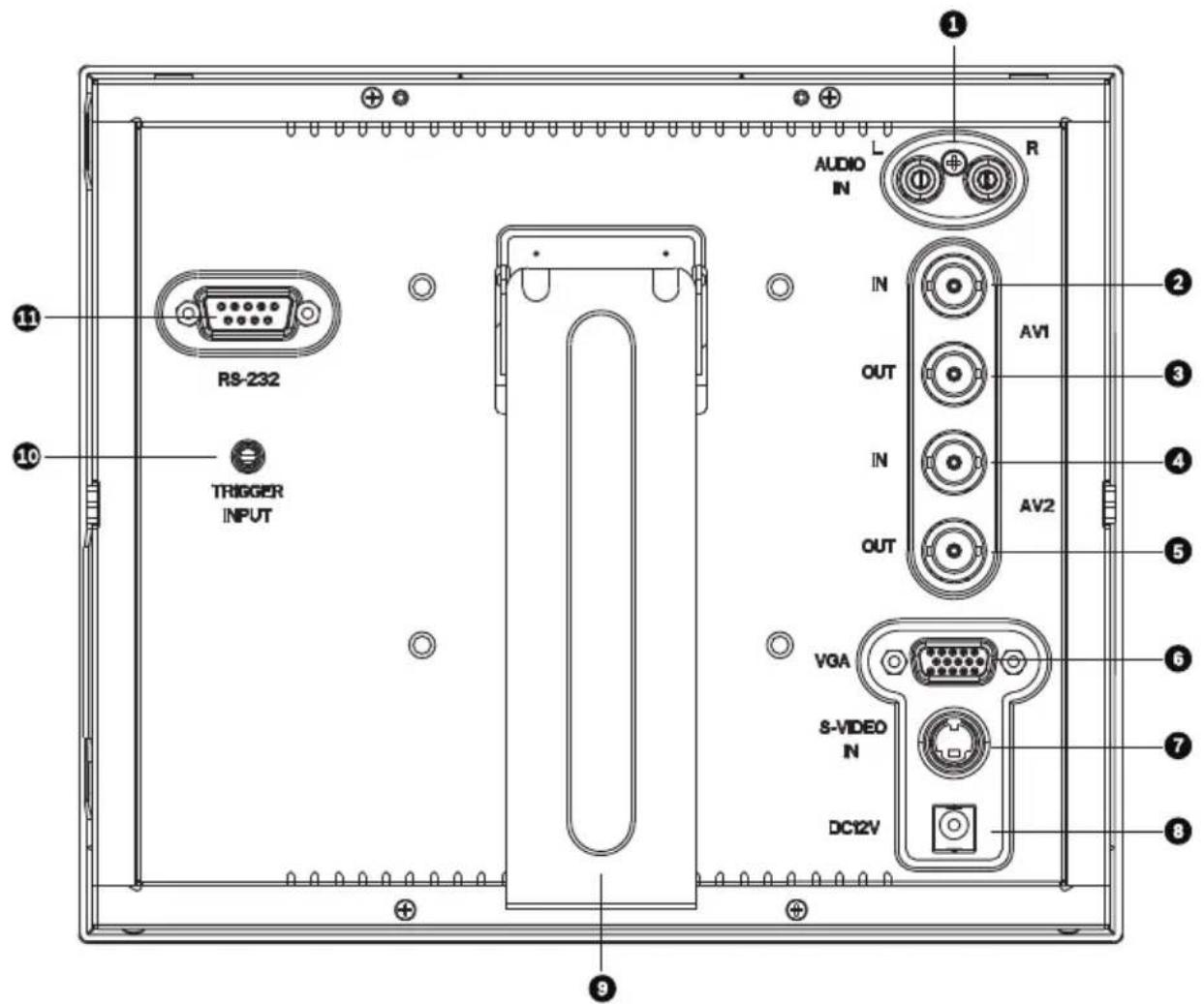
Figure 3.2 Rear Panel (UML-080-90, UML-082-90)
| Ref | Connector Ref Connector | ||
| 1 | Audio In (for external audio) 7 S-Video In | ||
| 2 | AV1 In 8 12 VDC In | ||
| 3 | AV1 Out 9 Adjustable Stand | ||
| 4 | AV2 In 10 Trigger Input | ||
| 5 | AV2 Out 11 R$-232 In (for firmware update) | ||
| 6 | VGA In |
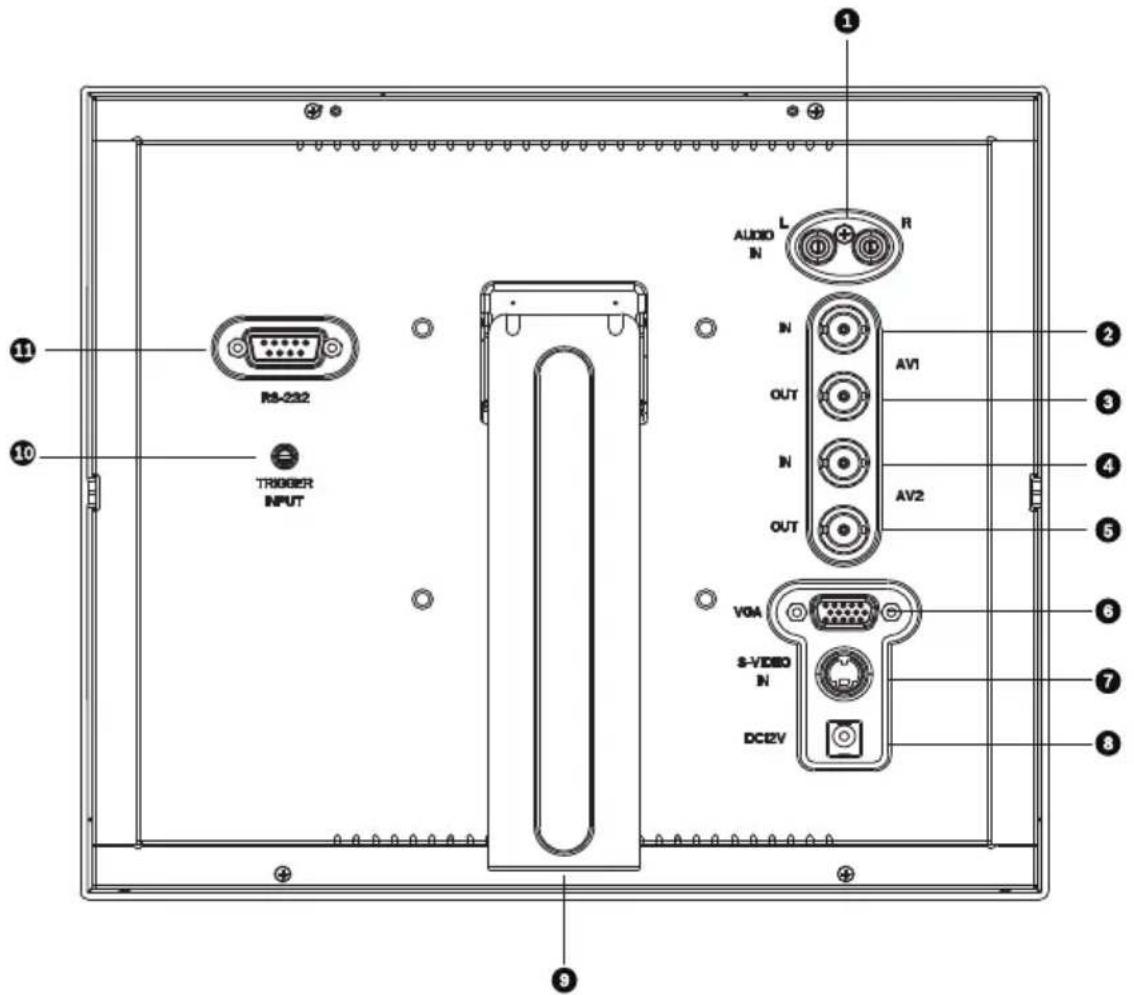
Figure 3.3 Rear Panel (UML-100-90, UML-102-90)
| Ref | Connector Ref Connector | ||
| 1 | Audio In (for external audio) 7 S-Video In | ||
| 2 | AV 1 In 8 12 VDC In | ||
| 3 | AV 1 Out 9 Adjustable Stand | ||
| 4 | AV 2 In 10 Trigger Input | ||
| 5 | AV 2 Out 11 RS-232 In (for firmware update) | ||
| 6 | VGA In | ||
4 Description
The Bosch line of High Performance LCD/LED monitors are highly reliable display devices that combine the flexibility of signal connectivity and ease of operation. With the AV, Y/C (S-Video) and VGA terminals you can connect this monitor to a variety of devices like CCTV video cameras or a PC. The trigger signal input function allows you to implement the trigger warning mechanism easily with compatible CCTV video cameras. The multi-language On-screen Display (OSD) menu system provides an intuitive and convenient interface where you can easily change the settings of this monitor. An adjustable stand is provided so you can easily adjust the angle of the screen display when this monitor is placed on a table. Alternatively you can also wall-mount this monitor using the mounting screw holes on the rear panel of the monitor and a suitable wall mounting bracket.
4.1 Features
- 8.4-in. and 10.4-in. models
- LED backlight models (UML-082-90, UML-102-90) or CCFL models (UML-080-90, UML-100-90)
- NTSC/PAL Auto-Detect
- VGA Input - 640x480
- 800 x 600 - 1024x768
- Composite Video Input
- Y/C Input (S-Video)
- Trigger input
- Multi-language On-screen Display (OSD)
4.2 Power
| Model No. | Rated Voltage Voltage Range | Power at Rated Voltage | Sync Format |
| UML-080-90 | 120/230 VAC 50/60 Hz | 100 to 240 V < 35 W NTSC/PAL | |
| UML-100-90 | 120/230 VAC 50/60 Hz | 100 to 240 V < 35 W NTSC/PAL | |
| UML-082-90 | 120/230 VAC 50/60 Hz | 100 to 240 V < 35 W NTSC/PAL | |
| UML-102-90 | 120/230 VAC 50/60 Hz | 100 to 240 V < 35 W NTSC/PAL |
5 Installing the Monitor
This chapter outlines the procedures to install the UML-080-90, UML-100-90, UML-082-90, or the UML-102-90 Monitor. A qualified service person should install the monitor and adhere to all local codes.
5.1 Ventilation
To prevent overheating, ensure that the ventilation openings on the rear of the monitor are not covered.
5.2 Mounting the Monitor
The UML-080-90, UML-100-90, UML-082-90, and the UML-102-90 are designed for use on a desktop or mounted to a wall or rack.
5.2.1 Desktop Installation
The Bosch High Performance monitors are delivered with a 3-pole US-style power cord and a 3-pole Euro-style power cord. Use the US-style power cord where 120 VAC, 60 Hz power is available; use the Euro-style power cord where 230 VAC, 50 Hz power is available. The monitor automatically adjusts to either power input voltage. The viewing angle of the LCD can be adjusted to fit the most comfortable monitoring status.
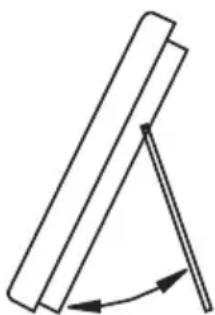
Figure 5.1 Maximum degree = 35°

NOTICE!
The suggested bracket angle for the best viewing quality and holding support is between 25° to 35°.
5.2.2 Wall Mount Installation
This monitor can be wall-mounted using the square mounting holes (75 mm [2.95 in.] centers) and a suitable wall mount or swivel/tilt mount.
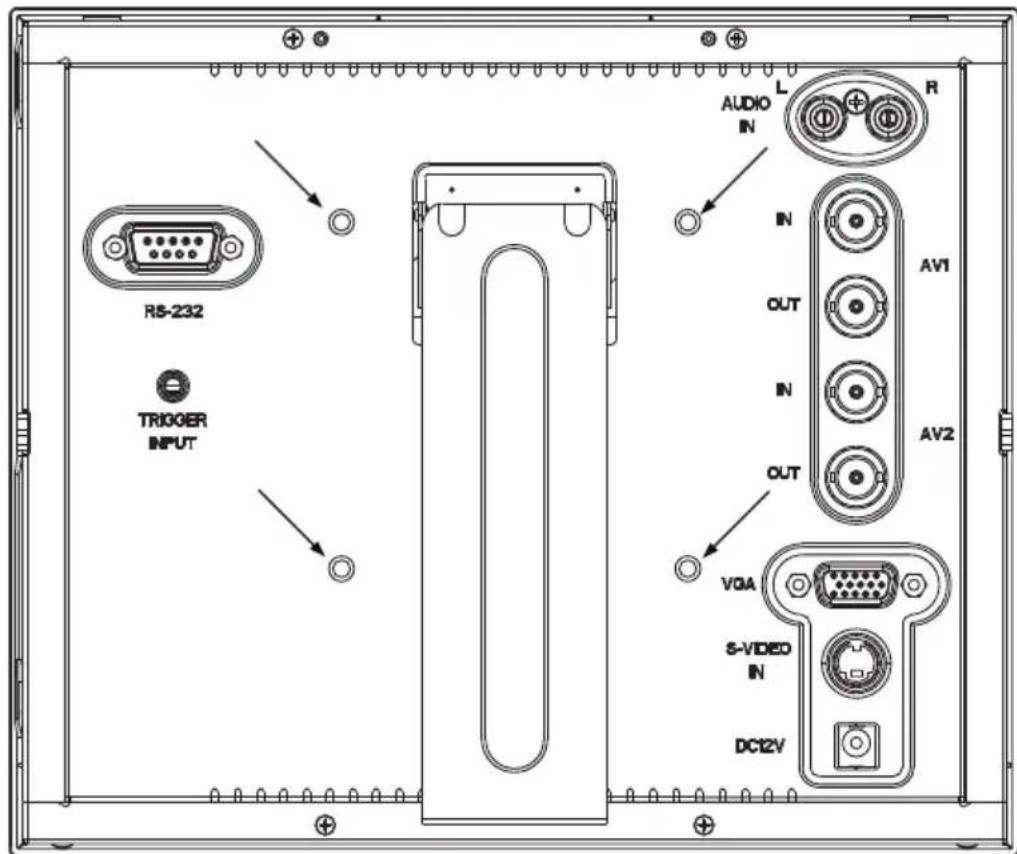
Figure 5.2 Location of mounting holes
5.3 Connecting the Composite Video Signal to the Monitor
There are two (2) BNC connectors located on the rear side panel of the monitor for composite video inputs and two (2) BNC connectors for composite video outputs (see Figure 3.2 and Figure 3.3).
Note: All video inputs are passive loop-through. The impedance is automatically set to 75 Ohm by the input of the signal on the input connector, while operating in a single connection mode (see Figure 5.5). If a cable is also connected to the output connector, the video signal can be passed on to another monitor connected to it via the passive loop-through function.
Up to three (3) monitors may be connected in this manner (see Figure 5.6).
Note: To select between AV1 and AV2, press Input (see Figure 3.1, Item 2) located on the front of the monitor.
5.4 Connecting the Y/C (S-Video) Signal to the Monitor
There is one (1) mini-DIN type connector for the S-Video (Y/C) input (see Figure 3.2 and Figure 3.3) on the rear side panel.
Note: Both Y and C inputs are terminated with 75 Ohm.
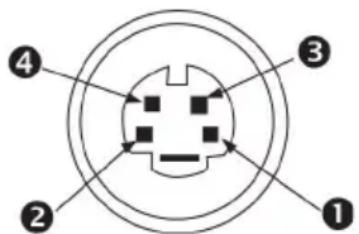
Figure 5.3 Y/C Connector pin-out
| Number Input | |||
| 1 | G | r | o u n d |
| 2 | G | r | o u n d |
| 3 | Y | - | s i g n |
| 4 | C | - | $ i g n |
5.5 Connecting Audio to the Monitor
There is one (1) set of stereo audio connectors for audio input, located on the rear panel.
This audio input is not associated with any input terminals on the rear panel, and can be freely connected to any audio input.
5.6 Connecting the PC Signal to the Monitor
You can connect a PC signal to the monitor using the VGA connector on the rear panel and a VGA cable (D-SUB to D-SUB).
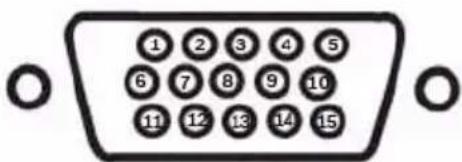
Figure 5.4 VGA Input
| Pin | Description Pin | Description Pin Description | |||
| 1 | Red Video 6 Red Ground | Ground | 11 Ground | ||
| 2 | Green Video | 7 | Green Ground | 12 | SDA (for DDC) |
| 3 | Blue Video | 8 | Blue Ground | 13 | H-Sync or H+V Sync |
| 4 | Ground | 9 | N/A | 14 | V-Sync |
| 5 | Ground | 10 | Signal Cable Detect | 15 | SCL (for DDC) |
5.7 Single / Multiple Monitor Configuration
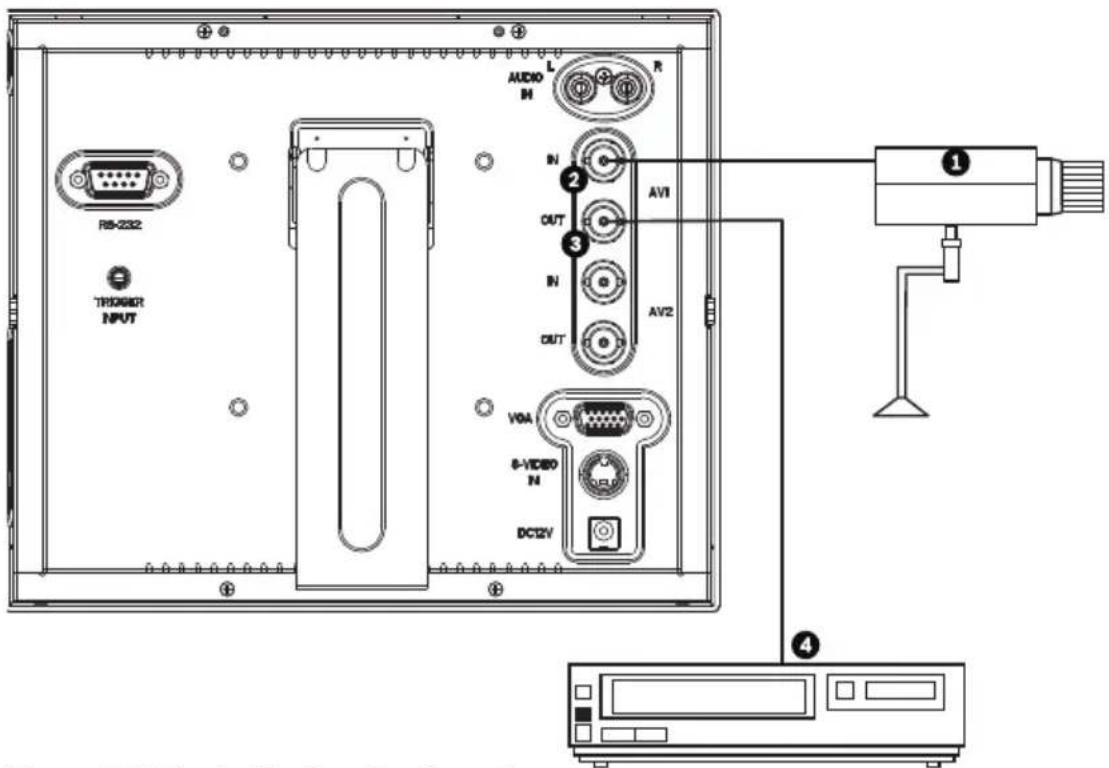
Figure 5.5 Single Monitor Configuration
| Ref | Description | Ref | Description |
| 1 | Video Camera | 3 | AV1 Out |
| 2 | AV1 In | 4 | DVR |
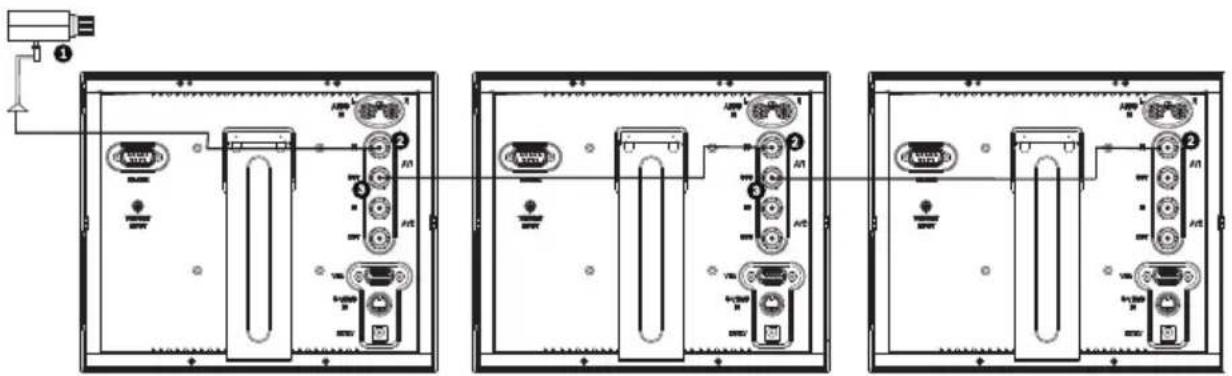
Figure 5.6 Multiple Monitor Configuration
| Ref Description | |||||
| 1 | V | i | d | e | o |
| 2 | A | V | 1 | l | n |
| 3 | A | V | 1 | O | u t |
6 Navigating the Monitor
6.1 Navigating the Front Panel
Use the front panel to make any necessary OSD adjustments to the UML-080-90, UML-100-90, UML-082-90 or the UML-102-90. See the figure below for an explanation of the front panel.
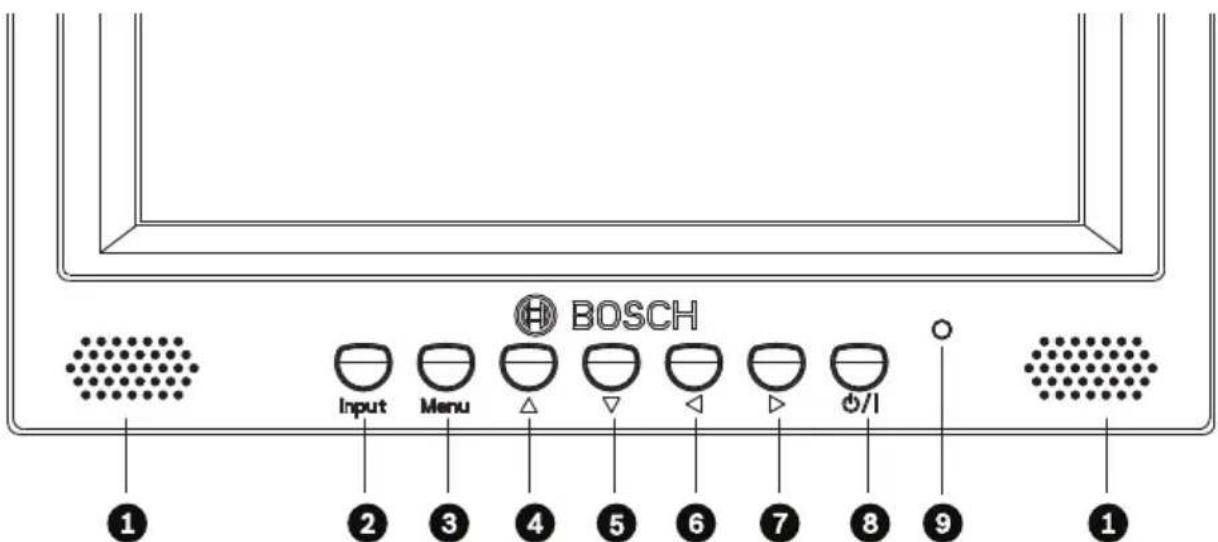
Figure 6.1 Front Panel Buttons
| Ref. | Button Description | tion | |
| 1 Speaker Generate | sounds from the input audio signal. | ||
| 2 Input Selects the signal to be displayed.Serves as the “Enter” function for OSD menus. | |||
| 3 Menu Selects the on-screen display (OSD). | |||
| 4 |  | Adjusts the value when in the OSD. | Scrolls up in the OSD. |
| 5 |  | Adjusts the value when in the OSD or auto adjusts when in PC mode. | Scrolls down in the OSD. |
| 6 |  | Decreases the value when in the OSD. | Scrolls left in the OSD. |
| 7 |  | Increases the value when in the OSD. | Scrolls right in the OSD. |
| 8 Power Display Power (On/Off) | |||
| 9 LED Indicator Power On (green)Power Off, Standby (red) | |||
6.2 Navigating the Monitor On-screen Display (OSD)
The UML-080-90, UML-100-90, UML-082-90 and the UML-102-90 have two (2) modes: Video and PC. The LCD is programmed through the on-screen display (OSD) menus and submenus where an operator can select operating parameters. To access the OSD menus, press the Menu button on the front panel. Use the front panel of the monitor to make any necessary adjustments to the OSD.

NOTICE!
When you are navigating through the OSD menus, use the Input button to select a menu and use the Menu button to exit a menu.
To navigate the set up menus, follow the steps below:
- Connect the CVBS, S-Video or the VGA cable.
- Press the Power button to turn on the unit (see Figure 6.1).
- If required, press the Input button and the and buttons until a signal is displayed.
- Press the Menu button to activate the main menu selections (see Figure 6.1).
- Press the and buttons to select a menu.
- Press the Input button to enter the selected menu.
- Press the and buttons to select a sub-menu item.
- Press the Input button to enter the selected sub-menu.
- Press the and buttons to toggle the OSD values.
- Press the Menu button to exit the selected menu and to return to the menu bar or to confirm a selection.
- Press the Menu button again to exit the OSD menu bar.
6.3 On-screen Display Menus
There are three (3) on-screen menus that allow you to customize your settings. Press the Menu button to access the OSD menu.
| Icon Menu Function | ||
 | Custom Adjusts | the Brightness, Contrast, Color, Tint and the Sharpness level for video performance. (The menu options differ between the Video and PC modes.) |
 | Picture/Sound Adjusts the Picture Mode, Color Tone, Mute, Volume, Size, Overscan, DNR and the PC settings. (The menu options differ between the Video and PC modes.) | |
 | Setup Enables user to Reset the factory default settings and to adjust the Language, OSD Tone, Blue Screen, Key Lock, Trigger and the Auto Switch settings. | |
6.4 Custom Menu
To access the Custom menu, press the Menu button on the front panel of the monitor. Next, press the Input button and then press the up and down buttons to select a submenu. Press the Input button to enter the submenu, and then press the up and down buttons to change the values. When finished, press the Menu button to save any changes, then press the Menu button again to exit the OSD.
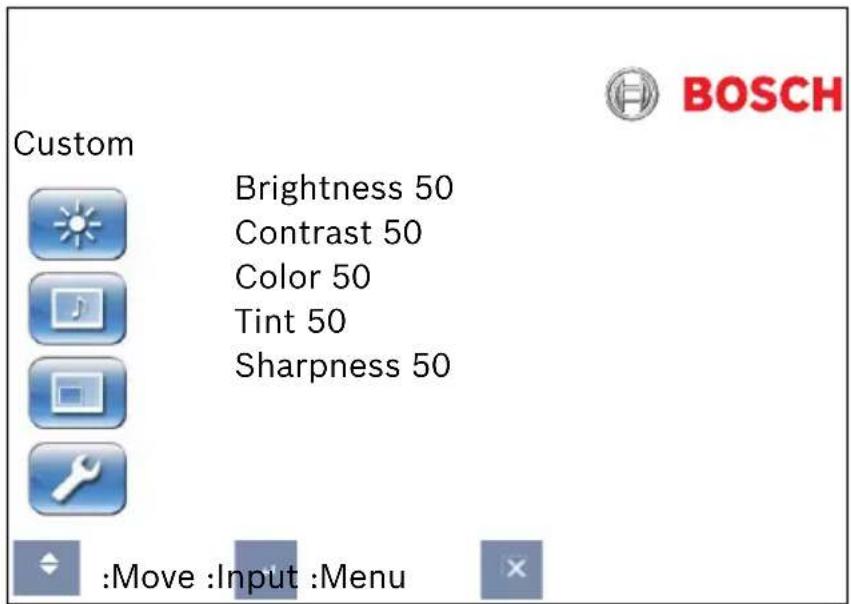
Table 6.1 Custom Menu (Video Mode)
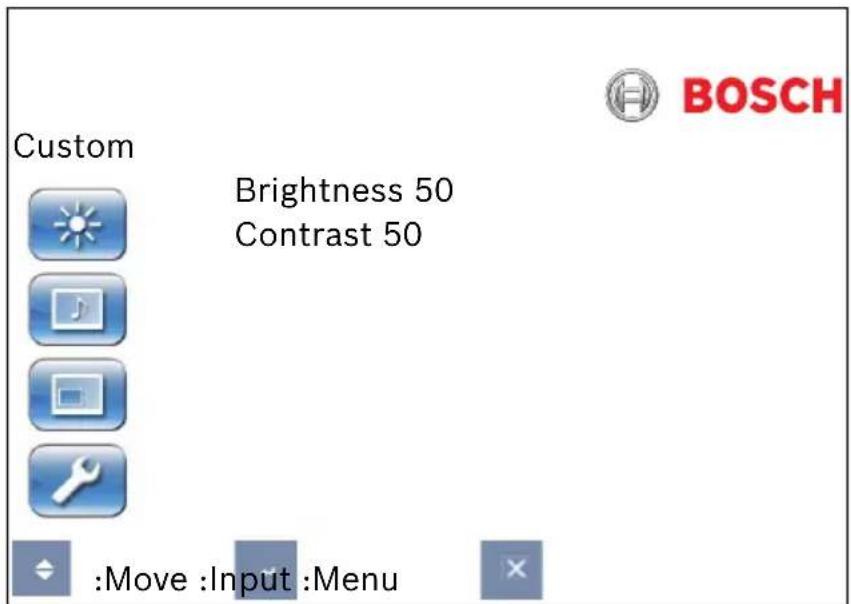
Table 6.2 Custom Menu (PC Mode)
| Submenu | Definition |
| Brightness | Adjusts the brightness level for video performance (range 0-100). |
| Contrast | Adjusts the contrast level for video performance (range 0-100). |
| Color | Adjusts the overall intensity of the screen (range 0-100). |
| Tint Adjusts | the tint of the picture (range 0-100). NTSC only. |
| Sharpness | Adjusts the sharpness level for video performance (range 0-100). |
6.5 Picture/Sound Menu
To access the Picture / Sound menu, press the Menu button on the front panel of the monitor, then press the up and down buttons to select the Picture / Sound icon. Press the Input button to enter the menu, and then press the up and down buttons to select a submenu
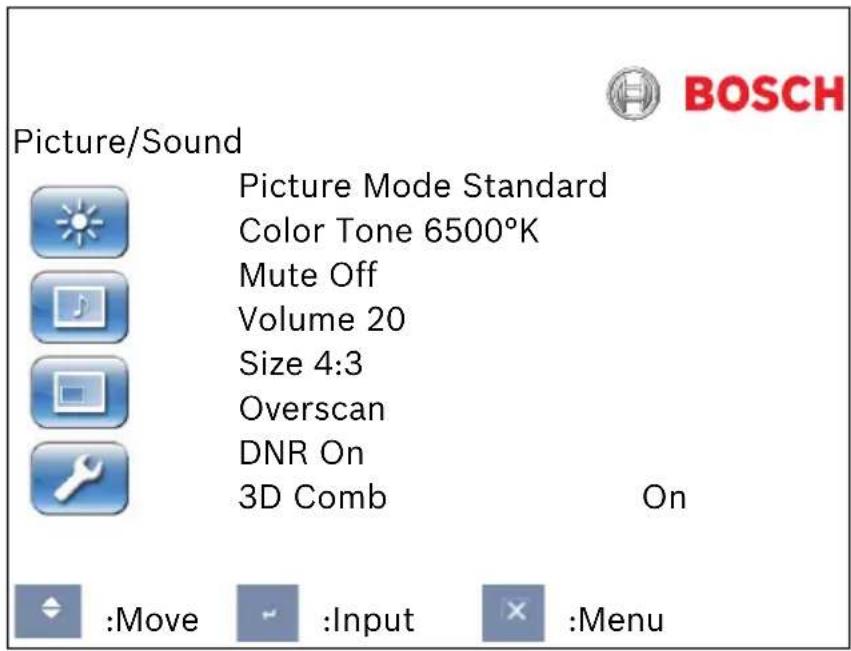
Table 6.3 Picture/Sound Menu (Video Mode)
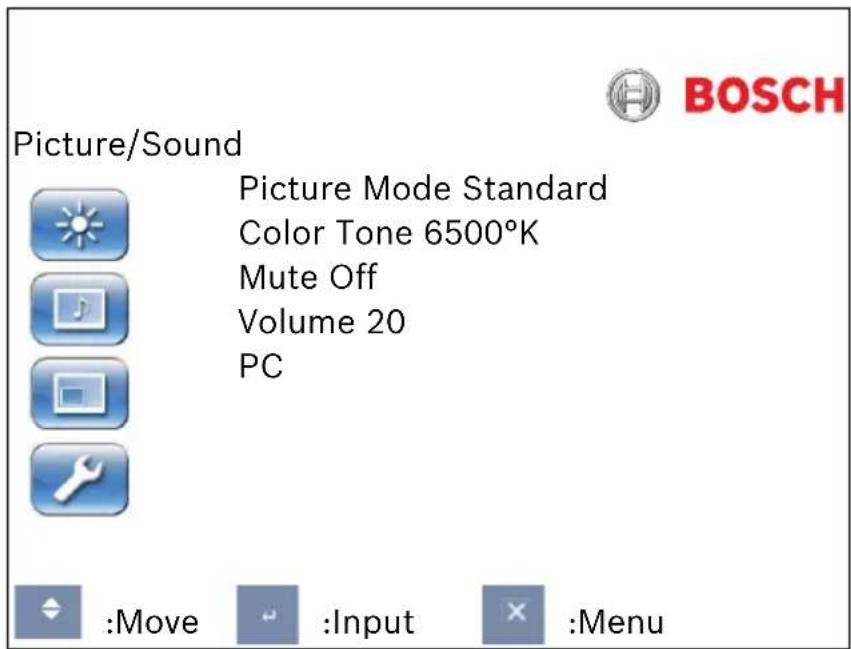
Table 6.4 Picture/Sound Menu (PC Mode)
| Submenu Definition | |
| Picture Mode(Video Mode) | Selects the automatic picture control mode. Choices are:Custom:User selected values of the Custom menu are applied.Dynamic:Automatically adjusts the Brightness, Contrast, and Sharpness, maximizing the video quality in the picture.Standard:Applies factory default values. |
| Picture Mode(PC Mode) | Selects the automatic picture control mode. Choices are Custom, High,Middle and Low. |
| Color Tone | Selects the color temperature. Choices are: 6500°K, 7500°K and 9300°K. |
| Mute | Enables/disables audio. Choices are: On and Off. |
| Volume Controls built-in speaker output volume (range 1-9). | |
| Size (Video Mode) | Selects the Aspect Ratio Control mode. Choices are: 4:3, Panorama, Zoom1 and Zoom2. |
| Overscan(Vide Mode) | Adjusts the overscan settings when displaying video (non-PC) signals:H-Overscan: Adjusts the horizontal overscan size (range 1-9).V-Overscan: Adjusts the vertical overscan size (range 1-9).H-Phase: Adjusts the horizontal phase of the overscanned picture (range 1-9).V-Phase: Adjusts the vertical phase of the overscanned picture (range 1-9). |
| DNR (Video Mode) | Turns Noise Reduction On or Off. Turning this feature OFF reduces the video quality slightly, but improves the monitors response time to MOTION. |
| PC (PC Mode) | Selects between Auto or manual adjustment of the desktop screen. AutoAdjust: Auto synchronizes screen to graphics adaptor.Manual choices are: Phase (range 0-100), H-Phase (range 0-100), V-Phase (range 0-100) and Frequency (range 0-100). |
| 3D Comb Enables or disables the 3D comb filter. | |
6.6 Setup Menu
To access the Setup menu, press the Menu button on the front panel of the monitor, then press the up and down buttons to select the Setup icon. Press the Input button to enter the menu, and then press the up and down buttons to select a submenu.
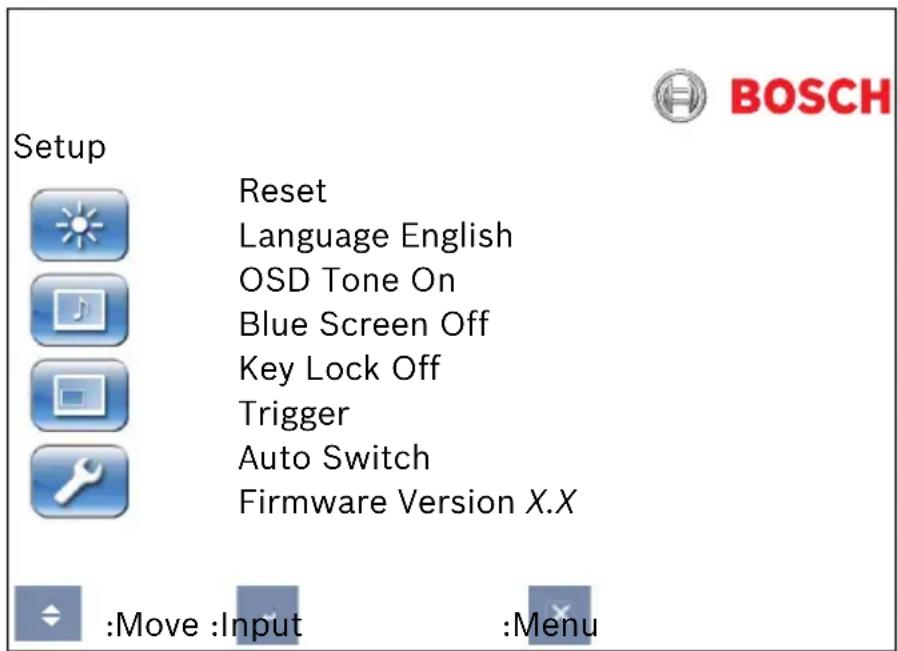
Table 6.5 Setup Menu
| Submenu | Definition |
| Reset | Restores default settings. |
| Language | Adjusts the language of the OSD. Choices are: Chinese, Dutch, English, French, German, Italian, Polish, Portuguese, Russian, and Spanish. |
| OSD Tones | Selects the type of background for the OSD menu. Choices are: Transparency and On. |
| Blue Screen | Enables or disables video loss indication. Choices are: On: displays a blue background when video loss is detected. Off: displays a black background when video loss is detected. |
| Key Lock | Enables or disables the Key Lock function. |
| Trigger Enables or | disables the Trigger function, and configures the trigger settings when enabled:Trigger Enable:Turns the Trigger function On of Off.Trigger Input:Selects the input signal source to display when a trigger signal is received.Buzzer:Turns the trigger buzzer tone On or Off.Trigger Time:Sets the time duration the trigger input (as set by the Trigger Input function) is displayed. Once the time expires, the monitor will automatically switch back to the last viewed input.Trigger Option:sets the trigger signal type to N/C (normal closed),N/O (normal opened),High (2~5V) or Low (0~0.6V). |
| Auto Switching Enables | ables or disables the auto switch function that allows the monitor to automatically switch to and display an available input signal. |
| Firmware Version | Displays the release level of the monitor firmware. |

NOTICE!
When key lock is enabled through the front panel, use the front panel buttons to disable the key lock command. To disable the key lock feature using the front panel buttons, press and hold both the Input and the Menu buttons until the monitor displays the Key Unlocked message.
7 Power Management
These monitors feature a power management system to “power down” upon receipt of the display power management signaling (DPMS) from a DPMS video card.
The DPMS-compliant video card performs this signaling by not sending a horizontal, vertical, or a sync signal.
The monitor enters an appropriate mode through identifying each of the three (3) modes of the signaling system.
7.1 Power Consumption
| Mode Power Consumption | |
| ON 35 W | |
| STANDBY 2 W | |
| ACTIVE OFF 1 W | |
7.2 LED Indicator
The power management feature of the monitor is comprised of these stages:
| Mode LED Color Monitor | Operation | |
| ON Green Normal Operation | ||
| STANDBY Flashes Red | Screen blanks | after idle time and some electronic circuits or all circuitry in the monitor shuts down. |
| ACTIVE OFF | ||
| UNSUPPORTED MODE | Green Normal | operation but the screen displays an error message. |
| POWER OFF | Red | Not Operational |
8 Troubleshooting
| Problem Solution | |
| No image displayed on screen | - Check that the power cord of the monitor is securely connected into the wall outlet or grounded extension cable or strip.- Power switch should be in the ON position and the LED lit.- Check that the Brightness and/or Contrast adjustments of the display have not been turned down to minimum levels. |
| The message "No Signal" is displayed | - The signal cable should be completely connected to the video card/computer.- The video card should be completely seated in its slot and the computer switched ON. |
| Display image is not centered, is too small or too large in the PC mode | Push the down key to activate the Auto Adjust function.- or -Adjust the Frequency and Phase in the PC OSD submenu. |
| Vertical or horizontal noise is present in the picture | Push the down key to activate the Auto Adjust function.- or -Adjust the Frequency and Phase in the PC OSD submenu. |
| Incorrect colors Select 6500°K | 7500°K or 9300°K in the Color Tone menu.- or -Use the Reset function to reset to the default settings. |
| The error message “Out of Range” is displayed | PC is operating with either a resolution or timing mode that is not supported by the monitor. Change the PC timing mode to one of the valid combinations below:- 640 x 480; 60/72/75 Hz- 800 x 600; 60/72/75 Hz- 1024 x 768; 60/70/75 Hz |
9 Maintenance
To clean the LCD panel, wipe off water droplets or oil immediately with absorbent cotton or a soft lint-free cloth.
Staining and discoloration may occur if left on the panel for long periods. If the surface (polarizer) of the LCD panel is dirty or stained, use absorbent cotton or a soft lint-free cloth to remove the residue as follows:
- Turn off the display and disconnect it from the power supply.
- Do not spray any liquid directly on the screen. Dampen a clean, soft, lint-free cloth with water only (using a paper towel or dirty cloth can scratch the screen).
- Gently wipe the screen starting from the top of the screen to bottom wiping in a downward motion. Be careful not to press too hard to avoid damaging the screen.
- To avoid streaking, wipe the screen again with another clean, dry, lint-free cloth.

NOTICE!
If water does not work, use a mild cleaner labeled for use with LCD panels, available at office supply stores.
Do not use any of the following as a cleaning agent:
- Ketone type materials
- Ethyl alcohol
- Ethyl acid
- Toluene
- Methyl chloride
- Ammonia
Use of these materials may permanently damage the polarizer due to a chemical reaction.
10 Technical Specifications
10.1 UML-080-90/UML-100-90
| Model UML-080-90 UML-100-90 | ||
| LCD Specifications | ||
| LCD Type 8.4 in. Digital LC | D 10.4 in. Digital LCD | |
| Backlight Type CCFL CCFL | ||
| Pixel Pitch (H x V) 0.213 x | 0.213 mm 0.264 x | 0.264 mm |
| Brightness | 250 cd/m2 (typical) | 230 cd/m2 (typical) |
| Contrast Ratio | 600:1 (typical) | 500:1 (typical) |
| Response Time | 10 ms (typical) | 20 ms (typical) |
| Resolution (H x V) 800 x 600 | 800 x 600 | |
| Frequency | Horizontal: 31 - 48 KHzVertical: 56 - 75 Hz | Horizontal: 31 - 48 KHzVertical: 56 - 75 Hz |
| Input Signal | Video (BNC 2ch input 1.0 Vp-p, 75 Ohm terminated, loop-through out)S-Video (Mini Din 4-pin 1ch input (Y/C))Audio In (L/R)Trigger In | |
| Active Display Area (H x V) | 170.4 x 127.8 mm | 211.2 x 158.4 mm |
| Packing Dimensions | 503 x 349 x 343 mm(19.8 x 13.7 x 13.5 in.) | 503 x 349 x 343 mm(19.8 x 13.7 x 13.5 in.) |
| Weight | 1.16 kg (2.56 lb) | 1.53kg (3.37 lb) |
| Electric Ratings | 12 VDC, 2.5 A | 12 VDC, 2.5 A |
10.2 UML-082-90/UML-102-90
| Model UML-082-90 UML-102-90 | ||
| LCD Specifications | ||
| LCD Type 8.4 in. Digital LCD | D 10.4 in. Digital LCD | |
| Backlight Type LED LED | ||
| Pixel Pitch (H x V) 0.213 x 0.213 mm 0.264 x 0.264 mm | ||
| Brightness | 450 cd/m2 (typical) 400 cd/m2 (typical) | |
| Contrast Ratio | 600:1 (typical) | 700:1 (typical) |
| Response Time | 10 ms (typical) | 20 ms (typical) |
| Resolution (H x V) | 800 x 600 | 800 x 600 |
| Frequency | Horizontal: 31 - 48 KHzVertical: 56 - 75 Hz | Horizontal: 31 - 48 KHzVertical: 56 - 75 Hz |
| Input Signal | Video (BNC 2ch input 1.0 Vp-p, 75 Ohm terminated, loop-through out)S-Video (Mini Din 4-pin 1ch input (Y/C))Audio In (L/R)Trigger In | |
| Active Display Area (H x V) | 170.4 x 127.8 mm 211.2 x 158.4 mm | |
| Packing Dimensions | 503 x 349 x 343 mm(19.8 x 13.7 x 13.5 in.) | 503 x 349 x 343 mm(19.8 x 13.7 x 13.5 in.) |
| Weight | 1.20 kg (2.65 lb) | 1.59 kg (3.51 lb) |
| Electric Ratings | 12 VDC, 2.5 A | 12 VDC, 2.5 A |
Bosch Security Systems, Inc.
850 Greenfield Road
Lancaster, PA 17601
U.S.A.
Telephone +1 800-566-2283
Fax +1 800-366-1329
www.boschsecurity.com
© Bosch Security Systems, Inc., 2009, Data subject to change.

- SMALL SIZE LCD/LED MONITORS
- TABLE OF CONTENTS
- SAFETY
- UNPACKING
- EXPLODED VIEW
- DESCRIPTION
- INSTALLING THE MONITOR
- NAVIGATING THE MONITOR
- POWER MANAGEMENT
- MAINTENANCE
- TECHNICAL SPECIFICATIONS
- IMPORTANT SAFETY INSTRUCTIONS
- SAFETY PRECAUTIONS
- DANGER
- WARNING
- CAUTION
- IMPORTANT NOTICES
- COAX GROUNDING
- RACK-MOUNT
- SELV
- SYSTEM GROUND/SAFETY GROUND
- NOTICE
- FCC & ICES INFORMATION
- DISCLAIMER
- COPYRIGHT
- TRADEMARKS
- NOTE
- CUSTOMER SUPPORT AND SERVICE
- SERVICE CENTERS
- USA
- REPAIR CENTER
- CUSTOMER SERVICE
- TECHNICAL SUPPORT
- CANADA
- EUROPE, MIDDLE EAST, AFRICA REGION
- ASIA REGION
- WARRANTY AND MORE INFORMATION
- PARTS LIST
- FEATURES
- POWER
- VENTILATION
- MOUNTING THE MONITOR
- DESKTOP INSTALLATION
- WALL MOUNT INSTALLATION
- CONNECTING THE COMPOSITE VIDEO SIGNAL TO THE MONITOR
- CONNECTING THE Y/C (S-VIDEO) SIGNAL TO THE MONITOR
- CONNECTING AUDIO TO THE MONITOR
- CONNECTING THE PC SIGNAL TO THE MONITOR
- SINGLE / MULTIPLE MONITOR CONFIGURATION
- NAVIGATING THE FRONT PANEL
- NAVIGATING THE MONITOR ON-SCREEN DISPLAY (OSD)
- ON-SCREEN DISPLAY MENUS
- CUSTOM MENU
- PICTURE/SOUND MENU
- SETUP MENU
- POWER CONSUMPTION
- LED INDICATOR
Brand : BOSCH
Model : UML10290
Category : Monitor