
Clié PEGA-SA10 - Digital Personal Assistant SONY - Free user manual and instructions
Find the device manual for free Clié PEGA-SA10 SONY in PDF.


| Type of product | Digital Personal Assistant (PDA) |
| Dimensions | 11.8 x 7.4 x 1.9 cm (4.65 x 2.91 x 0.75 in) |
| Weight | 185 g (6.5 oz) |
| Power source | Rechargeable lithium-ion battery |
| Battery capacity | 950 mAh |
| Display type | Monochrome (grayscale) touchscreen |
| Operating system | Palm OS 4.1 or later |
| Processor | 33 MHz Motorola DragonBall VZ |
| Memory | 8 MB RAM, 4 MB flash ROM |
| Expansion slot | Memory Stick slot (up to 128 MB) |
| Connectivity | IrDA, USB sync cradle |
| Main functions | Calendar, contacts, tasks, notes, memo pad, clock, calculator |
| Input method | Touchscreen with stylus, Graffiti handwriting recognition |
| Maintenance and cleaning | Clean with a soft dry cloth; avoid exposure to liquids and abrasive cleaners |
| Safety warnings | Keep away from water, heat, and sharp objects; do not disassemble |
| Spare parts and repairability | Contact Sony or authorized service centers for replacement parts and repairs |
| General information | Model: PEGA-SA10, Brand: Sony, Released: 2002 |
Frequently Asked Questions - Clié PEGA-SA10 SONY
User questions about Clié PEGA-SA10 SONY
0 question about this device. Answer the ones you know or ask your own.
Ask a new question about this device
Download the instructions for your Digital Personal Assistant in PDF format for free! Find your manual Clié PEGA-SA10 - SONY and take your electronic device back in hand. On this page are published all the documents necessary for the use of your device. Clié PEGA-SA10 by SONY.
USER MANUAL Clié PEGA-SA10 SONY
Operating Instructions

PEGA-SA10
WARNING
Owner's Record
The model number and serial number are located at the rear of the product. Record the serial number in the space provided below. Refer to them whenever you call upon your Sony dealer regarding this product.
Model No. PEGA-SA10 Serial No.
CAUTION
You are cautioned that any changes or modifications not expressly approved in this manual could void your authority to operate this equipment.
This Class B digital apparatus complies with Canadian ICES-003.
This equipment has been tested and found to comply with the limits for a Class B digital device, pursuant to Part 15 of the FCC Rules. These limits are designed to provide reasonable protection against harmful interference in a residential installation. This equipment generates, uses, and can radiate radio frequency energy and, if not installed and used in accordance with the instructions, may cause harmful interference to radio communications. However, there is no guarantee that interference will not occur in a particular installation. If this equipment does cause harmful interference to radio or television reception, which can be determined by rotating the equipment off and on, the user is encouraged to try to correct the interference using one or more of the following measures:
- Reorient or relocate the receiving antenna.
- Increase the separation between the equipment and receiver.
- Connect the equipment into an outlet on a circuit different from that to which the receiver is connected.
- Consult the dealer or an experienced radio/TV technician for help.
If you have questions about this product, call the Sony Customer Information Center at 1-877-760-7669; or write to the Sony Customer Information Center at 12451 Gateway Boulevard, Fort Myers, FL 33913. The number below is for FCC-related matters only.
Declaration of Conformity
Trade Name: SONY
Model No.: PEGA-SA10
Responsible Party: Sony Electronics Inc.
Address: 680 Kinderkamack Road, Oradell, NJ 07649 USA
Telephone No.: 201-930-6972
This device complies with part 15 of the FCC Rules.
Operation is subject to the following two conditions:
(1) This device may not cause harmful interference, and
(2) This device must accept any interference received, including interference that may cause undesired operation.
The supplied interface cable must be used with the equipment in order to comply with the limits for a digital device pursuant to Subpart B of Part 15 of FCC Rules.
On the supplied software
• Copyright laws prohibit reproducing the software or the software manual in whole or in part, or renting the software without the permission of the copyright holder. - In no event will SONY be liable for any financial damage or loss of profits, including claims made by third parties, arising out of the use of the software supplied with this player. - In the event a problem occurs with this software as a result of defective manufacturing, SONY will replace it at SONY's option or issue a refund. However, SONY bears no other responsibility. - The software provided with this product cannot be used with equipment other than that which it is designated for use with. - Please note that, due to continued efforts to improve quality, the software specifications may be changed without notice. - Sony and the Sony logo, CLIÉ, the CLIÉ logo, CLIÉ GEAR, the CLIÉ GEAR logo, Jog Dial, Memory Stick and Magic Gate Memory Stick are trademarks of Sony Corporation. - HotSync and Palm OS are registered trademarks, and the HotSync logo and Palm are trademarks of Palm, Inc. or its subsidiaries.
Program © 2001 Sony Corporation, or its subsidiaries. All rights reserved.
Documentation © 2001 Sony
Corporation
- Microsoft® and Windows® are registered trademarks of Microsoft Corporation in the United States and/or other countries.
- RealJukebox is a trademark of RealNetworks, Inc.
- generic media and gMovie are trademarks of generic media, inc.
- Adobe and Acrobat are trademarks of Adobe Systems Incorporated.
- All other trademarks are trademarks of their respective owners.
CAUTION
Please contact your nearest Sony dealer regarding any problem you are experiencing with your Sony product.
Notes
- Sony does not support third-party add-on applications. If you are having a problem with a third-party application, please contact the developer or publisher of that software.
- The illustrations in this manual may differ from the actual software.
- Explanations in this manual assume that you are familiar with basic operations of Windows®. For how to use your computer and operating system, please refer to their respective manuals.
Before using this product, be sure to read the accompanying End-User's License Agreement.
Contents
Welcome 5
What you can do with the Audio Adapter 5
CLIÉ handheld models that support the Audio Adapter...... 5
Unpacking Your Audio Adapter...... 6
What is on the supplied CD-ROM?...... 6
Controls and Connectors .... 7
Installing the Software ..... 8
Listening to Audio Files.... 10 Operation overview .... 10
Preparing your computer .... 10
Transferring audio files to the Memory Stick in your CLIÉ handheld from your computer .... 12
Connecting the Audio Adapter.... 14
Using Audio Player for Adapter application on your CLIÉ handheld .... 16
Playing audio files with the Audio Adapter 18
Using the online manual for Audio Player for Adapter...... 21
Watching Movies with Audio 22
Using the online manual for gMovie ...... 22
Others 23
Specifications ...... 23
Notes on use ...... 24
Troubleshooting...... 25
Welcome
What you can do with the Audio Adapter
Plugging the Audio Adapter into the interface connector of a CLIÉ handheld allows you to play back audio on CLIÉ handheld models that have no audio capabilities built in.
If you connect the Audio Adapter to a CLIÉ handheld with gMovie Ver.1.4 or above installed, you can also play back movies with sound.
Audio Player for Adapter:
Audio Player for Adapter is a software application that allows your CLIÉ handheld to play back MP3-format audio data stored on Memory Stick media. It is contained on the CD-ROM supplied with this Audio Adapter.
- Never install Audio Player for Adapter supplied with this adapter on a CLIÉ handheld with audio playback capabilities*. Installation of such software will cause the CLIÉ handheld to malfunction.
- The Audio Adapter provides playback of MP3-format audio data and gMovie audio sound only. Please note that it does not support ATRAC3-format data, for which MagicGate™ Memory Stick media is required. For specifications of the MP3 formatted files available for playback, see the online manual of Audio Player for Adapter.
- Some CLIÉ handhelds may be slow to respond when they are connected to this adapter. This is not malfunction.
* PEG-N710C, PEG-N760C (as of September 2001)
CLIÉ handheld models that support the Audio Adapter PEGA-SA10
Audio Adaptor PEGA-SA10 is supported by PEG-T series only. The PEG-N and PEG-S series DO NOT support the Audio Adapter PEGA-SA10.
Unpacking Your Audio Adapter
□ Audio adapter (1)
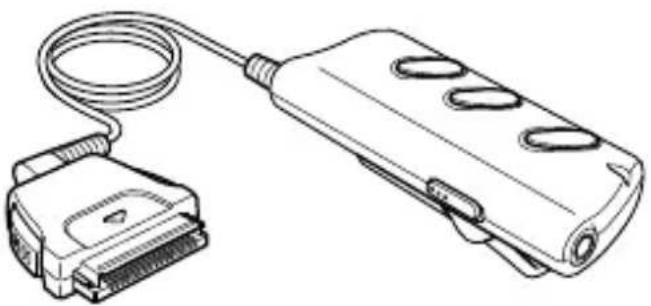
□ Headphones (1 pair) □ CD-ROM (1) ☐ Operating Instructions (1) □ Warranty card (1) □ END-USER LICENSE AGREEMENT (1)
What is on the supplied CD-ROM?
- Software and application for playing MP3 audio files
RealJukebox 2 Basic for Sony (The rest is omitted as
"RealJukebox for Sony")
Audio Player for Adapter
- Software for displaying the online manual of Audio Player for Adapter and gMovie
Adobe Acrobat Reader
• Sample movie files for use with gMovie
Controls and Connectors
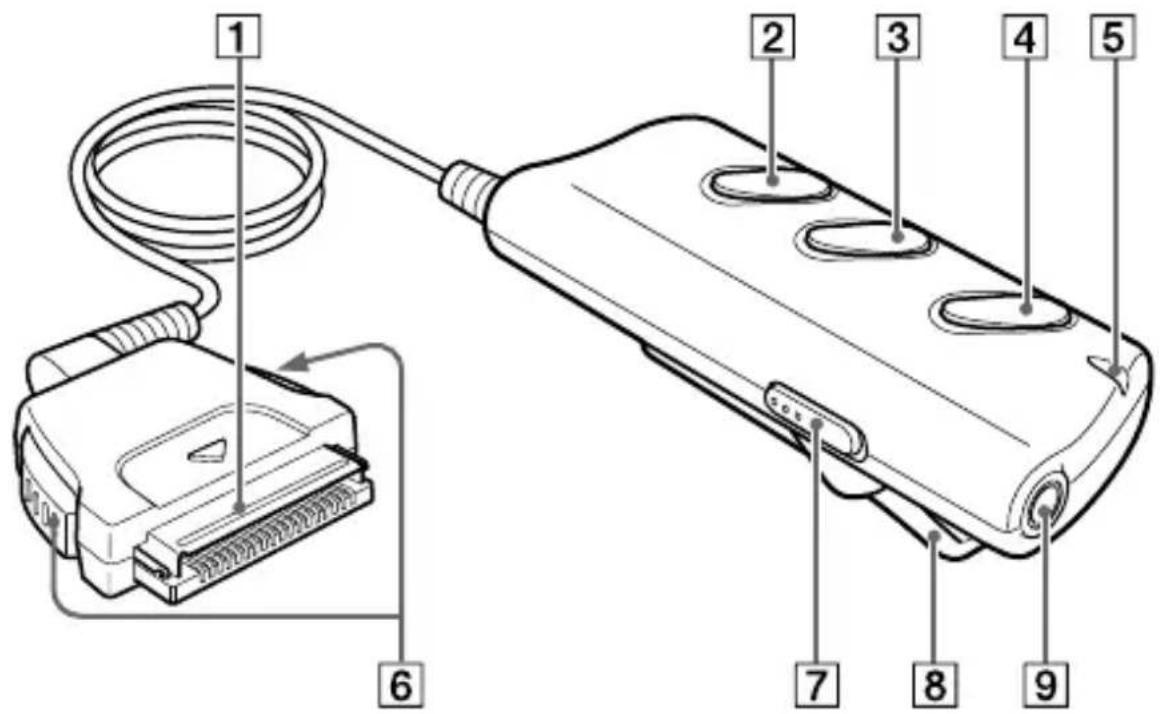
1 Interface connector 2 ▶/■ button
Starts or stops playback.
3 ◀◀/▶▶I button
Searches for the beginning of the current or next track.
4 Volume adjustment button
Adjusts the headphone volume.
5 Power ON LED
Lights when the Audio Adapter is running.
6 Lock release button
Press and hold this button to connect/disconnect the interface connector to/from your CLIÉ handheld. When connecting, make sure that the connector is firmly seated before releasing the button.
7 HOLD switch
When in the HOLD position, prevents accidental operation of the Audio Adapter.
8 Clip
Hooks the Audio Adapter to your pocket, etc.
9 Headphone jack
Connect the supplied headphone to this jack.
Installing the Software
To play back MP3-format audio files and movies with audio on your CLIÉ handheld using the Audio Adapter, you need to install Audio Player for Adapter, etc., onto your CLIÉ handheld from the supplied CD-ROM. You also need to install RealJukebox for Sony onto your computer from the CD-ROM.
Notes
- Never install the Audio Player for Adapter application supplied with this adapter to a CLIÉ handheld with audio playback capabilities*. Installation of such software will cause the CLIÉ handheld to malfunction.
- The Audio Adapter provides playback of MP3-format audio data and gMovie audio only. Please note that it does not support ATRAC3-format data, for which MagicGate Memory Stick media is required.
- Be sure the cradle or the USB cable is attached to your CLIÉ handheld and be sure to connect the CLIÉ handheld to your computer for HotSync® operation before installing the software. For information on connecting the cradle or the USB cable to your computer and on HotSync operation, see the manual that came with your CLIÉ handheld.
- Installation requires a CD-ROM drive. If your computer does not have a CD-ROM drive, you must attach one before you perform the following procedure. For information on how to use CD-ROMs, see the printed or online manual for your computer or CD-ROM drive. • Install the MS Export software supplied with the CLIÉ handheld to your computer to transfer audio files from your computer to CLIÉ handheld in addition to following the procedure below.
* PEG-N710C, PEG-N760C (as of September 2001)
1 Insert the supplied CD-ROM into the CD-ROM drive on your computer.
The installer software starts up and the Installation Menu screen appears.

If the installer software does not start up automatically, open the CD-ROM window, and double-click the "Setup" icon (Setup.exe).
2 Click "Install Audio Adapter system files."
3 Follow the on-screen instructions of the installer software.
On the screen for selecting the [PEG-T415] or [others] select the model that applies to your CLIÉ handheld.
Notes
- If you have more than one CLIÉ handheld, install the software onto each model.
- In the screen for selecting a user name, select the name that you will be using.
4 When the final screen of the installation process appears, click [Finish].
Your computer is now ready for the installation of the application software for the Audio Adapter. The Installation Menu screen appears on the monitor of your computer.
5 Click "Install RealJukebox 2 Basic for Sony".
Follow the on-screen instructions to proceed.
6 Click "Install gMovie sample files".
Follow the on-screen instructions to install the gMovie sample files. Installation onto your computer is now complete.
7 Perform a software reset on your CLIÉ handheld.
For information on performing a software reset, see the manual that came with your CLIÉ handheld.
8 Connect the CLIÉ handheld to your computer using either the cradle or the USB cable.
9 Activate the local HotSync function on your CLIÉ handheld.
Press the button on the front of the cradle or tap on the home screen on your CLIÉ handheld. The local HotSync function is activated, and your selected software is installed on your CLIÉ handheld.
Listening to Audio Files
Memory Stick is required for playing back audio files with Audio Player for Adapter.
Operation overview
Follow the procedure described below:
① Follow the procedure described on pages 8 and 9 to install the necessary software onto your computer and CLIÉ handheld. ② Follow the steps on this page to prepare to manage audio files on your computer. ③ Move the audio files you have selected from your computer to the Memory Stick on your CLIÉ handheld. ④ Connect the Audio Adapter. ⑤ Use the Audio Player for Adapter software application on your CLIÉ handheld to playback the audio files.
Preparing your computer
The Audio Adapter provides playback of MP3-format audio and gMovie audio only.
Special software is required for managing MP3-format audio files on your computer. You can use commercially available MP3-compatible audio management software, or the RealJukebox for Sony software provided on the supplied CD-ROM.
* RealJukebox is a product of RealNetworks, Inc.
- How to convert audio CD data to MP3-format data using the supplied RealJukebox for Sony software.
Use RealJukebox for Sony software to convert data on an audio CD to the MP3-format and register the data to a playlist on the hard disk.
1 Double-click the RealJukebox icon on your Windows desktop, or click [Start], point to "Programs", "Real", "RealJukebox", then click "RealJukebox".
RealJukebox starts up.
When you start up the RealJukebox software for the first time, the Settings screen appears. Follow the procedure for setup. For more information, refer to the online manual for Audio Player for Adapter.
2 Complete the following settings on the main window of RealJukebox.
These settings are required for first-time use only.
① Click "Tools" and "Preferences" on the menu bar, and select "Audio Quality."
- Select "MP3 Audio" under "Select a Format."
- Select "96 kbps Stereo" under "Select a Quality Level."
- Click √ for "Secure my Music Files when encoding" under "Secure Files" to uncheck it. The copyright warning window appears.
Read the copyright warning window carefully, and click the radio button for "I accept the above terms" to check it.
Click "OK."
Insert the audio CD with the data to be converted to MP3 format in the CD-ROM drive.
The "Auto-record" dialog box appears.
Click "Yes, record the CD now", then click [OK].
Recording starts.
When recording is completed, MP3-format audio data is saved to the folder at C:\My Music\ (Artist's name)\ (CD Title).
To cancel the recording, click ☐.
Notes
- If you have purchased commercially available MP3-compatible audio management software, refer to the manual or help files for that software for instruction on its use.
- Some MP3 audio formats are not supported by the audio management software.
Transferring audio files to the Memory Stick in your CLIÉ handheld from your computer
To transfer audio files, MS Export Software in the CD-ROM that comes with the CLIÉ handheld needs to be installed on your computer.
1 Make sure the write-protect tab on the Memory Stick media is not in the LOCK position, and insert the media into the Memory Stick slot on your CLIÉ handheld. 2 Turn the Jog Dial navigator on the home screen of your CLIÉ handheld to select the “AudioPlayer” icon, and press the Jog Dial navigator. You can also start up Audio Player for Adapter by tapping the "AudioPlayer" icon. Audio Player for Adapter starts up.
3 Using the USB cable or the cradle which comes with the CLIÉ handheld, attach your CLIÉ handheld to your computer.
4 Tap Options", then "Transfer" consecutively. Audio Player for Adapter changes to Transfer mode.
5 Double-click the "My Computer" icon on your Windows desktop.
Your CLIÉ handheld in Transfer mode appears as a removable drive in the "My Computer" window.
6 Double-click the "Removable Drive" icon.
7 Double-click the "PALM", "PROGRAMS", then "MSAUDIO" folders.
If these folders do not exist, create them on the Memory Stick media using Windows Explorer. Make sure that the Memory Stick media has sufficient capacity.
8 Drag and drop your selected MP3-format audio files (to be played back on your CLIÉ handheld) into the folder you opened in step 7.
Notes
- Do not exit Transfer mode or operate HotSync while transferring music data (while the Memory Stick indicator is flashing).
- For additional information on transferring MP3-format audio files to your CLIÉ handheld, see the online manual for Audio Player for Adapter.
- If the automatic shut-off function of your CLIÉ handheld is activated in the middle of the above steps, the connection between the CLIÉ handheld and your computer will be interrupted. Turn the CLIÉ handheld back on and exit Transfer mode, then follow step 4 on the previous page to re-enter Transfer mode.
You can also transfer audio files to a Memory Stick by using a Memory Stick slot on your computer
For more information, refer to the online manual for Audio Player for Adapter.
Connecting the Audio Adapter
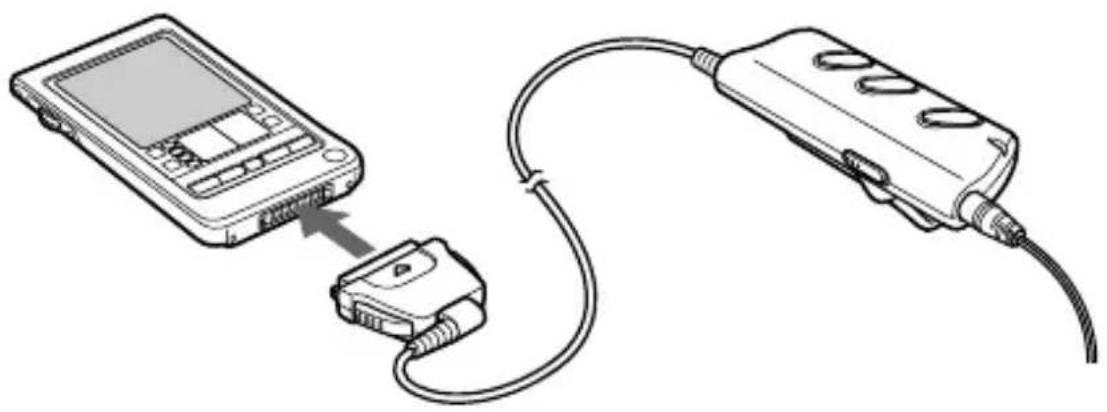
1 Connect the headphone to the headphone jack on the adapter.
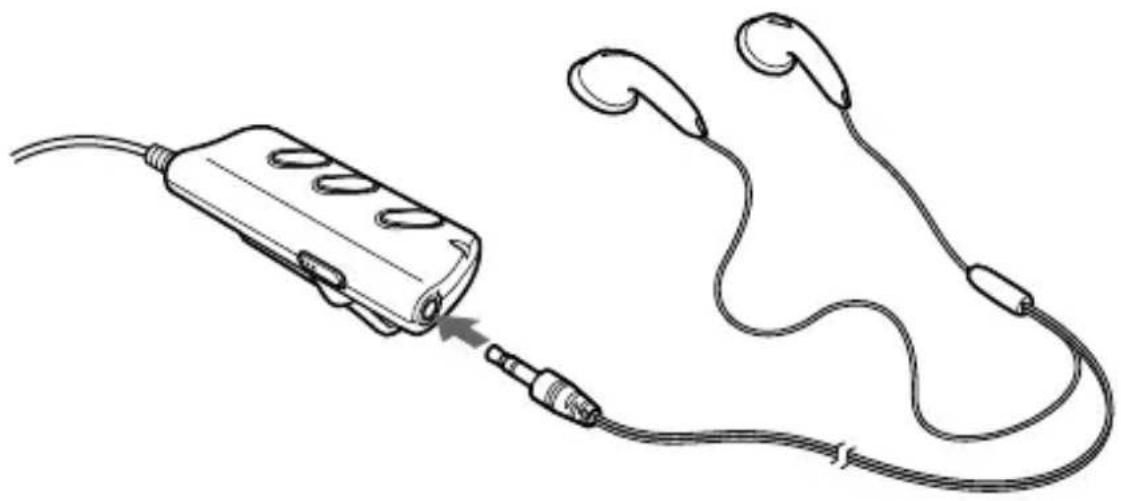
2 Connect the Audio Adapter to the Interface connector on your CLIÉ handheld.
Notes
Do not apply strong shock to the connector while using. This action may cause malfunction.
Disconnecting the Audio Adapter
Press and hold the lock release button on the Audio Adapter to remove the adapter.
Wearing the headphones
Insert the earpiece marked "R" into your right ear and the earpiece marked "L" into your left ear.

Using Audio Player for Adapter application on your CLIÉ handheld
Audio Player for Adapter allows you to play back audio files. Before starting playback, be sure the CLIÉ handheld's battery is fully charged.
Notes
- The automatic shut-off function of your CLIÉ handheld is disabled during playback.
- Playback automatically stops when battery power becomes low; however, you can still use other software applications, such as Memo Pad or Address Book. Make sure to recharge the battery as soon as possible before it is completely drained.
- When Audio Player for Adapter or gMovie is in operation, Beam Transfer is not possible. "Beam Receive" under "Preferences" may be set to OFF, in some cases.
- Do not remove the Audio Adapter from the CLIÉ handheld during playback.
1 Insert the Memory Stick media into the Memory Stick slot on your CLIÉ handheld.
2 Turn the Jog Dial navigator on the home screen of your CLIÉ handheld to select the “AudioPlayer” icon, and press the Jog Dial navigator to start up Audio Player.
You can also tap the "AudioPlayer" icon to start up the software.
Audio Player for Adapter starts and loads the music data from the Memory Stick media.
Do not remove the Memory Stick media while the data is being loaded (also while the Memory Stick access indicator on your CLIÉ handheld is flashing). Otherwise, the data may be destroyed or corrupted, or the CLIÉ handheld may malfunction.
Notes
- If the battery of the CLIÉ handheld is not charged sufficiently, malfunctions may occur. For example, the Audio Player for Adapter might not start up or operate, or the power might turn off suddenly during use. Be sure to charge the battery sufficiently before using.
- Depending on the number of music selections stored on the Memory Stick media, it may take some time to load the music data. All Audio Player for Adapter operations are disabled while the data is being loaded. This is not a malfunction.
3
Tap .
Playback starts from the first music selection.
During playback, the music data that you loaded into the Memory Stick media with RealJukebox for Sony software or your MP3-compatible audio management software is displayed.
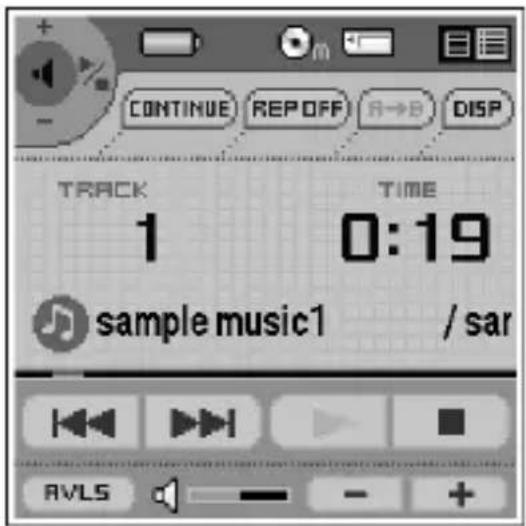
Playback automatically stops at the end of the last music selection.
To stop playback
Tap.
Other operations
| To pause Tap . | |
| To go to the beginning of the current track | Tap . |
| To go to the beginning of previous tracks | Tap twice or more. |
| To go to the beginning of the next track | Tap . |
| To go to the beginning of later tracks | Tap twice or more. |
| To rewind | Press and hold . |
| To fast forward | Press and hold . |
(Continued)
To adjust the volume
You can adjust the playback volume in any of the following three ways:
- Tap
- Turn the Jog Dial navigator*.
- Press the scroll button on your CLIÉ handheld.

* If the Jog Dial is set to adjust volume in the “Jogfunction select” screen, refer to the online manual of Audio Player for Adaptor for more information.
To minimize sound leakage (volume limiter, AVLS*)
Tap to change it to .
* AVLS, which stands for “Automatic Volume Limiter System”, limits the volume, to minimize sound leaking from the headphones, damage to your hearing, and potential danger caused by your inability to hear surrounding sounds.
Playing audio files with the Audio Adapter
If you turn off your CLIÉ handheld while Audio Player for Adapter is running, you can turn it back on and start playback of songs simply by pressing the ▶ button. Otherwise, turn on your CLIÉ handheld and start Audio Player for Adapter, and then follow this procedure:
1 Connect the Audio Adapter to your CLIÉ handheld. 2 Insert the Memory Stick media into the Memory Stick slot. 3 Connect the headphones. 4 Press ▶ on the Audio Adapter.
Playback starts from the first song.
Playback stops automatically when the song reaches the end.
To stop playback
Press ■ on the Audio Adapter.
Note
If playback does not start even when you press ▶ on the Audio Adapter, hold ▶ down again for a few seconds.
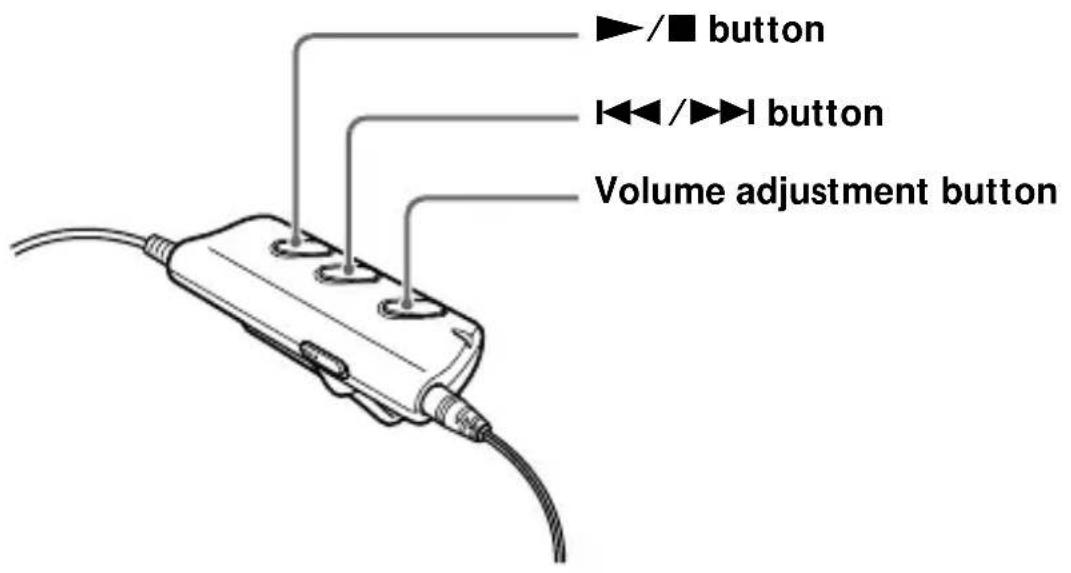
To perform the following operations
| To pause Press ■. | |
| Go to the beginning of the current track | Press ◀◀. |
| Go to previous tracks | Press ◀◀ repeatedly. |
| Go to the beginning of the next track | Press ▶▶I. |
| Go to the beginning of subsequent tracks | Press ▶▶I repeatedly. |
| To rewind | Press and hold ◀◀. |
| To fast forward | Press and hold ▶▶I. |
| Adjust the volume | Press + or −. |
(Continued)
Locking the controls (Hold)
To prevent the controls from being accidentally operated when you carry the player, use the HOLD function.
Slide the HOLD switch of the Audio Adapter to the HOLD position. (See the illustration below.)
None of the controls on the Audio Adapter will operate.
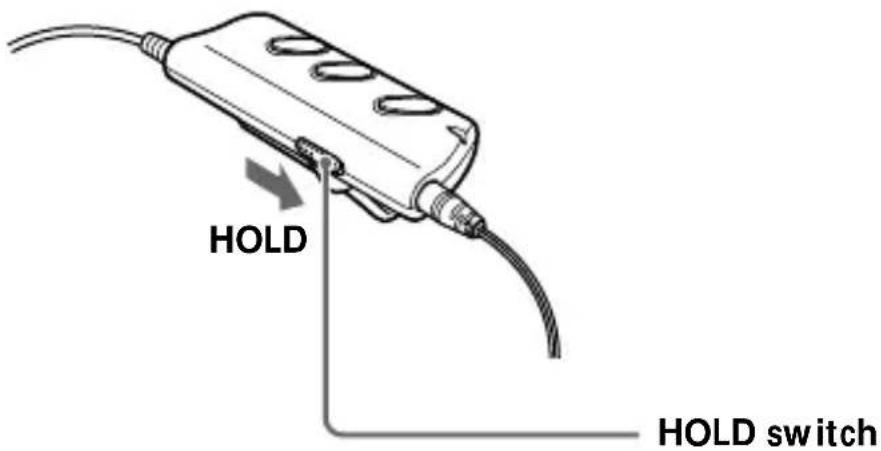
Even if you set the HOLD switch on the Audio Adapter, you can still control your CLIÉ handheld with its own buttons.
- If you turn off the CLIÉ handheld with the Audio Player for Adapter activated.
- When you press the ▶ button on the Audio Adapter, it takes about 3 seconds to start audio playback after turning on the power. During playback, do not turn off the power as it may cause a malfunction.
- When you turn on your CLIÉ handheld and use Audio Player for Adapter, you cannot use the keys of the Audio Adapter for about 3 seconds after turning on the CLIÉ handheld. This is not a malfunction.
Using the online manual for Audio Player for Adapter
Detailed information on Audio Player for Adapter is available in the online manual provided on the supplied CD-ROM. To view the online manual, Acrobat Reader must be installed on your computer.
1 Insert the supplied CD-ROM into the CD-ROM drive of your computer.
The installation screen automatically appears.
2 Click [Manuals...].
The [Manuals] folder appears.
3 Double-click "Audio Player for Adapter Manual.pdf."
The online manual appears.
When Acrobat Reader is not installed
1 Insert the supplied CD-ROM into the CD-ROM drive of your computer. 2 Click [Exit]. 3 Double-click the [My computer] icon on your Windows desktop. 4 Right-click the CD-ROM drive icon and select [Open] in the shortcut menu. 5 Double-click the "pc" folder. 6 Double-click the "Acrobat" folder. 7 Double-click "ar500enu.exe."
Watching Movies with Audio
If you connect the Audio Adapter to a CLIÉ handheld with gMovie installed, you can play back movies with audio.
Using the online manual for gMovie
Detailed information on gMovie Ver. 1.4 is available in the online manual provided on the supplied CD-ROM. To display the online manual, Acrobat Reader must be installed on your computer.
1 Insert the supplied CD-ROM into the CD-ROM drive of your computer.
The installation screen automatically appears.
2 Click [Manuals...].
The [Manuals...] folder appears.
3 Double-click "gMovie Manual.pdf."
The online manual appears.
If Acrobat Reader is not installed
Follow the procedure described on page 21 to install the Acrobat Reader from the supplied CD-ROM.
Others
Specifications
Interface:
Connector on the bottom of the CLIÉ handheld
Design:
Remote control type
Output:
Supplied by the CLIÉ handheld (3.5 to 4.2 V)
Power consumption:
Approx. 200 mW
Continuous audio playback hours:
Approx 5 hours of audio playback (with fully charged PEG-T415)
* To charge the battery of the CLIE handheld fully, charge the battery for a further 2 hours after the remaining battery charge indication on the Home screen shows full charge.
Maximum dimensions (W/H/D):
Approx. 30 x 74 x 12 mm (1.2 x 2.9 x 0.5 in.)
Weight:
Approx. 40 g (1.4 oz.) (excluding headphones)
Operating temperature:
5 to 35 °C
Accessories:
See page 6.
CLIÉ handheld models that DO NOT support the Audio
Adapter PEGA-SA10:
PEG-S and PEG-N series
Placement limitations
- To prevent malfunction, do not use or store the adapter in locations subject to:
- Extremely high temperatures
The temperature becomes extremely high in a car that is parked in the sun or in a car with its windows closed during the summer. Leaving the adapter in a car under these conditions may cause deformation of the adapter case or malfunction of the adapter.
- Direct sunlight or heat sources
Use or storage of the adapter in direct sunlight, or near a heat source may cause deformation of the adapter case or malfunction of the adapter.
- Strong vibrations
- Strong magnetic fields
- Sand
Protect the adapter from sand in sandy locations such as the beach. Sand may cause the adapter to malfunction or may damage it irreparably.
Safety in use
- Do not drop the adapter or subject it to strong physical shocks.
- Keep the adapter away from TV sets, AM radio receivers, radio tuners, and other sources of radio interference.
- Prevent the connector of the adapter (or the cord) from contacting any metal objects which may cause a short circuit.
Cleaning
- Clean the adapter with a soft dry cloth or tissue paper. If the adapter is badly soiled, moisten a soft cloth with a mild detergent solution, wring it out well, and use it to wipe the adapter. Wipe off any remaining moisture with a soft, dry cloth.
- Do not use any type of solvent, such as alcohol, thinner, or benzine. Use of such solvents may cause deformation of the adapter case or damage to the finish.
- When using a chemical cleaning cloth, follow the instructions included with the cloth.
- Use of volatile sprays, such as insect spray, or leaving the adapter on a rubber or vinyl product may cause deformation of the adapter case, or the coating to peel off.
Moisture condensation
If the adapter is brought directly from a cold to a warm location, moisture may condense inside the adapter. Use of the adapter in such a condition may cause a fire or malfunction within the adapter. When moisture has condensed, allow the adapter to sit at least an hour before using it.
Troubleshooting
Playback
- Buttons on the Audio Adapter do not work.
→ Slide the HOLD switch on the Audio Adapter to OFF. → The Audio Adapter buttons will not function unless Audio Player for Adapter or gMovie is running. → Make sure that the CLIÉ handheld is sufficiently charged.
• I hear some skips and noise during playback.
→ Check the MP3 format. For the MP3 formats available for playback, see “What you can do with the Audio Player” in the online manual of Audio Player for Adapter.
- I cannot start up Audio Player for Adapter or cannot play back audio sound files.
→ Disconnect and reconnect the Adapter several times. → Charge the built-in battery in the CLIÉ handheld sufficiently.
- The CLIÉ handheld shuts off unexpectedly when I start Audio Player for Adapter or gMovie while the Audio Adapter and the handheld are connected.
→ Charge the built-in battery in the CLIÉ handheld sufficiently.
- I cannot hear the sound of movie files by gMovie.
→ Charge the built-in battery in the CLIÉ handheld sufficiently. → Make sure the Audio Adapter is correctly attached. Disconnect and reconnect the Adapter several times. Then try again.
(Continued)
Connection with your computer
- Connection abruptly drops.
→ Connect the AC power adapter to the cradle. → Check the cradle or USB cable and your computer for appropriate connection. → Make sure the CLIÉ handheld is correctly seated in the cradle or attached with the USB cable.
- I cannot transfer as many music pieces as expected. (Available recording time is not long enough.)
→ The Memory Stick media may have other files occupying its free space. Delete these files or copy them to a location on your computer to free up some space for MP3.
- I see the drive but not its contents on my computer after I connect my CLIÉ handheld to my computer.
→ Insert the Memory Stick media into your CLIÉ handheld first, and then connect it to your computer.
- I don't see the removable media on my computer during Transfer mode.
→ Exit the Transfer mode after making sure that the power of your CLIÉ handheld is ON, and then retry music transferring.
- The operation of my CLIÉ handheld is unstable while it is connected to my computer.
→ If the cradle or the connection USB cable is connected to your computer via a USB hub or USB extension cable, the operation is not guaranteed. Connect the cradle or the connection USB cable directly to your computer.
- A warning window for device removal appears on the desktop.
→ Click [OK] and proceed. Do not tap "Stop" or remove your CLIÉ handheld from the cradle during Transfer mode. → Be sure to stop the connection via the “Unplug or eject Hardware” menu in the Windows System tray.
Others
- I hear no operation sounds from my CLIÉ handheld.
→ You will hear no operation sounds (clicking sounds) from your CLIÉ handheld while Audio Player for Adapter or gMovie is running. However, you will hear warning and error sounds from your CLIÉ handheld.
- I cannot insert the Memory Stick media.
→ Insert it in the appropriate direction.
- HotSync screen appears on your CLIÉ handheld when pressing the buttons of Audio Adapter.
→ Charge the built-in battery in the CLIÉ handheld.
- Error display appears while using Audio Player for Adapter or gMovie application software.
→ When the battery power is low, these software applications may not run in order to protect the contents in the memory. Fully recharge the battery on your CLIÉ handheld and start it up again.
- The remaining power indication in the screen of Audio Player for Adapter is different from the one in the home screen (main menu) on your CLIÉ handheld.
→ This is not malfunction.
- I cannot use the Memory Stick media that I have used with other devices before.
→ If the Memory Stick media has been formatted on your computer, back up all files if necessary, and then reformat the media with the CLIÉ handheld. (See “Operating Instructions” for more details.)
- I cannot use the Audio Adapter for a while after I insert the Memory Stick media.
→ If a Memory Stick media containing many music files is inserted, no operations may be allowed while information is read from the Memory Stick media. This is not a malfunction. Wait until either the name of the music piece appears on the Audio Player window or the Memory Stick indicator turns off.
For the latest support information, check our official Sony CLIÉ Web site
http://www.sony.com/clie
http://www.sony.net/
Printed on recycled paper
Printed in Japan
- WARNING
- OWNER'S RECORD
- CAUTION
- DECLARATION OF CONFORMITY
- ON THE SUPPLIED SOFTWARE
- NOTES
- CONTENTS
- WELCOME
- WHAT YOU CAN DO WITH THE AUDIO ADAPTER
- AUDIO PLAYER FOR ADAPTER
- CLIÉ HANDHELD MODELS THAT SUPPORT THE AUDIO ADAPTER PEGA-SA
- UNPACKING YOUR AUDIO ADAPTER
- WHAT IS ON THE SUPPLIED CD-ROM
- CONTROLS AND CONNECTORS
- INSTALLING THE SOFTWARE
- INSERT THE SUPPLIED CD-ROM INTO THE CD-ROM DRIVE ON YOUR COMPUTER
- CLICK "INSTALL AUDIO ADAPTER SYSTEM FILES
- FOLLOW THE ON-SCREEN INSTRUCTIONS OF THE INSTALLER SOFTWARE
- WHEN THE FINAL SCREEN OF THE INSTALLATION PROCESS APPEARS, CLICK [FINISH]
- CLICK "INSTALL REALJUKEBOX 2 BASIC FOR SONY
- CLICK "INSTALL GMOVIE SAMPLE FILES
- PERFORM A SOFTWARE RESET ON YOUR CLIÉ HANDHELD
- CONNECT THE CLIÉ HANDHELD TO YOUR COMPUTER USING EITHER THE CRADLE OR THE USB CABLE
- ACTIVATE THE LOCAL HOTSYNC FUNCTION ON YOUR CLIÉ HANDHELD
- LISTENING TO AUDIO FILES
- OPERATION OVERVIEW
- PREPARING YOUR COMPUTER
- DOUBLE-CLICK THE REALJUKEBOX ICON ON YOUR WINDOWS DESKTOP, OR CLICK [START], POINT TO "PROGRAMS", "REAL", "REALJUKEBOX", THEN CLICK "REALJUKEBOX
- COMPLETE THE FOLLOWING SETTINGS ON THE MAIN WINDOW OF REALJUKEBOX
- INSERT THE AUDIO CD WITH THE DATA TO BE CONVERTED TO MP3 FORMAT IN THE CD-ROM DRIVE
- CLICK "YES, RECORD THE CD NOW", THEN CLICK [OK]
- TRANSFERRING AUDIO FILES TO THE MEMORY STICK IN YOUR CLIÉ HANDHELD FROM YOUR COMPUTER
- YOU CAN ALSO TRANSFER AUDIO FILES TO A MEMORY STICK BY USING A MEMORY STICK SLOT ON YOUR COMPUTER
- CONNECTING THE AUDIO ADAPTER
- DISCONNECTING THE AUDIO ADAPTER
- WEARING THE HEADPHONES
- USING AUDIO PLAYER FOR ADAPTER APPLICATION ON YOUR CLIÉ HANDHELD
- TAP
- TO STOP PLAYBACK
- OTHER OPERATIONS
- TO ADJUST THE VOLUME
- TO MINIMIZE SOUND LEAKAGE (VOLUME LIMITER, AVLS*)
- PLAYING AUDIO FILES WITH THE AUDIO ADAPTER
- NOTE
- LOCKING THE CONTROLS (HOLD)
- SLIDE THE HOLD SWITCH OF THE AUDIO ADAPTER TO THE HOLD POSITION. (SEE THE ILLUSTRATION BELOW.)
- USING THE ONLINE MANUAL FOR AUDIO PLAYER FOR ADAPTER
- WHEN ACROBAT READER IS NOT INSTALLED
- WATCHING MOVIES WITH AUDIO
- USING THE ONLINE MANUAL FOR GMOVIE
- IF ACROBAT READER IS NOT INSTALLED
- OTHERS
- SPECIFICATIONS
- INTERFACE
- DESIGN
- OUTPUT
- POWER CONSUMPTION
- CONTINUOUS AUDIO PLAYBACK HOURS
- MAXIMUM DIMENSIONS (W/H/D)
- WEIGHT
- OPERATING TEMPERATURE
- ACCESSORIES
- ADAPTER PEGA-SA
- PLACEMENT LIMITATIONS
- EXTREMELY HIGH TEMPERATURES
- DIRECT SUNLIGHT OR HEAT SOURCES
- STRONG VIBRATIONS
- STRONG MAGNETIC FIELDS
- SAND
- SAFETY IN USE
- CLEANING
- MOISTURE CONDENSATION
- TROUBLESHOOTING
- PLAYBACK
- CONNECTION WITH YOUR COMPUTER
Brand : SONY
Model : Clié PEGA-SA10
Category : Digital Personal Assistant