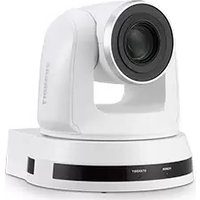
VC-A52S - Video Conferencing System Lumens - Free user manual and instructions
Find the device manual for free VC-A52S Lumens in PDF.


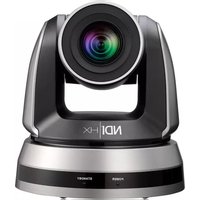
| Product Type | Video Conferencing System (PTZ Camera) |
| Brand | Lumens |
| Model | VC-A52S |
| Dimensions (approx.) | 180 x 180 x 200 mm (7.1 x 7.1 x 7.9 in) |
| Weight (approx.) | 2.5 kg (5.5 lbs) |
| Power Supply | DC 12V, 2.5A (PoE+ optional) |
| Image Sensor | 1/2.8-inch CMOS, 2.1 MP |
| Video Resolution | 1080p Full HD up to 60 fps |
| Optical Zoom | 12x |
| Digital Zoom | 16x |
| Horizontal Angle of View | 72.5° (wide) |
| Pan/Tilt Range | Pan: ±170°, Tilt: -30° to +90° |
| Video Interfaces | HDMI, 3G-SDI, USB 3.0 (Type B), IP stream (RJ45) |
| Audio Input | 3.5mm line-in, built-in microphone |
| Control Interface | RS-232, RS-422, IP (VISCA, ONVIF, HTTP) |
| Preset Positions | 255 presets |
| Main Functions | Auto framing, tracking, noise reduction, Wide Dynamic Range (WDR), 3D noise reduction |
| Cleaning Instructions | Clean lens with soft dry cloth; for body use mild soap and damp cloth; disconnect power before cleaning |
| Safety | Use only supplied adapter; avoid exposure to rain or moisture; keep away from heat sources; install on stable surface |
| Spare Parts & Repairability | Contact Lumens support for spare parts; repairs by authorized service only |
| General Information | Operating temperature: 0-40°C; storage: -20-60°C; humidity: 20-90% non-condensing |
| Supported Protocols | RTSP, RTMP, SRT, NDI|HX (optional) |
Frequently Asked Questions - VC-A52S Lumens
User questions about VC-A52S Lumens
0 question about this device. Answer the ones you know or ask your own.
Ask a new question about this device
Download the instructions for your Video Conferencing System in PDF format for free! Find your manual VC-A52S - Lumens and take your electronic device back in hand. On this page are published all the documents necessary for the use of your device. VC-A52S by Lumens.
USER MANUAL VC-A52S Lumens
Installation Guide - English
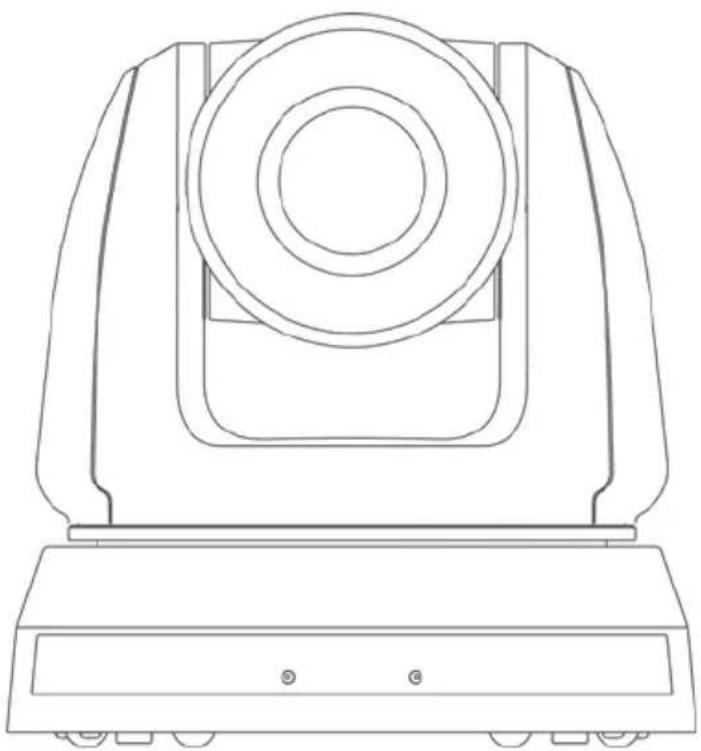
[Important]
To download the latest version of Quick Start Guide, multilingual user manual, software, or driver, etc., please visit Lumens https://www.MyLumens.com/support
Table of Contents
Copyright Information......3
Chapter 1 Safety Instructions ....4
Chapter 2 Package Contents......6
Chapter 3 Product Overview....7
3.1 Overview....7
3.2 Description of LED indicator 7
Chapter 4 Instruction for installation ....8
4.1 Preparation before installation 8
4.2 Instruction for installation 8
4.3 Connecting the device.... 17
Chapter 5 Remote Control and Setting Menu....21
5.1 Functions of remote control 21
5.2 Setting Menu 22
Chapter 6 Descriptions of Major Functions....31
6.1 I would like to switch to VC-A51S 31
6.2 I would like to save the current lens position data.... 31
6.3 I would like to clear the saved position data.... 31
6.4 I would like to turn on the back light compensation function .... 31
6.5 I would like to adjust the shooting angle of the lens.... 31
6.6 I would like to hide the preset image switch (Motionless Preset) ..... 31
6.7 I would like to zoom in/out images.... 32
6.8 I would like to adjust the focal length 32
6.9 I would like to adjust the AF sensitivity 32
6.10 I would like to set the image mode 33
6.11 I would like to freeze images.... 33
6.12 I would like to rotate the image 33
6.13 I would like to change the camera direction 33
6.14 I would like to display the current status.... 33
6.15 I would like to reset to the original setting.... 33
Chapter 7 DIP switch setting....34
7.1 DIP SWITCH 34
7.2 RS-422 Connection 35
Chapter 8 Troubleshooting....37
Supplier's Declaration of Conformity 47 CFR § 2.1077 Compliance Information....39
Copyrights © Lumens Digital Optics Inc. All rights reserved.
Lumens is a trademark that is currently being registered by Lumens Digital Optics Inc.
Copying, reproducing or transmitting this file is not allowed if a license is not provided by Lumens Digital Optics Inc. unless copying this file is for the purpose of backup after purchasing this product.
In order to keep improving the product, Lumens Digital Optics Inc. hereby reserves the right to make changes to product specifications without prior notice. The information in this file is subject to change without prior notice.
To fully explain or describe how this product should be used, this manual may refer to names of other products or companies without any intention of infringement.
Disclaimer of warranties: Lumens Digital Optics Inc. is neither responsible for any possible technological, editorial errors or omissions, nor responsible for any incidental or related damages arising from providing this file, using, or operating this product.
Always follow these safety instructions when setting up and using the this product:
1 Operation
1.1 Please use the product in the recommended operating environment.
1.2 Do not place the product in tilted position.
1.3 Do not place the product on an unstable trolley, stand or table.
1.4 Do not use this product near water or source of heat.
1.5 Use attachments only as recommended.
1.6 Use the type of power source indicated on this product. If you are not sure of the type of power available, consult your distributor or local electricity company for advice.
1.7 Always take the following precautions when handling the plug. Failure to do so may result in sparks or fire:
■ Ensure the plug is free of dust before inserting it into a socket.
■ Ensure that the plug is inserted into the socket securely.
1.8 Do not overload wall sockets, extension cords or multi-way plug boards to avoid potential risks.
1.9 Do not block the slots and openings in the case of this product. They provide ventilation and prevent this product from overheating.
1.10 Except as specifically instructed in this User Manual, do not attempt to operate this product by yourself. Opening or removing covers may expose you to dangerous voltages and other hazards. Refer all servicing to licensed service personnel.
1.11 Unplug this product from the wall outlet and refer servicing to licensed service personnel when the following situations happen:
■ If the power cords are damaged or frayed.
■ If liquid is spilled into the Product or the Product has been exposed to rain or water.
2 Installation
2.1 For security considerations, please make sure the standard hanging rack you bought is in line with UL or CE safety approbations and installed by technician personnel approved by agents.
3 Storage
3.1 Do not place the Product where the cord can be stepped on as this may result in fraying or damage to the lead or the plug.
3.2 Never push objects of any kind through cabinet slots. Never allow liquid of any kind to spill into the Product.
3.3 Unplug this product during thunderstorms or if it is not going to be used for an extended period.
3.4 Do not place this product or accessories on top of vibrating equipment or heated objects.
4 Cleaning
4.1 Unplug all the cables before cleaning. Use a damp cloth for cleaning. Do not use liquid or aerosol cleaners.
5 Remote control (if the accessories are equipped with remote control)
5.1 Using an incorrect battery type in the remote control may result in breakdown. Follow local instructions on how to dispose of used batteries.
■ Precautions
Warning: To reduce the risk of fire or electric shock, do not expose this appliance to rain or moisture.
If the HD camera will not be used for an extended time, unplug it from the power socket.
 | NoteRisk of Electric ShockPlease do not open it by yourself. |  | ||
| Caution: To reduce the risk of electric shock, do not remove cover (or back). No user-serviceable parts inside. Refer servicing to licensed service personnel. | ||||
| This symbol indicates that this equipment may contain dangerous voltage which could cause electric shock. | ! | This symbol indicates that there are important operating and maintenance instructions in this User Manual with this unit. | ||
■ FCC Warning
This HD camera has been tested and found to comply with the limits for a Class A digital device, pursuant to Article 15-J of FCC Rules. These limits are designed to provide reasonable protection against harmful interference in a commercial installation.
This digital apparatus does not exceed the Class A limits for radio noise emissions from digital apparatus as set out in the interference-causing equipment standard entitled "Digital Apparatus," ICES-003 of Industry Canada.
Operation of this equipment in a residential environment could cause radio interference.
Chapter 2 Package Contents
VC-A51S
Instruction for installation
Remote Control

Power Cord Power Adapter RS-422 Connector

Appearance may vary depending on country/region
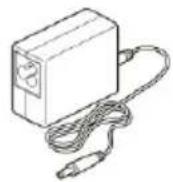
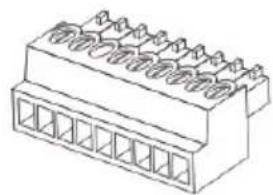
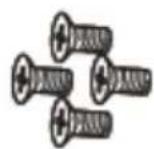
Metal Plate A Metal Plate B M3 Screws


3.1 Overview
Front View Back View
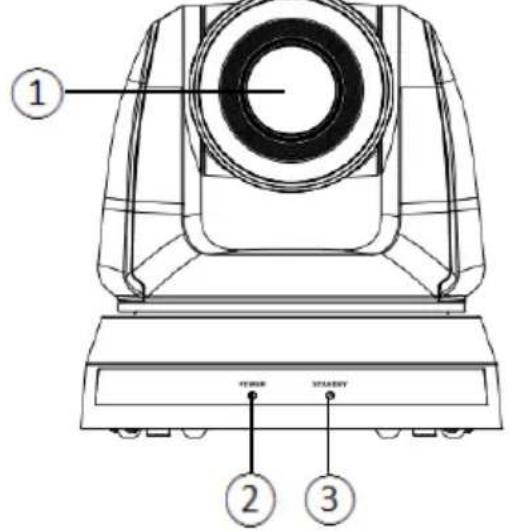
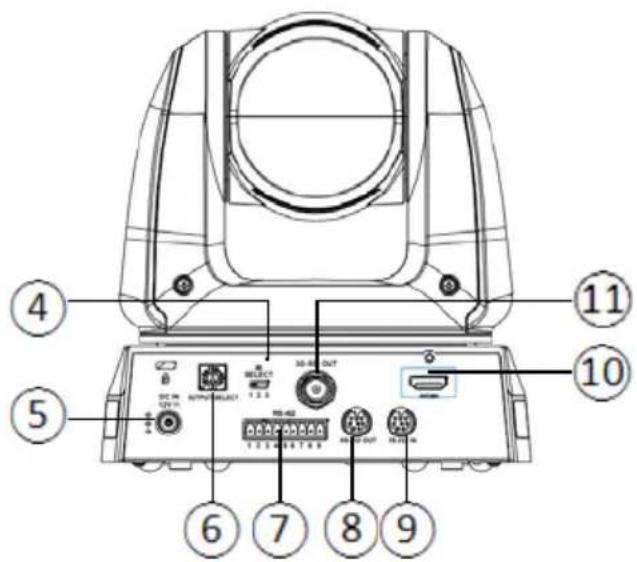
| 1. Camera Lens 2. Power LED Indicator | |
| 3. Standby LED Indicator 4. IR SELECT | |
| 5. Power Input 6. OUTPUT Switch | |
| 7. RS-422 Connection 8. RS-232 Output | |
| 9. RS-232 Input 10. HDMI Output | |
| 11.3G-SDIOutput |
3.2 Description of LED indicator
3.2.1 Power :
3.2.1.1 No Light: Power off
3.2.1.2 Green light: In use
3.2.1.3 Flickering green: Signal from the remote control is received; the indicator flickers every 0.5 second
3.2.2 Standby :
3.2.2.1 Orange: In standby mode
3.2.2.2 No Light: Power on
4.1 Preparation before installation
Installation and connection of HD camera requires special skills. To install by yourself, please follow necessary steps, ensure steady and tight installation of the device, and pay attention to your safety to avoid any accident.
4.1.1 Ensure the safety of the installation environment. Please do not install the device on unstable ceiling or in a place where the device is in danger of falling to avoid any accident.
4.1.2 Please check whether accessories in the box are complete or not. Please contact the supplier for any shortage, and make sure to keep the accessories in the box intact.
4.1.3 Please choose a proper place for installation of camera in advance. Please determine an installation place according to the following requirements
4.1.1.1 Confirm the position for the object to be captured.
4.1.1.2 Confirm whether the camera is set at a proper distance from other light sources.
4.2 Instruction for installation
4.2.1 I would like to install VC-A51S on the desk
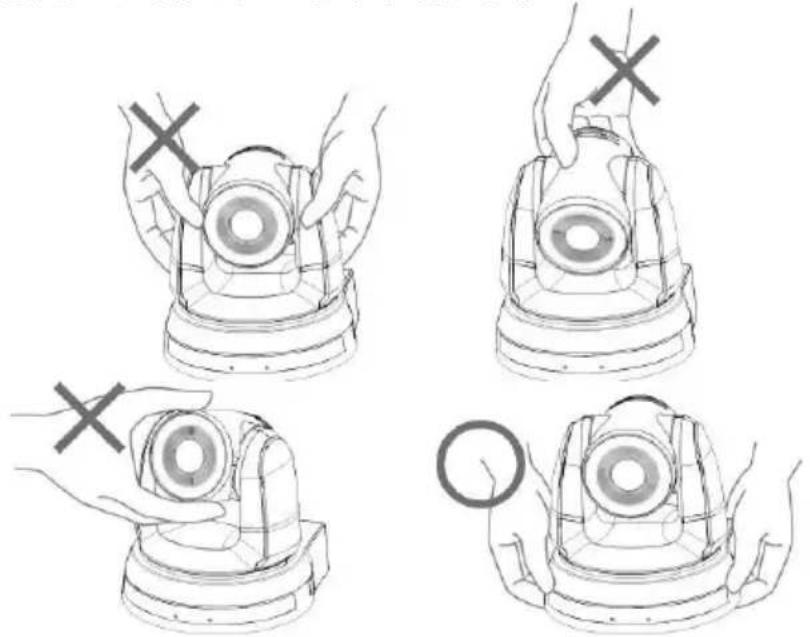
4.2.1.1 Precautions for installation
◆ Please install the machine on a flat desk
◆ Do not grab the camera head by hand when handling the device
◆ Do not rotate the camera head by hand. Improper rotation may result in breakdown of the camera
4.2.1.2 Installation steps
- Please adjust DIP switch at first prior to installation
- Place the camera on a flat desk directly to ensure the normal vertical and horizontal operation of the machine

4.2.2 I would like to install VC-A51S on the ceiling
4.2.2.1 Prepare for the parts and equipment required during the installation
- Accessories of VC-A51S in the box
(metal plates A,B, M3 screw silver x 8, black x 2) - Screw for locking on ceiling mounted hanger x 4
- Drilling machine, screw driver, ladder
4.2.2.2 Camera Size
Length x Width x Height: 174 x 186.2 x 185.5 mm
Weight : 2.0 Kg
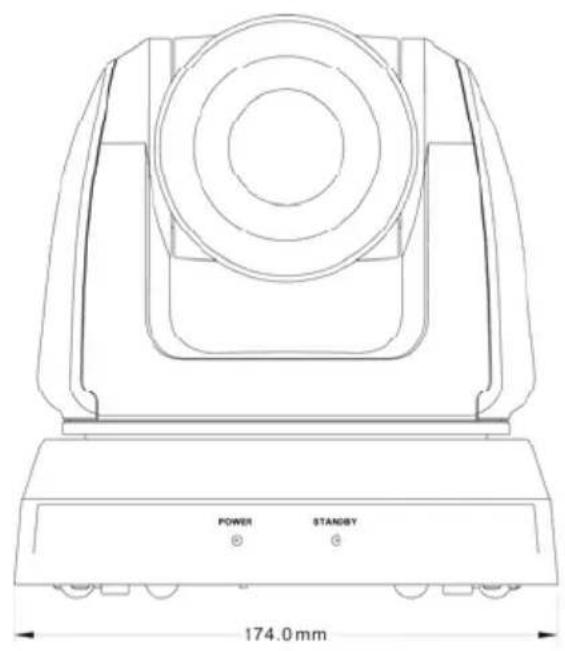

4.2.2.3 Max. rotation dimension of camera
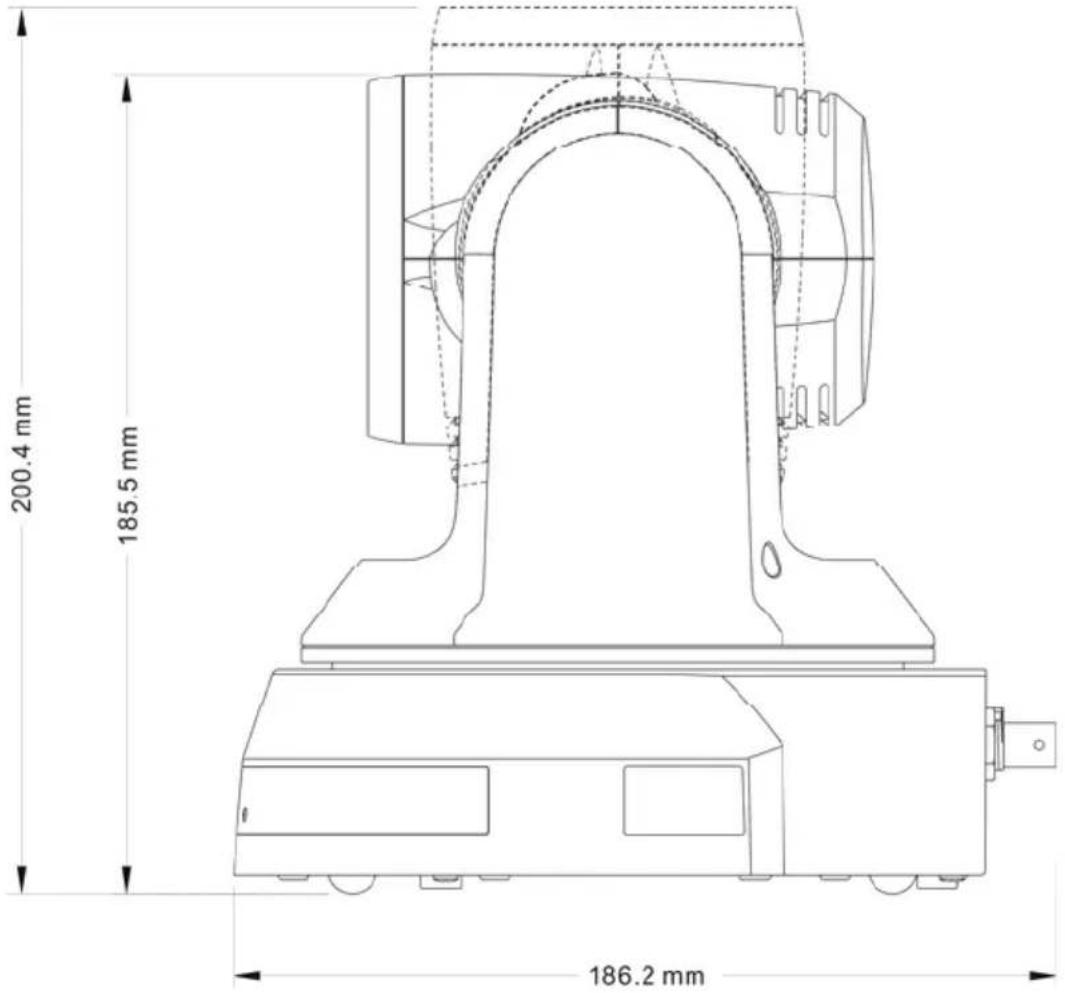
4.2.2.4 Size Diagram
1. Metal plate A - machine side

Metal plate A locking screw
2. Metal plate B - ceiling side
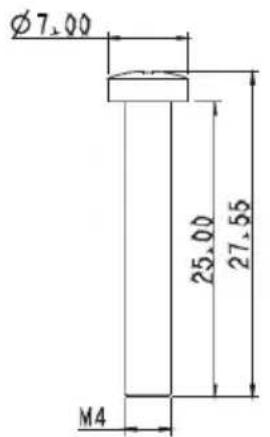
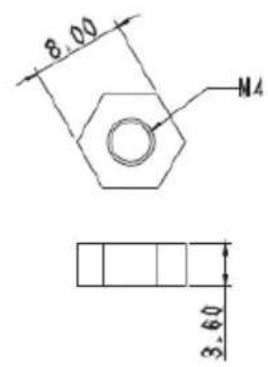
Metal plate B locking screw Metal plate B locking bolt

- Bottom of machine
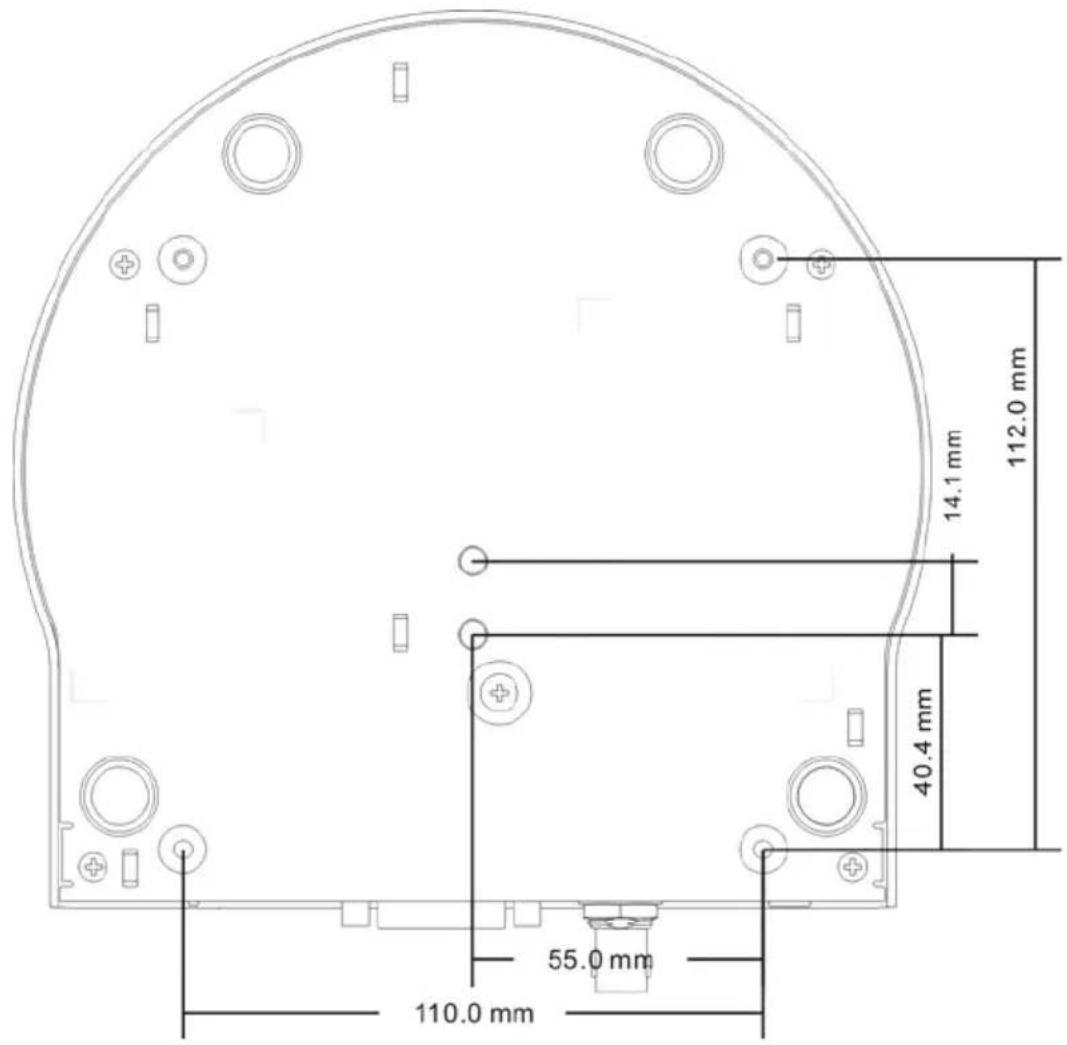
4.2.2.5 Precautions for installation
- Before installation, please confirm the orientation of the machine relative to the object to be captured
- It is recommended that the machine should be set at a distance of more than 1 meter away from the object to be captured. Please adjust for a best distance according to the magnification of the lens

- The machine (including metal plates) is weighed at about 2.5 kg . If it is to be installed on the ceiling, please use the hanger that has obtained UL security approval to prevent the machine from falling down.
- Please check whether the camera is installed securely on a regular basis
4.2.2.6 Installation steps
- Please adjust resolution on DIP switch at first
- Fix the metal plate A on the machine base with 4 M3 silver screws

- Lock the metal plate B on ceiling mounted hanger
※Caution:
(1) Please use the hanger that has obtained UL security approval
(2) Please reserve the hole for the connecting wires of the camera
- Combine the metal plate A and the metal plate B
(1) Push the metal plate A up to the ceiling and then to the right to latch the metal plate B
(2) And then secure with 2 M3 silver screws and 1 M3 black screw

4.2.2.7 How to remove
- Remove the connecting wires from the camera
- Uninstall the camera together with the ceiling, loosen the three screws that fix the metal plates A and B and push to the left to remove the machine

- Then remove the screws on the hanger and the machine
4.3 Connecting the device
4.3.1 Image Output
4.3.1.1 Connecting to a HDTV / computer monitor (DVI)
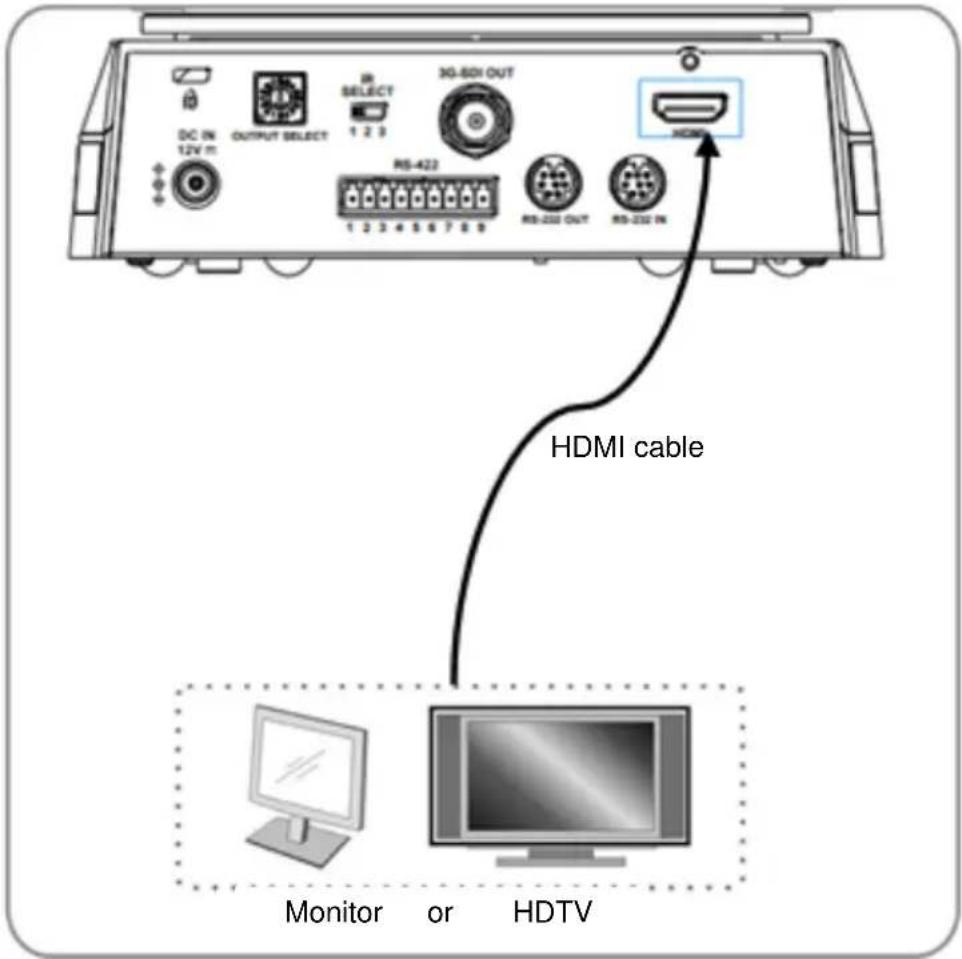
4.3.1.2 Connecting to an HDTV (3G-SDI)
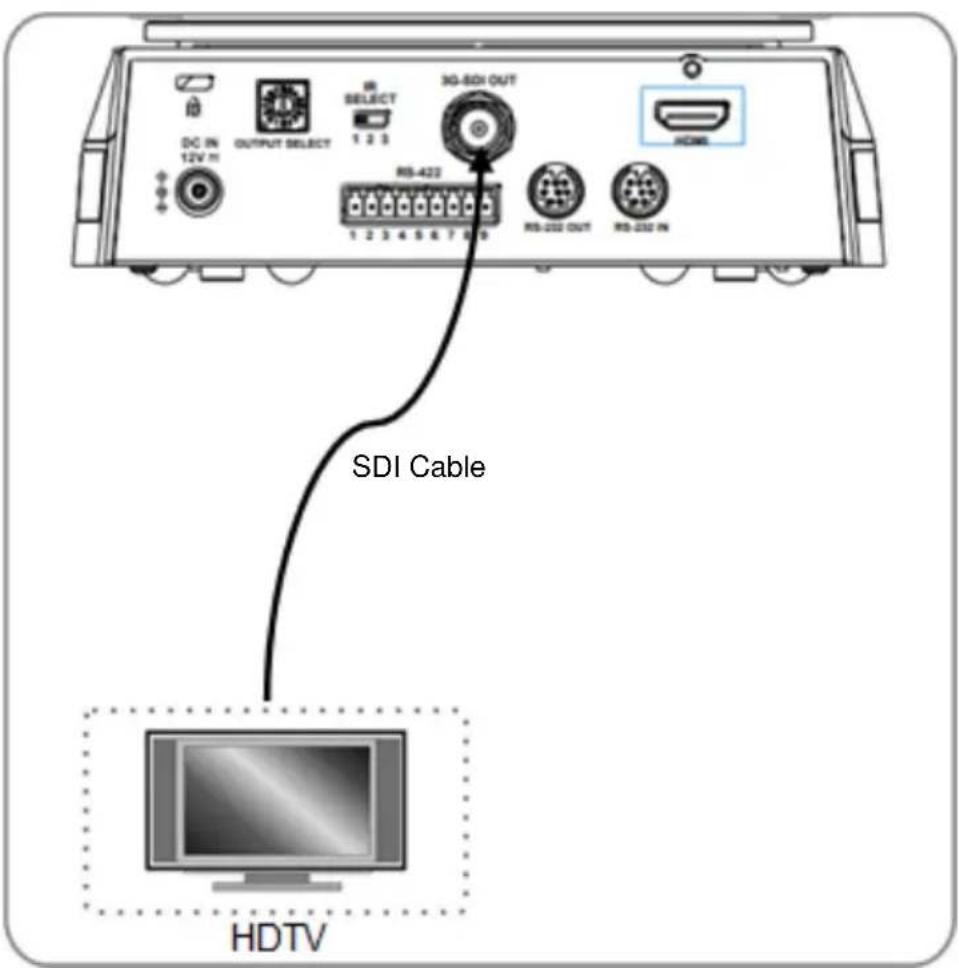
4.3.2 Controlling VCs with the computer
4.3.2.1 Connecting to one computer for connection between VCs (RS-232 in/out)
![graph TD A["Server"] --> B["RS-232 IN Camera"] A --> C["RS-232 OUT Camera"] A --> D["RS-232 IN Camera"] A --> E["RS-232 OUT Camera"] B --> F["Output"] C --> G["Output"] D --> H["Output"] E --> I["Output"]](/content/2026/05/1052417/images/185e1dbeffac77b841278652024ab8e214814bd017478923f931de5a6e7ed500.jpg)
4.3.2.2 RS-232 pins definition instructions
▼ RS-232 IN Pins Instructions
| NO | Pins | Signals |
| 1 | DTR | Data Transmission Reade |
| 2 | DSR | Data Set Reade |
| 3 | TXD | Transmit Data |
| 4 | GND | Ground |
| 5 | RXD | Receive Data |
| 6 | GND | Ground |
| 7 | IR OUT | IR Commander Signal |
| 8 | N.C. | No Connection |
▼ RS-232 Connection Instructions
RS-232 IN of VC
![graph TD A["1. DTR"] --> B["2. DSR"] A --> C["3. TXD"] A --> D["4. GND"] A --> E["5. RXD"] A --> F["6. GND"] A --> G["7. IR OUT"] A --> H["8. N.C."] I["1. CD"] --> J["2. RXD"] I --> K["3. TXD"] I --> L["4. DTR"] I --> M["5. GND"] I --> N["6. DSR"] O["7. RTS"] --> P["8. CTS"] O --> Q["9. RI"]](/content/2026/05/1052417/images/fb69e3fbcfe6834d2424df8a14d9a0e059925fd767350ea6acdbe369b389dbd0.jpg)
▼ RS-232 OUT Pins Instructions
| NO | Pins | Signals |
| 1 | DTR | Data Transmission Reade |
| 2 | DSR | Data Set Reade |
| 3 | TXD | Transmit Data |
| 4 | GND | Ground |
| 5 | RXD | Receive Data |
| 6 | GND | Ground |
| 7 | OPEN | Reserved |
| 8 | OPEN | Reserved |
▼ RS-232 Connection Instructions
![graph LR A["1. DTR"] --> B["1. DTR"] C["2. DSR"] --> D["2. DSR"] E["3. TXD"] --> F["3. TXD"] G["4. GND"] --> H["4. GND"] I["5. RXD"] --> J["5. RXD"] K["6. GND"] --> L["6. GND"] M["7. IR OUT"] --> N["7. OPEN"] O["8. N.C."] --> P["8. OPEN"]](/content/2026/05/1052417/images/176f3271bc4dfe960a212ee83a4815fdea57abb76dfb22103d7110e5010814be.jpg)
4.3.2.3 Connecting to one computer for connection between VCs (RS-422)
![graph TD A["Computer"] --> B["RS-422 Camera"] B --> C["RS-422 Camera"] C --> D["RS-422 Camera"] D --> E["RS-422 Camera"] E --> F["RS-422 Camera"] F --> G["RS-422 Camera"] G --> H["RS-422 Camera"] H --> I["RS-422 Camera"]](/content/2026/05/1052417/images/58bfc584900de44bac8b9e17e1b379470b4bc99c3b28ecb52b959181bcaae4a7.jpg)
5.1 Functions of remote control
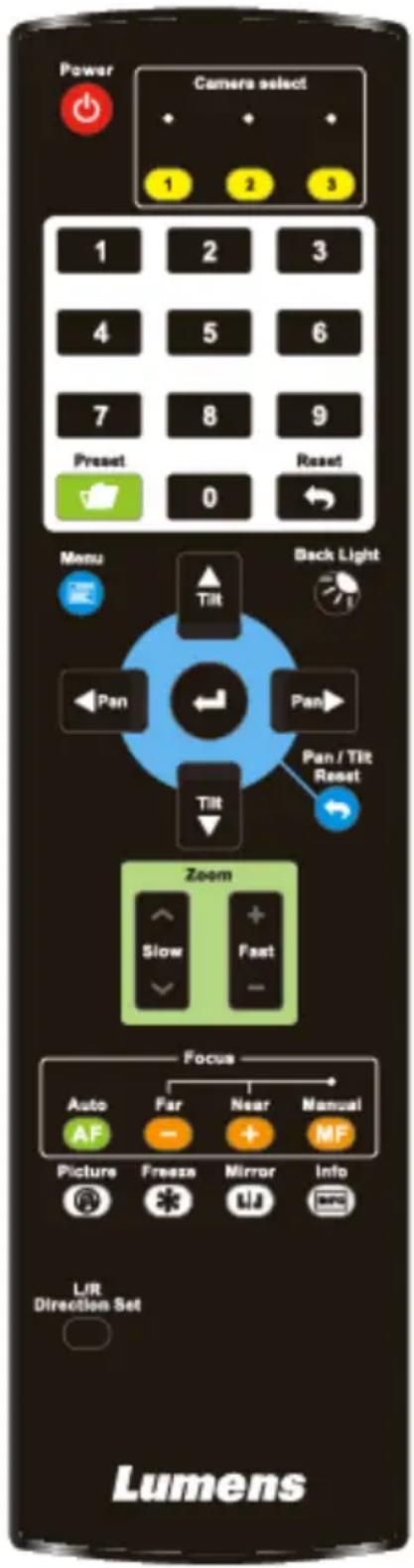 | Item | Description |
| <,>,▲,▼ | Move the lens | |
| Back Light Turn on/off back light compensation | ||
| Camera select | Choose camera 1 ~ 3 | |
| Focus-Manual / Far/Near | Turn on manual focus to adjust the focal length | |
| Focus-Auto | Auto Focus | |
| Freeze | Freeze the screen | |
| Home-Enter Go back to the main page / Execute | ||
| Info | Status information | |
| L/R Direction Set | L/R Direction / Normal | |
| Menu | Display OSD menu | |
| Mirror | Rotate the image (OFF / Mirror / Flip / Rotate) | |
| Pan/Tilt Reset | Clear the Pan / Tilt setting | |
| Picture | Switch image effect (OFF / Neg / B&W) | |
| Power | Power Switch | |
| Preset | Appoint an ID (0 ~ 9) to save the current position data | |
| Reset | Appoint an ID (0 ~ 9) to delete the current position data | |
| Zoom-Fast Adjust image size | ||
| Zoom-Slow | Fine-tune image size | |
5.2 Setting Menu
| 1st Level Major Items | 2nd Level Minor Items | 3rd Level Adjustment Values | Function Descriptions | |
| Exposure | Mode | 1.Full Auto2.Shutter Pri3.Iris Pri4.Manual5.White Board | Exposure mode setting | |
| Exposure Comp. | On /Off | AE Level | ||
| Exposure Comp. Level | -6~C~4 | The value can be adjusted only after Exposure Comp. is activated | ||
| Spot Light | On /Off | Adjustable when the Exposure mode is set to Full Auto or Shutter Pri | ||
| Spot Light Position | X(0~8)Y(0~6) | The value can be adjusted after Spot Light is activated | ||
| Shutter Pri | 60/30 mode | 50/25 mode | Adjustable when the Exposure mode is set to Shutter Pri | |
| 1/10000 1 | 1/10000 | |||
| 1/5000 | 1/5000 | |||
| 1/3000 | 1/3000 | |||
| 1/2500 | 1/2500 | |||
| 1/2000 | 1/1750 | |||
| 1/1500 | 1/1250 | |||
| 1/1000 | 1/1000 | |||
| 1/725 | 1/600 | |||
| 1/500 | 1/425 | |||
| 1/350 | 1/300 | |||
| 1/250 | 1/215 | |||
| 1/180 | 1/150 | |||
| 1/120 | 1/120 | |||
| 1/100 | 1/100 | |||
| 1/90 | 1/75 | |||
| 1/60 1/50 | — | |||
| 1/30 | 1/25 | |||
| 1/15 | 1/12 | |||
| 1/8 | 1/6 | |||
| 1/4 | 1/3 | |||
| 1/2 | 1/2 | |||
| 1/1 | 1/1 | |||
| Iris Pri | 1. F1.62. F23. F2.24. F2.75. F3.26. F3.87. F4.58. F5.49. F6.310. F7.811. F912. F1113. F1314. F1615. F18 | Adjustable when the Exposure mode is set to Iris Pri | ||
| Manual Gain | 1. 0dB2. 2 dB3. 4 dB4. 6 dB5. 8 dB6. 10 dB7. 12 dB8. 14 dB9. 16 dB10. 18 dB11. 20 dB12. 22 dB13. 24 dB14. 26 dB15. 28 dB16. 30 dB | Adjustable when the Exposure mode is set to Manual | ||
| Manual Speed | 60/30 mode | 50/25 mode | Manually set the shutter | |
| 1/10000 1 | 10000 | |||
| 1/5000 | 1/5000 | |||
| 1/3000 | 1/3000 | |||
| 1/2500 | 1/2500 | |||
| 1/2000 | 1/1750 | |||
| 1/1500 | 1/1250 | |||
| 1/1000 | 1/1000 | |||
| 1/725 | 1/600 | |||
| 1/500 | 1/425 | |||
| 1/350 | 1/300 | |||
| 1/250 | 1/215 | |||
| 1/180 | 1/150 | |||
| 1/120 | 1/120 | |||
| 1/100 | 1/100 | |||
| 1/90 | 1/75 | |||
| 1/60 1/50 | — | |||
| 1/30 | 1/25 | |||
| 1/15 | 1/12 | |||
| 1/8 | 1/6 | |||
| 1/4 | 1/3 | |||
| 1/2 | 1/2 | |||
| 1/1 | 1/1 | |||
| Manual Iris | 1. F1.62. F23. F2.24. F2.75. F3.26. F3.87. F4.58. F5.49. F6.310. F7.811. F912. F1113. F1314. F1615. F18 | Manually set the iris | ||
| Gain Limit | 1. 8 dB2. 10 dB3. 12 dB4. 14 dB5. 16 dB6. 18 dB7. 20 dB8. 22 dB9. 24 dB10. 26 dB11. 28 dB12. 30dB | Max. limit value of electron gain | ||
| Iris Limit | 1. F1.62. F2.23. F3.24. F4.55. F6.36. F97. F138. F18 | Max. limit value of iris | ||
| WDR | 1. Off2. 13. 24. 35. 46. 5 | WDR settings | ||
| Anti Flicker | 1. 50Hz2. 60Hz1. Off | Set the image sync frequency during capturing | ||
| White Balance | Mode | 1. Auto2. Indoor3. Outdoor4. One Push WB5. ATW6. Sodium Lamp7. Manual8. 3000K9. 4300K10. 5000K11. 6500K12. 8300K13. WideAuto | Select the color temperature mode1. 4000k ~ 7000k2. 3200k3. 5800k4. 1700k ~ 10000k5. 1700k ~ 10000k6. 2800k7. Custom8. 3000K9. 4300K10. 5000K11. 6500K12. 8000K13. 3000k ~ 7000k | |
| One Push Trigger | ENTER | One push trigger | ||
| Manual Red | 0~C~60 | Adjustable when the white balance mode is set to Manual | ||
| Manual Blue | 0~C~60 | Adjustable when the white balance mode is set to Manual | ||
| Picture | Picture effect | 1. Off2. Neg3. B & W | Set the picture effect | |
| Sharpness | 1~A~16 | Adjust the sharpness of the image | ||
| 2D NR | 1. Auto2. Off3. 14. 25. 36. 47. 5 | 2D noise reduction settings | ||
| 3D NR | 1. Off2. LOW3. Typ4. Max5. Auto | 3D dynamic noise reduction settings | ||
| Image Mode | 1. Mode12. Mode23. Mode34. Mode45. Mode56. Mode67. Custom | The user may customize his/her desired image mode | ||
| Image Mode Load | 1. Mode12. Mode23. Mode34. Mode45. Mode56. Mode6 | Adjustable when the Image mode is set to Custom. After selected, the corresponding Image mode parameters will be read and applied to Custom | ||
| Saturation | 0~A~25 | Adjustable when the Image mode is set to Custom mode | ||
| Hue | 0~A~14 | Adjustable when theImage modeis set toCustom mode | ||
| Gamma | 0~A~3 | Adjustable when theImage modeis set toCustom mode | ||
| Skin Tone | 1~A~5 | Skin tone settings;adjustable whenImage modeis set toCustom mode | ||
| Brightness | 0~A~14 | Adjustable when theImage modeis set toCustom | ||
| Contrast | 0~A~14 | Contrast adjustment;Adjustable when theImage modeis set toCustom | ||
| Black Level | 1. Off2. Type 13. Type 24. Type 3 | Shadow details and transparency adjustment, adjustable when theImage modeis set toCustom | ||
| Pan Tilt Zoom | Pan/Tilt Limit | On /Off | Turn on/off the angle limit setting | |
| Pan Right Limit | 0~170 | Limit the right angle | ||
| Pan Left Limit | -170~0 | Limit the left angle | ||
| Tilt UP Limit | 0~90 | Limit the upward angle | ||
| Tilt Down Limit | -30~0 | Limit the downward angle | ||
| Pan Flip | On /Off | Activate the reverse Pan command | ||
| Tilt Flip | On /Off | Activate the reverse Tilt command | ||
| Pan/Tilt Speed | Normal/Smooth | Adjust Pan/Tilt Speed | ||
| Preset Speed | 1. 80 deg/sec2. 120 deg/sec3. 160 deg/sec4. 200 deg/sec5. 300 deg/sec | Set the rotation speed of the cradle head when Preset is executed | ||
| PTZ Speed Comp | On / Off | Set the Pan/Tilt Moving speed is subject to the zoom position | ||
| D-Zoom Limit | x1~x12 | Limit the D-zoom multiple | ||
| D-Effect | Mirror | 1. Off2. Mirror3. Flip4. Mirror + Flip | Set the mode at which the image is turned | |
| Auto Focus | AF Sensitivity | 1. LOW2. Middle3. High | Select the AF triggering speed. The higher the speed is, the faster AF is triggered | |
| AF Frame | Full Frame/ Center | AF frame setting, when central area was set as AF frame, focusing will be on the center of the screen. When Full Frame was set as AF frame, focusing will be calculated based on the full screen | ||
| System | Video Type | SDI | Select video output type | |
| DVI-I | ||||
| Prompt | On / Off | Turn on/off the prompt information on the display | ||
| IR Receive | On / Off | Turn on/off the infrared reception | ||
| Language | English / Chinese | Language | ||
| Initial Position | Last MEM Off / 1st Preset On | Select the camera lens to return to the last operated position or the first preset position after POWER ON | ||
| Control Device | Encoder / Controller | Control Device setting,Controller: for joystickEncoder: for tracking system | ||
| Motionless Preset | On / Off | When the function is enabled, the screen will Freeze when Preset is executed. Freeze will be released after Preset is completed. | ||
| Control Port | RS-232C/RS-422 | Choose whether the control interface used is RS-232C or RS-422 | ||
| Protocol | VISCA / Pelco D | |||
| Baud Rate | 9600/38400 | Choose the transmission speed of the control signal | ||
| VISCA Address | 0~7 | |||
| Pelco D Address | 1~ C~255 | The Protocol set to Pelco D allows the camera ID address to be assigned | ||
| Output Mode | 1. 1920x1080/60p2. 1920x1080/50p3. 1920x1080/30p4. 1920x1080/25p5. 1920x1080/60i6. 1920x1080/50i7. 1280x720/60p8. 1280x720/50p9. 1280x720/30p10. 1280x720/25p11. 1080/59.94p12. 1080/59.94i13. 1080/29.97p14. 720/59.94p15. 720/29.97p | Choose the output resolution | ||
| Factory Reset | On / Off | Resume the factory default setting | ||
| Status | Display the current setting status | |||
6.1 I would like to switch to VC-A51S
- Press [Camera 1 \~ 3] on the remote control to select VC-A51S.
● Camera 1 \~ 3 is selected with IR SELECT.
6.2 I would like to save the current lens position data
-
Hold [Preset + ID] on the remote control to save the current position data.
-
ID shall be a digit [0 \~ 9].
- Use VISCA Command to store position data to [0 \~ 127]
6.3 I would like to clear the saved position data
-
Hold [Reset + ID] on the remote control to clear the given position data.
-
ID shall be a digit [0 \~ 9].
- Use VISCA command to clear position data stored in [0 \~ 127]
6.4 I would like to turn on the back light compensation function
- Press [Back Light] on the remote control to turn on or turn off the back light compensation
6.5 I would like to adjust the shooting angle of the lens
- Press [Tilt ▲] or [Tilt ▼] on the remote control to adjust the angle upward or downward.
- Press [Pan ▶] or [Pan ◀] on the remote control to adjust the angle to right or left.
- Press [Pan - Tilt Reset] on the remote control to reset the angle to the center point.
6.6 I would like to hide the preset image switch (Motionless Preset)
- Press [MENU] to activate the setting menu.
- Press [▶] or [◀] to select [System].
-
Press [ENTER] to activate.
-
Press [▲] or [▼] to select [Motionless Preset].
- Press [ENTER] to activate.
- Press [▶] or [◀] to select [Off / On].
- Press [MENU] to exit.
6.7 I would like to zoom in/out images
6.7.1 Adjust image size
- Press [Fast +] on the remote control to zoom in images.
- Press [Fast -] on the remote control to zoom out images.
6.7.2 Fine-tune image size
- Press [Slow +] on the remote control to zoom in images.
- Press [Slow -] on the remote control to zoom out images.
6.8 I would like to adjust the focal length
6.8.1 Auto tune
- Press [AF] on the remote control to adjust automatically.
6.8.2 Manual focus
- Press [MF] on the remote control to turn on the manual focus function.
- Press Focus - [+] or Focus - [-] to adjust.
6.9 I would like to adjust the AF sensitivity
Triggering speed of focus. The higher the speed is, the faster focus is triggered
To shoot fast-moving objects, AF Sensitivity can be set to [High] or [Medium], which is applicable to quick focus.
When the environment is too dark to enable auto focus or fixed objects have to be shot in different brightness, AF Sensitivity can be set to [Low].
- Press [MENU] to activate the setting menu.
- Press [▶] or [◀] to select [Auto Focus].
- Press [ENTER] to activate.
- Press [▲] or [▼] to select [AF Sensitivity].
- Press [ENTER] to activate.
- Press [▶] or [◀] to select [High / Middle / Low].
- Press [MENU] to exit.
6.10 I would like to set the image mode
- Press [Picture] on the remote control to switch [Off / Neg / B&W].
6.11 I would like to freeze images
- Press [Freeze] on the remote control to freeze the current image on the display.
6.12 I would like to rotate the image
- Press [Mirror] on the remote control to switch [Off / Mirror / Flip / Mirror + Flip].
6.13 I would like to change the camera direction
- Press [L/R Direction Set] on the remote control to switch [L/R Direction / Off / Normal].
6.14 I would like to display the current status
- Press [Info] on the remote control to display the current status information.
6.15 I would like to reset to the original setting
- Press [MENU] to activate the setting menu.
- Press [▶] or [◀] to select [System].
- Press [ENTER] to activate.
- Press [▲] or [▼] to select [Factory Reset].
- Press [ENTER] to activate.
- Press [▶] or [◀] to select [On].
- Press [ENTER] to execute.
7.1 DIP SWITCH
7.1.1 OUTPUT Switch

| Setting Function | Descriptions |
| 0 | 1920x1080/60p |
| 1 | 1920x1080/50p |
| 2 | 1920x1080/30p |
| 3 | 1920x1080/25p |
| 4 | 1920x1080/60i |
| 5 | 1920x1080/50i |
| 6 | 1280x720/60p |
| 7 | 1280x720/50p |
| 8 | 1280x720/30p |
| 9 | 1280x720/25p |
| A | 1080/59.94p |
| B | 1080/59.94i |
| C | 1080/29.97p |
| D | 720/59.94p |
| E | 720/29.97p |
| F | Reserved |
7.1.2 IR SELECT
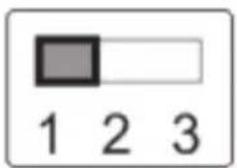
| ID Setting | |
| 1 | 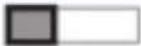 |
| 2 |  |
| 3 |  |
7.2 RS-422 Connection
7.2.1 RS-422 Pin Description
▼ RS-422 Pins Instructions

▼ RS-422 Connection Instructions
![graph LR A["Compact Camera Controller"] --> B["GND"] A --> C["RXD IN-"] A --> D["RXD IN+"] A --> E["TXD IN-"] A --> F["TXD IN+"] B --> G["5. GND"] C --> H["6. RXD IN-"] D --> I["7. RXD IN+"] E --> J["8. TXD IN-"] F --> K["9. TXD IN+"]](/content/2026/05/1052417/images/024a602e63bd1dc059094c6585887073a4e79c8a138d85c605023e56280fb546.jpg)
▼ RS-422 Connection Instructions
—Applicable to
SONY Compact Camera Controller
![graph LR A["Compact Camera Controller"] --> B["GND"] A --> C["RXD IN-"] A --> D["RXD IN+"] A --> E["TXD IN-"] A --> F["TXD IN+"] G["Camera"] --> H["5. GND"] G --> I["6. RXD IN-"] G --> J["7. RXD IN+"] G --> K["8. TXD IN-"] G --> L["9. TXD IN+"]](/content/2026/05/1052417/images/46a18cfa871f71b2941075d1358cce80e4d15e8c02fd2b23795a5b4cc57f3151.jpg)
▼ RS-422 Serial Connection
Up to seven cameras can be daisy-chained
![graph TD A["Compact Camera Controller"] --> B["First Camera"] A --> C["Second Camera"] A --> D["Third Camera"] B --> E["1 NC"] B --> F["2 NC"] B --> G["3 NC"] B --> H["4 NC"] B --> I["5 GND"] B --> J["6 RXD IN-"] B --> K["7 RXD IN+"] B --> L["8 TXD IN-"] B --> M["9 TXD IN+"] C --> N["1 RXD OUT-"] C…](/content/2026/05/1052417/images/5e4dc53b9fd391499b1daf8bdec8dc8ed02c386366de63af95598812574fde49.jpg)
7.2.2 Use RS-422 Connection
- Hold the two sides of RS-422 connector and pull out in the direction shown by the arrow in the figure below

- Peel off a section of copper wire (AWG Nos. 28 to 18) and insert it into the connector hole; then use flat screw driver to fix it
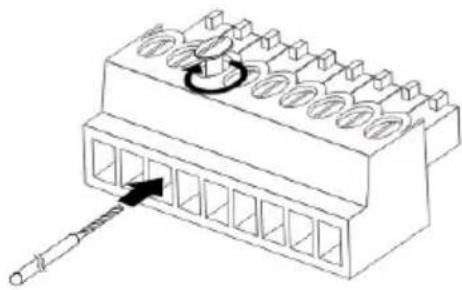
- Insert the wired RS-422 connector back to the camera. Now the connection is completed

Chapter 8 Troubleshooting
This chapter describes problems you may encounter while using VC-A51S. If you have questions, please refer to related chapters and follow all the suggested solutions. If the problem still occurred, please contact your distributor or the service center.
| No. | Problems Solutions | |
| 1. | Boot without power signal | Make sure you have plugged in the power cord. |
| 2. | There is no image output from VC-A51S | 1. Check the power.2. Check if DIP switch is properly set. Please refer to Chapter 7 DIP switch setting.3. Make sure the display supports the output resolution; in general, the resolution is 1080p60/1080i60/720p60.4. Replace the cables and make sure they are not faulty. |
| 3. | VC-A51S image is severely delayed | Please use 1080p or 720p 60/50 Hz signals rather than 25/30 Hz signals. |
| 4. | Not working after changes to DIP Switch setting | After completing DIP Switch setting, unplug and reconnect the power cord and turn on the machine to change the setting. |
| 5. | VC-A51S cannot be operated by remote control | 1. Please confirm if the Camera Select on the remote control can be used together with the IR Select on the camera.2. Please prevent camera from direct sunshine.3. Make sure the energy-saving bulb and the IR touch screen are as far as possible in order to avoid interference.4. When several camera are connected in the same area, the operation of two remote controls at the same time may result in signal interference. It is recommended to use one remote control only. |
| 6. | The device cannot be controlled with Codec | 1. Please consult the distributor to make sure the firmware version is the latest one. The steps to check version is as follows:1.1 Press [MENU] on the remote control1.2 Choose [Status]1.3 Go to Page 5 of [System]1.4 Make sure the firmware version is correct.2. Make sure the connection is correct (RS-232/422 Input).3. Please confirm OSD menu [System]/[Control Protocol] setting. |
| 7. | The device cannot be controlled with RS-232/RS422 | 1. Make sure the connection is correct (RS-232/422 Input).2. Please confirm OSD menu [System]/[Control Protocol] setting. |
Supplier's Declaration of Conformity 47 CFR § 2.1077 Compliance Information
Manufacturer : Lumens Digital Optics Inc.
Product Name : VC-A52S
Model Number : PTZ Video Camera
Responsible Party – U.S. Contact Information
Supplier : Lumens Integration, Inc.
4116 Clipper Court, Fremont, CA 94538, United States
e-mail : support@mylumens.com
FCC Compliance Statement
This device complies with Part 15 of the FCC Rules. Operation is subject to the following two conditions: (1) This device may not cause harmful interference, and (2) this device must accept any interference received, including interference that may cause undesired operation.

- INSTALLATION GUIDE - ENGLISH
- [IMPORTANT]
- TABLE OF CONTENTS
- COPYRIGHT INFORMATION......3
- CHAPTER 1 SAFETY INSTRUCTIONS ....4
- CHAPTER 2 PACKAGE CONTENTS......6
- CHAPTER 3 PRODUCT OVERVIEW....7
- CHAPTER 4 INSTRUCTION FOR INSTALLATION ....8
- CHAPTER 5 REMOTE CONTROL AND SETTING MENU....21
- CHAPTER 6 DESCRIPTIONS OF MAJOR FUNCTIONS....31
- CHAPTER 7 DIP SWITCH SETTING....34
- CHAPTER 8 TROUBLESHOOTING....37
- 1 OPERATION
- 2 INSTALLATION
- 3 STORAGE
- 4 CLEANING
- 5 REMOTE CONTROL (IF THE ACCESSORIES ARE EQUIPPED WITH REMOTE CONTROL)
- PRECAUTIONS
- FCC WARNING
- CHAPTER 2 PACKAGE CONTENTS
- 3.1 OVERVIEW
- 3.2 DESCRIPTION OF LED INDICATOR
- 3.2.1 POWER
- 3.2.2 STANDBY
- 4.1 PREPARATION BEFORE INSTALLATION
- 4.2 INSTRUCTION FOR INSTALLATION
- 4.2.1 I WOULD LIKE TO INSTALL VC-A51S ON THE DESK
- 4.2.1.2 INSTALLATION STEPS
- 4.2.2 I WOULD LIKE TO INSTALL VC-A51S ON THE CEILING
- 4.2.2.1 PREPARE FOR THE PARTS AND EQUIPMENT REQUIRED DURING THE INSTALLATION
- 4.2.2.2 CAMERA SIZE
- 4.2.2.4 SIZE DIAGRAM
- METAL PLATE A - MACHINE SIDE
- METAL PLATE B - CEILING SIDE
- 4.2.2.5 PRECAUTIONS FOR INSTALLATION
- 4.2.2.6 INSTALLATION STEPS
- 4.2.2.7 HOW TO REMOVE
- 4.3 CONNECTING THE DEVICE
- 4.3.1 IMAGE OUTPUT
- 4.3.2 CONTROLLING VCS WITH THE COMPUTER
- 4.3.2.2 RS-232 PINS DEFINITION INSTRUCTIONS
- ▼ RS-232 IN PINS INSTRUCTIONS
- ▼ RS-232 CONNECTION INSTRUCTIONS
- ▼ RS-232 OUT PINS INSTRUCTIONS
- 4.3.2.3 CONNECTING TO ONE COMPUTER FOR CONNECTION BETWEEN VCS (RS-422)
- 5.1 FUNCTIONS OF REMOTE CONTROL
- 5.2 SETTING MENU
- 6.1 I WOULD LIKE TO SWITCH TO VC-A51S
- 6.2 I WOULD LIKE TO SAVE THE CURRENT LENS POSITION DATA
- 6.3 I WOULD LIKE TO CLEAR THE SAVED POSITION DATA
- 6.4 I WOULD LIKE TO TURN ON THE BACK LIGHT COMPENSATION FUNCTION
- 6.5 I WOULD LIKE TO ADJUST THE SHOOTING ANGLE OF THE LENS
- 6.6 I WOULD LIKE TO HIDE THE PRESET IMAGE SWITCH (MOTIONLESS PRESET)
- 6.7 I WOULD LIKE TO ZOOM IN/OUT IMAGES
- 6.7.1 ADJUST IMAGE SIZE
- 6.7.2 FINE-TUNE IMAGE SIZE
- 6.8 I WOULD LIKE TO ADJUST THE FOCAL LENGTH
- 6.8.1 AUTO TUNE
- 6.8.2 MANUAL FOCUS
- 6.9 I WOULD LIKE TO ADJUST THE AF SENSITIVITY
- 6.10 I WOULD LIKE TO SET THE IMAGE MODE
- 6.11 I WOULD LIKE TO FREEZE IMAGES
- 6.12 I WOULD LIKE TO ROTATE THE IMAGE
- 6.13 I WOULD LIKE TO CHANGE THE CAMERA DIRECTION
- 6.14 I WOULD LIKE TO DISPLAY THE CURRENT STATUS
- 6.15 I WOULD LIKE TO RESET TO THE ORIGINAL SETTING
- 7.1 DIP SWITCH
- 7.1.1 OUTPUT SWITCH
- 7.1.2 IR SELECT
- 7.2 RS-422 CONNECTION
- 7.2.1 RS-422 PIN DESCRIPTION
- 7.2.2 USE RS-422 CONNECTION
- CHAPTER 8 TROUBLESHOOTING
- SUPPLIER'S DECLARATION OF CONFORMITY 47 CFR § 2.1077 COMPLIANCE INFORMATION
- RESPONSIBLE PARTY – U.S. CONTACT INFORMATION
- FCC COMPLIANCE STATEMENT
Brand : Lumens
Model : VC-A52S
Category : Video Conferencing System