W3 - Receiver AUDIOENGINE - Free user manual and instructions
Find the device manual for free W3 AUDIOENGINE in PDF.


| Product Type | Wireless Audio Receiver |
| Brand | Audioengine |
| Model | W3 |
| Wireless Technology | 2.4 GHz RF |
| Audio Codecs Supported | aptX, SBC |
| Range | Up to 100 ft (30 m) |
| Frequency Response | 20 Hz - 20 kHz |
| Signal-to-Noise Ratio | >95 dB |
| Total Harmonic Distortion | <0.05% |
| Sample Rate | Up to 48 kHz, 16-bit |
| Audio Outputs | RCA L/R, 3.5 mm, Optical (TOSLINK) |
| Power Supply | USB (5V, 500mA) |
| Dimensions (H x W x D) | 1.1 x 4.5 x 2.6 in (28 x 114 x 66 mm) |
| Weight | 1.9 oz (55 g) |
| Compatible Transmitters | Audioengine W3 Transmitter |
| Latency | Low (typically <30 ms) |
| Operating Temperature | 32°F - 104°F (0°C - 40°C) |
| Certifications | FCC, CE, RoHS |
| LED Indicator | Power / Pairing status |
| Mounting Options | Free-standing, can be placed on shelf |
Frequently Asked Questions - W3 AUDIOENGINE
User questions about W3 AUDIOENGINE
0 question about this device. Answer the ones you know or ask your own.
Ask a new question about this device
Download the instructions for your Receiver in PDF format for free! Find your manual W3 - AUDIOENGINE and take your electronic device back in hand. On this page are published all the documents necessary for the use of your device. W3 by AUDIOENGINE.
USER MANUAL W3 AUDIOENGINE
Premium Wireless Audio Adapter
Setup Guide
V03
Safety Information
Information for Users on Disposal of Old Equipment

Attention:
This symbol is only solid in the European Union.
[European Union]
This symbol indicates that the electrical and electronic equipment should not be disposed as general household waste at its end-of-life. Instead, the product should be handed over to the applicable collection point for the recycling in accordance with your national legislation.
By disposing of this product correctly, you will help to conserve natural resources and will help prevent potential negative effects on the environment and human health that could otherwise be caused by inappropriate waste handling of this product. For more information about collection point and recycling of this product, please contact your local municipal office, your household waste disposal service or the shop where you purchased the product.
Penalties may be applicable for incorrect disposal of this waste, in accordance with national legislation.
[Other Countries outside the European Union]
If you wish to dispose of this product, please do so in accordance with applicable national legislation or other rules in your country for the treatment of old electrical and electronic equipment.
FCC
This device complies with Part 15 of the FCC Rules Operation that is subject to following two conditions:
(1) This device may not cause harmful interference and,
(2) This device must accept any interference received, including interference that may cause undesired operation.
Warning: Changes or modifications to this unit not expressly approved by the party responsible for compliance could void the user authority to operate the equipment.
Introduction
Welcome to the Audioengine family and congratulations on your purchase of the Audioengine W3 Premium Wireless Audio Adapter!
The Audioengine team is dedicated to bringing you the highest-quality listening experience possible and the W3 was designed with the same attention to detail and operational
simplicity as other Audioengine products. Our goal is to get you to your music as quickly as possible, without all the "gadget tinkering" that so many other products require. We wish to thank our customers, distributors, and resellers for helping us create another quality Audioengine product
1
Configurations
Shown here are examples of some common W3 wireless configurations and setup instructions for each:

1 Computer USB Audio to Powered Speakers
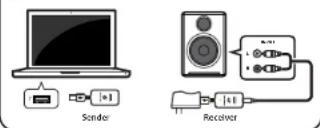
Note: If using Audioengine S+ (A5+) powered speakers the A5+ USB power port can be used to power the W3 Receiver.
1) Connect the W3 Sender to your computer's USB port.
2) For PC wait for the USB audio connection to be detected. For Mac OS, open System Preferences/Sound, select Output, then select "Audioengine W3".
3) Connect the W3 Receiver to the included power adapter and plug the adapter into a power outlet.
4) Connect a mini-jack or RCA audio cable from the W3 Receiver to your powered speaker's audio input.
5) The status indicators on the Sender and Receiver will blink briefly and then go solid, indicating that they are paired.
6) Play your music!
Note: If using W3 for USB computer audio there is no need to connect an audio cable from the W3 Sender to your computer's headphone output. Doing so may create a ground loop resulting in unwanted noise.

2 Computer to any Audio System
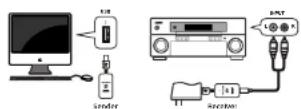
1) Follow steps 1 thru 3 above.
2) Connect the included RCA "Y" adapter interface cable to the W3 Receiver audio output.
3) Connect an RCA cable (not included) from your stereo receiver's RCA inputs to the RCA "Y" adapter.
4) The status indicators on the Sender and Receiver will blink briefly and then go solid, indicating that they are paired.
5) Play your music!

3 IDevice to Powered Speakers
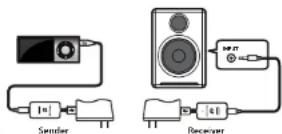
Note: If you have Audioengine 5+ powered speakers, you may use the built-in USB power/charge port on the A5+ to power the W3 Receiver. Otherwise, you can use an iPhone charger or purchase an extra Audioengine power adapter.
1) Connect the included mini-jack cable from your IDevice to the W3 Sender audio Input.
2) Connect the W3 Sender to the included power adapter and plug the adapter into a power outlet.
3) Connect the Included mini-jack cable from the W3 Receiver output to the powered speaker's audio input
4) Connect the W3 Receiver to another power adapter (1 power adapter is included, others sold separately).
5) Plug the power adapter into an AC outlet.
6) The status Indicators on the Sender and Receiver will blink briefly and then go solid, indicating that they are paired.
7) Play your music!

4 Wireless Rear Speakers and/or Subwoofer
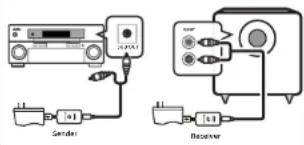
1) Connect the W3 Sender and W3 Receiver to power adapters and plug each into a power outlet.
2) Connect your surround sound AV receiver's rear channel (or subwoofer) RCA outputs to the W3 Sender input.
3) Connect the W3 Receiver to your powered rear channel speakers (or subwoofer).
4) The status indicators on the Sender and Receiver will blink briefly and then go solid, indicating that they are paired.
5) Play your music!
Note: To set up wireless rear channel speakers AND a wireless subwoofer from your surround system, simply add another W3 Sender/Receiver pair and repeat the previous instructions.
3
What's in the box Cleaning
• Wireless Audio Sender
• Wireless Audio Receiver
• (1) Power adapter
• (1) RCA adapter "Y" cable
• (2) Mini-jack (3.5mm) audio cables
- Setup Guide
Features
- Easy setup - connects in seconds
• Works with Mac or PC - or without a computer
• Plug-n-play - no software or downloads to install
• Super-compact size, no batteries required - Plays all music formats from any media player
Functional Overview
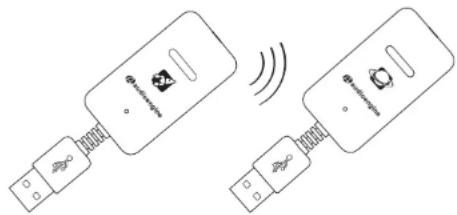
The W3 set consists of 2 dongles, the Sender and Receiver The W3 Sender connects to your computer (or any audio source) and transmits stereo sound automatically to the W3 Receiver. The Receiver can be connected to any gear with an analog audio Input, such as powered speakers, a boombox, stereo system, subwoofer, etc. You can mix-and-match different Senders and Receivers, broadcast to up to four W3 Receivers or "daisy-chain" multiple sets, which is an inexpensive way to set up a high quality, whole-house wireless music system.
Power for the devices is provided from a USB computer port for the Sender, from the included power adapter, or any adapter with a USB connector, such as an iPhone charger, for example. Another power source for the W3 Receiver is the Audioengine 5+ powered speaker system which has a built-in USB charge/power port.
Note: The W3 Sender and Receiver each have USB connectors, however only the Sender can accept USB audio from a computer. The Receiver's USB connector is simply for powering the device as USB adapters are widely-available.
Your W3 components are not water-resistant, so it's important that they should be kept free of moisture. You should clean only with a dry cloth or tissue and no liquid cleaners or solvents should be used.
• 100 ft (30m) typical range with no signal delay, dropouts, or interference
• CD-quality, 16-bit stereo sound with no added compression
• Simultaneously broadcast to up to 4 W3 Receivers
• Replaces any RCA or mini-jack (3.5mm) audio cable
The Sender and Receiver dongles look identical however you can tell them apart by these markings:

rads

revieceR
The end of each unit has an audio input or output connector, shown with these symbols:

Sender (End View)

Receiver (End View)
The symbol on the Sender (above left) with the arrow pointing inward indicates an audio input from a computer, iDevice, CD player, etc.
The symbol on the Receiver (above right) with the arrow pointing out indicates an audio output from the W3 Receiver that connects to the input of any audio system.
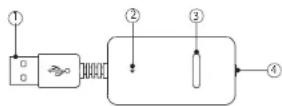
① USB connector (audio for Sender, power only for Receiver)
② Power/Pair indicator
③ Pair button
④ Audio jack (input for Sender, output for Receiver)
General Setup
Setup is really simple. The W3 Sender needs power and an audio input (either USB audio or audio into the mini-jack input on the end of the Sender). The W3 Receiver also needs power and a place to send the audio to, such as Audioengine 5+ powered speakers or any audio system.
There are many ways to use the W3 Premium Wireless Audio Adapter. Some possible configurations are listed here and a few specific examples are shown in the Configuration section. These are by no means all the possible uses - they are just shown to give ideas for your own setup.
Possible configurations:
| W3 Sender | Computer (Mac or PC) | IDevice | Digital music player | AV Receiver (rear speakers) | AV Receiver (subwoofer out) |
| W3 Receiver | AV Receiver | Powered Speakers | AV Receiver | Powered Speakers (for rear surround) | Powered Subwoofer |
2
How to Pair
Up to four W3 Receivers may be paired with one Sender, allowing the Sender to simultaneously broadcast audio to all Receivers, with no degradation of the audio signal.
W3 Sender and Receiver sets packaged together are already paired, so if you're only using one set they will remember each other and no further configuration is needed.
However, if you wish to add more Receivers, the following procedure explains how to add additional W3 Receivers to a Sender (or how to pair a Receiver to another Sender).
Pairing a Sender and Receiver:
1) Press and release the pair button on the W3 Sender and the the status indicator will blink rapidly.
2) Go to the W3 Receiver and press and release the pair button on the Receiver.
3) Both Sender and Receiver status indicators will turn solid, indicating they are now paired.
4) Repeat these steps to add additional Receivers.
Once a Sender and Receiver are paired, they will remember each other.
Troubleshooting
Here are some tips to try if your W3 is not performing as it should.
| eHb | spiT |
| Sender and/or Receiver status Indicators are not lit: | • Check that the Sender and Receiver are connected to power (from a USB port and/or power adapter). |
| Sender and Receiver status Indicators are both blinking: | • If using a computer, verify that the Sender (and not the Receiver) is connected to the computer's USB port.• Repeat the Sender/Receiver pairing process (see "How to Park" above). |
| Sender and Receiver status indicators are both solidly lit, but no audio: | • Check that the Sender is connected to the desired audio source and the Receiver's output is connected to the correct audio input.• Check that all cables are properly connected. Unplug and reconnect each to verify.• Check that your desired audio output source (into the Sender) is present.• Check that the Receiver's output is connected to the device which is powered on and working.• If connected to a computer, verify that USB Audio Device "Audioengine W3" is selected in your system (see "Configurations" #1).• If connected to a computer and using iTunes, verify that "Computer" is selected in the lower right corner of iTunes.• If using a computer, check that the Sender (not the Receiver) is connected to the computer's USB port. |
Support
If you have any questions or feel you may need service, contact us via email: support@audioengineusa.com or call toll-free in the United States: (877) 853-4447
Technical Specifications
| Item | Condition | Specification | |
| Output level | mV | 1.0V | |
| Frequency Response(1 kHz = 0 dB) | 20 Hz | dB | 0 |
| 20 kHz | dB | -0.4 | |
| THD+N | % | <0.01 | |
| Item | Condition | Specification | |
| Signal - Noise Ratio | dB | 92 | |
| Channel Separation | L > R | dB | 70 |
| R > L | dB | 70 | |
| Effective Distance (typical) | m | >30 | |
4